 Скачать презентацию ECHOLINK Overview of basic setup and operation Presented
fe7e0a977c80bb247a999db602409cbc.ppt
- Количество слайдов: 33



ECHOLINK Overview of basic setup and operation Presented by Bruce Braun – W 6 SFG
How many here know what Echolink Does?
How many here have actually used Echolink?
Description • Echo. Link® software allows licensed Amateur Radio stations to communicate with one another utilizing the Internet, as a voice-over-IP (Vo. IP) Backbone. • The program allows worldwide communication to be made between conventional VHF & UHF stations through an Echolink equipped gateway, or from a computer to a conventional VHF & UHF station, through Echolink , greatly enhancing Amateur Radio's communications capabilities. • There are more than 200, 000 validated users worldwide — in 162 — of the world's 193 nations with about 4, 000 online at any given time.
Echolink Information • In order to use the program you must be a licensed amateur radio operator and register with Echolink. • The program runs on Microsoft Windows®. • It is offered free of charge and may be downloaded. • All information on Echolink can be found at http: //echolink. org/
Additional Software Add-ons • Type K 1 XD into any web browser Echo. Answer • Type K 1 RFD into any web browser Echo. Station
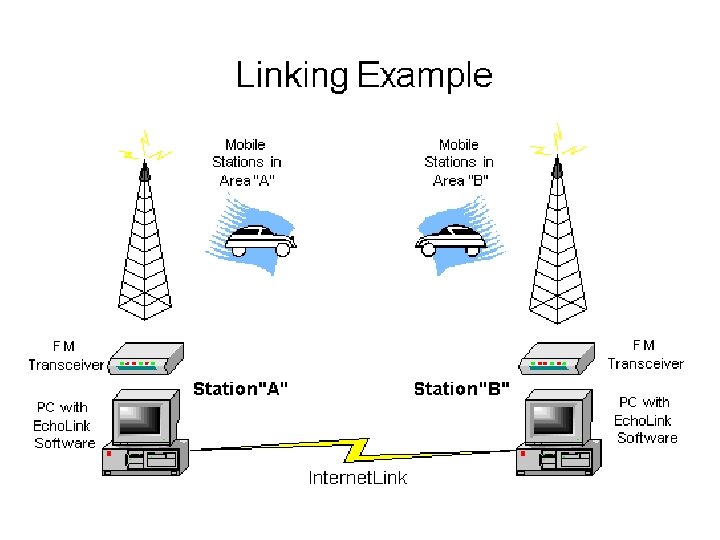
Uses for Echolink • There are several different ways you can use the Echo. Link software. You can set up a "simplex link" in your shack, with a VHF or UHF transceiver connected to your PC, which will allow any amateur in range of your station to communicate by voice with any other Echo. Link station around the world. (TT Pad needed) • Or, you can use the PC's microphone and speakers and remotely connect to more than 2, 000 different repeaters and links worldwide that have Echo. Link capability.
Echolink adds a Third Dimension • SIMPLEX on a single frequency • Mobile, Base or portable- Mobile, Base or portable • DUPLEX – using two discrete frequencies through a repeater system • Mobile, Base or Portable- Mobile, Base or Portable • An Echolink equipped Computer, Repeater or Link, provides an internet backbone to other similarly configured Echolink systems, adding a third dimension and expanding VHF and UHF Mobile, Base or Portable operation Globally!
Station List • The station-list screen keeps running tabs on who's currently on the system. Stations which have recently come on or off are noted separately. • You may sort the list any way you like. • You can set up any number of "alarms" which will sound when your favorite stations come online.
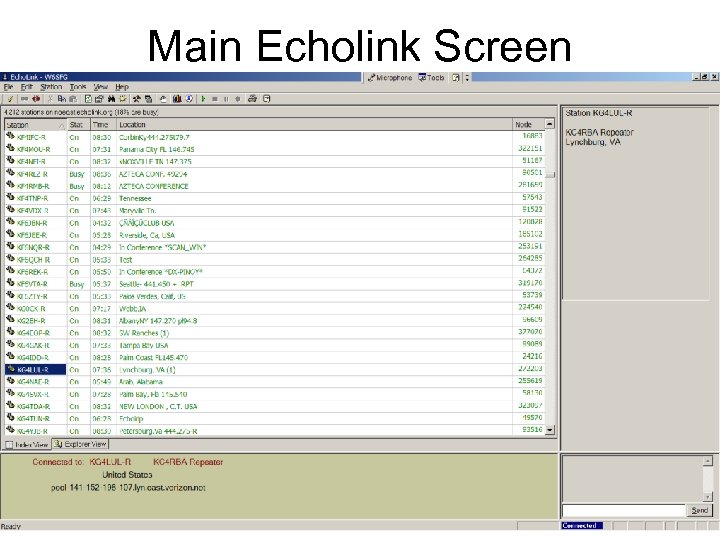
Main Echolink Screen
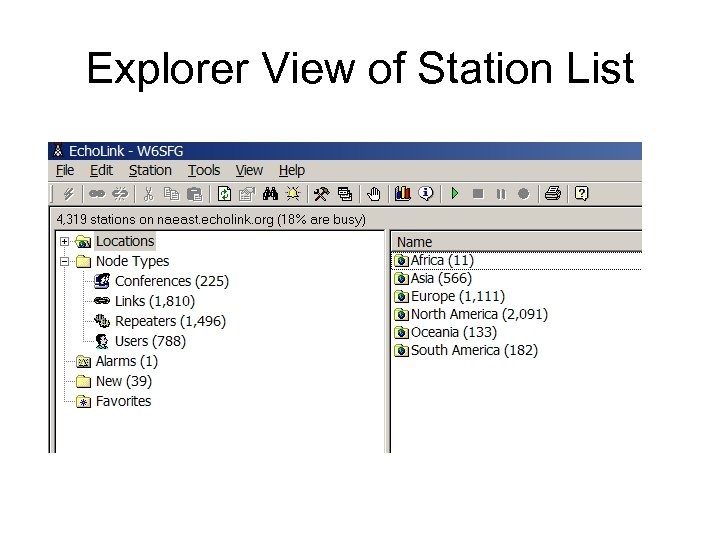
Explorer View of Station List
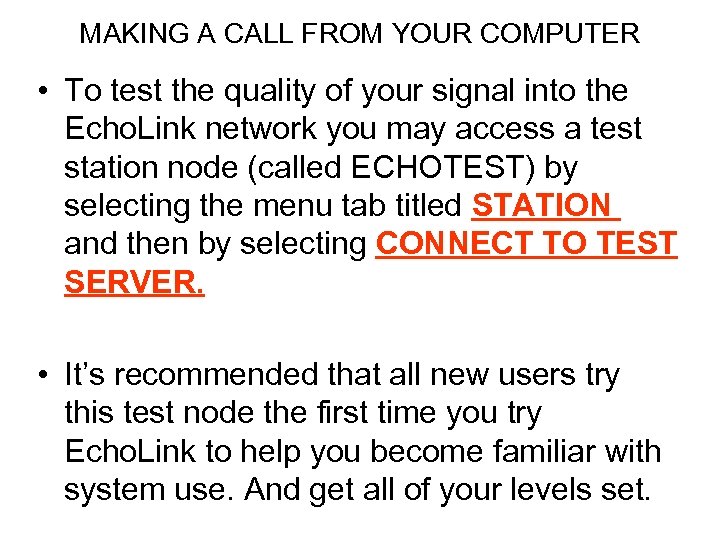
MAKING A CALL FROM YOUR COMPUTER • To test the quality of your signal into the Echo. Link network you may access a test station node (called ECHOTEST) by selecting the menu tab titled STATION and then by selecting CONNECT TO TEST SERVER. • It’s recommended that all new users try this test node the first time you try Echo. Link to help you become familiar with system use. And get all of your levels set.
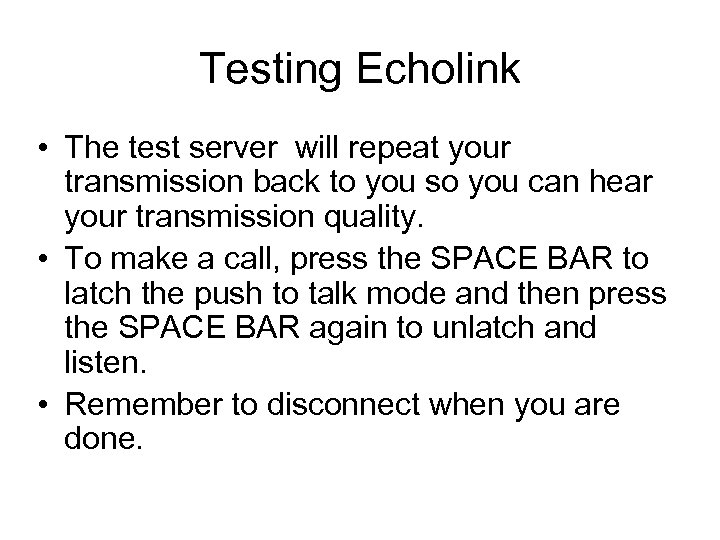
Testing Echolink • The test server will repeat your transmission back to you so you can hear your transmission quality. • To make a call, press the SPACE BAR to latch the push to talk mode and then press the SPACE BAR again to unlatch and listen. • Remember to disconnect when you are done.
Test Server Announcement
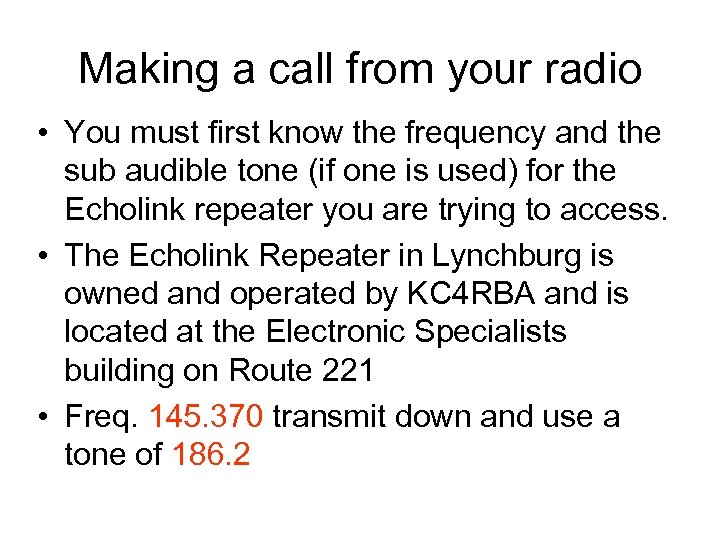
Making a call from your radio • You must first know the frequency and the sub audible tone (if one is used) for the Echolink repeater you are trying to access. • The Echolink Repeater in Lynchburg is owned and operated by KC 4 RBA and is located at the Electronic Specialists building on Route 221 • Freq. 145. 370 transmit down and use a tone of 186. 2
Make a connection to N 4 QWF • Sign on to the Echolink repeater by announcing your callsign. • Key your microphone and on your touchtone keypad enter the node number for N 4 QWF (110903) • If N 4 QWF is available the Echolink system will Identify with (Connecting to N 4 QWF) • Then you will hear CONNECTED
• You may then simply use your push to talk to communicate with N 4 QWF. • As always, when you are through with your contact you sign off with your call sign. • Remember that you are on the radio so use proper protocol. Please ID before accessing the system, and ID as normal (at least once per 10 minutes) during a QSO. • To end the QSO, transmit then press the # Pound key. . . you should hear the "disconnected" message. • Echolink should respond by announcing: DISCONNECTED
Recording a QSO • There are controls for manually or automatically for recording and playing back QSOs. • This is an automated recording of a QSO I I had with YI 1 OM on the Bagdad Iraq Echolink system. Show Recording options Tools-Setup-Audio-Recording
Connecting to other services • Echolink may be used to connect to: Repeaters, Conferences, Links and unique users at their computer. • You may use a Base Mobile or Portable radio equipped with touchtone capability to reach any of these services by simply using your touchtone pad and entering their unique node number. New England Gateway Orlando Conf Server WB 3 GXW Silver Spring Node Denial Message
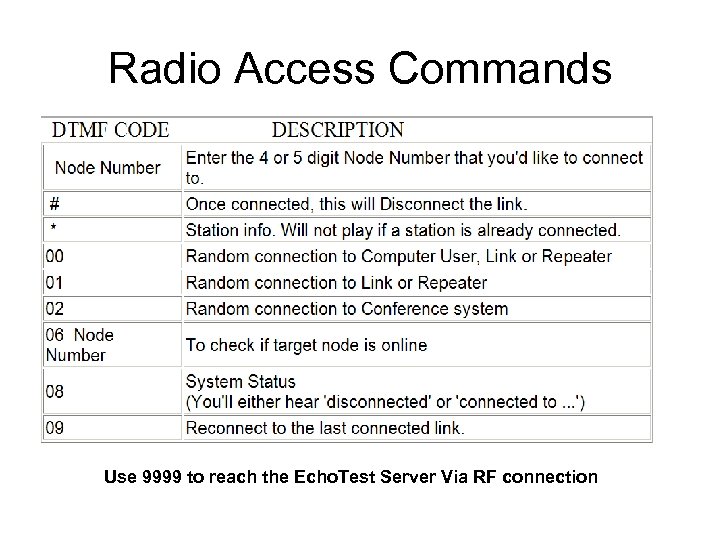
Radio Access Commands • Use 9999 to reach the Echo. Test Server Via RF connection
Setting up your home DSL Router • There is a link on the main Echolink page that gives detailed instructions on how to access the administrative panel of your home DSL Router and then another link with step by step instructions for your specific router. • This is a one time setting and should only take you between 5 & 15 minutes.
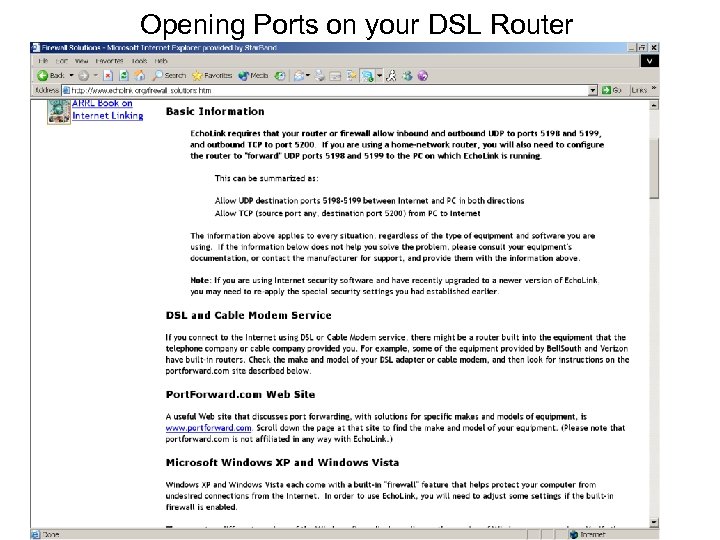
Opening Ports on your DSL Router
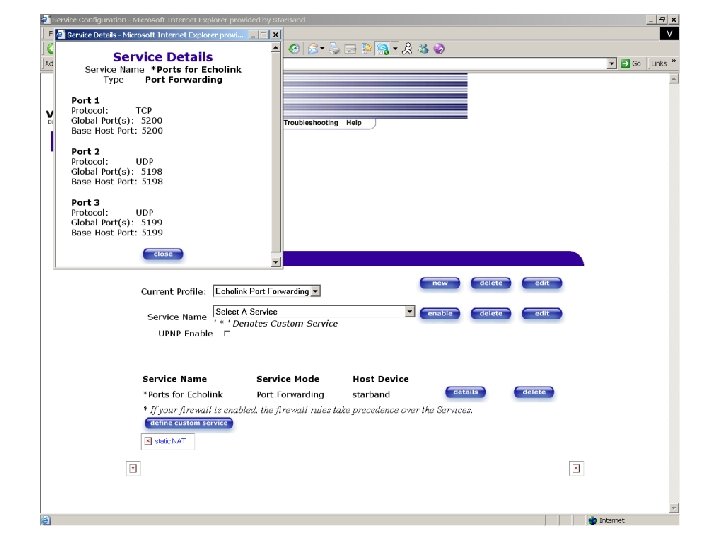
ECHOLINK INFORMATION • http: //echolink. org/ Test your router/firewall within Echolink Tools – Firewall/Router Test
Echolink Live Demo
Sample communications • Contact N 4 QWF through local computer • Contact KK 2 K through VHF Echolink Repeater • Contact KK 2 K through local computer Node 381274 • Establish 3 way conference with: KK 2 K ----N 4 QWF ---- WB 3 GXW node 147225 • (N 4 QWF on local KC 4 RBA Echolink repeater KK 2 K signed in to KC 4 RBA via his computer and WB 3 GXW through the WB 3 GXW Echolink repater in Silver Springs MD connected to The KC 4 RBA node
IRLP • This is yet another method of communicating through repeaters and remote bases on UHF, VHF and HF through the internet and VOIP (Voice over internet protocol) • Here is a great website that explains it all: http: //www. irlp. net/
Web based Transcievers and Remote Base operation through the internet known as IRB’s (Internet Remote Bases)
W 4 MQ Internet Remote Base Recipient of the ARRL Technical Innovation Award An Internet accessable 160 m through 70 cm amateur radio station Expanding amateur radio via the internet
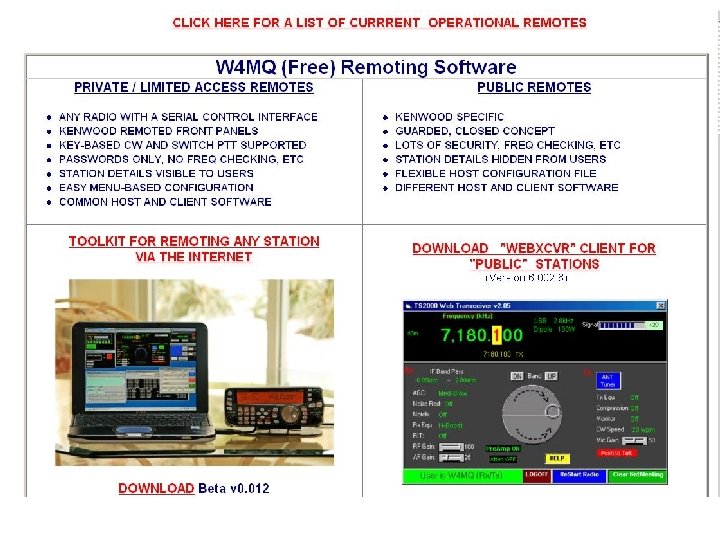
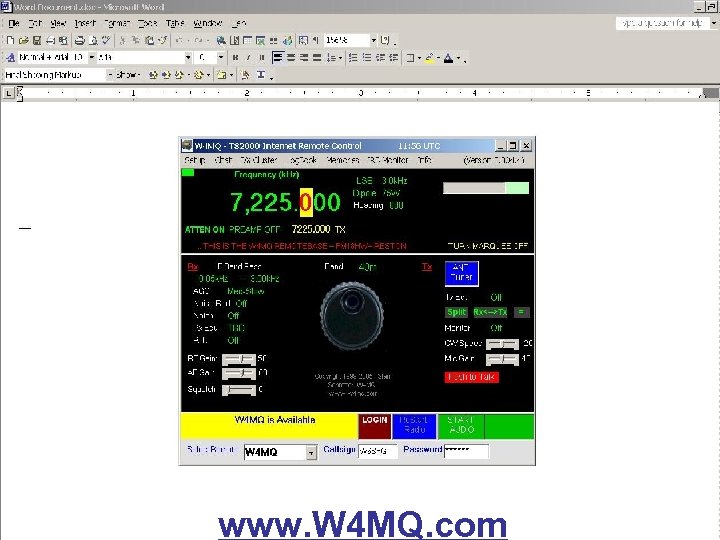
www. W 4 MQ. com

QUESTIONS
Скачать презентацию ECHOLINK Overview of basic setup and operation Presented
fe7e0a977c80bb247a999db602409cbc.ppt