


 Скачать презентацию Easy Tutorial n Quick Installation Guide n Create
4f6e93c0c3f7908fef2d5b2cb774935e.ppt
- Количество слайдов: 26
 Easy Tutorial n Quick Installation Guide n Create your 1 st Playlist
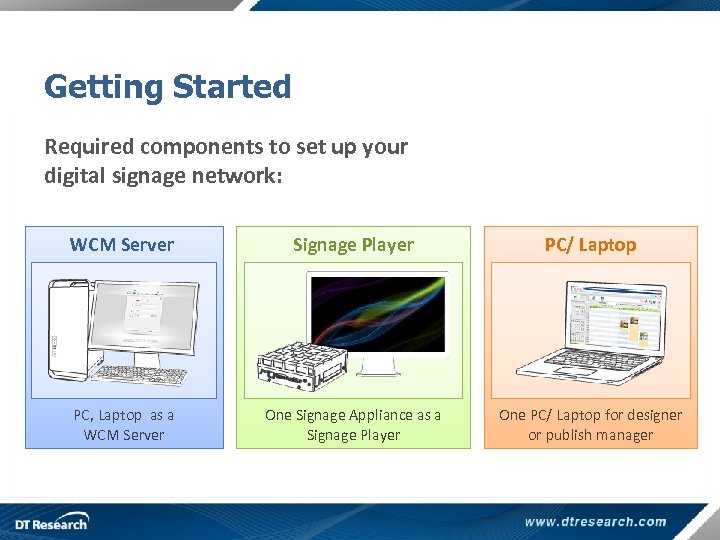 Getting Started Required components to set up your digital signage network: WCM Server Signage Player PC/ Laptop PC, Laptop as a WCM Server One Signage Appliance as a Signage Player One PC/ Laptop for designer or publish manager
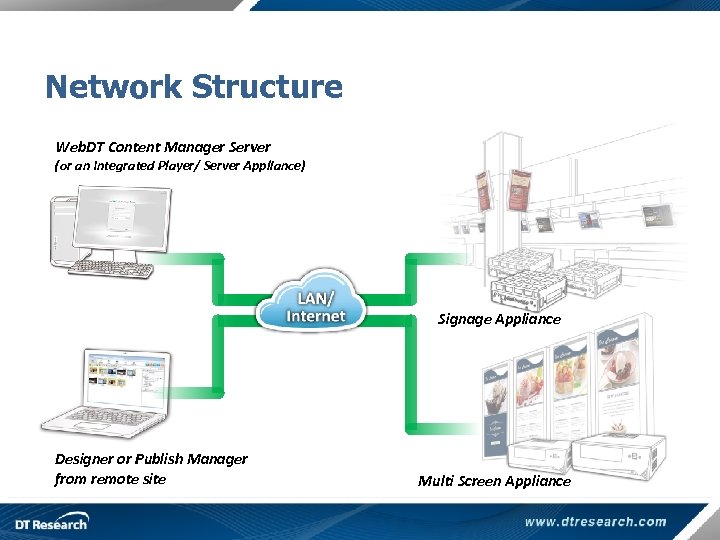 Network Structure Web. DT Content Manager Server (or an Integrated Player/ Server Appliance) Signage Appliance Designer or Publish Manager from remote site Multi Screen Appliance
 WCM Server Installation
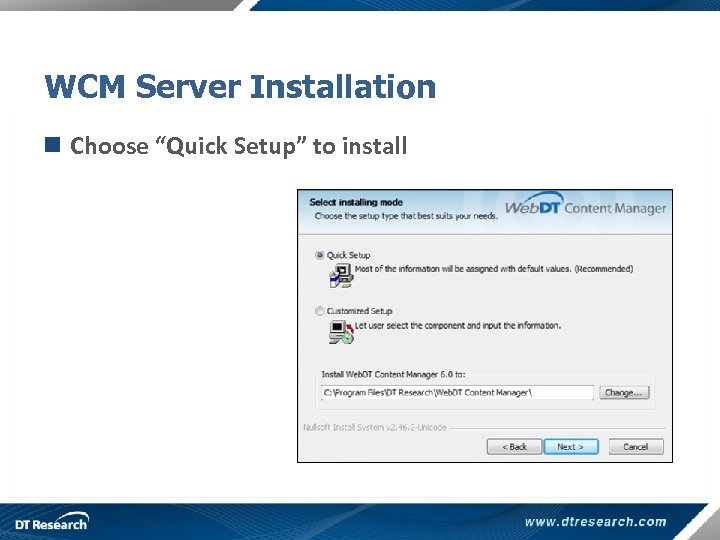 WCM Server Installation n Choose “Quick Setup” to install
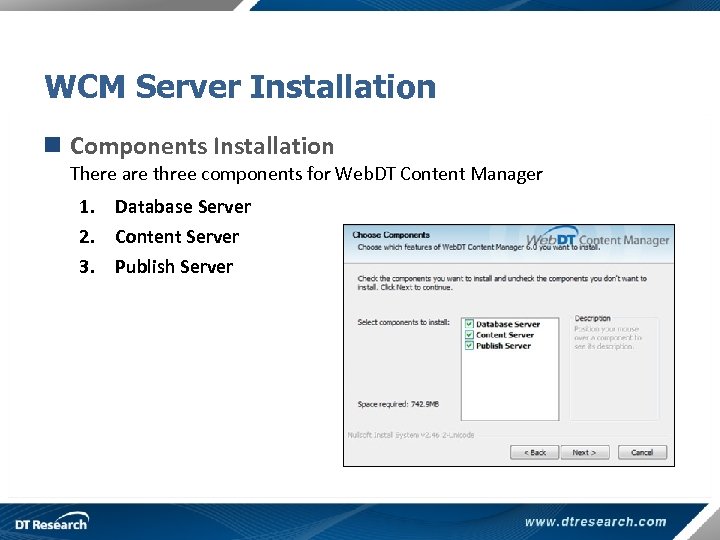 WCM Server Installation n Components Installation There are three components for Web. DT Content Manager 1. Database Server 2. Content Server 3. Publish Server
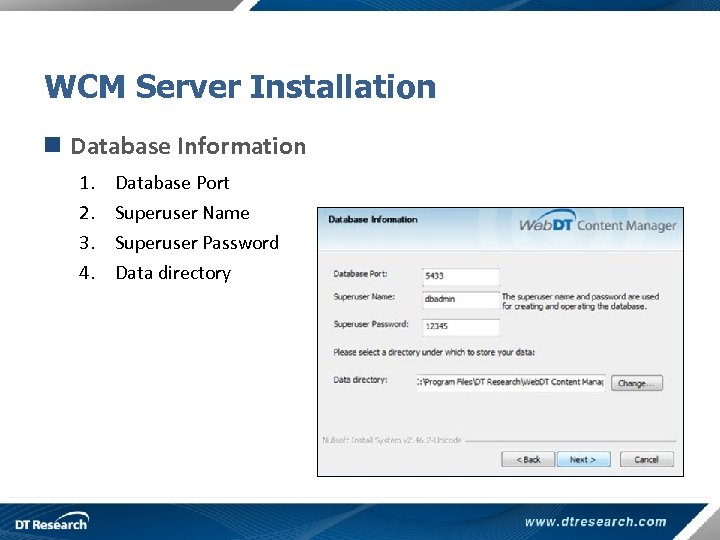 WCM Server Installation n Database Information 1. 2. 3. 4. Database Port Superuser Name Superuser Password Data directory
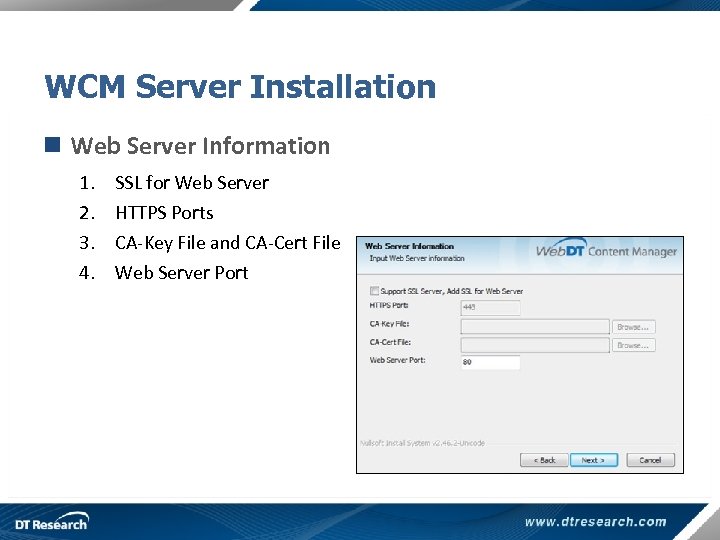 WCM Server Installation n Web Server Information 1. 2. 3. 4. SSL for Web Server HTTPS Ports CA-Key File and CA-Cert File Web Server Port
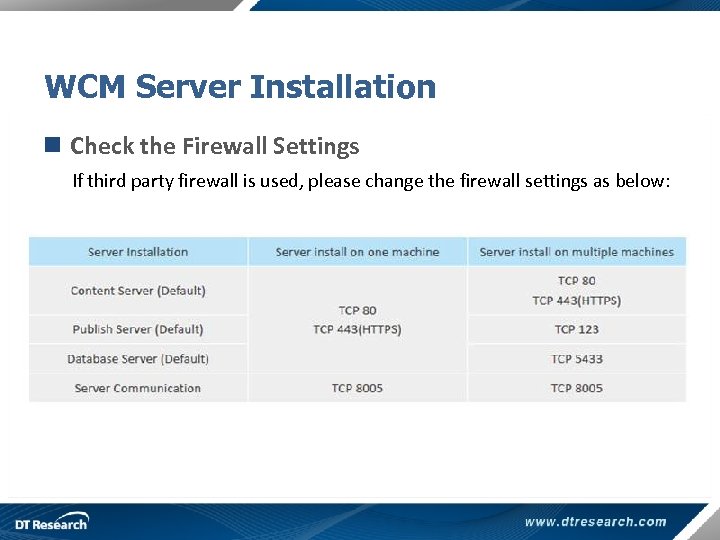 WCM Server Installation n Check the Firewall Settings If third party firewall is used, please change the firewall settings as below:
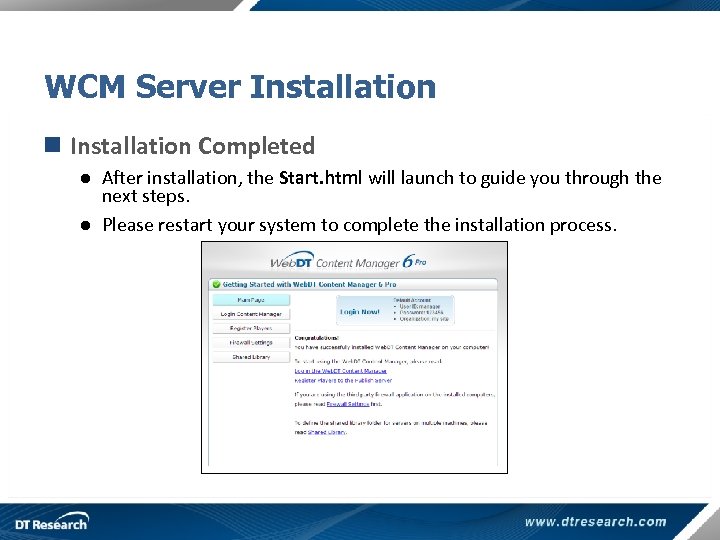 WCM Server Installation n Installation Completed ● After installation, the Start. html will launch to guide you through the next steps. ● Please restart your system to complete the installation process.
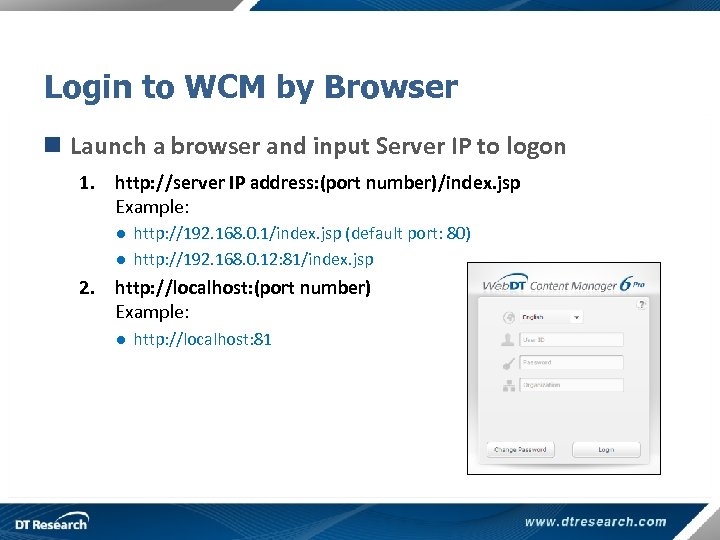 Login to WCM by Browser n Launch a browser and input Server IP to logon 1. http: //server IP address: (port number)/index. jsp Example: ● http: //192. 168. 0. 1/index. jsp (default port: 80) ● http: //192. 168. 0. 12: 81/index. jsp 2. http: //localhost: (port number) Example: ● http: //localhost: 81
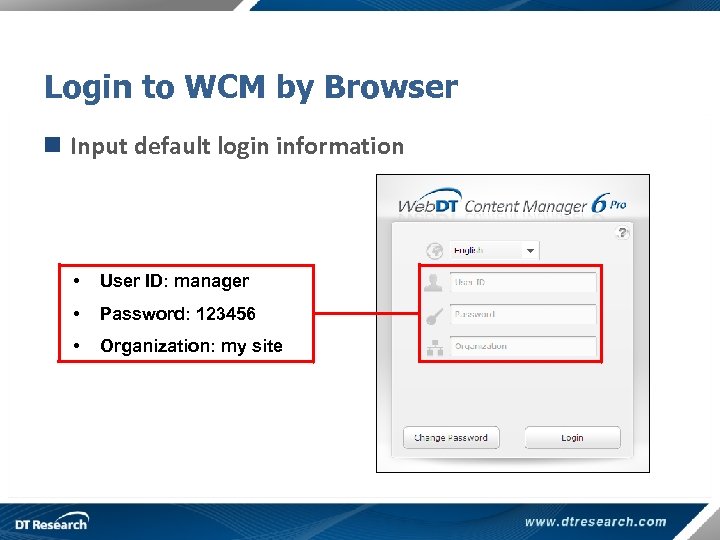 Login to WCM by Browser n Input default login information • User ID: manager • Password: 123456 • Organization: my site
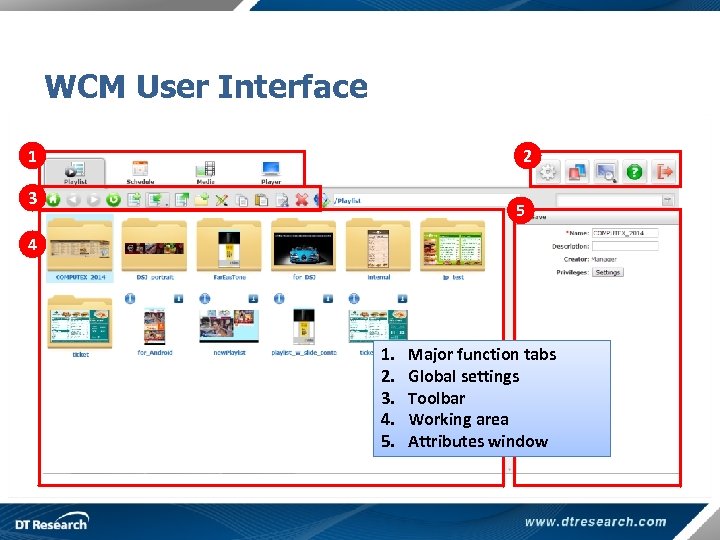 WCM User Interface 1 2 3 5 4 1. 2. 3. 4. 5. Major function tabs Global settings Toolbar Working area Attributes window
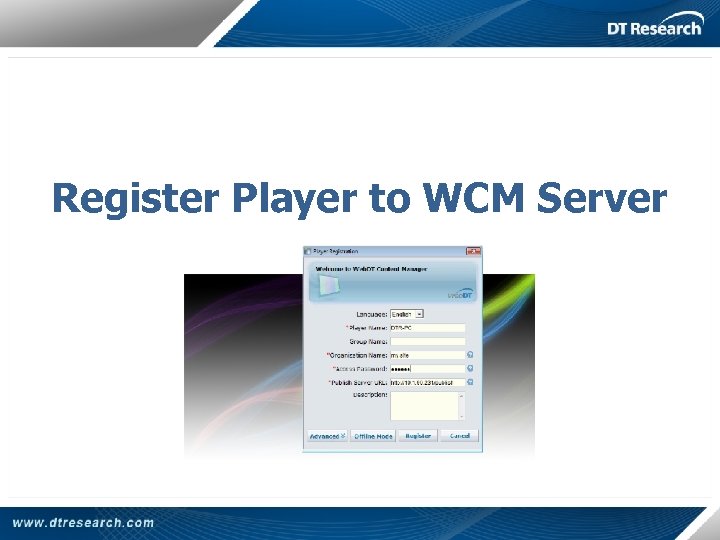 Register Player to WCM Server
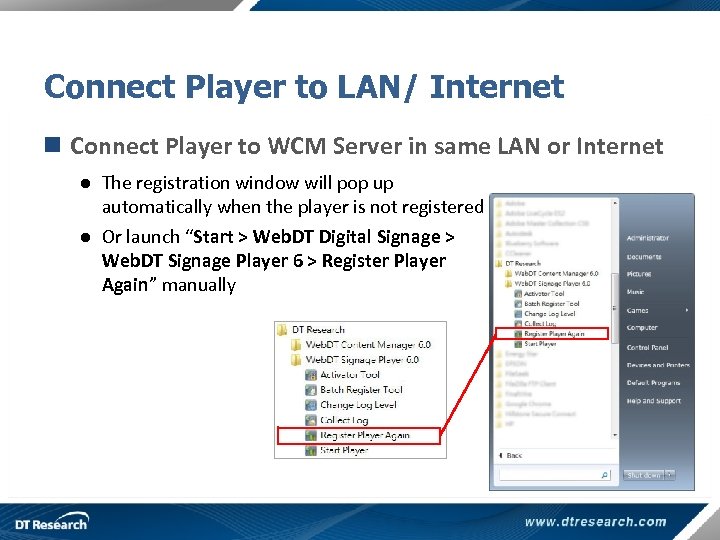 Connect Player to LAN/ Internet n Connect Player to WCM Server in same LAN or Internet ● The registration window will pop up automatically when the player is not registered ● Or launch “Start > Web. DT Digital Signage > Web. DT Signage Player 6 > Register Player Again” manually
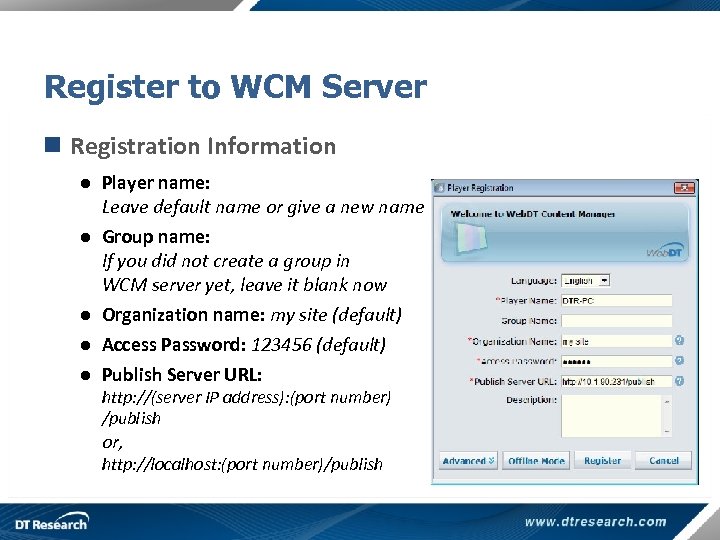 Register to WCM Server n Registration Information ● Player name: Leave default name or give a new name ● Group name: If you did not create a group in WCM server yet, leave it blank now ● Organization name: my site (default) ● Access Password: 123456 (default) ● Publish Server URL: http: //(server IP address): (port number) /publish or, http: //localhost: (port number)/publish
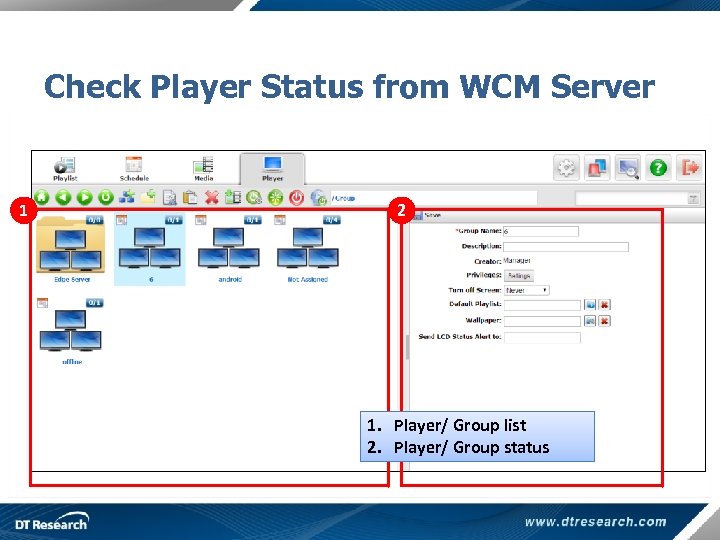 Check Player Status from WCM Server 1 2 1. Player/ Group list 2. Player/ Group status
 Create a new Playlist with Downloaded Templates
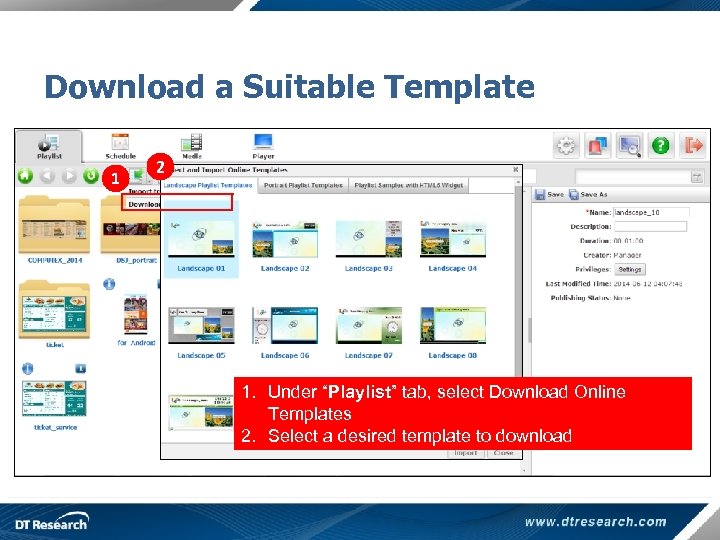 Download a Suitable Template 1 2 1. Under “Playlist” tab, select Download Online Templates 2. Select a desired template to download
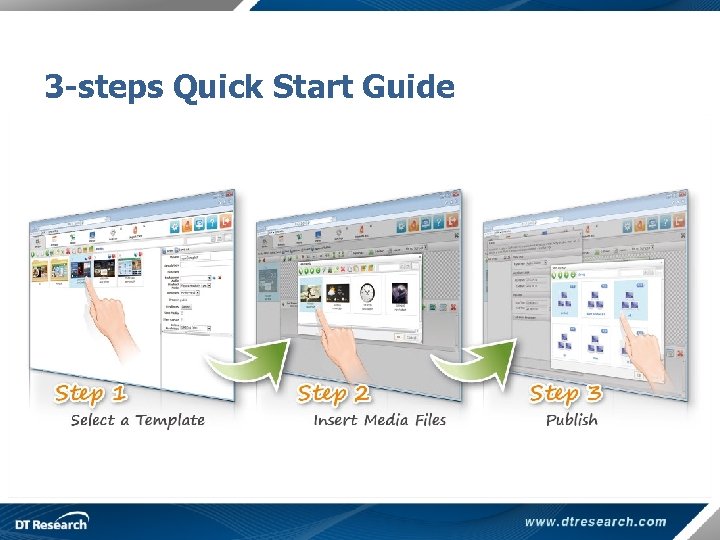 3 -steps Quick Start Guide
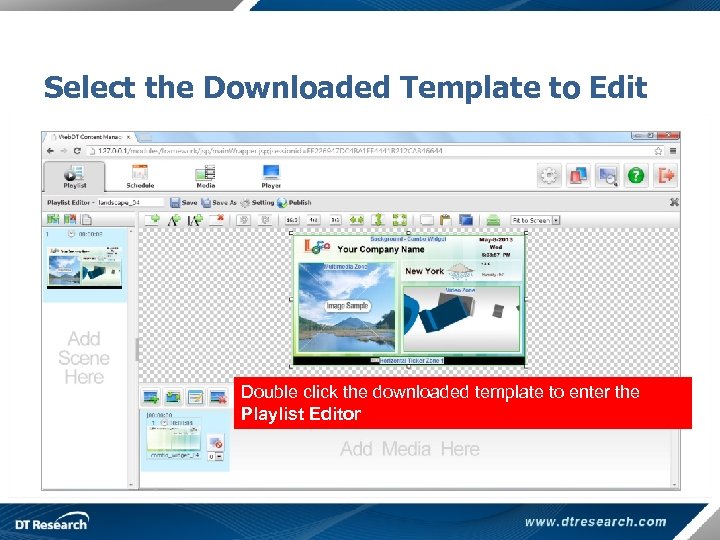 Select the Downloaded Template to Edit Double click the downloaded template to enter the Playlist Editor
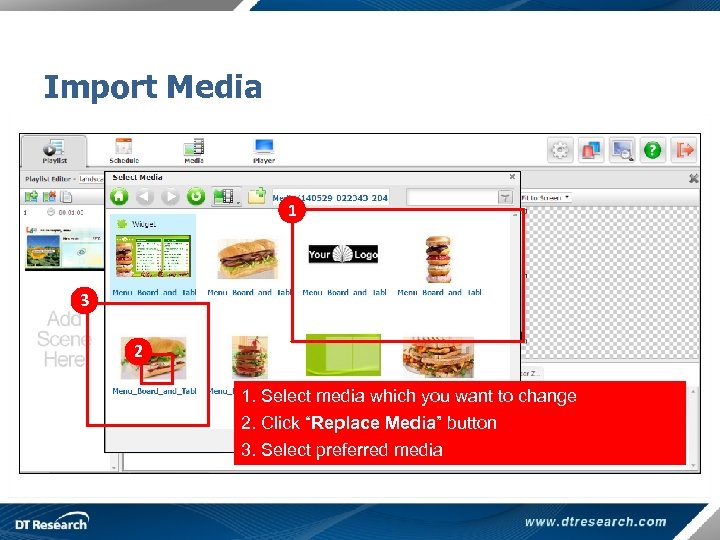 Import Media 1 3 2 1. Select media which you want to change 2. Click “Replace Media” button 3. Select preferred media
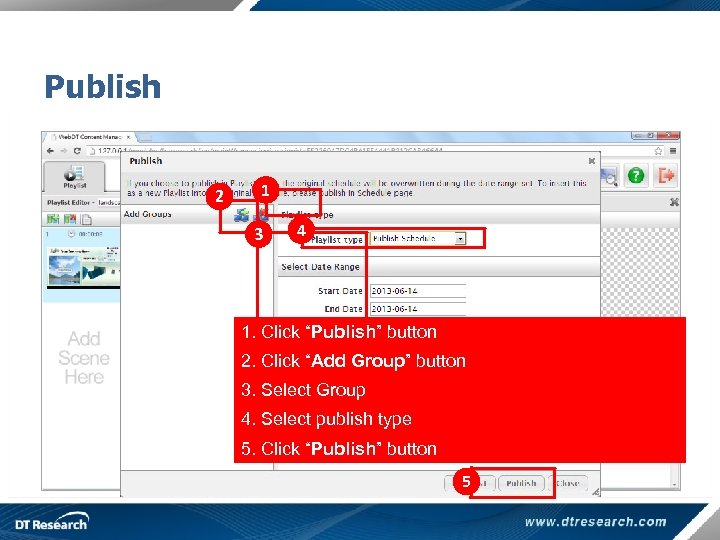 Publish 2 1 3 4 1. Click “Publish” button 2. Click “Add Group” button 3. Select Group 4. Select publish type 5. Click “Publish” button 5
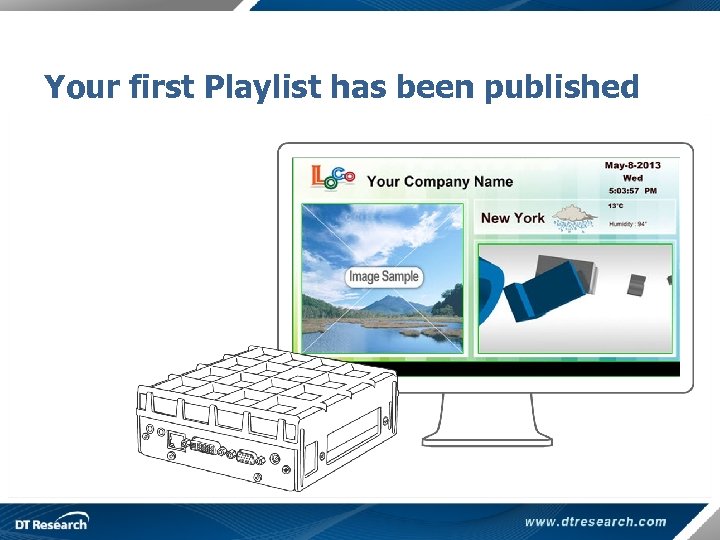 Your first Playlist has been published
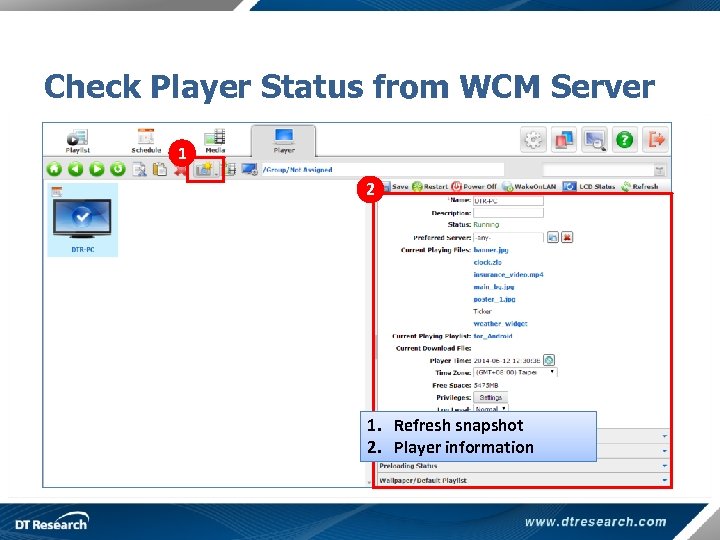 Check Player Status from WCM Server 1 2 1. Refresh snapshot 2. Player information
 You have completed your 1 st Playlist Visit WCM Online Tutorial to learn more http: //www. signage. dtri. com/wcm 6/tutorial. html