 Скачать презентацию e School Data Basic Overview Presented by Ingrid
7c5a2c87ed178d45e532a5422e1b05a7.ppt
- Количество слайдов: 33



e. School. Data Basic Overview Presented by: Ingrid Schucht 9/15/2011 Senior Office Application Specialist ESBOCES Modified 9/9/11 1
Course Objectives for the Basic Overview module: • • Getting Started – Navigating the System Accessing Student Information from the Student Profile Viewing Report Cards, Progress Reports, Transcripts, etc. Utilizing the Phone and Guidance Journal Export Data to Excel Printing Labels, Class Lists and Student Schedules Generating Enrollment, Attendance and other Reports 2
Basic Overview e. School. Data Part 1 – Getting Started 3
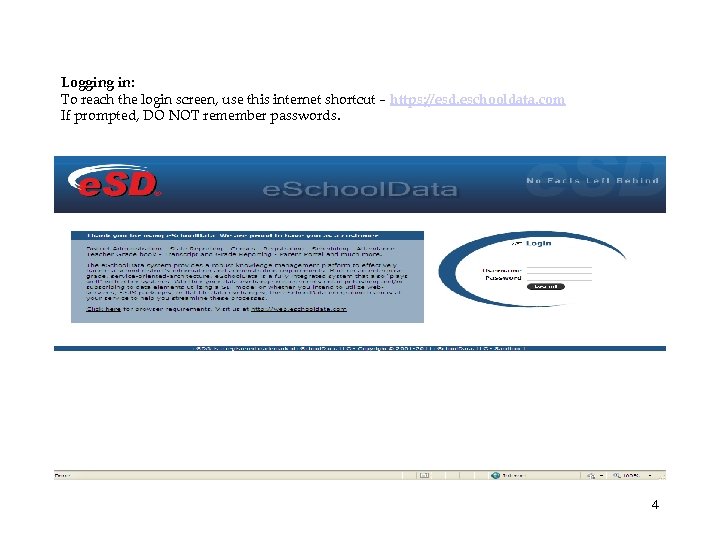
Logging in: To reach the login screen, use this internet shortcut – https: //esd. eschooldata. com If prompted, DO NOT remember passwords. Enter Username and Password here 4
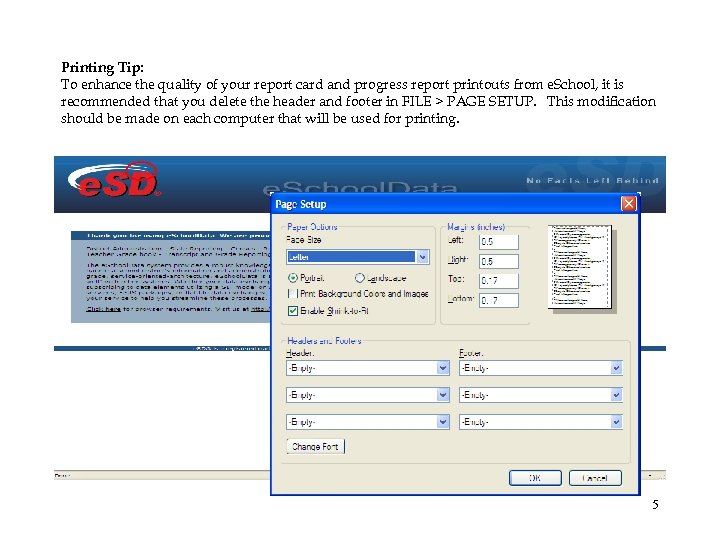
Printing Tip: To enhance the quality of your report card and progress report printouts from e. School, it is recommended that you delete the header and footer in FILE > PAGE SETUP. This modification should be made on each computer that will be used for printing. 5
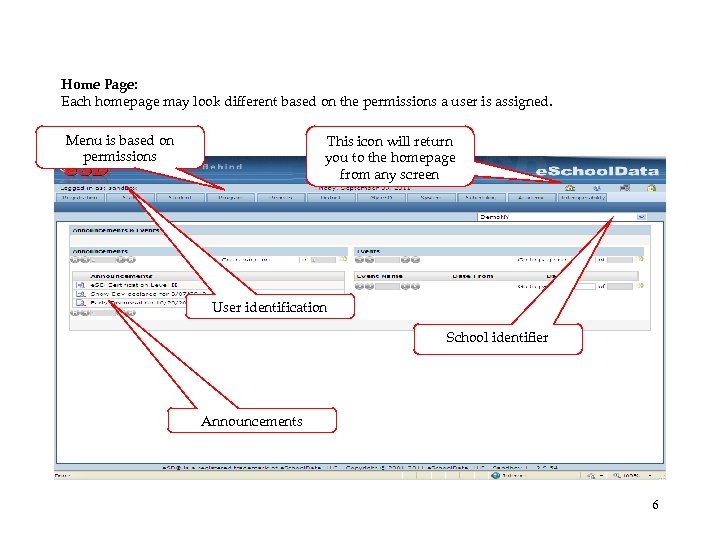
Home Page: Each homepage may look different based on the permissions a user is assigned. Menu is based on permissions This icon will return you to the homepage from any screen User identification School identifier Announcements 6
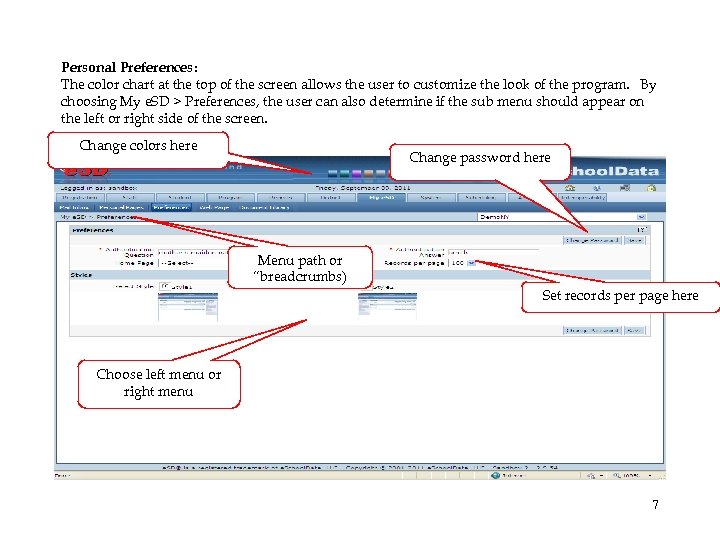
Personal Preferences: The color chart at the top of the screen allows the user to customize the look of the program. By choosing My e. SD > Preferences, the user can also determine if the sub menu should appear on the left or right side of the screen. Change colors here Change password here Menu path or “breadcrumbs) Set records per page here Choose left menu or right menu 7
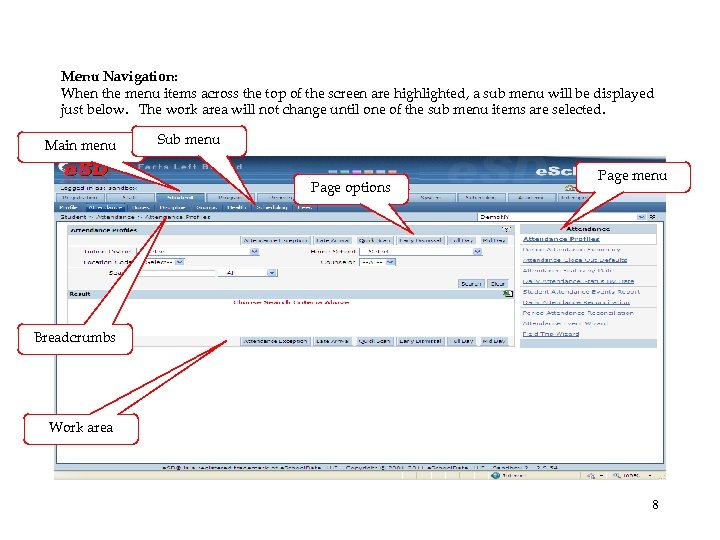
Menu Navigation: When the menu items across the top of the screen are highlighted, a sub menu will be displayed just below. The work area will not change until one of the sub menu items are selected. Main menu Sub menu Page options Page menu Breadcrumbs Work area 8
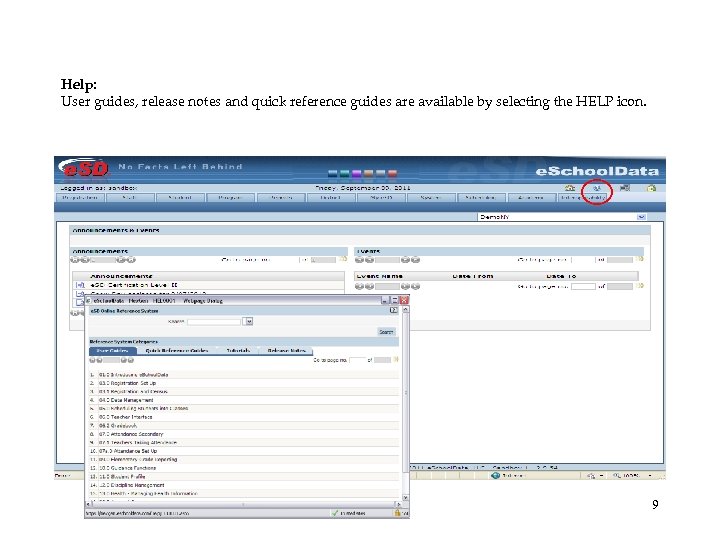
Help: User guides, release notes and quick reference guides are available by selecting the HELP icon. 9
Basic Overview e. School. Data Part 2 – Student Profile 10
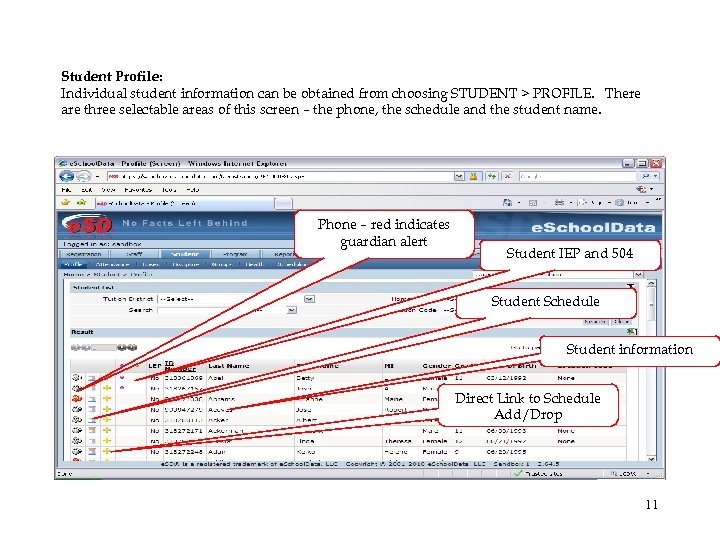
Student Profile: Individual student information can be obtained from choosing STUDENT > PROFILE. There are three selectable areas of this screen – the phone, the schedule and the student name. Phone – red indicates guardian alert Student IEP and 504 Student Schedule Student information Direct Link to Schedule Add/Drop 11
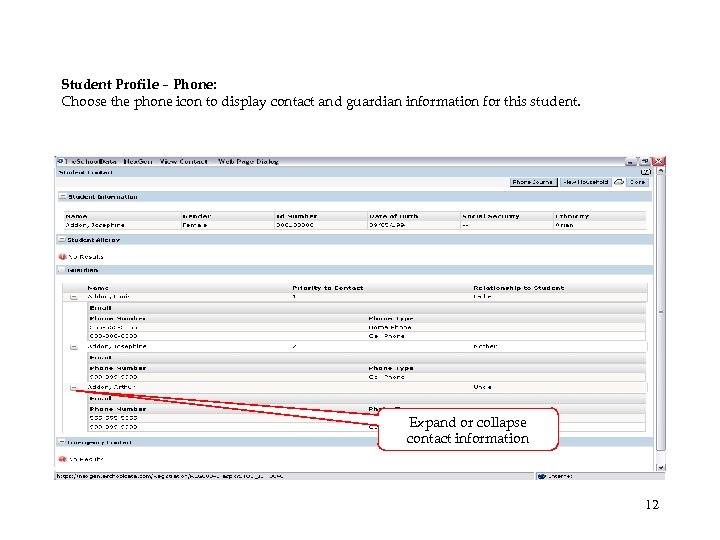
Student Profile – Phone: Choose the phone icon to display contact and guardian information for this student. Expand or collapse contact information 12
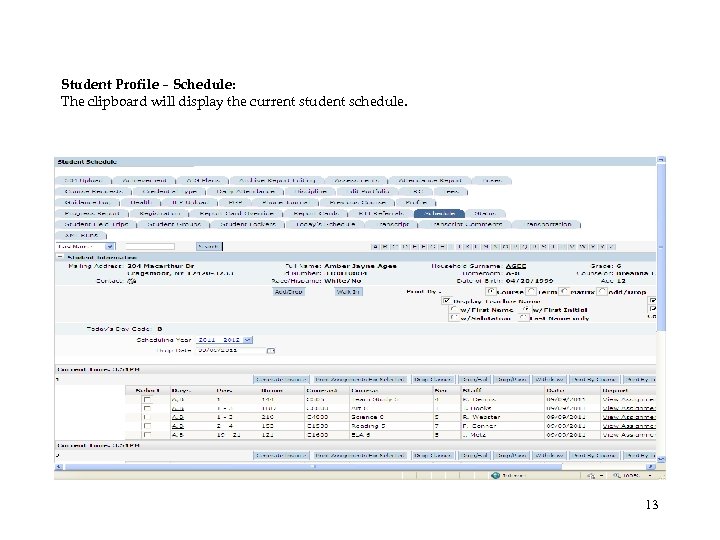
Student Profile – Schedule: The clipboard will display the current student schedule. 13
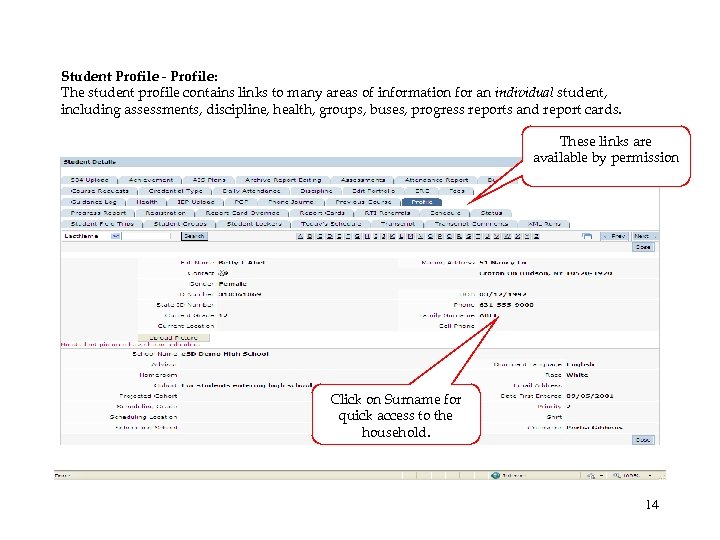
Student Profile - Profile: The student profile contains links to many areas of information for an individual student, including assessments, discipline, health, groups, buses, progress reports and report cards. These links are available by permission Click on Surname for quick access to the household. 14
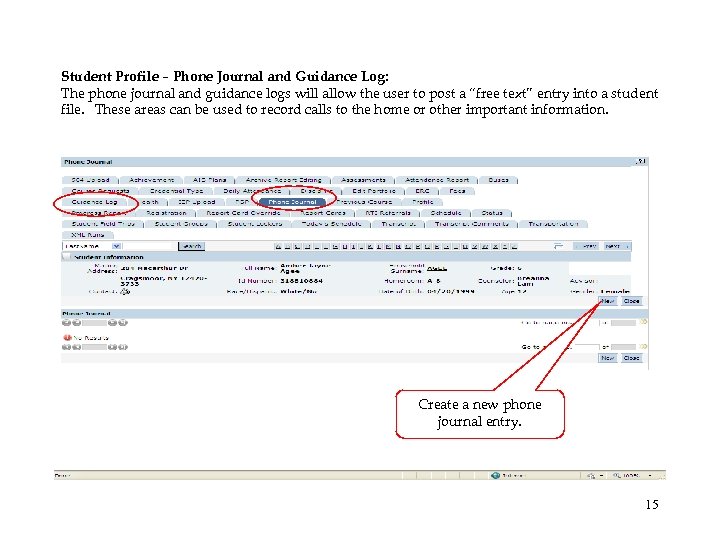
Student Profile – Phone Journal and Guidance Log: The phone journal and guidance logs will allow the user to post a “free text” entry into a student file. These areas can be used to record calls to the home or other important information. Create a new phone journal entry. 15
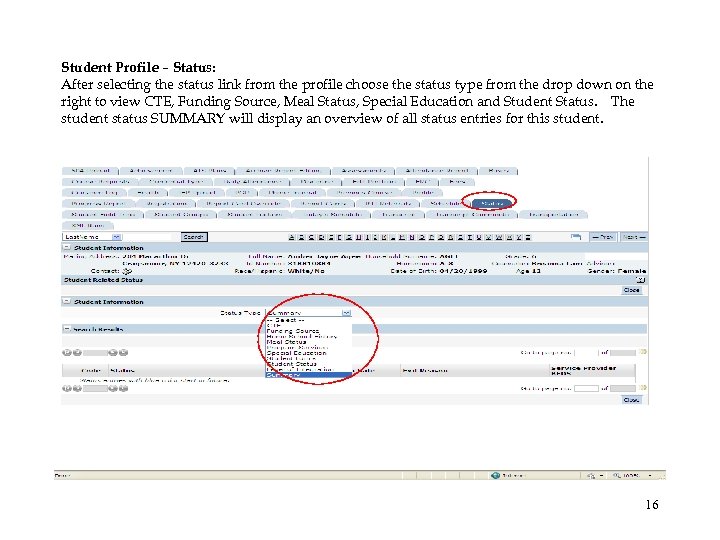
Student Profile – Status: After selecting the status link from the profile choose the status type from the drop down on the right to view CTE, Funding Source, Meal Status, Special Education and Student Status. The student status SUMMARY will display an overview of all status entries for this student. 16
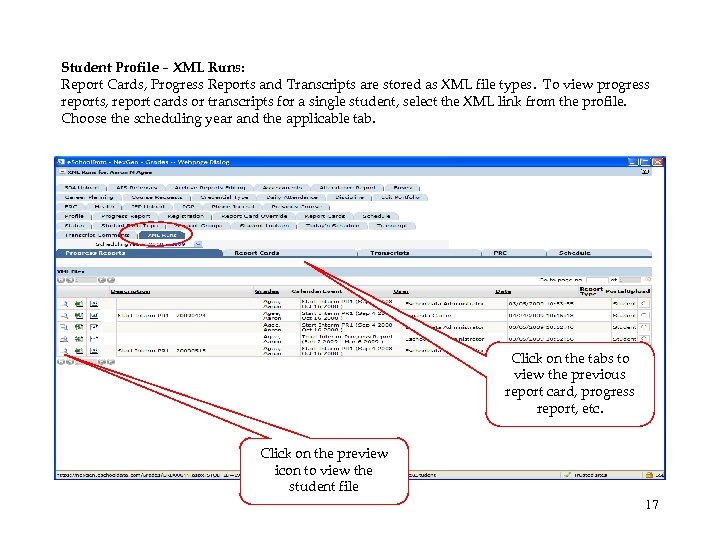
Student Profile – XML Runs: Report Cards, Progress Reports and Transcripts are stored as XML file types. To view progress reports, report cards or transcripts for a single student, select the XML link from the profile. Choose the scheduling year and the applicable tab. Click on the tabs to view the previous report card, progress report, etc. Click on the preview icon to view the student file 17
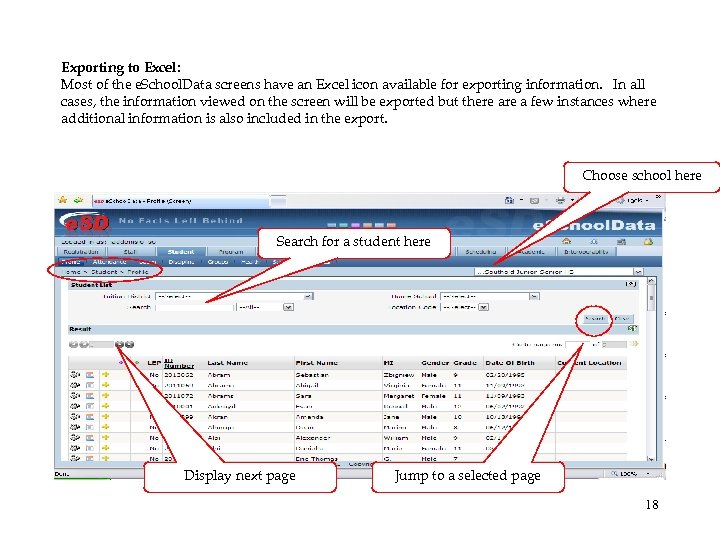
Exporting to Excel: Most of the e. School. Data screens have an Excel icon available for exporting information. In all cases, the information viewed on the screen will be exported but there a few instances where additional information is also included in the export. Choose school here Search for a student here Display next page Jump to a selected page 18
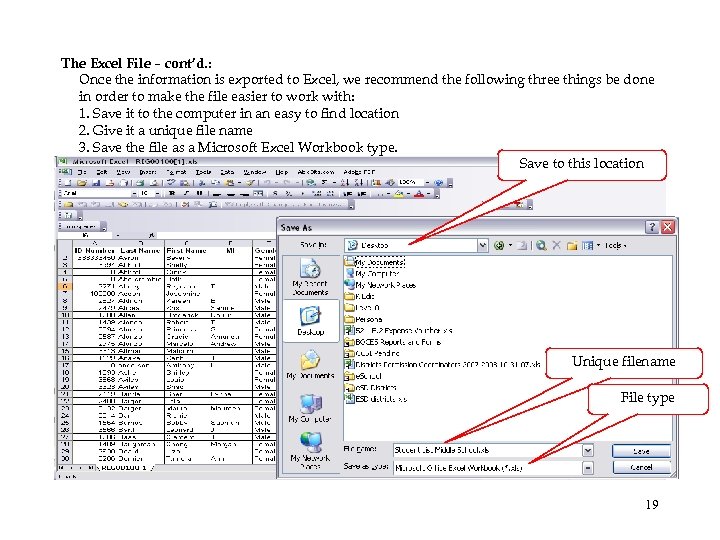
The Excel File – cont’d. : Once the information is exported to Excel, we recommend the following three things be done in order to make the file easier to work with: 1. Save it to the computer in an easy to find location 2. Give it a unique file name 3. Save the file as a Microsoft Excel Workbook type. Save to this location Unique filename File type 19
Basic Overview e. School. Data Part 3 –Reports 20
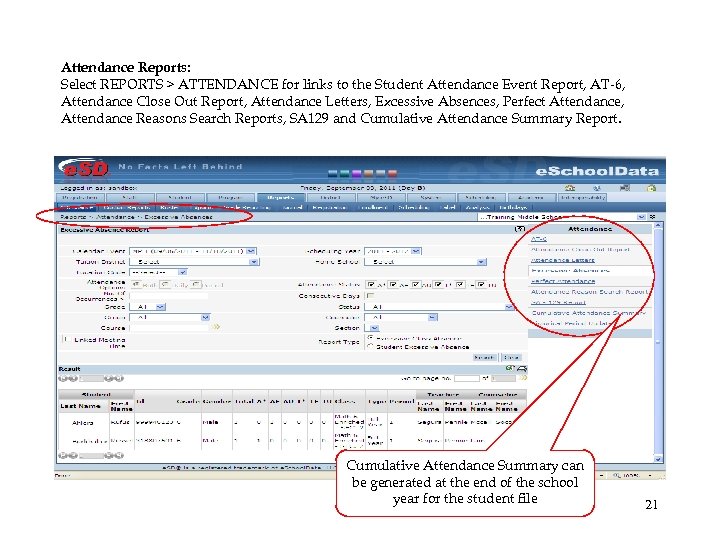
Attendance Reports: Select REPORTS > ATTENDANCE for links to the Student Attendance Event Report, AT-6, Attendance Close Out Report, Attendance Letters, Excessive Absences, Perfect Attendance, Attendance Reasons Search Reports, SA 129 and Cumulative Attendance Summary Report. Cumulative Attendance Summary can be generated at the end of the school year for the student file 21
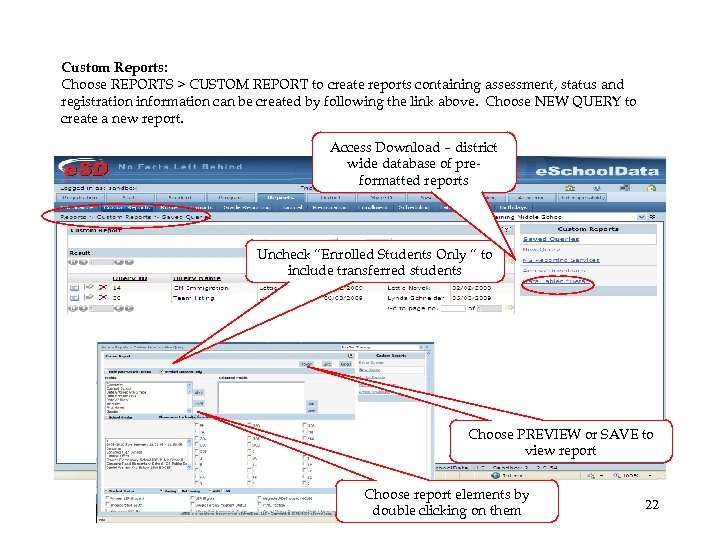
Custom Reports: Choose REPORTS > CUSTOM REPORT to create reports containing assessment, status and registration information can be created by following the link above. Choose NEW QUERY to create a new report. Access Download – district wide database of preformatted reports Uncheck “Enrolled Students Only “ to include transferred students Choose PREVIEW or SAVE to view report Choose report elements by double clicking on them 22
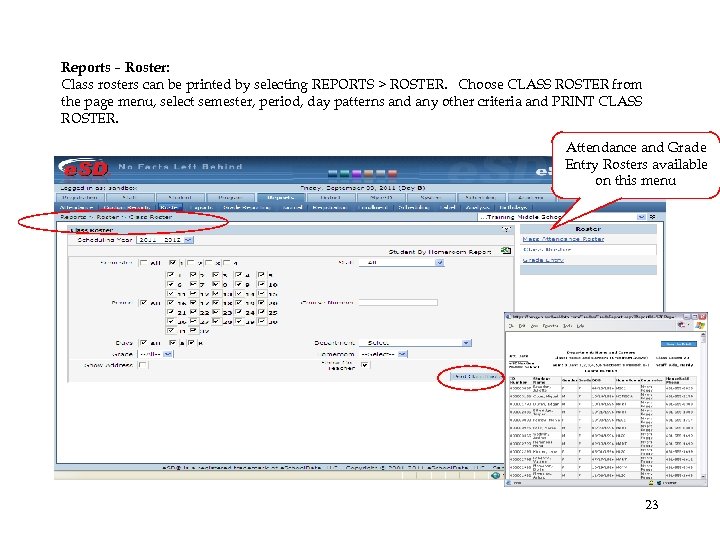
Reports – Roster: Class rosters can be printed by selecting REPORTS > ROSTER. Choose CLASS ROSTER from the page menu, select semester, period, day patterns and any other criteria and PRINT CLASS ROSTER. Attendance and Grade Entry Rosters available on this menu 23
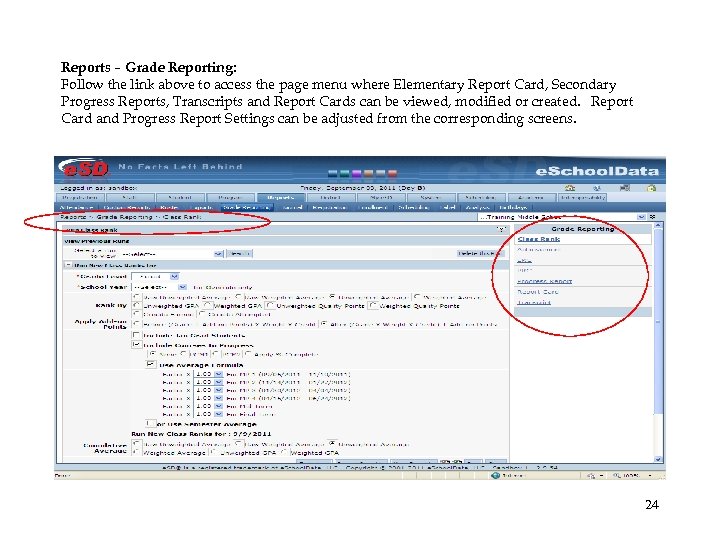
Reports – Grade Reporting: Follow the link above to access the page menu where Elementary Report Card, Secondary Progress Reports, Transcripts and Report Cards can be viewed, modified or created. Report Card and Progress Report Settings can be adjusted from the corresponding screens. 24
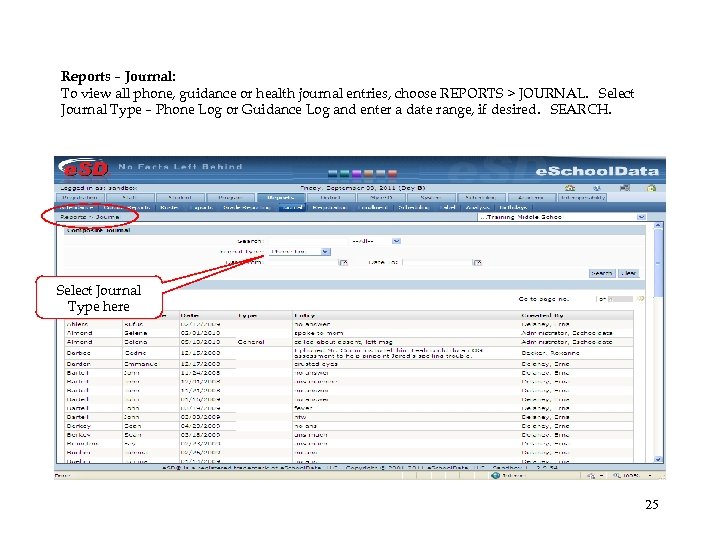
Reports – Journal: To view all phone, guidance or health journal entries, choose REPORTS > JOURNAL. Select Journal Type – Phone Log or Guidance Log and enter a date range, if desired. SEARCH. Select Journal Type here 25
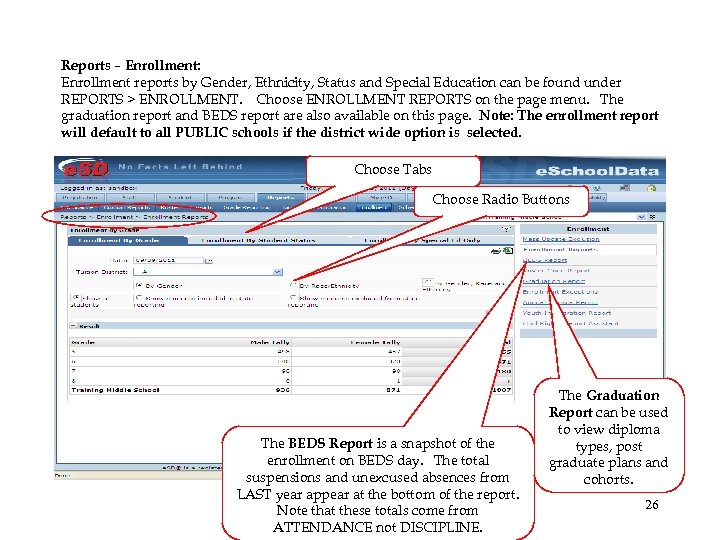
Reports – Enrollment: Enrollment reports by Gender, Ethnicity, Status and Special Education can be found under REPORTS > ENROLLMENT. Choose ENROLLMENT REPORTS on the page menu. The graduation report and BEDS report are also available on this page. Note: The enrollment report will default to all PUBLIC schools if the district wide option is selected. Choose Tabs Choose Radio Buttons The BEDS Report is a snapshot of the enrollment on BEDS day. The total suspensions and unexcused absences from LAST year appear at the bottom of the report. Note that these totals come from ATTENDANCE not DISCIPLINE. The Graduation Report can be used to view diploma types, post graduate plans and cohorts. 26
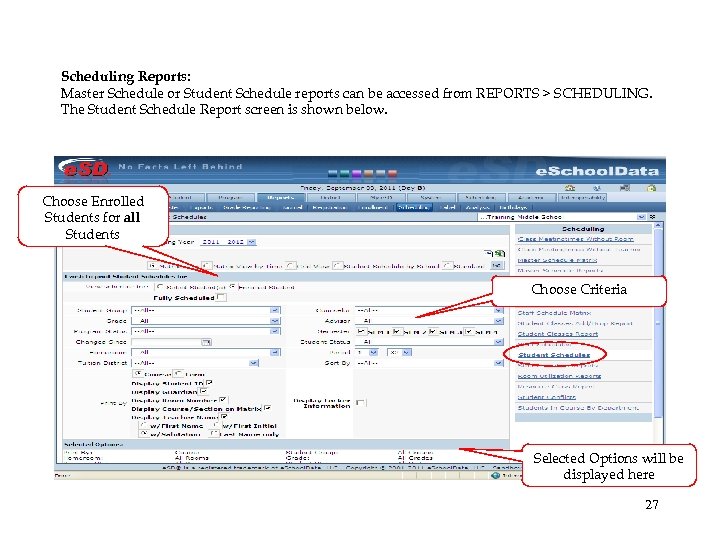
Scheduling Reports: Master Schedule or Student Schedule reports can be accessed from REPORTS > SCHEDULING. The Student Schedule Report screen is shown below. Choose Enrolled Students for all Students Choose Criteria Selected Options will be displayed here 27
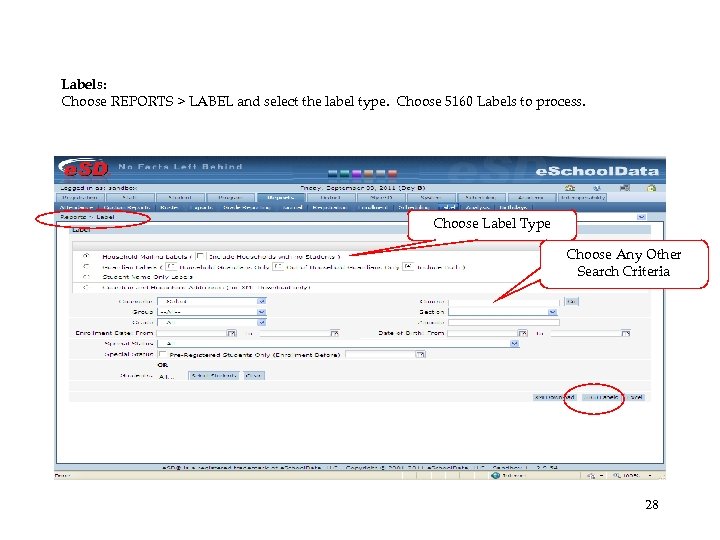
Labels: Choose REPORTS > LABEL and select the label type. Choose 5160 Labels to process. Choose Label Type Choose Any Other Search Criteria 28
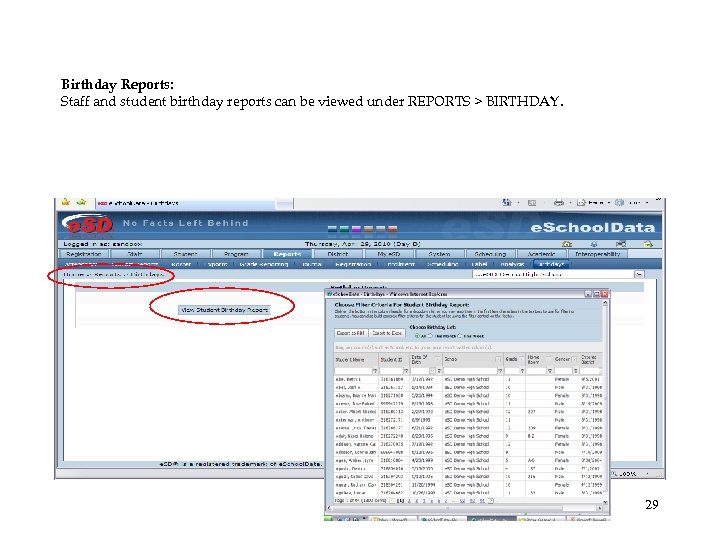
Birthday Reports: Staff and student birthday reports can be viewed under REPORTS > BIRTHDAY. 29
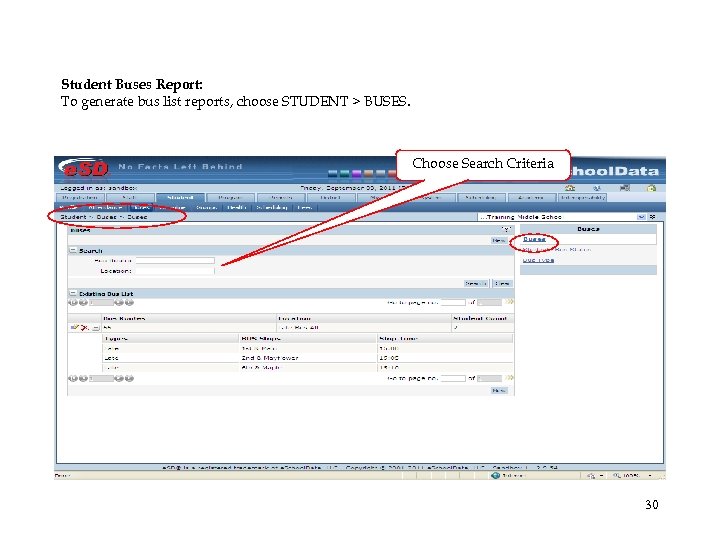
Student Buses Report: To generate bus list reports, choose STUDENT > BUSES. Choose Search Criteria 30
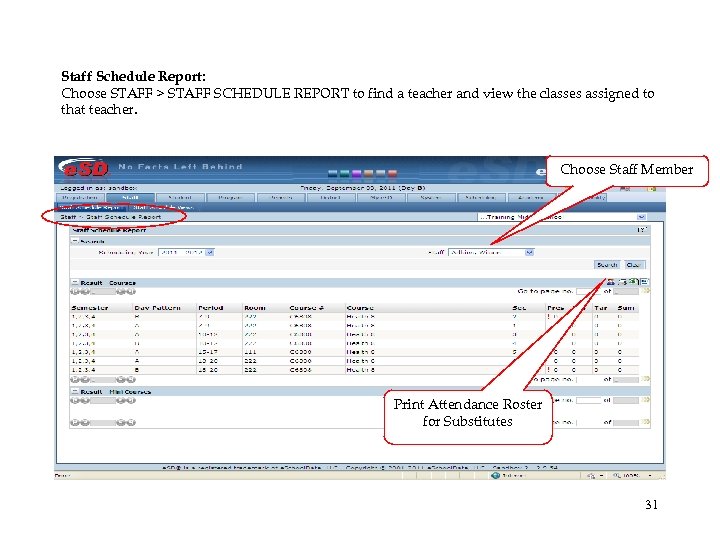
Staff Schedule Report: Choose STAFF > STAFF SCHEDULE REPORT to find a teacher and view the classes assigned to that teacher. Choose Staff Member Print Attendance Roster for Substitutes 31
Congratulations! You have completed the Basic Overview module. You should now be able to: • Navigate the e. School Program • Access Student Information from the Student Profile • Utilize the Phone and Guidance Journals • Export Data to Excel • Print Labels, Class Lists and Student Schedules • Generate Enrollment, Attendance and other Reports *** View a complete list of e. SD icons in the Getting Started guide available via the help (? ) icon. 32
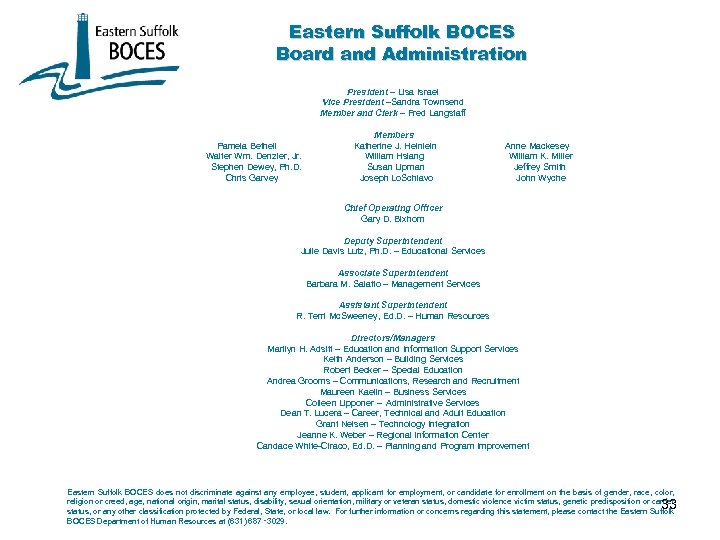
Eastern Suffolk BOCES Board and Administration President – Lisa Israel Vice President –Sandra Townsend Member and Clerk – Fred Langstaff Members Pamela Betheil Katherine J. Heinlein Walter Wm. Denzler, Jr. William Hsiang Stephen Dewey, Ph. D. Susan Lipman Chris Garvey Joseph Lo. Schiavo Chief Operating Officer Gary D. Bixhorn Anne Mackesey William K. Miller Jeffrey Smith John Wyche Deputy Superintendent Julie Davis Lutz, Ph. D. – Educational Services Associate Superintendent Barbara M. Salatto – Management Services Assistant Superintendent R. Terri Mc. Sweeney, Ed. D. – Human Resources Directors/Managers Marilyn H. Adsitt – Education and Information Support Services Keith Anderson – Building Services Robert Becker – Special Education Andrea Grooms – Communications, Research and Recruitment Maureen Kaelin – Business Services Colleen Lipponer – Administrative Services Dean T. Lucera – Career, Technical and Adult Education Grant Nelsen – Technology Integration Jeanne K. Weber – Regional Information Center Candace White-Ciraco, Ed. D. – Planning and Program Improvement Eastern Suffolk BOCES does not discriminate against any employee, student, applicant for employment, or candidate for enrollment on the basis of gender, race, color, religion or creed, age, national origin, marital status, disability, sexual orientation, military or veteran status, domestic violence victim status, genetic predisposition or carrier status, or any other classification protected by Federal, State, or local law. For further information or concerns regarding this statement, please contact the Eastern Suffolk BOCES Department of Human Resources at (631) 687 ‑ 3029. 33
Скачать презентацию e School Data Basic Overview Presented by Ingrid
7c5a2c87ed178d45e532a5422e1b05a7.ppt