


 Скачать презентацию e Room at AOLTW Instructor s Guide Getting Started
0f6116f43a1a4f1c081dacf18d5c539d.ppt
- Количество слайдов: 59
 e. Room at AOLTW Instructor’s Guide: Getting Started with e. Room
 Agenda • What is e. Room? • e. Room and AOL Time Warner
 What is e. Room? • A web-based application for digital enterprise collaboration • An out-of-the-box ready project work space • Intuitive interface, end-user managed and minimal involvement from IT staff. • Secure for both internal and remote use
 Other e. Room Clients… • • Ford Compaq KPMG Nokia Disney Siemens BIC • • • AOLTW Deloitte Consulting Hewlett Packard Johnson & Johnson adidas International Solectron
 e. Room Process at AOLTW • At AOLTW there are key contacts that manage e. Room • Roles and Processes have been defined to facilitate the creation and use of e. Rooms.
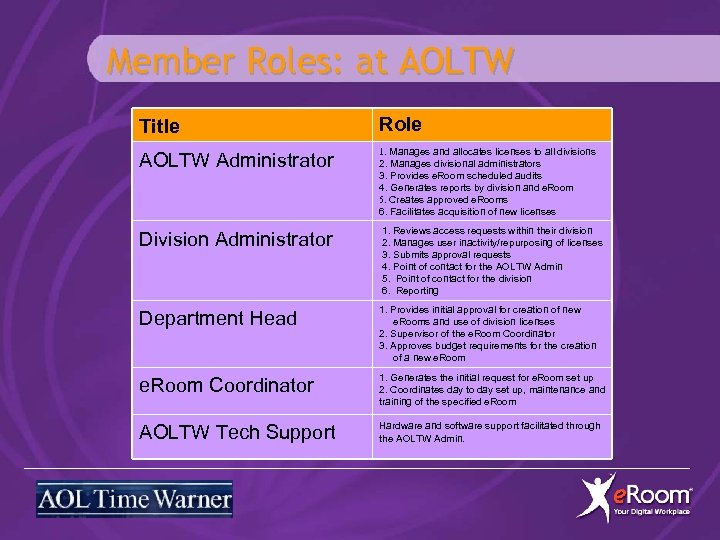 Member Roles: at AOLTW Title Role AOLTW Administrator 1. Manages and allocates licenses to all divisions 2. Manages divisional administrators 3. Provides e. Room scheduled audits 4. Generates reports by division and e. Room 5. Creates approved e. Rooms 6. Facilitates acquisition of new licenses Division Administrator 1. Reviews access requests within their division 2. Manages user inactivity/repurposing of licenses 3. Submits approval requests 4. Point of contact for the AOLTW Admin 5. Point of contact for the division 6. Reporting Department Head 1. Provides initial approval for creation of new e. Rooms and use of division licenses 2. Supervisor of the e. Room Coordinator 3. Approves budget requirements for the creation of a new e. Room Coordinator 1. Generates the initial request for e. Room set up 2. Coordinates day to day set up, maintenance and training of the specified e. Room AOLTW Tech Support Hardware and software support facilitated through the AOLTW Admin.
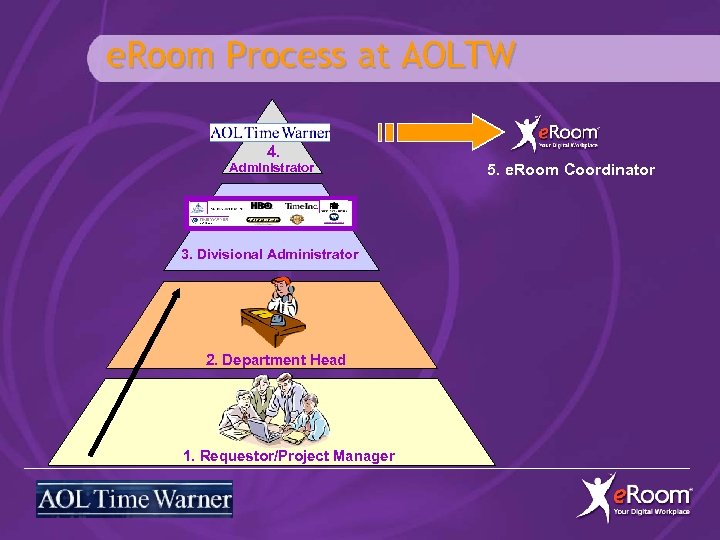 e. Room Process at AOLTW 4. Administrator 3. Divisional Administrator 2. Department Head 1. Requestor/Project Manager 5. e. Room Coordinator
 Module 1: Accessing your e. Room
 There are 2 ways to access e. Room… Users must have a username and password to enter the AOLTW e. Room server. To gain access to a particular e. Room one must: 1. Go to https: //www. AOLTWSHARE. com and click on the “REQUEST e. Room ACCESS” button 2. Receive an email invitation from the e. Room coordinator which contains a link to the e. Room and information about username and password
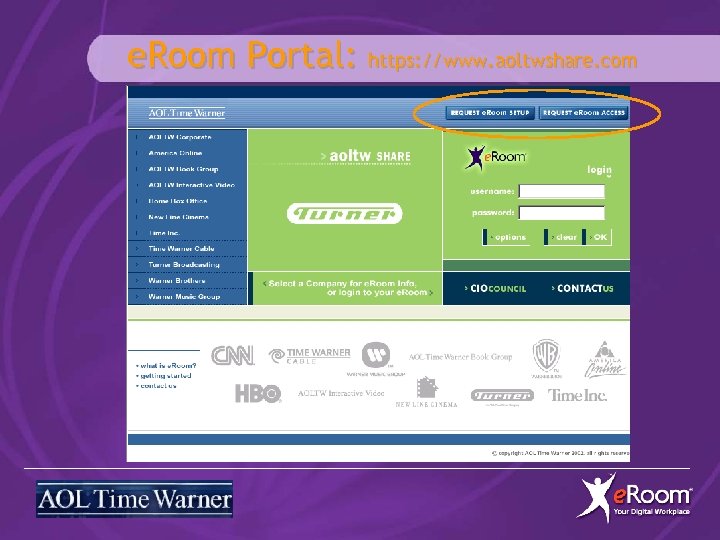 e. Room Portal: https: //www. aoltwshare. com
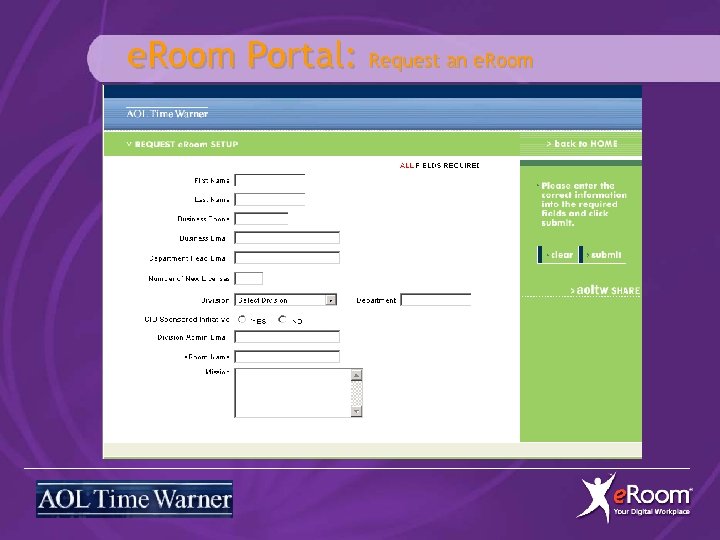 e. Room Portal: Request an e. Room
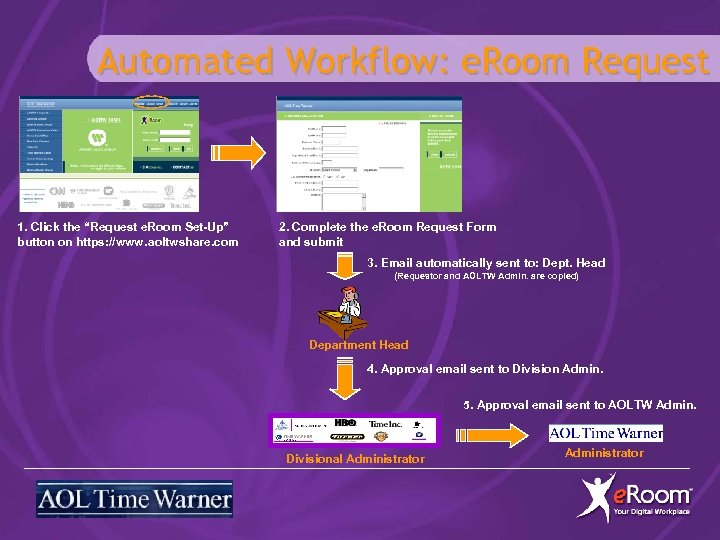 Automated Workflow: e. Room Request 1. Click the “Request e. Room Set-Up” button on https: //www. aoltwshare. com 2. Complete the e. Room Request Form and submit 3. Email automatically sent to: Dept. Head (Requestor and AOLTW Admin. are copied) Department Head 4. Approval email sent to Division Admin. 5. Approval email sent to AOLTW Admin. Divisional Administrator
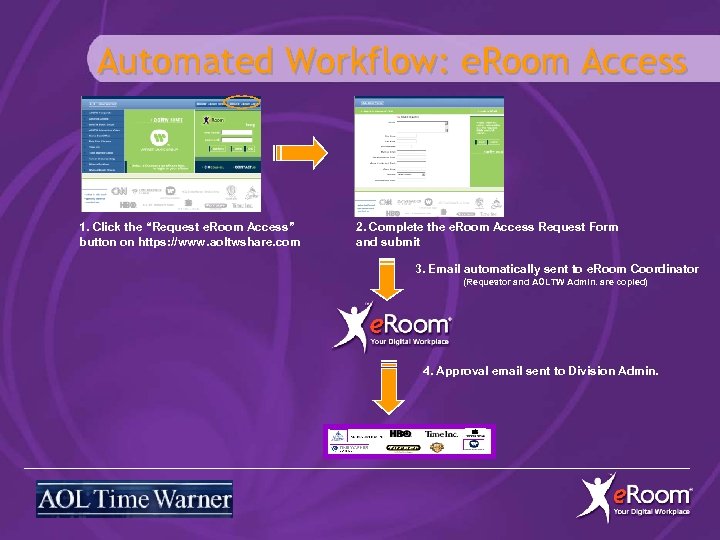 Automated Workflow: e. Room Access 1. Click the “Request e. Room Access” button on https: //www. aoltwshare. com 2. Complete the e. Room Access Request Form and submit 3. Email automatically sent to e. Room Coordinator (Requestor and AOLTW Admin. are copied) 4. Approval email sent to Division Admin.
 Review Exercise Question 1 answer: Invitation link, typing in the URL, My e. Rooms page Question 2 answer: Drag and drop from the desktop, Rich Text Editor, My e. Rooms, Outlook syncing, and receiving instant messages
 Module 2: Navigating e. Room
 Plug-In vs. Browser Only Mode • To toggle between the Browser Only and Plug-in modes, click the Options button • First time users will be prompted to download the Plug-in on their PC’s (e. Room Monitor will display in the system tray)
 Navigating the User Interface Five main areas on the e. Room screen: 1. Hierarchical navigation 2. Side bar 3. Content window 4. e. Room button bar 5. e. Room toolbar
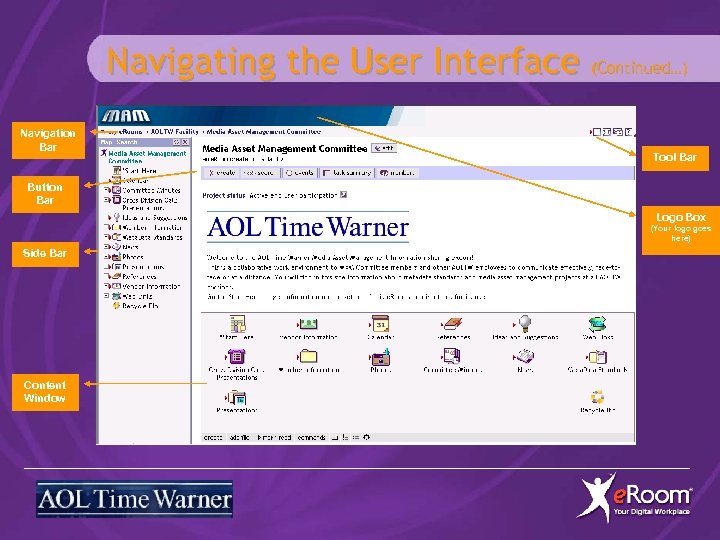 Navigating the User Interface (Continued…) Navigation Bar Tool Bar Button Bar Logo Box (Your logo goes here) Side Bar Content Window
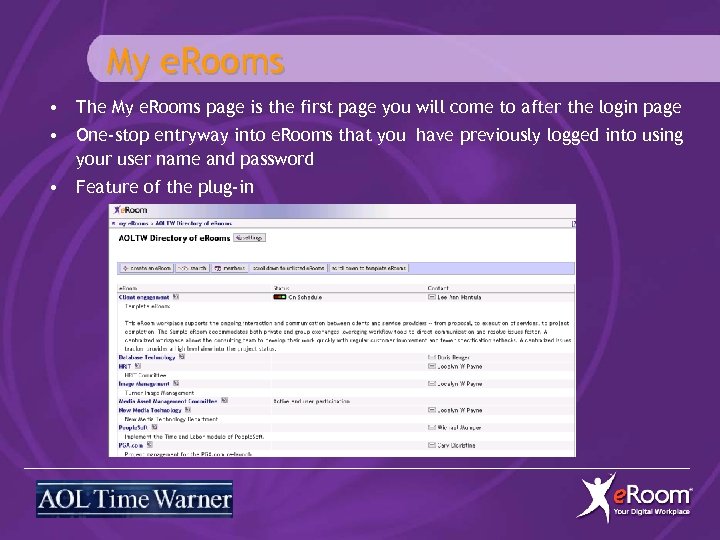 My e. Rooms • The My e. Rooms page is the first page you will come to after the login page • One-stop entryway into e. Rooms that you have previously logged into using your user name and password • Feature of the plug-in
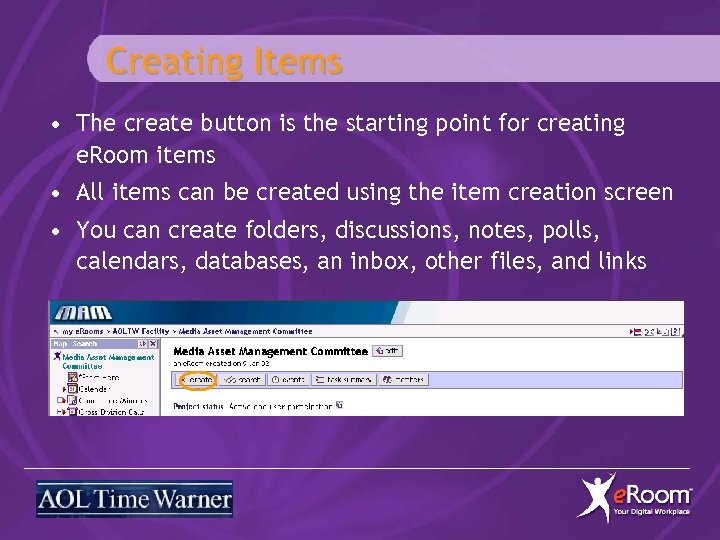 Creating Items • The create button is the starting point for creating e. Room items • All items can be created using the item creation screen • You can create folders, discussions, notes, polls, calendars, databases, an inbox, other files, and links
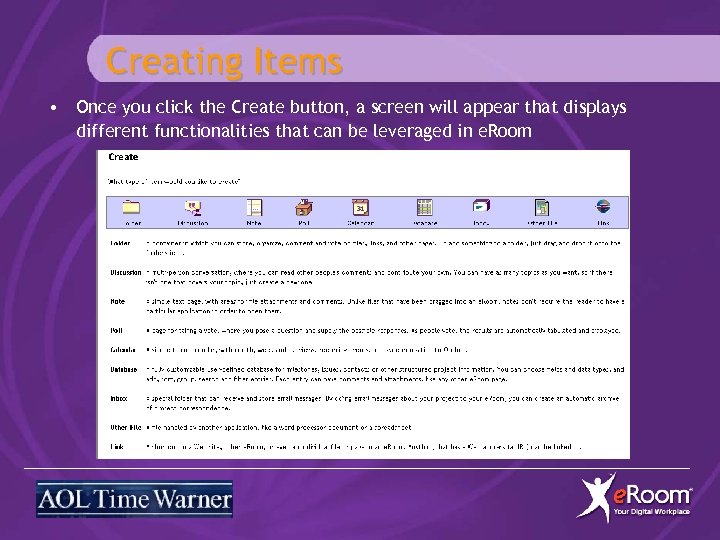 Creating Items • Once you click the Create button, a screen will appear that displays different functionalities that can be leveraged in e. Room
 Review Exercise Question 1: Create Question 2: False Question 3: Help Question 4:
 Module 3: Member Management
 Member Roles: e. Room Level • AOLTW Tech Support – Responsible for the e. Room server, can create new e. Room facilities, has access to the server settings • AOLTW Administrator – Responsible for the entire facility including all of the members, can change a members’ password • Coordinator – Has full access to all content in the e. Rooms • Participant – Can create new items, read and edit other members’ documents as allowed via the access control settings (most common) • Observer – can monitor activity (read-only) in an e. Room but cannot participate • Custom Roles – created by the Administrator or Coordinator, can create a role name that flows with your business processes
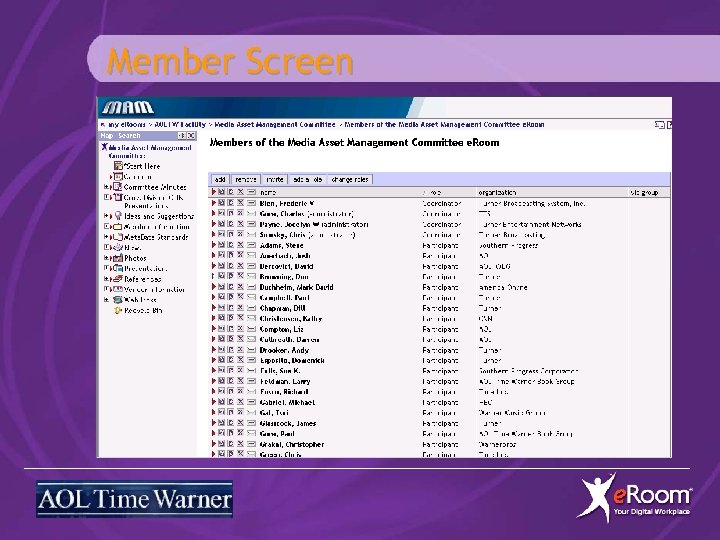
 Member Screen This page allows you to: • View your membership information • Create a new member (Coordinator/Administrator) • Add a new member (Coordinator/Administrator) • Invite new members (Coordinator/Administrator) • Change members’ roles (Coordinator/Administrator) • Add a custom role • Remove a member
 Member Screen
 Module 4: Organizing Information
 Folders • A folder is an all purpose container for organizing your work • Works in a similar fashion to Windows Explorer, allowing the addition of application files as well as e. Room objects
 Application Files • Once you have your folder structure in place, you are now ready to add application files • Files can exist individually or as attachments • In an e. Room you can view, add, and edit files created in other applications. Other members can share these files provided they are running the file’s application locally • When you add or create a file, you are its owner and initially the only person who can edit it • There are 3 ways to add files- Ø Drag and drop from the Desktop or folders (Plug in only) Ø “Add file” on the toolbar Ø “Create – Other file”
 Review Exercise Question 1: False Question 2: False Question 3: Drag & drop from the desktop, “add file” button, “CreateAdd file” option
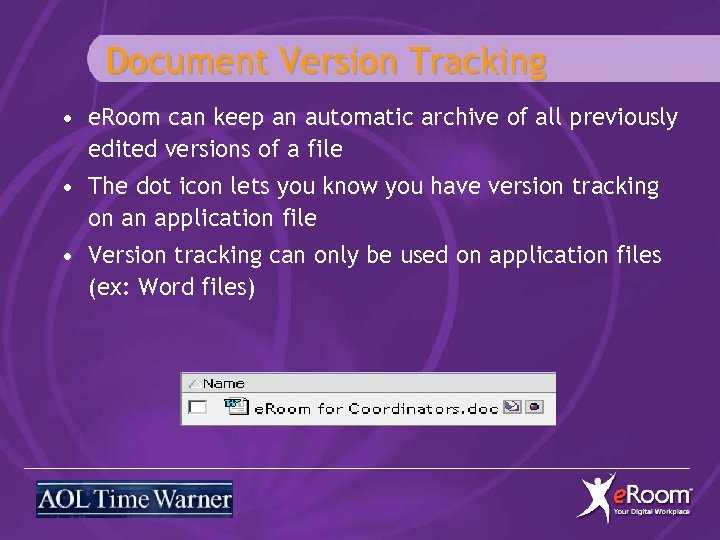 Document Version Tracking • e. Room can keep an automatic archive of all previously edited versions of a file • The dot icon lets you know you have version tracking on an application file • Version tracking can only be used on application files (ex: Word files)
 Review Exercise Question 1: False Question 2: Question 3: Right click on the document icon and select to ‘track versions’ or select the option to ‘track versions’ when you are uploading a file into e. Room
 Access Control • “Access Control” governs who can open and edit items • The defaults are: Ø Opening: Any member who can get to it Ø Editing: The member who created the item in the e. Room (Administrators and Coordinators have edit rights by default) • e. Room allows you to set access controls on e. Room objects as well as all files. These settings primarily govern the editing of objects or files.
 Review Exercise Question 1: False Question 2: True Question 3: Only the member who created it
 Calendar: • A team calendar with month, week, and list views • Can schedule recurring events • Synchs with Outlook Calendar • Events and Meetings can be static entries or Real Time
 Databases: • A fully customizable user-defined database for milestones, issues, contacts, or other structured project information • You can choose fields and data types, and add, sort, group, search, and filter entries. • Each entry can have comments and attachments, like any other e. Room page.
 Review Exercise Question 1: False Question 2: plain text, formatted text, date, number, autonumber, yes/no, traffic light, choice list, member list, approval, comment area, attachment box, change log Question 3:
 Links: • A shortcut to a website, other e. Room, or even an individual file or page in an e. Room • Can create link to anything that has a web address
 Template Items • Allows you to make copies of particular items that already exist in your e. Room • Can only be created at the folder level
 Review Exercise Question 1: True Question 2: True Question 3: True
 Routing Buttons • Routing buttons are used for lightweight work flow (nothing is automated). They are used for folders and inboxes. • Routing buttons are good to use for business processes (ie: product reviews) • You have to create folders before you can create/use the routing buttons
 Module 5: Communicating with the Team
 Notes: • A note is a simple text page with areas for file attachments and comments • Notes do not require the reader to have a particular application in order to open them
 Polls: • An e. Room object created for taking a vote (stand alone or within another object) • You pose the question(s) and supply possible responses • As people vote, the results are automatically tabulated • When the poll is created, you will have the option of how to display the results
 Inbox: • Can only receive mail, not send • Multiple inboxes can be created in the individual room (they all have a unique id) You can use an inbox to: • Store incoming items that need processing • Create a central location for project related e-mail In order to create an inbox you have to work with your IT mail administrator. You must have a POP 3 server, a POP 3 account, and a POP 3 password.
 Notification Change Report • Automatic overnight message to your email Alert • Sent by creator of item, received by instant notification (plug-in only) or email Red Arrows or Red Text • Automatic generation, indicates something is new to user
 Notification, cont.
 Intercom: • Real time messaging • Good for remote employees • Use for non-vital information (cannot be saved & is not private) • Will capture 10 minutes worth of conversation so other users coming in can get briefed
 Discussion: • A non real-time, multi-person conversation where you can read other people’s comments and contribute your own • Can have as many topics as you like • Excellent tool for discussing ideas and brainstorming within a room
 Review Exercise Have participants decide which e. Room items would work best in their room.
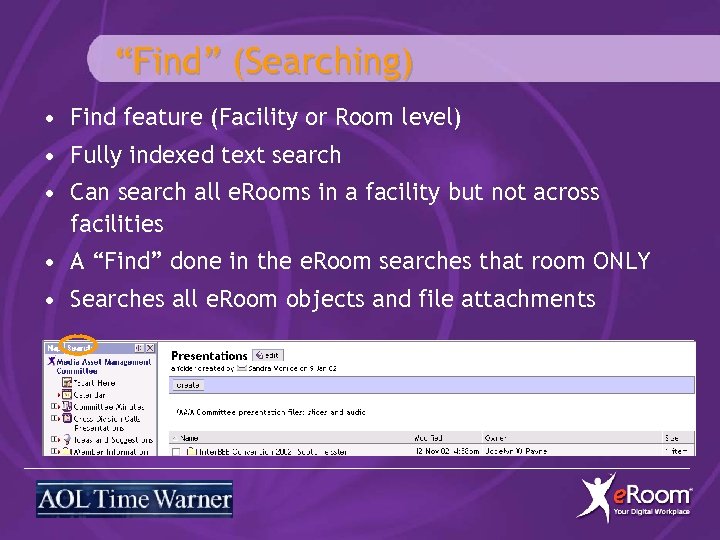 “Find” (Searching) • Find feature (Facility or Room level) • Fully indexed text search • Can search all e. Rooms in a facility but not across facilities • A “Find” done in the e. Room searches that room ONLY • Searches all e. Room objects and file attachments
 Module 6: Settings for Coordinators
 Coordinating Your e. Room As coordinator you are responsible for the following items in e. Room: • Managing membership • Updating Status • Making any changes to its settings • Managing its front page welcome message and announcements • Managing its front page access control settings • Controlling access to the items it contains • Releasing edit reservations
 Managing e. Room Membership • Membership Management tools: the members page) – Add – Remove – Invite – Custom Roles – Change Roles ( found on
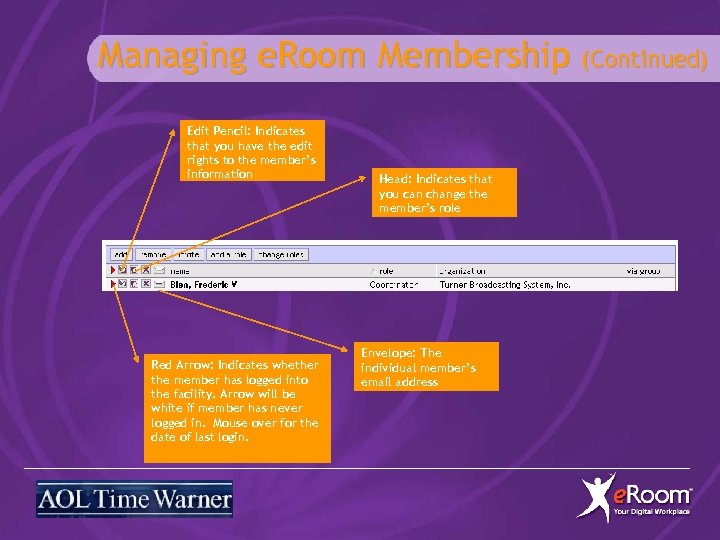 Managing e. Room Membership (Continued) Edit Pencil: Indicates that you have the edit rights to the member’s information Red Arrow: Indicates whether the member has logged into the facility. Arrow will be white if member has never logged in. Mouse over for the date of last login. Head: Indicates that you can change the member’s role Envelope: The individual member’s email address
 Membership (Continued) • You must have membership to gain access to a room • Membership “Roles” are on a per-room basis • Administrator and Coordinators control e. Room memberships
 Membership (Continued)
 Membership (Continued)
 End of Day • On-line help • www. eroom. com • Technotes • e. Room University • On line registration • EVALUATIONS