


 Скачать презентацию e Qua Lified Assessment Center User Guide Revision
aec4a9603de1e8d3ce90dc53be50c981.ppt
- Количество слайдов: 25
 e. Qua. Lified Assessment Center User Guide Revision: A Issued: June 30, 2015 Revised: October 2, 2015 The materials provided online by Performance Review Institute may be used by e. Qua. Lified customers solely for their internal use, but PRI requests that attribution be given by placing "(c) Performance Review Institute" in the work. Please be aware that the use of PRI materials for external publication, distribution or sale is prohibited unless express written permission has been granted by PRI. If you have any questions contact Hannah Godfrey, Senior Specialist – Professional Development, hgodfrey@p-r-i. org, +44 870 350 5011.
 Table of Contents Subject Page Registering a Profile in the Assessment Center 3 - 4 Forgot Password 5 - 6 Registering for an Assessment 7 Exam Selection 8 - 9 Payment Options 10 Credit Card Payments 11 - 12 Purchase Order Payments 13 - 16 Taking the Assessment 17 - 20 Complete the Exam 21 - 22 Exam Failure/Retake 23 e. Qua. Lified Certificate 24 Additional Help 25 The materials provided online by Performance Review Institute may be used by e. Qua. Lified customers solely for their internal use, but PRI requests that attribution be given by placing "(c) Performance Review Institute" in the work. Please be aware that the use of PRI materials for external publication, distribution or sale is prohibited unless express written permission has been granted by PRI. If you have any questions contact Hannah Godfrey, Senior Specialist – Professional Development, hgodfrey@p-r-i. org, +44 870 350 5011. 2
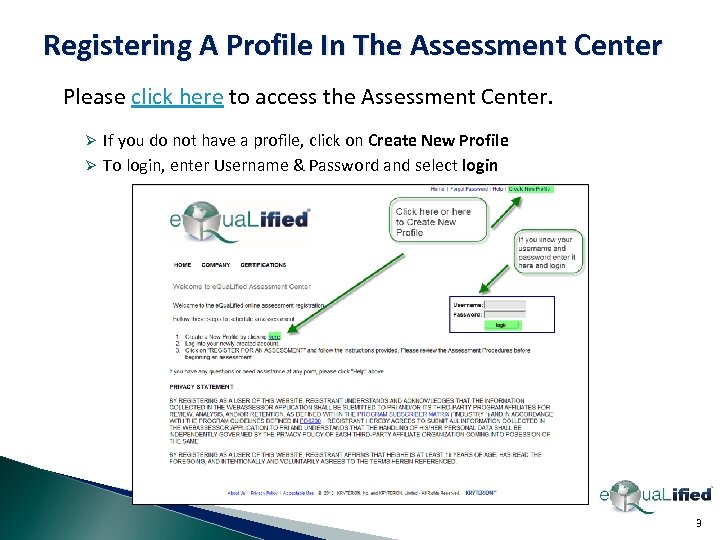 Registering A Profile In The Assessment Center Please click here to access the Assessment Center. If you do not have a profile, click on Create New Profile Ø To login, enter Username & Password and select login Ø 3
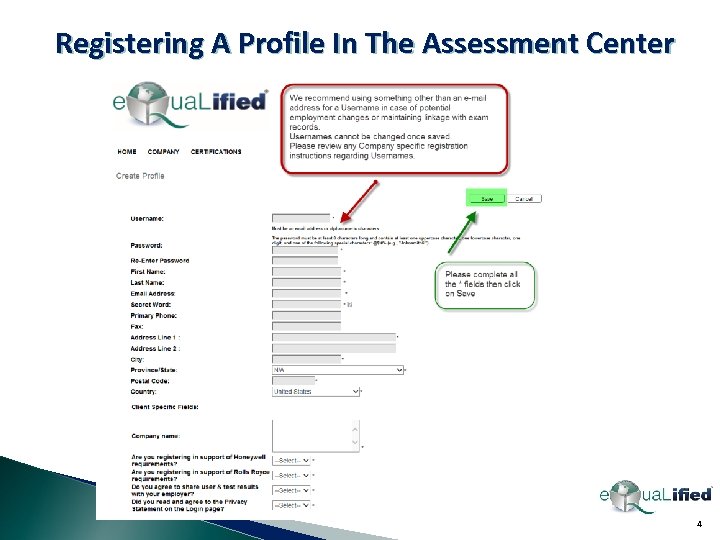 Registering A Profile In The Assessment Center 4
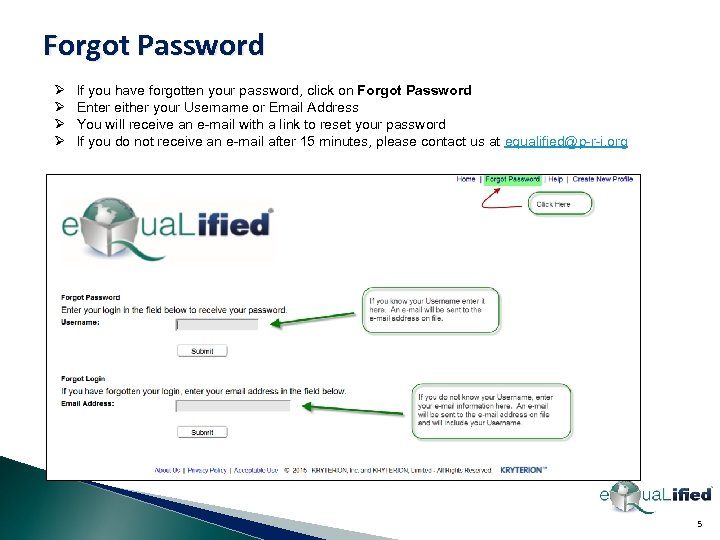 Forgot Password Ø Ø If you have forgotten your password, click on Forgot Password Enter either your Username or Email Address You will receive an e-mail with a link to reset your password If you do not receive an e-mail after 15 minutes, please contact us at equalified@p-r-i. org 5
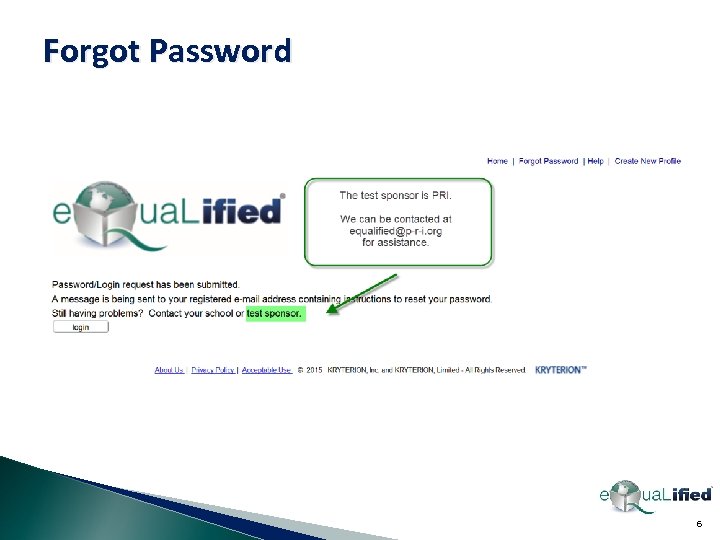 Forgot Password 6
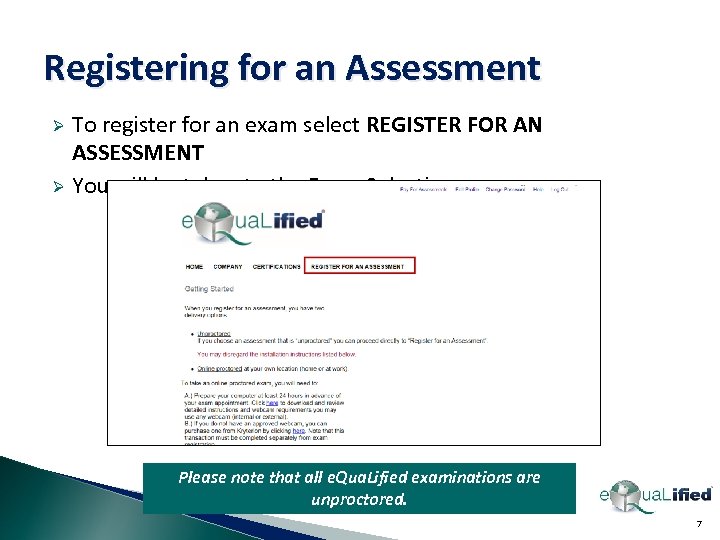 Registering for an Assessment To register for an exam select REGISTER FOR AN ASSESSMENT Ø You will be taken to the Exam Selection page. Ø Please note that all e. Qua. Lified examinations are unproctored. 7
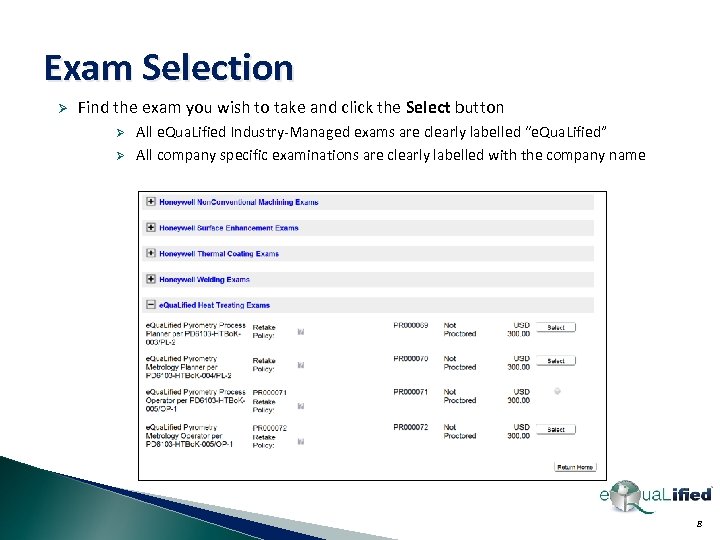 Exam Selection Ø Find the exam you wish to take and click the Select button Ø Ø All e. Qua. Lified Industry-Managed exams are clearly labelled “e. Qua. Lified” All company specific examinations are clearly labelled with the company name 8
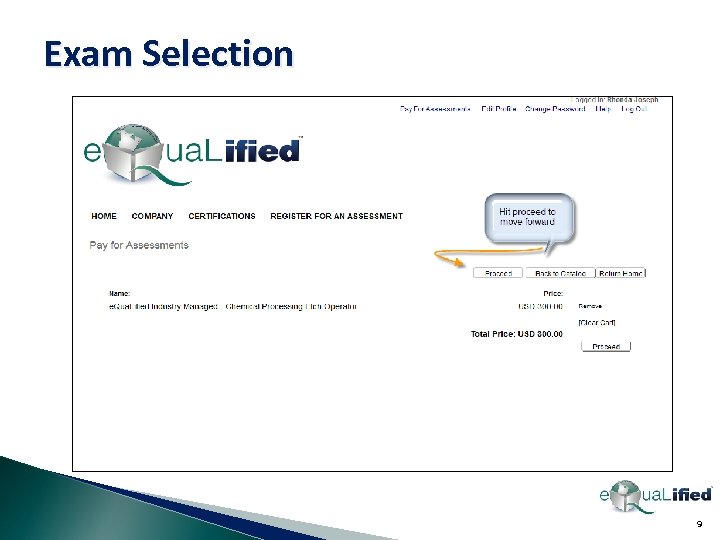 Exam Selection 9
 Payment Options e. Qua. Lified strongly recommends payment by credit card using the Assessment Center Ø Please follow the instructions on slides 11 to 12 Payment by Purchase Order is also accepted Ø Please follow the instructions on slides 13 to 16 10
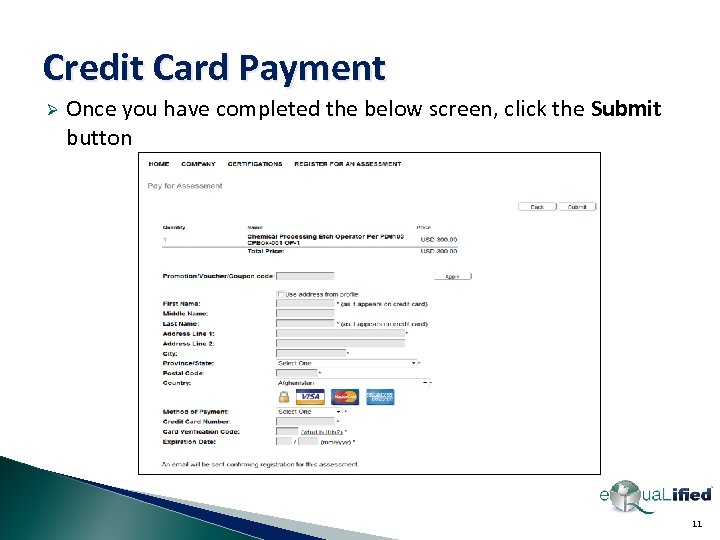 Credit Card Payment Ø Once you have completed the below screen, click the Submit button 11
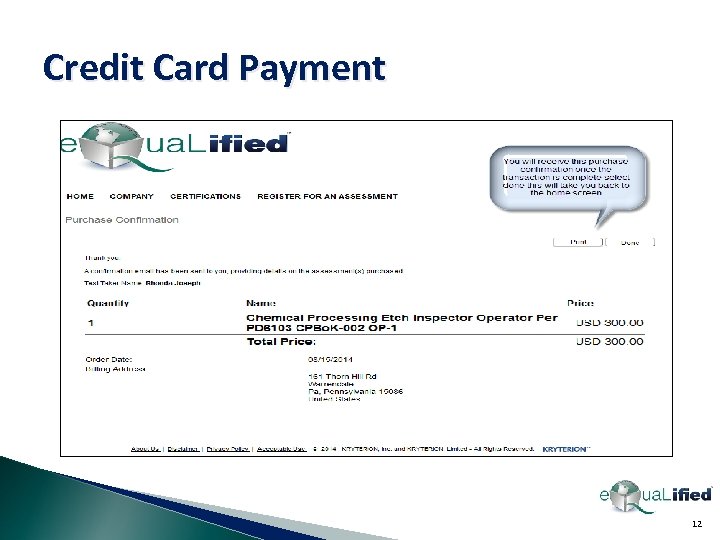 Credit Card Payment 12
 Purchase Order Payment For companies paying via purchase order, the purchase order must be generated and sent via email to: e. Qua. Lified@p-r-i. org The purchase order MUST include the following: Ø Exam taker’s name Ø Name of the exam(s) being purchased Ø Total amount of the purchase order Ø PO number Ø Accounts payable contact information for invoicing purposes 8 Contact name 8 Email address 8 Phone and fax numbers 13
 Purchase Order Payment Once the purchase order request is received, a coupon code will be activated in the exam center and emailed to the exam taker to be used when purchasing the exam An invoice will be generated and submitted for payment Ø Be sure to include the Accounts Payable information on the Purchase Order Ø Payment must be remitted upon receipt 14
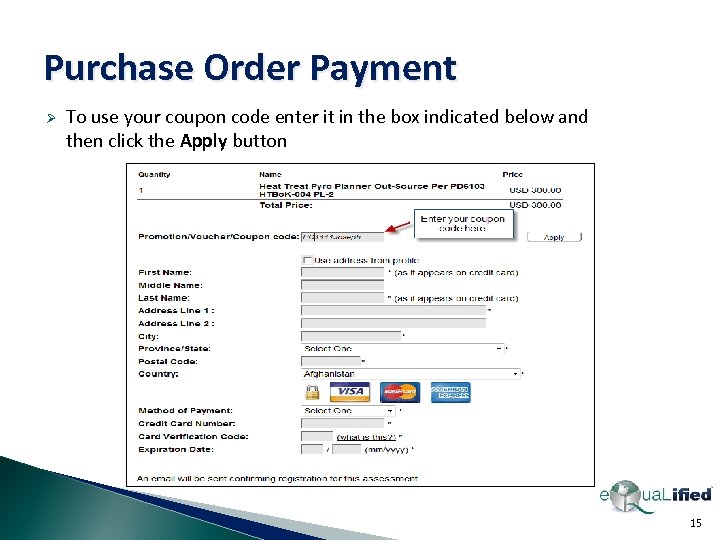 Purchase Order Payment Ø To use your coupon code enter it in the box indicated below and then click the Apply button 15
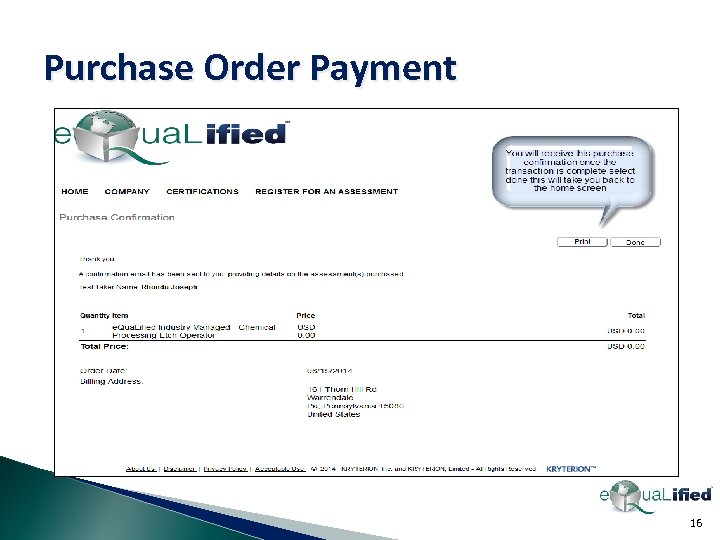 Purchase Order Payment 16
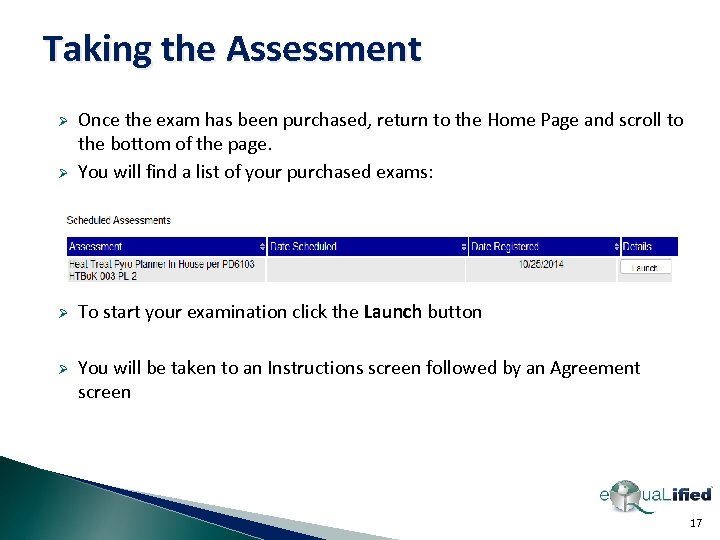 Taking the Assessment Ø Once the exam has been purchased, return to the Home Page and scroll to the bottom of the page. You will find a list of your purchased exams: Ø To start your examination click the Launch button Ø You will be taken to an Instructions screen followed by an Agreement screen Ø 17
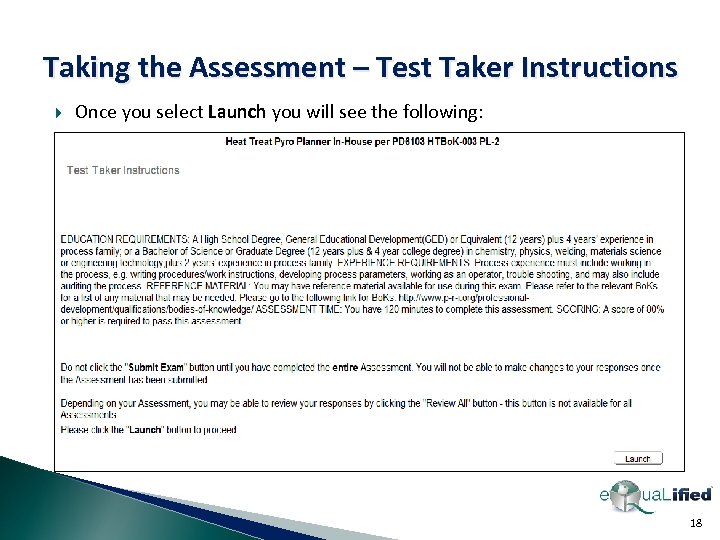 Taking the Assessment – Test Taker Instructions Once you select Launch you will see the following: 18
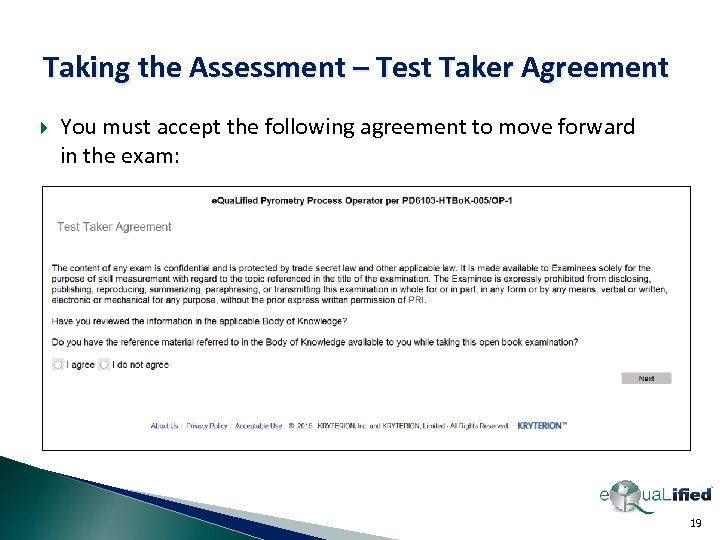 Taking the Assessment – Test Taker Agreement You must accept the following agreement to move forward in the exam: 19
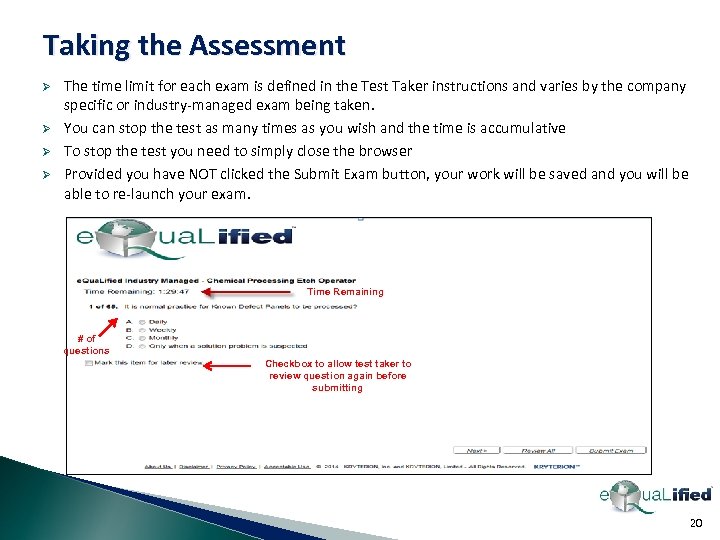 Taking the Assessment Ø Ø The time limit for each exam is defined in the Test Taker instructions and varies by the company specific or industry-managed exam being taken. You can stop the test as many times as you wish and the time is accumulative To stop the test you need to simply close the browser Provided you have NOT clicked the Submit Exam button, your work will be saved and you will be able to re-launch your exam. Time Remaining # of questions Checkbox to allow test taker to review question again before submitting 20
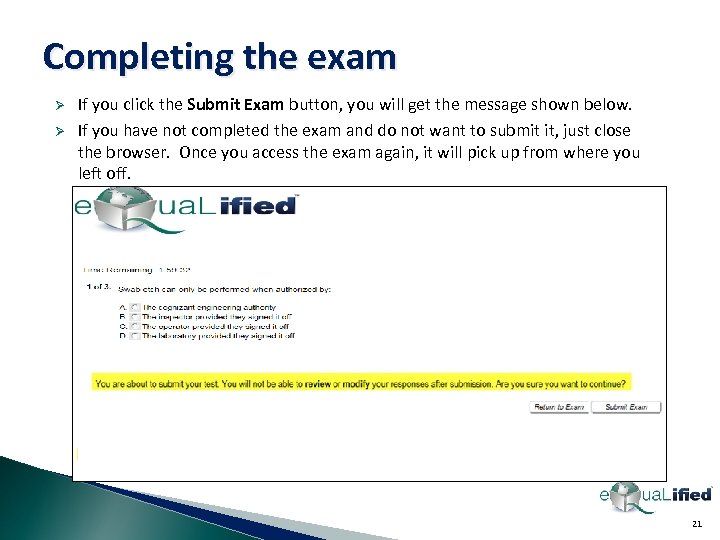 Completing the exam Ø Ø If you click the Submit Exam button, you will get the message shown below. If you have not completed the exam and do not want to submit it, just close the browser. Once you access the exam again, it will pick up from where you left off. 21
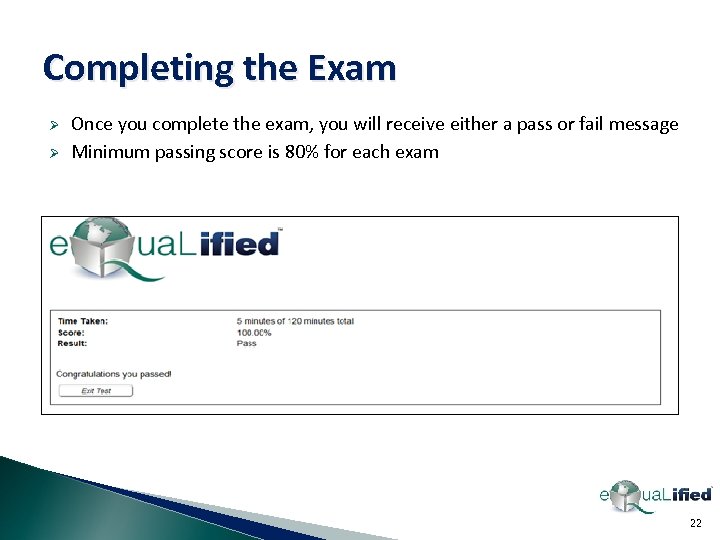 Completing the Exam Ø Ø Once you complete the exam, you will receive either a pass or fail message Minimum passing score is 80% for each exam 22
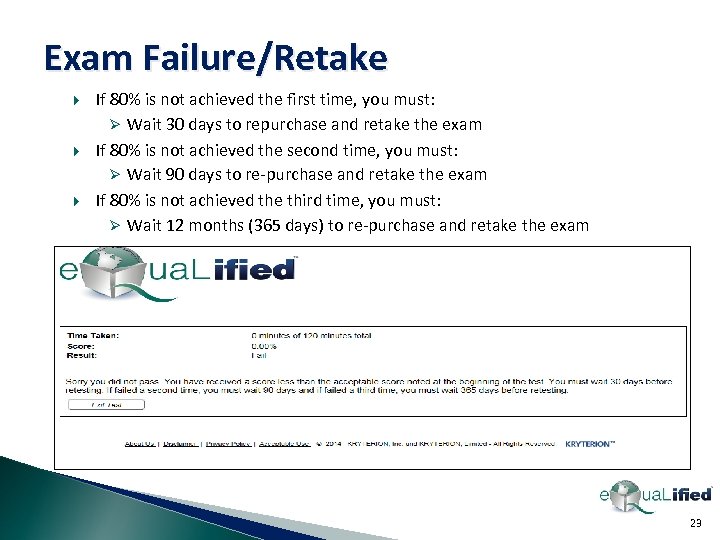 Exam Failure/Retake If 80% is not achieved the first time, you must: Ø Wait 30 days to repurchase and retake the exam If 80% is not achieved the second time, you must: Ø Wait 90 days to re-purchase and retake the exam If 80% is not achieved the third time, you must: Ø Wait 12 months (365 days) to re-purchase and retake the exam 23
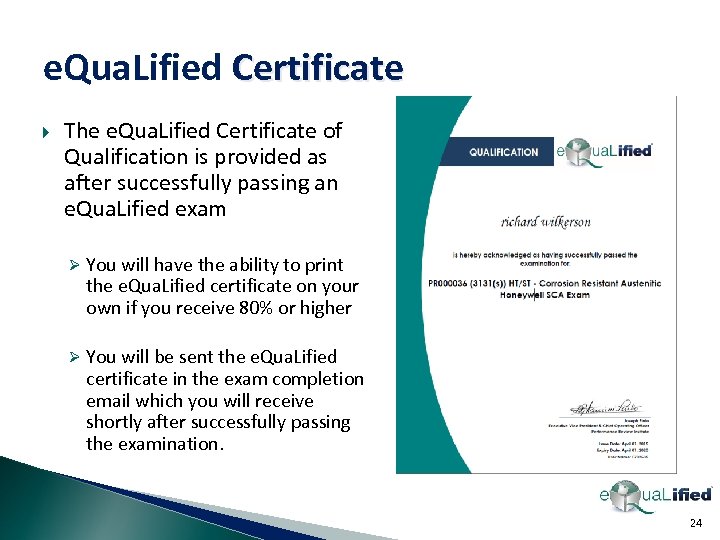 e. Qua. Lified Certificate The e. Qua. Lified Certificate of Qualification is provided as after successfully passing an e. Qua. Lified exam Ø You will have the ability to print the e. Qua. Lified certificate on your own if you receive 80% or higher Ø You will be sent the e. Qua. Lified certificate in the exam completion email which you will receive shortly after successfully passing the examination. 24
 Additional Help If you have any difficulties at any time, please contact the e. Qua. Lified team: Email: e. Qua. Lified@p-r-i. org Tel: (+1) 724 -772 -8644 GOOD LUCK WITH YOUR ASSESSMENT 25