


 Скачать презентацию e-Procurement Pilot Programme Office of the Government Chief
0f6c21443f615dcfe2abf34be992fb9f.ppt
- Количество слайдов: 52
 e-Procurement Pilot Programme Office of the Government Chief Information Officer Environmental Protection Department Immigration Department c Pg. 0
 Demo of e-Submission and Receive Purchase Order Pg. 1
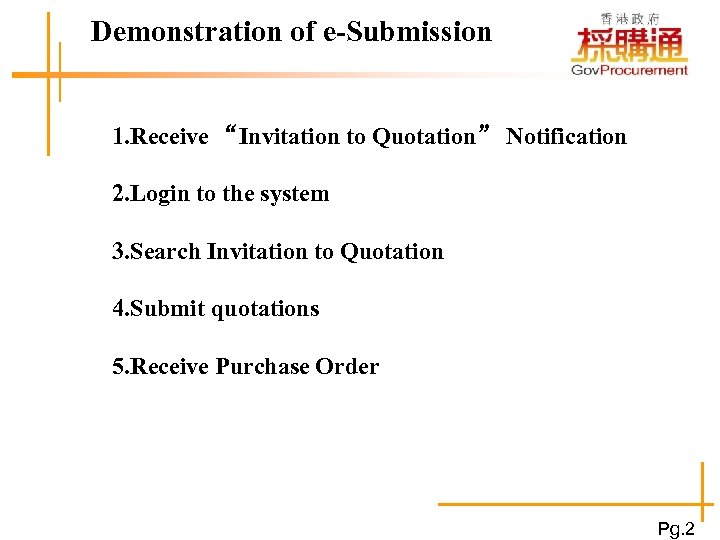 Demonstration of e-Submission 更新電子目錄示範 1. Receive “Invitation to Quotation” Notification 2. Login to the system 3. Search Invitation to Quotation 4. Submit quotations 5. Receive Purchase Order Pg. 2
 網上報價示範 (1) Receive “ Invitation to Quotation ” Notification Pg. 3
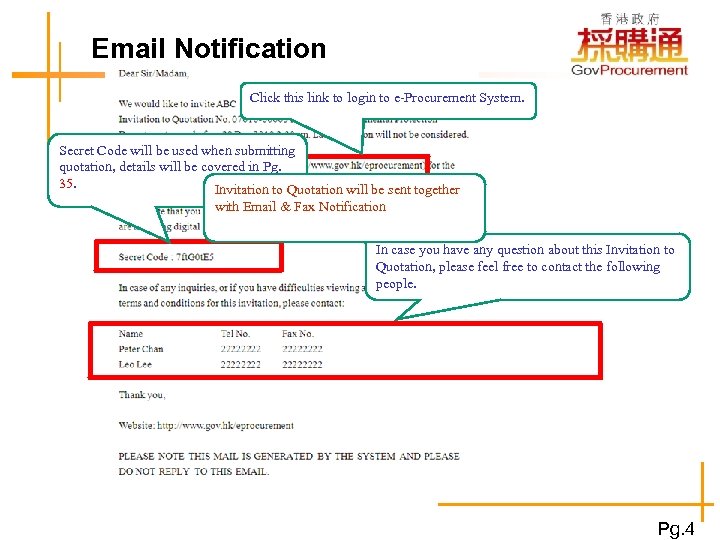 Email Notification 更新電子目錄示範 Click this link to login to e-Procurement System. Secret Code will be used when submitting quotation, details will be covered in Pg. 35. Invitation to Quotation will be sent together with Email & Fax Notification In case you have any question about this Invitation to Quotation, please feel free to contact the following people. Pg. 4
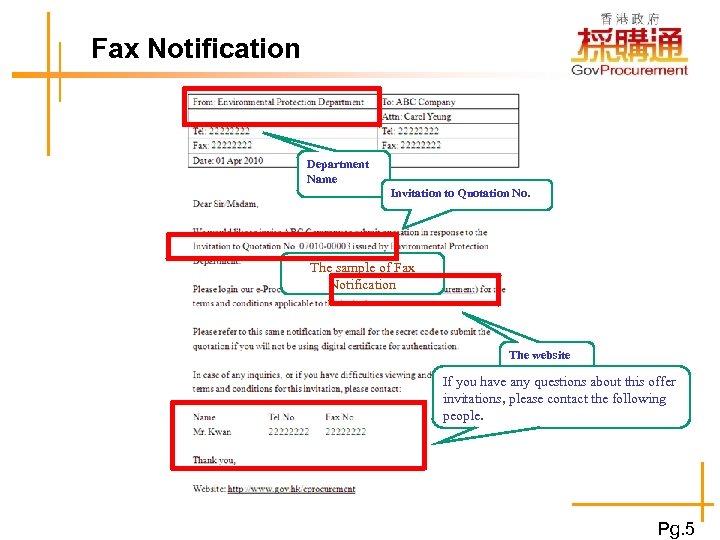 Fax Notification 更新電子目錄示範 Department Name Invitation to Quotation No. The sample of Fax Notification The website link If you have any questions about this offer invitations, please contact the following people. Pg. 5
 網上報價示範 (2)Login to the system Pg. 6
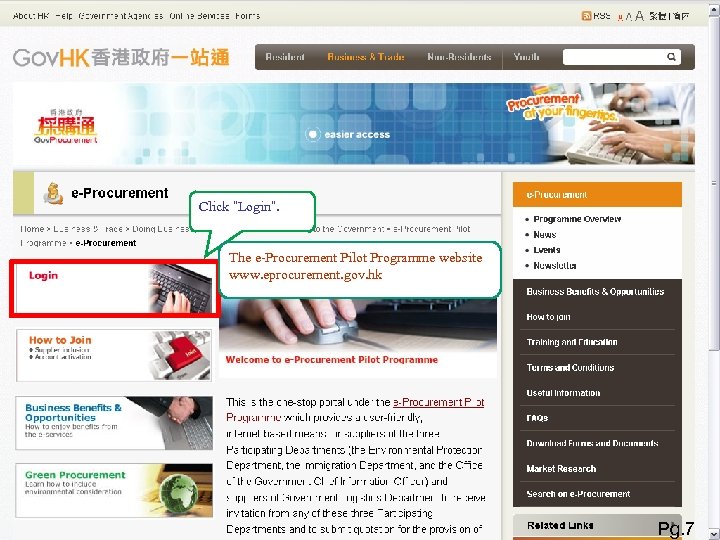 Click “Login”. The e-Procurement Pilot Programme website www. eprocurement. gov. hk Pg. 7
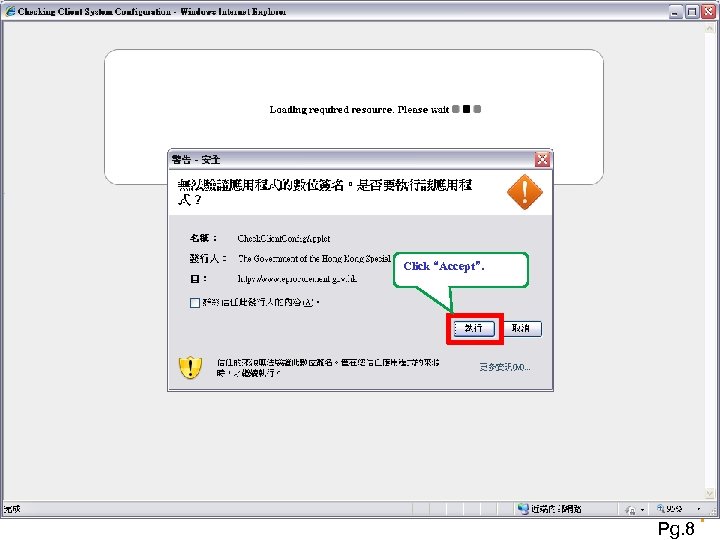 Click “Accept”. Pg. 8
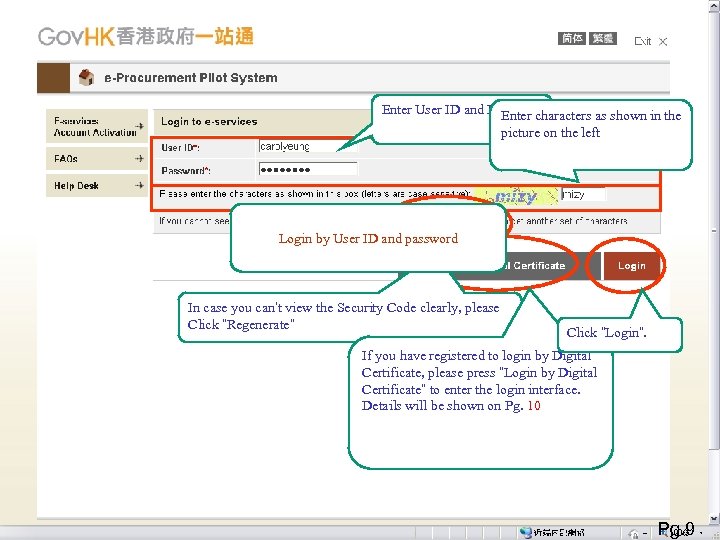 Enter User ID and Password Enter characters as shown in the picture on the left Login by User ID and password In case you can’t view the Security Code clearly, please Click “Regenerate” Click “Login”. If you have registered to login by Digital Certificate, please press “Login by Digital Certificate” to enter the login interface. Details will be shown on Pg. 10 Pg. 9
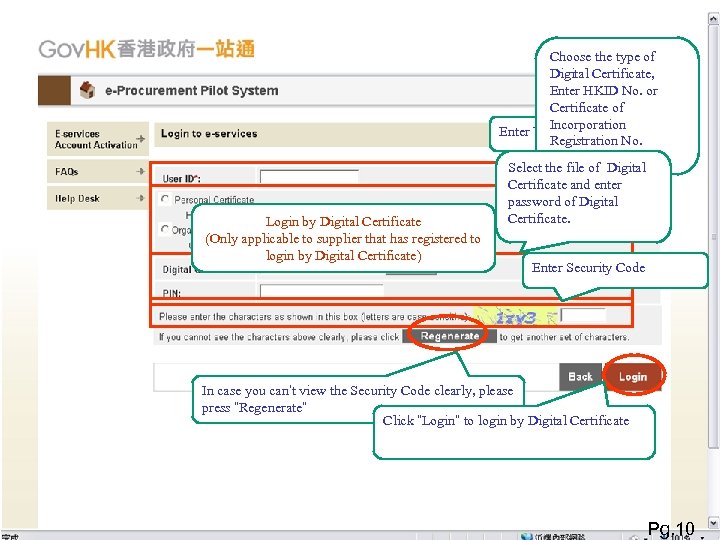 Choose the type of Digital Certificate, Enter HKID No. or Certificate of Incorporation Enter User ID Registration No. Login by Digital Certificate (Only applicable to supplier that has registered to login by Digital Certificate) Select the file of Digital Certificate and enter password of Digital Certificate. Enter Security Code In case you can’t view the Security Code clearly, please press “Regenerate” Click “Login” to login by Digital Certificate Pg. 10
 網上報價示範 (3) Search Invitation to Quotation Pg. 11
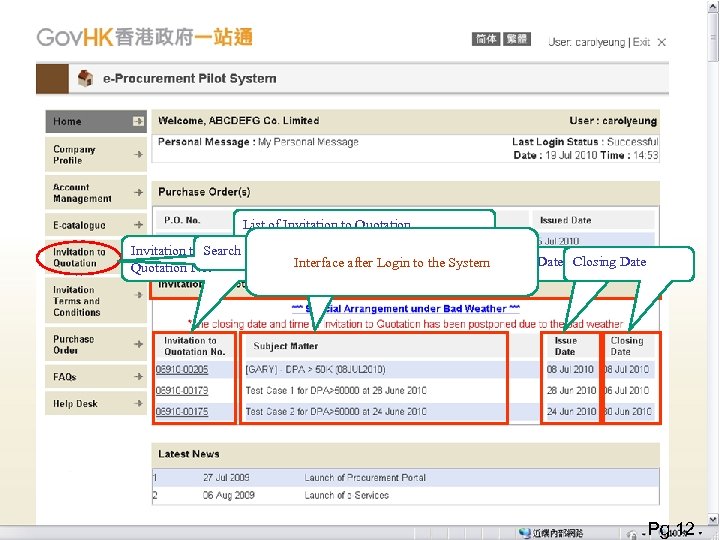 List of Invitation to Quotation Invitation to Search Invitation to Quotation Interface after Login Subject Matter to the System Quotation No. Issue Date Closing Date Pg. 12
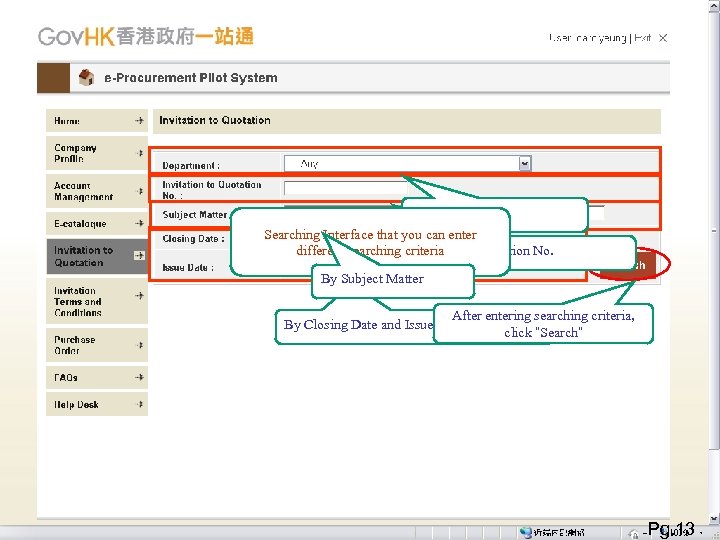 By Department Searching Interface that you can enter By criteria different searching. Invitation to Quotation No. By Subject Matter After entering searching criteria, By Closing Date and Issue Date click “Search” Pg. 13
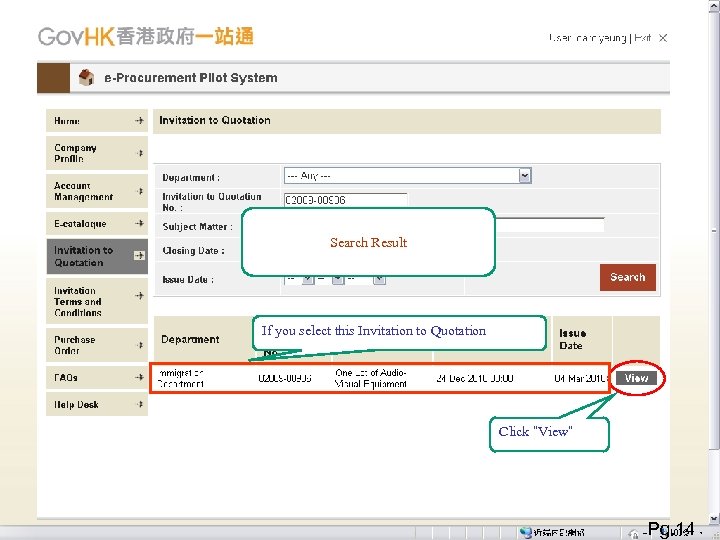 Search Result If you select this Invitation to Quotation Click “View” Pg. 14
 網上報價示範 (4) Submit quotations Pg. 15
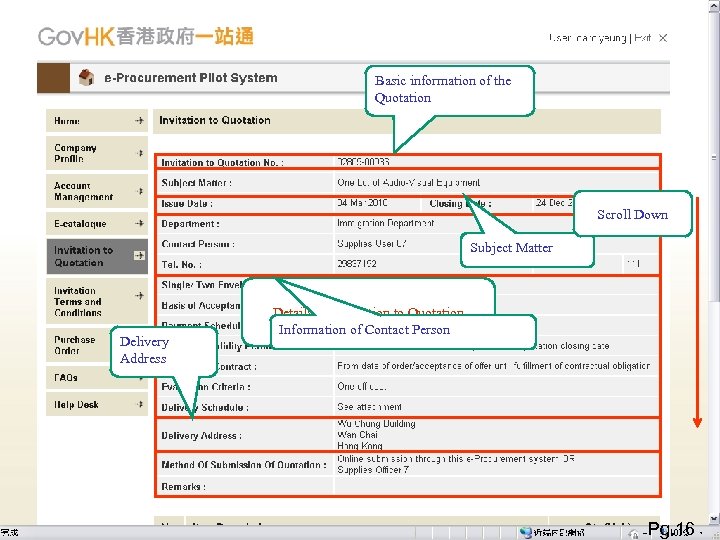 Basic information of the Quotation Scroll Down Subject Matter Delivery Address Details for Invitation to Quotation Information of Contact Person Pg. 16
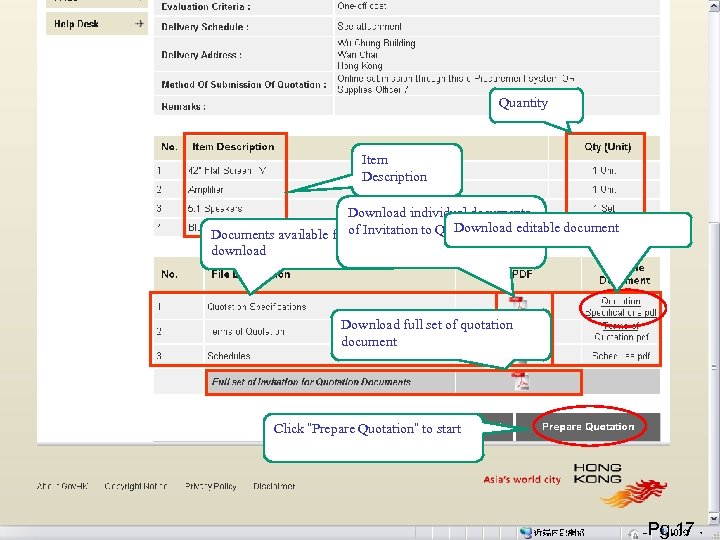 Quantity Item Description Download individual documents Download editable document Documents available forof Invitation to Quotation download Download full set of quotation document Click “Prepare Quotation” to start Pg. 17
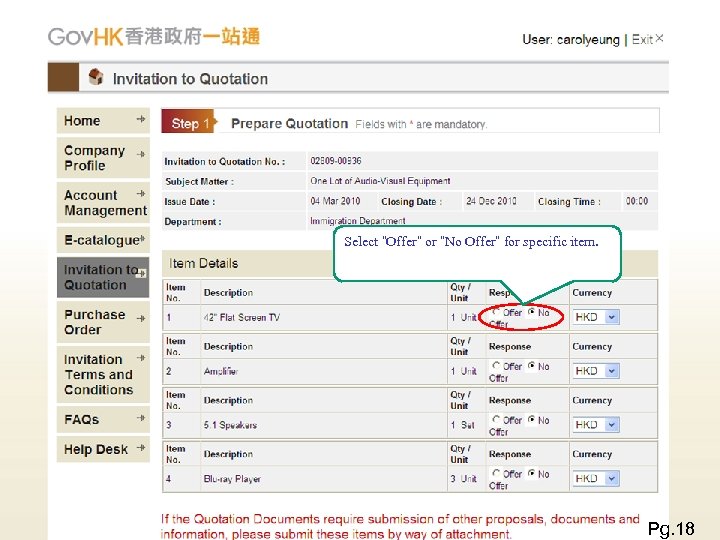 Select “Offer” or “No Offer” for specific item. Pg. 18
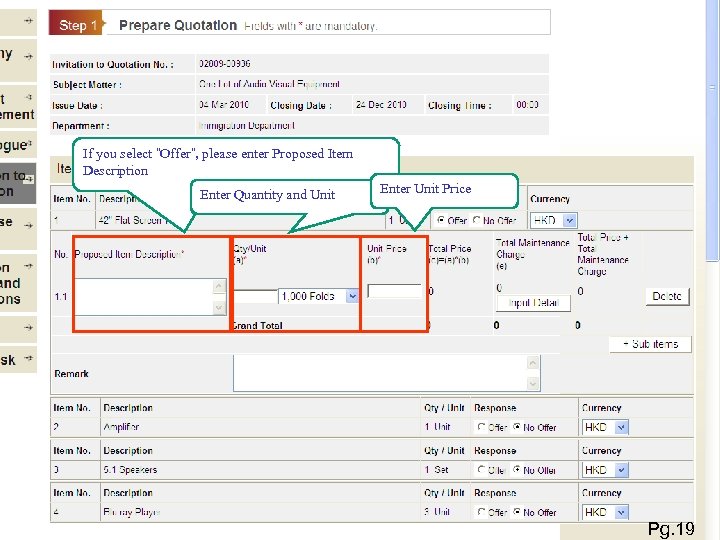 If you select “Offer”, please enter Proposed Item Description Enter Quantity and Unit Enter Unit Price Pg. 19
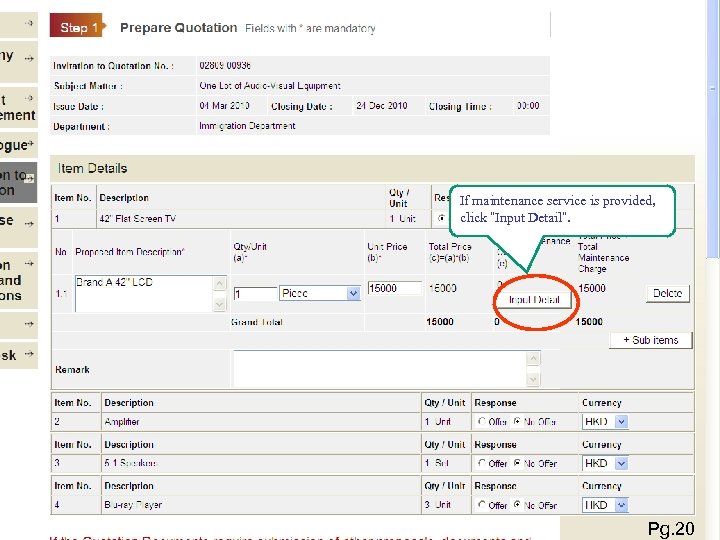 If maintenance service is provided, click “Input Detail”. Pg. 20
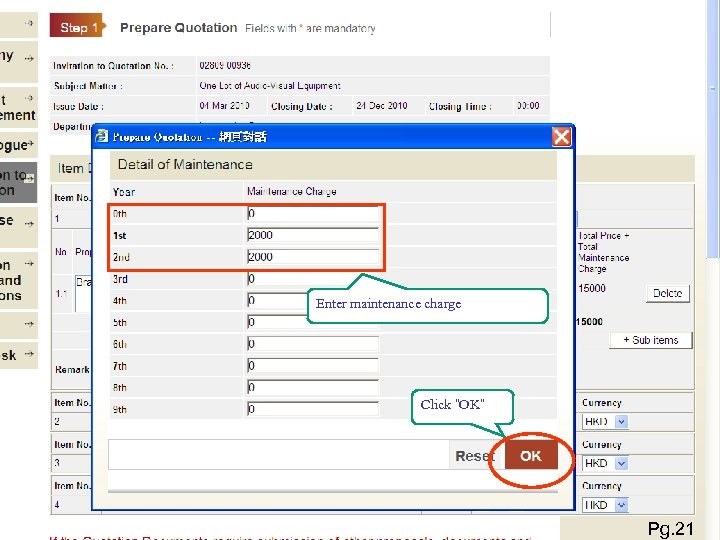 Enter maintenance charge Click “OK” Pg. 21
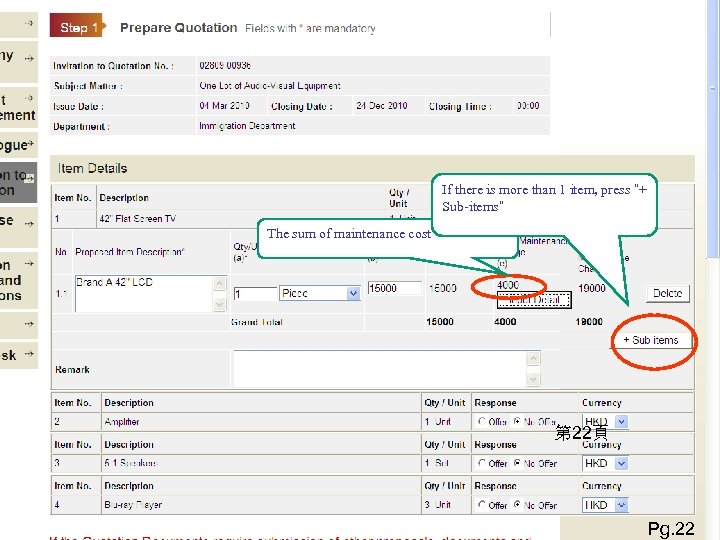 If there is more than 1 item, press “+ Sub-items” The sum of maintenance cost 第 22頁 Pg. 22
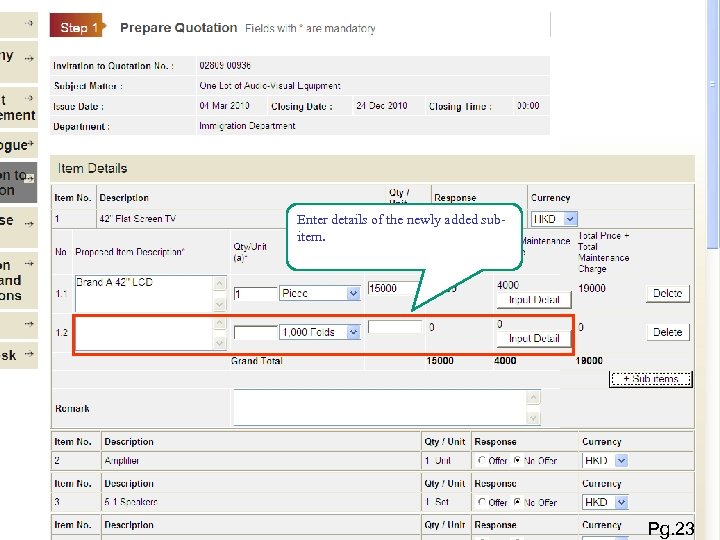 Enter details of the newly added subitem. Pg. 23
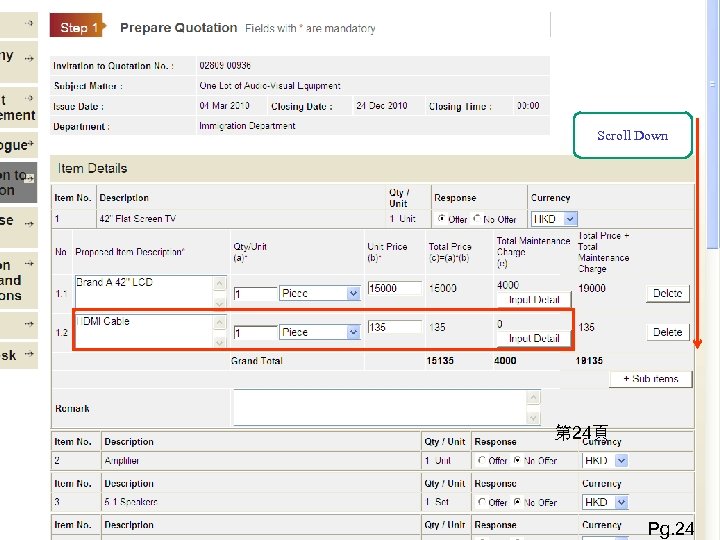 Scroll Down 第 24頁 Pg. 24
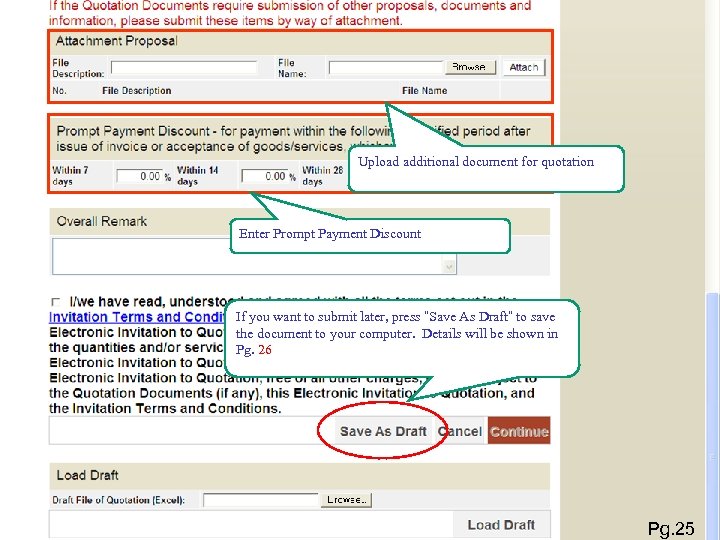 Upload additional document for quotation Enter Prompt Payment Discount If you want to submit later, press “Save As Draft” to save the document to your computer. Details will be shown in Pg. 26 Pg. 25
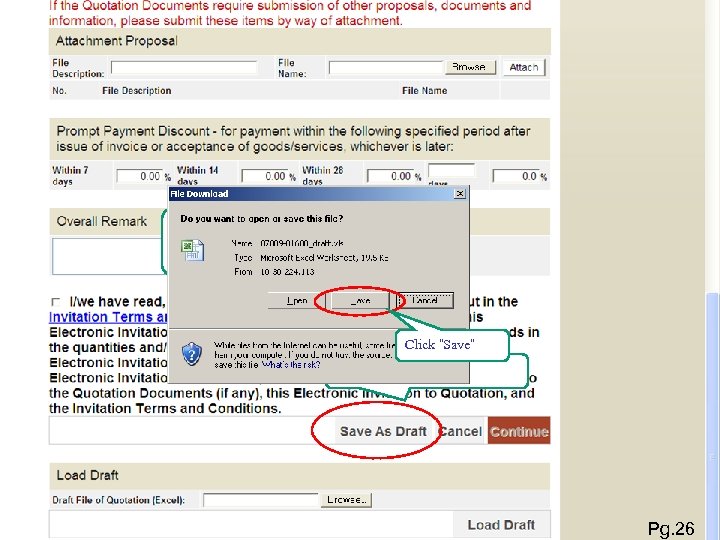 If you want to submit later, you can save the draft to your computer Click “Save” Press ‘Save As Draft” Pg. 26
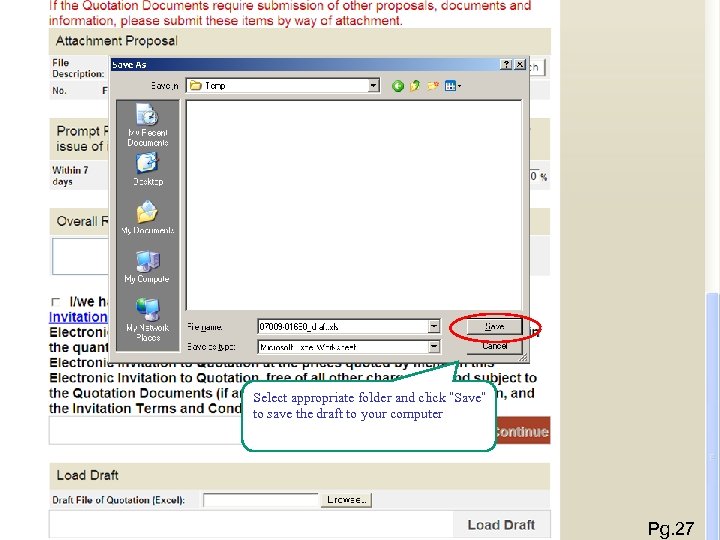 Select appropriate folder and click “Save” to save the draft to your computer Pg. 27
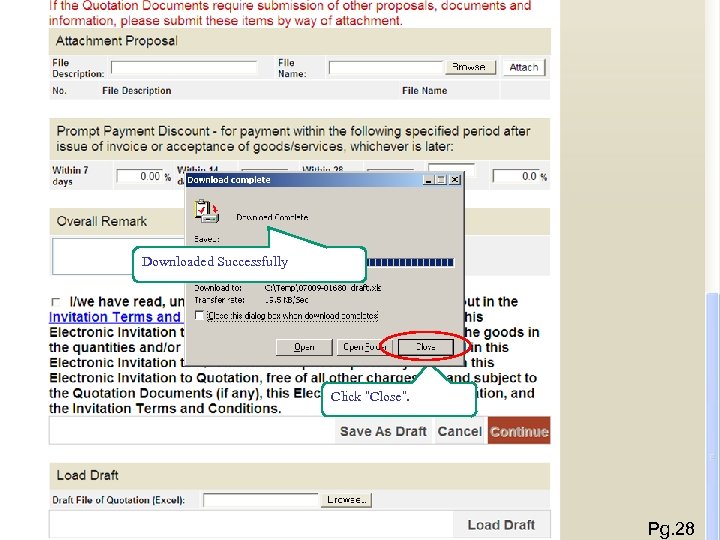 Downloaded Successfully Click “Close”. Pg. 28
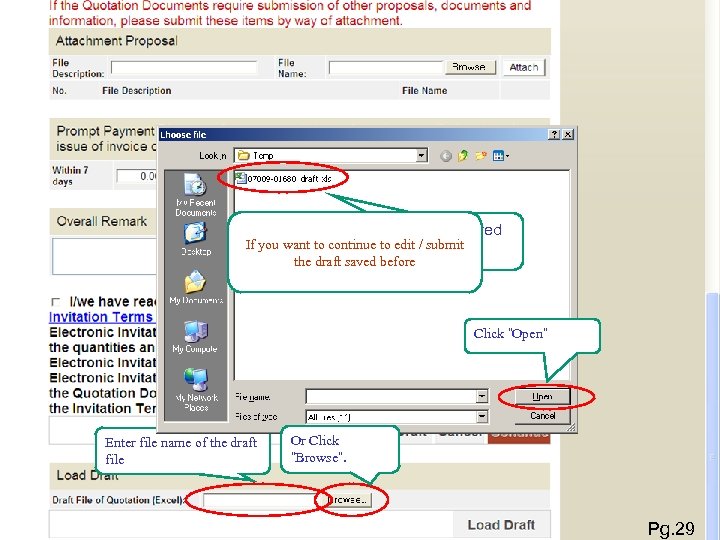 Select the draft saved If you want to continue to edit / submit earlier the draft saved before Click “Open” Enter file name of the draft file Or Click “Browse”. Pg. 29
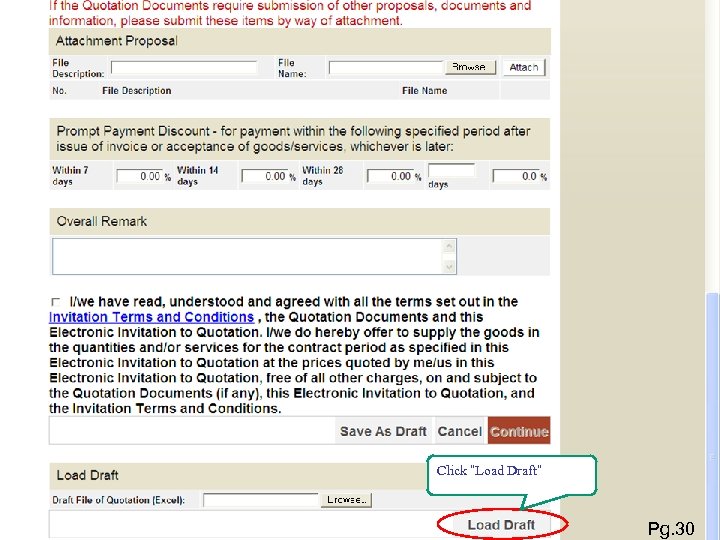 Click “Load Draft” Pg. 30
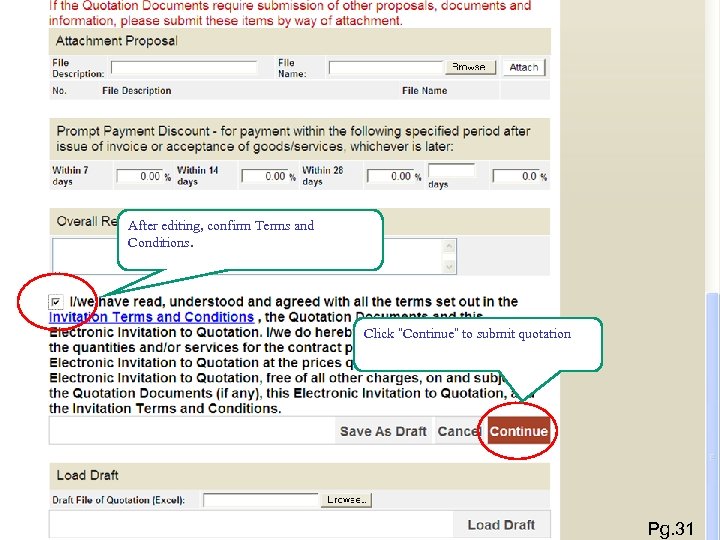 After editing, confirm Terms and Conditions. Click “Continue” to submit quotation Pg. 31
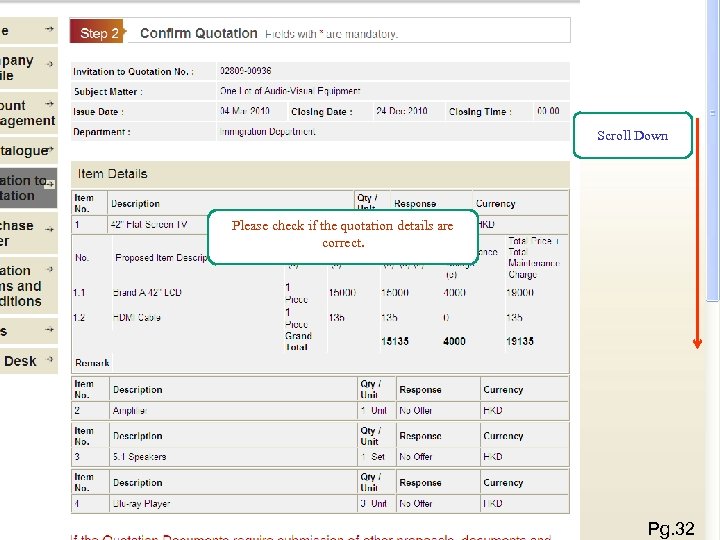 Scroll Down Please check if the quotation details are correct. 第 32頁 Pg. 32
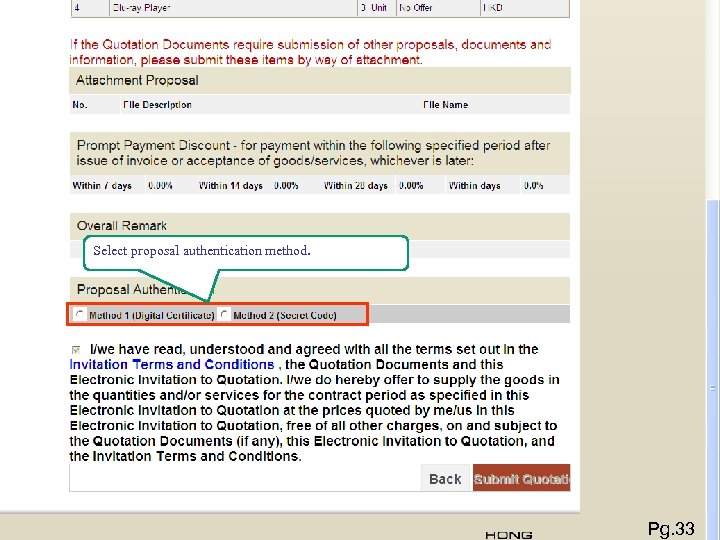 Select proposal authentication method. 第 33頁 Pg. 33
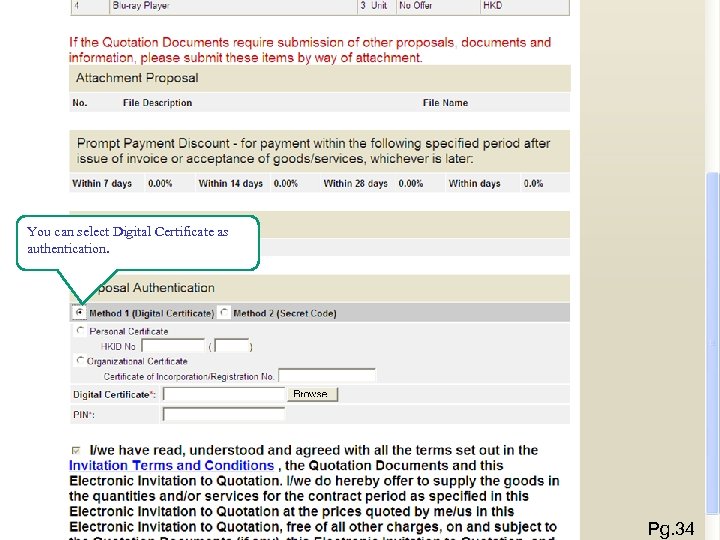 You can select Digital Certificate as authentication. Pg. 34
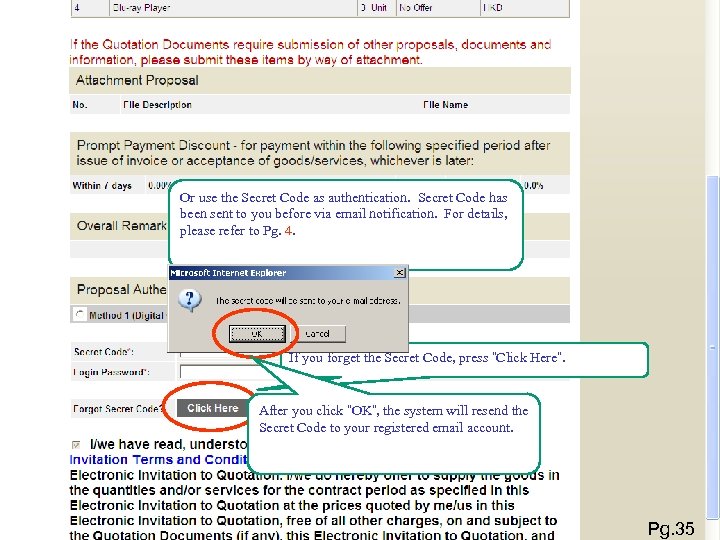 Or use the Secret Code as authentication. Secret Code has been sent to you before via email notification. For details, please refer to Pg. 4. If you forget the Secret Code, press “Click Here”. After you click “OK”, the system will resend the Secret Code to your registered email account. 第 35頁 Pg. 35
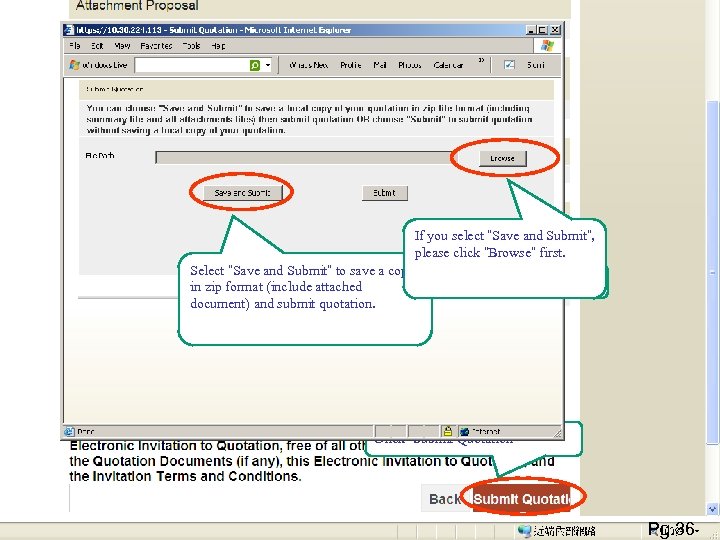 Submission Enter Secret Code If you select “Save and Submit”, please click “Browse” first. Select “Save and Submit” to save a copy Enter Login Password in zip format (include attached document) and submit quotation. 第 36頁 Click “Submit Quotation” 第 36頁 Pg. 36
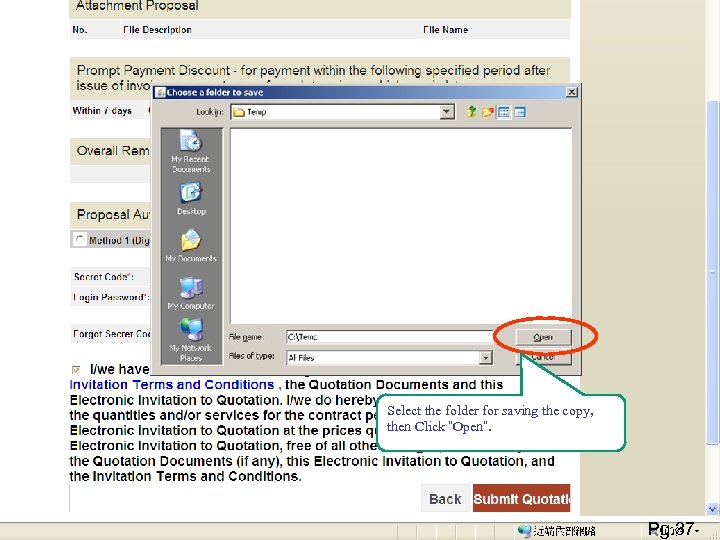 Submission 第 37頁 Select the folder for saving the copy, then Click “Open”. 第 37頁 Pg. 37
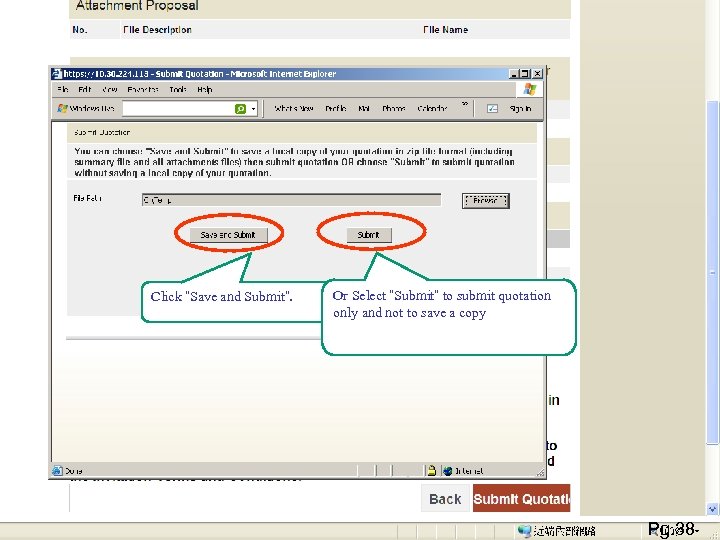 Submission Click “Save and Submit”. Or Select “Submit” to submit quotation only and not to save a copy 第 38頁 Pg. 38
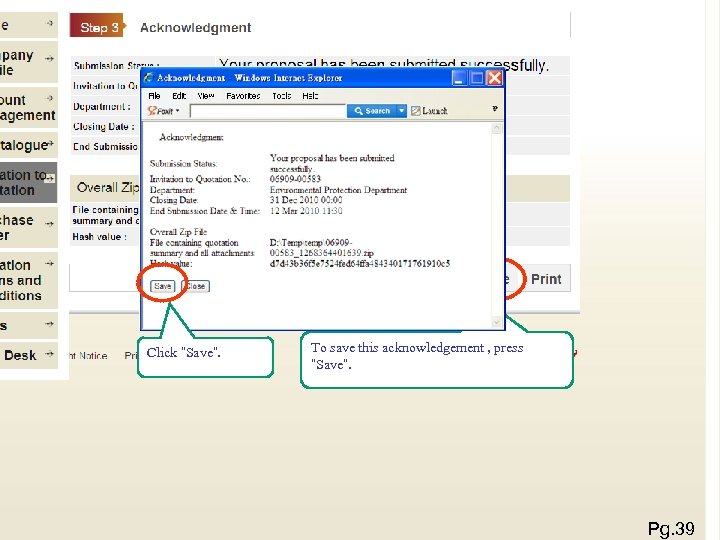 Acknowledgement will be shown if the proposal is submitted successfully Click “Save”. To save this acknowledgement , press “Save”. 第 39頁 Pg. 39
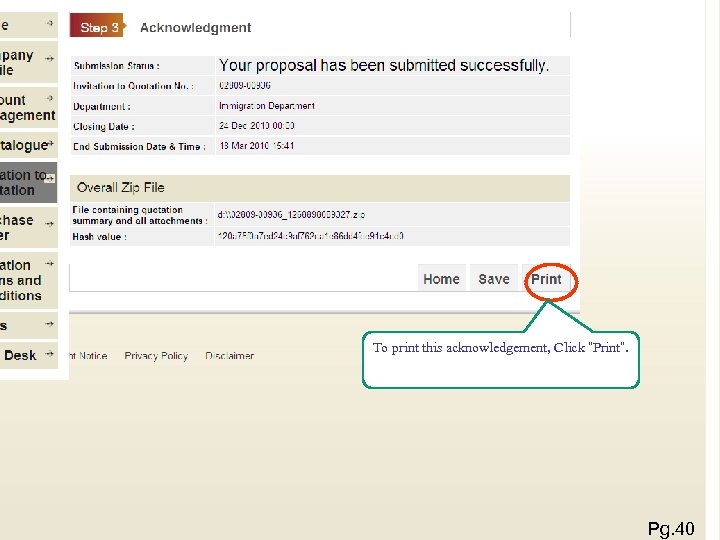 To print this acknowledgement, Click “Print”. 第 40頁 Pg. 40
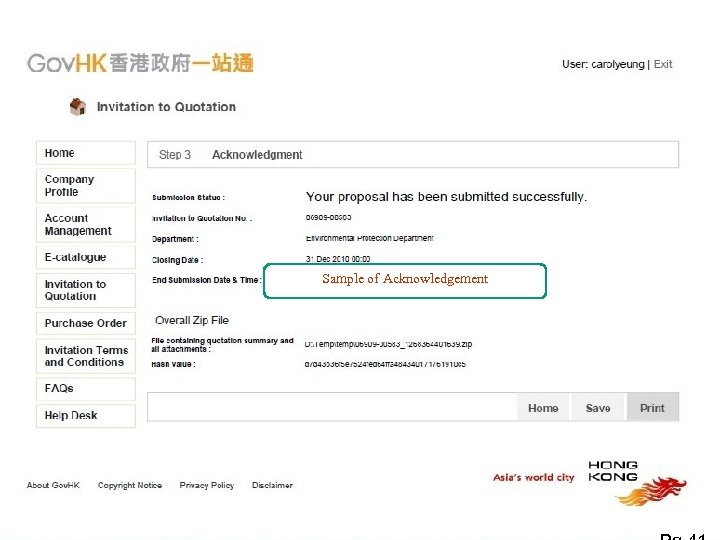 E-Submission Sample of Acknowledgement 第 41頁
 網上報價示範 (5) Receive Purchase Order Pg. 42
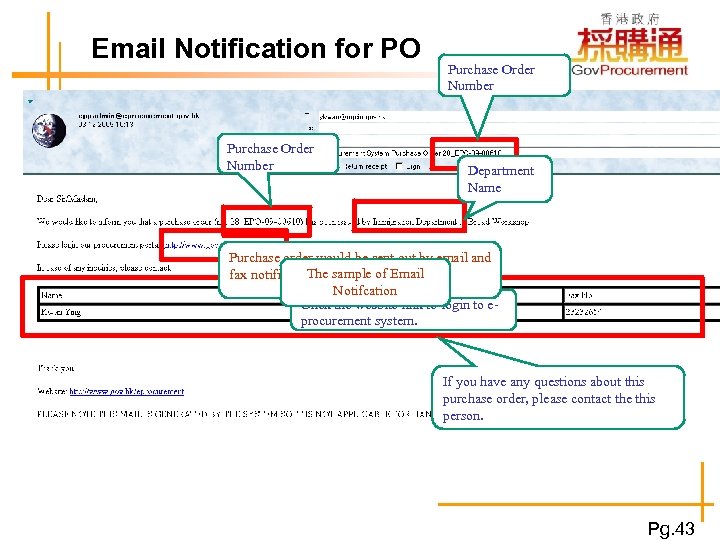 Email Notification 更新電子目錄示範 for PO Purchase Order Number Department Name Purchase order would be sent out by email and The sample of Email fax notification simultaneously Notifcation Click the website link to login to eprocurement system. If you have any questions about this purchase order, please contact the this person. Pg. 43
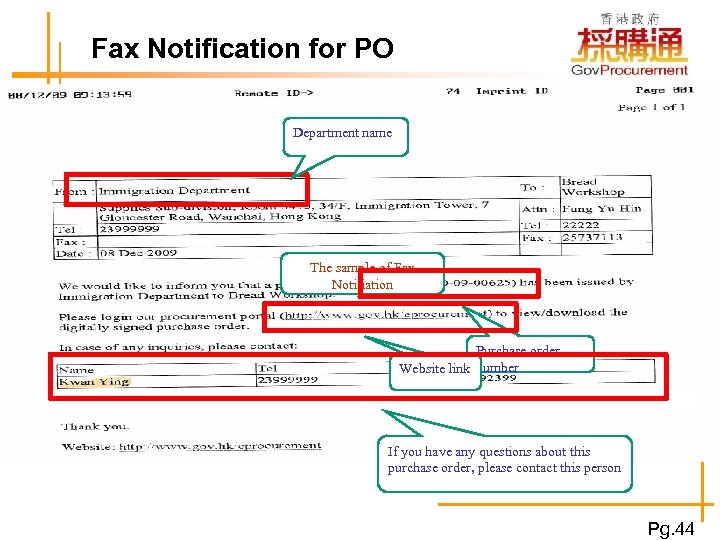 Fax Notification for 更新電子目錄示範 PO Department name The sample of Fax Notifiation Purchase order Website link number If you have any questions about this purchase order, please contact this person Pg. 44
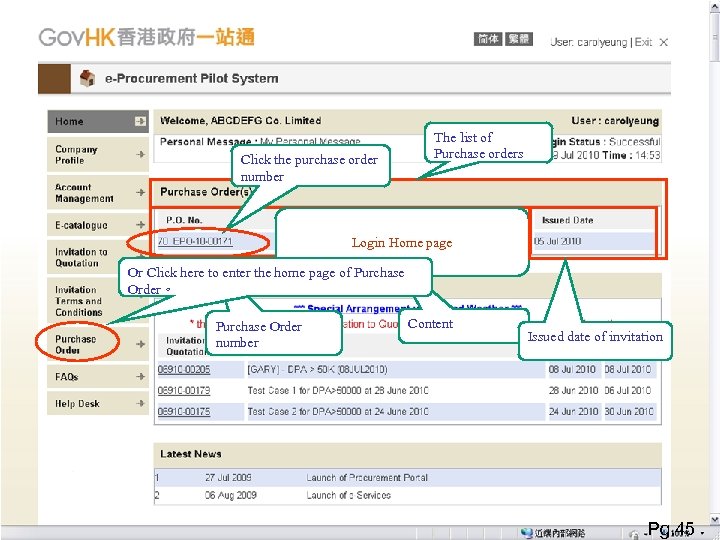 Click the purchase order number The list of Purchase orders Login Home page Or Click here to enter the home page of Purchase Order。 Purchase Order number Content Issued date of invitation Pg. 45
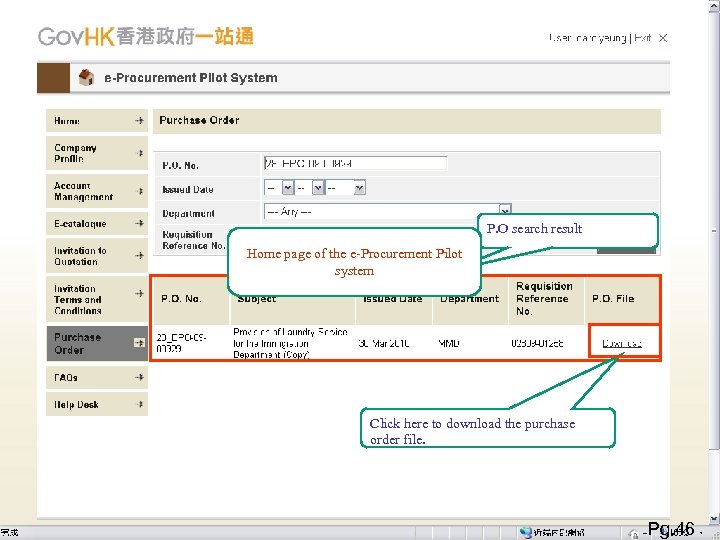 P. O search result Home page of the e-Procurement Pilot system Click here to download the purchase order file. Pg. 46
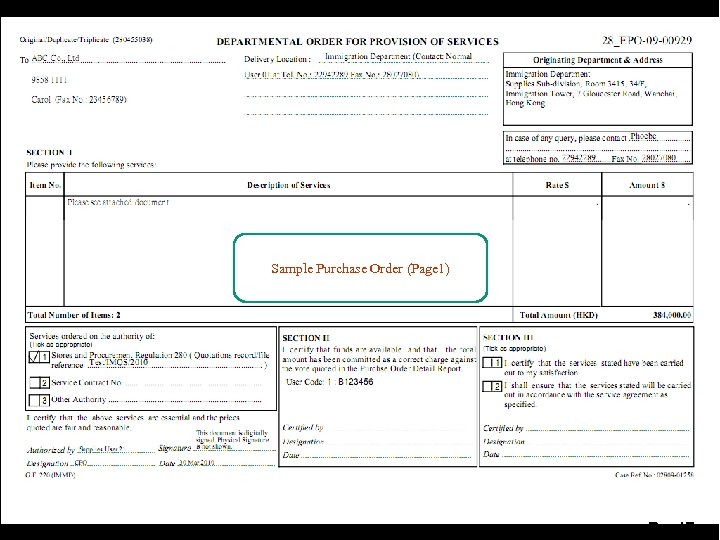 Sample Purchase Order (Page 1) Pg. 47
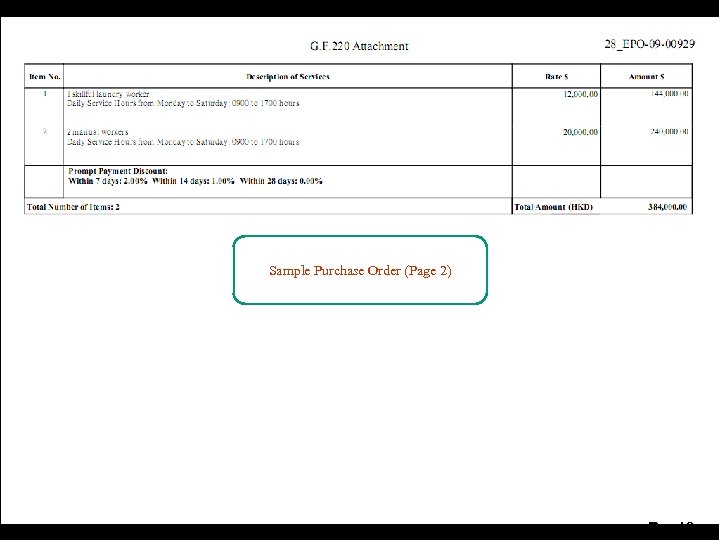 Sample Purchase Order (Page 2) Pg. 48
 網上報價示範 The Demonstrations of e-Submission and Receive Purchase Order are completed Pg. 49
 e-Procurement Pilot Programme Website: http: //www. eprocurement. gov. hk Pg. 50
 Enquiry Tel: 8107 0608 Fax: 2907 0755 Email: eppmgmtoff@ogcio. gov. hk Operation Hours : 8: 00 am – 9: 00 pm (Monday to Friday, excluding Public Holidays) Pg. 51