


 Скачать презентацию e PARTConnection Setup and Marketing e Part
f5ec613e757f011e96646a7505521eee.ppt
- Количество слайдов: 67
 e. PARTConnection Setup and Marketing
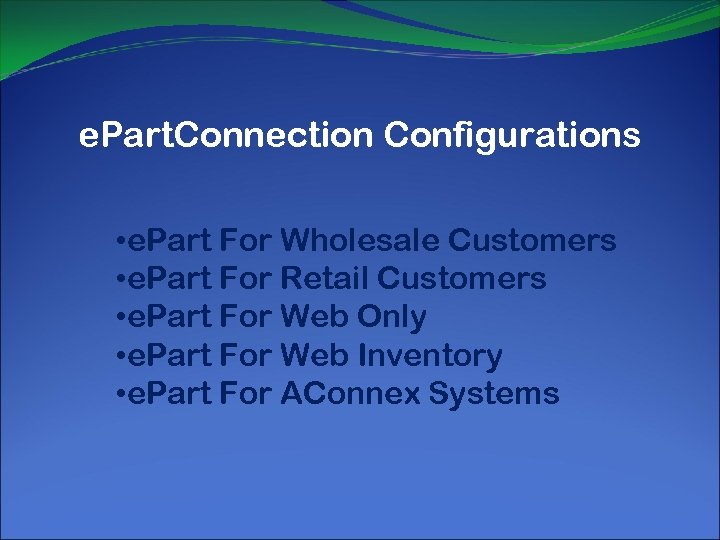 e. Part. Connection Configurations • e. Part For Wholesale Customers • e. Part For Retail Customers • e. Part For Web Only • e. Part For Web Inventory • e. Part For AConnex Systems
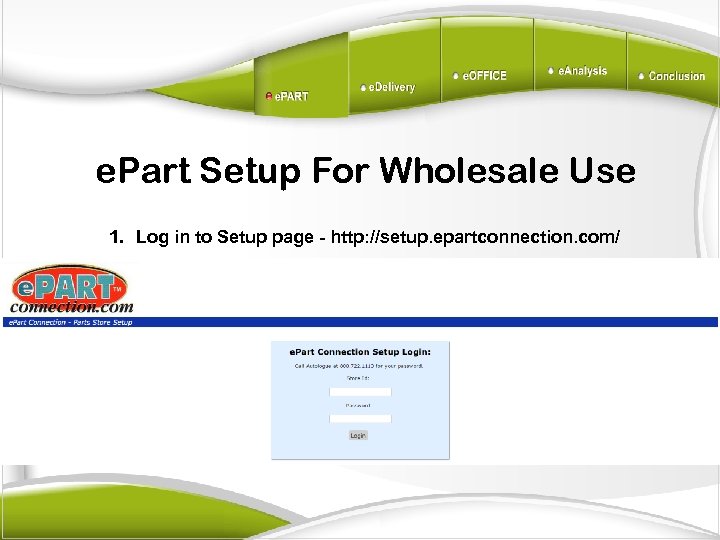 e. Part Setup For Wholesale Use 1. Log in to Setup page - http: //setup. epartconnection. com/
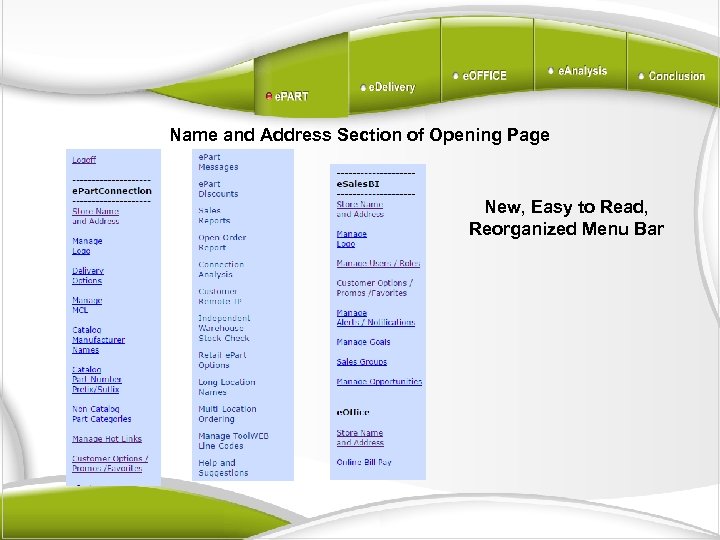 Name and Address Section of Opening Page New, Easy to Read, Reorganized Menu Bar
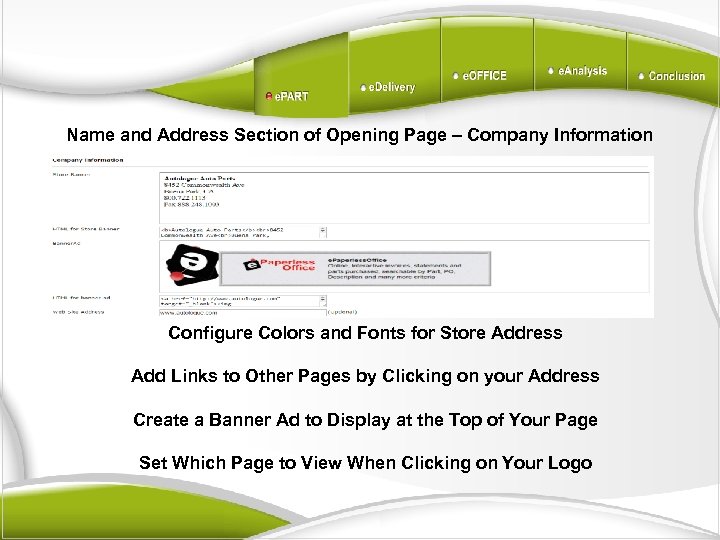 Name and Address Section of Opening Page – Company Information Configure Colors and Fonts for Store Address Add Links to Other Pages by Clicking on your Address Create a Banner Ad to Display at the Top of Your Page Set Which Page to View When Clicking on Your Logo
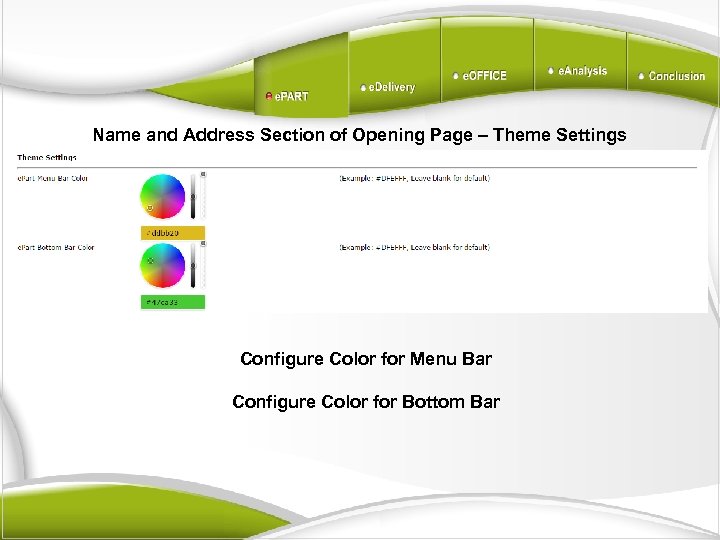 Name and Address Section of Opening Page – Theme Settings Configure Color for Menu Bar Configure Color for Bottom Bar
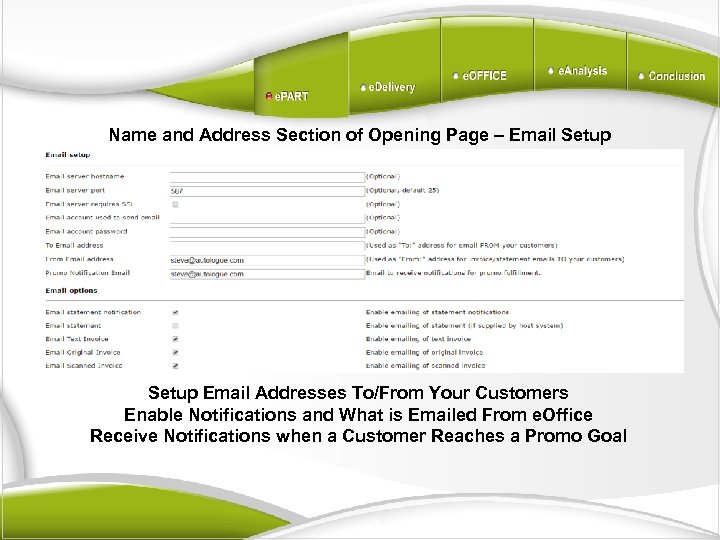 Name and Address Section of Opening Page – Email Setup Email Addresses To/From Your Customers Enable Notifications and What is Emailed From e. Office Receive Notifications when a Customer Reaches a Promo Goal
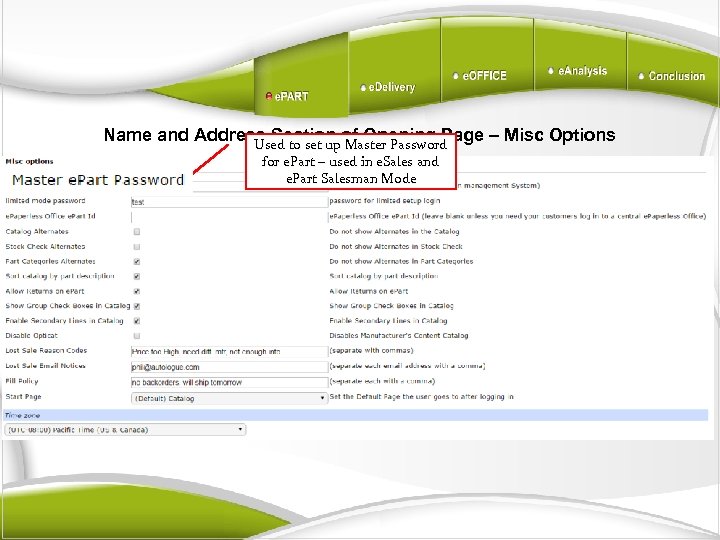 Name and Address Section of Opening Page – Misc Options Used to set up Master Password for e. Part – used in e. Sales and e. Part Salesman Mode
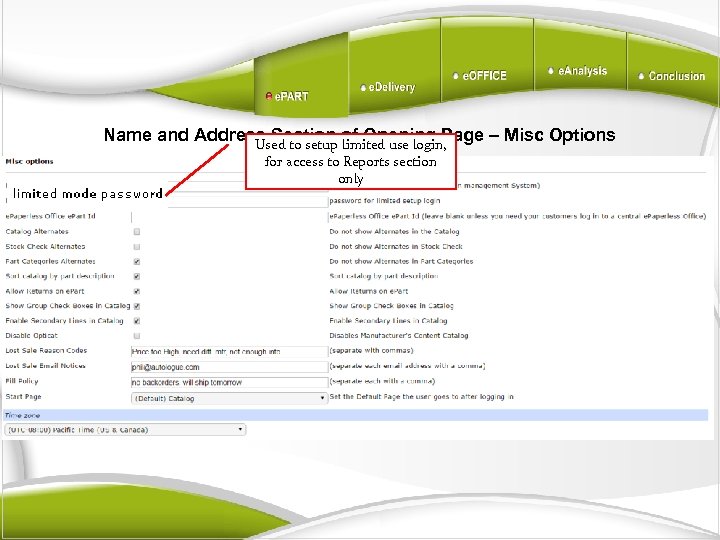 Name and Address Section of Opening Page – Misc Options Used to setup limited use login, for access to Reports section only
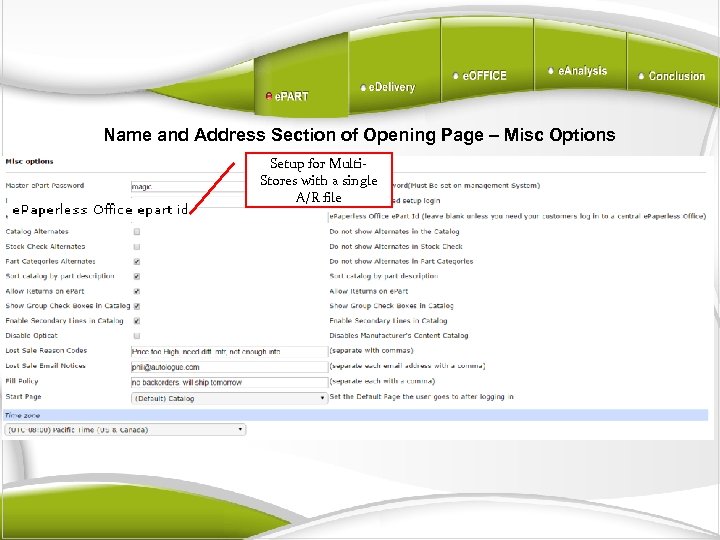 Name and Address Section of Opening Page – Misc Options Setup for Multi. Stores with a single A/R file
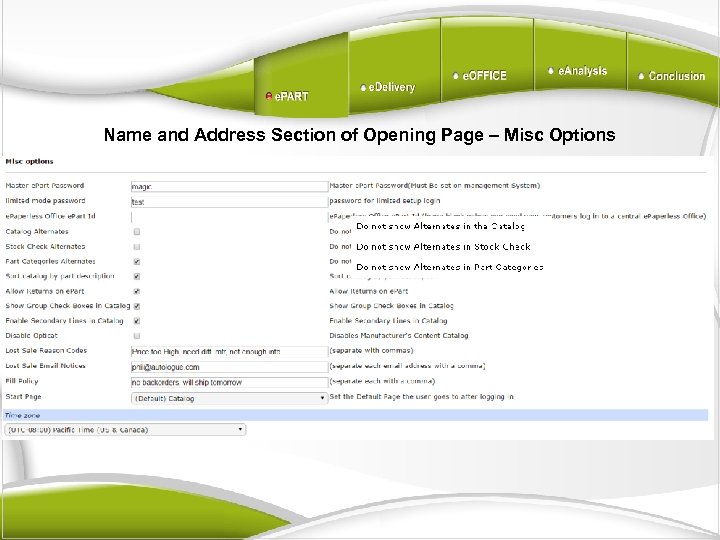 Name and Address Section of Opening Page – Misc Options
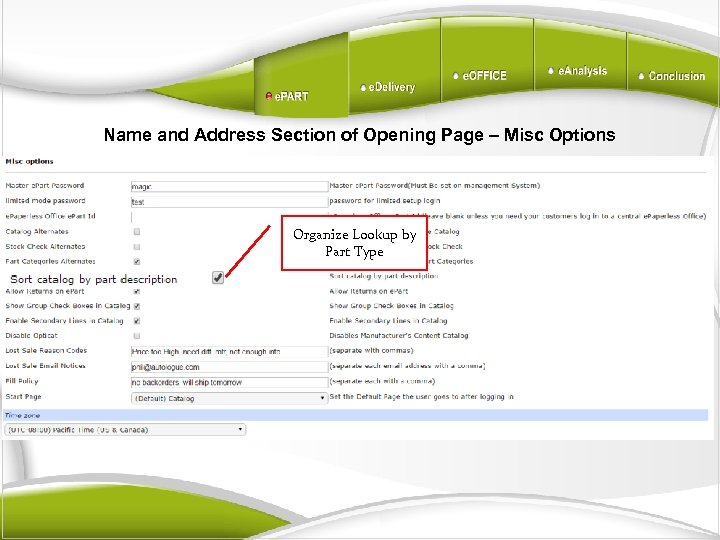 Name and Address Section of Opening Page – Misc Options Organize Lookup by Part Type
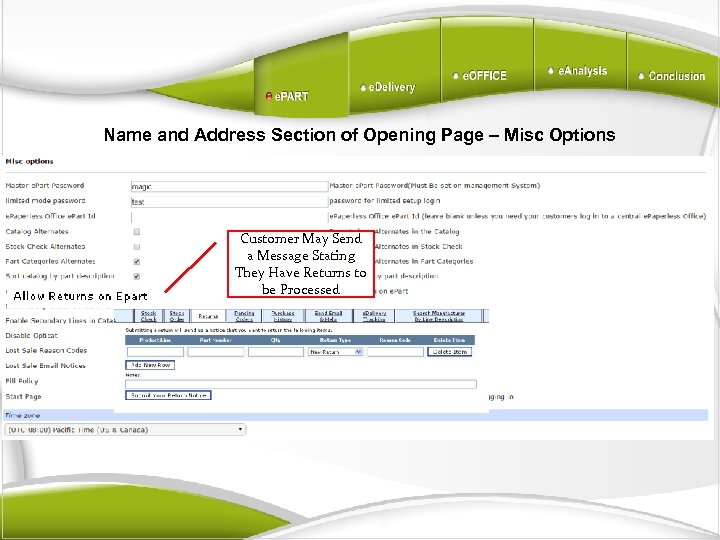 Name and Address Section of Opening Page – Misc Options Customer May Send a Message Stating They Have Returns to be Processed
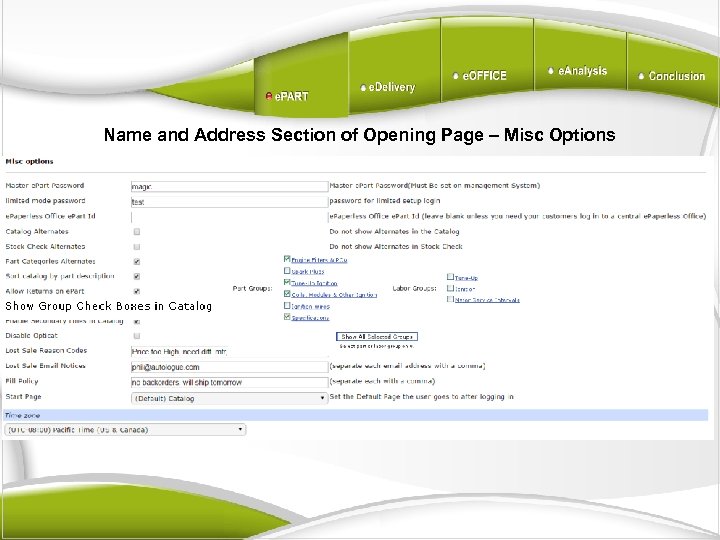 Name and Address Section of Opening Page – Misc Options
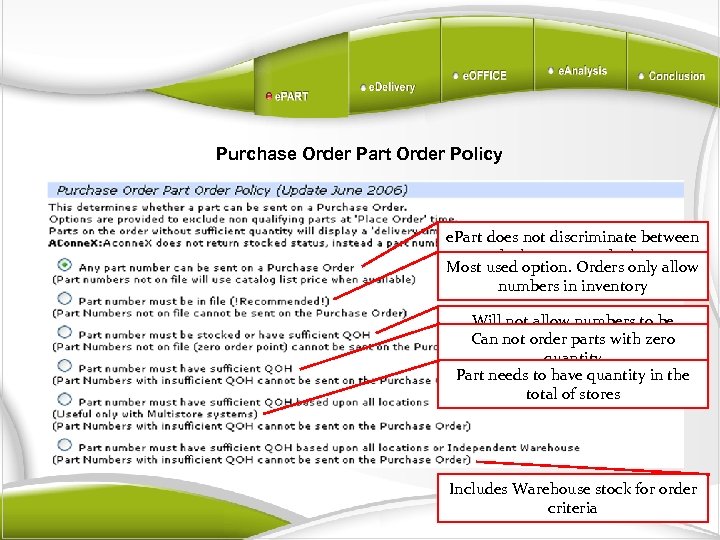 Purchase Order Part Order Policy e. Part does not discriminate between stocked or non-stocked parts Most used option. Orders only allow numbers in inventory Will not allow numbers to be Can not order can be sourced ordered than parts with zero quantity Part needs to have quantity in the total of stores Includes Warehouse stock for order criteria
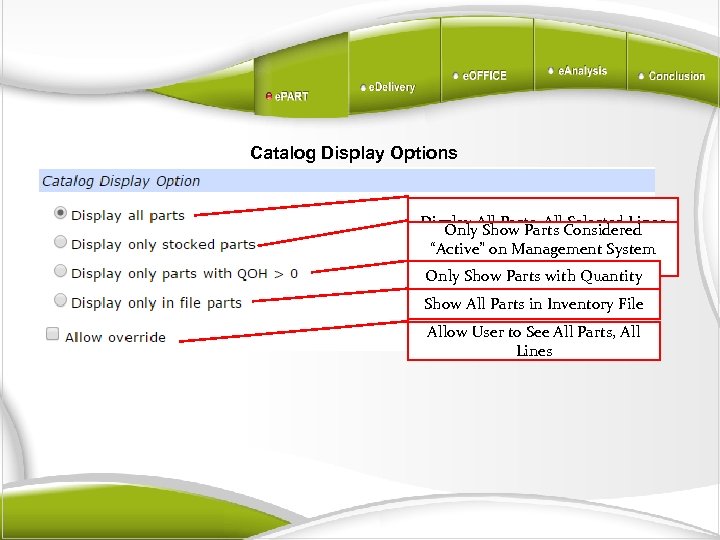 Catalog Display Options Display All Parts, All. Considered Only Show Parts Selected Lines “Active” on Management System (Quantity or with Points) Only Show Parts. Order. Quantity Show All Parts in Inventory File Allow User to See All Parts, All Lines
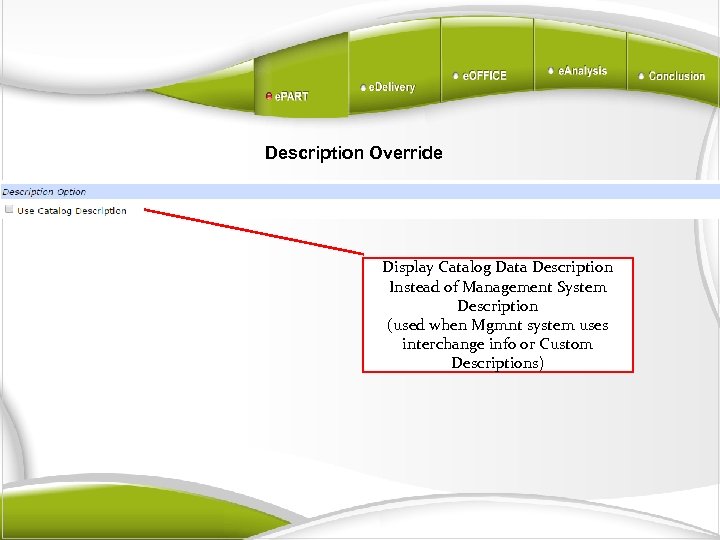 Description Override Display Catalog Data Description Instead of Management System Description (used when Mgmnt system uses interchange info or Custom Descriptions)
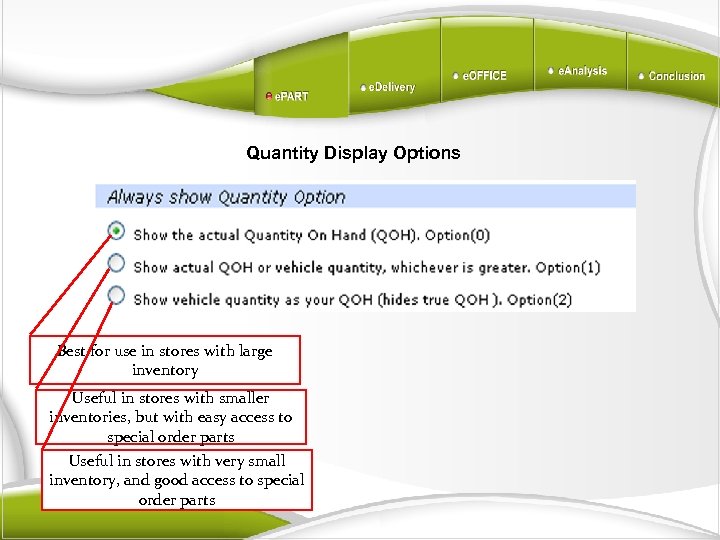 Quantity Display Options Best for use in stores with large inventory Useful in stores with smaller inventories, but with easy access to special order parts Useful in stores with very small inventory, and good access to special order parts
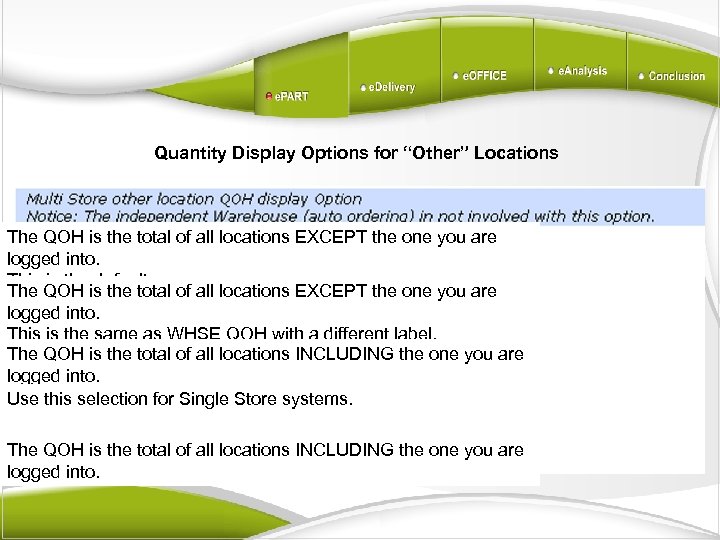 Quantity Display Options for “Other” Locations The QOH is the total of all locations EXCEPT the one you are logged into. This is the default. The QOH is the total of all locations EXCEPT the one you are logged into. This is the same as WHSE QOH with a different label. The QOH is the total of all locations INCLUDING the one you are logged into. Use this selection for Single Store systems. The QOH is the total of all locations INCLUDING the one you are logged into.
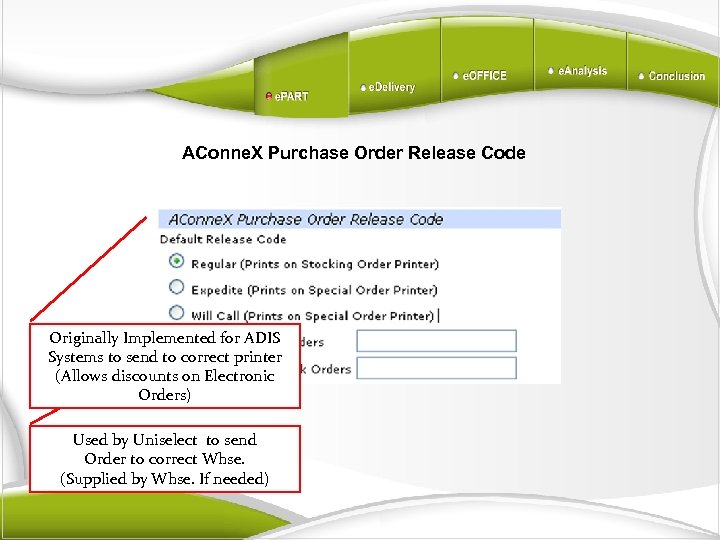 AConne. X Purchase Order Release Code Originally Implemented for ADIS Systems to send to correct printer (Allows discounts on Electronic Orders) Used by Uniselect to send Order to correct Whse. (Supplied by Whse. If needed)
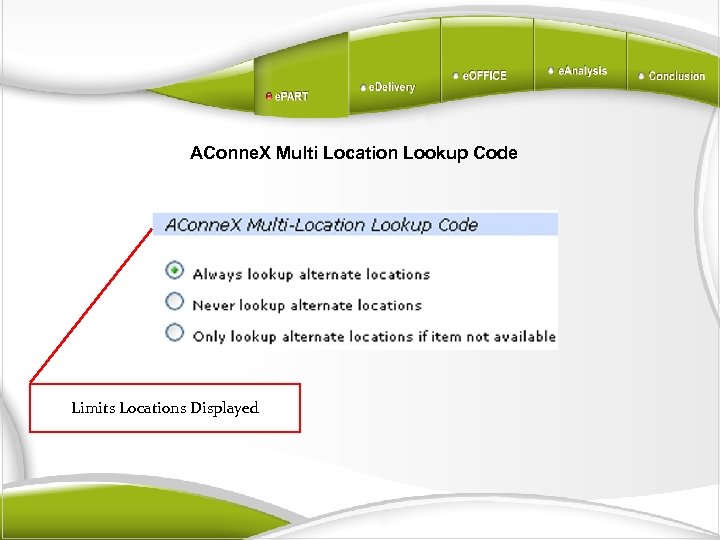 AConne. X Multi Location Lookup Code Limits Locations Displayed
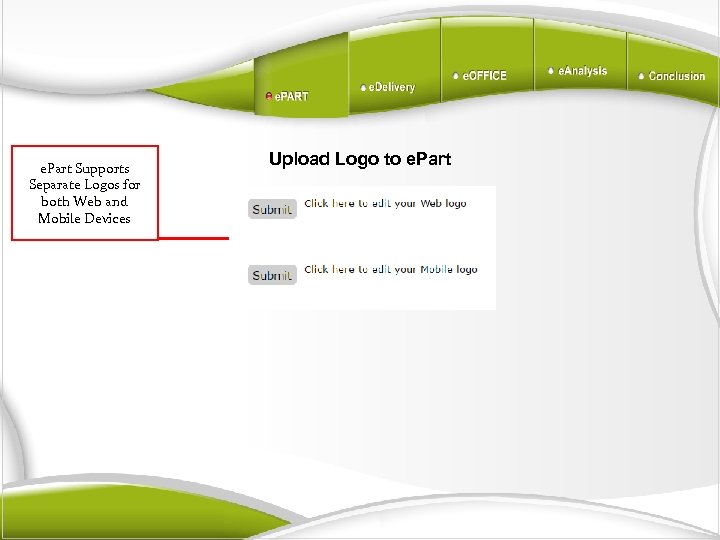 e. Part Supports Separate Logos for both Web and Mobile Devices Upload Logo to e. Part
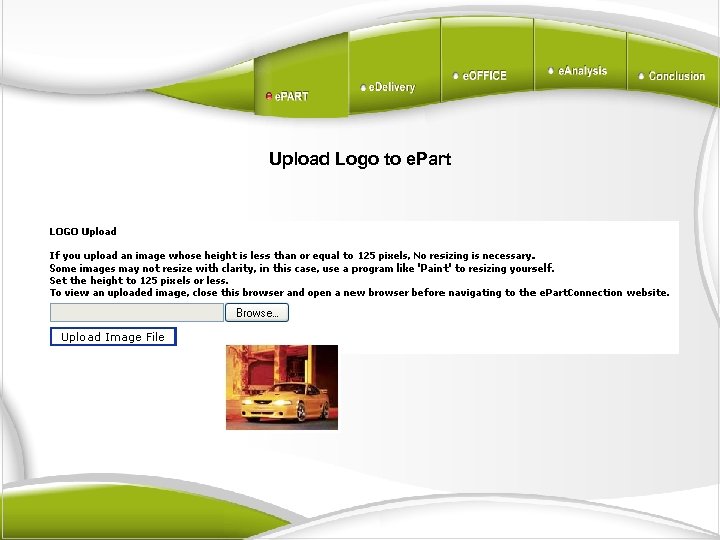 Upload Logo to e. Part
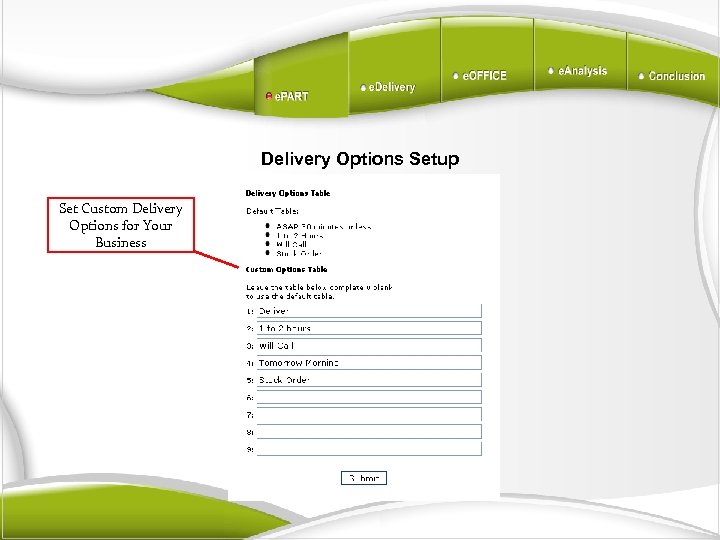 Delivery Options Setup Set Custom Delivery Options for Your Business
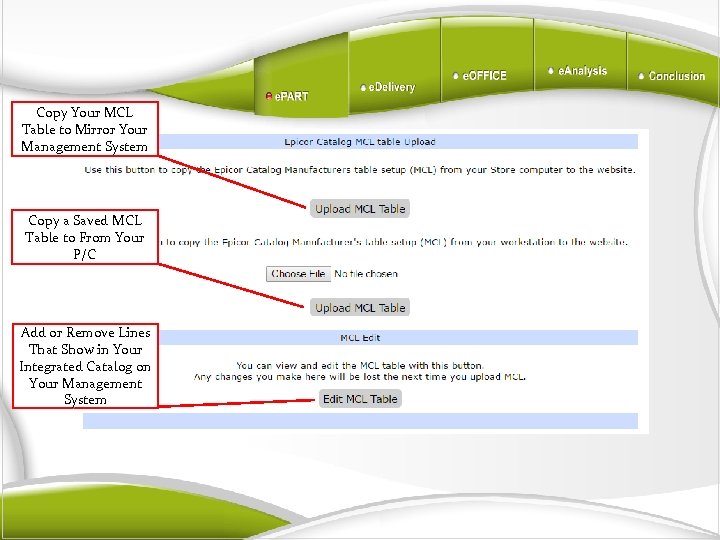 Copy Your MCL Table to Mirror Your Management System Copy a Saved MCL Table to From Your P/C Add or Remove Lines That Show in Your Integrated Catalog on Your Management System MCL Table Functions
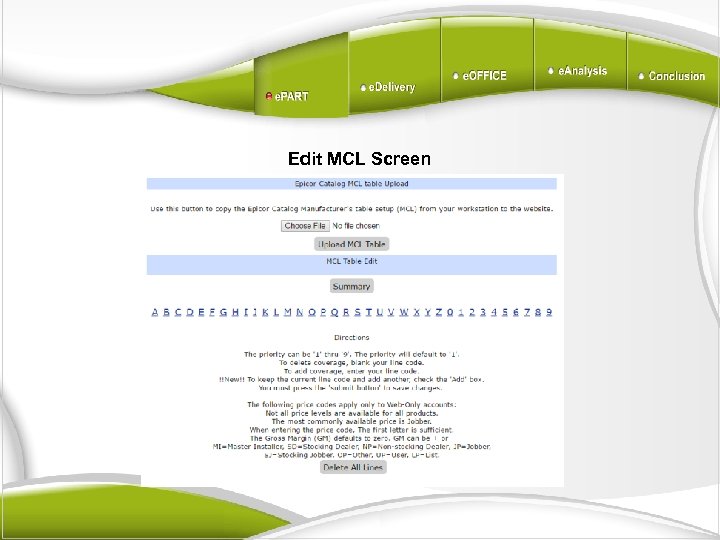 Edit MCL Screen
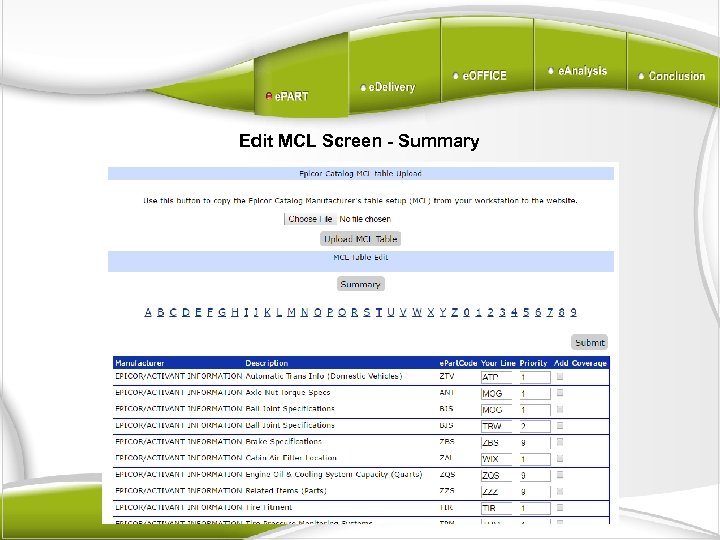 Edit MCL Screen - Summary
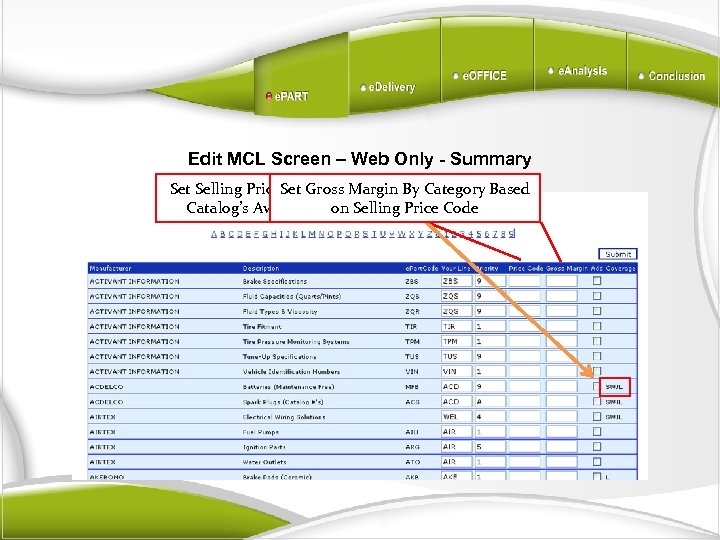 Edit MCL Screen – Web Only - Summary Set Selling Price. Set Gross Margin By Category Based By Category Using Catalog’s Available Price. Selling Price Code on Code
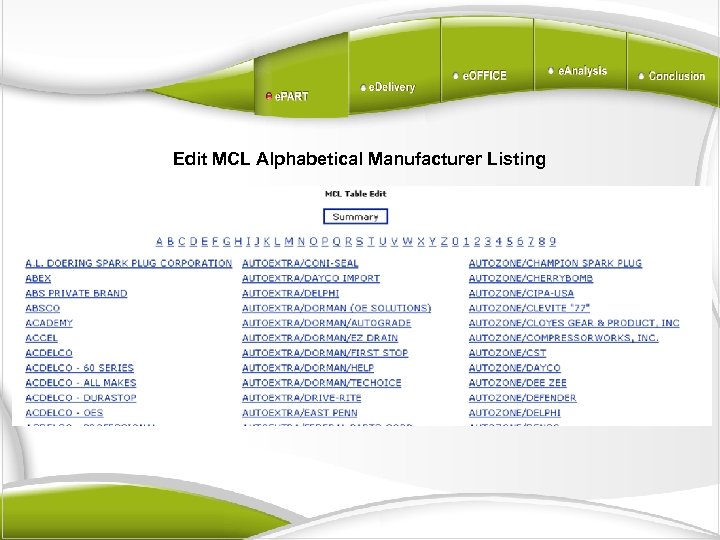 Edit MCL Alphabetical Manufacturer Listing
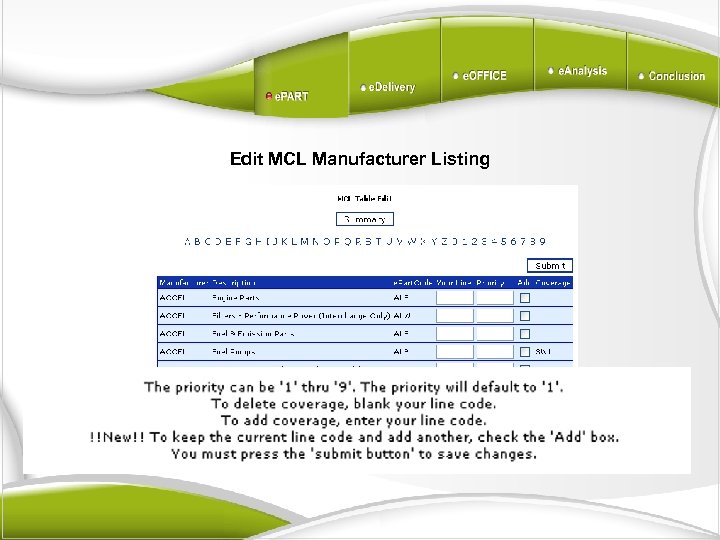 Edit MCL Manufacturer Listing
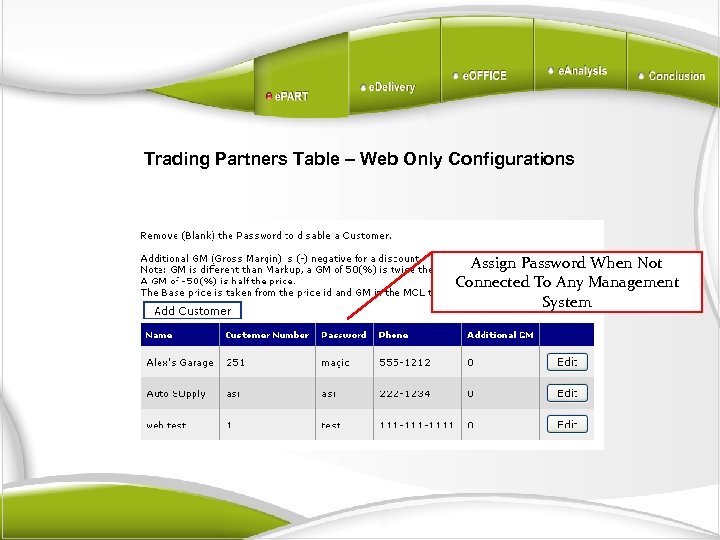 Trading Partners Table – Web Only Configurations Assign Password When Not Connected To Any Management System
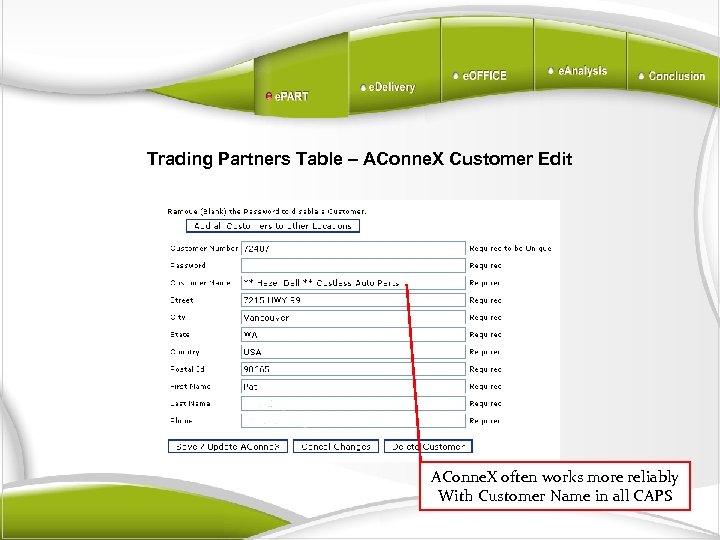 Trading Partners Table – AConne. X Customer Edit AConne. X often works more reliably With Customer Name in all CAPS
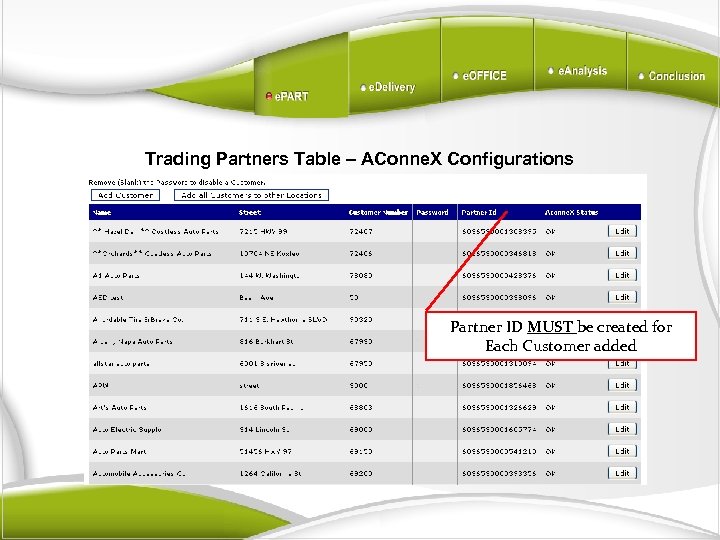 Trading Partners Table – AConne. X Configurations Partner ID MUST be created for Each Customer added
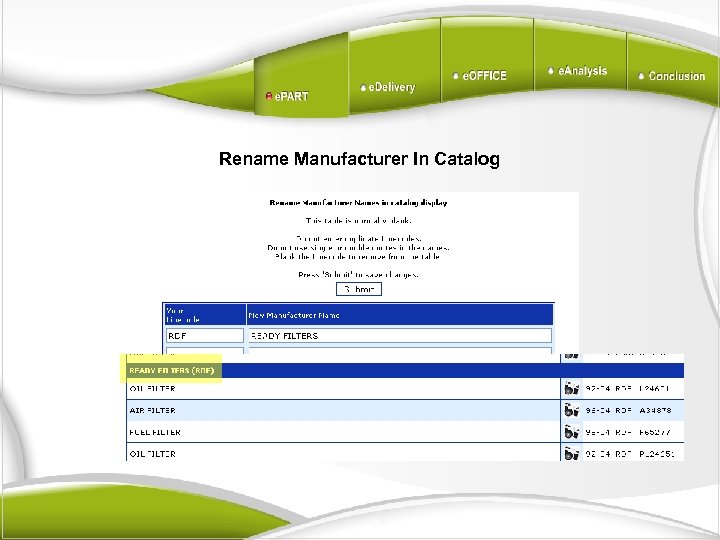 Rename Manufacturer In Catalog
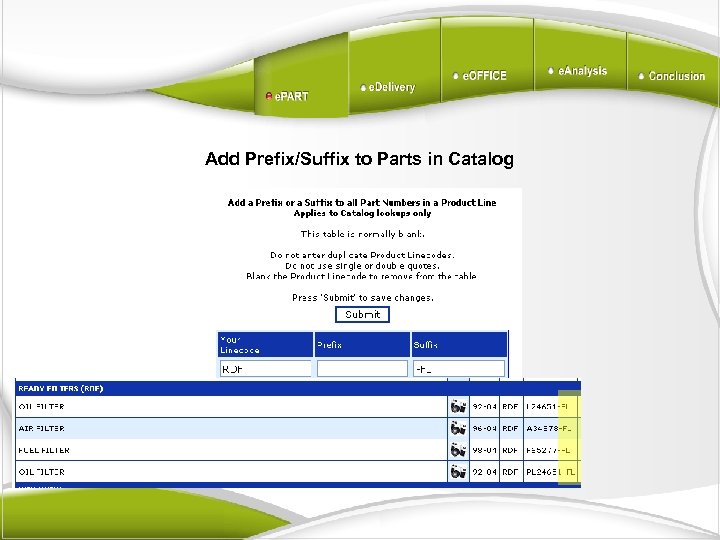 Add Prefix/Suffix to Parts in Catalog
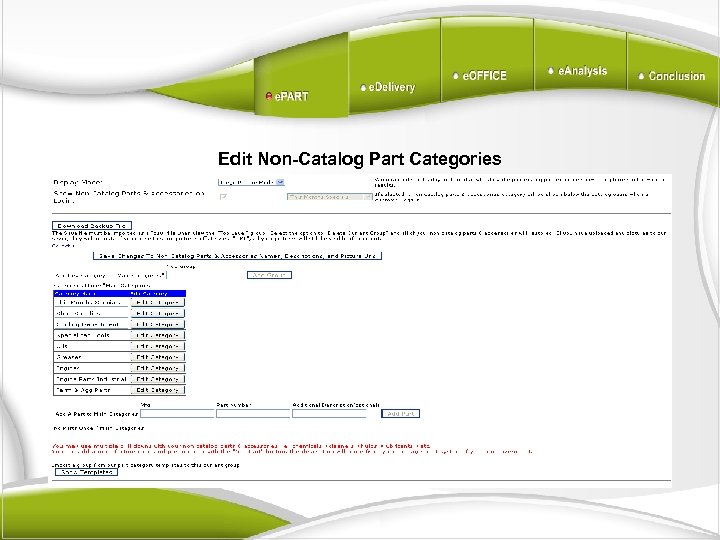 Edit Non-Catalog Part Categories
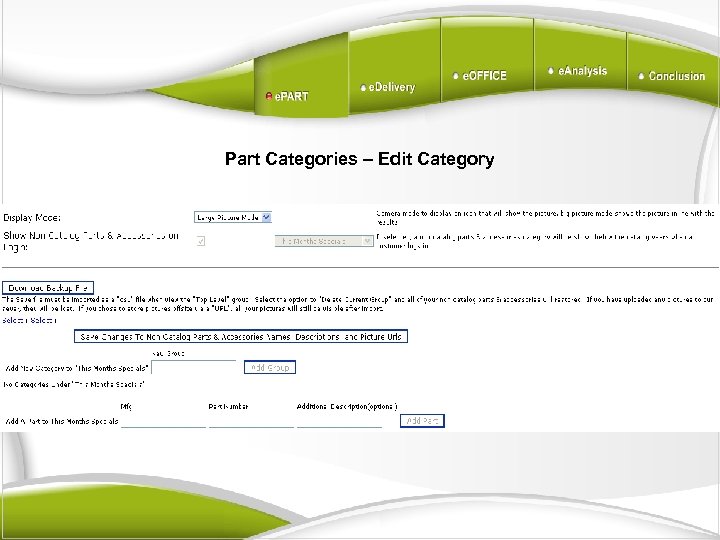 Part Categories – Edit Category
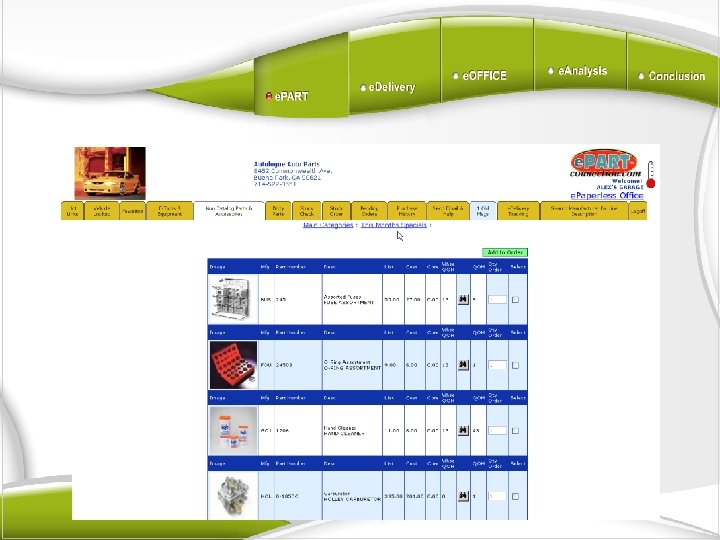 Part Categories – Edit Category
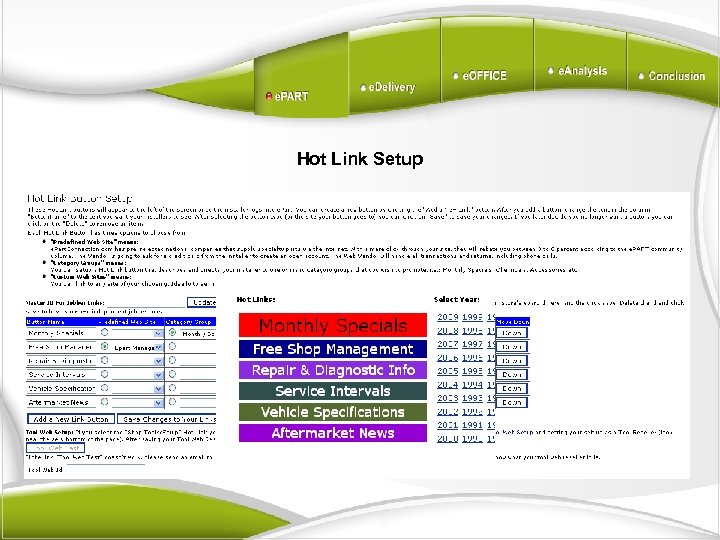 Hot Link Setup
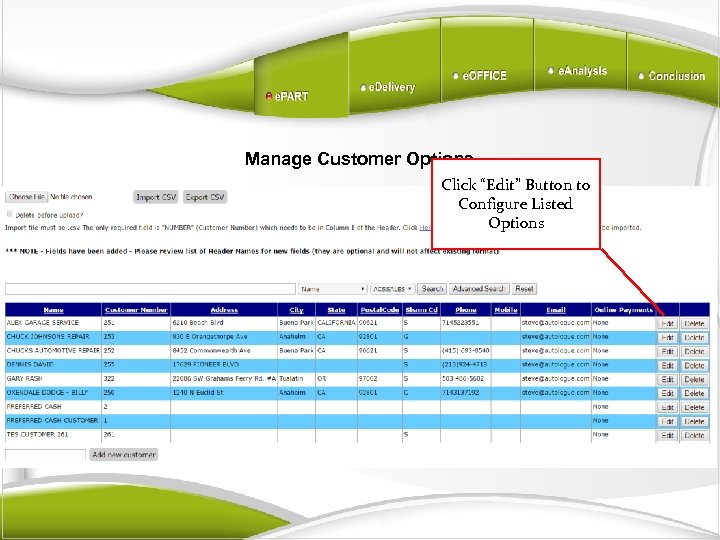 Manage Customer Options Click “Edit” Button to Configure Listed Options
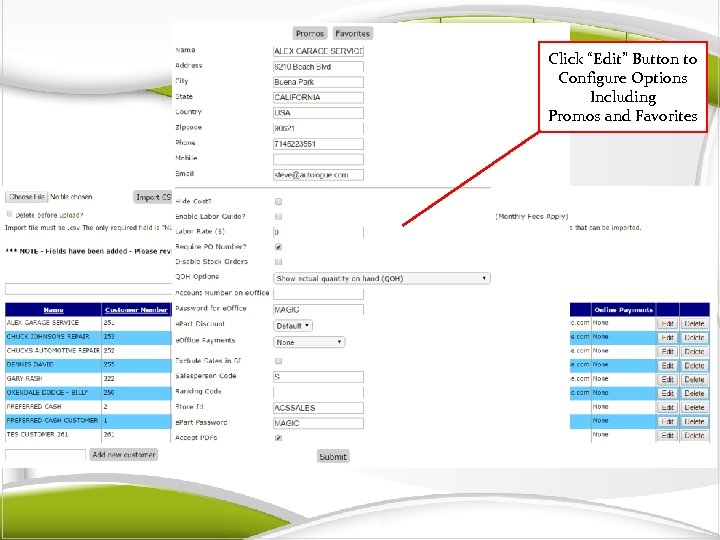 Click “Edit” Button to Configure Options Including Promos and Favorites Manage Customer Options
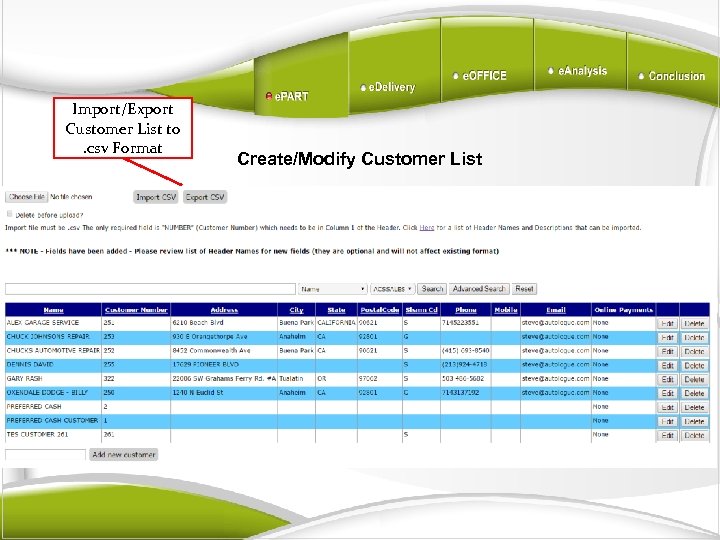 Import/Export Customer List to. csv Format Create/Modify Customer List
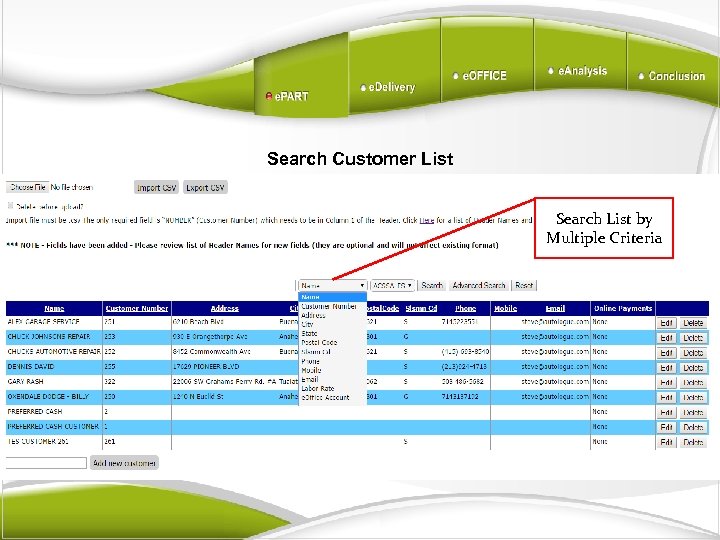 Search Customer List Search List by Multiple Criteria
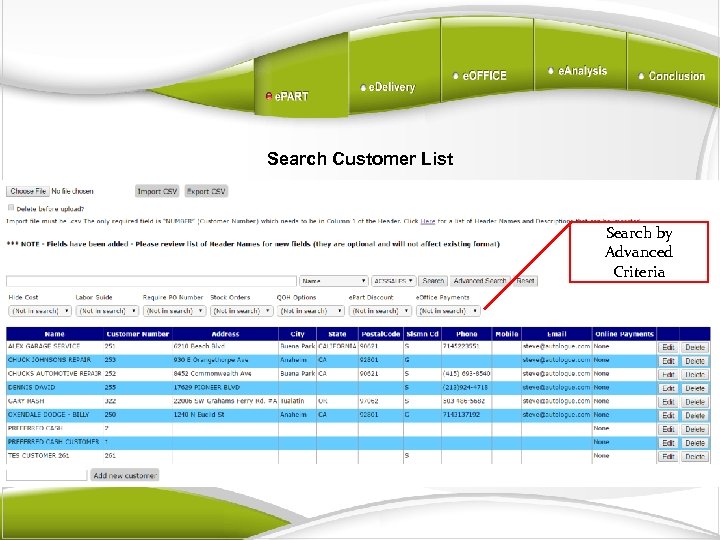 Search Customer List Search by Advanced Criteria
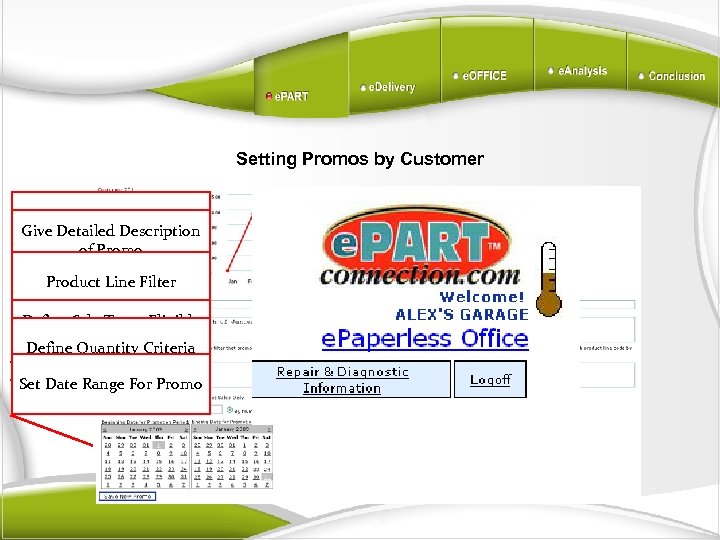 Setting Promos by Customer Name Promo Give Detailed Description of Promo Product Line Filter Define Sale Types Eligible For Promo Define Quantity Criteria Set Date Range For Promo
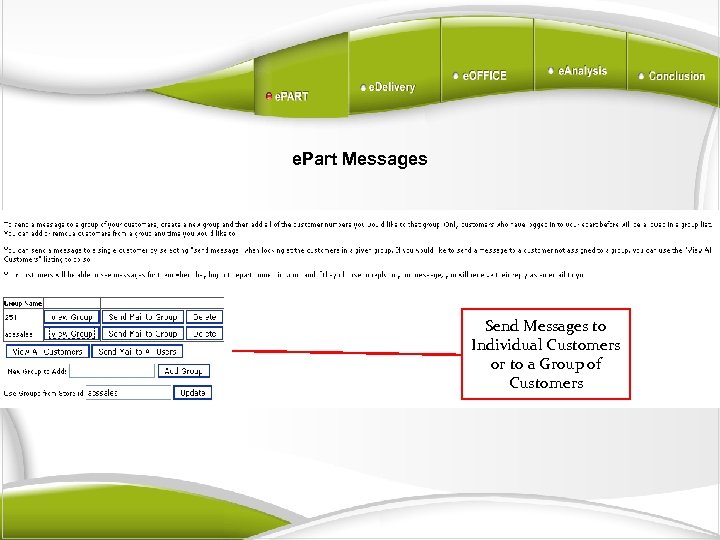 e. Part Messages Send Messages to Individual Customers or to a Group of Customers
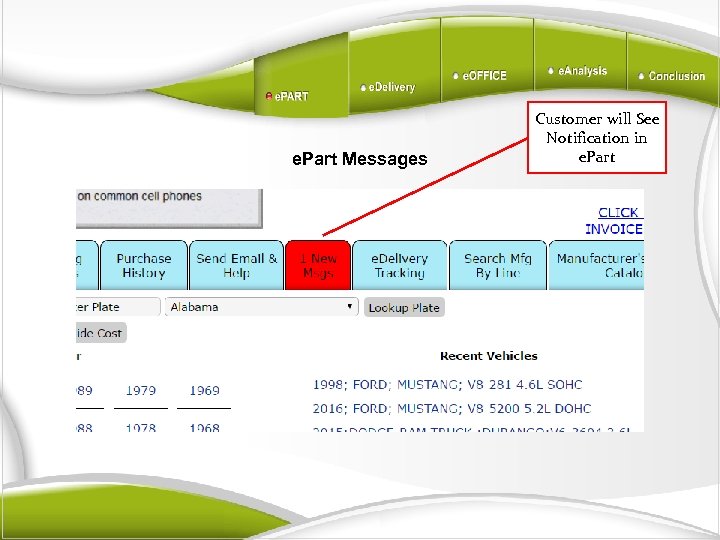 e. Part Messages Customer will See Notification in e. Part
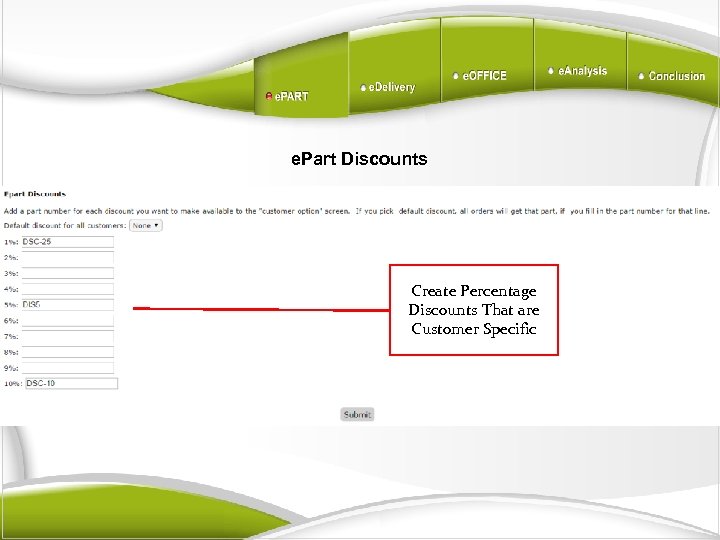 e. Part Discounts Create Percentage Discounts That are Customer Specific
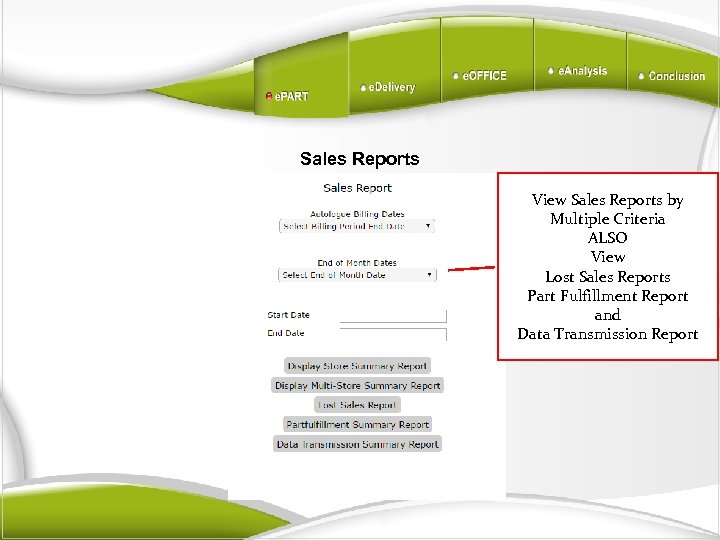 Sales Reports View Sales Reports by Multiple Criteria ALSO View Lost Sales Reports Part Fulfillment Report and Data Transmission Report
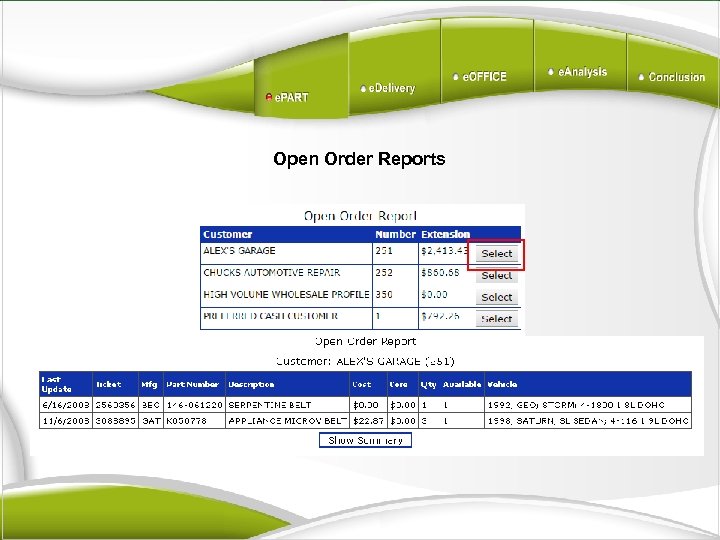 Open Order Reports
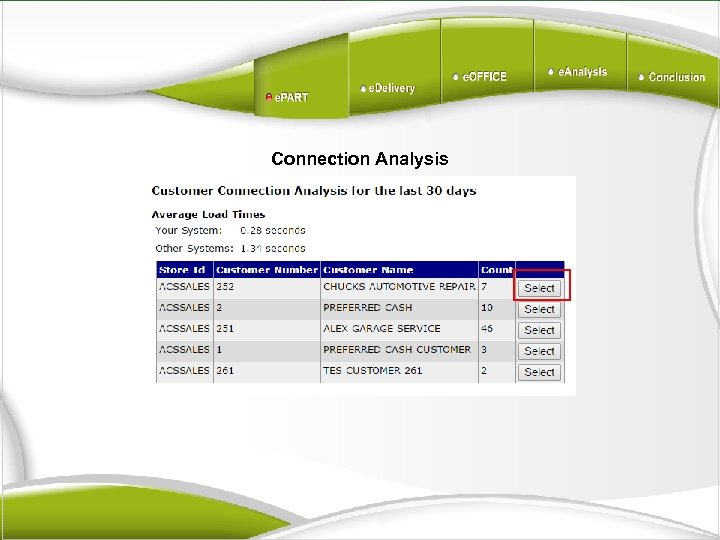 Connection Analysis
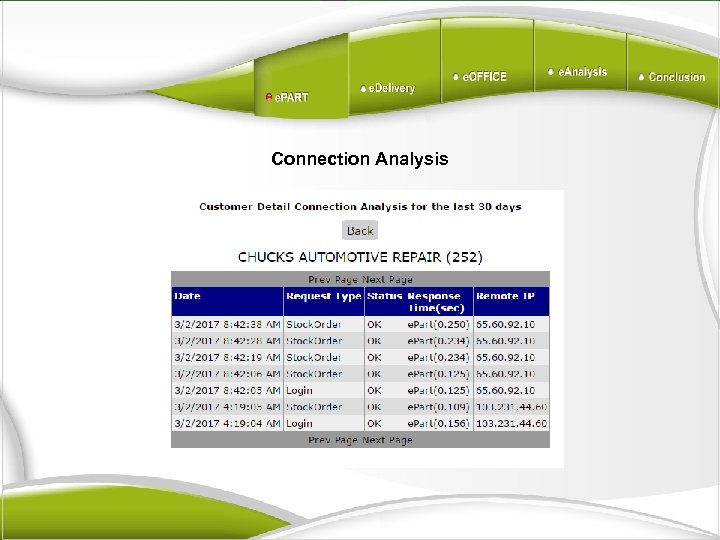 Connection Analysis
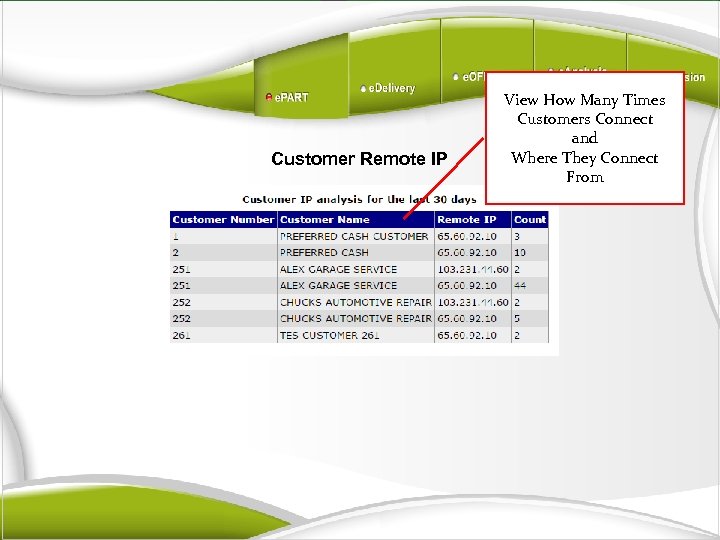 Customer Remote IP View How Many Times Customers Connect and Where They Connect From
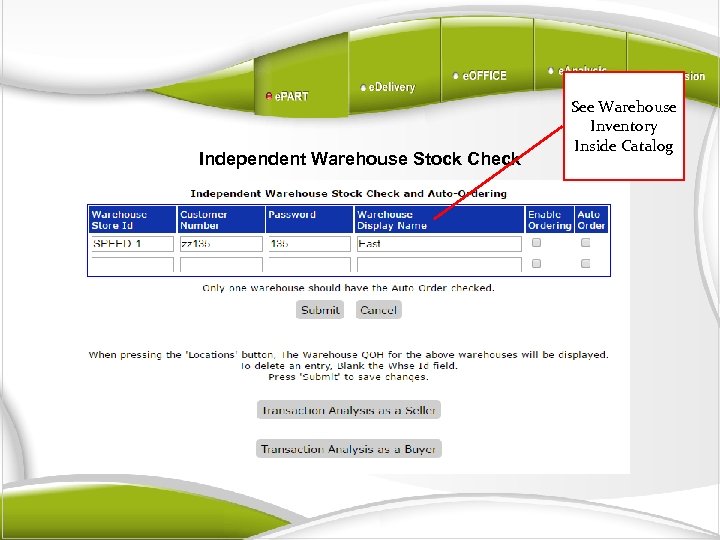 Independent Warehouse Stock Check See Warehouse Inventory Inside Catalog
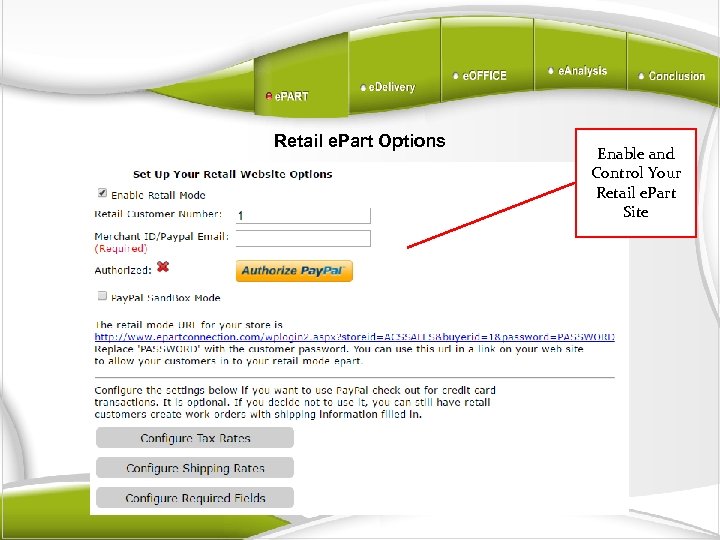 Retail e. Part Options Enable and Control Your Retail e. Part Site
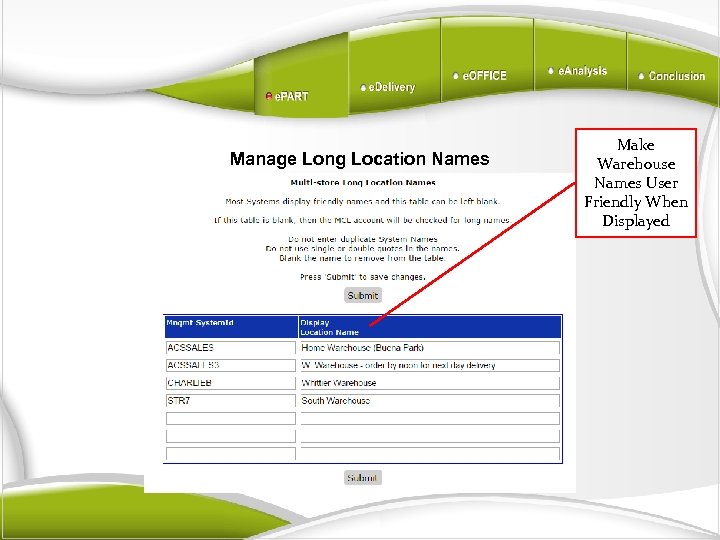 Manage Long Location Names Make Warehouse Names User Friendly When Displayed
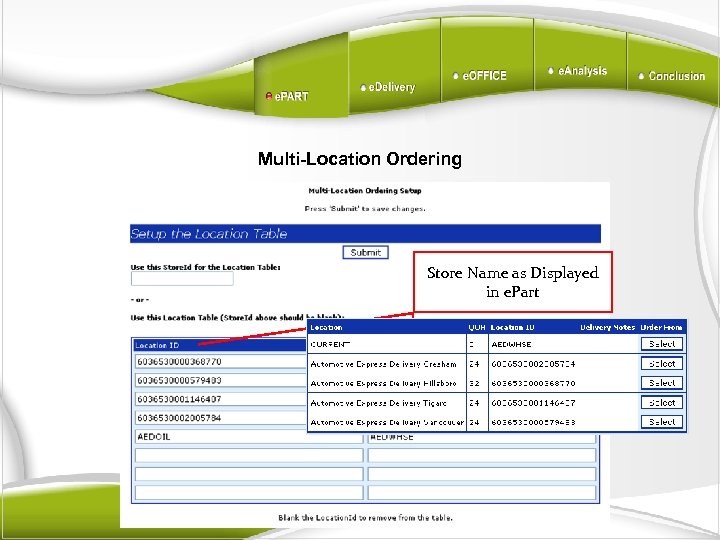 Multi-Location Ordering Store Name asin Mgmt. Store Name Displayed in e. Part System
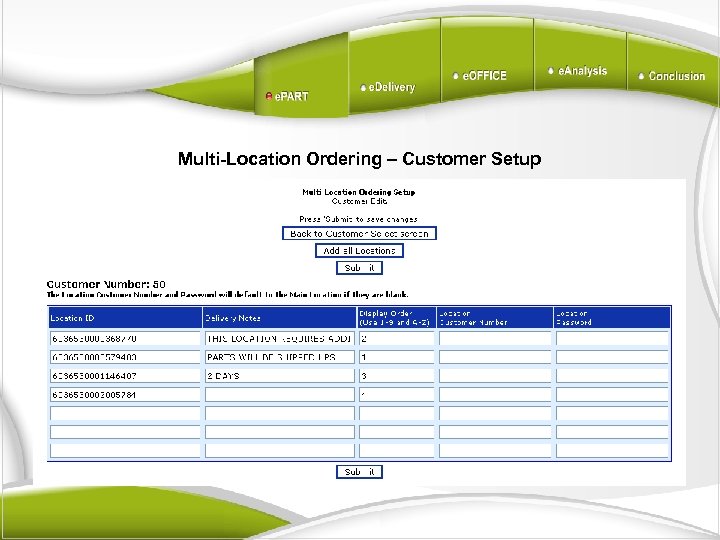 Multi-Location Ordering – Customer Setup
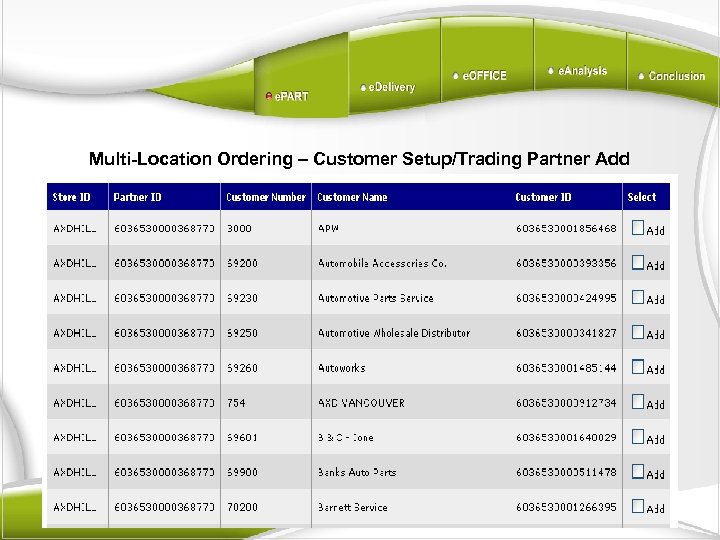 Multi-Location Ordering – Customer Setup/Trading Partner Add
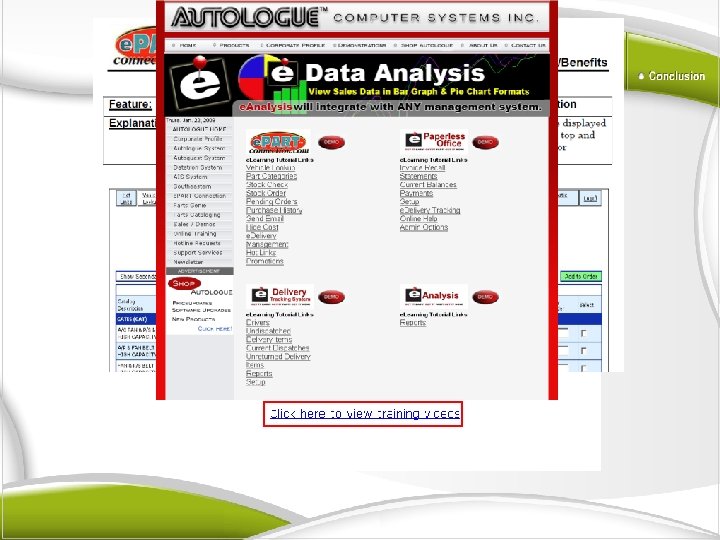 Help Screen
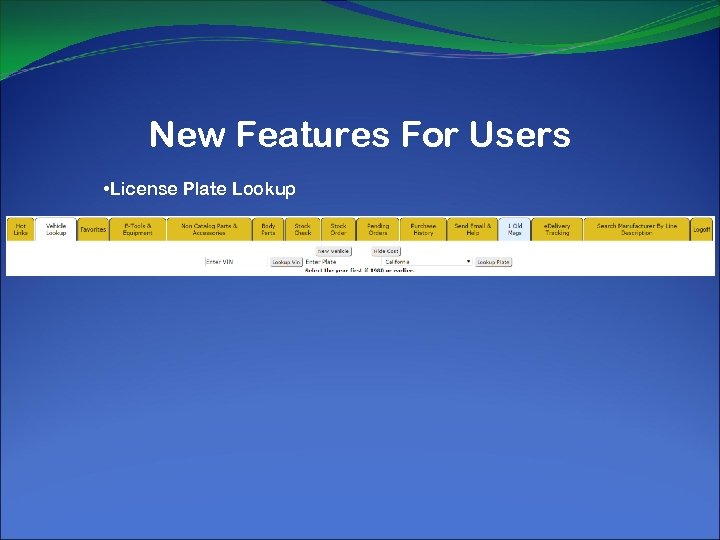 New Features For Users • License Plate Lookup
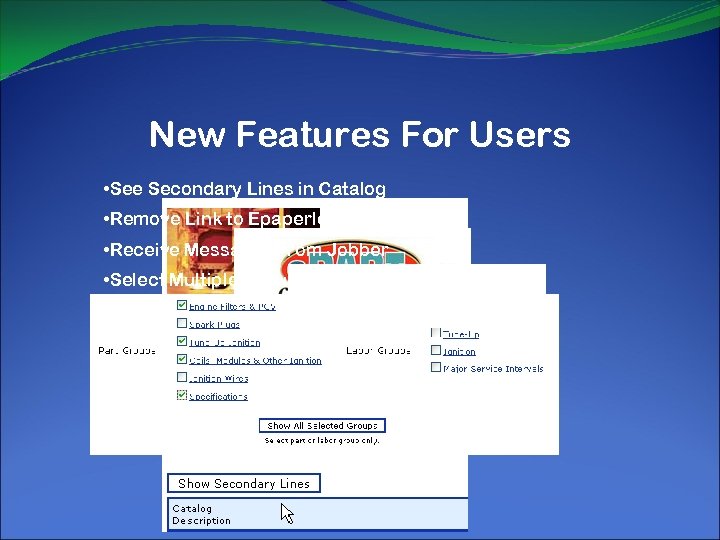 New Features For Users • See Secondary Lines in Catalog • Remove Link to Epaperless. Office • Receive Messages From Jobber • Select Multiple Groups for Display in Catalog
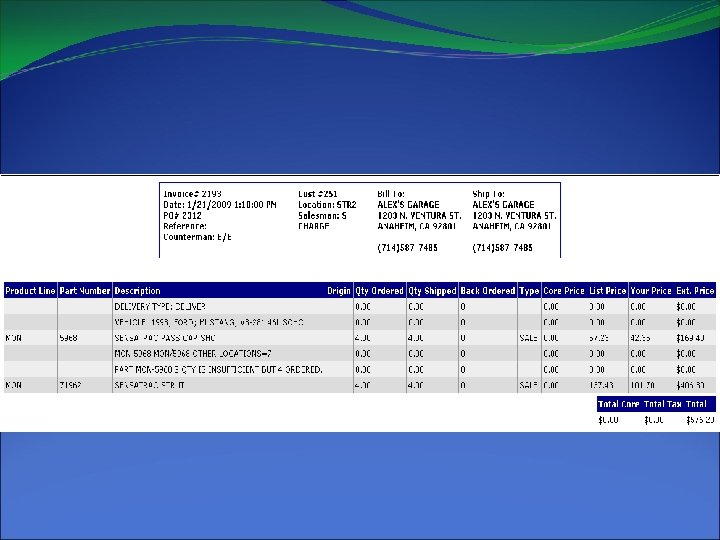
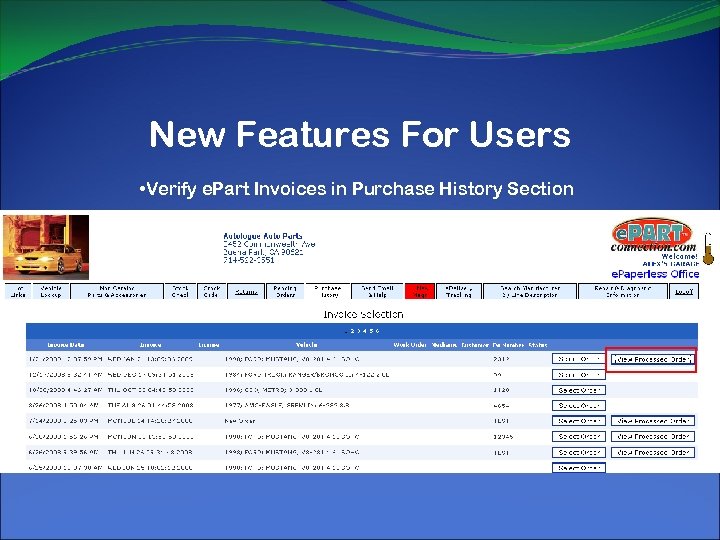 New Features For Users • Verify e. Part Invoices in Purchase History Section
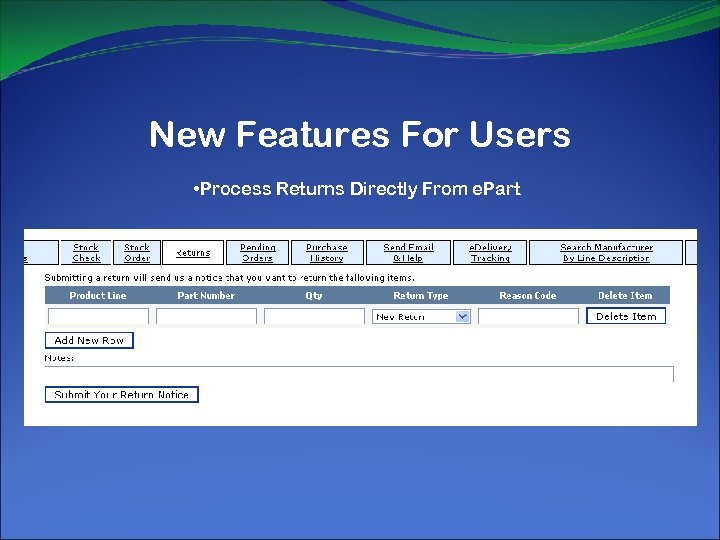 New Features For Users • Process Returns Directly From e. Part
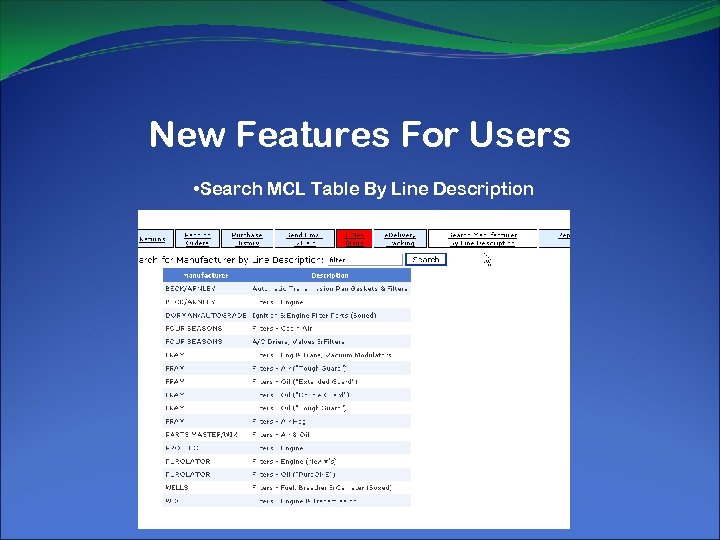 New Features For Users • Search MCL Table By Line Description
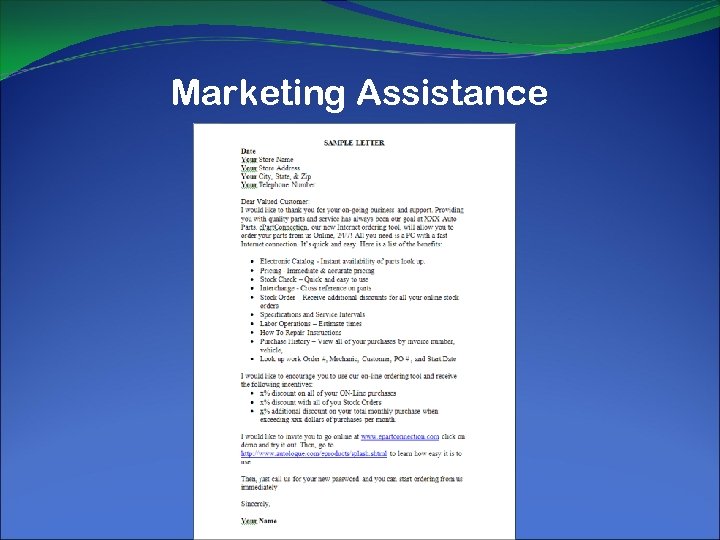 Marketing Assistance