


 Скачать презентацию E D T 3 2 1 Summer Session
96e2ff5c085c175faa3fa7eb306ea658.ppt
- Количество слайдов: 23
 E D T 3 2 1 Summer Session Advanced Functions in Microsoft Word Table of Contents Advanced Features 1
 E D T 3 2 1 Summer Session Objectives: v Create a Table of Contents (TOC) with hyperlinks using the “Document for TOC” v Learn advanced features n n n Formatting Tables Columns Header and footer for sections Tables Inserting diagrams 2
 E D T 3 2 1 Summer Session TOC Project v Two files n n TOC directions. doc Document for TOC. doc v Open merge directions. doc n n Follow instructions in class Complete project in class 3
 E D T 3 2 1 Summer Session Preparation v Prepare document (Document_for_TOC. doc) v Decide headings and subheadings n n Level 1 – main topic Level 2, 3, etc. – Level 1 sub topics v Apply Styles v Insert TOC page with title 4
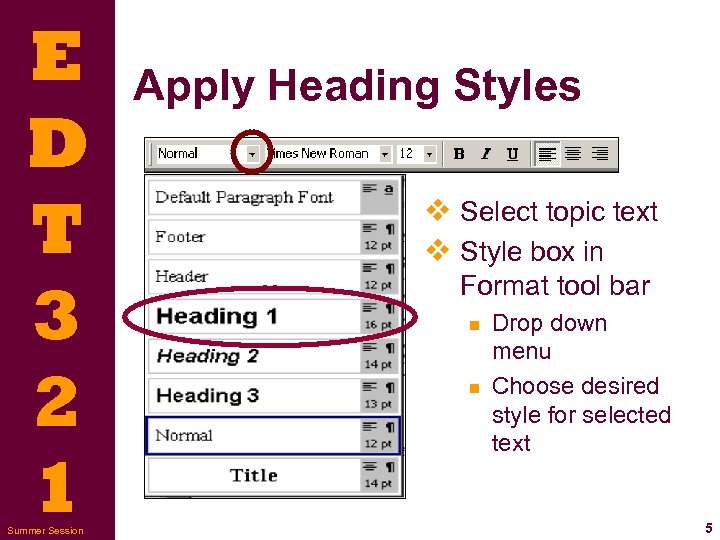 E D T 3 2 1 Summer Session Apply Heading Styles v Select topic text v Style box in Format tool bar n n Drop down menu Choose desired style for selected text 5
 E D T 3 2 1 Summer Session Heading Styles v Blue Text = Heading 1 v Red Text = Heading 2 6
 E D T 3 2 1 Summer Session TOC Page v Insert TOC page with title n n (in Word: click Insert, click Break…, select Page break, click OK) Type Table of Contents as title Add 1 or 2 blank lines Apply Heading 1 style to title v Table will be added where cursor is located 7
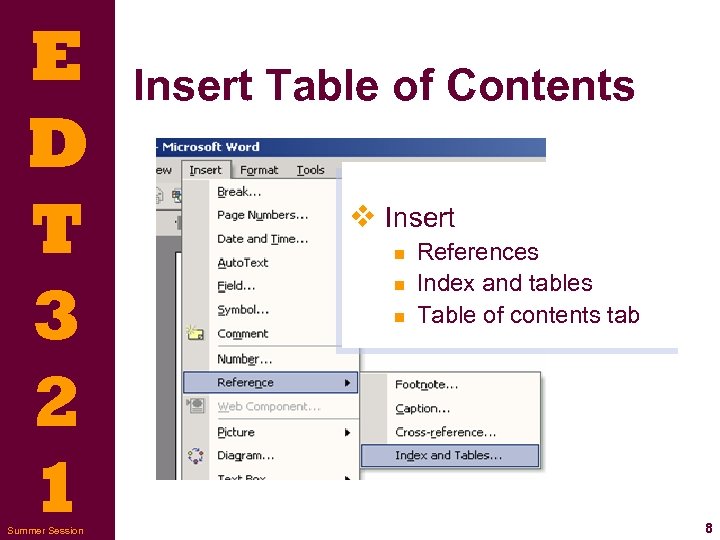 E D T 3 2 1 Summer Session Insert Table of Contents v Insert n n n References Index and tables Table of contents tab 8
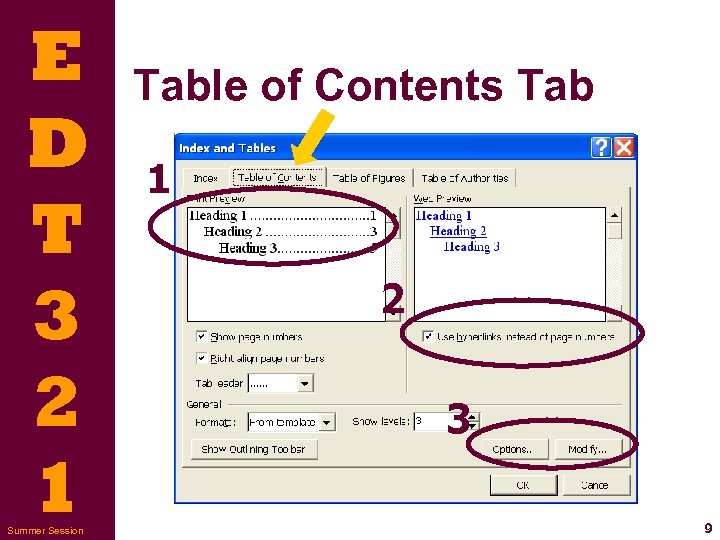 E D T 3 2 1 Summer Session Table of Contents Tab 1 2 3 9
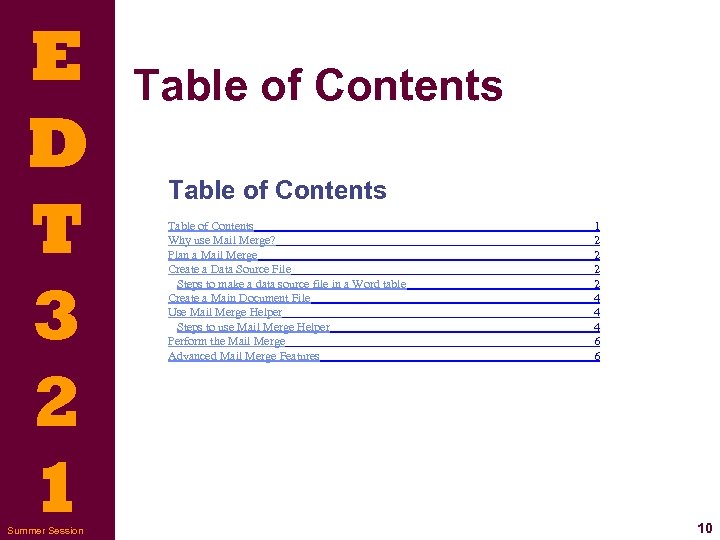 E D T 3 2 1 Summer Session Table of Contents Why use Mail Merge? Plan a Mail Merge Create a Data Source File Steps to make a data source file in a Word table Create a Main Document File Use Mail Merge Helper Steps to use Mail Merge Helper Perform the Mail Merge Advanced Mail Merge Features 1 2 2 4 4 4 6 6 10
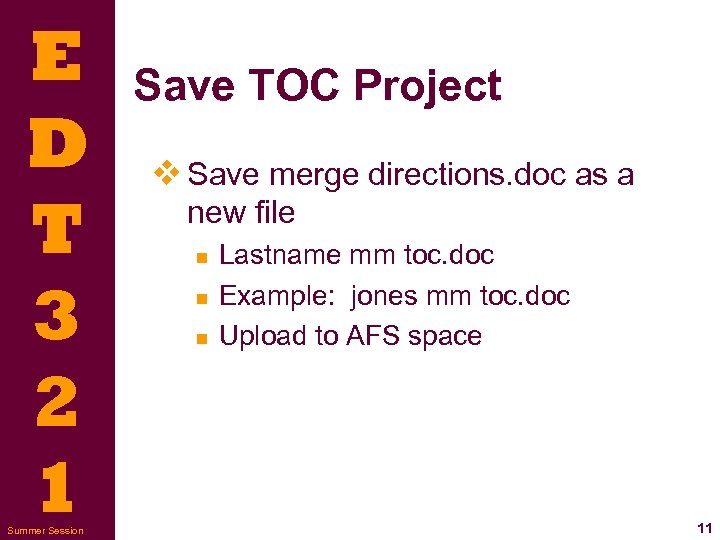 E D T 3 2 1 Summer Session Save TOC Project v Save merge directions. doc as a new file n n n Lastname mm toc. doc Example: jones mm toc. doc Upload to AFS space 11
 E D T 3 2 1 Summer Session More Advanced Features v Format tables v Columns v Header and Footer for sections v Insert features v Hyperlink Open Advanced Word Activity. doc 12
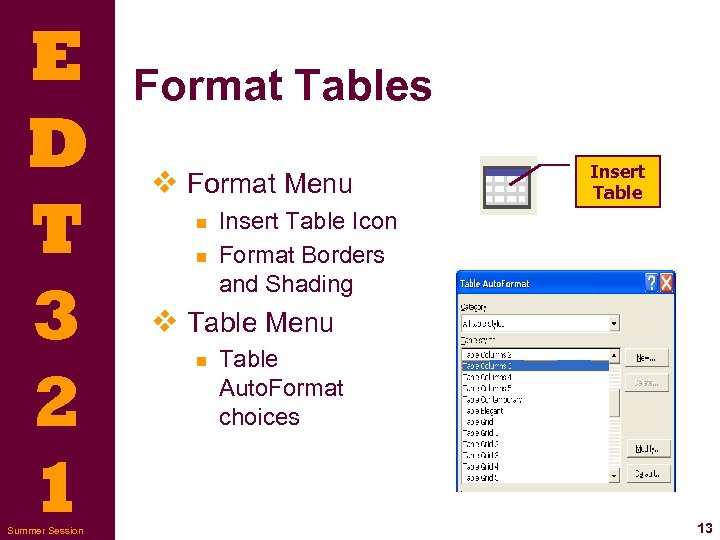 E D T 3 2 1 Summer Session Format Tables v Format Menu n n Insert Table Icon Format Borders and Shading v Table Menu n Table Auto. Format choices 13
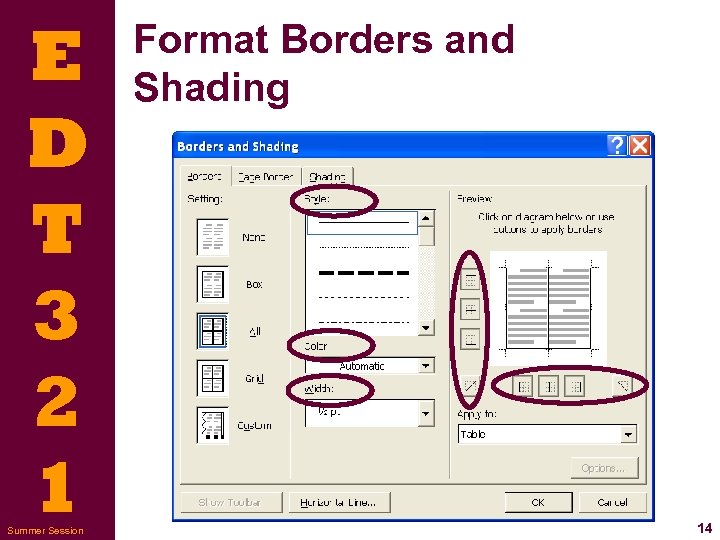 E D T 3 2 1 Summer Session Format Borders and Shading 14
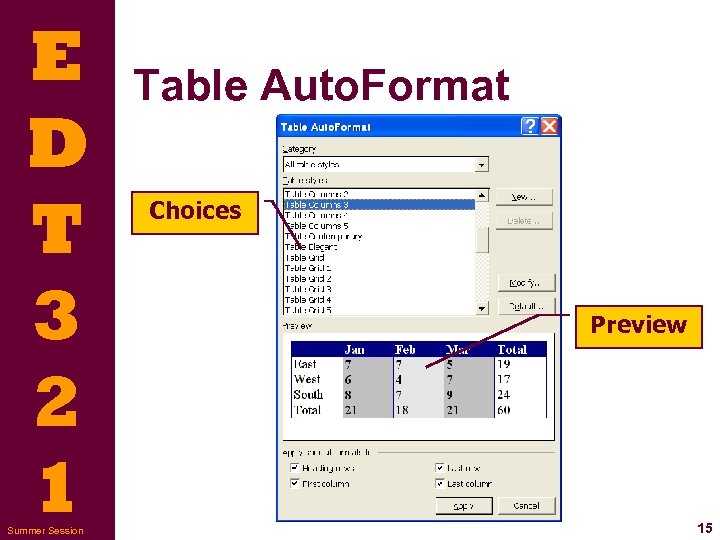 E D T 3 2 1 Summer Session Table Auto. Format Choices Preview 15
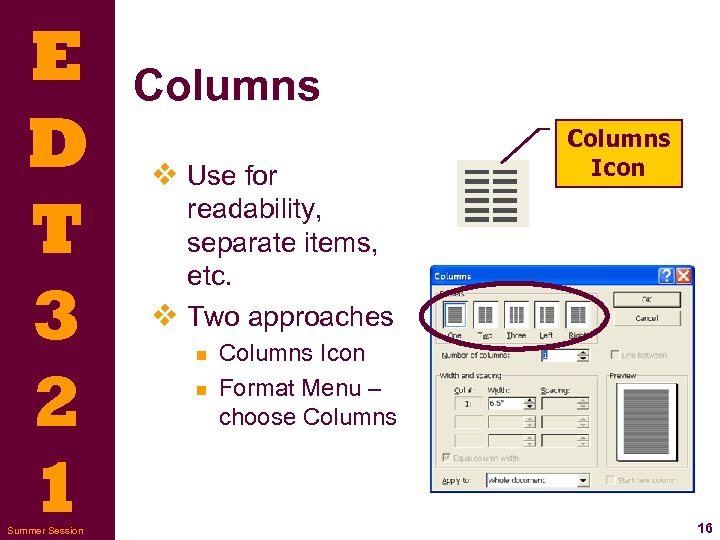 E D T 3 2 1 Summer Session Columns v Use for Columns Icon readability, separate items, etc. v Two approaches n n Columns Icon Format Menu – choose Columns 16
 E D T 3 2 1 Summer Session Header and Footer for Sections v Different header or footer for document sections. n n Make sections by adding a section break (Insert > Break > Section…) Create header or footer specific to sections. (View > Header and Footer) 17
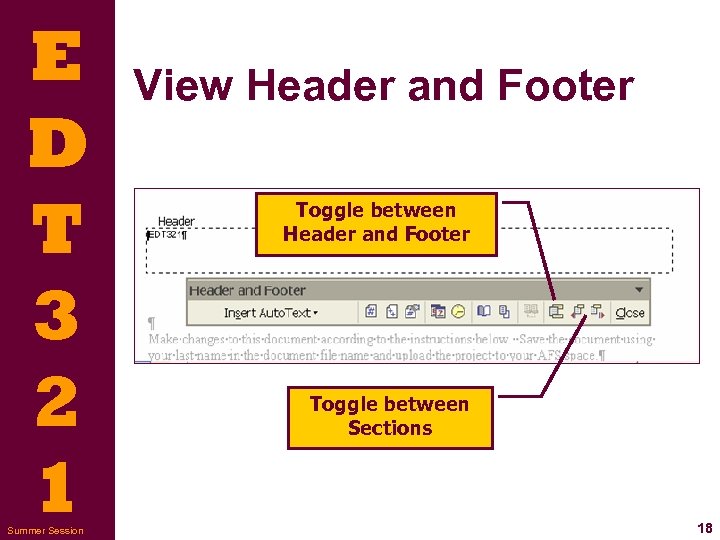 E D T 3 2 1 Summer Session View Header and Footer Toggle between Sections 18
 E D T 3 2 1 Summer Session Insert Features v Useful features v Format menu > Insert > n n n Break Date and Time Auto Text Box Diagram 19
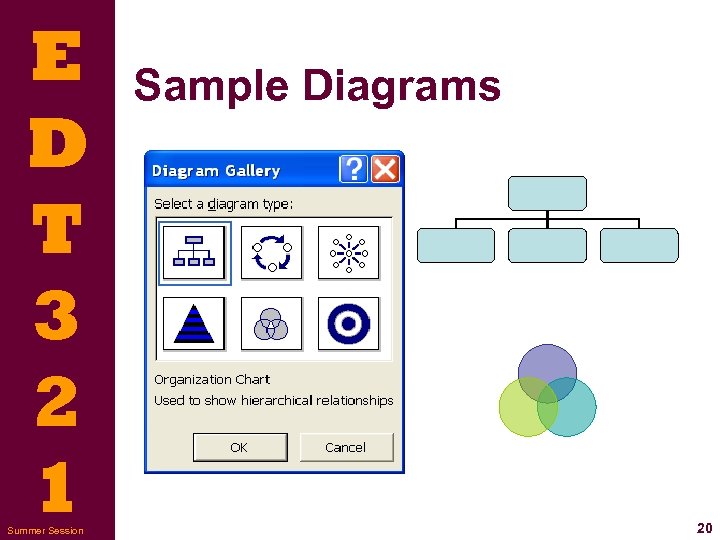 E D T 3 2 1 Summer Session Sample Diagrams 20
 E D T 3 2 1 Summer Session Hyperlink v Create bookmarks n Insert > Bookmark v Create hyperlinks n n n Area, button or word to be clicked Hyperlink Icon Insert > Hyperlink 21
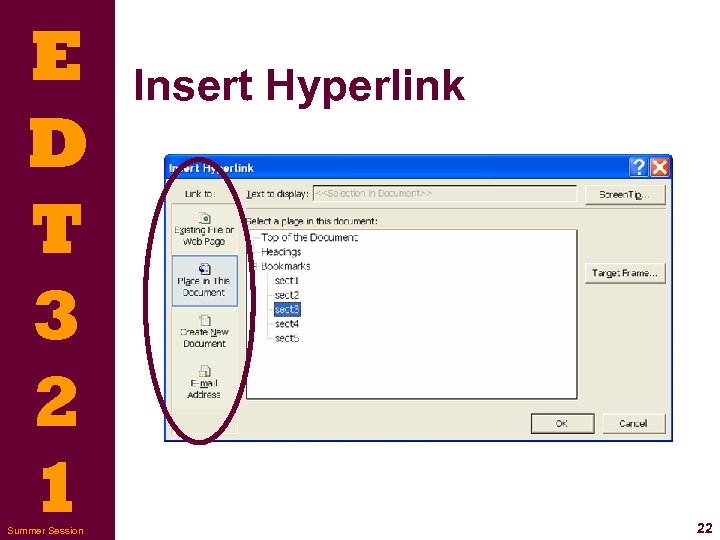 E D T 3 2 1 Summer Session Insert Hyperlink 22
 E D T 3 2 1 Summer Session Advanced Features Word Activity v Use document Advanced Word Feature Activity. doc n n n Follow directions Save and post to AFS space Send to instructor using the Digital Drop Box. 23