


 Скачать презентацию e Commerce Payment Processor Product Overview The
51b6ad8e6fa089144508742e9170d1f6.ppt
- Количество слайдов: 21
 e. Commerce Payment Processor
 Product Overview The e. Commerce product is a reliable and secure retail portal with real-time payment and shipping options. This service is ideal for customers looking to sell their wares in a national or international market. Key Features of the e. Commerce Product include: • Complete Integration into Existing Website Templates • Built-in Setup Wizard & Online Video Tutorials • Safe & Secure Online Payment Portal • Store Management Tools • Business Analytics & Reporting • E-mail Marketing 1 Web. com, Confidential
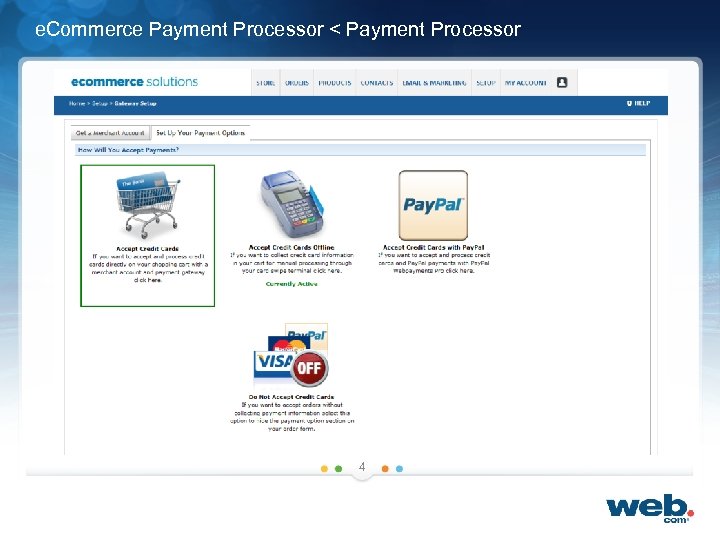
 e. Commerce Payment Processor < Introduction The Payment Processor dictates how customers utilize our safe-and-secure payment portal to purchase goods from our clients. Recent Changes to the Payment Processor include: • Four processor options • Icons to visually aid the customer in selecting the most appropriate payment processor for their business • Text explanations of what each icon represents and how that service is rendered • Instant access to Pay. Pal Express widget How to Access the Payment Processor: • Select Setup > Gateway Setup 3
 e. Commerce Payment Processor < Payment Processor 4
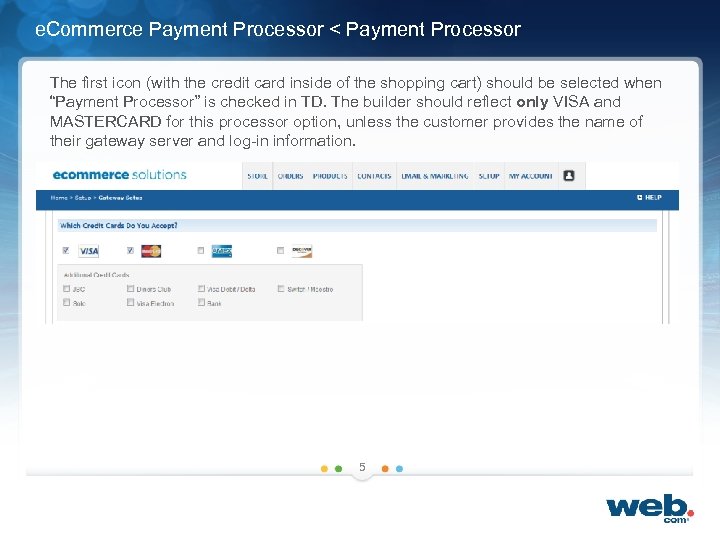 e. Commerce Payment Processor < Payment Processor The first icon (with the credit card inside of the shopping cart) should be selected when “Payment Processor” is checked in TD. The builder should reflect only VISA and MASTERCARD for this processor option, unless the customer provides the name of their gateway server and log-in information. 5
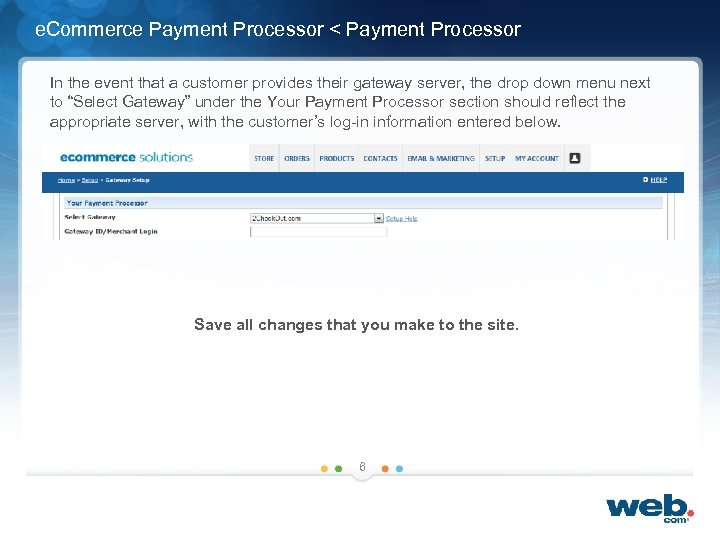 e. Commerce Payment Processor < Payment Processor In the event that a customer provides their gateway server, the drop down menu next to “Select Gateway” under the Your Payment Processor section should reflect the appropriate server, with the customer’s log-in information entered below. Save all changes that you make to the site. 6
 e. Commerce Payment Processor < Manual 7
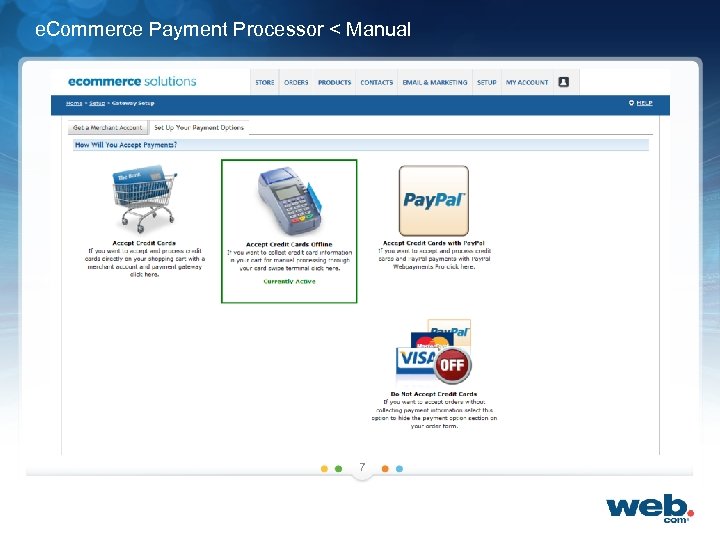
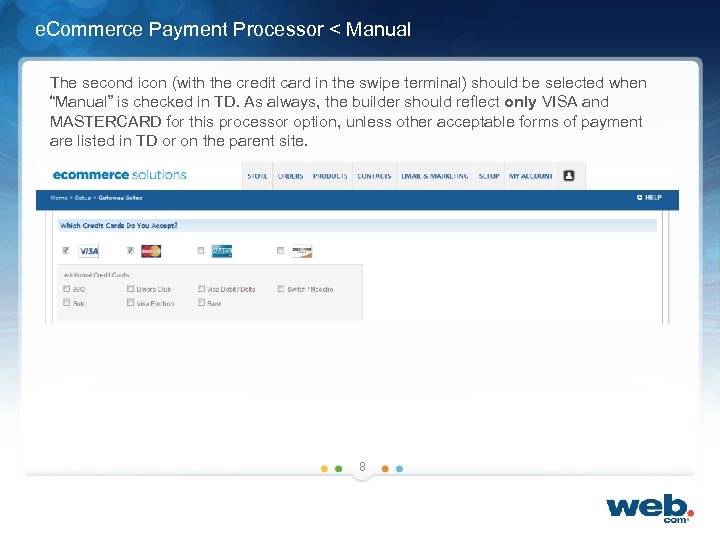 e. Commerce Payment Processor < Manual The second icon (with the credit card in the swipe terminal) should be selected when “Manual” is checked in TD. As always, the builder should reflect only VISA and MASTERCARD for this processor option, unless other acceptable forms of payment are listed in TD or on the parent site. 8
 e. Commerce Payment Processor < Pay. Pal 9
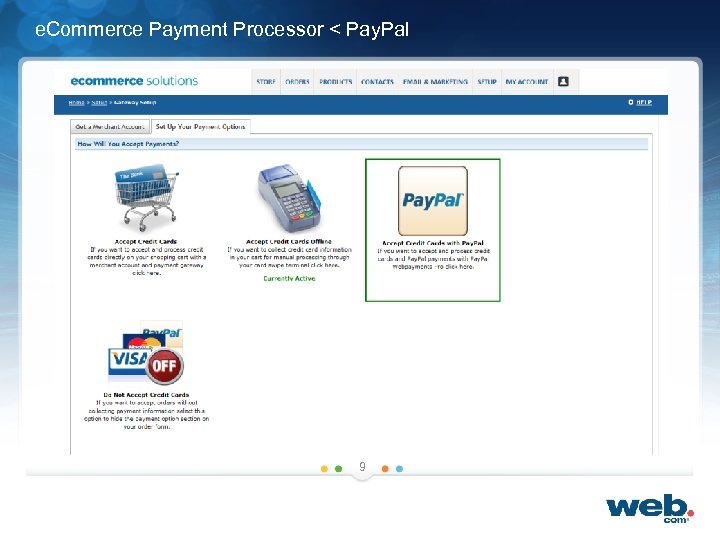
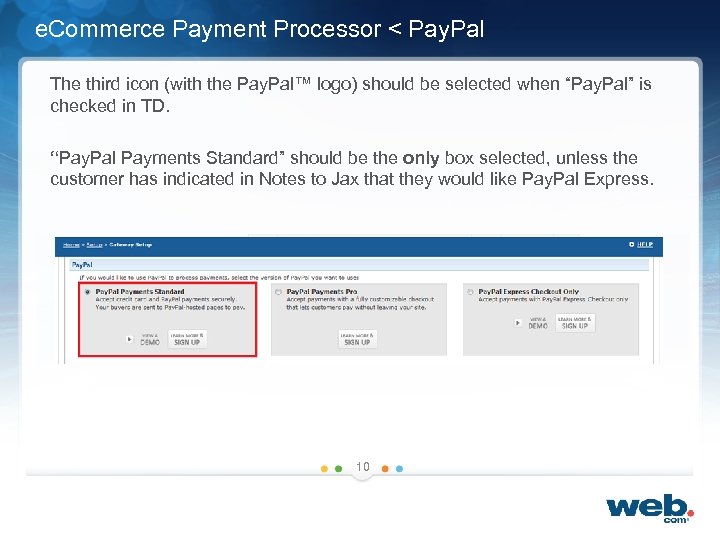 e. Commerce Payment Processor < Pay. Pal The third icon (with the Pay. Pal™ logo) should be selected when “Pay. Pal” is checked in TD. “Pay. Pal Payments Standard” should be the only box selected, unless the customer has indicated in Notes to Jax that they would like Pay. Pal Express. 10
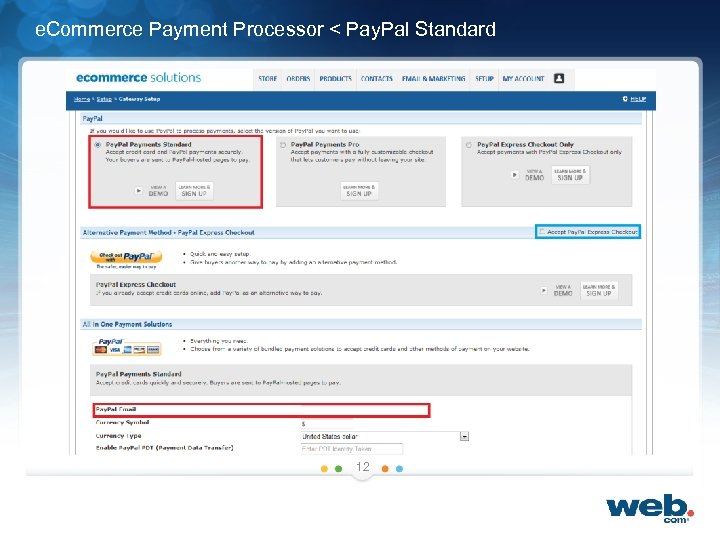
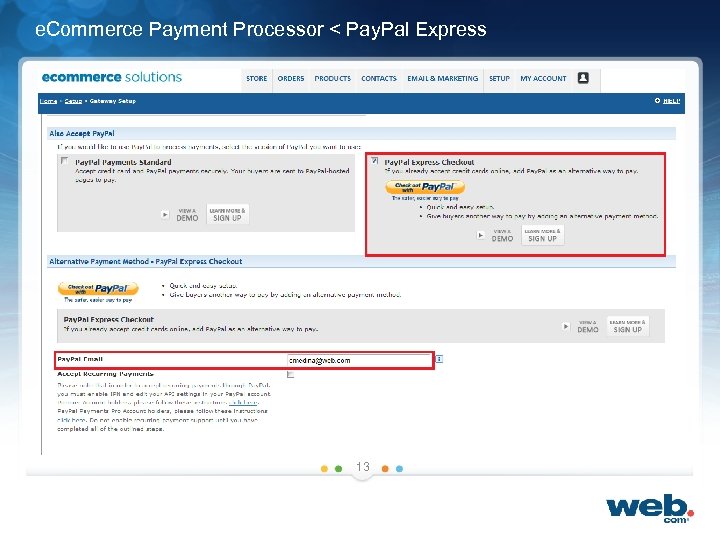
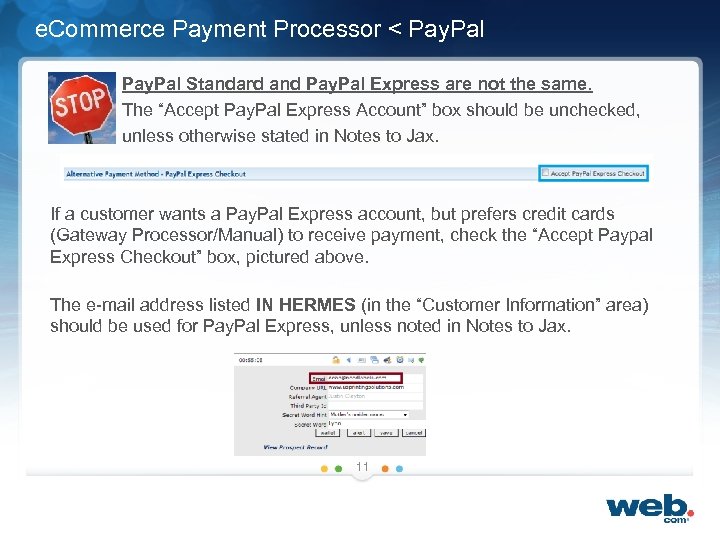 e. Commerce Payment Processor < Pay. Pal • Pay. Pal Standard and Pay. Pal Express are not the same. - The “Accept Pay. Pal Express Account” box should be unchecked, unless otherwise stated in Notes to Jax. If a customer wants a Pay. Pal Express account, but prefers credit cards (Gateway Processor/Manual) to receive payment, check the “Accept Paypal Express Checkout” box, pictured above. The e-mail address listed IN HERMES (in the “Customer Information” area) should be used for Pay. Pal Express, unless noted in Notes to Jax. 11
 e. Commerce Payment Processor < Pay. Pal Standard 12
 e. Commerce Payment Processor < Pay. Pal Express 13
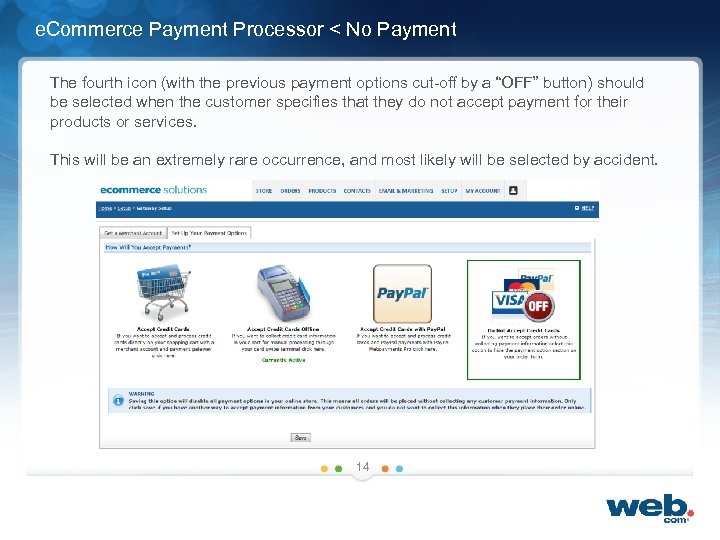 e. Commerce Payment Processor < No Payment The fourth icon (with the previous payment options cut-off by a “OFF” button) should be selected when the customer specifies that they do not accept payment for their products or services. This will be an extremely rare occurrence, and most likely will be selected by accident. 14
 e. Commerce Recurring Billing Setup
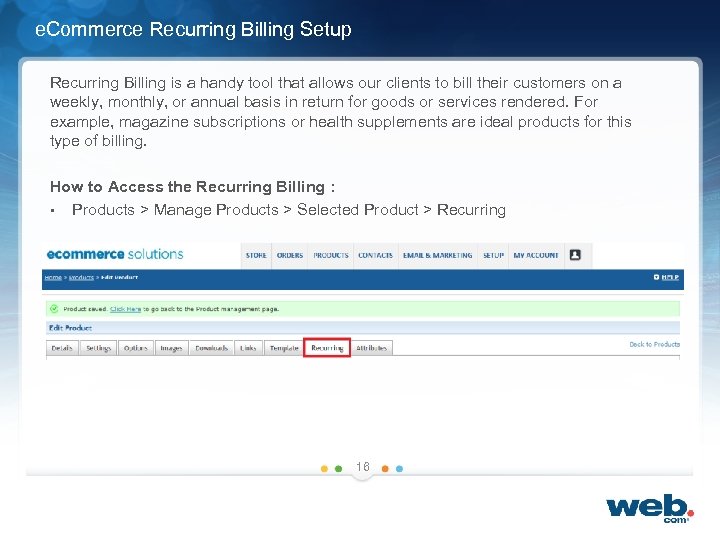 e. Commerce Recurring Billing Setup Recurring Billing is a handy tool that allows our clients to bill their customers on a weekly, monthly, or annual basis in return for goods or services rendered. For example, magazine subscriptions or health supplements are ideal products for this type of billing. How to Access the Recurring Billing : • Products > Manage Products > Selected Product > Recurring 16
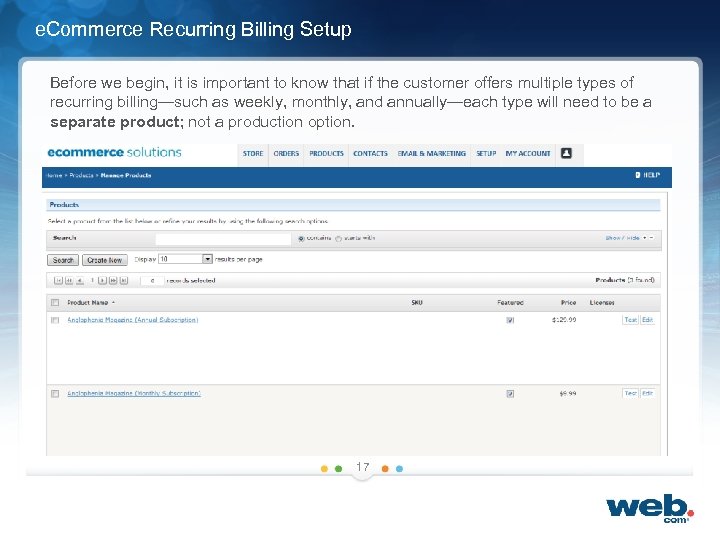 e. Commerce Recurring Billing Setup Before we begin, it is important to know that if the customer offers multiple types of recurring billing—such as weekly, monthly, and annually—each type will need to be a separate product; not a production option. 17
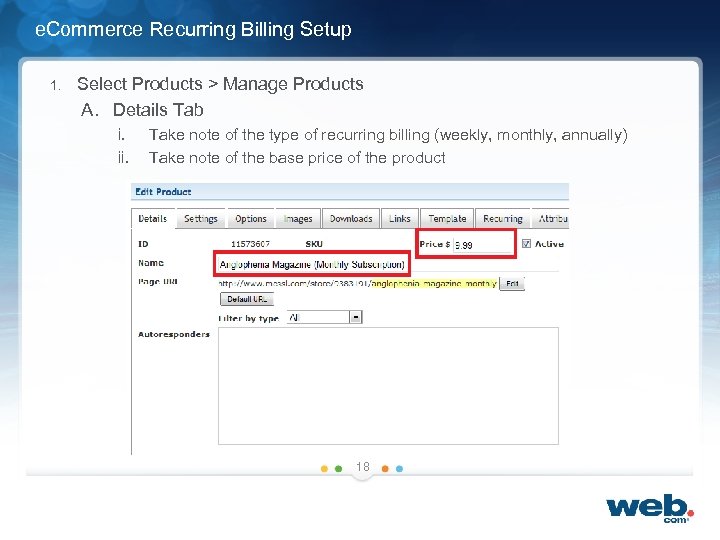 e. Commerce Recurring Billing Setup 1. Select Products > Manage Products A. Details Tab i. ii. Take note of the type of recurring billing (weekly, monthly, annually) Take note of the base price of the product 18
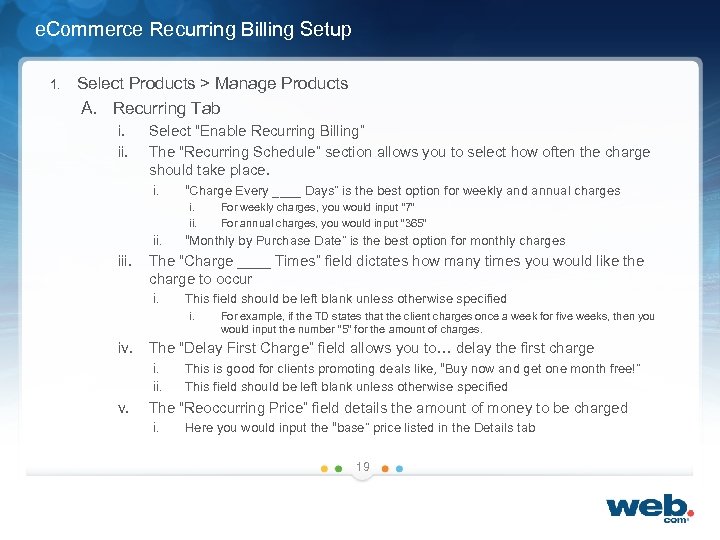 e. Commerce Recurring Billing Setup 1. Select Products > Manage Products A. Recurring Tab i. ii. Select “Enable Recurring Billing” The “Recurring Schedule” section allows you to select how often the charge should take place. i. “Charge Every ____ Days” is the best option for weekly and annual charges i. ii. iii. “Monthly by Purchase Date” is the best option for monthly charges The “Charge ____ Times” field dictates how many times you would like the charge to occur i. This field should be left blank unless otherwise specified i. iv. For example, if the TD states that the client charges once a week for five weeks, then you would input the number “ 5” for the amount of charges. The “Delay First Charge” field allows you to… delay the first charge i. ii. v. For weekly charges, you would input “ 7” For annual charges, you would input “ 365” This is good for clients promoting deals like, “Buy now and get one month free!” This field should be left blank unless otherwise specified The “Reoccurring Price” field details the amount of money to be charged i. Here you would input the “base” price listed in the Details tab 19
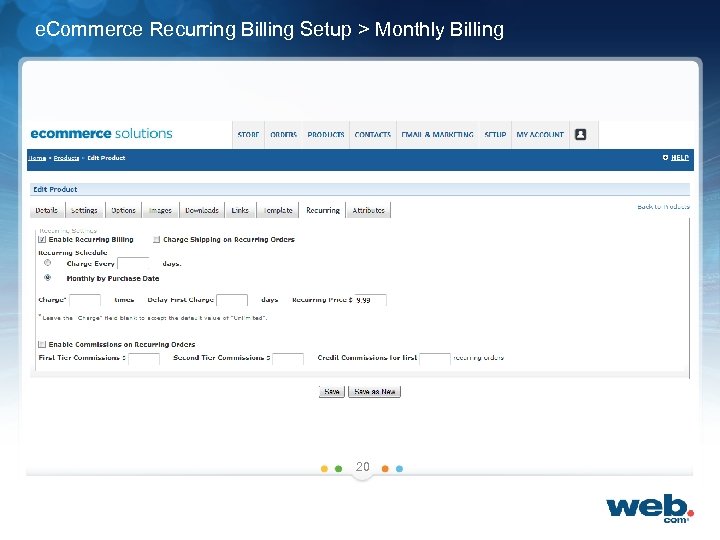 e. Commerce Recurring Billing Setup > Monthly Billing 20
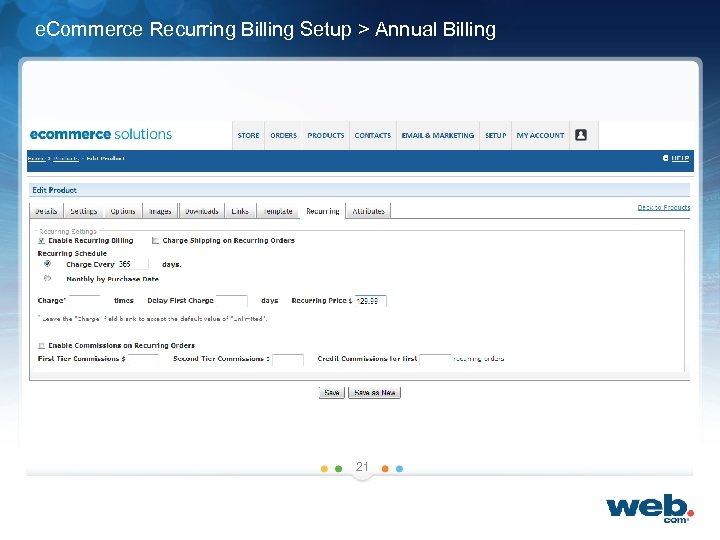 e. Commerce Recurring Billing Setup > Annual Billing 21