 Скачать презентацию e-Business SCAR Training Materials Engineering SPEED SCAR
3b8aa08696402ab76295a6bea7ecee2f.ppt
- Количество слайдов: 107




e-Business SCAR Training Materials Engineering SPEED SCAR & Web SCAR January 2001 1

About the Training Material Click to change slide. e. Product training intends to help you understand the e-Business Quality project and business processes. Throughout the presentation there are “Knowledge Checks” that help you understand concepts presented. You can find a soft copy of this presentation at: http: //ebg. intel. com/Me. B/training_toolbox. asp https: //supplier. intel. com/infoweb/ 2
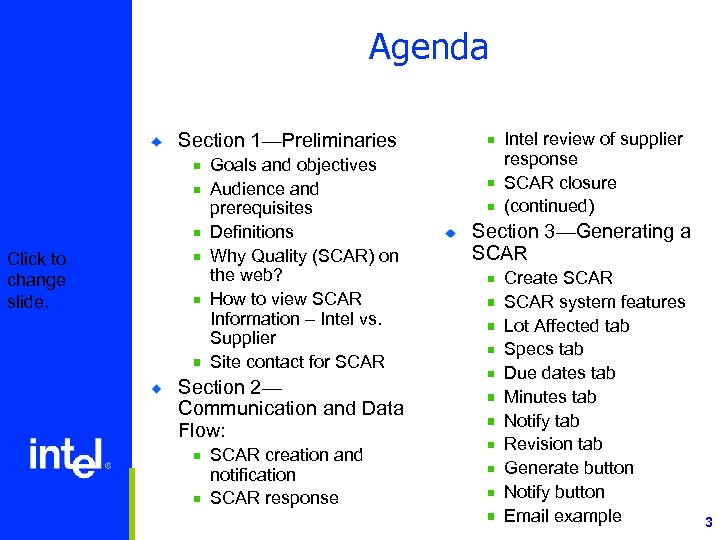
Agenda Section 1—Preliminaries Click to change slide. Goals and objectives Audience and prerequisites Definitions Why Quality (SCAR) on the web? How to view SCAR Information – Intel vs. Supplier Site contact for SCAR Section 2— Communication and Data Flow: SCAR creation and notification SCAR response Intel review of supplier response SCAR closure (continued) Section 3—Generating a SCAR Create SCAR system features Lot Affected tab Specs tab Due dates tab Minutes tab Notify tab Revision tab Generate button Notify button Email example 3

Agenda (cont. ) Click to change slide. Section 4—Supplier Reviews SCAR via Web Section 5—Getting access to Supplier. intel. com Section 6— Responding to a SCAR via Supplier. intel. com Section 7—What a Supplier will see SCAR web application demo 4

Goals/Objectives Click to change slide. Take advantage of the web portal: https: //supplier. intel. com/infoweb Use the Quality web application to access and respond to SCARs via the web View the SCAR details Attach files to a SCAR Generate a Quality report Demonstrate the SCAR process flow from Intel and supplier viewpoint 5

Audience and Prerequisites Audience Intel personnel who generate or manage SCARs Supplier of parts to Intel who may receive a SCAR Click to change slide. Prerequisites SPEED SCAR training ® Intel-U course code: IQT 009378 and title: SPEED SCAR MANAGE SCAR rights added to your SPEED profile ® See your SPEED Administrator or call IT TAC ATMO SCAR Spec 08 -2605 CSMO spec: GS 25 -1415 IPED spec: TBD 6
Definition What does SCAR mean? Click to change slide. Supplier Corrective Action Request 7

Why Quality (SCAR) on the Web? Intel used email before implementing Quality (SCAR) on the web to: Click to change slide. communicate SCAR information share documentation with a supplier Suppliers use the same method to respond to SCAR action task The problem with this method is: Large amount of files transmitted to suppliers made Intel’s email system slow Sending documentation files via email is not secure 8

Why Quality (SCAR) on the Web? (cont. ) Intel SCAR representative had to post the Supplier’s completion dates and documents in SPEED. ® Time delay in posting the date stamp when Intel representative is out the plant or on vacation Click to change slide. No visibility for suppliers to view current status of their SCARs ® History of closed SCARs No metrics for suppliers for ® How long a SCAR is open ® How many SCARs are open 9

Why Quality (SCAR) on the Web? (cont. ) Intel’s Quality solution: Click to change slide. Create a way for suppliers to access SCAR information using the internet Respond to corrective “due date” for a SCAR Automatic upload of documentation files associated with due date Automate the posting of the SCAR “due date” 10

How to view SCAR Information – Intel vs. Supplier To view SCAR information Intel employees view the details for a SCAR utilizing SPEED Click to change slide. ® Search by SCAR number or part number Suppliers view SPEED SCAR information via the SPS Portal ® Navigate to their supplier info web page 11

Any Questions? Click to change slide. 12

Agenda Section 1—Preliminaries Click to change slide. Goals and objectives Audience and prerequisites Definitions Why Quality (SCAR) on the web? How to view SCAR Information – Intel vs. Supplier Site contact for SCAR Section 2— Communication and Data Flow: SCAR creation and notification SCAR response Intel review of supplier response SCAR closure (continued) Section 3—Generating a SCAR Create SCAR system features Lot Affected tab Specs tab Due dates tab Minutes tab Notify tab Revision tab Generate button Notify button Email example 13
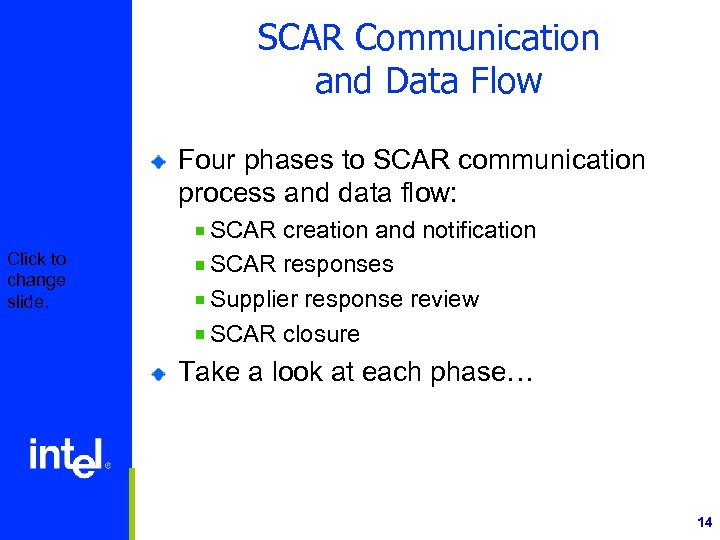
SCAR Communication and Data Flow Four phases to SCAR communication process and data flow: Click to change slide. SCAR creation and notification SCAR responses Supplier response review SCAR closure Take a look at each phase… 14
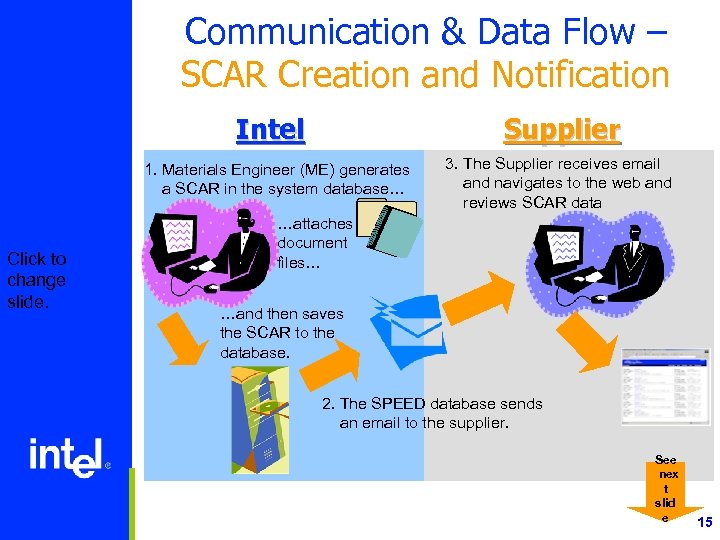
Communication & Data Flow – SCAR Creation and Notification Intel Supplier 1. Materials Engineer (ME) generates a SCAR in the system database… Click to change slide. 3. The Supplier receives email and navigates to the web and reviews SCAR data …attaches document files… …and then saves the SCAR to the database. 2. The SPEED database sends an email to the supplier. See nex t slid e 15

Communication & Data Flow – SCAR Response Supplier 3. The Supplier attaches files to the web page. Intel 4. The ME receives email and reviews supplier response. Click to change slide. Web page sends files to SPEED sends an email to the SCAR owner See nex t slid e 16
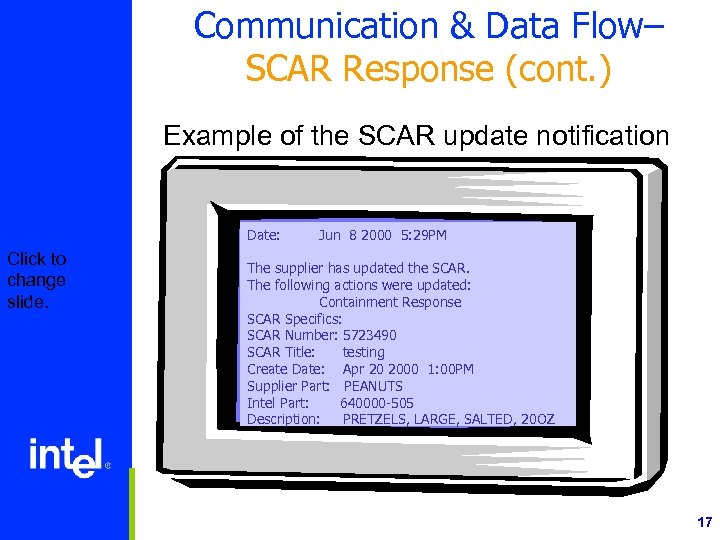
Communication & Data Flow– SCAR Response (cont. ) Example of the SCAR update notification Click to change slide. Date: Jun 8 2000 5: 29 PM The supplier has updated the SCAR. The following actions were updated: Containment Response SCAR Specifics: SCAR Number: 5723490 SCAR Title: testing Create Date: Apr 20 2000 1: 00 PM Supplier Part: PEANUTS Intel Part: 640000 -505 Description: PRETZELS, LARGE, SALTED, 20 OZ 17

Communication & Data Flow– Detailed Email Example (Internal) Click to change slide. 18

Communication & Data Flow – Review of Supplier Response Intel Supplier 5. Intel materials engineer and the supplier use direct communication to evaluate the supplier’s responses and comment on the attached documents. Click to change slide. 19

Communication & Data Flow – SCAR Closure Intel 6. The Intel SCAR owner closes all A/R’s with the supplier and closes the SCAR in SPEED. Supplier navigates to website and sees status as CLOSED. Click to change slide. 20

Any Questions? Click to change slide. 21

Knowledge Check Answers are in the Notes section. Click to move to the next slide. 1. What does SCAR mean? a. Supplier chase action request b. Supplier corrective application request c. Supplier corrective action request 2. Who actually closes a SCAR in the SPEED? a. Supplier b. Intel ME c. Both the supplier and Intel ME 22

Agenda Section 1—Preliminaries Click to change slide. Goals and objectives Audience and prerequisites Definitions Why Quality (SCAR) on the web? How to view SCAR Information – Intel vs. Supplier Site contact for SCAR Section 2— Communication and Data Flow: SCAR creation and notification SCAR response Intel review of supplier response SCAR closure (continued) Section 3—Generating a SCAR Create SCAR system features Lot Affected tab Specs tab Due dates tab Minutes tab Notify tab Revision tab Generate button Notify button Email example 23

SPEED Create SCAR This section covers how a SPEED SCAR: Click to change slide. Creates a Supplier Corrective Action Request Generates email notifications to Intel employees and Suppliers The version of SPEED SCAR shown is: SPEED v. 6. 6. 2 24

SPEED Create SCAR: Create SPEED requires MANAGE SCAR rights to create a SCAR. Create Click to change slide. SCAR New SPEED version 6. 6. 2 25

SPEED Create SCAR: Each tab accepts information about the SCAR Click to change slide. 26

SPEED Create SCAR: General Tab Users fill in text fields with white background Enter general information about the SCAR Description Click to change slide. 27

SPEED Create SCAR: Affected Supplier Tab Who is the Supplier associated with SCAR Affected Supplier Click to change slide. 28

SPEED Create SCAR: Lots Affected Tab Type Lots Affected information into fields Lot Affected Click to change slide. 29

SPEED Create SCAR: Specs Tab SPEED generates a list based on the information provided in the General tab. Specs Click to change slide. 30

SPEED Create SCAR: Due Dates Tab Current status of all SCAR ARs Due dates default from SPAM or users complete SPEED required fields are acknowledged Due Dates Click to change slide. 31

SPEED Create SCAR: Minutes Tab SPEED records meeting date and time Users record meeting notes below Minutes Click to change slide. 32

SPEED Create SCAR: Notify Tab Use up to ten external e-mail addresses Use Insert Line function to add fields Notify Click to change slide. Non-checked recipients are on the cc list. 33
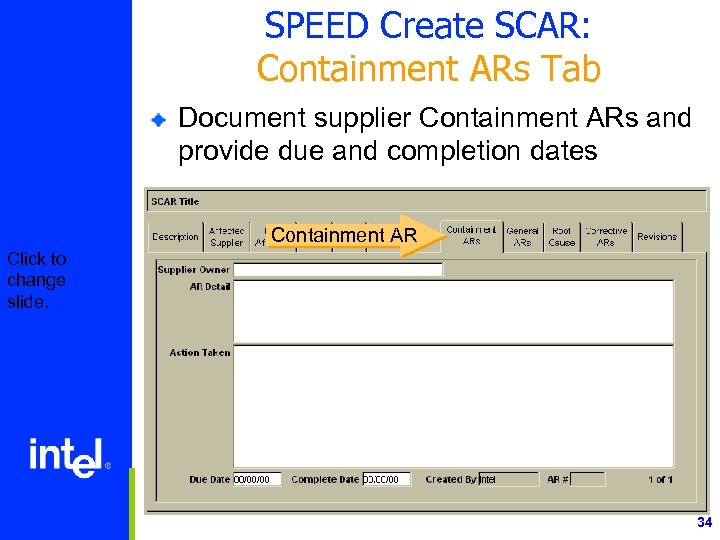
SPEED Create SCAR: Containment ARs Tab Document supplier Containment ARs and provide due and completion dates Containment AR Click to change slide. 34

SPEED Create SCAR: General ARs Tab List Ars, owner, due and completion dates. Use Line Insert function to add multiple ARs General AR Click to change slide. 35

SPEED Create SCAR: Root Cause Tab Provide summary and description of root cause for supplier’s SCAR Root Cause Click to change slide. 36

SPEED Create SCAR: Corrective ARs Tab Provide descriptions and dates for Corrective ARs Click to change slide. Corrective AR 37

SPEED Create SCAR: Revisions Tab SPEED generates the name, date and description of changes Revisions Click to change slide. 38

Any Questions? Click to change slide. 39

Knowledge Check 1. In SPEED, what type of information do you find from the “Due Dates” tab? Click to reveal next question or answer a. The supplier’s SCAR tasks status and dates b. Intel’s requested tasks and due dates to the supplier c. both a and b 2. True or False: A SCAR is created in SAP? 40

Knowledge Check 3. True or False: The “Notify” tab is where you define both internal and external notification recipients. Answers are in the Note section. Click to move to the next slide. 4. True or False: On the “Notify” tab, you can add up to 20 external email addresses. 41

SPEED Create SCAR: Not Done Yet…. Data is in the SCAR, but some steps still need completion: Attach files to SCAR (Attach files button) Click to change slide. ® See SPEED SCAR training Generate the SCAR (Generate button) ® Determine which email to send - general or e. Biz Review the email to be sent out (Notify button) Send the email (Send button) 42
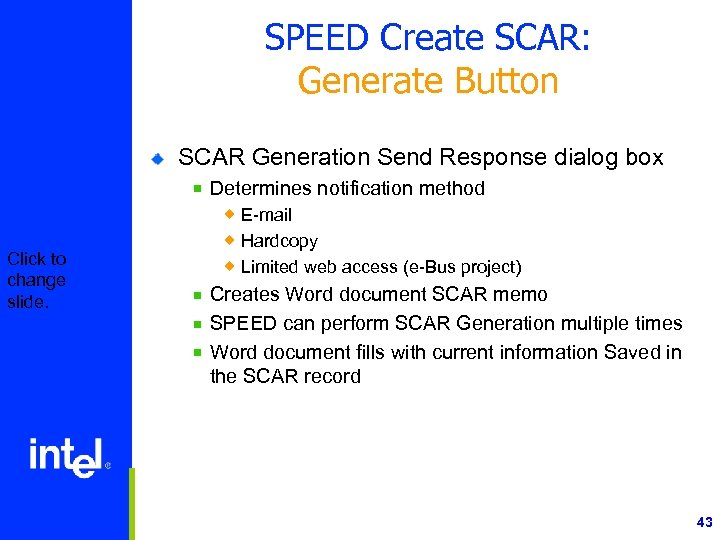
SPEED Create SCAR: Generate Button SCAR Generation Send Response dialog box Determines notification method Click to change slide. ® E-mail ® Hardcopy ® Limited web access (e-Bus project) Creates Word document SCAR memo SPEED can perform SCAR Generation multiple times Word document fills with current information Saved in the SCAR record 43

SPEED Create SCAR: Generate Button (cont’d) Materials engineer submits the SCAR Generate Click to change slide. 44

SPEED Create SCAR: Generate Button Notification Methods Click to change slide. 45

SPEED Create SCAR: Generate Button (cont’d) The Word document may be: attached to the SCAR saved to disk printed Click to change slide. 46

SPEED Create SCAR: Notify Button The Notify button opens an email window which: Displays the distribution list Provides the Send button Click to change slide. Notif y Send 47

Any Questions? Click to change slide. 48

Knowledge Check 1. How many “notification methods” are there for a SPEED SCAR? Click to reveal next question or answer a. b. c. d. Four Three Two One 2. True or False: Use the “Generate” button to generate a Word document containing the SCAR letter. 3. True or False: The “Notify” button creates the email to be sent out to the distribution, base on the distribution list is defined in the “Notify” tab? 49

Agenda (cont. ) Click to change slide. Section 4—Supplier Reviews SCAR via Web Section 5—Getting access to Supplier. intel. com Section 6— Responding to a SCAR via Supplier. intel. com 50

Supplier Reviews SCAR via Web Where you are in the process… Intel Supplier 1. ME generates a SCAR in the system database. Click to change slide. 3. Receives email, navigates to the web and reviews SCAR data Attaches document files Saves the SCAR to the database. 2. The database sends an email to the Supplier 51

Accessing SCAR Info on the Web Get information to SCAR two ways: Log on to the Supplier Info web site ® https: //supplier. Intel. com/infoweb Click to change slide. Click on the internet hypertext link in the SCAR email notification 52
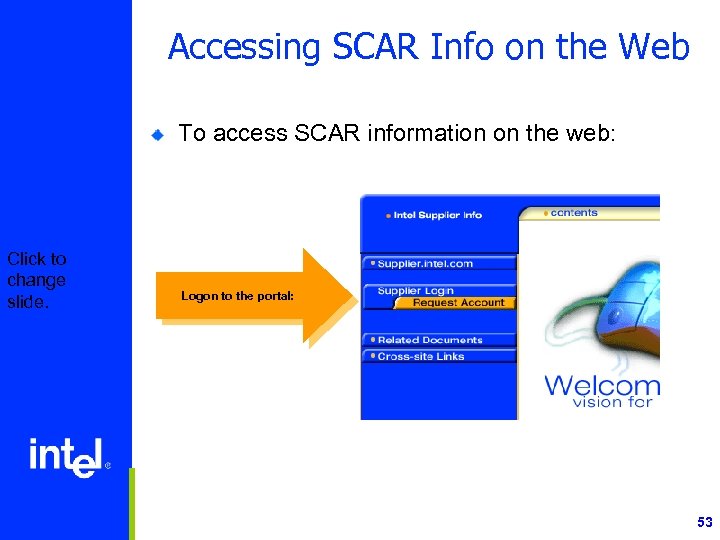
Accessing SCAR Info on the Web To access SCAR information on the web: Click to change slide. Logon to the portal: 53
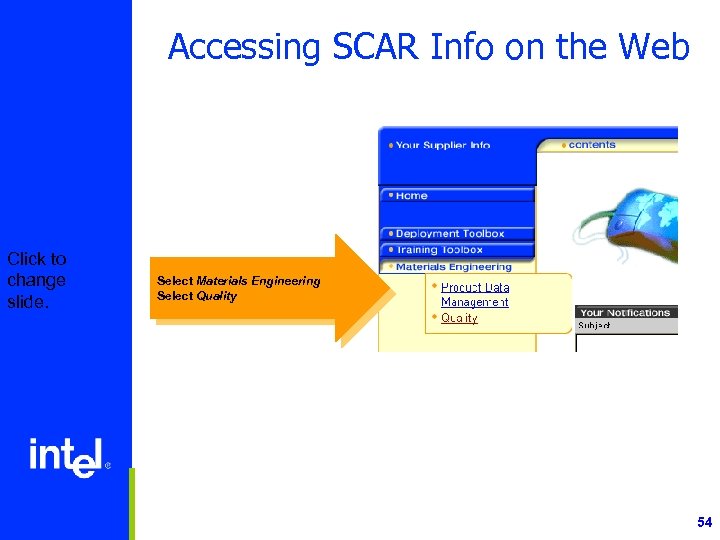
Accessing SCAR Info on the Web Click to change slide. Select Materials Engineering Select Quality 54
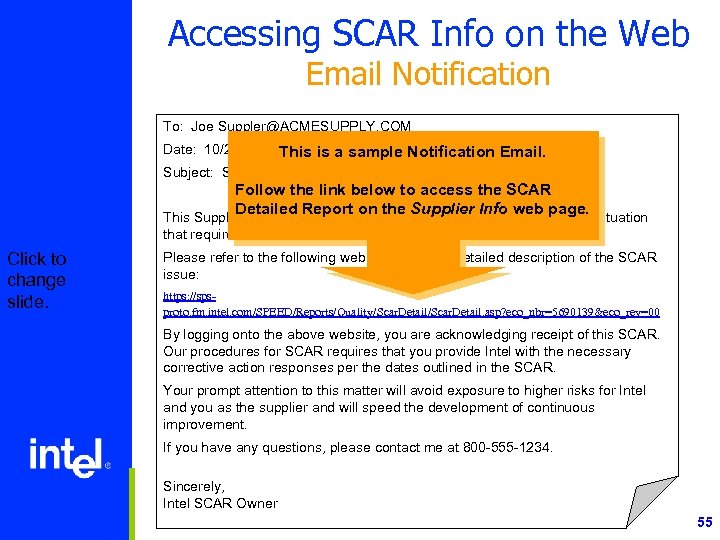
Accessing SCAR Info on the Web Email Notification To: Joe Suppler@ACMESUPPLY. COM Date: 10/21/99 15: 46: 43 is a sample Notification Email. This Subject: Supplier Corrective Action Request Follow the link below to access the SCAR Detailed Report on the Supplier Info web page. This Supplier Corrective Action Request (SCAR) defines a discrepant situation that requires your immediate action. Click to change slide. Please refer to the following web address for a detailed description of the SCAR issue: https: //spsproto. fm. intel. com/SPEED/Reports/Quality/Scar. Detail. asp? eco_nbr=5690139&eco_rev=00 By logging onto the above website, you are acknowledging receipt of this SCAR. Our procedures for SCAR requires that you provide Intel with the necessary corrective action responses per the dates outlined in the SCAR. Your prompt attention to this matter will avoid exposure to higher risks for Intel and you as the supplier and will speed the development of continuous improvement. If you have any questions, please contact me at 800 -555 -1234. Sincerely, Intel SCAR Owner 55

Any Questions? Click to change slide. 56

Knowledge Check 1. Answers are in Note section. Click to change slide. Name two ways you can access a SCAR once you receive notification by email: a. Go to http: //www. intel. com and use the search engine to find your SCAR. b. Click on the SCAR hyper-link in your email notification. c. Look for a letter from your Intel Commodity Manager telling you where to go. d. Logon to https: //supplier. intel. com/infoweb/, then look for the Quality link under the Materials Engineering tab. 57

Agenda (cont. ) Click to change slide. Section 4—Reviewing to a SCAR Section 5—Getting access to Supplier. intel. com Section 6— Responding to a SCAR via Supplier. intel. com 58

Getting Access to Supplier. intel. com Click to change slide. 1. Submit names to Commodity Manager of all personnel that need access. The Commodity Manager approves each account request. 2. Sign-up for an account at https: //supplier. intel. com/seem/ Request access to these applications: § § PDM Quality 3. Receive email notification on account and access approvals 4. Logon to https: //supplier. intel. com/infoweb 5. Select the Materials Engineering tab, select Quality Refer to the User Guide for more detailed information: http: //ebg. intel. com/Me. B/training_toolbox. asp 59

Request Access to Quality and PDM 1. Register for an account on https: //supplier. intel. com/seem/ 2. Request access to: Supplier Info-PDM Supplier Info-Quality Click to change slide. Supplier Info – Quality Supplier Info - PDM 60

Log on to Quality & PDM 1. Go to https: //supplier. intel. com/infoweb/ 2. Click on the log in tab Click to change slide. Click Your Supplier Info 61

Log on to Quality & PDM 3. Type in your Supplier Login ID 4. Click on the Submit button Click to change slide. Click the Submit button 62

Log on to Quality & PDM 4. Type in your password 5. Click Submit button now to change slide Click to change slide. Click the Submit button 63

Navigating the Supplier Portal 1. Point to the Materials Engineering tab 2. From the menu, click Quality Click to change slide. Click on Quality 64

Any Questions? Click to change slide. 65

Knowledge Check What is the first thing you must do to be able to respond to a SCAR via the web? Click each question to reveal correct answer. Click to change slide. a. Point to the Materials Engineering tab. b. Logon to Supplier. intel. com c. Select the Summary Report so you can view all your SCARs. d. Sign up for a Supplier account at Supplier. intel. com 66

Agenda (cont. ) Click to change slide. Section 4—Reviewing to a SCAR Section 5—Getting access to Supplier. intel. com Section 6— Responding to a SCAR via Supplier. intel. com 67
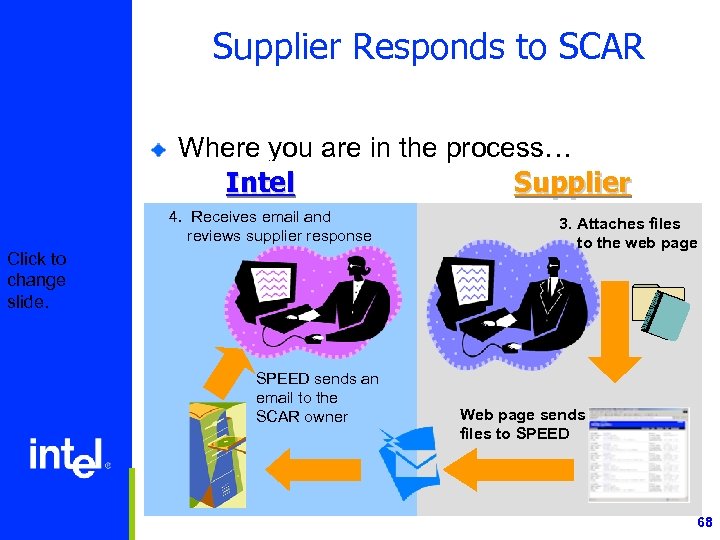
Supplier Responds to SCAR Where you are in the process… Intel Supplier 4. Receives email and reviews supplier response Click to change slide. SPEED sends an email to the SCAR owner 3. Attaches files to the web page Web page sends files to SPEED 68

Quality - Summary All Item Report The Summary screen lists all SCARs issued to your company Click to change slide. SCAR Report List 69

Quality - Summary All Item Report Use the Report Menu to view All, Active or Closed SCAR reports Click to change slide. Report Links 70

Quality - Summary All Item Report Each SCAR item has a link for viewing its Detailed Report Click to change slide. Detailed Report Link 71
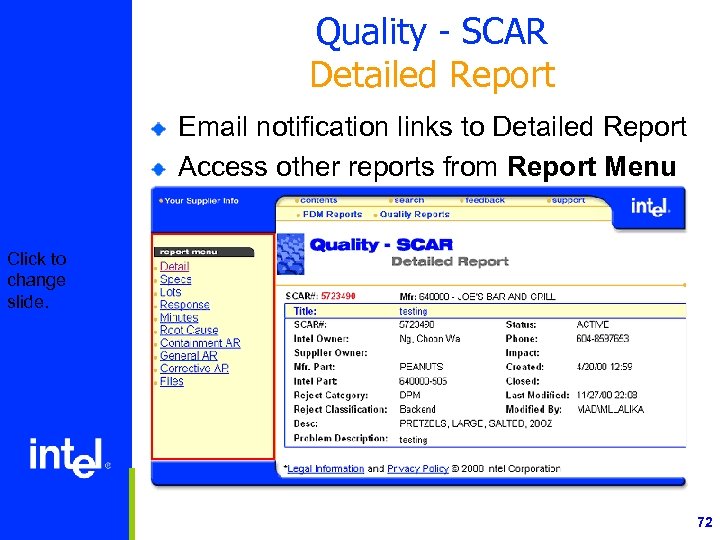
Quality - SCAR Detailed Report Email notification links to Detailed Report Access other reports from Report Menu Click to change slide. 72

Quality - SCAR Specification Report The Specification Report lists all applicable specifications Click to change slide. 73
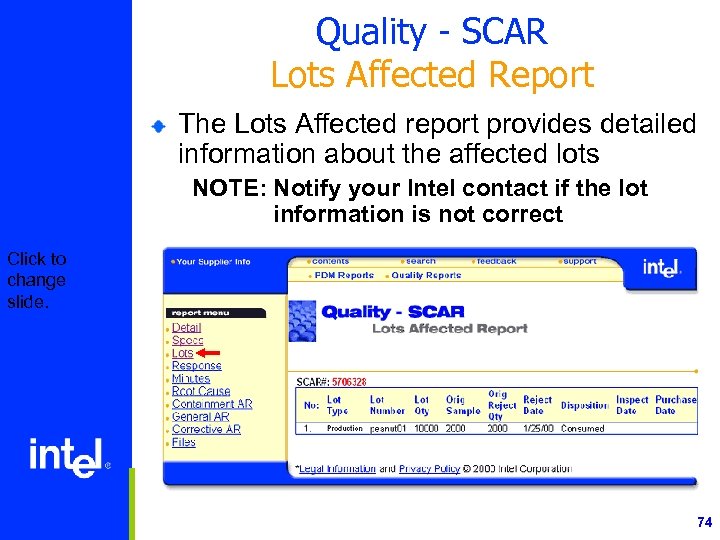
Quality - SCAR Lots Affected Report The Lots Affected report provides detailed information about the affected lots NOTE: Notify your Intel contact if the lot information is not correct Click to change slide. 74

Quality - SCAR Response Report Attach your responses to the SCAR on this screen Click to change slide. 75

Response Report in Detail Supplier performs these actions to close out the SCAR Click to change slide. 76

Response Report in Detail A blank Requested By Intel date indicates that no response is required Click to change slide. 77
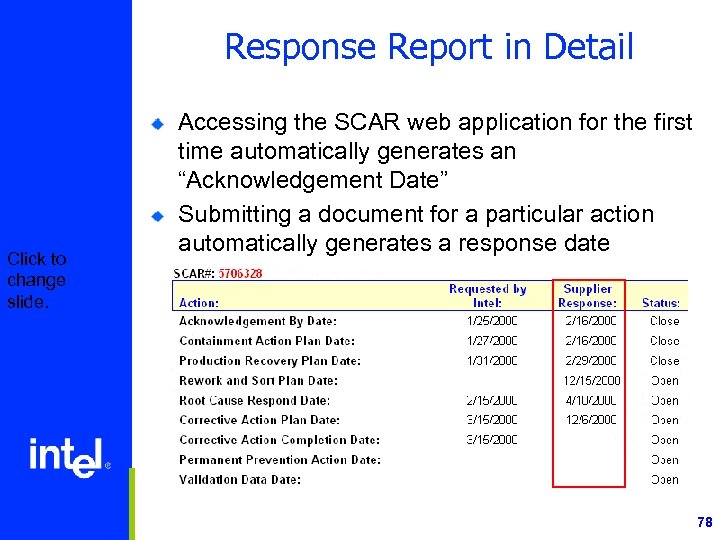
Response Report in Detail Click to change slide. Accessing the SCAR web application for the first time automatically generates an “Acknowledgement Date” Submitting a document for a particular action automatically generates a response date 78

Response Report in Detail You must complete the action by the “Requested by Intel” date Notify your Intel contact if you cannot meet the “Requested by Intel” date Click to change slide. 79

Response Report in Detail Enter a file description Do not use the symbols ! @ # $ % ^ & * in your file name Click to change slide. 80

Response Report in Detail Select an action to respond to Corrective Action Completion Click to change slide. x 81
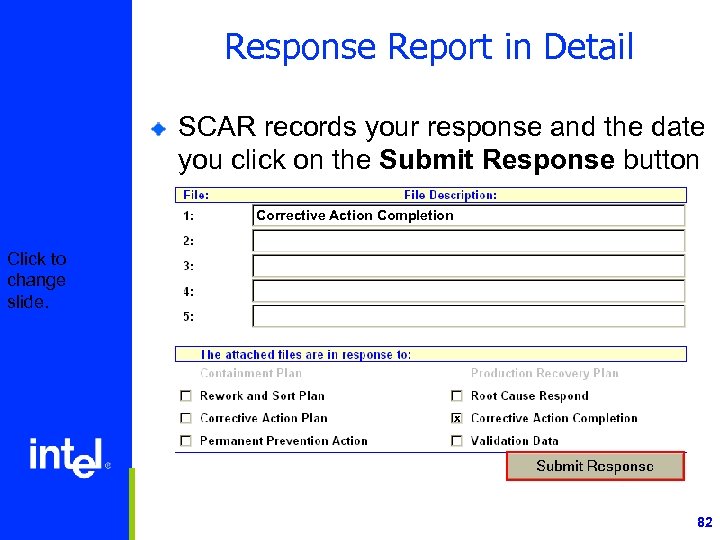
Response Report in Detail SCAR records your response and the date you click on the Submit Response button Corrective Action Completion Click to change slide. x 82

Response Report in Detail Click the Submit Response button to complete the task Corrective Action Completion Click to change slide. x 83

Response Report in Detail Click the Browse… button to attach the file to the Response Report Click to change slide. 84

Response Report in Detail Select the file from the Choose File dialog box and click on Open Click to change slide. 85

Response Report in Detail Click on the Continue button to submit the report and your file attachment Click to change slide. File Name 86

Quality Minutes Screen Record and update meeting minutes Click to change slide. 87

Quality Minutes Screen Click on a yellow bar to collapse Quick summary view of all minutes Click to change slide. Click on Bar to Open and Close Reports Bars with orange outline open and collapse. Bars with blue outlines do not. 88

Quality Minutes Screen Click on the New Minutes bar to create a new minutes form Add minutes to either open and closed SCARs Click to change slide. Click on Bar Blue button opens menu Save Use arrows to change month and year 89

Quality – Root Cause Report Type SCAR explanation into fields Save button sends report to Intel You must complete the Root Cause to close a SCAR Click to change slide. Save 90

Quality – Containment AR Initial view shows all Containment actions required (ARs) for the SCAR Close all Containment ARs prior to SCAR closure Click to change slide. Buttons open calendars Save 91

Quality – Containment AR Click on yellow bar to collapse Quick summary view of all reports Click to change slide. 92

Quality – Containment AR Click on the New Containment AR bar to open a new Containment Report Click to change slide. Click on Bar Buttons open calendars Save 93

Quality – General AR The General AR link provides a management tool for General ARs Close all General ARs prior to SCAR closure Click to change slide. 94

Quality – Corrective AR The Corrective AR link provides a management tool for Corrective ARs Close all Corrective ARs prior to SCAR closure Click to change slide. 95

Quality - Files Download files from Intel or Supplier Click to change slide. 96

Quality - Files Determine where to save the file Know were to store it before you begin Click to change slide. 97

Quality - Files <<Back returns you to File Report List Click to change slide. 98

Other Quality Reports menu provides access to other reports within e. SCAR Place your mouse over the menu to open it Click to change slide. 99

CM Receives Response Where you are in the process… Intel 4. Receives email and reviews supplier response Click to change slide. SPEED sends an email to the SCAR owner Supplier 3. Continued … Attaches files to the web page Web page sends files to SPEED 100

Intel and Supplier Communicate Commodity Manager and Supplier evaluate response and attached documents. Intel Click to change slide. Supplier 5. Intel ME and the Supplier use direct communication to evaluate the Supplier’s responses and comment on the attached documents. 101

SCAR Closure After SCAR evaluation, SCAR status is changed to Closed. Click to change slide. Closed = Yes Open = No 102

Questions? Click to change slide. 103

Knowledge Check What does the Supplier do when they receive a SCAR? Click each answer to reveal the correct response. Click to change slide. a. Go to https: //supplier. intel. com/infoweb and access the Quality reports. b. Click the link in the email SCAR notification to get to the correct online SCAR report. c. Access the Closed reports for this SCAR. d. Fill out the required data on the Submit Response Report for the appropriate SCAR. 104

Knowledge Check What happens after the Supplier submits a response? Click each answer to reveal the correct response. Click to change slide. a. The Intel Commodity Manager calls a meeting. b. The Intel Commodity Manager receives an email and reviews the response. c. Nothing. All interaction is handled via https: //supplier. intel. com/infoweb. d. The Intel Commodity Manager and the Supplier communicate directly to review the response. 105

Any Questions? Click to change slide. 106

Summary This course covered how: Click to change slide. The SCAR process flows from Intel and Suppliers access and respond to SCARs via the web Quality web application To view the SCAR details To attach files to a SCAR response To generate Quality reports via the web 107
Скачать презентацию e-Business SCAR Training Materials Engineering SPEED SCAR
3b8aa08696402ab76295a6bea7ecee2f.ppt