


 Скачать презентацию Download SIMCA software MKS Data Analytics Solution
Exercise.pptx
- Количество слайдов: 24
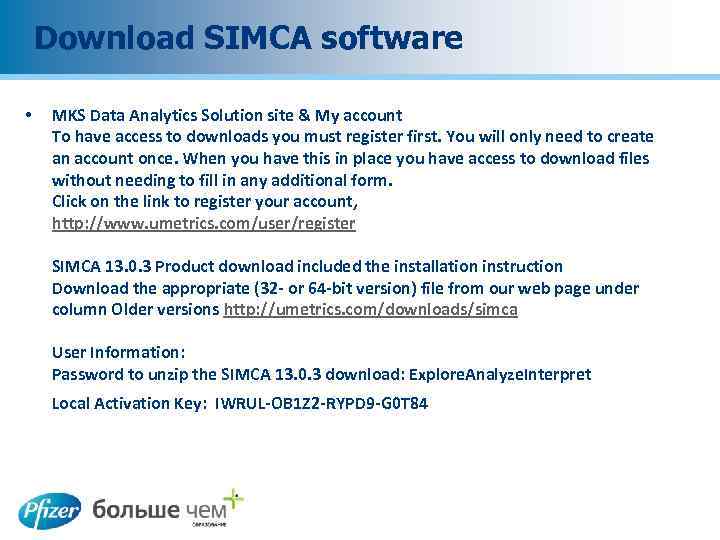 Download SIMCA software • MKS Data Analytics Solution site & My account To have access to downloads you must register first. You will only need to create an account once. When you have this in place you have access to download files without needing to fill in any additional form. Click on the link to register your account, http: //www. umetrics. com/user/register SIMCA 13. 0. 3 Product download included the installation instruction Download the appropriate (32 - or 64 -bit version) file from our web page under column Older versions http: //umetrics. com/downloads/simca User Information: Password to unzip the SIMCA 13. 0. 3 download: Explore. Analyze. Interpret Local Activation Key: IWRUL-OB 1 Z 2 -RYPD 9 -G 0 T 84
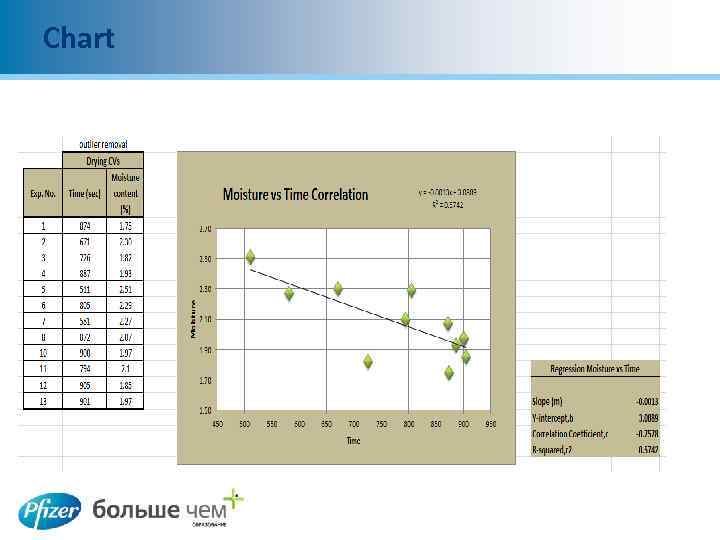
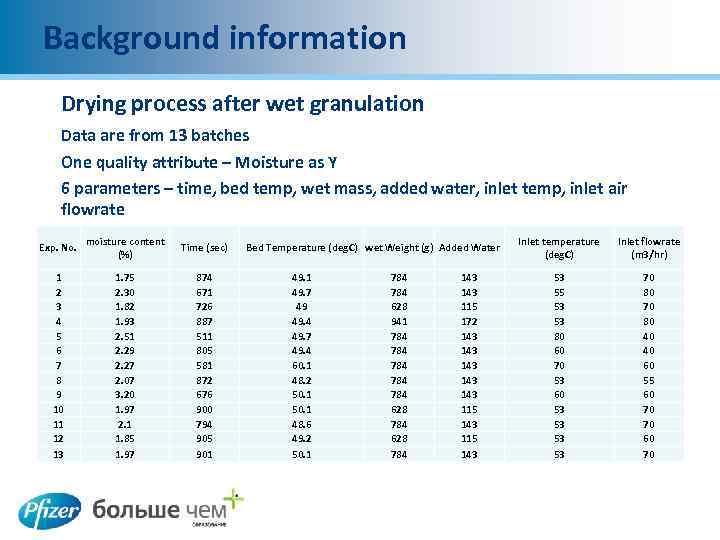 Background information Drying process after wet granulation Data are from 13 batches One quality attribute – Moisture as Y 6 parameters – time, bed temp, wet mass, added water, inlet temp, inlet air flowrate Exp. No. moisture content (%) Time (sec) 1 2 3 4 5 6 7 8 9 10 11 12 13 1. 75 2. 30 1. 82 1. 93 2. 51 2. 29 2. 27 2. 07 3. 20 1. 97 2. 1 1. 85 1. 97 874 671 726 887 511 805 581 872 676 900 794 905 901 Bed Temperature (deg. C) wet Weight (g) Added Water 49. 1 49. 7 49 49. 4 49. 7 49. 4 60. 1 48. 2 50. 1 48. 6 49. 2 50. 1 784 628 941 784 784 784 628 784 143 115 172 143 143 143 115 143 Inlet temperature (deg. C) Inlet flowrate (m 3/hr) 53 55 53 53 80 60 70 53 60 53 53 70 80 40 40 60 55 60 70 70 60 70
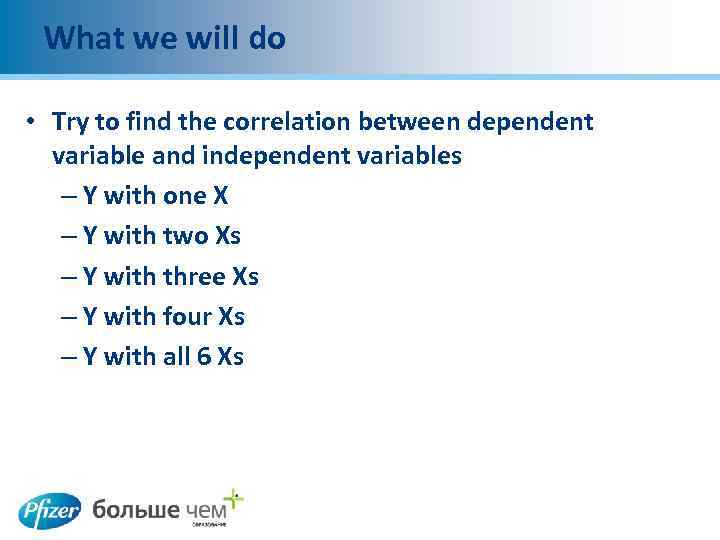 What we will do • Try to find the correlation between dependent variable and independent variables – Y with one X – Y with two Xs – Y with three Xs – Y with four Xs – Y with all 6 Xs
 Multivariable Regression • Multivariable regression enables you to relate one dependent variable to multiple independent variables you've derived from measurements. This type of data analysis helps you search for the effects of your observed data on a related condition or predict a condition based on other related observations.
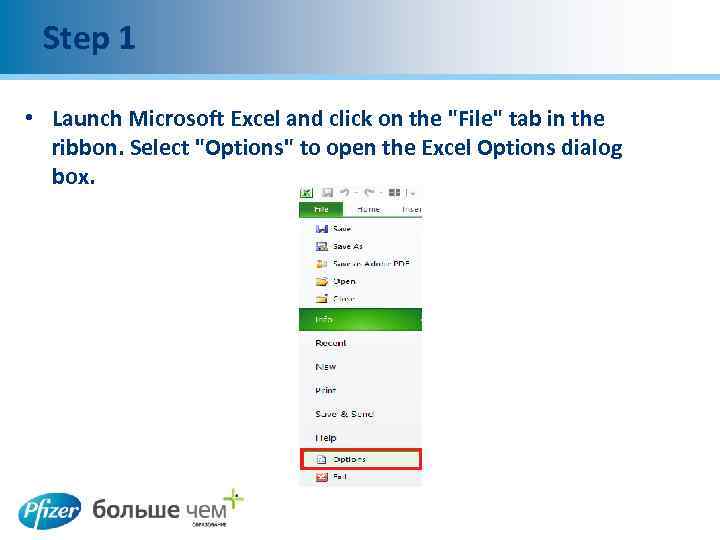 Step 1 • Launch Microsoft Excel and click on the "File" tab in the ribbon. Select "Options" to open the Excel Options dialog box.
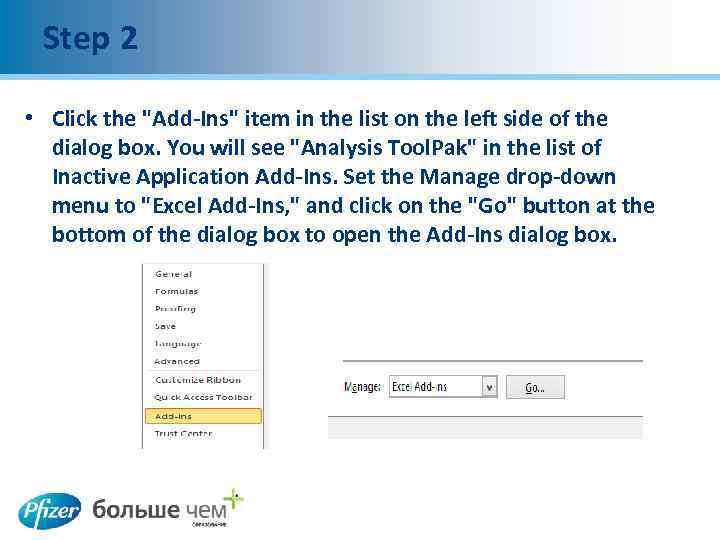 Step 2 • Click the "Add-Ins" item in the list on the left side of the dialog box. You will see "Analysis Tool. Pak" in the list of Inactive Application Add-Ins. Set the Manage drop-down menu to "Excel Add-Ins, " and click on the "Go" button at the bottom of the dialog box to open the Add-Ins dialog box.
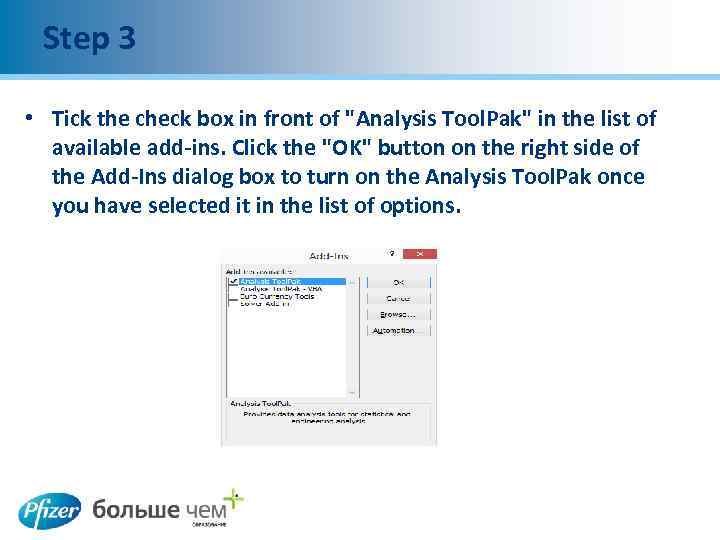 Step 3 • Tick the check box in front of "Analysis Tool. Pak" in the list of available add-ins. Click the "OK" button on the right side of the Add-Ins dialog box to turn on the Analysis Tool. Pak once you have selected it in the list of options.
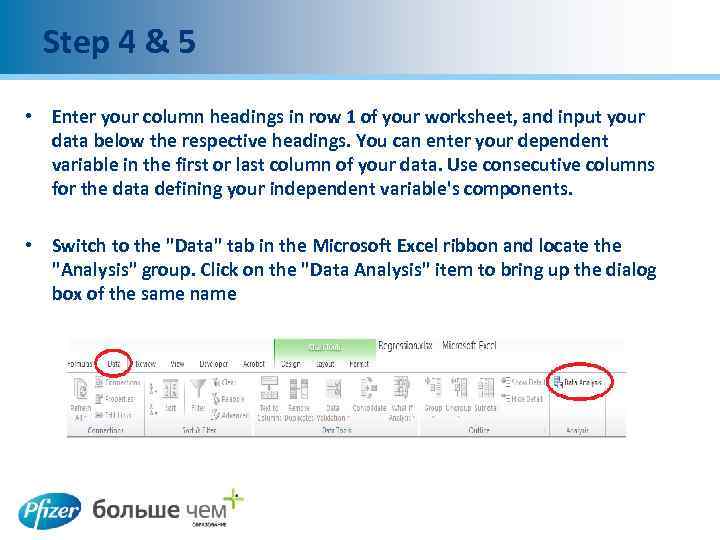 Step 4 & 5 • Enter your column headings in row 1 of your worksheet, and input your data below the respective headings. You can enter your dependent variable in the first or last column of your data. Use consecutive columns for the data defining your independent variable's components. • Switch to the "Data" tab in the Microsoft Excel ribbon and locate the "Analysis" group. Click on the "Data Analysis" item to bring up the dialog box of the same name
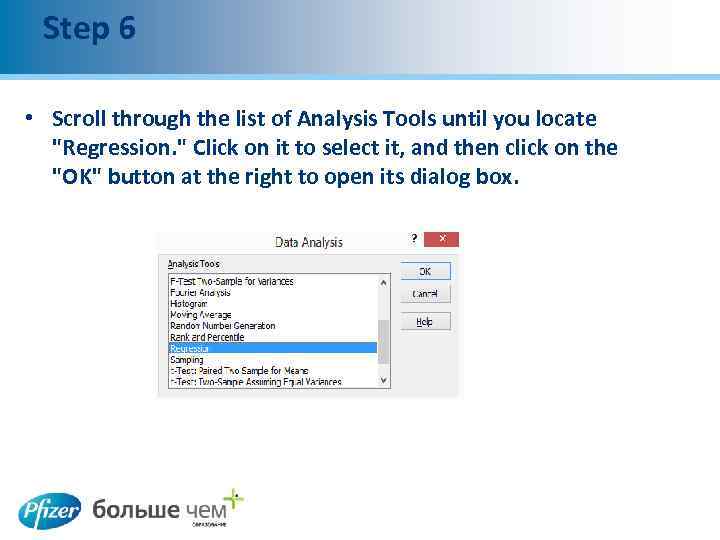 Step 6 • Scroll through the list of Analysis Tools until you locate "Regression. " Click on it to select it, and then click on the "OK" button at the right to open its dialog box.
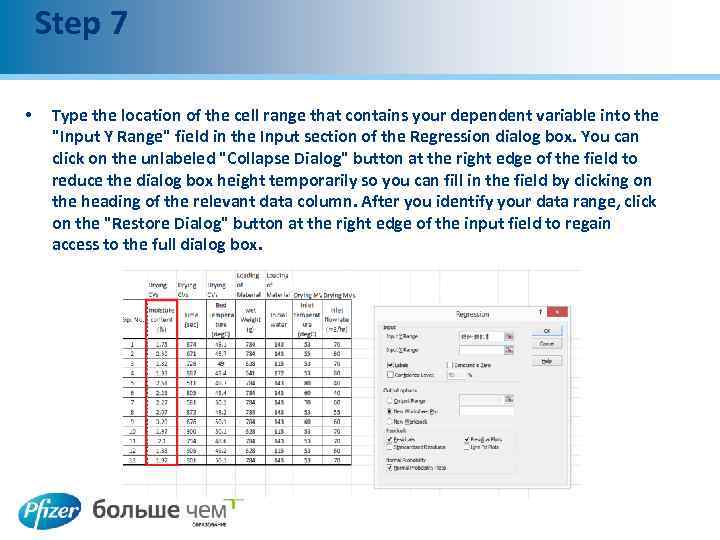 Step 7 • Type the location of the cell range that contains your dependent variable into the "Input Y Range" field in the Input section of the Regression dialog box. You can click on the unlabeled "Collapse Dialog" button at the right edge of the field to reduce the dialog box height temporarily so you can fill in the field by clicking on the heading of the relevant data column. After you identify your data range, click on the "Restore Dialog" button at the right edge of the input field to regain access to the full dialog box.
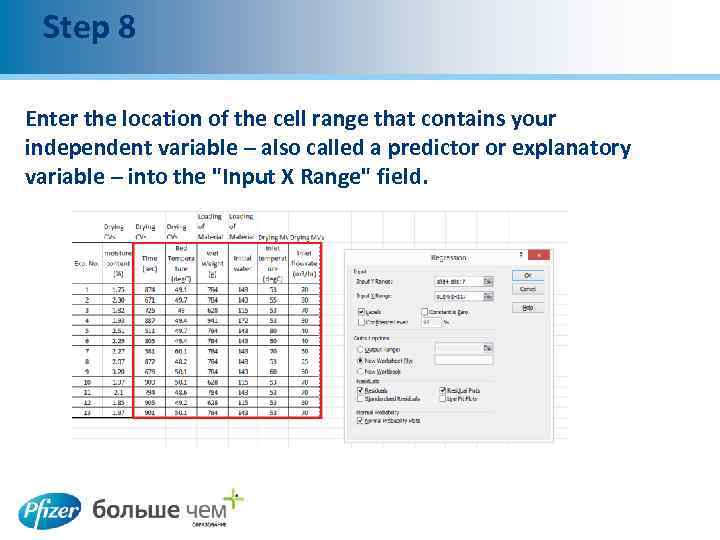 Step 8 Enter the location of the cell range that contains your independent variable – also called a predictor or explanatory variable – into the "Input X Range" field.
 Step 9 & 10 • Click on the "Labels" check box to tell Excel that the first row of your data contains data labels. If you didn't enter a header row, leave this box unchecked. • Click on the "Output Range" radio button in the Output Options section of the dialog box and enter a data range in the entry field to identify a location in your current worksheet for the output of your analysis. Use the "Collapse Dialog" and "Restore Dialog" buttons to click through your worksheet and identify where to put your results. Select the "New Worksheet Ply" radio button to place your results in a new sheet within your workbook, or choose "New Workbook" to put the results in a new file.
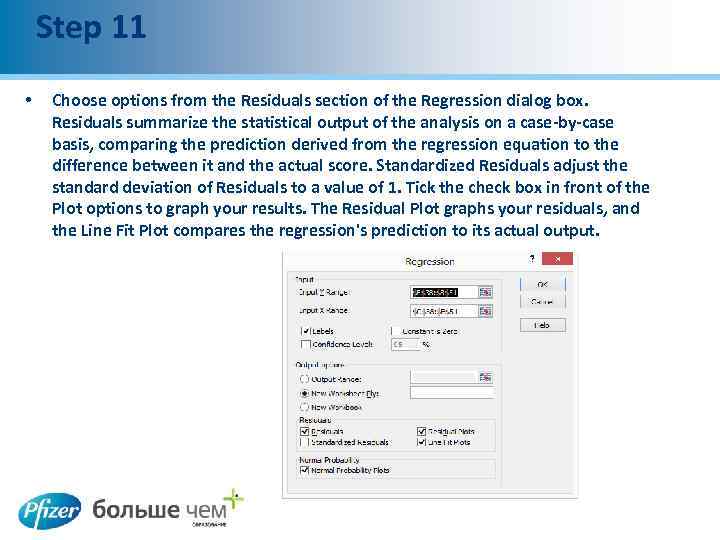 Step 11 • Choose options from the Residuals section of the Regression dialog box. Residuals summarize the statistical output of the analysis on a case-by-case basis, comparing the prediction derived from the regression equation to the difference between it and the actual score. Standardized Residuals adjust the standard deviation of Residuals to a value of 1. Tick the check box in front of the Plot options to graph your results. The Residual Plot graphs your residuals, and the Line Fit Plot compares the regression's prediction to its actual output.
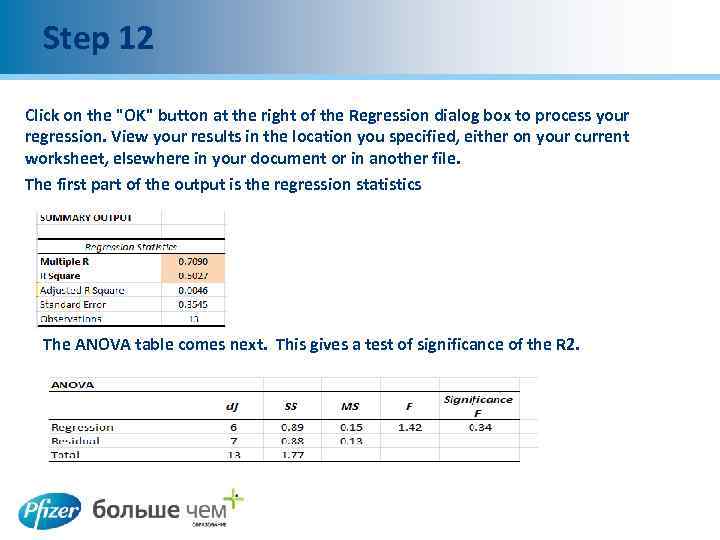 Step 12 Click on the "OK" button at the right of the Regression dialog box to process your regression. View your results in the location you specified, either on your current worksheet, elsewhere in your document or in another file. The first part of the output is the regression statistics The ANOVA table comes next. This gives a test of significance of the R 2.
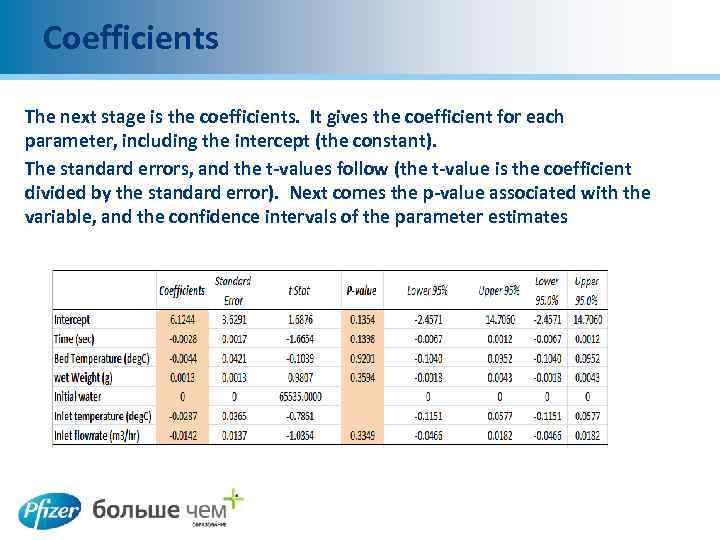 Coefficients The next stage is the coefficients. It gives the coefficient for each parameter, including the intercept (the constant). The standard errors, and the t-values follow (the t-value is the coefficient divided by the standard error). Next comes the p-value associated with the variable, and the confidence intervals of the parameter estimates
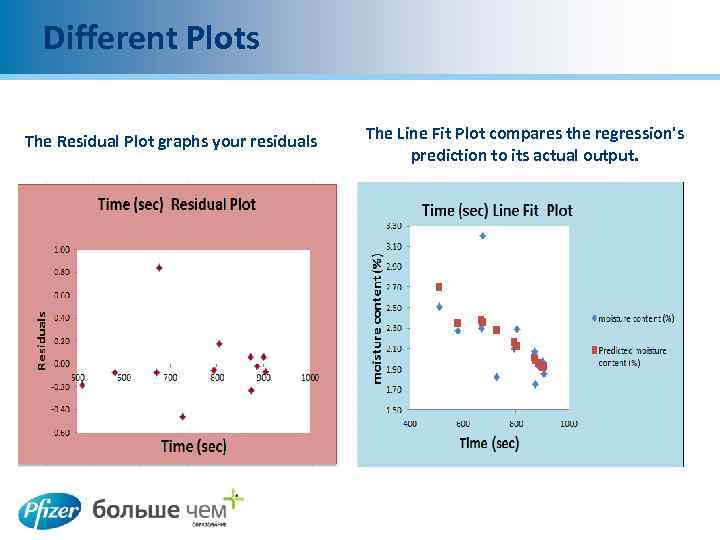 Different Plots The Residual Plot graphs your residuals The Line Fit Plot compares the regression's prediction to its actual output.
 Inserting a Scatter Diagram into Excel Suppose you have two columns of data in Excel and you want to insert a scatter plot to examine the relationship between the two variables. • Begin by selecting the data in the two columns. Then, click on the Insert tab on the Ribbon and locate the Charts section. Click on the button labeled Scatter and then select the button from the menu titled Scatter with Only Markers.
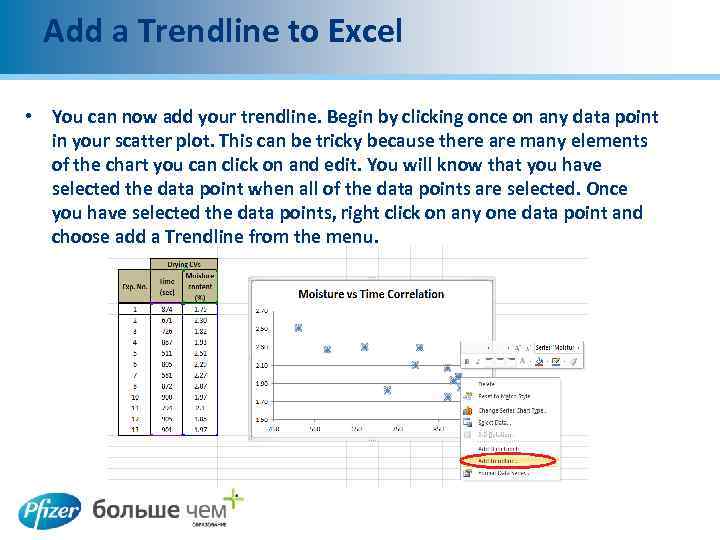 Add a Trendline to Excel • You can now add your trendline. Begin by clicking once on any data point in your scatter plot. This can be tricky because there are many elements of the chart you can click on and edit. You will know that you have selected the data point when all of the data points are selected. Once you have selected the data points, right click on any one data point and choose add a Trendline from the menu.
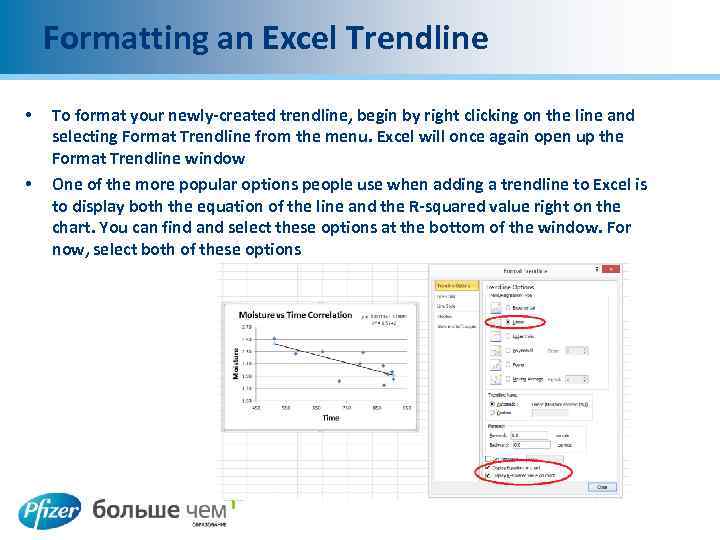 Formatting an Excel Trendline • • To format your newly-created trendline, begin by right clicking on the line and selecting Format Trendline from the menu. Excel will once again open up the Format Trendline window One of the more popular options people use when adding a trendline to Excel is to display both the equation of the line and the R-squared value right on the chart. You can find and select these options at the bottom of the window. For now, select both of these options
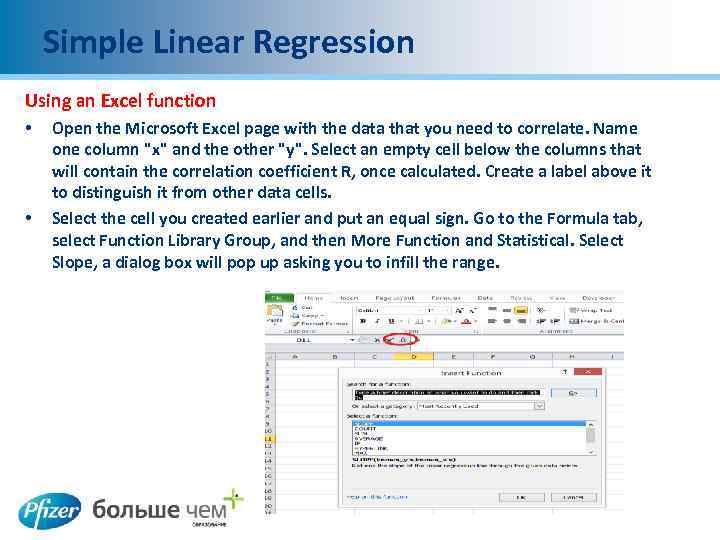 Simple Linear Regression Using an Excel function • • Open the Microsoft Excel page with the data that you need to correlate. Name one column "x" and the other "y". Select an empty cell below the columns that will contain the correlation coefficient R, once calculated. Create a label above it to distinguish it from other data cells. Select the cell you created earlier and put an equal sign. Go to the Formula tab, select Function Library Group, and then More Function and Statistical. Select Slope, a dialog box will pop up asking you to infill the range.
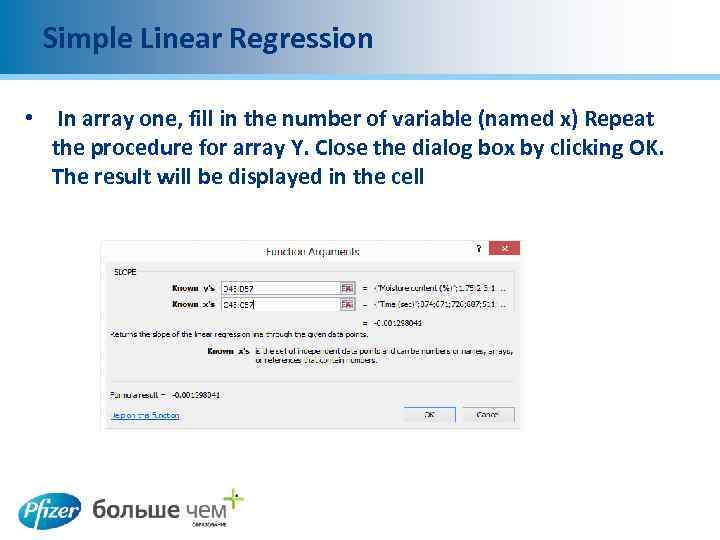 Simple Linear Regression • In array one, fill in the number of variable (named x) Repeat the procedure for array Y. Close the dialog box by clicking OK. The result will be displayed in the cell
 Linear Regression Formula Repeat the same process to get result for Intercept - Correlation and R- Squared The syntax to calculate each of the terms in the regression is as follows: • The SLOPE function returns the slope of the linear regression line that is used to predict Y values from X values. Slope, m: =SLOPE(Known_Y’s, Known_x’s)
 Linear Regression Formula • The intercept point is based on a best-fit regression line plotted through the known x-values and known y-values. Calculates the point at which a line will intersect the y-axis by using existing x-values and y-values. Y-intercept, b: =INTERCEPT(Known_Y’s, Known_x’s) • The correlation coefficient (a value between -1 and +1) tells you how strongly two variables are related to each other. We can use the CORREL function or the Analysis Toolpak add -in in Excel to find the correlation coefficient between two variables Correlation Coefficient, r: =CORREL(Known_Y’s, Known_x’s) • R-squared, r 2 =RSQ(Known_Y’s, Known_x’s)
 Chart
Chart