 Скачать презентацию Don t Click on the Blue E Switching to
2007344ca2a62d77310af1792d3cfa2d.ppt
- Количество слайдов: 92



Don’t Click on the Blue E!: Switching to Firefox Scott Granneman scott@granneman. com www. granneman. com 1 © 2005 Scott Granneman Last updated 20050719 You are free to use this work, with certain restrictions. For full licensing information, please see the last slide/page.
Who am I? Author Teacher Consultant 2
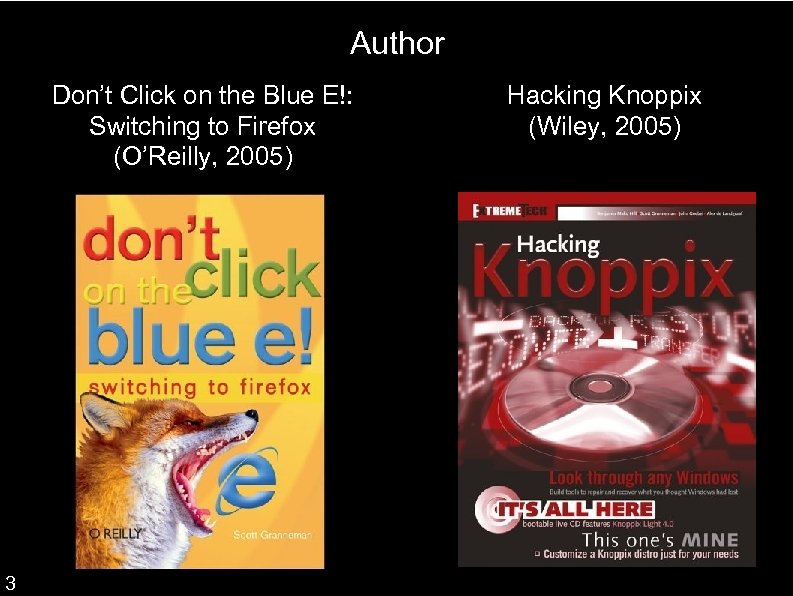
Author Don’t Click on the Blue E!: Switching to Firefox (O’Reilly, 2005) 3 ● Hacking Knoppix ● (Wiley, 2005)
“Do It Yourself” column for Linux Magazine (http: //www. linux-mag. com) Columnist for Security. Focus (http: //www. securityfocus. com) Blogger for The Open Source Weblog (http: //opensource. weblogsinc. com) Full list of publications at http: //www. granneman. com/pubs 4

Teacher Washington University in St. Louis “Technology in Our Changing Society” “Web Site Management” “Web Design” & “Advanced Web Design” “Social Software: Building Community in a Virtual Environment” Webster University “Information Security Management” 5
Consultant Web development & hosting using a Content Management System Currently with Bryan Consulting We’re merging with members of Web. Sanity What’s the new company’s name? 6
Some clients: Saint Louis Zoo (www. stlzoo. org) Baptist State Convention of North Carolina (www. bscnc. org) ACLU of Eastern Missouri, Pennsylvania, New Jersey, & Connecticut (www. aclu-em. org, www. aclupa. org, www. aclu-nj. org) Standing Partnership (www. standingpr. com) City of Bellefontaine Neighbors (www. cityofbn. com) 7
Problems with Internet Explorer Completely tied to Windows (no more free upgrades) Security! Lack of support for common standards (postition: fixed, anyone? ) Lacks features (tabs, extensions, search bar, etc. ) Not as easily customizable as others 8
Why? Disastrous decision to “integrate” browser & operating system starting with Windows 98 After MSFT “won” the “browser war”, it disbanded the IE Team. Only in the last several months has the team been reconstituted. 9
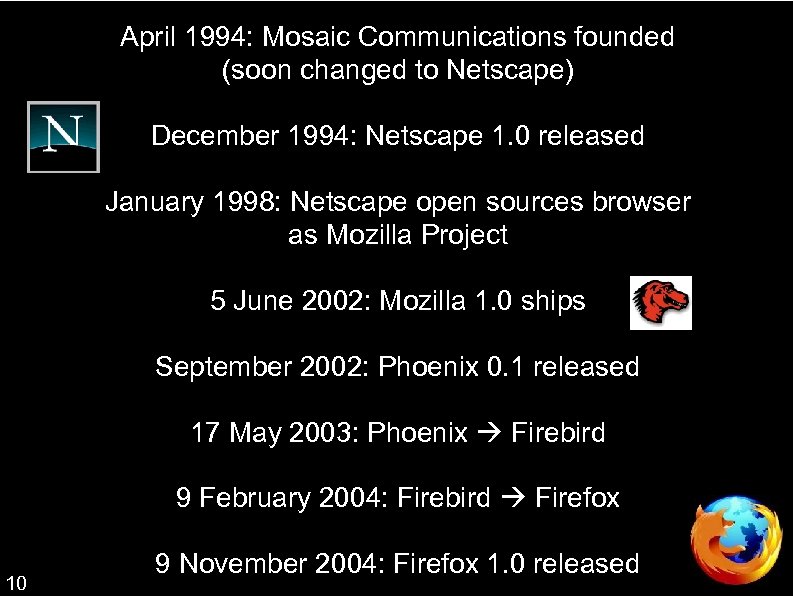
April 1994: Mosaic Communications founded (soon changed to Netscape) December 1994: Netscape 1. 0 released January 1998: Netscape open sources browser as Mozilla Project 5 June 2002: Mozilla 1. 0 ships September 2002: Phoenix 0. 1 released 17 May 2003: Phoenix Firebird 9 February 2004: Firebird Firefox 10 9 November 2004: Firefox 1. 0 released
OK, so why is Firefox so cool? Open source Excellent support for standards Runs on multiple platforms (Linux, Mac OS X, & Windows) Innovation 11
One example of innovation Portable Firefox allows you to run Firefox, with all your settings, from a USB flash drive (portablefirefox. mozdev. org) 12
But really, what makes Firefox so cool are all the extra goodies that come with it Tabs Searching Popup blocking Addons 13
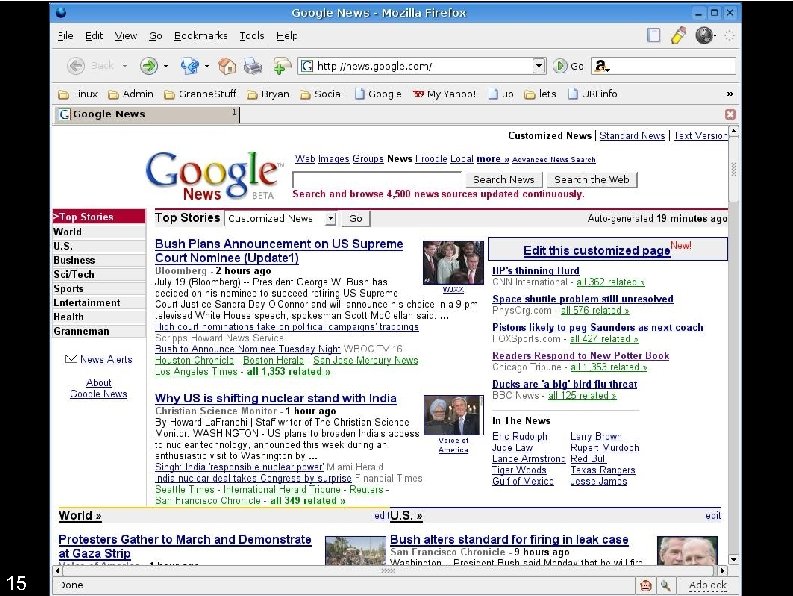
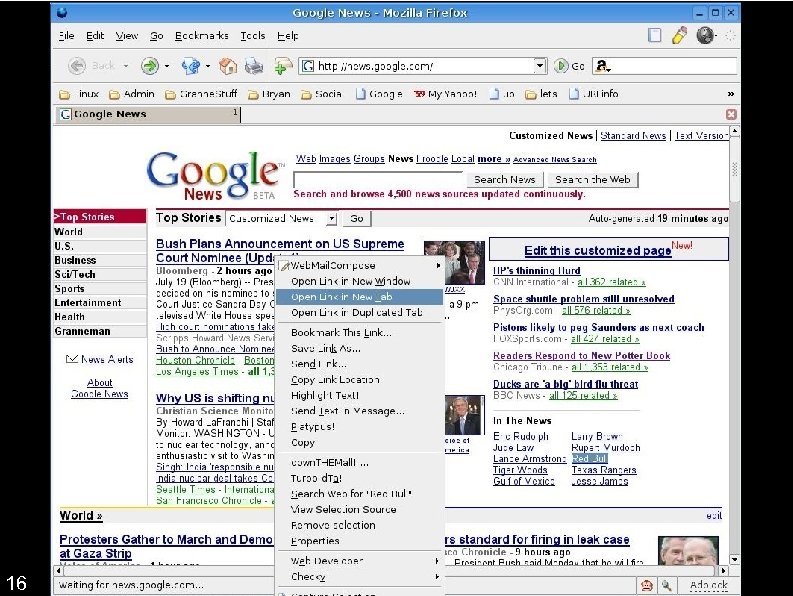
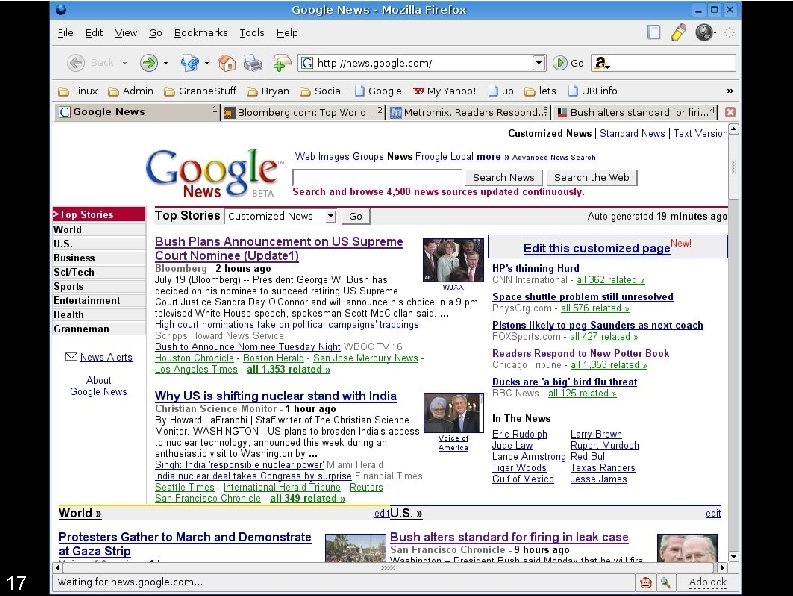
Tabs Firefox didn’t introduce tabs (that honor goes to Opera), but tabs help make Firefox wonderful 14
15
16
17
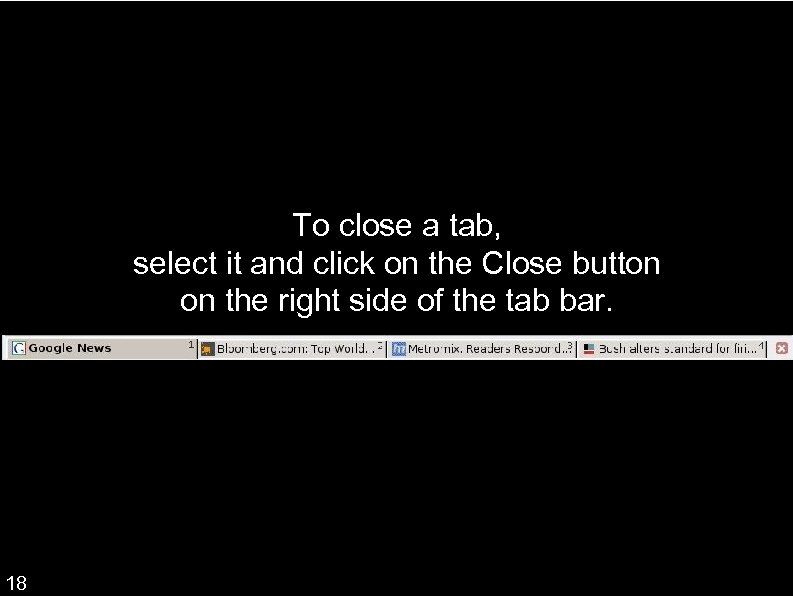
To close a tab, select it and click on the Close button on the right side of the tab bar. 18
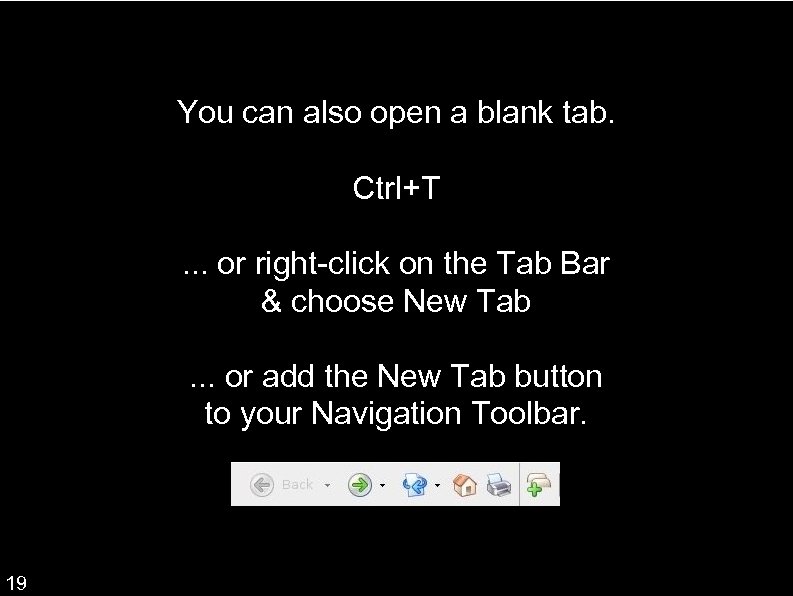
You can also open a blank tab. Ctrl+T. . . or right-click on the Tab Bar & choose New Tab. . . or add the New Tab button to your Navigation Toolbar. 19
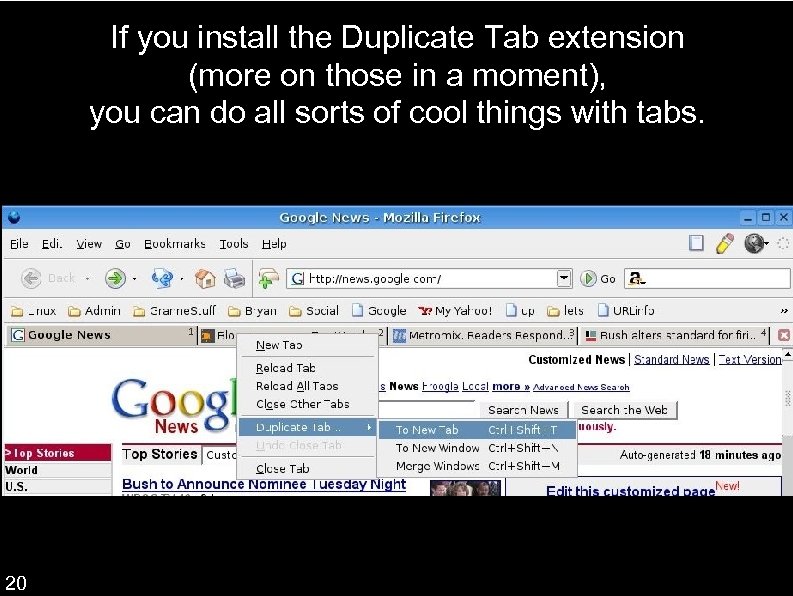
If you install the Duplicate Tab extension (more on those in a moment), you can do all sorts of cool things with tabs. 20
Firefox is a searcher’s dream. Search bar Find in the page Address bar Bookmark keywords and much, much more! 21
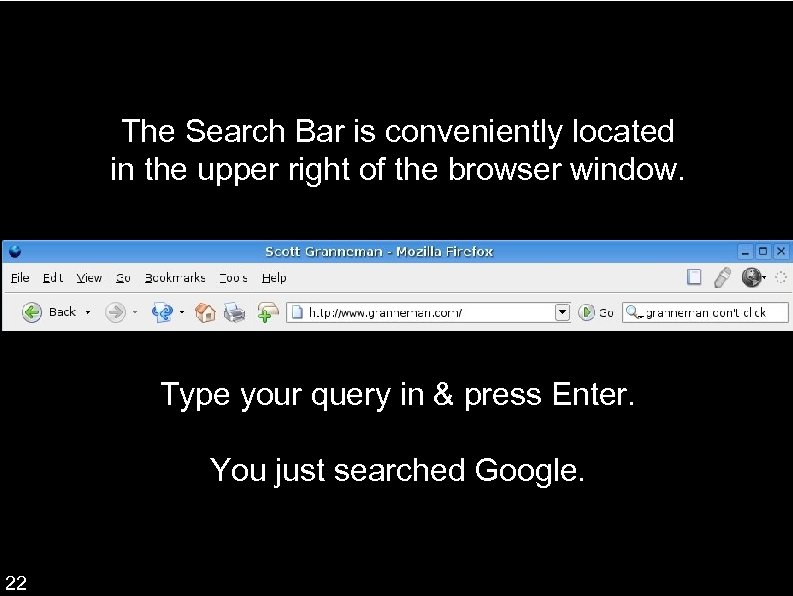
The Search Bar is conveniently located in the upper right of the browser window. Type your query in & press Enter. You just searched Google. 22
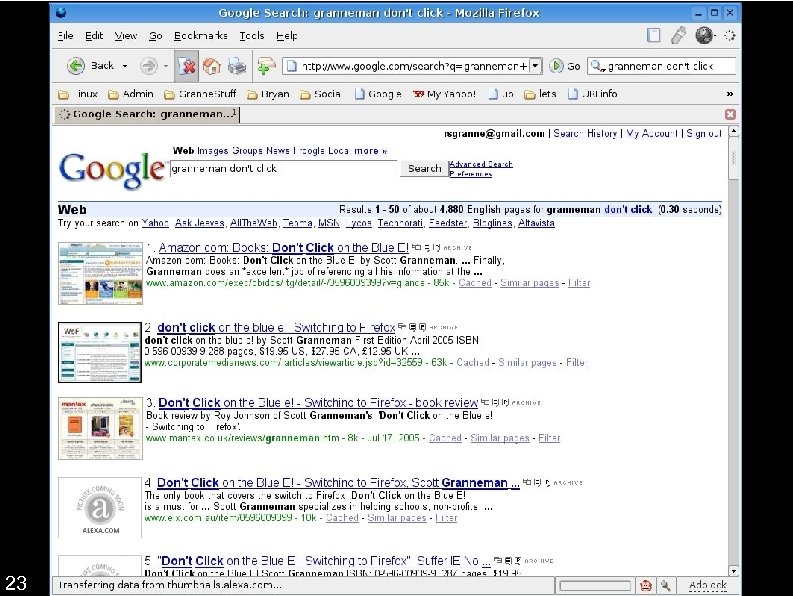
23
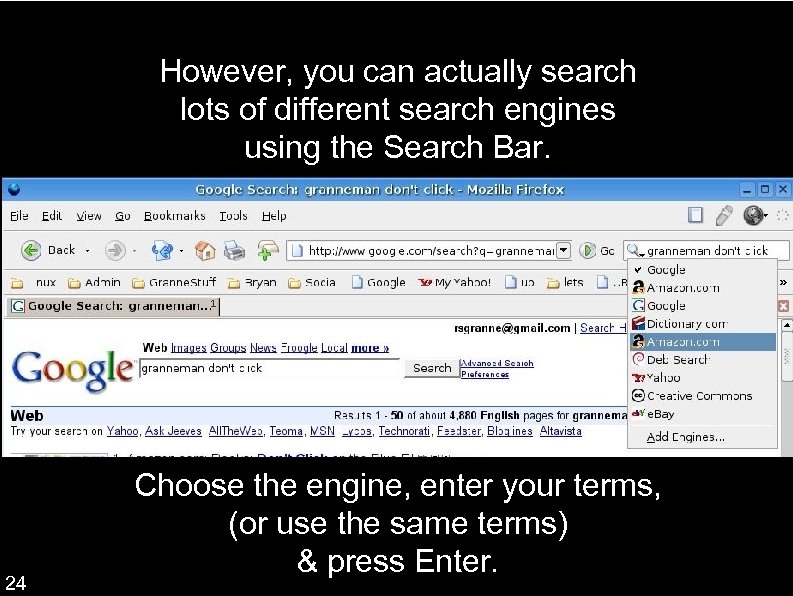
However, you can actually search lots of different search engines using the Search Bar. 24 Choose the engine, enter your terms, (or use the same terms) & press Enter.
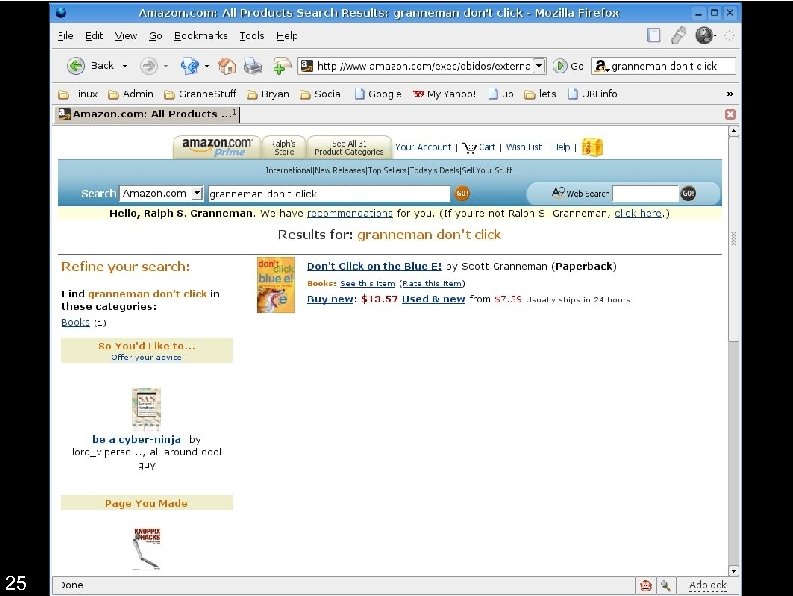
25
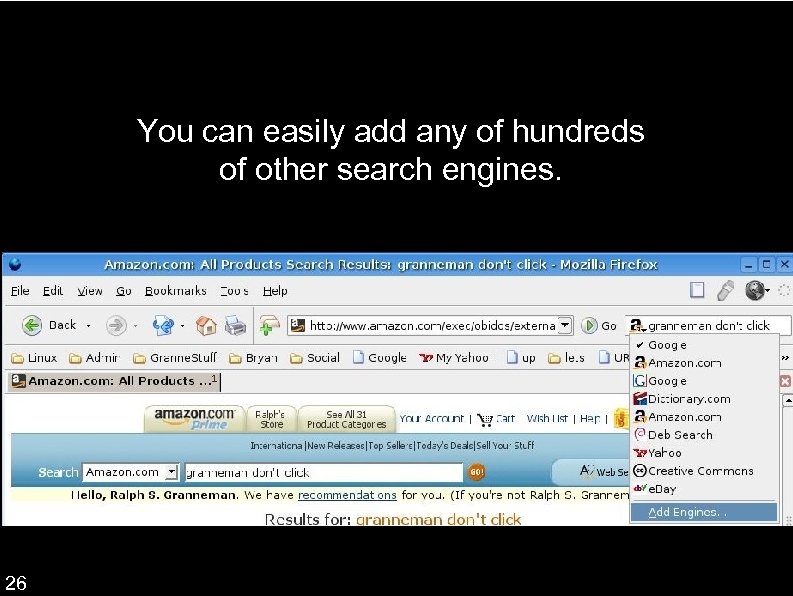
You can easily add any of hundreds of other search engines. 26
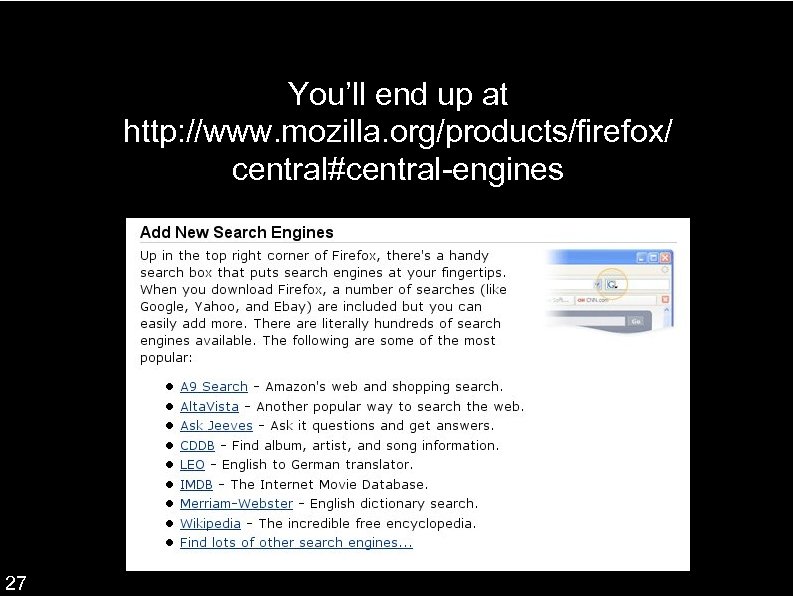
You’ll end up at http: //www. mozilla. org/products/firefox/ central#central-engines 27
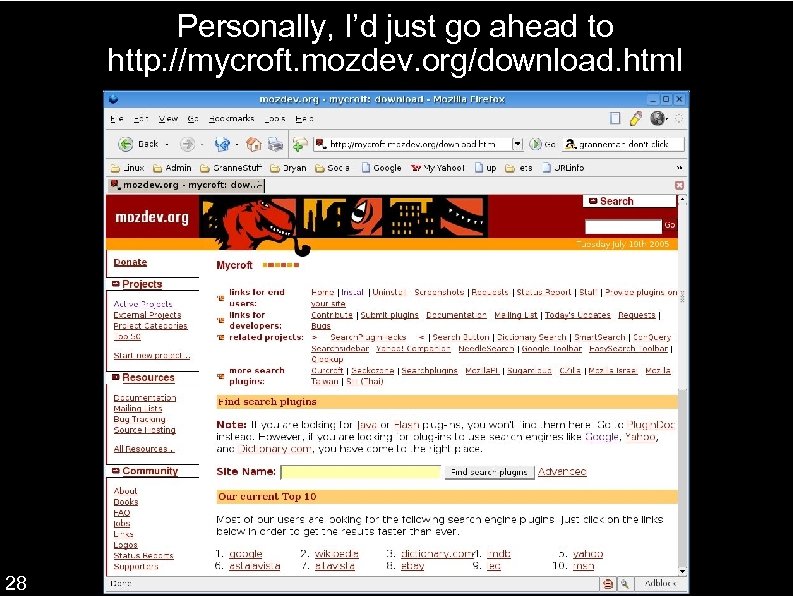
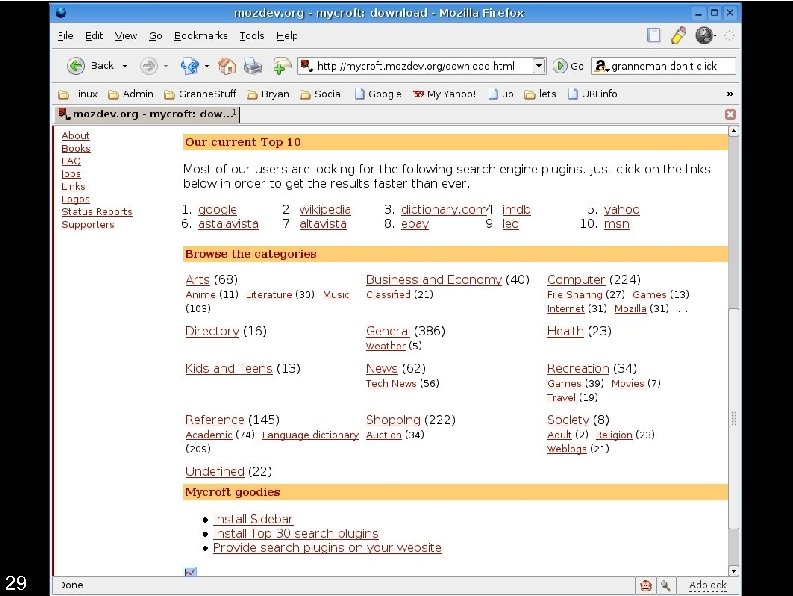
Personally, I’d just go ahead to http: //mycroft. mozdev. org/download. html 28
29
With other browsers, finding information in the page you’re on opens a small window that you have to position & that often gets in the way. Not with Firefox. 30
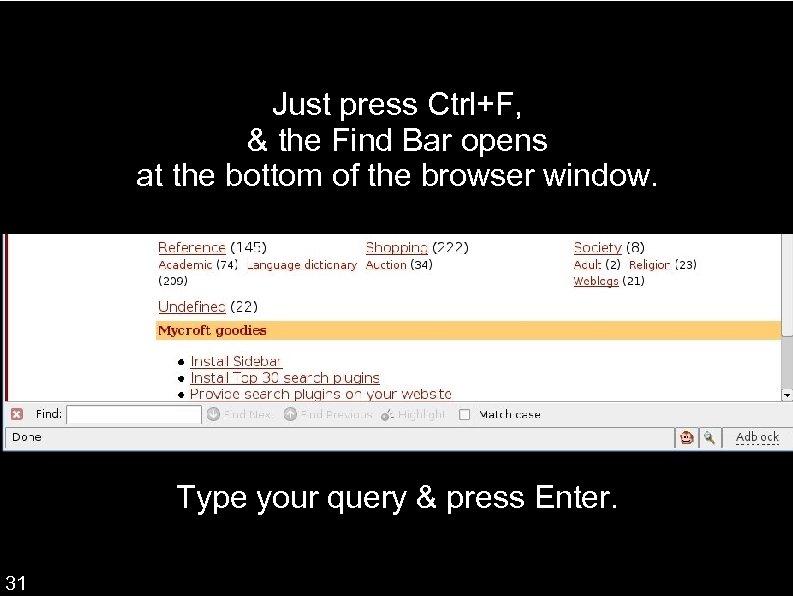
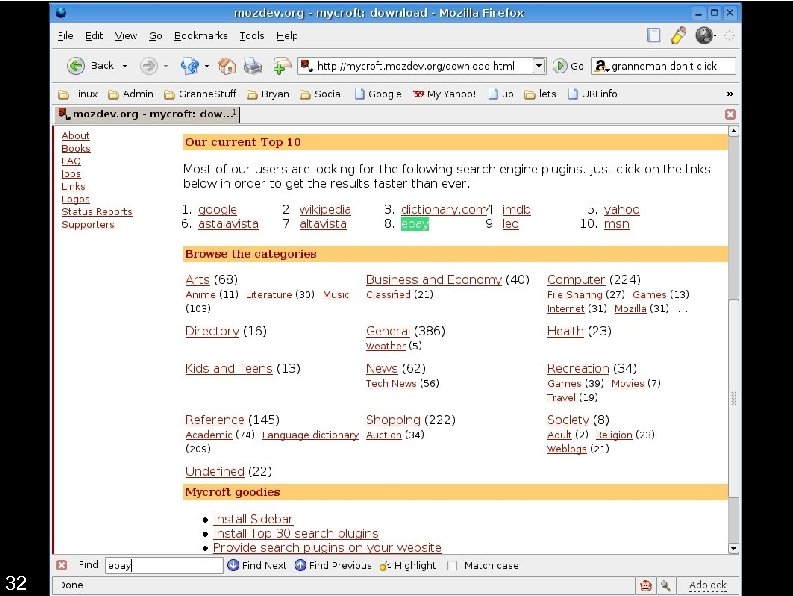
Just press Ctrl+F, & the Find Bar opens at the bottom of the browser window. Type your query & press Enter. 31
32
If you’ve ever had the misfortune to use emacs, you’ll immediately recognize “Find as you type”. Press / on the keyboard, & just start typing. As you type each letter, Firefox jumps to the first completed set. Type “eb”, & Firefox jumps to the 1 st instance of “eb” on the web page. Press Ctrl+G to jump to each further instance. 33
You can even search using the Address Bar. Enter a query & press Enter or Go. Firefox automatically searches Google for that query. 34
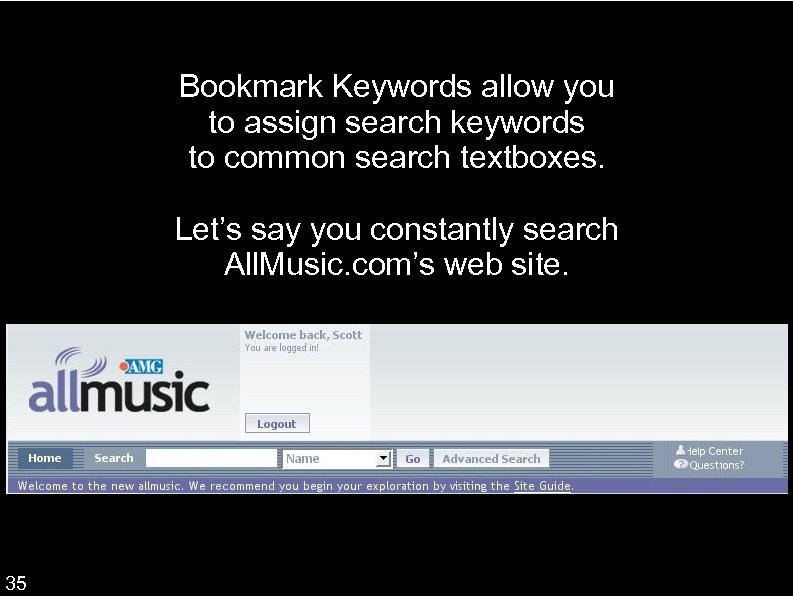
Bookmark Keywords allow you to assign search keywords to common search textboxes. Let’s say you constantly search All. Music. com’s web site. 35
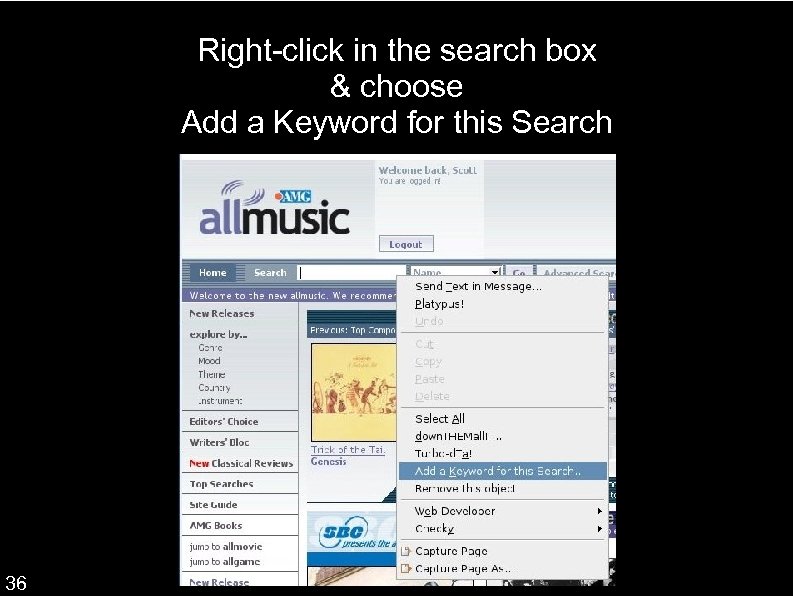
Right-click in the search box & choose Add a Keyword for this Search 36
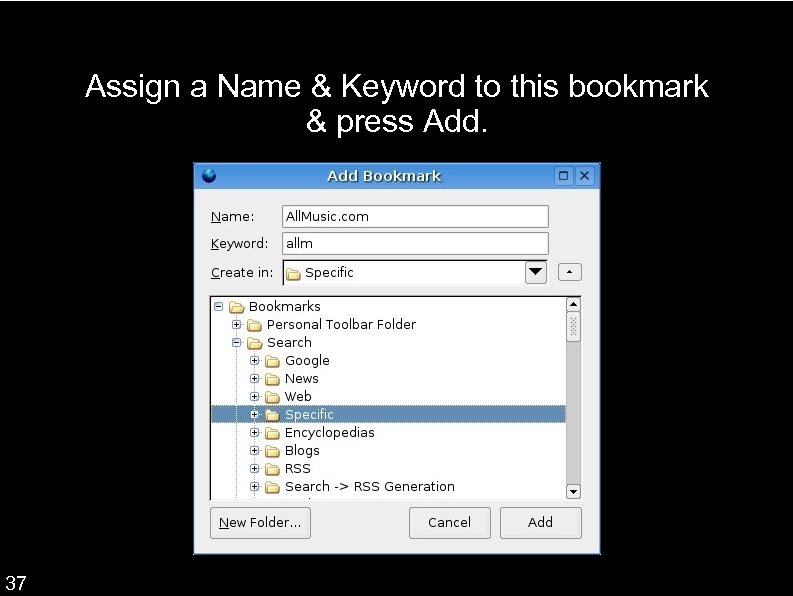
Assign a Name & Keyword to this bookmark & press Add. 37
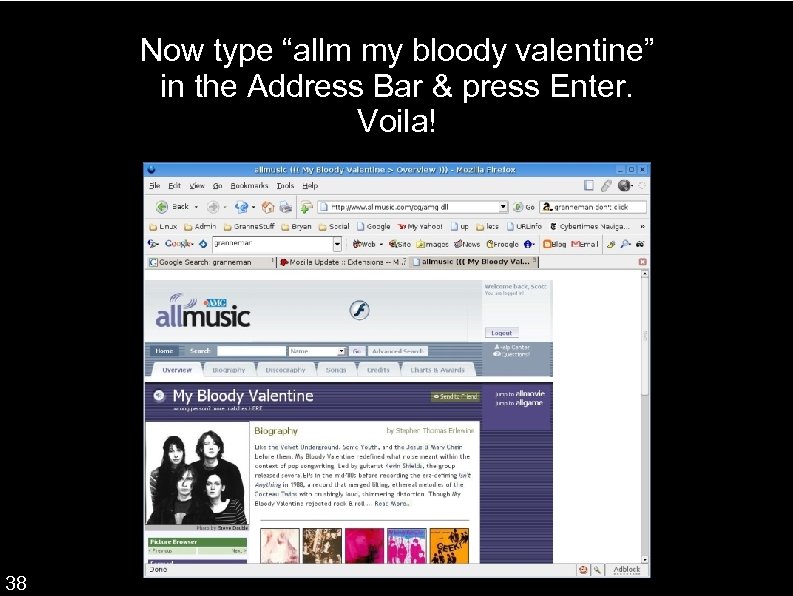
Now type “allm my bloody valentine” in the Address Bar & press Enter. Voila! 38
There are many, many extensions & add-ons that allow you to search in even more ways. Some of my favorites: The Groowe Search Better. Search Smart. Search Bar For more, go to https: //addons. mozilla. org/extensions/showlist. php? application=firefox&category=Search%20 Tools There are currently 86 search extensions 39
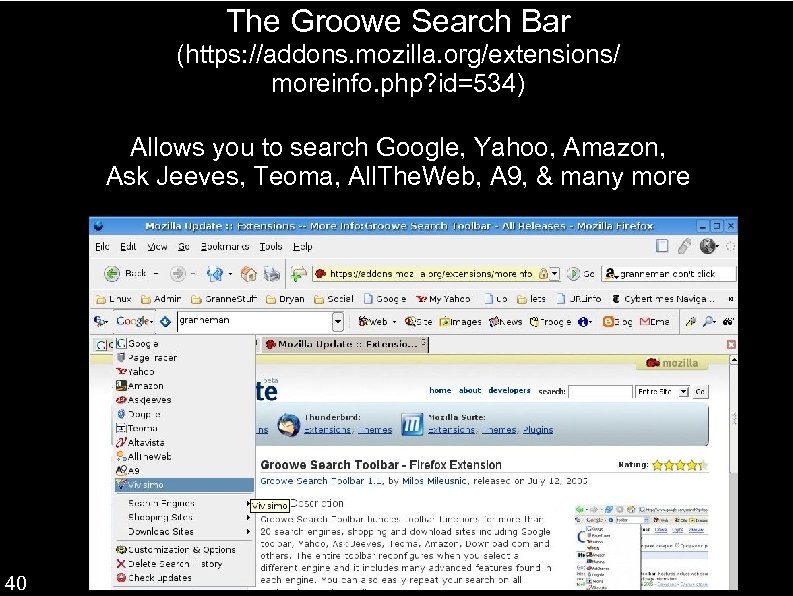
The Groowe Search Bar (https: //addons. mozilla. org/extensions/ moreinfo. php? id=534) Allows you to search Google, Yahoo, Amazon, Ask Jeeves, Teoma, All. The. Web, A 9, & many more 40
Better. Search (https: //addons. mozilla. org/extensions/moreinfo. php? application=firefox&id=211) Adds small thumbnails of site home pages to searches at Google, MSN Search, Yahoo, A 9, Answers. com, All. The. Web, del. icio. us & more Add thumbnails of Amazon products Adds links to search results: Open in New Window, Site Info, & Wayback Machine 41
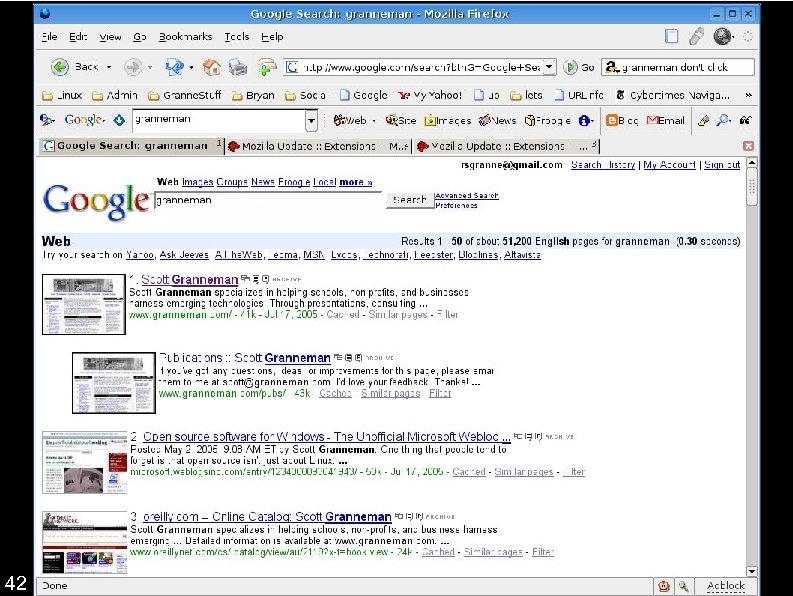
42
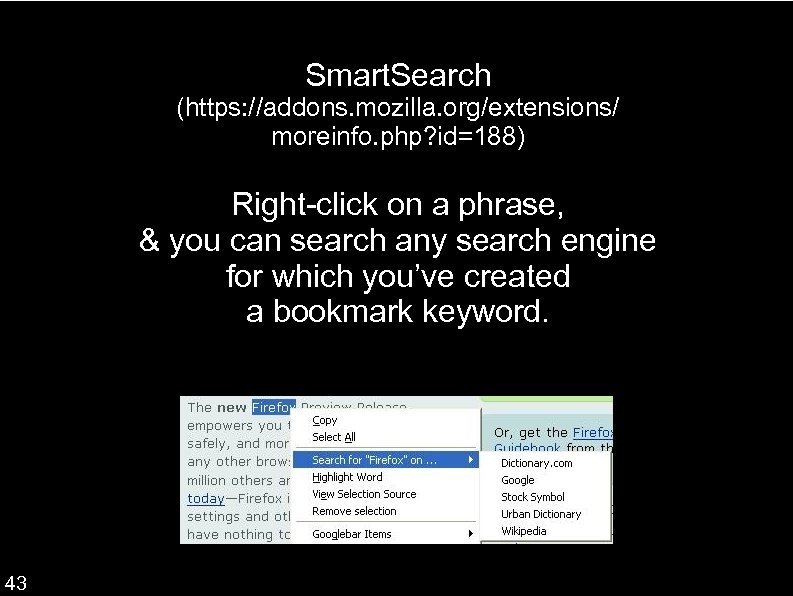
Smart. Search (https: //addons. mozilla. org/extensions/ moreinfo. php? id=188) Right-click on a phrase, & you can search any search engine for which you’ve created a bookmark keyword. 43
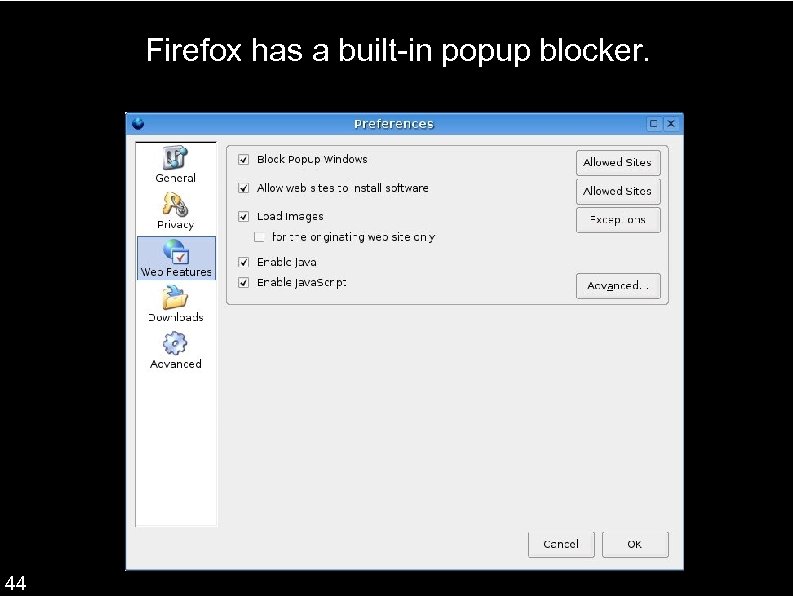
Firefox has a built-in popup blocker. 44
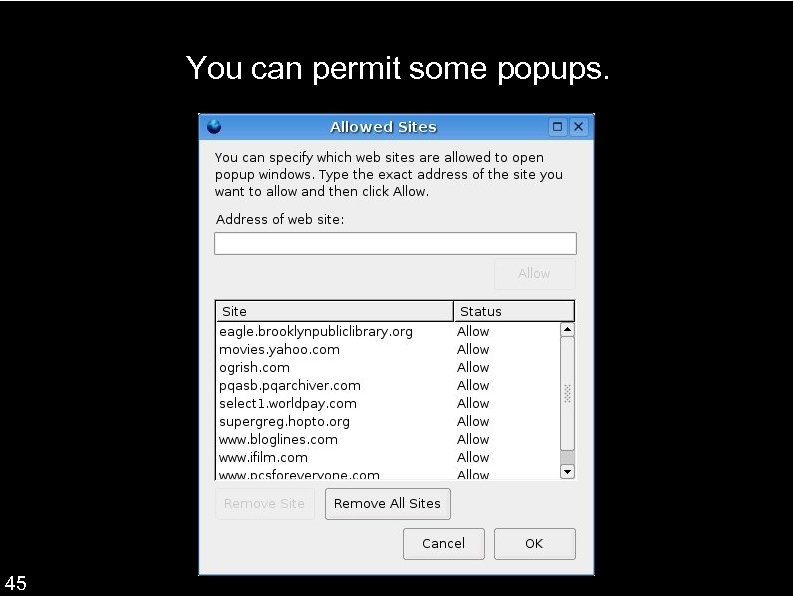
You can permit some popups. 45
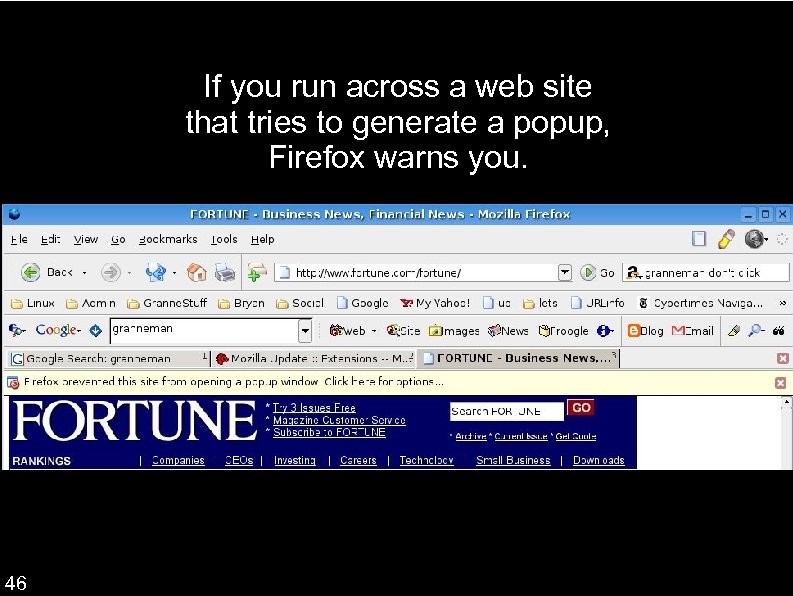
If you run across a web site that tries to generate a popup, Firefox warns you. 46
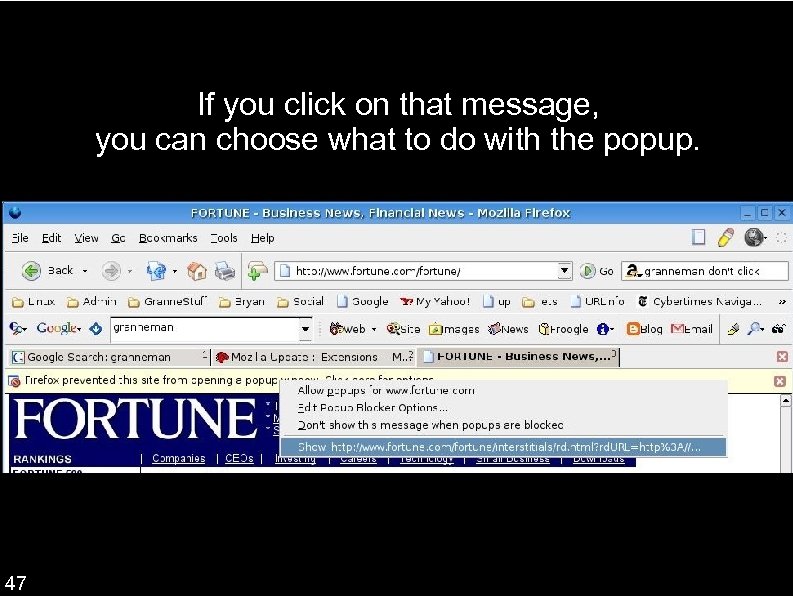
If you click on that message, you can choose what to do with the popup. 47
Unfortunately, Firefox 1. 0 doesn’t automatically block popups generated by Flash (those bastards!). That will be fixed in Firefox 1. 1. In the meantime, install the Flash. Block extension (https: //addons. mozilla. org/extensions/ moreinfo. php? id=433), and all is good. 48
And now for the add-ons! Plugins Themes Extensions 49
Firefox supports the major plugins: Flash Shockwave Adobe Reader Java Plugin Quick. Time Real. Player Windows Media Player & many more! 50 For more info, see http: //plugindoc. mozdev. org
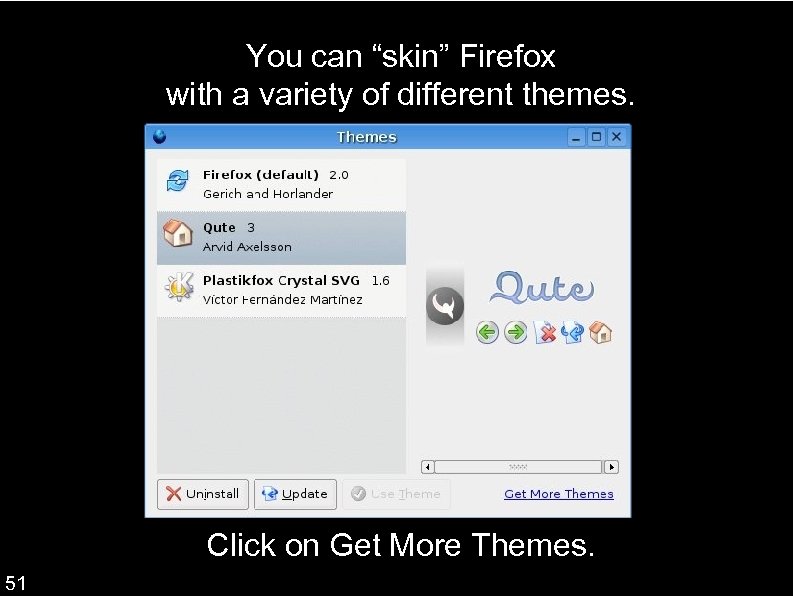
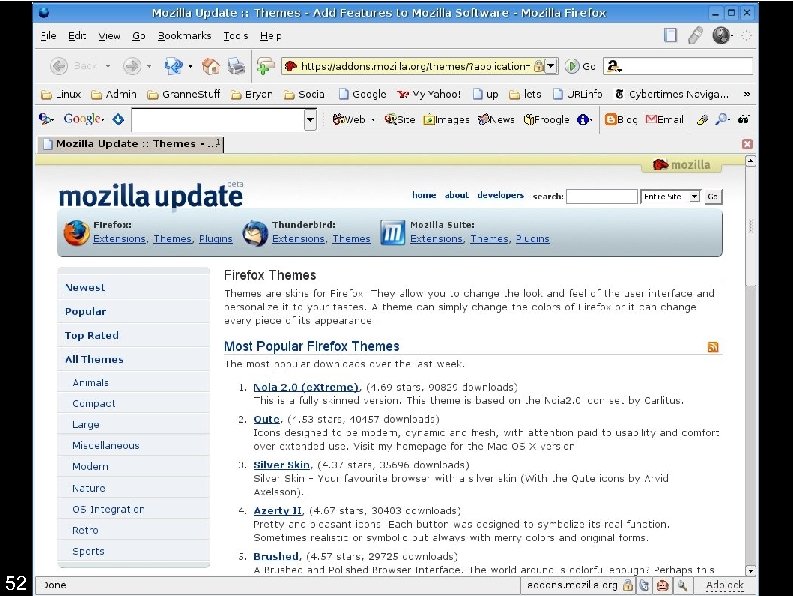
You can “skin” Firefox with a variety of different themes. Go to Tools Themes. Click on Get More Themes. 51
52
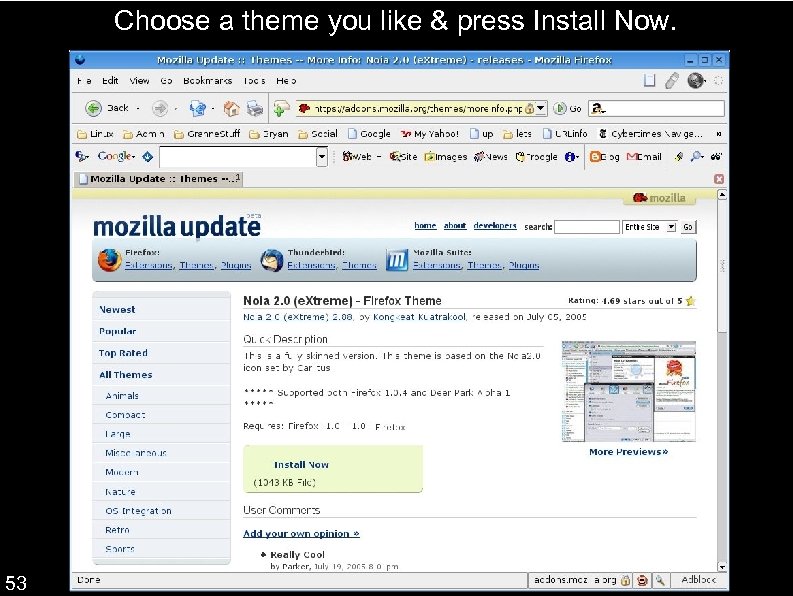
Choose a theme you like & press Install Now. 53
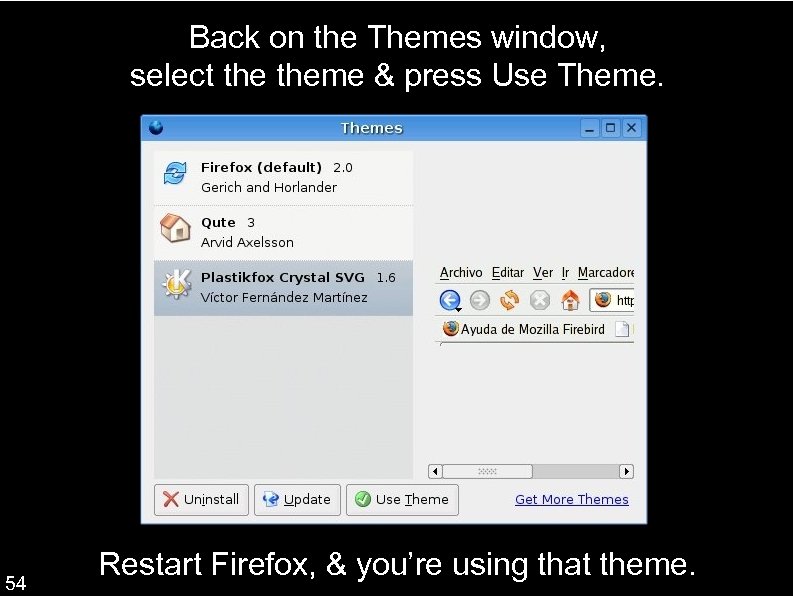
Back on the Themes window, select theme & press Use Theme. 54 Restart Firefox, & you’re using that theme.
Extensions are the best part of Firefox. Anyone can write extensions that change Firefox in virtually any way. The official list is at https: //addons. mozilla. org/extensions/? application=firefox Other lists: http: //www. extensionsmirror. nl/index. php ? showforum=2 http: //extensionroom. mozdev. org My list: 55 http: //www. granneman. com/go/extensions
Some of my favorite extensions Adblock Flashblock Nuke Anything Enhanced Web Developer Resizable Textarea Bookmarks Synchronizer Customize Google Greasemonkey Platypus Bookmarks Synchronizer 56
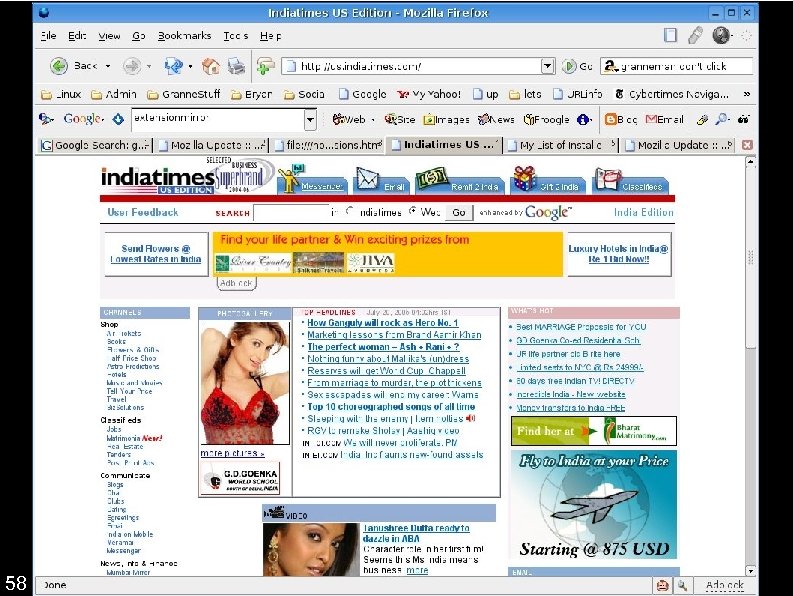
Adblocks ads according to patterns created using wildcards or regex. https: //addons. mozilla. org/extensions/moreinfo. php? application=firefox&id=10 57
58
Install Adblock, go to a page with ads, & right-click on the ad. 59
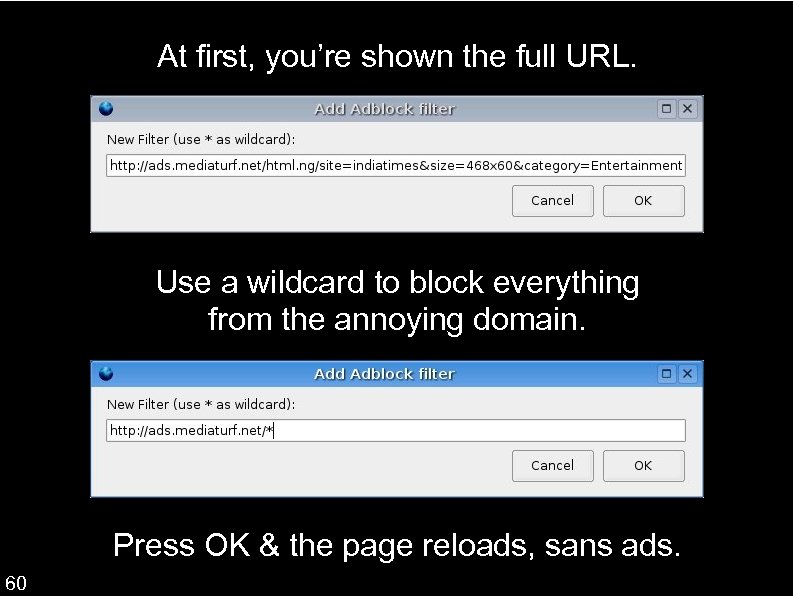
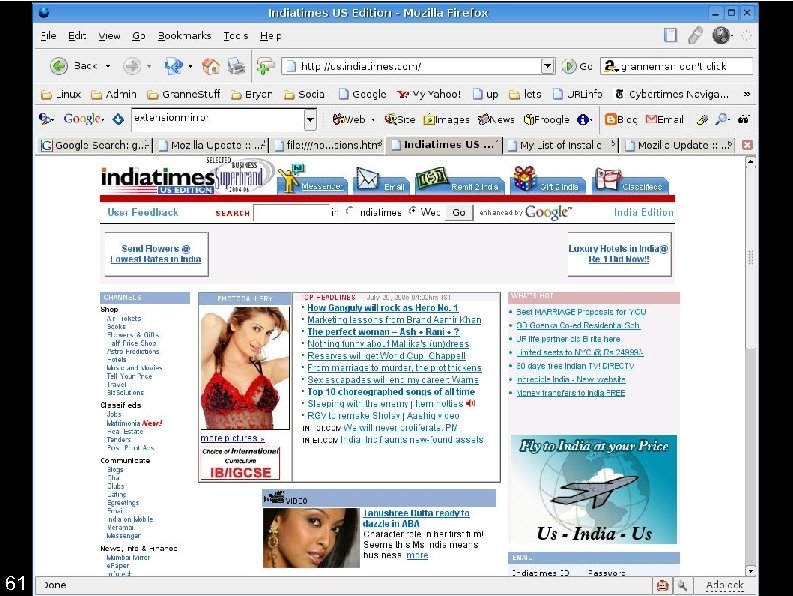
At first, you’re shown the full URL. Use a wildcard to block everything from the annoying domain. Press OK & the page reloads, sans ads. 60
61
You can export & import lists of blocked URLs. Anyone want my crazily long list? Email me. 62
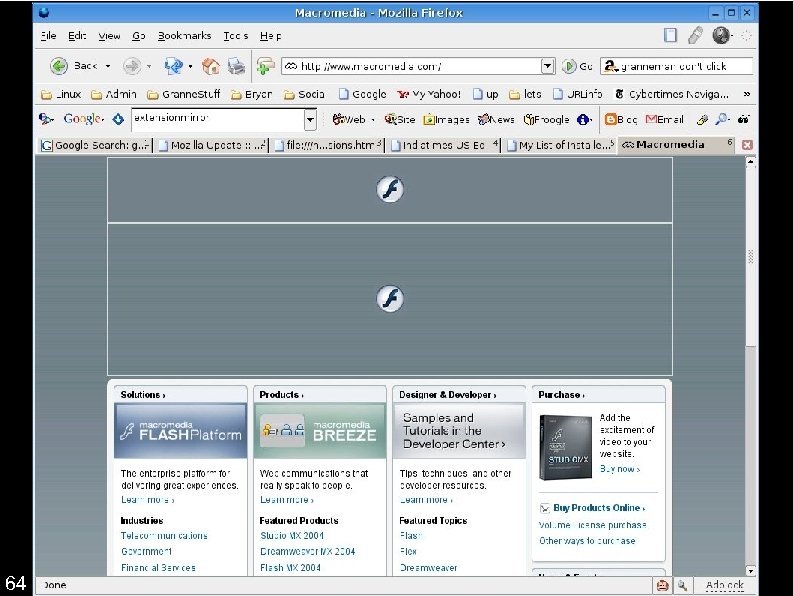
Flashblocks Flash animations. Instead of Flash, you see the Flash logo. Click on the logo, & the Flash animation loads. https: //addons. mozilla. org/extensions/moreinfo. php ? id=433 63
64
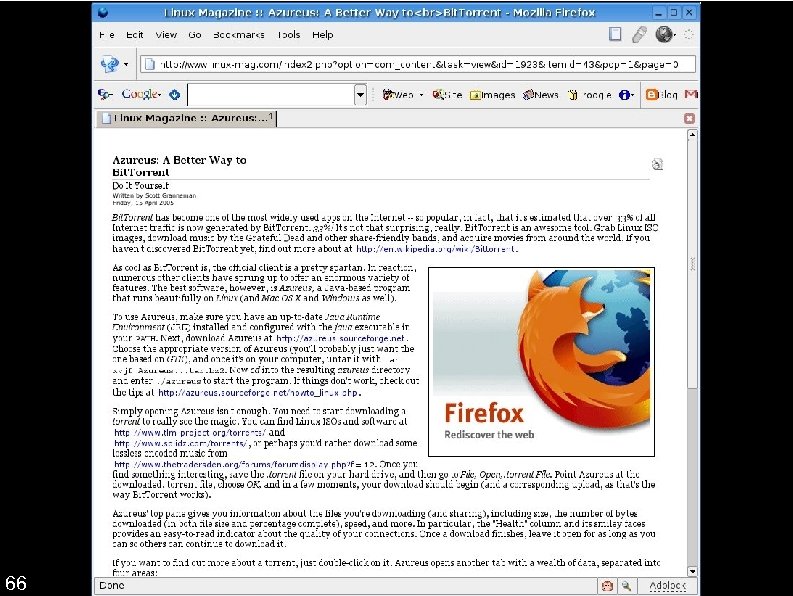
Nuke Anything Enhanced allows you to temporarily remove anything – images, text, tables, etc – from a web page in your cache. https: //addons. mozilla. org/extensions/moreinfo. php ? id=433 65
66
Right-click on the ad & choose Remove This Object. The ad is gone. Reload the page, & the ad is back. Highlight a paragraph or two. Right-click & choose Remove Selection. The paragraphs are gone. Reload the page, & they’re back. 67
The Web Developer extension is a must-have for, uh, web developers. https: //addons. mozilla. org/extensions/moreinfo. php? application=firefox&id=60 It adds a toolbar (which you can hide), a button (which you can show or not), & a right-click menu. All give you access to the same essential tools. 68
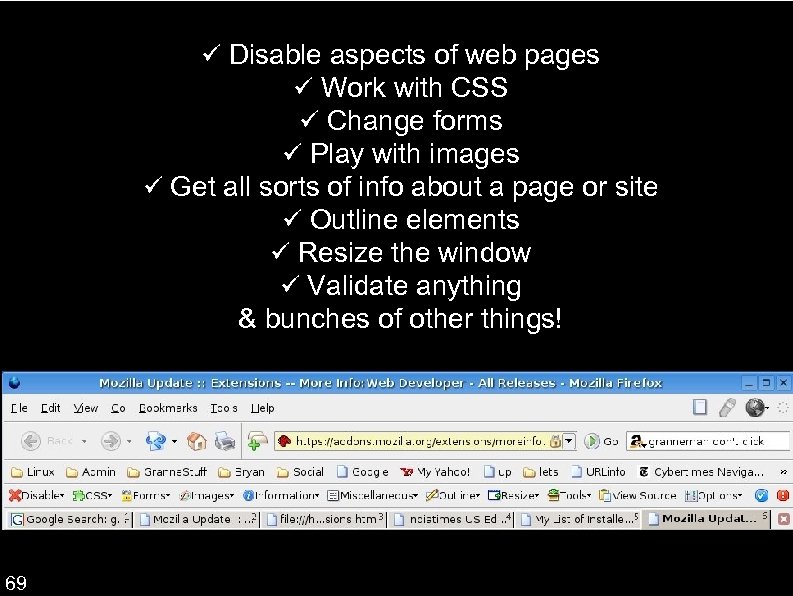
Disable aspects of web pages Work with CSS Change forms Play with images Get all sorts of info about a page or site Outline elements Resize the window Validate anything & bunches of other things! 69
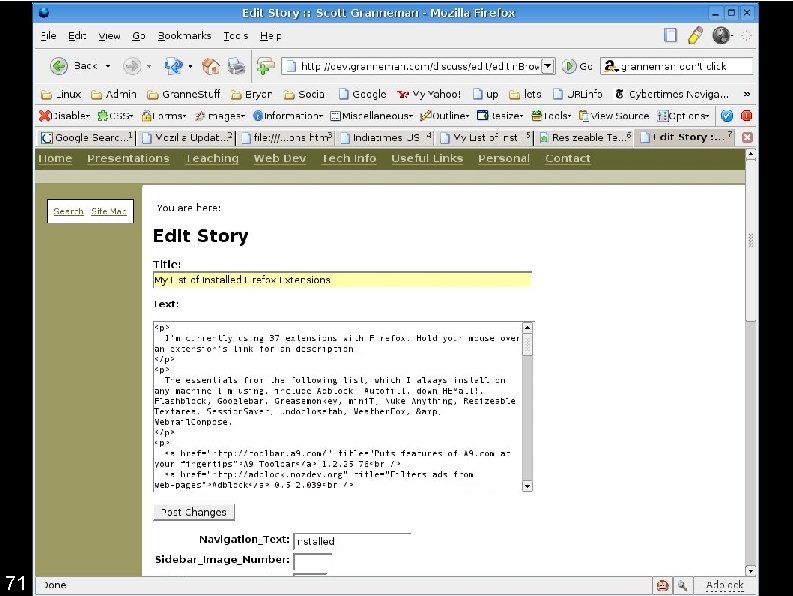
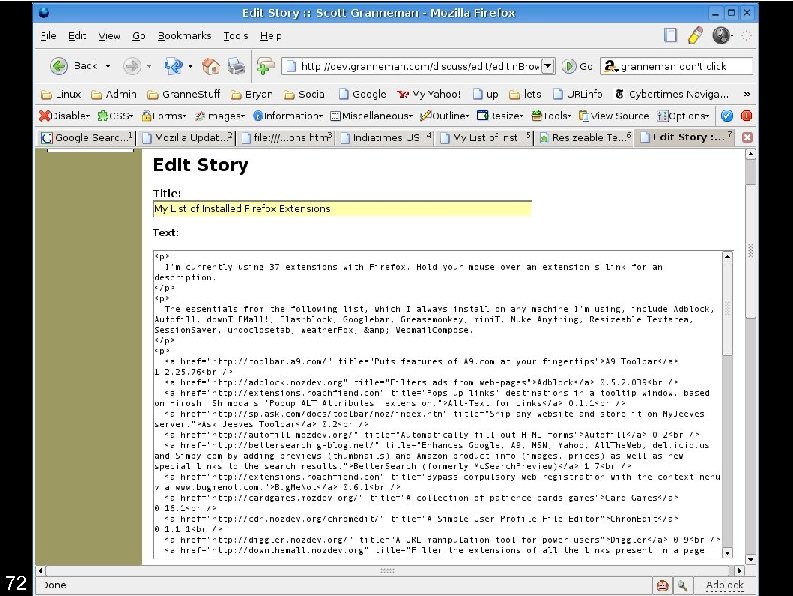
Resizable Textarea allows you change the sizes of too-small textareas by simply dragging. It’s awesome. http: //www. extensionsmirror. nl/index. php? showtopic=2796 70
71
72
Bookmarks Synchronizer (AKA “Lee Lammert’s White Whale”) synchronizes bookmarks via FTP or Web. DAV to an XML file. https: //addons. mozilla. org/extensions/moreinfo. php? application=firefox&id=14 73
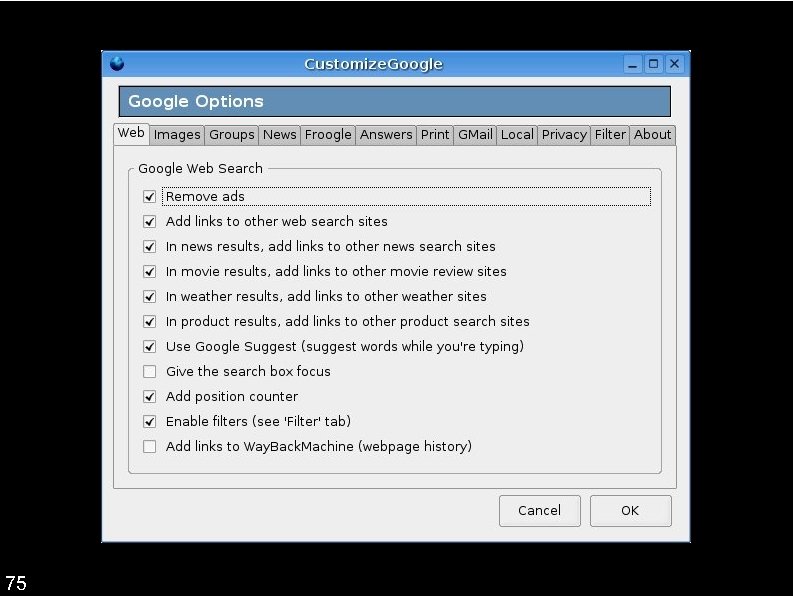
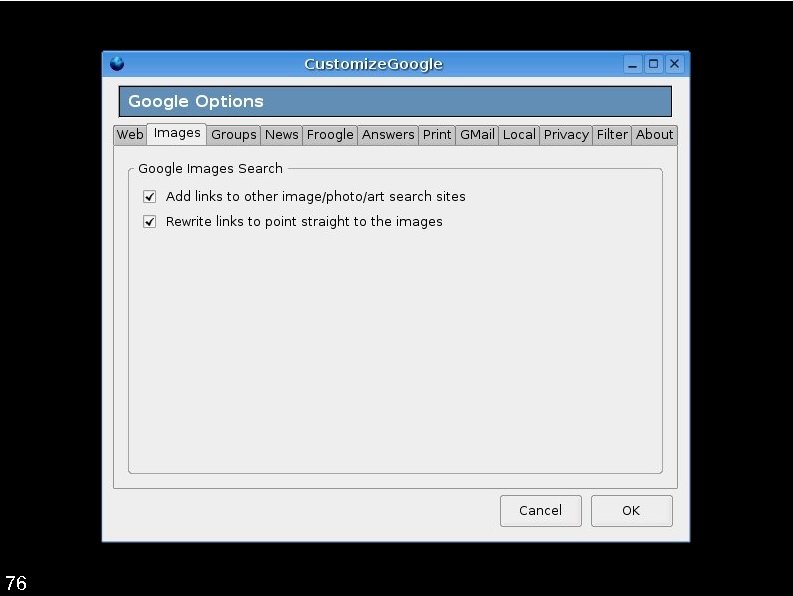
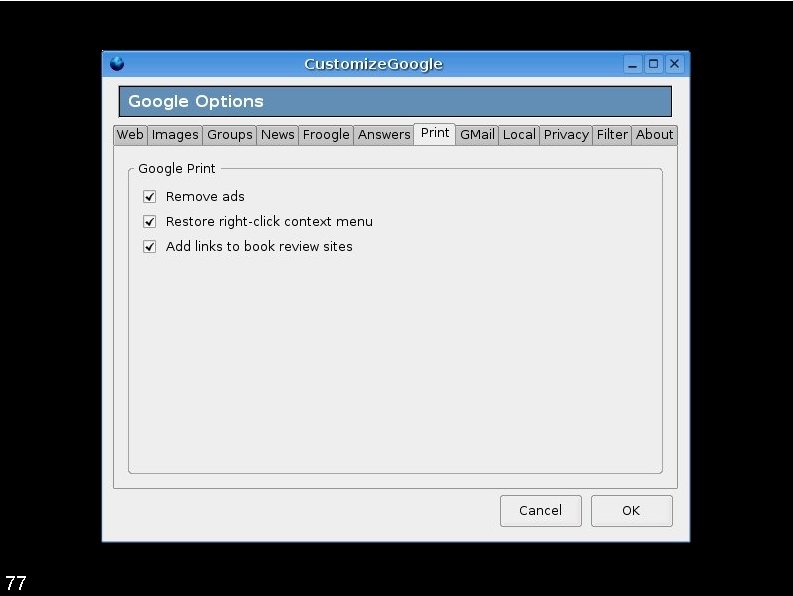
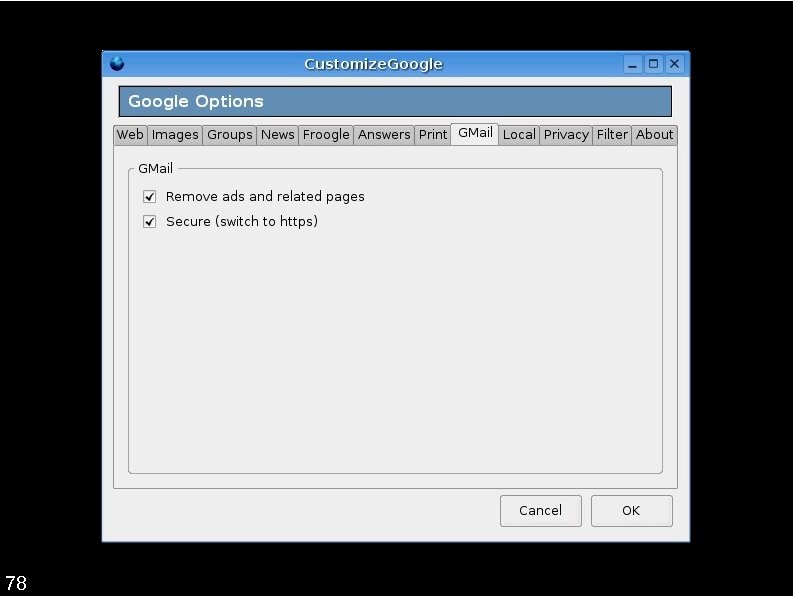
Customize Google allows you to change almost all of Google’s services to make them more pleasant experiences. https: //addons. mozilla. org/extensions/moreinfo. php? application=firefox&id=743 74
75
76
77
78
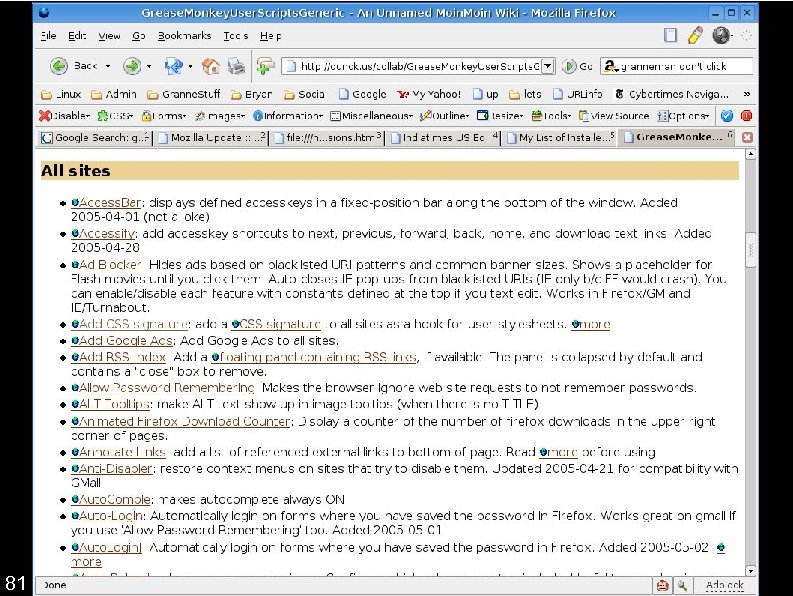
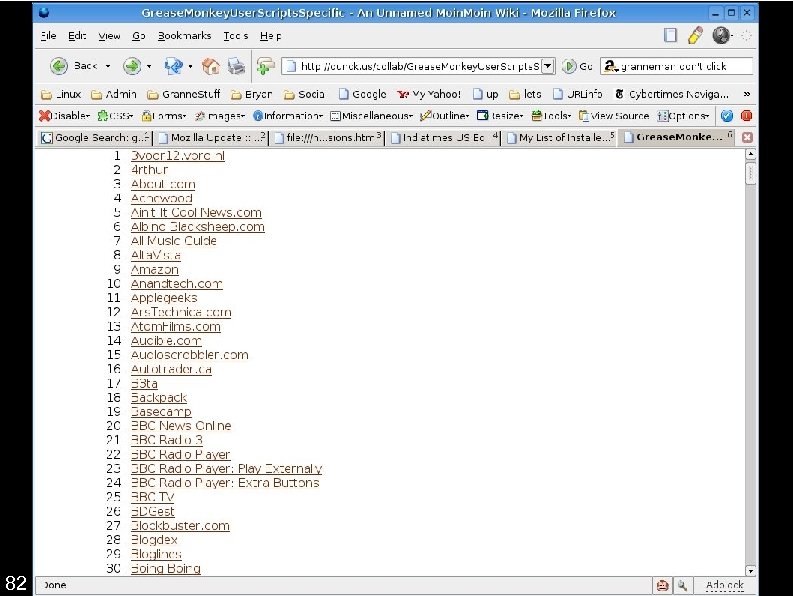
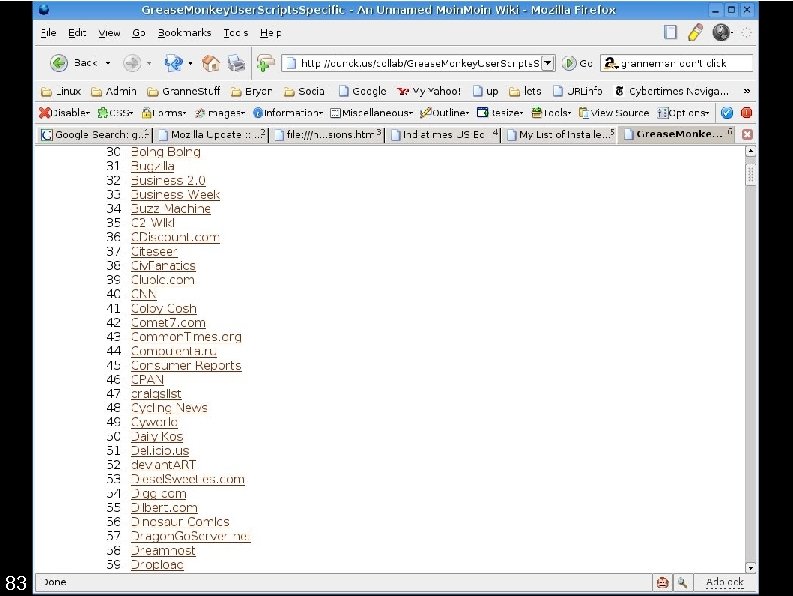
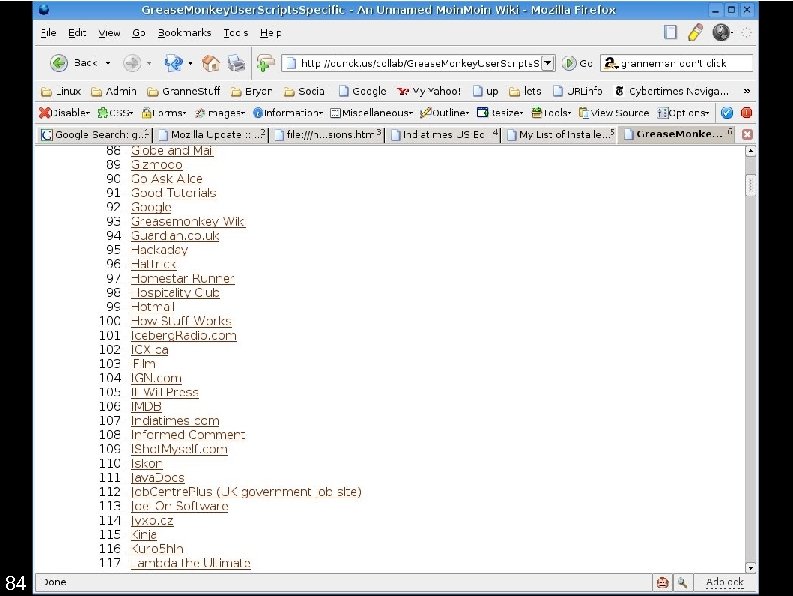
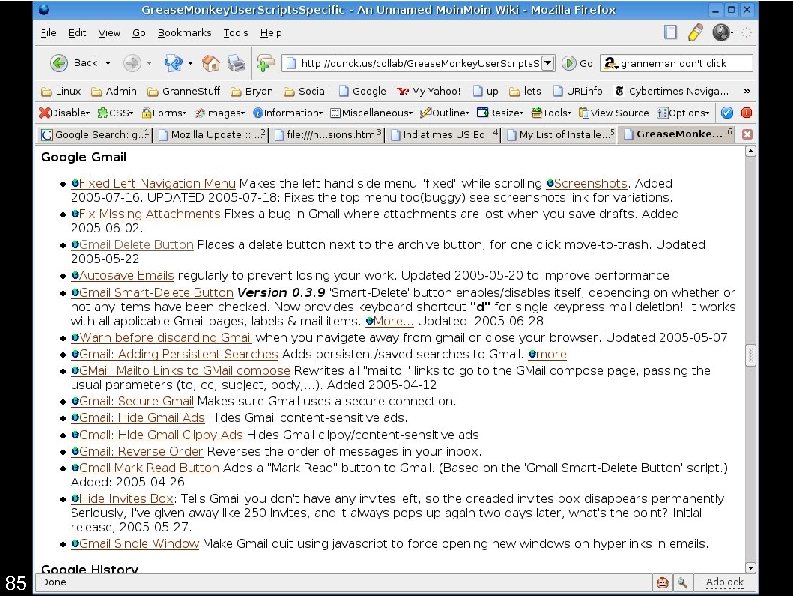
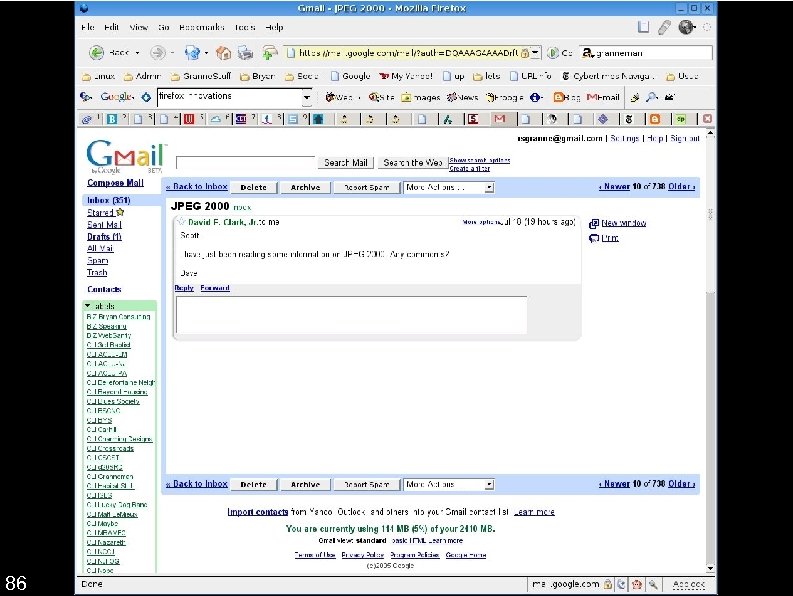
Greasemonkey is the coolest damn thing I’ve seen in a looooong time. Greasemonkey provides developers with a framework to write scripts that alter web pages in a million different ways. Web developers, you have officially lost control. https: //addons. mozilla. org/extensions/moreinfo. php? application=firefox&id=748 79
1. Install Greasemonkey 2. Find cool Greasemonkey scripts http: //dunck. us/collab/Grease. Monkey. User. Scripts 3. Load the script in your browser. 4. Tools Install User Script 5. Reload the web page affected by the script. If you’re motivated, learn how to write your own scripts: 80 http: //diveintogreasemonkey. org
81
82
83
84
85
86
Platypus is a WYSIWYG editor for Greasemonkey scripts. Do you realize how cool that is? ! It’s got a little learning curve, but it’s not that difficult. https: //addons. mozilla. org/extensions/moreinfo. php? application=firefox&id=737 87
The best way to understand Platypus is to see it in action. Let’s play with Platypus. 88
Firefox is the coolest browser out now. Its open source nature has led to an astonishing growth in innovative, awesome technologies. Firefox puts you in control Try it out! 89
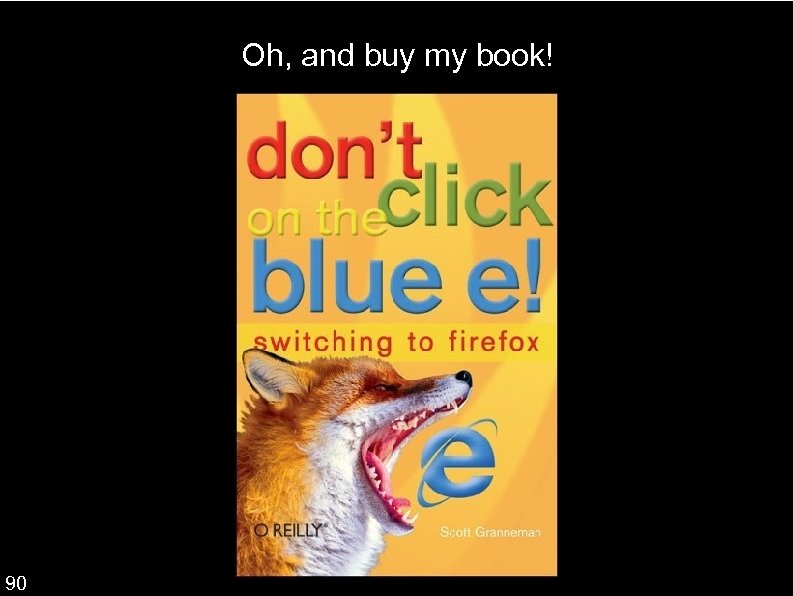
Oh, and buy my book! 90
Thank you! Email me: scott@granneman. com Visit my Web site: www. granneman. com Publications: www. granneman. com/pubs My blog: opensource. weblogsinc. com
Licensing of this work This work is licensed under the Creative Commons Attribution-Share. Alike License. To view a copy of this license, visit http: //creativecommons. org/licenses/by-sa/1. 0 or send a letter to Creative Commons, 559 Nathan Abbott Way, Stanford, California 94305, USA. In addition to the rights and restrictions common to all Creative Commons licenses, the Attribution-Share. Alike License features the following key conditions: Attribution. The licensor permits others to copy, distribute, display, and perform the work. In return, licensees must give the original author credit. Share Alike. The licensor permits others to distribute derivative works under a license identical to the one that governs the licensor's work. Questions? Email scott@granneman. com
Скачать презентацию Don t Click on the Blue E Switching to
2007344ca2a62d77310af1792d3cfa2d.ppt