


 Скачать презентацию Digital Photo Retouching and Restoration What you need
867482ee6e49b3894d9324908cd1106e.ppt
- Количество слайдов: 57
 Digital Photo Retouching and Restoration What you need n n n Photoshop CS 3 on computer Tutorial images on hard disk Better to use a mouse than the trackball No Photoshop experience required
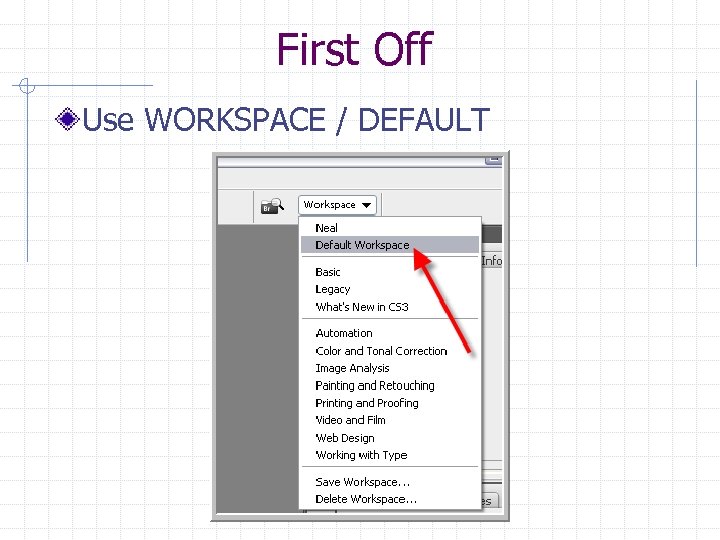 First Off Use WORKSPACE / DEFAULT
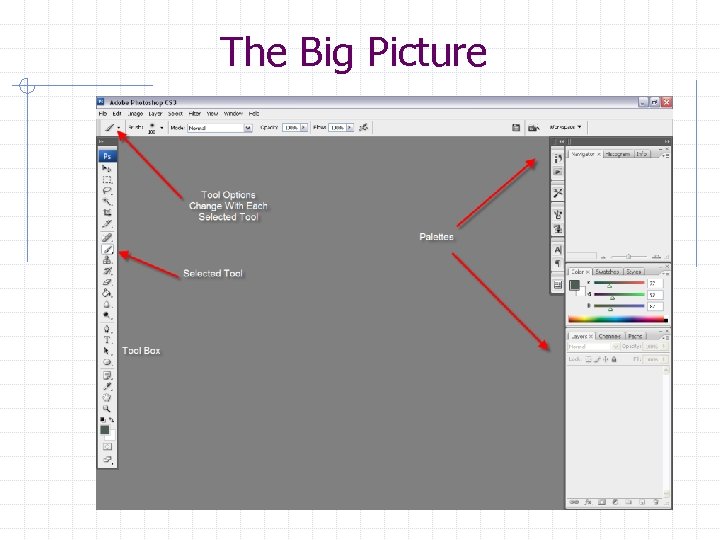 The Big Picture
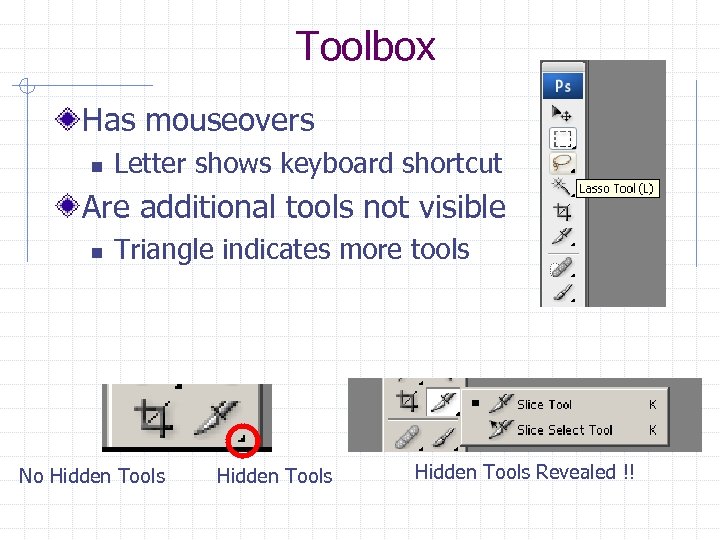 Toolbox Has mouseovers n Letter shows keyboard shortcut Are additional tools not visible n Triangle indicates more tools No Hidden Tools Revealed !!
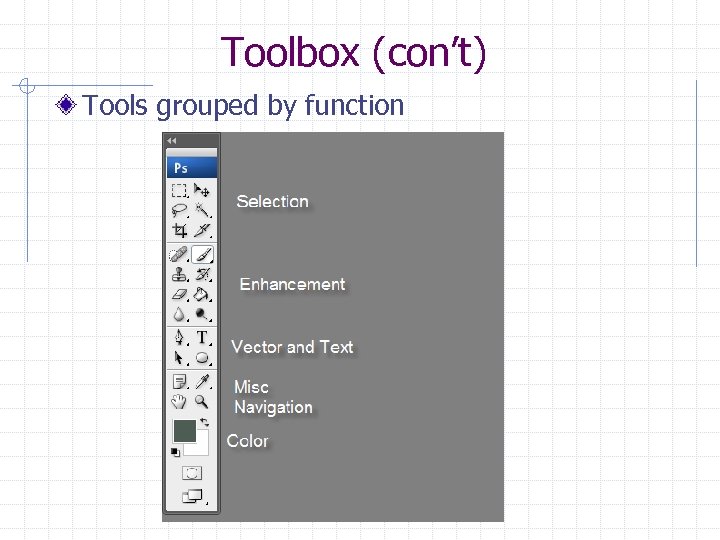 Toolbox (con’t) Tools grouped by function
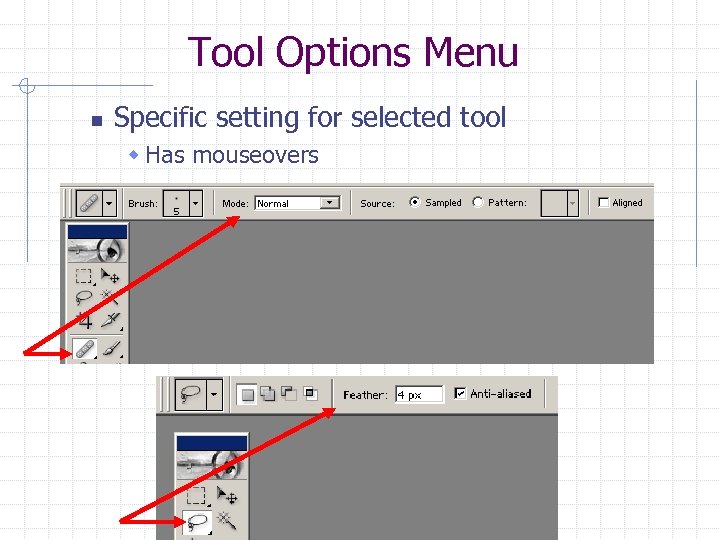 Tool Options Menu n Specific setting for selected tool w Has mouseovers
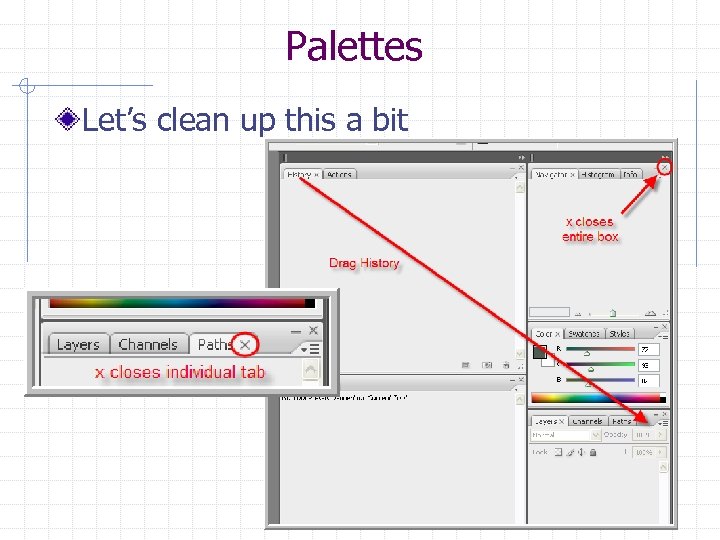 Palettes Let’s clean up this a bit
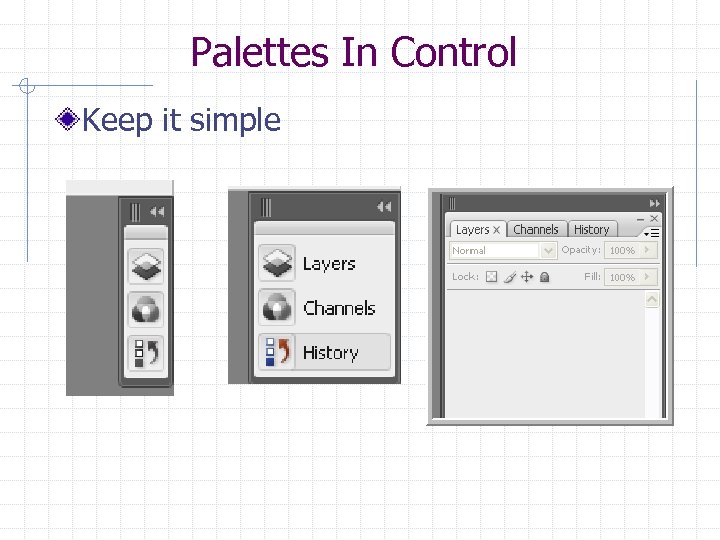 Palettes In Control Keep it simple
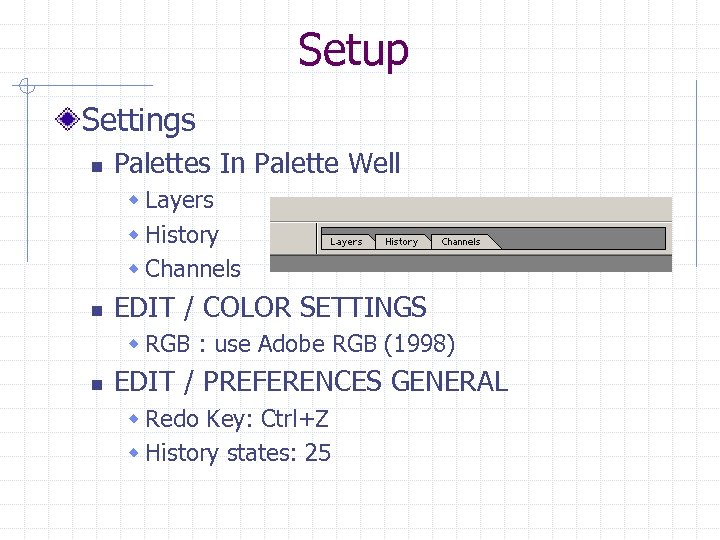 Setup Settings n Palettes In Palette Well w Layers w History w Channels n EDIT / COLOR SETTINGS w RGB : use Adobe RGB (1998) n EDIT / PREFERENCES GENERAL w Redo Key: Ctrl+Z w History states: 25
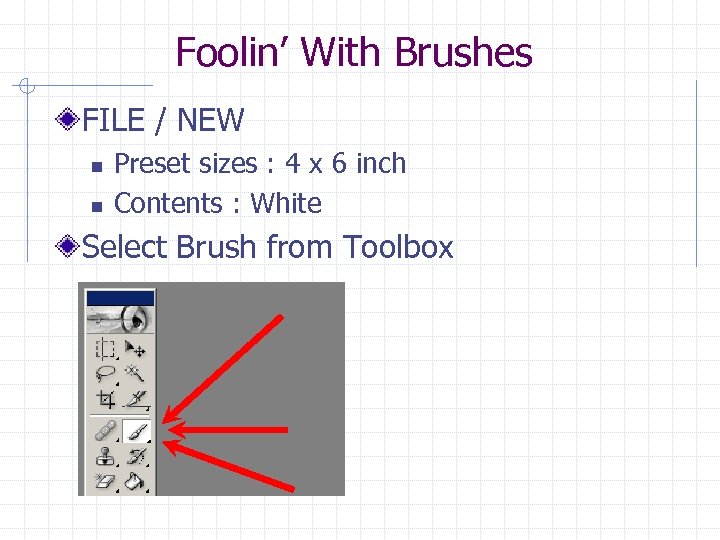 Foolin’ With Brushes FILE / NEW n n Preset sizes : 4 x 6 inch Contents : White Select Brush from Toolbox
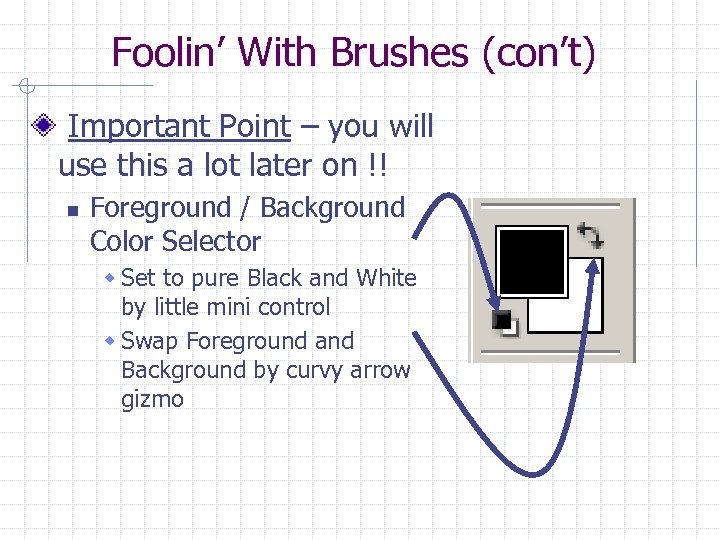 Foolin’ With Brushes (con’t) Important Point – you will use this a lot later on !! n Foreground / Background Color Selector w Set to pure Black and White by little mini control w Swap Foreground and Background by curvy arrow gizmo
 Foolin’ With Brushes (con’t) Let’s do some tic-tac-toe LAYER / NEW / LAYER n n Layer for grid Layer for game FILE / SAVE n Note – Photoshop extension is PSD w Save in this format w Can save in JPG, GIF, etc. later
 Layers are KEY !! Always leave yourself a way out n Don’t touch original photo (layer) w Always Duplicate original photo (layer) and start work on duplicate Layers Work incrementally n Name your Layers in a meaningful way w Layer 1, Layer 2 is not real useful n Can have dozens of Layers on a complex job Build up effects and restoration as series of Layers have Blending Options and Opacity
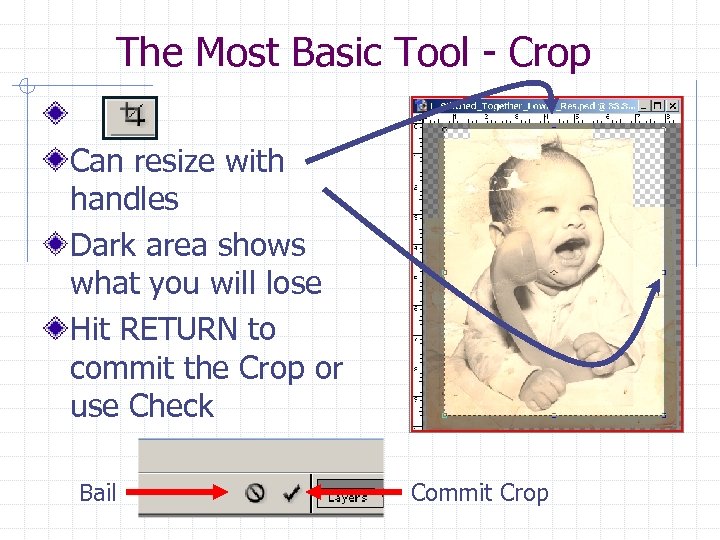 The Most Basic Tool - Crop Can resize with handles Dark area shows what you will lose Hit RETURN to commit the Crop or use Check Bail Commit Crop
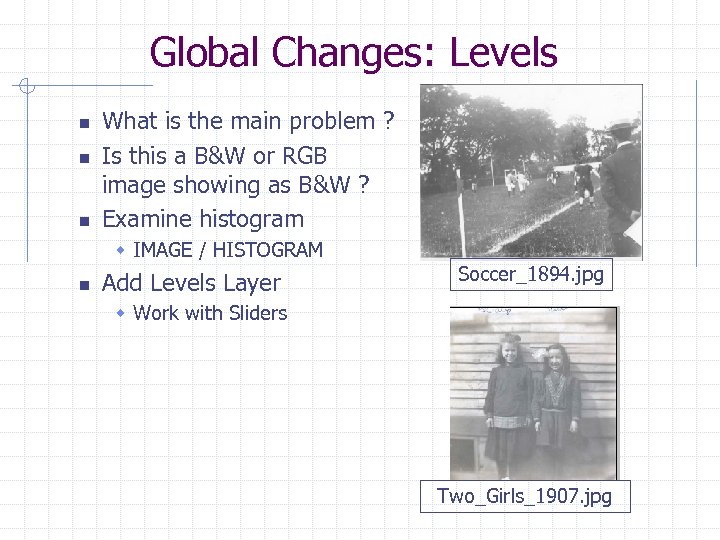 Global Changes: Levels n n n What is the main problem ? Is this a B&W or RGB image showing as B&W ? Examine histogram w IMAGE / HISTOGRAM n Add Levels Layer Soccer_1894. jpg w Work with Sliders Two_Girls_1907. jpg
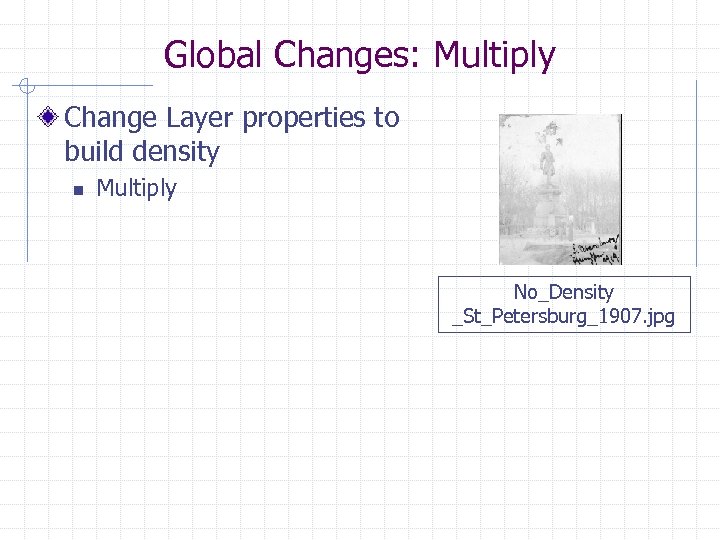 Global Changes: Multiply Change Layer properties to build density n Multiply No_Density _St_Petersburg_1907. jpg
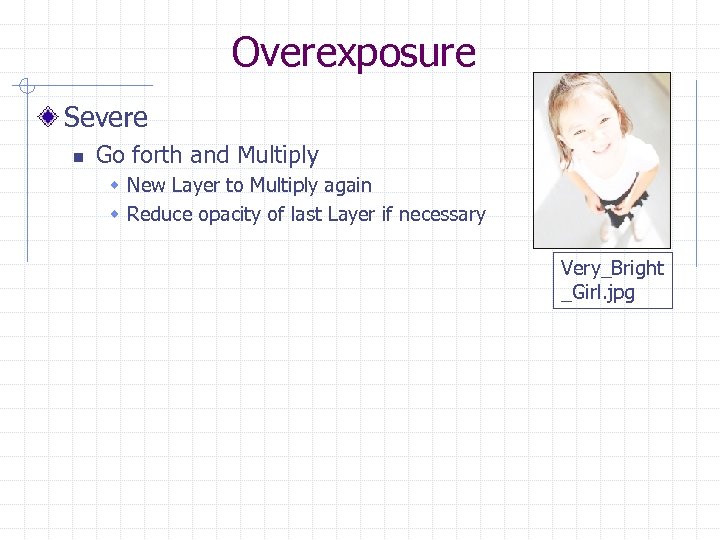 Overexposure Severe n Go forth and Multiply w New Layer to Multiply again w Reduce opacity of last Layer if necessary Very_Bright _Girl. jpg
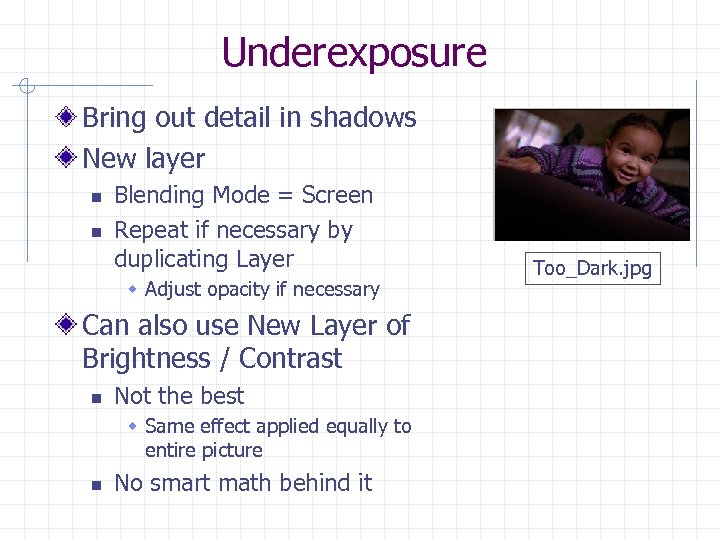 Underexposure Bring out detail in shadows New layer n n Blending Mode = Screen Repeat if necessary by duplicating Layer w Adjust opacity if necessary Can also use New Layer of Brightness / Contrast n Not the best w Same effect applied equally to entire picture n No smart math behind it Too_Dark. jpg
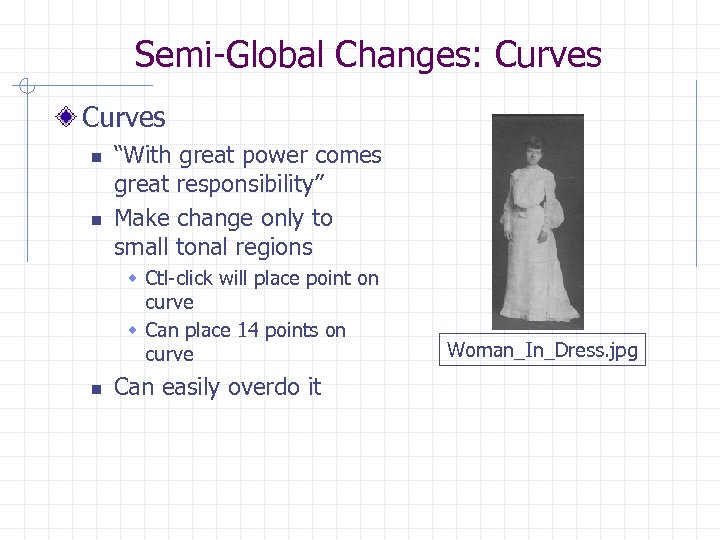 Semi-Global Changes: Curves n n “With great power comes great responsibility” Make change only to small tonal regions w Ctl-click will place point on curve w Can place 14 points on curve n Can easily overdo it Woman_In_Dress. jpg
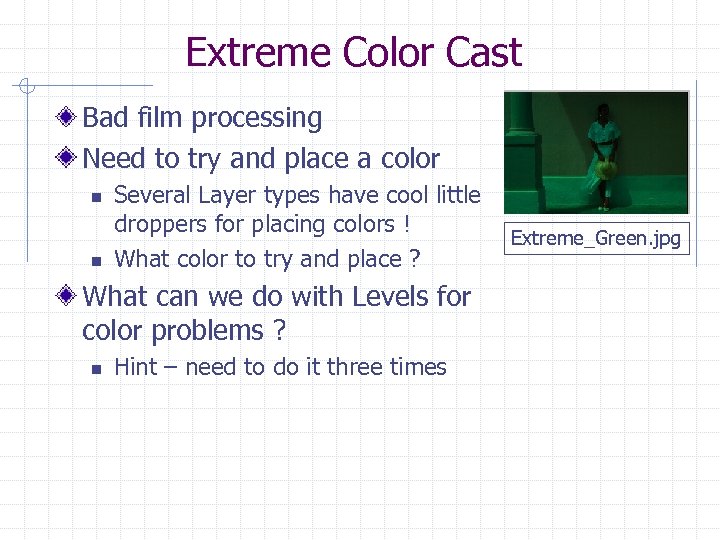 Extreme Color Cast Bad film processing Need to try and place a color n n Several Layer types have cool little droppers for placing colors ! What color to try and place ? What can we do with Levels for color problems ? n Hint – need to do it three times Extreme_Green. jpg
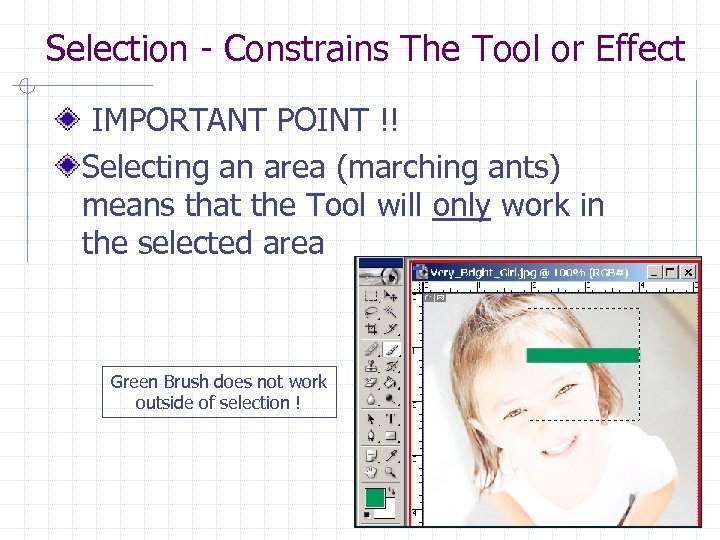 Selection - Constrains The Tool or Effect IMPORTANT POINT !! Selecting an area (marching ants) means that the Tool will only work in the selected area Green Brush does not work outside of selection !
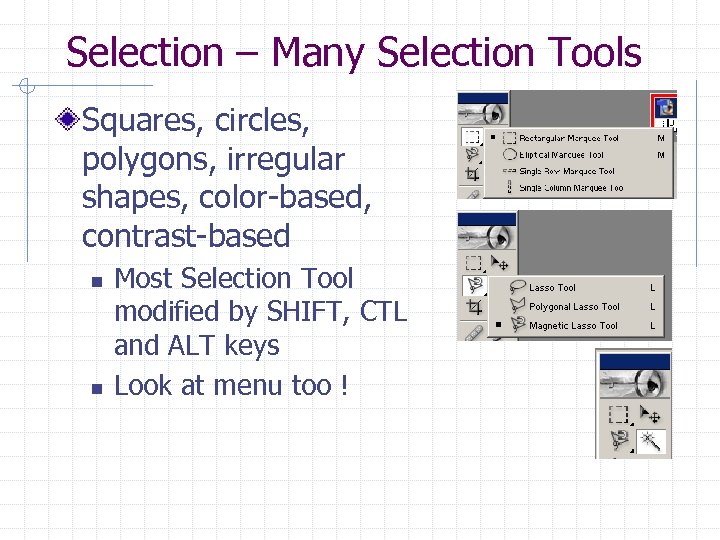 Selection – Many Selection Tools Squares, circles, polygons, irregular shapes, color-based, contrast-based n n Most Selection Tool modified by SHIFT, CTL and ALT keys Look at menu too !
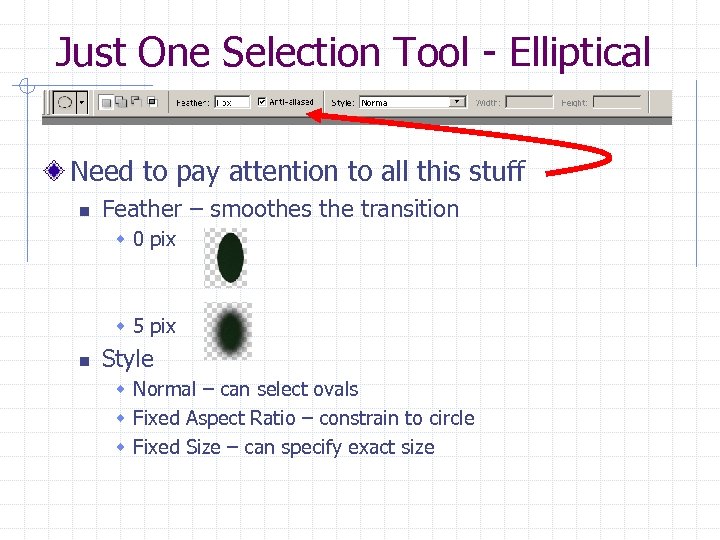 Just One Selection Tool - Elliptical Need to pay attention to all this stuff n Feather – smoothes the transition w 0 pix w 5 pix n Style w Normal – can select ovals w Fixed Aspect Ratio – constrain to circle w Fixed Size – can specify exact size
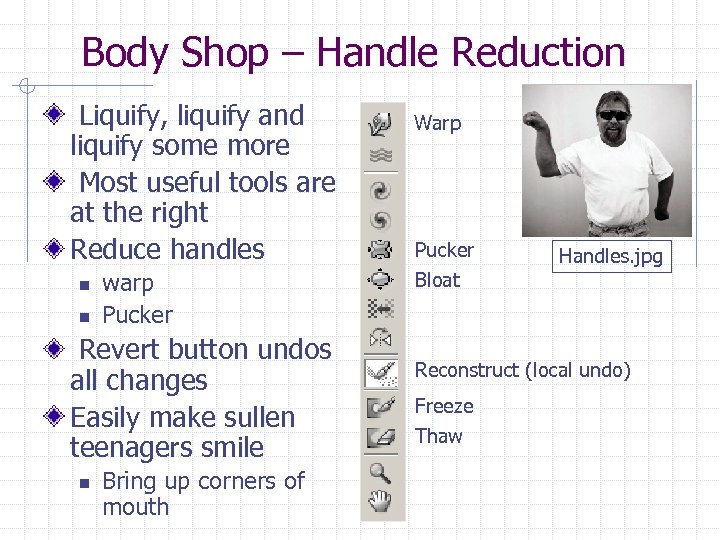 Body Shop – Handle Reduction Liquify, liquify and liquify some more Most useful tools are at the right Reduce handles n n warp Pucker Revert button undos all changes Easily make sullen teenagers smile n Bring up corners of mouth Warp Pucker Bloat Handles. jpg Reconstruct (local undo) Freeze Thaw
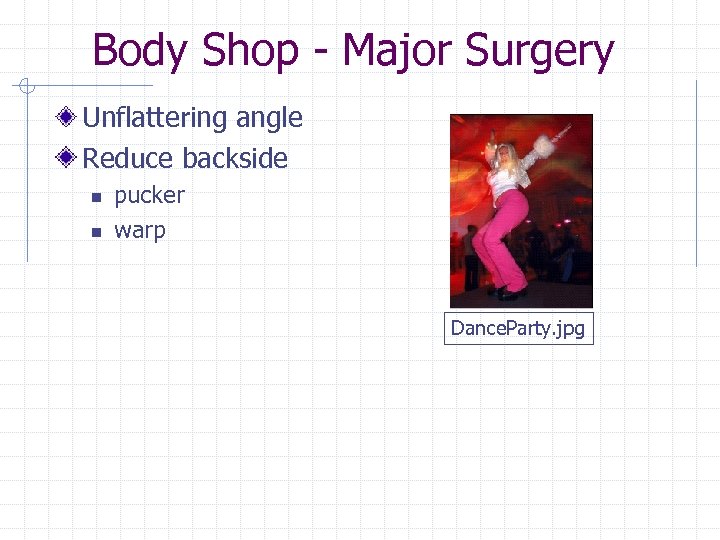 Body Shop - Major Surgery Unflattering angle Reduce backside n n pucker warp Dance. Party. jpg
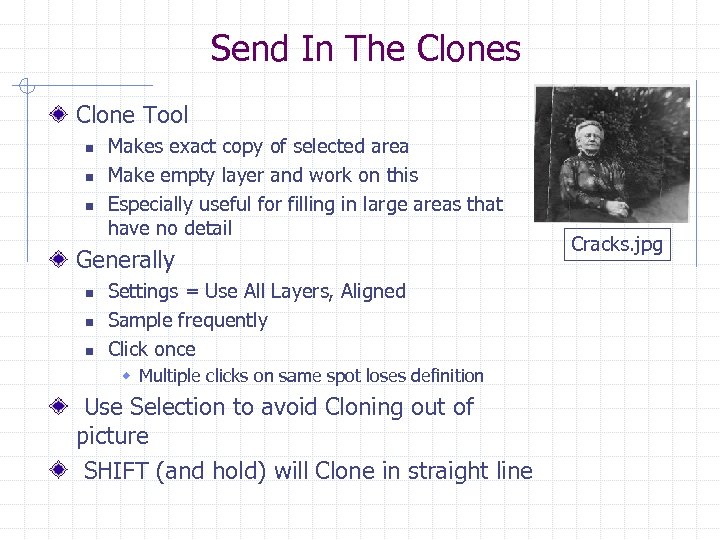 Send In The Clones Clone Tool n n n Makes exact copy of selected area Make empty layer and work on this Especially useful for filling in large areas that have no detail Generally n n n Settings = Use All Layers, Aligned Sample frequently Click once w Multiple clicks on same spot loses definition Use Selection to avoid Cloning out of picture SHIFT (and hold) will Clone in straight line Cracks. jpg
 Heal Tool - Not Your Father’s Clone Tool Examines texture, color, and luminosity of source. Merges texture from sample area into the color and luminosity of destination area. Only works on a single layer Spreads out effect 10 -12 pixels n therefore, use hard-edged brush Avoid alot of resampling, as is typically done with Clone Stamp n Sample once, paint often High contrast areas difficult with Heal May need to change Blending Mode to Lighten or Darken
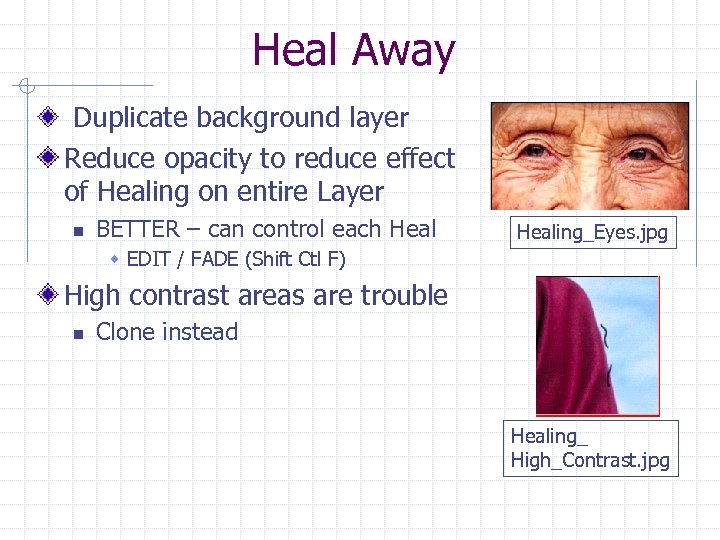 Heal Away Duplicate background layer Reduce opacity to reduce effect of Healing on entire Layer n BETTER – can control each Healing_Eyes. jpg w EDIT / FADE (Shift Ctl F) High contrast areas are trouble n Clone instead Healing_ High_Contrast. jpg
 Patch Tool Repair a selected area with pixels from another area or a pattern n n Matches the texture, luminosity, and color of the sampled pixels to the source pixels Patch source w Select damaged area and move to good area n Patch destination w Select good area and move to damaged n Patch from pattern w Create or sample a pattern to use
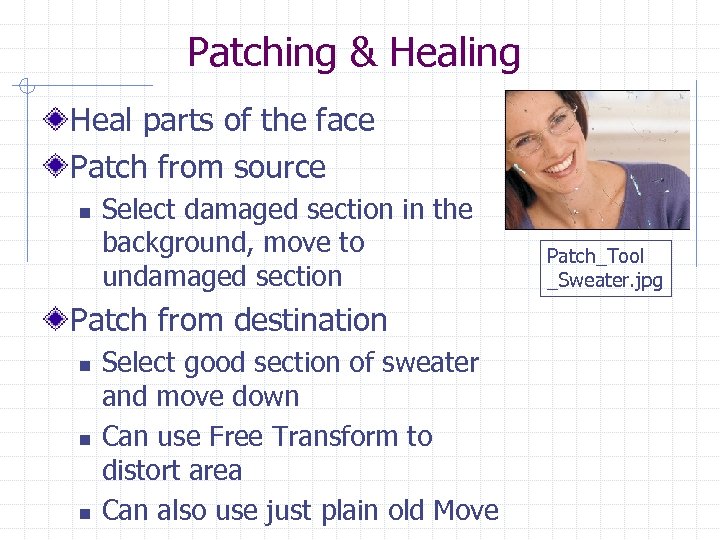 Patching & Healing Heal parts of the face Patch from source n Select damaged section in the background, move to undamaged section Patch from destination n Select good section of sweater and move down Can use Free Transform to distort area Can also use just plain old Move Patch_Tool _Sweater. jpg
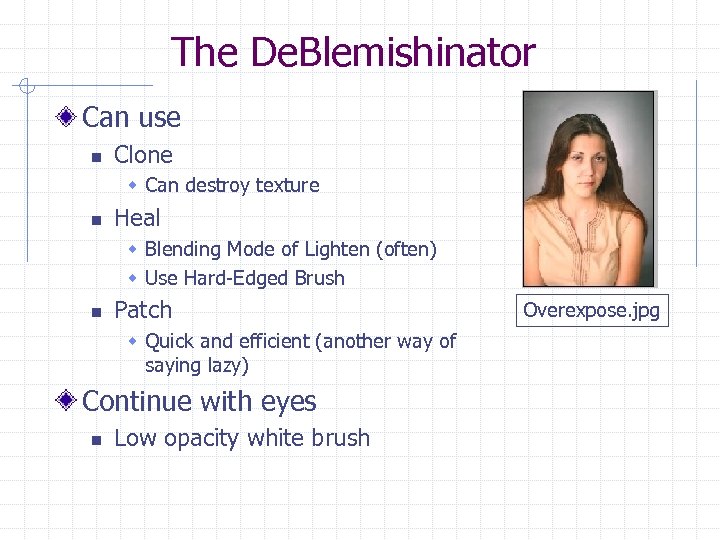 The De. Blemishinator Can use n Clone w Can destroy texture n Heal w Blending Mode of Lighten (often) w Use Hard-Edged Brush n Patch w Quick and efficient (another way of saying lazy) Continue with eyes n Low opacity white brush Overexpose. jpg
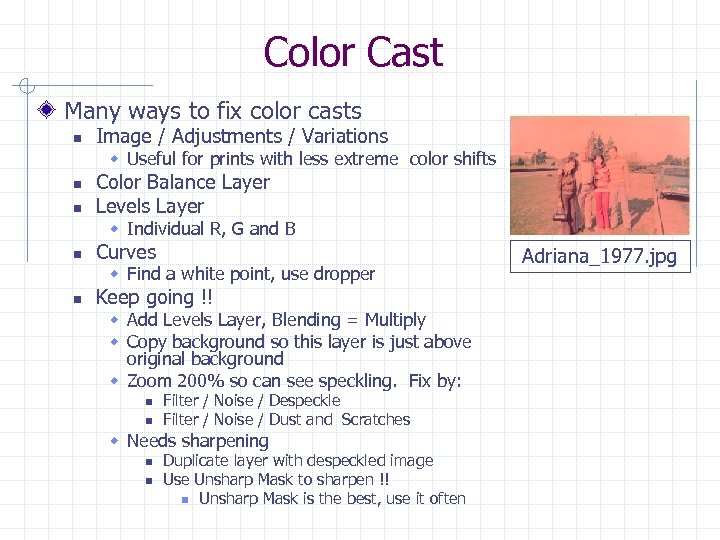 Color Cast Many ways to fix color casts n Image / Adjustments / Variations w Useful for prints with less extreme color shifts n n Color Balance Layer Levels Layer w Individual R, G and B n Curves w Find a white point, use dropper n Keep going !! w Add Levels Layer, Blending = Multiply w Copy background so this layer is just above original background w Zoom 200% so can see speckling. Fix by: n n Filter / Noise / Despeckle Filter / Noise / Dust and Scratches w Needs sharpening n n Duplicate layer with despeckled image Use Unsharp Mask to sharpen !! n Unsharp Mask is the best, use it often Adriana_1977. jpg
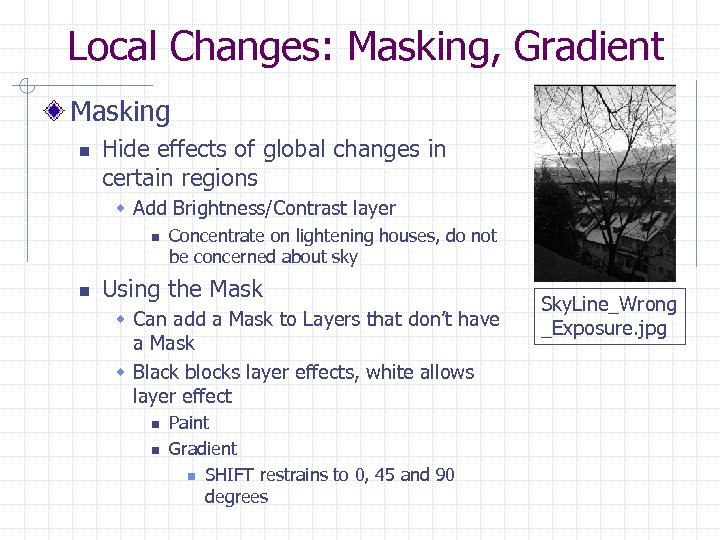 Local Changes: Masking, Gradient Masking n Hide effects of global changes in certain regions w Add Brightness/Contrast layer n n Concentrate on lightening houses, do not be concerned about sky Using the Mask w Can add a Mask to Layers that don’t have a Mask w Black blocks layer effects, white allows layer effect n n Paint Gradient n SHIFT restrains to 0, 45 and 90 degrees Sky. Line_Wrong _Exposure. jpg
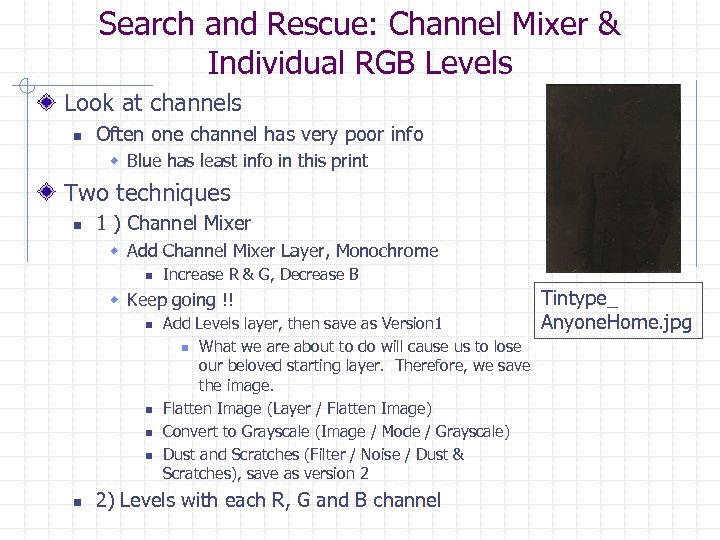 Search and Rescue: Channel Mixer & Individual RGB Levels Look at channels n Often one channel has very poor info w Blue has least info in this print Two techniques n 1 ) Channel Mixer w Add Channel Mixer Layer, Monochrome n Increase R & G, Decrease B w Keep going !! n n n Add Levels layer, then save as Version 1 n What we are about to do will cause us to lose our beloved starting layer. Therefore, we save the image. Flatten Image (Layer / Flatten Image) Convert to Grayscale (Image / Mode / Grayscale) Dust and Scratches (Filter / Noise / Dust & Scratches), save as version 2 2) Levels with each R, G and B channel Tintype_ Anyone. Home. jpg
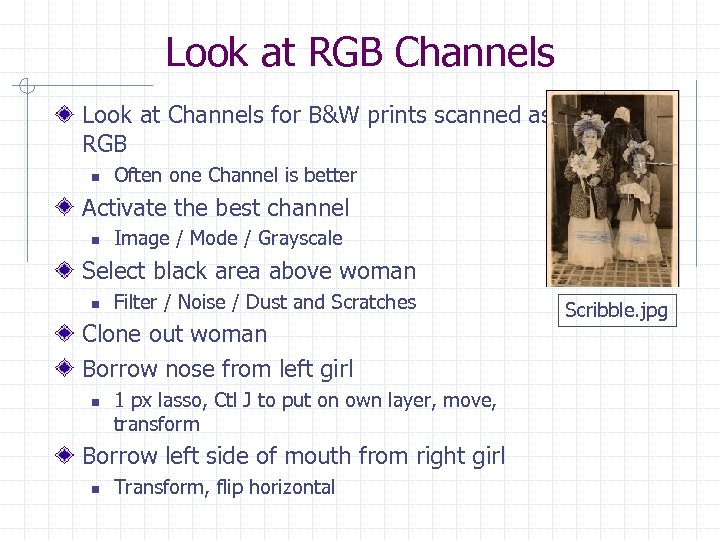 Look at RGB Channels Look at Channels for B&W prints scanned as RGB n Often one Channel is better Activate the best channel n Image / Mode / Grayscale Select black area above woman n Filter / Noise / Dust and Scratches Clone out woman Borrow nose from left girl n 1 px lasso, Ctl J to put on own layer, move, transform Borrow left side of mouth from right girl n Transform, flip horizontal Scribble. jpg
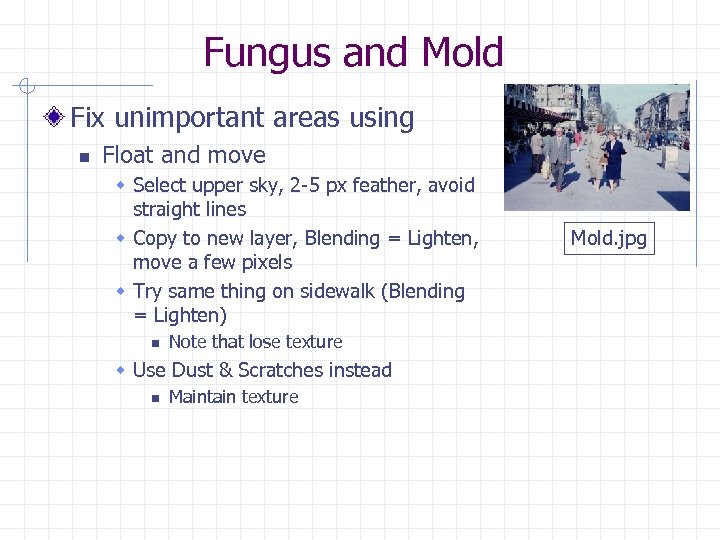 Fungus and Mold Fix unimportant areas using n Float and move w Select upper sky, 2 -5 px feather, avoid straight lines w Copy to new layer, Blending = Lighten, move a few pixels w Try same thing on sidewalk (Blending = Lighten) n Note that lose texture w Use Dust & Scratches instead n Maintain texture Mold. jpg
 Hands of Time - Wrinkles Dodge Tool n 5 -15% exposure, Midtones Soft Light Neutral Layer n New Layer w Soft White, Fill with neutral color (50%) gray n Foreground color to white, Paintbrush with 515% opacity Don’t rush either of the above, this is a very subtle process
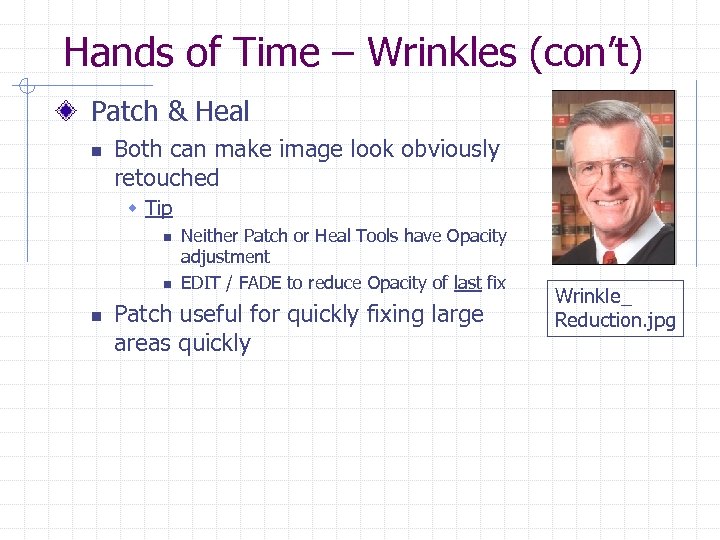 Hands of Time – Wrinkles (con’t) Patch & Heal n Both can make image look obviously retouched w Tip n n n Neither Patch or Heal Tools have Opacity adjustment EDIT / FADE to reduce Opacity of last fix Patch useful for quickly fixing large areas quickly Wrinkle_ Reduction. jpg
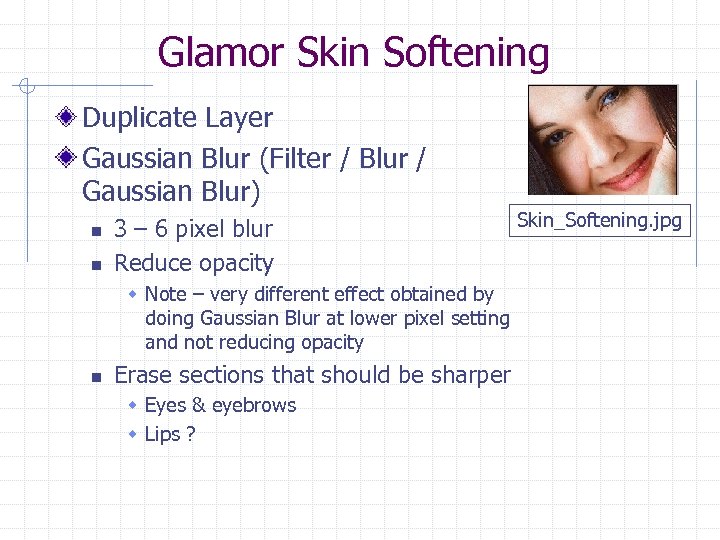 Glamor Skin Softening Duplicate Layer Gaussian Blur (Filter / Blur / Gaussian Blur) n n 3 – 6 pixel blur Reduce opacity w Note – very different effect obtained by doing Gaussian Blur at lower pixel setting and not reducing opacity n Erase sections that should be sharper w Eyes & eyebrows w Lips ? Skin_Softening. jpg
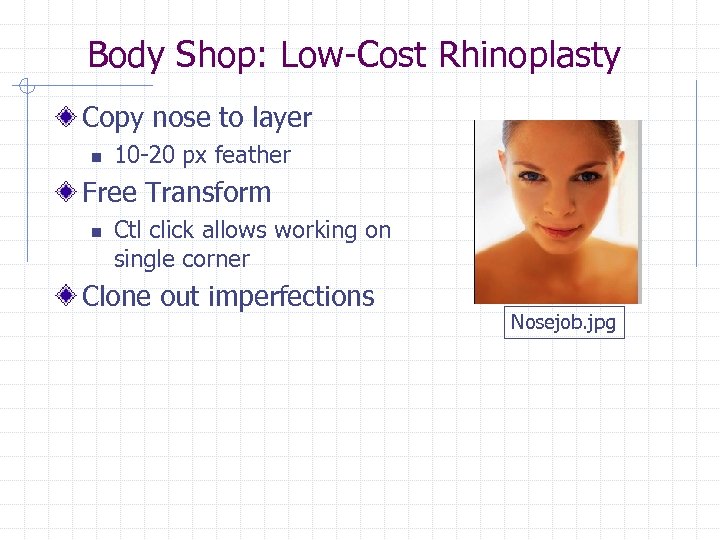 Body Shop: Low-Cost Rhinoplasty Copy nose to layer n 10 -20 px feather Free Transform n Ctl click allows working on single corner Clone out imperfections Nosejob. jpg
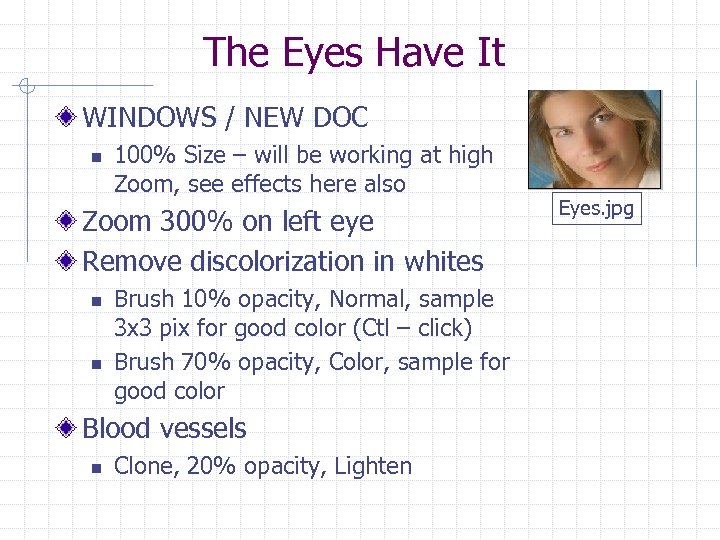 The Eyes Have It WINDOWS / NEW DOC n 100% Size – will be working at high Zoom, see effects here also Zoom 300% on left eye Remove discolorization in whites n n Brush 10% opacity, Normal, sample 3 x 3 pix for good color (Ctl – click) Brush 70% opacity, Color, sample for good color Blood vessels n Clone, 20% opacity, Lighten Eyes. jpg
 The Eyes Have It (con’t) Emphasis iris n Burn, 10% opacity, Shadows, and trace iris rim More sparkle n Dodge to create half-moon opposite main catchlight More color to iris n Sponge, 20% flow, Saturate
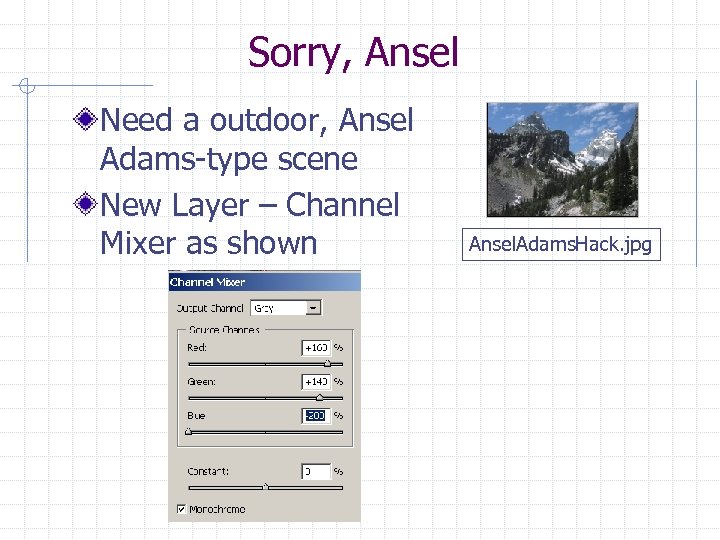 Sorry, Ansel Need a outdoor, Ansel Adams-type scene New Layer – Channel Mixer as shown Ansel. Adams. Hack. jpg
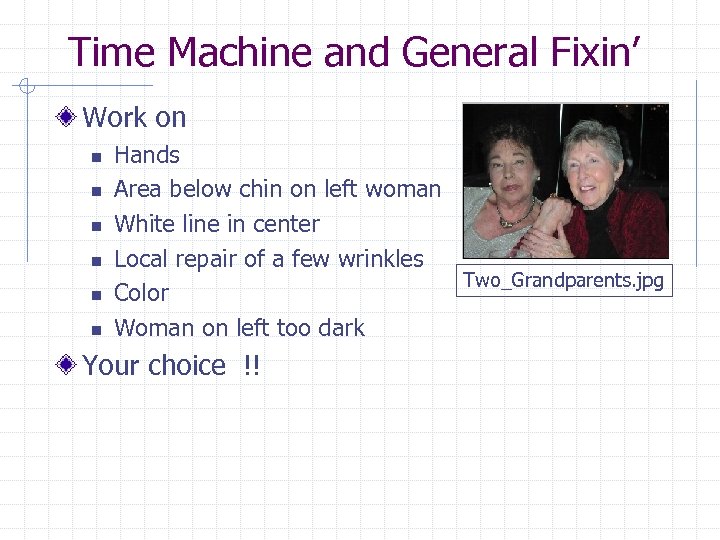 Time Machine and General Fixin’ Work on n n n Hands Area below chin on left woman White line in center Local repair of a few wrinkles Two_Grandparents. jpg Color Woman on left too dark Your choice !!
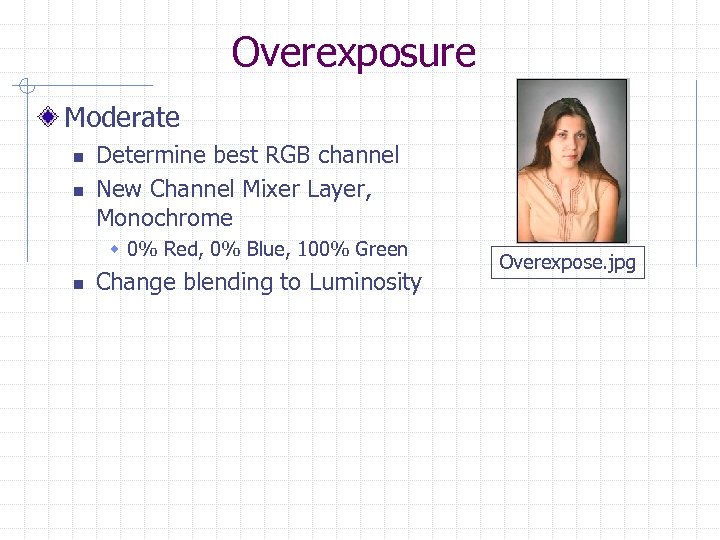 Overexposure Moderate n n Determine best RGB channel New Channel Mixer Layer, Monochrome w 0% Red, 0% Blue, 100% Green n Change blending to Luminosity Overexpose. jpg
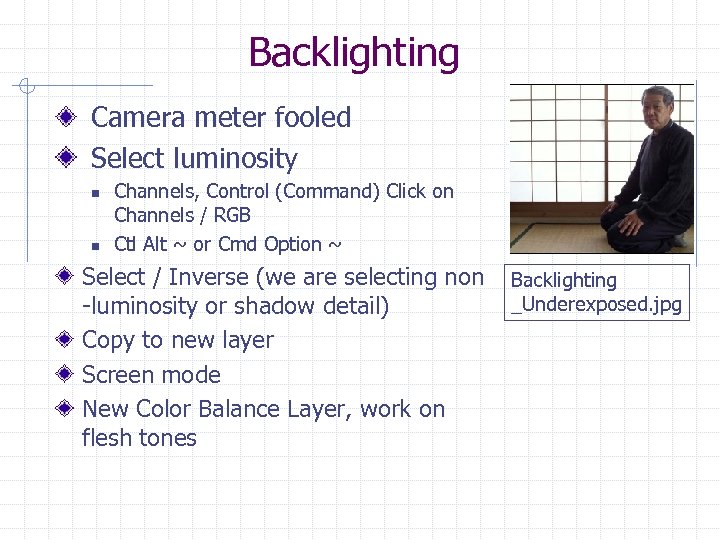 Backlighting Camera meter fooled Select luminosity n n Channels, Control (Command) Click on Channels / RGB Ctl Alt ~ or Cmd Option ~ Select / Inverse (we are selecting non -luminosity or shadow detail) Copy to new layer Screen mode New Color Balance Layer, work on flesh tones Backlighting _Underexposed. jpg
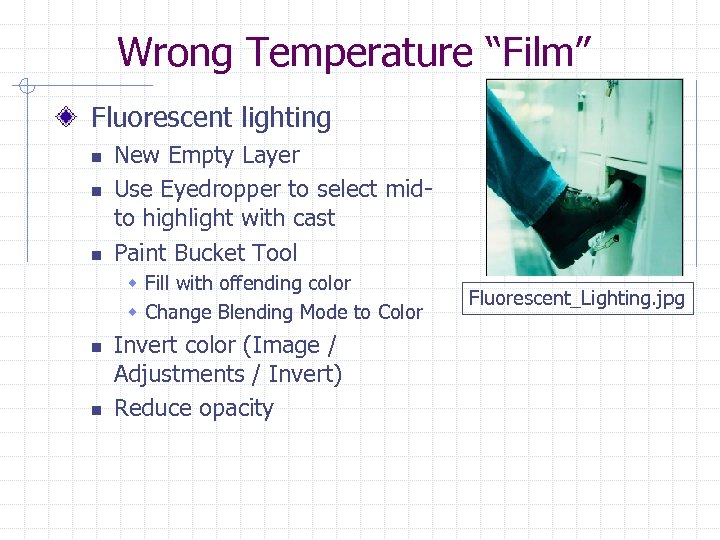 Wrong Temperature “Film” Fluorescent lighting n n n New Empty Layer Use Eyedropper to select midto highlight with cast Paint Bucket Tool w Fill with offending color w Change Blending Mode to Color n n Invert color (Image / Adjustments / Invert) Reduce opacity Fluorescent_Lighting. jpg
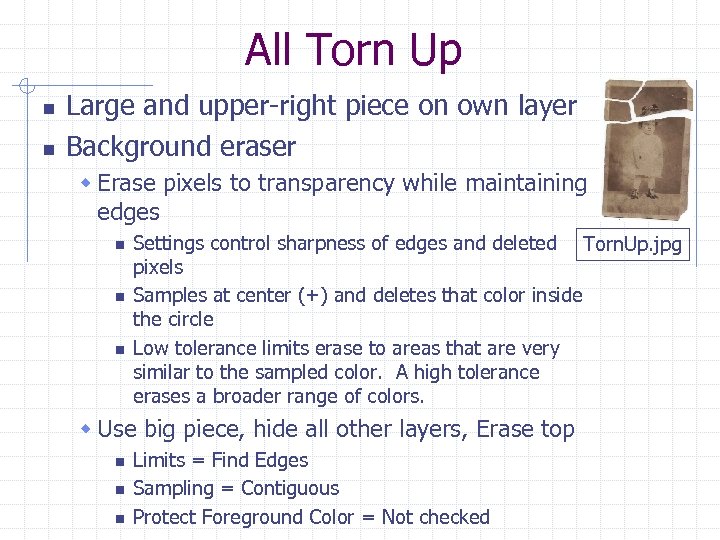 All Torn Up n n Large and upper-right piece on own layer Background eraser w Erase pixels to transparency while maintaining edges n n n Settings control sharpness of edges and deleted Torn. Up. jpg pixels Samples at center (+) and deletes that color inside the circle Low tolerance limits erase to areas that are very similar to the sampled color. A high tolerance erases a broader range of colors. w Use big piece, hide all other layers, Erase top n n n Limits = Find Edges Sampling = Contiguous Protect Foreground Color = Not checked
 All Torn Up (con’t) n Magic Eraser w Erases everything it can find, at once, that is within tolerance n n Tolerance is as with Background Eraser If Contiguous is not checked, it can erase pixels in the middle of the print w Use upper right piece, other layers not visible n Tolerance = 50%, Contiguous, 100% Opacity n Up to here has been saved as Torn. Up_02. psd Move upper piece. EDIT / TRANSFORM / ROTATE Add Layer Mask to upper piece. n Paint with black, paint lower edge of upper piece, move n n w Using a Layer Mask does not discard any information n Up to here has been saved as Torn. Up_03. psd
 All Torn Up (con’t) Try to fix seam with Clone n n Use All Layers, Aligned = Checked This is not working right !! OK, then try Healing Brush n Ugh, this is not working either !! Why ? ? Best to Flatten Image at this point Up to here saved as Torn. Up_04. psd Finish with Cloning and Healing
 Books and Mags Books n Photoshop Restoration and Retouching w Katrin Eismann w BUY THIS BOOK !!! n Real Work Photoshop w David Blatner and Bruce Fraser w Quite good n Photoshop Book for Digital Photographers w Scott Kelby (has a lot of books) w Some useful tips n National Association of Photoshop Professionals w http: //www. photoshopuser. com/ w Put out good magazine, Photoshop User
 Links & Plug-ins Retouch. Pro n n http: //www. retouchpro. com/index. html Great set of images to practice on Digital Dog n n http: //digitaldog. imagingrevue. com/ See tips section Planet Photoshop n n http: //www. planetphotoshop. com/ A lot of small tutorials Applied Science Fiction n n http: //www. asf. com/ Excellent plugins (purchase): ROC, GEM and SHO
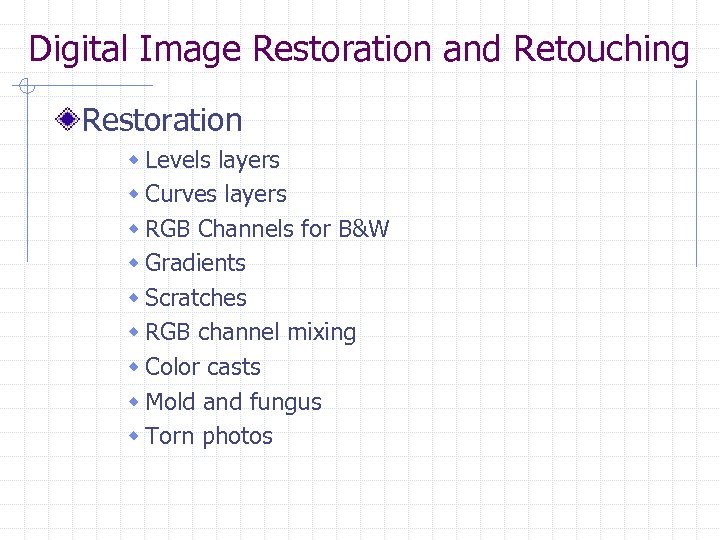 Digital Image Restoration and Retouching Restoration w Levels layers w Curves layers w RGB Channels for B&W w Gradients w Scratches w RGB channel mixing w Color casts w Mold and fungus w Torn photos
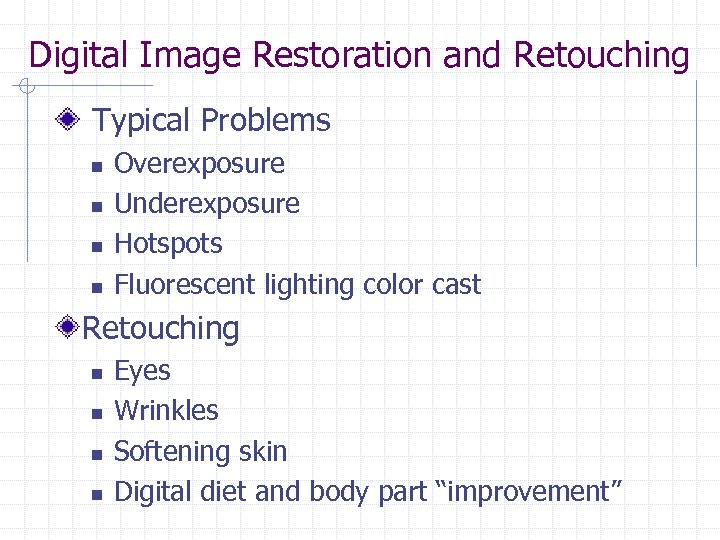 Digital Image Restoration and Retouching Typical Problems n n Overexposure Underexposure Hotspots Fluorescent lighting color cast Retouching n n Eyes Wrinkles Softening skin Digital diet and body part “improvement”
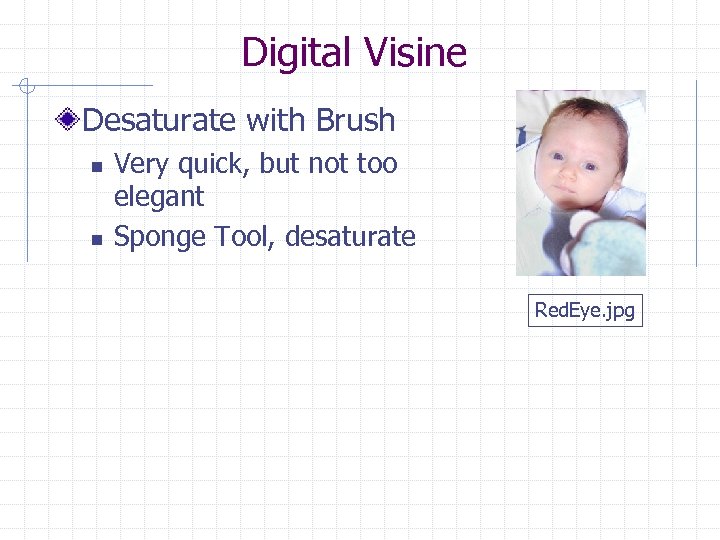 Digital Visine Desaturate with Brush n n Very quick, but not too elegant Sponge Tool, desaturate Red. Eye. jpg
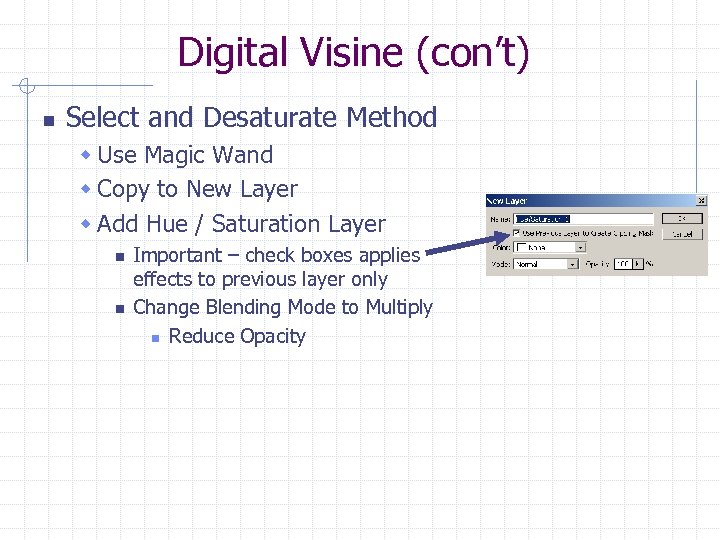 Digital Visine (con’t) n Select and Desaturate Method w Use Magic Wand w Copy to New Layer w Add Hue / Saturation Layer n n Important – check boxes applies effects to previous layer only Change Blending Mode to Multiply n Reduce Opacity
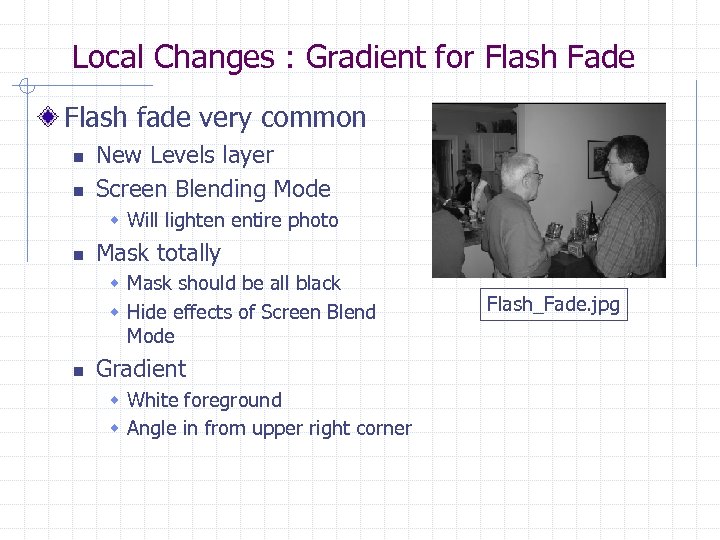 Local Changes : Gradient for Flash Fade Flash fade very common n n New Levels layer Screen Blending Mode w Will lighten entire photo n Mask totally w Mask should be all black w Hide effects of Screen Blend Mode n Gradient w White foreground w Angle in from upper right corner Flash_Fade. jpg