 Скачать презентацию DIALOG TRAINING SEMINAR LIDA 2004 Dubrovnik 24 May
ee340e9aa7c2c55393fa8c421c148a11.ppt
- Количество слайдов: 73



DIALOG TRAINING SEMINAR LIDA 2004 Dubrovnik 24 May 2004 Gabrielle Derriks Training Consultant Dialog © 2004 The Dialog Corporation
What is Thomson Dialog ? 25, 000 customers in 103 countries reaching more than 2 million end users Researchers, IP’s and Department Heads in: • • 2 Competitive Intelligence Intellectual Property Management Market Research Mergers & Acquisitions R&D and Engineering Sales Strategic Planning
Dialog : known for its breadth, its depth and its precision • 60 million global company directory listings • More than 200, 000 market research reports • Nearly a million financial analyst reports • 44 million patent records • 15 million trademark records • 95 million domain name records • 470 million scientific records, including… – 160 million research reports from 150, 000 journals – 3 million conference papers – 1. 8 million dissertations 3
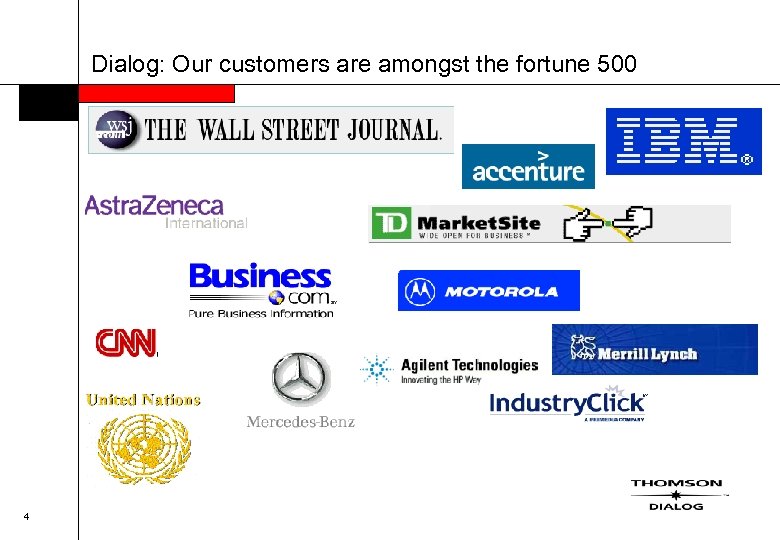
Dialog: Our customers are amongst the fortune 500 4
DIALOG TRAINING SEMINAR Dialog’s Graduate Education Program: the power of information education

• Program Overview • Roger K. Summit Scholarship • Quantum 2 6
• Program Overview – About GEP – Requirements for participation – Program Highlights 7
• Program Overview – About GEP • provides access to a suite of Dialog online information services • curriculum instructional resource to help prepare future librarians to use online information services • available to LIS institutions worldwide at 100% discount 8
• Program Overview – Requirements for participation • LIS Educational Institution • University Approved Setting • Curriculum Related 9
• Program Overview – Highlights • Dialog® – Dialog. Classic on the Web, Dialog. Select • Intranet Toolkit • Profound® • Datastar™ – http: //gep. dialog. com/ 10
• Program Overview – Highlights • Distance Learning – Self-paced Resources – Live Web Training • http: //gep. dialog. com/distance_learning/ 11

• Program Overview • Roger K. Summit Scholarship • Quantum 2 12

• Roger K. Summit Scholarship – Dialog awards annually to honour Dr Roger K. Summit • Founder of Dialog – € 5000 award to student in LIS for interest or performance in electronic information services – 3 awards, one each in Americas, Europe and Asia Pacific – http: //gep. dialog. com/scholarship/ 13

• Program Overview • Roger K. Summit Scholarship • Quantum 2 14
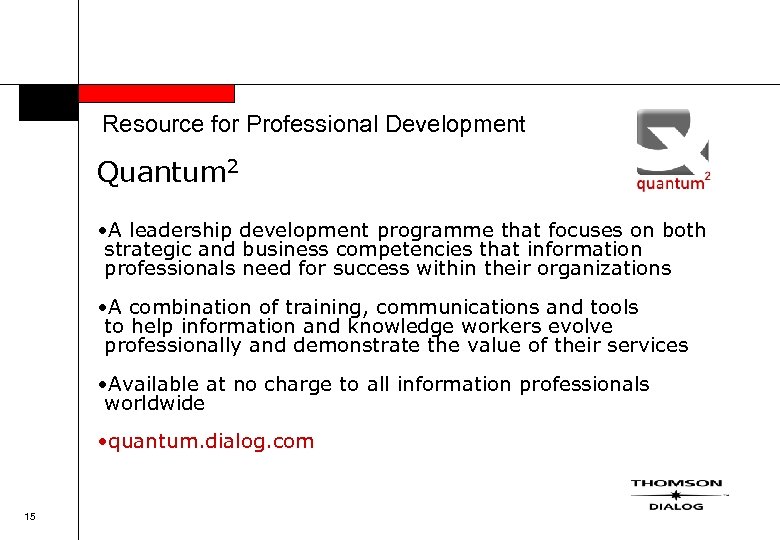
Resource for Professional Development Quantum 2 • A leadership development programme that focuses on both strategic and business competencies that information professionals need for success within their organizations • A combination of training, communications and tools to help information and knowledge workers evolve professionally and demonstrate the value of their services • Available at no charge to all information professionals worldwide • quantum. dialog. com 15
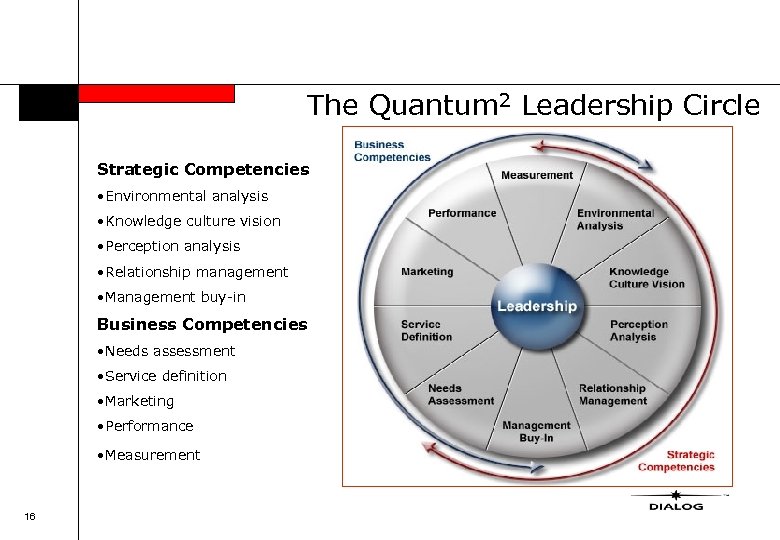
The Quantum 2 Leadership Circle Strategic Competencies • Environmental analysis • Knowledge culture vision • Perception analysis • Relationship management • Management buy-in Business Competencies • Needs assessment • Service definition • Marketing • Performance • Measurement 16
• For more information – http: //training. dialog. com/gep/ – http: //quantum. dialog. com/ – Account Manager or Dialog Representative OR – liz. blankson-hemans@thomson. com in Europe/Asia – betty. jo. hibberd@thomson. com in North America 17
DIALOG TRAINING SEMINAR Dialog Profound § Dialog Newsroom GMS-04 -E 0018 © 2004 Dialog, a Thomson business
A new DIALOG BUSINESS INTELLIGENCE tool • Premier Web-based solution from Dialog for news and research – Dialog Profound – over 200, 000 research reports from 170 of the world’s top market research firms – Dialog News. Room – over 8, 000 leading global sources Includes newspapers, newswires, specialty newsletters, business press sources, and trade and scholarly journals • Other business collections include: – Dialog News. Edge – real-time and archival news and editorially reviewed content from over 2, 000 industry-specific daily briefings – Dialog Intelliscope – in-depth, expert opinion and analysis from broker research with timely coverage of industry events and breaking news – Dialog Live – streaming up-to-the-minute news delivered to the desktop – Dialog Company Profiles – authoritative information on public and private companies 19
Why Use Dialog Profound? • Analyze market moves and strategies • Identify investment opportunities and emerging markets • Track companies, regions, industries, products and people • Gather in-depth financial, product, merger and investment data on companies • Gain knowledge from experts in key growth industries • Evaluate new product information 20
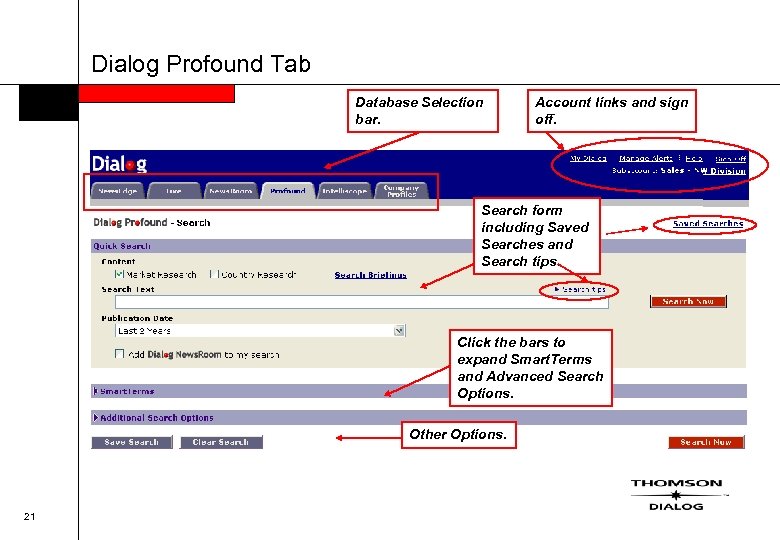
Dialog Profound Tab Database Selection bar. Account links and sign off. Search form including Saved Searches and Search tips. Click the bars to expand Smart. Terms and Advanced Search Options. Other Options. 21
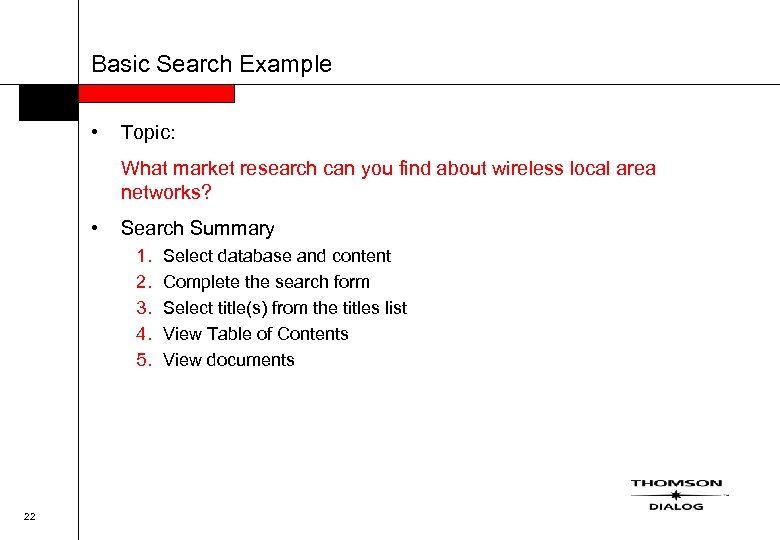
Basic Search Example • Topic: What market research can you find about wireless local area networks? • Search Summary 1. 2. 3. 4. 5. 22 Select database and content Complete the search form Select title(s) from the titles list View Table of Contents View documents
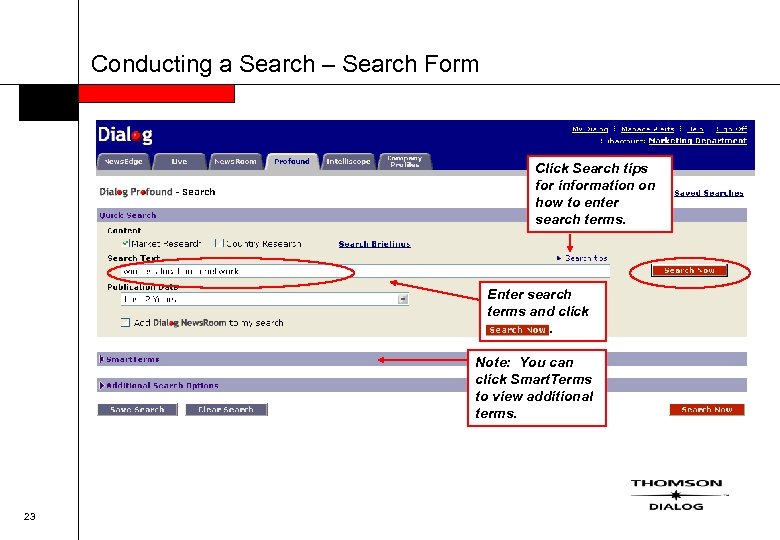
Conducting a Search – Search Form Click Search tips for information on how to enter search terms. Enter search terms and click. Note: You can click Smart. Terms to view additional terms. 23
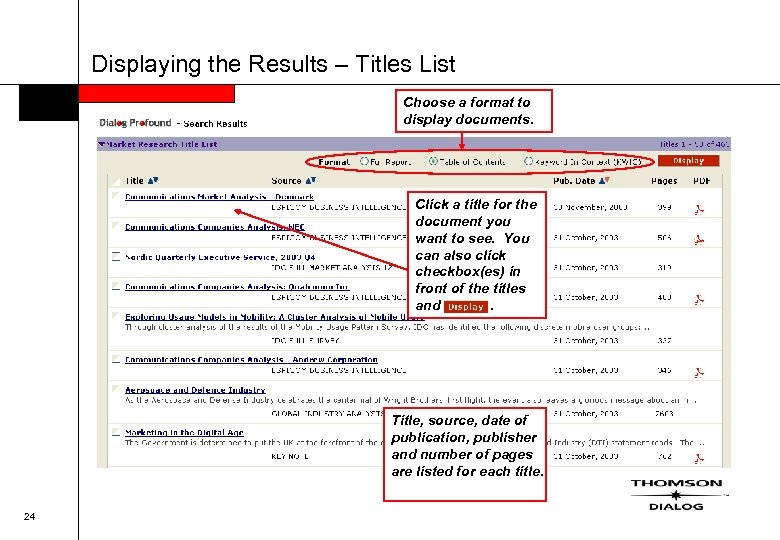
Displaying the Results – Titles List Choose a format to display documents. Click a title for the document you want to see. You can also click checkbox(es) in front of the titles and. Title, source, date of publication, publisher and number of pages are listed for each title. 24
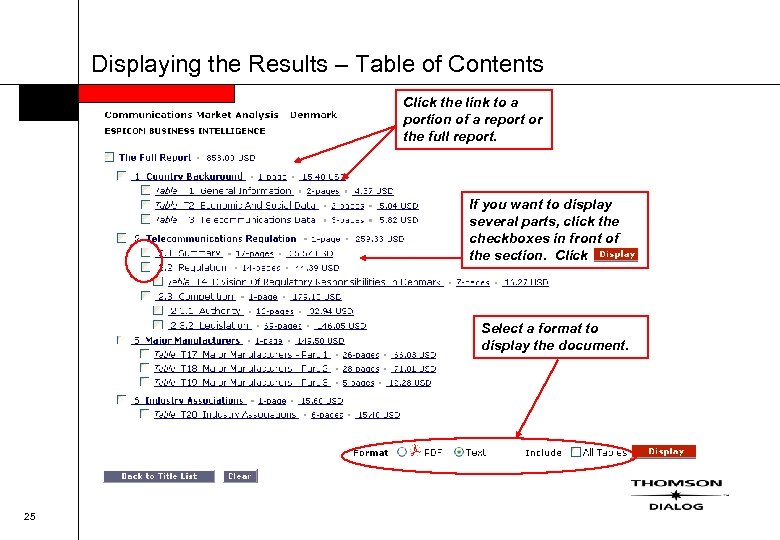
Displaying the Results – Table of Contents Click the link to a portion of a report or the full report. If you want to display several parts, click the checkboxes in front of the section. Click Select a format to display the document. 25
Conducting a Search – Smart. Terms • Business taxonomy that comprises topical and authority terms • Assigned to all documents in Dialog business-related collections • Five categories Ø Industry Ø Subject Ø Location Ø Company Ø Publication • Organized hierarchically with defined relationships between broader terms and narrower terms • Extensive cross-references added from “non-preferred terms” to “preferred terms” 26
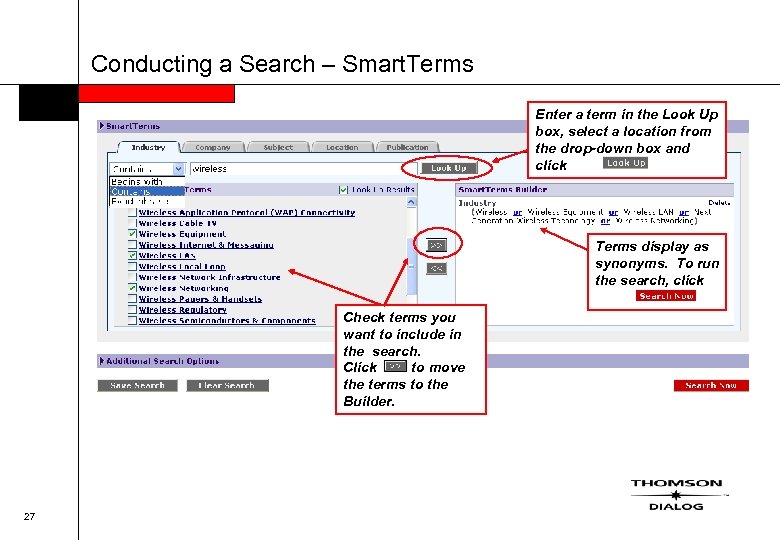
Conducting a Search – Smart. Terms Enter a term in the Look Up box, select a location from the drop-down box and click Terms display as synonyms. To run the search, click Check terms you want to include in the search. Click to move the terms to the Builder. 27
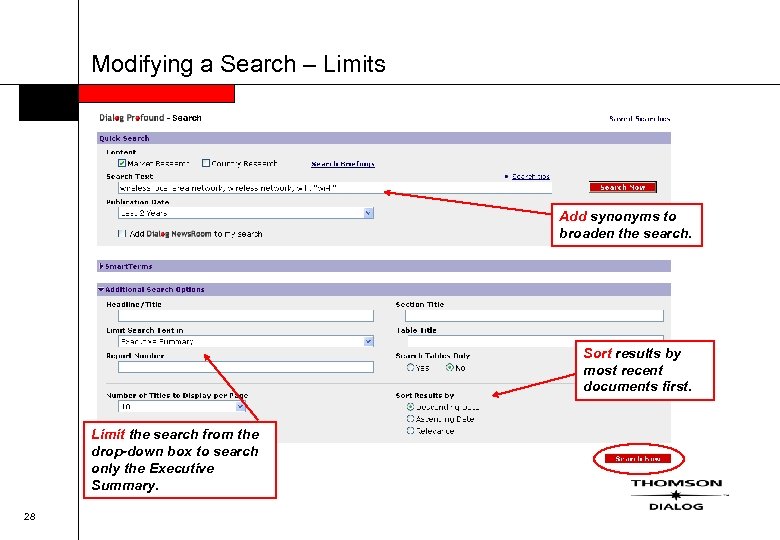
Modifying a Search – Limits Add synonyms to broaden the search. Sort results by most recent documents first. Limit the search from the drop-down box to search only the Executive Summary. 28
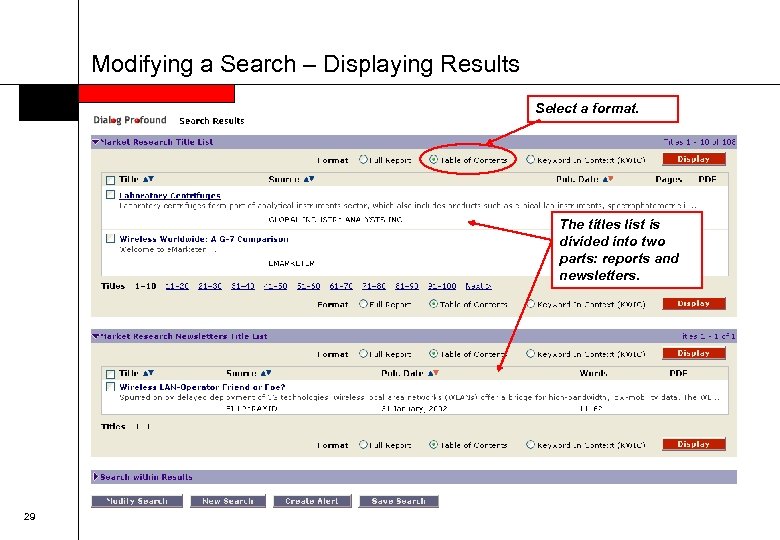
Modifying a Search – Displaying Results Select a format. The titles list is divided into two parts: reports and newsletters. 29
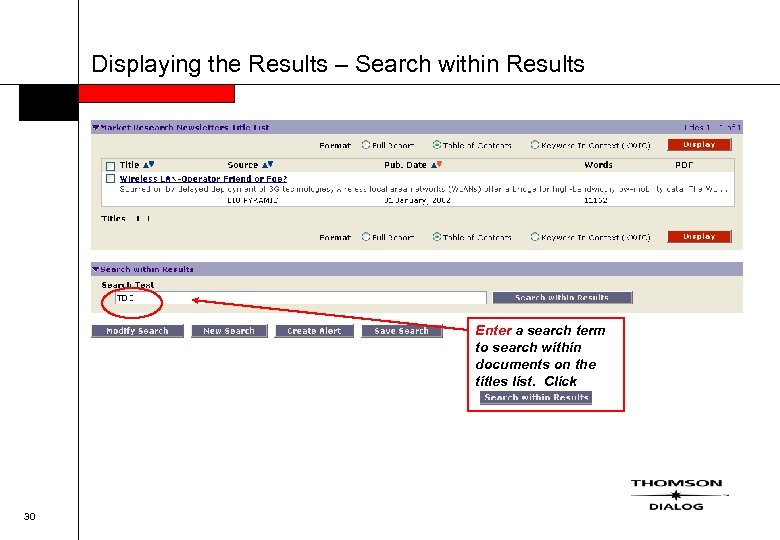
Displaying the Results – Search within Results Enter a search term to search within documents on the titles list. Click 30
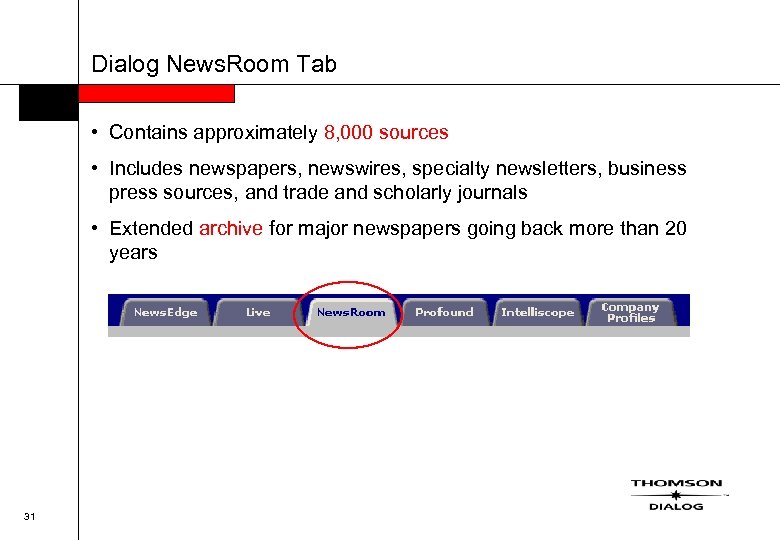
Dialog News. Room Tab • Contains approximately 8, 000 sources • Includes newspapers, newswires, specialty newsletters, business press sources, and trade and scholarly journals • Extended archive for major newspapers going back more than 20 years 31
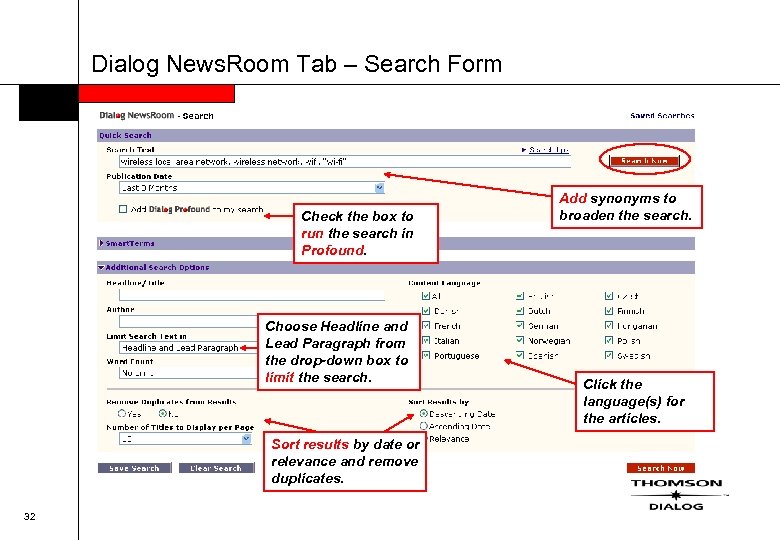
Dialog News. Room Tab – Search Form Check the box to run the search in Profound. Choose Headline and Lead Paragraph from the drop-down box to limit the search. Sort results by date or relevance and remove duplicates. 32 Add synonyms to broaden the search. Click the language(s) for the articles.
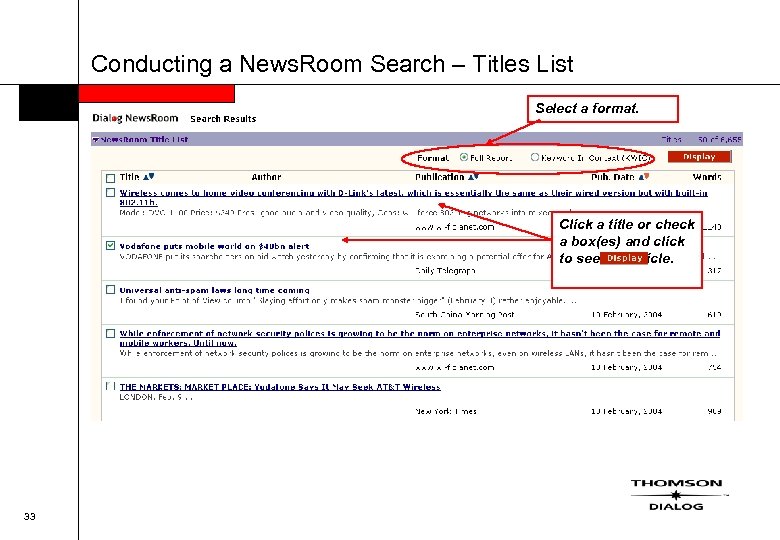
Conducting a News. Room Search – Titles List Select a format. Click a title or check a box(es) and click to see the article. 33
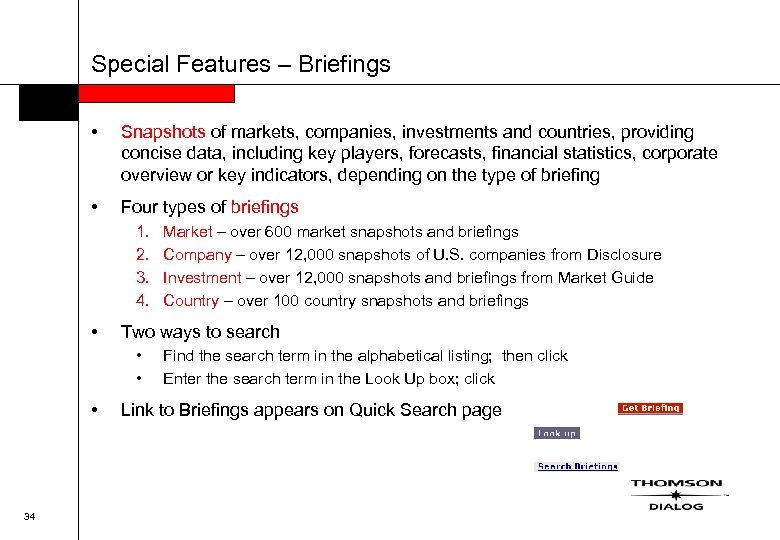
Special Features – Briefings • Snapshots of markets, companies, investments and countries, providing concise data, including key players, forecasts, financial statistics, corporate overview or key indicators, depending on the type of briefing • Four types of briefings 1. 2. 3. 4. • Two ways to search • • • 34 Market – over 600 market snapshots and briefings Company – over 12, 000 snapshots of U. S. companies from Disclosure Investment – over 12, 000 snapshots and briefings from Market Guide Country – over 100 country snapshots and briefings Find the search term in the alphabetical listing; then click Enter the search term in the Look Up box; click Link to Briefings appears on Quick Search page
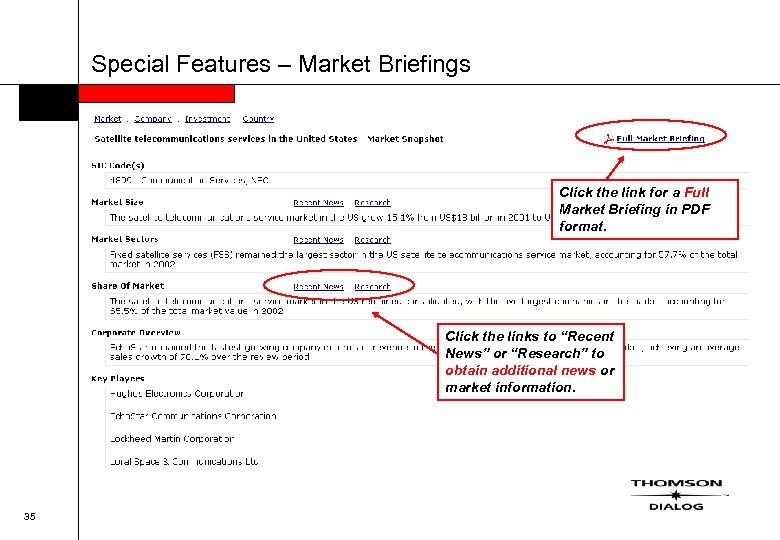
Special Features – Market Briefings Click the link for a Full Market Briefing in PDF format. Click the links to “Recent News” or “Research” to obtain additional news or market information. 35
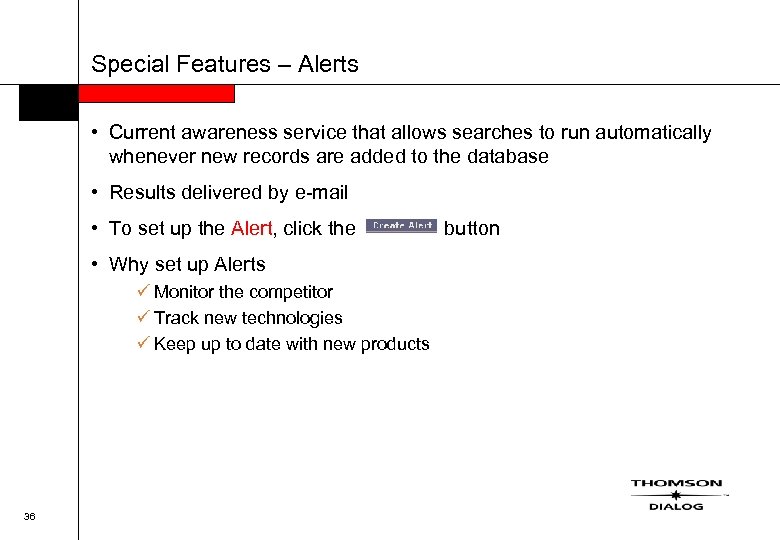
Special Features – Alerts • Current awareness service that allows searches to run automatically whenever new records are added to the database • Results delivered by e-mail • To set up the Alert, click the • Why set up Alerts ü Monitor the competitor ü Track new technologies ü Keep up to date with new products 36 button
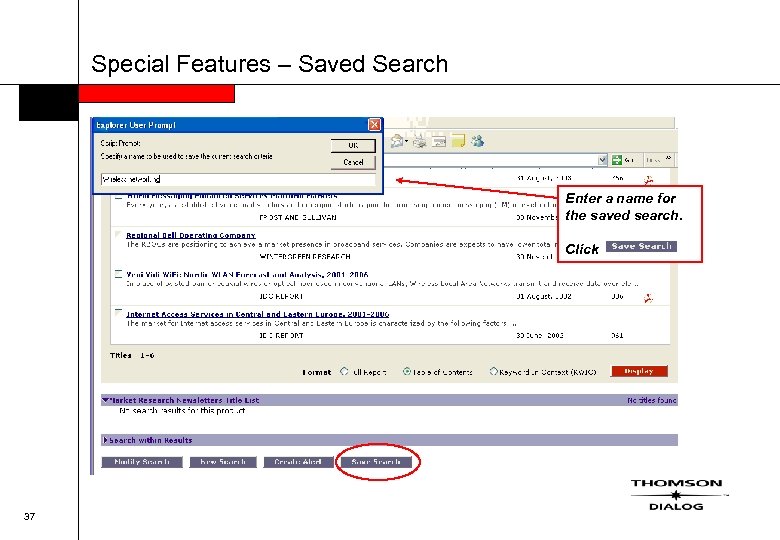
Special Features – Saved Search Enter a name for the saved search. Click 37
DIALOG TRAINING SEMINAR Dialogweb Guided Search GMS-04 -E 0018 © 2004 Dialog, a Thomson business
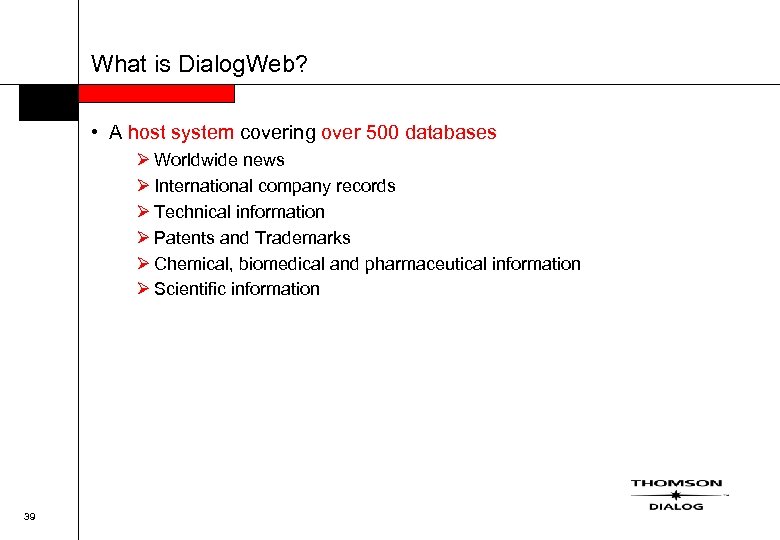
What is Dialog. Web? • A host system covering over 500 databases Ø Worldwide news Ø International company records Ø Technical information Ø Patents and Trademarks Ø Chemical, biomedical and pharmaceutical information Ø Scientific information 39
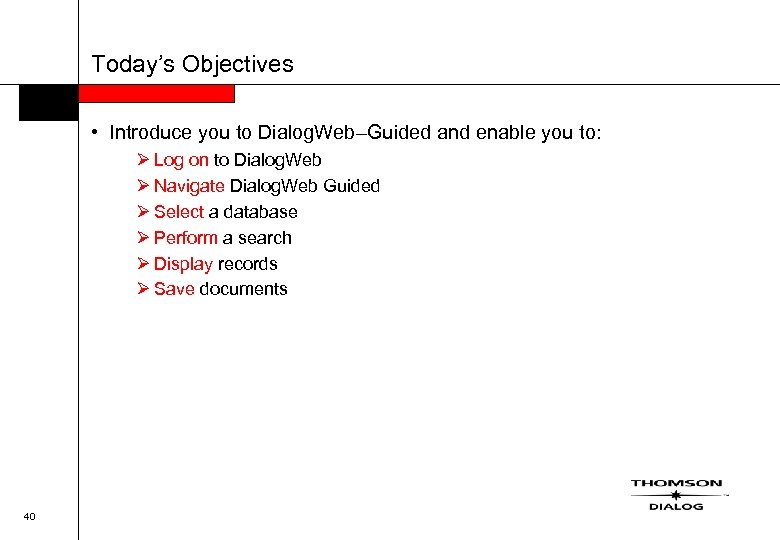
Today’s Objectives • Introduce you to Dialog. Web–Guided and enable you to: Ø Log on to Dialog. Web Ø Navigate Dialog. Web Guided Ø Select a database Ø Perform a search Ø Display records Ø Save documents 40
Agenda • Logging on to Dialog. Web • Dialog. Web–Guided Home Page • Selecting a database • Searching Dialog. Web–Guided • Viewing records • Saving records • Finishing the search • What’s next 41
Logging On to Dialog. Web Go to: • www. dialogweb. com • Or link to Dialog. Web from www. dialog. com (Customer Logon) 42
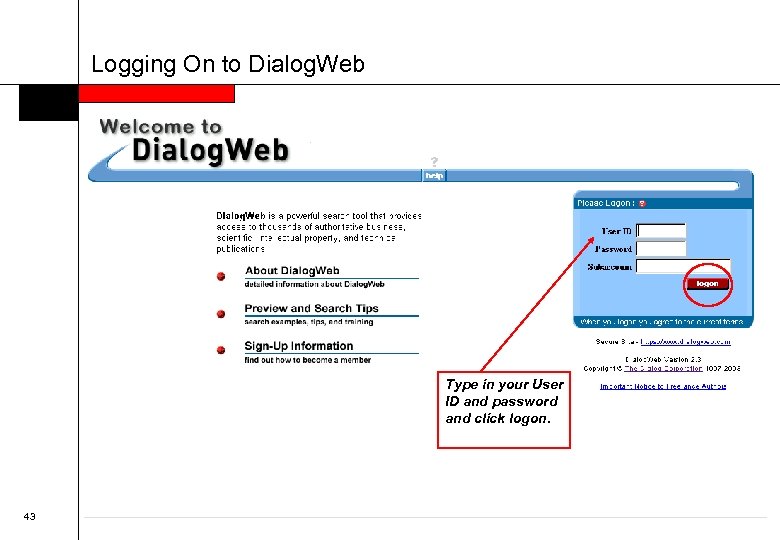
Logging On to Dialog. Web Type in your User ID and password and click logon. 43
Agenda • Logging on to Dialog. Web • Dialog. Web Guided Home Page • Selecting a database • Searching Dialog. Web Guided • Viewing records • Saving records • Finishing the search • What’s next 44
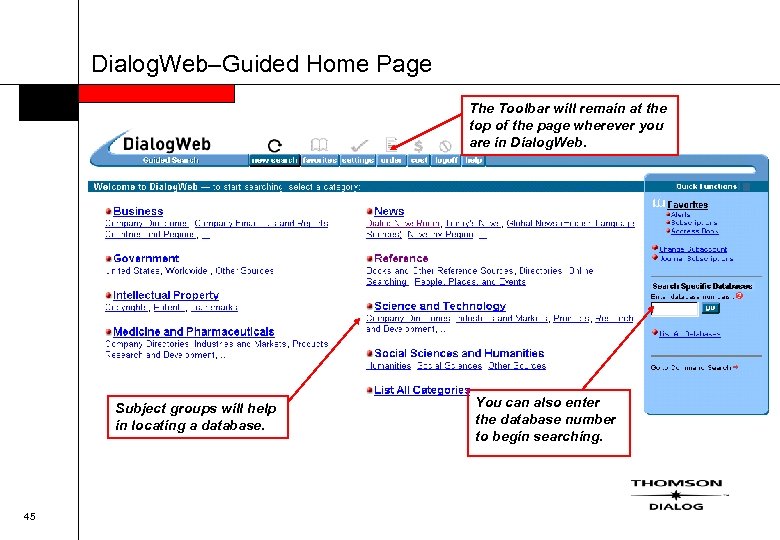
Dialog. Web–Guided Home Page The Toolbar will remain at the top of the page wherever you are in Dialog. Web. Subject groups will help in locating a database. 45 You can also enter the database number to begin searching.
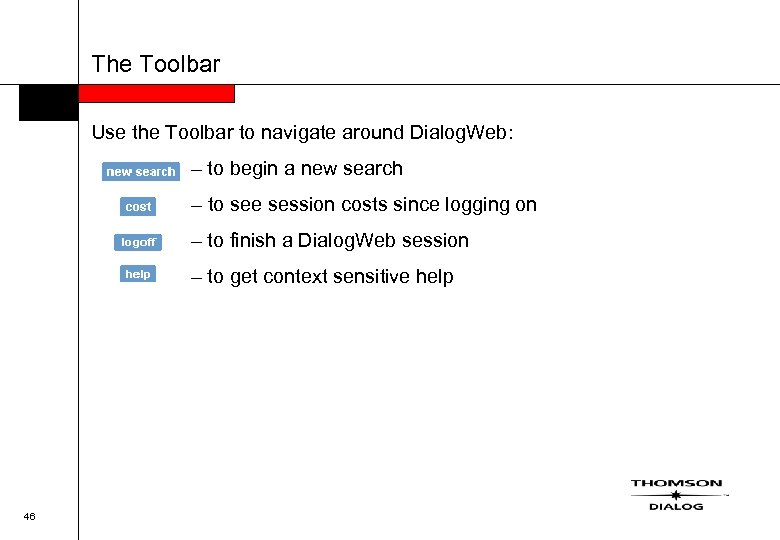
The Toolbar Use the Toolbar to navigate around Dialog. Web: – to begin a new search – to see session costs since logging on – to finish a Dialog. Web session – to get context sensitive help 46
Agenda • Logging on to Dialog. Web • Dialog. Web Guided Home Page • Selecting a database • Searching Dialog. Web Guided • Viewing records • Saving records • Finishing the search • What’s next 47
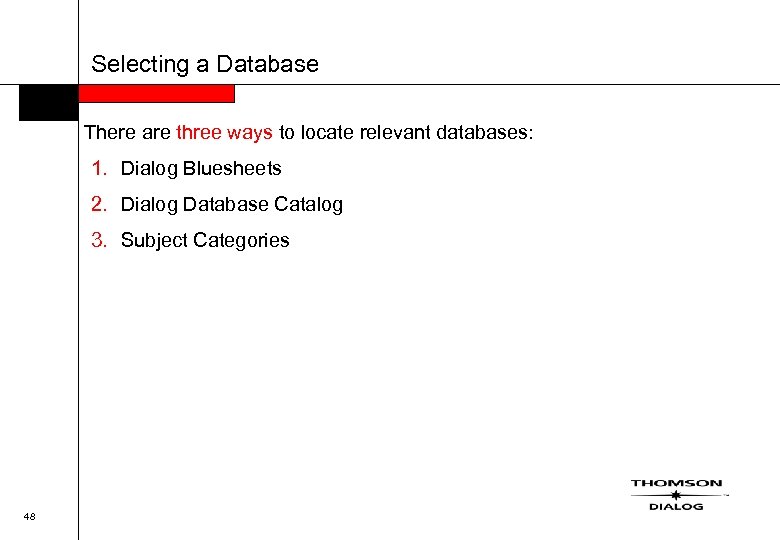
Selecting a Database There are three ways to locate relevant databases: 1. Dialog Bluesheets 2. Dialog Database Catalog 3. Subject Categories 48
Dialog Bluesheets Guides to each Database : Ø Ø Ø Content Sources Indexing Search techniques specific to the database Prices Available within Dialog. Web by clicking on the Dialog Web site at: and on http: //library. dialog. com/bluesheets 49
Dialog Database Catalog Ø Includes all databases contained on Dialog and Dialog Data. Star Ø Gives a brief summary of the content and features of each database Ø Lists databases by subject categories Ø Is available in print or on http: //support. dialog. com/publications/dbcat/ 50
Subject Categories Ø Subject categories present databases by subject Ø Clicking on a subject category will provide a list of databases 51
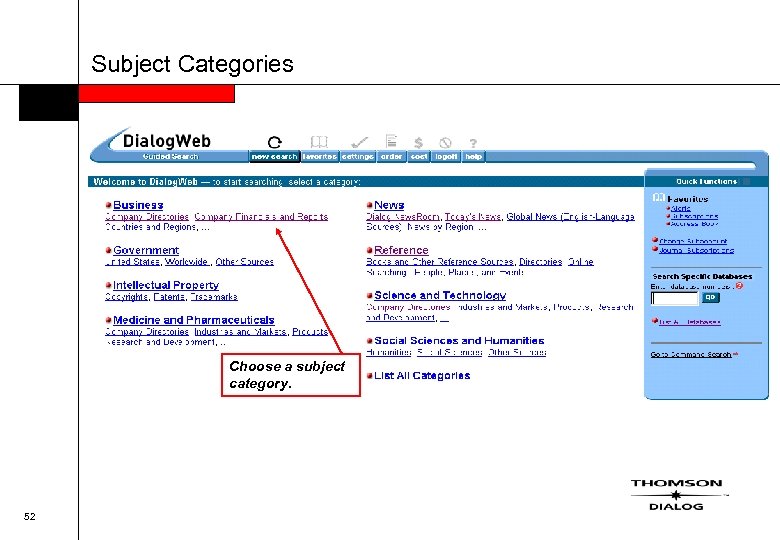
Subject Categories Choose a subject category. 52
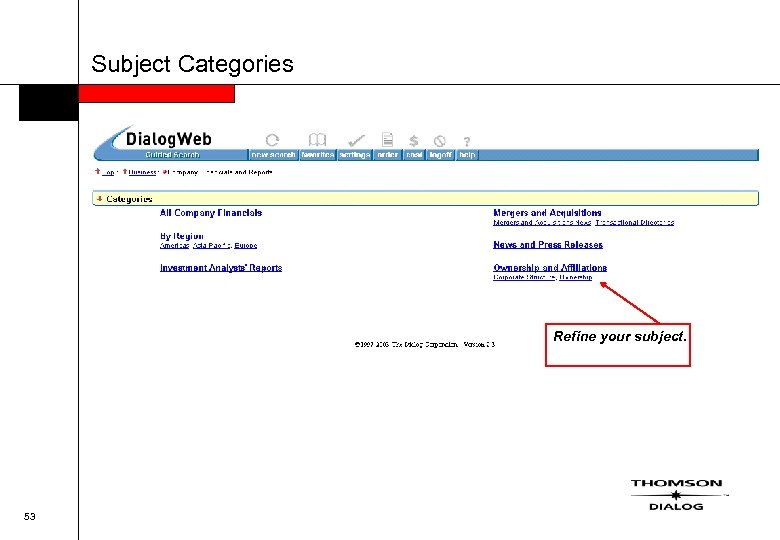
Subject Categories Refine your subject. 53
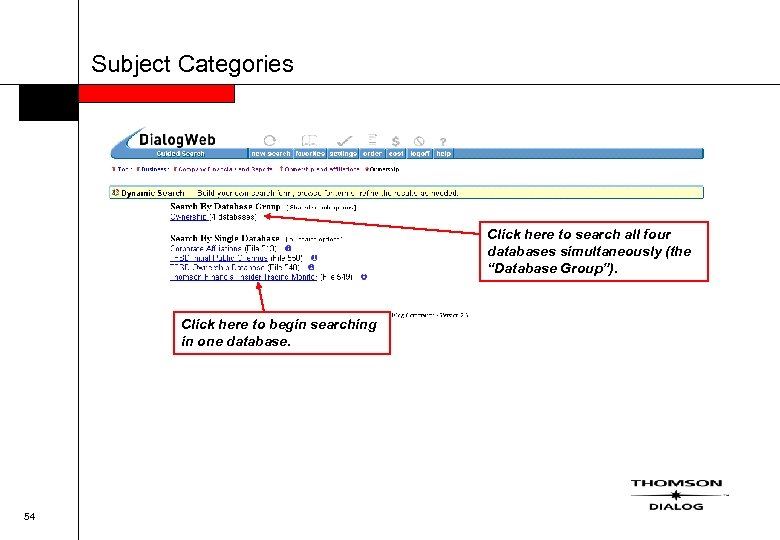
Subject Categories Click here to search all four databases simultaneously (the “Database Group”). Click here to begin searching in one database. 54
Selecting a Database • Each database has a number – – Dialog News. Room (File 990) MEDLINE (File 154) Polymer Online (File 322) Kompass Western Europe (File 590) • Databases can be selected by number by typing the number in the “Quick Functions” box on the Home Page 55
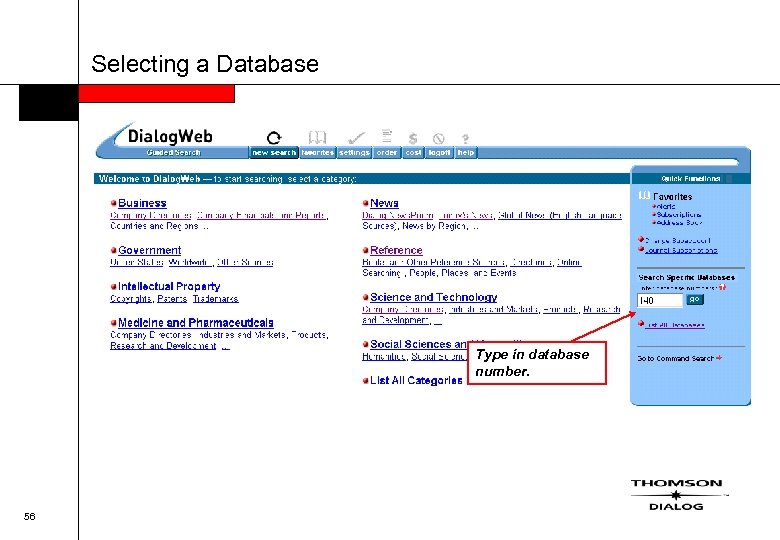
Selecting a Database Type in database number. 56
Agenda • Logging on to Dialog. Web • Dialog. Web Guided Home Page • Selecting a database • Searching Dialog. Web Guided • Viewing records • Saving records • Finishing the search • What’s next 57
Searching Dialog. Web–Guided • There are two types of searches: Targeted and Dynamic • Depending on the database you have chosen you may be able to choose: Targeted - A search form designed to search on specific predetermined questions for quick answers to specific questions Dynamic - A basic search form in which you can browse for terms, enter your terms and restrict a search by date or any other limit available to that database • Dynamic search is the most common of the two 58
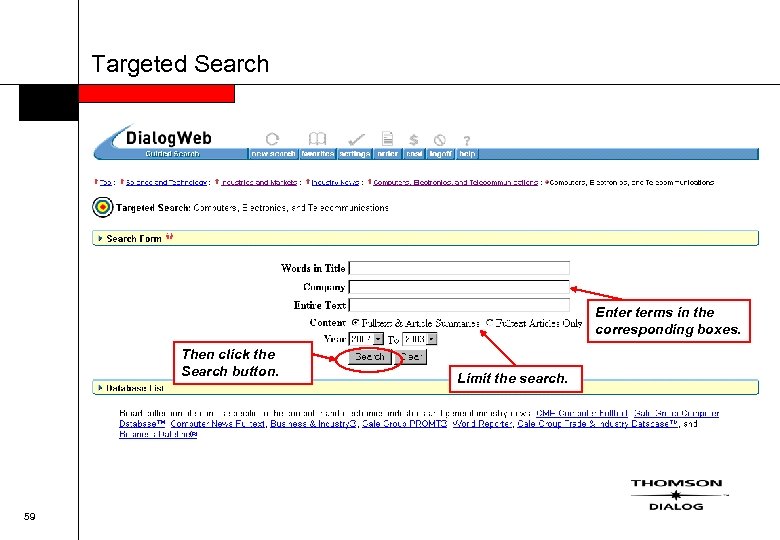
Targeted Search Enter terms in the corresponding boxes. Then click the Search button. 59 Limit the search.
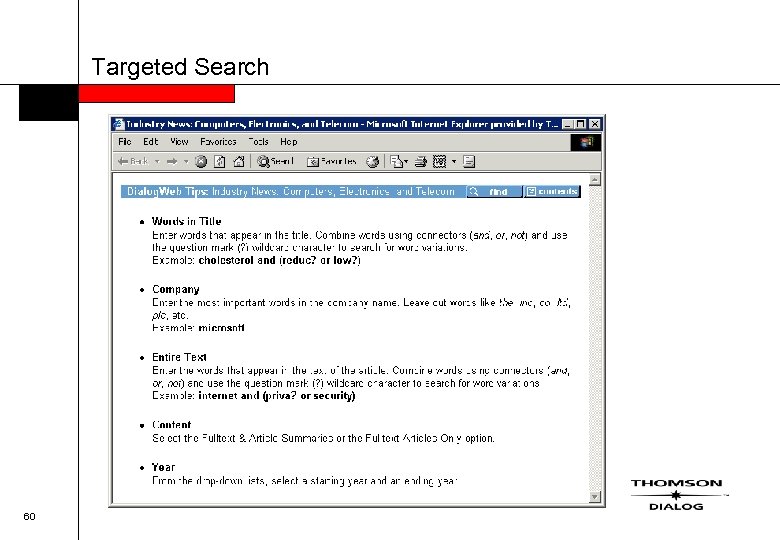
Targeted Search 60
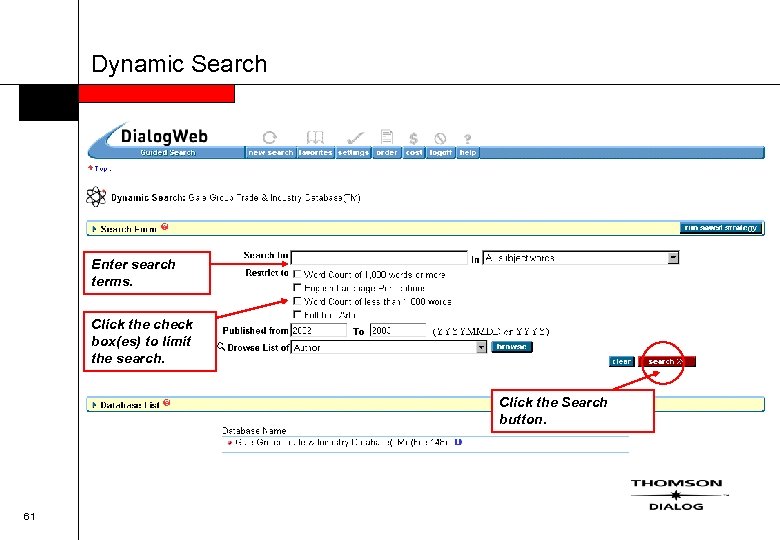
Dynamic Search Enter search terms. Click the check box(es) to limit the search. Click the Search button. 61
Agenda • Logging on to Dialog. Web • Dialog. Web Guided Home Page • Selecting a database • Searching Dialog. Web Guided • Viewing records • Saving records • Finishing the search • What’s next 62
The Picklist • Once a search has been carried out, the results are displayed as titles in the Picklist screen • From the Picklist screen you can select Ø the records you want to see and Ø the format you want to display them in 63
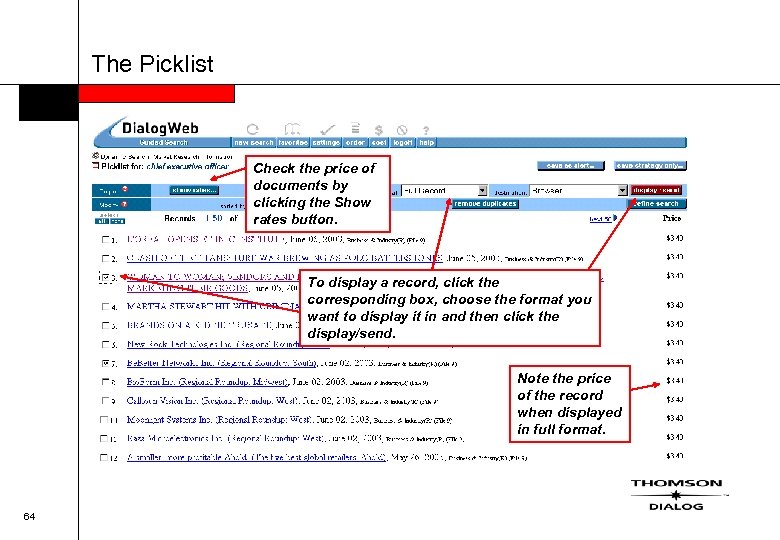
The Picklist Check the price of documents by clicking the Show rates button. To display a record, click the corresponding box, choose the format you want to display it in and then click the display/send. Note the price of the record when displayed in full format. 64
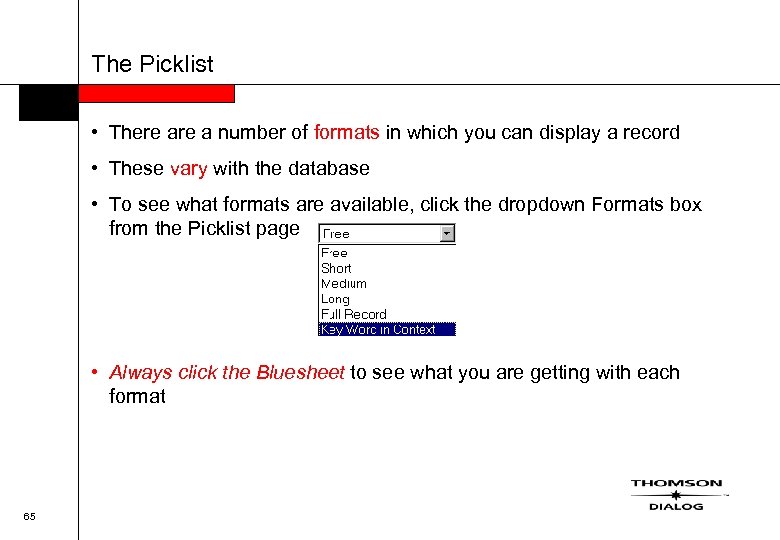
The Picklist • There a number of formats in which you can display a record • These vary with the database • To see what formats are available, click the dropdown Formats box from the Picklist page • Always click the Bluesheet to see what you are getting with each format 65
Agenda • Logging on to Dialog. Web • Dialog. Web Guided Home Page • Selecting a database • Searching Dialog. Web Guided • Viewing records • Saving records • Finishing the search • What’s next 66
Saving Records For a clean copy of your record : Ø Click the records to save Ø Choose the format to save them in Ø Choose “Browser for Print/Save” as the output medium Ø Click “Display/Send” to produce a clean copy of the document Ø Save by clicking “File” and “Save As” 67
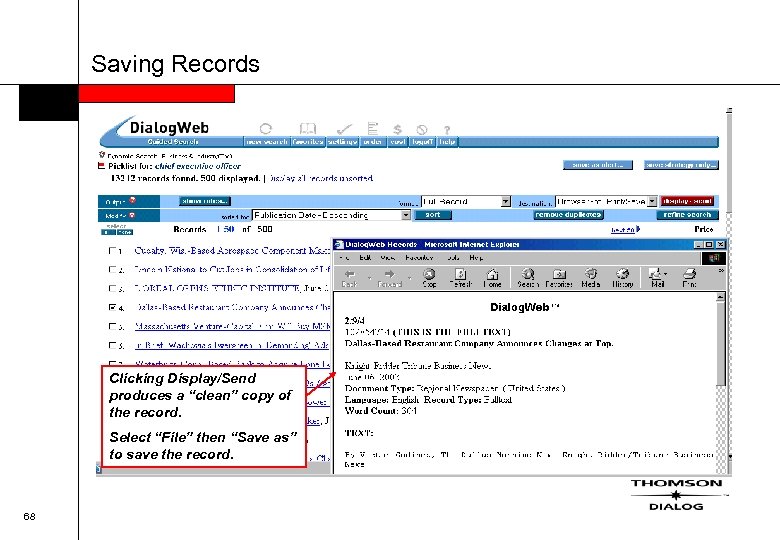
Saving Records Clicking Display/Send produces a “clean” copy of the record. Select “File” then “Save as” to save the record. 68
Agenda • Logging on to Dialog. Web • Dialog. Web Guided Home Page • Selecting a database • Searching Dialog. Web Guided • Viewing records • Saving records • Finishing the search • What’s next 69
Finishing the Search • • 70 After you have finished your search, click terminate the session. You will see a cost accounting of your search activities. on the toolbar to
Agenda • Logging on to Dialog. Web • Dialog. Web Guided Home Page • Selecting a database • Searching Dialog. Web Guided • Viewing records • Saving records • Finishing the search • What’s next 71
What’s Next? • Free Practice ? http: //training. dialog. com/sem_info/ontap_pw. html • More Help ? contact the 24 hours Knowledge Center free-of-charge : – 00 800 333 42 564 – customer@thomson. com Or Gabrielle Derriks Training Consultant BENELUX 0032 2 648 09 02 gabrielle. derriks@thomson. com 72

Thank you! 73
Скачать презентацию DIALOG TRAINING SEMINAR LIDA 2004 Dubrovnik 24 May
ee340e9aa7c2c55393fa8c421c148a11.ppt