


 Скачать презентацию DFL-210 800 1600 2500 Training Material DFL fundamental Part I 2007
b56f7e4ceb65a5362fc70d862b5dea8f.ppt
- Количество слайдов: 178
 DFL-210/800/1600/2500 Training Material DFL fundamental Part I 2007 July Created on 2007 1 ©Copyright 2007. All rights reserved
 Agenda • Firewall traffic flow • Chapter 1 – Routing table • Chapter 2 – Core v. s Interface(WAN, LAN, DMZ) • Chapter 3 – PBR • Chapter 4 – NAT combine with semi-transparent mode(Proxy. Arp) • Chapter 5 – Traffic Shaping • Chapter 6 2007 July – VPN 2
 New feature on firmware v 2. 12 • New function implement – – – – Full CLI support IP rules (insert, move to, disable) Interface: PPPo. E schedule The DPD in IPSEC tunnel Configurable ID type (IP, DNS, FQDN) in IPSEC tunnel Session control in Threshold Blacklist in threshold and IDS/IDP DHCP status improvement 2007 July 3
 Firewall traffic flow 2007 July 4
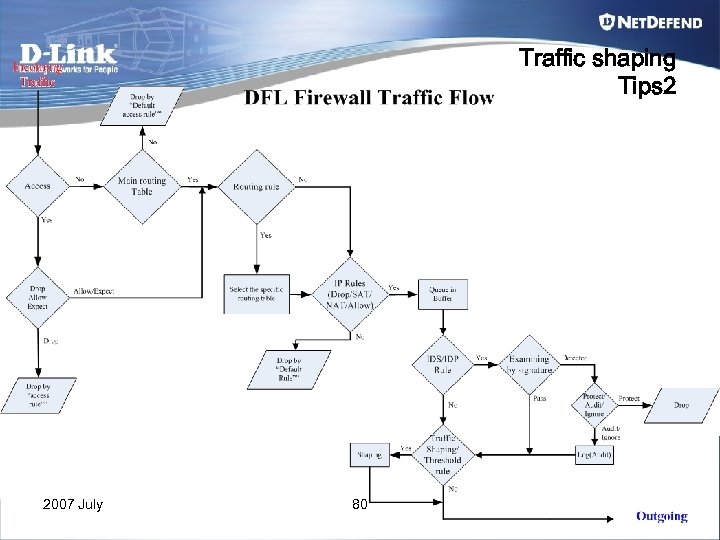
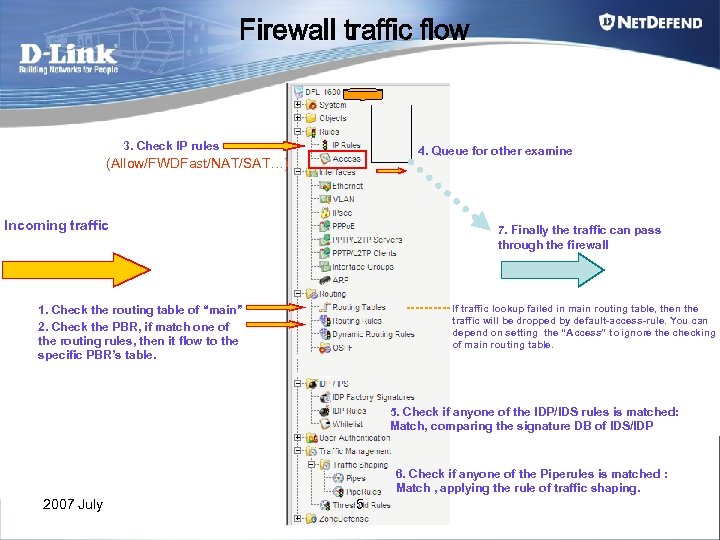 Firewall traffic flow 3. Check IP rules 4. Queue for other examine (Allow/FWDFast/NAT/SAT…) Incoming traffic 7. Finally the traffic can pass through the firewall If traffic lookup failed in main routing table, then the traffic will be dropped by default-access-rule. You can depend on setting the “Access” to ignore the checking of main routing table. 1. Check the routing table of “main” 2. Check the PBR, if match one of the routing rules, then it flow to the specific PBR’s table. 5. Check if anyone of the IDP/IDS rules is matched: Match, comparing the signature DB of IDS/IDP 6. Check if anyone of the Piperules is matched : Match , applying the rule of traffic shaping. 2007 July 5
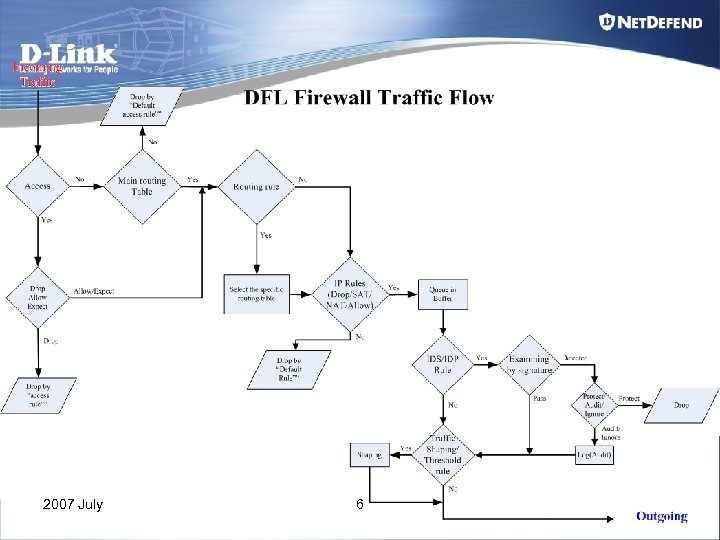 2007 July 6
 Chapter 1 Routing Table 2007 July 7
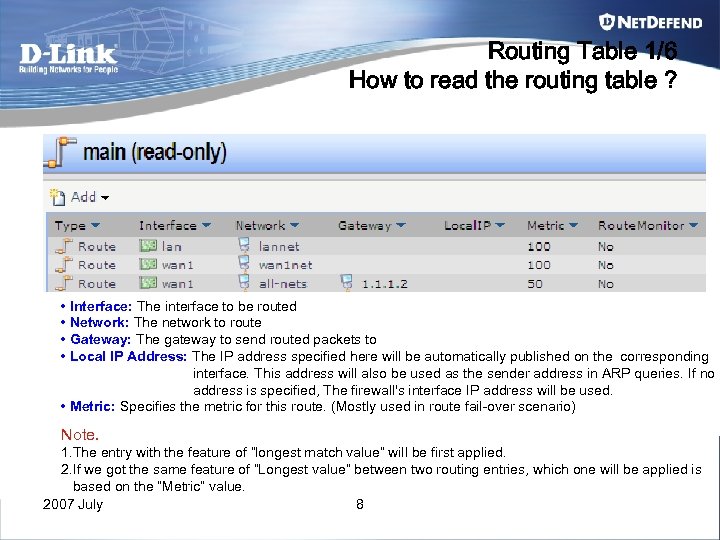 Routing Table 1/6 How to read the routing table ? • Interface: The interface to be routed • Network: The network to route • Gateway: The gateway to send routed packets to • Local IP Address: The IP address specified here will be automatically published on the corresponding interface. This address will also be used as the sender address in ARP queries. If no address is specified, The firewall's interface IP address will be used. • Metric: Specifies the metric for this route. (Mostly used in route fail-over scenario) Note. 1. The entry with the feature of “longest match value” will be first applied. 2. If we got the same feature of “Longest value” between two routing entries, which one will be applied is based on the “Metric” value. 2007 July 8
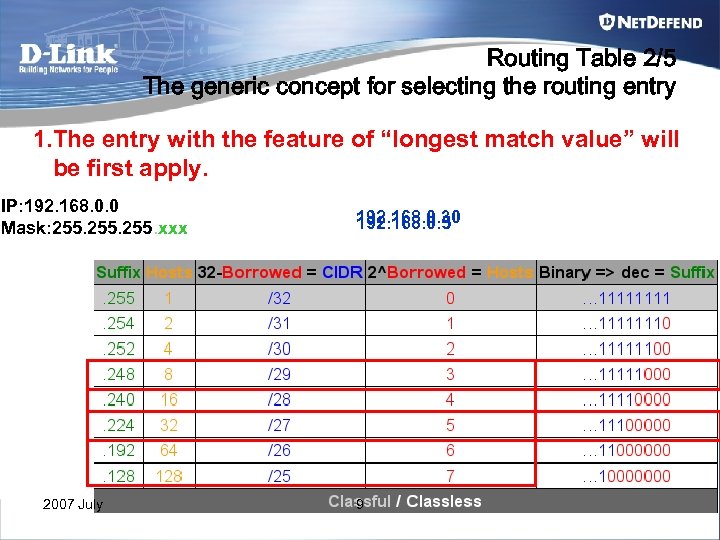 Routing Table 2/5 The generic concept for selecting the routing entry 1. The entry with the feature of “longest match value” will be first apply. IP: 192. 168. 0. 0 Mask: 255. xxx 2007 July 192. 168. 0. 30 192. 168. 0. 5 9
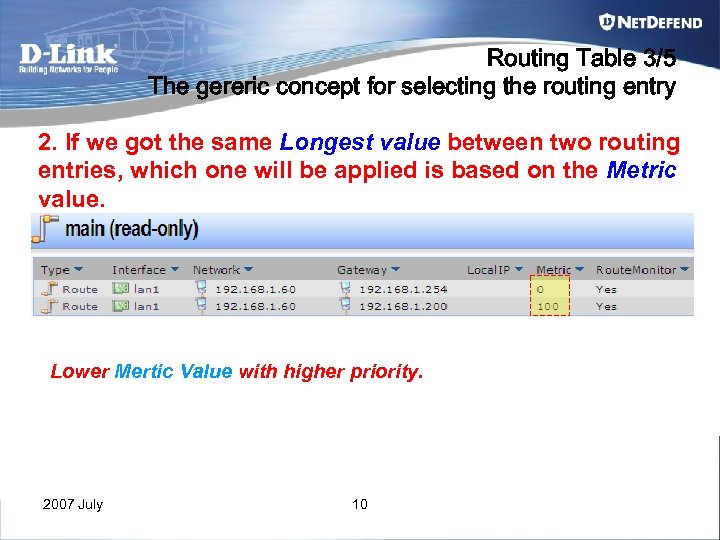 Routing Table 3/5 The gereric concept for selecting the routing entry 2. If we got the same Longest value between two routing entries, which one will be applied is based on the Metric value. Lower Mertic Value with higher priority. 2007 July 10
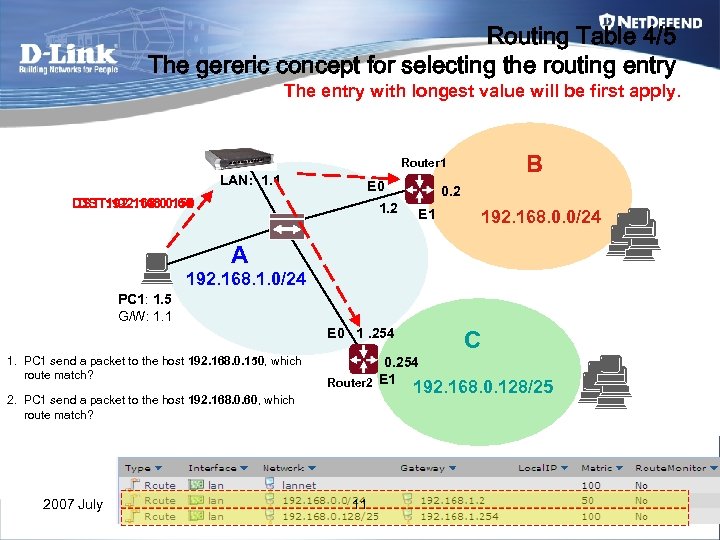 Routing Table 4/5 The gereric concept for selecting the routing entry The entry with longest value will be first apply. B Router 1 LAN: 1. 1 E 0 DST: 192. 168. 0. 150 DST: 192. 168. 0. 60 1. 2 0. 2 E 1 192. 168. 0. 0/24 A 192. 168. 1. 0/24 PC 1: 1. 5 G/W: 1. 1 E 0 1. 254 1. PC 1 send a packet to the host 192. 168. 0. 150, which route match? 2. PC 1 send a packet to the host 192. 168. 0. 60, which route match? 2007 July C 0. 254 Router 2 E 1 192. 168. 0. 128/25 11
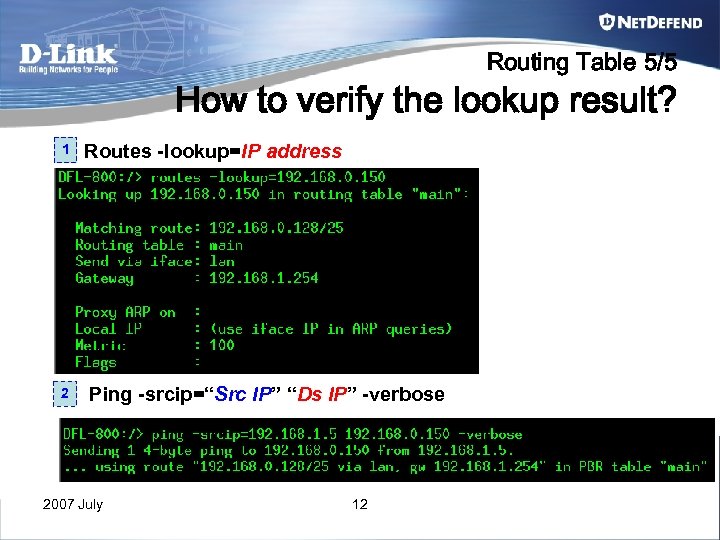 Routing Table 5/5 How to verify the lookup result? 1 2 Routes -lookup=IP address Ping -srcip=“Src IP” “Ds IP” -verbose 2007 July 12
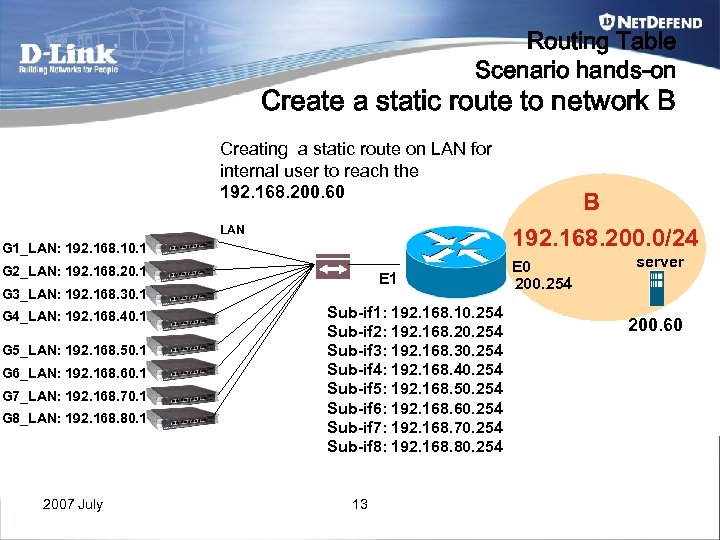 Routing Table Scenario hands-on Create a static route to network B Creating a static route on LAN for internal user to reach the 192. 168. 200. 60 LAN G 1_LAN: 192. 168. 10. 1 G 2_LAN: 192. 168. 20. 1 E 1 G 3_LAN: 192. 168. 30. 1 G 4_LAN: 192. 168. 40. 1 G 5_LAN: 192. 168. 50. 1 G 6_LAN: 192. 168. 60. 1 G 7_LAN: 192. 168. 70. 1 G 8_LAN: 192. 168. 80. 1 2007 July Sub-if 1: 192. 168. 10. 254 Sub-if 2: 192. 168. 20. 254 Sub-if 3: 192. 168. 30. 254 Sub-if 4: 192. 168. 40. 254 Sub-if 5: 192. 168. 50. 254 Sub-if 6: 192. 168. 60. 254 Sub-if 7: 192. 168. 70. 254 Sub-if 8: 192. 168. 80. 254 13 B 192. 168. 200. 0/24 E 0 200. 254 server 200. 60
![Routing table Debug-CLI Routes -lookup=[insert the IP address] Routes -all -verbose [routing table name]](https://present5.com/presentation/b56f7e4ceb65a5362fc70d862b5dea8f/image-14.jpg "Routing table Debug-CLI Routes -lookup=[insert the IP address] Routes -all -verbose [routing table name]") Routing table Debug-CLI Routes -lookup=[insert the IP address] Routes -all -verbose [routing table name] Rule -ruleset=main -verbose Ping -s [source IP address] [destination IP address] Arpsnoop [interface name] -verbose arp -show 2007 July 14
Routing table Debug-CLI Routes -lookup=[insert the IP address] Routes -all -verbose [routing table name] Rule -ruleset=main -verbose Ping -s [source IP address] [destination IP address] Arpsnoop [interface name] -verbose arp -show 2007 July 14
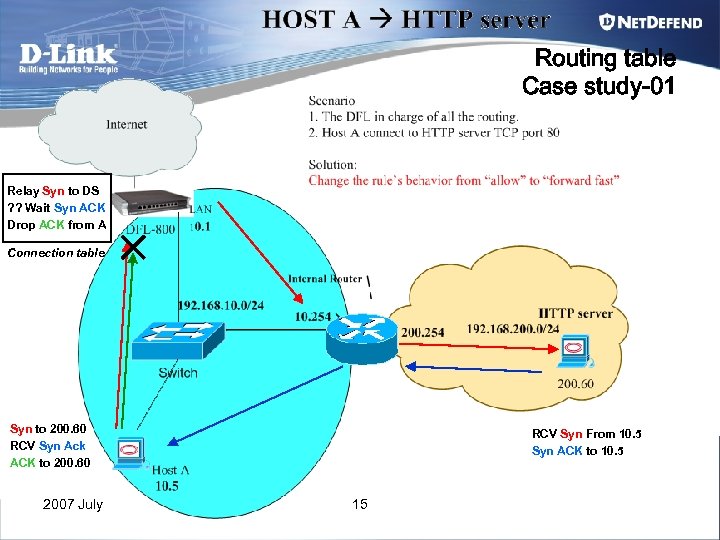 Routing table Case study-01 Relay Syn to DS ? ? Wait Syn ACK Drop ACK from A Connection table Syn to 200. 60 RCV Syn Ack ACK to 200. 60 2007 July RCV Syn From 10. 5 Syn ACK to 10. 5 15
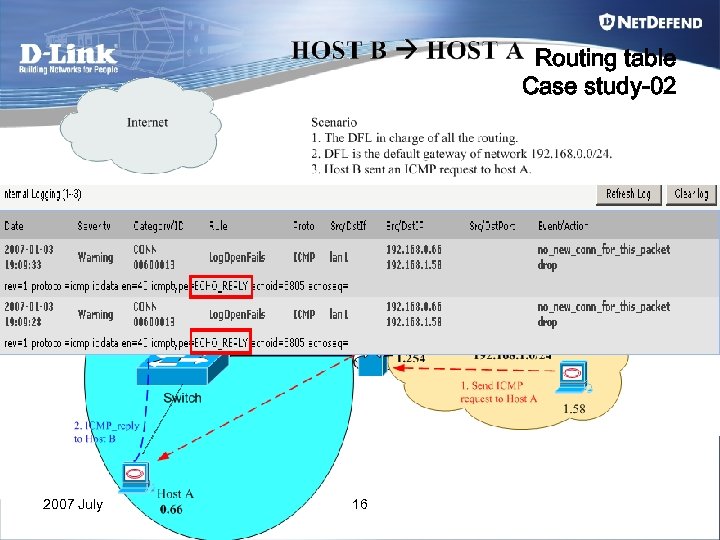 Routing table Case study-02 2007 July 16
 Chapter 2 Core vs Interfaces (WAN, DMZ, LAN) 2007 July 17
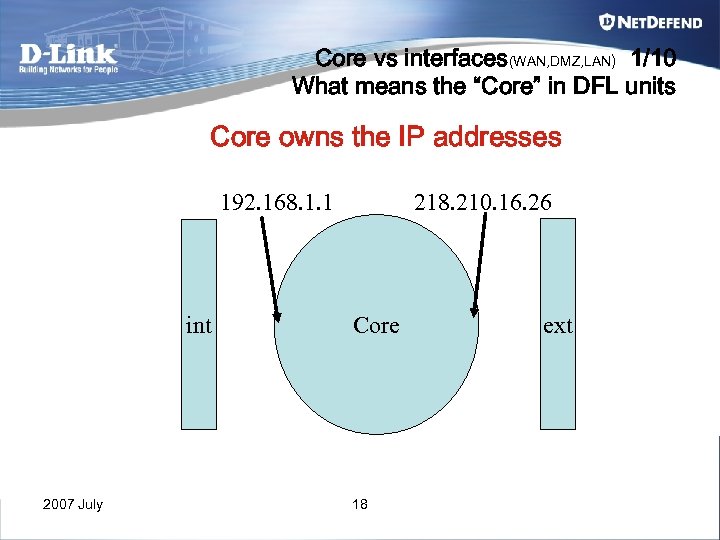 Core vs interfaces(WAN, DMZ, LAN) 1/10 What means the “Core” in DFL units Core owns the IP addresses 218. 210. 16. 26 192. 168. 1. 1 int 2007 July Core 18 ext
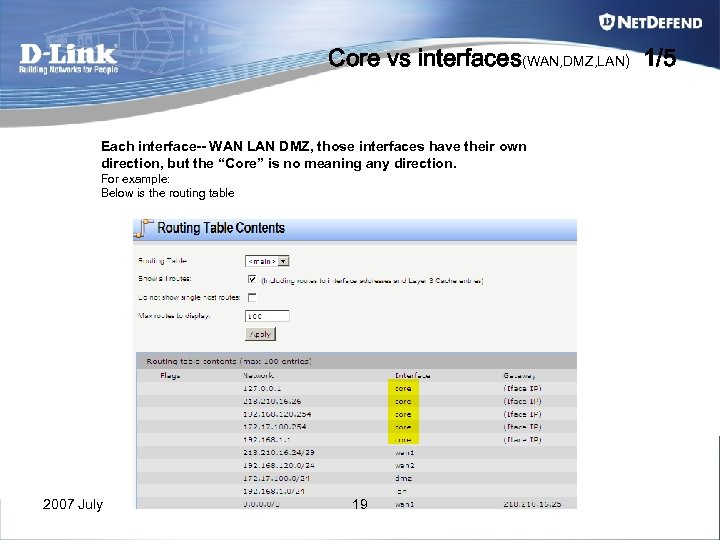 Core vs interfaces(WAN, DMZ, LAN) 1/5 Each interface-- WAN LAN DMZ, those interfaces have their own direction, but the “Core” is no meaning any direction. For example: Below is the routing table 2007 July 19
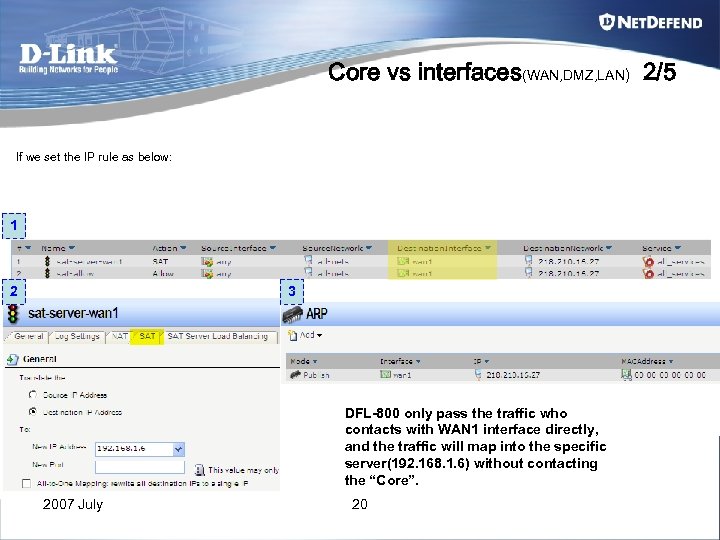 Core vs interfaces(WAN, DMZ, LAN) 2/5 If we set the IP rule as below: 1 2 3 DFL-800 only pass the traffic who contacts with WAN 1 interface directly, and the traffic will map into the specific server(192. 168. 1. 6) without contacting the “Core”. 2007 July 20
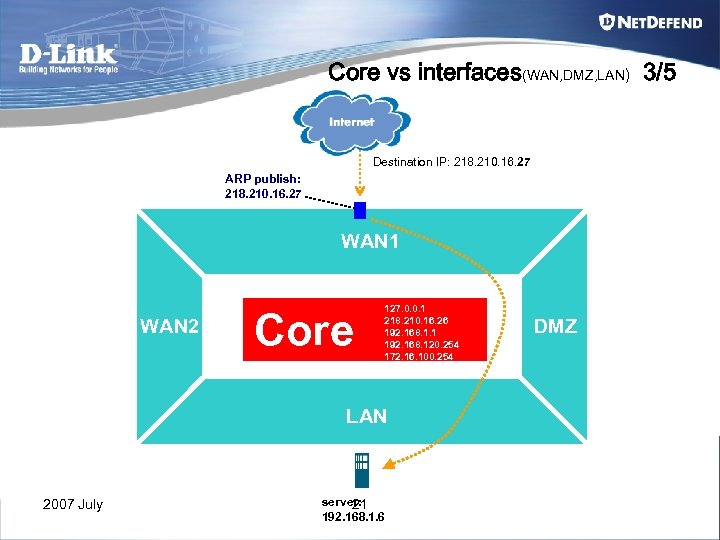 Core vs interfaces(WAN, DMZ, LAN) 3/5 Destination IP: 218. 210. 16. 27 ARP publish: 218. 210. 16. 27 WAN 1 WAN 2 Core 127. 0. 0. 1 218. 210. 16. 26 192. 168. 1. 1 192. 168. 120. 254 172. 16. 100. 254 LAN 2007 July server: 21 192. 168. 1. 6 DMZ
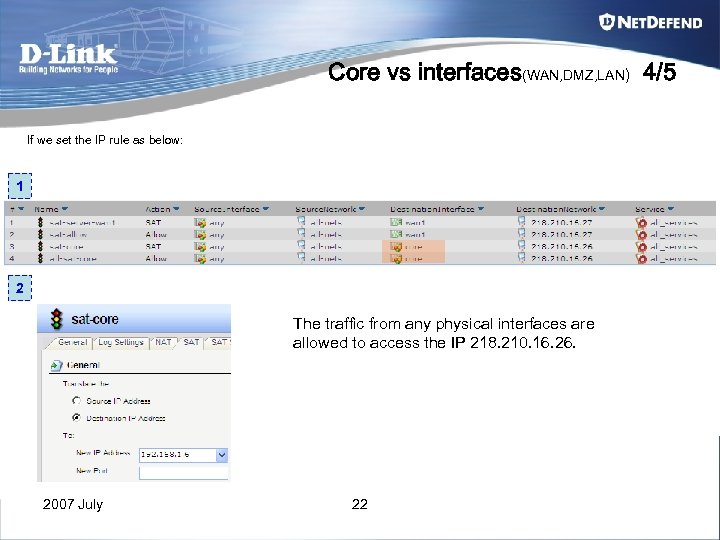 Core vs interfaces(WAN, DMZ, LAN) 4/5 If we set the IP rule as below: 1 2 The traffic from any physical interfaces are allowed to access the IP 218. 210. 16. 26. 2007 July 22
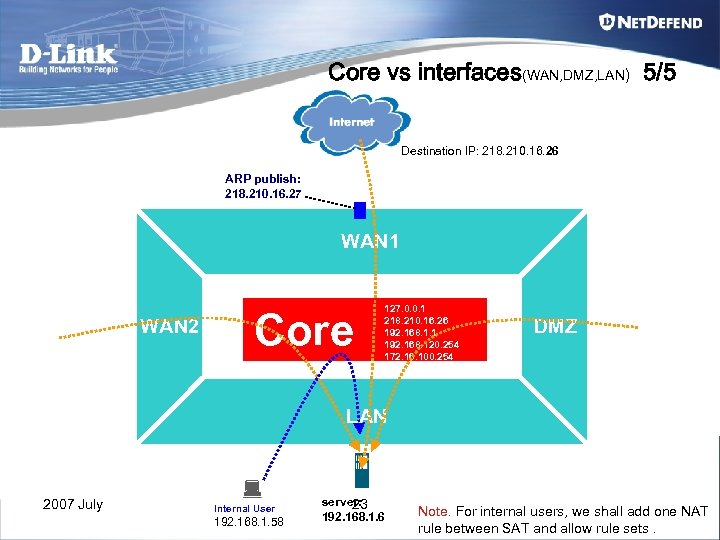 Core vs interfaces(WAN, DMZ, LAN) 5/5 Destination IP: 218. 210. 16. 26 ARP publish: 218. 210. 16. 27 WAN 1 WAN 2 Core 127. 0. 0. 1 218. 210. 16. 26 192. 168. 1. 1 192. 168. 120. 254 172. 16. 100. 254 DMZ LAN 2007 July Internal User 192. 168. 1. 58 server: 23 192. 168. 1. 6 Note. For internal users, we shall add one NAT rule between SAT and allow rule sets.
 Core vs interfaces(WAN, DMZ, LAN) Summarize • Core’s IP address we also call it as “loop back IP address”. • No matter where the traffic from, it can access into Core interface. • If we bind an IP address on one of the physical interface, the traffic to this IP address will only through this specific physical interface. 2007 July 24
 Chapter 3 Policy Based Route 2007 July 25
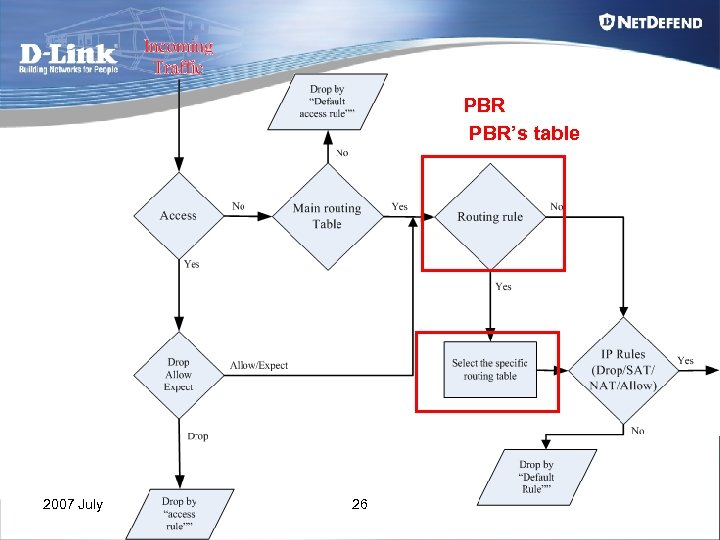 PBR PBR’s table 2007 July 26
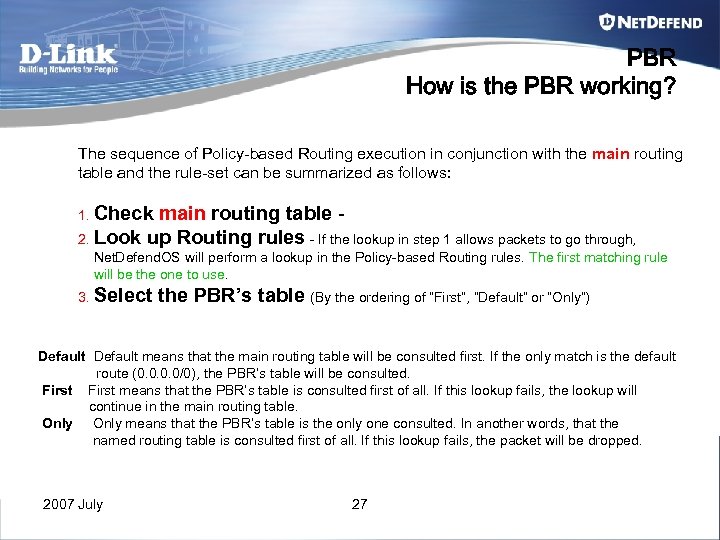 PBR How is the PBR working? The sequence of Policy-based Routing execution in conjunction with the main routing table and the rule-set can be summarized as follows: 1. Check main routing table 2. Look up Routing rules - If the lookup in step 1 allows packets to go through, Net. Defend. OS will perform a lookup in the Policy-based Routing rules. The first matching rule will be the one to use. 3. Select the PBR’s table (By the ordering of “First”, “Default” or “Only”) Default means that the main routing table will be consulted first. If the only match is the default route (0. 0/0), the PBR’s table will be consulted. First means that the PBR’s table is consulted first of all. If this lookup fails, the lookup will continue in the main routing table. Only means that the PBR’s table is the only one consulted. In another words, that the named routing table is consulted first of all. If this lookup fails, the packet will be dropped. 2007 July 27
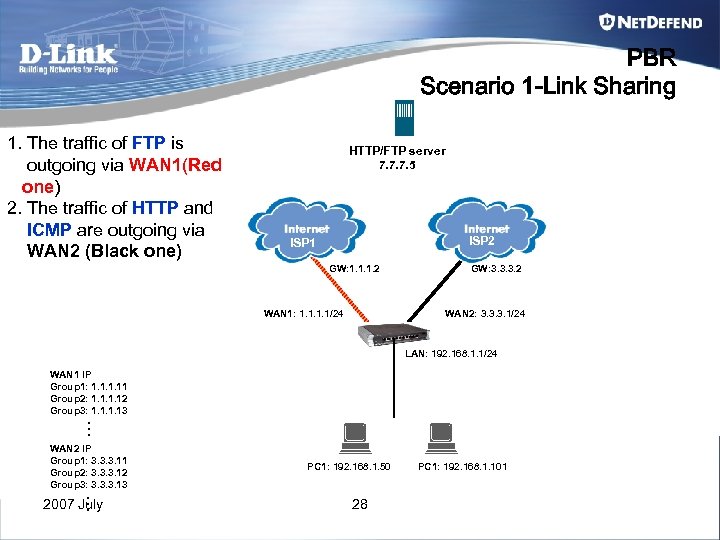 PBR Scenario 1 -Link Sharing 1. The traffic of FTP is outgoing via WAN 1(Red one) 2. The traffic of HTTP and ICMP are outgoing via WAN 2 (Black one) HTTP/FTP server 7. 7. 7. 5 ISP 2 ISP 1 GW: 1. 1. 1. 2 WAN 1: 1. 1/24 GW: 3. 3. 3. 2 WAN 2: 3. 3. 3. 1/24 LAN: 192. 168. 1. 1/24 WAN 1 IP Group 1: 1. 11 Group 2: 1. 12 Group 3: 1. 13 … WAN 2 IP Group 1: 3. 3. 3. 11 Group 2: 3. 3. 3. 12 Group 3: 3. 3. 3. 13 … 2007 July PC 1: 192. 168. 1. 50 28 PC 1: 192. 168. 1. 101
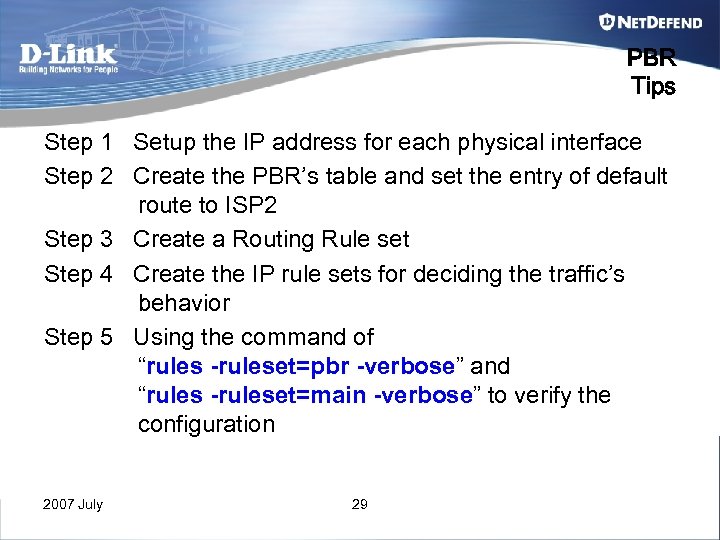 PBR Tips Step 1 Setup the IP address for each physical interface Step 2 Create the PBR’s table and set the entry of default route to ISP 2 Step 3 Create a Routing Rule set Step 4 Create the IP rule sets for deciding the traffic’s behavior Step 5 Using the command of “rules -ruleset=pbr -verbose” and “rules -ruleset=main -verbose” to verify the configuration 2007 July 29
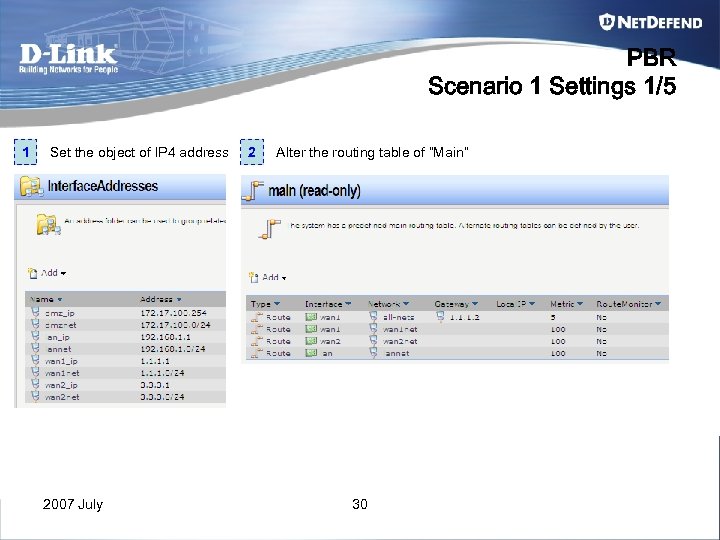 PBR Scenario 1 Settings 1/5 1 Set the object of IP 4 address 2007 July 2 Alter the routing table of “Main” 30
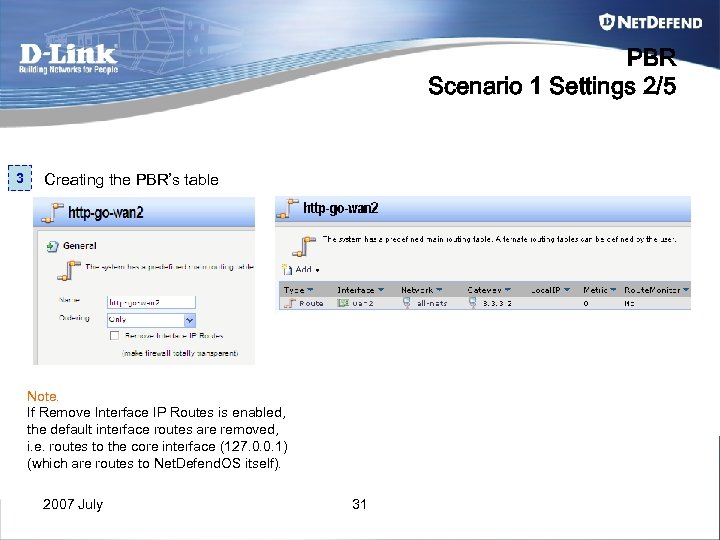 PBR Scenario 1 Settings 2/5 3 Creating the PBR’s table Note. If Remove Interface IP Routes is enabled, the default interface routes are removed, i. e. routes to the core interface (127. 0. 0. 1) (which are routes to Net. Defend. OS itself). 2007 July 31
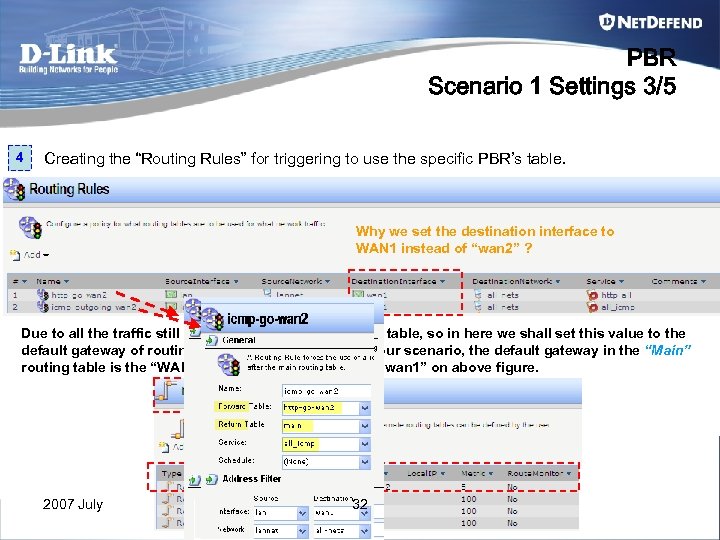 PBR Scenario 1 Settings 3/5 4 Creating the “Routing Rules” for triggering to use the specific PBR’s table. Why we set the destination interface to WAN 1 instead of “wan 2” ? Due to all the traffic still will lookup the “Main” routing table, so in here we shall set this value to the default gateway of routing table of “Main”. Based on our scenario, the default gateway in the “Main” routing table is the “WAN 1” interface, so we shall set “wan 1” on above figure. 2007 July 32
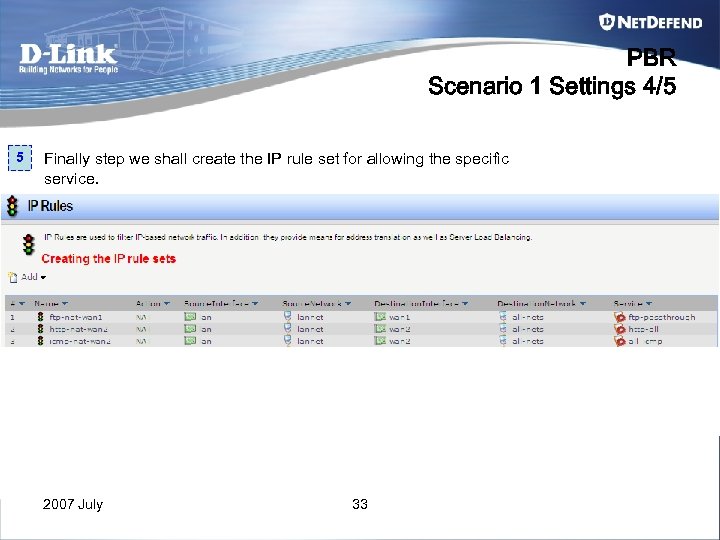 PBR Scenario 1 Settings 4/5 5 Finally step we shall create the IP rule set for allowing the specific service. 2007 July 33
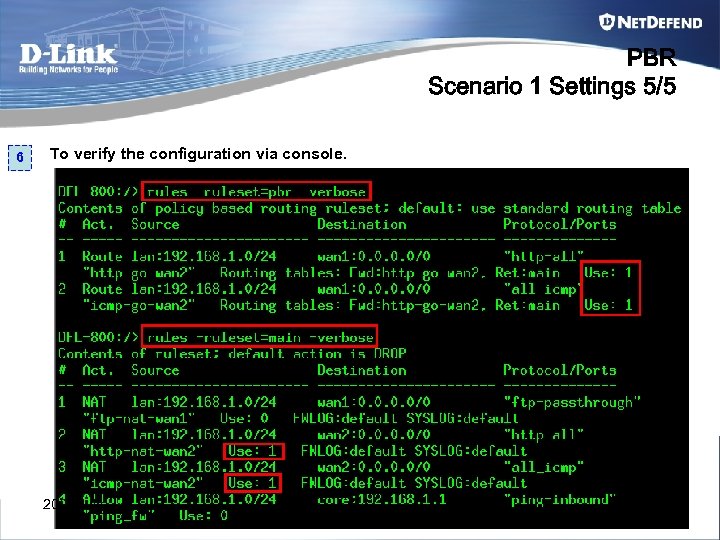 PBR Scenario 1 Settings 5/5 6 To verify the configuration via console. 2007 July 34
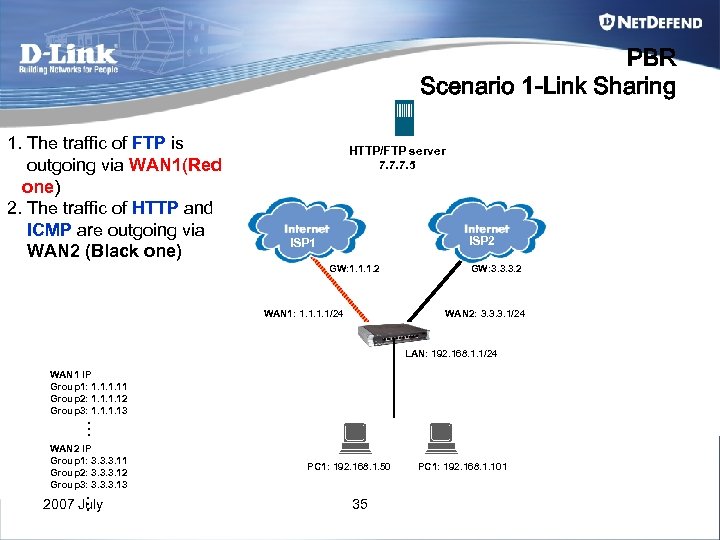 PBR Scenario 1 -Link Sharing 1. The traffic of FTP is outgoing via WAN 1(Red one) 2. The traffic of HTTP and ICMP are outgoing via WAN 2 (Black one) HTTP/FTP server 7. 7. 7. 5 ISP 2 ISP 1 GW: 1. 1. 1. 2 WAN 1: 1. 1/24 GW: 3. 3. 3. 2 WAN 2: 3. 3. 3. 1/24 LAN: 192. 168. 1. 1/24 WAN 1 IP Group 1: 1. 11 Group 2: 1. 12 Group 3: 1. 13 … WAN 2 IP Group 1: 3. 3. 3. 11 Group 2: 3. 3. 3. 12 Group 3: 3. 3. 3. 13 … 2007 July PC 1: 192. 168. 1. 50 35 PC 1: 192. 168. 1. 101
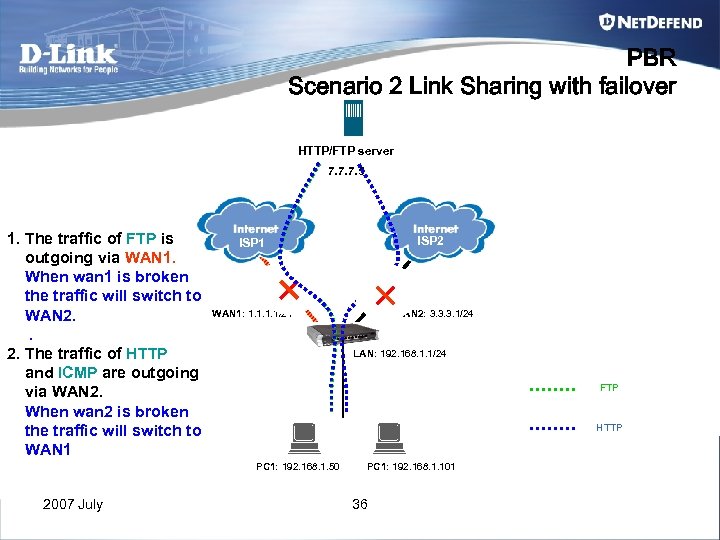 PBR Scenario 2 Link Sharing with failover HTTP/FTP server 7. 7. 7. 5 1. The traffic of FTP is outgoing via WAN 1. When wan 1 is broken the traffic will switch to WAN 2. The traffic of HTTP and ICMP are outgoing via WAN 2. When wan 2 is broken the traffic will switch to WAN 1: 1. 1/24 WAN 2: 3. 3. 3. 1/24 LAN: 192. 168. 1. 1/24 FTP HTTP PC 1: 192. 168. 1. 50 2007 July ISP 2 ISP 1 PC 1: 192. 168. 1. 101 36
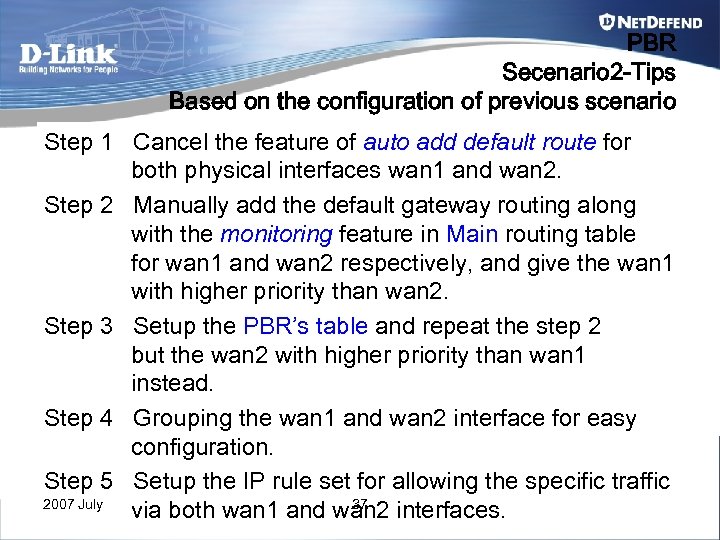 PBR Secenario 2 -Tips Based on the configuration of previous scenario Step 1 Cancel the feature of auto add default route for both physical interfaces wan 1 and wan 2. Step 2 Manually add the default gateway routing along with the monitoring feature in Main routing table for wan 1 and wan 2 respectively, and give the wan 1 with higher priority than wan 2. Step 3 Setup the PBR’s table and repeat the step 2 but the wan 2 with higher priority than wan 1 instead. Step 4 Grouping the wan 1 and wan 2 interface for easy configuration. Step 5 Setup the IP rule set for allowing the specific traffic 2007 July 37 via both wan 1 and wan 2 interfaces.
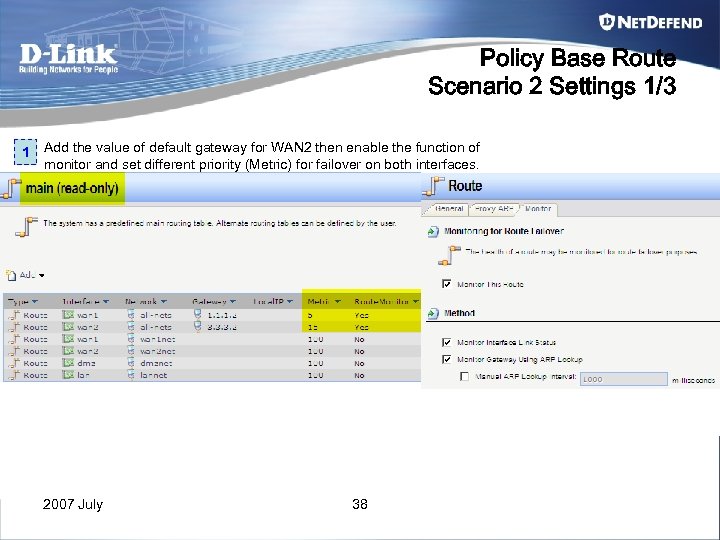 Policy Base Route Scenario 2 Settings 1/3 1 Add the value of default gateway for WAN 2 then enable the function of monitor and set different priority (Metric) for failover on both interfaces. 2007 July 38
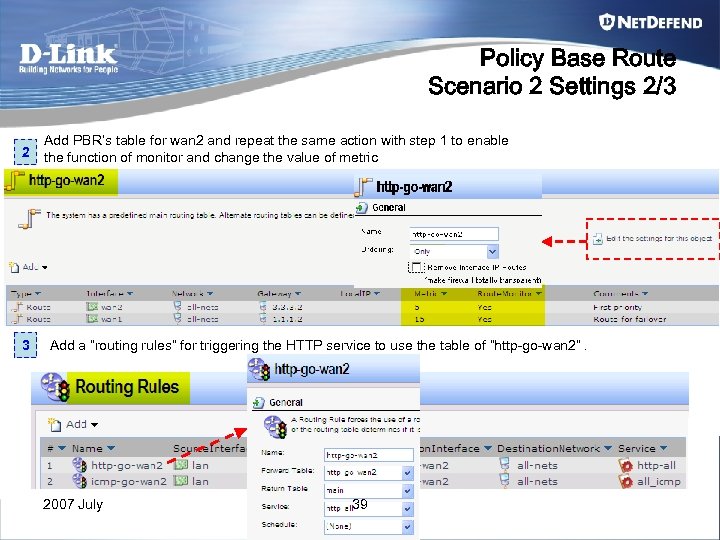 Policy Base Route Scenario 2 Settings 2/3 2 3 Add PBR’s table for wan 2 and repeat the same action with step 1 to enable the function of monitor and change the value of metric Add a “routing rules” for triggering the HTTP service to use the table of “http-go-wan 2”. 2007 July 39
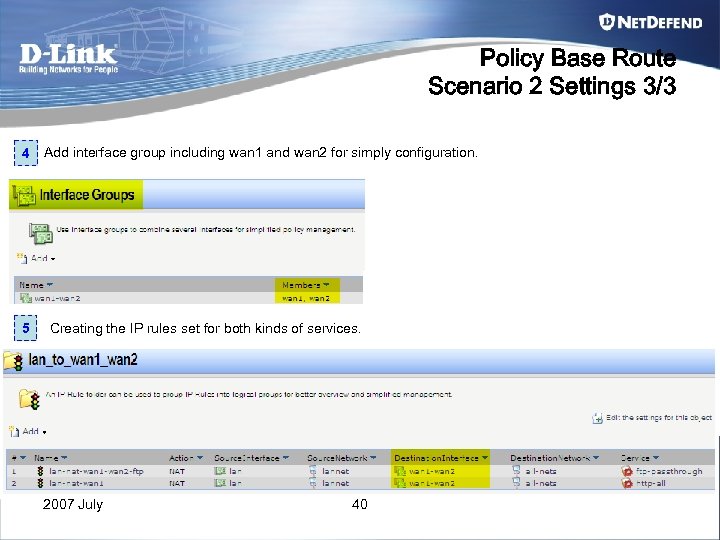 Policy Base Route Scenario 2 Settings 3/3 4 Add interface group including wan 1 and wan 2 for simply configuration. 5 Creating the IP rules set for both kinds of services. 2007 July 40
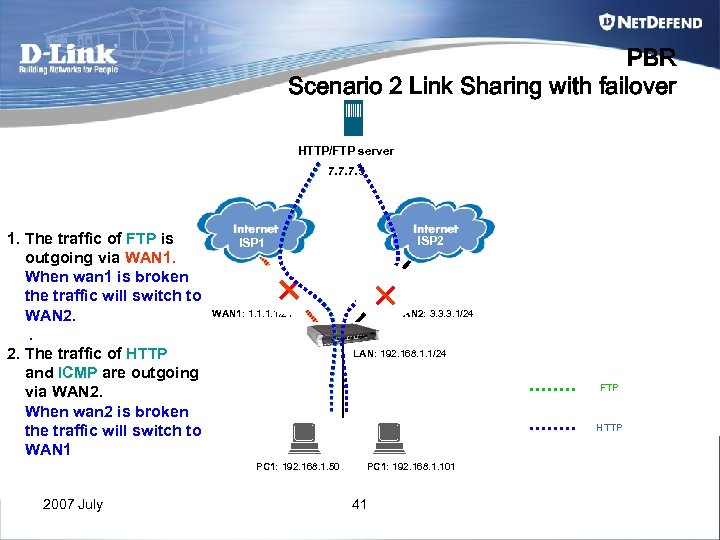 PBR Scenario 2 Link Sharing with failover HTTP/FTP server 7. 7. 7. 5 1. The traffic of FTP is outgoing via WAN 1. When wan 1 is broken the traffic will switch to WAN 2. The traffic of HTTP and ICMP are outgoing via WAN 2. When wan 2 is broken the traffic will switch to WAN 1: 1. 1/24 WAN 2: 3. 3. 3. 1/24 LAN: 192. 168. 1. 1/24 FTP HTTP PC 1: 192. 168. 1. 50 2007 July ISP 2 ISP 1 PC 1: 192. 168. 1. 101 41
 Chapter 4 NAT combine with Semi-Transparent mode (Proxy. Arp) 2007 July 42
 NAT combine with Semi-Transparent mode(Proxy. Arp) What is Proxy ARP l. Fools the sender of the ARP request into thinking that the router is the destination. l. The router is acting as a proxy agent for the destination, relaying packets to it from other hosts l. Proxy ARP is also known as promiscuous ARP or the ARP hack RFC 1027 - Using ARP to implement transparent subnet gateways 2007 July 43
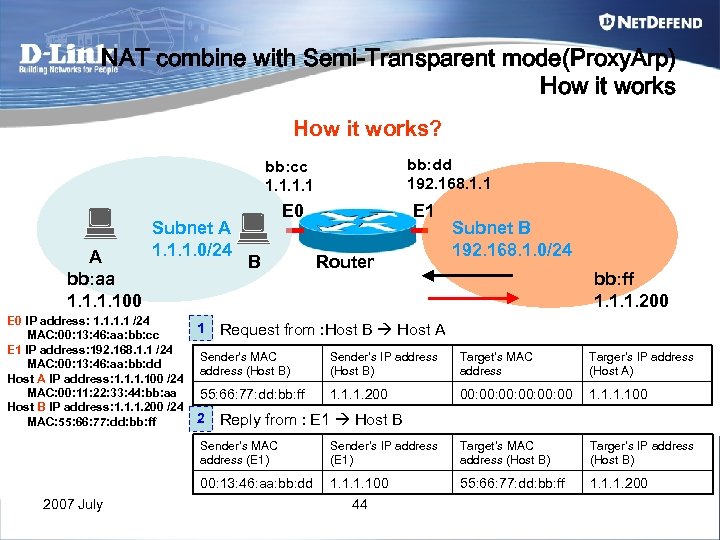 NAT combine with Semi-Transparent mode(Proxy. Arp) How it works? bb: dd 192. 168. 1. 1 bb: cc 1. 1 A bb: aa 1. 100 Subnet A 1. 1. 1. 0/24 E 0 IP address: 1. 1 /24 MAC: 00: 13: 46: aa: bb: cc E 1 IP address: 192. 168. 1. 1 /24 MAC: 00: 13: 46: aa: bb: dd Host A IP address: 1. 100 /24 MAC: 00: 11: 22: 33: 44: bb: aa Host B IP address: 1. 1. 1. 200 /24 MAC: 55: 66: 77: dd: bb: ff 1 E 0 B E 1 Router Subnet B 192. 168. 1. 0/24 bb: ff 1. 1. 1. 200 Request from : Host B Host A Sender’s MAC address (Host B) Sender’s IP address (Host B) Target’s MAC address Targer’s IP address (Host A) 55: 66: 77: dd: bb: ff 1. 1. 1. 200 00: 00: 00: 00 1. 100 2 Reply from : E 1 Host B Sender’s MAC address (E 1) Target’s MAC address (Host B) Targer’s IP address (Host B) 00: 13: 46: aa: bb: dd 2007 July Sender’s IP address (E 1) 1. 100 55: 66: 77: dd: bb: ff 1. 1. 1. 200 44
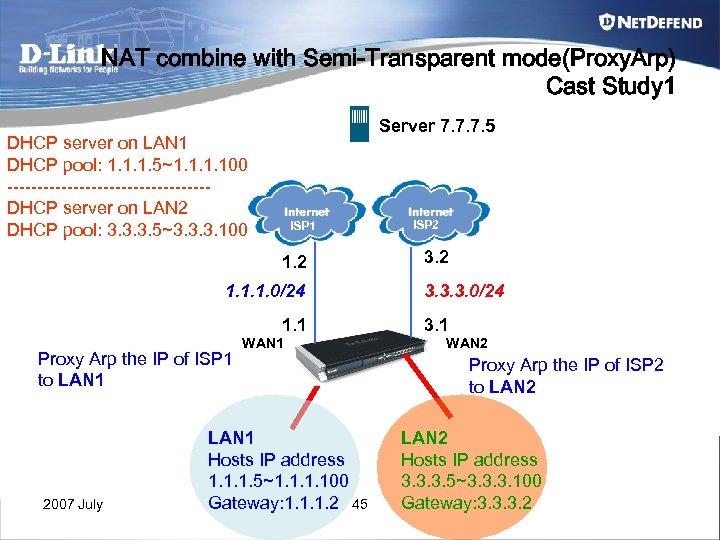 NAT combine with Semi-Transparent mode(Proxy. Arp) Cast Study 1 Server 7. 7. 7. 5 DHCP server on LAN 1 DHCP pool: 1. 1. 1. 5~1. 100 -----------------DHCP server on LAN 2 DHCP pool: 3. 3. 3. 5~3. 3. 3. 100 ISP 1 1. 2 1. 1. 1. 0/24 1. 1 Proxy Arp the IP of ISP 1 to LAN 1 2007 July WAN 1 LAN 1 Hosts IP address 1. 1. 1. 5~1. 100 Gateway: 1. 1. 1. 2 45 ISP 2 3. 3. 3. 0/24 3. 1 WAN 2 Proxy Arp the IP of ISP 2 to LAN 2 Hosts IP address 3. 3. 3. 5~3. 3. 3. 100 Gateway: 3. 3. 3. 2
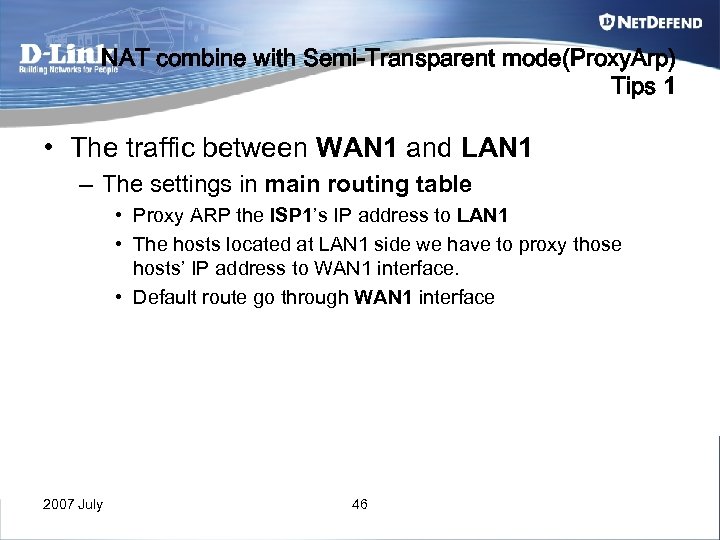 NAT combine with Semi-Transparent mode(Proxy. Arp) Tips 1 • The traffic between WAN 1 and LAN 1 – The settings in main routing table • Proxy ARP the ISP 1’s IP address to LAN 1 • The hosts located at LAN 1 side we have to proxy those hosts’ IP address to WAN 1 interface. • Default route go through WAN 1 interface 2007 July 46
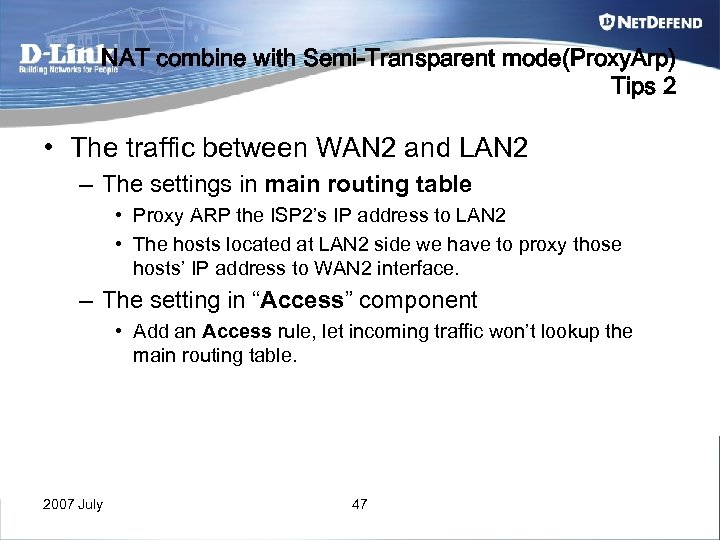 NAT combine with Semi-Transparent mode(Proxy. Arp) Tips 2 • The traffic between WAN 2 and LAN 2 – The settings in main routing table • Proxy ARP the ISP 2’s IP address to LAN 2 • The hosts located at LAN 2 side we have to proxy those hosts’ IP address to WAN 2 interface. – The setting in “Access” component • Add an Access rule, let incoming traffic won’t lookup the main routing table. 2007 July 47
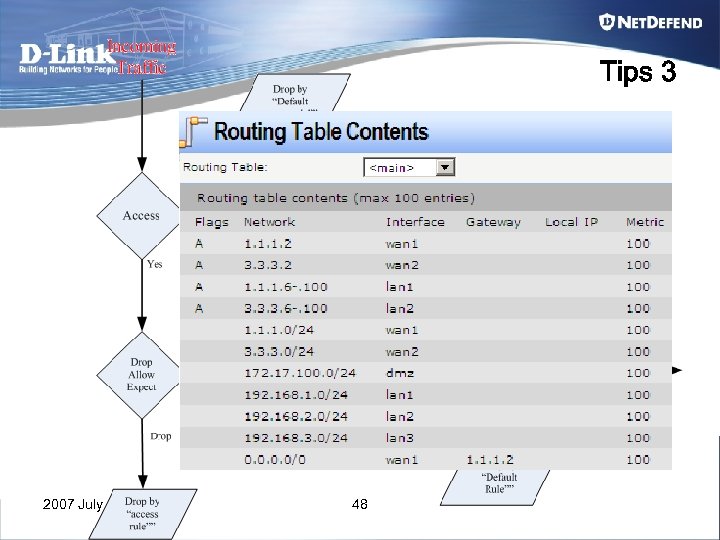 Tips 3 2007 July 48
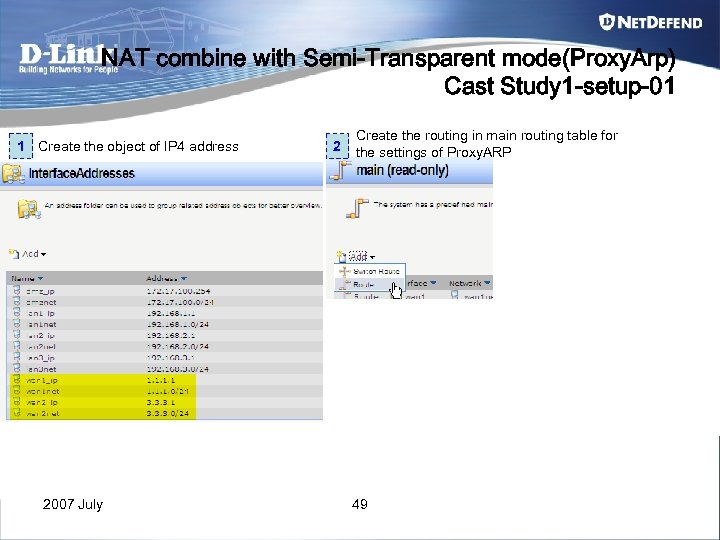 NAT combine with Semi-Transparent mode(Proxy. Arp) Cast Study 1 -setup-01 1 Create the object of IP 4 address 2007 July 2 Create the routing in main routing table for the settings of Proxy. ARP 49
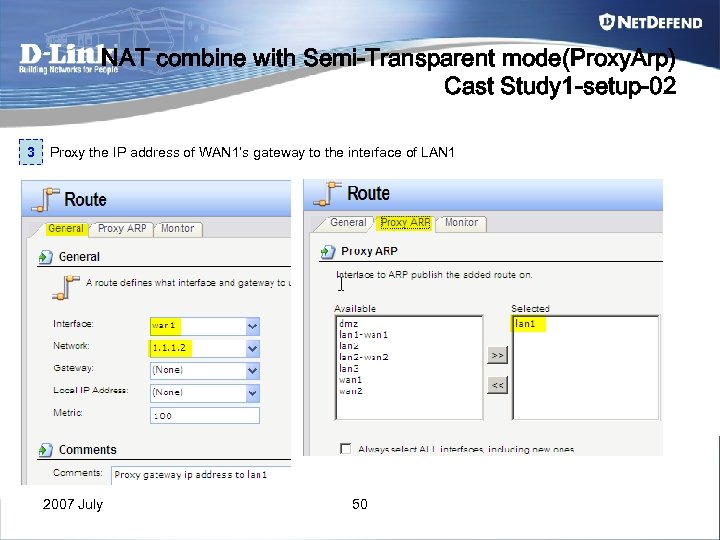 NAT combine with Semi-Transparent mode(Proxy. Arp) Cast Study 1 -setup-02 3 Proxy the IP address of WAN 1’s gateway to the interface of LAN 1 2007 July 50
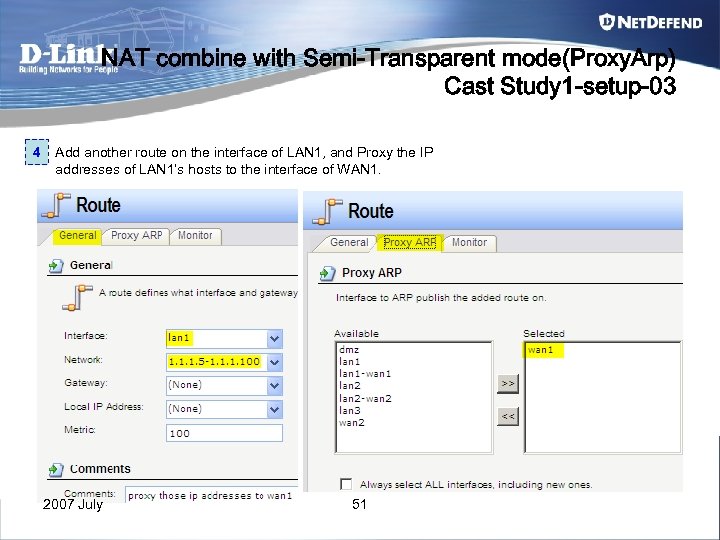 NAT combine with Semi-Transparent mode(Proxy. Arp) Cast Study 1 -setup-03 4 Add another route on the interface of LAN 1, and Proxy the IP addresses of LAN 1’s hosts to the interface of WAN 1. 2007 July 51
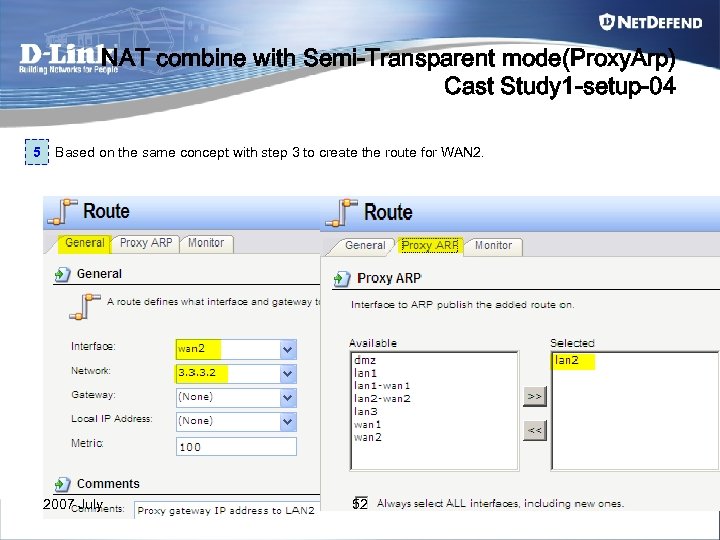 NAT combine with Semi-Transparent mode(Proxy. Arp) Cast Study 1 -setup-04 5 Based on the same concept with step 3 to create the route for WAN 2. 2007 July 52
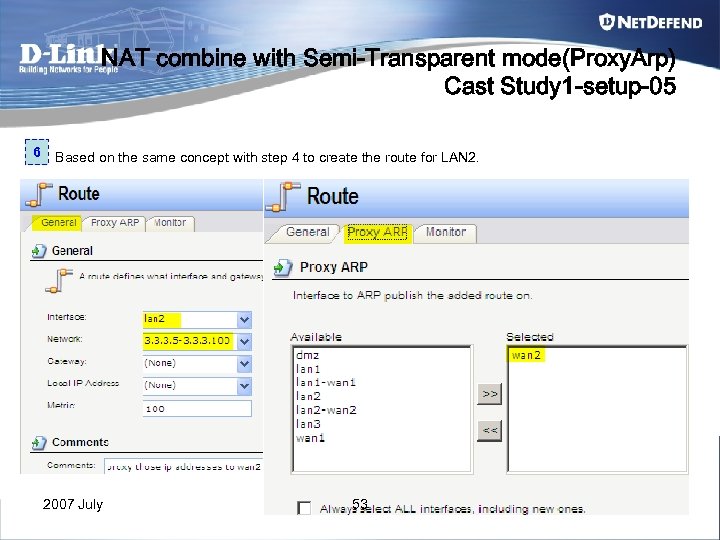 NAT combine with Semi-Transparent mode(Proxy. Arp) Cast Study 1 -setup-05 6 Based on the same concept with step 4 to create the route for LAN 2. 2007 July 53
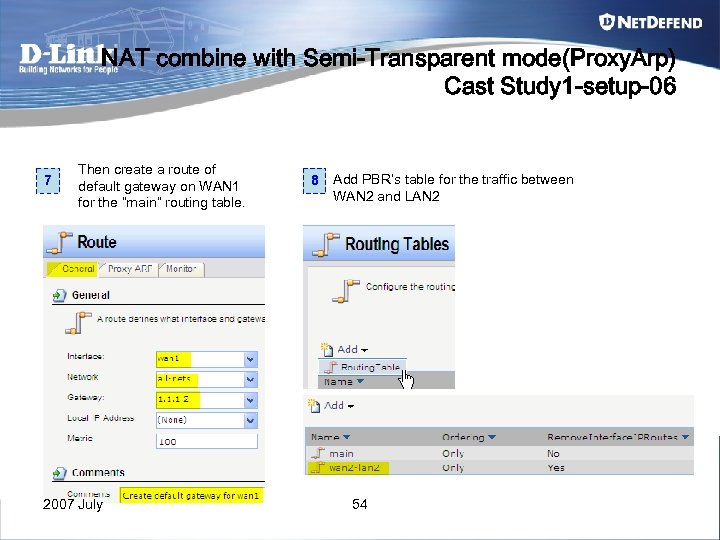 NAT combine with Semi-Transparent mode(Proxy. Arp) Cast Study 1 -setup-06 7 Then create a route of default gateway on WAN 1 for the “main” routing table. 2007 July 8 Add PBR’s table for the traffic between WAN 2 and LAN 2 54
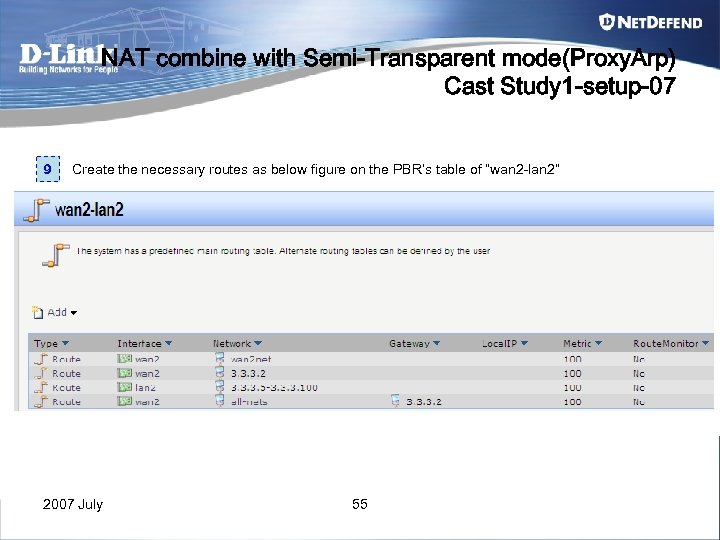 NAT combine with Semi-Transparent mode(Proxy. Arp) Cast Study 1 -setup-07 9 Create the necessary routes as below figure on the PBR’s table of “wan 2 -lan 2” 2007 July 55
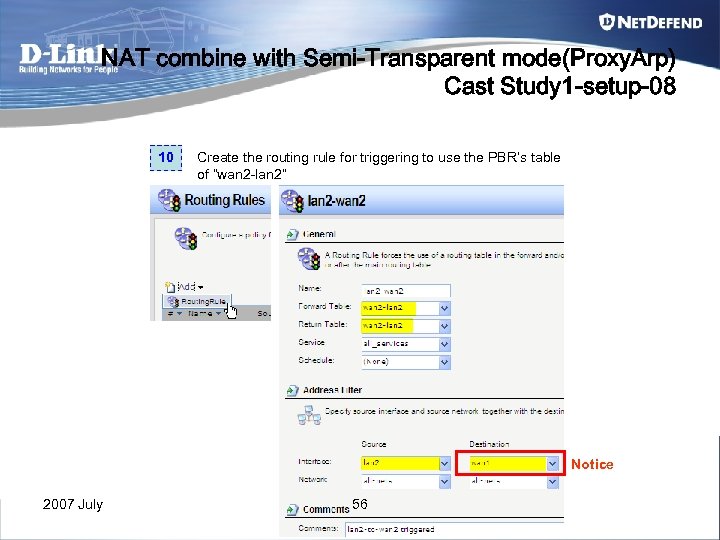 NAT combine with Semi-Transparent mode(Proxy. Arp) Cast Study 1 -setup-08 10 Create the routing rule for triggering to use the PBR’s table of “wan 2 -lan 2” Notice 2007 July 56
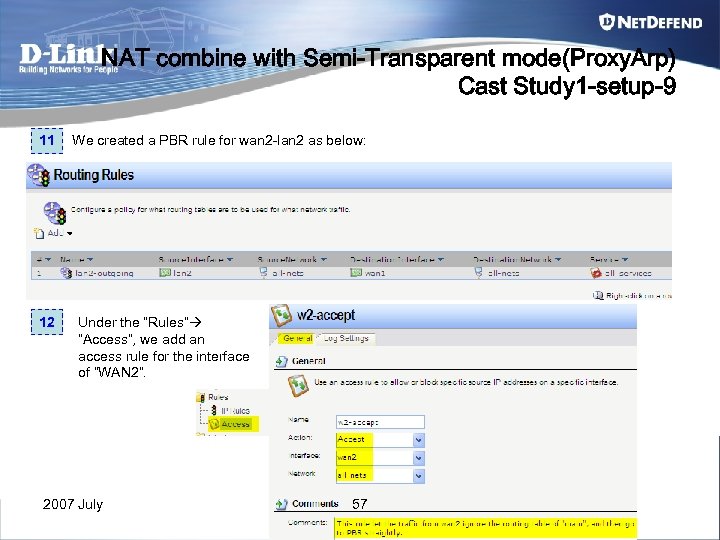 NAT combine with Semi-Transparent mode(Proxy. Arp) Cast Study 1 -setup-9 11 12 We created a PBR rule for wan 2 -lan 2 as below: Under the “Rules” ”Access”, we add an access rule for the interface of “WAN 2”. 2007 July 57
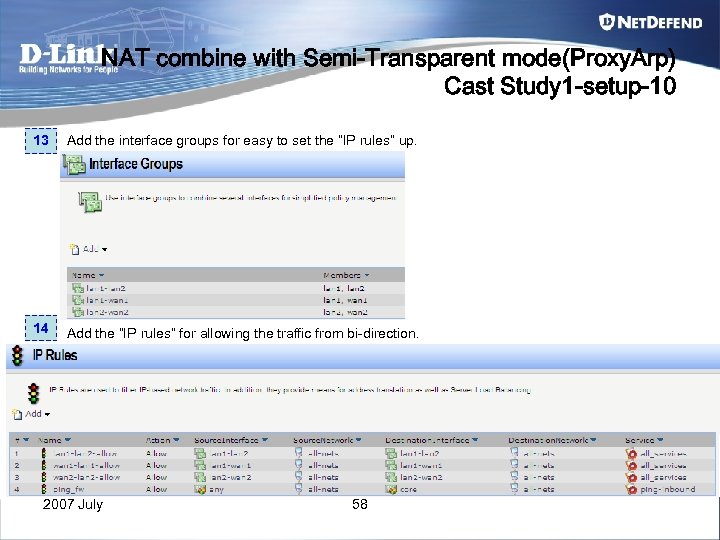 NAT combine with Semi-Transparent mode(Proxy. Arp) Cast Study 1 -setup-10 13 Add the interface groups for easy to set the “IP rules” up. 14 Add the “IP rules” for allowing the traffic from bi-direction. 2007 July 58
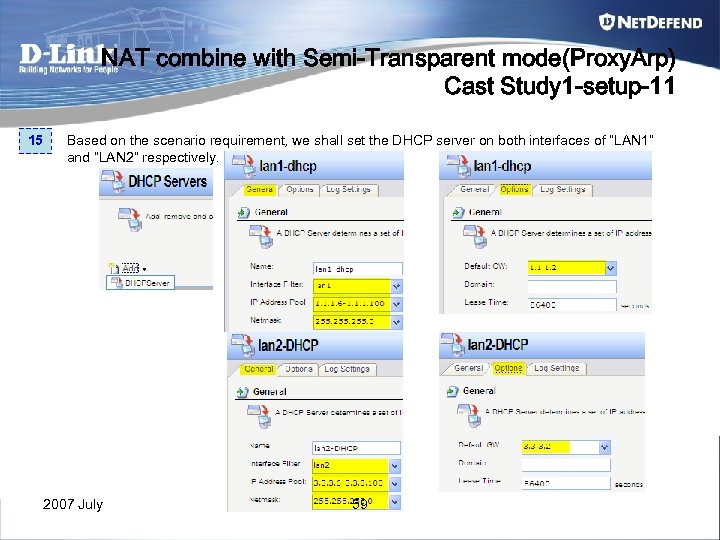 NAT combine with Semi-Transparent mode(Proxy. Arp) Cast Study 1 -setup-11 15 Based on the scenario requirement, we shall set the DHCP server on both interfaces of “LAN 1” and “LAN 2” respectively. 2007 July 59
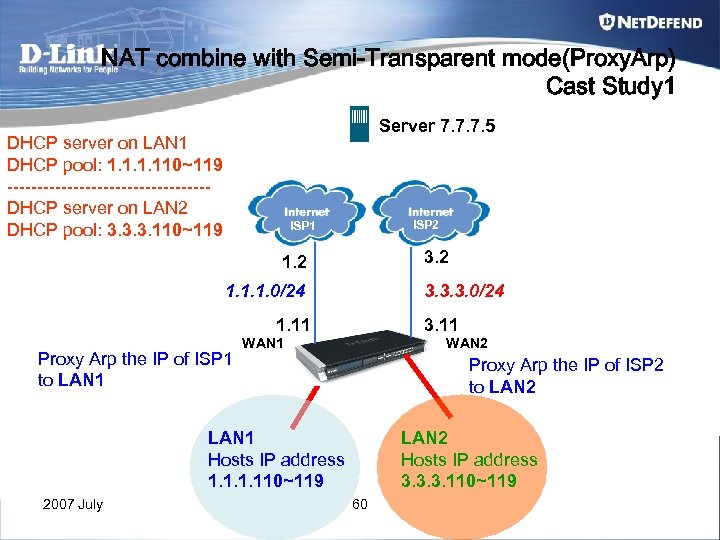 NAT combine with Semi-Transparent mode(Proxy. Arp) Cast Study 1 Server 7. 7. 7. 5 DHCP server on LAN 1 DHCP pool: 1. 110~119 -----------------DHCP server on LAN 2 DHCP pool: 3. 3. 3. 110~119 ISP 2 ISP 1 3. 2 1. 1. 1. 0/24 3. 3. 3. 0/24 1. 11 Proxy Arp the IP of ISP 1 to LAN 1 3. 11 WAN 2 Proxy Arp the IP of ISP 2 to LAN 2 LAN 1 Hosts IP address 1. 110~119 2007 July LAN 2 Hosts IP address 3. 3. 3. 110~119 60
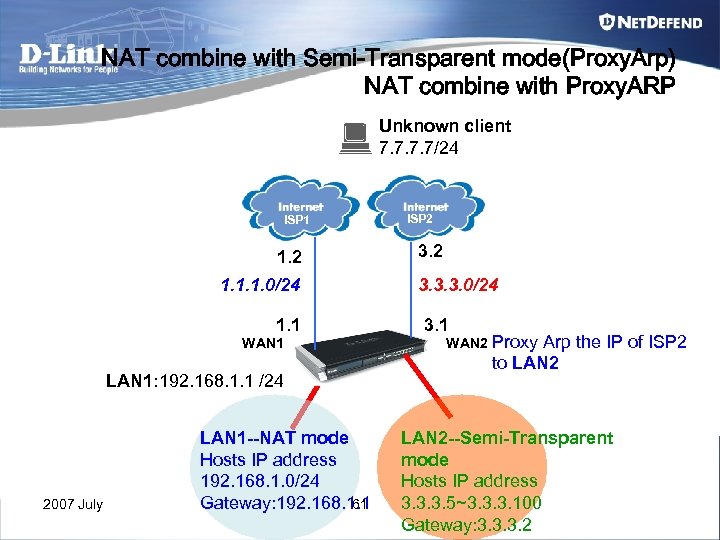 NAT combine with Semi-Transparent mode(Proxy. Arp) NAT combine with Proxy. ARP Unknown client 7. 7/24 ISP 1 1. 2 1. 1. 1. 0/24 1. 1 WAN 1 LAN 1: 192. 168. 1. 1 /24 2007 July LAN 1 --NAT mode Hosts IP address 192. 168. 1. 0/24 61 Gateway: 192. 168. 1. 1 ISP 2 3. 3. 3. 0/24 3. 1 WAN 2 Proxy Arp the IP of ISP 2 to LAN 2 --Semi-Transparent mode Hosts IP address 3. 3. 3. 5~3. 3. 3. 100 Gateway: 3. 3. 3. 2
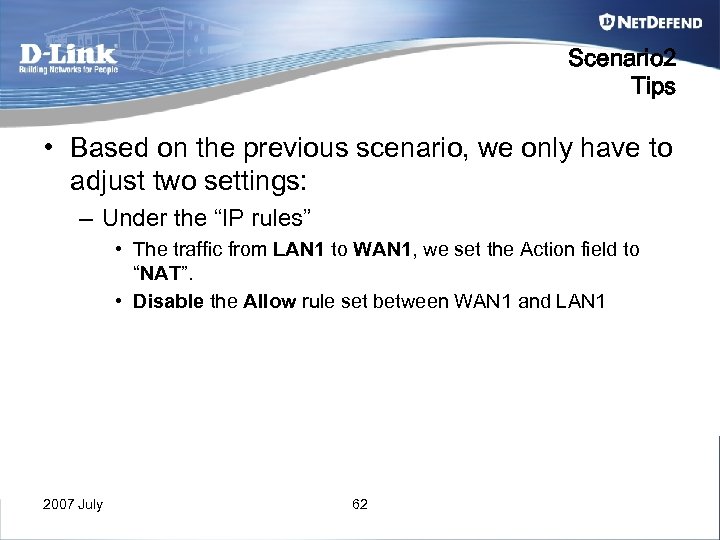 Scenario 2 Tips • Based on the previous scenario, we only have to adjust two settings: – Under the “IP rules” • The traffic from LAN 1 to WAN 1, we set the Action field to “NAT”. • Disable the Allow rule set between WAN 1 and LAN 1 2007 July 62
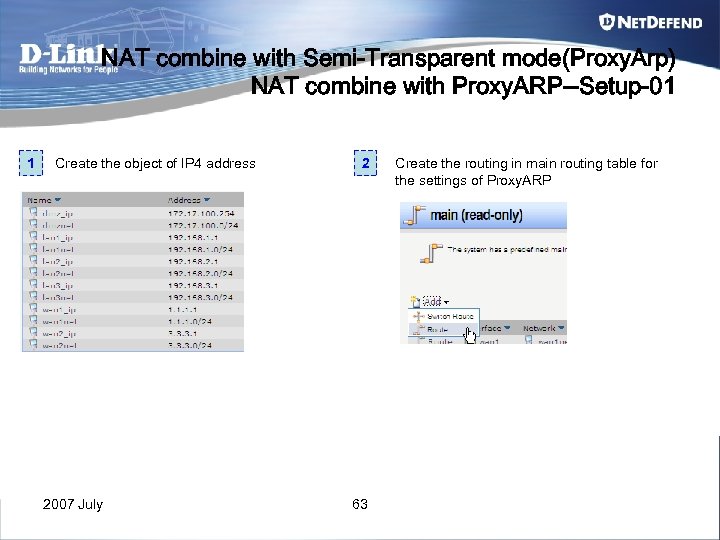 NAT combine with Semi-Transparent mode(Proxy. Arp) NAT combine with Proxy. ARP--Setup-01 1 Create the object of IP 4 address 2007 July 2 63 Create the routing in main routing table for the settings of Proxy. ARP
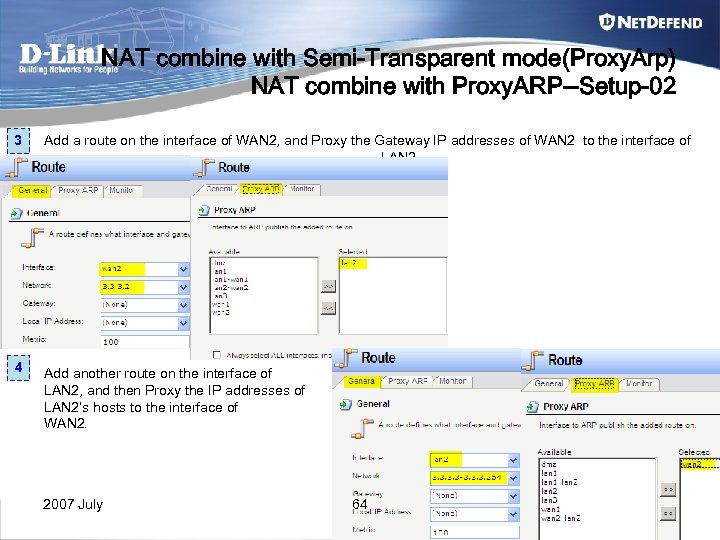 NAT combine with Semi-Transparent mode(Proxy. Arp) NAT combine with Proxy. ARP--Setup-02 3 Add a route on the interface of WAN 2, and Proxy the Gateway IP addresses of WAN 2 to the interface of LAN 2. 4 Add another route on the interface of LAN 2, and then Proxy the IP addresses of LAN 2’s hosts to the interface of WAN 2. 2007 July 64
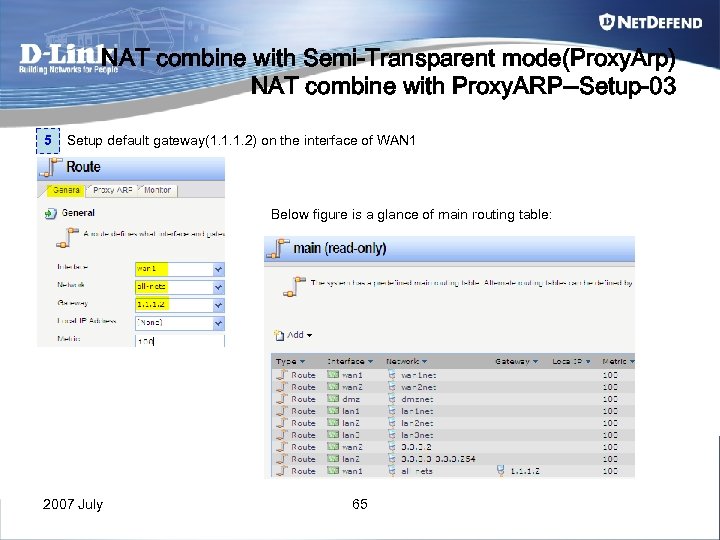 NAT combine with Semi-Transparent mode(Proxy. Arp) NAT combine with Proxy. ARP--Setup-03 5 Setup default gateway(1. 1. 1. 2) on the interface of WAN 1 Below figure is a glance of main routing table: 2007 July 65
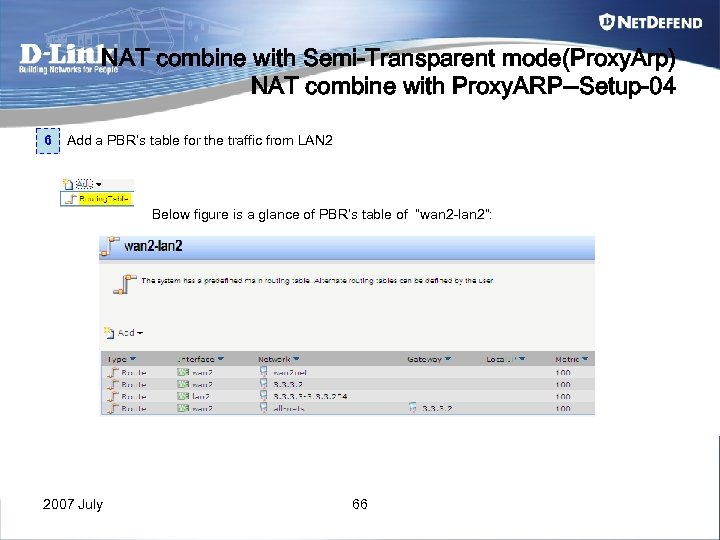 NAT combine with Semi-Transparent mode(Proxy. Arp) NAT combine with Proxy. ARP--Setup-04 6 Add a PBR’s table for the traffic from LAN 2 Below figure is a glance of PBR’s table of “wan 2 -lan 2”: 2007 July 66
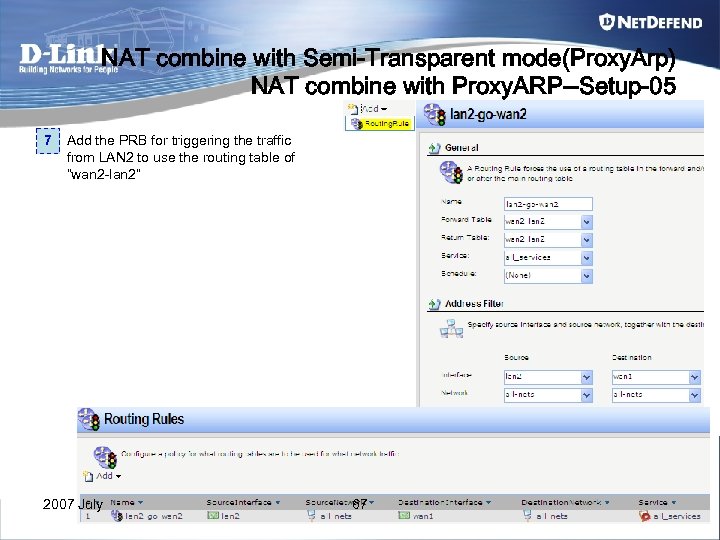 NAT combine with Semi-Transparent mode(Proxy. Arp) NAT combine with Proxy. ARP--Setup-05 7 Add the PRB for triggering the traffic from LAN 2 to use the routing table of “wan 2 -lan 2” 2007 July 67
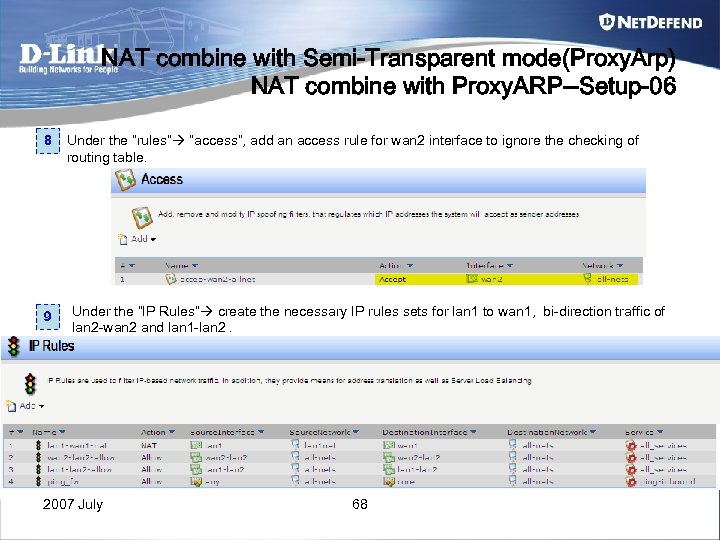 NAT combine with Semi-Transparent mode(Proxy. Arp) NAT combine with Proxy. ARP--Setup-06 8 9 Under the “rules” ”access”, add an access rule for wan 2 interface to ignore the checking of routing table. Under the “IP Rules” create the necessary IP rules sets for lan 1 to wan 1, bi-direction traffic of lan 2 -wan 2 and lan 1 -lan 2. 2007 July 68
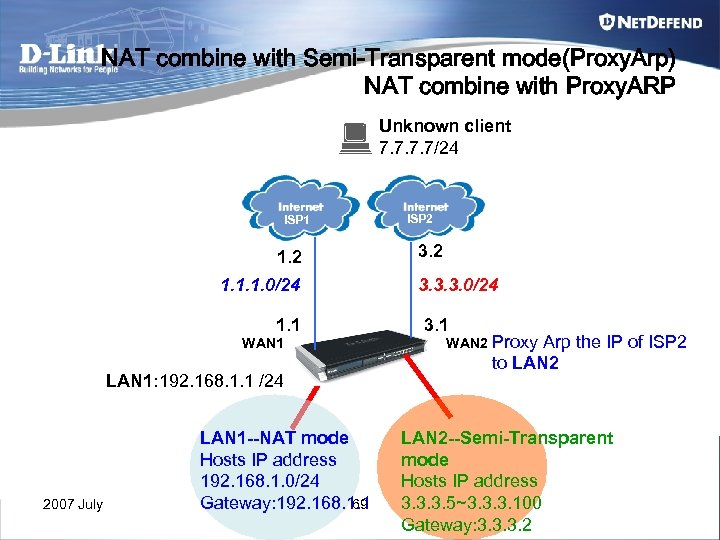 NAT combine with Semi-Transparent mode(Proxy. Arp) NAT combine with Proxy. ARP Unknown client 7. 7/24 ISP 1 1. 2 1. 1. 1. 0/24 1. 1 WAN 1 LAN 1: 192. 168. 1. 1 /24 2007 July LAN 1 --NAT mode Hosts IP address 192. 168. 1. 0/24 69 Gateway: 192. 168. 1. 1 ISP 2 3. 3. 3. 0/24 3. 1 WAN 2 Proxy Arp the IP of ISP 2 to LAN 2 --Semi-Transparent mode Hosts IP address 3. 3. 3. 5~3. 3. 3. 100 Gateway: 3. 3. 3. 2
 Chapter 5 Traffic Shaping 2007 July 70
 Traffic shaping Algorithm Two predominant methods for shaping traffic existing: 1. Token bucket Reference : http: //en. wikipedia. org/wiki/Token_bucket 2. Leaky bucket Reference : http: //en. wikipedia. org/wiki/Leaky_bucket 2007 July 71
 Traffic shaping Terminology Two major components and two sub-items in DFL’s traffic shaping: • Pipe object • Pipe. Rule – Traffic filter factor • Service (protocol) • Direction (the traffic from…to…) – Pipe Chain • First Pipe – (a kinds of statement for declaring the traffic’s precedence) • Following Pipe 2007 July – ( Assign the token for specific traffic) 72
 Traffic shaping Terminology • Pipe – Is an object for loading up all kinds of traffics. – We can limit the total bandwidth or dynamic balancing bandwidth for First Pipe and Following Pipe respectively. 2007 July 73
 Traffic shaping Terminology • Pipe. Rule – Traffic filter factor • Set up the specific traffic which you want to control. – Pipe Chain • Assign the role to Pipe (First / Following)for bi-direction (Forward chain, Return chain) traffic. • Declare the precedence of First pipe by following way: – Use the default from first pipe – Fixed precedence (0~7) – Use IP DSCP (TOS) • Assign the traffic’s token by Following pipe. 2007 July 74
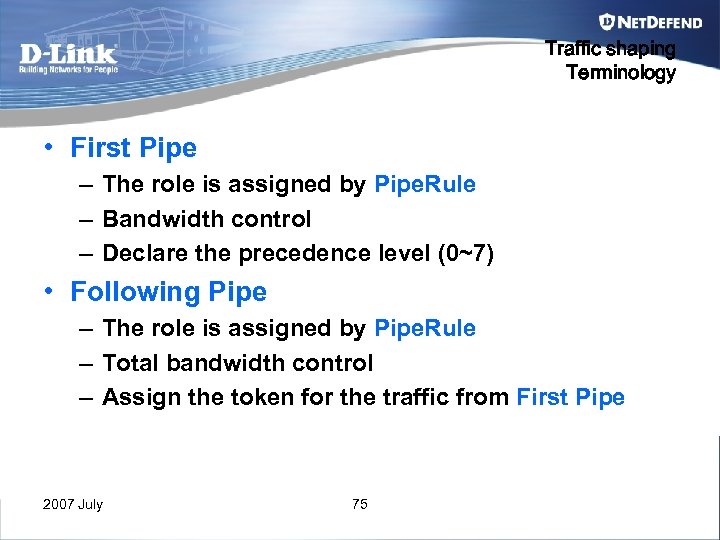 Traffic shaping Terminology • First Pipe – The role is assigned by Pipe. Rule – Bandwidth control – Declare the precedence level (0~7) • Following Pipe – The role is assigned by Pipe. Rule – Total bandwidth control – Assign the token for the traffic from First Pipe 2007 July 75
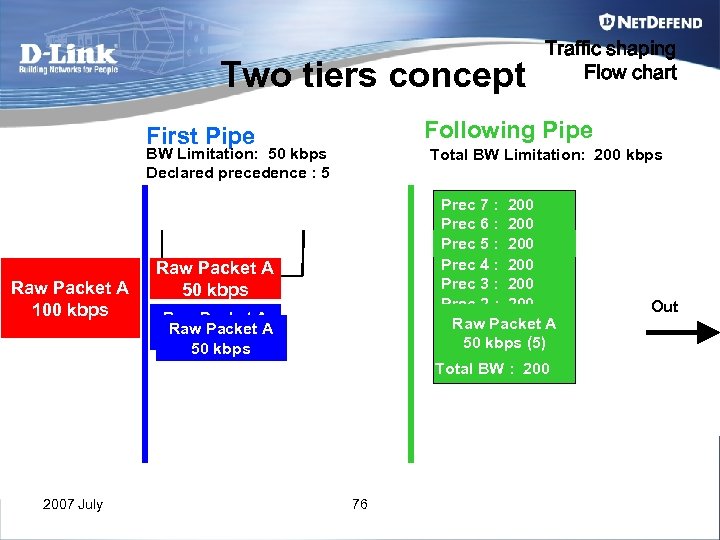 Two tiers concept Following Pipe First Pipe BW Limitation: 50 kbps Declared precedence : 5 Raw Packet A 100 kbps Traffic shaping Flow chart Total BW Limitation: 200 kbps Prec 7 : 200 Prec 6 : 200 Prec 5 : 200 150 100 Prec 4 : 200 Prec 3 : 200 Prec 2 : 200 Raw Packet A Prec 1 Packet A Raw : 200 50 kbps (5) Prec 0 : 200 Raw Packet A 50 Buffer kbps Raw Packet A 50 kbps Total BW : 2007 July 76 Out
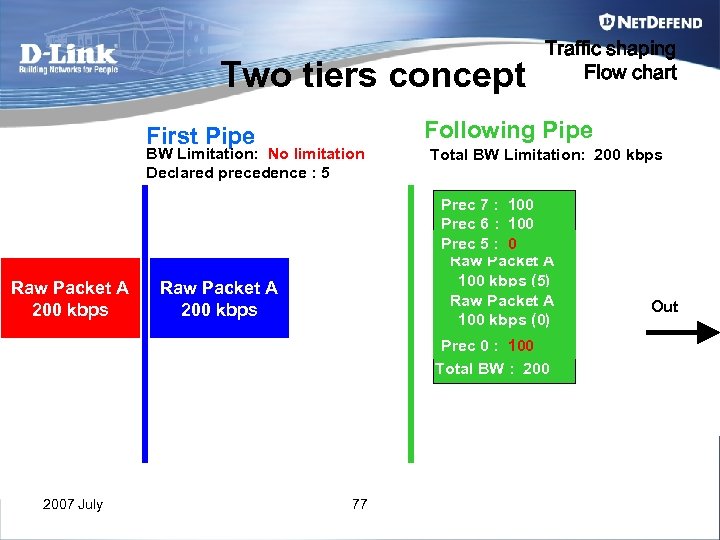 Two tiers concept Following Pipe First Pipe BW Limitation: No limitation Declared precedence : 5 Raw Packet A 200 kbps 2007 July Traffic shaping Flow chart Total BW Limitation: 200 kbps Prec 7 : 100 Prec 6 : 100 Prec 5 : 100 0 Raw : 100 Prec 4 Packet A 100 : 100 Prec 3 kbps (5) Raw : 100 Prec 2 Packet A 100 : 100 Prec 1 kbps (0) Prec 0 : 200 100 Total BW : 200 Raw Packet A 200 kbps 77 Out
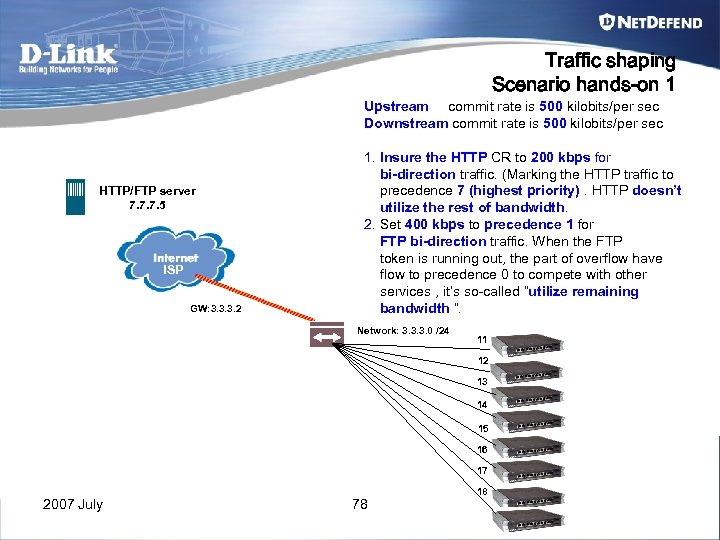 Traffic shaping Scenario hands-on 1 Upstream commit rate is 500 kilobits/per sec Downstream commit rate is 500 kilobits/per sec HTTP/FTP server 7. 7. 7. 5 ISP GW: 3. 3. 3. 2 1. Insure the HTTP CR to 200 kbps for bi-direction traffic. (Marking the HTTP traffic to precedence 7 (highest priority). HTTP doesn’t utilize the rest of bandwidth. 2. Set 400 kbps to precedence 1 for FTP bi-direction traffic. When the FTP token is running out, the part of overflow have flow to precedence 0 to compete with other services , it’s so-called “utilize remaining bandwidth ”. Network: 3. 3. 3. 0 /24 11 12 13 14 15 16 17 2007 July 78 18
 Traffic shaping Tips 1 Step 1 Create the “IP rule” set for specific service you want to control, and then make sure this rule set will be first triggered in all of the IP rules Step 2 Create the Pipe objects for containing each kinds of traffic. Step 3 Create the same rule set we created before in Step 1 under the pipe rule. Step 4 In the tab of traffic shaping, select the desired pipe object respectively for both forward sessions and return sessions along with the chain concept, and then announce the precedence by “Use defaults from first pipe”, “Use Fixed Precedence” or “Map IP DSCP (To. S)” for first pipe object of return chain or forward chain. Step 5 Make sure whether the specific pipe rule will be first triggered in all of the pipe rules. 2007 July 79
 Traffic shaping Tips 2 2007 July 80
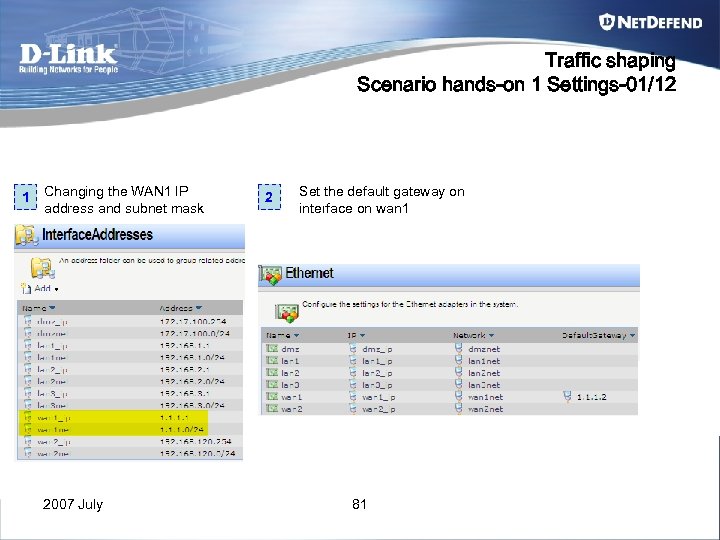 Traffic shaping Scenario hands-on 1 Settings-01/12 1 Changing the WAN 1 IP address and subnet mask 2007 July 2 Set the default gateway on interface on wan 1 81
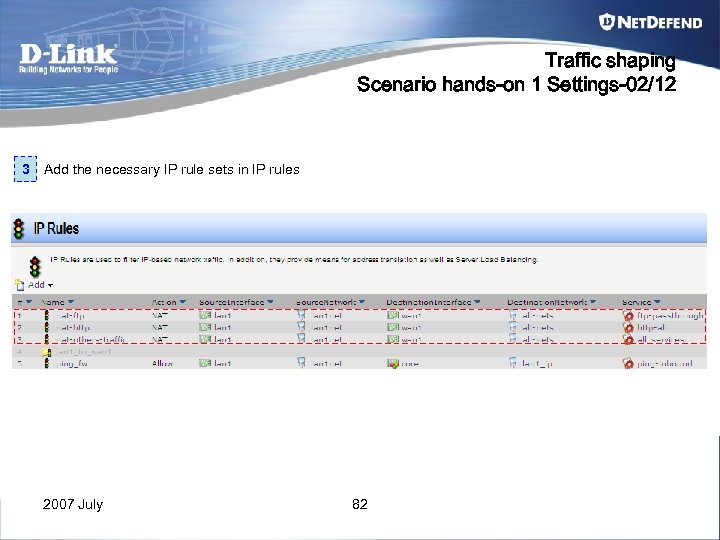 Traffic shaping Scenario hands-on 1 Settings-02/12 3 Add the necessary IP rule sets in IP rules 2007 July 82
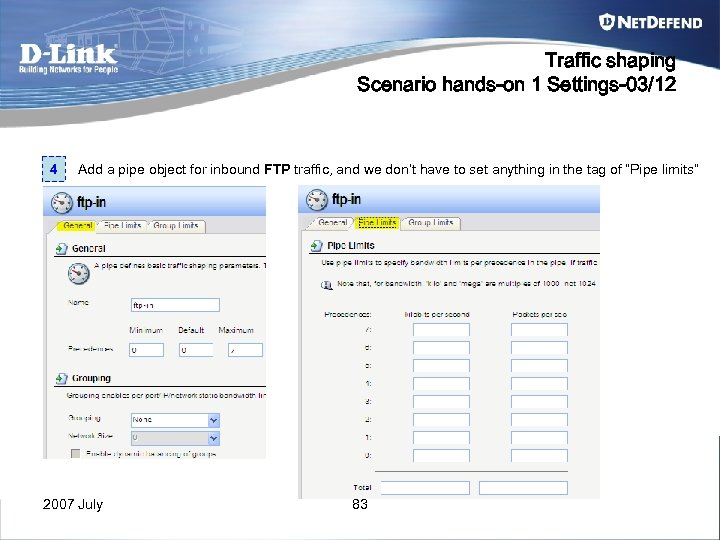 Traffic shaping Scenario hands-on 1 Settings-03/12 4 Add a pipe object for inbound FTP traffic, and we don’t have to set anything in the tag of “Pipe limits” 2007 July 83
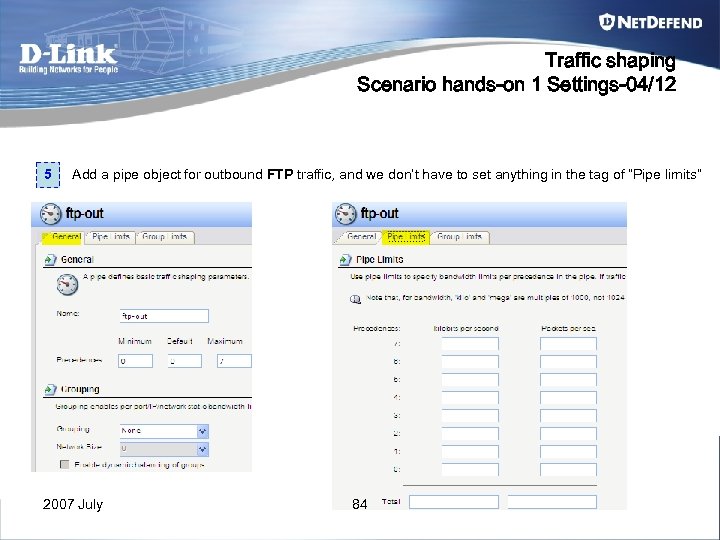 Traffic shaping Scenario hands-on 1 Settings-04/12 5 Add a pipe object for outbound FTP traffic, and we don’t have to set anything in the tag of “Pipe limits” 2007 July 84
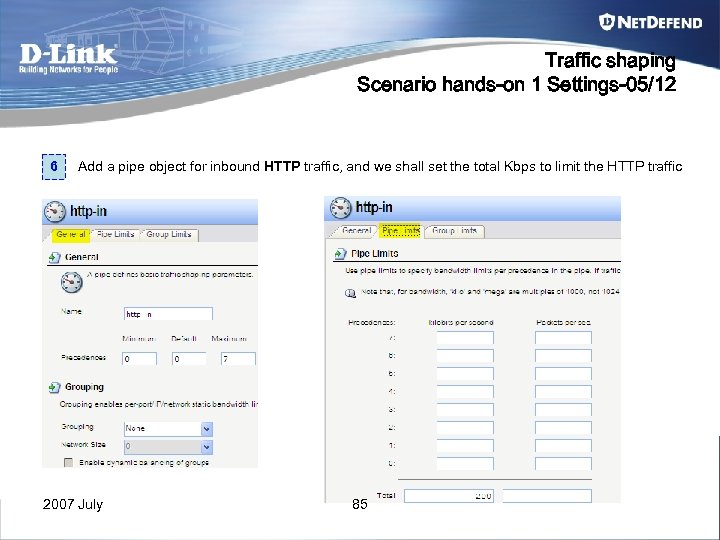 Traffic shaping Scenario hands-on 1 Settings-05/12 6 Add a pipe object for inbound HTTP traffic, and we shall set the total Kbps to limit the HTTP traffic 2007 July 85
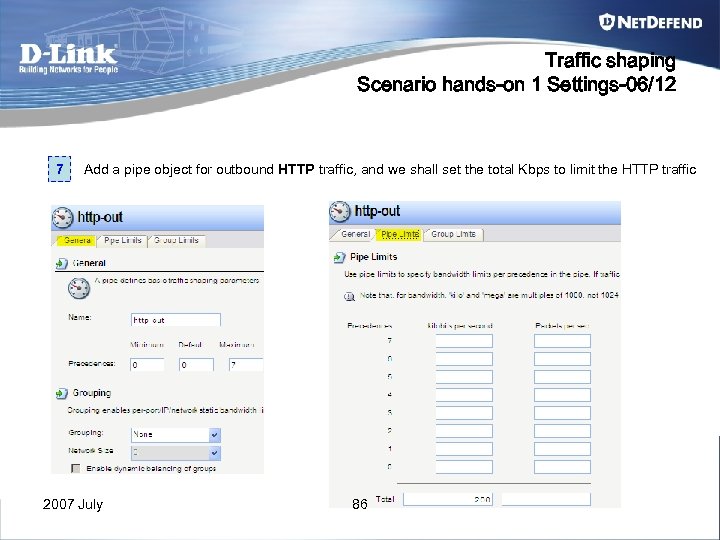 Traffic shaping Scenario hands-on 1 Settings-06/12 7 Add a pipe object for outbound HTTP traffic, and we shall set the total Kbps to limit the HTTP traffic 2007 July 86
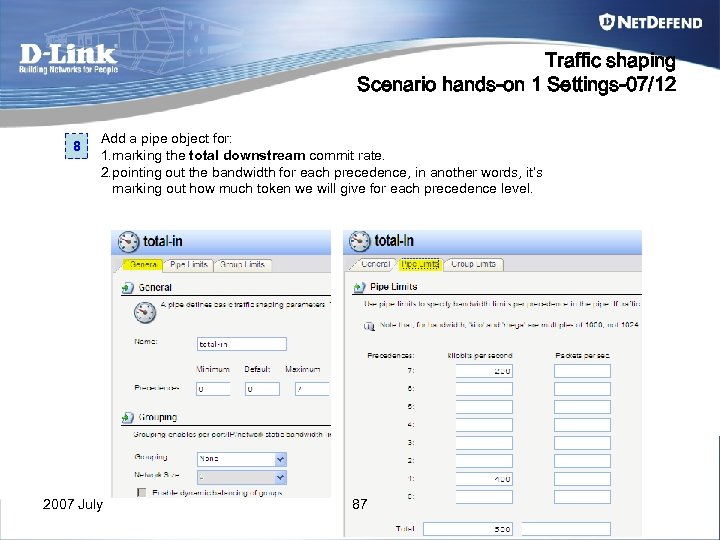 Traffic shaping Scenario hands-on 1 Settings-07/12 8 Add a pipe object for: 1. marking the total downstream commit rate. 2. pointing out the bandwidth for each precedence, in another words, it’s marking out how much token we will give for each precedence level. 2007 July 87
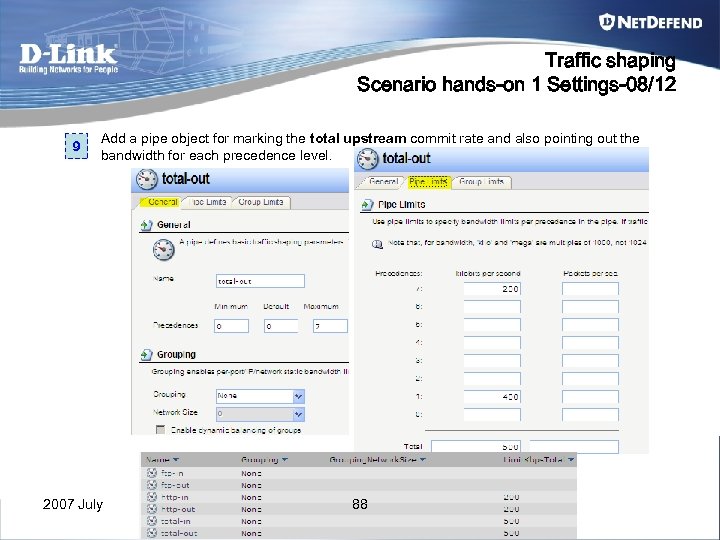 Traffic shaping Scenario hands-on 1 Settings-08/12 9 Add a pipe object for marking the total upstream commit rate and also pointing out the bandwidth for each precedence level. 2007 July 88
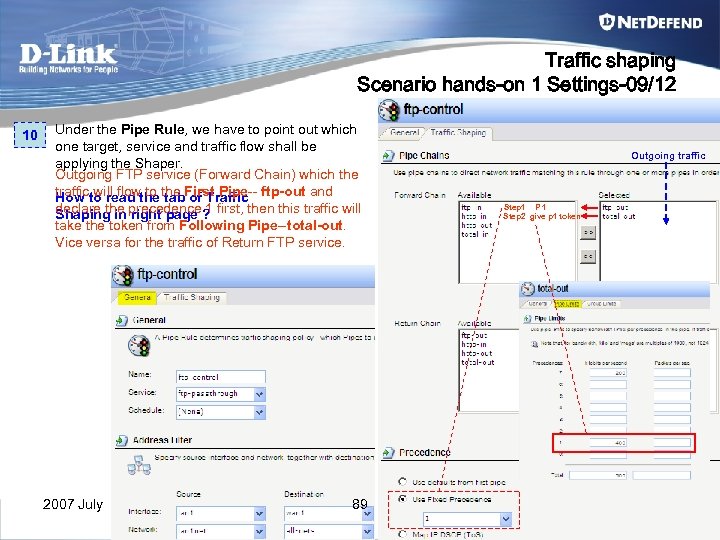 Traffic shaping Scenario hands-on 1 Settings-09/12 10 Under the Pipe Rule, we have to point out which one target, service and traffic flow shall be applying the Shaper. Outgoing FTP service (Forward Chain) which the trafficto read the First Pipe-- ftp-out and How will flow to tab of Traffic declare the precedence ? first, then this traffic will Shaping in right page 1 take the token from Following Pipe--total-out. Vice versa for the traffic of Return FTP service. 2007 July 89 Outgoing traffic Step 1 P 1 Step 2 give p 1 token
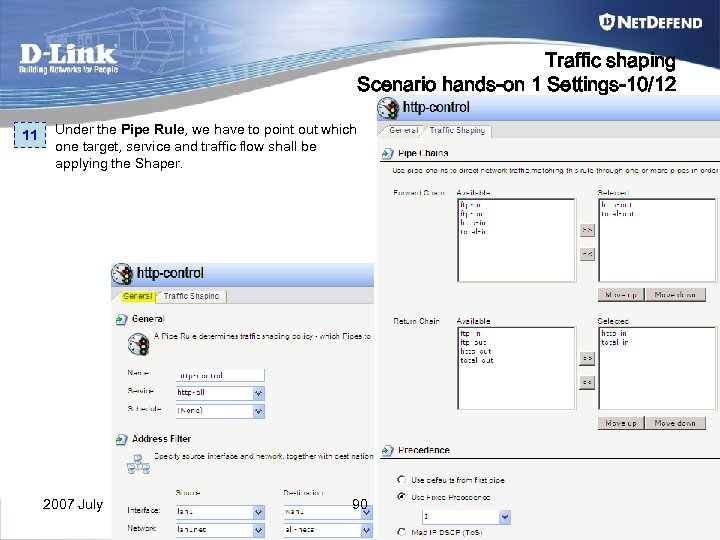 Traffic shaping Scenario hands-on 1 Settings-10/12 11 Under the Pipe Rule, we have to point out which one target, service and traffic flow shall be applying the Shaper. 2007 July 90
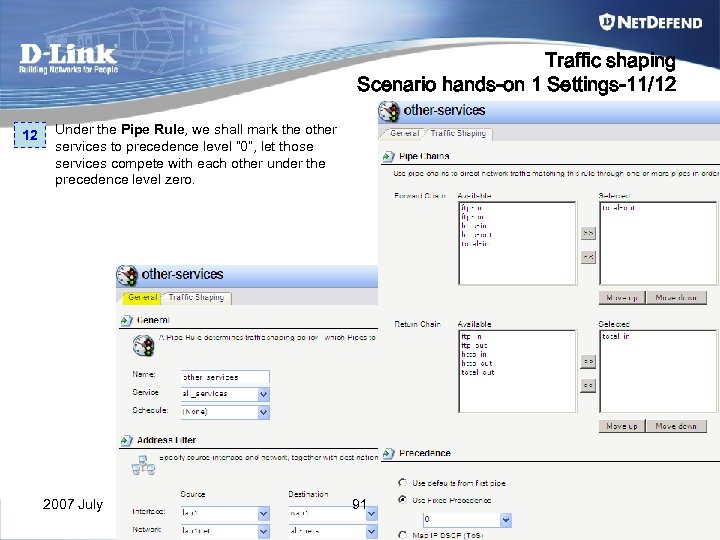 Traffic shaping Scenario hands-on 1 Settings-11/12 12 Under the Pipe Rule, we shall mark the other services to precedence level “ 0”, let those services compete with each other under the precedence level zero. 2007 July 91
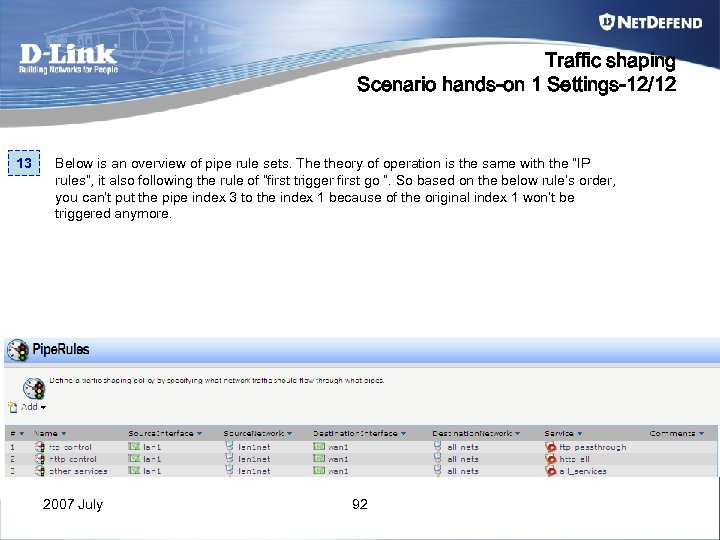 Traffic shaping Scenario hands-on 1 Settings-12/12 13 Below is an overview of pipe rule sets. The theory of operation is the same with the “IP rules”, it also following the rule of “first trigger first go ”. So based on the below rule’s order, you can’t put the pipe index 3 to the index 1 because of the original index 1 won’t be triggered anymore. 2007 July 92
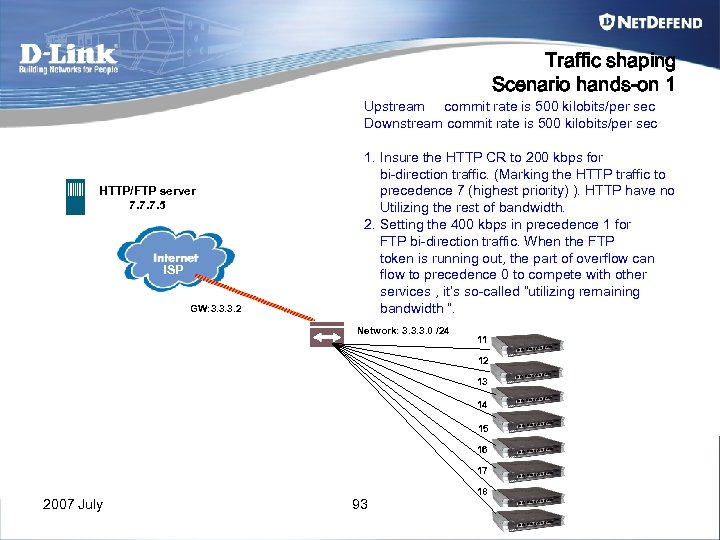 Traffic shaping Scenario hands-on 1 Upstream commit rate is 500 kilobits/per sec Downstream commit rate is 500 kilobits/per sec HTTP/FTP server 7. 7. 7. 5 ISP GW: 3. 3. 3. 2 1. Insure the HTTP CR to 200 kbps for bi-direction traffic. (Marking the HTTP traffic to precedence 7 (highest priority) ). HTTP have no Utilizing the rest of bandwidth. 2. Setting the 400 kbps in precedence 1 for FTP bi-direction traffic. When the FTP token is running out, the part of overflow can flow to precedence 0 to compete with other services , it’s so-called “utilizing remaining bandwidth ”. Network: 3. 3. 3. 0 /24 11 12 13 14 15 16 17 2007 July 93 18
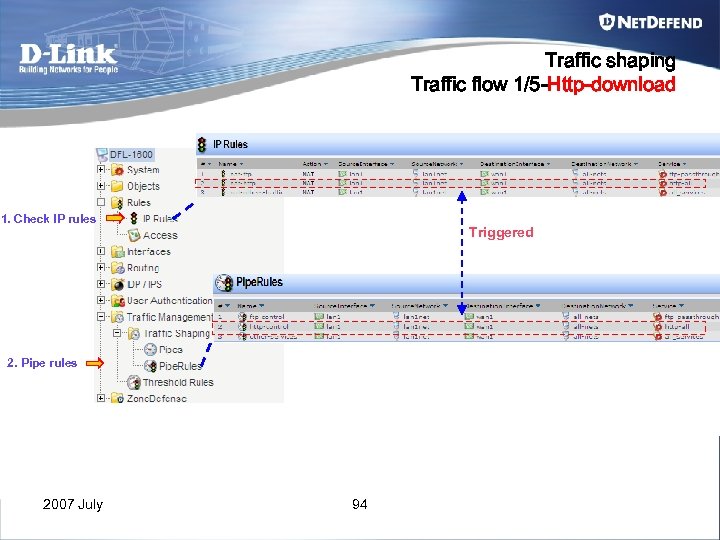 Traffic shaping Traffic flow 1/5 -Http-download 1. Check IP rules Triggered 2. Pipe rules 2007 July 94
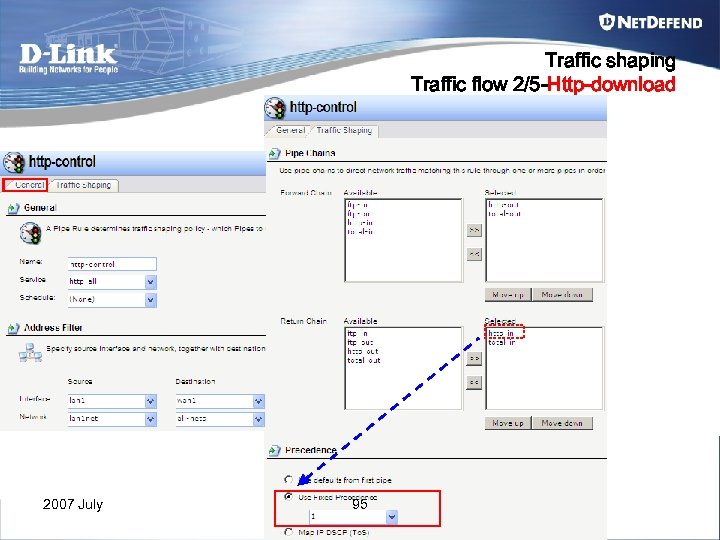 Traffic shaping Traffic flow 2/5 -Http-download 2007 July 95
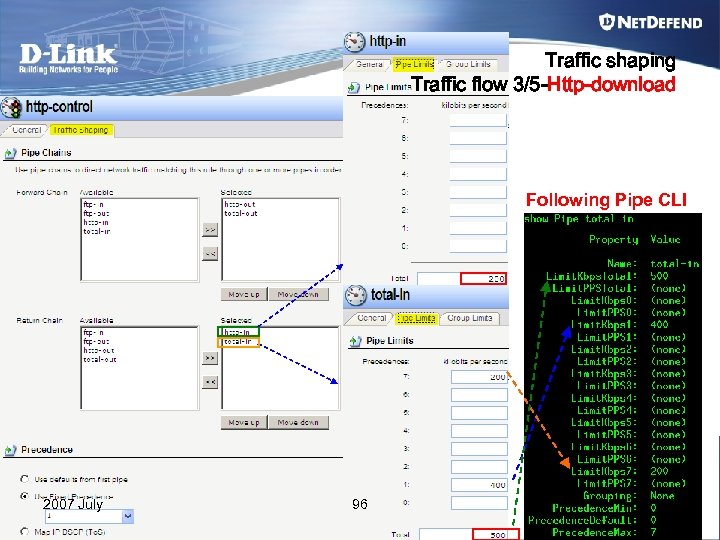 Traffic shaping Traffic flow 3/5 -Http-download Following Pipe CLI 2007 July 96
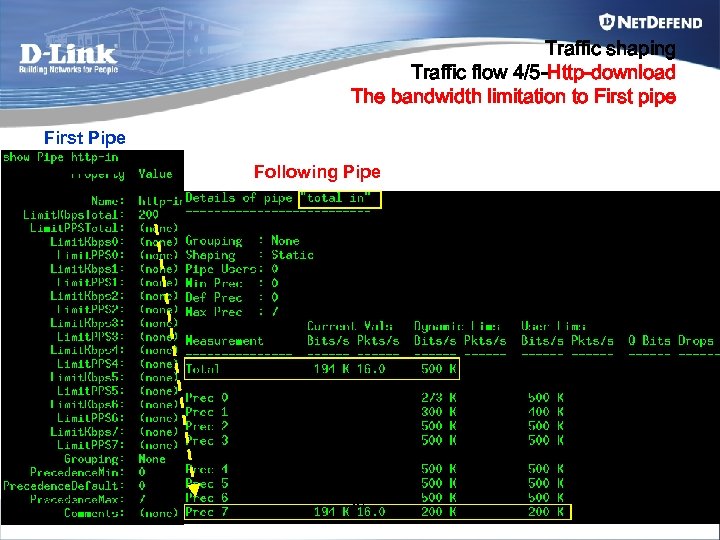 Traffic shaping Traffic flow 4/5 -Http-download The bandwidth limitation to First pipe First Pipe Following Pipe 2007 July 97
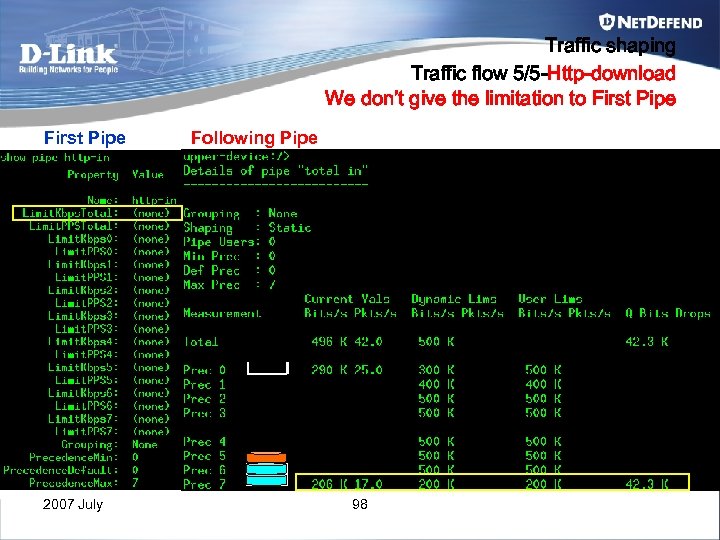 Traffic shaping Traffic flow 5/5 -Http-download We don’t give the limitation to First Pipe 2007 July Following Pipe 98
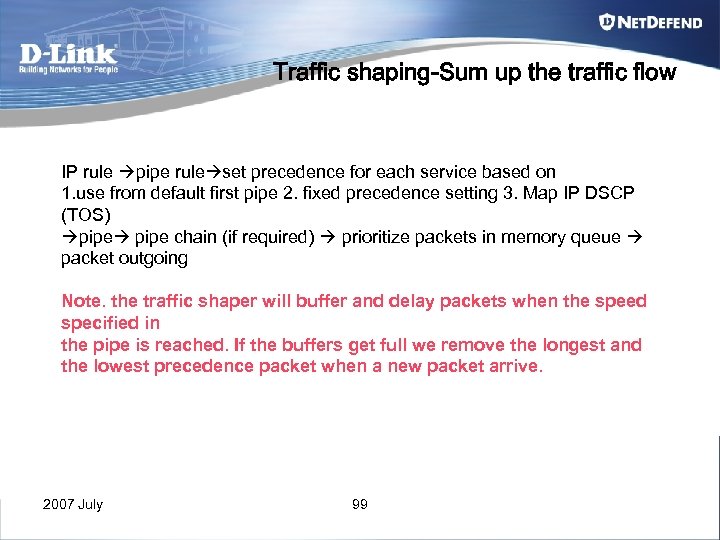 Traffic shaping-Sum up the traffic flow IP rule pipe rule set precedence for each service based on 1. use from default first pipe 2. fixed precedence setting 3. Map IP DSCP (TOS) pipe chain (if required) prioritize packets in memory queue packet outgoing Note. the traffic shaper will buffer and delay packets when the speed specified in the pipe is reached. If the buffers get full we remove the longest and the lowest precedence packet when a new packet arrive. 2007 July 99
![Traffic Shaping How to observe the traffic shaping status The relative command: Pipe [pipename]](https://present5.com/presentation/b56f7e4ceb65a5362fc70d862b5dea8f/image-100.jpg "Traffic Shaping How to observe the traffic shaping status The relative command: Pipe [pipename]") Traffic Shaping How to observe the traffic shaping status The relative command: Pipe [pipename] Showing the specific pipe status, in common way we always showing the overall pipe object for checking the status easily. Pipe –users Showing the status of the pipe’s overall usage. 2007 July 100
Traffic Shaping How to observe the traffic shaping status The relative command: Pipe [pipename] Showing the specific pipe status, in common way we always showing the overall pipe object for checking the status easily. Pipe –users Showing the status of the pipe’s overall usage. 2007 July 100
 Chapter 6 VPN-IPSEC 2007 July 101
 VPN-IPSEC • For IPSec, we have two roles in IPSec terminology for distinguishing from server and client : – Initiator (Client) • Who is the role to initial the IPSec session for establishing the IPSec tunnel. • It’s a security gateway (IPSec server) or road warrior (Roaming client). – Responder (Server) 2007 July • Who is the role to receive the request from initiator, and response some necessary information for establishing the IPSec Tunnel • It’s a security gateway (IPSec Server) 102
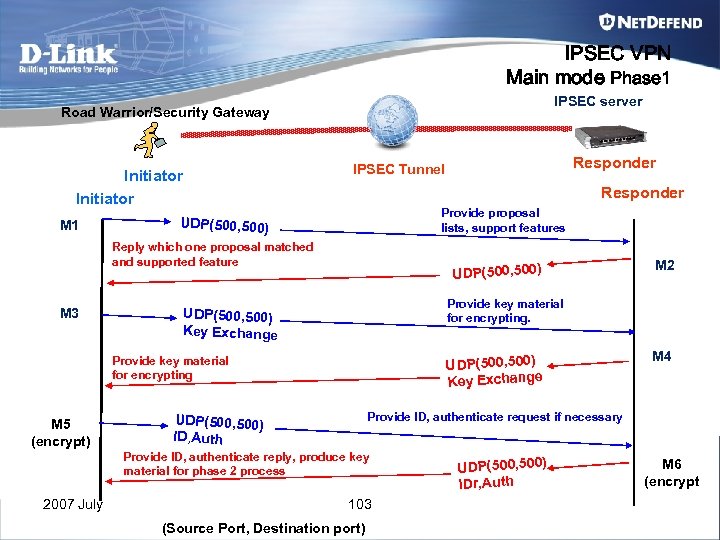 IPSEC VPN Main mode Phase 1 IPSEC server Road Warrior/Security Gateway Initiator M 1 Responder Provide proposal lists, support features UDP(500, 500) Reply which one proposal matched and supported feature M 3 UDP(500, 500) Key Exchange M 4 Provide ID, authenticate request if necessary UDP(500, 500) ID, Auth Provide ID, authenticate reply, produce key material for phase 2 process 2007 July M 2 Provide key material for encrypting. UDP(500, 500) Key Exchange Provide key material for encrypting M 5 (encrypt) Responder IPSEC Tunnel 103 (Source Port, Destination port) UDP(500, 500) IDr, Auth M 6 (encrypt
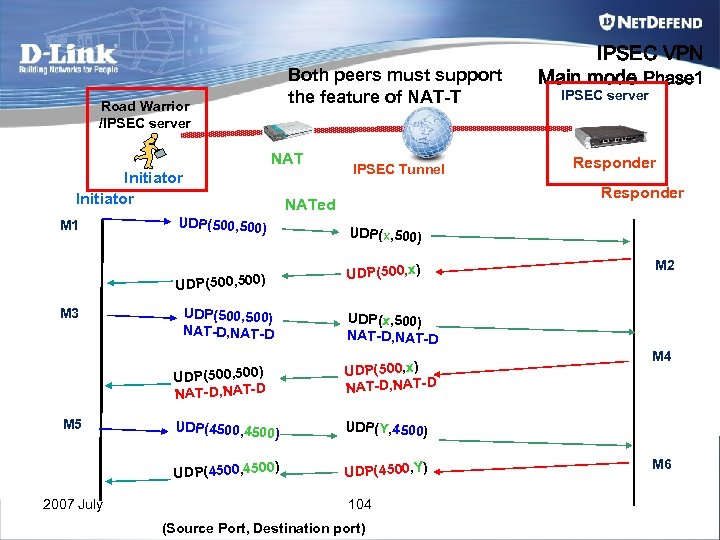 Both peers must support the feature of NAT-T Road Warrior /IPSEC server NAT Initiator M 1 UDP(500, 500) UDP(500, x) UDP(500, 500) NAT-D, NAT-D M 2 UDP(x, 500) NAT-D, NAT-D UDP(500, x) NAT-D, NAT-D ) UDP(4500, Y) M 4 UDP(Y, 4500) ) UDP(4500, 4500 2007 July Responder UDP(x, 500) UDP(500, 500) NAT-D, NAT-D M 5 IPSEC server Responder NATed UDP(500, 500) M 3 IPSEC Tunnel IPSEC VPN Main mode Phase 1 UDP(4500, 4500 104 (Source Port, Destination port) M 6
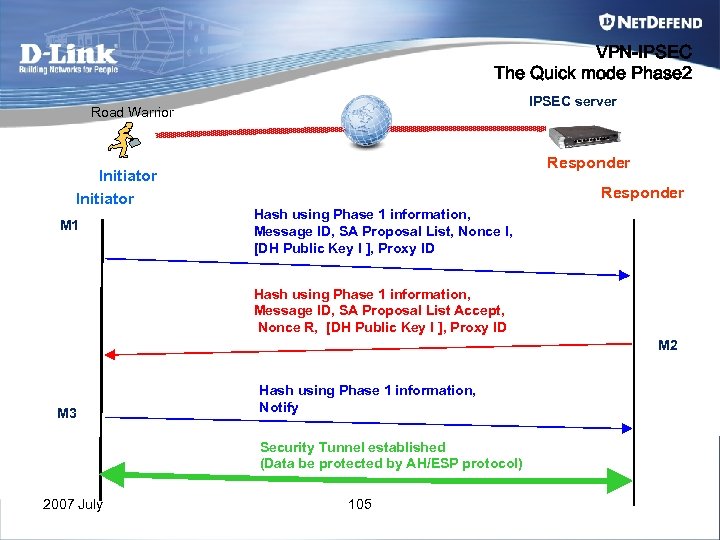 VPN-IPSEC The Quick mode Phase 2 IPSEC server Road Warrior Initiator M 1 Responder Hash using Phase 1 information, Message ID, SA Proposal List, Nonce I, [DH Public Key I ], Proxy ID Hash using Phase 1 information, Message ID, SA Proposal List Accept, Nonce R, [DH Public Key I ], Proxy ID M 2 M 3 Hash using Phase 1 information, Notify Security Tunnel established (Data be protected by AH/ESP protocol) 2007 July 105
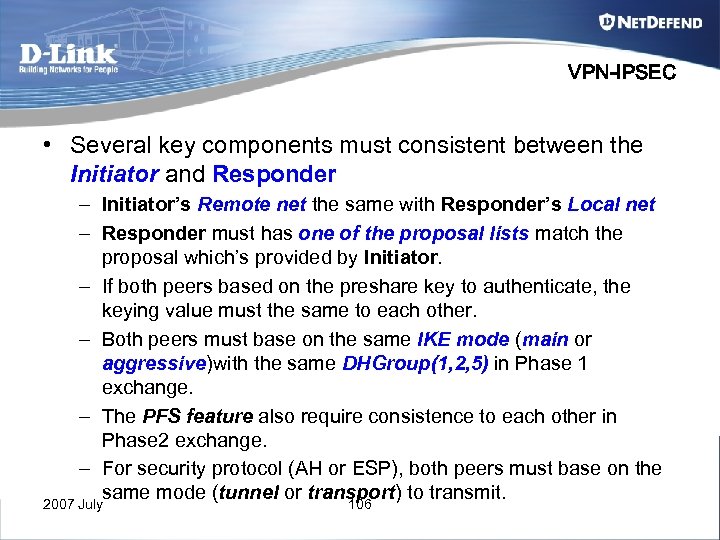 VPN-IPSEC • Several key components must consistent between the Initiator and Responder – Initiator’s Remote net the same with Responder’s Local net – Responder must has one of the proposal lists match the proposal which’s provided by Initiator. – If both peers based on the preshare key to authenticate, the keying value must the same to each other. – Both peers must base on the same IKE mode (main or aggressive)with the same DHGroup(1, 2, 5) in Phase 1 exchange. – The PFS feature also require consistence to each other in Phase 2 exchange. – For security protocol (AH or ESP), both peers must base on the same mode (tunnel or transport) to transmit. 2007 July 106
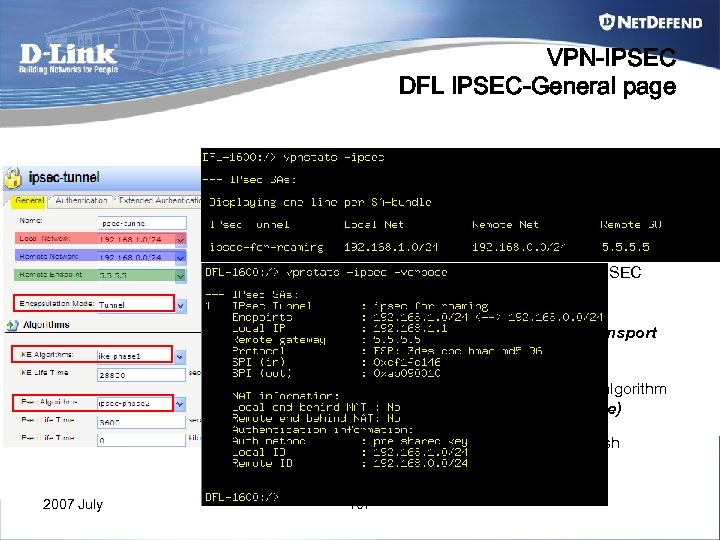 VPN-IPSEC DFL IPSEC-General page 1. Establish the SA for the usage of input traffic mapping 2. Establish the SA for the usage of output traffic mapping 3. For the local device can initial the IPSEC session to specific remote peer. (Be the role of initiator in IPSEC process ) 4. Select the encapsulation mode of tunnel or transport for the ESP packet. 5. Select the support proposal lists of IKE hash algorithm for IKE phase 1 (main mode or aggressive mode) 6. Select the support proposal lists of IPSEC hash algorithm for IKE phase 2 (Quick mode) 2007 July 107
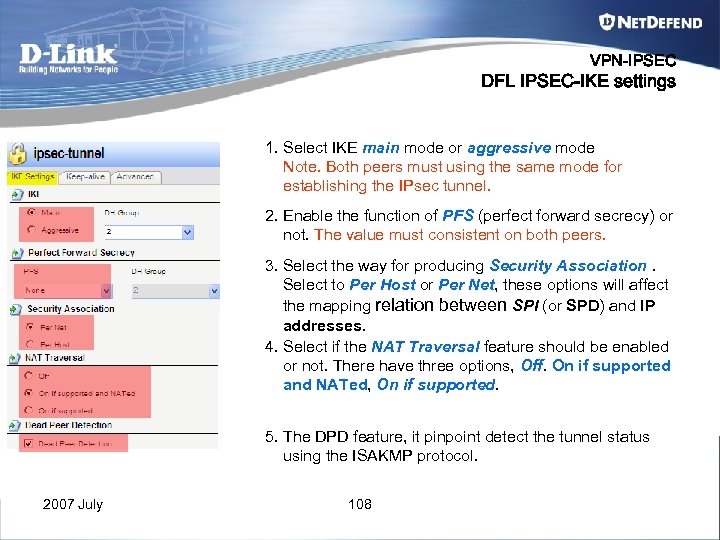 VPN-IPSEC DFL IPSEC-IKE settings 1. Select IKE main mode or aggressive mode Note. Both peers must using the same mode for establishing the IPsec tunnel. 2. Enable the function of PFS (perfect forward secrecy) or not. The value must consistent on both peers. 3. Select the way for producing Security Association. Select to Per Host or Per Net, these options will affect the mapping relation between SPI (or SPD) and IP addresses. 4. Select if the NAT Traversal feature should be enabled or not. There have three options, Off. On if supported and NATed, On if supported. 5. The DPD feature, it pinpoint detect the tunnel status using the ISAKMP protocol. 2007 July 108
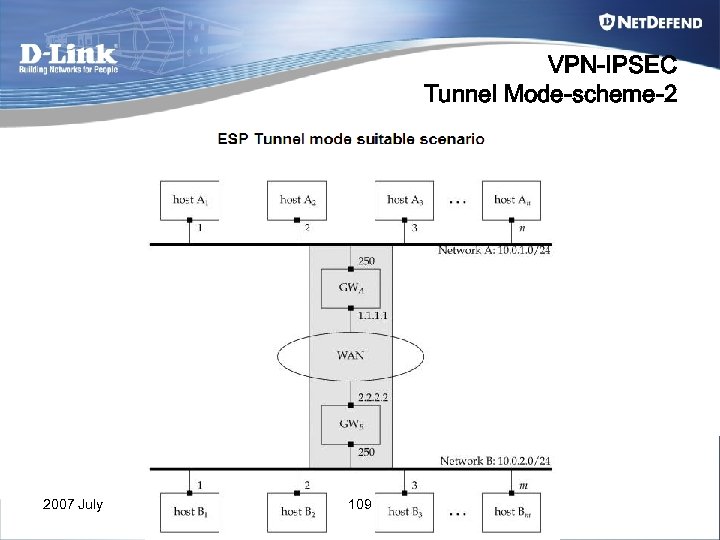 VPN-IPSEC Tunnel Mode-scheme-2 2007 July 109
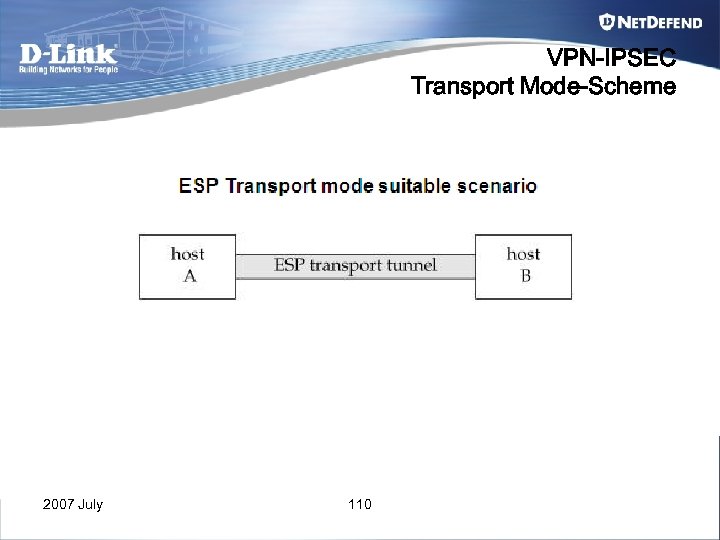 VPN-IPSEC Transport Mode-Scheme 2007 July 110
 VPN Scenario hands-on 2007 July 111
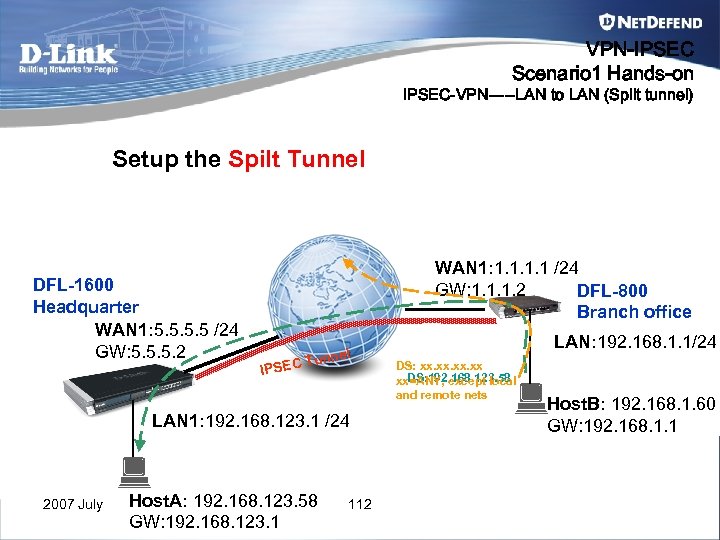 VPN-IPSEC Scenario 1 Hands-on IPSEC-VPN-----LAN to LAN (Spilt tunnel) Setup the Spilt Tunnel DFL-1600 Headquarter WAN 1: 5. 5 /24 GW: 5. 5. 5. 2 WAN 1: 1. 1 /24 GW: 1. 1. 1. 2 DFL-800 Branch office IPSEC l Tunne LAN 1: 192. 168. 123. 1 /24 2007 July Host. A: 192. 168. 123. 58 GW: 192. 168. 123. 1 112 LAN: 192. 168. 1. 1/24 DS: xx. xx. xx DS: 192. 168. 123. 58 xx=ANY, except local and remote nets Host. B: 192. 168. 1. 60 GW: 192. 168. 1. 1
 Branch office VPN-IPSEC Scenario 1 Hands-on Tips • Step 1 Set the IP address and default gateway for physical interface if necessary. • Step 2 Add an object of Pre-shared key • Step 3 Create Proposal lists for IPsec and IKE respectively if necessary • Step 4 Add IPsec interface • Step 5 Add IP Rule for allowing the bi-direction traffic • Step 6 Input the below commands via console for verify the IPSEC status – vpnstat -verbose -ike – Vpnstat -verbose -ipsec – ikesnoop -on -verbose 2007 July 113
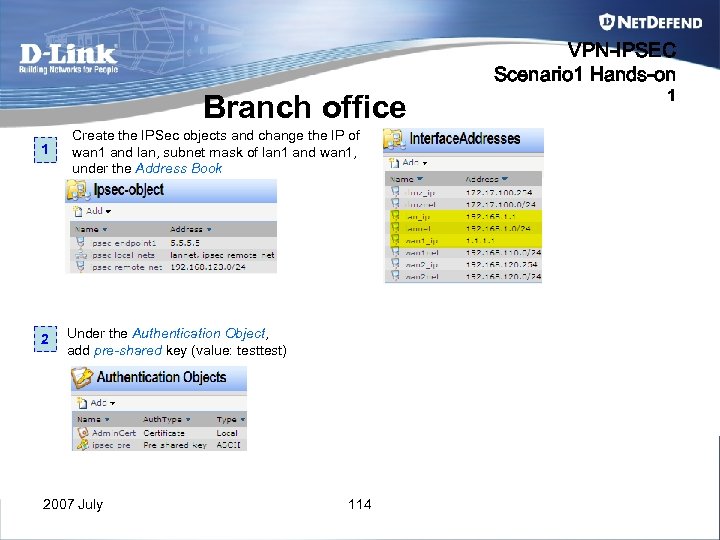 VPN-IPSEC Scenario 1 Hands-on Branch office 1 2 Create the IPSec objects and change the IP of wan 1 and lan, subnet mask of lan 1 and wan 1, under the Address Book Under the Authentication Object, add pre-shared key (value: test) 2007 July 114 1
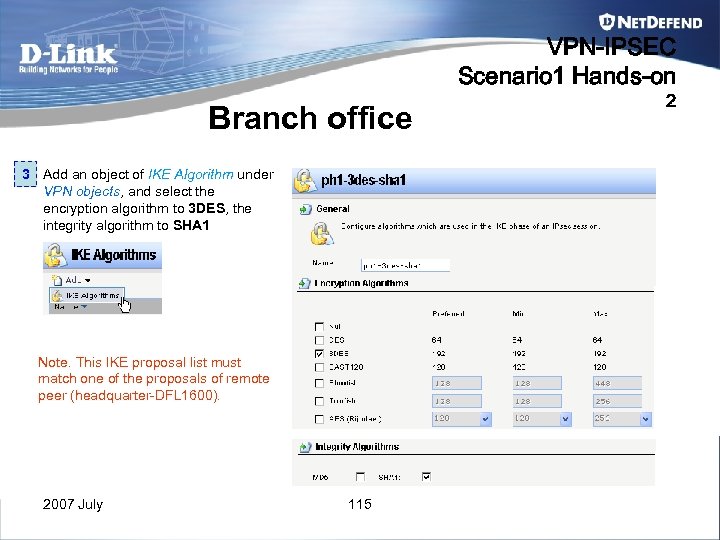 VPN-IPSEC Scenario 1 Hands-on Branch office 3 Add an object of IKE Algorithm under VPN objects, and select the encryption algorithm to 3 DES, the integrity algorithm to SHA 1 Note. This IKE proposal list must match one of the proposals of remote peer (headquarter-DFL 1600). 2007 July 115 2
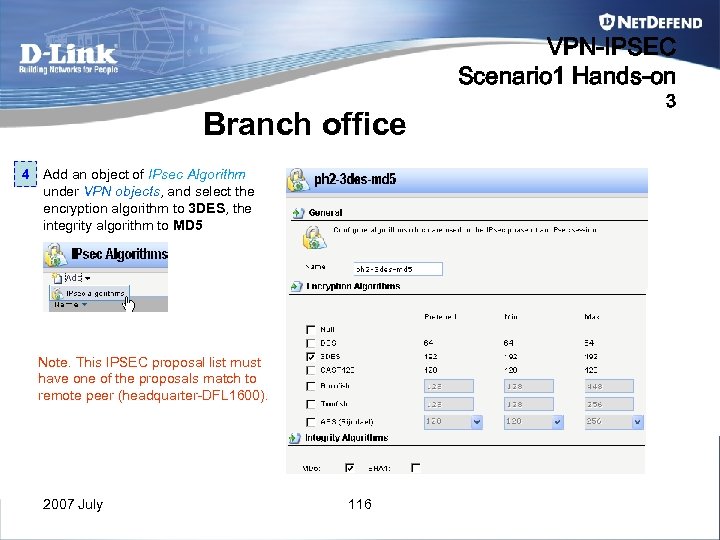 VPN-IPSEC Scenario 1 Hands-on Branch office 4 Add an object of IPsec Algorithm under VPN objects, and select the encryption algorithm to 3 DES, the integrity algorithm to MD 5 Note. This IPSEC proposal list must have one of the proposals match to remote peer (headquarter-DFL 1600). 2007 July 116 3
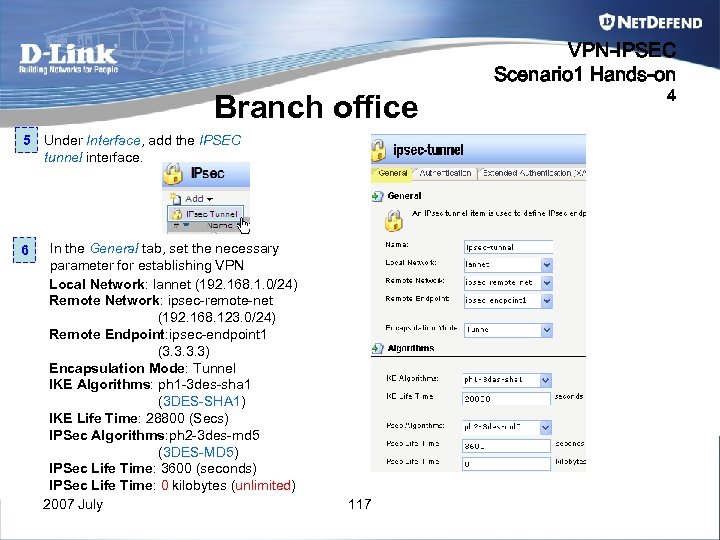 VPN-IPSEC Scenario 1 Hands-on Branch office 5 Under Interface, add the IPSEC tunnel interface. 6 In the General tab, set the necessary parameter for establishing VPN Local Network: lannet (192. 168. 1. 0/24) Remote Network: ipsec-remote-net (192. 168. 123. 0/24) Remote Endpoint: ipsec-endpoint 1 (3. 3) Encapsulation Mode: Tunnel IKE Algorithms: ph 1 -3 des-sha 1 (3 DES-SHA 1) IKE Life Time: 28800 (Secs) IPSec Algorithms: ph 2 -3 des-md 5 (3 DES-MD 5) IPSec Life Time: 3600 (seconds) IPSec Life Time: 0 kilobytes (unlimited) 2007 July 117 4
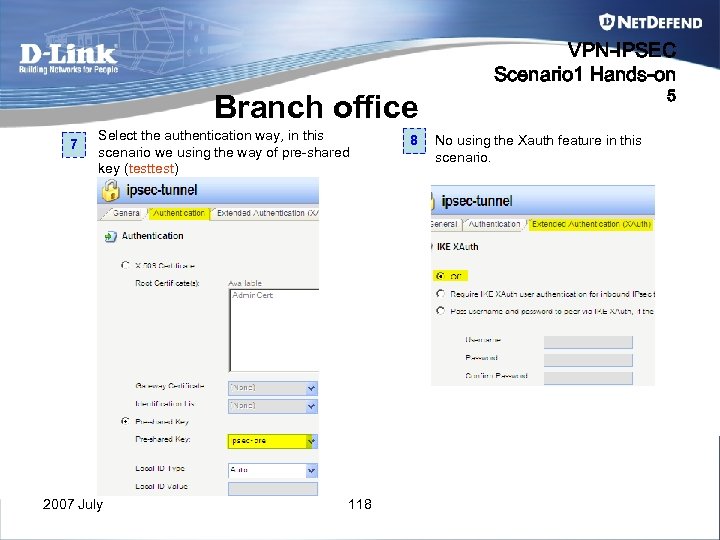 VPN-IPSEC Scenario 1 Hands-on 5 Branch office 7 Select the authentication way, in this scenario we using the way of pre-shared key (test) 2007 July 118 8 No using the Xauth feature in this scenario.
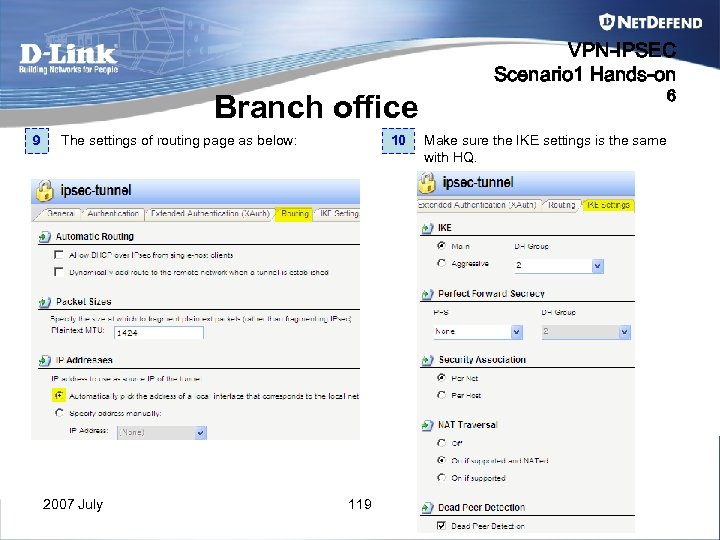 VPN-IPSEC Scenario 1 Hands-on 6 Branch office 9 The settings of routing page as below: 2007 July 10 119 Make sure the IKE settings is the same with HQ.
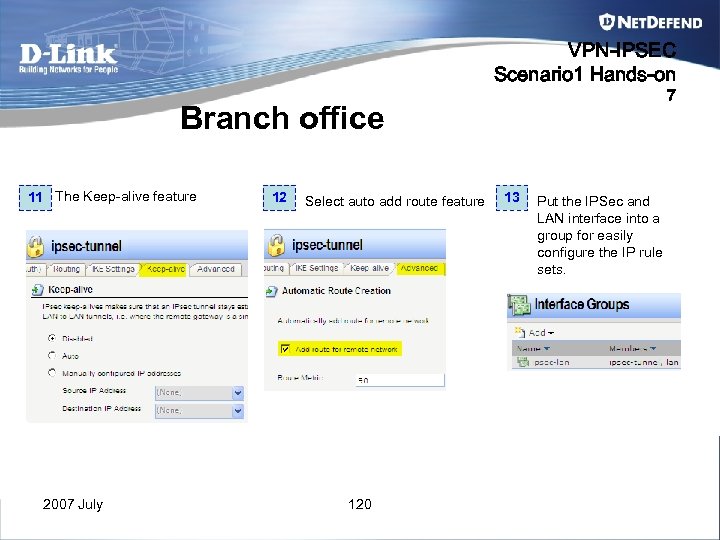 VPN-IPSEC Scenario 1 Hands-on 7 Branch office 11 The Keep-alive feature 2007 July 12 Select auto add route feature 120 13 Put the IPSec and LAN interface into a group for easily configure the IP rule sets.
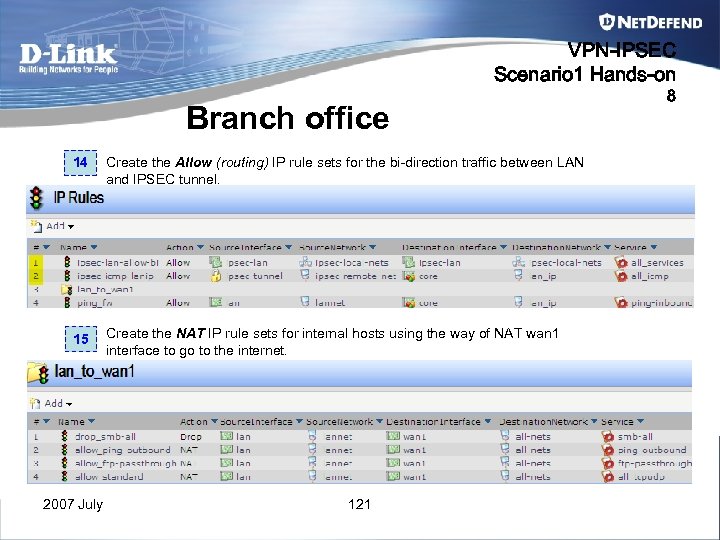 VPN-IPSEC Scenario 1 Hands-on Branch office 14 Create the Allow (routing) IP rule sets for the bi-direction traffic between LAN and IPSEC tunnel. 15 Create the NAT IP rule sets for internal hosts using the way of NAT wan 1 interface to go to the internet. 2007 July 121 8
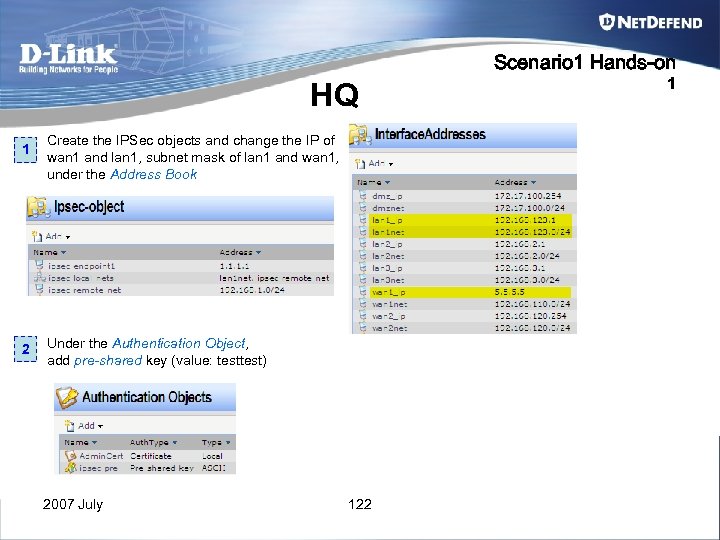 Scenario 1 Hands-on HQ 1 2 Create the IPSec objects and change the IP of wan 1 and lan 1, subnet mask of lan 1 and wan 1, under the Address Book Under the Authentication Object, add pre-shared key (value: test) 2007 July 122 1
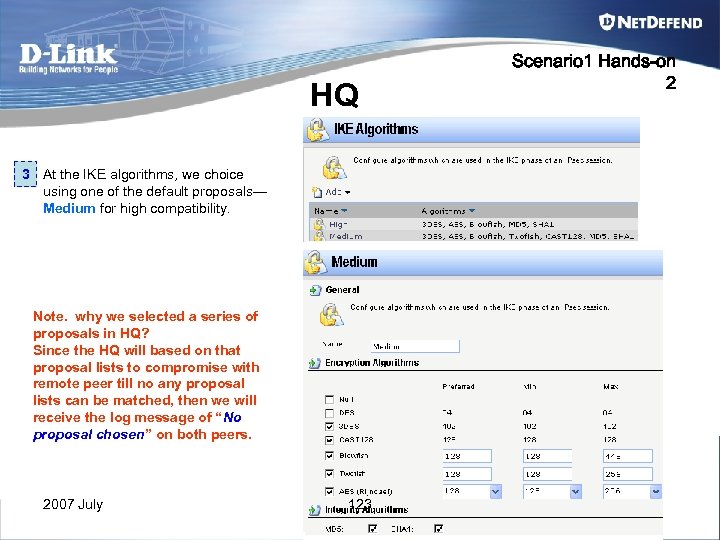 HQ 3 At the IKE algorithms, we choice using one of the default proposals— Medium for high compatibility. Note. why we selected a series of proposals in HQ? Since the HQ will based on that proposal lists to compromise with remote peer till no any proposal lists can be matched, then we will receive the log message of “No proposal chosen” on both peers. 2007 July 123 Scenario 1 Hands-on 2
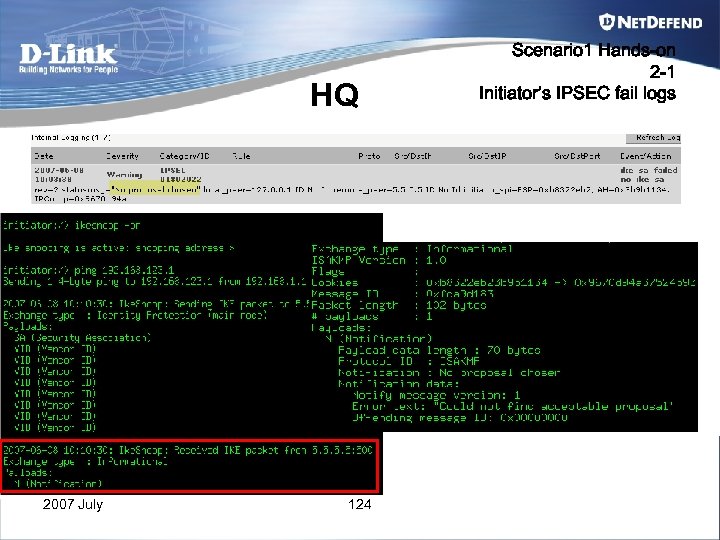 HQ 2007 July 124 Scenario 1 Hands-on 2 -1 Initiator’s IPSEC fail logs
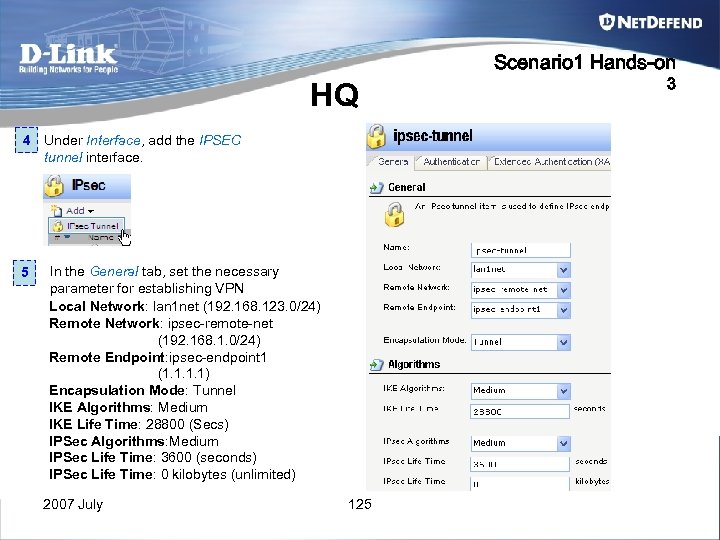 Scenario 1 Hands-on HQ 4 Under Interface, add the IPSEC tunnel interface. 5 In the General tab, set the necessary parameter for establishing VPN Local Network: lan 1 net (192. 168. 123. 0/24) Remote Network: ipsec-remote-net (192. 168. 1. 0/24) Remote Endpoint: ipsec-endpoint 1 (1. 1) Encapsulation Mode: Tunnel IKE Algorithms: Medium IKE Life Time: 28800 (Secs) IPSec Algorithms: Medium IPSec Life Time: 3600 (seconds) IPSec Life Time: 0 kilobytes (unlimited) 2007 July 125 3
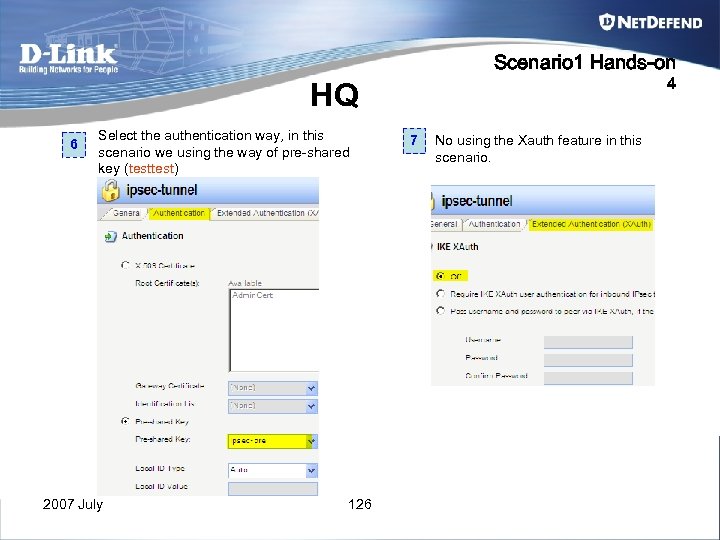 Scenario 1 Hands-on 4 HQ 6 Select the authentication way, in this scenario we using the way of pre-shared key (test) 2007 July 126 7 No using the Xauth feature in this scenario.
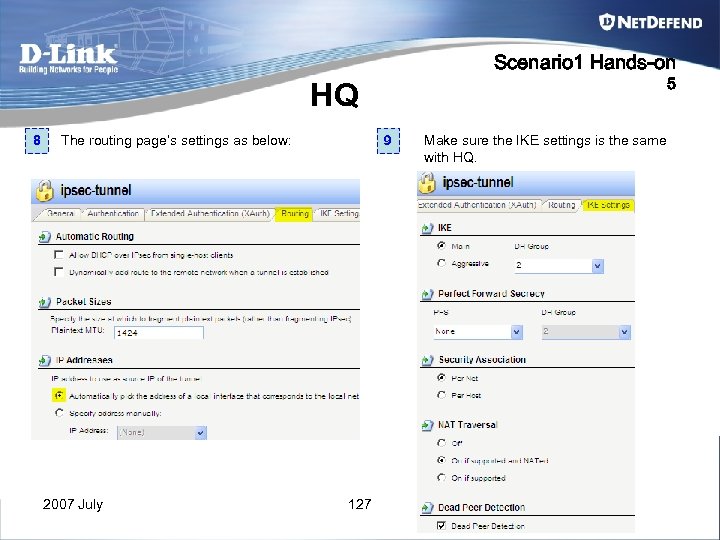 Scenario 1 Hands-on 5 HQ 8 The routing page’s settings as below: 2007 July 9 127 Make sure the IKE settings is the same with HQ.
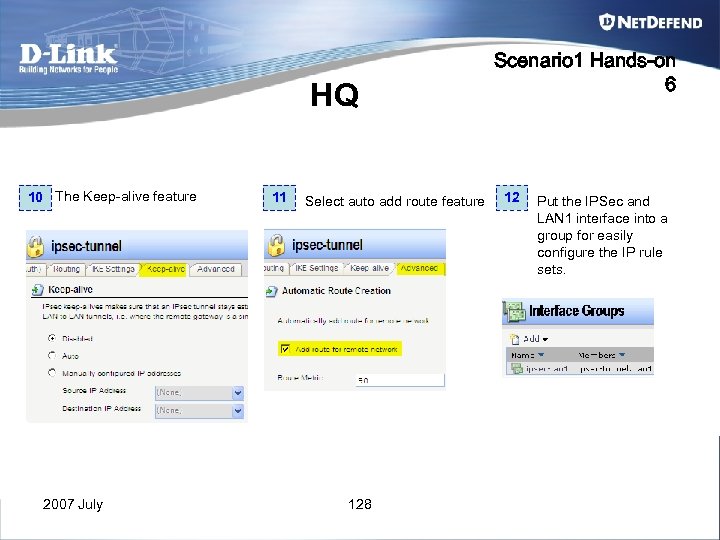 HQ 10 The Keep-alive feature 2007 July 11 Select auto add route feature 128 Scenario 1 Hands-on 6 12 Put the IPSec and LAN 1 interface into a group for easily configure the IP rule sets.
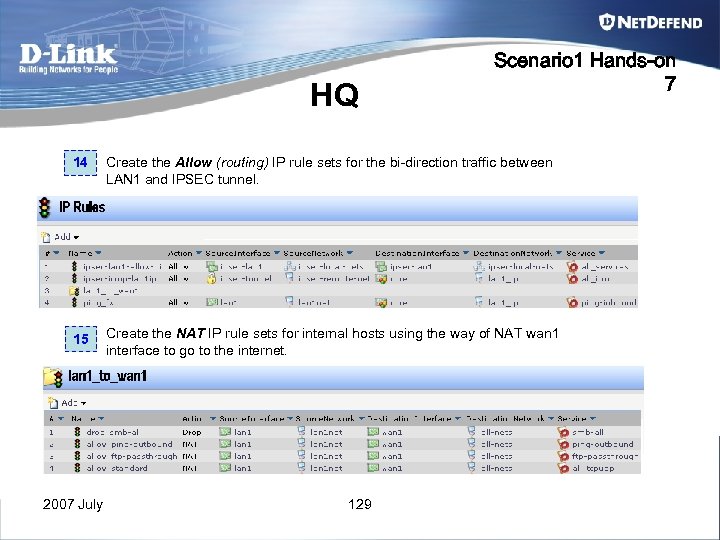 HQ Scenario 1 Hands-on 7 14 Create the Allow (routing) IP rule sets for the bi-direction traffic between LAN 1 and IPSEC tunnel. 15 Create the NAT IP rule sets for internal hosts using the way of NAT wan 1 interface to go to the internet. 2007 July 129
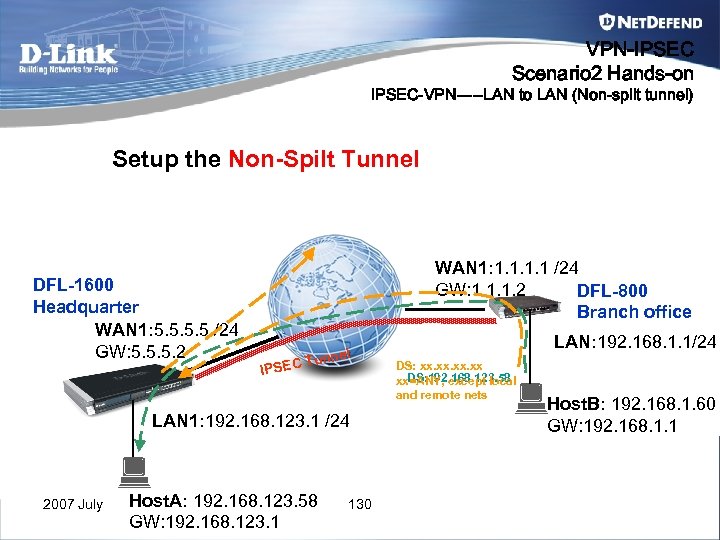 VPN-IPSEC Scenario 2 Hands-on IPSEC-VPN-----LAN to LAN (Non-split tunnel) Setup the Non-Spilt Tunnel DFL-1600 Headquarter WAN 1: 5. 5 /24 GW: 5. 5. 5. 2 WAN 1: 1. 1 /24 GW: 1. 1. 1. 2 DFL-800 Branch office IPSEC l Tunne LAN 1: 192. 168. 123. 1 /24 2007 July Host. A: 192. 168. 123. 58 GW: 192. 168. 123. 1 130 LAN: 192. 168. 1. 1/24 DS: xx. xx. xx DS: 192. 168. 123. 58 xx=ANY, except local and remote nets Host. B: 192. 168. 1. 60 GW: 192. 168. 1. 1
 HQ VPN-IPSEC Scenario 1 Hands-on Tips-1 For HQ settings • Step 1 Set the IP address and default gateway for physical interface if necessary. • Step 2 Add an object of Pre-shared key • Step 3 Create Proposal lists for IPsec and IKE respectively if necessary • Step 4 Add IPsec interface (Local-net= all-nets) • Step 5 Add IP Rule – Allowing the bi-direction traffic (the partial of LAN to LAN) – Create the NAT rule let the traffic from IPSEC remote peer can outgoing to internet • Step 6 Verify by CLI 2007 July 131
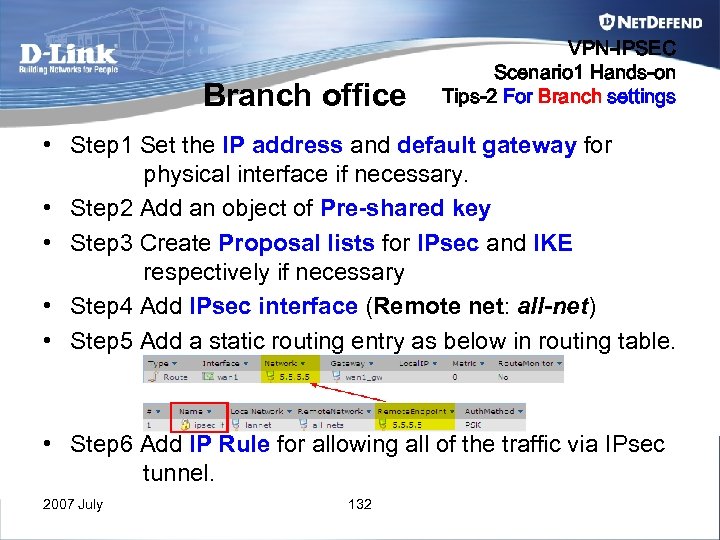 Branch office VPN-IPSEC Scenario 1 Hands-on Tips-2 For Branch settings • Step 1 Set the IP address and default gateway for physical interface if necessary. • Step 2 Add an object of Pre-shared key • Step 3 Create Proposal lists for IPsec and IKE respectively if necessary • Step 4 Add IPsec interface (Remote net: all-net) • Step 5 Add a static routing entry as below in routing table. • Step 6 Add IP Rule for allowing all of the traffic via IPsec tunnel. 2007 July 132
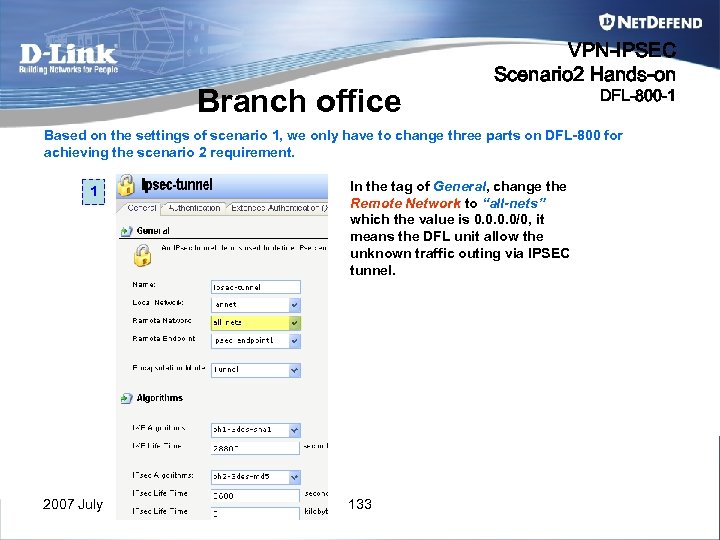 Branch office VPN-IPSEC Scenario 2 Hands-on DFL-800 -1 Based on the settings of scenario 1, we only have to change three parts on DFL-800 for achieving the scenario 2 requirement. 1 2007 July In the tag of General, change the Remote Network to “all-nets” which the value is 0. 0/0, it means the DFL unit allow the unknown traffic outing via IPSEC tunnel. 133
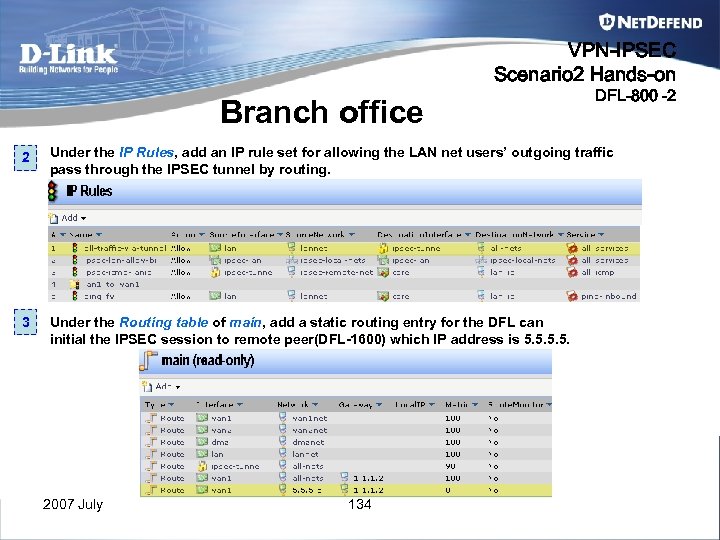 VPN-IPSEC Scenario 2 Hands-on Branch office DFL-800 -2 2 Under the IP Rules, add an IP rule set for allowing the LAN net users’ outgoing traffic pass through the IPSEC tunnel by routing. 3 Under the Routing table of main, add a static routing entry for the DFL can initial the IPSEC session to remote peer(DFL-1600) which IP address is 5. 5. 2007 July 134
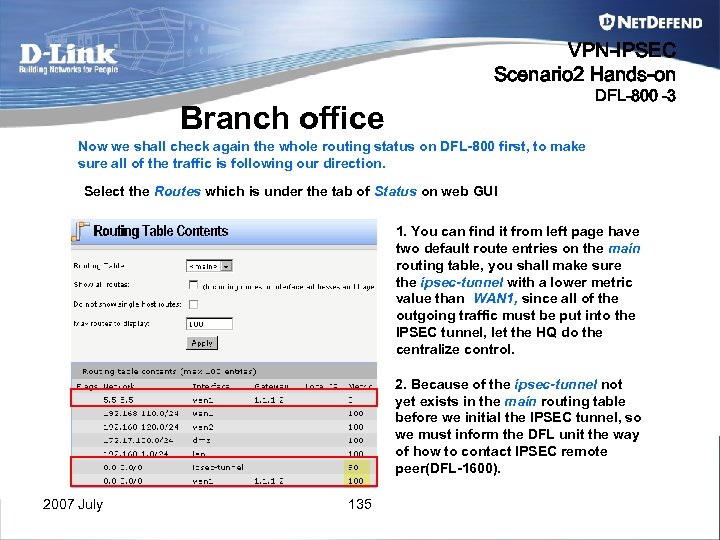 VPN-IPSEC Scenario 2 Hands-on DFL-800 -3 Branch office Now we shall check again the whole routing status on DFL-800 first, to make sure all of the traffic is following our direction. Select the Routes which is under the tab of Status on web GUI 1. You can find it from left page have two default route entries on the main routing table, you shall make sure the ipsec-tunnel with a lower metric value than WAN 1, since all of the outgoing traffic must be put into the IPSEC tunnel, let the HQ do the centralize control. 2. Because of the ipsec-tunnel not yet exists in the main routing table before we initial the IPSEC tunnel, so we must inform the DFL unit the way of how to contact IPSEC remote peer(DFL-1600). 2007 July 135
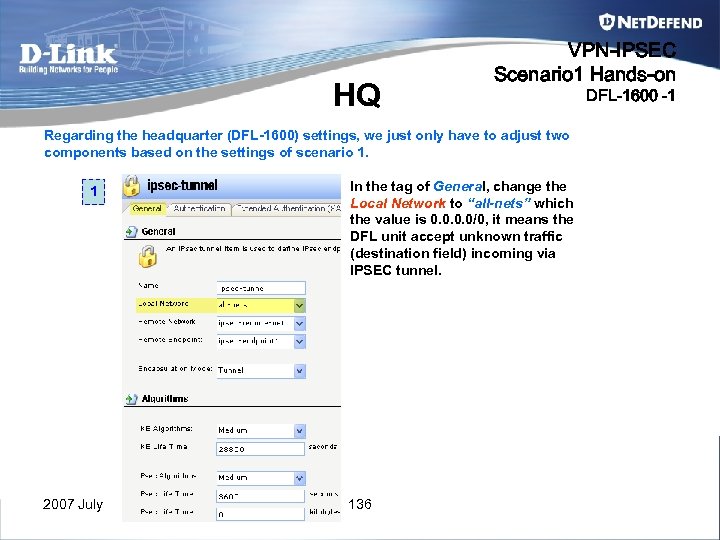 HQ VPN-IPSEC Scenario 1 Hands-on Regarding the headquarter (DFL-1600) settings, we just only have to adjust two components based on the settings of scenario 1. 1 2007 July In the tag of General, change the Local Network to “all-nets” which the value is 0. 0/0, it means the DFL unit accept unknown traffic (destination field) incoming via IPSEC tunnel. 136 DFL-1600 -1
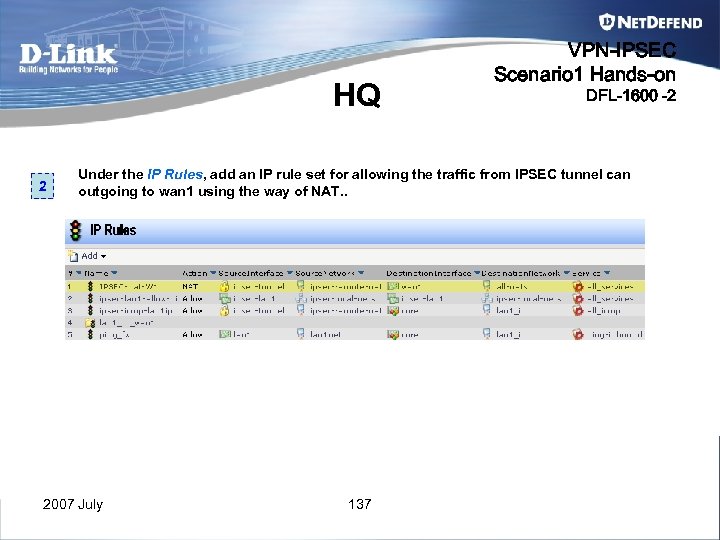 HQ 2 VPN-IPSEC Scenario 1 Hands-on DFL-1600 -2 Under the IP Rules, add an IP rule set for allowing the traffic from IPSEC tunnel can outgoing to wan 1 using the way of NAT. . 2007 July 137
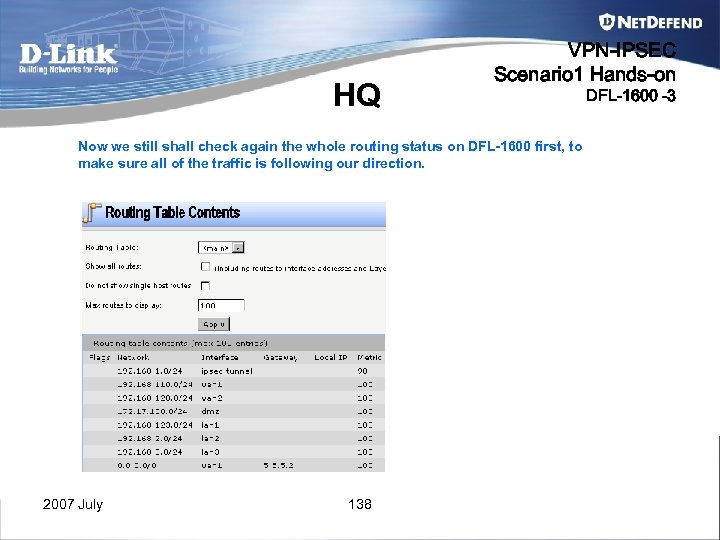 HQ VPN-IPSEC Scenario 1 Hands-on Now we still shall check again the whole routing status on DFL-1600 first, to make sure all of the traffic is following our direction. 2007 July 138 DFL-1600 -3
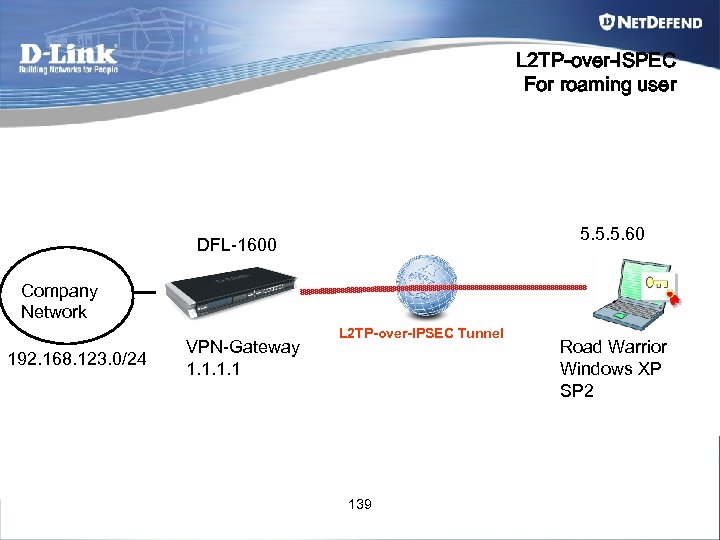 L 2 TP-over-ISPEC For roaming user 5. 5. 5. 60 DFL-1600 Company Network 192. 168. 123. 0/24 VPN-Gateway 1. 1 L 2 TP-over-IPSEC Tunnel 139 Road Warrior Windows XP SP 2
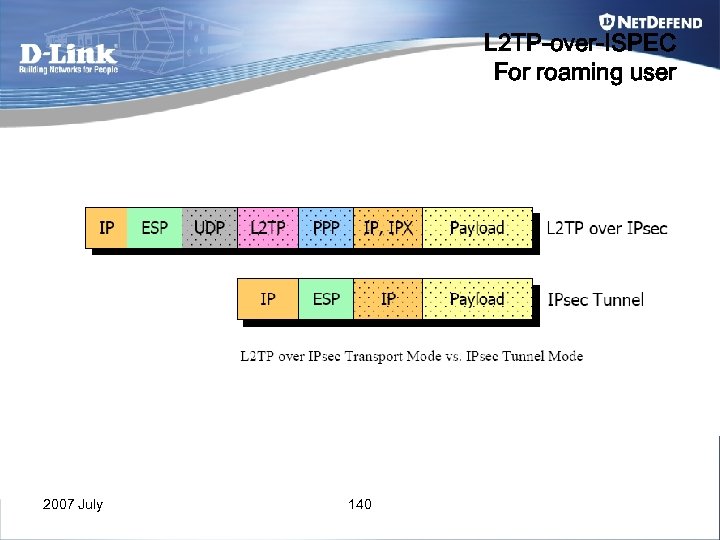 L 2 TP-over-ISPEC For roaming user 2007 July 140
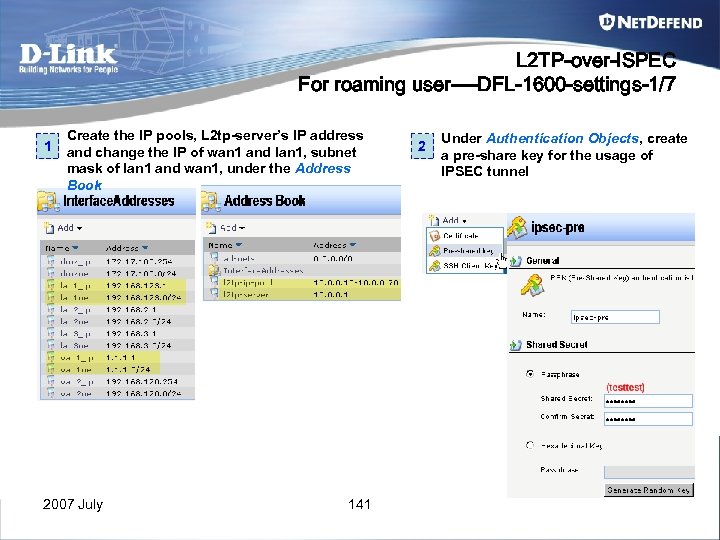 L 2 TP-over-ISPEC For roaming user----DFL-1600 -settings-1/7 1 Create the IP pools, L 2 tp-server’s IP address and change the IP of wan 1 and lan 1, subnet mask of lan 1 and wan 1, under the Address Book 2007 July 141 2 Under Authentication Objects, create a pre-share key for the usage of IPSEC tunnel
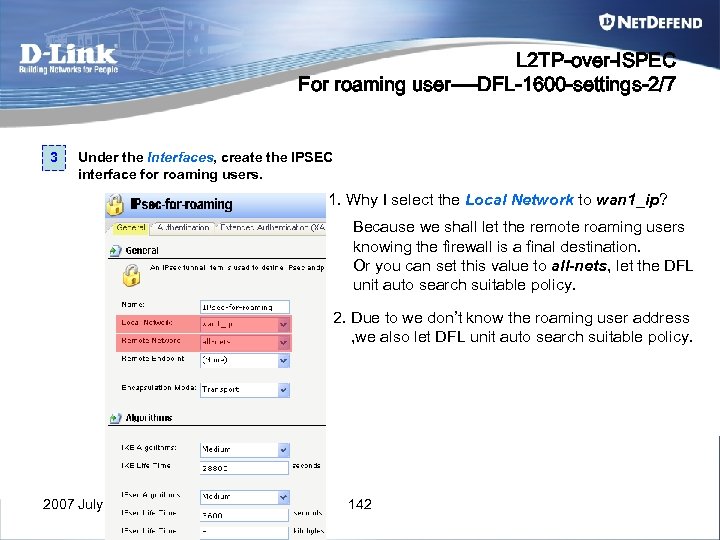 L 2 TP-over-ISPEC For roaming user----DFL-1600 -settings-2/7 3 Under the Interfaces, create the IPSEC interface for roaming users. 1. Why I select the Local Network to wan 1_ip? Because we shall let the remote roaming users knowing the firewall is a final destination. Or you can set this value to all-nets, let the DFL unit auto search suitable policy. 2. Due to we don’t know the roaming user address , we also let DFL unit auto search suitable policy. 2007 July 142
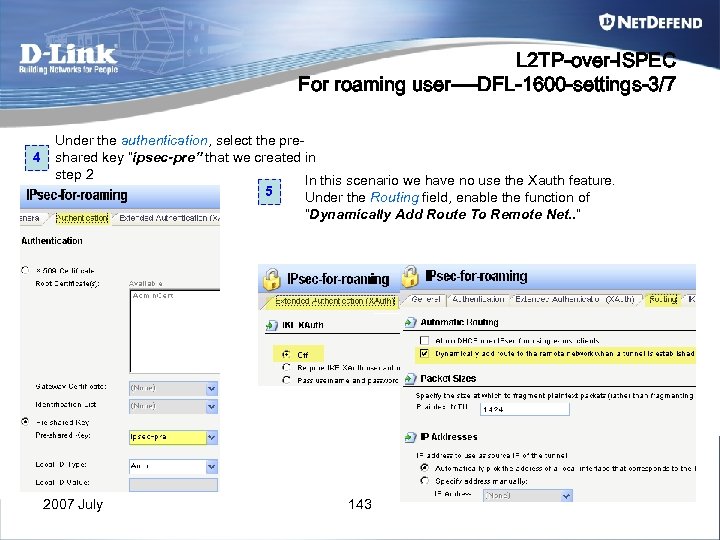 L 2 TP-over-ISPEC For roaming user----DFL-1600 -settings-3/7 4 Under the authentication, select the preshared key “ipsec-pre” that we created in step 2 In this scenario we have no use the Xauth feature. 5 Under the Routing field, enable the function of “Dynamically Add Route To Remote Net. . ” 2007 July 143
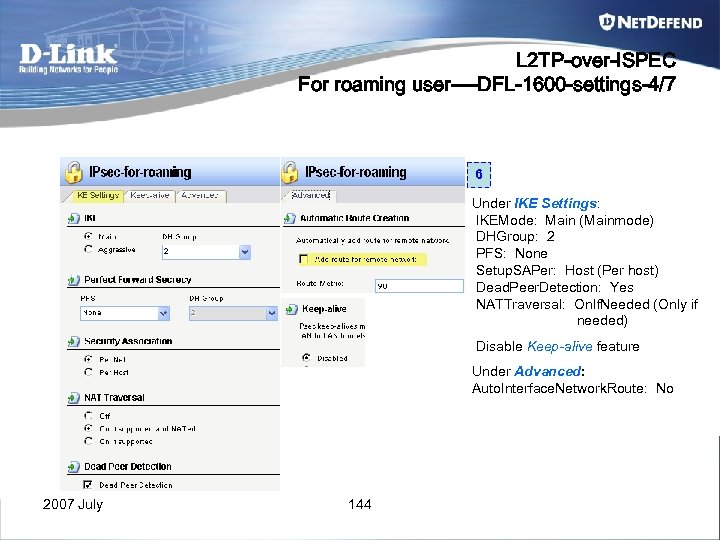 L 2 TP-over-ISPEC For roaming user----DFL-1600 -settings-4/7 6 Under IKE Settings: IKEMode: Main (Mainmode) DHGroup: 2 PFS: None Setup. SAPer: Host (Per host) Dead. Peer. Detection: Yes NATTraversal: On. If. Needed (Only if needed) Disable Keep-alive feature Under Advanced: Auto. Interface. Network. Route: No 2007 July 144
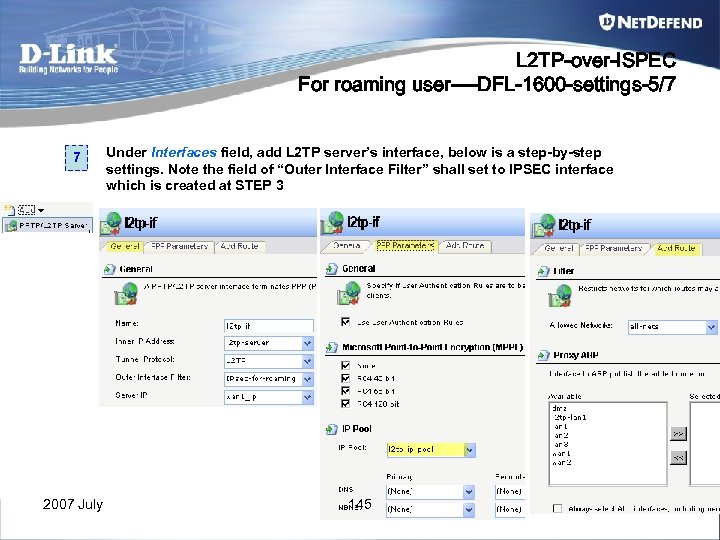 L 2 TP-over-ISPEC For roaming user----DFL-1600 -settings-5/7 7 Under Interfaces field, add L 2 TP server’s interface, below is a step-by-step settings. Note the field of “Outer Interface Filter” shall set to IPSEC interface which is created at STEP 3 2007 July 145
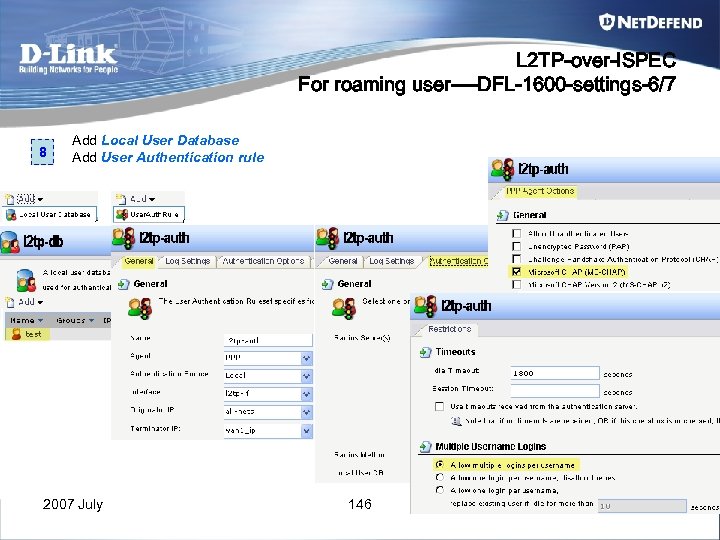 L 2 TP-over-ISPEC For roaming user----DFL-1600 -settings-6/7 8 Add Local User Database Add User Authentication rule 2007 July 146
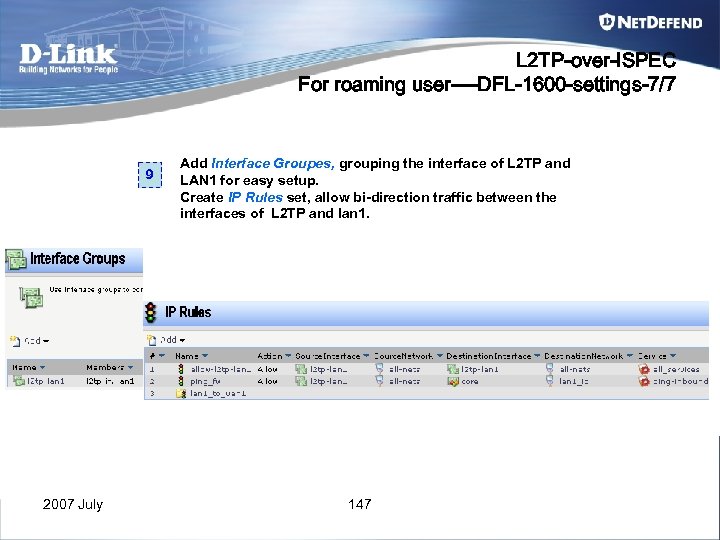 L 2 TP-over-ISPEC For roaming user----DFL-1600 -settings-7/7 9 2007 July Add Interface Groupes, grouping the interface of L 2 TP and LAN 1 for easy setup. Create IP Rules set, allow bi-direction traffic between the interfaces of L 2 TP and lan 1. 147
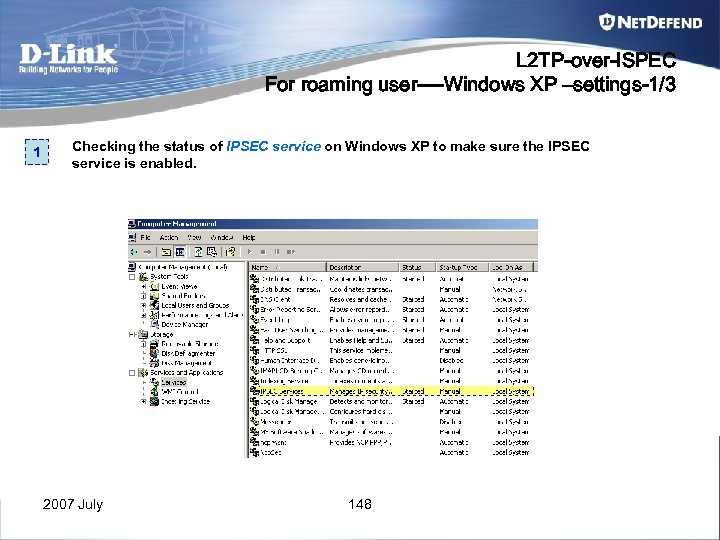 L 2 TP-over-ISPEC For roaming user----Windows XP –settings-1/3 1 Checking the status of IPSEC service on Windows XP to make sure the IPSEC service is enabled. 2007 July 148
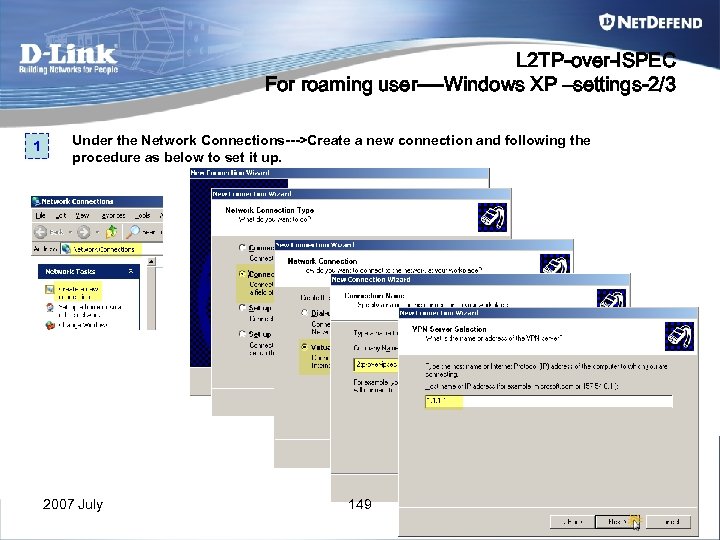 L 2 TP-over-ISPEC For roaming user----Windows XP –settings-2/3 1 Under the Network Connections--->Create a new connection and following the procedure as below to set it up. 2007 July 149
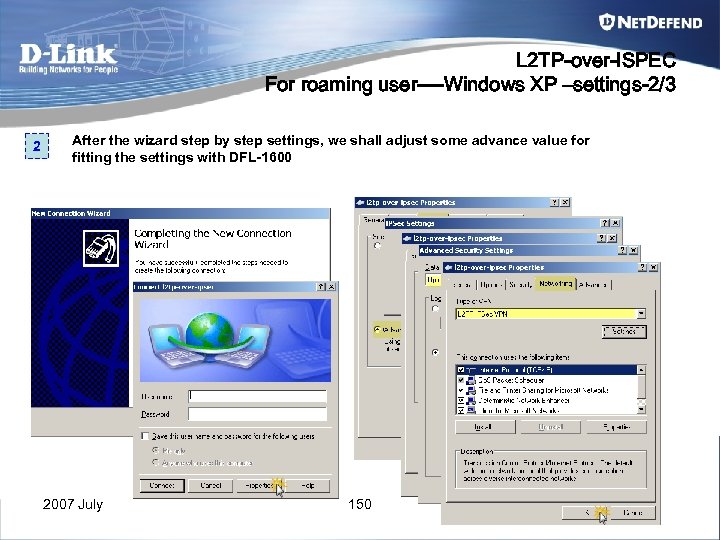 L 2 TP-over-ISPEC For roaming user----Windows XP –settings-2/3 2 After the wizard step by step settings, we shall adjust some advance value for fitting the settings with DFL-1600 2007 July 150
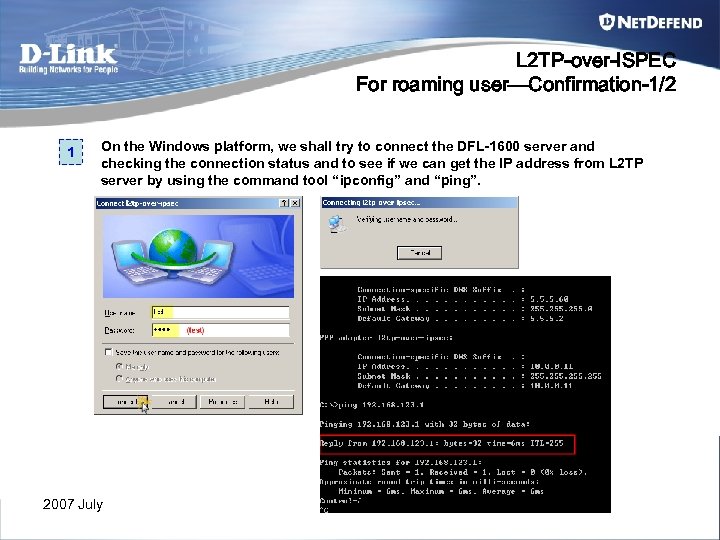 L 2 TP-over-ISPEC For roaming user—Confirmation-1/2 1 On the Windows platform, we shall try to connect the DFL-1600 server and checking the connection status and to see if we can get the IP address from L 2 TP server by using the command tool “ipconfig” and “ping”. 2007 July 151
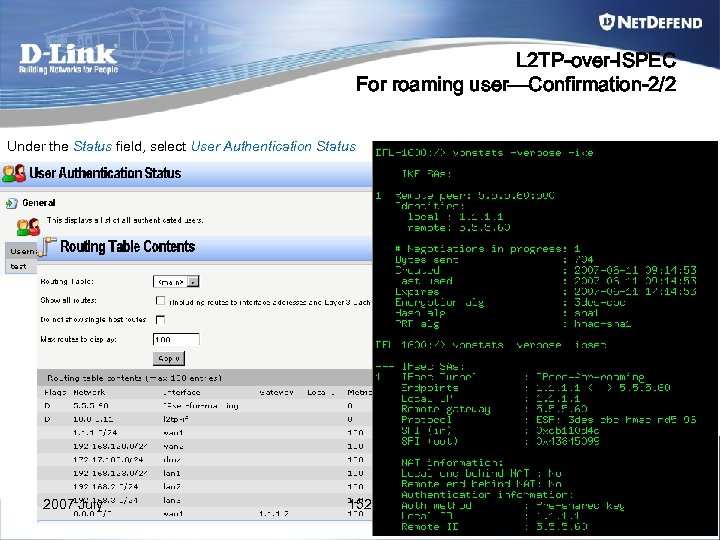 L 2 TP-over-ISPEC For roaming user—Confirmation-2/2 Under the Status field, select User Authentication Status 2007 July 152
 Thanks 2007 July 153
 Appendix A IPSec pass through V. S NAT-T 2007 July 154
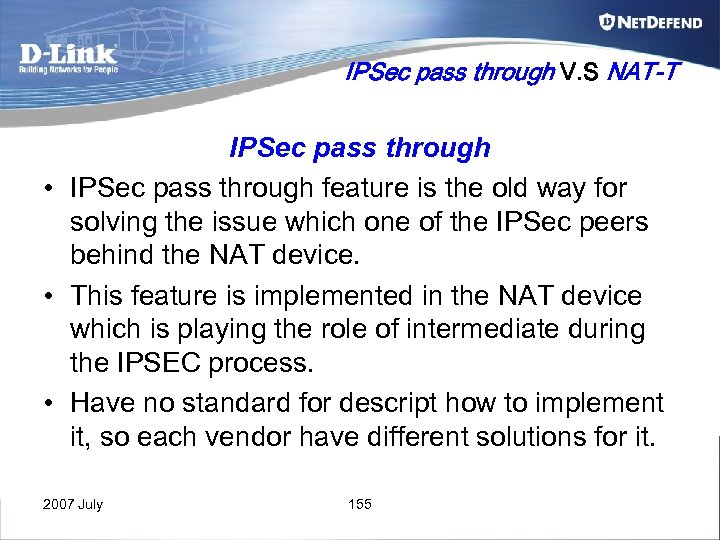 IPSec pass through V. S NAT-T IPSec pass through • IPSec pass through feature is the old way for solving the issue which one of the IPSec peers behind the NAT device. • This feature is implemented in the NAT device which is playing the role of intermediate during the IPSEC process. • Have no standard for descript how to implement it, so each vendor have different solutions for it. 2007 July 155
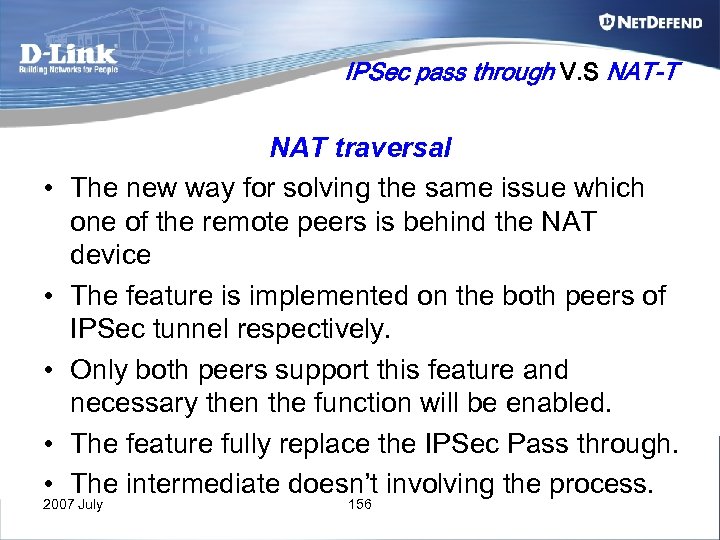 IPSec pass through V. S NAT-T • • • NAT traversal The new way for solving the same issue which one of the remote peers is behind the NAT device The feature is implemented on the both peers of IPSec tunnel respectively. Only both peers support this feature and necessary then the function will be enabled. The feature fully replace the IPSec Pass through. The intermediate doesn’t involving the process. 2007 July 156
 IPSEC NAT-traversal On DFL unit • NAT traversal drafts supported by Net. Defend. OS firewall: (DFL-210/800/1600/2500) – – draft-ietf-ipsec-nat-t-ike-00 draft-ietf-ipsec-nat-t-ike-01 draft-ietf-ipsec-nat-t-ike-02 draft-ietf-ipsec-nat-t-ike-03 2007 July 157
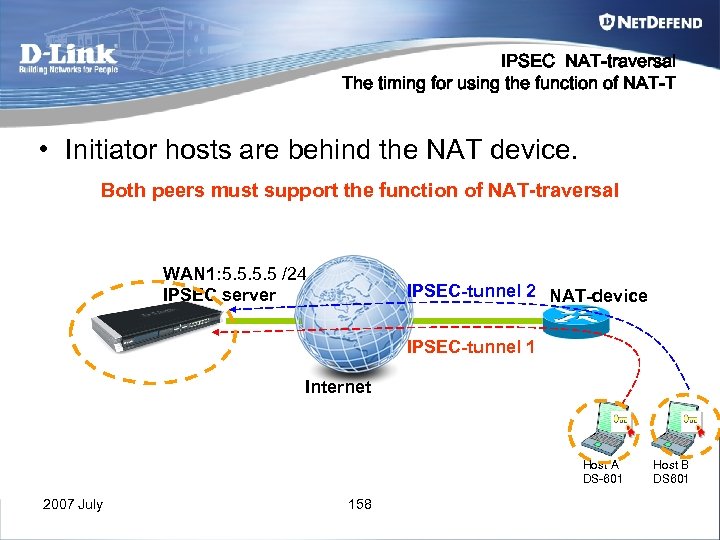 IPSEC NAT-traversal The timing for using the function of NAT-T • Initiator hosts are behind the NAT device. Both peers must support the function of NAT-traversal WAN 1: 5. 5 /24 IPSEC server IPSEC-tunnel 2 NAT-device IPSEC-tunnel 1 Internet Host A DS-601 2007 July 158 Host B DS 601
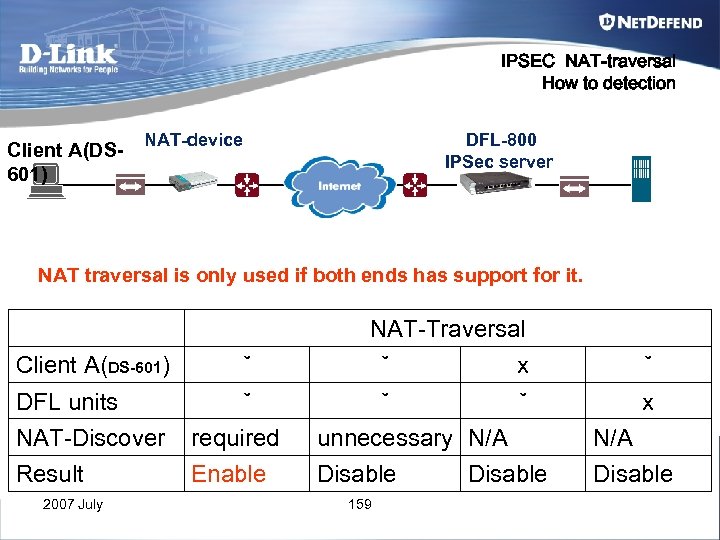 IPSEC NAT-traversal How to detection Client A(DS 601) NAT-device DFL-800 IPSec server NAT traversal is only used if both ends has support for it. NAT-Traversal Client A(DS-601) ˇ ˇ x DFL units NAT-Discover ˇ required ˇ ˇ unnecessary N/A Result Enable Disable 2007 July 159 Disable
 Appendix B VPN limitation & solution in DFL / DS-601 2007 July 160
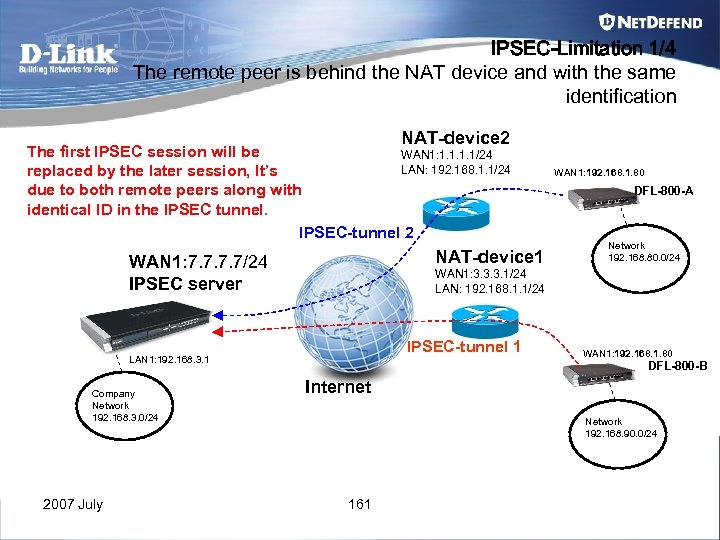 IPSEC-Limitation 1/4 The remote peer is behind the NAT device and with the same identification NAT-device 2 The first IPSEC session will be WAN 1: 1. 1/24 LAN: 192. 168. 1. 1/24 replaced by the later session, It’s due to both remote peers along with identical ID in the IPSEC tunnel. IPSEC-tunnel 2 NAT-device 1 WAN 1: 7. 7/24 IPSEC server 2007 July DFL-800 -A Network 192. 168. 80. 0/24 WAN 1: 3. 3. 3. 1/24 LAN: 192. 168. 1. 1/24 IPSEC-tunnel 1 LAN 1: 192. 168. 3. 1 Company Network 192. 168. 3. 0/24 WAN 1: 192. 168. 1. 80 DFL-800 -B Internet Network 192. 168. 90. 0/24 161
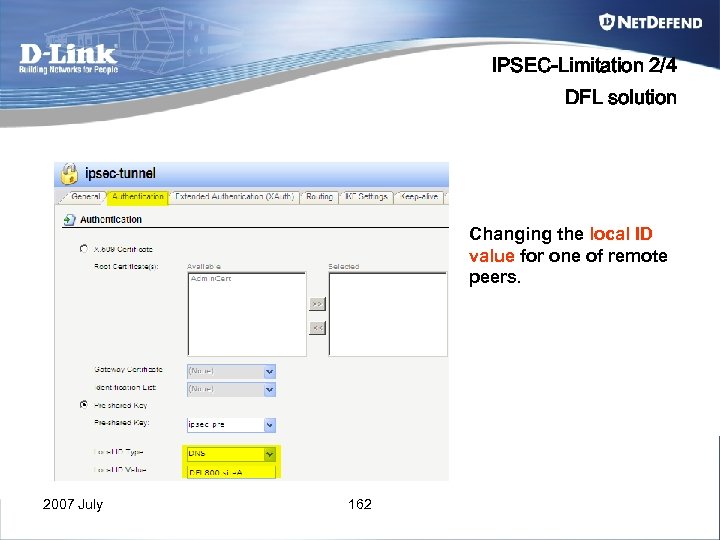 IPSEC-Limitation 2/4 DFL solution Changing the local ID value for one of remote peers. 2007 July 162
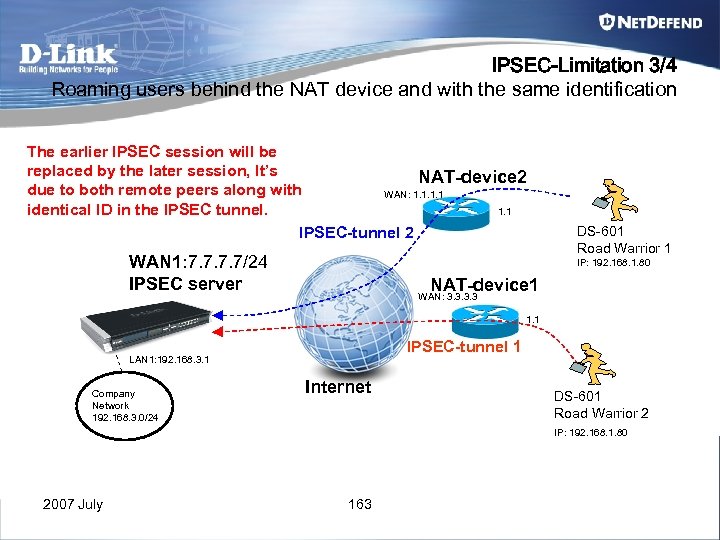 IPSEC-Limitation 3/4 Roaming users behind the NAT device and with the same identification The earlier IPSEC session will be replaced by the later session, It’s NAT-device 2 due to both remote peers along with WAN: 1. 1 identical ID in the IPSEC tunnel. 1. 1 IPSEC-tunnel 2 WAN 1: 7. 7/24 IPSEC server DS-601 Road Warrior 1 IP: 192. 168. 1. 80 NAT-device 1 WAN: 3. 3 1. 1 IPSEC-tunnel 1 LAN 1: 192. 168. 3. 1 Company Network 192. 168. 3. 0/24 Internet DS-601 Road Warrior 2 IP: 192. 168. 1. 80 2007 July 163
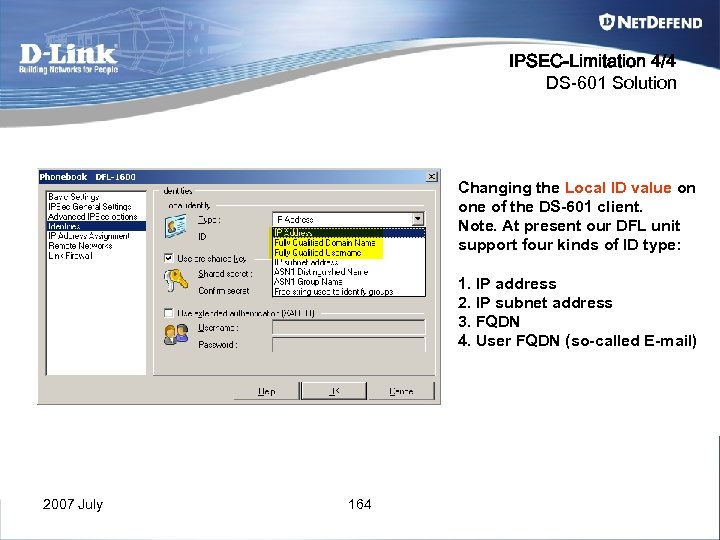 IPSEC-Limitation 4/4 DS-601 Solution Changing the Local ID value on one of the DS-601 client. Note. At present our DFL unit support four kinds of ID type: 1. IP address 2. IP subnet address 3. FQDN 4. User FQDN (so-called E-mail) 2007 July 164
 Appendix C Certification 2007 July 165
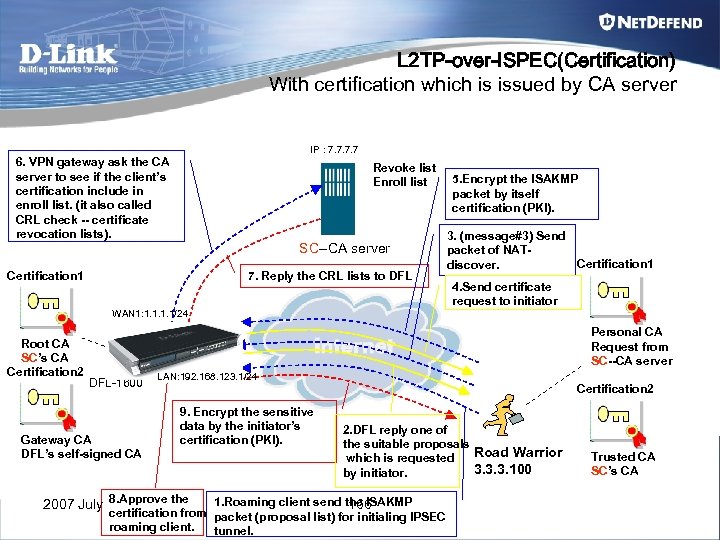 L 2 TP-over-ISPEC(Certification) With certification which is issued by CA server IP : 7. 7 6. VPN gateway ask the CA server to see if the client’s certification include in enroll list. (it also called CRL check -- certificate revocation lists). Revoke list Enroll list SC--CA server Certification 1 7. Reply the CRL lists to DFL 5. Encrypt the ISAKMP packet by itself certification (PKI). 3. (message#3) Send packet of NATCertification 1 discover. 4. Send certificate request to initiator WAN 1: 1. 1/24 Root CA SC’s CA Certification 2 Personal CA Request from SC--CA server DFL-1600 Gateway CA DFL’s self-signed CA LAN: 192. 168. 123. 1/24 Certification 2 9. Encrypt the sensitive data by the initiator’s certification (PKI). 2007 July 8. Approve the 2. DFL reply one of the suitable proposals Road Warrior which is requested 3. 3. 3. 100 by initiator. 1. Roaming client send the ISAKMP 166 certification from packet (proposal list) for initialing IPSEC roaming client. tunnel. Trusted CA SC’s CA
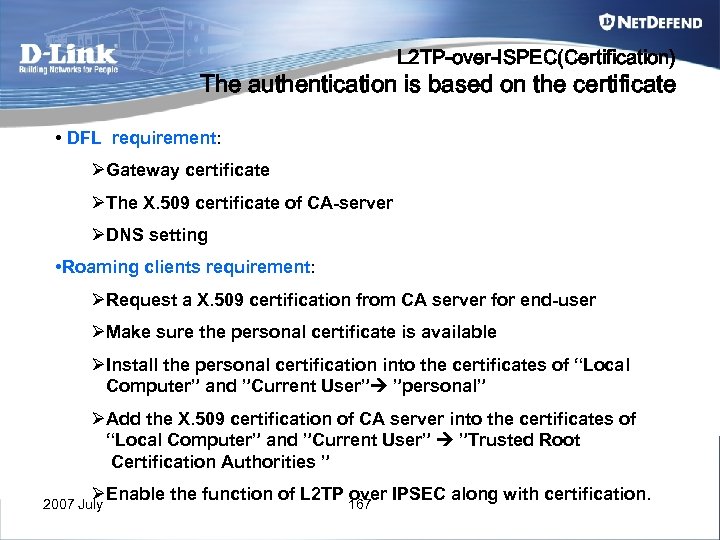 L 2 TP-over-ISPEC(Certification) The authentication is based on the certificate • DFL requirement: ØGateway certificate ØThe X. 509 certificate of CA-server ØDNS setting • Roaming clients requirement: ØRequest a X. 509 certification from CA server for end-user ØMake sure the personal certificate is available ØInstall the personal certification into the certificates of “Local Computer” and ”Current User” ”personal” ØAdd the X. 509 certification of CA server into the certificates of “Local Computer” and ”Current User” ”Trusted Root Certification Authorities ” ØEnable the function of L 2 TP 167 IPSEC along with certification. over 2007 July
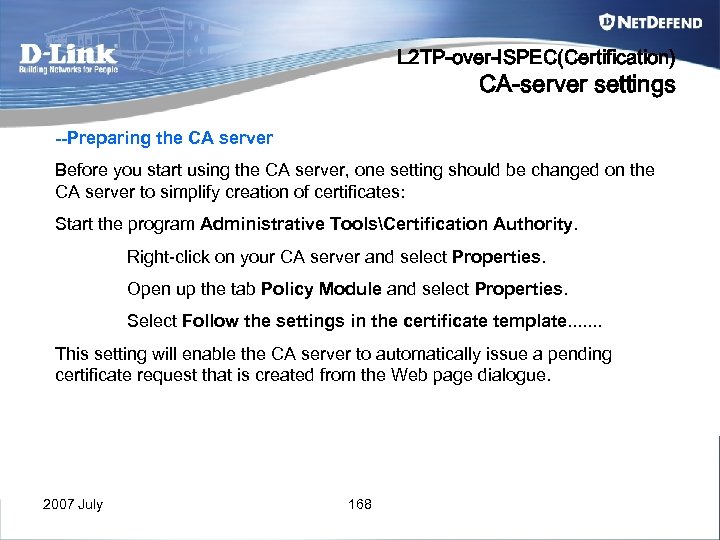 L 2 TP-over-ISPEC(Certification) CA-server settings --Preparing the CA server Before you start using the CA server, one setting should be changed on the CA server to simplify creation of certificates: Start the program Administrative ToolsCertification Authority. Right-click on your CA server and select Properties. Open up the tab Policy Module and select Properties. Select Follow the settings in the certificate template. . . . This setting will enable the CA server to automatically issue a pending certificate request that is created from the Web page dialogue. 2007 July 168
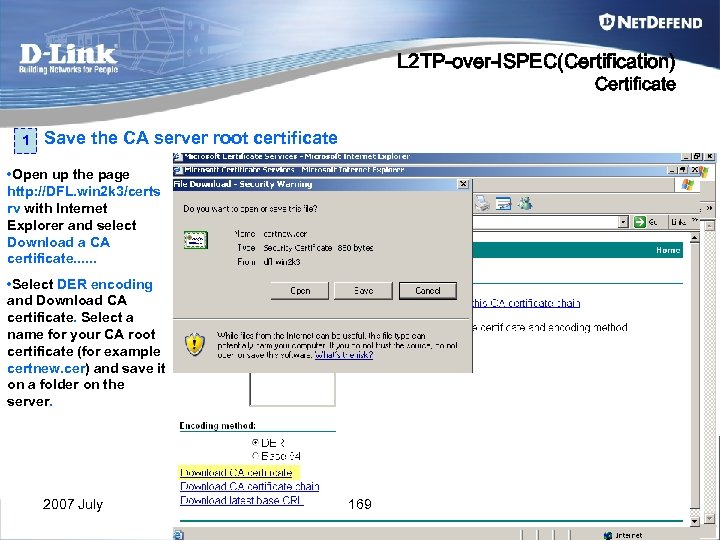 L 2 TP-over-ISPEC(Certification) Certificate 1 Save the CA server root certificate • Open up the page http: //DFL. win 2 k 3/certs rv with Internet Explorer and select Download a CA certificate. . . • Select DER encoding and Download CA certificate. Select a name for your CA root certificate (for example certnew. cer) and save it on a folder on the server. 2007 July 169
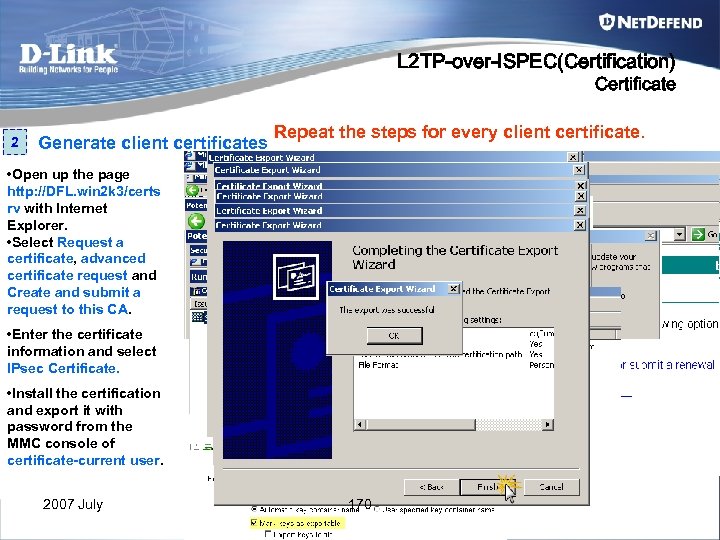 L 2 TP-over-ISPEC(Certification) Certificate 2 Generate client certificates Repeat the steps for every client certificate. • Open up the page http: //DFL. win 2 k 3/certs rv with Internet Explorer. • Select Request a certificate, advanced certificate request and Create and submit a request to this CA. • Enter the certificate information and select IPsec Certificate. • Install the certification and export it with password from the MMC console of certificate-current user. 2007 July 170
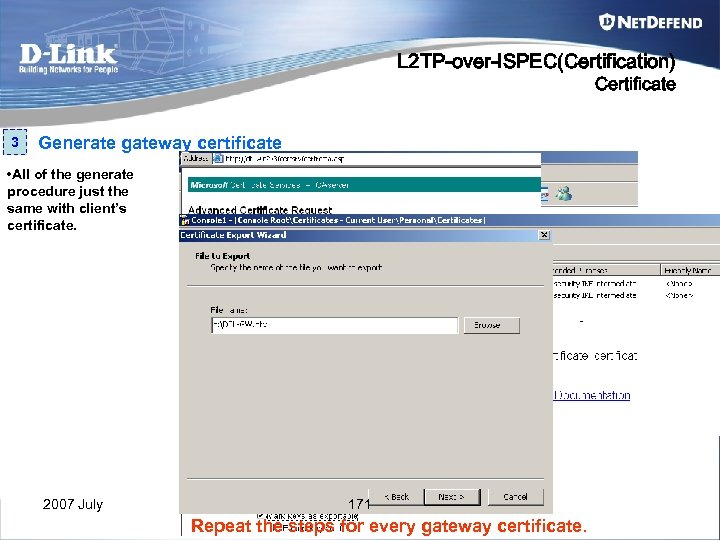 L 2 TP-over-ISPEC(Certification) Certificate 3 Generate gateway certificate • All of the generate procedure just the same with client’s certificate. 2007 July 171 Repeat the steps for every gateway certificate.
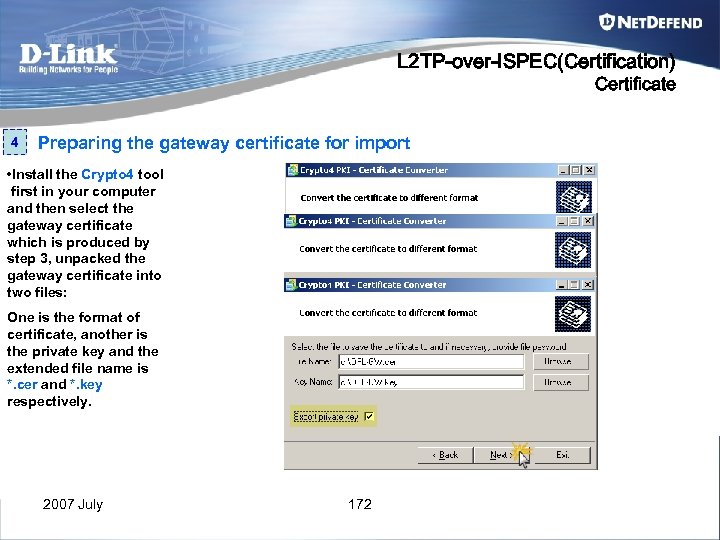 L 2 TP-over-ISPEC(Certification) Certificate 4 Preparing the gateway certificate for import • Install the Crypto 4 tool first in your computer and then select the gateway certificate which is produced by step 3, unpacked the gateway certificate into two files: One is the format of certificate, another is the private key and the extended file name is *. cer and *. key respectively. 2007 July 172
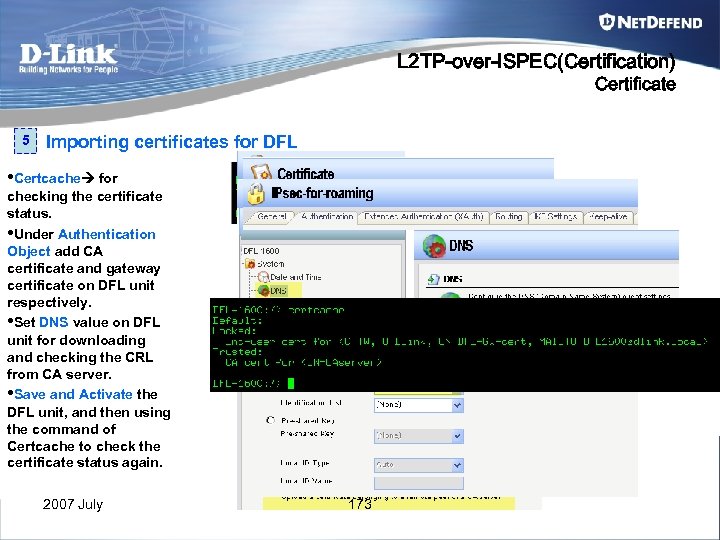 L 2 TP-over-ISPEC(Certification) Certificate 5 Importing certificates for DFL • Certcache for checking the certificate status. • Under Authentication Object add CA certificate and gateway certificate on DFL unit respectively. • Set DNS value on DFL unit for downloading and checking the CRL from CA server. • Save and Activate the DFL unit, and then using the command of Certcache to check the certificate status again. 2007 July 173
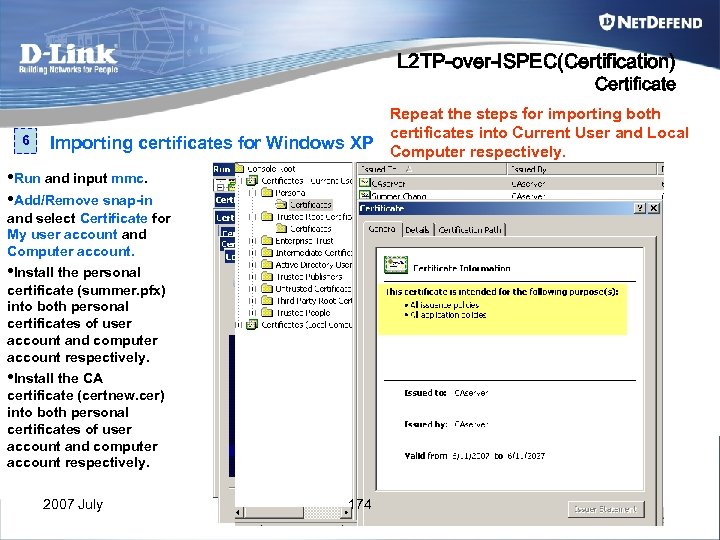 L 2 TP-over-ISPEC(Certification) Certificate 6 Repeat the steps for importing both certificates into Current User and Local Importing certificates for Windows XP Computer respectively. • Run and input mmc. • Add/Remove snap-in and select Certificate for My user account and Computer account. • Install the personal certificate (summer. pfx) into both personal certificates of user account and computer account respectively. • Install the CA certificate (certnew. cer) into both personal certificates of user account and computer account respectively. 2007 July 174
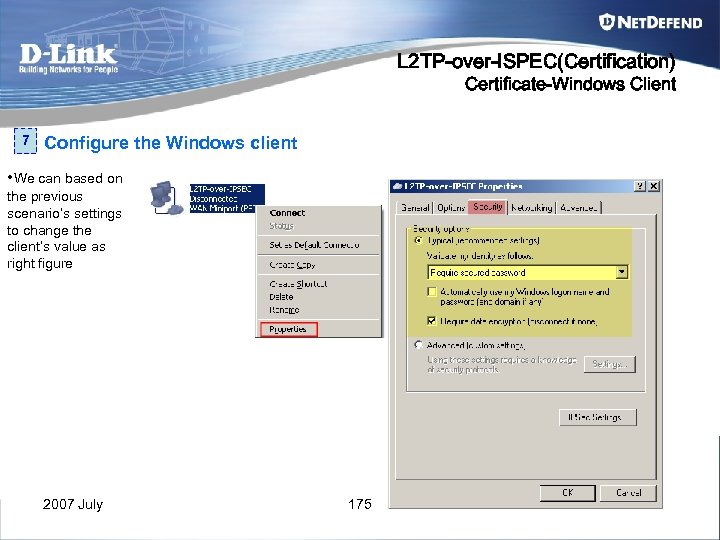 L 2 TP-over-ISPEC(Certification) Certificate-Windows Client 7 Configure the Windows client • We can based on the previous scenario’s settings to change the client’s value as right figure 2007 July 175
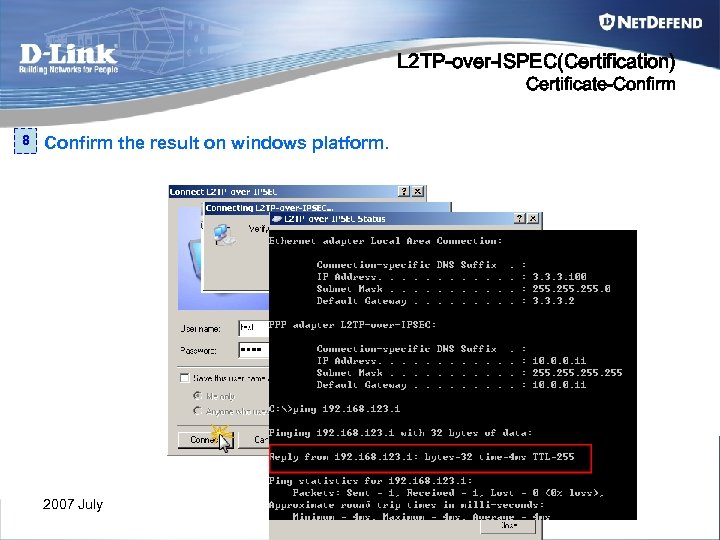 L 2 TP-over-ISPEC(Certification) Certificate-Confirm 8 Confirm the result on windows platform. 2007 July 176
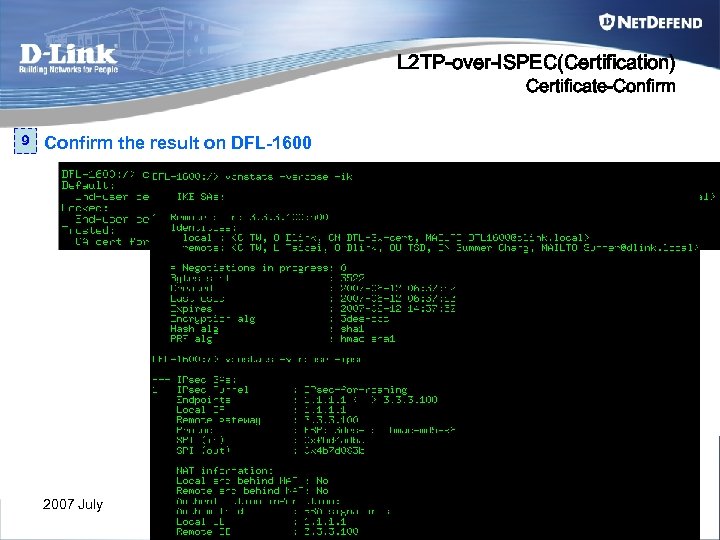 L 2 TP-over-ISPEC(Certification) Certificate-Confirm 9 Confirm the result on DFL-1600 2007 July 177
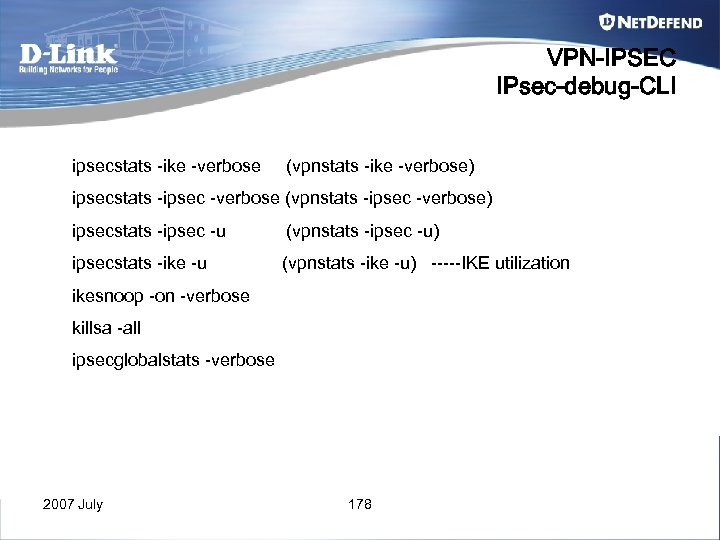 VPN-IPSEC IPsec-debug-CLI ipsecstats -ike -verbose (vpnstats -ike -verbose) ipsecstats -ipsec -verbose (vpnstats -ipsec -verbose) ipsecstats -ipsec -u (vpnstats -ipsec -u) ipsecstats -ike -u (vpnstats -ike -u) -----IKE utilization ikesnoop -on -verbose killsa -all ipsecglobalstats -verbose 2007 July 178