 Скачать презентацию DEP 393 Enabling File Server Consolidation with DFS
ca6c995895335b64b5908c129a0dcc6f.ppt
- Количество слайдов: 33



DEP 393 Enabling File Server Consolidation with DFS and Microsoft® Windows Server™ 2003 Intelligent File Services Brian Dewey Lead Program Manager, Core File Services Microsoft Corporation
File Server Consolidation Do More With Less What do you have today? Probably a lot of NT 4 file servers Where do you want to go? More availability, performance Fewer servers, less TCO High-level consolidation process: Size your new consolidated file servers Move the files Let people find the files Plan for availability & recoverability
1. File Server Sizing Disk and Memory Maximum volume size Depends upon size of recovery window & backup device speed Maximum number of files per volume Largest factor affecting chkdsk time See Veritest report for data points Common max volume size: 200 -500 GB Volume mount points mean terabytes per server Memory: More is better Server connection preallocation: See Q 317249 Server memory usage: See Q 312362
CHKDSK Reminder – NTFS is a mature journaling file system NTFS uses database-like logging techniques in order to remain consistent, even in case of a power fail or crash CHKDSK required only if hardware does not honor ‘write-through’ of the journal file Hardware corrupts data in some way There’s an NTFS bug – hence the emphasis on ‘mature’ CHKDSK in Windows Server 2003 CHKDSK performance gains See http: //www. veritest. com/clients/reports/microsoft/mschkdsk. pdf. . . showing > 1271% performance gain in their largest test configurations. Online CHKDSK filesystem verification In Windows Server 2003 RESKIT: ‘verfydsk. exe’ Uses VSS to create a shadow copy of volume
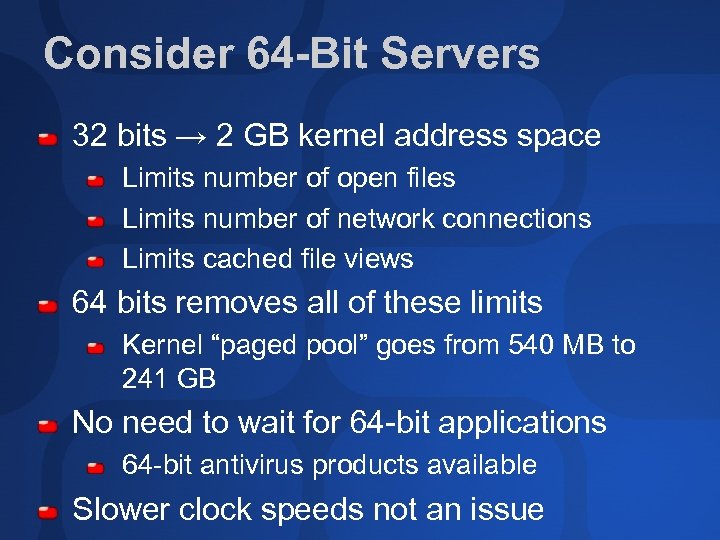
Consider 64 -Bit Servers 32 bits → 2 GB kernel address space Limits number of open files Limits number of network connections Limits cached file views 64 bits removes all of these limits Kernel “paged pool” goes from 540 MB to 241 GB No need to wait for 64 -bit applications 64 -bit antivirus products available Slower clock speeds not an issue
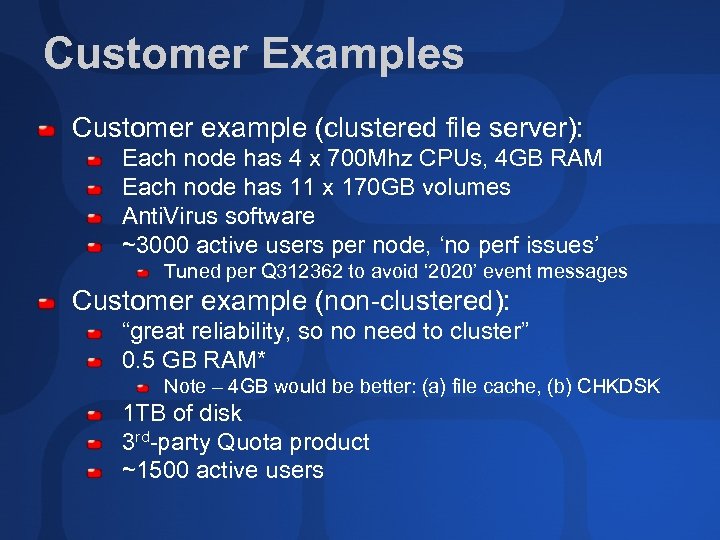
Customer Examples Customer example (clustered file server): Each node has 4 x 700 Mhz CPUs, 4 GB RAM Each node has 11 x 170 GB volumes Anti. Virus software ~3000 active users per node, ‘no perf issues’ Tuned per Q 312362 to avoid ‘ 2020’ event messages Customer example (non-clustered): “great reliability, so no need to cluster” 0. 5 GB RAM* Note – 4 GB would be better: (a) file cache, (b) CHKDSK 1 TB of disk 3 rd-party Quota product ~1500 active users
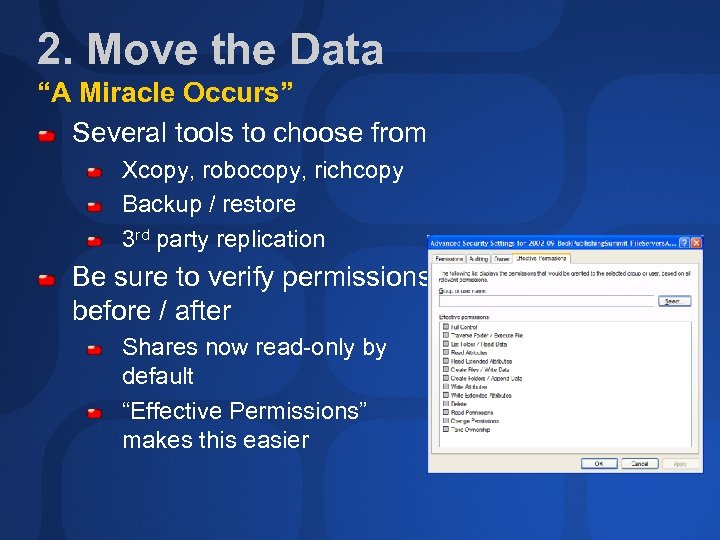
2. Move the Data “A Miracle Occurs” Several tools to choose from Xcopy, robocopy, richcopy Backup / restore 3 rd party replication Be sure to verify permissions before / after Shares now read-only by default “Effective Permissions” makes this easier
3. Locate the Files Congratulations! Your files are consolidated on new servers. Umm… how are people supposed to find them? Send them email Change drive letter mappings DFS What? You don’t use DFS? A consolidation effort is a great time to plan and deploy DFS
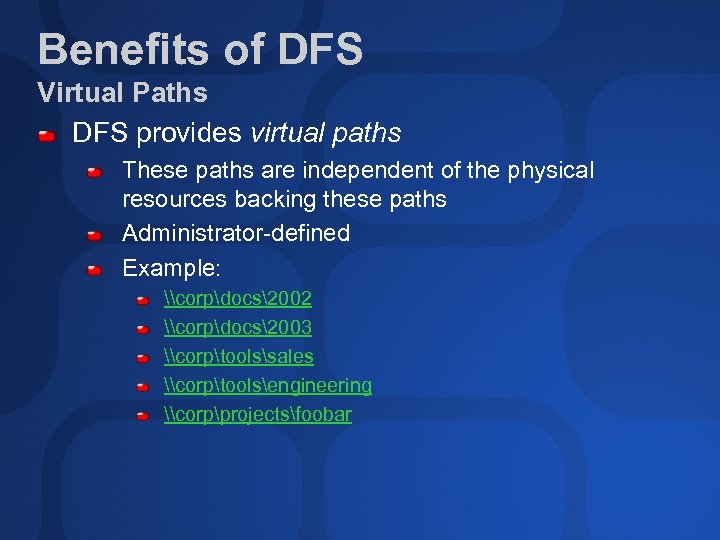
Benefits of DFS Virtual Paths DFS provides virtual paths These paths are independent of the physical resources backing these paths Administrator-defined Example: \corpdocs2002 \corpdocs2003 \corptoolssales \corptoolsengineering \corpprojectsfoobar

demo DFS
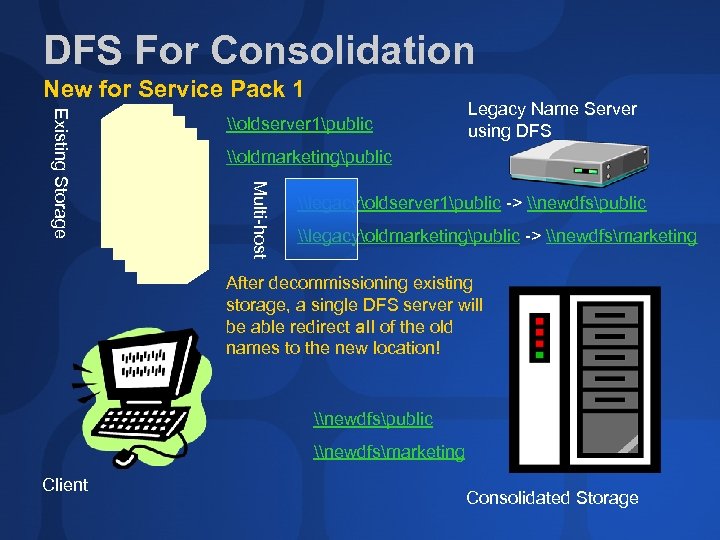
DFS For Consolidation New for Service Pack 1 \oldmarketingpublic Multi-host Existing Storage \oldserver 1public Legacy Name Server using DFS \legacyoldserver 1public -> \newdfspublic \legacyoldmarketingpublic -> \newdfsmarketing After decommissioning existing storage, a single DFS server will be able redirect all of the old names to the new location! \newdfspublic \newdfsmarketing Client Consolidated Storage
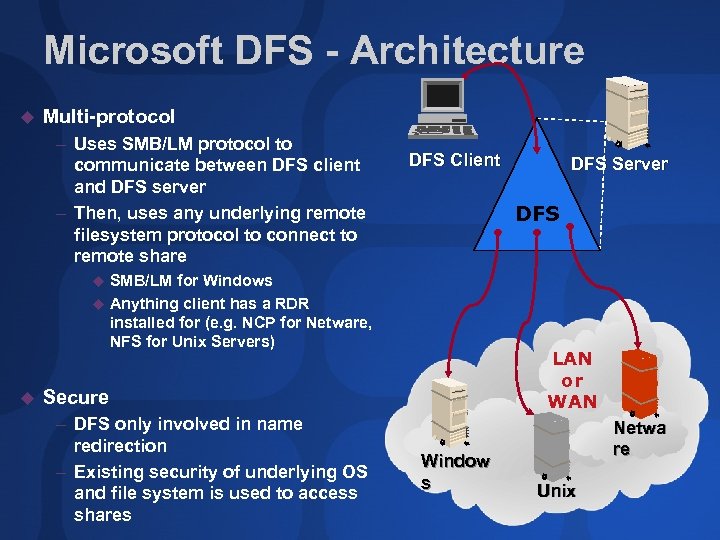
Microsoft DFS - Architecture u Multi-protocol – Uses SMB/LM protocol to communicate between DFS client and DFS server – Then, uses any underlying remote filesystem protocol to connect to remote share DFS Client DFS Server DFS SMB/LM for Windows u Anything client has a RDR installed for (e. g. NCP for Netware, NFS for Unix Servers) u u LAN or WAN Secure – DFS only involved in name redirection – Existing security of underlying OS and file system is used to access shares Window s Netwa re Unix
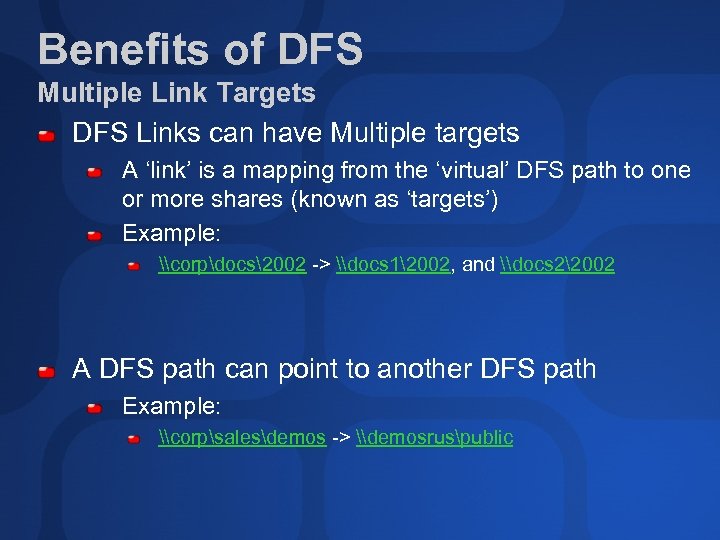
Benefits of DFS Multiple Link Targets DFS Links can have Multiple targets A ‘link’ is a mapping from the ‘virtual’ DFS path to one or more shares (known as ‘targets’) Example: \corpdocs2002 -> \docs 12002, and \docs 22002 A DFS path can point to another DFS path Example: \corpsalesdemos -> \demosruspublic
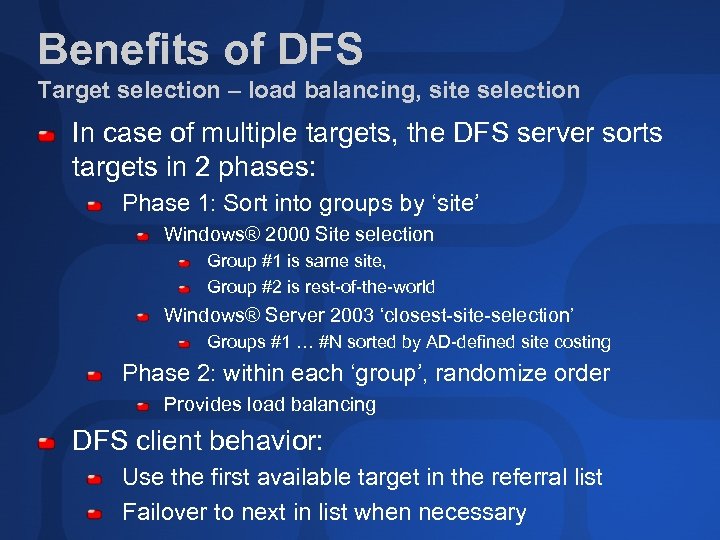
Benefits of DFS Target selection – load balancing, site selection In case of multiple targets, the DFS server sorts targets in 2 phases: Phase 1: Sort into groups by ‘site’ Windows® 2000 Site selection Group #1 is same site, Group #2 is rest-of-the-world Windows® Server 2003 ‘closest-site-selection’ Groups #1 … #N sorted by AD-defined site costing Phase 2: within each ‘group’, randomize order Provides load balancing DFS client behavior: Use the first available target in the referral list Failover to next in list when necessary
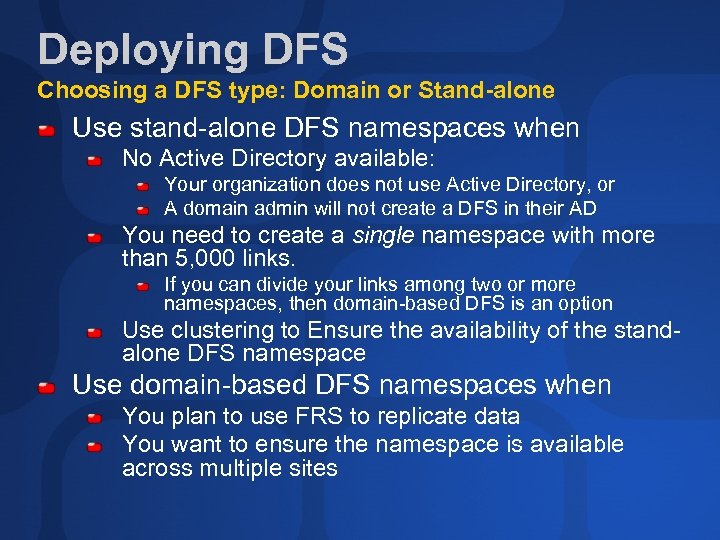
Deploying DFS Choosing a DFS type: Domain or Stand-alone Use stand-alone DFS namespaces when No Active Directory available: Your organization does not use Active Directory, or A domain admin will not create a DFS in their AD You need to create a single namespace with more than 5, 000 links. If you can divide your links among two or more namespaces, then domain-based DFS is an option Use clustering to Ensure the availability of the standalone DFS namespace Use domain-based DFS namespaces when You plan to use FRS to replicate data You want to ensure the namespace is available across multiple sites
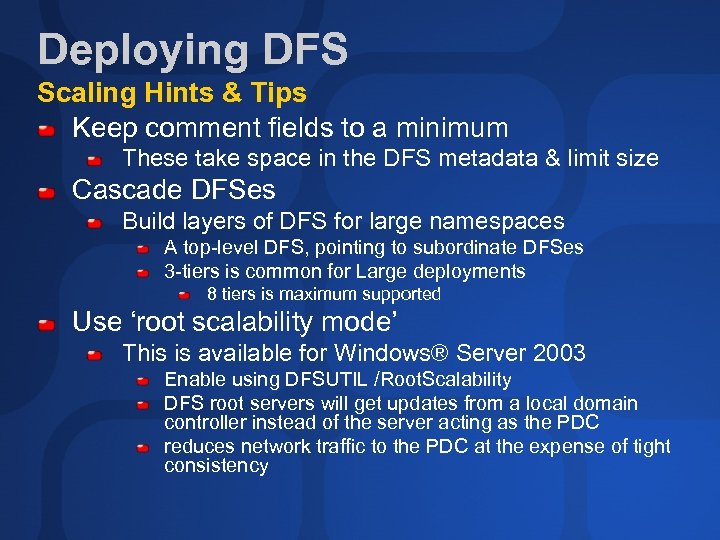
Deploying DFS Scaling Hints & Tips Keep comment fields to a minimum These take space in the DFS metadata & limit size Cascade DFSes Build layers of DFS for large namespaces A top-level DFS, pointing to subordinate DFSes 3 -tiers is common for Large deployments 8 tiers is maximum supported Use ‘root scalability mode’ This is available for Windows® Server 2003 Enable using DFSUTIL /Root. Scalability DFS root servers will get updates from a local domain controller instead of the server acting as the PDC reduces network traffic to the PDC at the expense of tight consistency
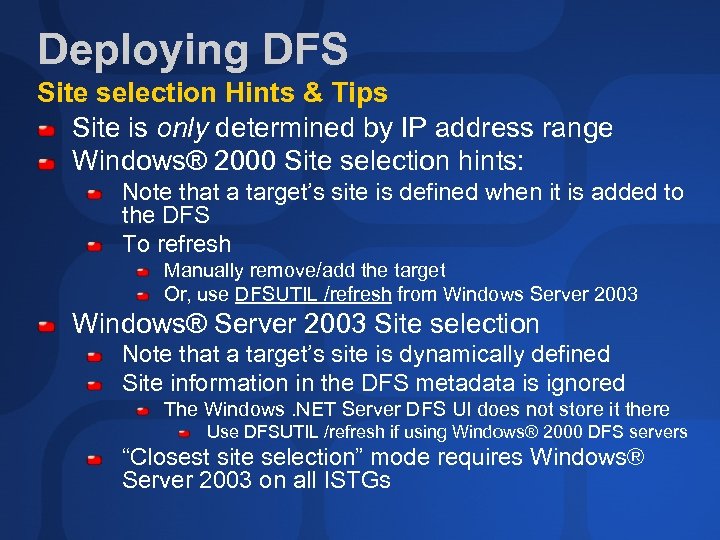
Deploying DFS Site selection Hints & Tips Site is only determined by IP address range Windows® 2000 Site selection hints: Note that a target’s site is defined when it is added to the DFS To refresh Manually remove/add the target Or, use DFSUTIL /refresh from Windows Server 2003 Windows® Server 2003 Site selection Note that a target’s site is dynamically defined Site information in the DFS metadata is ignored The Windows. NET Server DFS UI does not store it there Use DFSUTIL /refresh if using Windows® 2000 DFS servers “Closest site selection” mode requires Windows® Server 2003 on all ISTGs
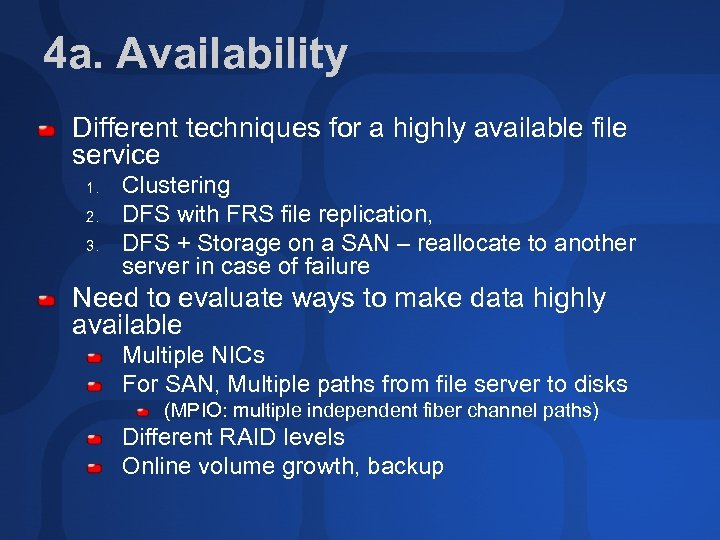
4 a. Availability Different techniques for a highly available file service 1. 2. 3. Clustering DFS with FRS file replication, DFS + Storage on a SAN – reallocate to another server in case of failure Need to evaluate ways to make data highly available Multiple NICs For SAN, Multiple paths from file server to disks (MPIO: multiple independent fiber channel paths) Different RAID levels Online volume growth, backup
demo DFS Failover
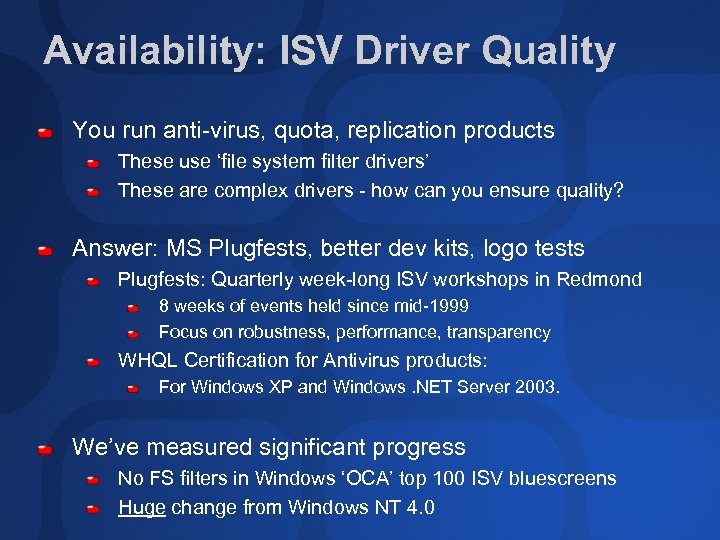
Availability: ISV Driver Quality You run anti-virus, quota, replication products These use ‘file system filter drivers’ These are complex drivers - how can you ensure quality? Answer: MS Plugfests, better dev kits, logo tests Plugfests: Quarterly week-long ISV workshops in Redmond 8 weeks of events held since mid-1999 Focus on robustness, performance, transparency WHQL Certification for Antivirus products: For Windows XP and Windows. NET Server 2003. We’ve measured significant progress No FS filters in Windows ‘OCA’ top 100 ISV bluescreens Huge change from Windows NT 4. 0
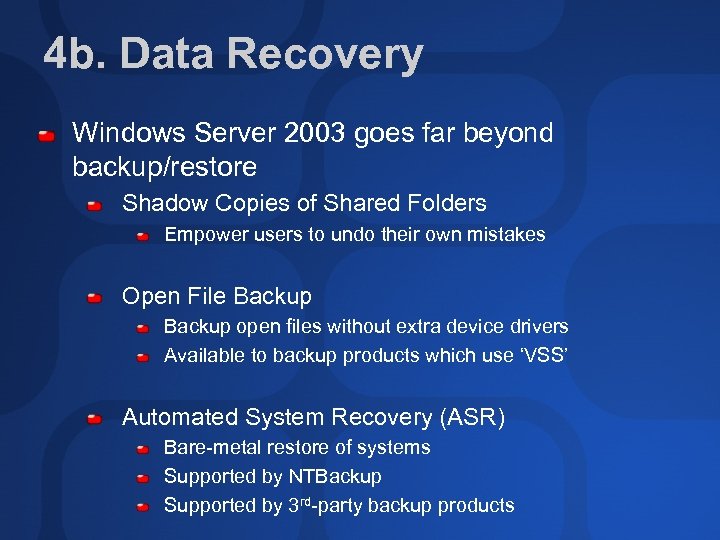
4 b. Data Recovery Windows Server 2003 goes far beyond backup/restore Shadow Copies of Shared Folders Empower users to undo their own mistakes Open File Backup open files without extra device drivers Available to backup products which use ‘VSS’ Automated System Recovery (ASR) Bare-metal restore of systems Supported by NTBackup Supported by 3 rd-party backup products
demo Shadow Copies of Shared Folders

Appendix…
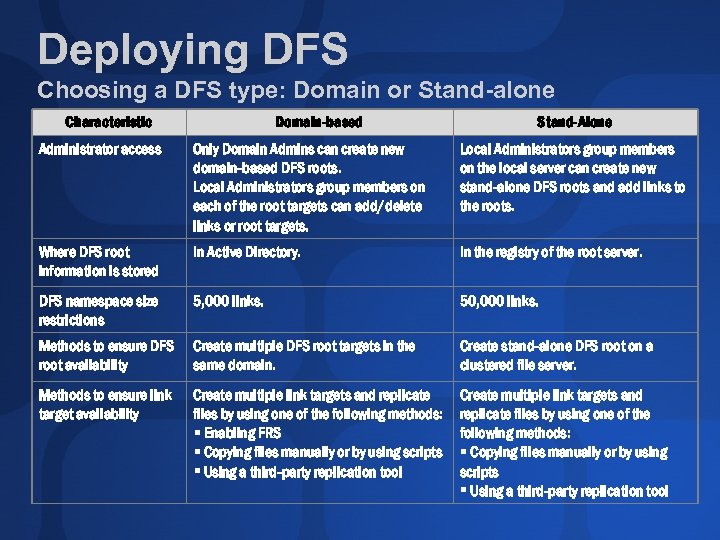
Deploying DFS Choosing a DFS type: Domain or Stand-alone Characteristic Domain-based Stand-Alone Administrator access Only Domain Admins can create new domain-based DFS roots. Local Administrators group members on each of the root targets can add/delete links or root targets. Local Administrators group members on the local server can create new stand-alone DFS roots and add links to the roots. Where DFS root information is stored In Active Directory. In the registry of the root server. DFS namespace size restrictions 5, 000 links. 50, 000 links. Methods to ensure DFS root availability Create multiple DFS root targets in the same domain. Create stand-alone DFS root on a clustered file server. Methods to ensure link target availability Create multiple link targets and replicate files by using one of the following methods: Enabling FRS Copying files manually or by using scripts Using a third-party replication tool Create multiple link targets and replicate files by using one of the following methods: Copying files manually or by using scripts Using a third-party replication tool
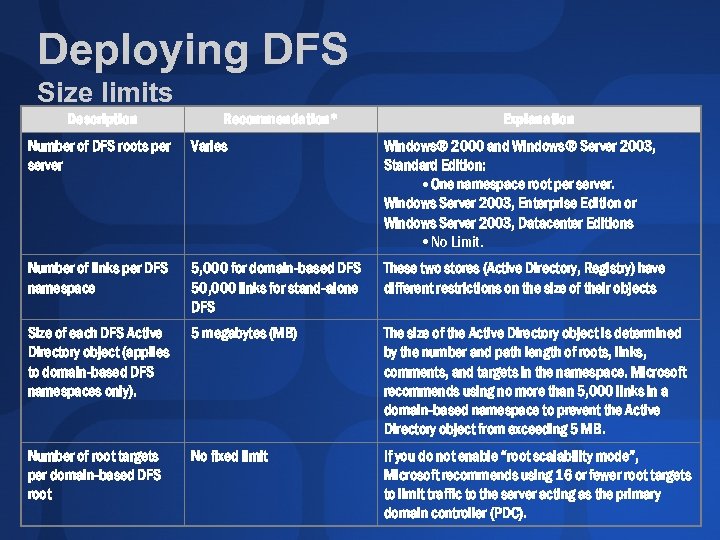
Deploying DFS Size limits Description Recommendation* Explanation Number of DFS roots per server Varies Windows® 2000 and Windows® Server 2003, Standard Edition: • One namespace root per server. Windows Server 2003, Enterprise Edition or Windows Server 2003, Datacenter Editions • No Limit. Number of links per DFS namespace 5, 000 for domain-based DFS 50, 000 links for stand-alone DFS These two stores (Active Directory, Registry) have different restrictions on the size of their objects Size of each DFS Active Directory object (applies to domain-based DFS namespaces only). 5 megabytes (MB) The size of the Active Directory object is determined by the number and path length of roots, links, comments, and targets in the namespace. Microsoft recommends using no more than 5, 000 links in a domain-based namespace to prevent the Active Directory object from exceeding 5 MB. Number of root targets per domain-based DFS root No fixed limit If you do not enable “root scalability mode”, Microsoft recommends using 16 or fewer root targets to limit traffic to the server acting as the primary domain controller (PDC).
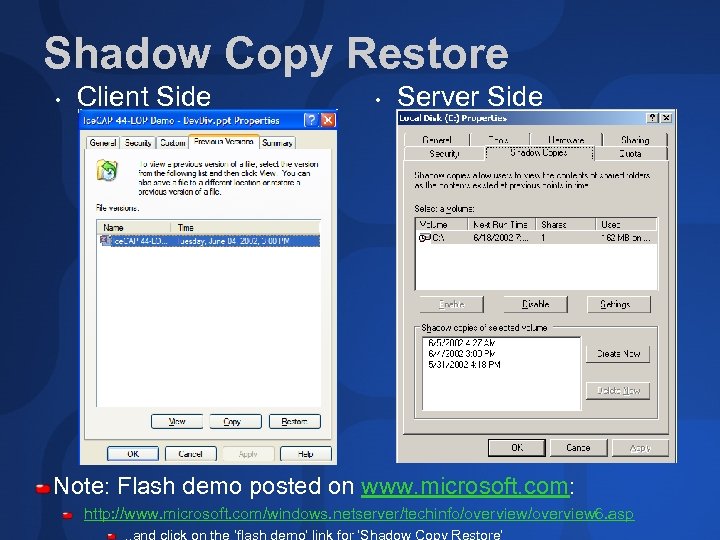
Shadow Copy Restore • Client Side • Server Side Note: Flash demo posted on www. microsoft. com: http: //www. microsoft. com/windows. netserver/techinfo/overview 6. asp. . and click on the ‘flash demo’ link for ‘Shadow Copy Restore’
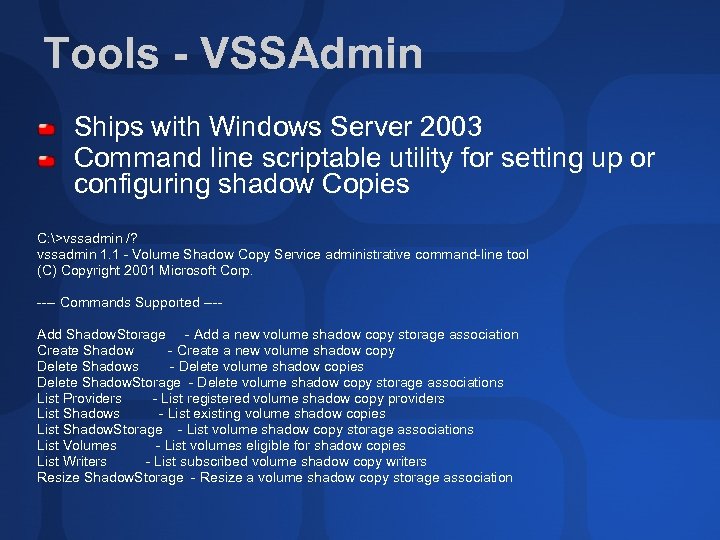
Tools - VSSAdmin Ships with Windows Server 2003 Command line scriptable utility for setting up or configuring shadow Copies C: >vssadmin /? vssadmin 1. 1 - Volume Shadow Copy Service administrative command-line tool (C) Copyright 2001 Microsoft Corp. ---- Commands Supported ---Add Shadow. Storage - Add a new volume shadow copy storage association Create Shadow - Create a new volume shadow copy Delete Shadows - Delete volume shadow copies Delete Shadow. Storage - Delete volume shadow copy storage associations List Providers - List registered volume shadow copy providers List Shadows - List existing volume shadow copies List Shadow. Storage - List volume shadow copy storage associations List Volumes - List volumes eligible for shadow copies List Writers - List subscribed volume shadow copy writers Resize Shadow. Storage - Resize a volume shadow copy storage association
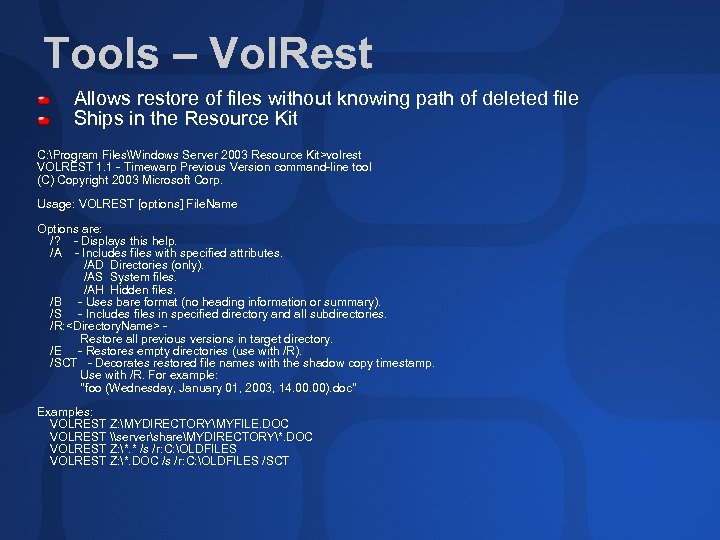
Tools – Vol. Rest Allows restore of files without knowing path of deleted file Ships in the Resource Kit C: Program FilesWindows Server 2003 Resource Kit>volrest VOLREST 1. 1 - Timewarp Previous Version command-line tool (C) Copyright 2003 Microsoft Corp. Usage: VOLREST [options] File. Name Options are: /? - Displays this help. /A - Includes files with specified attributes. /AD Directories (only). /AS System files. /AH Hidden files. /B - Uses bare format (no heading information or summary). /S - Includes files in specified directory and all subdirectories. /R: <Directory. Name> Restore all previous versions in target directory. /E - Restores empty directories (use with /R). /SCT - Decorates restored file names with the shadow copy timestamp. Use with /R. For example: "foo (Wednesday, January 01, 2003, 14. 00). doc" Examples: VOLREST Z: MYDIRECTORYMYFILE. DOC VOLREST \servershareMYDIRECTORY*. DOC VOLREST Z: *. * /s /r: C: OLDFILES VOLREST Z: *. DOC /s /r: C: OLDFILES /SCT
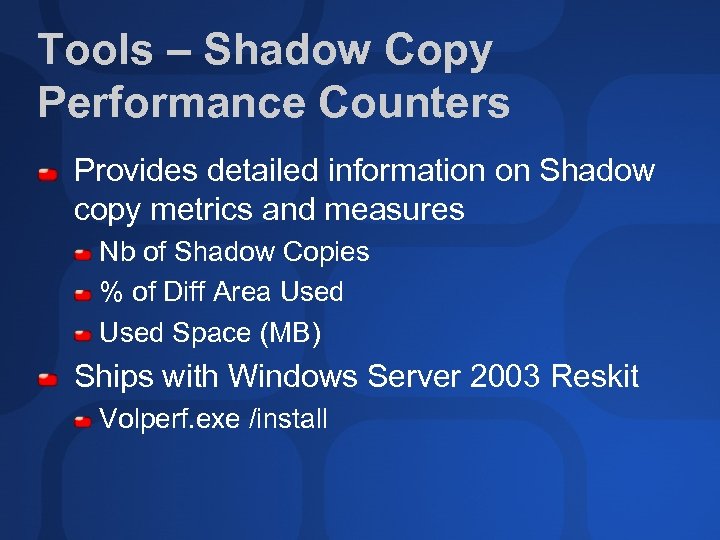
Tools – Shadow Copy Performance Counters Provides detailed information on Shadow copy metrics and measures Nb of Shadow Copies % of Diff Area Used Space (MB) Ships with Windows Server 2003 Reskit Volperf. exe /install
Ask The Experts Get Your Questions Answered Find me at the Storage booth, July 3 from 1 to 4 PM
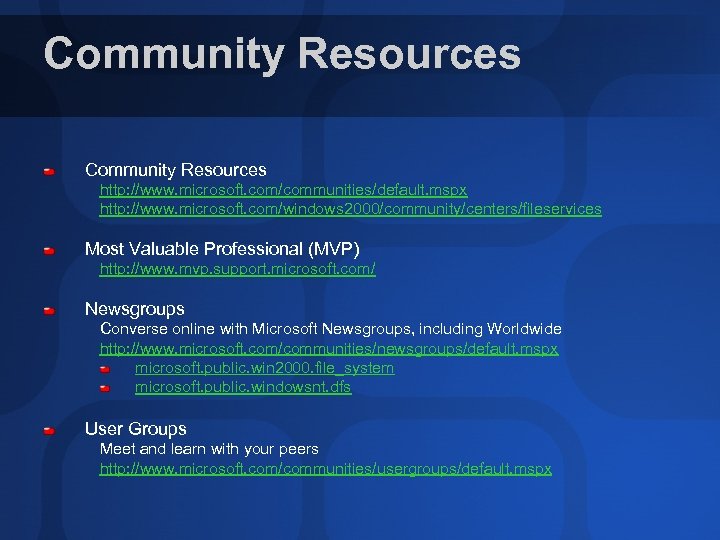
Community Resources http: //www. microsoft. com/communities/default. mspx http: //www. microsoft. com/windows 2000/community/centers/fileservices Most Valuable Professional (MVP) http: //www. mvp. support. microsoft. com/ Newsgroups Converse online with Microsoft Newsgroups, including Worldwide http: //www. microsoft. com/communities/newsgroups/default. mspx microsoft. public. win 2000. file_system microsoft. public. windowsnt. dfs User Groups Meet and learn with your peers http: //www. microsoft. com/communities/usergroups/default. mspx

evaluations
© 2003 Microsoft Corporation. All rights reserved. This presentation is for informational purposes only. MICROSOFT MAKES NO WARRANTIES, EXPRESS OR IMPLIED, IN THIS SUMMARY.
Скачать презентацию DEP 393 Enabling File Server Consolidation with DFS
ca6c995895335b64b5908c129a0dcc6f.ppt