 Скачать презентацию Databases To use the data effectively the
Databases-1.pptx
- Количество слайдов: 101



Databases
To use the data effectively, the information must be stored in such a way that it can be retrieved and interpreted with flexibility and efficiency. Usually it is done by using databases.
A database is an organized collection of related information used for a specific purpose, such as keeping track of ongoing work order activities or maintaining a library.
Data Base Management System (DBMS) DBMS is a set of computer programs that controls the – creation, – maintenance, and – use of a database.
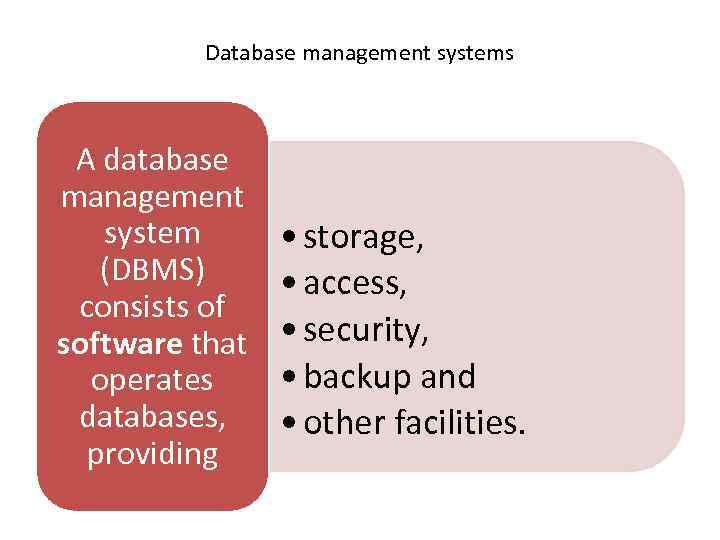
Database management systems A database management system (DBMS) consists of software that operates databases, providing • storage, • access, • security, • backup and • other facilities.
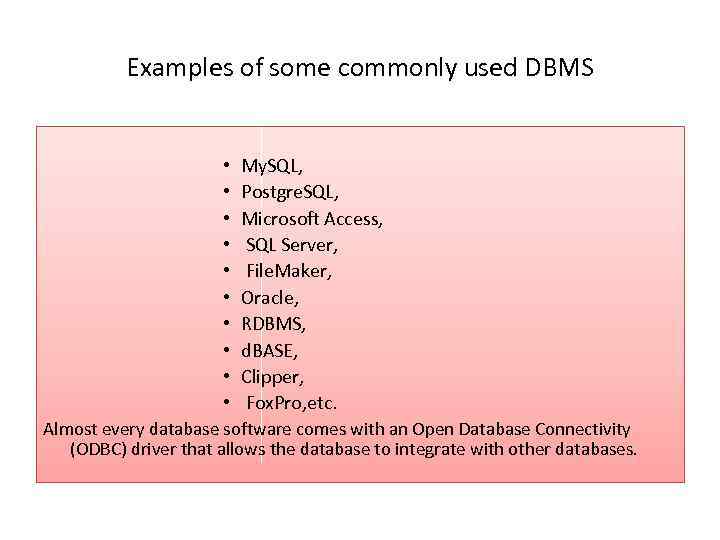
Examples of some commonly used DBMS • • • My. SQL, Postgre. SQL, Microsoft Access, SQL Server, File. Maker, Oracle, RDBMS, d. BASE, Clipper, Fox. Pro, etc. Almost every database software comes with an Open Database Connectivity (ODBC) driver that allows the database to integrate with other databases.
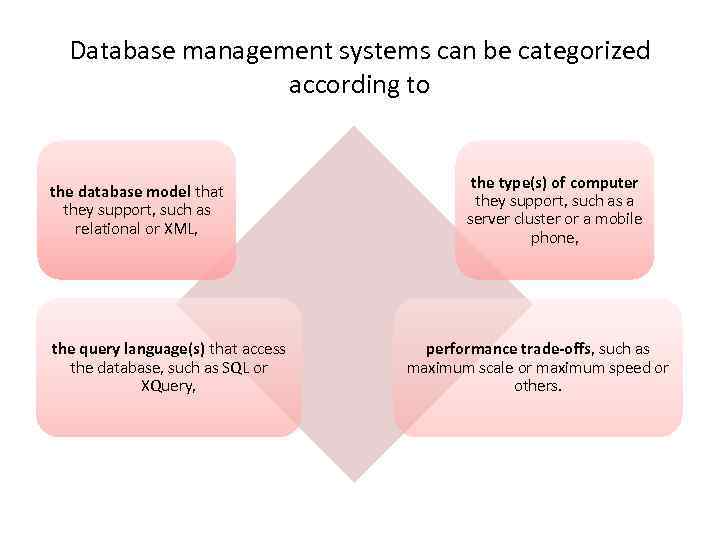
Database management systems can be categorized according to the database model that they support, such as relational or XML, the query language(s) that access the database, such as SQL or XQuery, the type(s) of computer they support, such as a server cluster or a mobile phone, performance trade-offs, such as maximum scale or maximum speed or others.
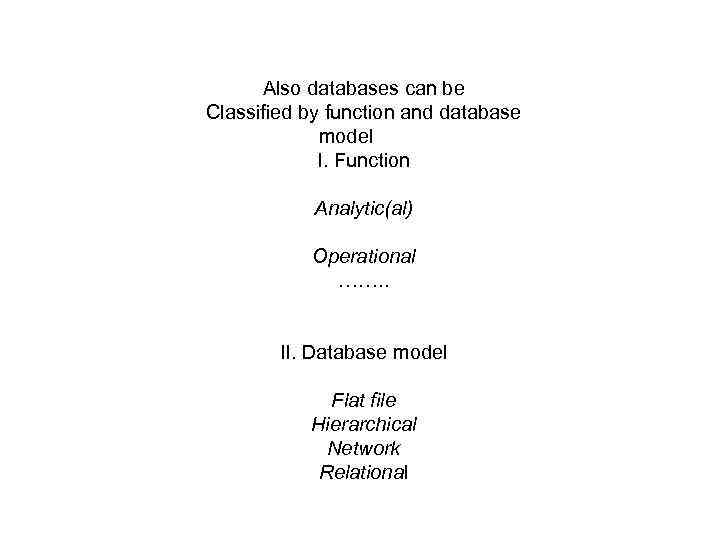
Also databases can be Classified by function and database model I. Function Analytic(al) Operational ……. . II. Database model Flat file Hierarchical Network Relational
I Analytical Databases An analytical database is used to store information from different types of databases such as selected operational databases and external databases. Other names given to analytical databases are information databases, management databases or multi-dimensional databases. The data stored in an analytical database is used by the management for analysis purposes, hence the name. The data in an analytical database cannot be changed or manipulated.
Operational Databases In its day to day operation, an organisation generates a huge amount of data. Think of things such as inventory management, purchases, transactions and financials. All this data is collected in a database which is often known by several names such as operational/ production database, subject-area database (SADB) or transaction databases. An operational database is usually hugely important to organisations as they include the customer database, personal database and inventory database i. e. the details of how much of a product the company has as well as information on the customers who buy them. The data stored in operational databases can be changed and manipulated depending on what the company requires.
ALSO Databases can be called as follows …
Database Warehouses Organisations are required to keep all relevant data for several years. In the UK it can be as long as 6 years. This data is also an important source of information for analysing and comparing the current year data with that of the past years which also makes it easier to determine key trends taking place. All this data from previous years are stored in a database warehouse. Since the data stored has gone through all kinds of screening, editing and integration it does not need any further editing or alteration. With this database ensure that the software requirements specification (SRS) is formally approved as part of the project quality plan
Distributed Databases Many organisations have several office locations, manufacturing plants, regional offices, branch offices and a head office at different geographic locations. Each of these work groups may have their own database which together will form the main database of the company. This is known as a distributed database.
End-User Databases There is a variety of data available at the workstation of all the end users of any organisation. Each workstation is like a small database in itself which includes data in spreadsheets, presentations, word files, note pads and downloaded files. All such small databases form a different type of database called the end-user database.
External Database There is a sea of information available outside world which is required by an organisation. They are privately-owned data for which one can have conditional and limited access for a fortune. This data is meant for commercial usage. All such databases outside the organisation which are of use and limited access are together called external database.
Hypermedia Database Most websites have various interconnected multimedia pages which might include text, video clips, audio clips, photographs and graphics. These all need to be stored and “called” from somewhere when the webpage if created. All of them together form the hypermedia database.
Navigational Database Navigational database has all the items which are references from other objects. In this, one has to navigate from one reference to other or one object to other. It might be using modern systems like XPath. One of its applications is the air flight management systems.
Document-Oriented Database A document oriented database is a different type of database which is used in applications which are document oriented. The data is stored in the form of text records instead of being stored in a data table as usually happens.
Real-Time Database A real-time database handles data which constantly keep on changing. An example of this is a stock market database where the value of shares change every minute and need to be updated in the real-time database. This type of database is also used in medical and scientific analysis, banking, accounting, process control, reservation systems etc. Essentially anything which requires access to fast moving and constantly changing information. Assume that this will require much more time than a normal relational database when it comes to the software testing life cycle, as these are much more complicated to efficiently test within normal timeframes.
II Database models Flat File • What is a data model? • • Well, essentially a data model is a "description" of both a container for data and a methodology for storing and retrieving data from that container. Actually, there isn't really a data model "thing". Data models are abstractions, oftentimes mathematical algorithms and concepts. You cannot really touch a data model. But nevertheless, they are very useful. The analysis and design of data models has been the cornerstone of the evolution of databases. As models have advanced so has database efficiency.
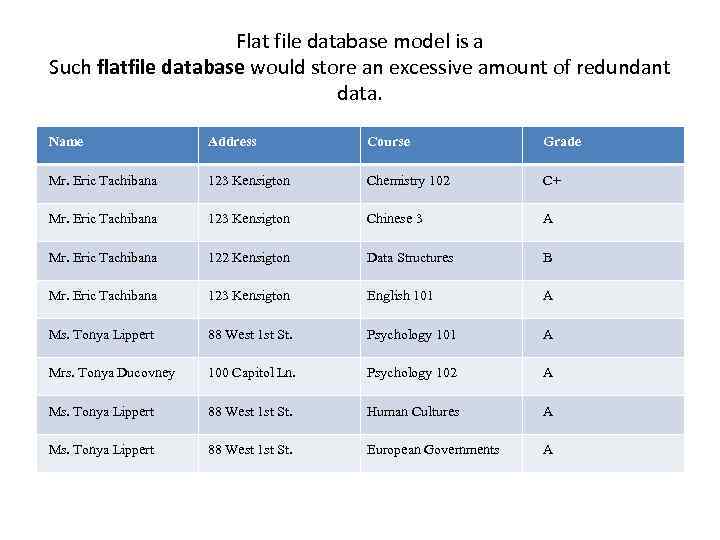
Flat file database model is a Such flatfile database would store an excessive amount of redundant data. Name Address Course Grade Mr. Eric Tachibana 123 Kensigton Chemistry 102 C+ Mr. Eric Tachibana 123 Kensigton Chinese 3 A Mr. Eric Tachibana 122 Kensigton Data Structures B Mr. Eric Tachibana 123 Kensigton English 101 A Ms. Tonya Lippert 88 West 1 st St. Psychology 101 A Mrs. Tonya Ducovney 100 Capitol Ln. Psychology 102 A Ms. Tonya Lippert 88 West 1 st St. Human Cultures A Ms. Tonya Lippert 88 West 1 st St. European Governments A
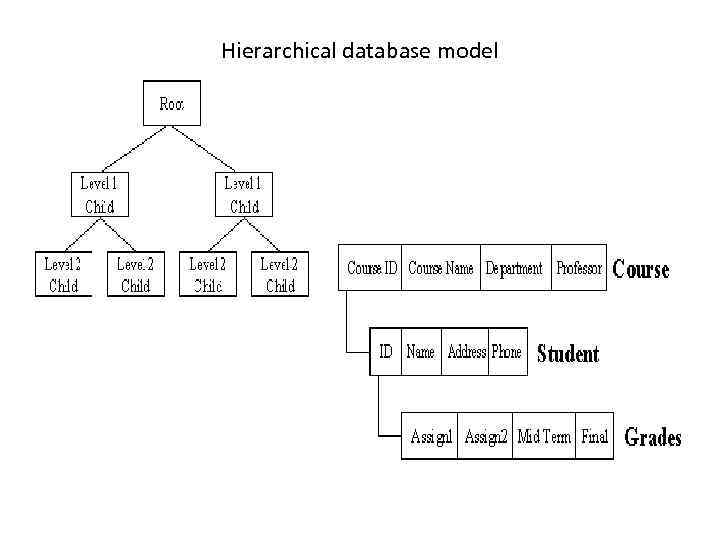
Hierarchical database model
• Perhaps the most intuitive way to visualize this type of relationship is by visualizing an upside down tree of data. In this tree, a single table acts as the "root" of the database from which other tables "branch" out. • Relationships in such a system are thought of in terms of children and parents such that a child may only have one parent but a parent can have multiple children. Parents and children are tied together by links called "pointers" • The hierarchical structure is used primarily today for storing geographic information and file systems.
• the Network model solves the problem of data redundancy by representing relationships in terms of sets rather than hierarchy. The model had its origins in the Conference on Data Systems Languages (CODASYL) which had created the Data Base Task Group to explore and design a method to replace the hierarchical model. • The network model is very similar to the hierarchical model actually. In fact, the hierarchical model is a subset of the network model. However, instead of using a single-parent tree hierarchy, the network model uses set theory to provide a tree-like hierarchy with the exception that child tables were allowed to have more than one parent. This allowed the network model to support many-to-many relationships.
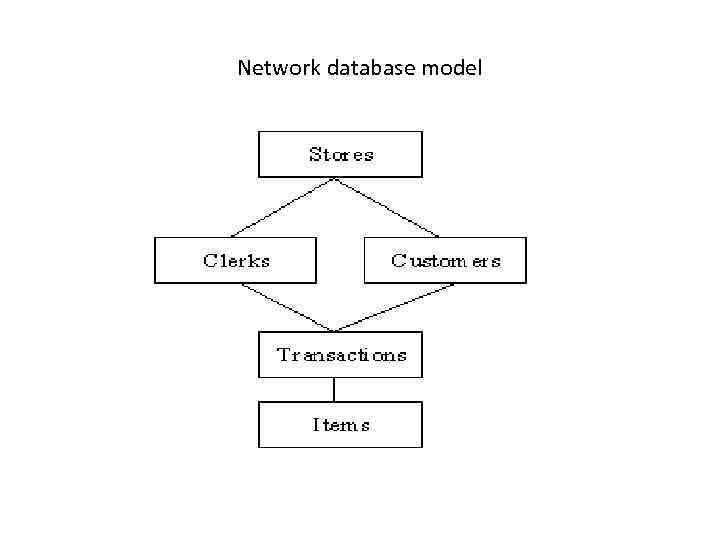
Network database model
• The network structure consists of more complex relationships. Unlike the hierarchical structure, it can relate to many records and accesses them by following one of several paths. In other words, this structure allows for many-to -many relationships. • Nevertheless, though it was a dramatic improvement, the network model was far from perfect. Most profoundly, the model was difficult to implement and maintain. Most implementations of the network model were used by computer programmers rather than real users. What was needed was a simple model which could be used by real end users to solve real problems.
• Of course in the 80's the "Relational Database Model" became the rage. The Relational Model developed out of the work done by Dr. E. F. Codd at IBM in the late 1960 s who was looking for ways to solve the problems with the existing models. • • Because he was a mathematician, he naturally built the model on mathematical concepts which he expounded in the famous work called "A Relational Model of Data for Large Shared Databanks". •
• At the core of the relational model is the concept of a table (also called a relation) in which all data is stored. Each table is made up of records (horizontal rows also known as tuples) and fields (vertical columns also known as attributes). • It is important to note that how or where the tables of data are stored makes no difference. Each table can be identified by a unique name and that name can be used by the database to find the table behind the scenes. As a user, all you need to know is the table name in order to use it. You do not need to worry about the complexities of how the data is stored on the hard drive. • This is quite a bit different from the hierarchical and network models in which the user had to have an understanding of how the data was structured within the database in order to retrieve, insert, update, or delete records from the database.
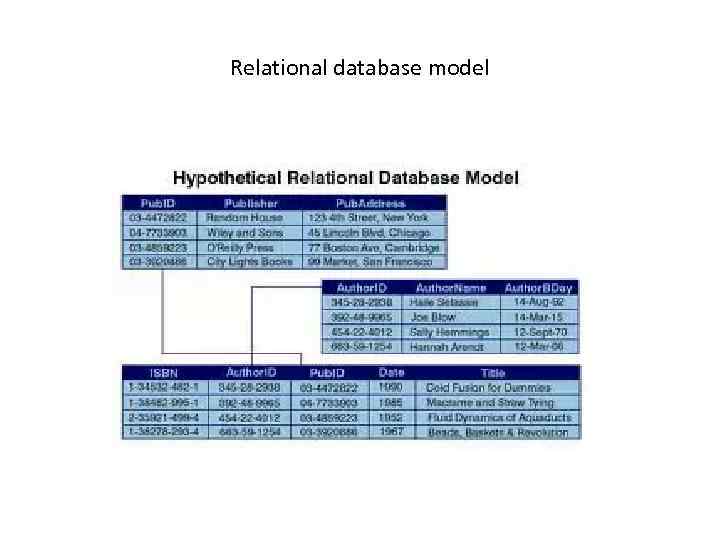
Relational database model
The relational structure is the most commonly used today. It is used by mainframe, midrange and microcomputer systems. It uses two-dimensional rows and columns to store data. The tables of records can be connected by common key values. While working for IBM, E. F. Codd designed this structure in 1970. The model is not easy for the end user to run queries with because it may require a complex combination of many tables.
MS Access is a relational database. As it is mentioned above, in a relational database the information is divided into separate stacks of logically related data, each of which is stored in a separate table in the file. Tables are the fundamental objects at the heart of a relational database. They form the active basis for the information storage and retrieval system. Once the information is arranged in separate tables, you can view, add, edit and delete information with online forms, search for and retrieve some of or all the information with queries; and print information as customized reports. In Access the term database is more precisely used to define the collection of objects that store, track, manipulate, and retrieve data.
Advantages of using a relational database structure • Reduction of data redundancy, which not only reduces the required disk storage space, but also speeds processing. • Flexibility. If data changes, you can update the value in only one place. All queries, forms, and reports look in that place for the current values. • Simplicity. The flat-file model used as the basis for a relational system dictates a simple, non-redundant method of data storage. Each table in the relational design is a single object containing data relevant to a particular aspect of the database, such as an employee, a product, or an order. • Power. Storing the data in separate related tables allows grouping, searching, and retrieving the information in almost unlimited ways. • Ease of management. With smaller, less-complicated tables, the information is much easier to locate and manage.
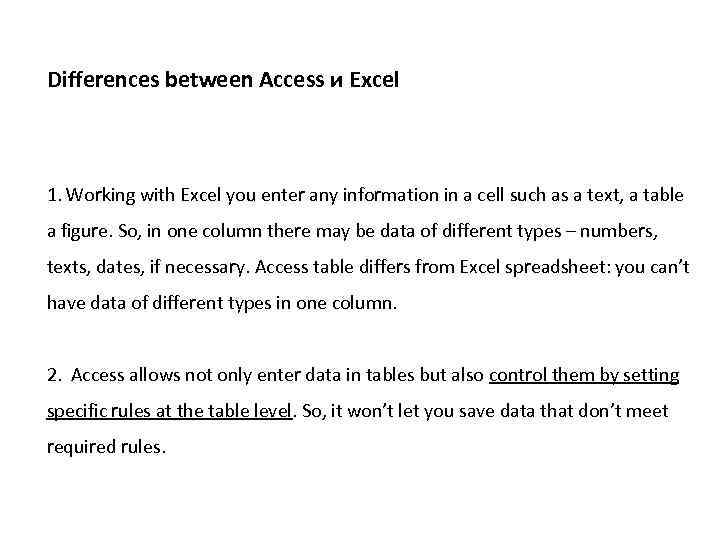
Differences between Access и Excel 1. Working with Excel you enter any information in a cell such as a text, a table a figure. So, in one column there may be data of different types – numbers, texts, dates, if necessary. Access table differs from Excel spreadsheet: you can’t have data of different types in one column. 2. Access allows not only enter data in tables but also control them by setting specific rules at the table level. So, it won’t let you save data that don’t meet required rules.
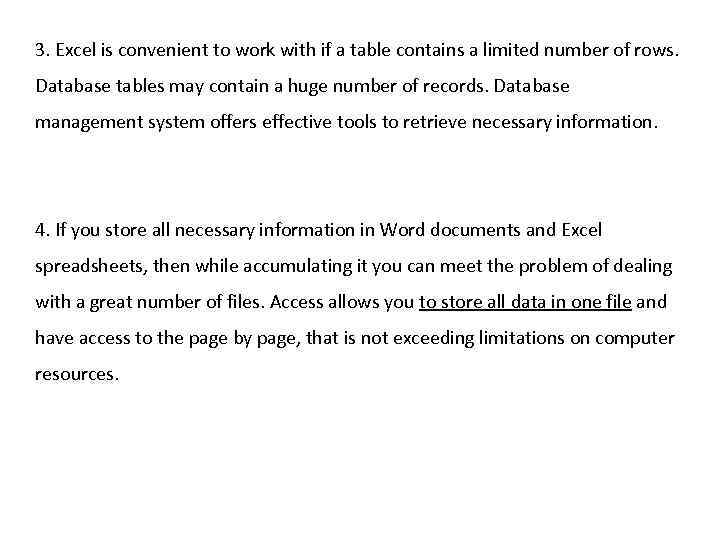
3. Excel is convenient to work with if a table contains a limited number of rows. Database tables may contain a huge number of records. Database management system offers effective tools to retrieve necessary information. 4. If you store all necessary information in Word documents and Excel spreadsheets, then while accumulating it you can meet the problem of dealing with a great number of files. Access allows you to store all data in one file and have access to the page by page, that is not exceeding limitations on computer resources.
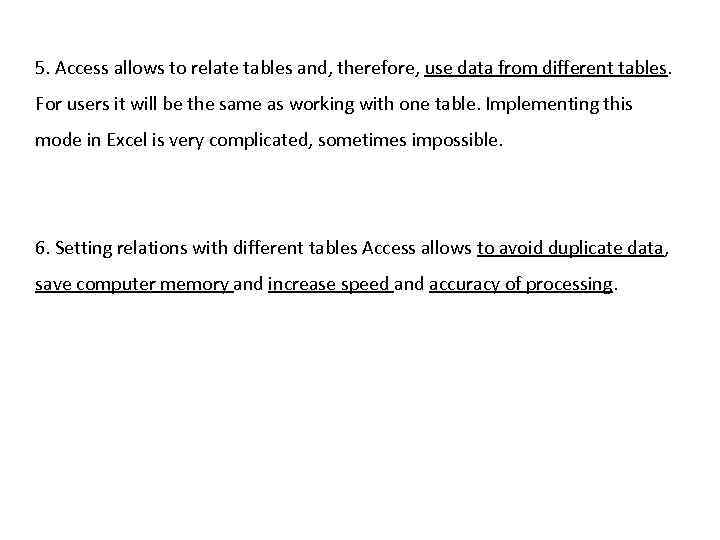
5. Access allows to relate tables and, therefore, use data from different tables. For users it will be the same as working with one table. Implementing this mode in Excel is very complicated, sometimes impossible. 6. Setting relations with different tables Access allows to avoid duplicate data, save computer memory and increase speed and accuracy of processing.
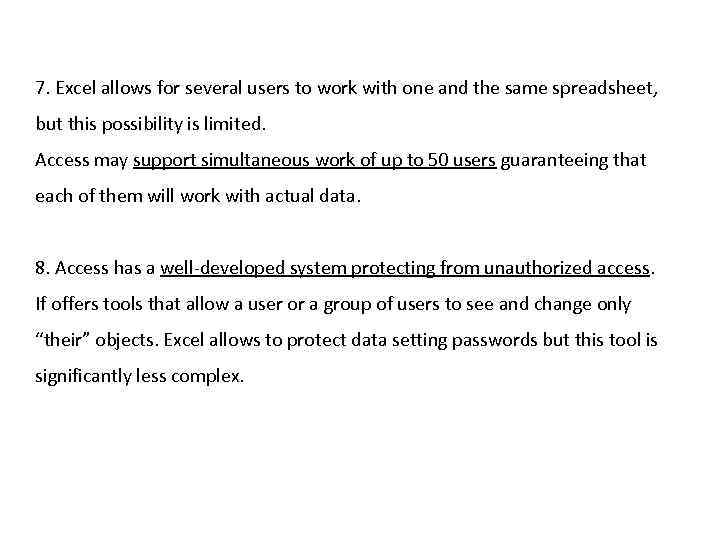
7. Excel allows for several users to work with one and the same spreadsheet, but this possibility is limited. Access may support simultaneous work of up to 50 users guaranteeing that each of them will work with actual data. 8. Access has a well-developed system protecting from unauthorized access. If offers tools that allow a user or a group of users to see and change only “their” objects. Excel allows to protect data setting passwords but this tool is significantly less complex.
Types of Relationships Tables can be related in three different ways: – – – one-to-one, one-to-many, and many-to-many. The type you define depends on how many records in each table are likely to have the same value. To relate tables, one of them must include a field that contains a unique value in every record. This can be a primary key field or a field with a unique index that allows no duplicate values. A primary key or a unique index can also be a combination of two or more fields whose combined value is unique for all records. For example, the Employee ID can be a unique number that identifies an employee. If you want to use names in a key or index, you’d probably need to include both the first and last names to ensure unique values.
In Access the most commonly used type of relationship is the one-to-many relationship, in which one record in one table can have one or many matching records in another table, or maybe none at all. The table on “one” side is often called the parent table and the other is called the child table. The one-to-one relationship is sometimes used as a form of lookup, in which each record in one of the tables has a matching record in the other table. Neither table is designated as the parent. The key fields in both tables are the primary keys. One use of this type of relationship is to store additional, seldom -accessed information about an item in the first table, such as an abstract of a book or the details of a work order.
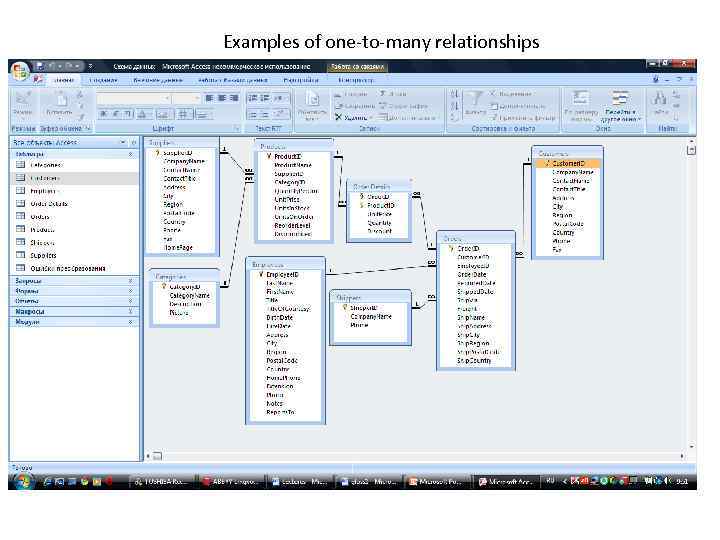
Examples of one-to-many relationships
[ The many-to-many relationship is not permitted as such in a relational database. Many records in one table have the same values in the key field as many records in the second table. To implement this in Access, you must create a third table, called a junction table, to place between the first two, converting the many-to-many to two one-to-many relationships. Office Access 2007 introduces a new field type, the multivalued field, that can replace the need for the junction table when creating a many-to-many relationship. ]
Referential Integrity Referential integrity is an optional system of rules that guarantees the relationships are valid and the database will remain intact as data is entered, edited, or deleted. • The basic rule of referential integrity is this: For every record in a child table (the “many” side), one and only one matching record must be in the parent table (the “one” side).
[ Access referential integrity rules • You cannot enter a child record for which no parent exists (start a work order without a customer). • You cannot delete a parent record if related child records still exist (remove a customer before the job is completed). • You cannot change a child record so its foreign key does not have a match in the parent table (change the customer field in a work order record to a nonexistent customer). • You cannot change the primary key value in a parent table as long as related records are in the child table (change a customer link before the work order is finished). ]
[ Before you can set referential integrity, you must make sure you meet the following conditions: • The matching field in the parent table is the primary key or at least has a unique value, such as Auto. Number field. • Related fields are the same data type. • Both tables are in the same Access database. You can set referential integrity between linked tables, provided they are both in Access format and you open the database that contains the linked tables. • The same rules can apply to a one-to-one relationship. Enforcing the referential integrity rules in such a relationship guarantees that every record in the table has one and only one matching record in the other table. ]
Access Objects Access is an object-oriented database management system (DBMS), which means that the entire database is composed of objects. The major database objects are: tables, queries, forms, reports, macros, modules.
• The tables are the containers for all the data in your database. A table (entity) represents all that the database knows about one subject or kind of thing. A column (attribute) represents one feature, characteristic, or fact that is true of the table subject. A row (instance) represents one individual instance of the table subject.
• A query is a question that you ask of your database. You usually use a query to extract a specified set of records from one or more tables. • Forms are often more convenient than a tabular datasheet for entering and editing table data, especially if a table includes more data than can fit across the screen and you have to scroll right to see the rest. Forms are especially useful for creating a comfortable visual environment for data management.
When you want to print the data, you usually create a report. The report can be a quick and easy dump of the table data — useful for checking specific data items — or it can be a glossy presentation of the data in a custom format suitable for the stockholders or a business manager. Macros contain a sequence of commands that perform a certain task and are useful for defining the automatic actions that respond to button clicks or other events. Modules are programs written in Visual Basic for Applications (VBA), the programming language used by Office Access 2007. Procedures contained in the modules are the cornerstone (краеугольный камень) of advanced Access applications.
Objects have certain characteristics or attributes called properties that determine their structure, appearance, and behavior. For example, table properties include: - a description of the table, - the subject of the table, and - the arrangement of records in the table, such as in alphabetic or chronological order, based on one or more fields.
Check Yourself • • • Give examples of databases. When would you choose Excel and when Access? What is a relational database? Why a flat-file database is not efficient? What types of relations do you know? What is the most common type of relationship in Access? Why is Access an object-oriented database? What are the functions of the Access objects? How do you understand the term “Referential Integrity”?
Part II 1. Designing the Database. Stages. 2. Choosing Field and Table names. 3. Access 2007 Data Types. 4. Specifying Field Data Types.
DESIGNING the DATABASE The database design process can be broken down into seven steps, each with specific goals and products: • Determine what the users want from the database and what data is needed to provide the output. • Decide what tables to include in the database. • Identify the fields for each table. • Assign unique fields or combination of fields for each table that ensures no two records are the same. • Determine how the tables are related to one another. • Review design and step through procedures with users. • Create tables and enter data. • Video 4. 22
Choosing Field and table (generally, objects names) names remember the following: • A name of an object must be unique in the database. • Field names can have up to 64 characters including letters, numbers, and spaces. Using a mixture of uppercase and lowercase letters can help you explain the field, but Access does not differentiate between cases in field names. • An object cannot have the same name as a built-in function, property or other reserved name in the Access vocabulary.
• A name cannot have a leading space or any control characters (ASCII codes 00 – 31). • Field names may contain any characters including letters, numbers, spaces, special characters except for a period (. ), exclamation mark (!), accent grave (`), square brackets ([]). • Remember that though Access accepts spaces in field names, other applications may not. For example, if you plan to program with Visual Basic, do not include spaces in object names. Instead replace them with underscore (_) characters or use a mixture of uppercase and lowercase letters.
DATA TYPES in ACCESS 2007 There are 11 data types that can be used in Access: TEXT MEMO NUMBER DATE / TIME CURRENCY Auto. Number YES / NO (BOOLEAN) OLE object HYPERLINK ATTACHMENT Look. Up Wizard
• Text. The Text data type is the most common data type and can contain any combination of up to 255 characters and / or numbers. For example, it can be used for storing values that contain combinations of letters and numbers, such as addresses and job descriptions, different codes etc. • Memo. The Memo type is used to store long, but variable-length text possibly relating to the other field data. For example, you could add comments to your employee records about their efficiency on the job or their skills when dealing with customers. The text can vary in size from a few words to up to 65, 535 characters. Memo fields support rich text format (rtf) editing.
Number. The Number type is used when you want to sort values or use them in calculations, such as adding up the labor hours for a plumbing job or the hours worked by a certain employee during the winter season. Date / Time. The Date / Time data type is most useful when you want to sort records chronologically by the value in the field. You can also use it to determine elapsed time. This data type provides a variety of ways to display the data as well. Currency. The type is used when you want to store monetary values, such as the cost and bid price of contracted jobs. Currency fields can be used in arithmetic calculations, just like the Number fields. Currency values are accurate up to 15 digits to the left of the decimal point and 4 digits to the right. Using Currency instead of the Number data type prevents inaccuracies caused by rounding off the results of calculations to two decimal points.
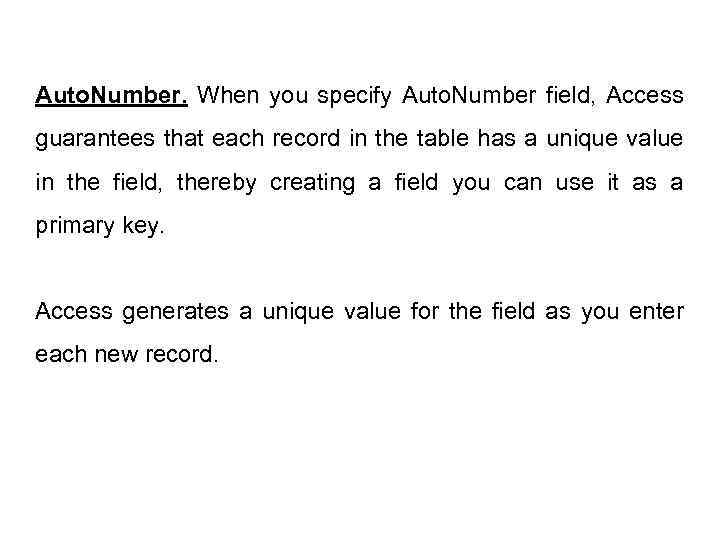
Auto. Number. When you specify Auto. Number field, Access guarantees that each record in the table has a unique value in the field, thereby creating a field you can use it as a primary key. Access generates a unique value for the field as you enter each new record.
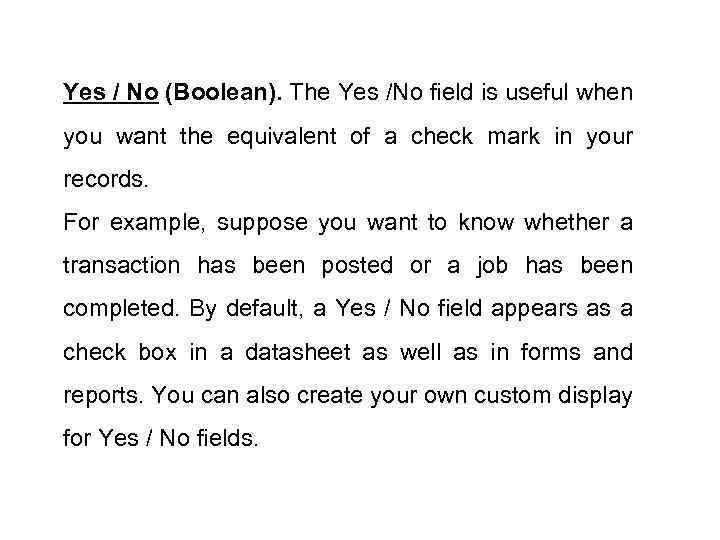
Yes / No (Boolean). The Yes /No field is useful when you want the equivalent of a check mark in your records. For example, suppose you want to know whether a transaction has been posted or a job has been completed. By default, a Yes / No field appears as a check box in a datasheet as well as in forms and reports. You can also create your own custom display for Yes / No fields.
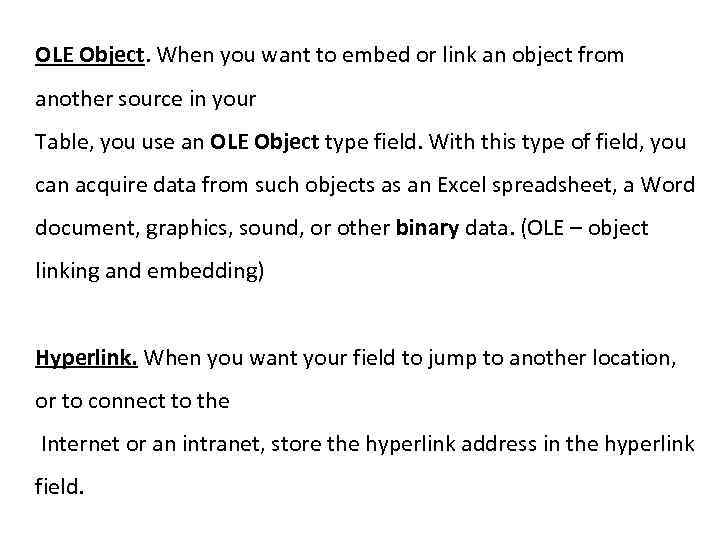
OLE Object. When you want to embed or link an object from another source in your Table, you use an OLE Object type field. With this type of field, you can acquire data from such objects as an Excel spreadsheet, a Word document, graphics, sound, or other binary data. (OLE – object linking and embedding) Hyperlink. When you want your field to jump to another location, or to connect to the Internet or an intranet, store the hyperlink address in the hyperlink field.
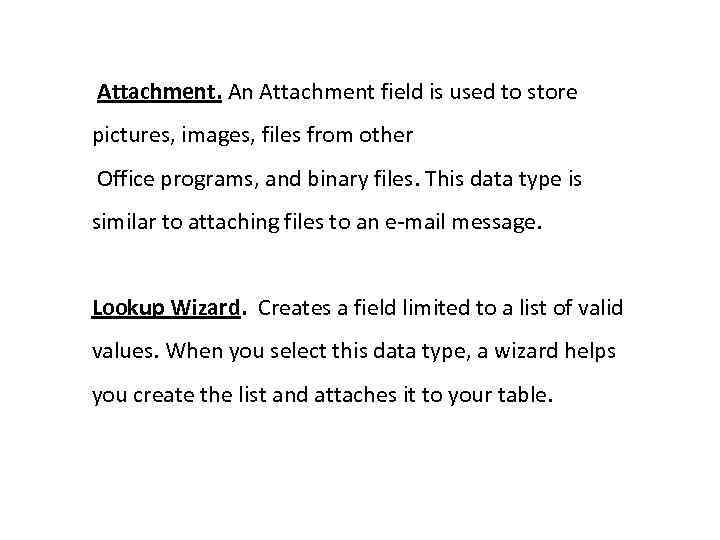
Attachment. An Attachment field is used to store pictures, images, files from other Office programs, and binary files. This data type is similar to attaching files to an e-mail message. Lookup Wizard. Creates a field limited to a list of valid values. When you select this data type, a wizard helps you create the list and attaches it to your table.
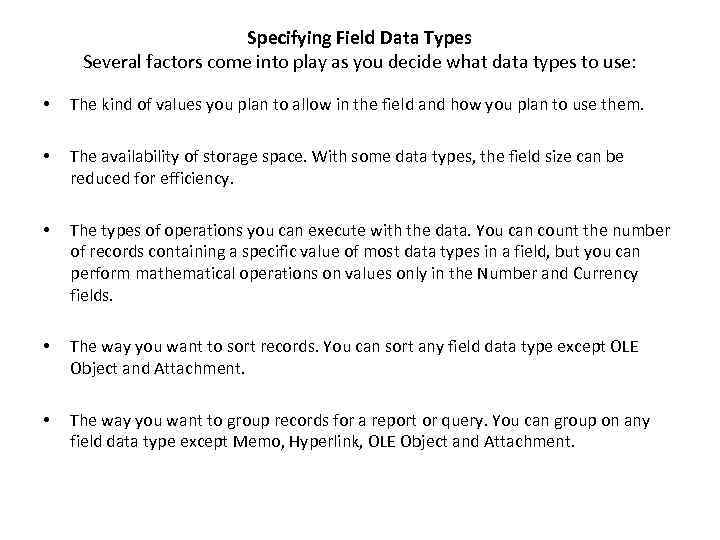
Specifying Field Data Types Several factors come into play as you decide what data types to use: • The kind of values you plan to allow in the field and how you plan to use them. • The availability of storage space. With some data types, the field size can be reduced for efficiency. • The types of operations you can execute with the data. You can count the number of records containing a specific value of most data types in a field, but you can perform mathematical operations on values only in the Number and Currency fields. • The way you want to sort records. You can sort any field data type except OLE Object and Attachment. • The way you want to group records for a report or query. You can group on any field data type except Memo, Hyperlink, OLE Object and Attachment.
http: //www. gcflearnfree. org/computer/topic. aspx? id=146 http: //www. gcflearnfree. org/computer/lesson. aspx? id=1478&p=2 • This is the link to the video demonstrating an example of designing a very simple database. • Please, see the video and study the process of designing. • The text of the video is below.
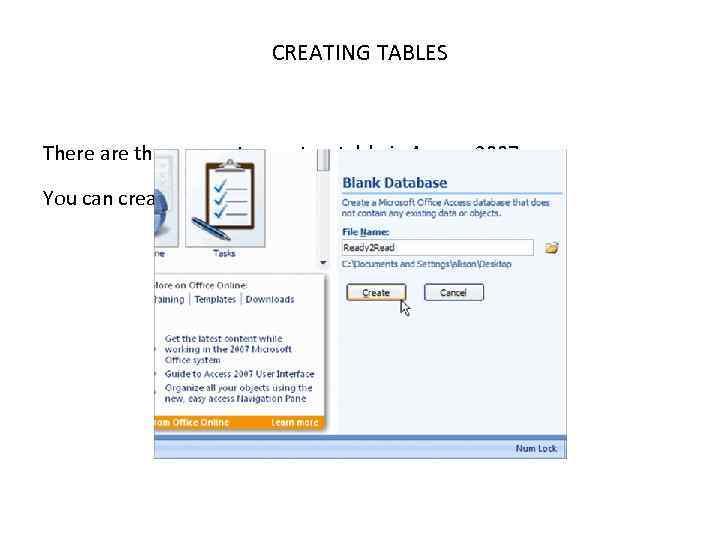
CREATING TABLES There are three ways to create a table in Access 2007. You can create it: • From a template; • In Datasheet view; • In Design view.
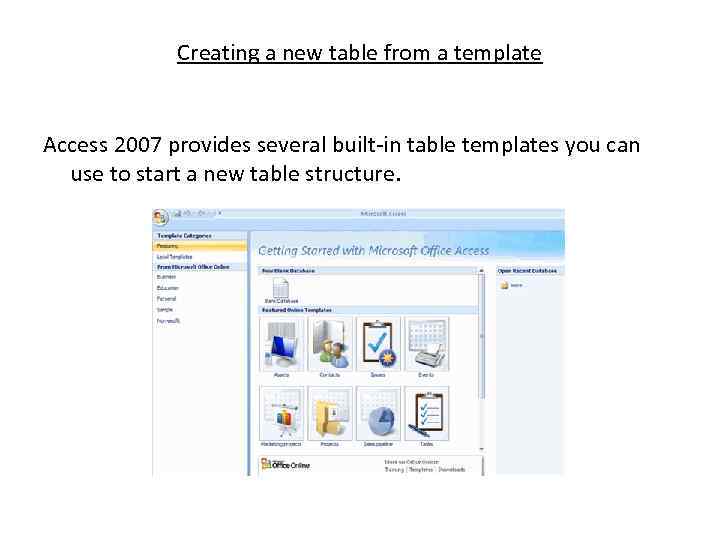
Creating a new table from a template Access 2007 provides several built-in table templates you can use to start a new table structure.
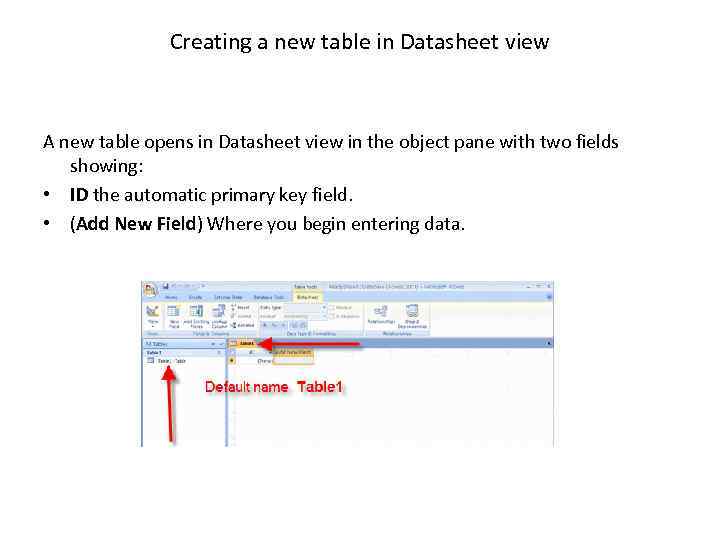
Creating a new table in Datasheet view A new table opens in Datasheet view in the object pane with two fields showing: • ID the automatic primary key field. • (Add New Field) Where you begin entering data.
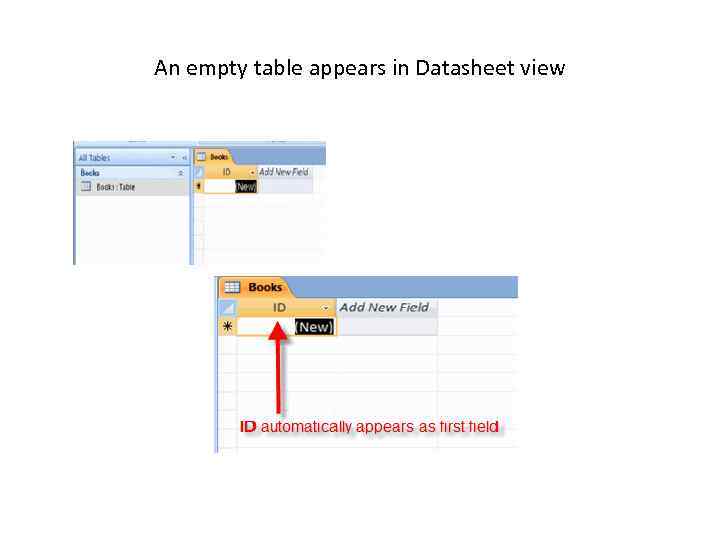
An empty table appears in Datasheet view
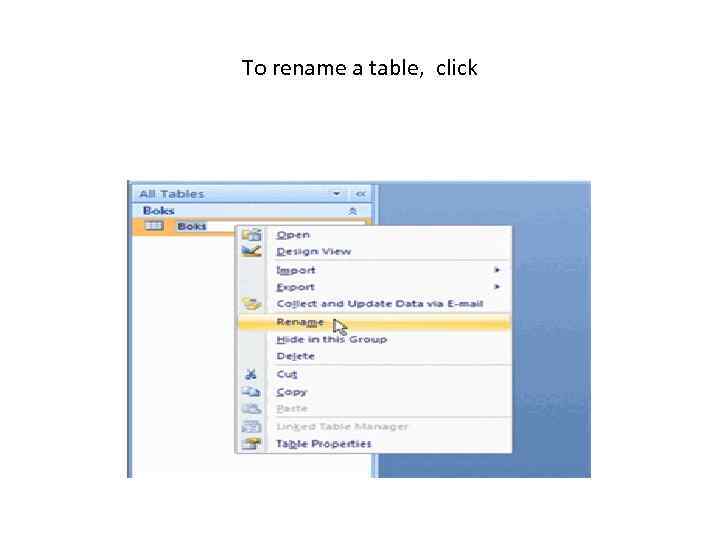
To rename a table, click
Default data types As you enter data in each new field, Access chooses the appropriate data type for the field, such as Text, Number, or Date / Time. For example: • Anna Petrova becomes a Text data type. • 01/05/2010 becomes a Date /Time data type. • 76. 63 becomes a General Number data type, with Double field size property because of the digits to the right of the decimal point. • $65, 000. 00 becomes a Currency data type.
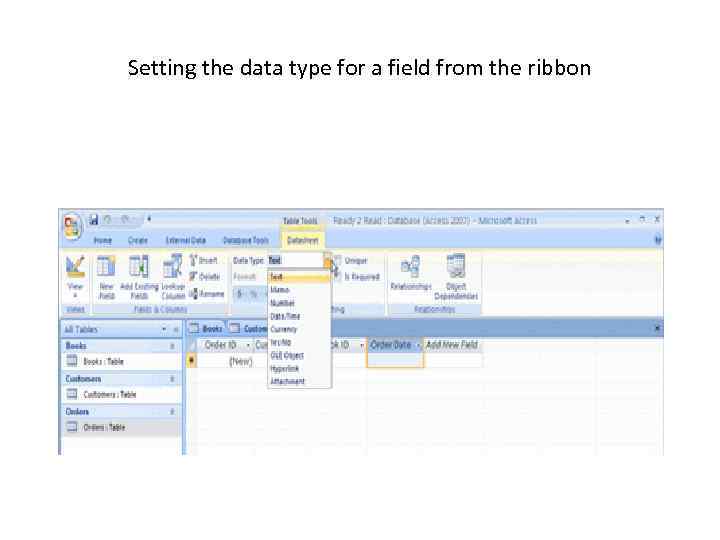
Setting the data type for a field from the ribbon
Changing field names As you enter new fields Access automatically names the fields Field 1, Field 2 and so on. To change this to a more meaningful name, • right-click the field header and select the Rename Column from the shortcut menu. or • You can also use the Rename command in the Fields and Columns group of the Datasheet tab. Then enter the new name in the column header.
Creating a new table in Design View The easiest way to start a new table is to click the Table Design command in the Tables group on the Create tab. An empty table appears in the Design window, ready to add fields. The Design tab in the Table Tools ribbon appears.
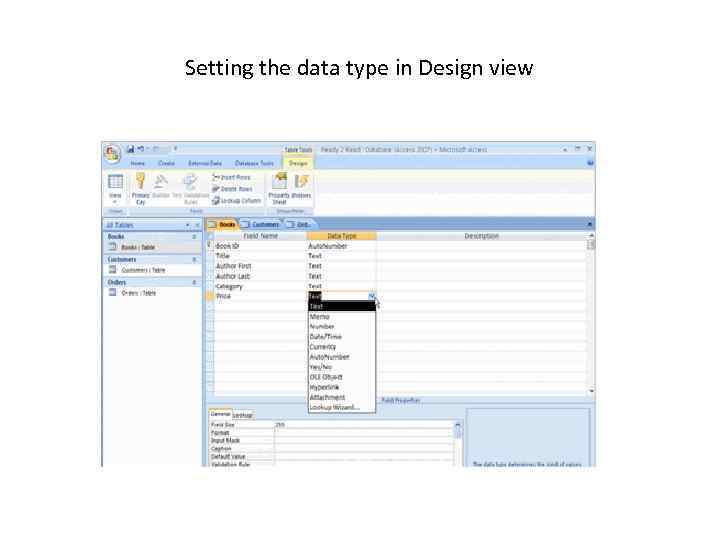
Setting the data type in Design view
The lower pane is devoted to specifying the individual field properties that correspond to the field selected in the upper pane, such as • • size, display appearance, validity rules, and so on. The list of properties depends on the type of field you are entering.
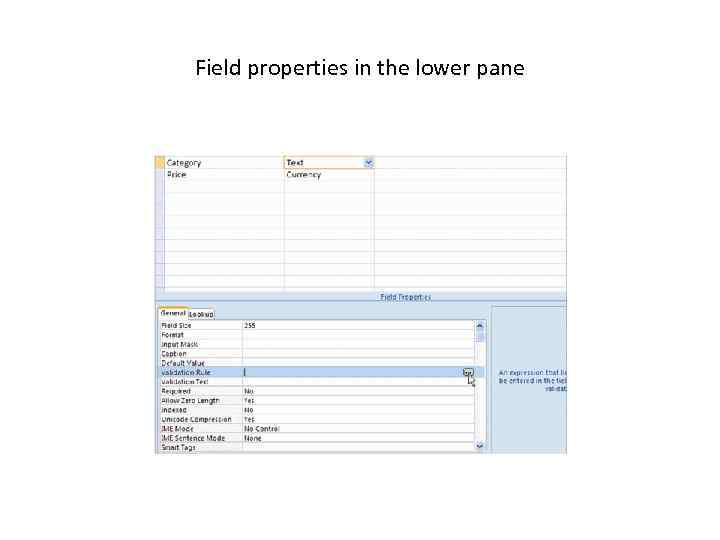
Field properties in the lower pane
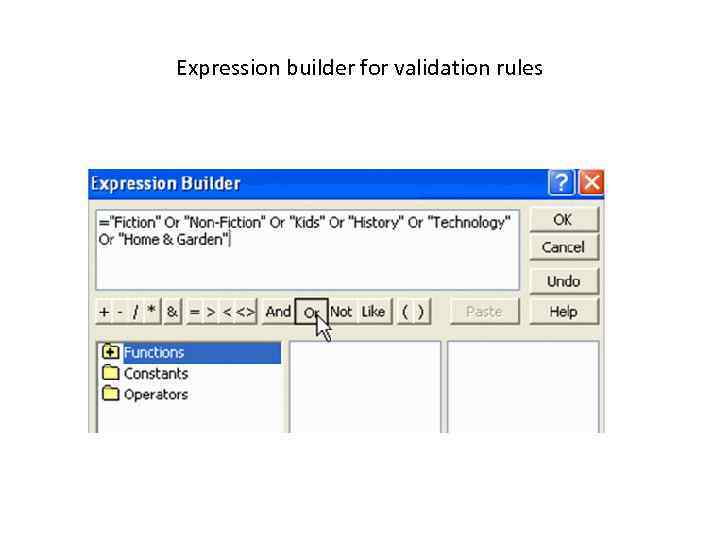
Expression builder for validation rules
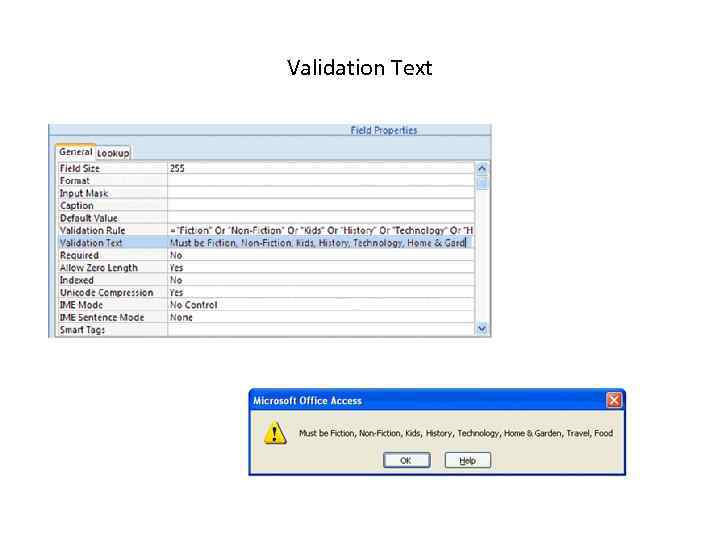
Validation Text
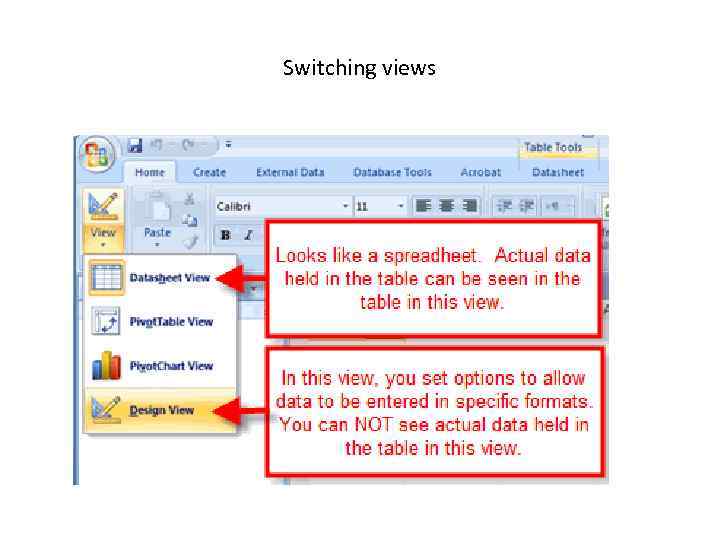
Switching views
Choosing a Primary Key In a relational database system, to gather and retrieve related information from separate tables in the database, each record in one table must be unique in some way. The field or fields that contain the unique value is called the primary key. Access never permits duplicate values in the primary key nor does it permit null values. A valid unique value must be in the primary key field or field combination throughout the table. In Design view, you can tell which field contains the primary key by the key icon that appears in the left margin.
Primary key in Datasheet view When you create a new table in Datasheet view, Access automatically adds the first field and assigns it as the primary key with Auto. Number data type. The Auto. Number Access field type is an Access tool that can guarantee unique records in a table. Designating an Auto. Number field as the primary key for a table is probably the simplest way to set the key. Once the number is generated, it cannot be changed or deleted. Access will also ensure that no other record contains the same value in that field.
Setting a Single-Field Key • If your table has a field you are sure won’t contain any duplicate values, you can use that field as the primary key. • In the Table Design view, click the field row you want to use as the primary key, and then on the Design tab in the Tools group, click Primary Key. • To remove the primary key designation, repeat the step.
Setting a Multiple-Field Primary Key If you can’t guarantee that the values in a single field will be unique throughout the table, you can combine two or more fields as the primary key. For example, in a list of customer names, several may have the same last name, so that field could not be used as a primary key. You could combine first and last names to create unique values, or, if that still does not work, you could combine first, last, and middle initial or ZIP code. But, better you could use an Auto. Number ID field instead.
RELATING TABLES • The advantages of relating tables in a database are many. For example: • information retrieval routines operate much faster with matched fields, and errors are less likely to be introduced into the database during data entry. • Tables related at the table level in the Relationships window are ready for use in queries, forms, and reports. • When tables are related, you can add a subform or subreport that includes corresponding information from the related table. • Relating tables also helps maintain data integrity and cohesiveness.
Relationships Window
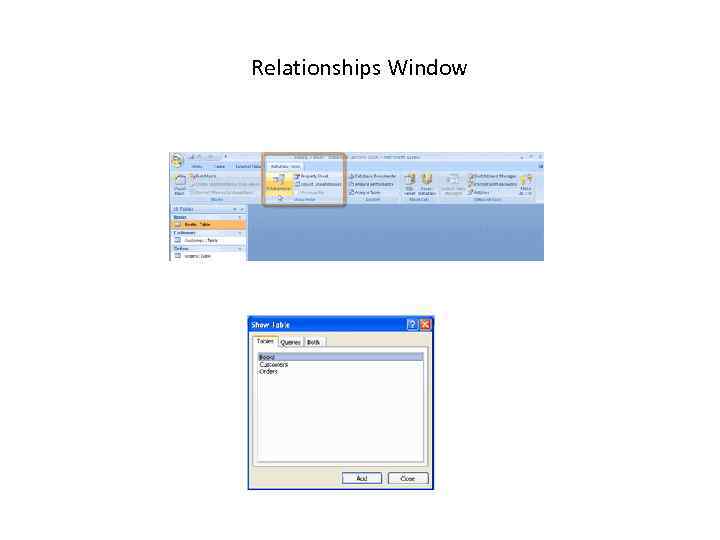
The Relationships window provides all the tools you need to define and modify relationships and a table or query to the relationship, relate the tables and queries, specify the type of relationship, set up the referential integrity rules, and choose the join type. To open the Relationships window, on the Database Tools tab’s Show /Hide group, click Relationships. If no relationships are defined in the current database, the Show Table dialog box appears in a blank Relationships window. The dialog box displays a list of all the tables and queries in the current database.
To add the tables or queries you want to relate from the Show Table dialog box list, do one of the following. • In the Tables tab, double-click the table’s name, or select the table and click the Add button. • To select multiple adjacent tables, select the first table to be included, hold down SHIFT as you select the last table in the list to be included, and then click the Add button. If the tables names are not adjacent in the list, hold down CTRL while you select the names. • Click the Queries tab to add a query to the Relationships window. • Click the Both tab to access a combined list of tables and queries. After you add all the tables and queries you want to work with into the Relationships window, click close in the Show Table dialog box.
Commands in the Relationship group on the Design tab Command Description Show Table Opens the Show table dialog box with lists of all tables and queries in the current database. Hide Table Removes the selected table form the Relationships window Direct Displays the relationships for the selected table. Relationships All Relationships Displays all relationships in the current database. Closes the window after asking if you want to save changes to the layout.
Drawing the Relationships Line • Relating two tables in Access is very easy. You simply drag a field (usually the primary key) from one table and drop it on the corresponding field (the foreign key) in the other table. • The field names do not need to be the same, but they usually need to be the same data type and contain the same kind of information. If you intend to enforce referential integrity, the fields must be the same data type. If the fields are Number fields, they must also have the same Field Size property. • One exception applies to the requirement to match data types when you relate an Auto. Number field to a Number field. An Auto. Number field with the New Values property set to Increment can be linked to a Long Integer Number field. Auto. Number values are stored as 4 -byte numbers. For the foreign key to have a matching value, it must contain a number of the same size: a Long Integer.
The Cascade Delete Related Records option ! enables you to delete a parent record, and then Access automatically deletes all the related child records. When you try to delete a record from the parent table of a relationship with this option selected, Access warns you that this record and the ones in the related tables will be deleted. For example, if you delete an employee record, Access automatically deletes all the records for that employee in the related tables. So, setting this property can be dangerous. If you delete records using a Delete query, access automatically deletes the related records without issuing a warning.
Enforcing Referential Integrity • When you want Access to enforce the referential integrity rules on the relationship that you are defining, check Enforce Referential Integrity in Edit Relationships dialog box. • If, for some reasons, the tables already violate one of the rules, such as the related fields not being of the same data type, Access displays a message explaining the violation and does not apply the enforcement.
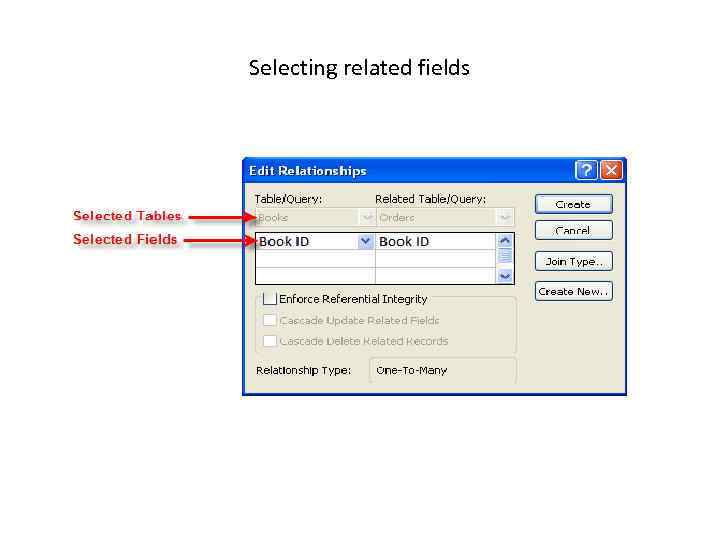
Selecting related fields
When you check the Enforce Referential Integrity option two options become available : - The Cascade Update Related Fields option - The Cascade Delete Related Records option ,
The Cascade Update Related Fields option lets you change the value in the primary key field in the parent table, and Access automatically changes the foreign key value in the child table to match. This option preserves the relationship. If the primary key in a table serves as a link to more than one table, you must set the Cascade Update Related Fields property for each of the relationships. If not, Access displays a message that referential integrity rules would be violated by the cascading operation and refuses to delete or update the record.
Check yourself • • • 1. How many ways are there to create a new data base? 2. What is a template? Where can you find them? 3. When is it reasonable to create a database in Datasheet view? 4. What default data types are there in Access 2007? 5. What do you see on the screen in Design view? What is the upper pane used for? And the lower pane? 6. How to set validation rules and validation text? When will you use them? 7. What is a primary key? Is there the default primary key in the table? What is its data type? 8. How to set a primary key? What rules do you know? 9. What is a foreign key? 10. How to relate tables and enforce referential integrity?

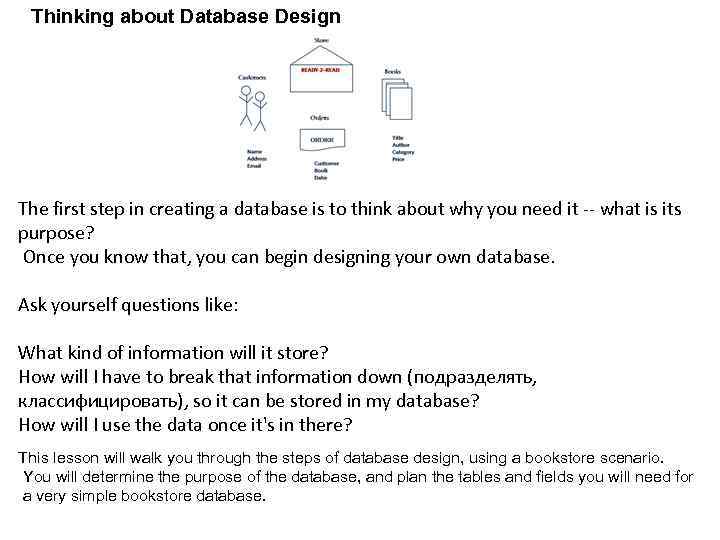
Thinking about Database Design The first step in creating a database is to think about why you need it -- what is its purpose? Once you know that, you can begin designing your own database. Ask yourself questions like: What kind of information will it store? How will I have to break that information down (подразделять, классифицировать), so it can be stored in my database? How will I use the data once it's in there? This lesson will walk you through the steps of database design, using a bookstore scenario. You will determine the purpose of the database, and plan the tables and fields you will need for a very simple bookstore database.
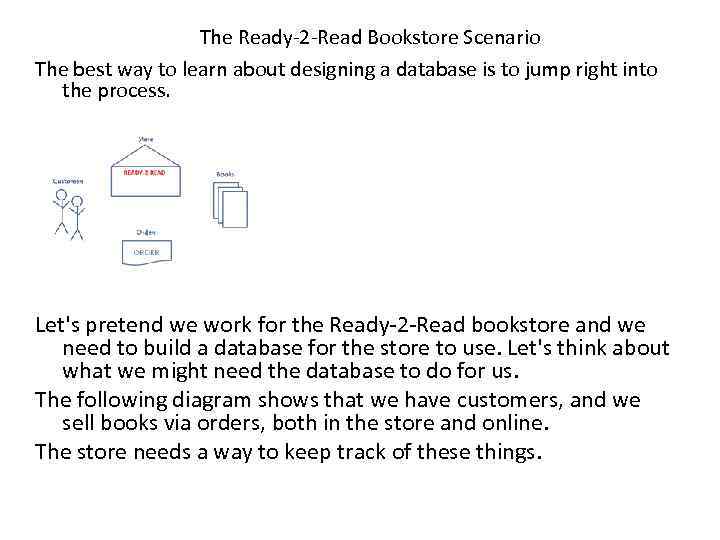
The Ready-2 -Read Bookstore Scenario The best way to learn about designing a database is to jump right into the process. Let's pretend we work for the Ready-2 -Read bookstore and we need to build a database for the store to use. Let's think about what we might need the database to do for us. The following diagram shows that we have customers, and we sell books via orders, both in the store and online. The store needs a way to keep track of these things.
Determine the Purpose of the Database The first step of designing a database is to determine the purpose of the database. What do we need it to do? At Ready-2 -Read, our customers will place orders for books. At the very least, we will want our database to track the books we sell, the customers we sell them to, and the date of each of the orders. The database will also be able to tell us where our customers live when we need to send them books or coupons. Additionally, we can use it to track our sales or to make a bestseller list to post in the store.
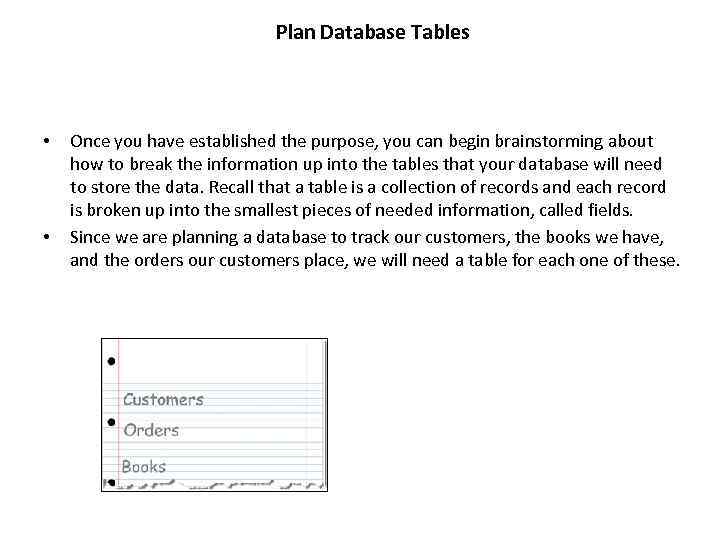
Plan Database Tables • • Once you have established the purpose, you can begin brainstorming about how to break the information up into the tables that your database will need to store the data. Recall that a table is a collection of records and each record is broken up into the smallest pieces of needed information, called fields. Since we are planning a database to track our customers, the books we have, and the orders our customers place, we will need a table for each one of these.
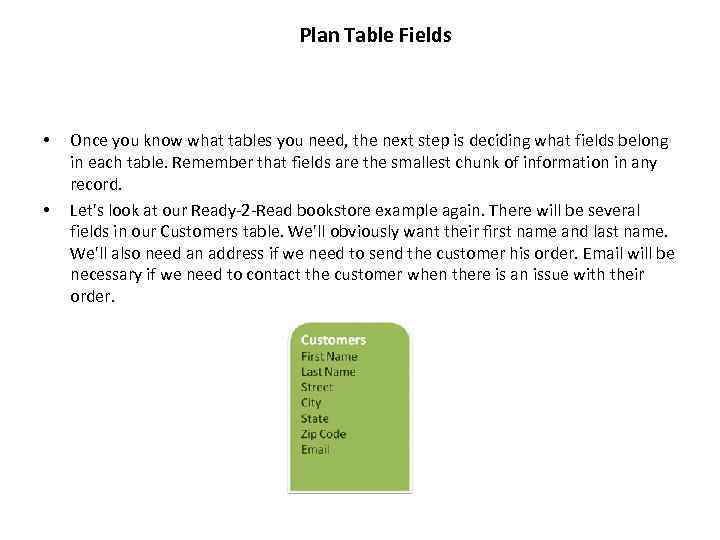
Plan Table Fields • • Once you know what tables you need, the next step is deciding what fields belong in each table. Remember that fields are the smallest chunk of information in any record. Let's look at our Ready-2 -Read bookstore example again. There will be several fields in our Customers table. We'll obviously want their first name and last name. We'll also need an address if we need to send the customer his order. Email will be necessary if we need to contact the customer when there is an issue with their order.
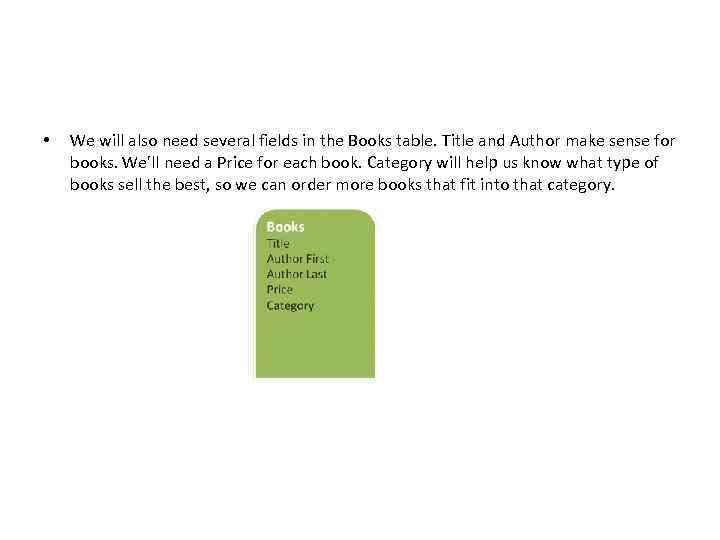
• We will also need several fields in the Books table. Title and Author make sense for books. We'll need a Price for each book. Category will help us know what type of books sell the best, so we can order more books that fit into that category.
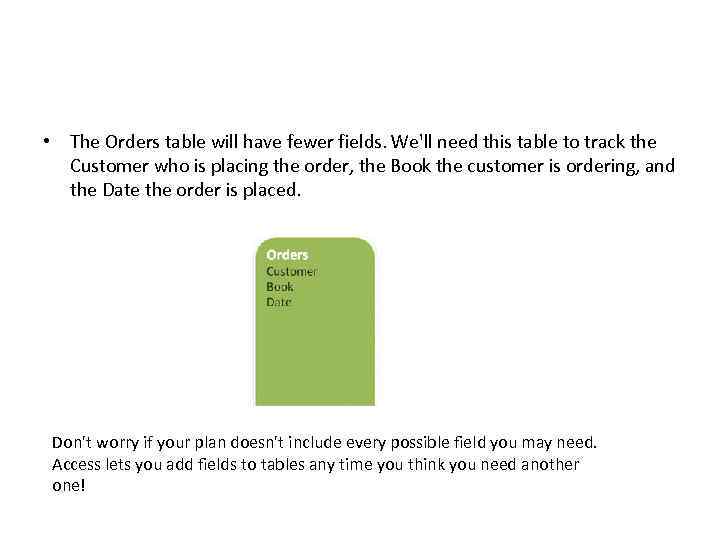
• The Orders table will have fewer fields. We'll need this table to track the Customer who is placing the order, the Book the customer is ordering, and the Date the order is placed. Don't worry if your plan doesn't include every possible field you may need. Access lets you add fields to tables any time you think you need another one!
Скачать презентацию Databases To use the data effectively the
Databases-1.pptx