


 Скачать презентацию D-Link International Call Center Training and Staff Development
305673019ed5ace73e90aad84946b2d5.ppt
- Количество слайдов: 16
 D-Link International Call Center Training and Staff Development Department Module: DAP-1350
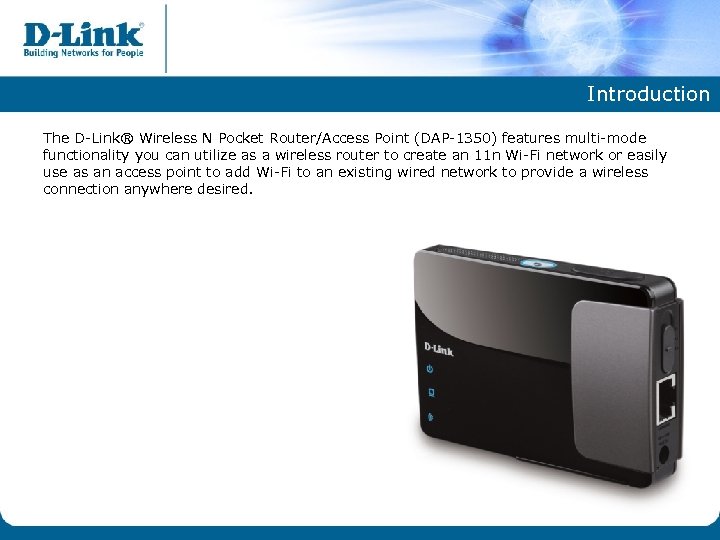 Introduction The D-Link® Wireless N Pocket Router/Access Point (DAP-1350) features multi-mode functionality you can utilize as a wireless router to create an 11 n Wi-Fi network or easily use as an access point to add Wi-Fi to an existing wired network to provide a wireless connection anywhere desired.
 Similar Products DAP-1150 DWL-G 730 AP DAP-1360 D-Link Wireless G Access Point Wireless Pocket Router/AP - Access Point Mode - Router Mode D-Link Wireless N Access Point - Wireless Client Mode - Access Point Mode - Repeater Mode - Wireless Client Mode - Repeater Mode - Bridge with AP mode - WISP Client Router Mode - WISP Repeater Mode DAP-1522 Xtreme N™ Duo Wireless Bridge - Access Point Mode - Bridge Mode DAP-1353 Range Booster N 650 Access Point - Access Point Mode
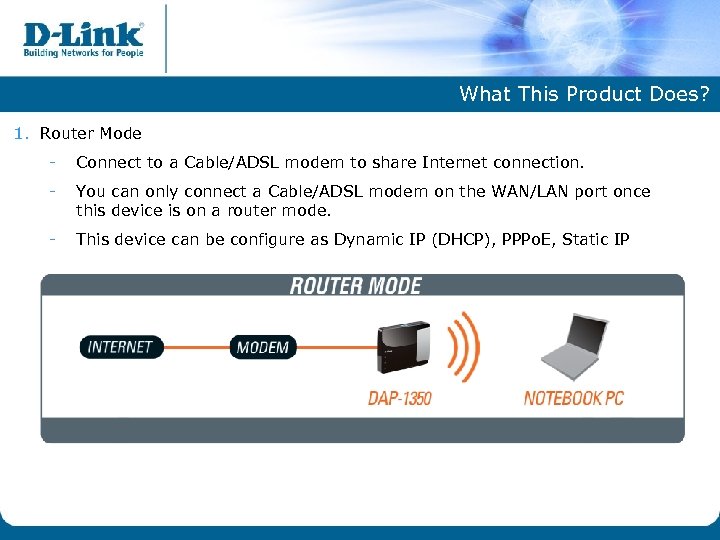 What This Product Does? 1. Router Mode - Connect to a Cable/ADSL modem to share Internet connection. - You can only connect a Cable/ADSL modem on the WAN/LAN port once this device is on a router mode. - This device can be configure as Dynamic IP (DHCP), PPPo. E, Static IP
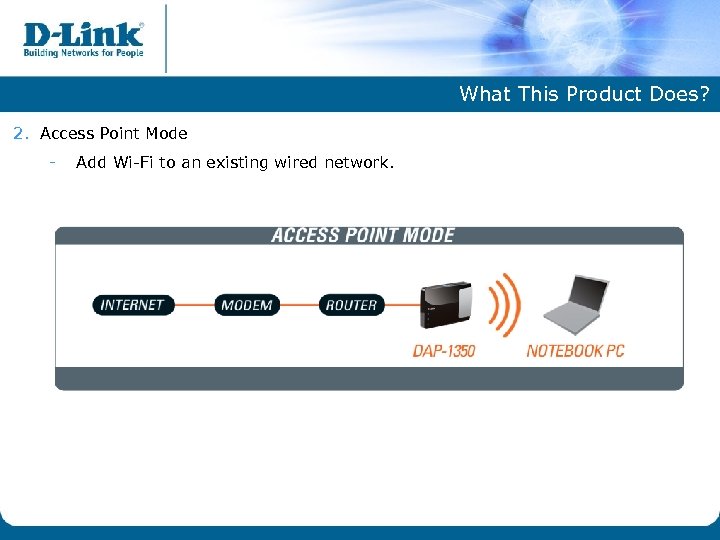 What This Product Does? 2. Access Point Mode - Add Wi-Fi to an existing wired network.
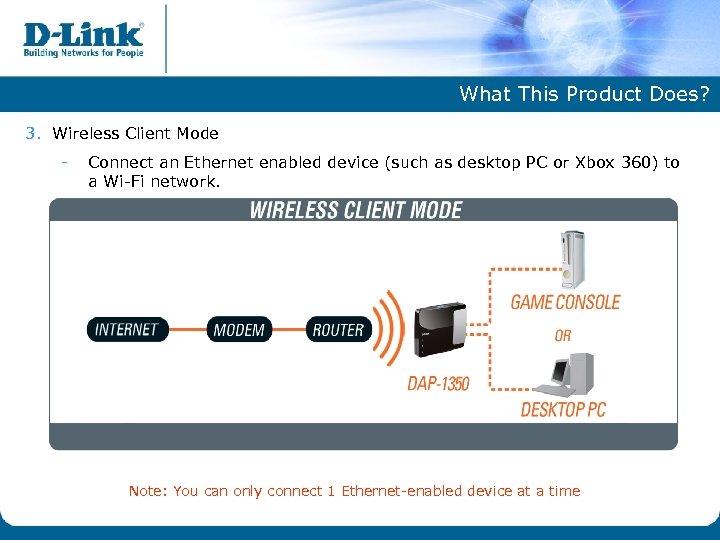 What This Product Does? 3. Wireless Client Mode - Connect an Ethernet enabled device (such as desktop PC or Xbox 360) to a Wi-Fi network. Note: You can only connect 1 Ethernet-enabled device at a time
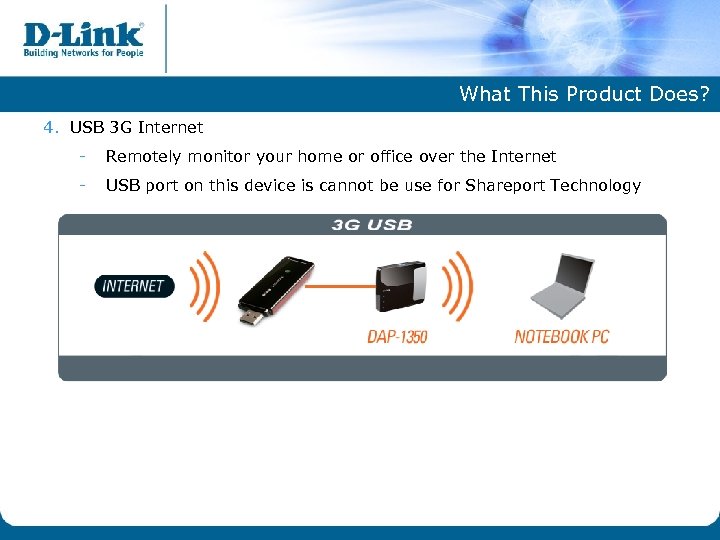 What This Product Does? 4. USB 3 G Internet - Remotely monitor your home or office over the Internet - USB port on this device is cannot be use for Shareport Technology
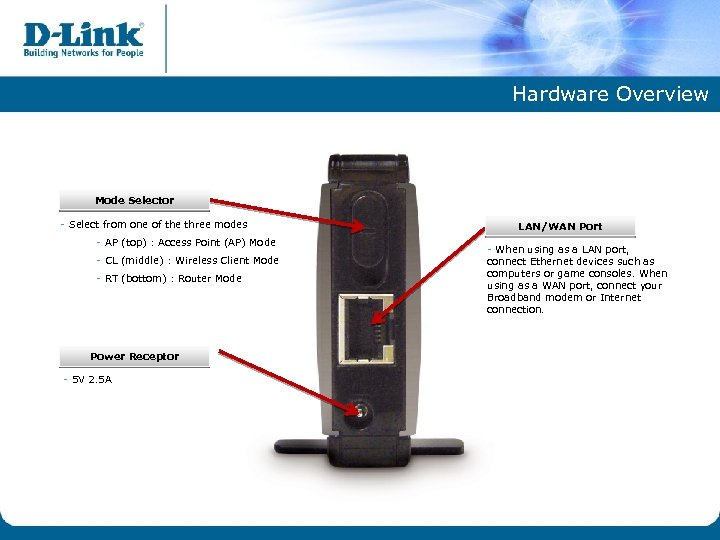 Hardware Overview Mode Selector - Select from one of the three modes - AP (top) : Access Point (AP) Mode - CL (middle) : Wireless Client Mode - RT (bottom) : Router Mode Power Receptor - 5 V 2. 5 A LAN/WAN Port - When using as a LAN port, connect Ethernet devices such as computers or game consoles. When using as a WAN port, connect your Broadband modem or Internet connection.
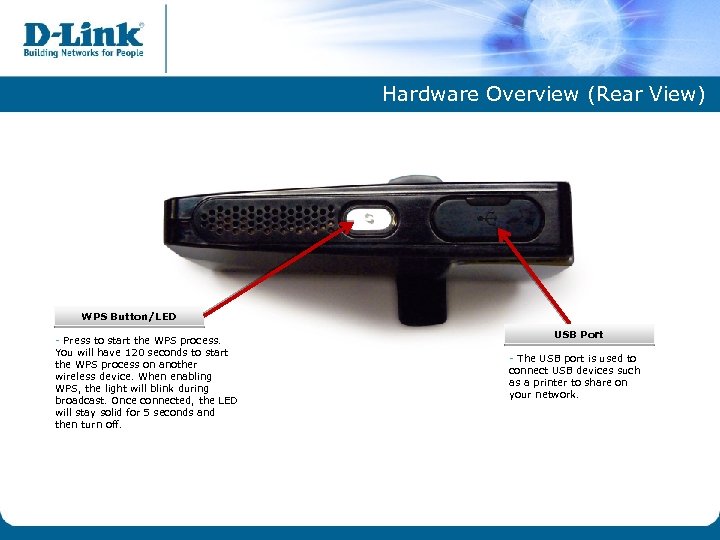 Hardware Overview (Rear View) WPS Button/LED - Press to start the WPS process. You will have 120 seconds to start the WPS process on another wireless device. When enabling WPS, the light will blink during broadcast. Once connected, the LED will stay solid for 5 seconds and then turn off. USB Port - The USB port is used to connect USB devices such as a printer to share on your network.
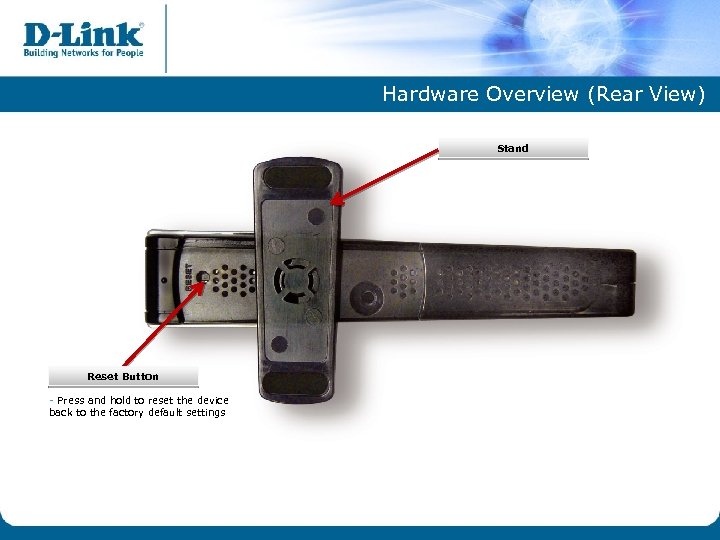 Hardware Overview (Rear View) Stand Reset Button - Press and hold to reset the device back to the factory default settings
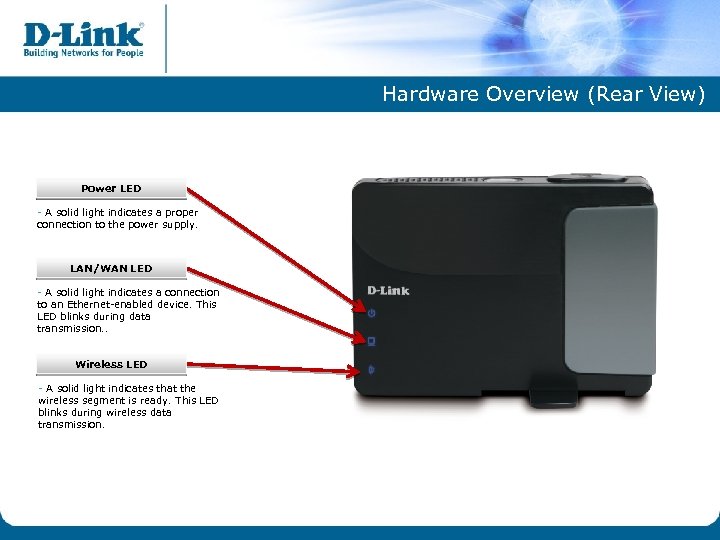 Hardware Overview (Rear View) Power LED - A solid light indicates a proper connection to the power supply. LAN/WAN LED - A solid light indicates a connection to an Ethernet-enabled device. This LED blinks during data transmission. . Wireless LED - A solid light indicates that the wireless segment is ready. This LED blinks during wireless data transmission.
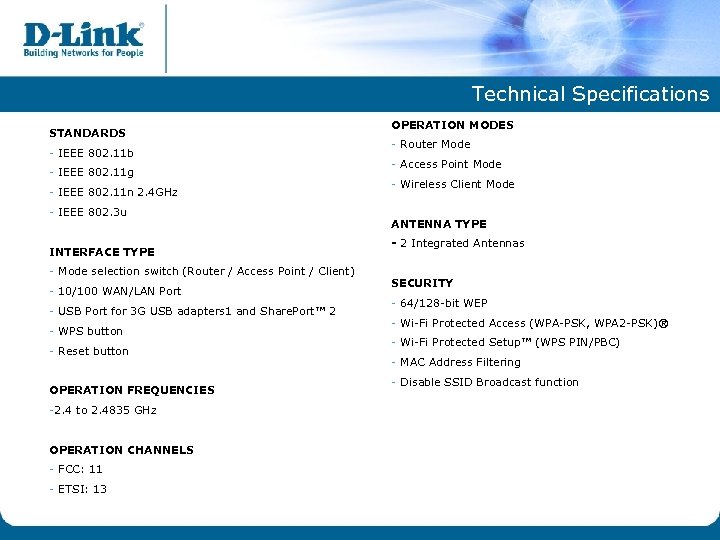 Technical Specifications STANDARDS - IEEE 802. 11 b - IEEE 802. 11 g - IEEE 802. 11 n 2. 4 GHz - IEEE 802. 3 u INTERFACE TYPE - Mode selection switch (Router / Access Point / Client) - 10/100 WAN/LAN Port - USB Port for 3 G USB adapters 1 and Share. Port™ 2 - WPS button - Reset button OPERATION FREQUENCIES -2. 4 to 2. 4835 GHz OPERATION CHANNELS - FCC: 11 - ETSI: 13 OPERATION MODES - Router Mode - Access Point Mode - Wireless Client Mode ANTENNA TYPE - 2 Integrated Antennas SECURITY - 64/128 -bit WEP - Wi-Fi Protected Access (WPA-PSK, WPA 2 -PSK)® - Wi-Fi Protected Setup™ (WPS PIN/PBC) - MAC Address Filtering - Disable SSID Broadcast function
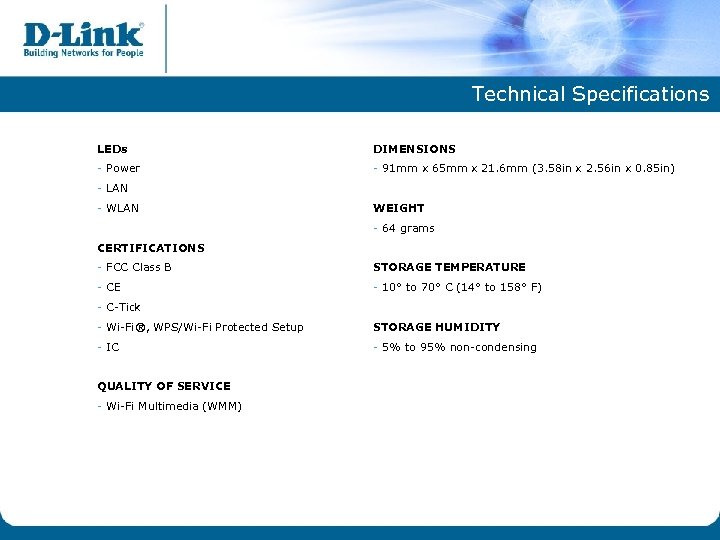 Technical Specifications LEDs DIMENSIONS - Power - 91 mm x 65 mm x 21. 6 mm (3. 58 in x 2. 56 in x 0. 85 in) - LAN - WLAN WEIGHT - 64 grams CERTIFICATIONS - FCC Class B STORAGE TEMPERATURE - CE - 10° to 70° C (14° to 158° F) - C-Tick - Wi-Fi®, WPS/Wi-Fi Protected Setup STORAGE HUMIDITY - IC - 5% to 95% non-condensing QUALITY OF SERVICE - Wi-Fi Multimedia (WMM)
 Frequently Asked Question 1. Which model of 3 G USB adapter is compatible with the DAP 1350? 2. DWM-152 DWM-156 Can I connect a switch on the DAP-1350 if it is on a Wireless Client Mode? - 3. No, you can only use 1 Ethernet enabled device at a time to connect to the DAP-1350 on Wireless Client. Why can’t I access the Internet when the DAP-1350 is on a Router mode? 4. Make it sure that you know how is your modem has been configured, so you will know what configuration you need to to on the DAP-1350 either it is Dynamic IP (DHCP), PPPo. E, Static IP. Verify that you can also access the Internet if the computer is connected directly to the modem. Why can’t I connect my laptop wirelessly on the DAP-1350 when configured as Wireless Client? - When the DAP-1350 is configured as a Wireless Client you can only connect an Ethernet-enabled device to it.
 Frequently Asked Question 5. Why cannot I access the set-up page of the DAP-1350 when it is on a router mode? - - 6. Don’t connect your computer wired to the WAN/LAN port of the DAP-1350 because you can only connect a modem on the DAP-1350 once it is on a router mode, Instead try to connect to the default wireless network name which is “dlink”. If ever that you are only connected to the wireless network, make it sure that the IP address of your computer is in range with the IP Address of the DAP-1350. What is the default IP Address of the DAP-1350 when it is on a router mode? - 192. 168. 0. 50
 Set-up Procedures Note: Please click on the item below to redirect you to the set-up procedure. 1. Configuring DAP-1350 as a Router Mode using (Cable, ADSL and Static Connection) 2. Configuring DAP-1350 as a Client Mode 3. Configuring DAP-1350 as an Access Point Mode 4. How to Enable the Security on the DAP-1350