


 Скачать презентацию CSS 404 504 Title Slide Internet Concepts The UNIX
2d231bbcfb60207efb253d2adfa964c6.ppt
- Количество слайдов: 50
 CSS 404/504 Title Slide Internet Concepts The UNIX Operating System (1) By Ralph B. Bisland, Jr.
 The UNIX Operating System • Developed from the Multics Operating System project • Developed at Bell Labs in 1969 (Originally called Unics) • UNIX commands are text based (command interpreter) • Windows version of UNIX: X-Windows Internet Concepts Copyright Ralph Bisland 2004 2
 Versions Of UNIX • Called shells – C-Shell (csh) – TC Shell (tcsh) – Korn Shell (ksh) – Z shell (zsh) (what I use) – Borne Shell (bsh) – Borne Again Shell (bash) (USM CS Default) Internet Concepts Copyright Ralph Bisland 2004 3
 Why Learn UNIX • Most Internet Service Providers (ISPs) utilize the UNIX Operating System • Some ISPs use GUI interfaces - limit what you can do • UNIX Operating systems have communications software built into their software. Internet Concepts Copyright Ralph Bisland 2004 4
 UNIX Basics • UNIX commands are very cryptic (Often 2 letters) • The case of UNIX commands is very important!!!! – ls ¹ LS ¹ Ls • UNIX commands are usually entered in lowercase Internet Concepts Copyright Ralph Bisland 2004 5
 Command Parameters • UNIX commands may have parameters • Parameters are uused to specify options to commands • Case is important here too • Parameters are preceded by a dash • Multiple parameters may be grouped together or specified separately • Multiple parameters may be placed in any order the user desires • Examples – ls -al – ls -la Internet Concepts Copyright Ralph Bisland 2004 6
 UNIX Basics (ctd) • The UNIX prompt differs with each shell • Z-Shell default prompt is: orca: ~% – This may be altered • UNIX is not MS-DOS, Windows, or Macintosh OS X • Since MS-DOS "borrowed" some concepts from UNIX, some UNIX concepts are very similar to MS-DOS Internet Concepts Copyright Ralph Bisland 2004 7
 Connecting to Orca • For security reasons this must be done through secure shell (ssh) and not telnet. • To get a free ssh client program enter ssh client (or ssh macintosh) into a search engine. • You also try Putty (win 32 client) • Click on the Secure Shell icon to start it up. • Click on “Quick connect” to connect to orca. Internet Concepts Copyright Ralph Bisland 2004 8
 Login Names & Passwords • To connect to a UNIX based computer system two things are needed: – Login name (login ID) – Password Internet Concepts Copyright Ralph Bisland 2004 9
 Login Names • General rules: – 6 -8 characters – digits – Can contain special characters such as -, _, and. – Case sensitive • This is assigned by the system administrator and can not be changed. • This becomes your E-mail address. bisland@orca. st. usm. edu Internet Concepts Copyright Ralph Bisland 2004 10
 Passwords • General rules: – At least 6 characters, at least 2 must be non-lowercase letters • Passwords should be kept confidential. • Do not use simple names, dates, etc. as passwords. • Use a sentence to create your password. • Example: I am a Computer Science major Iaa. CSm Internet Concepts Copyright Ralph Bisland 2004 11
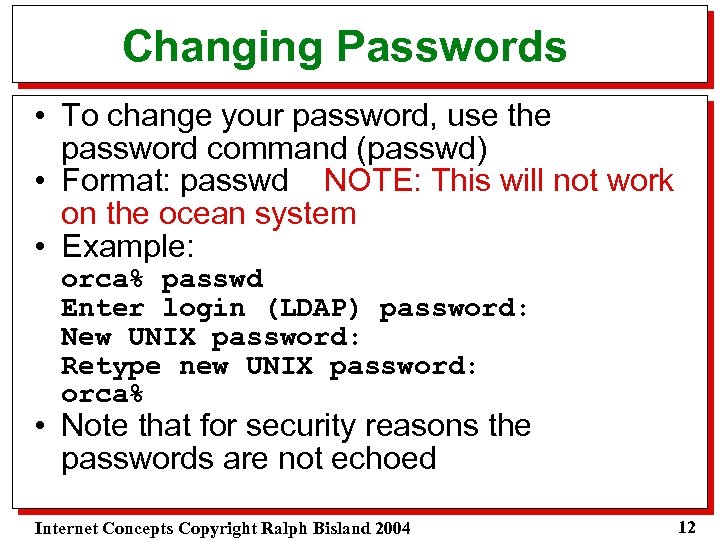 Changing Passwords • To change your password, use the password command (passwd) • Format: passwd NOTE: This will not work on the ocean system • Example: orca% passwd Enter login (LDAP) password: New UNIX password: Retype new UNIX password: orca% • Note that for security reasons the passwords are not echoed Internet Concepts Copyright Ralph Bisland 2004 12
 Disconnecting from Orca ü To disconnect from orca, enter any of the following commands: (well most probably) ülogout (This one works all the time) üexit übye ülo (works for me) ü Remember that case is important when entering the commands!!!! ü After doing this you also have to exit the ssh client. Internet Concepts Copyright Ralph Bisland 2004 13
 UNIX Files • A file is a collection of data that is stored on some secondary storage device. • UNIX file names have no maximum storage limit. • UNIX file are where the HTML commands for creating web pages are stored. Internet Concepts Copyright Ralph Bisland 2004 14
 UNIX File Naming Conventions • Limited to 64 characters • May contain special characters (except blank, / and possibly a leading -) • Files that begin with a period (called a dot) have special meanings • Case of letters is important. my-file ¹ MY-FILE ¹ My-File • Convention calls for a file extension to be appended to each file name. • Place a period after the file name and add the extension my-file. dat Internet Concepts Copyright Ralph Bisland 2004 15
 UNIX Directories § Directories/subdirectories are used to segregate files § On PC/Macs these are called folders § The UNIX directory system forms a tree or hierarchical structure § The top directory of the tree is called the root § Each user has a home directory (which is a subdirectory of root) • The user's home directory is the user's login name Internet Concepts Copyright Ralph Bisland 2004 16
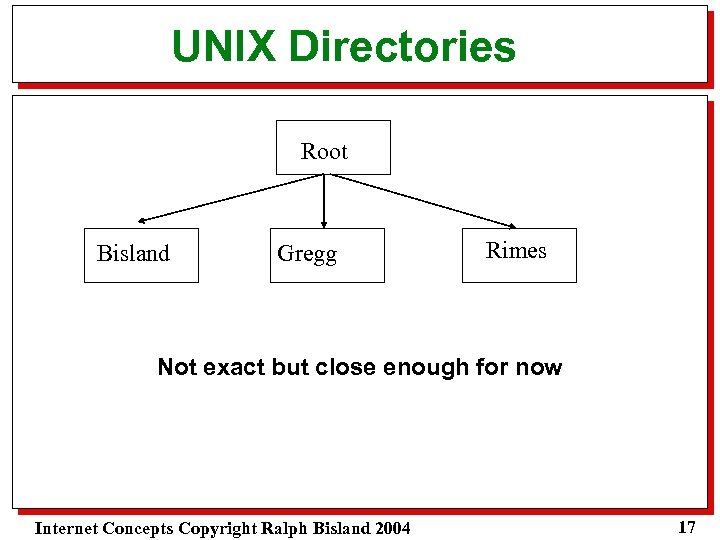 UNIX Directories Root Bisland Gregg Rimes Not exact but close enough for now Internet Concepts Copyright Ralph Bisland 2004 17
 Directory Notes • You may currently "reside" in only one directory/subdirectory at a time. • Once you transfer from one directory to another, you leave the first one and enter the second one. • The directory/subdirectory that you currently reside in is called your "current working directory" (cwd) or "working directory“. Internet Concepts Copyright Ralph Bisland 2004 18
 Orca’s Directory Structure • Orca’s directory system is configured its UNIX directories as follows: /logical-computer-name/group-name/login-name (slashes separate subdirectories) • Where – logical-computer-name: Logical name of the computing systems – group-name: Logical group name that the user falls into. Probably faculty, student, many others – login-name: User's login name • Example: /orca/faculty/bisland Internet Concepts Copyright Ralph Bisland 2004 19
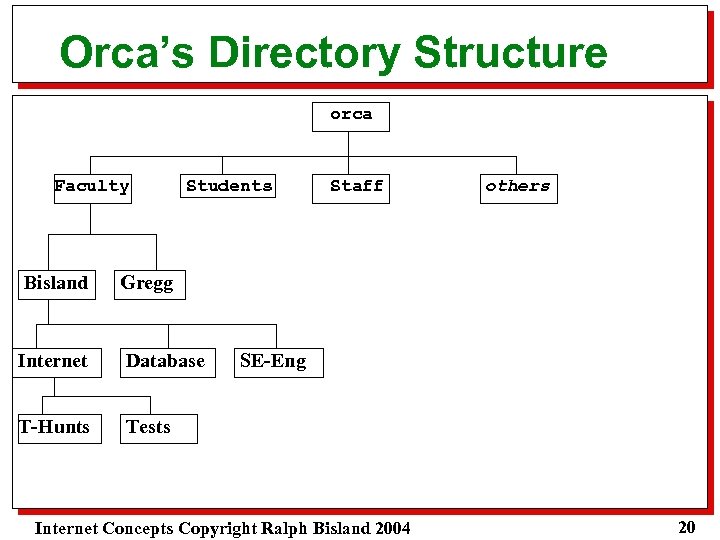 Orca’s Directory Structure orca Faculty Students Bisland Database T-Hunts others Gregg Internet Staff Tests SE-Eng Internet Concepts Copyright Ralph Bisland 2004 20
 Creation Of Subdirectories • To create a subdirectory, use the make directory (mkdir) command • Format: mkdir subdirectory-name • Example: orca% mkdir internet-course • The command creates a subdirectory in your working current directory Internet Concepts Copyright Ralph Bisland 2004 21
 Moving To Subdirectories • To make a subdirectory your current working directory, use the change directory (cd) command. • Format: cd subdirectory-name • Example: orca% cd internet-course • Use the cd command by itself move back to your home directory from any subdirectory. Internet Concepts Copyright Ralph Bisland 2004 22
 Moving To Subdirectories (ctd) • Every directory contains two files called. (dot) and. . (dot dot) –. => Name of the current working directory –. . => Name of the superdirectory of the current working directory • To move back up one level, use the command cd. . $ cd. . Internet Concepts Copyright Ralph Bisland 2004 23
 Files In Other Directories • To access a file in another directory, you must specify the path to the file • The path may be specified in either of two ways: – Absolute Path: The exact path to the file relative to the computer’s home directory – Relative Path: Relative to the current working directory Internet Concepts Copyright Ralph Bisland 2004 24
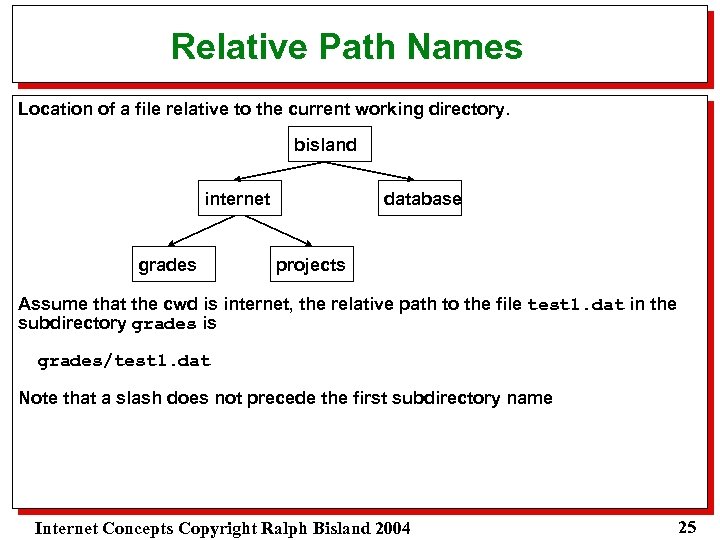 Relative Path Names Location of a file relative to the current working directory. bisland internet grades database projects Assume that the cwd is internet, the relative path to the file test 1. dat in the subdirectory grades is grades/test 1. dat Note that a slash does not precede the first subdirectory name Internet Concepts Copyright Ralph Bisland 2004 25
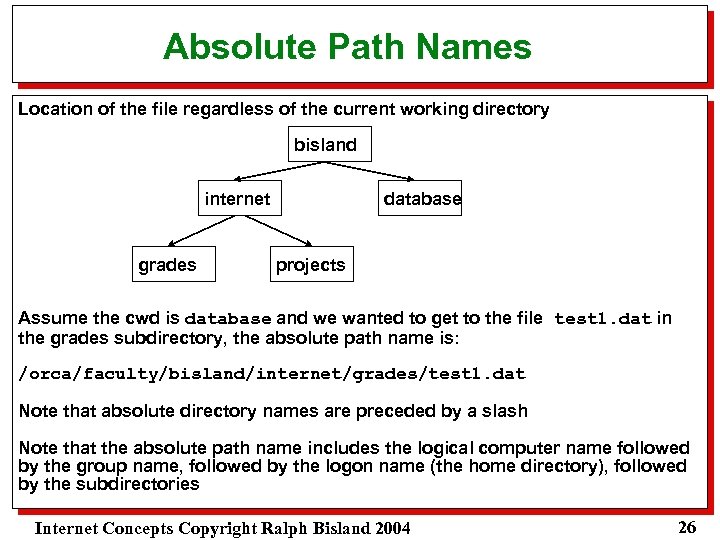 Absolute Path Names Location of the file regardless of the current working directory bisland internet grades database projects Assume the cwd is database and we wanted to get to the file test 1. dat in the grades subdirectory, the absolute path name is: /orca/faculty/bisland/internet/grades/test 1. dat Note that absolute directory names are preceded by a slash Note that the absolute path name includes the logical computer name followed by the group name, followed by the logon name (the home directory), followed by the subdirectories Internet Concepts Copyright Ralph Bisland 2004 26
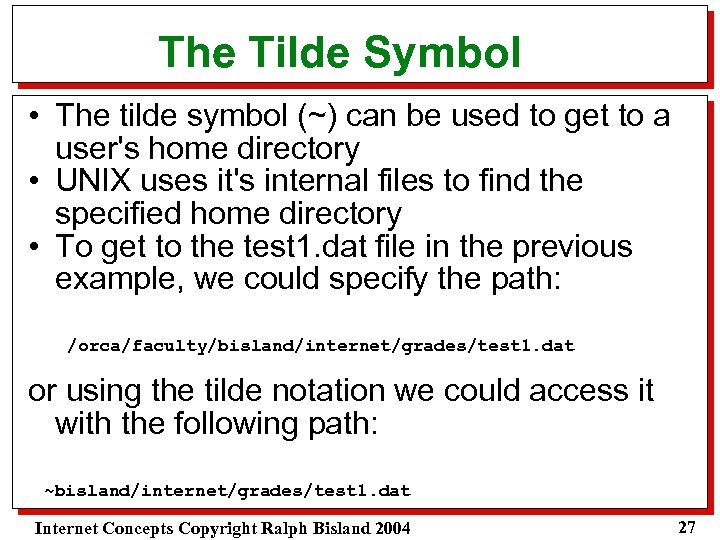 The Tilde Symbol • The tilde symbol (~) can be used to get to a user's home directory • UNIX uses it's internal files to find the specified home directory • To get to the test 1. dat file in the previous example, we could specify the path: /orca/faculty/bisland/internet/grades/test 1. dat or using the tilde notation we could access it with the following path: ~bisland/internet/grades/test 1. dat Internet Concepts Copyright Ralph Bisland 2004 27
 Where Am I? • To display the absolute path to your current working directory use the print working directory (pwd) command. • Format: pwd • Example: orca% pwd orca/faculty/bisland/internet Internet Concepts Copyright Ralph Bisland 2004 28
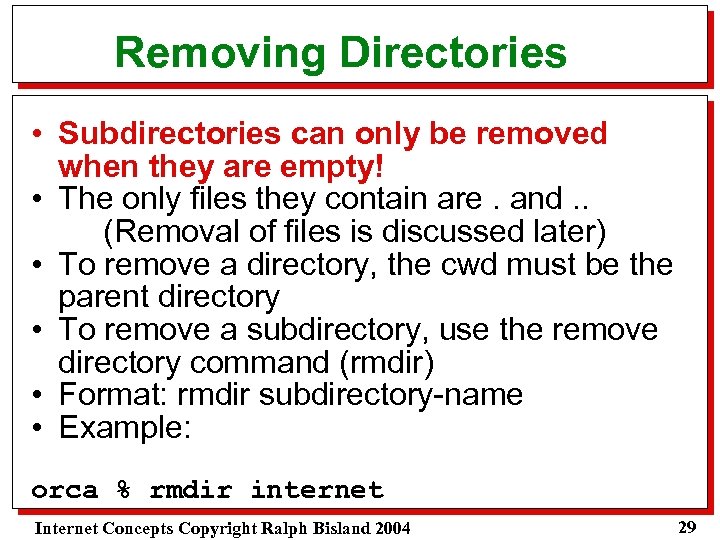 Removing Directories • Subdirectories can only be removed when they are empty! • The only files they contain are. and. . (Removal of files is discussed later) • To remove a directory, the cwd must be the parent directory • To remove a subdirectory, use the remove directory command (rmdir) • Format: rmdir subdirectory-name • Example: orca % rmdir internet Internet Concepts Copyright Ralph Bisland 2004 29
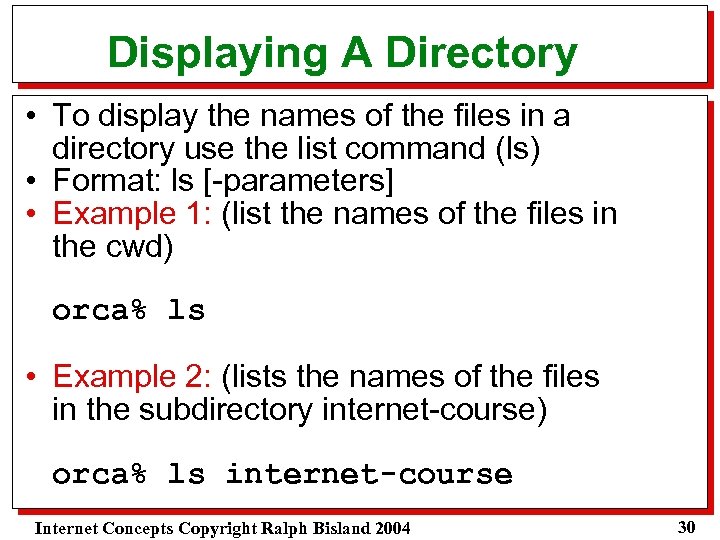 Displaying A Directory • To display the names of the files in a directory use the list command (ls) • Format: ls [-parameters] • Example 1: (list the names of the files in the cwd) orca% ls • Example 2: (lists the names of the files in the subdirectory internet-course) orca% ls internet-course Internet Concepts Copyright Ralph Bisland 2004 30
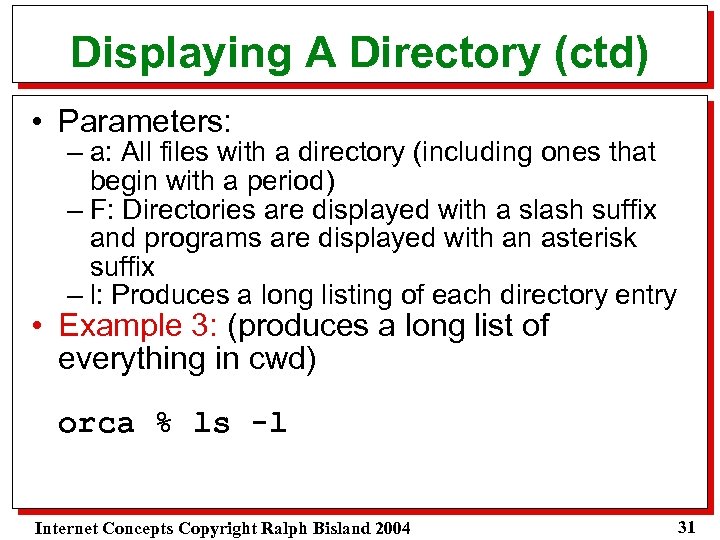 Displaying A Directory (ctd) • Parameters: – a: All files with a directory (including ones that begin with a period) – F: Directories are displayed with a slash suffix and programs are displayed with an asterisk suffix – l: Produces a long listing of each directory entry • Example 3: (produces a long list of everything in cwd) orca % ls -l Internet Concepts Copyright Ralph Bisland 2004 31
 Displaying The Contents Of A File • There are several utility programs to list the contents of a file available in UNIX – Catenate (cat): – More (more) – Less (less) – Head (head) – Tail (tail) Internet Concepts Copyright Ralph Bisland 2004 32
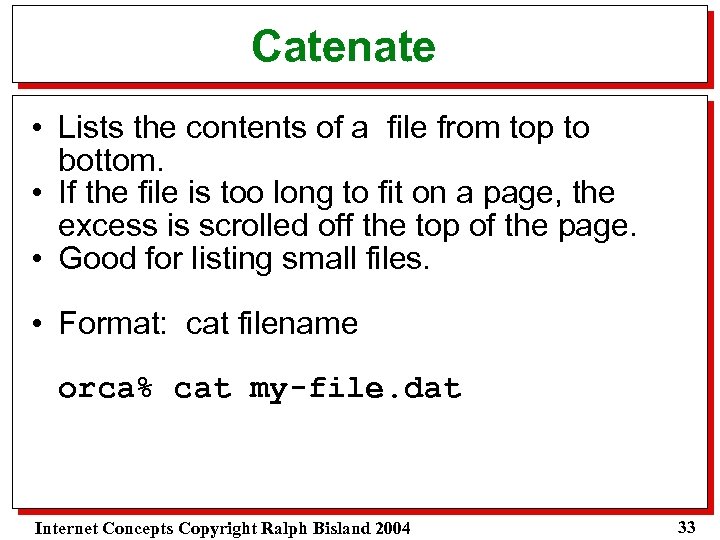 Catenate • Lists the contents of a file from top to bottom. • If the file is too long to fit on a page, the excess is scrolled off the top of the page. • Good for listing small files. • Format: cat filename orca% cat my-file. dat Internet Concepts Copyright Ralph Bisland 2004 33
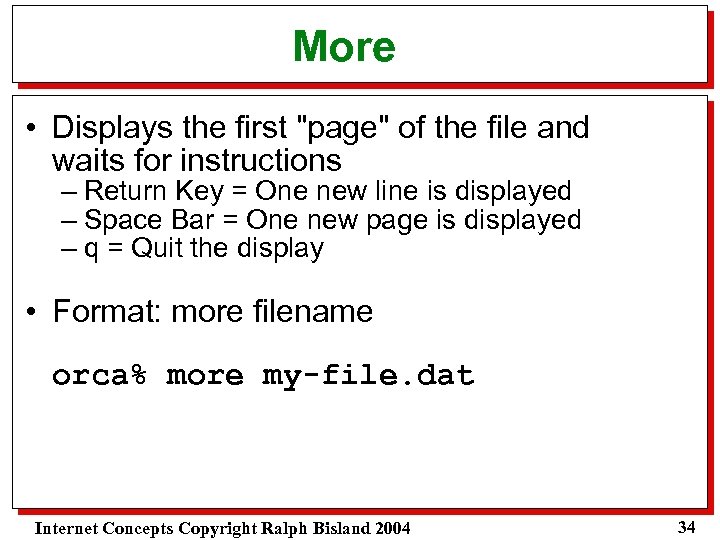 More • Displays the first "page" of the file and waits for instructions – Return Key = One new line is displayed – Space Bar = One new page is displayed – q = Quit the display • Format: more filename orca% more my-file. dat Internet Concepts Copyright Ralph Bisland 2004 34
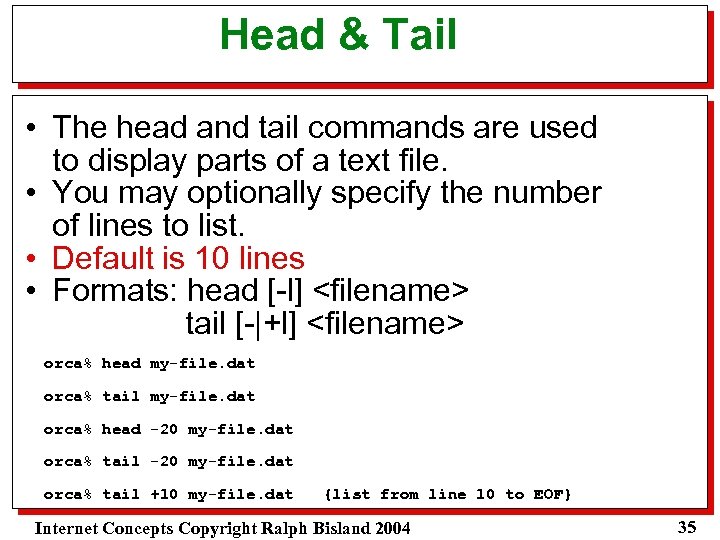 Head & Tail • The head and tail commands are used to display parts of a text file. • You may optionally specify the number of lines to list. • Default is 10 lines • Formats: head [-l]
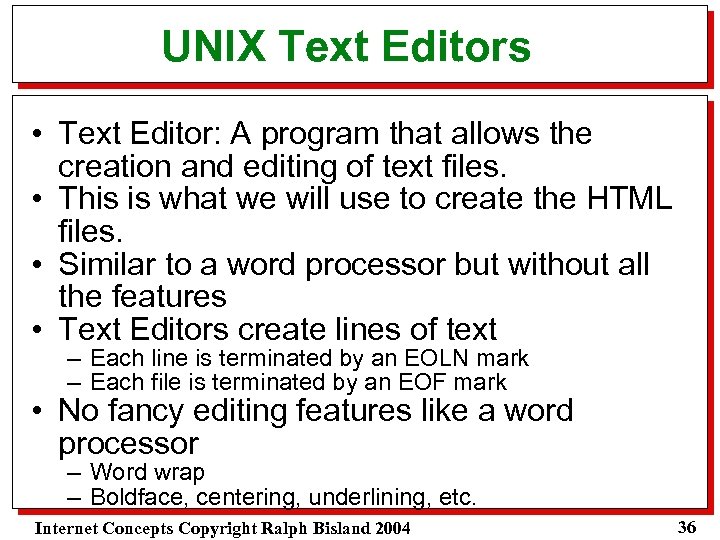 UNIX Text Editors • Text Editor: A program that allows the creation and editing of text files. • This is what we will use to create the HTML files. • Similar to a word processor but without all the features • Text Editors create lines of text – Each line is terminated by an EOLN mark – Each file is terminated by an EOF mark • No fancy editing features like a word processor – Word wrap – Boldface, centering, underlining, etc. Internet Concepts Copyright Ralph Bisland 2004 36
 PICO • PICO = PIne COmposer • Very simple text editor - can only be used on text files (ASCII files). • Limited in what it can do (find and replace, delete multiple lines, etc. ) • Default editor on the orca system. • Some of the PICO commands are shown across the bottom of the screen. • All PICO commands begin with a control key (shown as ^letter). Internet Concepts Copyright Ralph Bisland 2004 37
 PICO (ctd) • To enter the PICO Editor, enter the word "pico", followed by a blank space, followed by the name of the file you wish to create/edit. • orca % pico my-file. dat • The screen will clear and the PICO edit window is now open. • Use the arrow keys to move the cursor around. • Whatever you enter will be entered in the text file. Internet Concepts Copyright Ralph Bisland 2004 38
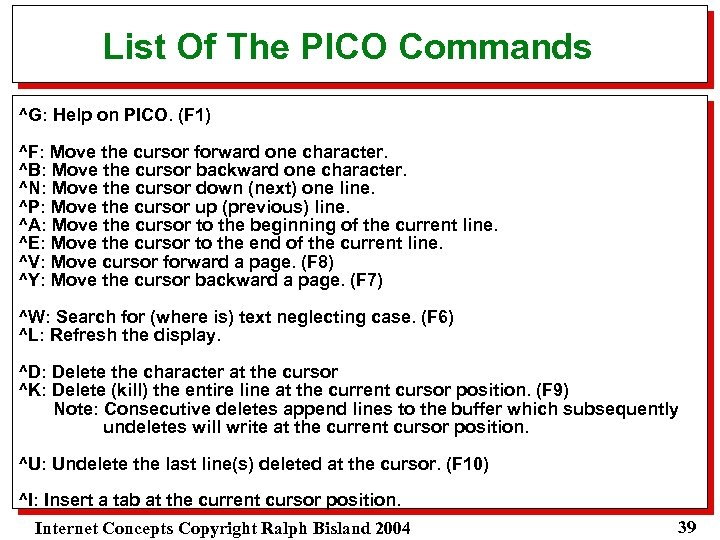 List Of The PICO Commands ^G: Help on PICO. (F 1) ^F: Move the cursor forward one character. ^B: Move the cursor backward one character. ^N: Move the cursor down (next) one line. ^P: Move the cursor up (previous) line. ^A: Move the cursor to the beginning of the current line. ^E: Move the cursor to the end of the current line. ^V: Move cursor forward a page. (F 8) ^Y: Move the cursor backward a page. (F 7) ^W: Search for (where is) text neglecting case. (F 6) ^L: Refresh the display. ^D: Delete the character at the cursor ^K: Delete (kill) the entire line at the current cursor position. (F 9) Note: Consecutive deletes append lines to the buffer which subsequently undeletes will write at the current cursor position. ^U: Undelete the last line(s) deleted at the cursor. (F 10) ^I: Insert a tab at the current cursor position. Internet Concepts Copyright Ralph Bisland 2004 39
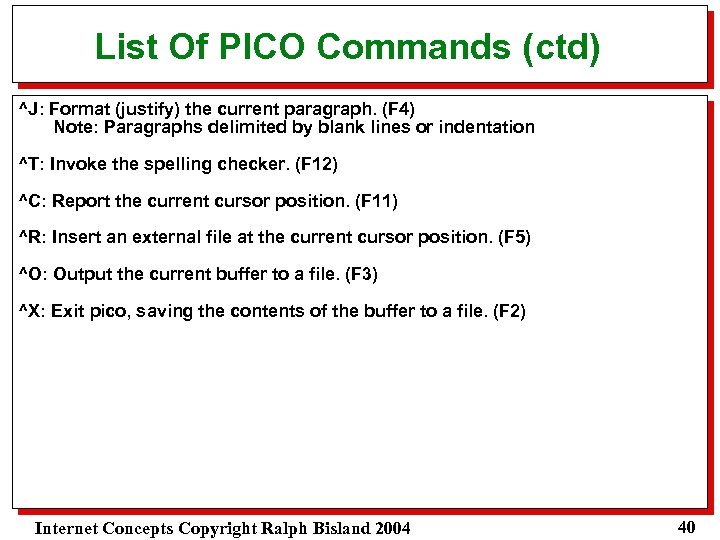 List Of PICO Commands (ctd) ^J: Format (justify) the current paragraph. (F 4) Note: Paragraphs delimited by blank lines or indentation ^T: Invoke the spelling checker. (F 12) ^C: Report the current cursor position. (F 11) ^R: Insert an external file at the current cursor position. (F 5) ^O: Output the current buffer to a file. (F 3) ^X: Exit pico, saving the contents of the buffer to a file. (F 2) Internet Concepts Copyright Ralph Bisland 2004 40
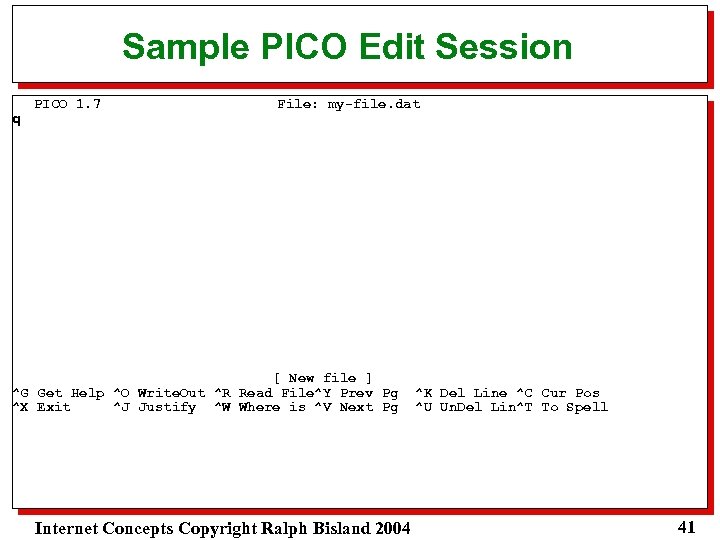 Sample PICO Edit Session q PICO 1. 7 File: my-file. dat [ New file ] ^G Get Help ^O Write. Out ^R Read File^Y Prev Pg ^X Exit ^J Justify ^W Where is ^V Next Pg Internet Concepts Copyright Ralph Bisland 2004 ^K Del Line ^C Cur Pos ^U Un. Del Lin^T To Spell 41
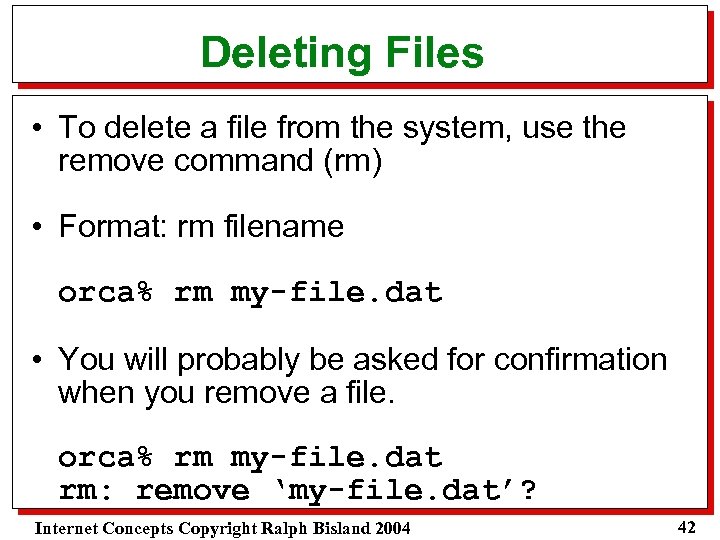 Deleting Files • To delete a file from the system, use the remove command (rm) • Format: rm filename orca% rm my-file. dat • You will probably be asked for confirmation when you remove a file. orca% rm my-file. dat rm: remove ‘my-file. dat’? Internet Concepts Copyright Ralph Bisland 2004 42
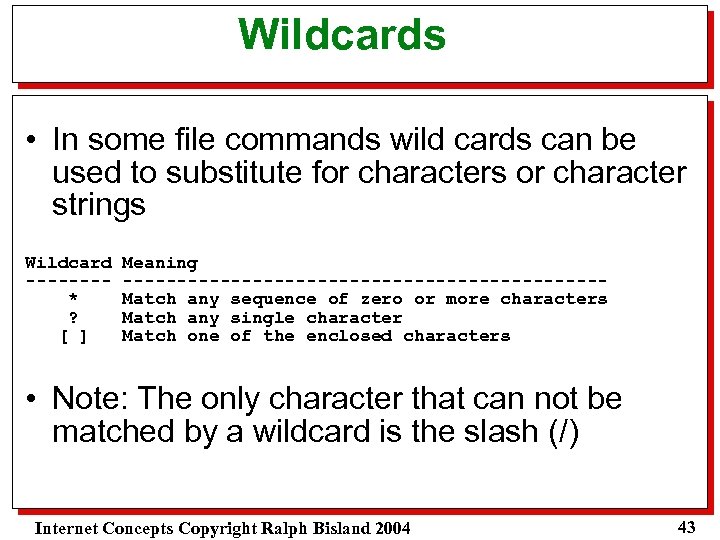 Wildcards • In some file commands wild cards can be used to substitute for characters or character strings Wildcard -------* ? [ ] Meaning ----------------------Match any sequence of zero or more characters Match any single character Match one of the enclosed characters • Note: The only character that can not be matched by a wildcard is the slash (/) Internet Concepts Copyright Ralph Bisland 2004 43
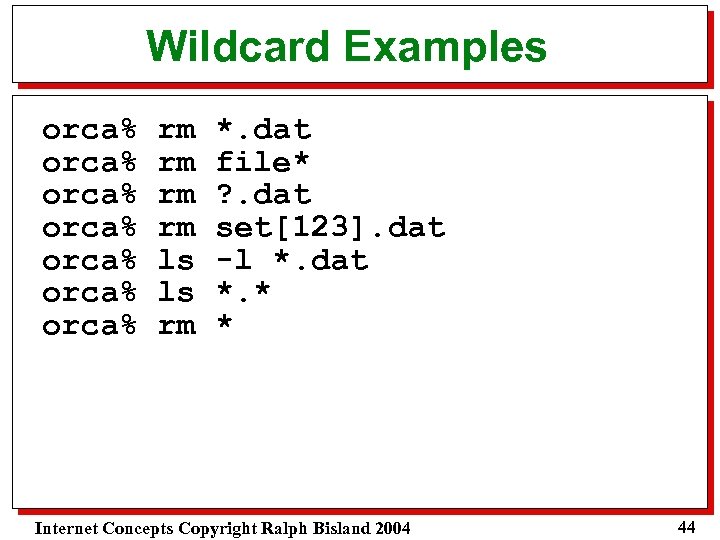 Wildcard Examples orca% orca% rm rm ls ls rm *. dat file* ? . dat set[123]. dat -l *. dat *. * * Internet Concepts Copyright Ralph Bisland 2004 44
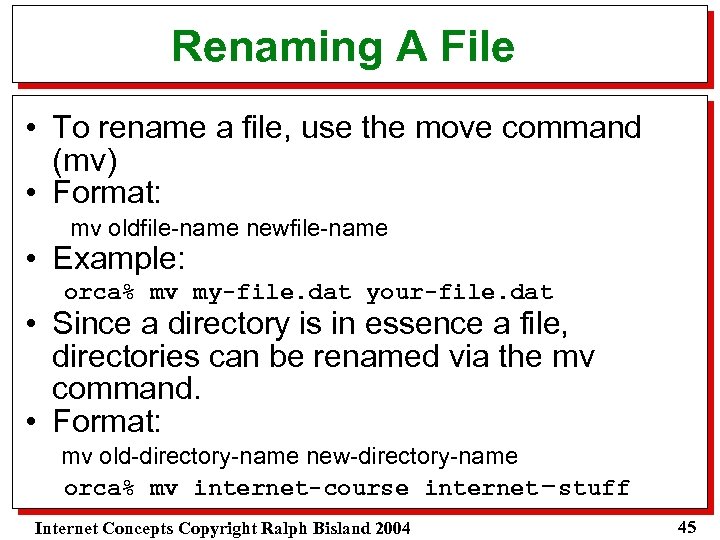 Renaming A File • To rename a file, use the move command (mv) • Format: mv oldfile-name newfile-name • Example: orca% mv my-file. dat your-file. dat • Since a directory is in essence a file, directories can be renamed via the mv command. • Format: mv old-directory-name new-directory-name orca% mv internet-course internet-stuff Internet Concepts Copyright Ralph Bisland 2004 45
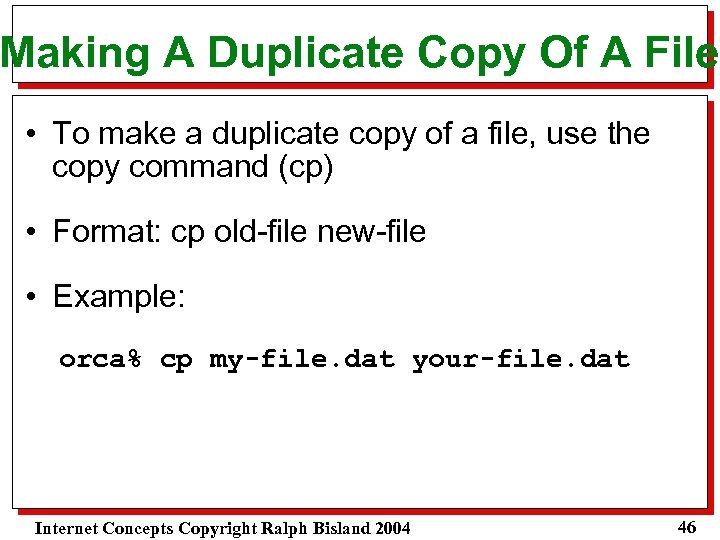 Making A Duplicate Copy Of A File • To make a duplicate copy of a file, use the copy command (cp) • Format: cp old-file new-file • Example: orca% cp my-file. dat your-file. dat Internet Concepts Copyright Ralph Bisland 2004 46
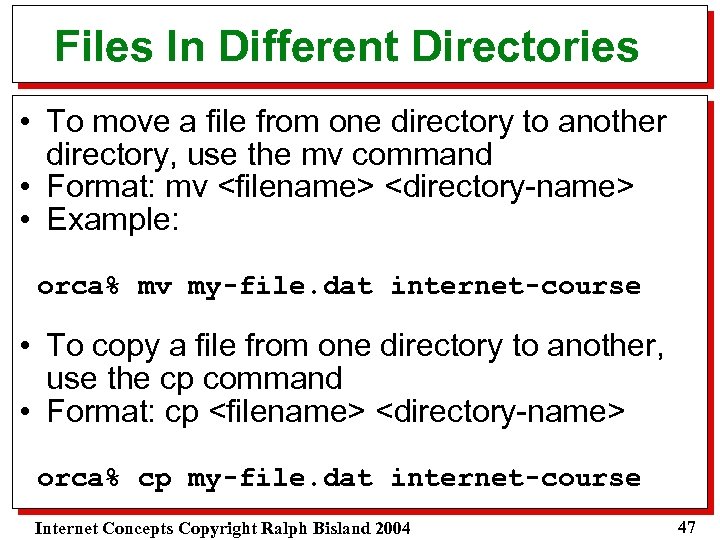 Files In Different Directories • To move a file from one directory to another directory, use the mv command • Format: mv
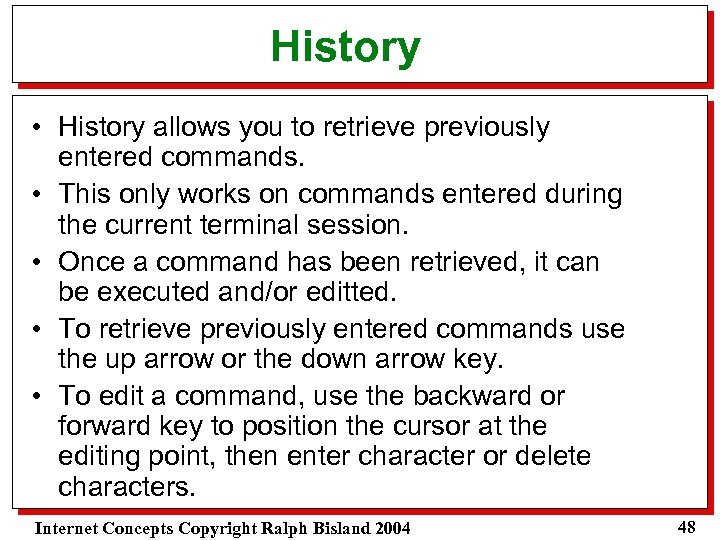 History • History allows you to retrieve previously entered commands. • This only works on commands entered during the current terminal session. • Once a command has been retrieved, it can be executed and/or editted. • To retrieve previously entered commands use the up arrow or the down arrow key. • To edit a command, use the backward or forward key to position the cursor at the editing point, then enter character or delete characters. Internet Concepts Copyright Ralph Bisland 2004 48
 Filename Completion • UNIX allows the user to enter enough character of a filename to determine a unique file name, then completes the file name for you. • To do this, enter enough characters for UNIX to identify the file name, then press the TAB key – UNIX completes the file name for you. • This feature only works on file names, not commands. Internet Concepts Copyright Ralph Bisland 2004 49
 Printing • Any text file may be printed on the laser printer in JST 205 or TEC 207 • Caution: Only print text files on the printer!!! • The command to print a text file is lpr. • Format: lpr