


 Скачать презентацию CPE CSC 486 Human-Computer Interaction Franz J Kurfess Computer
c0a3b6115d17f80de50bb3ad9ea754cb.ppt
- Количество слайдов: 82
 CPE/CSC 486: Human-Computer Interaction Franz J. Kurfess Computer Science Department California Polytechnic State University San Luis Obispo, CA, U. S. A.
 Course Overview ❖ Introduction ❖ Cognitive Foundations ❖ Input-Output Devices ❖ Interaction Spaces ❖ Interaction Styles ❖ Interaction with Mobile Devices ❖ Speech-Based Interaction ❖ User Assistance © Franz J. Kurfess 3
 Chapter Overview Interaction Styles ❖ Motivation ❖ Objectives ❖ Terminology ❖ Batch Systems ❖ Command-Line Interfaces ❖ Full-Screen Interfaces ❖ Menus ❖ Forms ❖ Direct Manipulation Interfaces © Franz J. Kurfess 4
 Interaction Styles in CSC 484 ❖ there is a similar chapter in the CPE/CSC 484 class v v follows the Rogers, Preece, Sharp textbook see http: //users. csc. calpoly. edu/~fkurfess/Courses/484/S 12/Administ ration/Schedule. html, Week 3 © Franz J. Kurfess 5
 Logistics ❖ Use of HCI Lab Facilities v v ❖ Morae reservations for exclusive use of the lab Open House: Fri, April 13 + Sat, April 14 v opportunity for usability evaluations and data collection v ❖ Loaner Devices Checkout v ❖ Fri ~2: 30 - 4: 00 pm: new students, parents i. Pads, XBox + Kinect, PS 3 + Move, Qualcomm Android kits Assignments v A 1 due today v v v ❖ project-related => TRAC Wiki others => Poly. Learn Assignment Submission A 2 published (same as 484 - A 4) Research Activity v v ❖ topic selected? dissemination method discussed (paper, blog, video) Term Project v addition of students who enrolled late v contact and regular meetings with external customers © Franz J. Kurfess 6
 Motivation ❖ the way interaction with computers is performed depends on available technology on one hand, but also on different methods and usage styles for a particular technology ❖ the change in interaction style from command-line to graphical user interface has contributed considerably to the popularity of personal computers ❖ for a given task and user population, different interaction styles may make the difference between success, acceptance, or failure of a product © Franz J. Kurfess 11
 Objectives ❖ to know the advantages and drawbacks of the most often used interaction styles, in particular commandbased vs. graphical user interfaces ❖ to be familiar with evaluation criteria for a comparison of different interaction styles ❖ to be able to select an appropriate interaction style for a specific task, environment, and user population ❖ to be exposed to emerging interaction styles like natural language, gestures, or intelligent agents © Franz J. Kurfess 12
 Interaction ❖ exchange of information between user and system ❖ actions of the user that change the status of the system ❖ feedback to the user concerning actions of the system ❖ requires translation between the intentions of the user and the actions of the system © Franz J. Kurfess 14
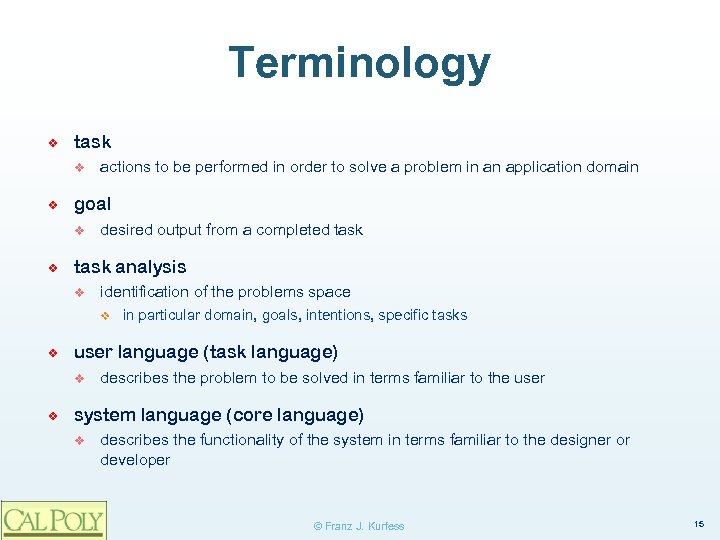 Terminology ❖ task v ❖ goal v ❖ actions to be performed in order to solve a problem in an application domain desired output from a completed task analysis v identification of the problems space v ❖ user language (task language) v ❖ in particular domain, goals, intentions, specific tasks describes the problem to be solved in terms familiar to the user system language (core language) v describes the functionality of the system in terms familiar to the designer or developer © Franz J. Kurfess 15
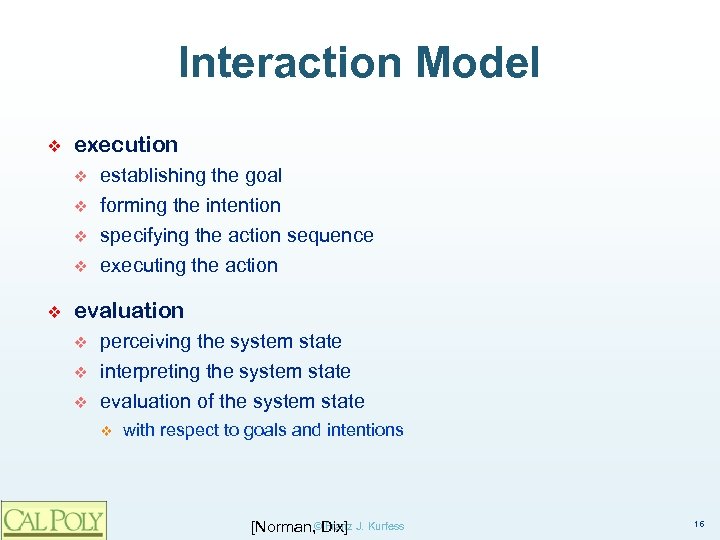 Interaction Model ❖ execution v v ❖ establishing the goal forming the intention specifying the action sequence executing the action evaluation v v v perceiving the system state interpreting the system state evaluation of the system state v with respect to goals and intentions Franz [Norman, ©Dix] J. Kurfess 16
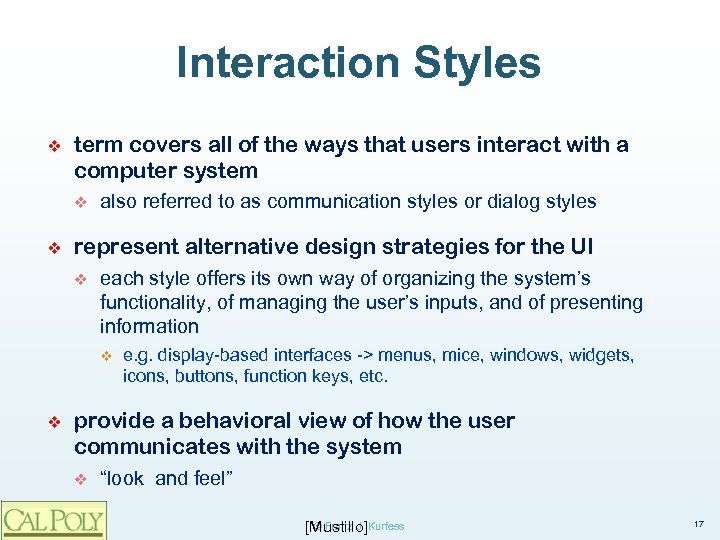 Interaction Styles ❖ term covers all of the ways that users interact with a computer system v ❖ also referred to as communication styles or dialog styles represent alternative design strategies for the UI v each style offers its own way of organizing the system’s functionality, of managing the user’s inputs, and of presenting information v ❖ e. g. display-based interfaces -> menus, mice, windows, widgets, icons, buttons, function keys, etc. provide a behavioral view of how the user communicates with the system v “look and feel” © Franz J. [Mustillo]Kurfess 17
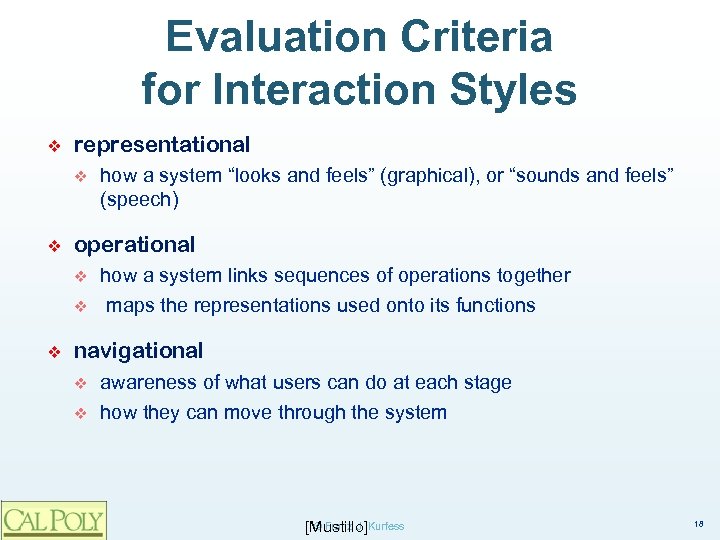 Evaluation Criteria for Interaction Styles ❖ representational v ❖ operational v v ❖ how a system “looks and feels” (graphical), or “sounds and feels” (speech) how a system links sequences of operations together maps the representations used onto its functions navigational v v awareness of what users can do at each stage how they can move through the system © Franz J. [Mustillo]Kurfess 18
 Interaction Framework ❖ components v v v system user, input, output input and output together form the interface each of the components may have its own language to describe the objects and actions it is concerned with © Franz [Dix] J. Kurfess 19
![Interaction Framework Interface System User Output Core Input © Franz [Dix] J. Kurfess Task](https://present5.com/presentation/c0a3b6115d17f80de50bb3ad9ea754cb/image-14.jpg "Interaction Framework Interface System User Output Core Input © Franz [Dix] J. Kurfess Task") Interaction Framework Interface System User Output Core Input © Franz [Dix] J. Kurfess Task 20
Interaction Framework Interface System User Output Core Input © Franz [Dix] J. Kurfess Task 20
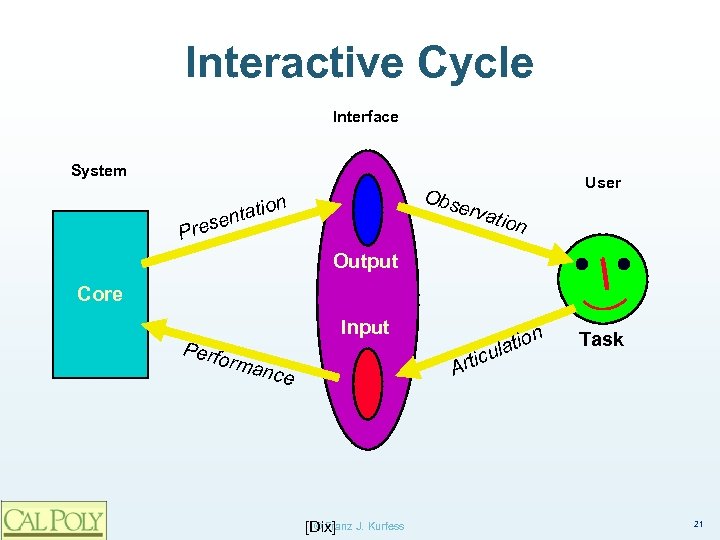 Interactive Cycle Interface System User Obs n erva tio enta s Pre tion Output Core Perf Input orma n Art latio icu nce © Franz [Dix] J. Kurfess Task 21
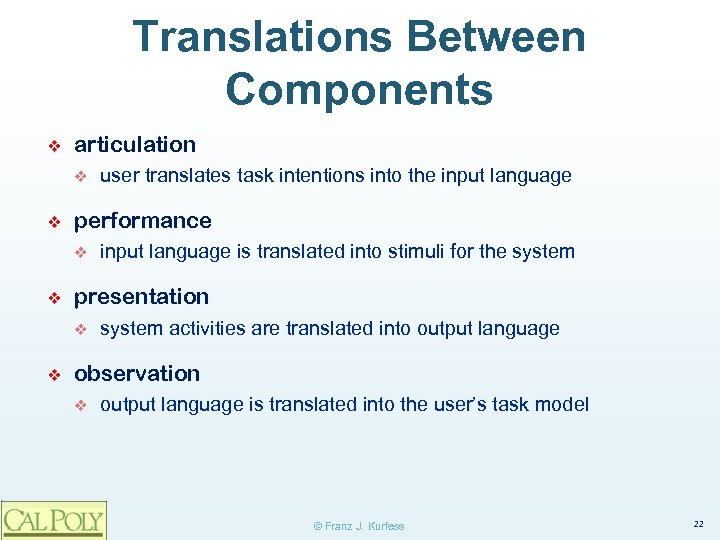 Translations Between Components ❖ articulation v ❖ performance v ❖ input language is translated into stimuli for the system presentation v ❖ user translates task intentions into the input language system activities are translated into output language observation v output language is translated into the user’s task model © Franz J. Kurfess 22
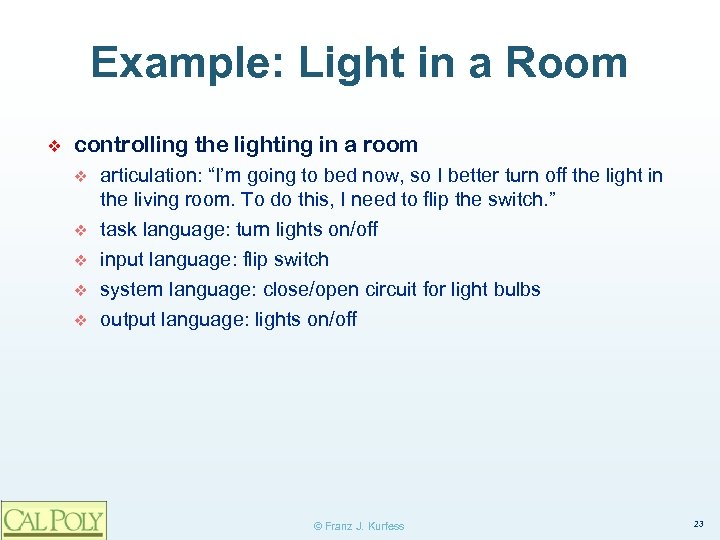 Example: Light in a Room ❖ controlling the lighting in a room v v v articulation: “I’m going to bed now, so I better turn off the light in the living room. To do this, I need to flip the switch. ” task language: turn lights on/off input language: flip switch system language: close/open circuit for light bulbs output language: lights on/off © Franz J. Kurfess 23
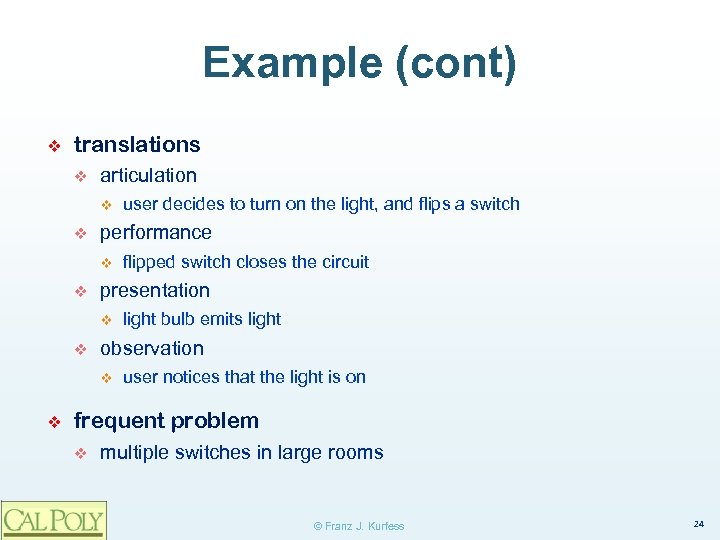 Example (cont) ❖ translations v articulation v v performance v v light bulb emits light observation v ❖ flipped switch closes the circuit presentation v v user decides to turn on the light, and flips a switch user notices that the light is on frequent problem v multiple switches in large rooms © Franz J. Kurfess 24
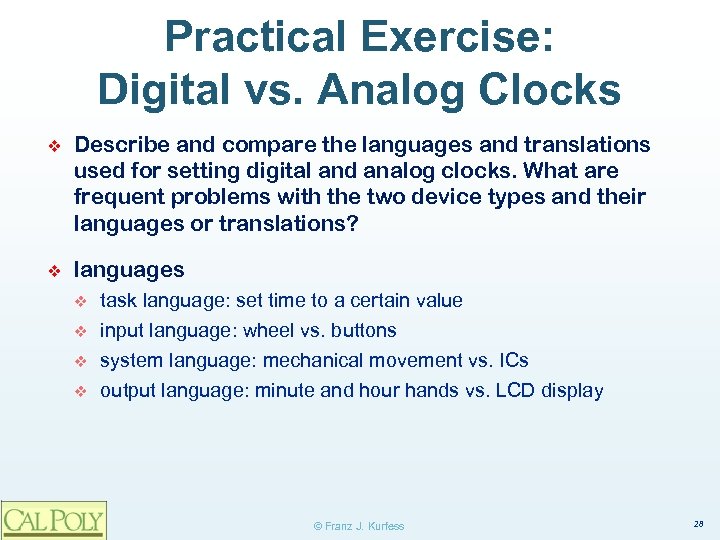 Practical Exercise: Digital vs. Analog Clocks ❖ Describe and compare the languages and translations used for setting digital and analog clocks. What are frequent problems with the two device types and their languages or translations? ❖ languages v v task language: set time to a certain value input language: wheel vs. buttons system language: mechanical movement vs. ICs output language: minute and hour hands vs. LCD display © Franz J. Kurfess 28
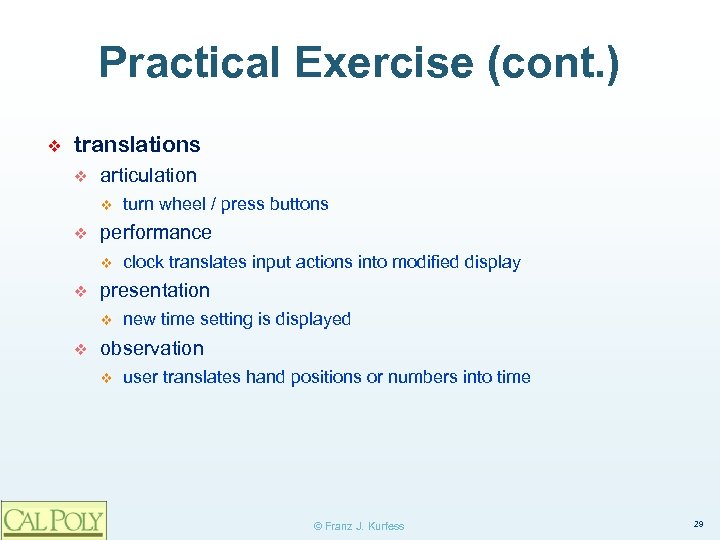 Practical Exercise (cont. ) ❖ translations v articulation v v performance v v clock translates input actions into modified display presentation v v turn wheel / press buttons new time setting is displayed observation v user translates hand positions or numbers into time © Franz J. Kurfess 29
 Exercise: Select Example ❖ Identify an activity or scenario to illustrate interaction styles v languages v v translations v v task, input, system, output articulation, performance, presentation, observation problems © Franz J. Kurfess 30
 Practical Exercise (cont. ) ❖ problems v v v which way do you turn the wheel which button do you press, how often, in which combination turning the time “back” on a digital clock is frequently impossible © Franz J. Kurfess 32
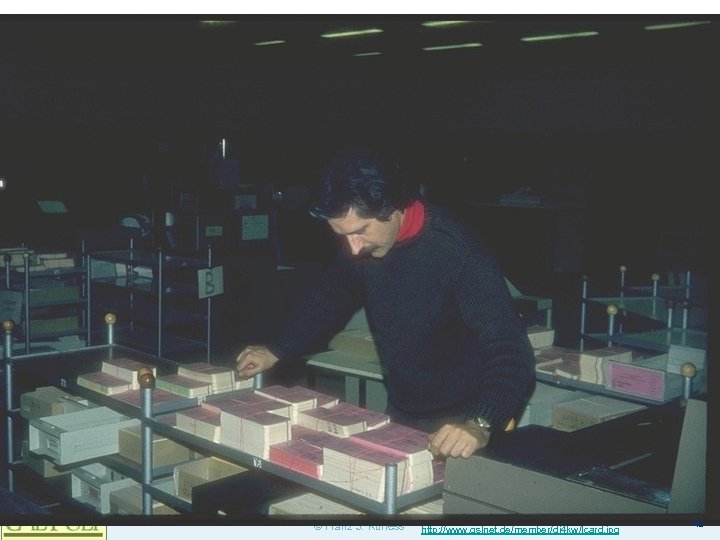
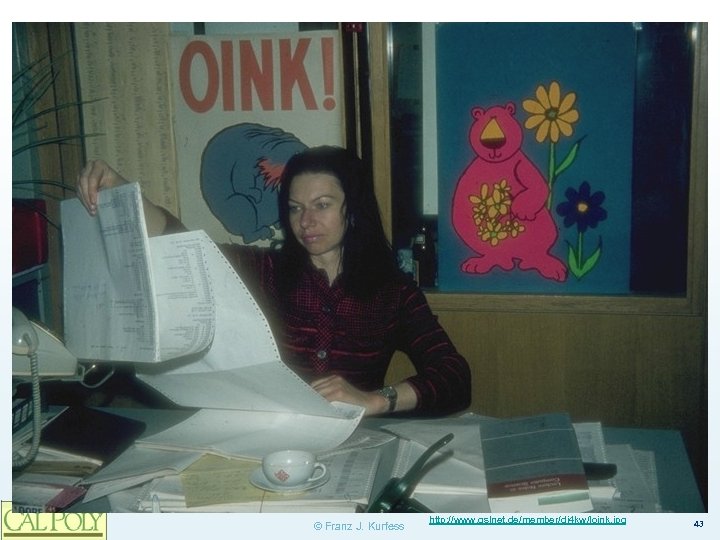
 Batch Systems ❖ first generation of user interfaces ❖ interaction restricted to a single point in time v submission of a batch job as a single unit ❖ user commands have to be specified before the result of any of them is made known to the user ❖ work well for repetitive jobs (e. g. , payroll processing, billing, etc. ), and are still used today v ❖ Examples: Revenue Canada, Canada Post, Bell Canada. drawbacks v not interactive v inflexible © Franz J. [Mustillo]Kurfess 33
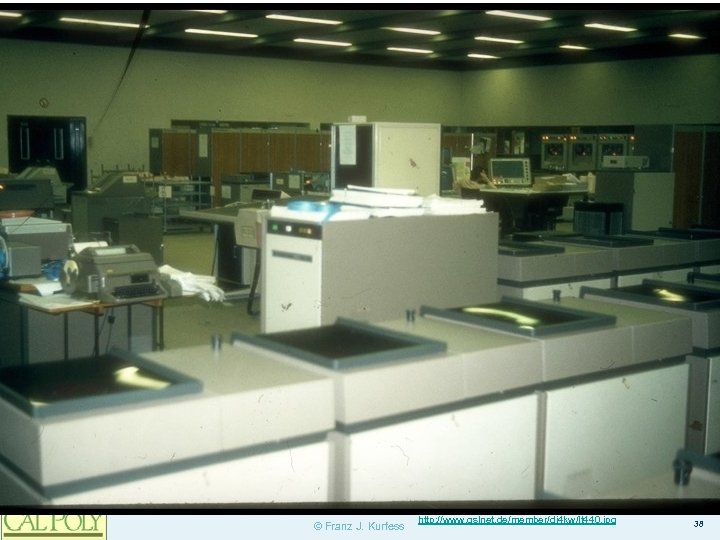
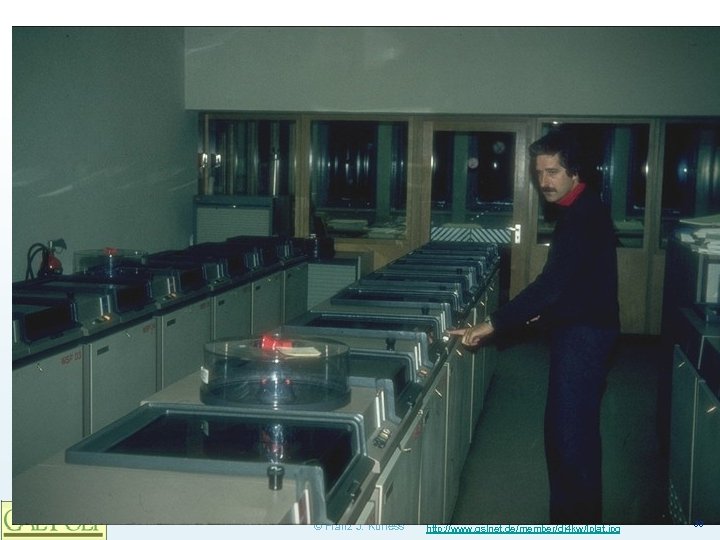
 Personal History ❖ the images in the following slides represent computer systems I used early in my career © Franz J. Kurfess 34
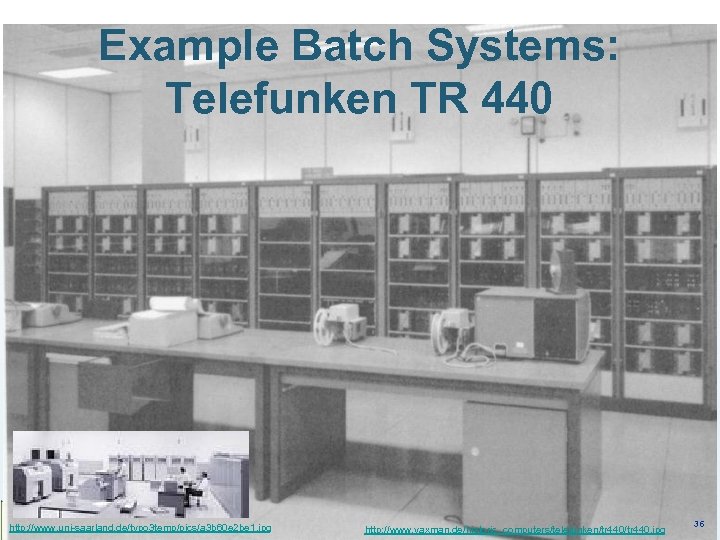 Example Batch Systems: Telefunken TR 440 http: //www. uni-saarland. de/typo 3 temp/pics/a 3 b 60 e 2 be 1. jpg © Franz J. http: //www. vaxman. de/historic_computers/telefunken/tr 440. jpg Kurfess 36
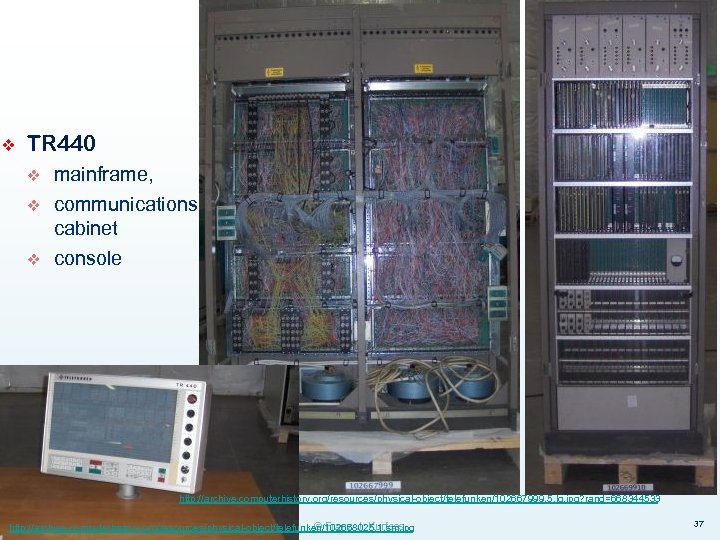 ❖ TR 440 v v v mainframe, communications cabinet console http: //archive. computerhistory. org/resources/physical-object/telefunken/102667999. 5. lg. jpg? rand=668344533 © Franz J. Kurfess http: //archive. computerhistory. org/resources/physical-object/telefunken/102668025. 1. sm. jpg 37
 © Franz J. Kurfess http: //www. qslnet. de/member/dj 4 kw/lt 440. jpg 38
 © Franz J. Kurfess http: //www. qslnet. de/member/dj 4 kw/lplat. jpg 39
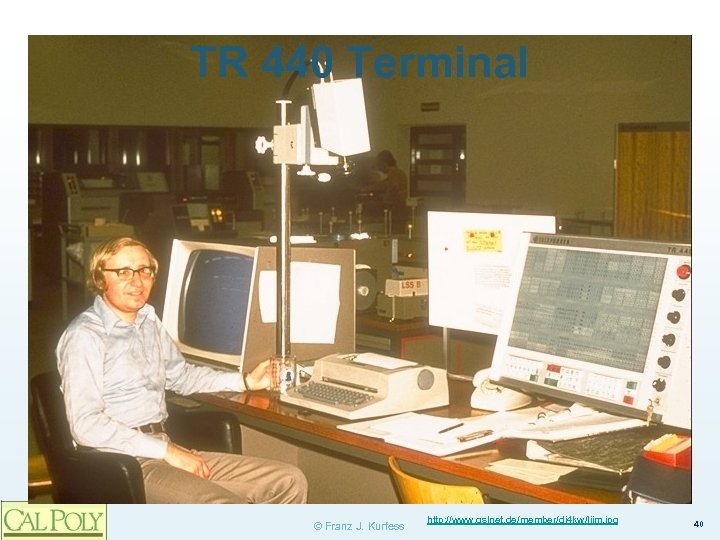 TR 440 Terminal © Franz J. Kurfess http: //www. qslnet. de/member/dj 4 kw/ljim. jpg 40
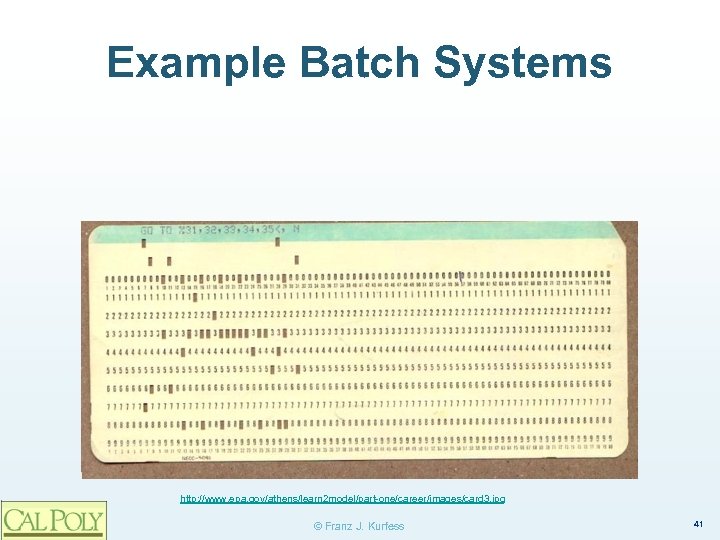 Example Batch Systems http: //www. epa. gov/athens/learn 2 model/part-one/career/images/card 3. jpg © Franz J. Kurfess 41
 © Franz J. Kurfess http: //www. qslnet. de/member/dj 4 kw/lcard. jpg 42
 © Franz J. Kurfess http: //www. qslnet. de/member/dj 4 kw/loink. jpg 43
 Command-Line Interfaces ❖ also referred to as Command-Language or Line-Oriented Interfaces ❖ A new user’s first view of almost all command-line interfaces: “>“ ❖ one-dimensional v v ❖ user interacts with a system on a single line that serves as the command line once the user hits the return key, the input can no longer be modified typical of many early computer systems, but remain common even today v e. g. , MS-DOS, UNIX © Franz J. [Mustillo]Kurfess 44
 Command-Line Interfaces (cont. ) ❖ responsibility for navigation is on the user v v ❖ user has to know what the allowable commands are needs to have a clear idea of the function to be performed difficult for novice users to learn v once mastered, command languages often represent the quickest form of communication v ❖ abbreviations, function keys, keyboard shortcuts, query languages represent a special case of command languages v allow users to request information © Franz J. [Mustillo]Kurfess 45
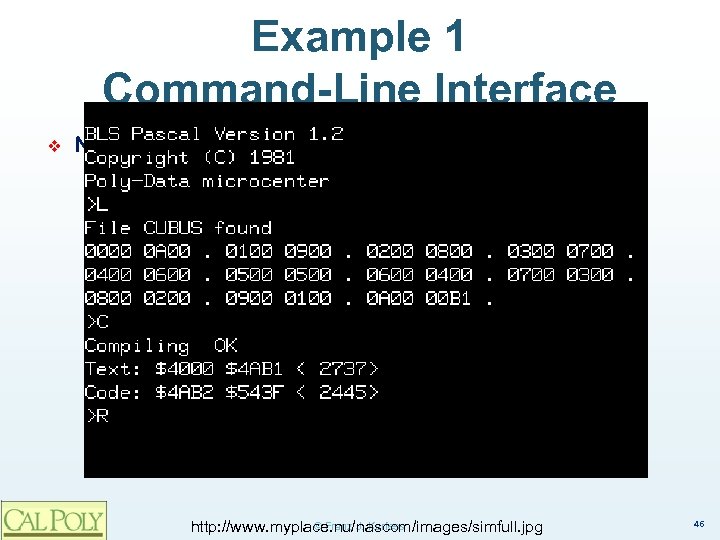 Example 1 Command-Line Interface ❖ NASCOM-2 © Franz J. Kurfess http: //www. myplace. nu/nascom/images/simfull. jpg 46
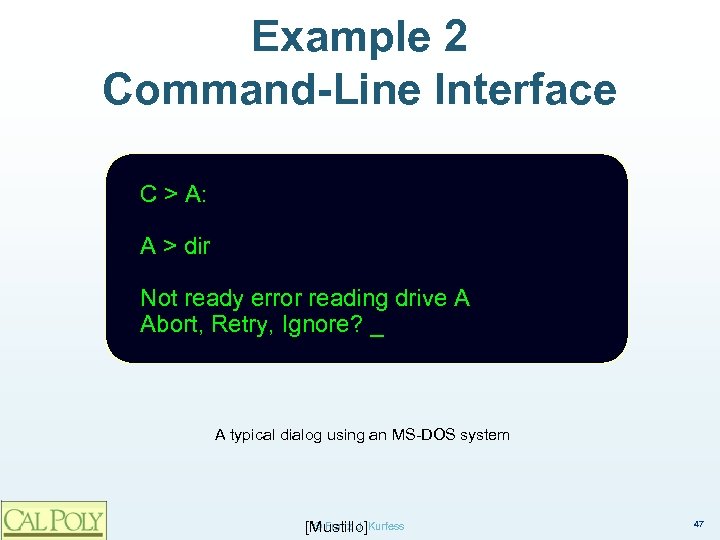 Example 2 Command-Line Interface C > A: A > dir Not ready error reading drive A Abort, Retry, Ignore? _ A typical dialog using an MS-DOS system © Franz J. [Mustillo]Kurfess 47
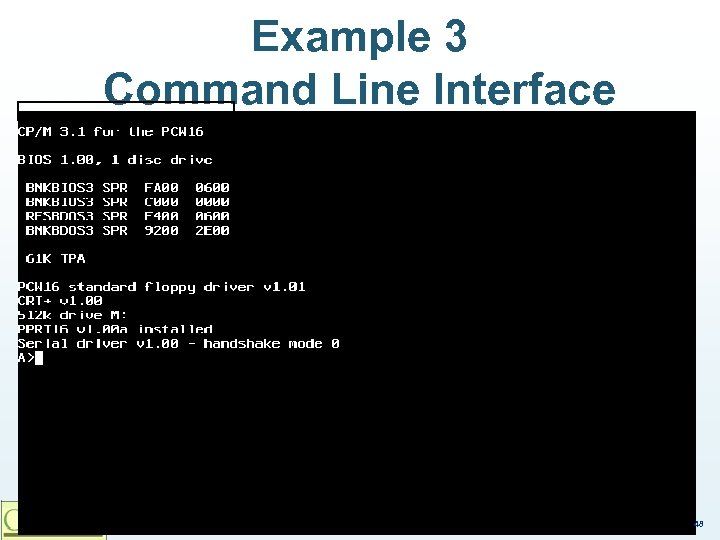 Example 3 Command Line Interface © Franz J. Kurfess 48
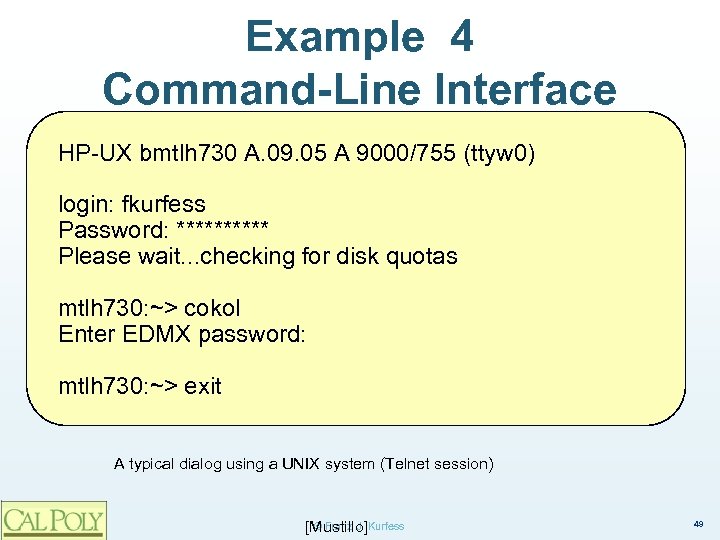 Example 4 Command-Line Interface HP-UX bmtlh 730 A. 09. 05 A 9000/755 (ttyw 0) login: fkurfess Password: ***** Please wait. . . checking for disk quotas mtlh 730: ~> cokol Enter EDMX password: mtlh 730: ~> exit A typical dialog using a UNIX system (Telnet session) © Franz J. [Mustillo]Kurfess 49
 Advantages Command-Line Interfaces ❖ powerful v ❖ flexible, user controlled v ❖ commands can be stringed together, automated scripts can be run, macros can be used, commands can be executed repetitively) users can do anything in any order fast, efficient v v ❖ requires more typing than other interaction styles, but is probably the fastest, most efficient of all interaction styles very fast and efficient for expert, high-frequency users) use minimal screen space v only one line at a time © Franz J. [Mustillo]Kurfess 50
 Drawbacks Command-Line Interfaces ❖ operating system or program exposed to the user ❖ difficult to learn v ❖ very cryptic, use of arbitrary syntactic delimiters, require rote memorization difficult to remember v v ❖ especially for infrequent users rely totally on recall inflexible v v ❖ commands need to be expressed using a precise syntax any variation represents an error susceptible to errors, poor error handling © Franz J. [Mustillo]Kurfess 51
 Full-Screen Interfaces ❖ two-dimensional v user is no longer limited to a single command line, but can move around the screen along two dimensions v ❖ e. g. form-filling application, in which the user is presented with a number of labeled fields that can be edited in any sequence. many full-screen interfaces use function keys, enumerated choices, or the first characters of a menu item as the primary interaction style © Franz J. [Mustillo]Kurfess 52
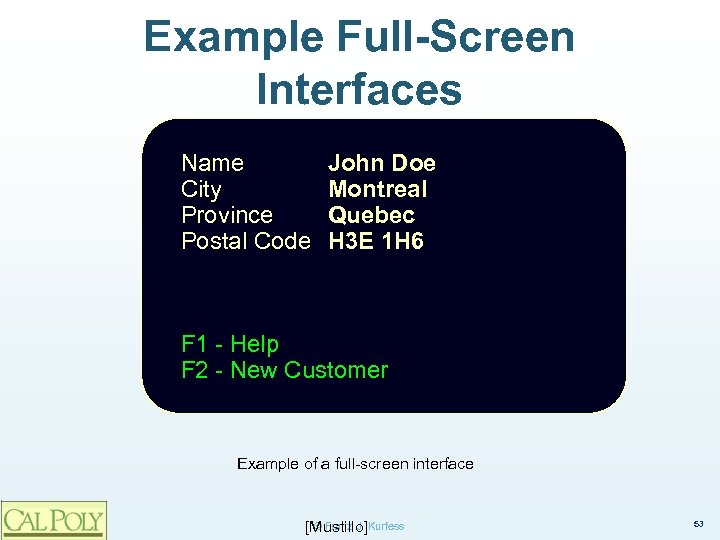 Example Full-Screen Interfaces Name City Province Postal Code John Doe Montreal Quebec H 3 E 1 H 6 F 1 - Help F 2 - New Customer Example of a full-screen interface © Franz J. [Mustillo]Kurfess 53
 Menus ❖ mechanism that allows the user to make a selection from a limited set of options ❖ one of the most popular interaction styles ❖ the user does not have to remember the name or abbreviation of a command v ❖ recognize it from a list of available options names of options, contents of the icons, descriptions of buttons should be self-explanatory © Franz J. [Mustillo]Kurfess 54
 Menu Building Blocks ❖ menus can consist of v v textual descriptions of the available functions icons v v buttons v v small graphic images that represent different aspects of an interface metaphor horizontal or vertical boxes © Franz J. Kurfess 55
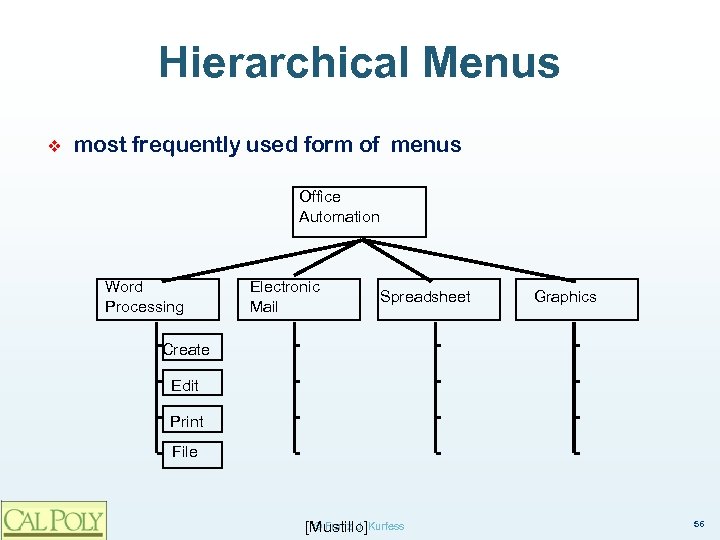 Hierarchical Menus ❖ most frequently used form of menus Office Automation Word Processing Electronic Mail Spreadsheet Graphics Create Edit Print File © Franz J. [Mustillo]Kurfess 56
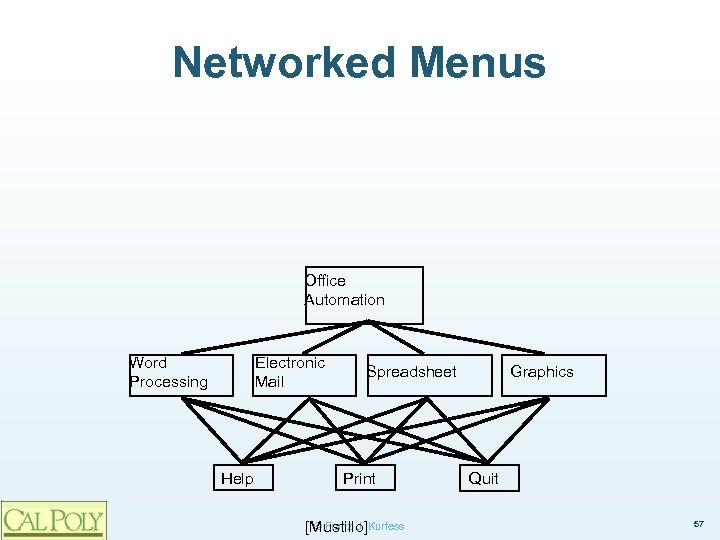 Networked Menus Office Automation Word Processing Electronic Mail Help Spreadsheet Print © Franz J. [Mustillo]Kurfess Graphics Quit 57
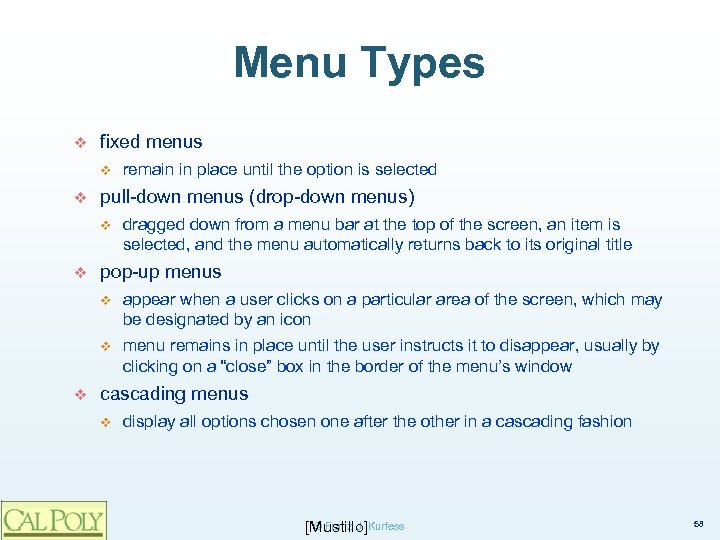 Menu Types v fixed menus v v pull-down menus (drop-down menus) v v remain in place until the option is selected dragged down from a menu bar at the top of the screen, an item is selected, and the menu automatically returns back to its original title pop-up menus v v v appear when a user clicks on a particular area of the screen, which may be designated by an icon menu remains in place until the user instructs it to disappear, usually by clicking on a “close” box in the border of the menu’s window cascading menus v display all options chosen one after the other in a cascading fashion © Franz J. [Mustillo]Kurfess 58
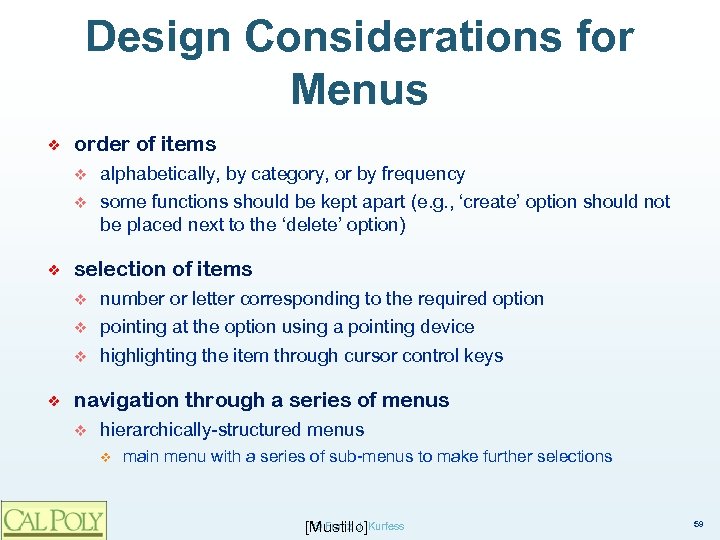 Design Considerations for Menus ❖ order of items v v ❖ alphabetically, by category, or by frequency some functions should be kept apart (e. g. , ‘create’ option should not be placed next to the ‘delete’ option) selection of items v v pointing at the option using a pointing device v ❖ number or letter corresponding to the required option highlighting the item through cursor control keys navigation through a series of menus v hierarchically-structured menus v main menu with a series of sub-menus to make further selections © Franz J. [Mustillo]Kurfess 59
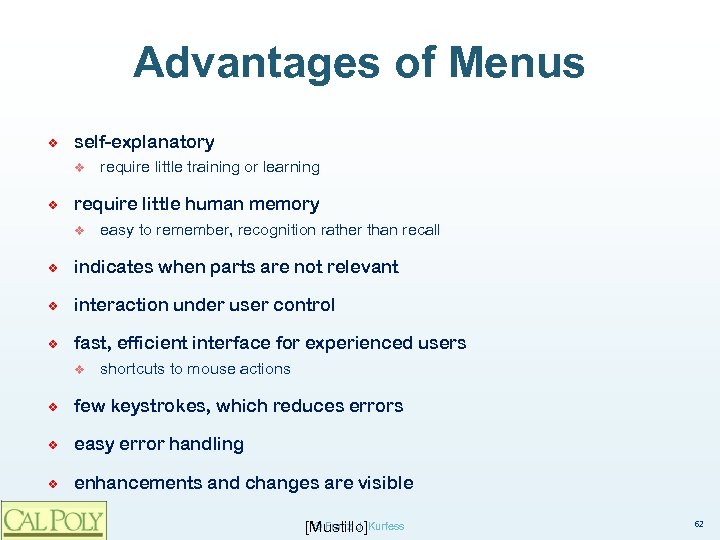 Advantages of Menus ❖ self-explanatory v ❖ require little training or learning require little human memory v easy to remember, recognition rather than recall ❖ indicates when parts are not relevant ❖ interaction under user control ❖ fast, efficient interface for experienced users v shortcuts to mouse actions ❖ few keystrokes, which reduces errors ❖ easy error handling ❖ enhancements and changes are visible © Franz J. [Mustillo]Kurfess 62
 Problems with Menus ❖ not appropriate or efficient for some users and tasks v may slow down frequent or expert users ❖ users may get lost in menu hierarchies ❖ menu names may not be meaningful to users ❖ inflexible v ❖ unless highly networked, the user is forced through set sequences of steps impractical for numerous choices v good for a limited number of valid inputs at any given time ❖ use lots of screen space ❖ most effective with a pointing device v mouse, trackball, touch screen © Franz J. [Mustillo]Kurfess 63
 Fill-in Forms ❖ similar to a paper fill-in form v ❖ formatted structure containing fields, in which the user inputs data v ❖ presented on a computer screen instead of paper each field has a label or caption that indicates the type of data to be entered in that field organization and layout are important aspects © Franz J. [Mustillo]Kurfess 64
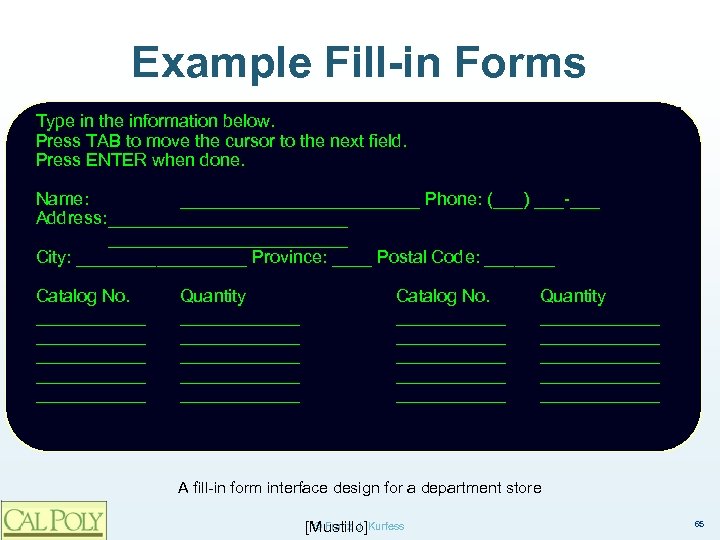 Example Fill-in Forms Type in the information below. Press TAB to move the cursor to the next field. Press ENTER when done. Name: ____________ Phone: (___) ___-___ Address: ________________________ City: _________ Province: ____ Postal Code: _______ Catalog No. ___________ ___________ ___________ Quantity ____________ ____________ ____________ A fill-in form interface design for a department store © Franz J. [Mustillo]Kurfess 65
 Advantages Fill-in Forms ❖ self-explanatory v ❖ require little human memory v ❖ e. g. , names, street names, city names, postal codes, etc. provide context v ❖ multiple fields can be presented on one screen parameters with many possible input values v ❖ rely on recognition rather than recall efficient use of screen space v ❖ little training or learning required context information from other fields enhancements and changes are visible © Franz J. [Mustillo]Kurfess 66
 Problems Fill-in Forms ❖ assume knowledge of valid inputs v e. g. , catalog numbers, part numbers, etc. ❖ assume typing skills ❖ users need to know how to use TAB to move to the next field, BACKSPACE to correct ❖ resent opportunities for making errors ❖ inflexible v input order cannot be changed © Franz J. [Mustillo]Kurfess 67
 Direct Manipulation ❖ describes the interaction between user and object v ❖ follows an object-action paradigm v ❖ directly connects an action to an observable response from an object user performs tasks by selecting an object (e. g. , icon, window, or text), and then selects an action (e. g. , move, close, underline) to perform on that object permits users to control their environment v by directly manipulating graphical objects and controls similar to those that they encounter in real life v push button starts an action v slider is used to select an analog setting, etc. v mapped onto affordances © Franz J. [Mustillo]Kurfess 72
 Principles of Direct Manipulation ❖ visible objects of interest v representing an object with an icon ❖ continuous representation of objects and actions of interest in a meaningful metaphor ❖ objects and actions are shown ❖ rapid, reversible, incremental actions ❖ immediate visibility of results of actions ❖ direct manipulation of the object of interest instead of a complex command language syntax v typing is replaced with pointing and selecting © Franz J. [Mustillo]Kurfess 73
 Indirect Manipulation ❖ in many industrial applications, objects on the computer screen stand for devices in the real world ❖ manipulation of the screen objects may not directly constitute an identical manipulation of the real-world objects ❖ feedback is required on two levels v v directly from the user interface indirectly, but more relevant from the real-world devices © Franz J. Kurfess 75
 Direct Manipulation Interfaces ❖ powerful v ❖ novice users can learn basic functionality quickly v v ❖ either through self exploration or through a demonstration by a more experienced user. no need to learn and remember complex commands goal-oriented v v ❖ expert users can work quickly, wide range of tasks users can see immediately if their actions are helping them realize their goals if not, they can simply change the direction of their activity error messages are rarely needed © Franz J. Kurfess [Shneiderman, Mustillo] 76
 WIMP Interfaces ❖ direct manipulation interfaces are characterized by v windows v v icons representing objects v v can be moved around the screen mouse (or another pointing device) v v to divide the screen into areas used to manipulate objects on the screen pop-up or pull-down menus v display the available options © Franz J. [Mustillo]Kurfess 77
 WIMP Advantages ❖ system as a whole is easily visible v v ❖ basic actions are consistent across systems v v ❖ objects are represented by icons available menu options can be inspected by pulling down menus opening, closing, copying, deleting, scrolling, etc. makes learning easier users are free to explore different aspects of the system v most actions can be ‘undone’ (reversed) if it does not have the desired or required effect © Franz J. [Mustillo]Kurfess 78
 GUIs and Direct Manipulation ❖ GUIs rely heavily on direct manipulation v have become synonymous with the WIMP interface ❖ in addition to having all of the characteristics of DM and WIMP interfaces, GUIs are also strongly graphical ❖ the primary interaction style is direct manipulation © Franz J. [Mustillo]Kurfess 79
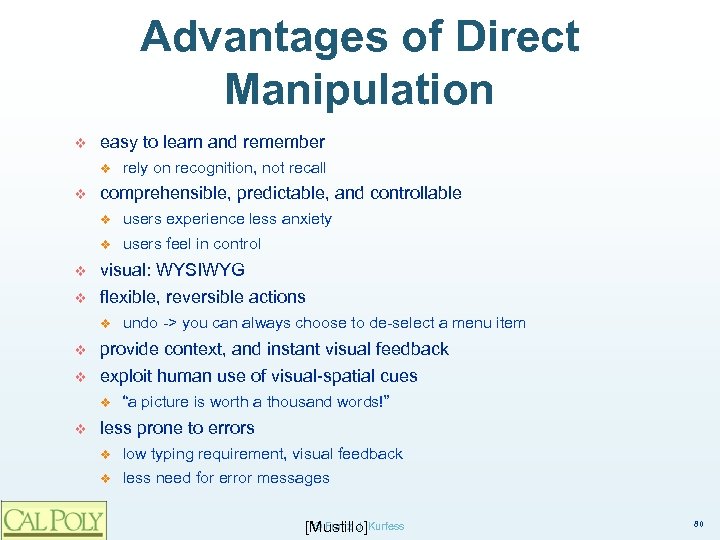 Advantages of Direct Manipulation v easy to learn and remember v v rely on recognition, not recall comprehensible, predictable, and controllable v users experience less anxiety v users feel in control v visual: WYSIWYG v flexible, reversible actions v undo -> you can always choose to de-select a menu item v provide context, and instant visual feedback v exploit human use of visual-spatial cues v v “a picture is worth a thousand words!” less prone to errors v low typing requirement, visual feedback v less need for error messages © Franz J. [Mustillo]Kurfess 80
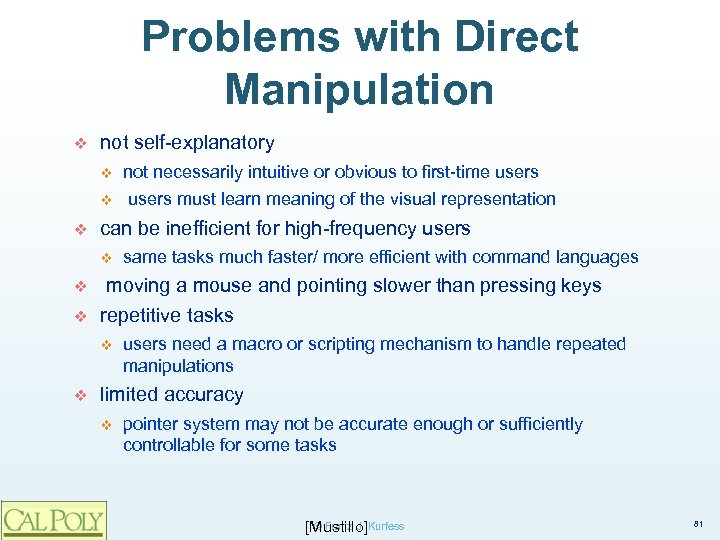 Problems with Direct Manipulation v not self-explanatory v v same tasks much faster/ more efficient with command languages moving a mouse and pointing slower than pressing keys repetitive tasks v v users must learn meaning of the visual representation can be inefficient for high-frequency users v v not necessarily intuitive or obvious to first-time users need a macro or scripting mechanism to handle repeated manipulations limited accuracy v pointer system may not be accurate enough or sufficiently controllable for some tasks © Franz J. [Mustillo]Kurfess 81
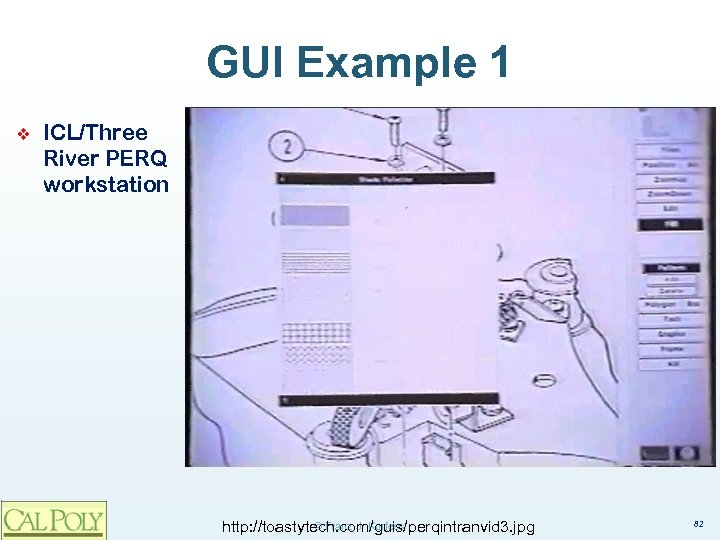 GUI Example 1 ❖ ICL/Three River PERQ workstation © Franz J. Kurfess http: //toastytech. com/guis/perqintranvid 3. jpg 82
 Movie: Advanced GUI, ca 1980 ❖ a marketing movie for the INTRAN software package for scientific design on the PERQ 2 workstation v http: //www. youtube. com/watch? v=Fapm. XY 80 ls&feature=gv&hl=en v computer stuff starts around the 2: 00 min mark © Franz J. Kurfess 83
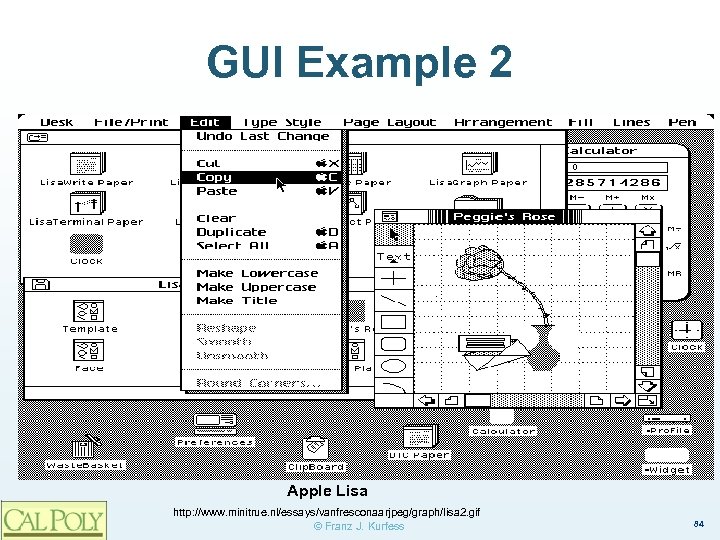 GUI Example 2 Apple Lisa http: //www. minitrue. nl/essays/vanfresconaarjpeg/graph/lisa 2. gif © Franz J. Kurfess 84
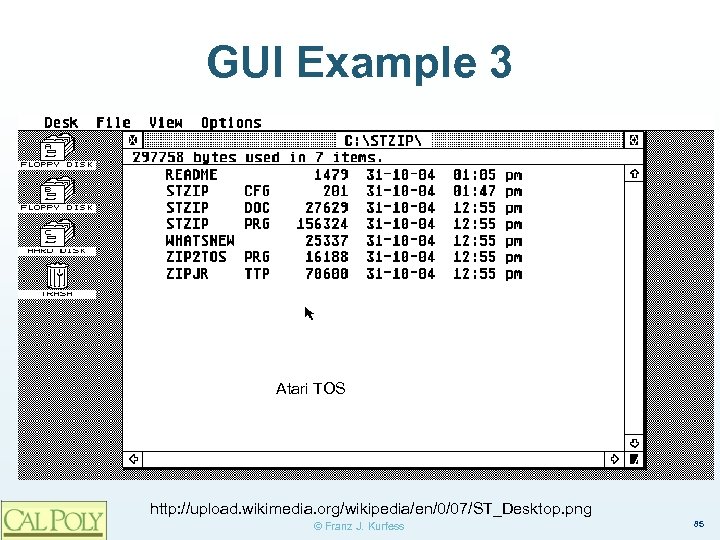 GUI Example 3 Atari TOS http: //upload. wikimedia. org/wikipedia/en/0/07/ST_Desktop. png © Franz J. Kurfess 85
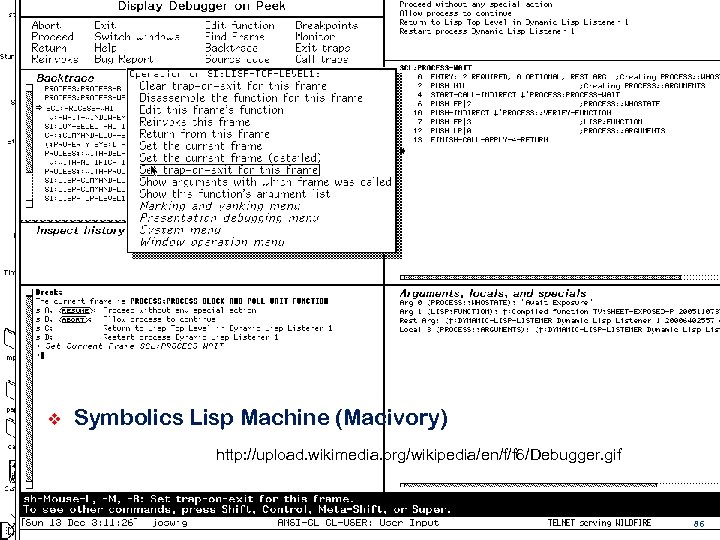 GUI Example 4 ❖ Symbolics Lisp Machine (Macivory) http: //upload. wikimedia. org/wikipedia/en/f/f 6/Debugger. gif © Franz J. Kurfess 86
 Intelligent Agents ❖ user conveys intentions v v ❖ goals critical parameters computer handles mundane and tedious activities v v repetitive easy to automate ❖ less, but more effective interaction ❖ computer acts more autonomously © Franz J. Kurfess 92
 Mobile Devices ❖ Usage ❖ Capabilities ❖ Advantages ❖ Limitations © Franz J. Kurfess 93
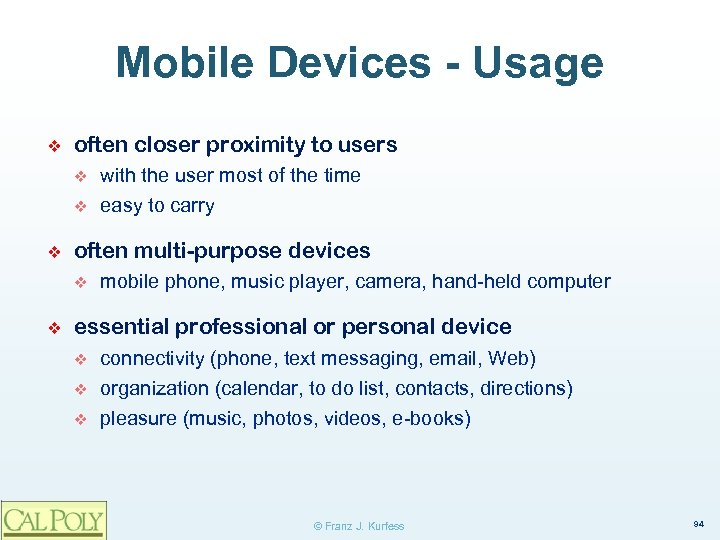 Mobile Devices - Usage ❖ often closer proximity to users v v ❖ often multi-purpose devices v ❖ with the user most of the time easy to carry mobile phone, music player, camera, hand-held computer essential professional or personal device v v v connectivity (phone, text messaging, email, Web) organization (calendar, to do list, contacts, directions) pleasure (music, photos, videos, e-books) © Franz J. Kurfess 94
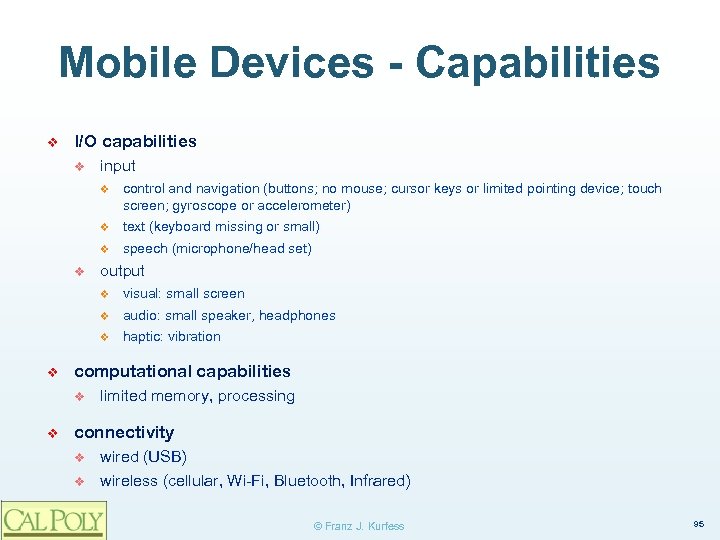 Mobile Devices - Capabilities ❖ I/O capabilities v input v v text (keyboard missing or small) v v control and navigation (buttons; no mouse; cursor keys or limited pointing device; touch screen; gyroscope or accelerometer) speech (microphone/head set) output v v haptic: vibration computational capabilities v ❖ audio: small speaker, headphones v ❖ visual: small screen limited memory, processing connectivity v v wired (USB) wireless (cellular, Wi-Fi, Bluetooth, Infrared) © Franz J. Kurfess 95
 Mobile Devices - Advantages ❖ quick & easy access ❖ multiple functions in one device © Franz J. Kurfess 96
 Mobile Devices - Limitations ❖ input and output constraints v v ❖ functional constraints v ❖ available functions are often not very sophisticated proprietary or unusual interaction methods v ❖ buttons, keyboard, navigation screen size touch gestures, (virtual) keyboard arrangement synchronization with other devices v computer, home phone, car, … © Franz J. Kurfess 97
 Ubiquitous and Pervasive Computing ❖ Usage ❖ Capabilities ❖ Advantages ❖ Limitations © Franz J. Kurfess 98
 Ubiquitous Computing – Usage ❖ task-specific devices with computing capabilities v v ❖ entertainment systems home security phone car navigation systems core functionality augmented by computational capabilities v v v connectivity additional functionality better interaction © Franz J. Kurfess 99
 Ubiquitous Computing Capabilities ❖ core capabilities defined by the application are or task v v ❖ Input v ❖ often buttons, remote control Output v ❖ often very limited sometimes augmented for better functionality or interaction screen, audio, actuators (performing specific functions) computational capabilities v often embedded microprocessors © Franz J. Kurfess 100
 Ubiquitous Computing Advantages ❖ familiar devices and tasks ❖ added functionality for such devices ❖ better interaction with devices v ❖ e. g. Tivo vs. VCR connectivity between computers and household or personal devices © Franz J. Kurfess 101
 Ubiquitous Computing Limitations ❖ limited computational capabilities ❖ limited interaction methods ❖ coordination and synchronization © Franz J. Kurfess 102
 Important Concepts and Terms ❖ batch system ❖ command-line interface ❖ contextual task analysis ❖ desktop ❖ direct manipulation ❖ forms ❖ full-screen interface ❖ goal ❖ graphical user interface (GUI) ❖ heuristic evaluation ❖ hierarchical menu ❖ human-machine interface ❖ intelligent agent ❖ interaction style ❖ menu ❖ mouse © Franz J. Kurfess 107
 Chapter Summary ❖ practically all current interaction styles are variations of command-based interfaces ❖ the currently predominant interaction style is the WIMP interface v windows, icons, mouse, pull-down menus ❖ the selection among various possible interaction styles depends on user background, task requirements, technology, and economical factors ❖ emerging technologies like natural language processing or intelligent agents may cause a shift towards noncommand interfaces © Franz J. Kurfess 108
 © Franz J. Kurfess 109