


 Скачать презентацию Course Details SDLC Documentation Process Technical Writing Process
ddd92095deddacdc7c73e0ae654125ed.ppt
- Количество слайдов: 18
 Course Details SDLC Documentation Process Technical Writing Process Grammar and Editing Technical writing Software tools Tech. Total Soft Systems perfect solution for technical writing Next Contact Us
 Course Details SDLC Documentation Process Technical Writing Process Grammar and Editing Tech. Total Soft Systems Click on the picture to view the details Previous Next Technical writing Software tools Contact Us
 Course Details SDLC Documentation Process Technical Writing Process Grammar and Editing Technical writing Software tools Contact Us Tech. Total Soft Systems Course Details Course Title: Certificate Cource in Technical Writing Cource Code: CTW Elgibility: Any Graduate Duration: 30 Days, 2 hrs a day Timings: 10. 00 - 12. 00 PM -2. 00 - 4. 00 PM 4. 00 - 6. 00 PM - 7. 00 - 9. 00 PM Weekend Special Batches/Online Training Course Outline: If you want to become a technical writer, or if you have just become a technical writer and wonder what the job and the profession may involve, this course will introduce you to an exciting and rewarding career in technical communication. Previous Next
 Course Details SDLC Documentation Process Technical Writing Process Grammar and Editing Technical writing Software tools Contact Us Tech. Total Soft Systems Software Development Life Cycle @ @ @ Software Development Life Cycle How Software is developed, tested, maintained and retired How products are installed, configured, customized and deployed Relating software product features and business benefits Working with programmers and testers Understanding software requirement specifications Analyzing product architecture Web everywhere Documentation development life cycle Types of documents associated with software products Different types of software companies Previous Next
 Course Details SDLC Documentation Process Technical Writing Process Tech. Total Soft Systems Documentation Process @ Understanding Audience/Readers @ Collecting and Organizing information @ Drafting information verbally and visually @ Producing information Previous Next Grammar and Editing Technical writing Software tools Contact Us
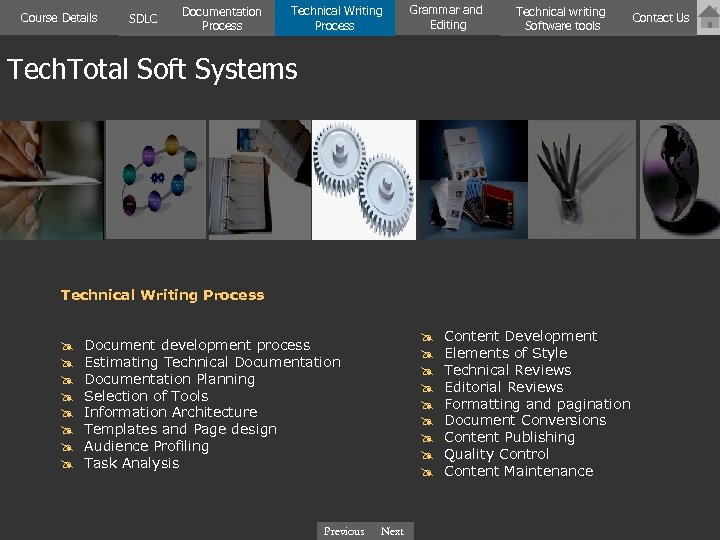 Course Details SDLC Documentation Process Technical Writing Process Grammar and Editing Technical writing Software tools Tech. Total Soft Systems Technical Writing Process @ @ @ @ @ Document development process Estimating Technical Documentation Planning Selection of Tools Information Architecture Templates and Page design Audience Profiling Task Analysis Previous Next Content Development Elements of Style Technical Reviews Editorial Reviews Formatting and pagination Document Conversions Content Publishing Quality Control Content Maintenance Contact Us
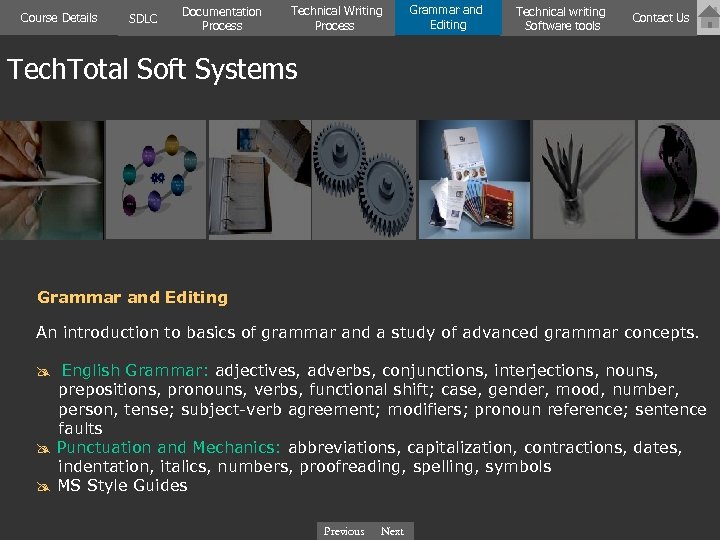 Course Details SDLC Documentation Process Technical Writing Process Grammar and Editing Technical writing Software tools Contact Us Tech. Total Soft Systems Grammar and Editing An introduction to basics of grammar and a study of advanced grammar concepts. @ English Grammar: adjectives, adverbs, conjunctions, interjections, nouns, prepositions, pronouns, verbs, functional shift; case, gender, mood, number, person, tense; subject-verb agreement; modifiers; pronoun reference; sentence faults @ Punctuation and Mechanics: abbreviations, capitalization, contractions, dates, indentation, italics, numbers, proofreading, spelling, symbols @ MS Style Guides Previous Next
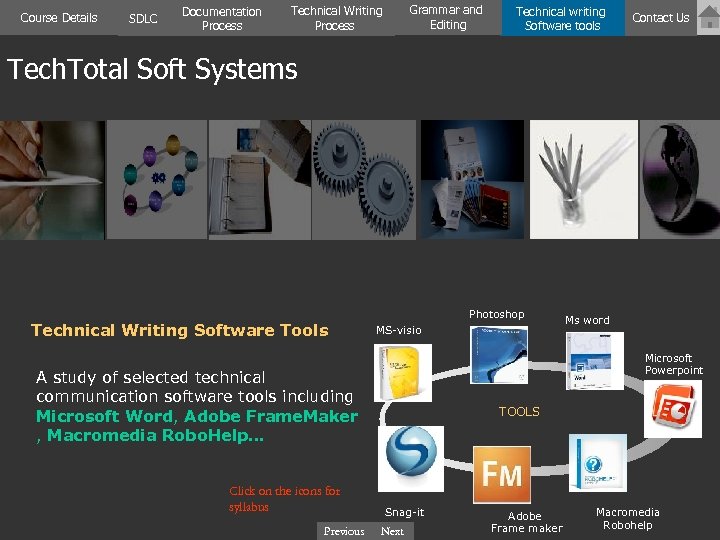 Course Details SDLC Documentation Process Grammar and Editing Technical Writing Process Technical writing Software tools Contact Us Tech. Total Soft Systems Technical Writing Software Tools Photoshop MS-visio Microsoft Powerpoint A study of selected technical communication software tools including Microsoft Word, Adobe Frame. Maker , Macromedia Robo. Help… Click on the icons for syllabus Previous Ms word TOOLS Snag-it Next Adobe Frame maker Macromedia Robohelp
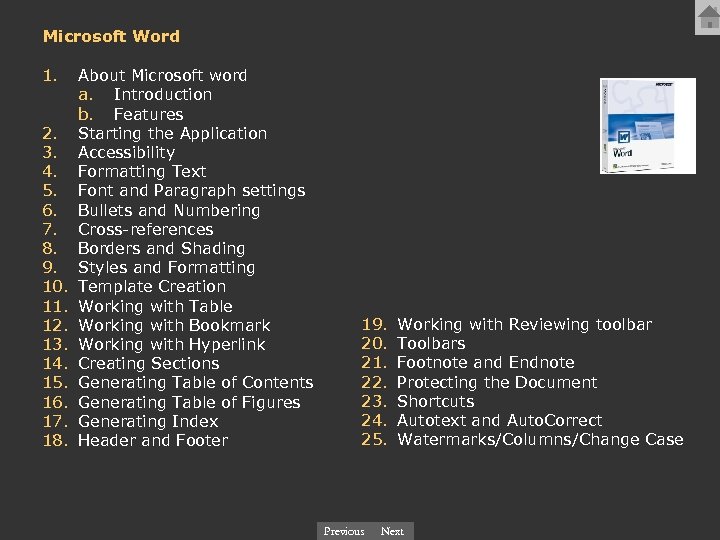 Microsoft Word 1. 2. 3. 4. 5. 6. 7. 8. 9. 10. 11. 12. 13. 14. 15. 16. 17. 18. About Microsoft word a. Introduction b. Features Starting the Application Accessibility Formatting Text Font and Paragraph settings Bullets and Numbering Cross-references Borders and Shading Styles and Formatting Template Creation Working with Table Working with Bookmark Working with Hyperlink Creating Sections Generating Table of Contents Generating Table of Figures Generating Index Header and Footer 19. 20. 21. 22. 23. 24. 25. Previous Working with Reviewing toolbar Toolbars Footnote and Endnote Protecting the Document Shortcuts Autotext and Auto. Correct Watermarks/Columns/Change Case Next
 Microsoft Power. Point 1. 2. 3. 4. 5. 6. 7. 8. 9. 10. 11. 12. 13. 14. 15. 16. Importance of Presentations Saving Powerpoint Working on Slide Master Applying Design Templates Custom Animation and slide transition effects Action buttons and hyperlinks Slide layouts Movies and Sounds Insert & edit clip art Create a slide background using a picture Customize graphical bullets Insert and format a table into a slide Add an animation scheme to selected slides Rearrange slides Customize slide backgrounds and templates Slide. Shows Previous Next
 Macromedia Robo. Help 1. 2. 3. 4. 5. 6. 7. 8. 9. 10. 11. 12. 13. 14. 15. 16. About Online Help Planning an Online Help Understanding Robo. Help Interface Creating your First Help project Working with Topics & Folders Working with TOC, Index, & Glossary Generating Output About Types of Layouts Applying Template and Style Sheet Controlling CHM Window and Skins Working with Links, Pop-ups, Triggers, and Drop-downs Working with Graphics and Text boxes Creating Related Topics, See Also and Keyword Link Playing with Marquee, Triggers, and Splash Screen Creating Dropdowns, Expanding, Hyperlinks and Popups Changing the primary layout Previous 17. Tools in Robo. Help Html 18. Creating and Working with Tables 19. Creating Manually/Automatically Multiple TOCs, Indexes, and Glossaries 20. Creating and Displaying Browse Sequence 21. Single Sourcing - Conditional Build Tags and Batch Generation 22. Creating Context-sensitive Help 23. Importing Files & Skins, and Merging CHM 24. Understanding the Project Source Folder and Files 25. Generating Reports. Next
 Adobe Frame. Maker 1. 2. 3. 4. 5. 6. 7. 8. 9. 10. 11. 12. 13. Introduction Usage of Frame. Maker v/s MS Word Getting Started Accessibility Creating/Importing Documents Saving New File Formats Basic Text Formatting Working with Tags Working with Tables Tools Pallete Drawings Tools Working with Paragraph and Character Designers 14. Working with Frames, Anchore Frames and Alignments 15. Working with Body, Master and Reference Pages Previous Next 16. Page Designing and Defining Variables 17. Hyperlink, Cross Reference, Pop. Ups and Image Mapping 18. Generating Table of Contents, Index and Glossary 19. Creating Books, Conditional Text and references 20. Document Conversions
 Snag IT – Image Capturing Tool 1. About Snag IT a. Introduction b. Features 2. Starting the application 3. Image Formats 4. Exploring the Program Window 5. Capture Profile 6. Image Capturing Modes 7. Batch Convert Images 8. Creating Web. Pages 9. Creating simple Demos 10. Companion Applications a. Snag IT Editor b. Snag IT Studio c. Catalog Browser Previous Snag IT Next
 MS- Visio (Image Drawing Tools) 1. 2. 3. 4. 5. 6. 7. 8. 9. 10. 11. 12. 13. 14. 15. 16. 17. 18. 19. 20. 21. Introduction to MS- Visio Using various technology images Creating DFD’s and Architectural Diagrams Synchronization of images Creating different file formats Special Merits Installation sequence Types of shapes Behaviour of shapes How to Get shapes Templates stencil Connection shapes Staking shapes Group/ Ungroup Text Adding Data Linking Data Graphics Auto Linking Hyper Linking Save type – formats Importing into Word Previous Next
 Photoshop 1. 2. 3. 4. 5. 6. 7. 8. 9. 10. 11. 12. 13. 14. 15. 16. 17. 18. Introduction to Photoshop Cropping images and editing Using advanced tools for creating architectural diagrams Explore the Photoshop Environment Using the File Browser Basic Photo Corrections Working with Selections Basic flow mode for editing images using Photoshop Retouching and Repairing Work with selections Creating layers Creating a Mask and Channels Correcting and Enhancing Slice and Link an Image Creating Rollovers Animate GIF Images Painting and Editing Basic Pen Tool Techniques Previous Next
 Course Details SDLC Documentation Process Technical Writing Process Grammar and Editing Technical writing Software tools Contact Us Tech. Total Soft Systems Corporate Headquarters Tech. Total Soft Systems Pvt. Ltd. #001, Rock View Buildings, Panjagutta, Hyderabad-82 Andhra Pradesh, India. Email: virender@techtotalsystems. com Phone: +91 -40 -32434393/23742145 Branch Office # 327, 3 rd Main, 7 th Cross, Domlur Layout, Bangalore-560071 Tel No: 91 -80 -32412121/ 41483259, Mobile: 9980122668/9 E-mail: info@techtotalsystems. com Chennai Office #22, First Main Road, Vadapalani, Chennai- 26 Mobile: 09989699562 Email: Shravan@techtototalsystems. com Knowledge Center A division of Tech. Total Soft System Pvt Ltd Tel No: 914032434393, Mobile: 9989696902 E-mail: stephen@techtotalsystems. com Previous Next International (US) 45691, Waterloo Station Square, STERLING, VA 20166. Tel No: 703 -880 -6466 Email: ravikiran@techtotalsystems. com Route Map
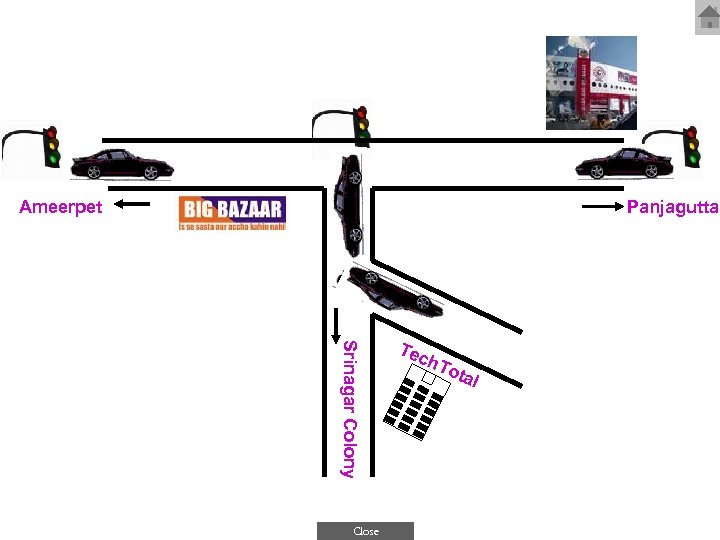 Ameerpet Panjagutta Srinagar Colony Tec Previous Next Close h. To tal
 Course Details SDLC Documentation Process Technical Writing Process Grammar and Editing Technical writing Software tools Tech. Total Soft Systems perfect solution for technical writing Next Contact Us