


 Скачать презентацию Corporate P-Card Payment Net User Guide 1234 5678
33b21cd8455d13bf6a953166f467808e.ppt
- Количество слайдов: 31
 Corporate P-Card Payment. Net User Guide 1234 5678 05/05 Nada Kondich PEPSIAMERICAS 05/08 Revised May, 2005 1
 Payment. Net User Guide Table of Contents • • Receiving Your Card…………………… Accessing Payment. Net………………… View Transactions…………………… View Transaction Detail…………………. . Reconcile Transactions…………………. . 10 Enter Comments……………………. Allocate Expenses……………………. . 3 5 8 9 11 12 – Splitting…………………………… – Remove Split………………………. . • • • 2 13 17 Disputing Transactions…………………. . Creating Reports…………………… Query Options……………………. Cardholder Profile……………………. Help……………………………. Things to Remember…………………. . 18 21 27 28 29 30
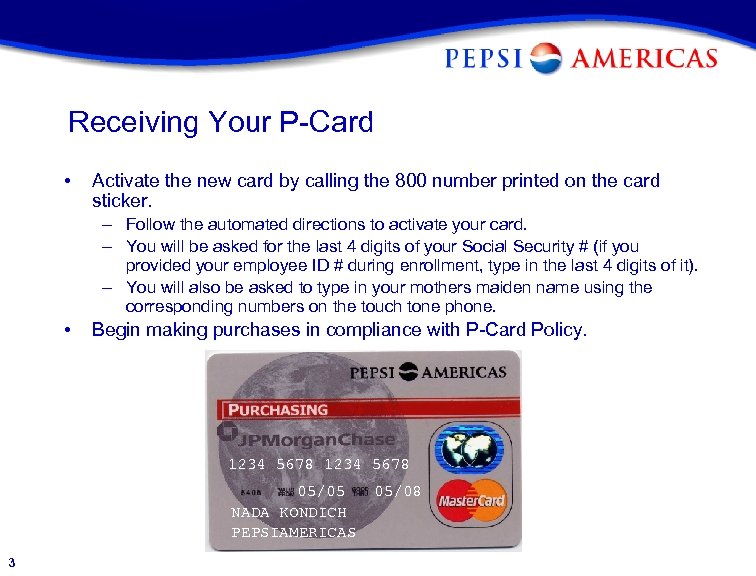 Receiving Your P-Card • Activate the new card by calling the 800 number printed on the card sticker. – Follow the automated directions to activate your card. – You will be asked for the last 4 digits of your Social Security # (if you provided your employee ID # during enrollment, type in the last 4 digits of it). – You will also be asked to type in your mothers maiden name using the corresponding numbers on the touch tone phone. • Begin making purchases in compliance with P-Card Policy. 1234 5678 05/05 NADA KONDICH PEPSIAMERICAS 3 05/08
 Managing Your Account • • 4 View your purchases ONLINE Reconcile your transactions ONLINE Allocate expenses ONLINE Run reports ONLINE
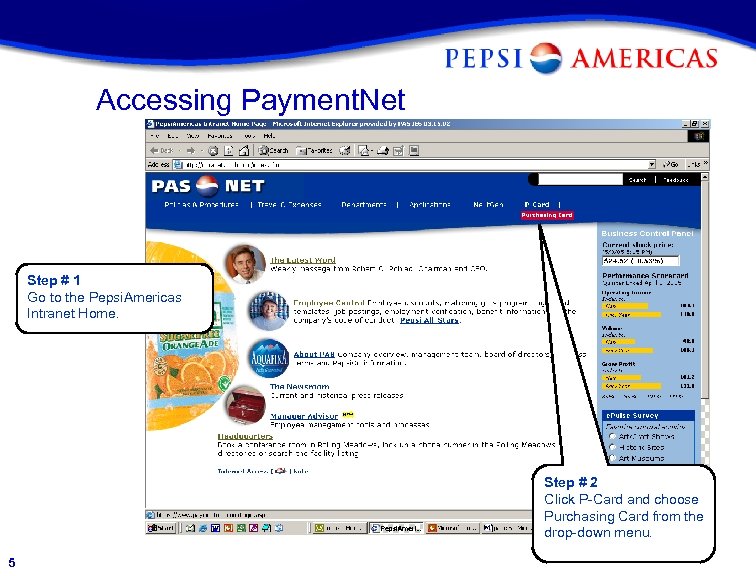 Accessing Payment. Net Step # 1 Go to the Pepsi. Americas Intranet Home. Step # 2 Click P-Card and choose Purchasing Card from the drop-down menu. 5
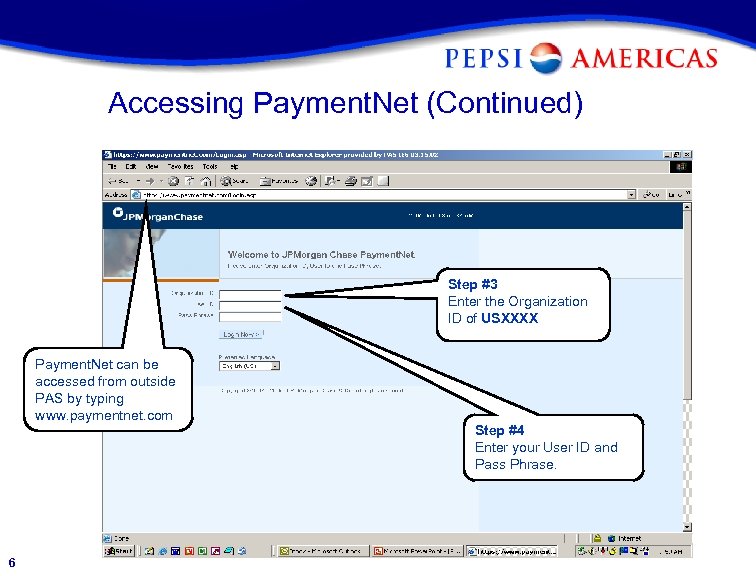 Accessing Payment. Net (Continued) Step #3 Enter the Organization ID of USXXXX Payment. Net can be accessed from outside PAS by typing www. paymentnet. com 6 Step #4 Enter your User ID and Pass Phrase.
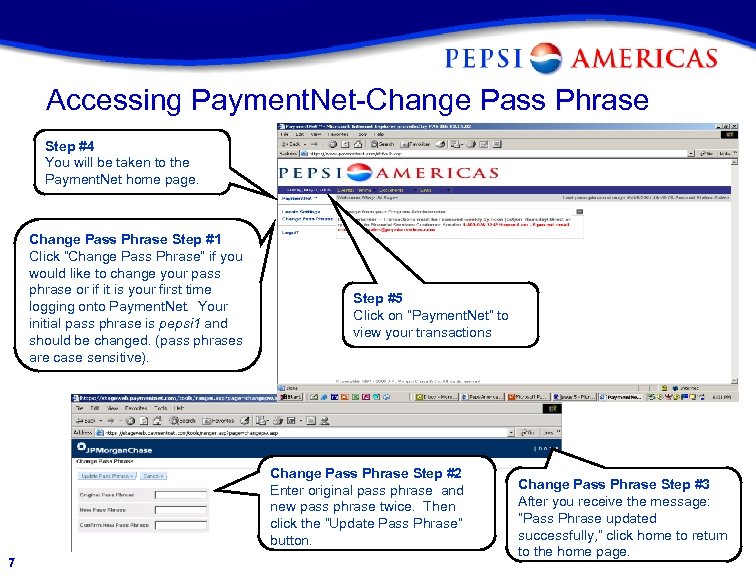 Accessing Payment. Net-Change Pass Phrase Step #4 You will be taken to the Payment. Net home page. Change Pass Phrase Step #1 Click “Change Pass Phrase” if you would like to change your pass phrase or if it is your first time logging onto Payment. Net. Your initial pass phrase is pepsi 1 and should be changed. (pass phrases are case sensitive). Step #5 Click on “Payment. Net” to view your transactions Change Pass Phrase Step #2 Enter original pass phrase and new pass phrase twice. Then click the “Update Pass Phrase” button. 7 Change Pass Phrase Step #3 After you receive the message: “Pass Phrase updated successfully, ” click home to return to the home page.
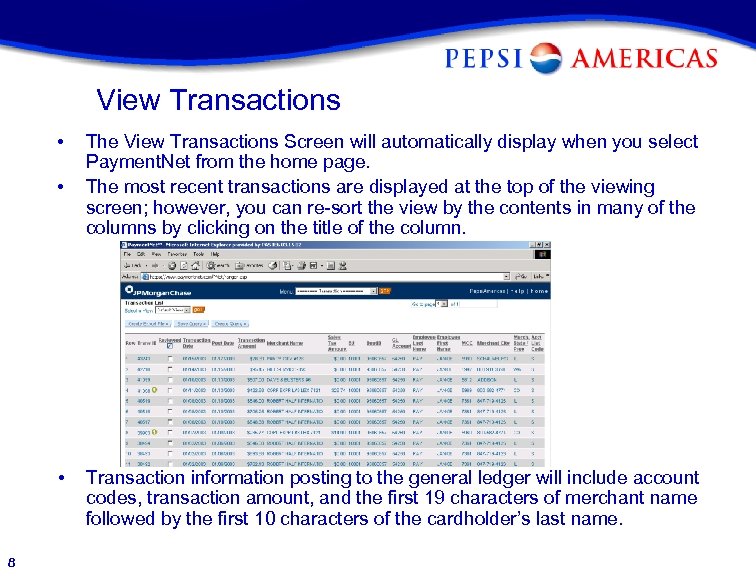 View Transactions • • • 8 The View Transactions Screen will automatically display when you select Payment. Net from the home page. The most recent transactions are displayed at the top of the viewing screen; however, you can re-sort the view by the contents in many of the columns by clicking on the title of the column. Transaction information posting to the general ledger will include account codes, transaction amount, and the first 19 characters of merchant name followed by the first 10 characters of the cardholder’s last name.
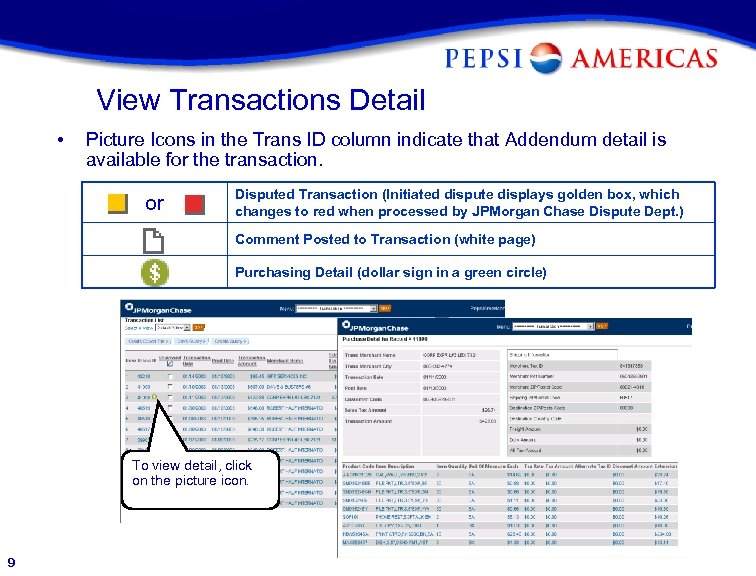 View Transactions Detail • Picture Icons in the Trans ID column indicate that Addendum detail is available for the transaction. or Disputed Transaction (Initiated dispute displays golden box, which changes to red when processed by JPMorgan Chase Dispute Dept. ) Comment Posted to Transaction (white page) Purchasing Detail (dollar sign in a green circle) To view detail, click on the picture icon. 9
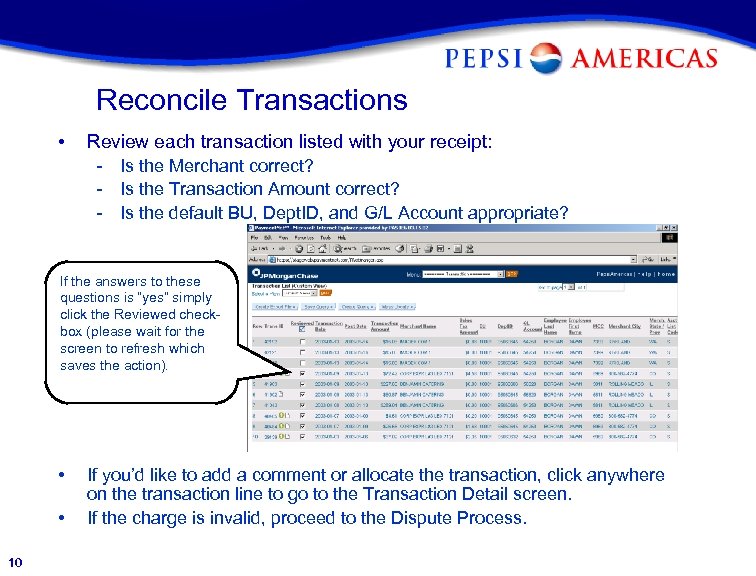 Reconcile Transactions • Review each transaction listed with your receipt: - Is the Merchant correct? - Is the Transaction Amount correct? - Is the default BU, Dept. ID, and G/L Account appropriate? If the answers to these questions is “yes” simply click the Reviewed checkbox (please wait for the screen to refresh which saves the action). • • 10 If you’d like to add a comment or allocate the transaction, click anywhere on the transaction line to go to the Transaction Detail screen. If the charge is invalid, proceed to the Dispute Process.
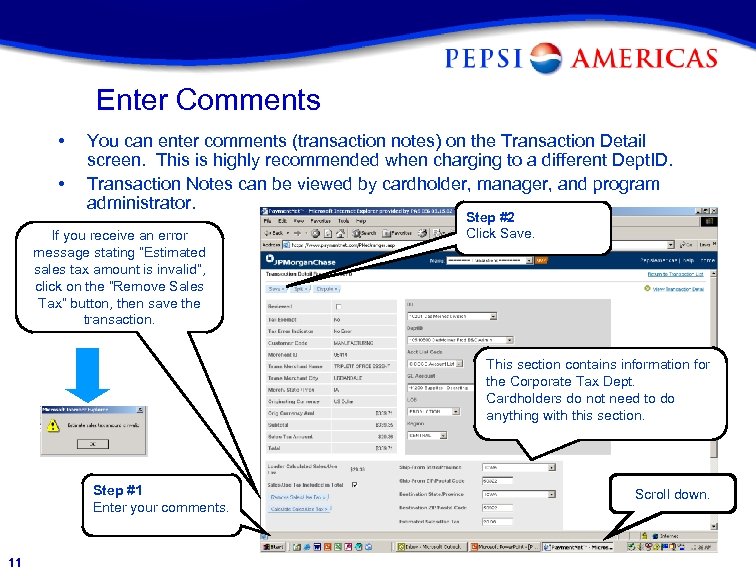 Enter Comments • • You can enter comments (transaction notes) on the Transaction Detail screen. This is highly recommended when charging to a different Dept. ID. Transaction Notes can be viewed by cardholder, manager, and program administrator. If you receive an error message stating “Estimated sales tax amount is invalid”, click on the “Remove Sales Tax” button, then save the transaction. Step #2 Click Save. This section contains information for the Corporate Tax Dept. Cardholders do not need to do anything with this section. Step #1 Enter your comments. 11 Scroll down.
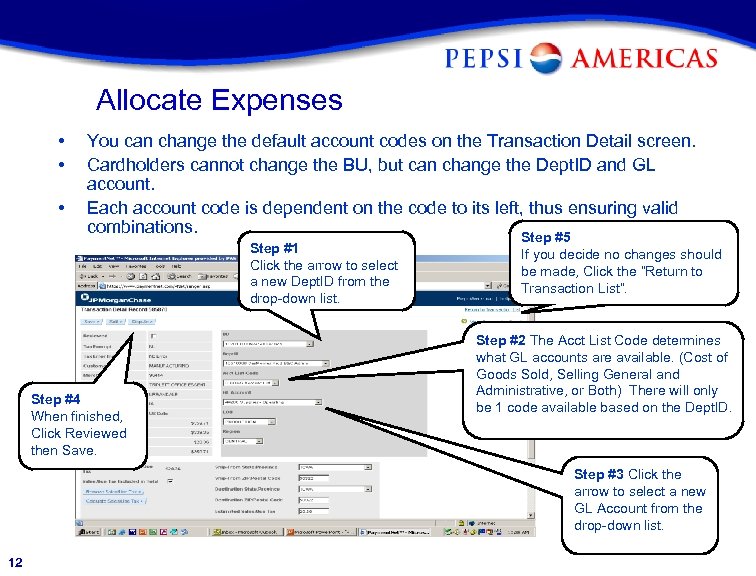 Allocate Expenses • • • You can change the default account codes on the Transaction Detail screen. Cardholders cannot change the BU, but can change the Dept. ID and GL account. Each account code is dependent on the code to its left, thus ensuring valid combinations. Step #5 Step #1 Click the arrow to select a new Dept. ID from the drop-down list. Step #4 When finished, Click Reviewed then Save. If you decide no changes should be made, Click the “Return to Transaction List”. Step #2 The Acct List Code determines what GL accounts are available. (Cost of Goods Sold, Selling General and Administrative, or Both) There will only be 1 code available based on the Dept. ID. Step #3 Click the arrow to select a new GL Account from the drop-down list. 12
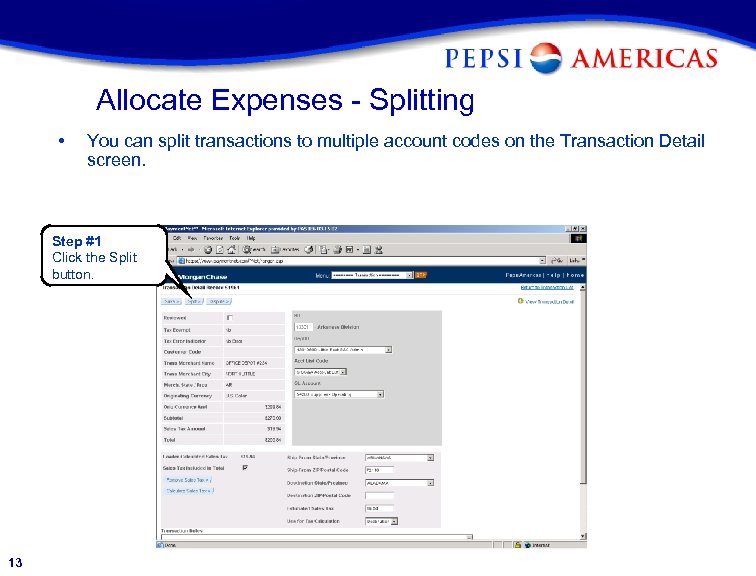 Allocate Expenses - Splitting • You can split transactions to multiple account codes on the Transaction Detail screen. Step #1 Click the Split button. 13
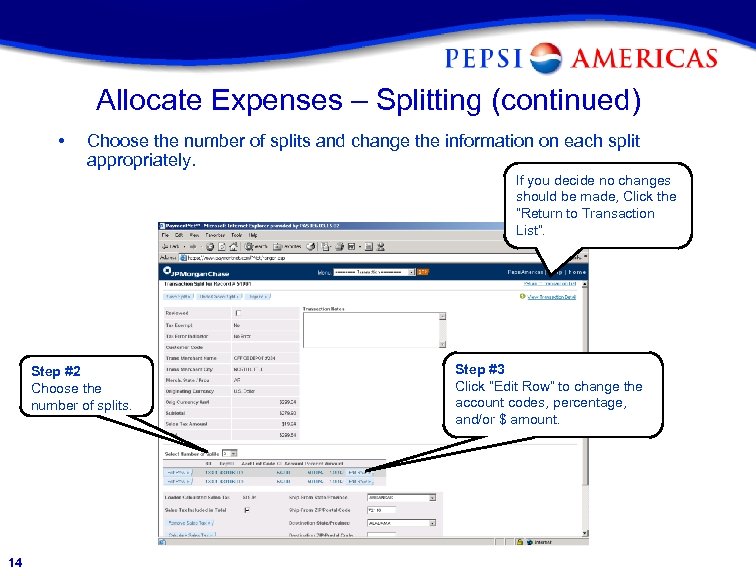 Allocate Expenses – Splitting (continued) • Choose the number of splits and change the information on each split appropriately. If you decide no changes should be made, Click the “Return to Transaction List”. Step #2 Choose the number of splits. 14 Step #3 Click “Edit Row” to change the account codes, percentage, and/or $ amount.
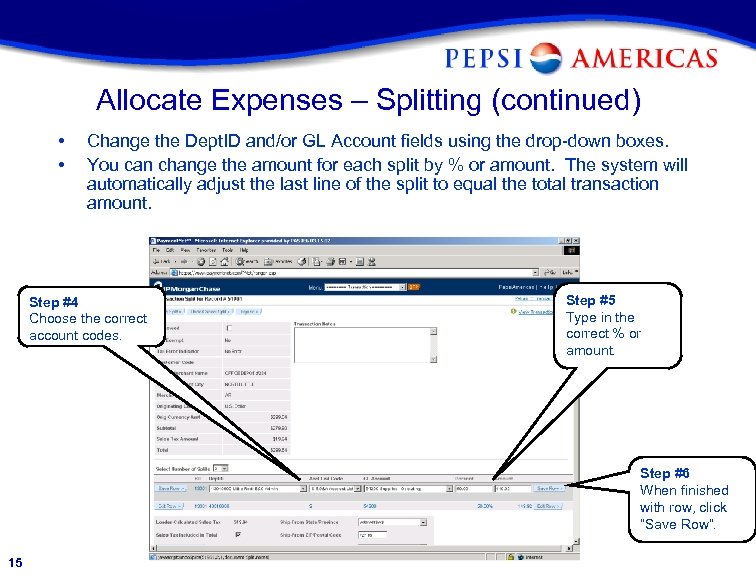 Allocate Expenses – Splitting (continued) • • Change the Dept. ID and/or GL Account fields using the drop-down boxes. You can change the amount for each split by % or amount. The system will automatically adjust the last line of the split to equal the total transaction amount. Step #4 Choose the correct account codes. Step #5 Type in the correct % or amount. Step #6 When finished with row, click “Save Row”. 15
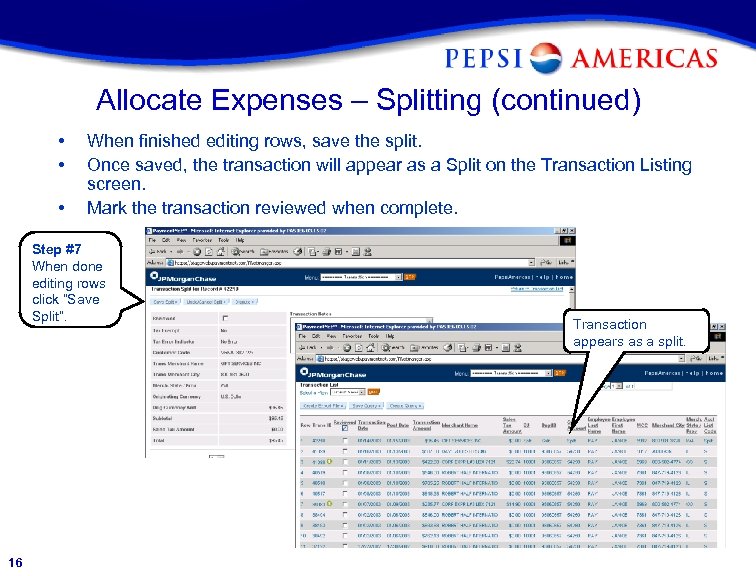 Allocate Expenses – Splitting (continued) • • • When finished editing rows, save the split. Once saved, the transaction will appear as a Split on the Transaction Listing screen. Mark the transaction reviewed when complete. Step #7 When done editing rows click “Save Split”. 16 Transaction appears as a split.
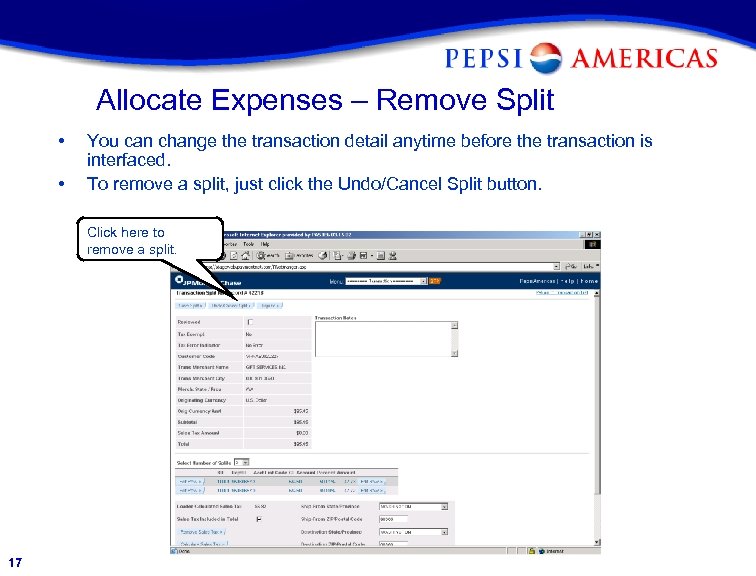 Allocate Expenses – Remove Split • • You can change the transaction detail anytime before the transaction is interfaced. To remove a split, just click the Undo/Cancel Split button. Click here to remove a split. 17
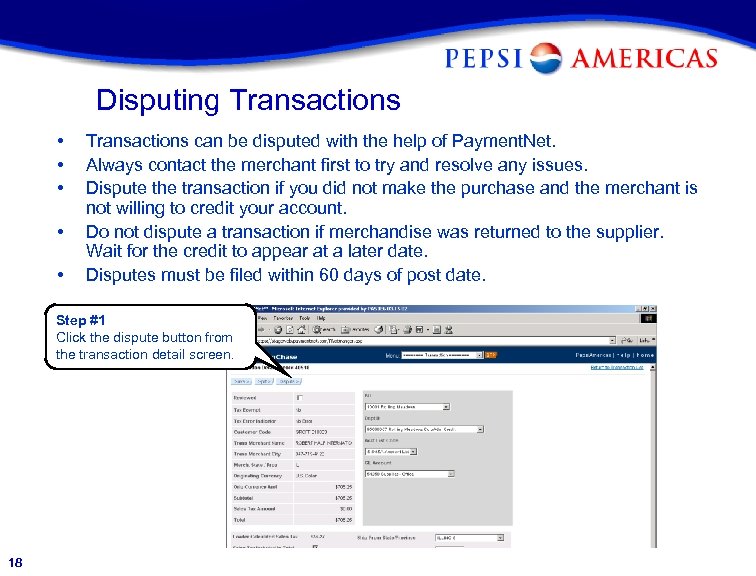 Disputing Transactions • • • Transactions can be disputed with the help of Payment. Net. Always contact the merchant first to try and resolve any issues. Dispute the transaction if you did not make the purchase and the merchant is not willing to credit your account. Do not dispute a transaction if merchandise was returned to the supplier. Wait for the credit to appear at a later date. Disputes must be filed within 60 days of post date. Step #1 Click the dispute button from the transaction detail screen. 18
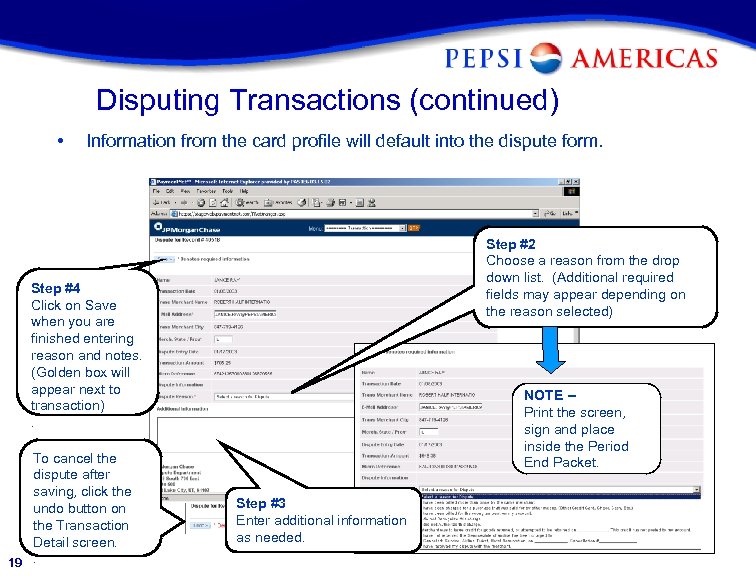 Disputing Transactions (continued) • Information from the card profile will default into the dispute form. Step #2 Choose a reason from the drop down list. (Additional required fields may appear depending on the reason selected) Step #4 Click on Save when you are finished entering reason and notes. (Golden box will appear next to transaction). To cancel the dispute after saving, click the undo button on the Transaction Detail screen. 19. NOTE -Print the screen, sign and place inside the Period End Packet. Step #3 Enter additional information as needed.
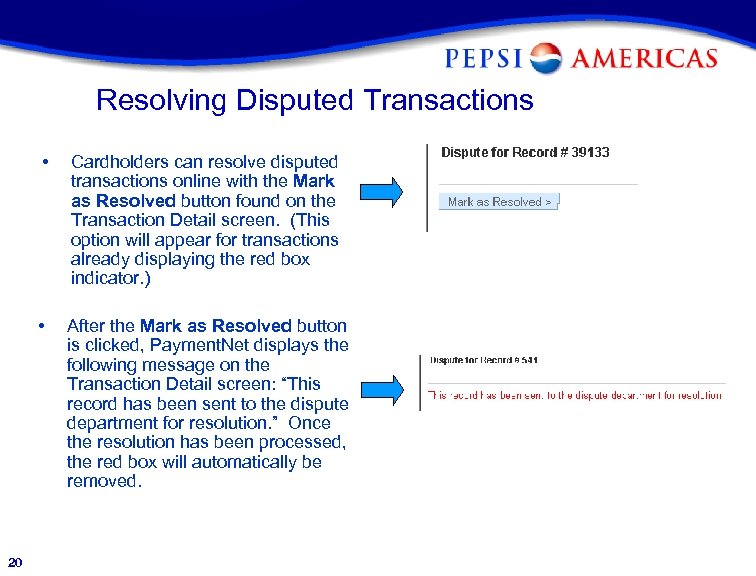 Resolving Disputed Transactions • • 20 Cardholders can resolve disputed transactions online with the Mark as Resolved button found on the Transaction Detail screen. (This option will appear for transactions already displaying the red box indicator. ) After the Mark as Resolved button is clicked, Payment. Net displays the following message on the Transaction Detail screen: “This record has been sent to the dispute department for resolution. ” Once the resolution has been processed, the red box will automatically be removed.
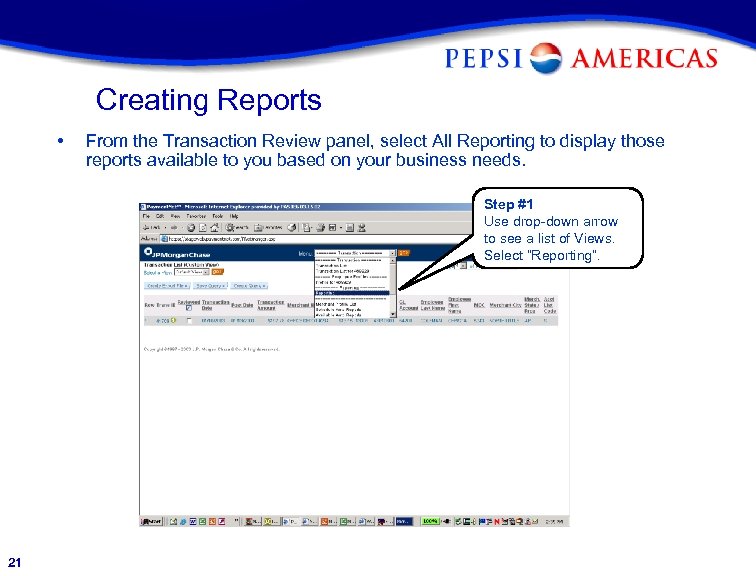 Creating Reports • From the Transaction Review panel, select All Reporting to display those reports available to you based on your business needs. Step #1 Use drop-down arrow to see a list of Views. Select “Reporting”. 21
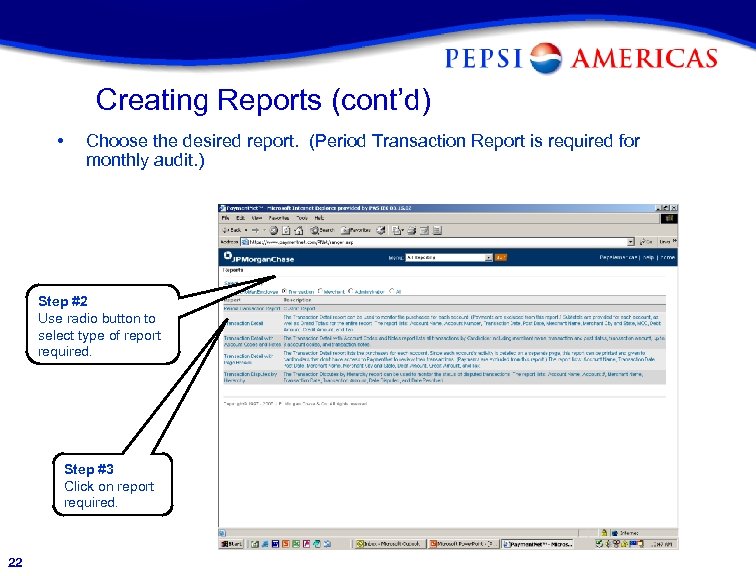 Creating Reports (cont’d) • Choose the desired report. (Period Transaction Report is required for monthly audit. ) Step #2 Use radio button to select type of report required. Step #3 Click on report required. 22
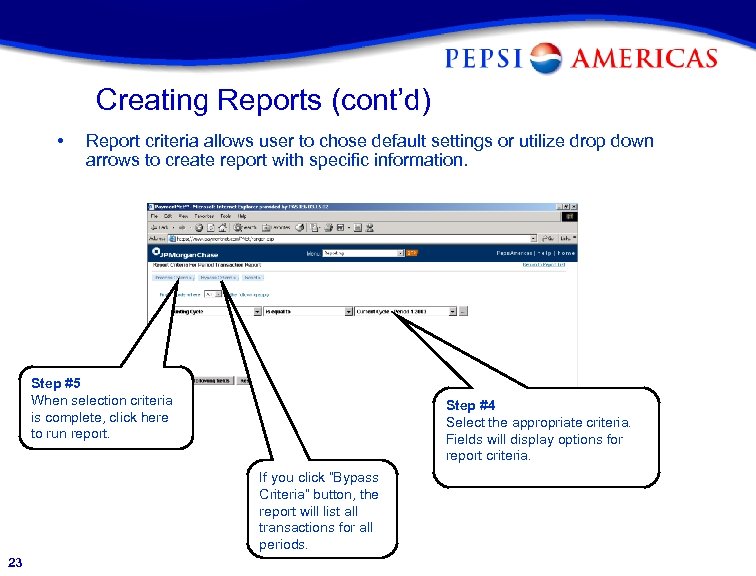 Creating Reports (cont’d) • Report criteria allows user to chose default settings or utilize drop down arrows to create report with specific information. Step #5 When selection criteria is complete, click here to run report. Step #4 Select the appropriate criteria. Fields will display options for report criteria. If you click “Bypass Criteria” button, the report will list all transactions for all periods. 23
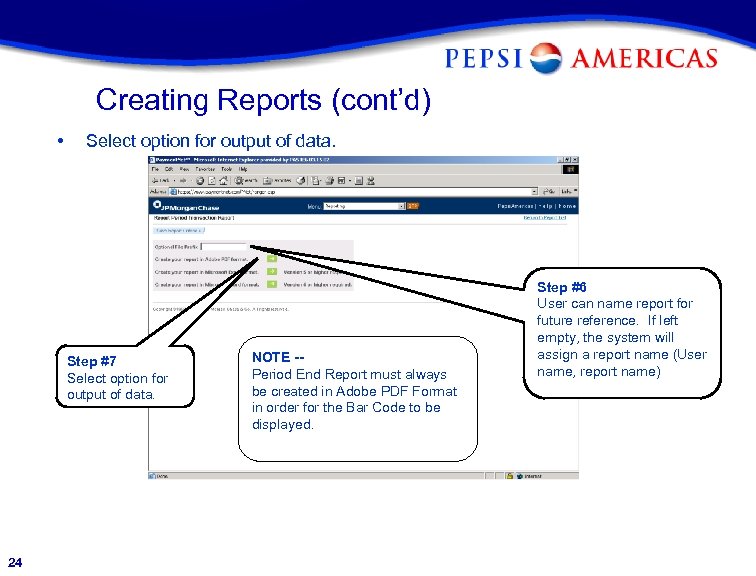 Creating Reports (cont’d) • Select option for output of data. Step #7 Select option for output of data. 24 NOTE -Period End Report must always be created in Adobe PDF Format in order for the Bar Code to be displayed. Step #6 User can name report for future reference. If left empty, the system will assign a report name (User name, report name)
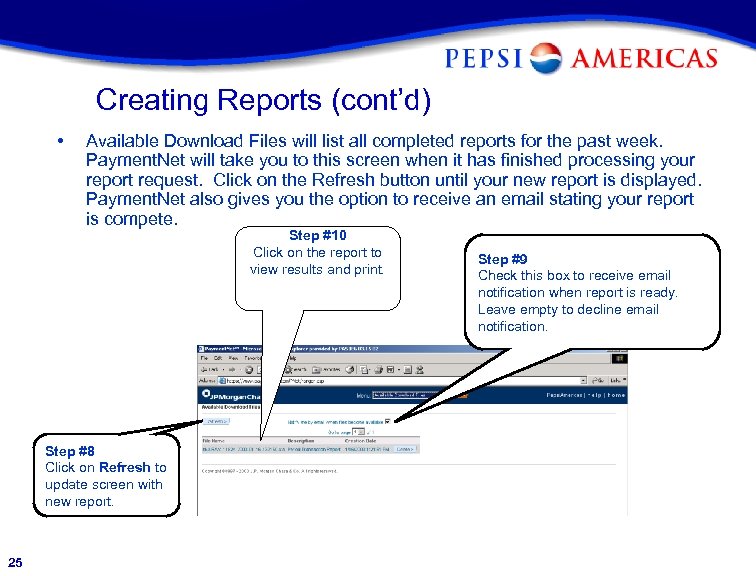 Creating Reports (cont’d) • Available Download Files will list all completed reports for the past week. Payment. Net will take you to this screen when it has finished processing your report request. Click on the Refresh button until your new report is displayed. Payment. Net also gives you the option to receive an email stating your report is compete. Step #10 Click on the report to view results and print. Step #8 Click on Refresh to update screen with new report. 25 Step #9 Check this box to receive email notification when report is ready. Leave empty to decline email notification.
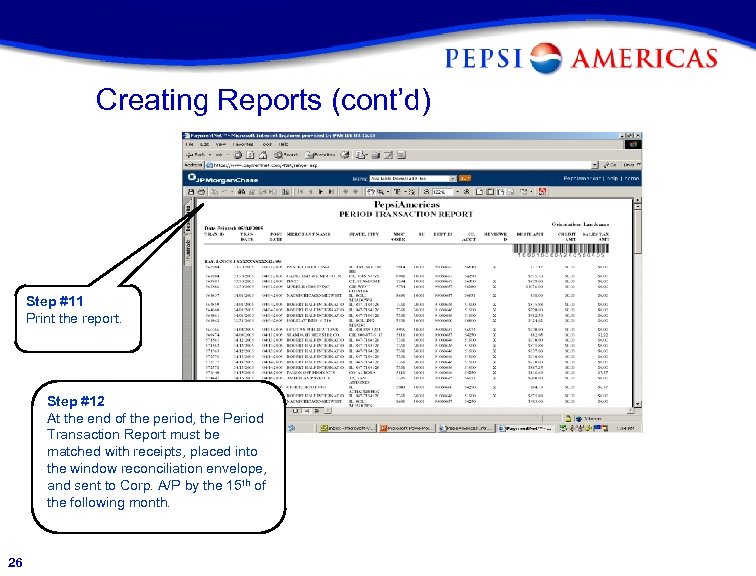 Creating Reports (cont’d) Step #11 Print the report. Step #12 At the end of the period, the Period Transaction Report must be matched with receipts, placed into the window reconciliation envelope, and sent to Corp. A/P by the 15 th of the following month. 26
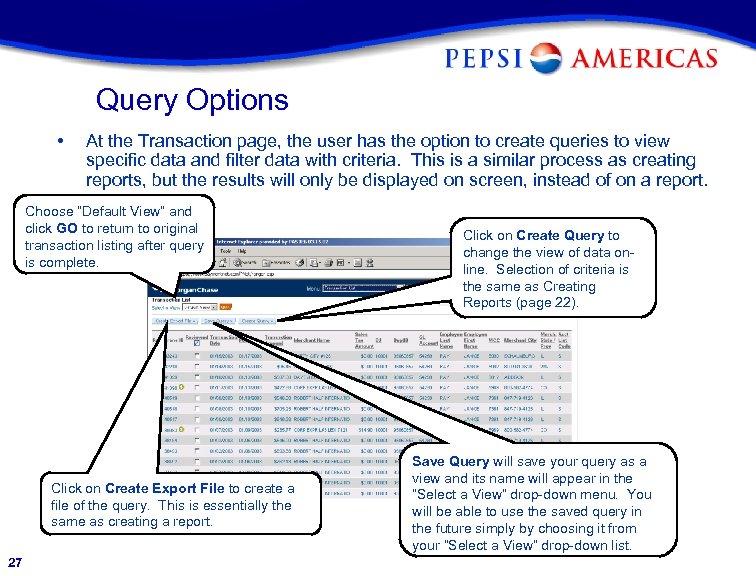 Query Options • At the Transaction page, the user has the option to create queries to view specific data and filter data with criteria. This is a similar process as creating reports, but the results will only be displayed on screen, instead of on a report. Choose “Default View” and click GO to return to original transaction listing after query is complete. Click on Create Export File to create a file of the query. This is essentially the same as creating a report. 27 Click on Create Query to change the view of data online. Selection of criteria is the same as Creating Reports (page 22). Save Query will save your query as a view and its name will appear in the “Select a View” drop-down menu. You will be able to use the saved query in the future simply by choosing it from your “Select a View” drop-down list.
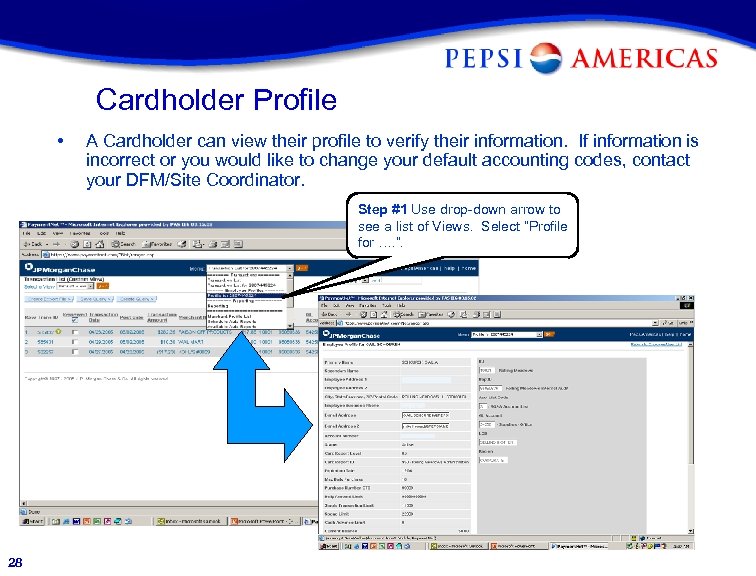 Cardholder Profile • A Cardholder can view their profile to verify their information. If information is incorrect or you would like to change your default accounting codes, contact your DFM/Site Coordinator. Step #1 Use drop-down arrow to see a list of Views. Select “Profile for …. ”. 28
 Help If you have a question or problem regarding the use of the P-Card or the Payment. Net system, contact your DFM/Site Coordinator or contact the appropriate customer service department below: Pepsi. Americas Financial Services Customer Service 1 -800 -XXXX 6: 00 a. m. – 5: 00 p. m. CST • • 29 JPMorgan Chase Customer Service Department 1 -800 -XXXX 24 Hour Service • • • Open or Close an account Alter an existing account Procedural/Policy questions Sales tax questions Report changes/questions Status of new card requests Purchase decline inquiries Reset password Report Lost or Stolen Cards Report Disputes Activate New Cards
 Things to Remember • • 30 When accessing Payment. Net, the Organizational ID will always be USXXXX. That is Pepsi. Americas’ organizational ID. You have until Thursday at Noon to review transactions for the week. During the first 3/4 weeks of a period, only transactions marked as reviewed by Thursday at noon will interface to Corporate A/P and post to the General Ledger. On the last Thursday of the period, all transactions, regardless of reviewed status, will be interfaced to Corporate A/P and post to the General Ledger. At the end of the period, cardholder’s must follow these steps: • Print a Period Transaction Report with the Bar Code (ADOBE PDF FORMAT) • Match your receipts with the transactions appearing on the report • Place the report and matching receipts into the window reconciliation envelope • Forward the envelope to Corporate A/P by the 15 th of the following month The P-Card should be used for company use non-inventory expense purchases only.
 NOTES 31