


 Скачать презентацию Control System Studio Training Alarm System Use Kay
1e7055c935d7a6af6ed4cc27517d3ef9.ppt
- Количество слайдов: 22
 Control System Studio Training Alarm System Use Kay Kasemir ORNL/SNS kasemirk@ornl. gov April 2013 Managed by UT-Battelle for the Department of Energy
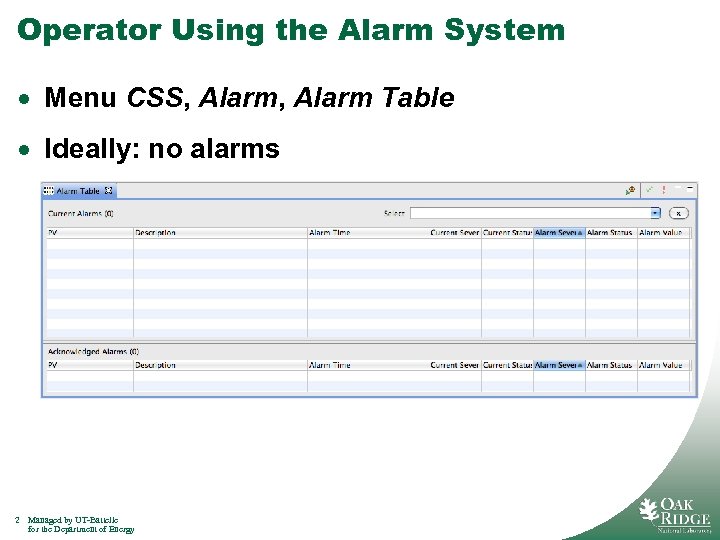 Operator Using the Alarm System · Menu CSS, Alarm Table · Ideally: no alarms 2 Managed by UT-Battelle for the Department of Energy
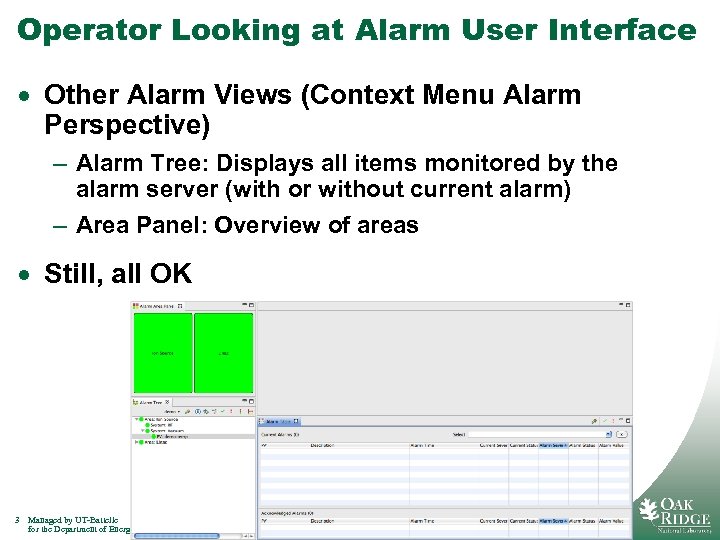 Operator Looking at Alarm User Interface · Other Alarm Views (Context Menu Alarm Perspective) – Alarm Tree: Displays all items monitored by the alarm server (with or without current alarm) – Area Panel: Overview of areas · Still, all OK 3 Managed by UT-Battelle for the Department of Energy
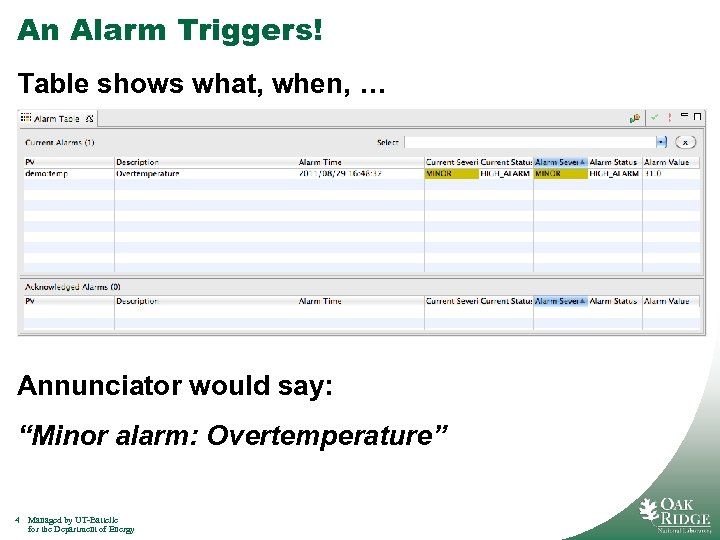 An Alarm Triggers! Table shows what, when, … Annunciator would say: “Minor alarm: Overtemperature” 4 Managed by UT-Battelle for the Department of Energy
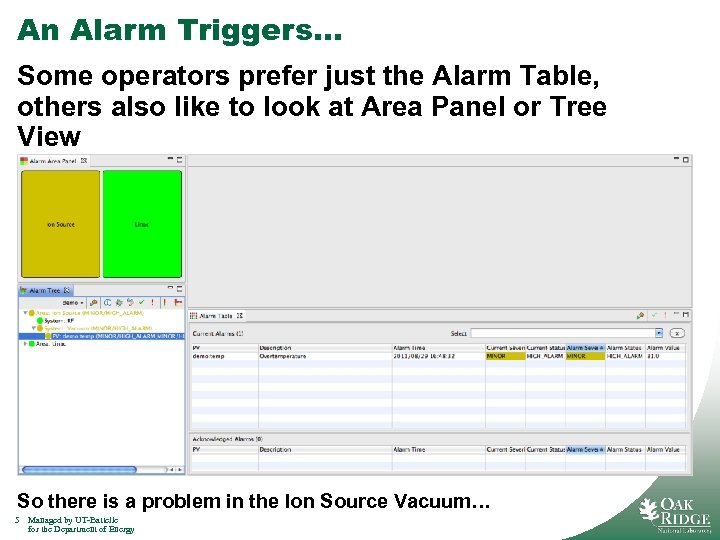 An Alarm Triggers… Some operators prefer just the Alarm Table, others also like to look at Area Panel or Tree View So there is a problem in the Ion Source Vacuum… 5 Managed by UT-Battelle for the Department of Energy
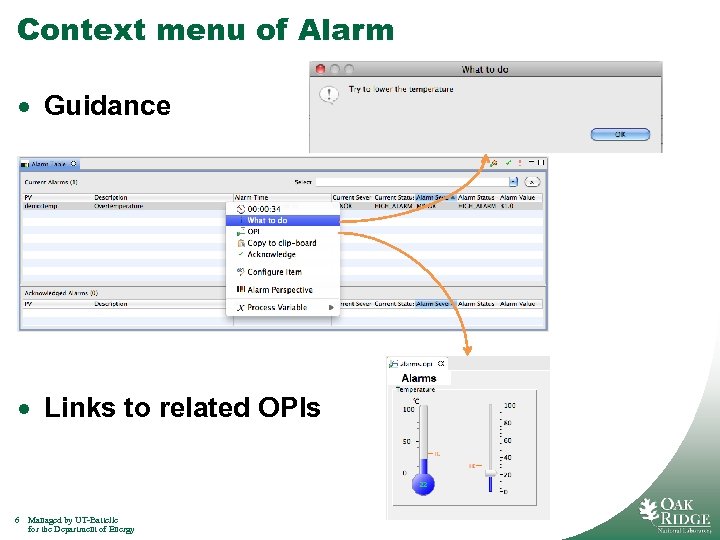 Context menu of Alarm · Guidance · Links to related OPIs 6 Managed by UT-Battelle for the Department of Energy
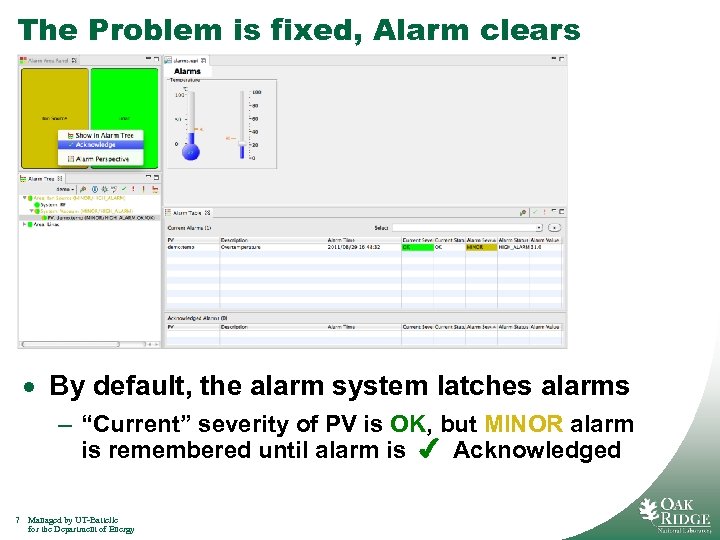 The Problem is fixed, Alarm clears · By default, the alarm system latches alarms – “Current” severity of PV is OK, but MINOR alarm is remembered until alarm is ✔ Acknowledged 7 Managed by UT-Battelle for the Department of Energy
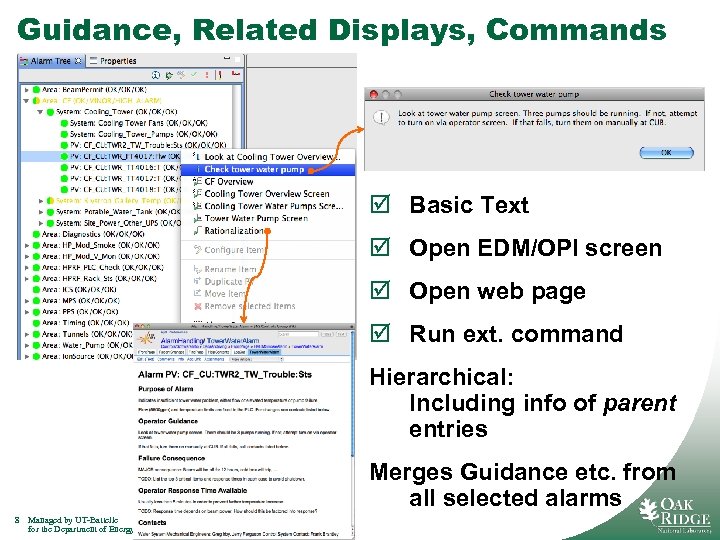 Guidance, Related Displays, Commands Basic Text Open EDM/OPI screen Open web page Run ext. command Hierarchical: Including info of parent entries Merges Guidance etc. from all selected alarms 8 Managed by UT-Battelle for the Department of Energy
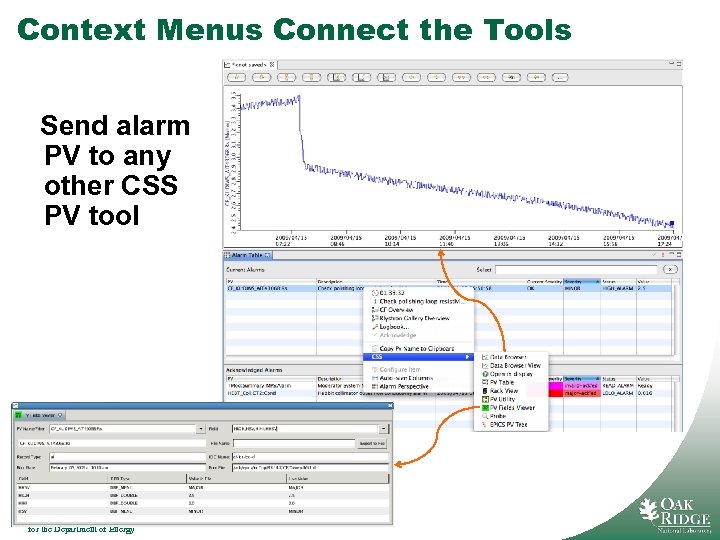 Context Menus Connect the Tools Send alarm PV to any other CSS PV tool 9 Managed by UT-Battelle for the Department of Energy
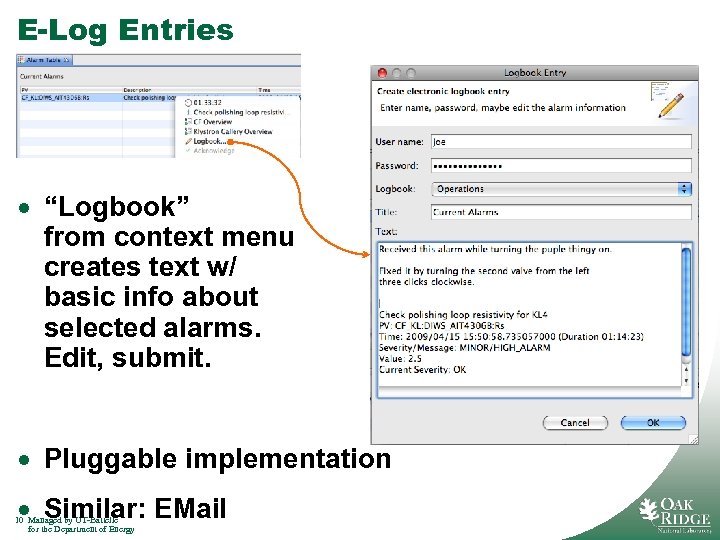 E-Log Entries · “Logbook” from context menu creates text w/ basic info about selected alarms. Edit, submit. · Pluggable implementation · Similar: EMail 10 Managed by UT-Battelle for the Department of Energy
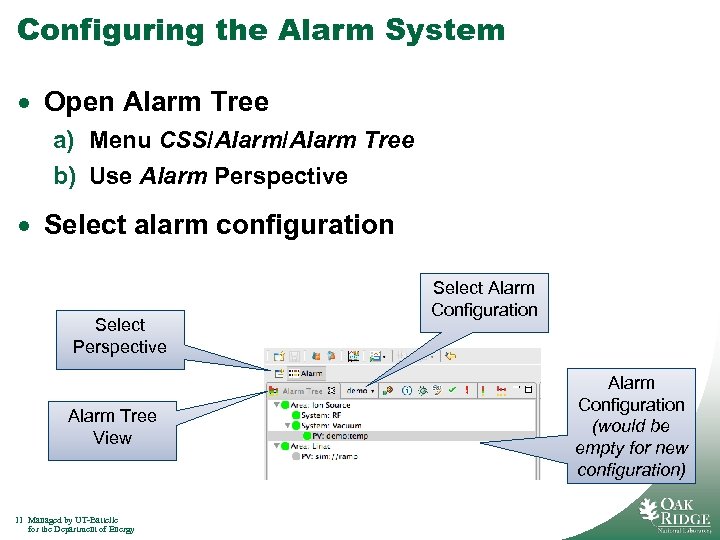 Configuring the Alarm System · Open Alarm Tree a) Menu CSS/Alarm Tree b) Use Alarm Perspective · Select alarm configuration Select Perspective Alarm Tree View 11 Managed by UT-Battelle for the Department of Energy Select Alarm Configuration (would be empty for new configuration)
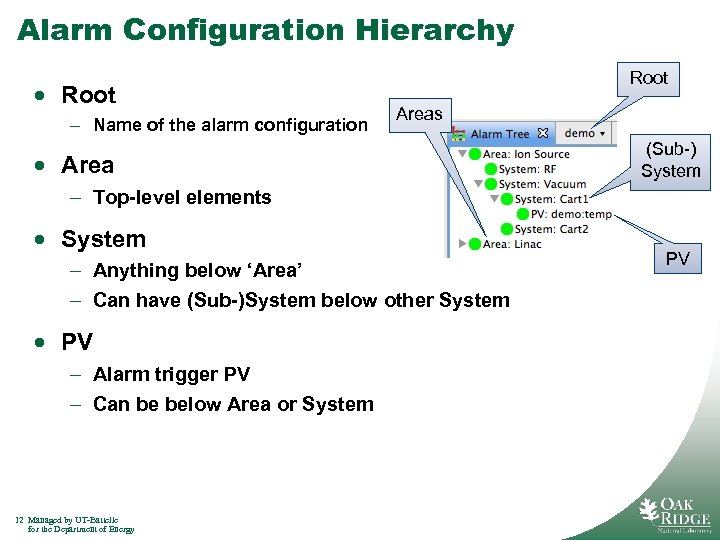 Alarm Configuration Hierarchy · Root – Name of the alarm configuration Root Areas · Area (Sub-) System – Top-level elements · System – Anything below ‘Area’ – Can have (Sub-)System below other System · PV – Alarm trigger PV – Can be below Area or System 12 Managed by UT-Battelle for the Department of Energy PV
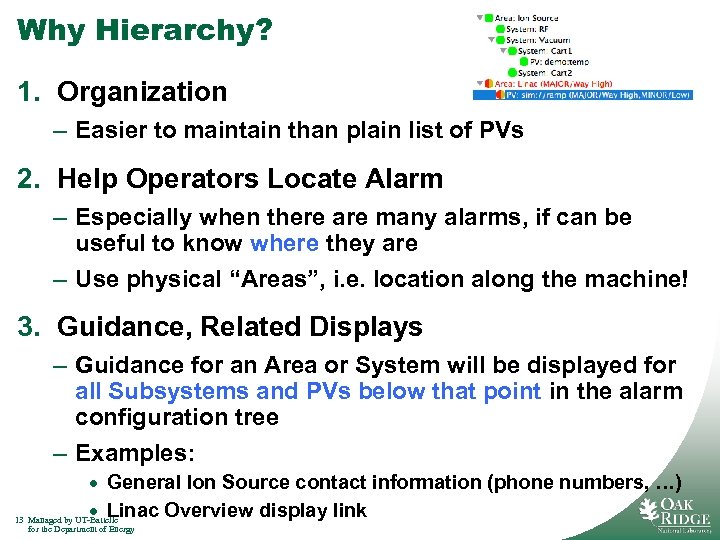 Why Hierarchy? 1. Organization – Easier to maintain than plain list of PVs 2. Help Operators Locate Alarm – Especially when there are many alarms, if can be useful to know where they are – Use physical “Areas”, i. e. location along the machine! 3. Guidance, Related Displays – Guidance for an Area or System will be displayed for all Subsystems and PVs below that point in the alarm configuration tree – Examples: · General Ion Source contact information (phone numbers, …) · Linac Overview display link 13 Managed by UT-Battelle for the Department of Energy
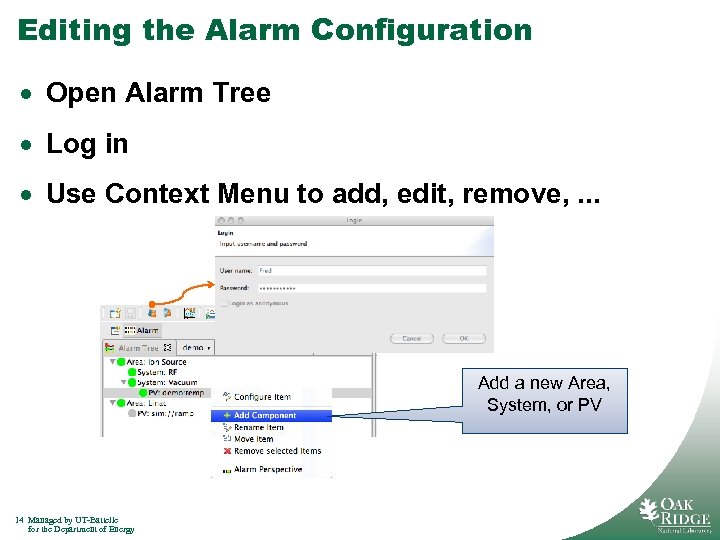 Editing the Alarm Configuration · Open Alarm Tree · Log in · Use Context Menu to add, edit, remove, . . . Add a new Area, System, or PV 14 Managed by UT-Battelle for the Department of Energy
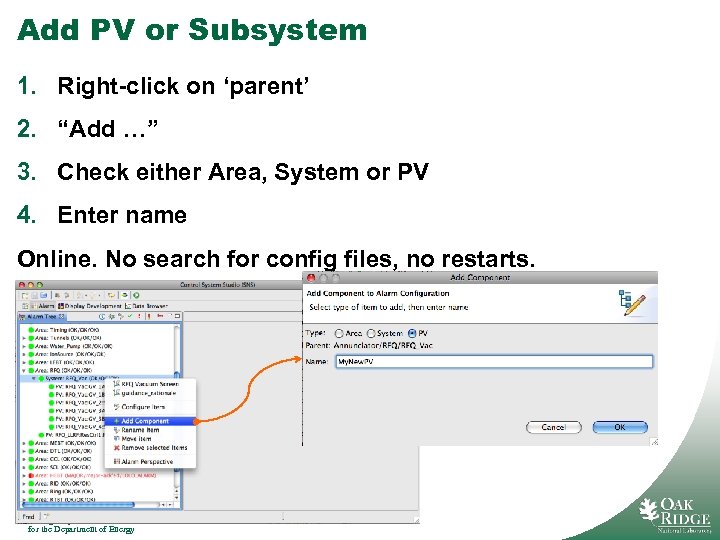 Add PV or Subsystem 1. Right-click on ‘parent’ 2. “Add …” 3. Check either Area, System or PV 4. Enter name Online. No search for config files, no restarts. 15 Managed by UT-Battelle for the Department of Energy
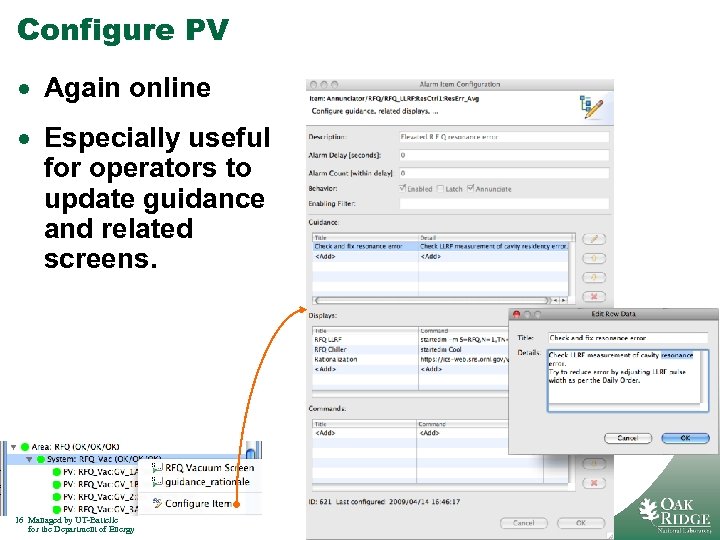 Configure PV · Again online · Especially useful for operators to update guidance and related screens. 16 Managed by UT-Battelle for the Department of Energy
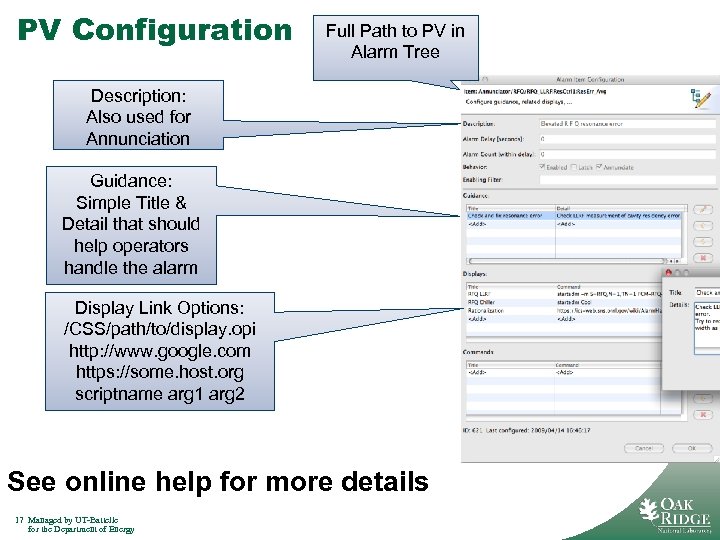 PV Configuration Full Path to PV in Alarm Tree Description: Also used for Annunciation Guidance: Simple Title & Detail that should help operators handle the alarm Display Link Options: /CSS/path/to/display. opi http: //www. google. com https: //some. host. org scriptname arg 1 arg 2 See online help for more details 17 Managed by UT-Battelle for the Department of Energy
 Exercise: Edit Alarm Configuration · Open Alarm Tree View · Select the Alarm Configuration (‘root’) assigned to your team · Add areas like “Front End”, “Linac”, “Target” · Add Systems like “Vacuum”, “Cooling” · Create simple BOY display that shows alarm trigger PVs and allows you to control them · Add alarm trigger PVs to alarm configuration – Add some simple guidance like “Fix it” – Use path to your BOY *. opi as Display Link 18 Managed by UT-Battelle for the Department of Energy
 Exercise: Use Alarm Configuration · Switch to the Alarm Perspective – Can do that from context menu of alarm tree · Use the display to trigger an alarm · See how alarm is indicated in the table, tree, area panel – Open the guidance, related display – Cause the alarm PV to stop alarming – Acknowledge the alarm 19 Managed by UT-Battelle for the Department of Energy
 General Alarm Server Behavior · Latch highest severity, or non-latching – like ALH “ack. transient” · Annunciate · Chatter filter ala ALH · Alarm only if severity persists some minimum time ·. . or alarm happens >=N times within period · Optional formula-based alarm enablement: – Enable if “(pv_x > 5 && pv_y < 7) || pv_z==1” – … but we prefer to move that logic into IOC · When acknowledging MAJOR alarm, subsequent MINOR alarms not annunciated – ALH would again blink/require ack’ 20 Managed by UT-Battelle for the Department of Energy
 Sermon: Create a useful configuration! Don’t just add all your PVs – Alarm system demo: OK with 50000 PVs – Operators: OK with ~150 alarms/day Too many alarms: All for naught! Consider each Alarm – What should operators do? B. Hollifield, E. Habibi, “Alarm Management: Seven Effective Methods for Optimum Performance", ISA, 2007 · Does this require immediate operator action? Can you describe what they should do? Or should this be an interlock? An automated log message, email for somebody else to follow up later? – Is this the best PV? · Avoid multiple alarms for same reason. Create CALC PVs that automatically enable/disable or adjust their limits based on machine state. – Add guidance, links to related displays Help operators take correct actions 21 Managed by UT-Battelle for the Department of Energy
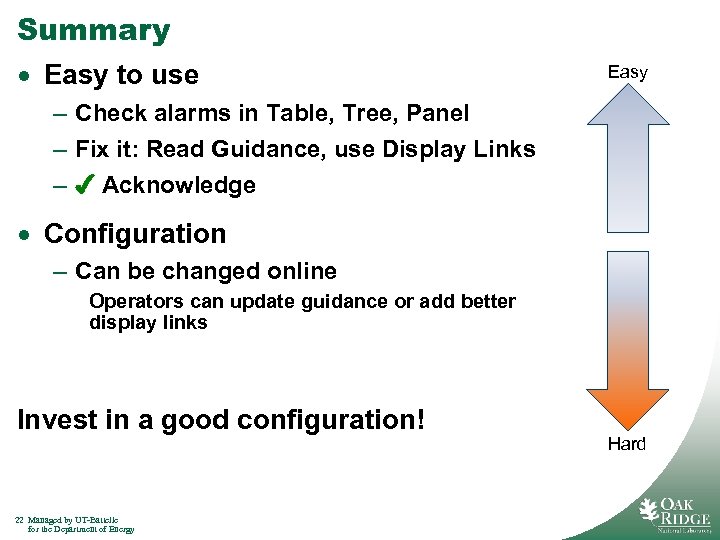 Summary · Easy to use Easy – Check alarms in Table, Tree, Panel – Fix it: Read Guidance, use Display Links – ✔ Acknowledge · Configuration – Can be changed online Operators can update guidance or add better display links Invest in a good configuration! 22 Managed by UT-Battelle for the Department of Energy Hard