


 Скачать презентацию Content Management System CMS Introduction for the Prospective
29ac91d4e5450932b0da4352310f297b.ppt
- Количество слайдов: 15
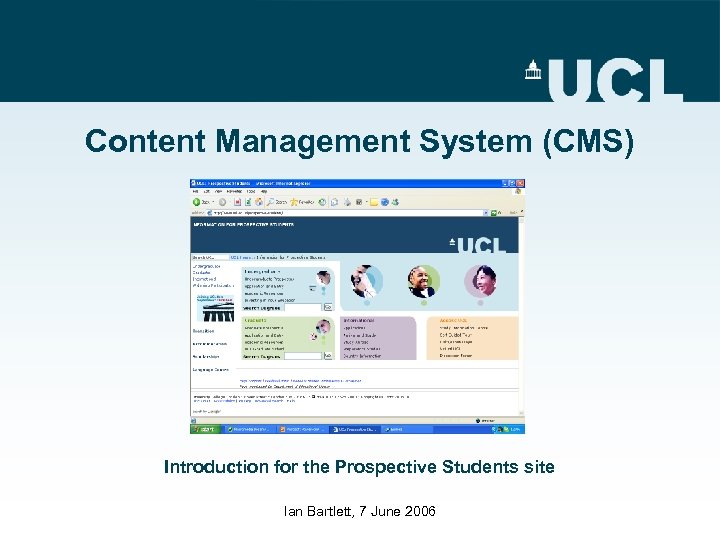 Content Management System (CMS) Introduction for the Prospective Students site Ian Bartlett, 7 June 2006
 Objectives of presentation • • • What is the Content Management System? What it can do General overview of website structure How pages are constructed Updating a page Content auditing and workflow
 What is the CMS? • A system for managing content in a web site • Doesn’t require special software for uploading pages (e. g. Dreamweaver) • An open source package called ‘Silva’ which runs within an environment called Zope • Under constant development and is largely free • Some sections of UCL site using it, but Prospective Students by far the largest
 What can the CMS do? • Allows web page updates using an ordinary web browser (e. g. IE, Firefox, Safari, Mozilla etc. ) • Reduces overall work as those responsible for content can update it directly and submit it for approval • Allows different access levels for individuals with different roles (e. g. Authors, Editors, Managers) • Enables documents to be published for fixed terms; older versions of documents can be re-used (versioning) • Has Sitestat tracking code built-in • Especially good for simple content pages.
 What it does not do • • • Does not write content! Does not create site structure – needs planning Is not a design tool Does not create images Does not automatically link pages in to a site and make them visible • It is not fully WYSIWYG
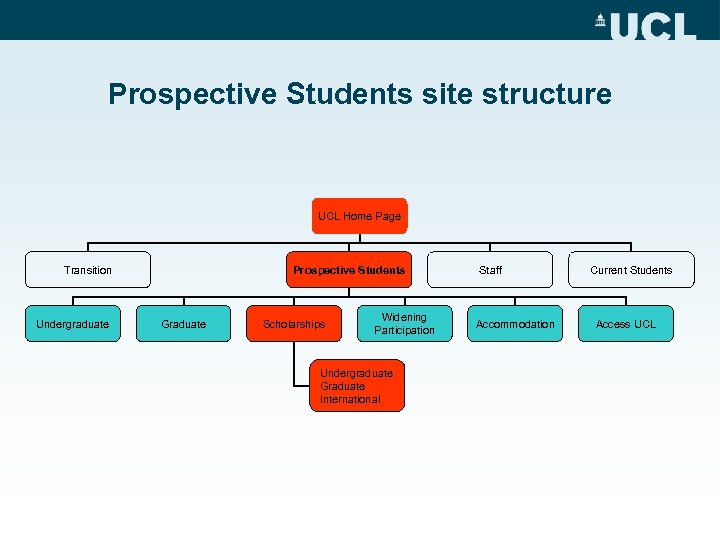 Prospective Students site structure UCL Home Page Transition Undergraduate Prospective Students Graduate Scholarships Widening Participation Undergraduate Graduate International Staff Accommodation Current Students Access UCL
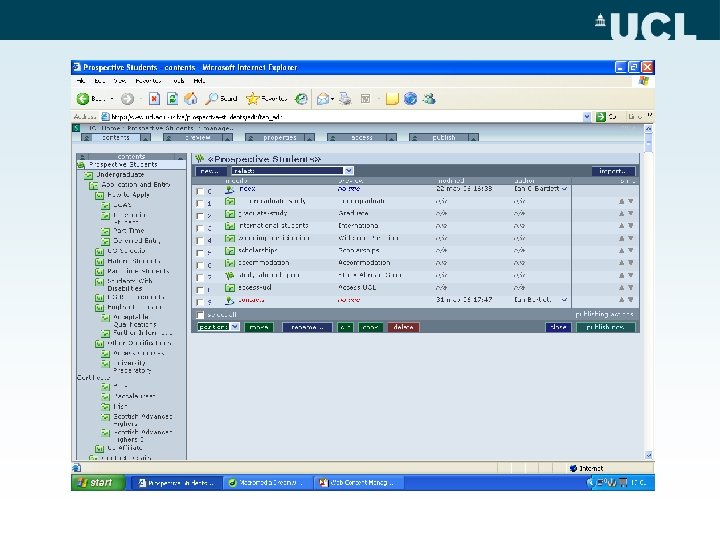
 Structure of a Page • Focus on Accommodation for demonstration • Pages made up of various elements – – – Main Content (index) Right hand column (index_right) Left hand column (index_left) Contact Information (contacts) Any images to be used – All sits in template – Colours, fonts, sizes and overall look set in style sheets (set by me with ref. UCL policy) and Attributes file (uclattributes)
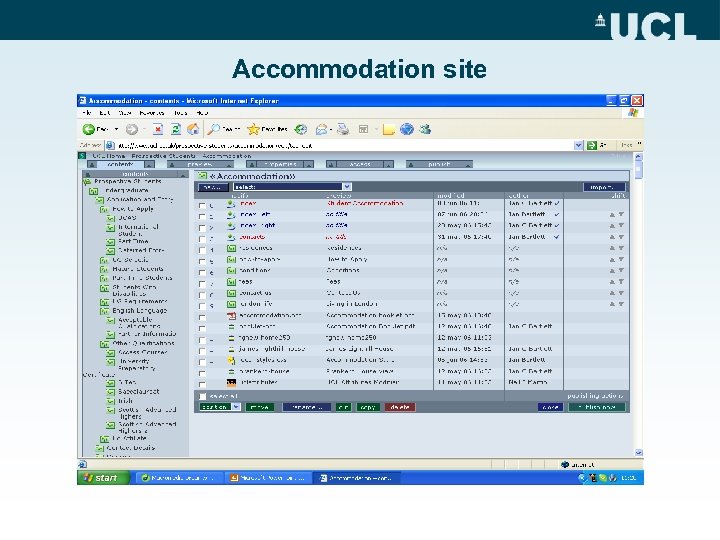 Accommodation site
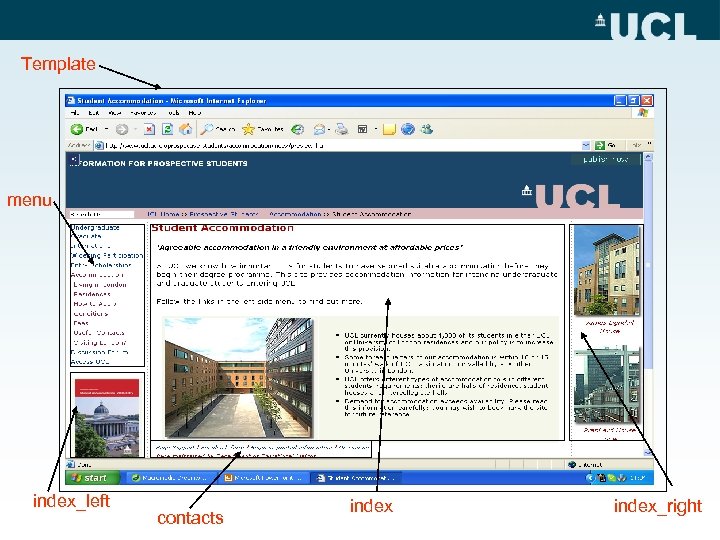 Template menu index_left contacts index_right
 Basic Page Updating 1. Opening the file • • Navigate in web browser to page you wish to update Click on cross icon to open edit screen Enter UCL username and password Look for file called ‘index’ (usually at top) In ‘modify’ column, click name of file (index) Click on ‘New Version’ to edit Example
 Editing and Saving • Focus on text - ignore images and tables • Just start deleting and adding text as you would in Word. You can: – – Format text with bold and italics – avoid underline Insert bullet points Insert text links to other pages Insert images and table • Save after every stage – not 100% stable yet • Example
 Saving and Publishing – audit and workflow • Most people set up as authors, so have to request approval for page to be published. • SRPW staff designated as Editors • When finished editing, click to save • Click ‘Publish’ tab • Click ‘submit for approval’ • E-mail to Editor automatically sent • Editor can approve page or reject it. Both actions trigger an e-mail to inform author of action taken. • Example
 More advanced CMS • • • Navigating the CMS (intermediate level) Creating hyperlinks Using images Using tables Style sheets and attributes
 Summary • • • What is the Content Management System? What it can do Website structure - context Page construction Simple page update Content auditing and workflow