


 Скачать презентацию Computers Are Your Future 2005 Prentice-Hall Inc
f0dd3e0aeaaf6a2add5d19899d4befc0.ppt
- Количество слайдов: 24
 Computers Are Your Future © 2005 Prentice-Hall, Inc. Slide
 Computers Are Your Future Chapter 3 Application Software: Tools for Productivity © 2005 Prentice-Hall, Inc 2
 Computers Are Your Future Chapter 3 You Will Learn About ü How system software supports application software ü The most popular types of horizontal applications ü The advantages and disadvantages of standalone programs, integrated programs, and suites ü The advantages of Web technology and file compatibility ü The concept of software versions ü The differences between types of software ü The essential concepts and skills of using application software © 2005 Prentice-Hall, Inc 3
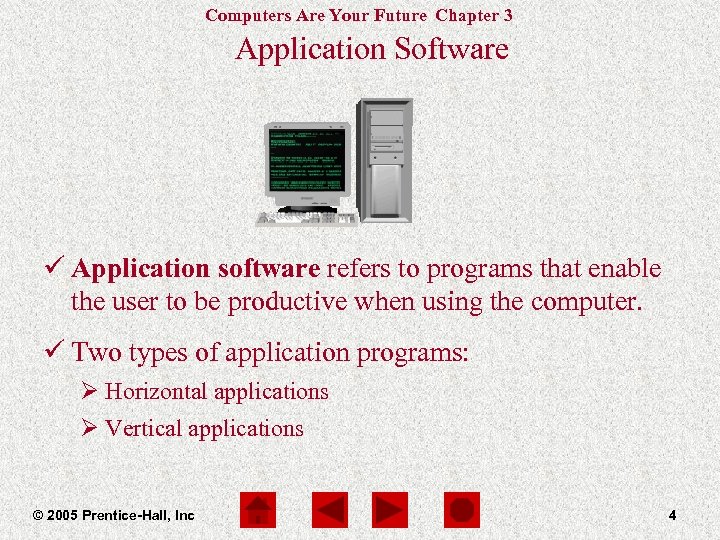 Computers Are Your Future Chapter 3 Application Software ü Application software refers to programs that enable the user to be productive when using the computer. ü Two types of application programs: Ø Horizontal applications Ø Vertical applications © 2005 Prentice-Hall, Inc 4
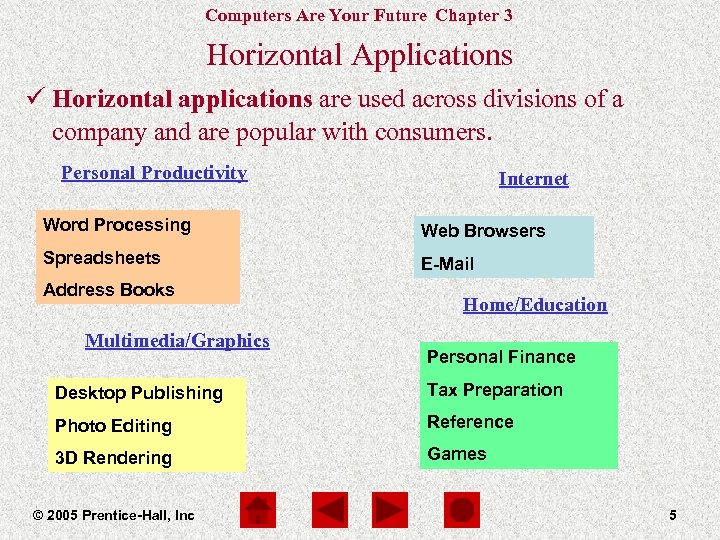 Computers Are Your Future Chapter 3 Horizontal Applications ü Horizontal applications are used across divisions of a company and are popular with consumers. Personal Productivity Internet Word Processing Web Browsers Spreadsheets E-Mail Address Books Multimedia/Graphics Home/Education Personal Finance Desktop Publishing Tax Preparation Photo Editing Reference 3 D Rendering Games © 2005 Prentice-Hall, Inc 5
 Computers Are Your Future Chapter 3 Vertical Applications: Tailor Made Programs ü Vertical applications are used for specialized fields. ü Types of vertical applications: Ø Ø Billing programs Inventory tracking programs Point of Sale software Custom software © 2005 Prentice-Hall, Inc 10
 Computers Are Your Future Chapter 3 Integrated Programs and Suites: The All-in-One Approach ü Standalone programs are fully self-contained. Ø Examples: § Microsoft Word § Microsoft Excel ü Integrated programs contain modules that share the same interface. Ø Example: § Microsoft Works ü Software suites contain standalone programs that share resources with each other. Ø Examples: § Microsoft Office § Corel Word. Perfect Office § Lotus Smart Suite © 2005 Prentice-Hall, Inc 12
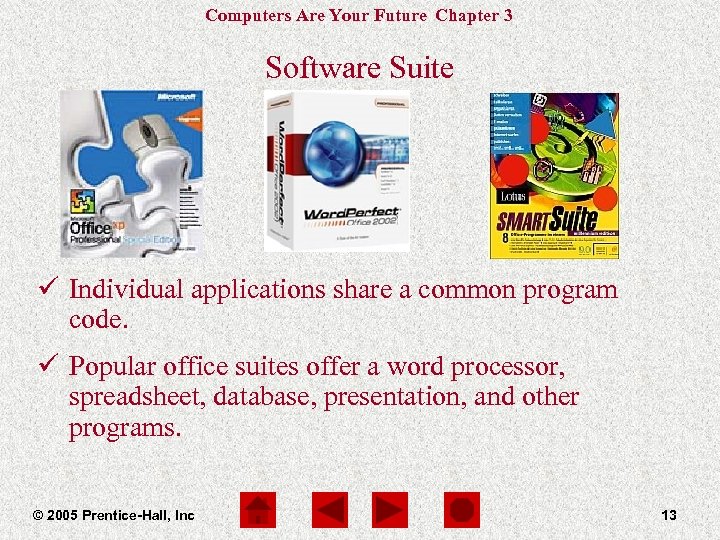 Computers Are Your Future Chapter 3 Software Suite ü Individual applications share a common program code. ü Popular office suites offer a word processor, spreadsheet, database, presentation, and other programs. © 2005 Prentice-Hall, Inc 13
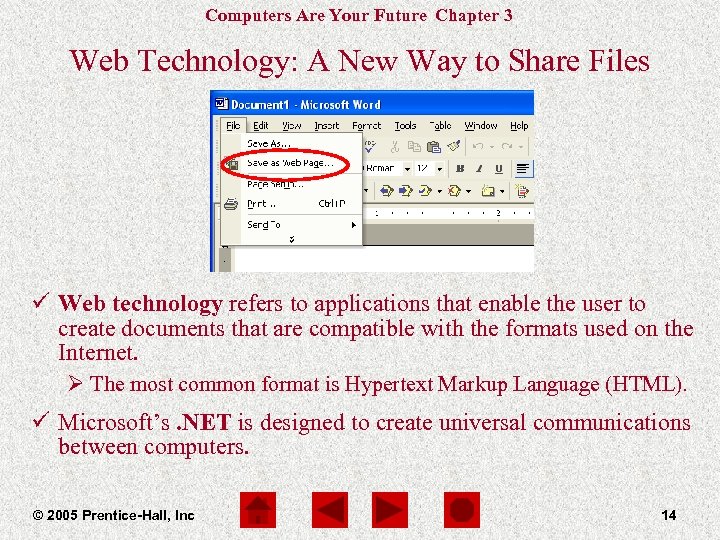 Computers Are Your Future Chapter 3 Web Technology: A New Way to Share Files ü Web technology refers to applications that enable the user to create documents that are compatible with the formats used on the Internet. Ø The most common format is Hypertext Markup Language (HTML). ü Microsoft’s. NET is designed to create universal communications between computers. © 2005 Prentice-Hall, Inc 14
 Computers Are Your Future Chapter 3 System Requirements Sample Minimum System Requirements • IBM compatible PC with a 486 PC processor or better (Pentium® recommended) • Microsoft Windows® 95 • 12 MB RAM (16 MB recommended) • Hard disk space (standard installation approx. 100 MB) • CD-ROM drive (2 x or better) • Mouse or other pointing device ü System requirements refers to the minimum level of equipment needed to run a program. Ø Platform– PC or MAC Ø Microprocessor Ø Drive– 3. 5 Floppy or CD-ROM Ø RAM Ø Available hard disk space © 2005 Prentice-Hall, Inc 15
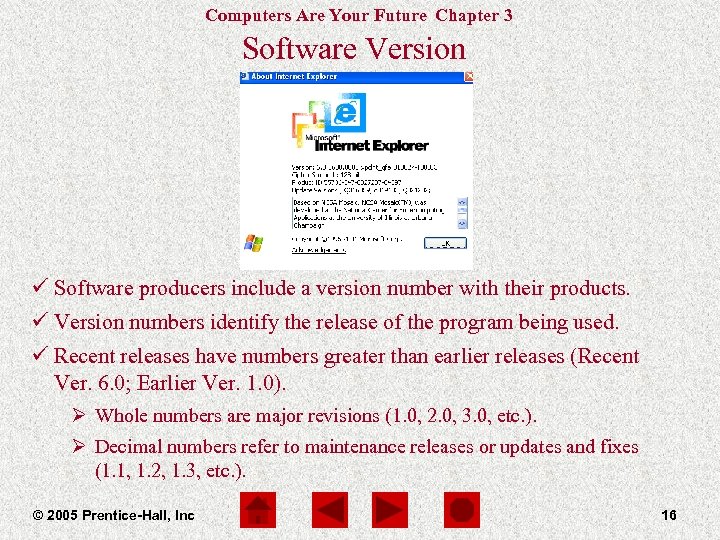 Computers Are Your Future Chapter 3 Software Version ü Software producers include a version number with their products. ü Version numbers identify the release of the program being used. ü Recent releases have numbers greater than earlier releases (Recent Ver. 6. 0; Earlier Ver. 1. 0). Ø Whole numbers are major revisions (1. 0, 2. 0, 3. 0, etc. ). Ø Decimal numbers refer to maintenance releases or updates and fixes (1. 1, 1. 2, 1. 3, etc. ). © 2005 Prentice-Hall, Inc 16
 Computers Are Your Future Chapter 3 Software Upgrades ü Software upgrading is the process of keeping the application program current. ü Types of upgrades: Ø Patch – Small changes in the program. Ø Service release – Major changes in the program. © 2005 Prentice-Hall, Inc 17
 Computers Are Your Future Chapter 3 Distribution and Documentation ü Two methods of software distribution: Ø Shrink-wrapped boxes containing CDs or floppy disks. Ø Downloading program files using the Internet. ü Documentation includes tutorials and reference manuals that explain how to use the program. Ø Read. Me files – Helpful information about the program. Ø Help screens – On-screen program documentation. © 2005 Prentice-Hall, Inc 18
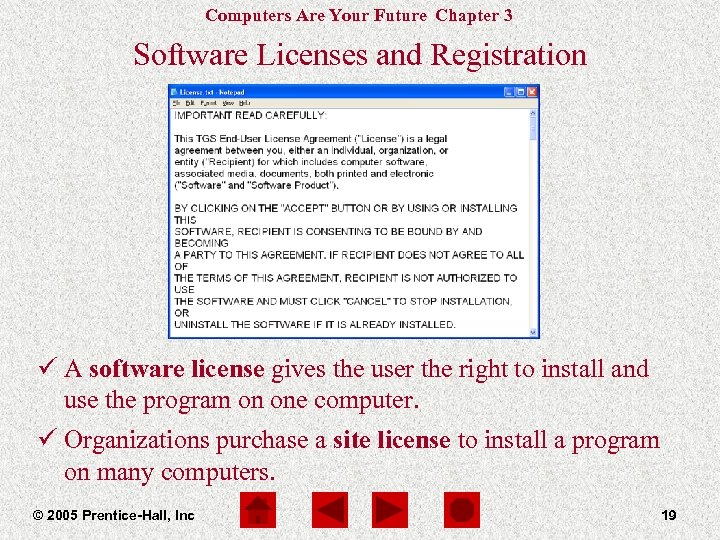 Computers Are Your Future Chapter 3 Software Licenses and Registration ü A software license gives the user the right to install and use the program on one computer. ü Organizations purchase a site license to install a program on many computers. © 2005 Prentice-Hall, Inc 19
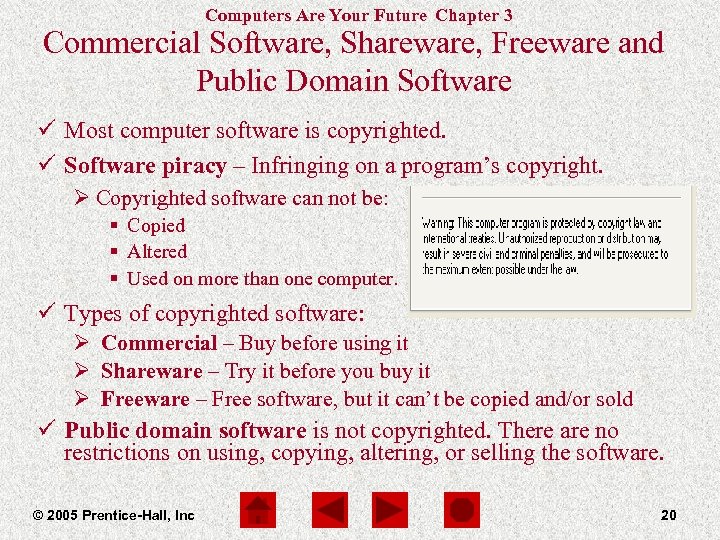 Computers Are Your Future Chapter 3 Commercial Software, Shareware, Freeware and Public Domain Software ü Most computer software is copyrighted. ü Software piracy – Infringing on a program’s copyright. Ø Copyrighted software can not be: § Copied § Altered § Used on more than one computer. ü Types of copyrighted software: Ø Commercial – Buy before using it Ø Shareware – Try it before you buy it Ø Freeware – Free software, but it can’t be copied and/or sold ü Public domain software is not copyrighted. There are no restrictions on using, copying, altering, or selling the software. © 2005 Prentice-Hall, Inc 20
 Computers Are Your Future Chapter 3 Installing and Managing Application Software Installing Applications: ü Install the software on the hard drive. Ø Installation utilities guide you through the process. Ø Installation changes the registry of the operating system. ü Use an uninstall utility to remove a program from the hard drive. Ø Do not just delete a program from your files. © 2005 Prentice-Hall, Inc 21
 Computers Are Your Future Chapter 3 Installing and Managing Application Software Launching Applications: ü Launching a program transfers program code from the hard disk to the memory. ü The program’s default window appears on the screen. ü Applications can be launched by clicking on the Start menu, pointing to All Programs, and choosing the application. © 2005 Prentice-Hall, Inc 22
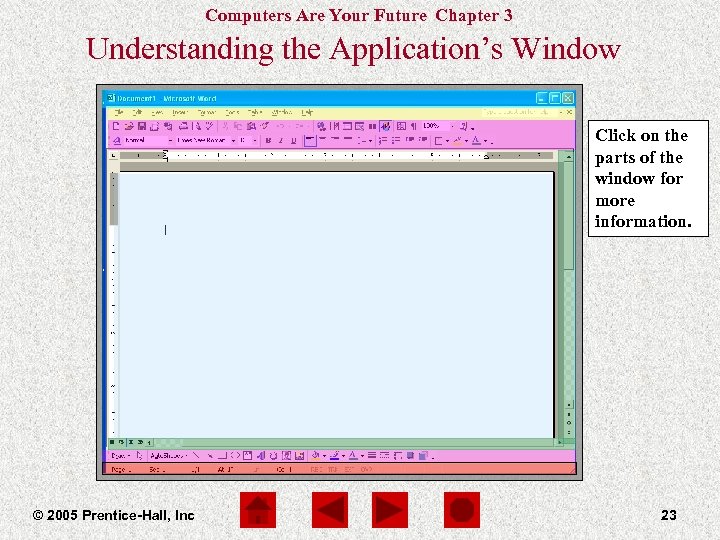 Computers Are Your Future Chapter 3 Understanding the Application’s Window Click on the parts of the window for more information. © 2005 Prentice-Hall, Inc 23
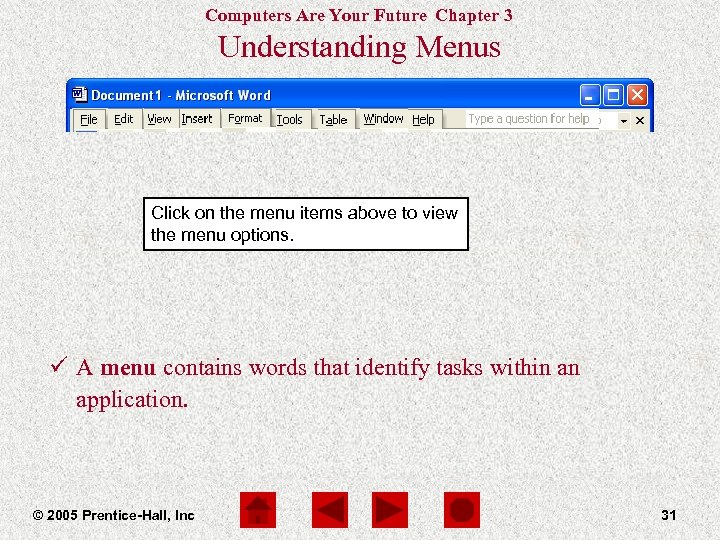 Computers Are Your Future Chapter 3 Understanding Menus Edit – Options forfor File – Options forfor Tools – Options Format Options for Insert––Options for Window Options Table Options View – ––Options copying, cutting, clip creating, opening, useful pictures, for modifying the addingutilities font, for modifying, creating, how choosing modifying, Click on the menu items above to view pasting, finding, closing, saving, includingand paragraphs, tables art, sounds, borders, opening, is and deleting document spellthe menu options. and printing and replacing text checker, thesaurus, shading, a new hyperlinks, and creating bullets, displayed, and undo/redo Help documentsfor – Options toolbars, and program styles, into the objectsand themes window managing actionswith getting help preferences document the program ü A menu contains words that identify tasks within an application. © 2005 Prentice-Hall, Inc 31
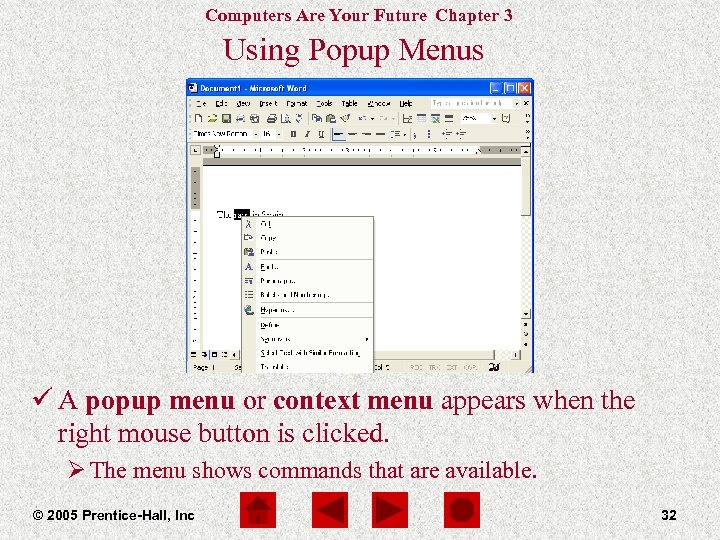 Computers Are Your Future Chapter 3 Using Popup Menus ü A popup menu or context menu appears when the right mouse button is clicked. Ø The menu shows commands that are available. © 2005 Prentice-Hall, Inc 32
 Computers Are Your Future Chapter 3 Creating Documents ü Creating new documents: Ø The user starts a new blank document or chooses a template (preformatted model). ü Opening an existing document: Ø An existing document is loaded into memory. Ø The user may update or edit the document. ü Choosing Options: Ø Options change the way a program operates or is displayed. Ø Default settings are in effect until they are overridden by the user. ü Using Wizards: Ø A wizard guides the user through lengthy or complex operations. © 2005 Prentice-Hall, Inc 33
 Computers Are Your Future Chapter 3 Creating Documents ü Saving the document: Ø The document is transferred from computer memory to a storage device. Ø A filename for the document is created. ü Exiting the application program: Ø Exit the program by choosing the exit command from the File menu. Ø The program provides a reminder to save the work. ü Shutting down the system Ø The computer needs to be shut down properly. Ø Do not turn the power off without going through the shut down process. © 2005 Prentice-Hall, Inc 34
 Computers Are Your Future Chapter 3 Summary • • Horizontal and vertical are two categories of application software. Horizontal programs are popular with consumers. Vertical programs are designed for specialized uses. Types of horizontal applications include: Ø Personal productivity Ø Multimedia and graphics Ø Internet programs Ø Home/educational software • Copyrighted software includes: Ø Commercial programs Ø Shareware Ø Freeware © 2005 Prentice-Hall, Inc 37
 Computers Are Your Future Chapter 3 Summary continued • Public domain software is not copyrighted. • The version number of software refers to a major upgrade and a decimal number refers to a maintenance upgrade. • Office suites are composed of integrated standalone programs. • Web technology refers to the capability of software to create documents that are accessible through the Internet. • To use the computer successfully it is necessary to possess the concepts and skills in using, installing, and launching application programs. © 2005 Prentice-Hall, Inc 38