


 Скачать презентацию Computer Repair lesson ITMS information Technology Management Specialist
17396af486ba359e78bf5c95e9f2edfd.ppt
- Количество слайдов: 135
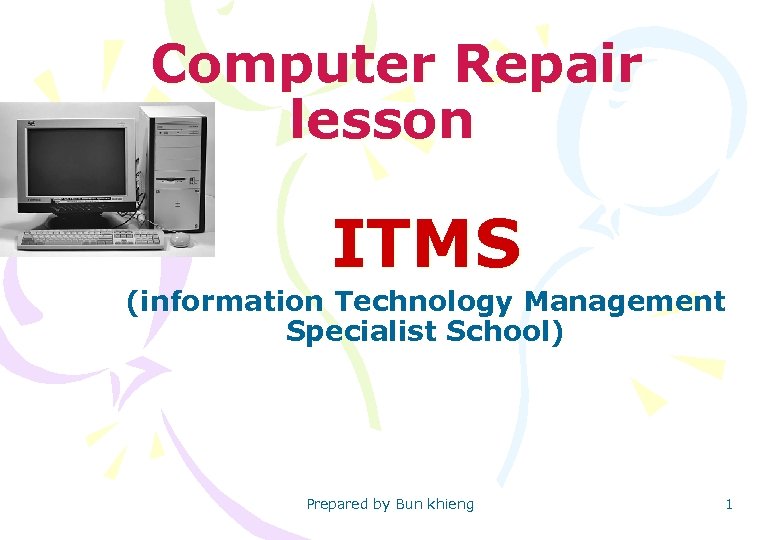 Computer Repair lesson ITMS (information Technology Management Specialist School) Prepared by Bun khieng 1
 Introduction to computer Repair • e. Kalkar. N_kñúgkarsik. Sakmµv. IFICYs. Culk. Mu. BüÚT½ rmank. MNt; d. Ucxage. Rkam • HARDWARE – – Spare Part Installation hardwares Check System Hardware CMOS BIOS Setup • SOFTWARE – Group Software – Keyword – Ms DOS ( Microsoft Disk Operating System) – command Directory – Command File – Command Disk – Other Commands – command Change color In MS DOS – NC (Norton Commander) – NC Command Prepared by Bun khieng – NC Link 2
 Introduction to computer repair • Installation Software – – – – – Install Windows Install Office and applications Install font Add Keyboard Add Normal Install Driver hardware Install 2 office on one Windows Setup Internet and E-mail Install Winbdows 2 With – Boot loader – Partition magic +boot Magic – Partition Expert +boot Magic – Efidks +boot Magic – – – – Repair hard Disk bad sector Repair diskette Recovery files Regedit , MMC, Winboost Anti Virus Convert drive Convert FAT Prepared by Bun khieng The End 3
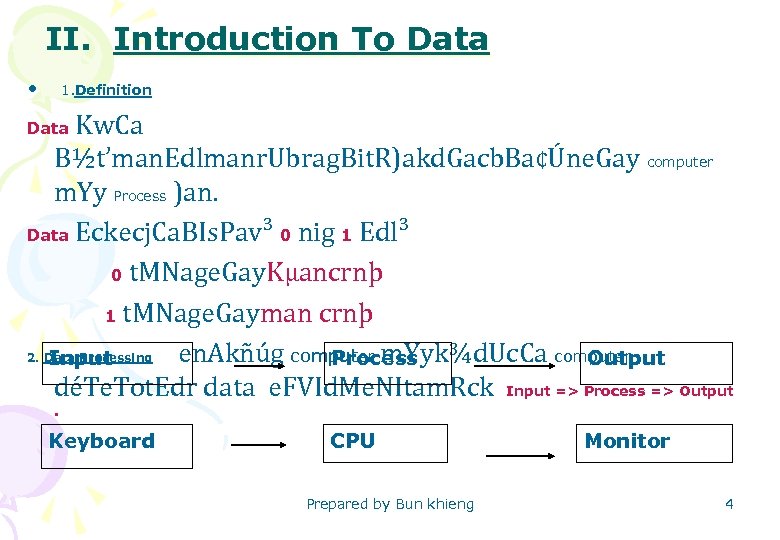 II. Introduction To Data • 1. Definition Kw. Ca B½t’man. Edlmanr. Ubrag. Bit. R)akd. Gacb. Ba¢Úne. Gay computer m. Yy Process )an. Data Eckecj. Ca. BIs. Pav³ 0 nig 1 Edl³ 0 t. MNage. Gay. Kµancrnþ 1 t. MNage. Gayman crnþ 2. Data Processing en. Akñúg computer m. Yyk¾d. Uc. Ca computer Input Process Output déTe. Tot. Edr data e. FVId. Me. NItam. Rck Input => Process => Output Data . Keyboard CPU Prepared by Bun khieng Monitor 4
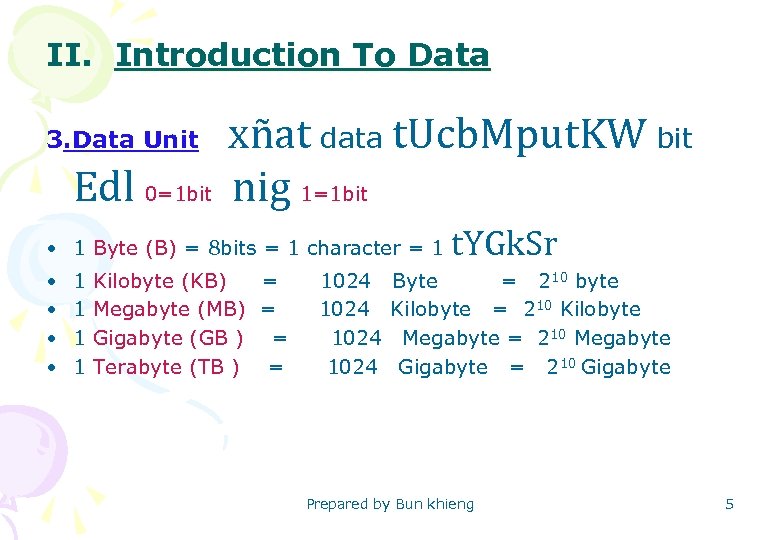 II. Introduction To Data xñat data t. Ucb. Mput. KW bit Edl 0=1 bit nig 1=1 bit 3. Data Unit • 1 Byte (B) = 8 bits = 1 character = 1 • • t. YGk. Sr 1 Kilobyte (KB) = 1024 Byte = 210 byte 1 Megabyte (MB) = 1024 Kilobyte = 210 Kilobyte 1 Gigabyte (GB ) = 1024 Megabyte = 210 Megabyte 1 Terabyte (TB ) = 1024 Gigabyte = 210 Gigabyte Prepared by Bun khieng 5
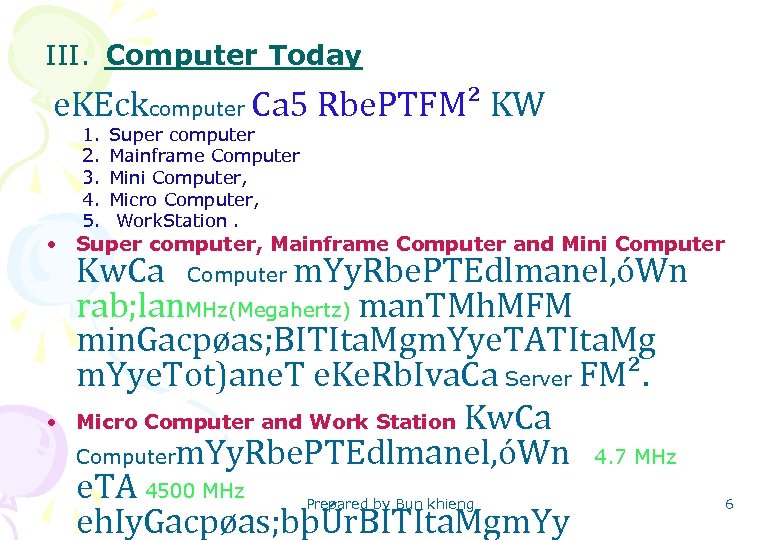 III. Computer Today e. KEckcomputer Ca 5 Rbe. PTFM² KW 1. 2. 3. 4. 5. Super computer Mainframe Computer Mini Computer, Micro Computer, Work. Station. • Super computer, Mainframe Computer and Mini Computer • Kw. Ca Computer m. Yy. Rbe. PTEdlmanel, óWn rab; lan. MHz(Megahertz) man. TMh. MFM min. Gacpøas; BITIta. Mgm. Yye. TATIta. Mg m. Yye. Tot)ane. T e. Ke. Rb. Iva. Ca Server FM². Micro Computer and Work Station Kw. Ca Computerm. Yy. Rbe. PTEdlmanel, óWn 4. 7 MHz e. TA 4500 MHz eh. Iy. Gacpøas; bþÚr. BITIta. Mgm. Yy Prepared by Bun khieng 6
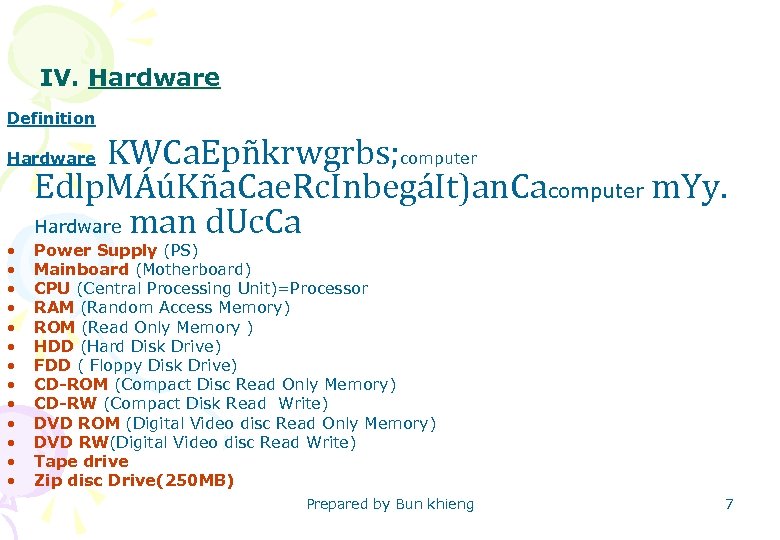 IV. Hardware Definition KWCa. Epñkrwgrbs; computer Edlp. MÁúKña. Cae. Rc. InbegáIt)an. Cacomputer m. Yy. Hardware man d. Uc. Ca Hardware • • • • Power Supply (PS) Mainboard (Motherboard) CPU (Central Processing Unit)=Processor RAM (Random Access Memory) ROM (Read Only Memory ) HDD (Hard Disk Drive) FDD ( Floppy Disk Drive) CD-ROM (Compact Disc Read Only Memory) CD-RW (Compact Disk Read Write) DVD ROM (Digital Video disc Read Only Memory) DVD RW(Digital Video disc Read Write) Tape drive Zip disc Drive(250 MB) Prepared by Bun khieng 7
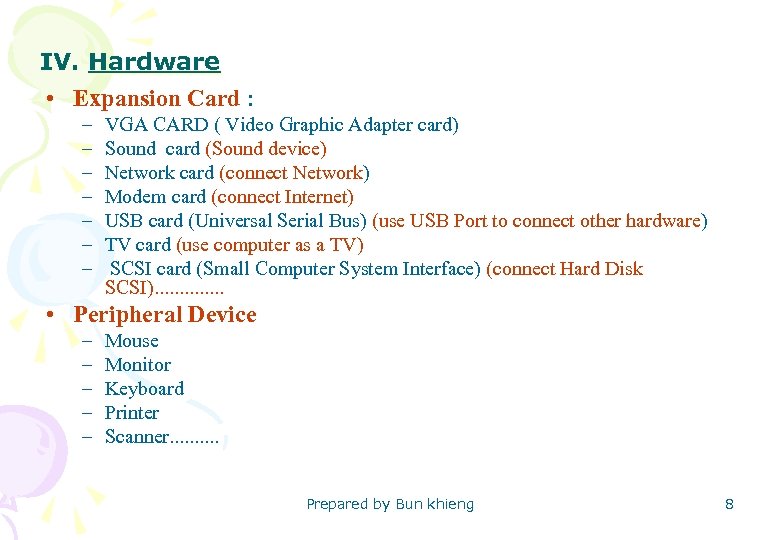 IV. Hardware • Expansion Card : – – – – VGA CARD ( Video Graphic Adapter card) Sound card (Sound device) Network card (connect Network) Modem card (connect Internet) USB card (Universal Serial Bus) (use USB Port to connect other hardware) TV card (use computer as a TV) SCSI card (Small Computer System Interface) (connect Hard Disk SCSI). . . • Peripheral Device – – – Mouse Monitor Keyboard Printer Scanner. . Prepared by Bun khieng 8
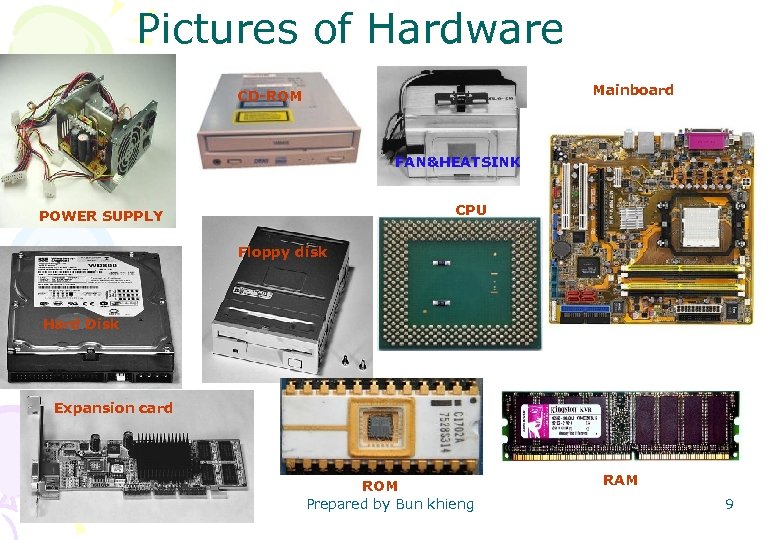 Pictures of Hardware Mainboard CD-ROM FAN&HEATSINK CPU POWER SUPPLY Floppy disk Hard Disk Expansion card ROM Prepared by Bun khieng RAM 9
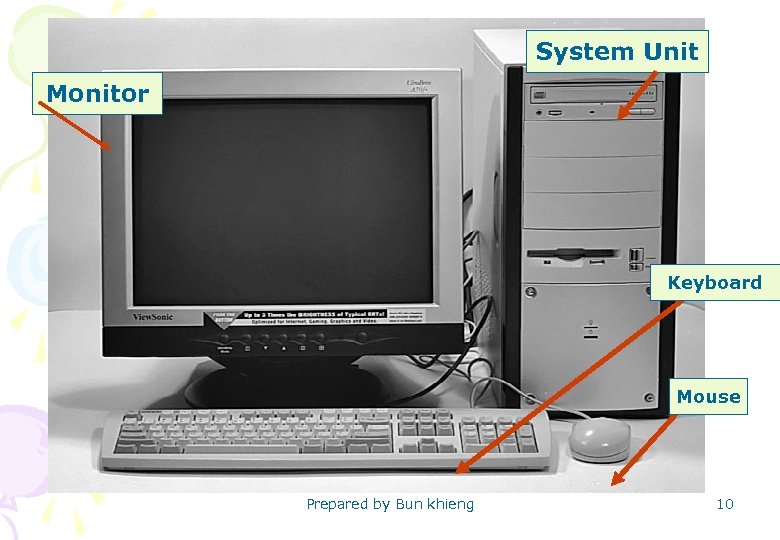 System Unit Monitor Keyboard Mouse Prepared by Bun khieng 10
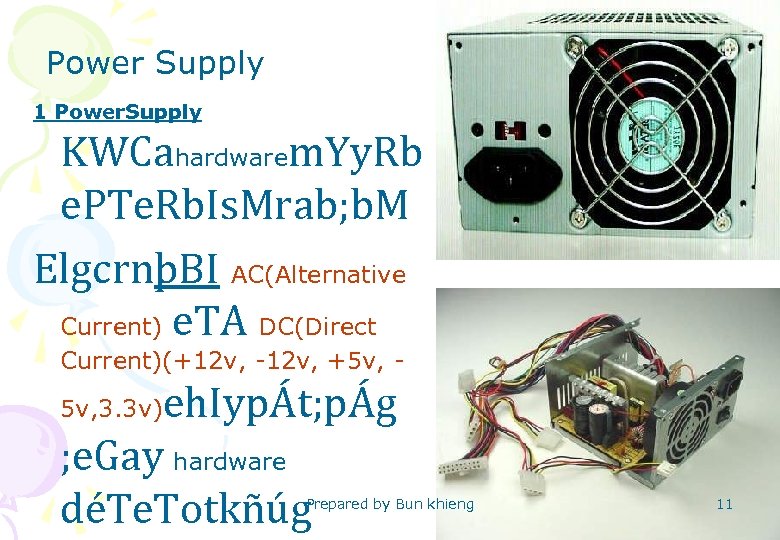 Power Supply 1 Power. Supply KWCahardwarem. Yy. Rb e. PTe. Rb. Is. Mrab; b. M ElgcrnþBI AC(Alternative Current) e. TA DC(Direct Current)(+12 v, -12 v, +5 v, - eh. IypÁt; pÁg ; e. Gay hardware déTe. Totkñúg 5 v, 3. 3 v) Prepared by Bun khieng 11
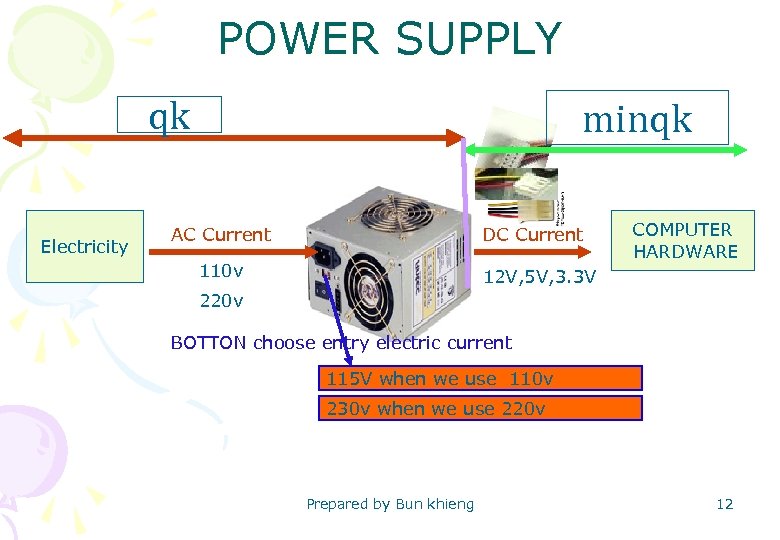 POWER SUPPLY qk Electricity minqk AC Current DC Current 110 v COMPUTER HARDWARE 12 V, 5 V, 3. 3 V 220 v BOTTON choose entry electric current 115 V when we use 110 v 230 v when we use 220 v Prepared by Bun khieng 12
 Power Supply Prepared by Bun khieng 13
 Power Supply • Power Supply man 2 Rbe. PT KW – Power Supply ATX. • Power Supply AT: is the Power Supply that has – Two connector to mainboard – Power Button – Not Shutdown Automatically( When you Click Start => shutdown=> it displays message “it’s now safe to turn of your computer” you can press Power Button to Shutdown) • Power Supply ATX: is the power Supply that has – One Connect to Mainboard – No power Button – Shutdown Automatically Prepared by Bun khieng 14
 • Note – If your computer use power supply ATX but , it doesn’t shutdown Automatically so you change it to shutdown automatically : – ( start =>setting => control panel=> Power option =>APM=> you tick Enable Advanced Power management Support =>OK. ) Prepared by Bun khieng 15
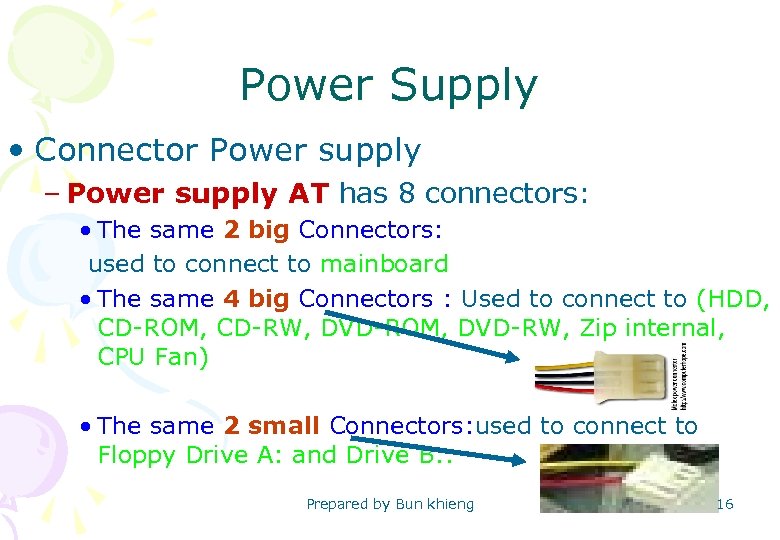 Power Supply • Connector Power supply – Power supply AT has 8 connectors: • The same 2 big Connectors: used to connect to mainboard • The same 4 big Connectors : Used to connect to (HDD, CD-ROM, CD-RW, DVD-ROM, DVD-RW, Zip internal, CPU Fan) • The same 2 small Connectors: used to connect to Floppy Drive A: and Drive B: . Prepared by Bun khieng 16
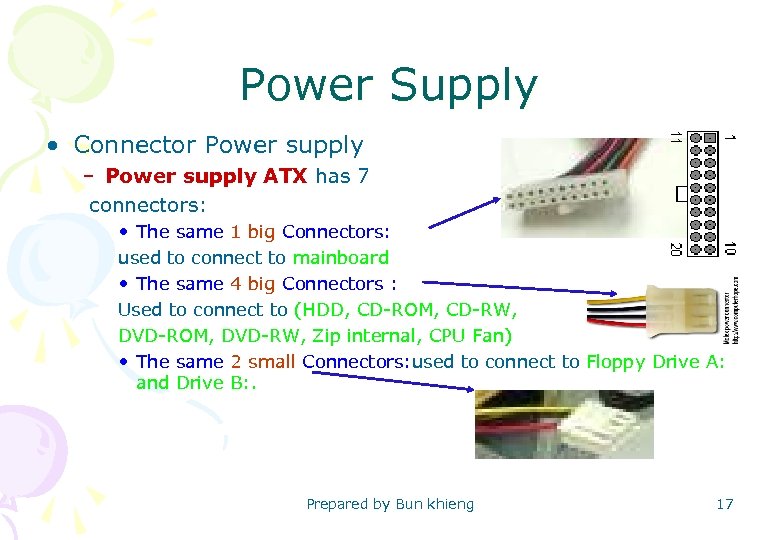 Power Supply • Connector Power supply – Power supply ATX has 7 connectors: • The same 1 big Connectors: used to connect to mainboard • The same 4 big Connectors : Used to connect to (HDD, CD-ROM, CD-RW, DVD-ROM, DVD-RW, Zip internal, CPU Fan) • The same 2 small Connectors: used to connect to Floppy Drive A: and Drive B: . Prepared by Bun khieng 17
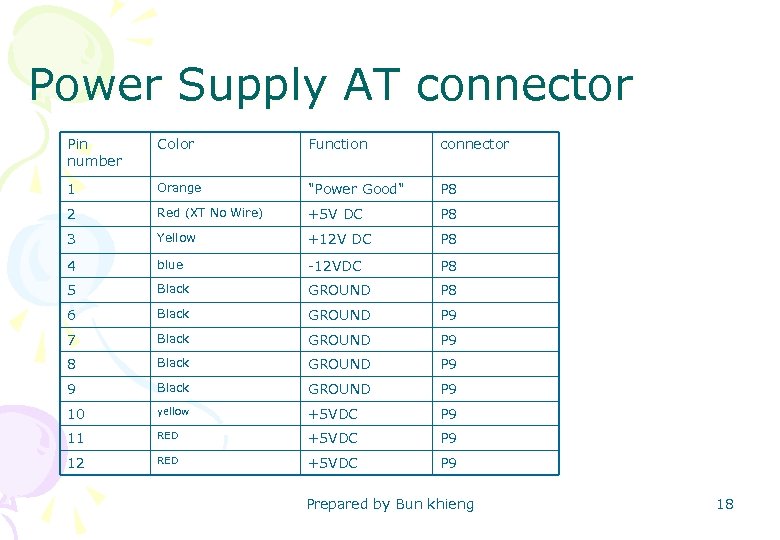 Power Supply AT connector Pin number Color Function connector 1 Orange "Power Good" P 8 2 Red (XT No Wire) +5 V DC P 8 3 Yellow +12 V DC P 8 4 blue -12 VDC P 8 5 Black GROUND P 8 6 Black GROUND P 9 7 Black GROUND P 9 8 Black GROUND P 9 9 Black GROUND P 9 10 yellow +5 VDC P 9 11 RED +5 VDC P 9 12 RED +5 VDC P 9 Prepared by Bun khieng 18
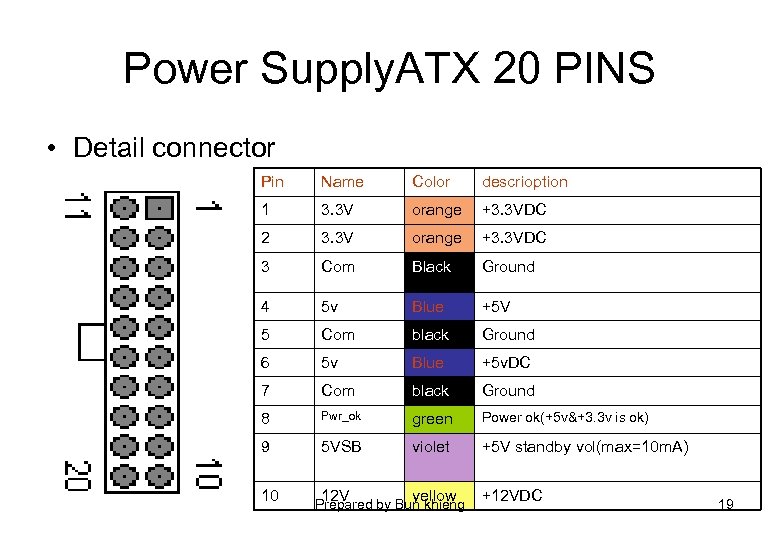 Power Supply. ATX 20 PINS • Detail connector Pin Name Color descrioption 1 3. 3 V orange +3. 3 VDC 2 3. 3 V orange +3. 3 VDC 3 Com Black Ground 4 5 v Blue +5 V 5 Com black Ground 6 5 v Blue +5 v. DC 7 Com black Ground 8 Pwr_ok green Power ok(+5 v&+3. 3 v is ok) 9 5 VSB violet +5 V standby vol(max=10 m. A) 12 V yellow +12 VDC 10 Prepared by Bun khieng 19
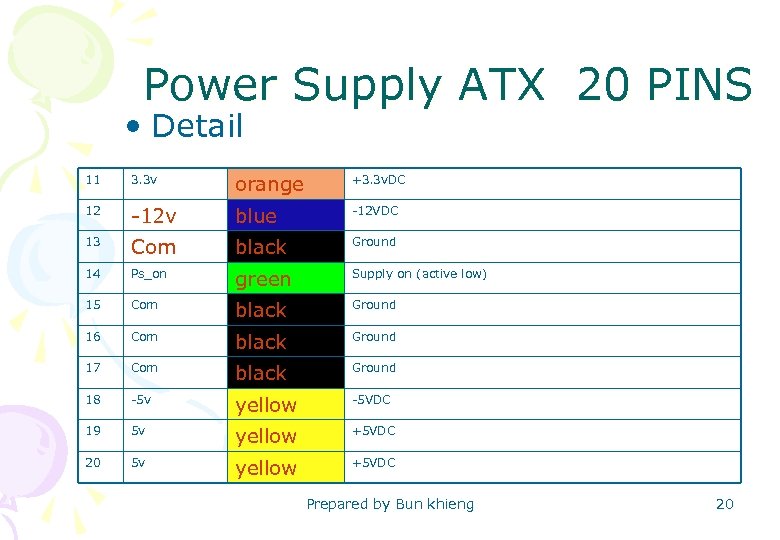 Power Supply ATX 20 PINS • Detail 11 3. 3 v orange +3. 3 v. DC 12 -12 v blue -12 VDC 13 Com black Ground 14 Ps_on green Supply on (active low) 15 Com black Ground 16 Com black Ground 17 Com black Ground 18 -5 v yellow -5 VDC 19 5 v yellow +5 VDC 20 5 v yellow +5 VDC Prepared by Bun khieng 20
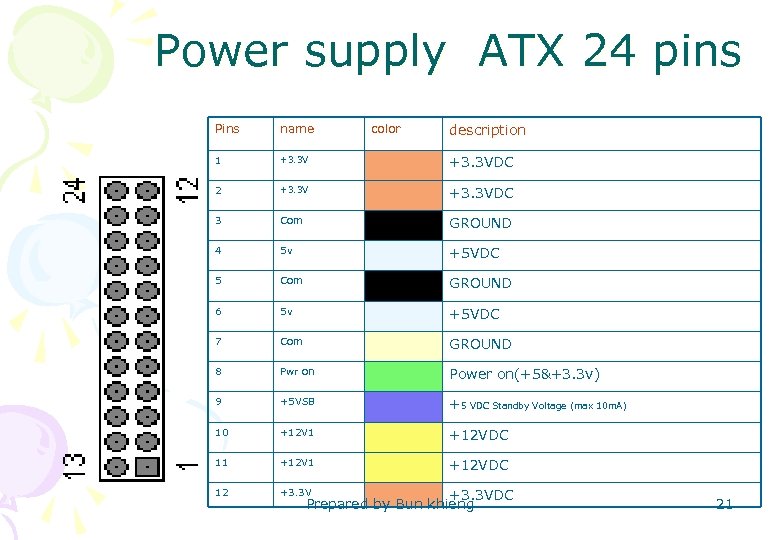 Power supply ATX 24 pins color description Pins name 1 +3. 3 VDC 2 +3. 3 VDC 3 Com GROUND 4 5 v +5 VDC 5 Com GROUND 6 5 v +5 VDC 7 Com GROUND 8 Pwr on Power on(+5&+3. 3 v) 9 +5 VSB +5 VDC Standby Voltage (max 10 m. A) 10 +12 V 1 +12 VDC 11 +12 VDC 12 +3. 3 VDC Prepared by Bun khieng 21
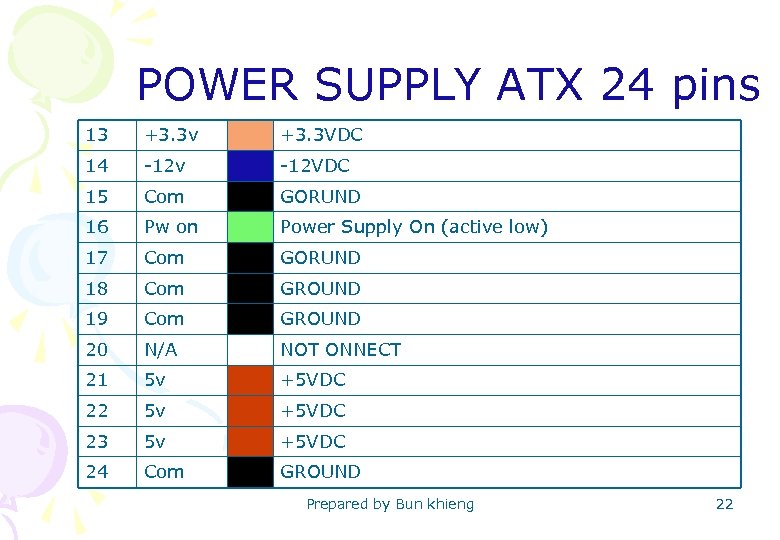 POWER SUPPLY ATX 24 pins 13 +3. 3 v +3. 3 VDC 14 -12 v -12 VDC 15 Com GORUND 16 Pw on Power Supply On (active low) 17 Com GORUND 18 Com GROUND 19 Com GROUND 20 N/A NOT ONNECT 21 5 v +5 VDC 22 5 v +5 VDC 23 5 v +5 VDC 24 Com GROUND Prepared by Bun khieng 22
 • Function power supply – Convert AC=>DC – Supply power to hardwares • Categories of power supply – AT(not shutdown Auto) – ATX(shutdown Auto) • Connector of Power supply – Three categories • Test power supply(ATX) – String (green +black) Prepared by Bun khieng 23
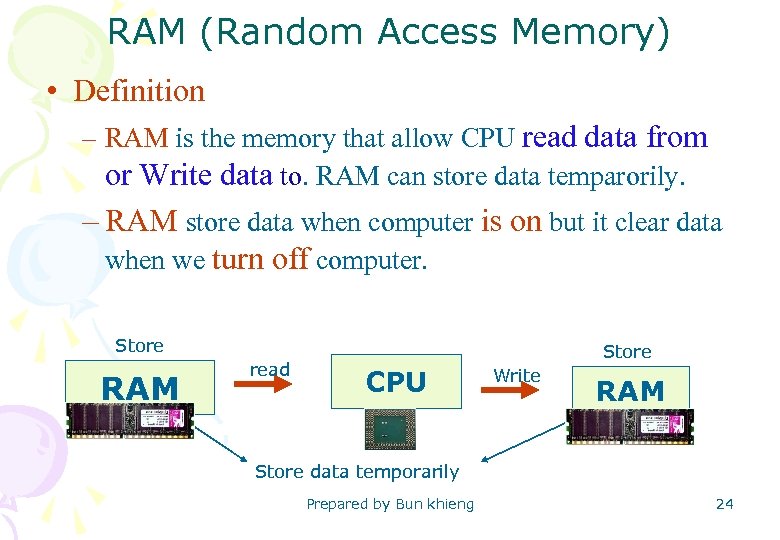 RAM (Random Access Memory) • Definition – RAM is the memory that allow CPU read data from or Write data to. RAM can store data temparorily. – RAM store data when computer is on but it clear data when we turn off computer. Store RAM read Store CPU Write RAM Store data temporarily Prepared by Bun khieng 24
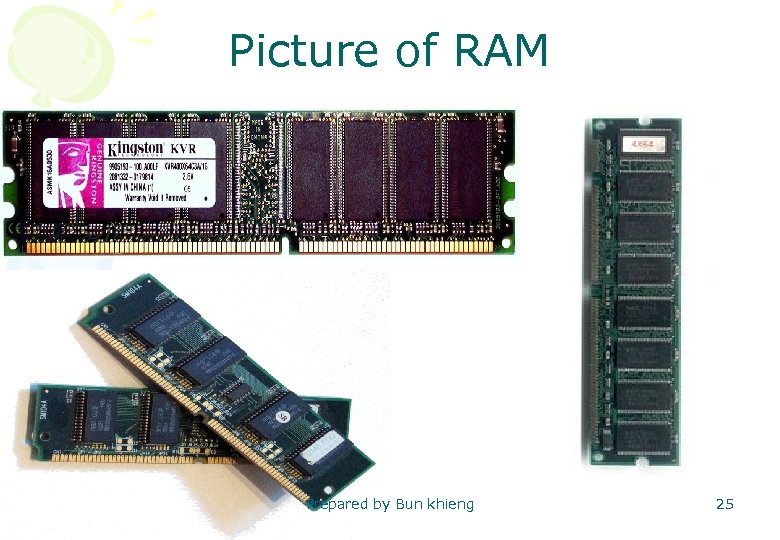 Picture of RAM Prepared by Bun khieng 25
 Kind of RAM • There two kinds of RAM – SRAM (Static Random Access Memory) – DRAM(Dynamic Random Access Memory) • SDRAM( Sychronous DRAM) • DDR RAM(Double Data Rate RAM) • DDR 2 • DDR 3 • DDR SD • EDO (Extended Data Output) • FPM (Fast Page Mode) • VRAM (Video RAM) Prepared by Bun khieng 26
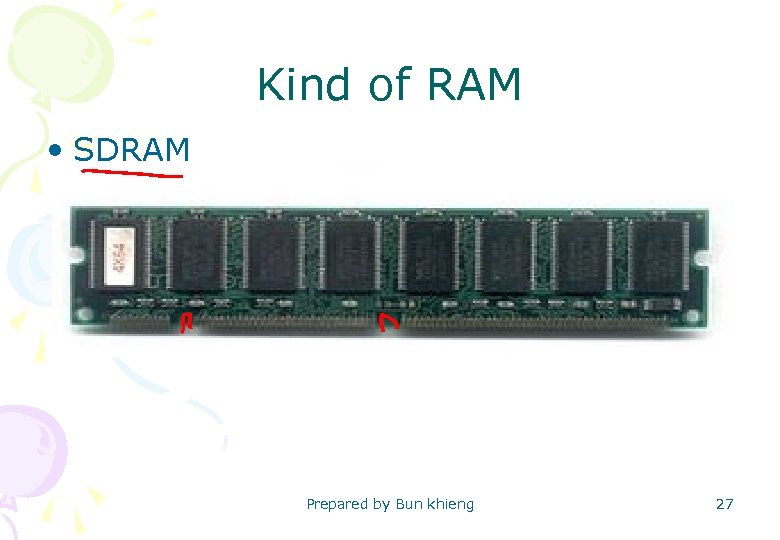 Kind of RAM • SDRAM Prepared by Bun khieng 27
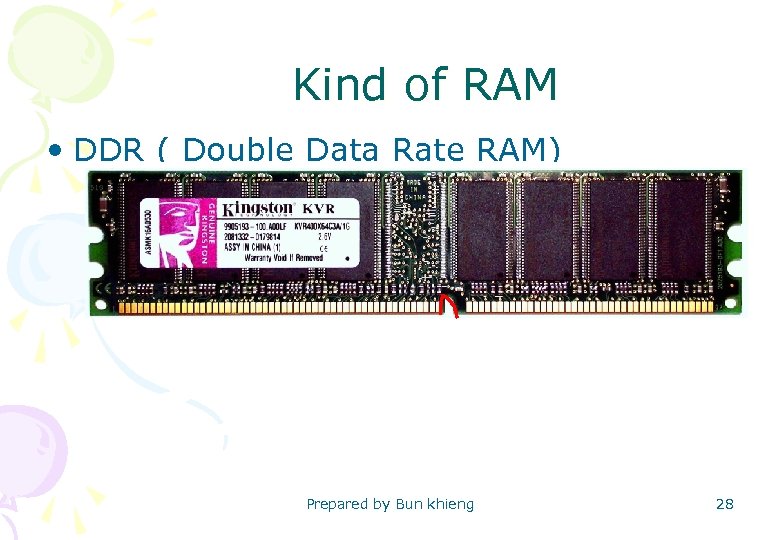 Kind of RAM • DDR ( Double Data Rate RAM) Prepared by Bun khieng 28
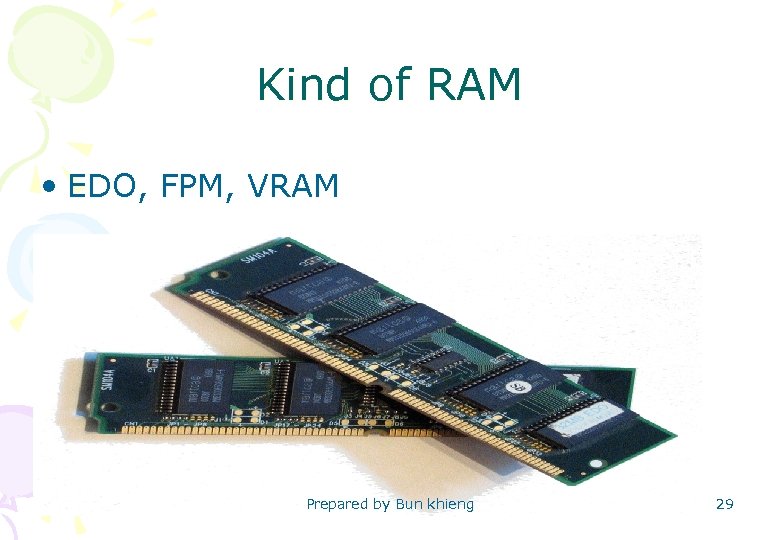 Kind of RAM • EDO, FPM, VRAM Prepared by Bun khieng 29
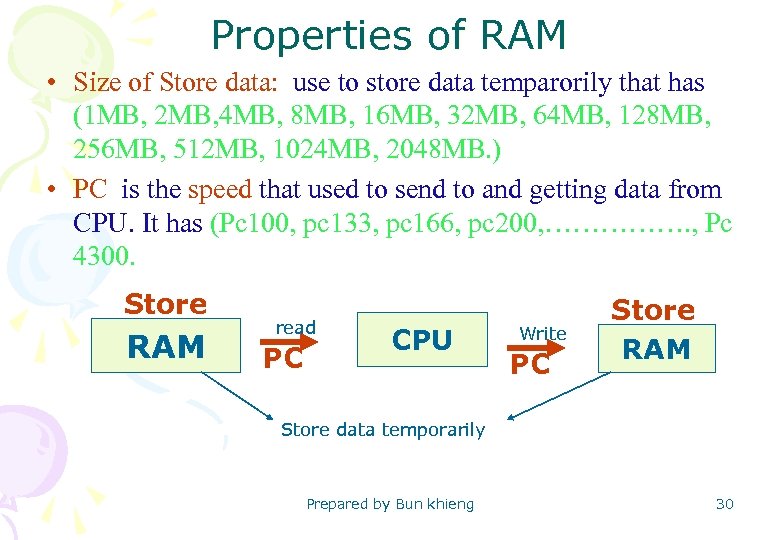 Properties of RAM • Size of Store data: use to store data temparorily that has (1 MB, 2 MB, 4 MB, 8 MB, 16 MB, 32 MB, 64 MB, 128 MB, 256 MB, 512 MB, 1024 MB, 2048 MB. ) • PC is the speed that used to send to and getting data from CPU. It has (Pc 100, pc 133, pc 166, pc 200, ……………. , Pc 4300. Store RAM read PC CPU Write PC Store RAM Store data temporarily Prepared by Bun khieng 30
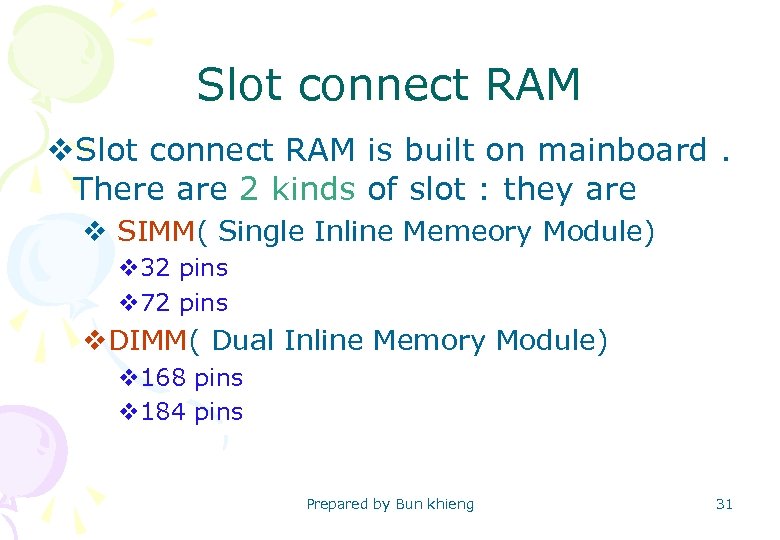 Slot connect RAM v. Slot connect RAM is built on mainboard. There are 2 kinds of slot : they are v SIMM( Single Inline Memeory Module) v 32 pins v 72 pins v. DIMM( Dual Inline Memory Module) v 168 pins v 184 pins Prepared by Bun khieng 31
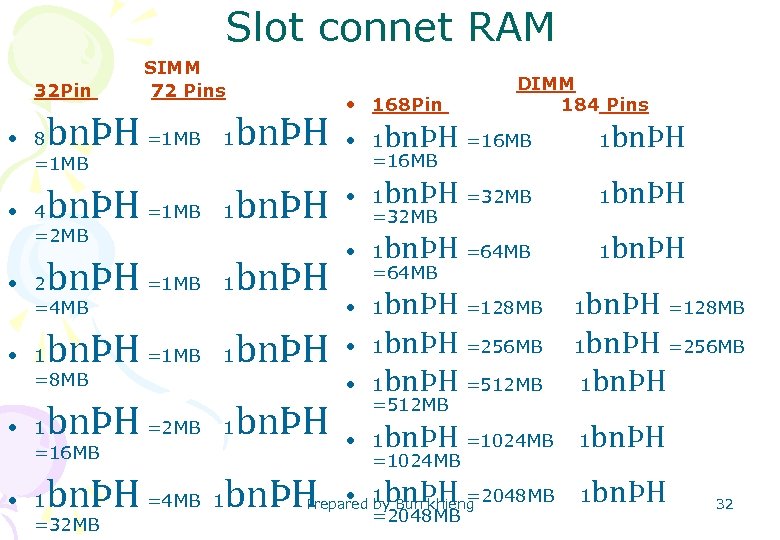 Slot connet RAM 32 Pin SIMM 72 Pins • 168 Pin bnÞH =1 MB 1 bnÞH • bnÞH =1 MB 1 bnÞH =4 MB 1 bnÞH 1 bnÞH =128 MB 1 bnÞH =256 MB 1 bnÞH =512 MB 1 bnÞH • 1 bnÞH =2 MB 1 bnÞH • • 1 =32 MB 1 bnÞH =64 MB • • 1 =16 MB bnÞH • 1 =64 MB bnÞH =1 MB 1 bnÞH • • 1 =8 MB 1 1 =16 MB • 1 =32 MB bnÞH =1 MB 1 bnÞH • 2 =4 MB bnÞH =16 MB bnÞH =32 MB • 8 =1 MB • 4 =2 MB DIMM 184 Pins =512 MB bnÞH 1 =1024 MB • 1 =2048 MB Prepared by Bun khieng 32
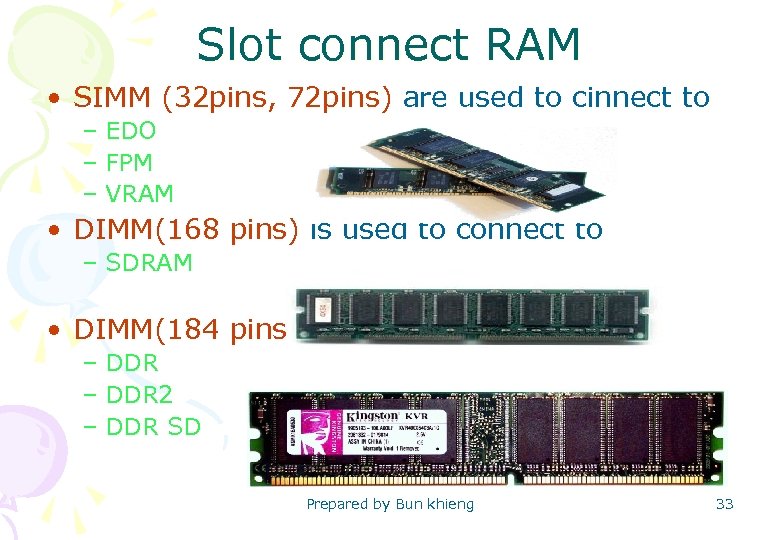 Slot connect RAM • SIMM (32 pins, 72 pins) are used to cinnect to – EDO – FPM – VRAM • DIMM(168 pins) is used to connect to – SDRAM • DIMM(184 pins) is used to connect to – DDR 2 – DDR SD Prepared by Bun khieng 33
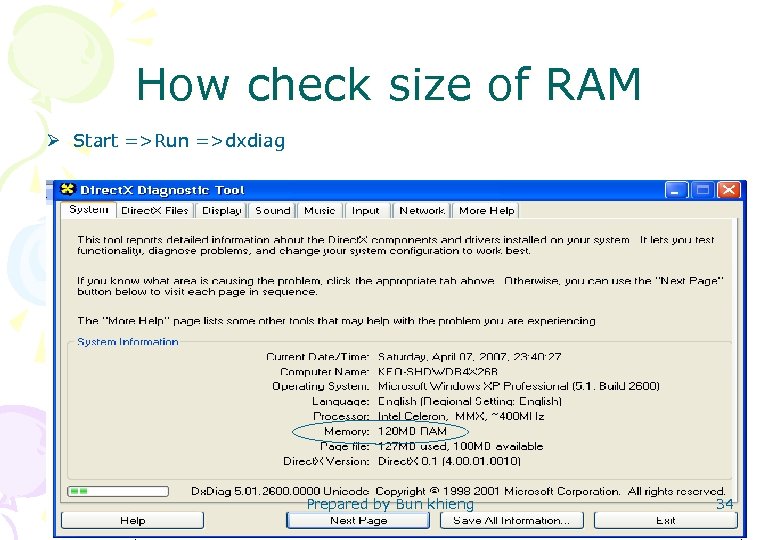 How check size of RAM Ø Start =>Run =>dxdiag Prepared by Bun khieng 34
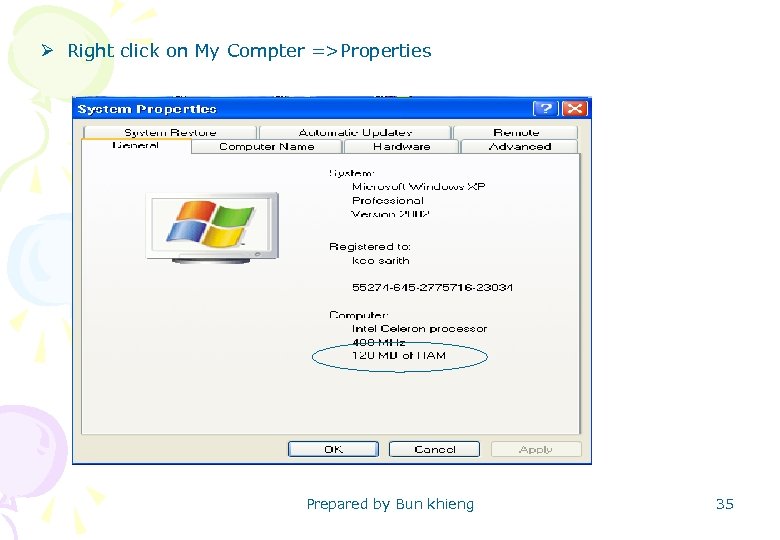 Ø Right click on My Compter =>Properties Prepared by Bun khieng 35
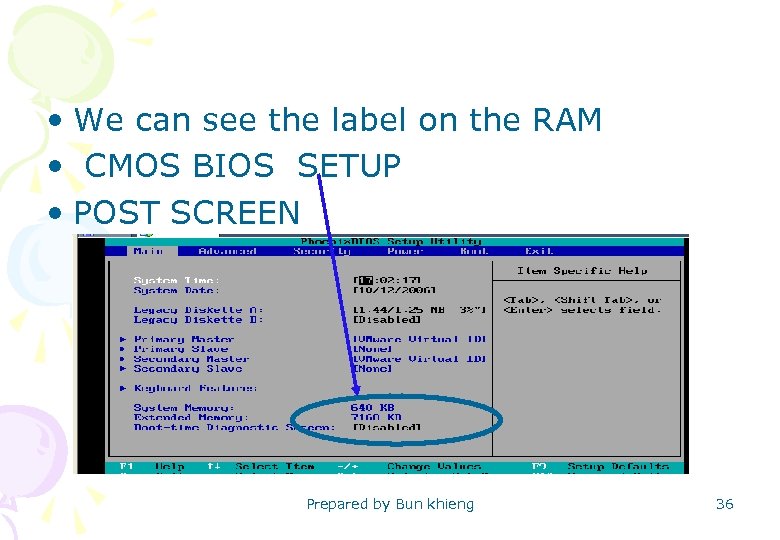 • We can see the label on the RAM • CMOS BIOS SETUP • POST SCREEN Prepared by Bun khieng 36
 HOW TO TEST RAM • Test ram – Monitor display • Cannot setup program • Message POST Sreen“widows Protection Error” • Display “blue Screen background and white character” – Monitor not display • Connect ram (beep code) • Broken down Ram (beep code) • Broken down Slot dimm/simm (beep code) • Ram not sopport mainboard Prepared by Bun khieng 37
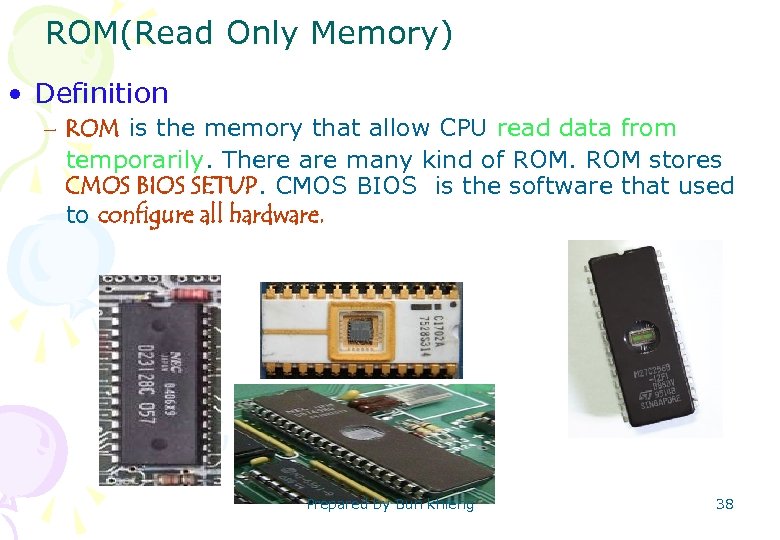 ROM(Read Only Memory) • Definition – ROM is the memory that allow CPU read data from temporarily. There are many kind of ROM stores CMOS BIOS SETUP. CMOS BIOS is the software that used to configure all hardware. Prepared by Bun khieng 38
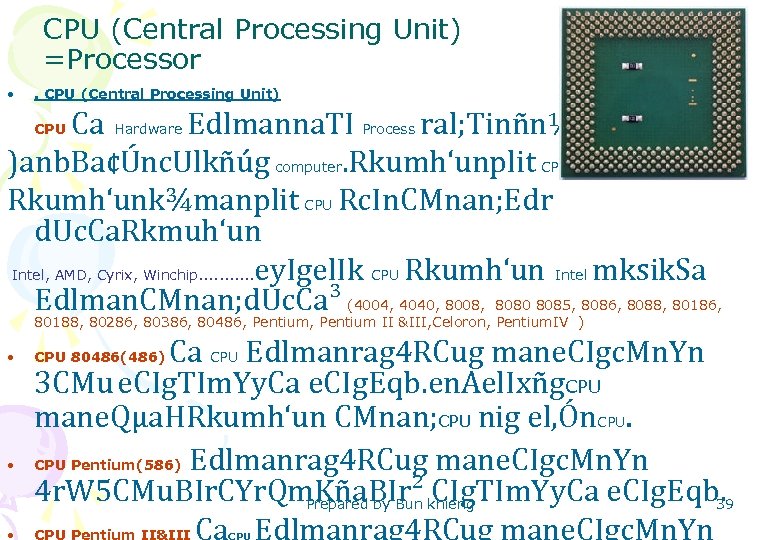 CPU (Central Processing Unit) =Processor • . CPU (Central Processing Unit) Ca Hardware Edlmanna. TI Process ral; Tinñn½y. Edl )anb. Ba¢Únc. Ulkñúg computer. Rkumh‘unplit CPU Cae. Rc. In nig Rkumh‘unk¾manplit CPU Rc. In. CMnan; Edr d. Uc. Ca. Rkmuh‘un Intel, AMD, Cyrix, Winchip. . . ey. Igel. Ik CPU Rkumh‘un Intel mksik. Sa Edlman. CMnan; d. Uc. Ca³ (4004, 4040, 8008, 8080 8085, 8086, 8088, 80186, CPU 80188, 80286, 80386, 80486, Pentium II &III, Celoron, Pentium. IV ) • Ca CPU Edlmanrag 4 RCug mane. CIgc. Mn. Yn 3 CMu e. CIg. TIm. Yy. Ca e. CIg. Eqb. en. Ael. Ixñg. CPU mane. Qµa. HRkumh‘un CMnan; CPU nig el, Ón. CPU Pentium(586) Edlmanrag 4 RCug mane. CIgc. Mn. Yn 4 r. W 5 CMu. BIr. CYr. Qm. Kña. BIr² CIg. TIm. Yy. Ca e. CIg. Eqb. 39 Prepared by Bun khieng CPU Pentium II&III Ca Edlmanrag 4 RCug mane. CIgc. Mn. Yn CPU 80486(486) • • CPU
 CPU (Central Processing Unit) manlkçN³d. Uc. Ca • **Note CPU • -Base Frequency(BUS)or. WFSB(Front Side Bus) KWCa el, Ón. Edlb. Ba¢Ún data BI RAM mk CPU nig BI CPUmk RAM Edlmanel, Ónkan; Etx
 • Intel processors 4004 | 4040 | 8008 | 8080 | 8085 | 8086 | 8088 | i. APX 432 | 80186 | 80188 | 80286 | 80386 | 80486 | i 860 | i 960 | Pentium Pro | Pentium II | Celeron | Pentium III | XScale | Pentium 4 | Pentium M | Pentium D | Pentium Extreme Edition | Xeon | Core 2 | Itanium • List of AMD microprocessors Am 2900 • Am 29000 • Am 9080 • Am 286 • Am 386 • Am 486 • Am 5 x 86 • K 5 • K 6 -2 • K 6 -III • Duron • Sempron • Athlon 64 X 2 • Turion 64 X 2 • Opteron Prepared by Bun khieng 41
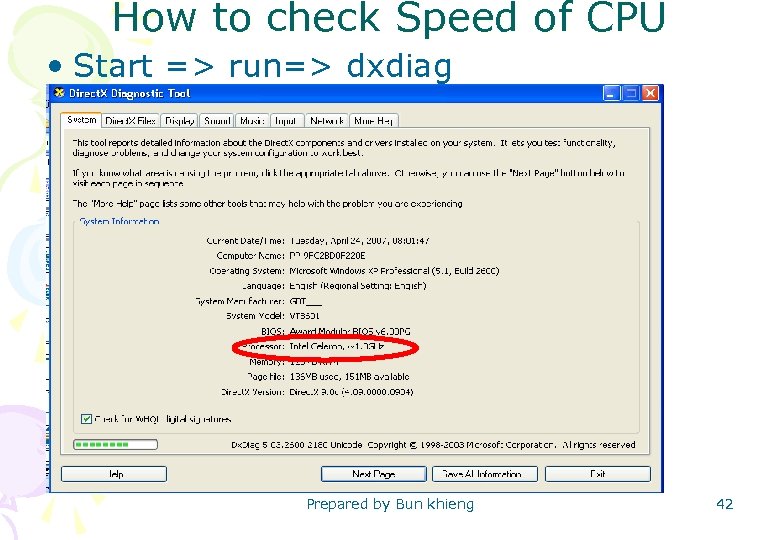 How to check Speed of CPU • Start => run=> dxdiag Prepared by Bun khieng 42
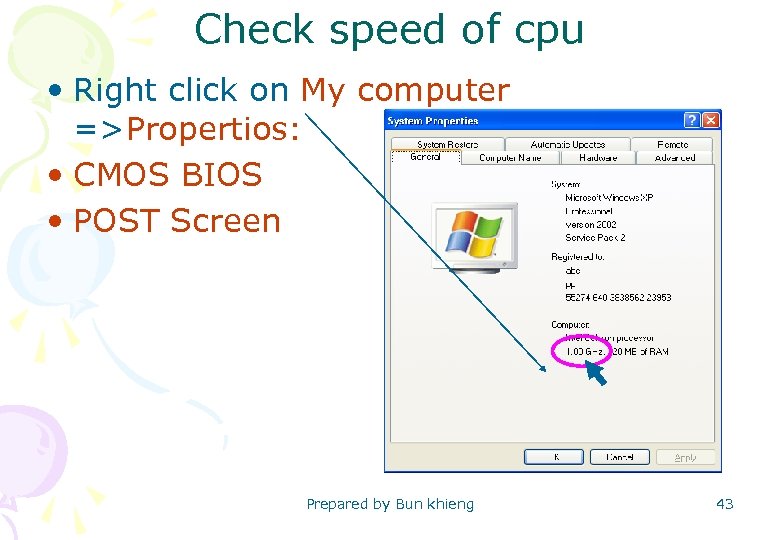 Check speed of cpu • Right click on My computer =>Propertios: • CMOS BIOS • POST Screen Prepared by Bun khieng 43
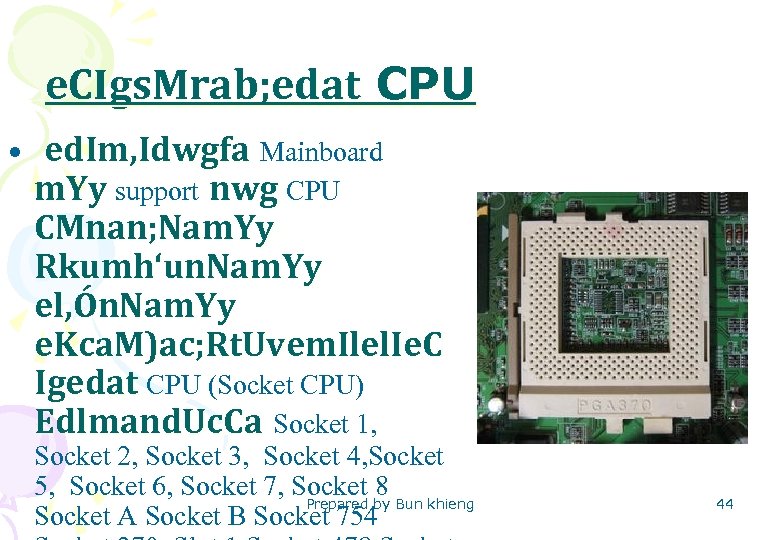 e. CIgs. Mrab; edat CPU • ed. Im, Idwgfa Mainboard m. Yy support nwg CPU CMnan; Nam. Yy Rkumh‘un. Nam. Yy el, Ón. Nam. Yy e. Kca. M)ac; Rt. Uvem. Ilel. Ie. C Igedat CPU (Socket CPU) Edlmand. Uc. Ca Socket 1, Socket 2, Socket 3, Socket 4, Socket 5, Socket 6, Socket 7, Socket 8 Prepared by Bun khieng Socket A Socket B Socket 754 44
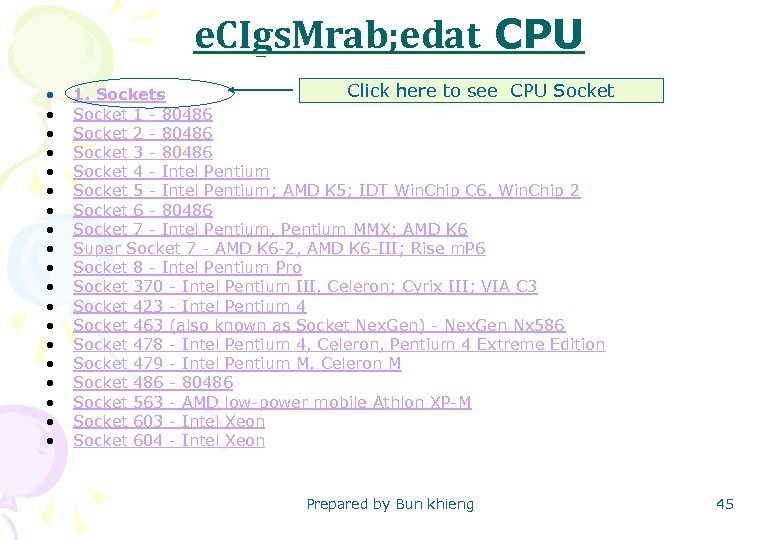 e. CIgs. Mrab; edat CPU • • • • • Click here to see CPU Socket 1. Sockets Socket 1 - 80486 Socket 2 - 80486 Socket 3 - 80486 Socket 4 - Intel Pentium Socket 5 - Intel Pentium; AMD K 5; IDT Win. Chip C 6, Win. Chip 2 Socket 6 - 80486 Socket 7 - Intel Pentium, Pentium MMX; AMD K 6 Super Socket 7 - AMD K 6 -2, AMD K 6 -III; Rise m. P 6 Socket 8 - Intel Pentium Pro Socket 370 - Intel Pentium III, Celeron; Cyrix III; VIA C 3 Socket 423 - Intel Pentium 4 Socket 463 (also known as Socket Nex. Gen) - Nex. Gen Nx 586 Socket 478 - Intel Pentium 4, Celeron, Pentium 4 Extreme Edition Socket 479 - Intel Pentium M, Celeron M Socket 486 - 80486 Socket 563 - AMD low-power mobile Athlon XP-M Socket 603 - Intel Xeon Socket 604 - Intel Xeon Prepared by Bun khieng 45
 e. CIgs. Mrab; edat CPU • Socket 754 - AMD single-processor systems usingle-channel DDRSDRAM, including AMD Athlon 64, Sempron, Turion 64 • Socket 771 - Intel Xeon • Socket 775 (also known as LGA 775 or Socket T) - Intel Pentium 4, Pentium D, Celeron D, Pentium Extreme Edition, Core 2 Duo, Core 2 Extreme • Socket 939 - AMD single-processor systems using dual-channel DDRSDRAM, including Athlon 64, Athlon 64 FX, Athlon 64 X 2, Opteron 100 series • Socket 940 - AMD single and multi-processor systems using DDRSDRAM, including AMD Opteron, Athlon 64 FX • Socket A (also known as Socket 462) - AMD Athlon, Duron, Athlon XP, Athlon XP-M, Athlon MP, and Sempron • Socket F (also known as Socket 1207) - Future AMD multi-processor systems using DDR 2 -SDRAM, including AMD Opteron, replaces Socket 940 • Socket AM 2 - AMD single-processor systems using DDR 2 -SDRAM, replaces Socket 754 and Socket 939 Prepared by Bun khieng 46
 e. CIgs. Mrab; edat CPU • Socket 4 x 4 - AMD dual-processor systems using DDR 2 -SDRAM, allows two dual-core microprocessors side by side (2 x AM 2 sockets are rumoured). • Socket P - Future Intel-based, replaces Socket 479 for notebooks (Expected 2007) • Socket S 1 - Future AMD-based mobile platforms using DDR 2 SDRAM, replaces Socket 754 in the mobile sector • PAC 418 - Intel Itanium • PAC 611 - Intel Itanium 2, HP PA-RISC 8800 and 8900 • FCPGA 6 - Intel Core Solo, Intel Core Duo, Intel Dual-Core Xeon and Intel Core 2 Duo • Slots • Slot 1 - Intel Celeron, Pentium III • Slot 2 - Intel Pentium II Xeon, Pentium III Xeon • Slot A - AMD Athlon • Slot B - DEC Alpha Prepared by Bun khieng 47
 • CPU – Company(intel, AMD, Cyrix…. . ) – Generation(Pentiun, Pentiun. II&III, Pentiun IV. . ) – Speed – Bus – Socket CPU – Slot CPU Prepared by Bun khieng 48
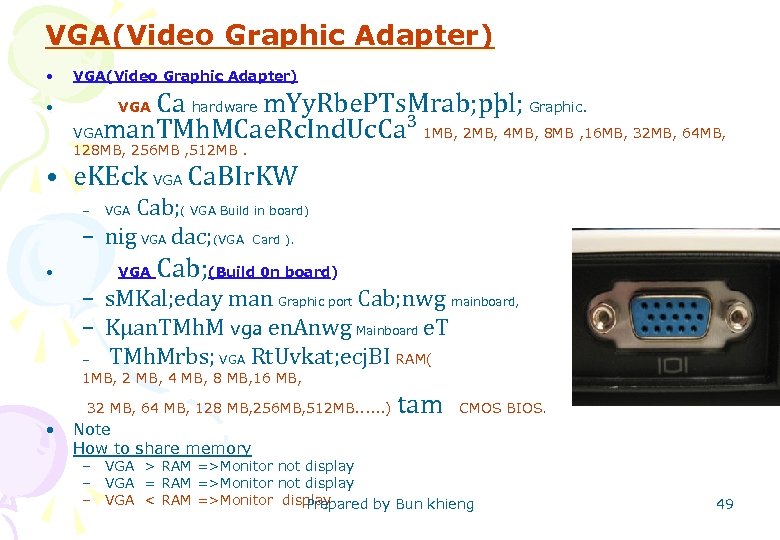 VGA(Video Graphic Adapter) • • VGA(Video Graphic Adapter) Ca hardware m. Yy. Rbe. PTs. Mrab; pþl; Graphic. VGAman. TMh. MCae. Rc. Ind. Uc. Ca³ 1 MB, 2 MB, 4 MB, 8 MB , 16 MB, 32 MB, 64 MB, VGA 128 MB, 256 MB , 512 MB. • e. KEck VGA Ca. BIr. KW Cab; ( VGA Build in board) – nig VGA dac; (VGA Card ). – • VGA Cab; (Build 0 n board) – s. MKal; eday man Graphic port Cab; nwg mainboard, – Kµan. TMh. M vga en. Anwg Mainboard e. T – TMh. Mrbs; VGA Rt. Uvkat; ecj. BI RAM( 1 MB, 2 MB, 4 MB, 8 MB, 16 MB, 32 MB, 64 MB, 128 MB, 256 MB, 512 MB. . . ) • Note How to share memory tam CMOS BIOS. – VGA > RAM =>Monitor not display – VGA = RAM =>Monitor not display – VGA < RAM =>Monitor display Prepared by Bun khieng 49
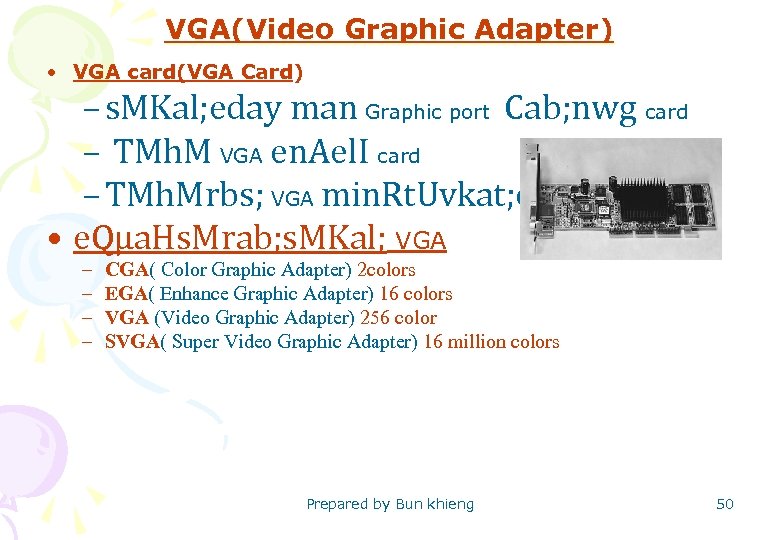 VGA(Video Graphic Adapter) • VGA card(VGA Card) – s. MKal; eday man Graphic port Cab; nwg card – TMh. M VGA en. Ael. I card – TMh. Mrbs; VGA min. Rt. Uvkat; ecj. BI RAMe. T. • e. Qµa. Hs. Mrab; s. MKal; VGA – – CGA( Color Graphic Adapter) 2 colors EGA( Enhance Graphic Adapter) 16 colors VGA (Video Graphic Adapter) 256 color SVGA( Super Video Graphic Adapter) 16 million colors Prepared by Bun khieng 50
 Check VGA memory • Start=> run =>dxdiag=>display Prepared by Bun khieng 51
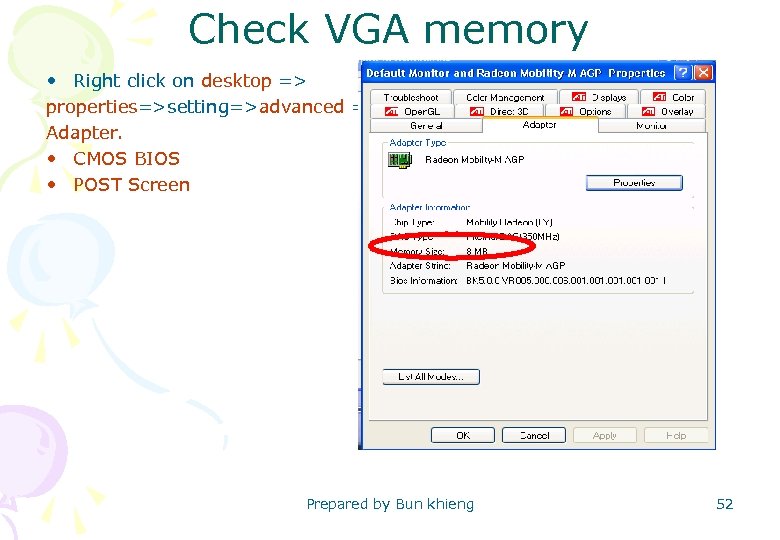 Check VGA memory • Right click on desktop => properties=>setting=>advanced => Adapter. • CMOS BIOS • POST Screen Prepared by Bun khieng 52
 Slot on computer • 5. Component On Mainboard • • en. Ael. I Mainboard rbs; computer man Slot c. Mn. Yn 3 Rbe. PT KW slot ISA, PCI nig AGP Edl³ -ISA(Industry Standard Architecture )KWCa Slot Edlman. BN’exµA Gacb. Ba¢Ún data )an 8 bit =>16 bit. -PCI(Peripheral Component Interconnect) KWCa Slot Edlman. BN’-s. Gacb. Ba¢Ún data )an 32 bit =>64 bit -AGP(Accelerated Graphic Port) KWCa. Slot. Edlman. BN’etñat. Gacb. Ba¢Úndata)an 128 bit . • -c. Me. Ba. H Slot ISA and Slot PCI e. Ke. Rb. Is. Mrab; connect Expansion Card d. Uc. Ca³ VGA Card, sound card, modem card, USB card, ** Note Network card, SCSI card, TV card, IDE card and other expansion card…………………. . • -c. Me. Ba. H Slot AGP e. Rb. Is. Mrab; connect Et VGA card Prepared by Bun khieng Rbe. PT AGP b: ue. NÑa. H. 53
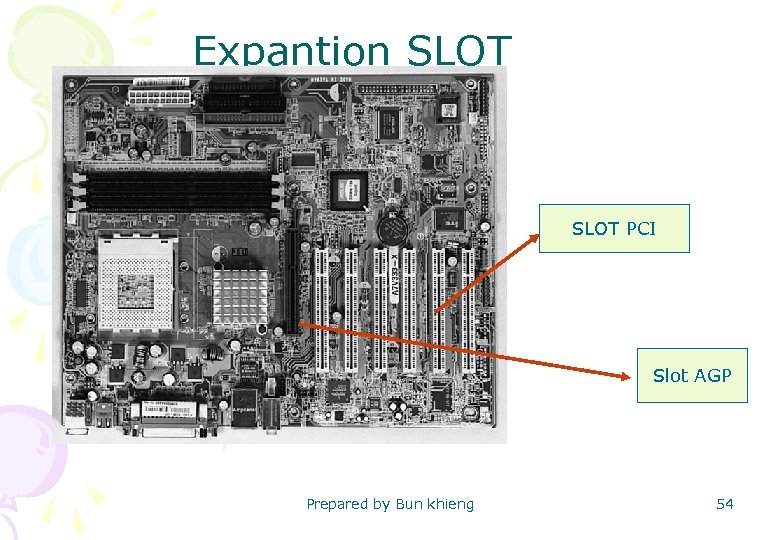 Expantion SLOT PCI Slot AGP Prepared by Bun khieng 54
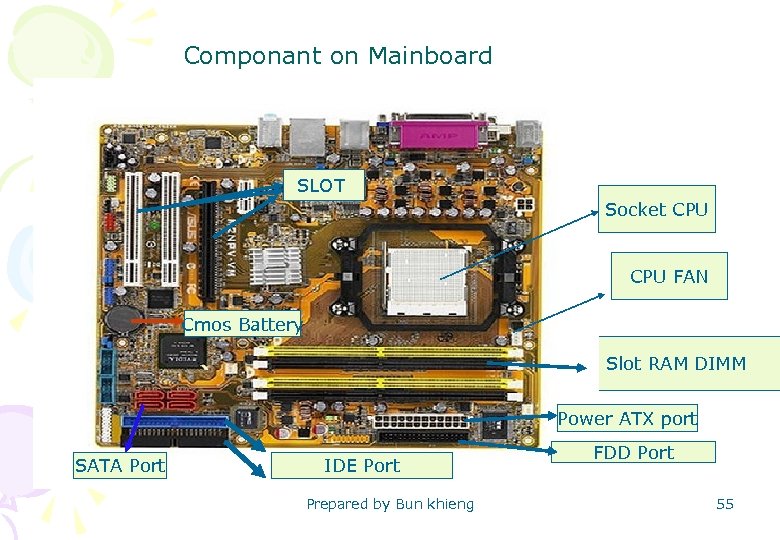 Componant on Mainboard SLOT Socket CPU FAN Cmos Battery Slot RAM DIMM Power ATX port SATA Port IDE Port Prepared by Bun khieng FDD Port 55
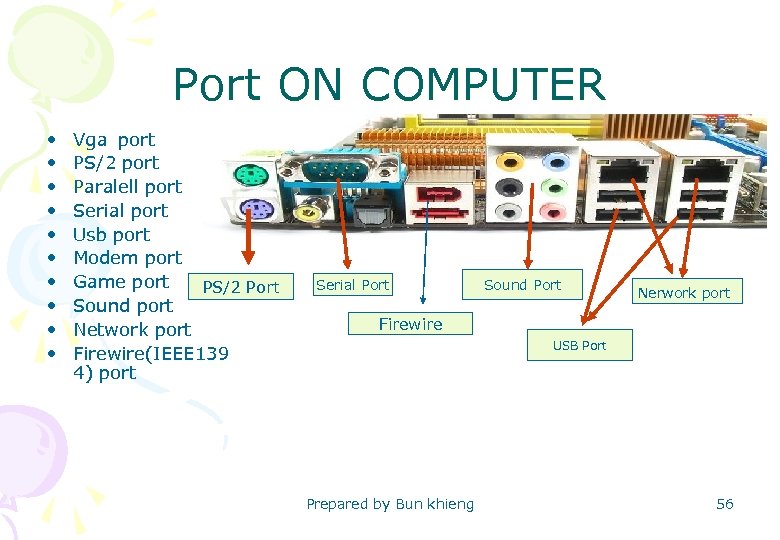 Port ON COMPUTER • • • Vga port PS/2 port Paralell port Serial port Usb port Modem port Game port PS/2 Port Sound port Network port Firewire(IEEE 139 4) port Serial Port Sound Port Nerwork port Firewire USB Port Prepared by Bun khieng 56
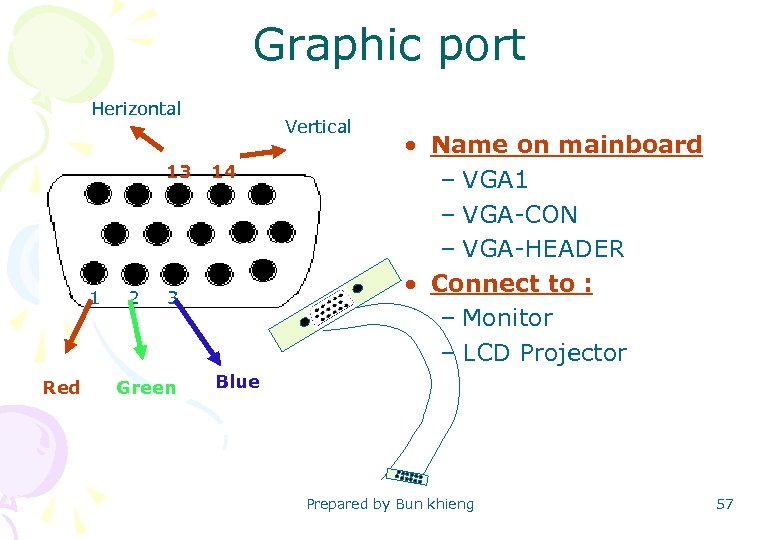 Graphic port Herizontal 13 1 Red 2 Vertical 14 3 Green • Name on mainboard – VGA 1 – VGA-CON – VGA-HEADER • Connect to : – Monitor – LCD Projector Blue Prepared by Bun khieng 57
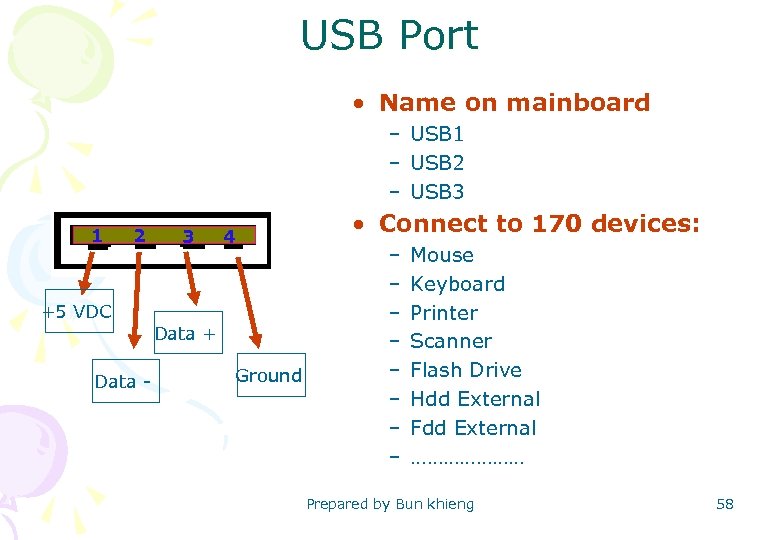 USB Port • Name on mainboard – USB 1 – USB 2 – USB 3 1 +5 VDC 2 3 • Connect to 170 devices: 4 Data + Data - Ground – – – – Mouse Keyboard Printer Scanner Flash Drive Hdd External Fdd External ………………… Prepared by Bun khieng 58
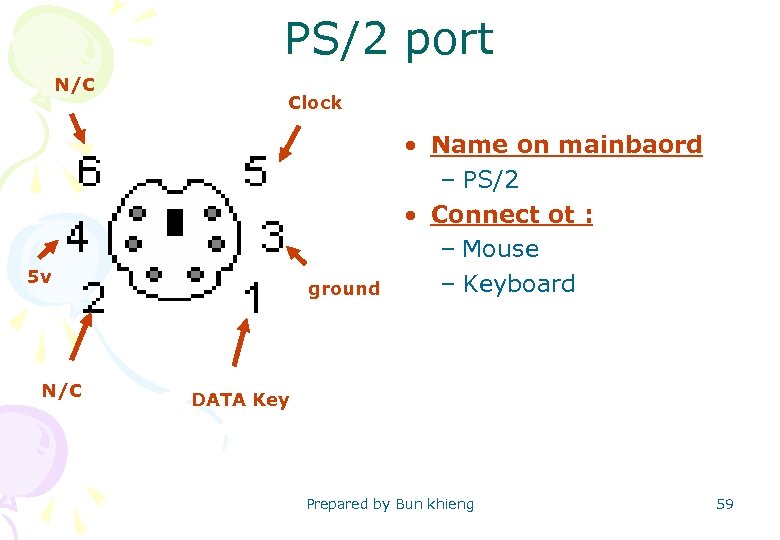 PS/2 port N/C Clock 5 v N/C ground • Name on mainbaord – PS/2 • Connect ot : – Mouse – Keyboard DATA Key Prepared by Bun khieng 59
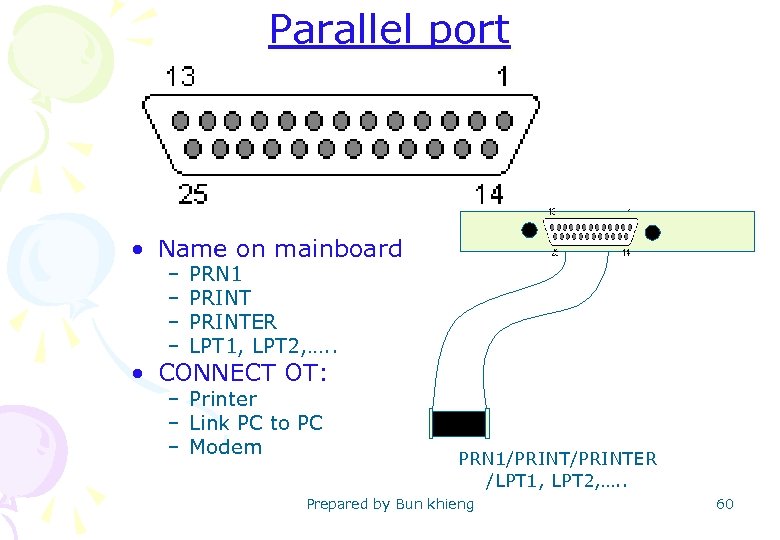 Parallel port • Name on mainboard – – PRN 1 PRINTER LPT 1, LPT 2, …. . • CONNECT OT: – Printer – Link PC to PC – Modem PRN 1/PRINTER /LPT 1, LPT 2, …. . Prepared by Bun khieng 60
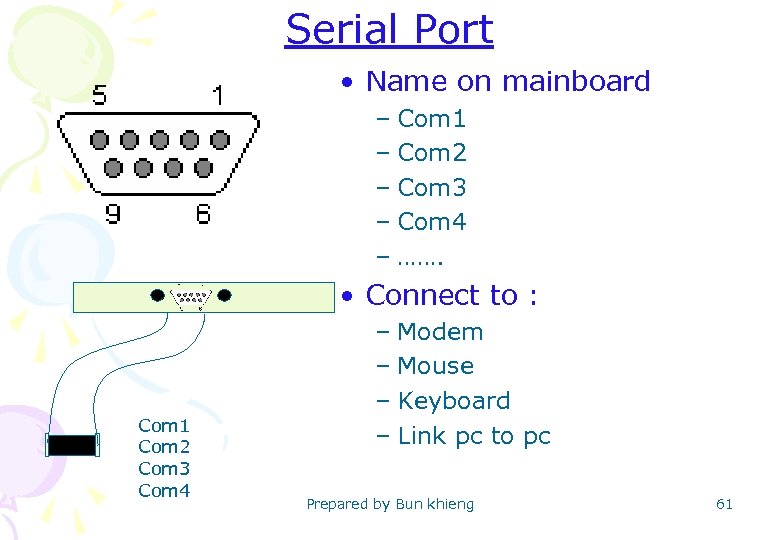 Serial Port • Name on mainboard – Com 1 – Com 2 – Com 3 – Com 4 – ……. • Connect to : Com 1 Com 2 Com 3 Com 4 – Modem – Mouse – Keyboard – Link pc to pc Prepared by Bun khieng 61
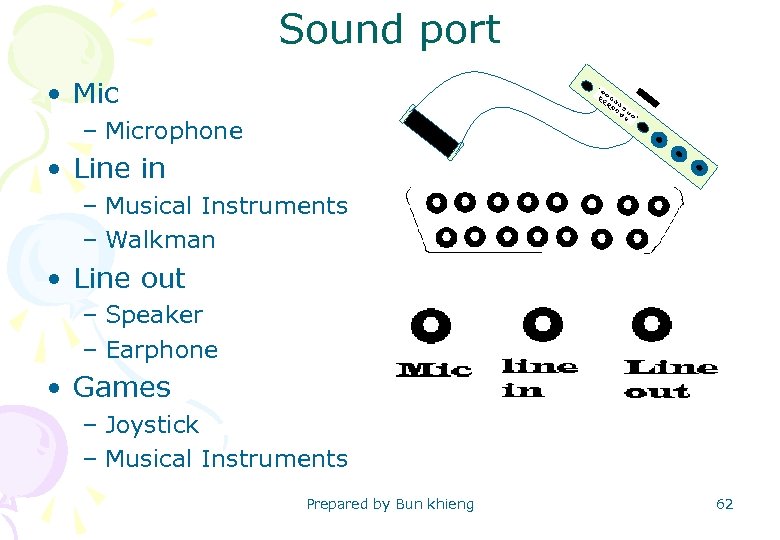 Sound port • Mic – Microphone • Line in – Musical Instruments – Walkman • Line out – Speaker – Earphone • Games – Joystick – Musical Instruments Prepared by Bun khieng 62
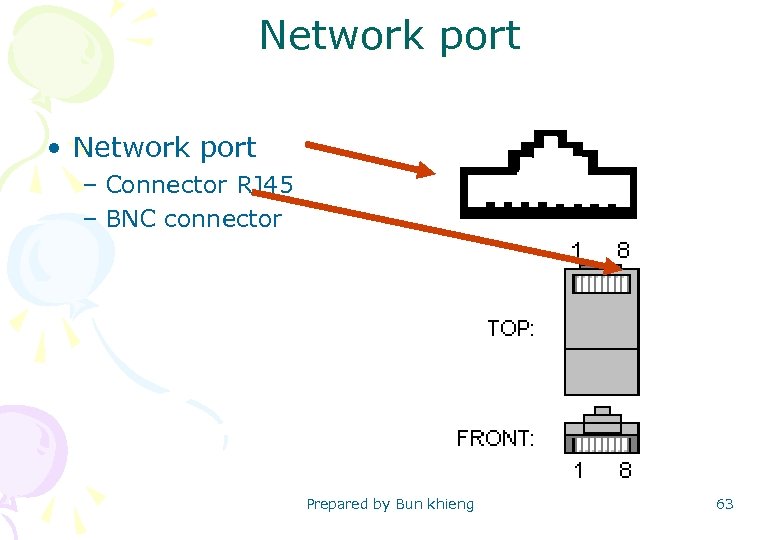 Network port • Network port – Connector RJ 45 – BNC connector Prepared by Bun khieng 63
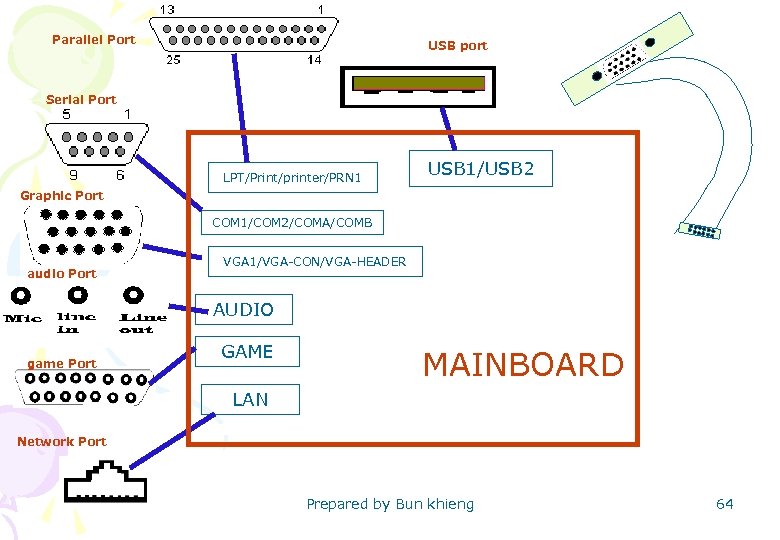 Parallel Port USB port Serial Port LPT/Print/printer/PRN 1 USB 1/USB 2 Graphic Port COM 1/COM 2/COMA/COMB audio Port VGA 1/VGA-CON/VGA-HEADER AUDIO game Port GAME MAINBOARD LAN Network Port Prepared by Bun khieng 64
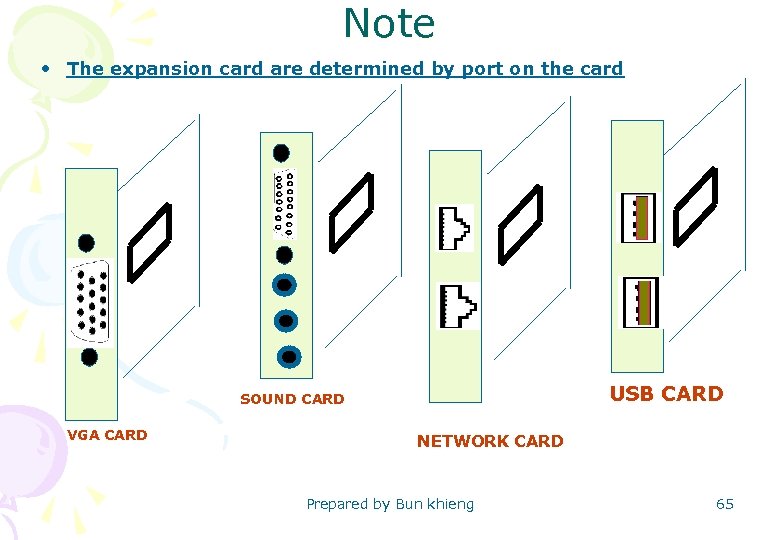 Note • The expansion card are determined by port on the card USB CARD SOUND CARD VGA CARD NETWORK CARD Prepared by Bun khieng 65
 JUMPER(JP) Ø How to use jumper Ø How to configure jumper Ø How to set jumper Ø How to clear cmos Prepared by Bun khieng 66
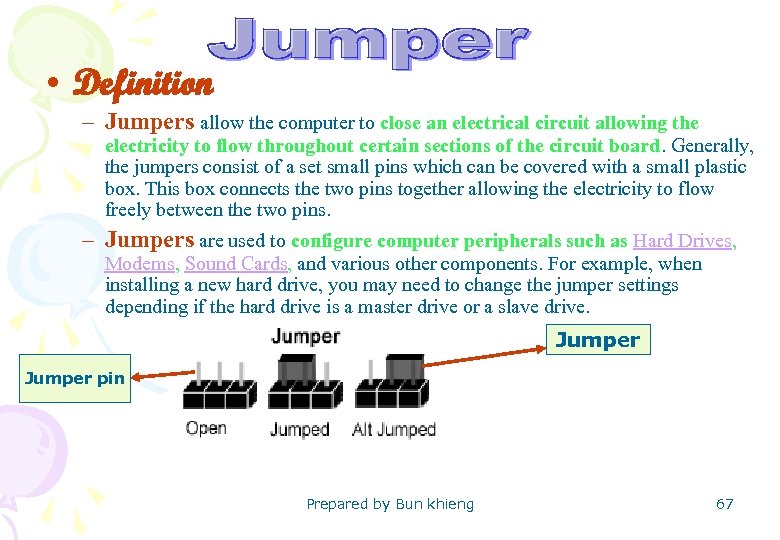 • Definition – Jumpers allow the computer to close an electrical circuit allowing the electricity to flow throughout certain sections of the circuit board. Generally, the jumpers consist of a set small pins which can be covered with a small plastic box. This box connects the two pins together allowing the electricity to flow freely between the two pins. – Jumpers are used to configure computer peripherals such as Hard Drives, Modems, Sound Cards, and various other components. For example, when installing a new hard drive, you may need to change the jumper settings depending if the hard drive is a master drive or a slave drive. Jumper pin Prepared by Bun khieng 67
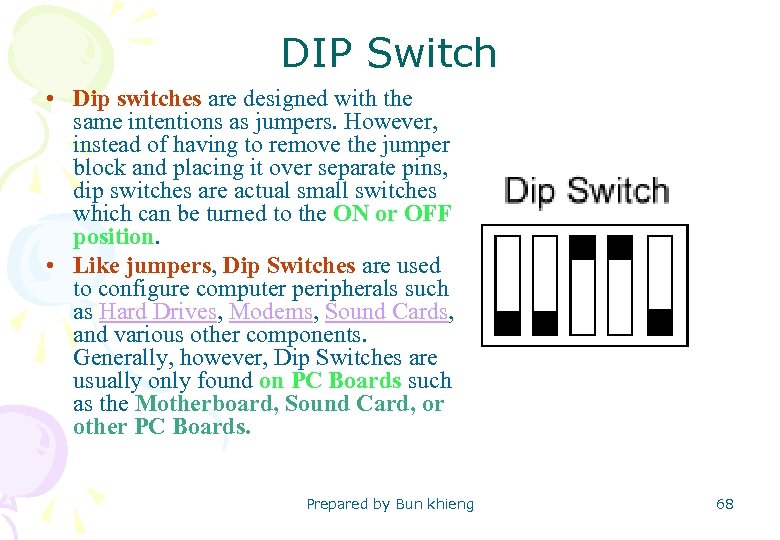 DIP Switch • Dip switches are designed with the same intentions as jumpers. However, instead of having to remove the jumper block and placing it over separate pins, dip switches are actual small switches which can be turned to the ON or OFF position. • Like jumpers, Dip Switches are used to configure computer peripherals such as Hard Drives, Modems, Sound Cards, and various other components. Generally, however, Dip Switches are usually only found on PC Boards such as the Motherboard, Sound Card, or other PC Boards. Prepared by Bun khieng 68
 Jumper • Hardware that has jumper – – – – 1. Hard Disk CD-ROM CD-RW DVD-ROM DVD-RW Mainboard Expansion Cards Jumper on Hard Disk They use jumper on HDD to configure the funtion on the HDD when we connect the HDD to Mainboard. One HDD or more than one HDDs to the mainboard. a. Names of Jumper on the HDD - Master(M): Used to configure First running of HDD -Slave (S): Used to cofigure the second running of HDD -Cable Selector(CS): Used to configure the last Running of HDD Prepared by Bun khieng 69
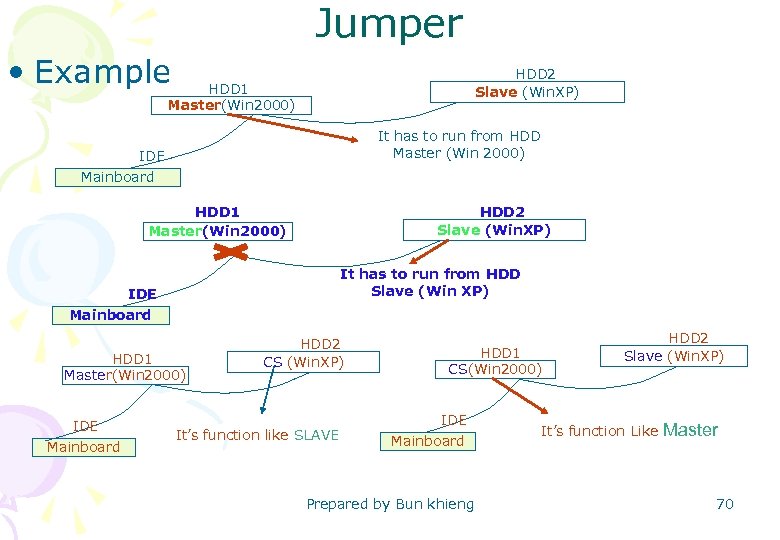 Jumper • Example HDD 2 Slave (Win. XP) HDD 1 Master(Win 2000) It has to run from HDD Master (Win 2000) IDE Mainboard HDD 1 Master(Win 2000) HDD 2 Slave (Win. XP) It has to run from HDD Slave (Win XP) IDE Mainboard HDD 1 Master(Win 2000) IDE Mainboard HDD 2 CS (Win. XP) It’s function like SLAVE HDD 1 CS(Win 2000) IDE Mainboard Prepared by Bun khieng HDD 2 Slave (Win. XP) It’s function Like Master 70
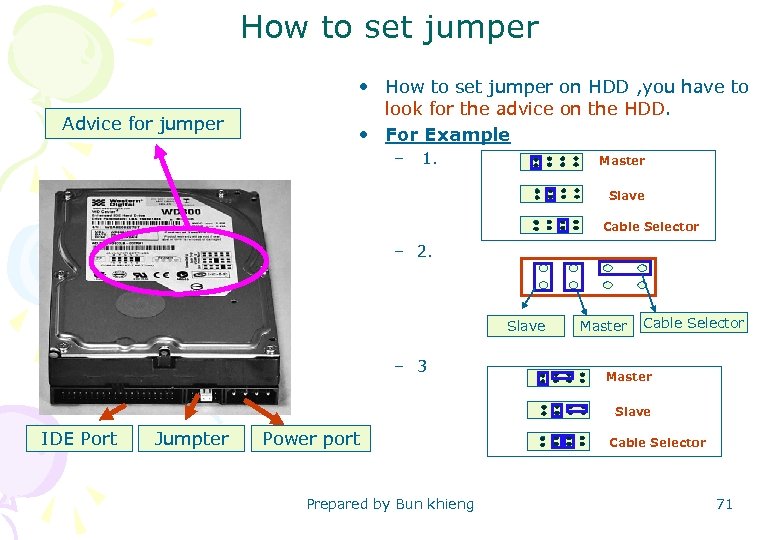 How to set jumper Advice for jumper • How to set jumper on HDD , you have to look for the advice on the HDD. • For Example – 1. Master Slave Cable Selector – 2. Slave – 3 Master Cable Selector Master Slave IDE Port Jumpter Power port Prepared by Bun khieng Cable Selector 71
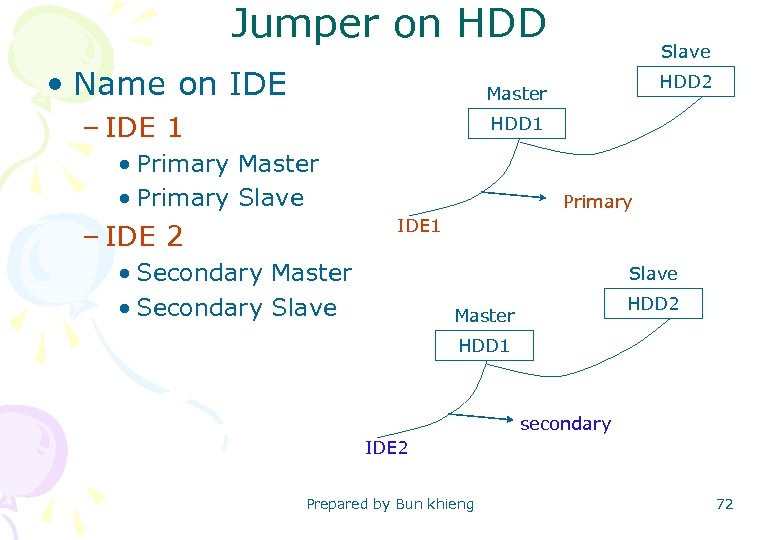 Jumper on HDD • Name on IDE Slave HDD 2 Master – IDE 1 HDD 1 • Primary Master • Primary Slave Primary IDE 1 – IDE 2 • Secondary Master • Secondary Slave HDD 2 Master HDD 1 secondary IDE 2 Prepared by Bun khieng 72
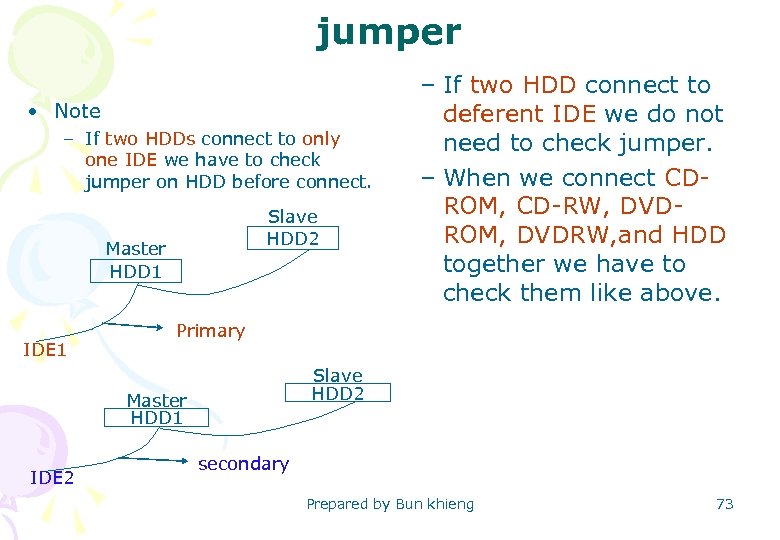 jumper • Note – If two HDDs connect to only one IDE we have to check jumper on HDD before connect. Slave HDD 2 Master HDD 1 IDE 1 Primary Slave HDD 2 Master HDD 1 IDE 2 – If two HDD connect to deferent IDE we do not need to check jumper. – When we connect CDROM, CD-RW, DVDROM, DVDRW, and HDD together we have to check them like above. secondary Prepared by Bun khieng 73
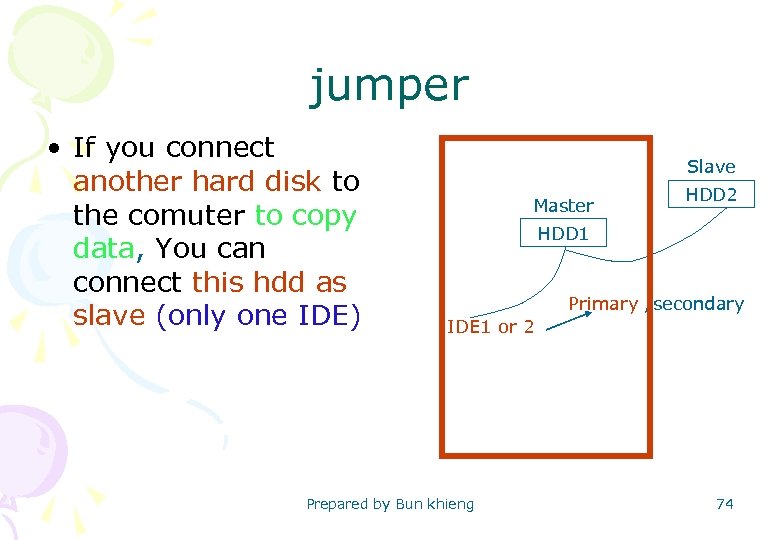 jumper • If you connect another hard disk to the comuter to copy data, You can connect this hdd as slave (only one IDE) Slave Master HDD 2 HDD 1 Primary /secondary IDE 1 or 2 Prepared by Bun khieng 74
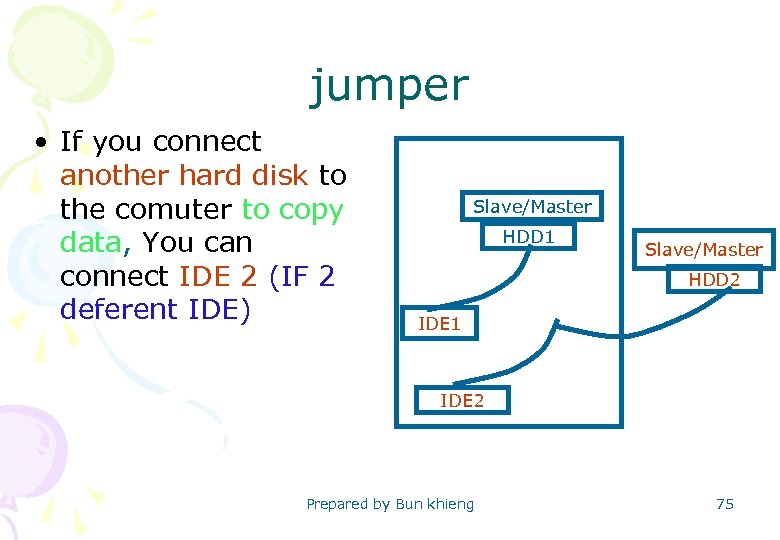 jumper • If you connect another hard disk to the comuter to copy data, You can connect IDE 2 (IF 2 deferent IDE) Slave/Master HDD 1 Slave/Master HDD 2 IDE 1 IDE 2 Prepared by Bun khieng 75
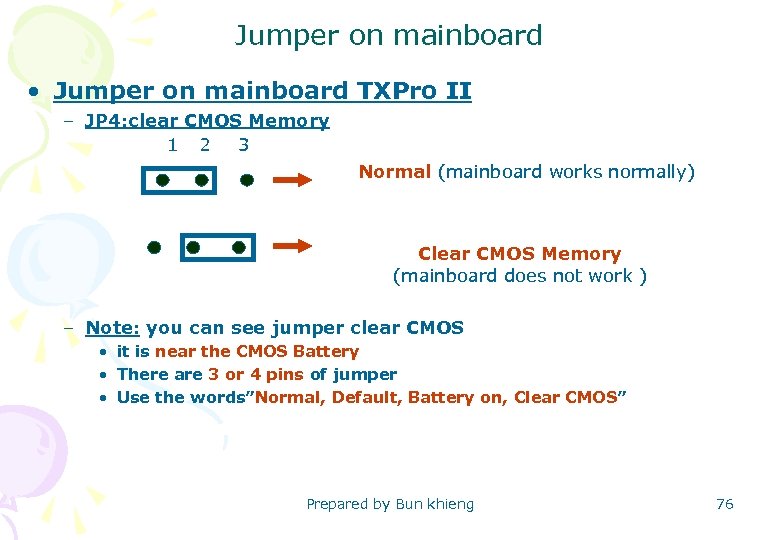 Jumper on mainboard • Jumper on mainboard TXPro II – JP 4: clear CMOS Memory 1 2 3 Normal (mainboard works normally) Clear CMOS Memory (mainboard does not work ) – Note: you can see jumper clear CMOS • it is near the CMOS Battery • There are 3 or 4 pins of jumper • Use the words”Normal, Default, Battery on, Clear CMOS” Prepared by Bun khieng 76
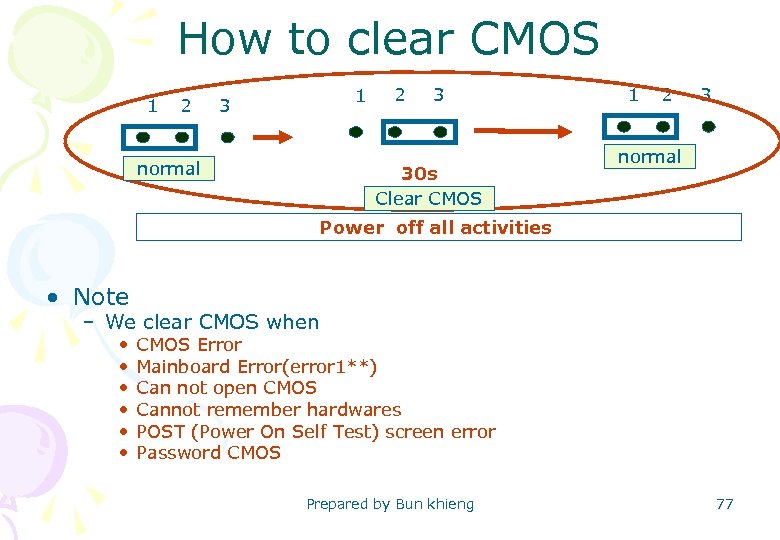 How to clear CMOS 1 2 1 3 normal 2 3 30 s Clear CMOS 1 2 3 normal Power off all activities • Note – We clear CMOS when • • • CMOS Error Mainboard Error(error 1**) Can not open CMOS Cannot remember hardwares POST (Power On Self Test) screen error Password CMOS Prepared by Bun khieng 77
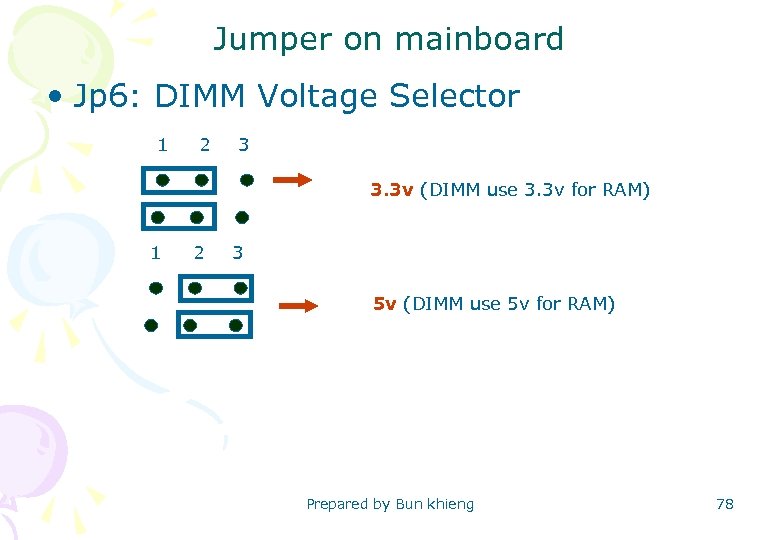 Jumper on mainboard • Jp 6: DIMM Voltage Selector 1 2 3 3. 3 v (DIMM use 3. 3 v for RAM) 1 2 3 5 v (DIMM use 5 v for RAM) Prepared by Bun khieng 78
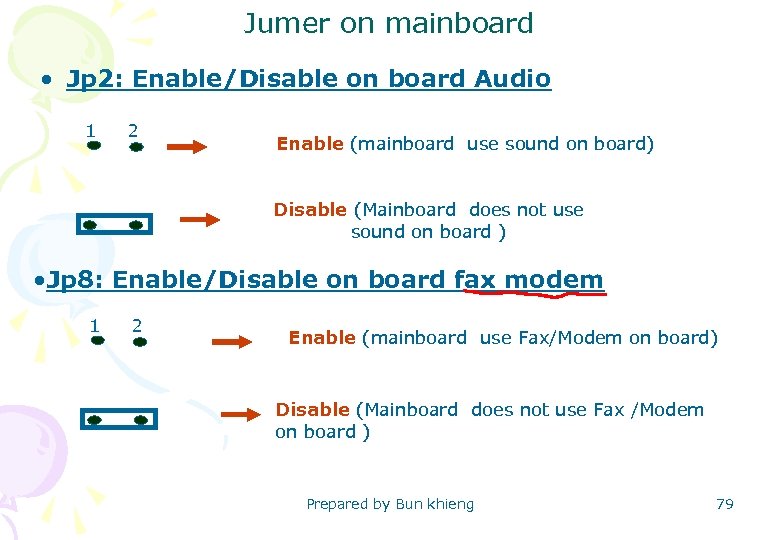 Jumer on mainboard • Jp 2: Enable/Disable on board Audio 1 2 Enable (mainboard use sound on board) Disable (Mainboard does not use sound on board ) • Jp 8: Enable/Disable on board fax modem 1 2 Enable (mainboard use Fax/Modem on board) Disable (Mainboard does not use Fax /Modem on board ) Prepared by Bun khieng 79
 Jumper on mainboard • Note – If sound build on board and mainboard has jumper for sound when we install sound card we have to disable sound on board. – If sound build on board but mainboard has no jumper when we install sound card it will disable on board sound automatically. – If sound build on board but mainboard has no jumper some maimbord, when we install sound card they all work but we have to select Driver that we want to use. Prepared by Bun khieng 80
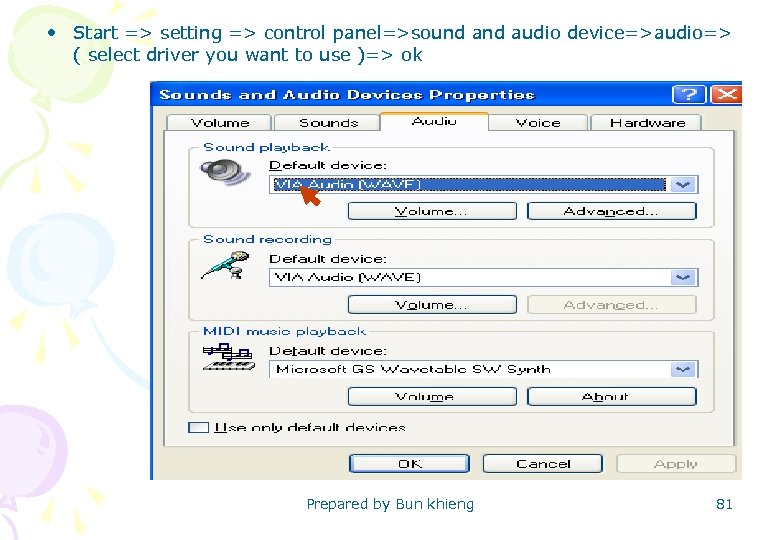 • Start => setting => control panel=>sound audio device=>audio=> ( select driver you want to use )=> ok Prepared by Bun khieng 81
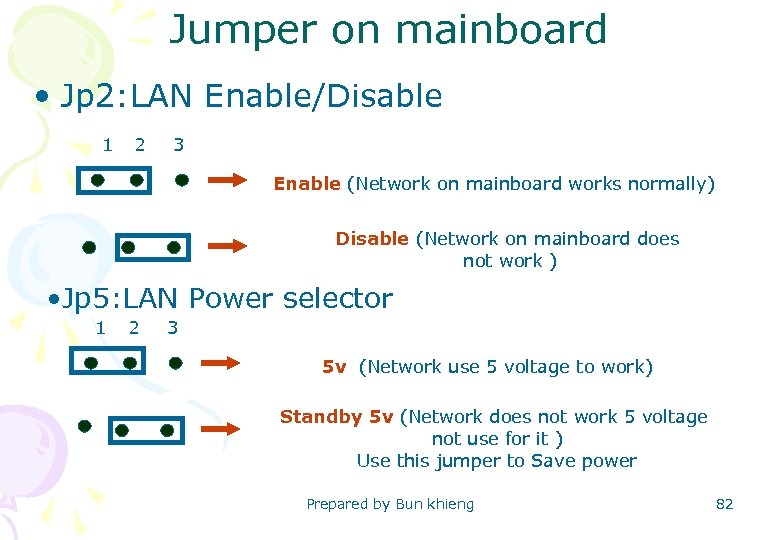 Jumper on mainboard • Jp 2: LAN Enable/Disable 1 2 3 Enable (Network on mainboard works normally) Disable (Network on mainboard does not work ) • Jp 5: LAN Power selector 1 2 3 5 v (Network use 5 voltage to work) Standby 5 v (Network does not work 5 voltage not use for it ) Use this jumper to Save power Prepared by Bun khieng 82
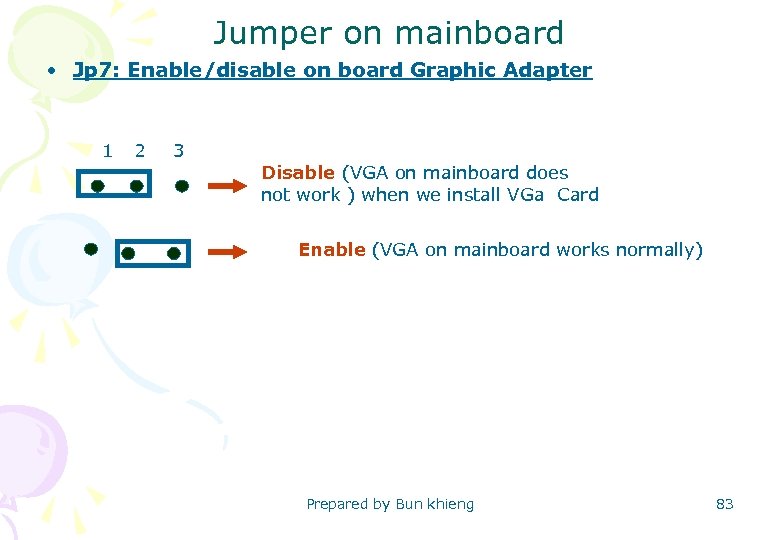 Jumper on mainboard • Jp 7: Enable/disable on board Graphic Adapter 1 2 3 Disable (VGA on mainboard does not work ) when we install VGa Card Enable (VGA on mainboard works normally) Prepared by Bun khieng 83
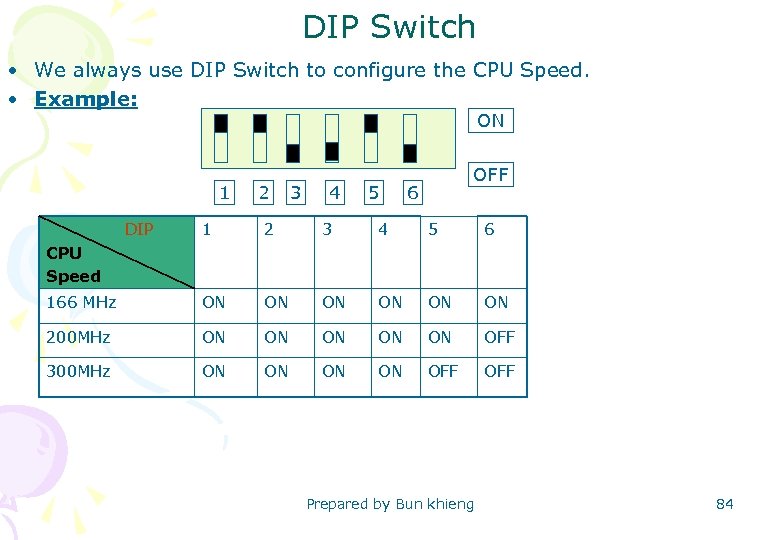 DIP Switch • We always use DIP Switch to configure the CPU Speed. • Example: ON 1 2 3 4 5 OFF 6 DIP CPU Speed 1 2 3 4 5 6 166 MHz ON ON ON 200 MHz ON ON ON OFF 300 MHz ON ON OFF Prepared by Bun khieng 84
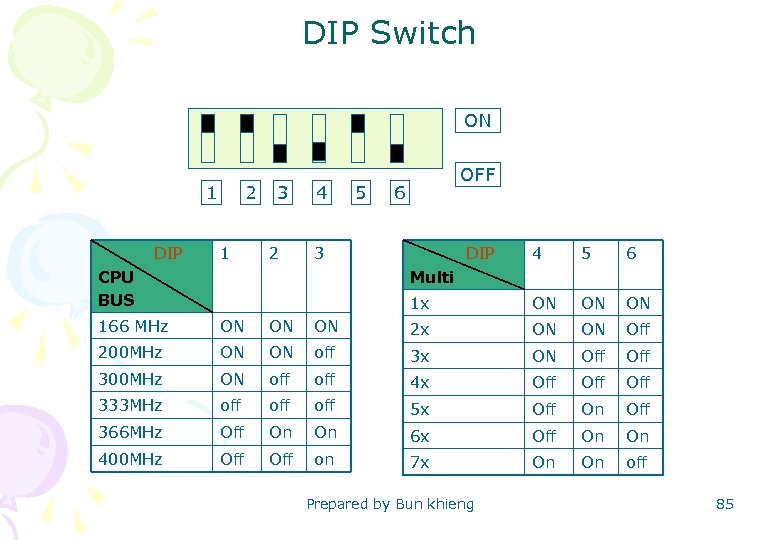 DIP Switch ON 1 2 3 DIP CPU BUS 1 2 166 MHz ON ON 200 MHz ON 300 MHz 4 3 5 OFF 6 DIP Multi 4 5 6 1 x ON ON 2 x ON ON Off ON off 3 x ON Off ON off 4 x Off Off 333 MHz off off 5 x Off On Off 366 MHz Off On On 6 x Off On On 400 MHz Off on 7 x On On off Prepared by Bun khieng 85
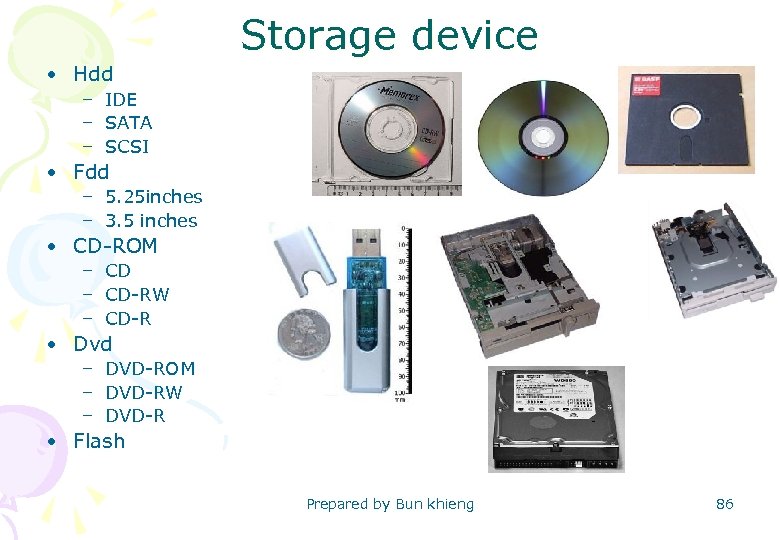 Storage device • Hdd – IDE – SATA – SCSI • Fdd – 5. 25 inches – 3. 5 inches • CD-ROM – CD-RW – CD-R • Dvd – DVD-ROM – DVD-RW – DVD-R • Flash Prepared by Bun khieng 86
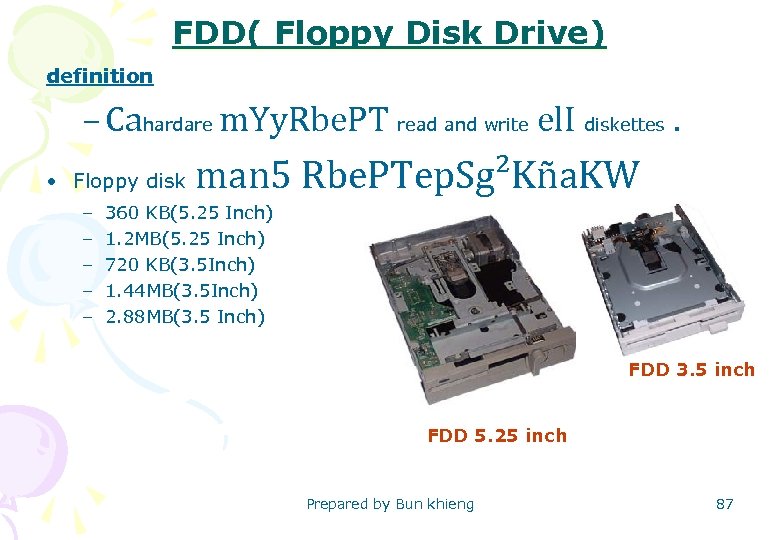 FDD( Floppy Disk Drive) definition – Cahardare m. Yy. Rbe. PT read and write el. I diskettes. • Floppy disk – – – man 5 Rbe. PTep. Sg²Kña. KW 360 KB(5. 25 Inch) 1. 2 MB(5. 25 Inch) 720 KB(3. 5 Inch) 1. 44 MB(3. 5 Inch) 2. 88 MB(3. 5 Inch) FDD 3. 5 inch FDD 5. 25 inch Prepared by Bun khieng 87
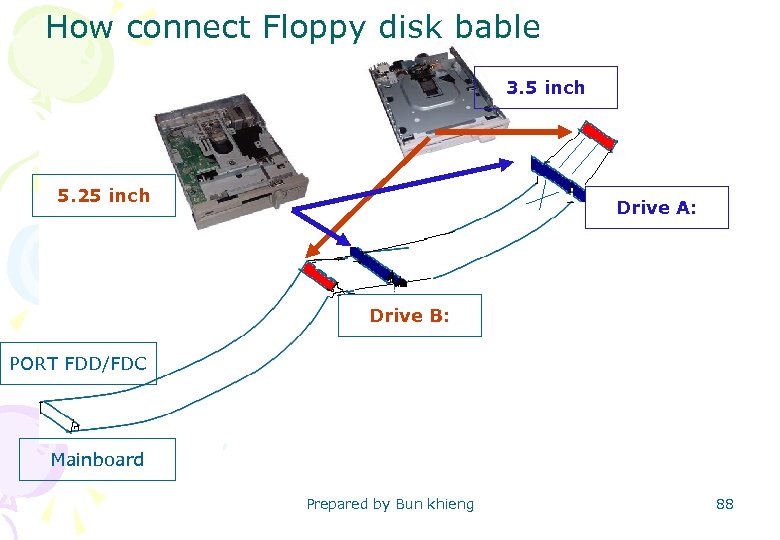 How connect Floppy disk bable 3. 5 inch 5. 25 inch Drive A: Drive B: PORT FDD/FDC Mainboard Prepared by Bun khieng 88
 Hard Disk Drive • Hard disk is the hardware that use to store data perminantly. there are three king of hard Disk – IDE hard Disk – Sata Hard Disk – SCSI Hard Disk Prepared by Bun khieng 89
 INSTALLATION HARDWARE n n n n Install power supply Install mainboard Install RAM Install CPU, CPU FAN Install HDD, FDD, CD-ROM, CD-RW, DVD-ROM DVDRW. Install Expansion card and bracket Install jumper Prepared by Bun khieng 90
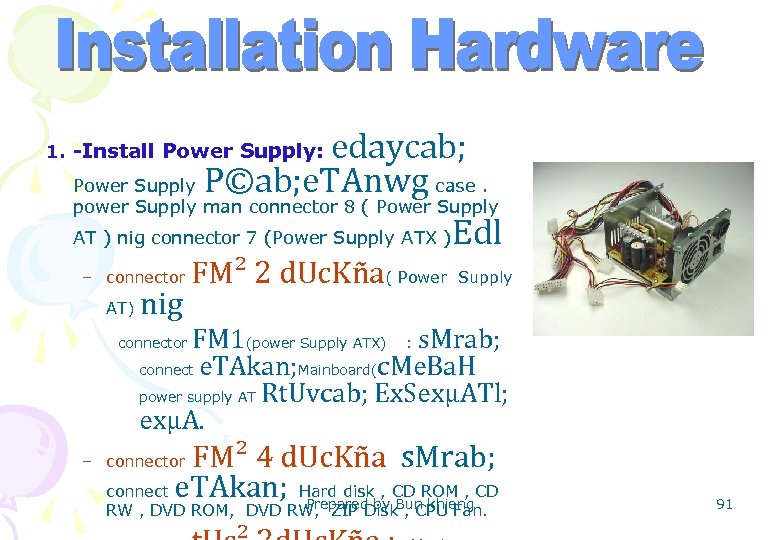 edaycab; Power Supply P©ab; e. TAnwg case. power Supply man connector 8 ( Power Supply AT ) nig connector 7 (Power Supply ATX )Edl 1. -Install Power Supply: – connector AT) nig FM² 2 d. Uc. Kña( Power Supply FM 1(power Supply ATX) : s. Mrab; connect e. TAkan; Mainboard(c. Me. Ba. H power supply AT Rt. Uvcab; Ex. SexµATl; exµA. connector FM² 4 d. Uc. Kña s. Mrab; connect e. TAkan; Hard disk , CD ROM , CD Prepared by Bun khieng – connector RW , DVD ROM, DVD RW, ZIP Disk , CPU Fan. 91
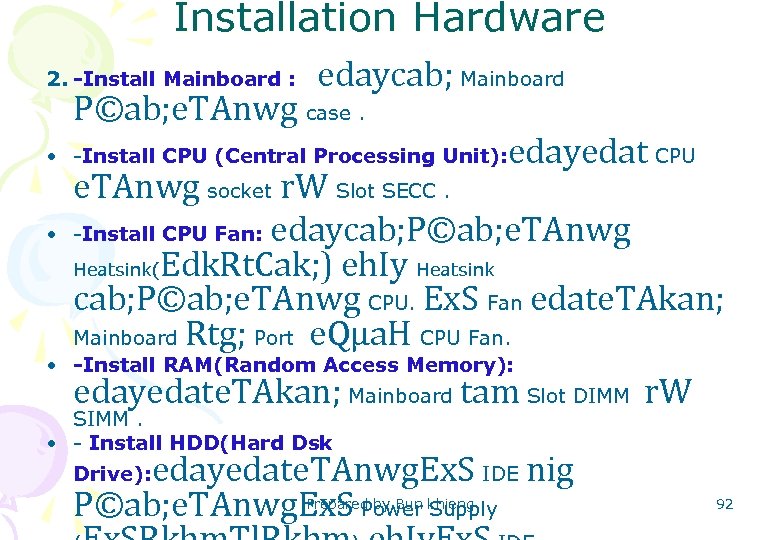 Installation Hardware 2. -Install Mainboard : edaycab; Mainboard P©ab; e. TAnwg case. • -Install CPU (Central Processing Unit): • edayedat CPU e. TAnwg socket r. W Slot SECC. -Install CPU Fan: edaycab; P©ab; e. TAnwg Heatsink(Edk. Rt. Cak; ) eh. Iy Heatsink cab; P©ab; e. TAnwg CPU. Ex. S Fan edate. TAkan; Mainboard Rtg; Port e. Qµa. H CPU Fan. • -Install RAM(Random Access Memory): edayedate. TAkan; Mainboard tam Slot DIMM r. W SIMM. • - Install HDD(Hard Dsk edayedate. TAnwg. Ex. S IDE nig P©ab; e. TAnwg. Ex. S Power Supply Drive): Prepared by Bun khieng 92
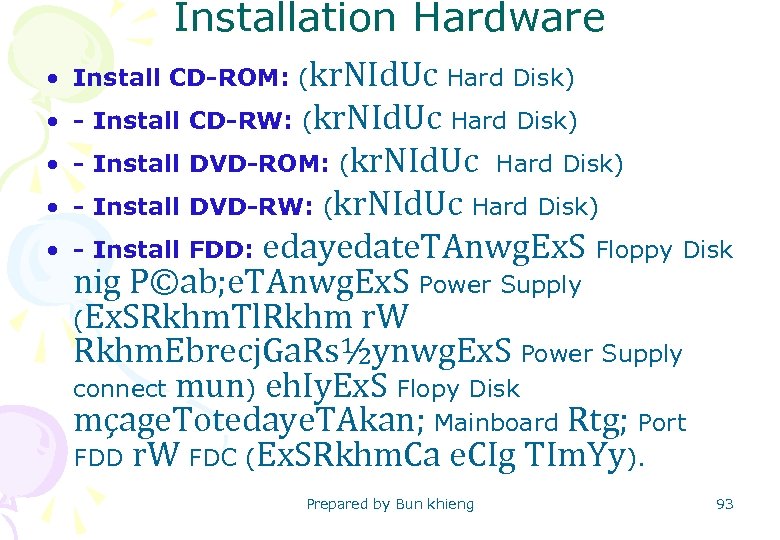 Installation Hardware • Install CD-ROM: (kr. NId. Uc Hard Disk) • - Install CD-RW: (kr. NId. Uc Hard Disk) • - Install DVD-ROM: (kr. NId. Uc Hard Disk) • - Install DVD-RW: (kr. NId. Uc Hard Disk) • - Install FDD: edayedate. TAnwg. Ex. S Floppy Disk nig P©ab; e. TAnwg. Ex. S Power Supply (Ex. SRkhm. Tl. Rkhm r. W Rkhm. Ebrecj. Ga. Rs½ynwg. Ex. S Power Supply connect mun) eh. Iy. Ex. S Flopy Disk mçage. Totedaye. TAkan; Mainboard Rtg; Port FDD r. W FDC (Ex. SRkhm. Ca e. CIg TIm. Yy). Prepared by Bun khieng 93
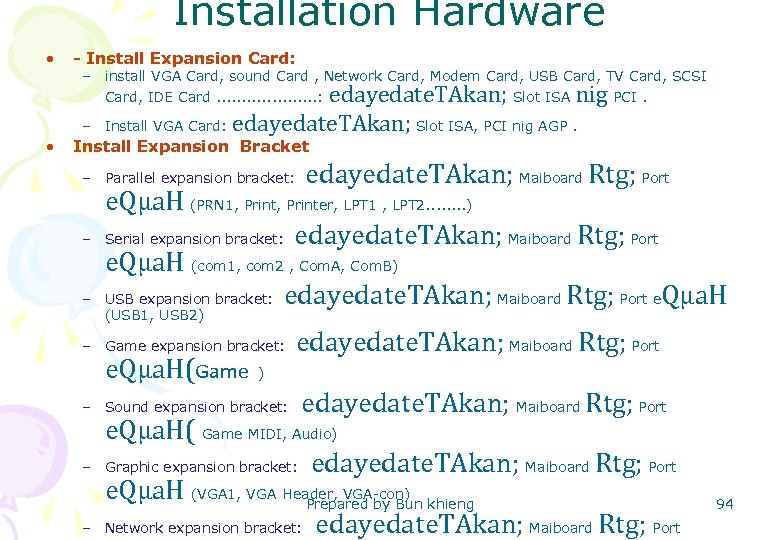 Installation Hardware • - Install Expansion Card: – install VGA Card, sound Card , Network Card, Modem Card, USB Card, TV Card, SCSI Card, IDE Card. . . . . : Slot ISA PCI. – • edayedate. TAkan; nig Install VGA Card: edayedate. TAkan; Slot ISA, PCI nig AGP. Install Expansion Bracket – Parallel expansion bracket: – – e. Qµa. H (PRN 1, Printer, LPT 1 , LPT 2. . . . ) Serial expansion bracket: edayedate. TAkan; Maiboard Rtg; Port e. Qµa. H (com 1, com 2 , Com. A, Com. B) USB expansion bracket: edayedate. TAkan; Maiboard Rtg; Port e. Qµa. H (USB 1, USB 2) – Game expansion bracket: e. Qµa. H(Game ) – Sound expansion bracket: – – edayedate. TAkan; Maiboard Rtg; Port e. Qµa. H( Game MIDI, Audio) Graphic expansion bracket: edayedate. TAkan; Maiboard Rtg; Port e. Qµa. H (VGA 1, VGA Header, VGA-con) Prepared by Bun khieng Network expansion bracket: edayedate. TAkan; Maiboard Rtg; Port 94
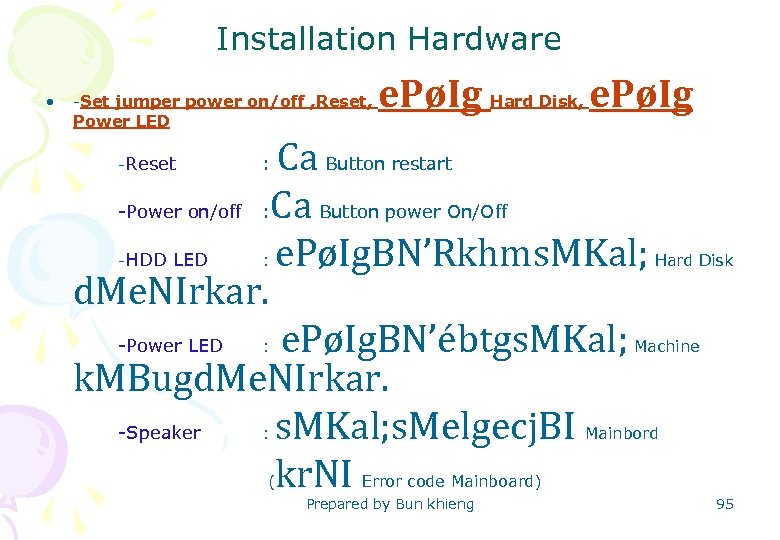 Installation Hardware • -Set jumper power on/off , Reset, Power LED e. PøIg Hard Disk, e. PøIg Ca Button restart -Power on/off : Ca Button power On/Off HDD LED e. PøIg. BN’Rkhms. MKal; d. Me. NIrkar. -Power LED e. PøIg. BN’ébtgs. MKal; k. MBugd. Me. NIrkar. -Speaker s. MKal; s. Melgecj. BI kr. NI -Reset - : : Machine : ( Hard Disk Mainbord Error code Mainboard) Prepared by Bun khieng 95
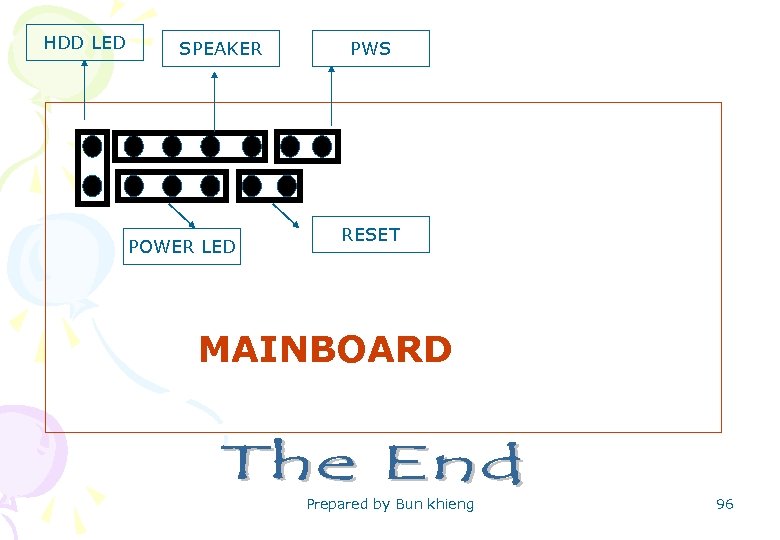 HDD LED SPEAKER POWER LED PWS RESET MAINBOARD Prepared by Bun khieng 96
 CHECK SYSTEM HARDWARE Why don’t hardware work? Why doesn’t monitor display? Solve the problem of hardware Know the message when POST Screen Prepared by Bun khieng 97
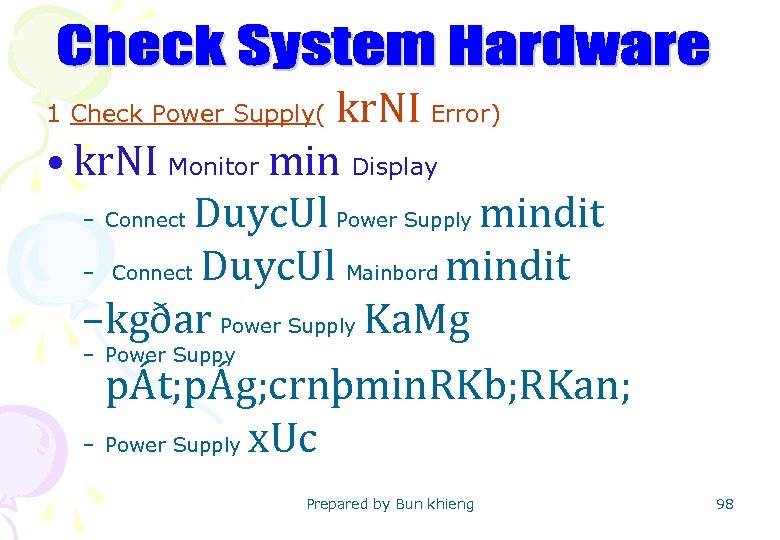 kr. NI Error) • kr. NI Monitor min Display – Connect Duyc. Ul Power Supply mindit – Connect Duyc. Ul Mainbord mindit –kgðar Power Supply Ka. Mg 1 Check Power Supply( – Power Suppy pÁt; pÁg; crnþmin. RKb; RKan; – Power Supply x. Uc Prepared by Bun khieng 98
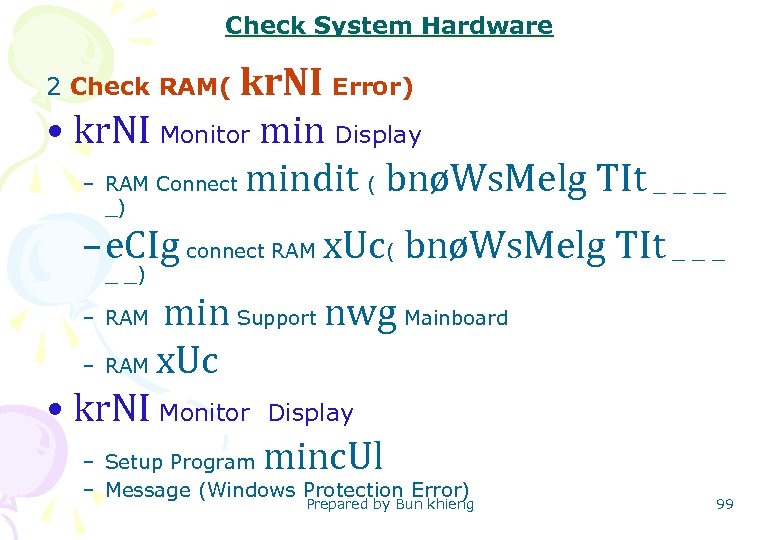 Check System Hardware kr. NI Error) • kr. NI Monitor min Display – RAM Connect mindit ( bnøWs. Melg TIt _ _ 2 Check RAM( _) – e. CIg connect RAM x. Uc( bnøWs. Melg TIt _ _ _) min Support nwg Mainboard – RAM x. Uc • kr. NI Monitor Display – Setup Program minc. Ul – RAM – Message (Windows Protection Error) Prepared by Bun khieng 99
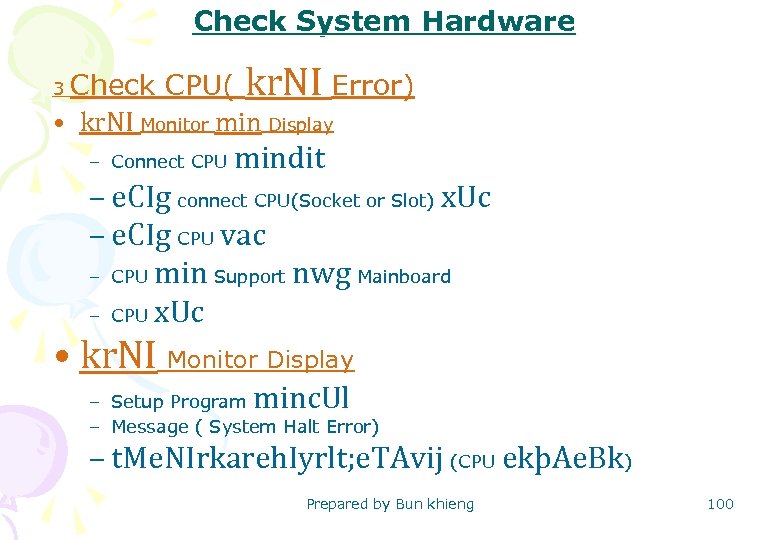 Check System Hardware 3 Check CPU( kr. NI Error) • kr. NI Monitor min Display – Connect CPU mindit – e. CIg connect CPU(Socket or Slot) x. Uc – e. CIg CPU vac – CPU min Support nwg Mainboard – CPU x. Uc • kr. NI Monitor Display minc. Ul – Setup Program – Message ( System Halt Error) – t. Me. NIrkareh. Iyrlt; e. TAvij (CPU ekþAe. Bk) Prepared by Bun khieng 100
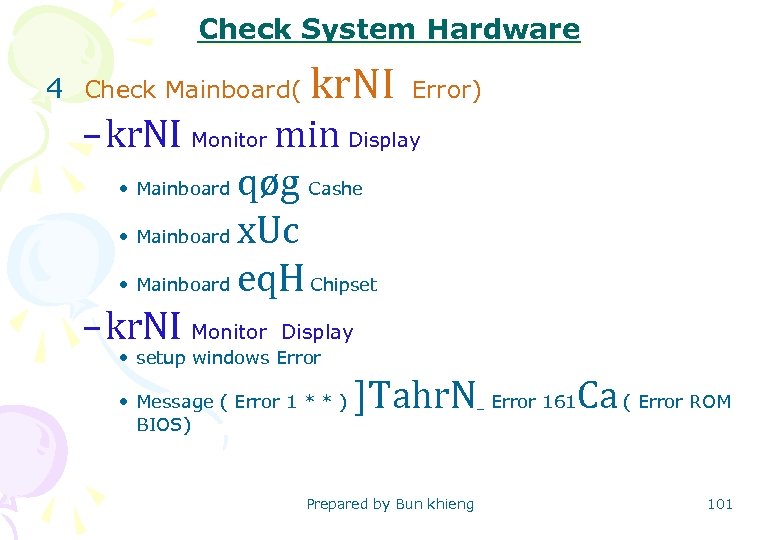 Check System Hardware 4 Check Mainboard( kr. NI Error) – kr. NI Monitor min Display • Mainboard qøg Cashe • Mainboard x. Uc • Mainboard eq. H Chipset – kr. NI Monitor Display • setup windows Error • Message ( Error 1 * * ) BIOS) ]Tahr. N_ Error 161 Ca ( Error ROM Prepared by Bun khieng 101
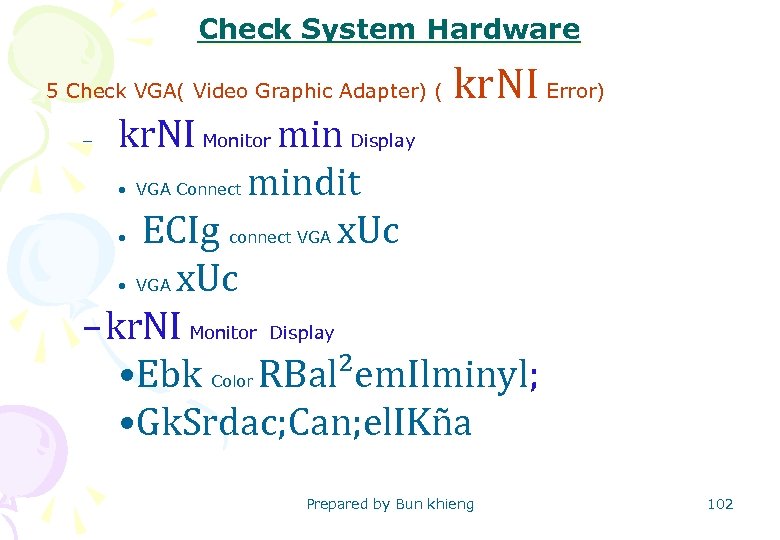 Check System Hardware 5 Check VGA( Video Graphic Adapter) ( kr. NI Error) kr. NI Monitor min Display • mindit • ECIg x. Uc • x. Uc – kr. NI Monitor Display • Ebk RBal²em. Ilminyl; • Gk. Srdac; Can; el. IKña – VGA Connect connect VGA Color Prepared by Bun khieng 102
 Check System Hardware 6 Check Monitor( kr. NI Error) – Check CPU – Check RAM – Check Mainboard – Check VGA – Check Power Supply Prepared by Bun khieng 103
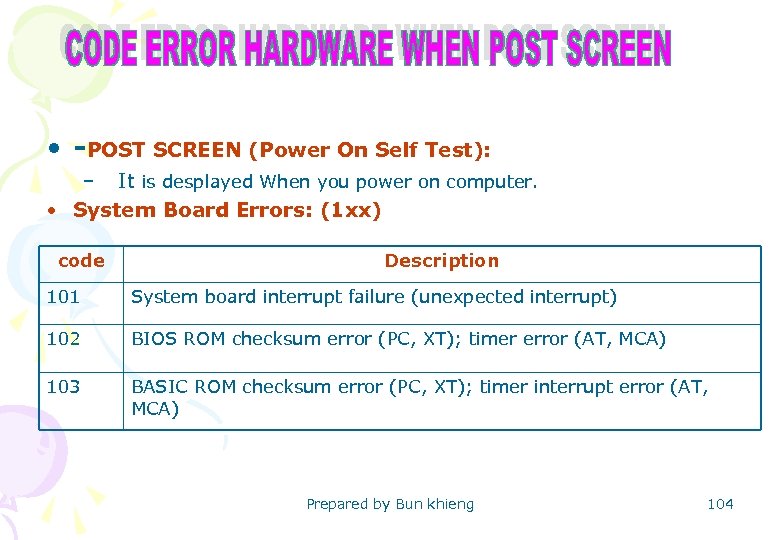 • -POST SCREEN (Power On Self Test): – It is desplayed When you power on computer. • System Board Errors: (1 xx) code Description 101 System board interrupt failure (unexpected interrupt) 102 BIOS ROM checksum error (PC, XT); timer error (AT, MCA) 103 BASIC ROM checksum error (PC, XT); timer interrupt error (AT, MCA) Prepared by Bun khieng 104
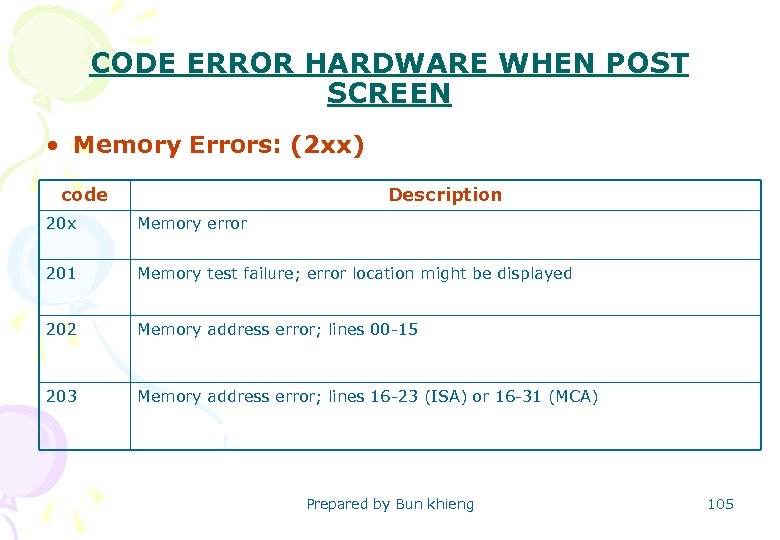 CODE ERROR HARDWARE WHEN POST SCREEN • Memory Errors: (2 xx) code Description 20 x Memory error 201 Memory test failure; error location might be displayed 202 Memory address error; lines 00 -15 203 Memory address error; lines 16 -23 (ISA) or 16 -31 (MCA) Prepared by Bun khieng 105
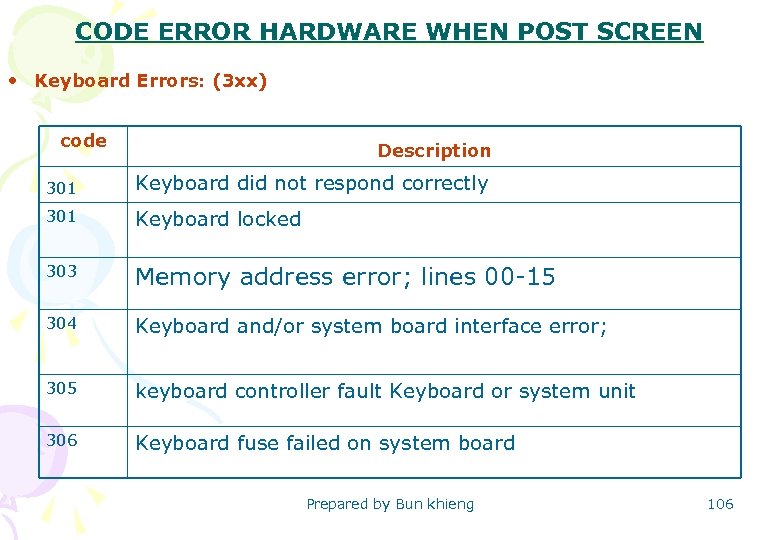 CODE ERROR HARDWARE WHEN POST SCREEN • Keyboard Errors: (3 xx) Description code 301 Keyboard did not respond correctly 301 Keyboard locked 303 Memory address error; lines 00 -15 304 Keyboard and/or system board interface error; 305 keyboard controller fault Keyboard or system unit 306 Keyboard fuse failed on system board Prepared by Bun khieng 106
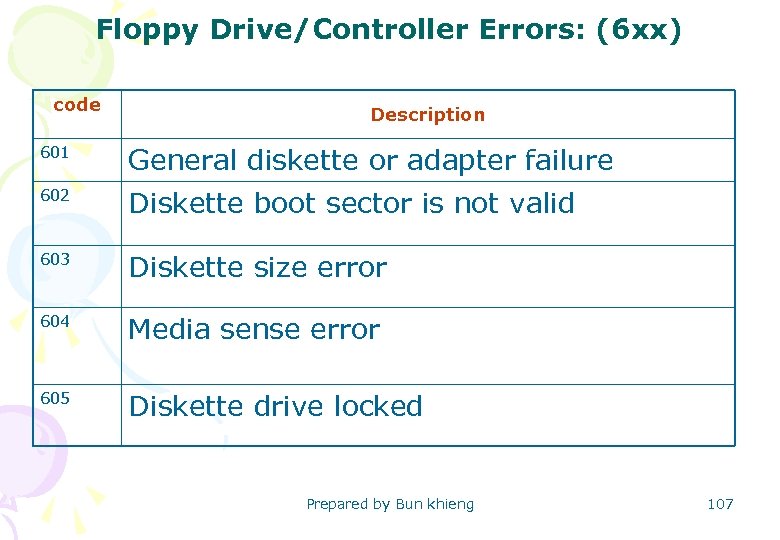 Floppy Drive/Controller Errors: (6 xx) code Description 601 General diskette or adapter failure 602 Diskette boot sector is not valid 603 Diskette size error 604 Media sense error 605 Diskette drive locked Prepared by Bun khieng 107
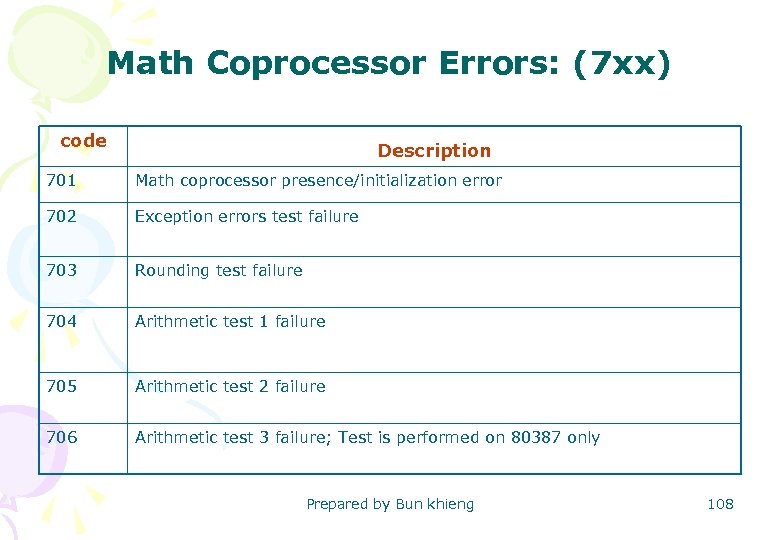 Math Coprocessor Errors: (7 xx) Description code 701 Math coprocessor presence/initialization error 702 Exception errors test failure 703 Rounding test failure 704 Arithmetic test 1 failure 705 Arithmetic test 2 failure 706 Arithmetic test 3 failure; Test is performed on 80387 only Prepared by Bun khieng 108
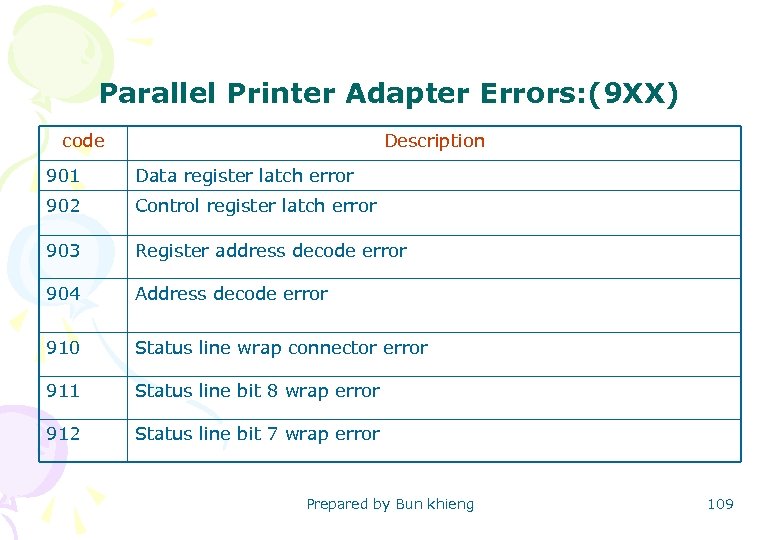 Parallel Printer Adapter Errors: (9 XX) code Description 901 Data register latch error 902 Control register latch error 903 Register address decode error 904 Address decode error 910 Status line wrap connector error 911 Status line bit 8 wrap error 912 Status line bit 7 wrap error Prepared by Bun khieng 109
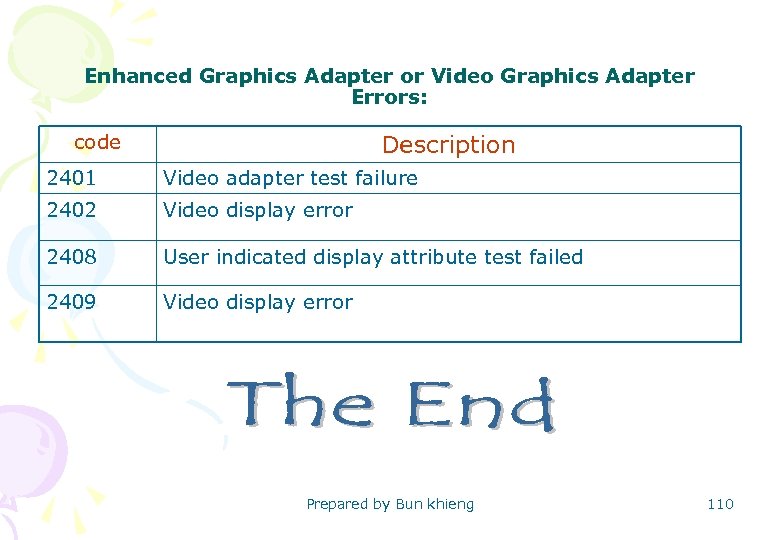 Enhanced Graphics Adapter or Video Graphics Adapter Errors: Description code 2401 Video adapter test failure 2402 Video display error 2408 User indicated display attribute test failed 2409 Video display error Prepared by Bun khieng 110
 CMOS BIOS SETUP CONFIGURE HARDWARE Prepared by Bun khieng 111
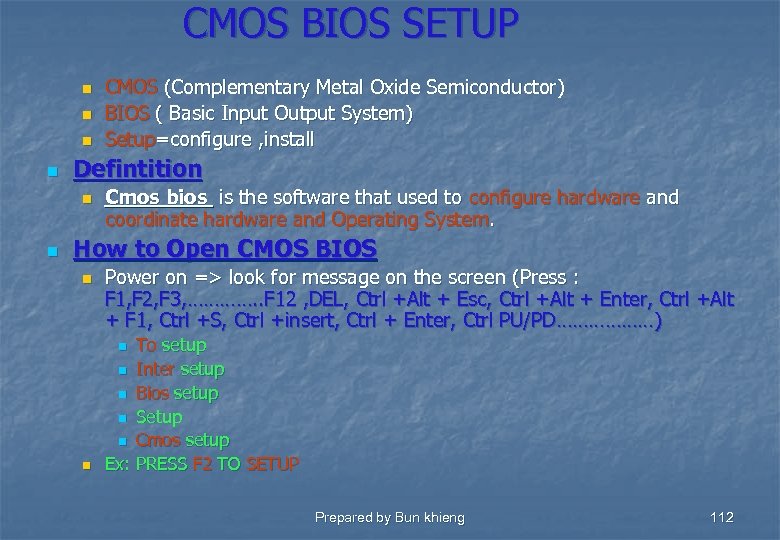 CMOS BIOS SETUP n n Defintition n n CMOS (Complementary Metal Oxide Semiconductor) BIOS ( Basic Input Output System) Setup=configure , install Cmos bios is the software that used to configure hardware and coordinate hardware and Operating System. How to Open CMOS BIOS n Power on => look for message on the screen (Press : F 1, F 2, F 3, …………. . F 12 , DEL, Ctrl +Alt + Esc, Ctrl +Alt + Enter, Ctrl +Alt + F 1, Ctrl +S, Ctrl +insert, Ctrl + Enter, Ctrl PU/PD………………) To setup n Inter setup n Bios setup n Setup n Cmos setup Ex: PRESS F 2 TO SETUP n n Prepared by Bun khieng 112
 note n How to open cmos bios If computer Brand name: we always use function key(F 1, F 2, F 3, ………. F 12) n IF computer clone : we use key (del and other key) n If your computer does not display message: you want your computer to show message on the screen, you have to remove IDE cable from the mainboard computer. n Prepared by Bun khieng 113
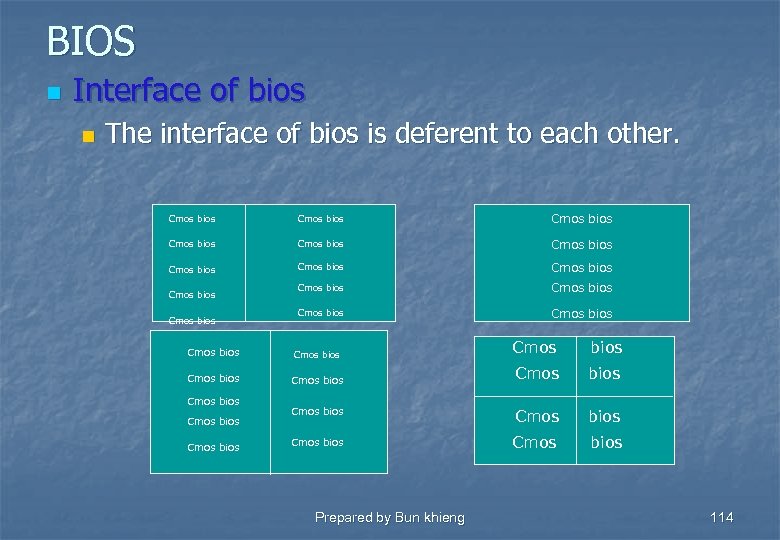 BIOS n Interface of bios n The interface of bios is deferent to each other. Cmos bios Cmos bios Cmos bios Cmos bios Cmos bios Cmos bios Cmos bios Prepared by Bun khieng 114
 n bios How to use key to control bios n The CMOS BIOS use the deferent key to control CMOS BIOS such as: Esc=Quite n Enter =select n F 10= save n F 2= Change color n F 5 = default value n +/-/page up/page down= modified value n …………………. . n Prepared by Bun khieng 115
 MS DOS (Microsoft Disk Operating system) Prepare hard Disk to store data l Repair Hard Disk l Configure partition l Use command l Prepared by Bun khieng 116
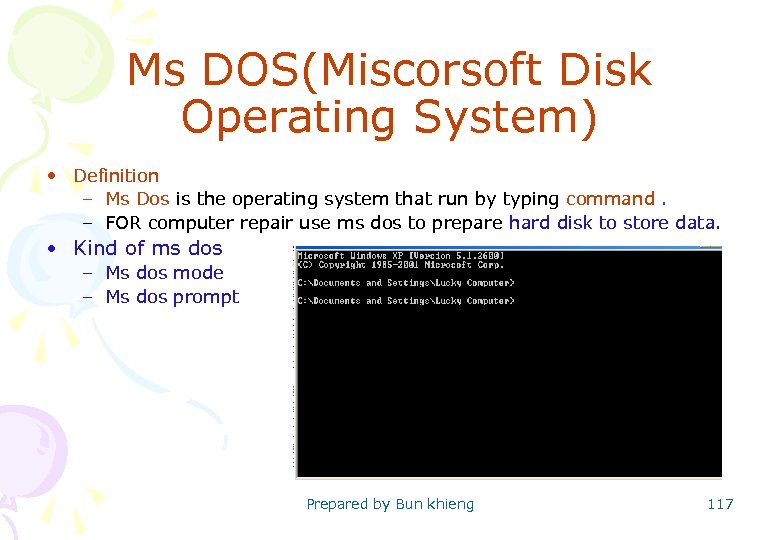 Ms DOS(Miscorsoft Disk Operating System) • Definition – Ms Dos is the operating system that run by typing command. – FOR computer repair use ms dos to prepare hard disk to store data. • Kind of ms dos – Ms dos mode – Ms dos prompt Prepared by Bun khieng 117
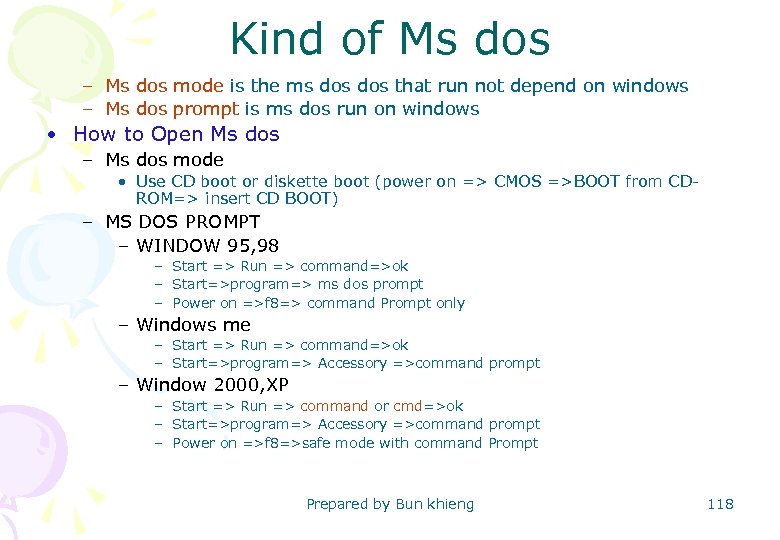 Kind of Ms dos – Ms dos mode is the ms dos that run not depend on windows – Ms dos prompt is ms dos run on windows • How to Open Ms dos – Ms dos mode • Use CD boot or diskette boot (power on => CMOS =>BOOT from CDROM=> insert CD BOOT) – MS DOS PROMPT – WINDOW 95, 98 – Start => Run => command=>ok – Start=>program=> ms dos prompt – Power on =>f 8=> command Prompt only – Windows me – Start => Run => command=>ok – Start=>program=> Accessory =>command prompt – Window 2000, XP – Start => Run => command or cmd=>ok – Start=>program=> Accessory =>command prompt – Power on =>f 8=>safe mode with command Prompt Prepared by Bun khieng 118
 note • We always use ms dos mode in computer repair because the HDD is not store windows yet, so we have to prepare HDD to store data with ms DOS mode the run from CD BOOT or diskette. Prepared by Bun khieng 119
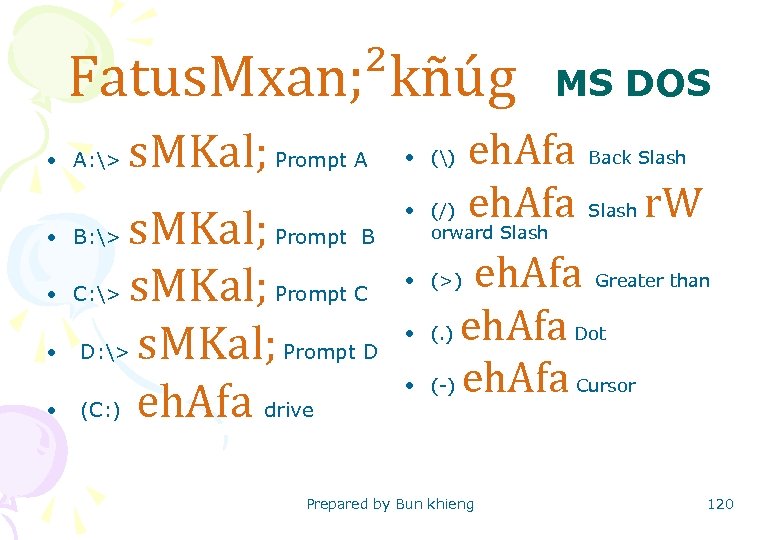 Fatus. Mxan; ²kñúg MS DOS • A: > s. MKal; Prompt A s. MKal; Prompt B C: > s. MKal; Prompt C D: > s. MKal; Prompt D (C: ) eh. Afa drive • orward Slash • B: > • • • eh. Afa Back Slash (/) eh. Afa Slash r. W • () eh. Afa Greater than (. ) eh. Afa Dot (-) eh. Afa Cursor • (>) • • Prepared by Bun khieng 120
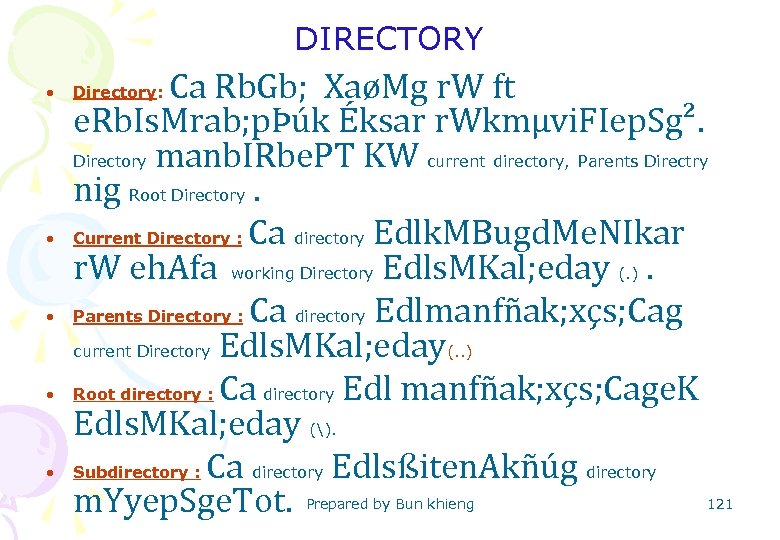 DIRECTORY • • • Ca Rb. Gb; XaøMg r. W ft e. Rb. Is. Mrab; pÞúk Éksar r. Wkmµvi. FIep. Sg². Directory manb. IRbe. PT KW current directory, Parents Directry nig Root Directory. Current Directory : Ca directory Edlk. MBugd. Me. NIkar r. W eh. Afa working Directory Edls. MKal; eday (. ). Parents Directory : Ca directory Edlmanfñak; xçs; Cag current Directory Edls. MKal; eday(. . ) Root directory : Ca directory Edl manfñak; xçs; Cage. K Edls. MKal; eday (). Subdirectory : Ca directory Edlsßiten. Akñúg directory m. Yyep. Sge. Tot. Directory: Prepared by Bun khieng 121
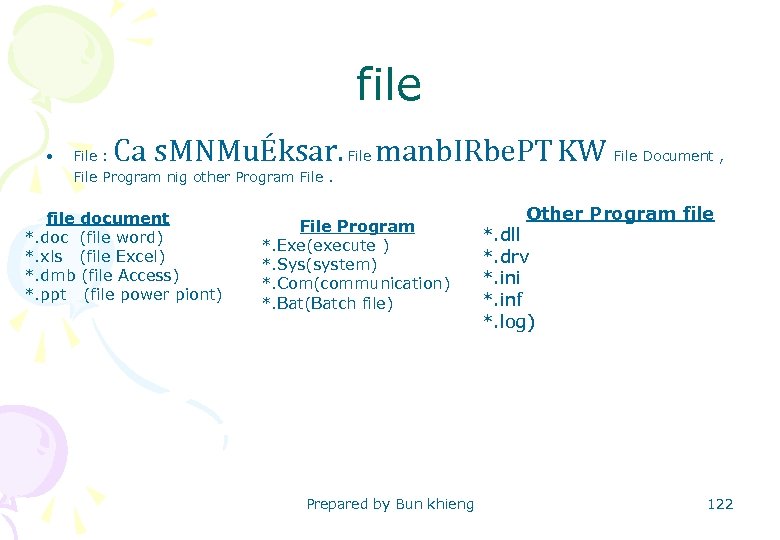 file • File : Ca s. MNMuÉksar. File manb. IRbe. PT KW File Document , File Program nig other Program File. file document *. doc (file word) *. xls (file Excel) *. dmb (file Access) *. ppt (file power piont) File Program *. Exe(execute ) *. Sys(system) *. Com(communication) *. Bat(Batch file) Prepared by Bun khieng Other Program file *. dll *. drv *. ini *. inf *. log) 122
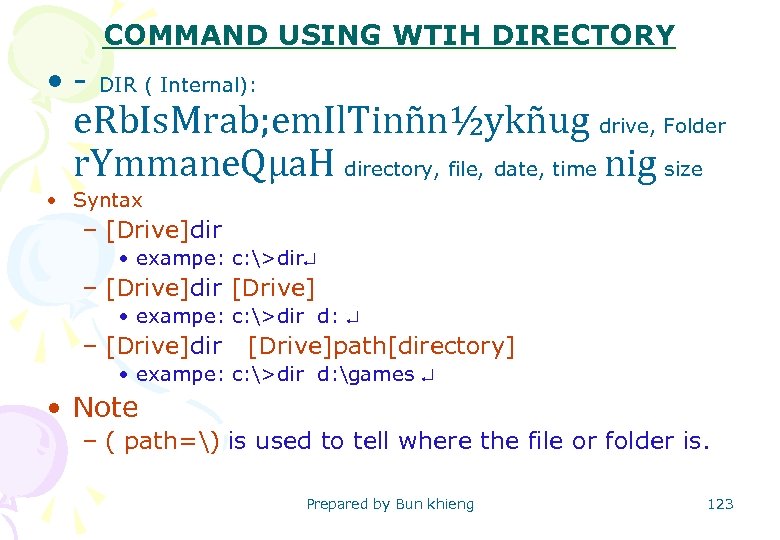 COMMAND USING WTIH DIRECTORY • - DIR ( Internal): e. Rb. Is. Mrab; em. Il. Tinñn½ykñug drive, Folder r. Ymmane. Qµa. H directory, file, date, time nig size • Syntax – [Drive]dir • exampe: c: >dir – [Drive]dir [Drive] • exampe: c: >dir d: – [Drive]dir [Drive]path[directory] • exampe: c: >dir d: games • Note – ( path=) is used to tell where the file or folder is. Prepared by Bun khieng 123
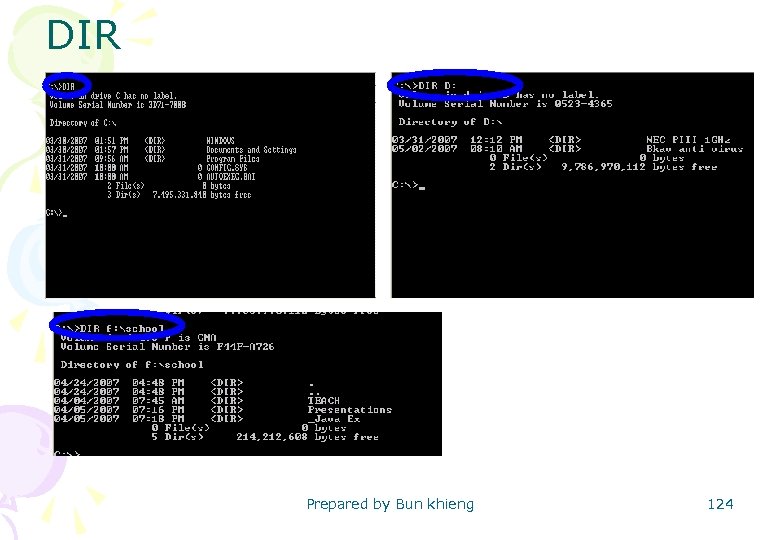 DIR Prepared by Bun khieng 124
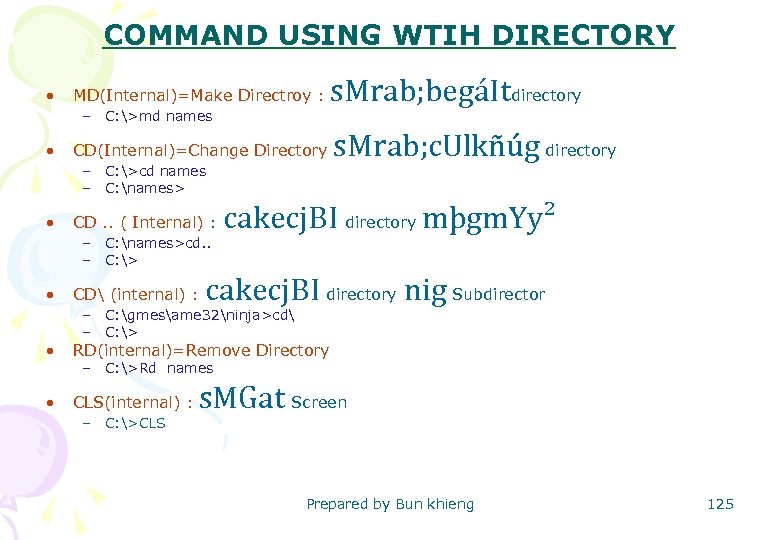 COMMAND USING WTIH DIRECTORY • MD(Internal)=Make Directroy : – C: >md names • CD(Internal)=Change Directory – C: >cd names – C: names> • CD. . ( Internal) : – C: names>cd. . – C: > • s. Mrab; begáItdirectory CD (internal) : s. Mrab; c. Ulkñúg directory cakecj. BI directory mþgm. Yy² cakecj. BI directory nig Subdirector – C: gmesame 32ninja>cd – C: > • RD(internal)=Remove Directory • CLS(internal) : – C: >Rd names – C: >CLS s. MGat Screen Prepared by Bun khieng 125
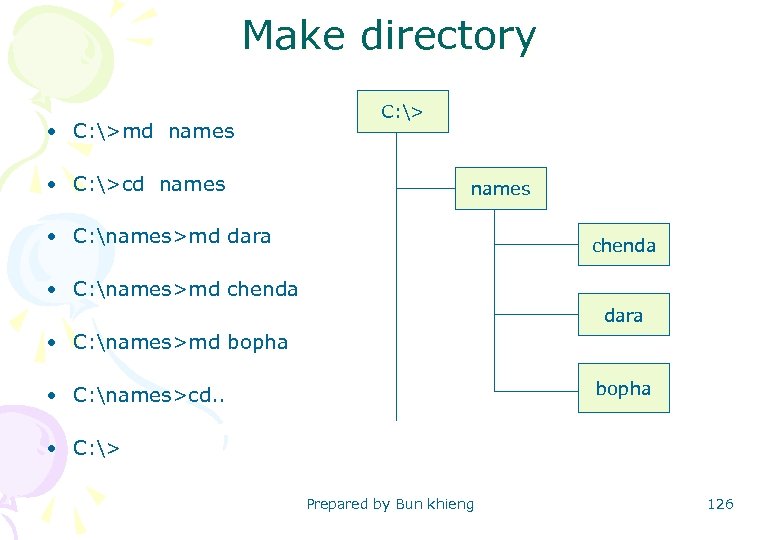 Make directory • C: >md names • C: >cd names C: > names • C: names>md dara chenda • C: names>md chenda dara • C: names>md bopha • C: names>cd. . • C: > Prepared by Bun khieng 126
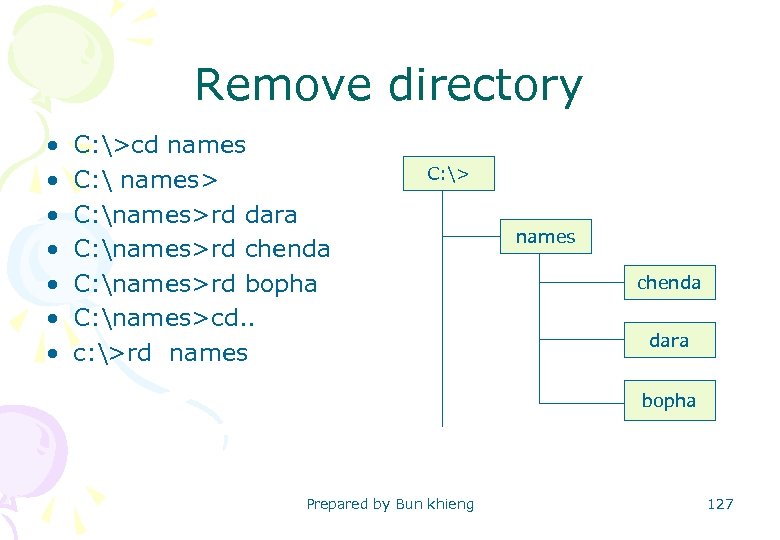 Remove directory • • C: >cd names C: names> C: names>rd dara C: names>rd chenda C: names>rd bopha C: names>cd. . c: >rd names C: > names chenda dara bopha Prepared by Bun khieng 127
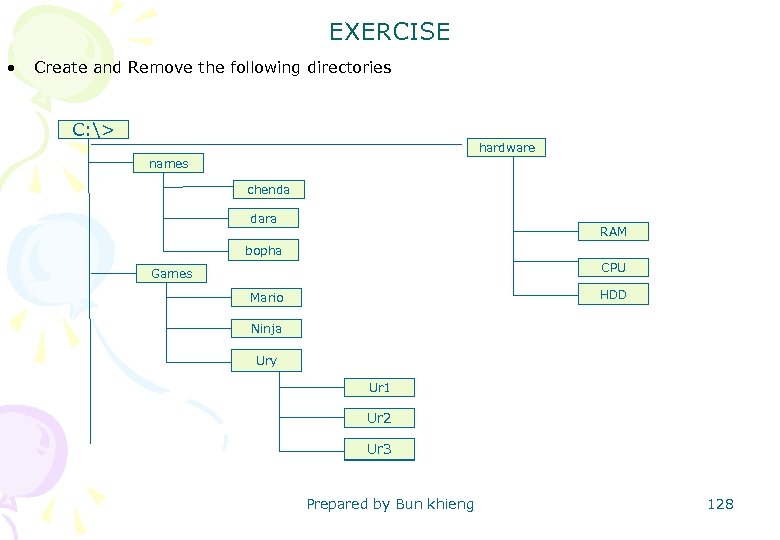 EXERCISE • Create and Remove the following directories C: > hardware names chenda dara chenda RAM bopha CPU Games HDD Mario Ninja Ury chenda Ur 1 dara Ur 2 Ur 3 bopha Prepared by Bun khieng 128
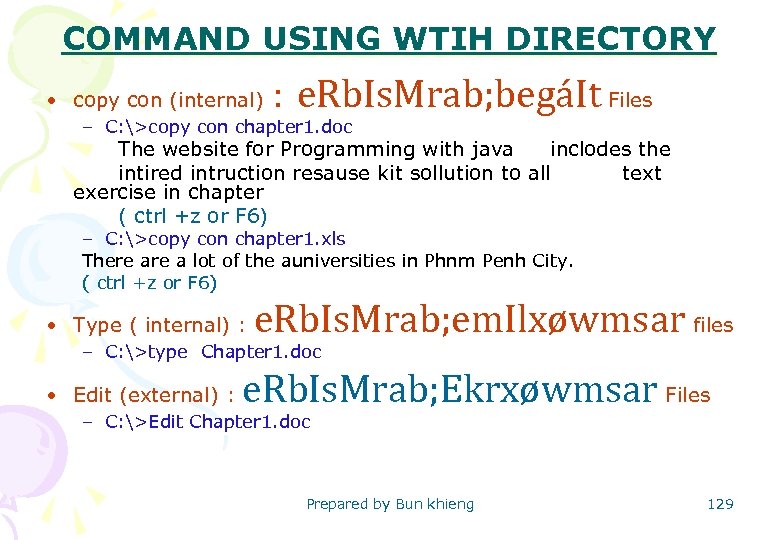 COMMAND USING WTIH DIRECTORY • copy con (internal) : e. Rb. Is. Mrab; begáIt Files – C: >copy con chapter 1. doc The website for Programming with java inclodes the intired intruction resause kit sollution to all text exercise in chapter ( ctrl +z or F 6) – C: >copy con chapter 1. xls There a lot of the auniversities in Phnm Penh City. ( ctrl +z or F 6) • Type ( internal) : e. Rb. Is. Mrab; em. Ilxøwmsar files – C: >type Chapter 1. doc • Edit (external) : e. Rb. Is. Mrab; Ekrxøwmsar Files – C: >Edit Chapter 1. doc Prepared by Bun khieng 129
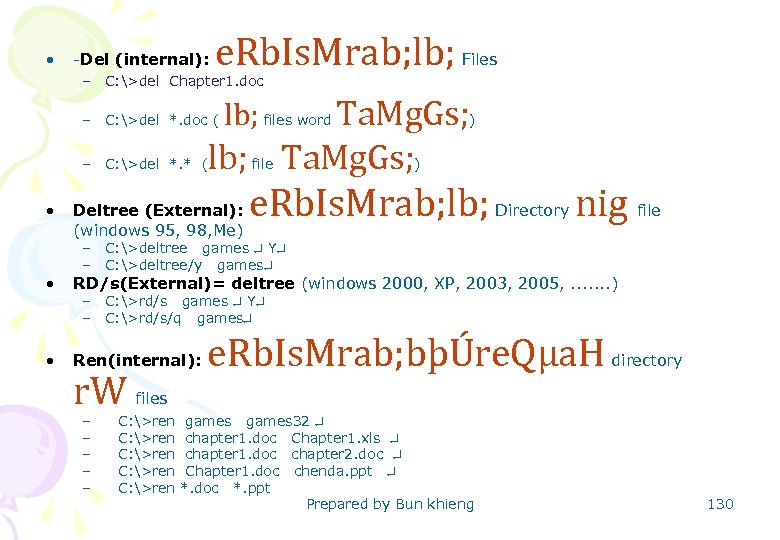 • -Del (internal): e. Rb. Is. Mrab; lb; Files – C: >del Chapter 1. doc – C: >del *. doc ( – C: >del *. * ( • lb; files word Ta. Mg. Gs; ) lb; Ta. Mg. Gs; file Deltree (External): (windows 95, 98, Me) ) e. Rb. Is. Mrab; lb; Directory nig file – C: >deltree games Y – C: >deltree/y games • RD/s(External)= deltree (windows 2000, XP, 2003, 2005, . . . . ) • Ren(internal): – C: >rd/s games Y – C: >rd/s/q games r. W – – – e. Rb. Is. Mrab; bþÚre. Qµa. H directory files C: >ren games 32 C: >ren chapter 1. doc Chapter 1. xls C: >ren chapter 1. doc chapter 2. doc C: >ren Chapter 1. doc chenda. ppt C: >ren *. doc *. ppt Prepared by Bun khieng 130
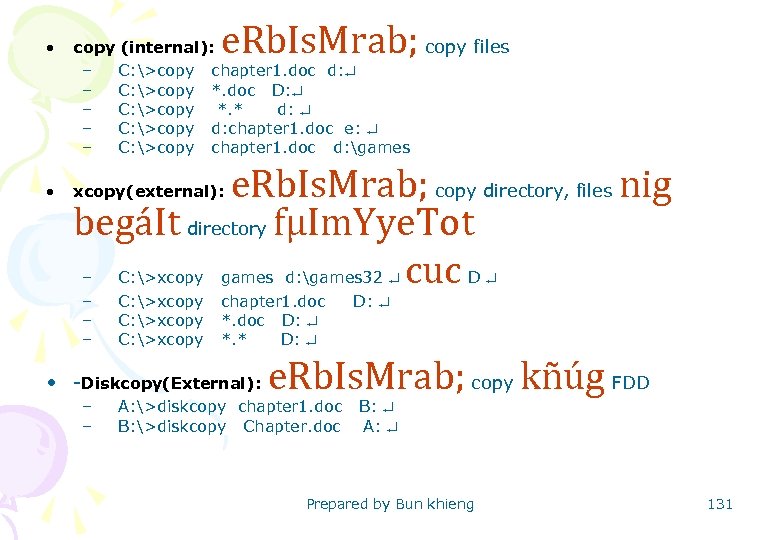 e. Rb. Is. Mrab; • copy (internal): copy files – C: >copy chapter 1. doc d: – C: >copy *. doc D: – C: >copy *. * d: – C: >copy d: chapter 1. doc e: – C: >copy chapter 1. doc d: games • xcopy(external): e. Rb. Is. Mrab; copy directory, files nig begáIt directory fµIm. Yye. Tot – cuc – – – C: >xcopy games d: games 32 C: >xcopy chapter 1. doc D: C: >xcopy *. doc D: C: >xcopy *. * D: • -Diskcopy(External): – – D e. Rb. Is. Mrab; copy kñúg FDD A: >diskcopy chapter 1. doc B: >diskcopy Chapter. doc A: Prepared by Bun khieng 131
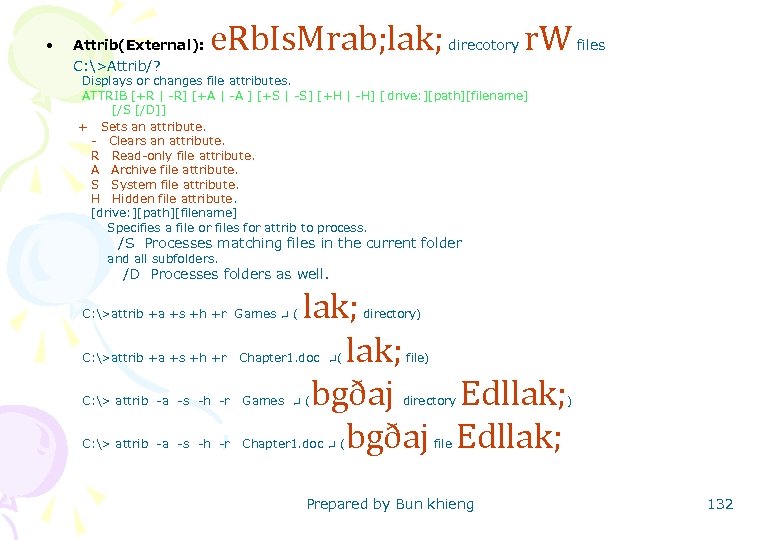 • Attrib(External): C: >Attrib/? e. Rb. Is. Mrab; lak; direcotory r. W files Displays or changes file attributes. ATTRIB [+R | -R] [+A | -A ] [+S | -S] [+H | -H] [ drive: ][path][filename] [/S [/D]] + Sets an attribute. - Clears an attribute. R Read-only file attribute. A Archive file attribute. S System file attribute. H Hidden file attribute. [drive: ][path][filename] Specifies a file or files for attrib to process. /S Processes matching files in the current folder and all subfolders. /D Processes folders as well. C: >attrib +a +s +h +r Games ( lak; bgðaj Edllak; directory) C: >attrib +a +s +h +r Chapter 1. doc ( file) C: > attrib -a -s -h -r Games ( directory C: > attrib -a -s -h -r Chapter 1. doc ( ) file Prepared by Bun khieng 132
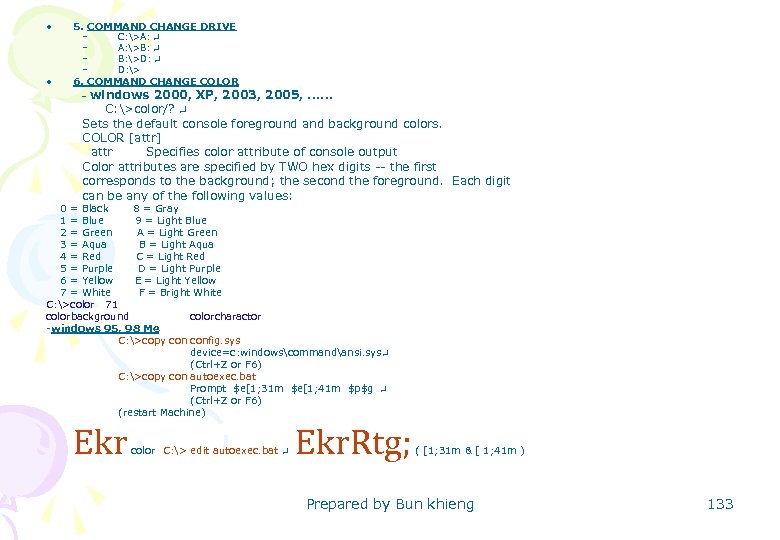 • 5. COMMAND CHANGE DRIVE • 6. COMMAND CHANGE COLOR – – C: >A: A: >B: B: >D: D: > - windows 2000, XP, 2003, 2005, . . . C: >color/? Sets the default console foreground and background colors. COLOR [attr] attr Specifies color attribute of console output Color attributes are specified by TWO hex digits -- the first corresponds to the background; the second the foreground. Each digit can be any of the following values: 0 = Black 8 = Gray 1 = Blue 9 = Light Blue 2 = Green A = Light Green 3 = Aqua B = Light Aqua 4 = Red C = Light Red 5 = Purple D = Light Purple 6 = Yellow E = Light Yellow 7 = White F = Bright White C: >color 71 colorbackground colorcharactor -windows 95, 98 Me C: >copy config. sys device=c: windowscommandansi. sys (Ctrl+Z or F 6) C: >copy con autoexec. bat Prompt $e[1; 31 m $e[1; 41 m $p$g (Ctrl+Z or F 6) (restart Machine) Ekr. Rtg; color C: > edit autoexec. bat ( [1; 31 m & [ 1; 41 m ) Prepared by Bun khieng 133
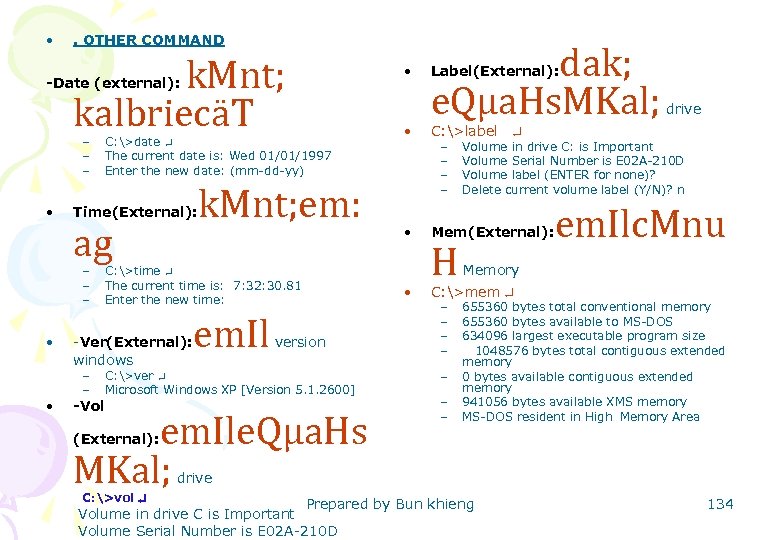 • . OTHER COMMAND k. Mnt; kalbriecäT -Date (external): – – – • • • C: >date The current date is: Wed 01/01/1997 Enter the new date: (mm-dd-yy) Time(External): ag – – – k. Mnt; em: C: >time The current time is: 7: 32: 30. 81 Enter the new time: -Ver(External): windows – – em. Il version C: >ver Microsoft Windows XP [Version 5. 1. 2600] -Vol em. Ile. Qµa. Hs MKal; • • dak; e. Qµa. Hs. MKal; Label(External): drive C: >label – – Volume in drive C: is Important Volume Serial Number is E 02 A-210 D Volume label (ENTER for none)? Delete current volume label (Y/N)? n Mem(External): H em. Ilc. Mnu Memory C: >mem – – – – 655360 bytes total conventional memory 655360 bytes available to MS-DOS 634096 largest executable program size 1048576 bytes total contiguous extended memory 0 bytes available contiguous extended memory 941056 bytes available XMS memory MS-DOS resident in High Memory Area (External): drive C: >vol Prepared by Bun khieng Volume in drive C is Important Volume Serial Number is E 02 A-210 D 134
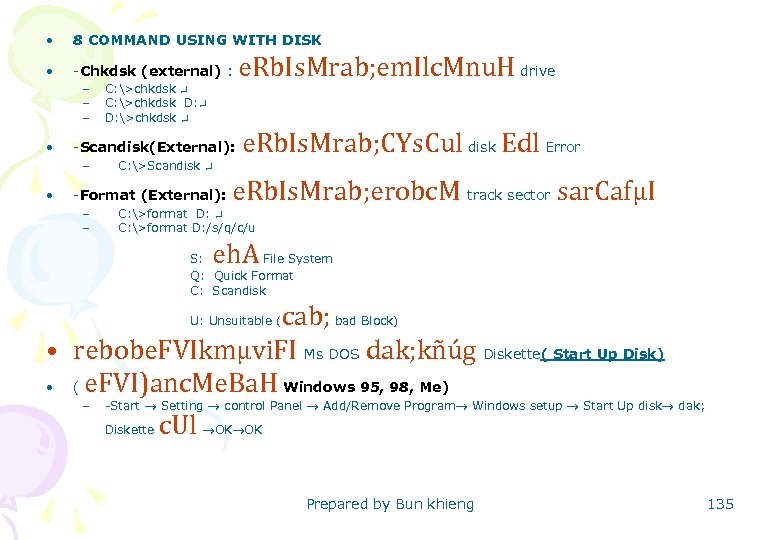 • 8 COMMAND USING WITH DISK • -Chkdsk (external) : – – – • -Scandisk(External): – • C: >chkdsk D: >chkdsk C: >Scandisk -Format (External): – – e. Rb. Is. Mrab; em. Ilc. Mnu. H drive e. Rb. Is. Mrab; CYs. Cul disk Edl Error e. Rb. Is. Mrab; erobc. M track sector sar. CafµI C: >format D: /s/q/c/u eh. A S: File System Q: Quick Format C: Scandisk cab; bad Block) • rebobe. FVIkmµvi. FI Ms DOS dak; kñúg Diskette( Start Up Disk) • ( e. FVI)anc. Me. Ba. H Windows 95, 98, Me) – -Start Setting control Panel Add/Remove Program Windows setup Start Up disk dak; Diskette c. Ul OK OK U: Unsuitable ( Prepared by Bun khieng 135