


 Скачать презентацию Computer organization and Architecture Dr Ajay Sharma Department
db9ef00bf1fd460244b3216fce741ae4.ppt
- Количество слайдов: 35
 Computer organization and Architecture Dr Ajay Sharma Department of CSE SRM University, Haryana
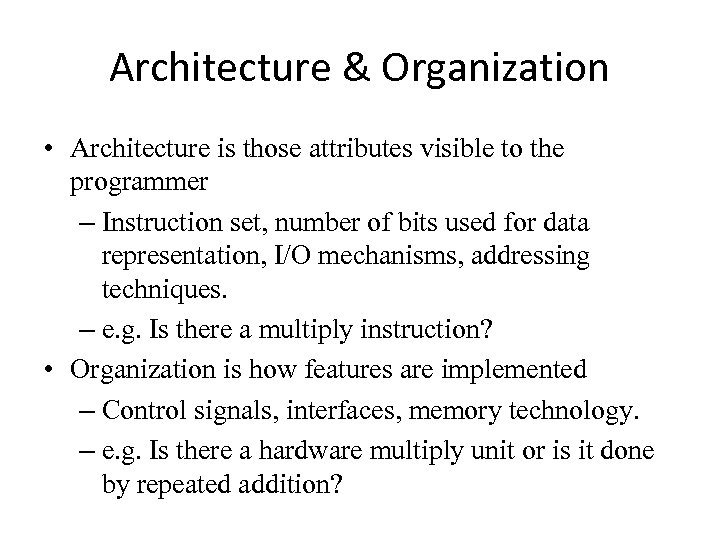 Architecture & Organization • Architecture is those attributes visible to the programmer – Instruction set, number of bits used for data representation, I/O mechanisms, addressing techniques. – e. g. Is there a multiply instruction? • Organization is how features are implemented – Control signals, interfaces, memory technology. – e. g. Is there a hardware multiply unit or is it done by repeated addition?
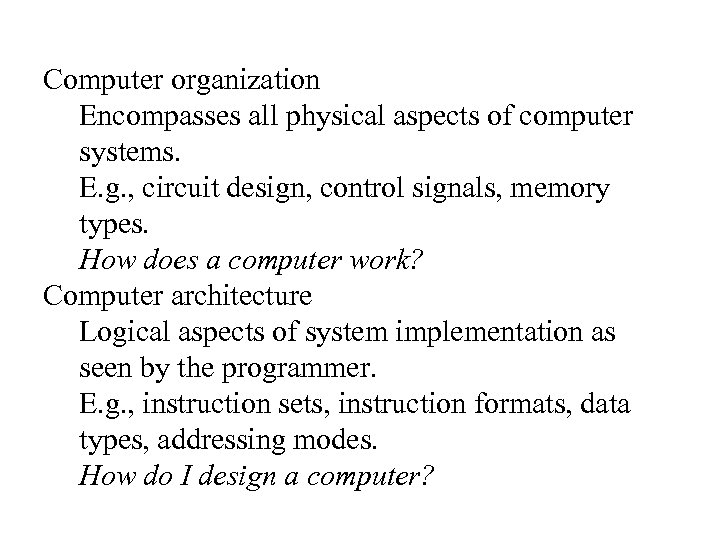 Computer organization Encompasses all physical aspects of computer systems. E. g. , circuit design, control signals, memory types. How does a computer work? Computer architecture Logical aspects of system implementation as seen by the programmer. E. g. , instruction sets, instruction formats, data types, addressing modes. How do I design a computer?
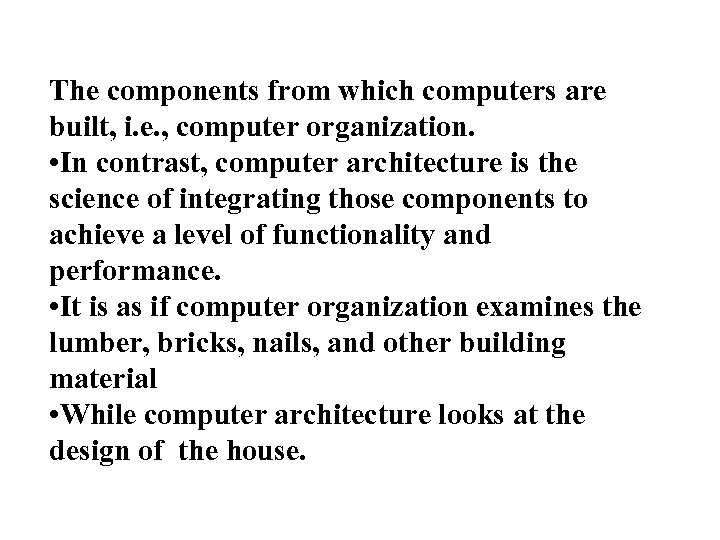 The components from which computers are built, i. e. , computer organization. • In contrast, computer architecture is the science of integrating those components to achieve a level of functionality and performance. • It is as if computer organization examines the lumber, bricks, nails, and other building material • While computer architecture looks at the design of the house.
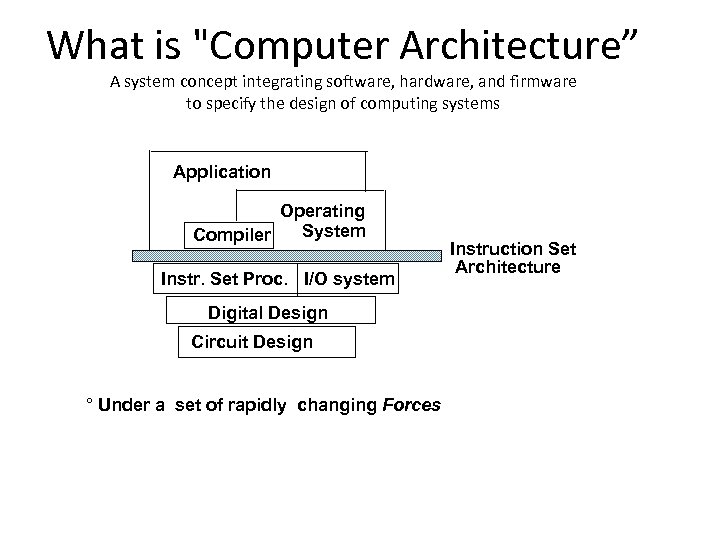 What is "Computer Architecture” A system concept integrating software, hardware, and firmware to specify the design of computing systems Application Operating System Compiler Instr. Set Proc. I/O system Digital Design Circuit Design ° Under a set of rapidly changing Forces Instruction Set Architecture
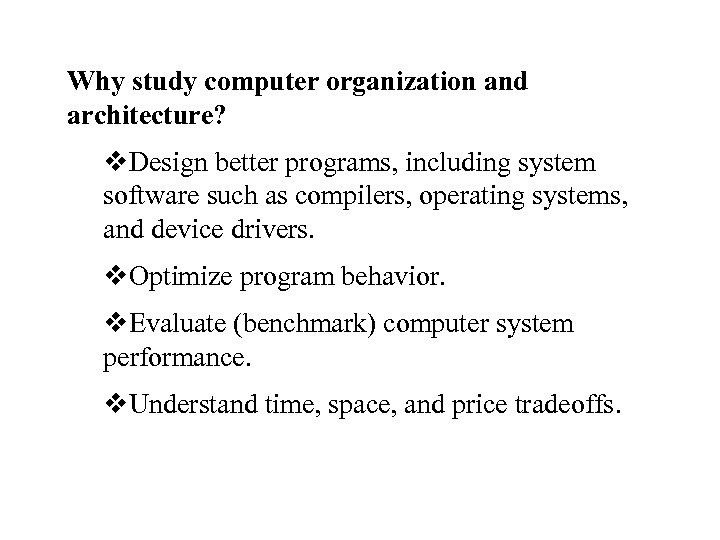 Why study computer organization and architecture? v. Design better programs, including system software such as compilers, operating systems, and device drivers. v. Optimize program behavior. v. Evaluate (benchmark) computer system performance. v. Understand time, space, and price tradeoffs.
 Structure & Function • Structure is the way in which components relate to each other • Function is the operation of individual components as part of the structure
 UNIT-I INTRODUCTION • • • Evolution of Computer Systems Computer Types Functional units Basic operational concepts Bus structures Memory location and addresses Memory operations Addressing modes Design of a computer system Instruction and instruction sequencing, RISC versus CISC.
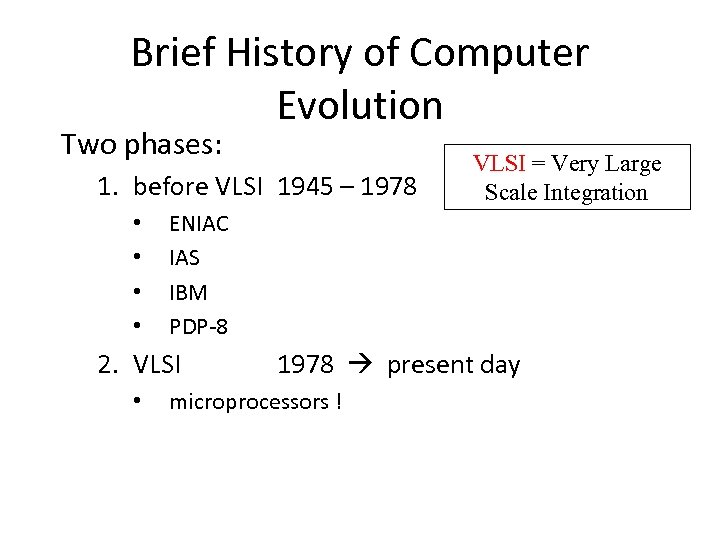 Brief History of Computer Evolution Two phases: 1. before VLSI 1945 – 1978 • • ENIAC IAS IBM PDP-8 2. VLSI • VLSI = Very Large Scale Integration 1978 present day microprocessors !
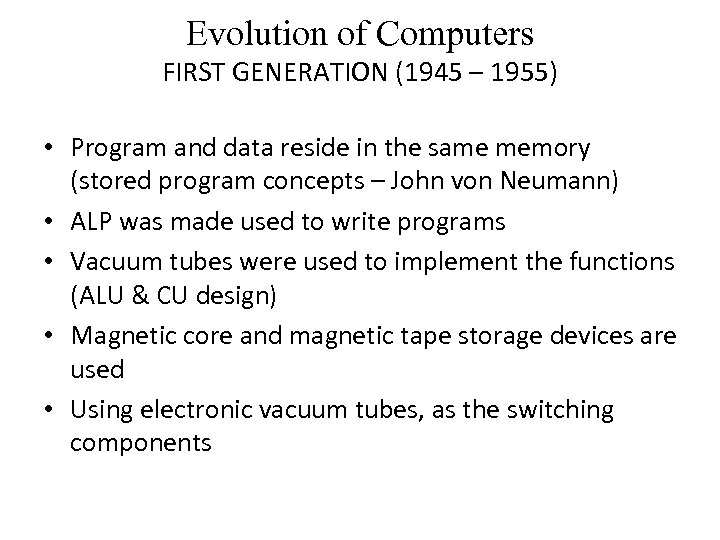 Evolution of Computers FIRST GENERATION (1945 – 1955) • Program and data reside in the same memory (stored program concepts – John von Neumann) • ALP was made used to write programs • Vacuum tubes were used to implement the functions (ALU & CU design) • Magnetic core and magnetic tape storage devices are used • Using electronic vacuum tubes, as the switching components
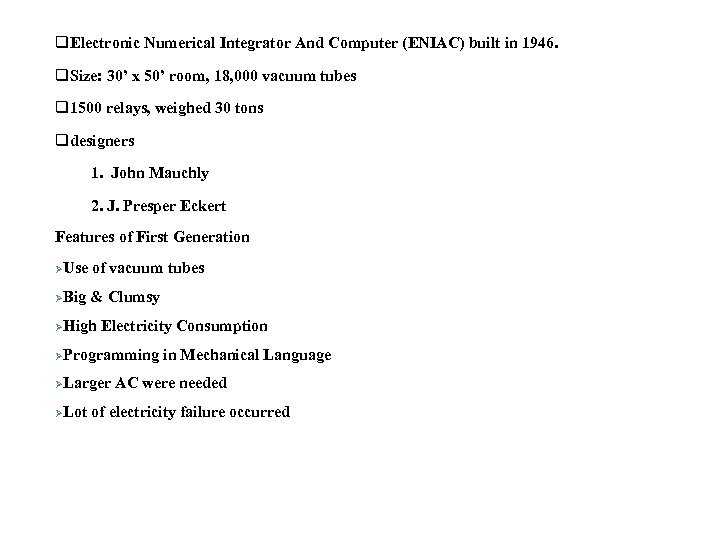 q. Electronic Numerical Integrator And Computer (ENIAC) built in 1946. q. Size: 30’ x 50’ room, 18, 000 vacuum tubes q 1500 relays, weighed 30 tons qdesigners 1. John Mauchly 2. J. Presper Eckert Features of First Generation ØUse of vacuum tubes ØBig & Clumsy ØHigh Electricity Consumption ØProgramming ØLarger ØLot in Mechanical Language AC were needed of electricity failure occurred
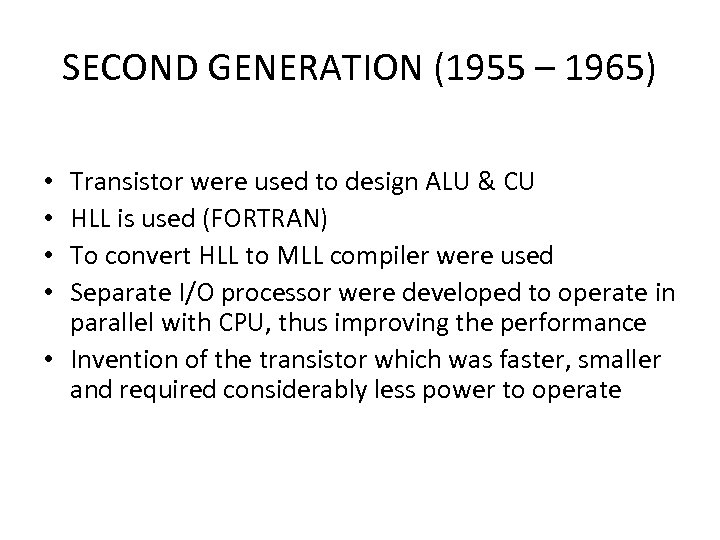 SECOND GENERATION (1955 – 1965) Transistor were used to design ALU & CU HLL is used (FORTRAN) To convert HLL to MLL compiler were used Separate I/O processor were developed to operate in parallel with CPU, thus improving the performance • Invention of the transistor which was faster, smaller and required considerably less power to operate • •
 §Smaller & Cheaper. §Less heat dissipation. §Solid State device. §Transistors Made from Silicon (Sand). §Invented 1947 at Bell Labs. §William Shockley et al.
 THIRD GENERATION (1965 -1975) • IC technology improved • Improved IC technology helped in designing low cost, high speed processor and memory modules • Multiprogramming, pipelining concepts were incorporated • DOS allowed efficient and coordinate operation of computer system with multiple users • Cache and virtual memory concepts were developed • More than one circuit on a single silicon chip became available
 FOURTH GENERATION (1975 -1985) • CPU – Termed as microprocessor • INTEL, MOTOROLA, TEXAS, NATIONAL semiconductors started developing microprocessor • Workstations, microprocessor (PC) & Notebook computers were developed • Interconnection of different computer for better communication LAN, MAN, WAN • Computational speed increased by 1000 times • Specialized processors like Digital Signal Processor were also developed
 BEYOND THE FOURTH GENERATION (1985 – TILL DATE) • • E-Commerce, E- banking, home office ARM, AMD, INTEL, MOTOROLA High speed processor - GHz speed Because of submicron IC technology lot of added features in small size
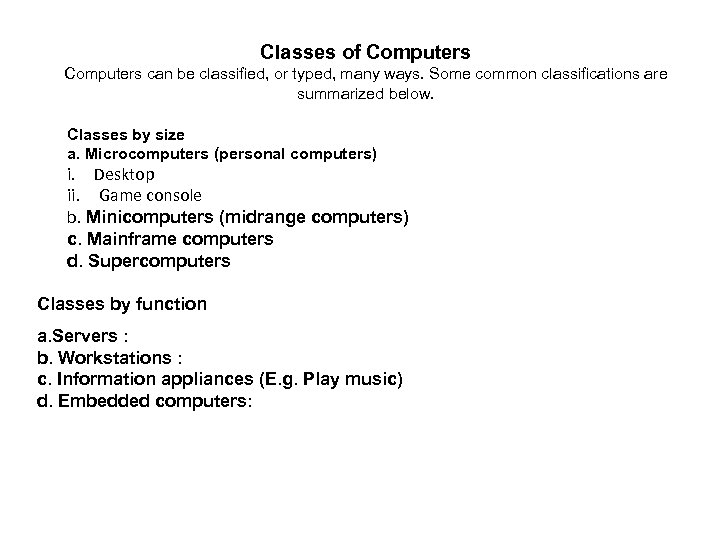 Classes of Computers can be classified, or typed, many ways. Some common classifications are summarized below. Classes by size a. Microcomputers (personal computers) i. Desktop ii. Game console b. Minicomputers (midrange computers) c. Mainframe computers d. Supercomputers Classes by function a. Servers : b. Workstations : c. Information appliances (E. g. Play music) d. Embedded computers:
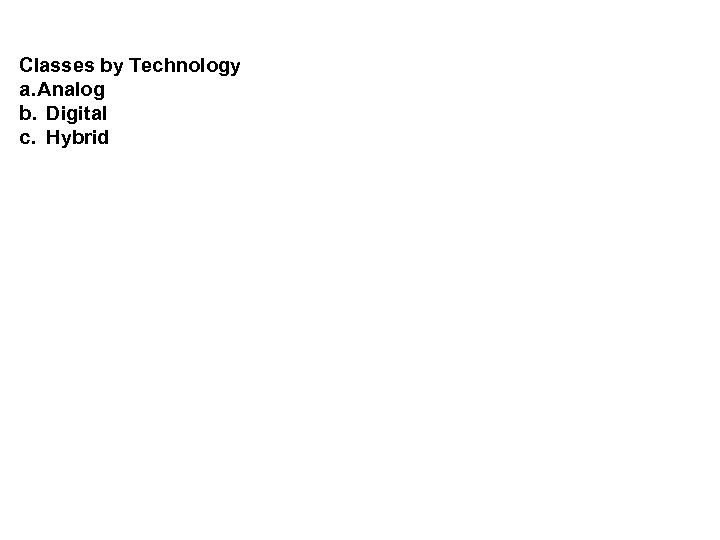 Classes by Technology a. Analog b. Digital c. Hybrid
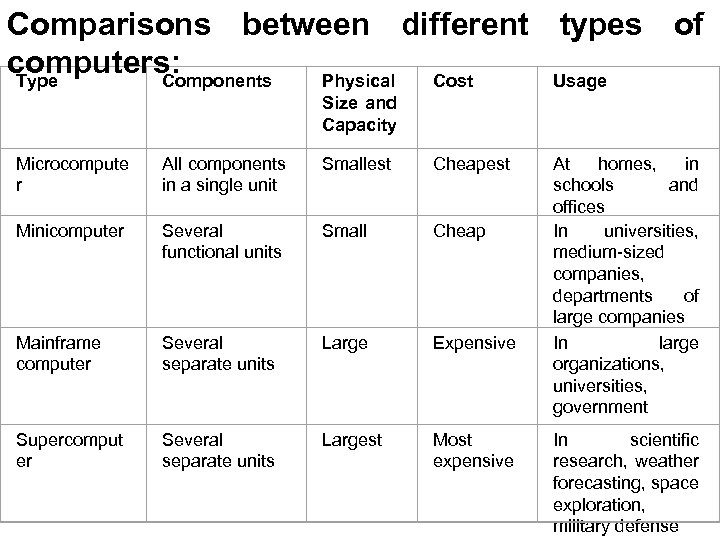 Comparisons between different types of computers: Type Components Physical Cost Usage Size and Capacity Microcompute r All components in a single unit Smallest Cheapest Minicomputer Several functional units Small Cheap Mainframe computer Several separate units Large Expensive Supercomput er Several separate units Largest Most expensive At homes, in schools and offices In universities, medium-sized companies, departments of large companies In large organizations, universities, government In scientific research, weather forecasting, space exploration, military defense
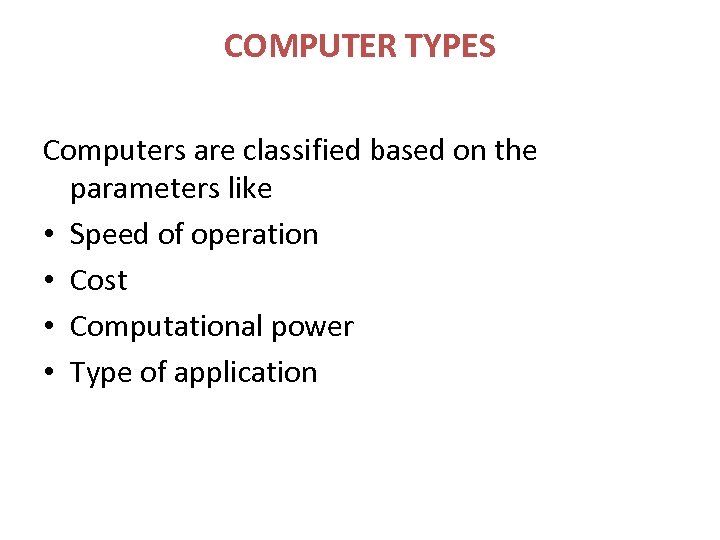 COMPUTER TYPES Computers are classified based on the parameters like • Speed of operation • Cost • Computational power • Type of application
 DESK TOP COMPUTER • Processing &storage units, visual display &audio uits, keyboards • Storage media-Hard disks, CD-ROMs • Eg: Personal computers which is used in homes and offices • Advantage: Cost effective, easy to operate, suitable for general purpose educational or business application NOTEBOOK COMPUTER • Compact form of personal computer (laptop) • Advantage is portability
 WORK STATIONS • More computational power than PC • Costlier • Used to solve complex problems which arises in engineering application (graphics, CAD/CAM etc) ENTERPRISE SYSTEM (MAINFRAME) • More computational power • Larger storage capacity • Used for business data processing in large organization • Commonly referred as servers or super computers
 SERVER SYSTEM • Supports large volumes of data which frequently need to be accessed or to be modified • Supports request response operation SUPER COMPUTERS • Faster than mainframes • Helps in calculating large scale numerical and algorithm calculation in short span of time • Used for aircraft design and testing, military application and weather forecasting
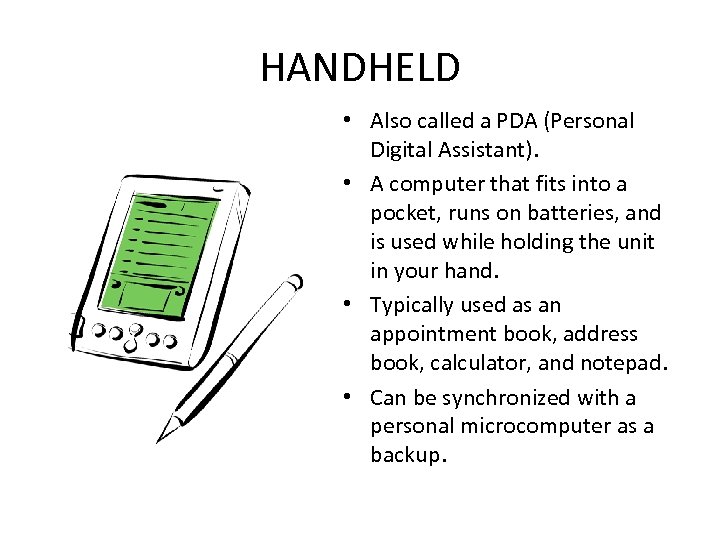 HANDHELD • Also called a PDA (Personal Digital Assistant). • A computer that fits into a pocket, runs on batteries, and is used while holding the unit in your hand. • Typically used as an appointment book, address book, calculator, and notepad. • Can be synchronized with a personal microcomputer as a backup.
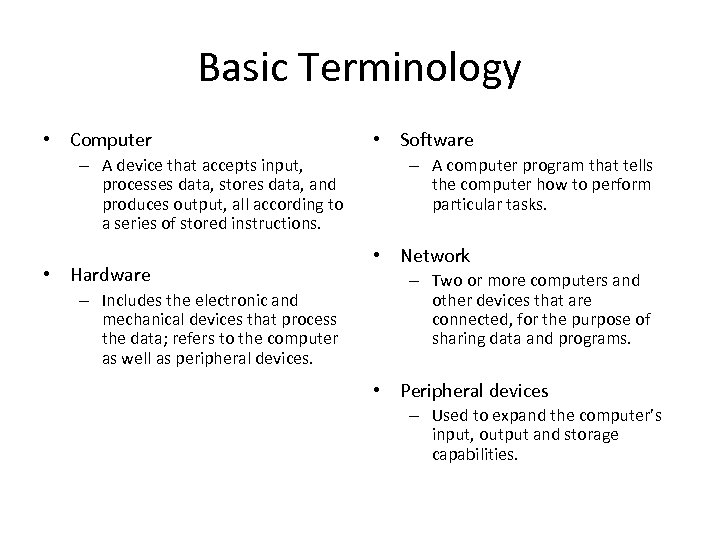 Basic Terminology • Computer – A device that accepts input, processes data, stores data, and produces output, all according to a series of stored instructions. • Hardware – Includes the electronic and mechanical devices that process the data; refers to the computer as well as peripheral devices. • Software – A computer program that tells the computer how to perform particular tasks. • Network – Two or more computers and other devices that are connected, for the purpose of sharing data and programs. • Peripheral devices – Used to expand the computer’s input, output and storage capabilities.
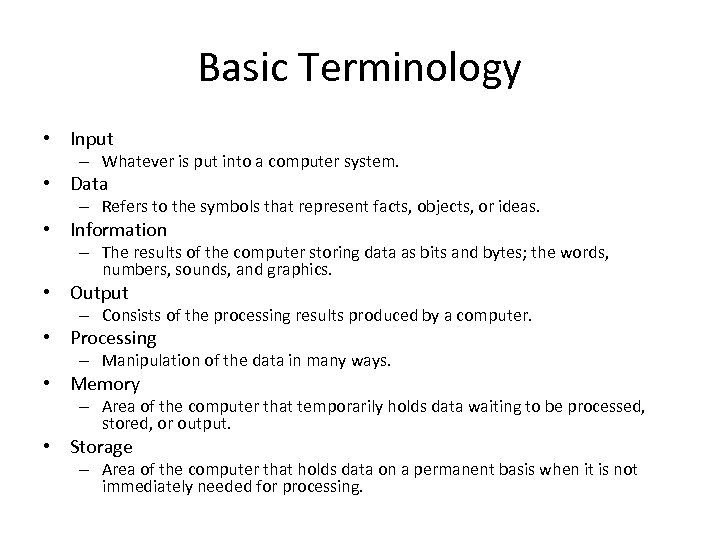 Basic Terminology • Input – Whatever is put into a computer system. • Data – Refers to the symbols that represent facts, objects, or ideas. • Information – The results of the computer storing data as bits and bytes; the words, numbers, sounds, and graphics. • Output – Consists of the processing results produced by a computer. • Processing – Manipulation of the data in many ways. • Memory – Area of the computer that temporarily holds data waiting to be processed, stored, or output. • Storage – Area of the computer that holds data on a permanent basis when it is not immediately needed for processing.
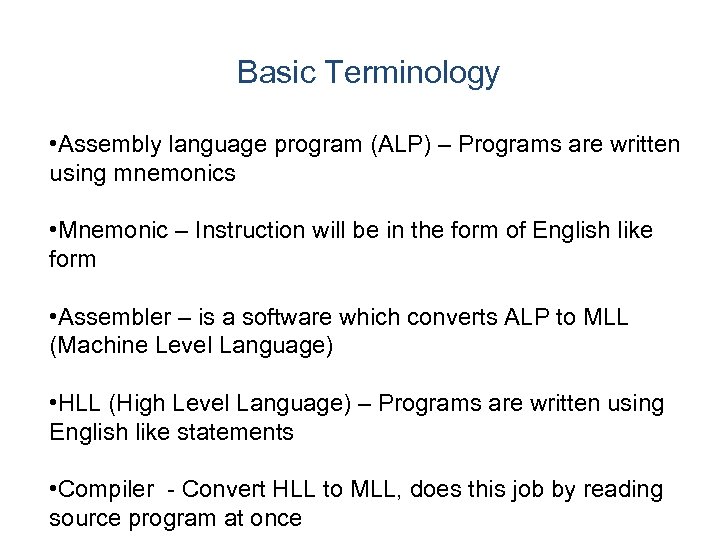 Basic Terminology • Assembly language program (ALP) – Programs are written using mnemonics • Mnemonic – Instruction will be in the form of English like form • Assembler – is a software which converts ALP to MLL (Machine Level Language) • HLL (High Level Language) – Programs are written using English like statements • Compiler - Convert HLL to MLL, does this job by reading source program at once
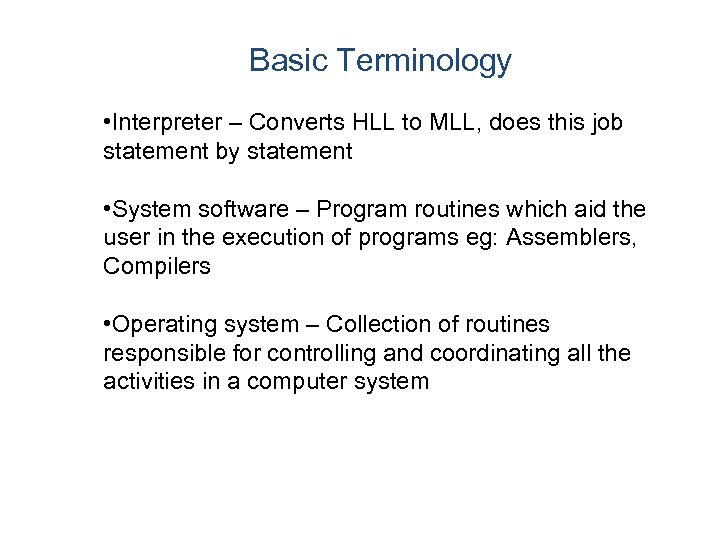 Basic Terminology • Interpreter – Converts HLL to MLL, does this job statement by statement • System software – Program routines which aid the user in the execution of programs eg: Assemblers, Compilers • Operating system – Collection of routines responsible for controlling and coordinating all the activities in a computer system
 Computing Systems Computers have two kinds of components: • Hardware, consisting of its physical devices (CPU, memory, bus, storage devices, . . . ) • Software, consisting of the programs it has (Operating system, applications, utilities, . . . )
 FUNCTIONAL UNITS OF COMPUTER • Input Unit • Output Unit • Central processing Unit (ALU and Control Units) • Memory • Bus Structure
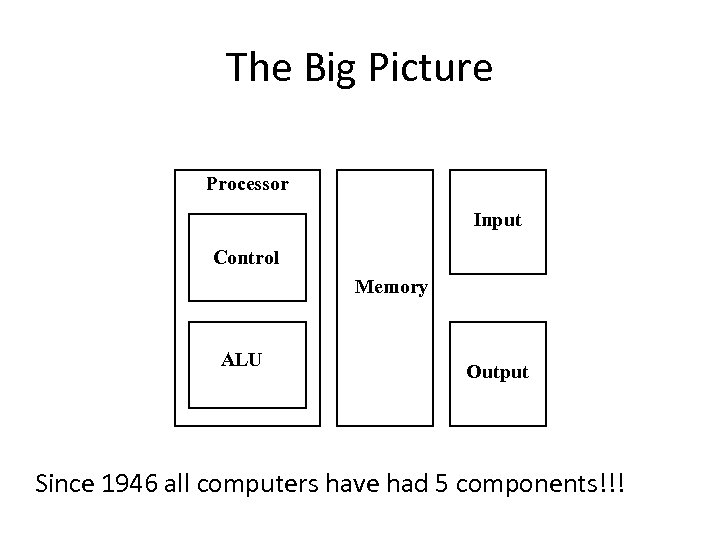 The Big Picture Processor Input Control Memory ALU Output Since 1946 all computers have had 5 components!!!
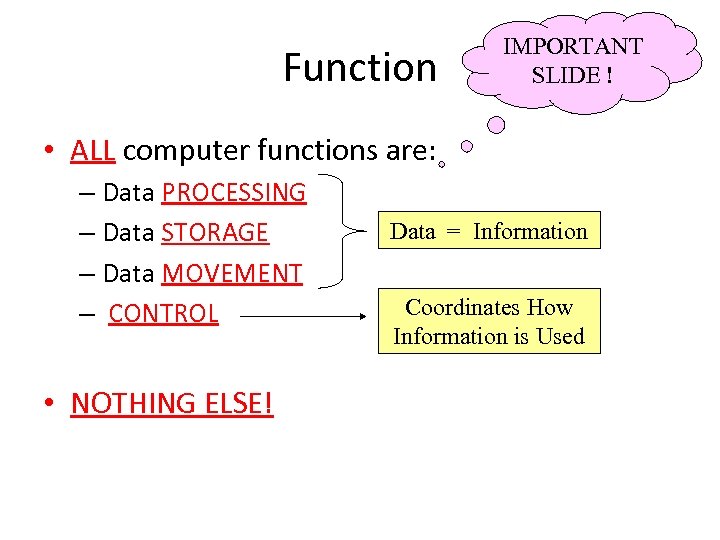 Function IMPORTANT SLIDE ! • ALL computer functions are: – Data PROCESSING – Data STORAGE – Data MOVEMENT – CONTROL • NOTHING ELSE! Data = Information Coordinates How Information is Used
 INPUT UNIT: • Converts the external world data to a binary format, which can be understood by CPU • Eg: Keyboard, Mouse, Joystick etc OUTPUT UNIT: • Converts the binary format data to a format that a common man can understand • Eg: Monitor, Printer, LCD, LED etc
 CPU • The “brain” of the machine • Responsible for carrying out computational task • Contains ALU, CU, Registers • ALU Performs Arithmetic and logical operations • CU Provides control signals in accordance with some timings which in turn controls the execution process • Register Stores data and result and speeds up the operation
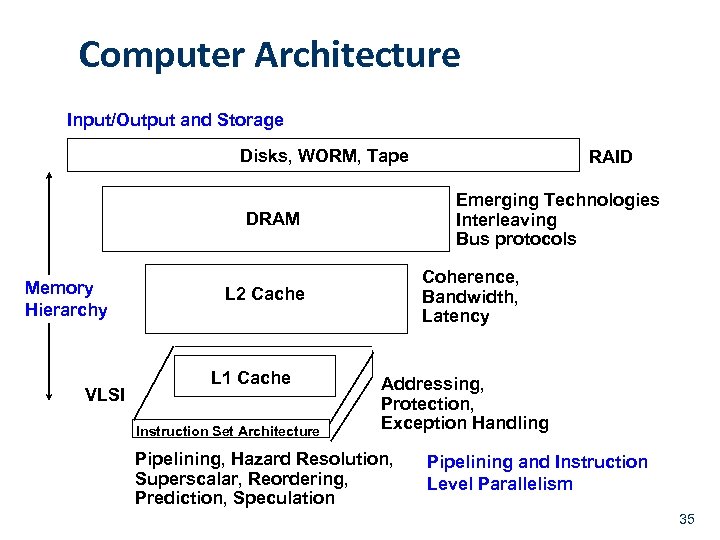 Computer Architecture Input/Output and Storage Disks, WORM, Tape Emerging Technologies Interleaving Bus protocols DRAM Memory Hierarchy VLSI Coherence, Bandwidth, Latency L 2 Cache L 1 Cache Instruction Set Architecture RAID Addressing, Protection, Exception Handling Pipelining, Hazard Resolution, Superscalar, Reordering, Prediction, Speculation Pipelining and Instruction Level Parallelism 35