


 Скачать презентацию Computer Hardware A Quick Overview In this
f00fe088461e15d232d2274ce697efa2.ppt
- Количество слайдов: 93
 Computer Hardware: A Quick Overview • In this section of notes you will learn about what are the basic parts of a computer, how they work and how it applies to everyday usage. James Tam
 Section I: Basic Overview Of A Computer In this section you will learn what are the basic components of a computer. James Tam
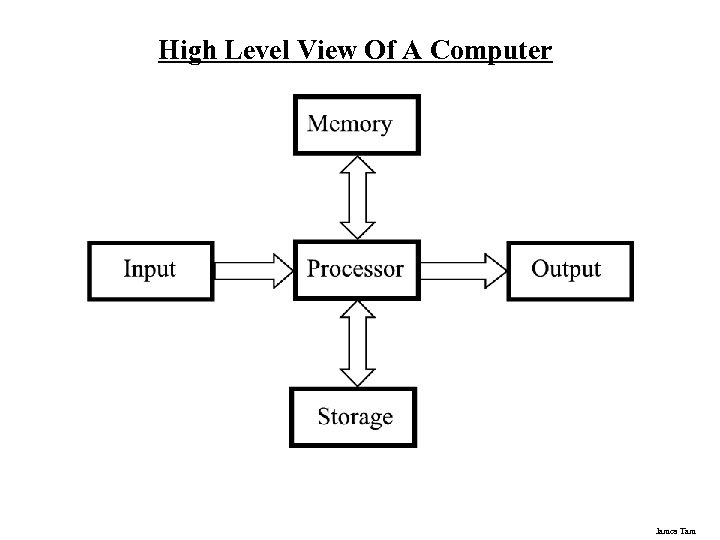 High Level View Of A Computer James Tam
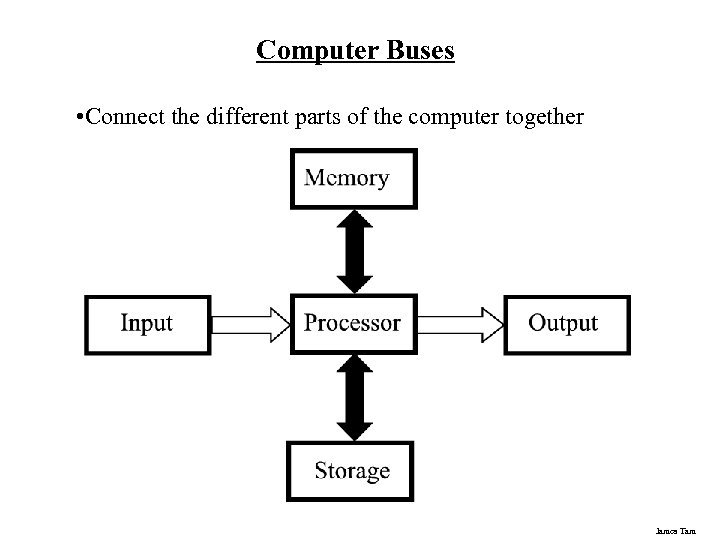 Computer Buses • Connect the different parts of the computer together James Tam
 Types Of Buses Data buses • Are used to transmit information to the different parts of the computer Address buses • Indicate where the information is supposed go James Tam
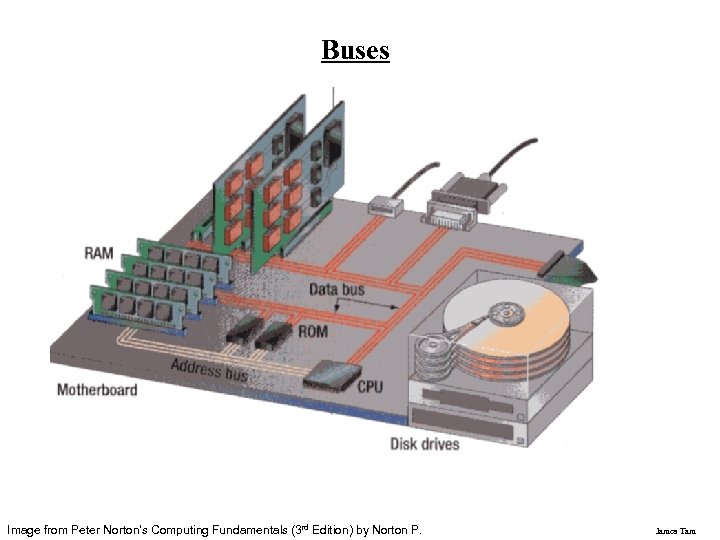 Buses Image from Peter Norton's Computing Fundamentals (3 rd Edition) by Norton P. James Tam
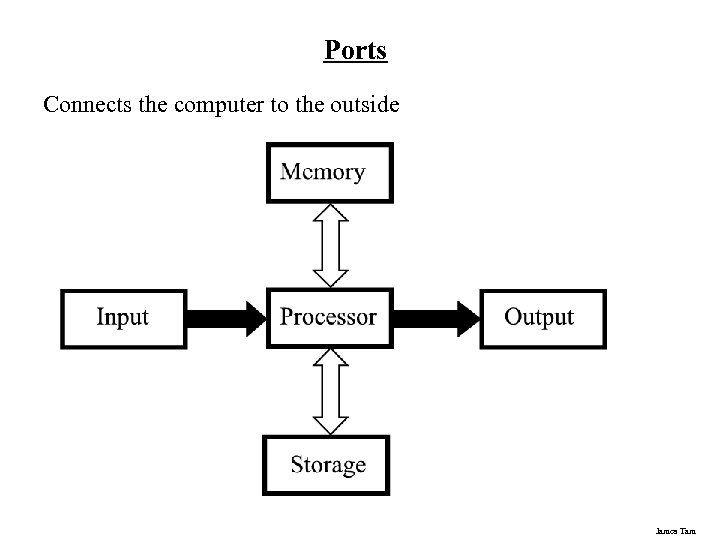 Ports Connects the computer to the outside James Tam
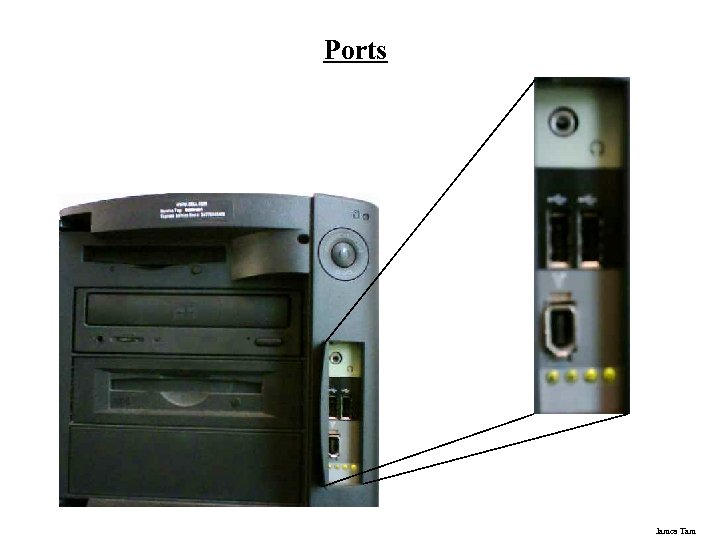 Ports James Tam
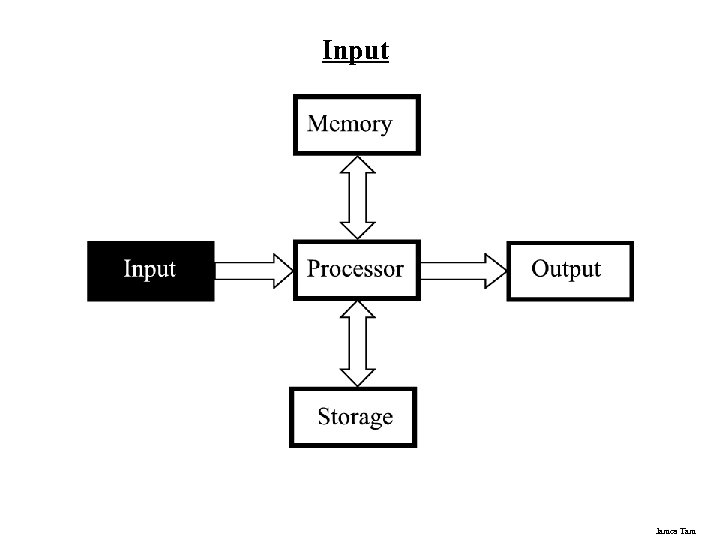 Input James Tam
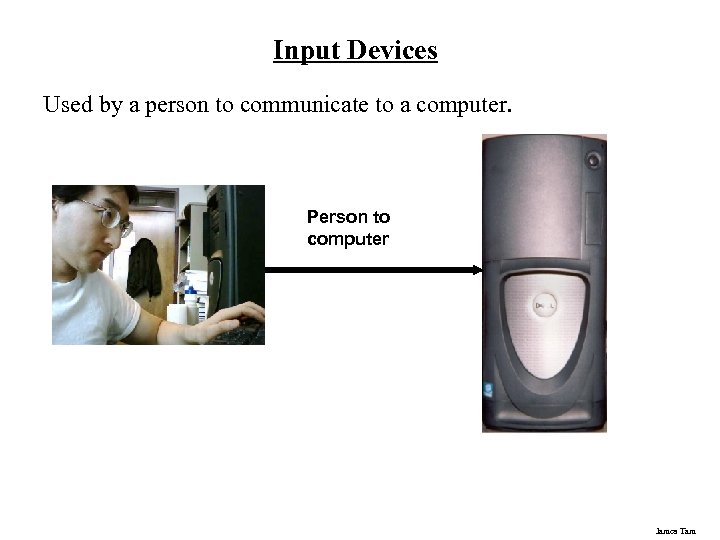 Input Devices Used by a person to communicate to a computer. Person to computer James Tam
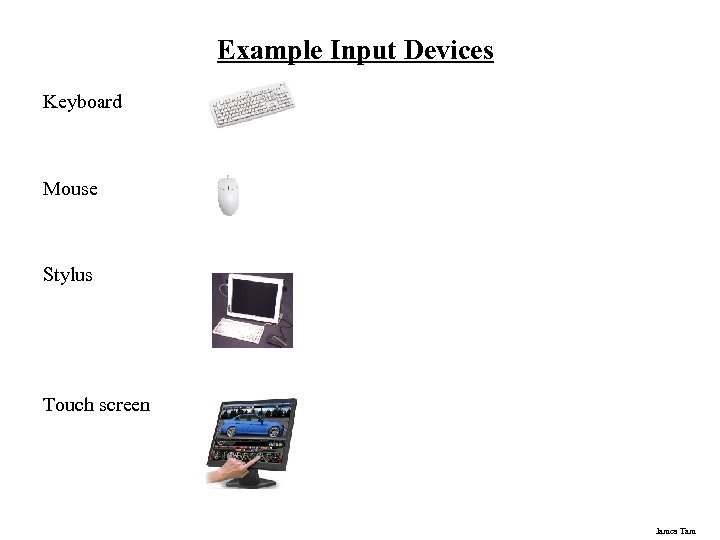 Example Input Devices Keyboard Mouse Stylus Touch screen James Tam
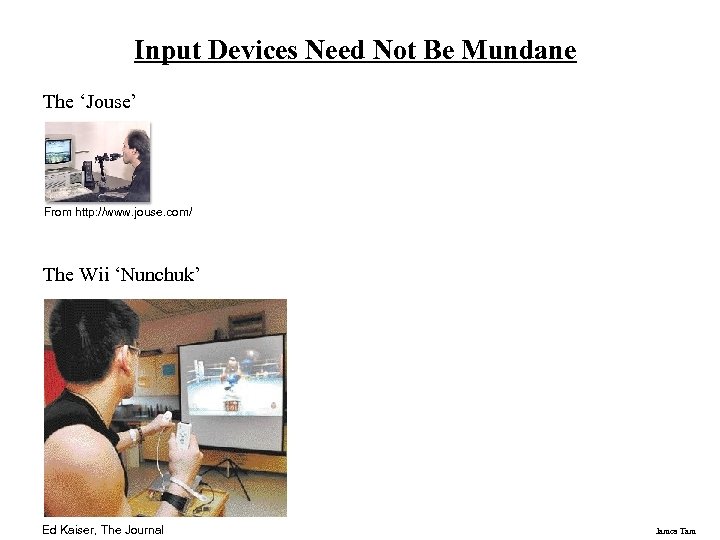 Input Devices Need Not Be Mundane The ‘Jouse’ From http: //www. jouse. com/ The Wii ‘Nunchuk’ Ed Kaiser, The Journal James Tam
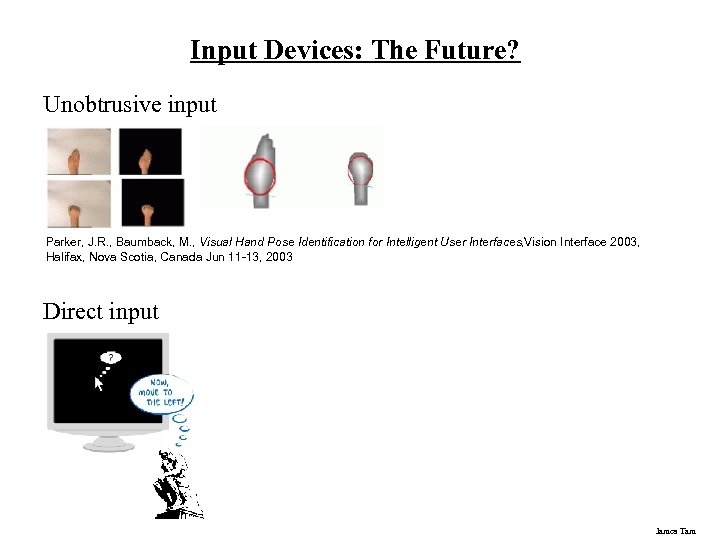 Input Devices: The Future? Unobtrusive input Parker, J. R. , Baumback, M. , Visual Hand Pose Identification for Intelligent User Interfaces, Vision Interface 2003, Halifax, Nova Scotia, Canada Jun 11 -13, 2003 Direct input James Tam
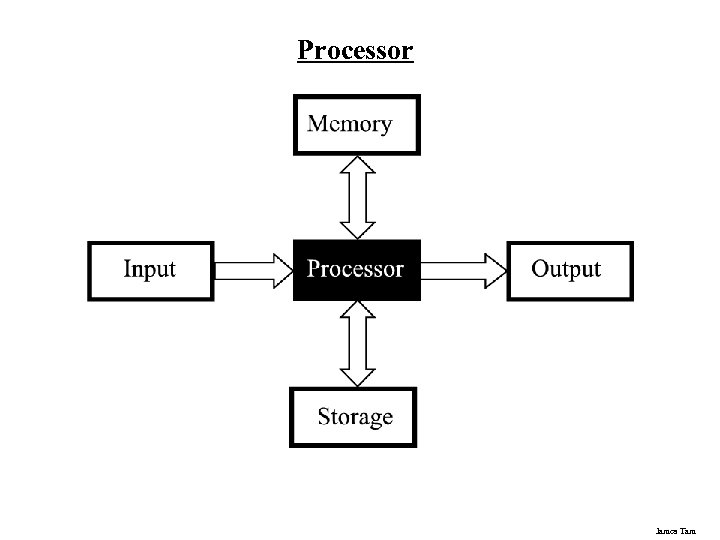 Processor James Tam
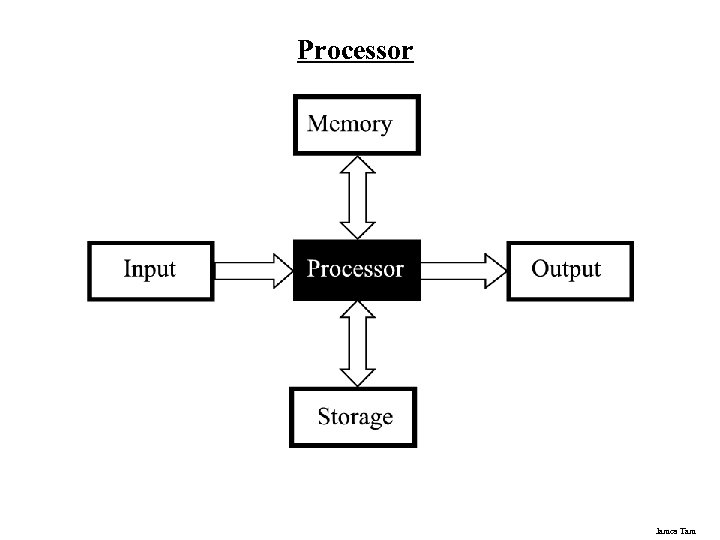 Processor James Tam
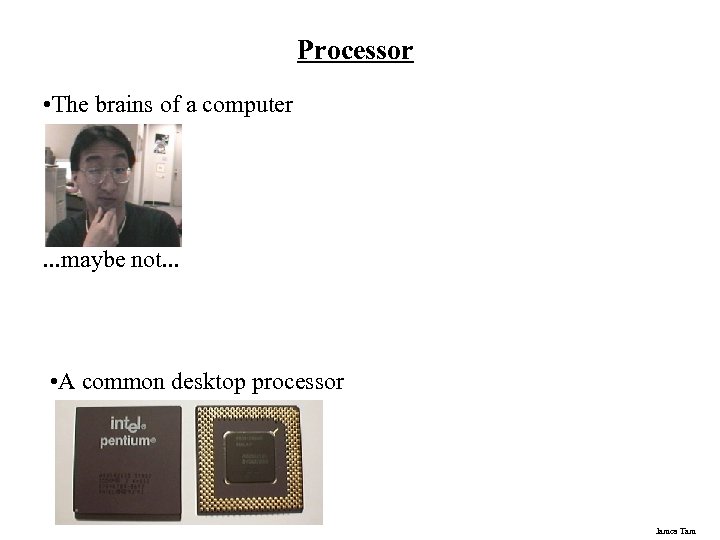 Processor • The brains of a computer . . . maybe not. . . • A common desktop processor James Tam
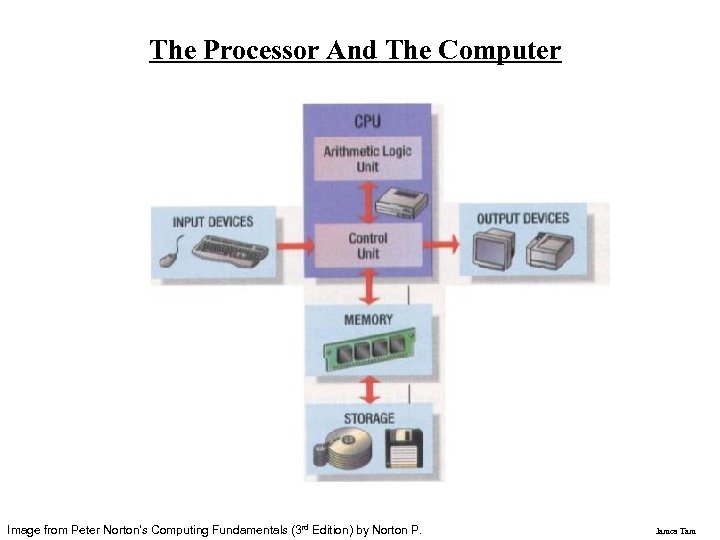 The Processor And The Computer Image from Peter Norton's Computing Fundamentals (3 rd Edition) by Norton P. James Tam
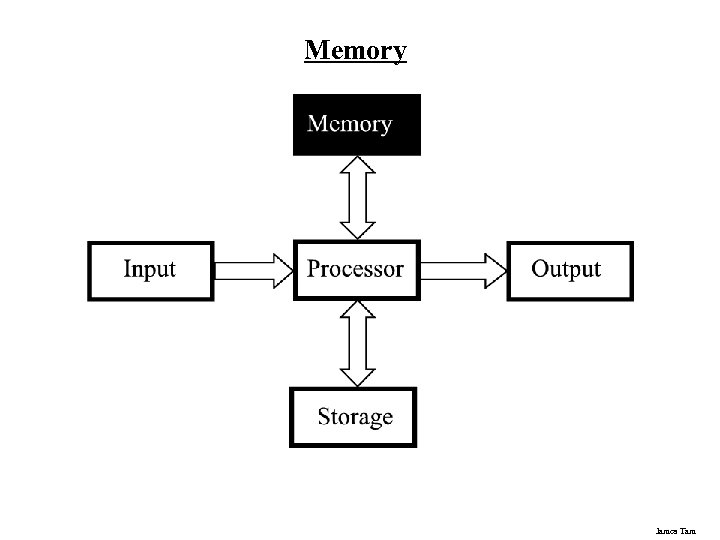 Memory James Tam
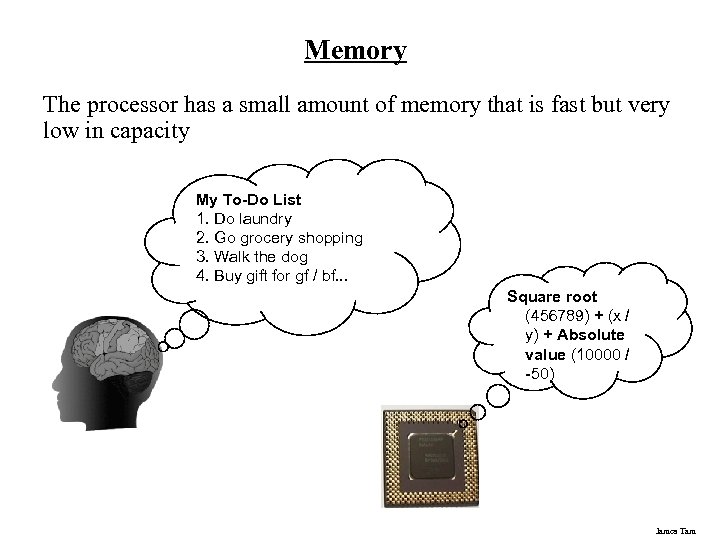 Memory The processor has a small amount of memory that is fast but very low in capacity My To-Do List 1. Do laundry 2. Go grocery shopping 3. Walk the dog 4. Buy gift for gf / bf. . . Square root (456789) + (x / y) + Absolute value (10000 / -50) James Tam
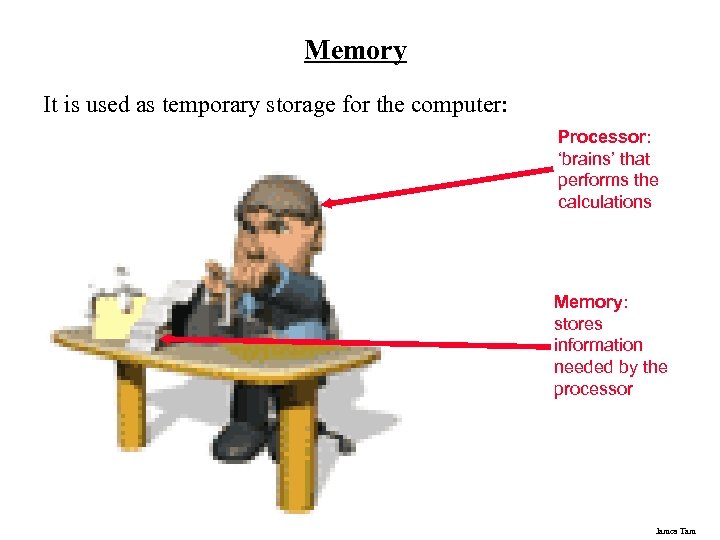 Memory It is used as temporary storage for the computer: Processor: ‘brains’ that performs the calculations Memory: stores information needed by the processor James Tam
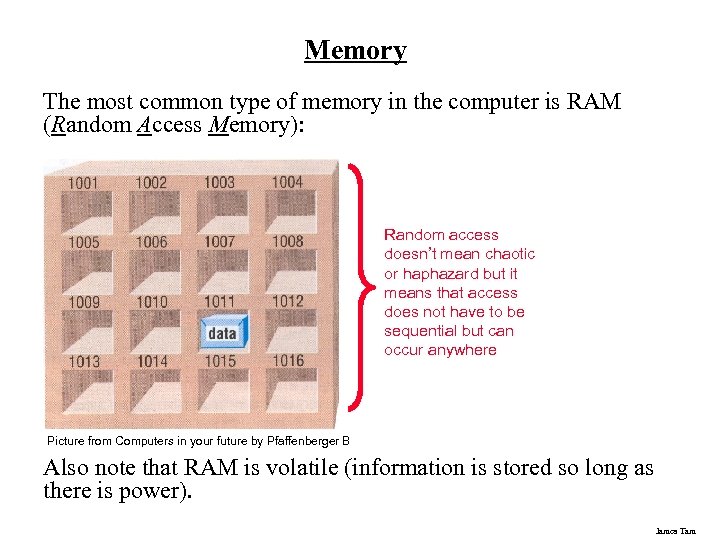 Memory The most common type of memory in the computer is RAM (Random Access Memory): Random access doesn’t mean chaotic or haphazard but it means that access does not have to be sequential but can occur anywhere Picture from Computers in your future by Pfaffenberger B Also note that RAM is volatile (information is stored so long as there is power). James Tam
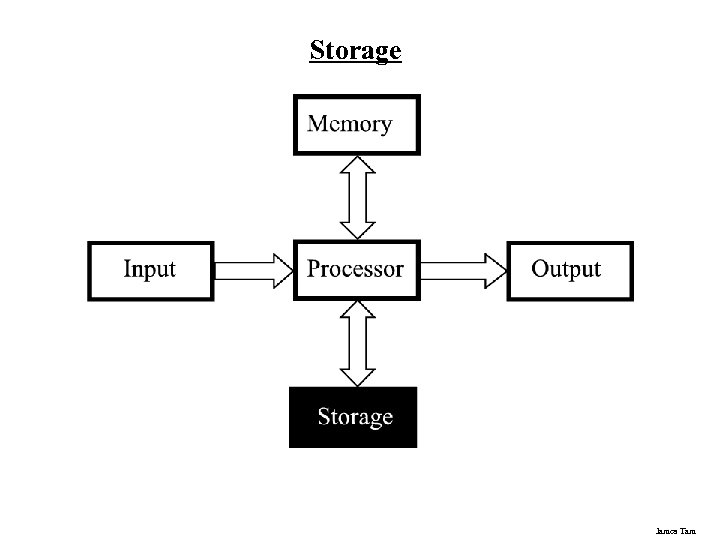 Storage James Tam
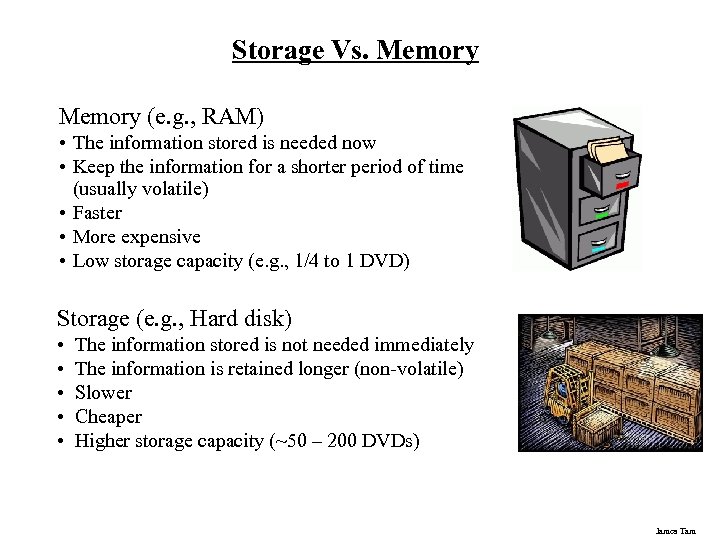 Storage Vs. Memory (e. g. , RAM) • The information stored is needed now • Keep the information for a shorter period of time (usually volatile) • Faster • More expensive • Low storage capacity (e. g. , 1/4 to 1 DVD) Storage (e. g. , Hard disk) • • • The information stored is not needed immediately The information is retained longer (non-volatile) Slower Cheaper Higher storage capacity (~50 – 200 DVDs) James Tam
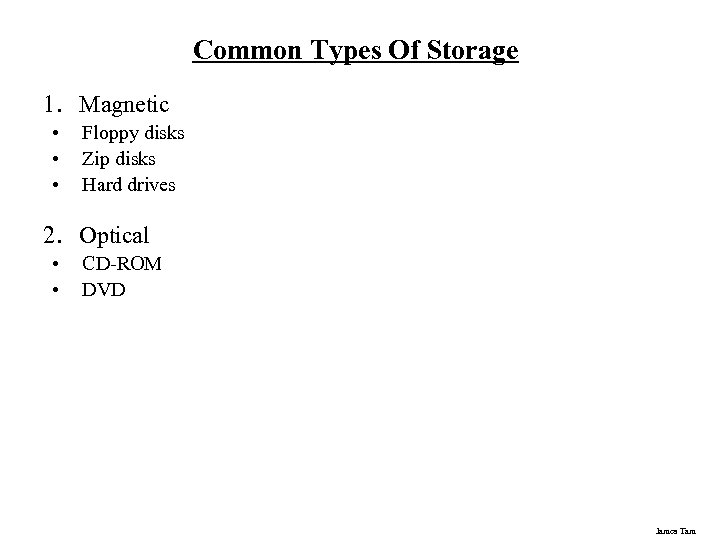 Common Types Of Storage 1. Magnetic • • • Floppy disks Zip disks Hard drives 2. Optical • • CD-ROM DVD James Tam
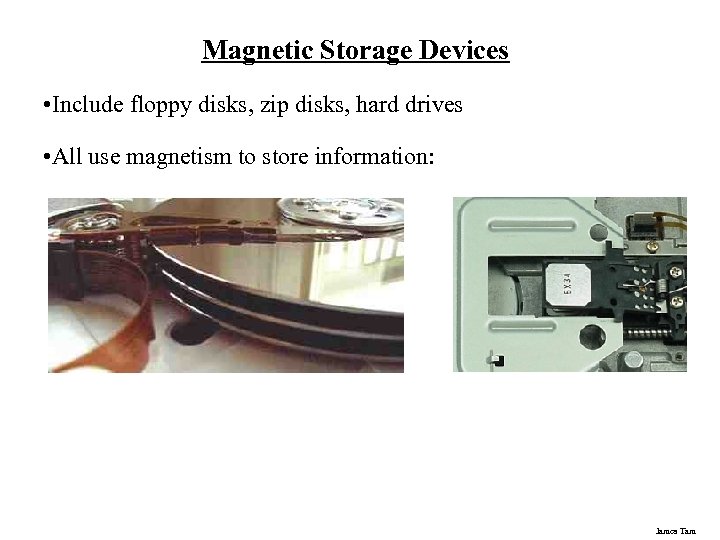 Magnetic Storage Devices • Include floppy disks, zip disks, hard drives • All use magnetism to store information: James Tam
 Optical Storage Devices Use lasers to store and retrieve information (CD’s and DVD’s) Categories: • Can only read information off the disc (CD-ROM, DVD-ROM) • Can read and also record information to the disk (CD-R, DVD+R) • Can read, record and also re-write information multiple times (CD-RW, DVD+RW) James Tam
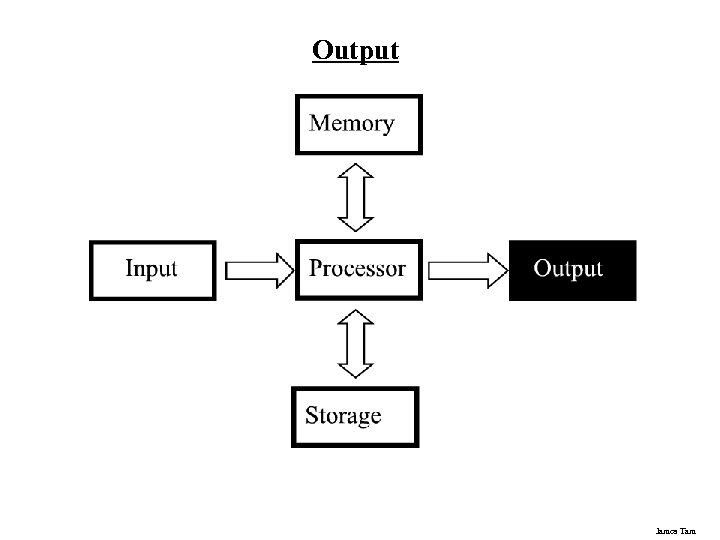 Output James Tam
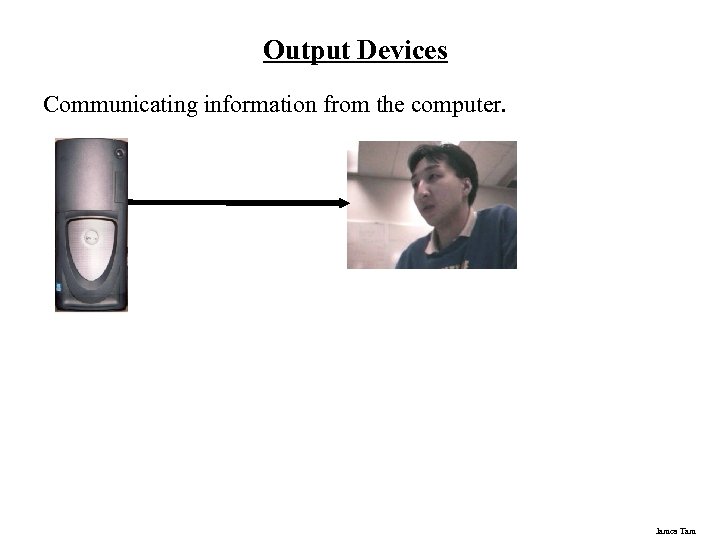 Output Devices Communicating information from the computer. James Tam
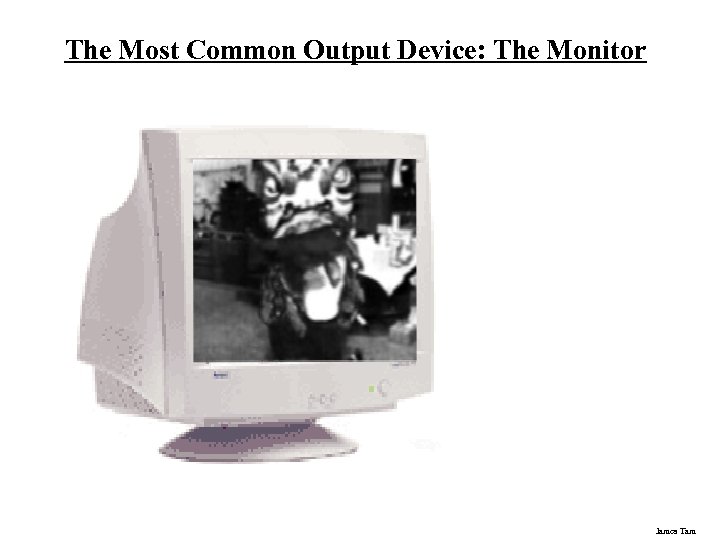 The Most Common Output Device: The Monitor James Tam
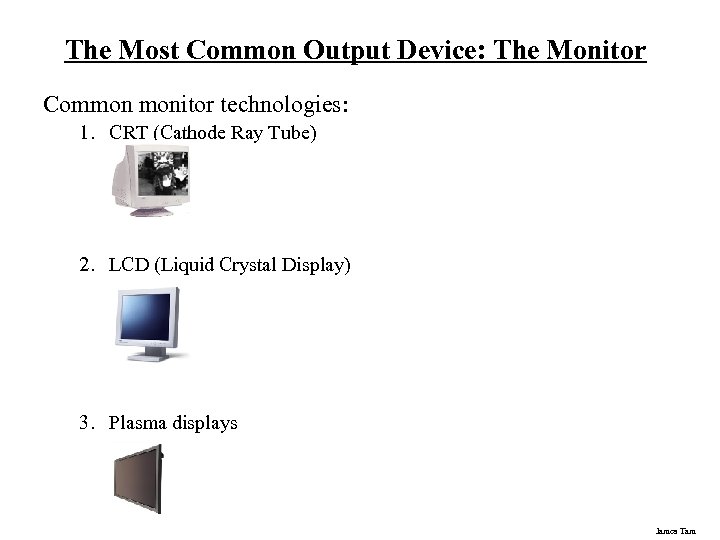 The Most Common Output Device: The Monitor Common monitor technologies: 1. CRT (Cathode Ray Tube) 2. LCD (Liquid Crystal Display) 3. Plasma displays James Tam
 How Images Are Drawn On Monitors Images and text are drawn with tiny dots (Pixels: Picture elements) A James Tam
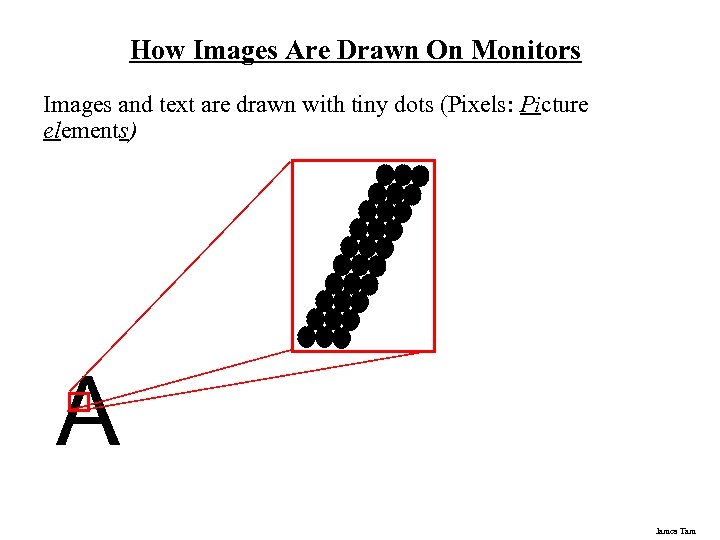 How Images Are Drawn On Monitors Images and text are drawn with tiny dots (Pixels: Picture elements) A James Tam
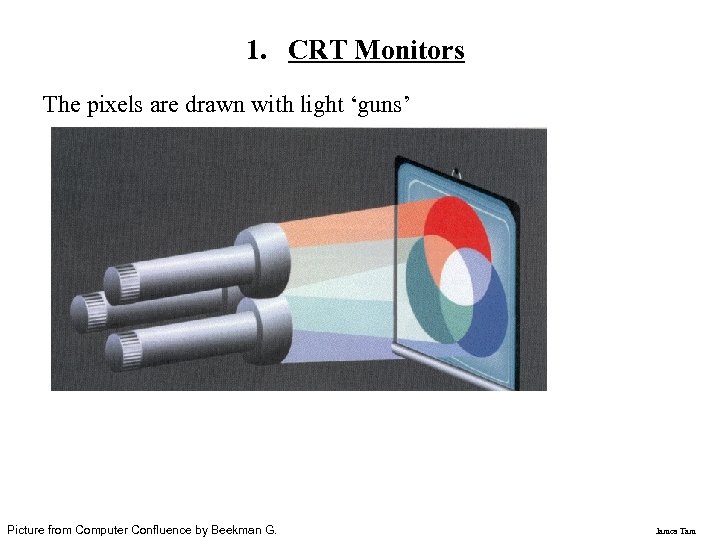 1. CRT Monitors The pixels are drawn with light ‘guns’ Picture from Computer Confluence by Beekman G. James Tam
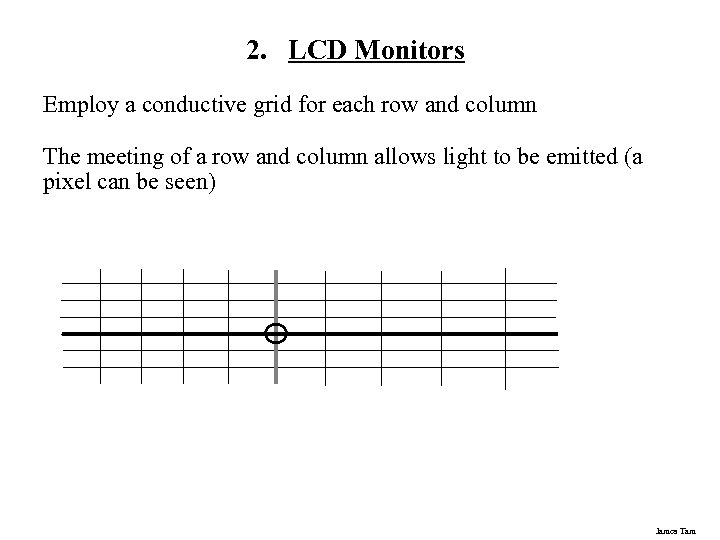 2. LCD Monitors Employ a conductive grid for each row and column The meeting of a row and column allows light to be emitted (a pixel can be seen) James Tam
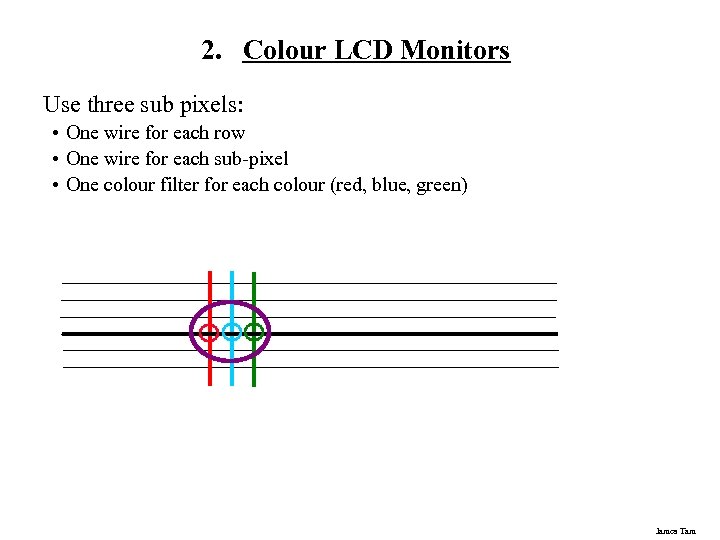 2. Colour LCD Monitors Use three sub pixels: • One wire for each row • One wire for each sub-pixel • One colour filter for each colour (red, blue, green) James Tam
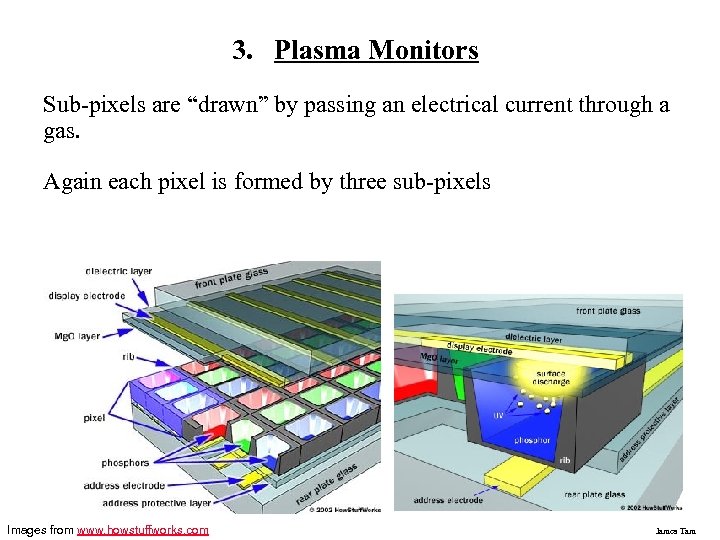 3. Plasma Monitors Sub-pixels are “drawn” by passing an electrical current through a gas. Again each pixel is formed by three sub-pixels Images from www. howstuffworks. com James Tam
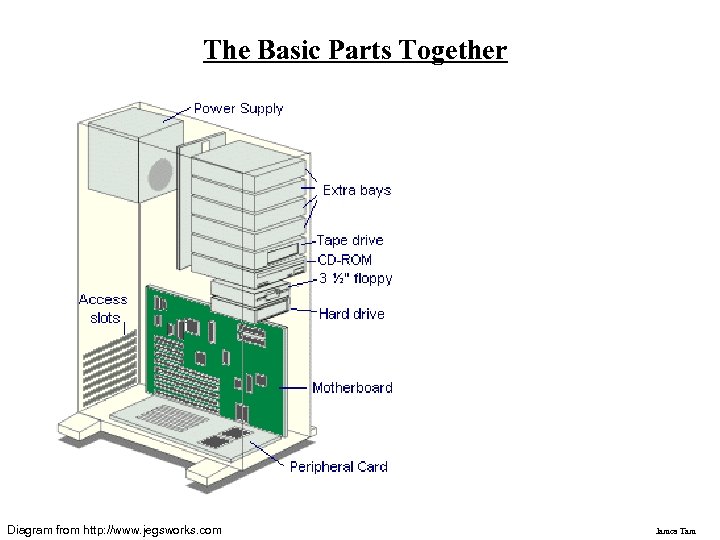 The Basic Parts Together Diagram from http: //www. jegsworks. com James Tam
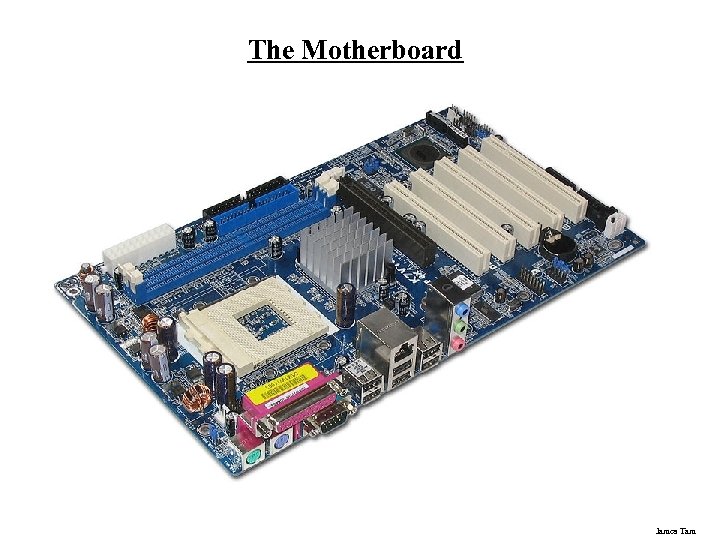 The Motherboard James Tam
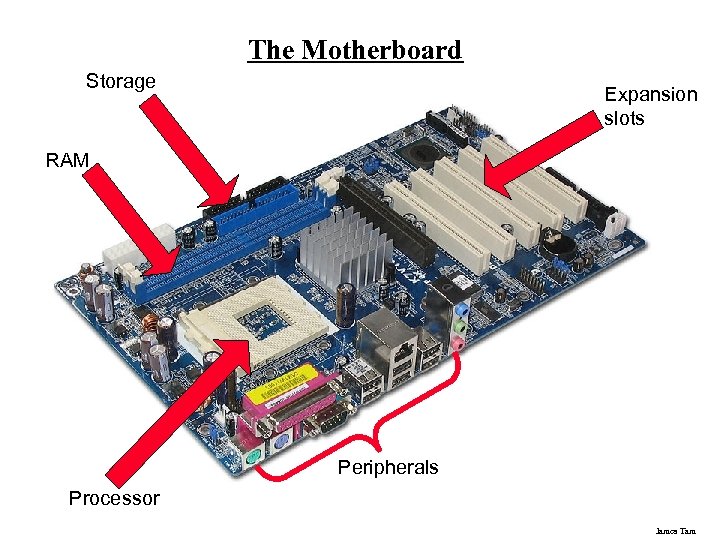 The Motherboard Storage Expansion slots RAM Peripherals Processor James Tam
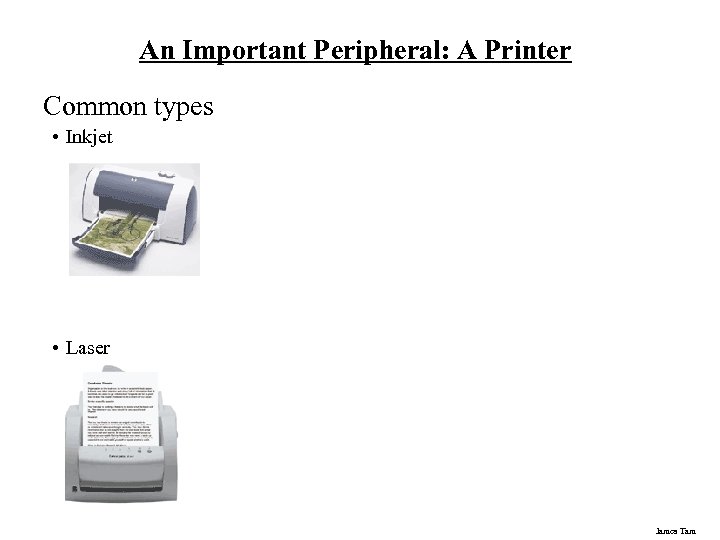 An Important Peripheral: A Printer Common types • Inkjet • Laser James Tam
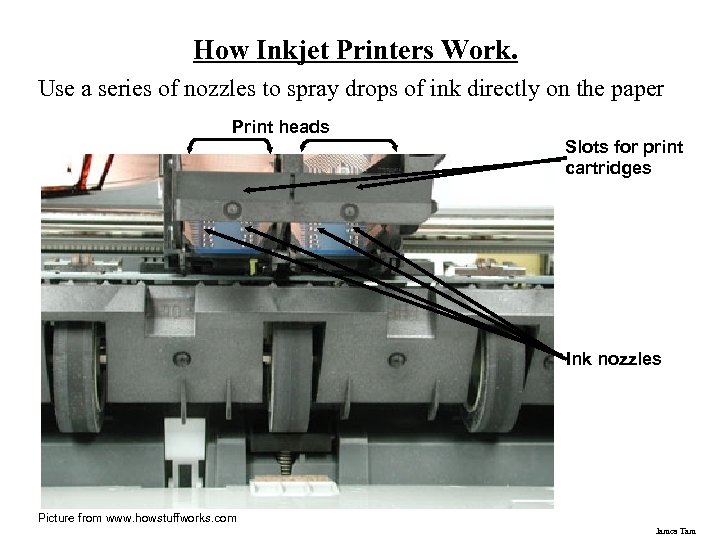 How Inkjet Printers Work. Use a series of nozzles to spray drops of ink directly on the paper Print heads Slots for print cartridges Ink nozzles Picture from www. howstuffworks. com James Tam
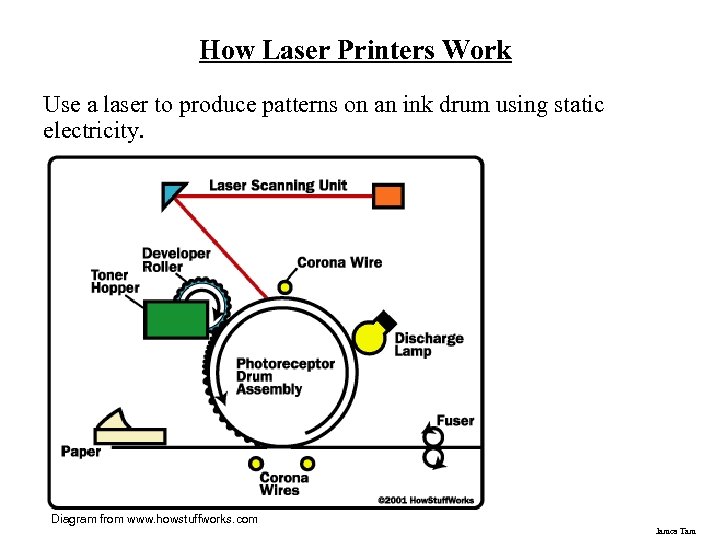 How Laser Printers Work Use a laser to produce patterns on an ink drum using static electricity. Diagram from www. howstuffworks. com James Tam
 Section II: How Does A Computer Work In this section you will learn that the operation of a computer is typically based on a two state model. James Tam
 How Does A Person Work? In many shades of grey (subtleties and ambiguities can exist) . . . i. e. , people are complex with many possible states (some of which may be conflicting) James Tam
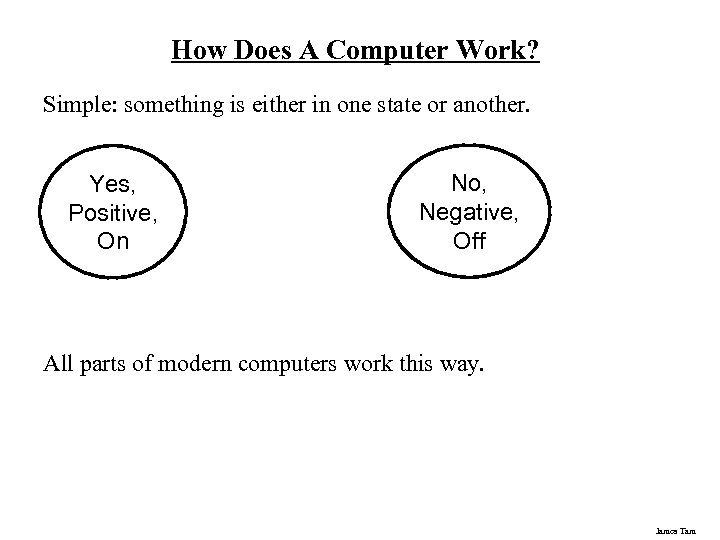 How Does A Computer Work? Simple: something is either in one state or another. Yes, Positive, On No, Negative, Off All parts of modern computers work this way. James Tam
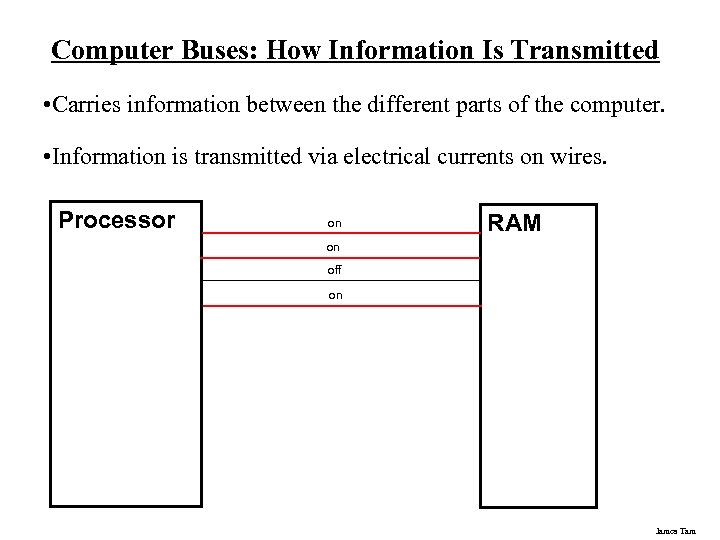 Computer Buses: How Information Is Transmitted • Carries information between the different parts of the computer. • Information is transmitted via electrical currents on wires. Processor on RAM on off on James Tam
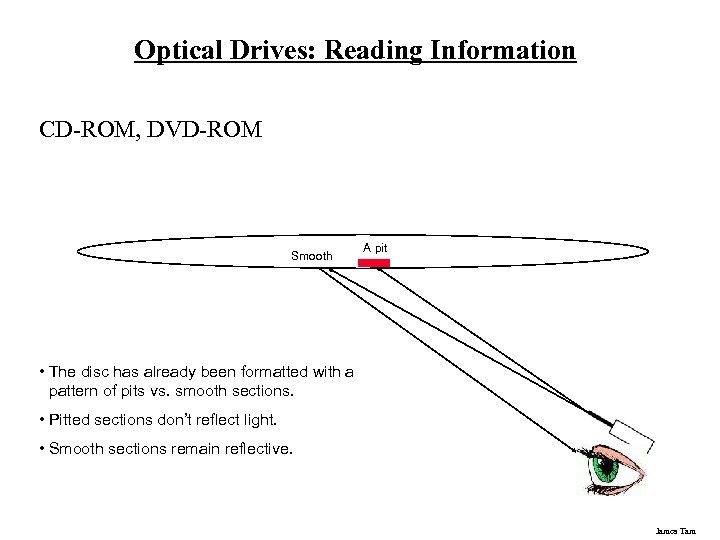 Optical Drives: Reading Information CD-ROM, DVD-ROM Smooth A pit • The disc has already been formatted with a pattern of pits vs. smooth sections. • Pitted sections don’t reflect light. • Smooth sections remain reflective. James Tam
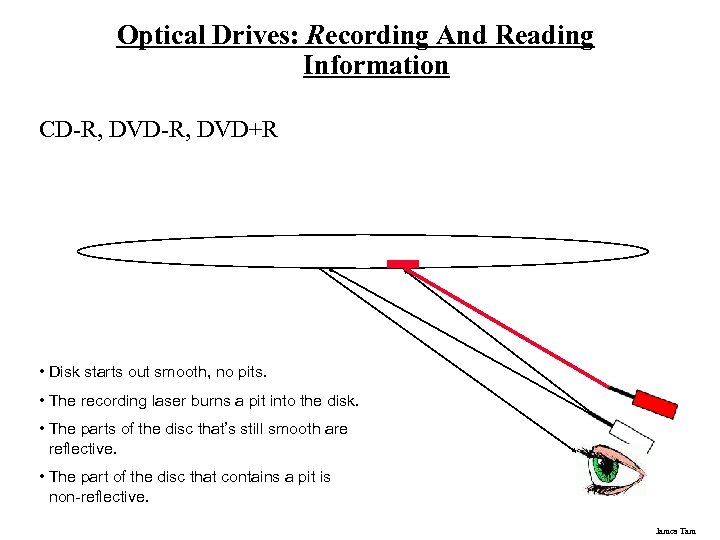 Optical Drives: Recording And Reading Information CD-R, DVD+R • Disk starts out smooth, no pits. • The recording laser burns a pit into the disk. • The parts of the disc that’s still smooth are reflective. • The part of the disc that contains a pit is non-reflective. James Tam
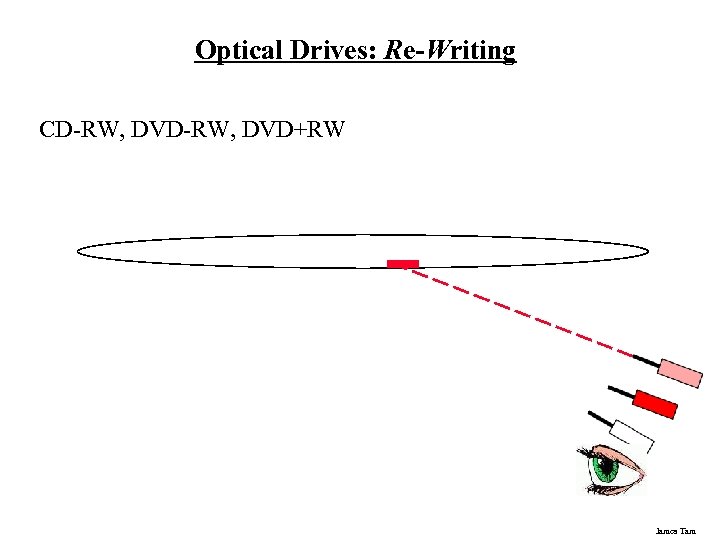 Optical Drives: Re-Writing CD-RW, DVD+RW James Tam
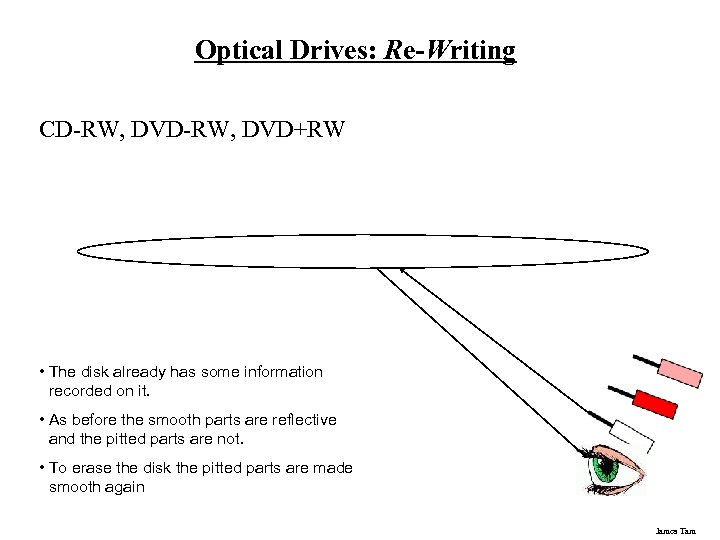 Optical Drives: Re-Writing CD-RW, DVD+RW • The disk already has some information recorded on it. • As before the smooth parts are reflective and the pitted parts are not. • To erase the disk the pitted parts are made smooth again James Tam
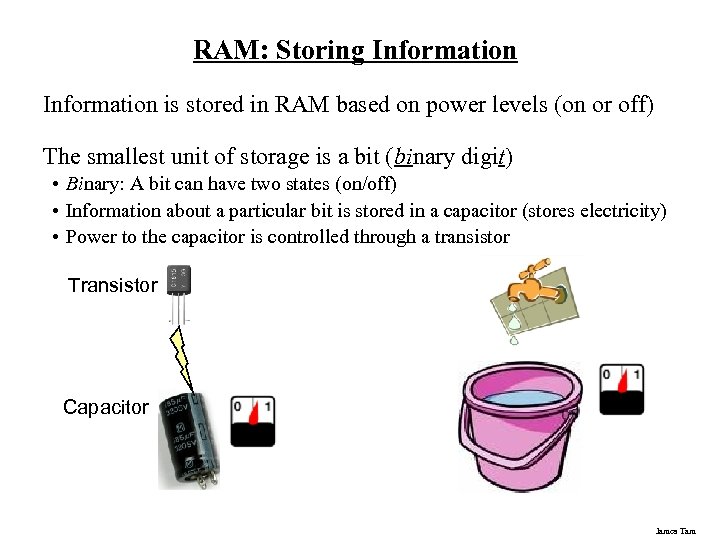 RAM: Storing Information is stored in RAM based on power levels (on or off) The smallest unit of storage is a bit (binary digit) • Binary: A bit can have two states (on/off) • Information about a particular bit is stored in a capacitor (stores electricity) • Power to the capacitor is controlled through a transistor Transistor Capacitor James Tam
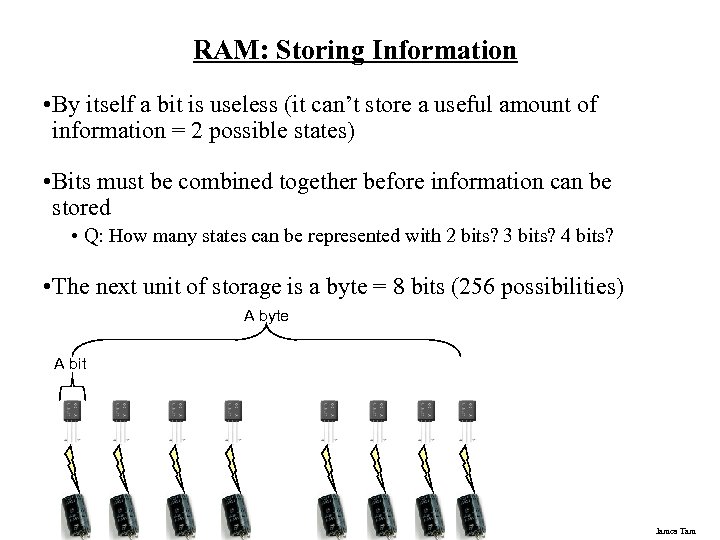 RAM: Storing Information • By itself a bit is useless (it can’t store a useful amount of information = 2 possible states) • Bits must be combined together before information can be stored • Q: How many states can be represented with 2 bits? 3 bits? 4 bits? • The next unit of storage is a byte = 8 bits (256 possibilities) A byte A bit James Tam
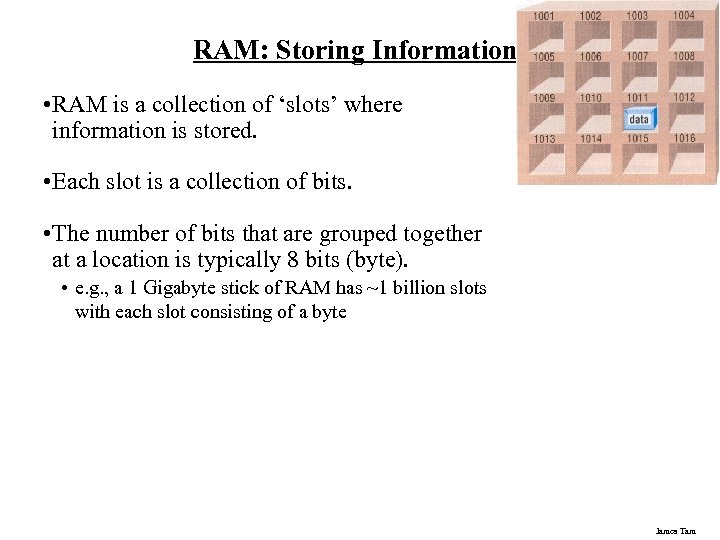 RAM: Storing Information • RAM is a collection of ‘slots’ where information is stored. • Each slot is a collection of bits. • The number of bits that are grouped together at a location is typically 8 bits (byte). • e. g. , a 1 Gigabyte stick of RAM has ~1 billion slots with each slot consisting of a byte James Tam
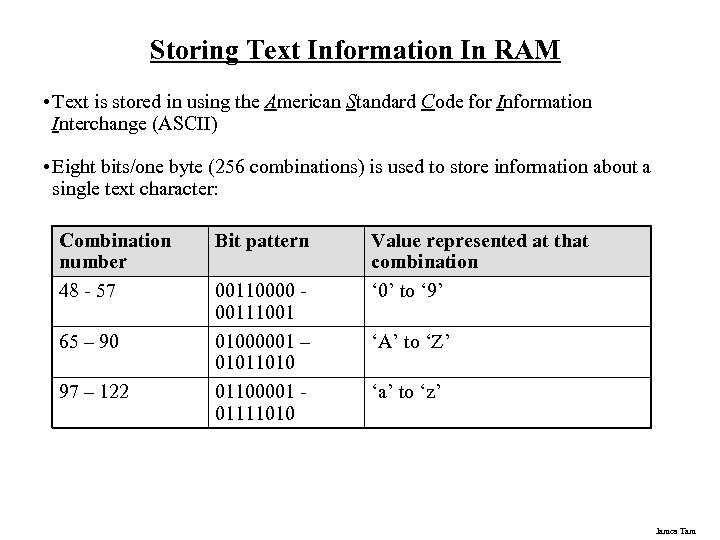 Storing Text Information In RAM • Text is stored in using the American Standard Code for Information Interchange (ASCII) • Eight bits/one byte (256 combinations) is used to store information about a single text character: Combination number 48 - 57 65 – 90 97 – 122 Bit pattern 00110000 00111001 01000001 – 01011010 01100001 01111010 Value represented at that combination ‘ 0’ to ‘ 9’ ‘A’ to ‘Z’ ‘a’ to ‘z’ James Tam
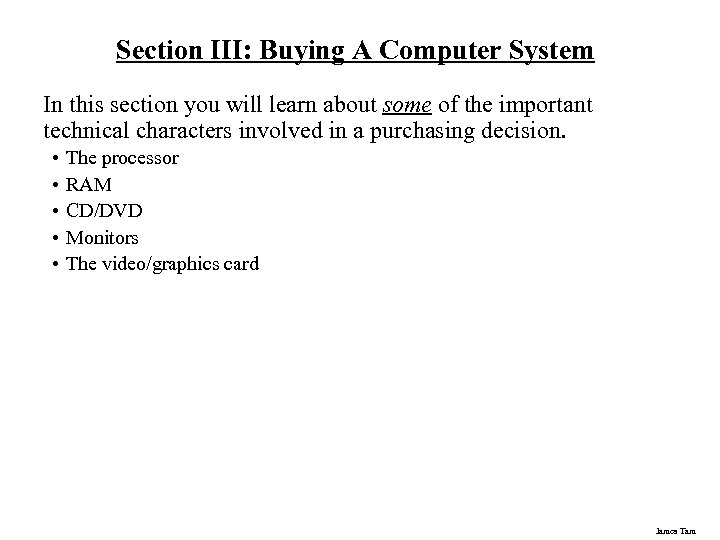 Section III: Buying A Computer System In this section you will learn about some of the important technical characters involved in a purchasing decision. • • • The processor RAM CD/DVD Monitors The video/graphics card James Tam
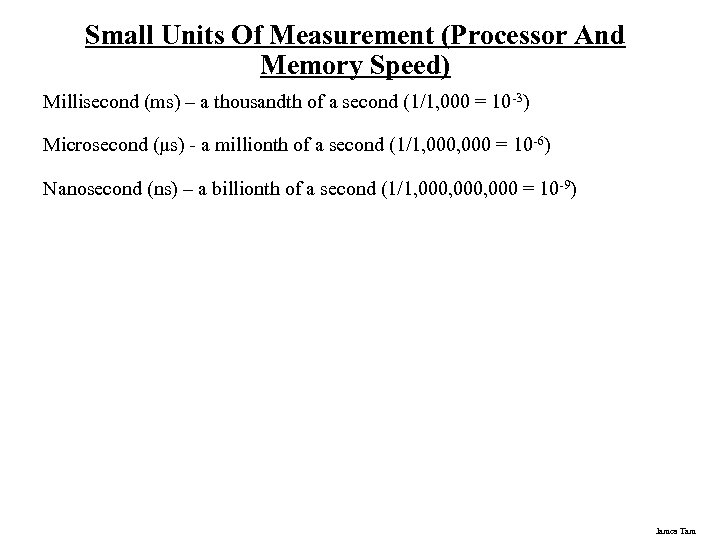 Small Units Of Measurement (Processor And Memory Speed) Millisecond (ms) – a thousandth of a second (1/1, 000 = 10 -3) Microsecond (μs) - a millionth of a second (1/1, 000 = 10 -6) Nanosecond (ns) – a billionth of a second (1/1, 000, 000 = 10 -9) James Tam
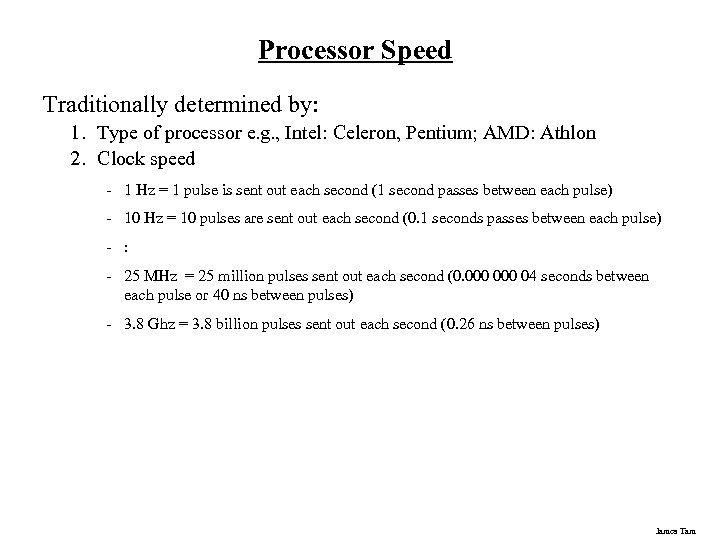 Processor Speed Traditionally determined by: 1. Type of processor e. g. , Intel: Celeron, Pentium; AMD: Athlon 2. Clock speed - 1 Hz = 1 pulse is sent out each second (1 second passes between each pulse) - 10 Hz = 10 pulses are sent out each second (0. 1 seconds passes between each pulse) - : - 25 MHz = 25 million pulses sent out each second (0. 000 04 seconds between each pulse or 40 ns between pulses) - 3. 8 Ghz = 3. 8 billion pulses sent out each second (0. 26 ns between pulses) James Tam
 Other Important Characteristics Of Processors • Hyper-threading technology • Multi (e. g. , Dual) core technology • Speed of the (Front side) bus • The cache size James Tam
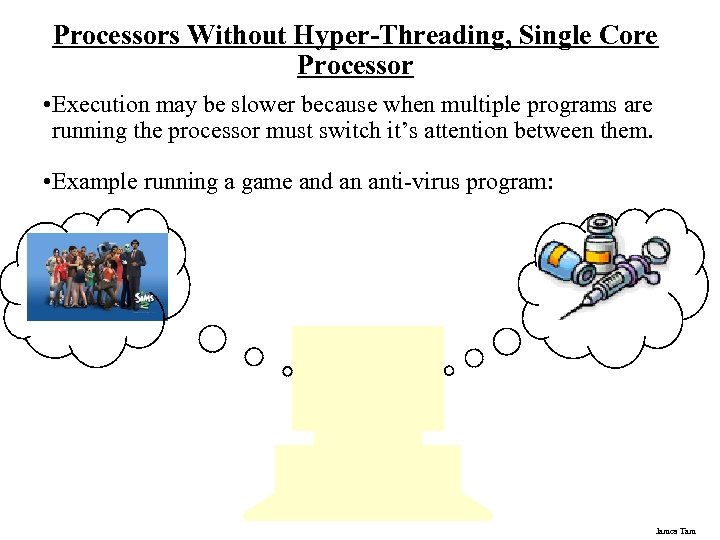 Processors Without Hyper-Threading, Single Core Processor • Execution may be slower because when multiple programs are running the processor must switch it’s attention between them. • Example running a game and an anti-virus program: James Tam
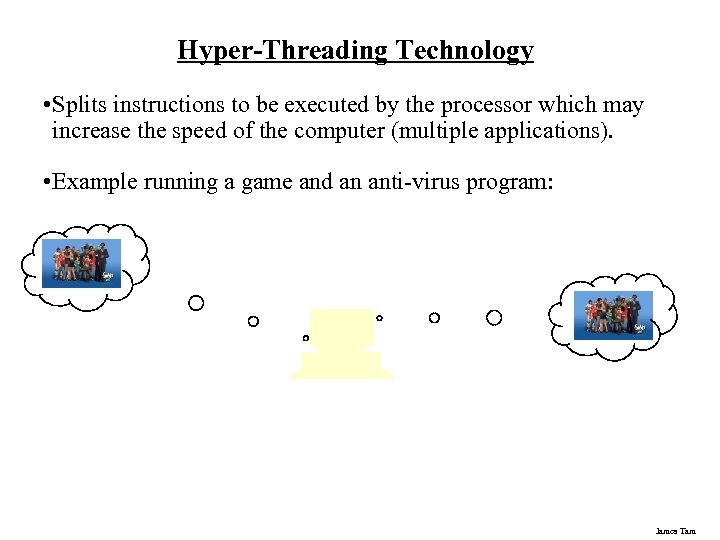
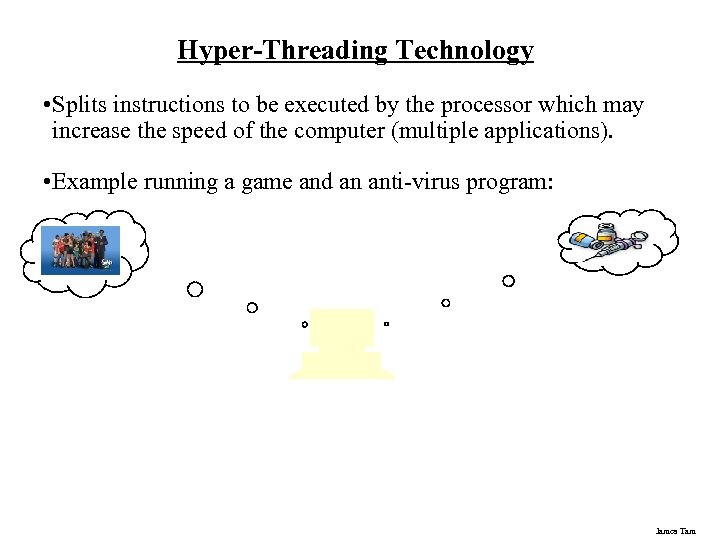 Hyper-Threading Technology • Splits instructions to be executed by the processor which may increase the speed of the computer (multiple applications). • Example running a game and an anti-virus program: James Tam
 Hyper-Threading Technology • Splits instructions to be executed by the processor which may increase the speed of the computer (multiple applications). • Example running a game and an anti-virus program: James Tam
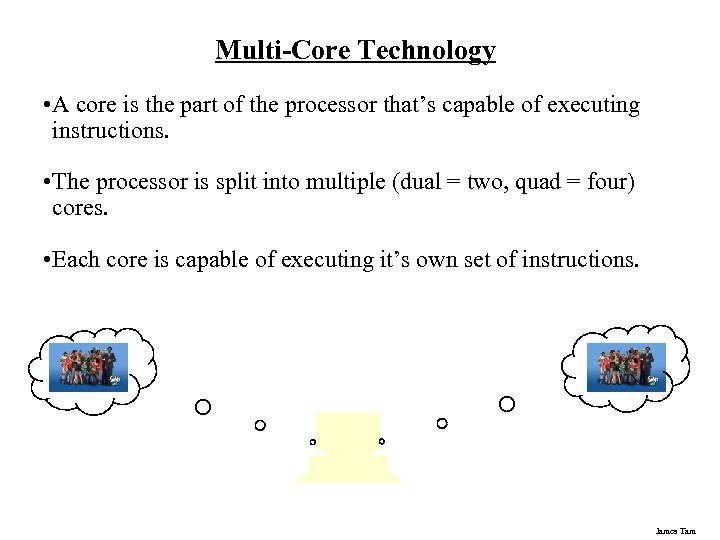 Multi-Core Technology • A core is the part of the processor that’s capable of executing instructions. • The processor is split into multiple (dual = two, quad = four) cores. • Each core is capable of executing it’s own set of instructions. James Tam
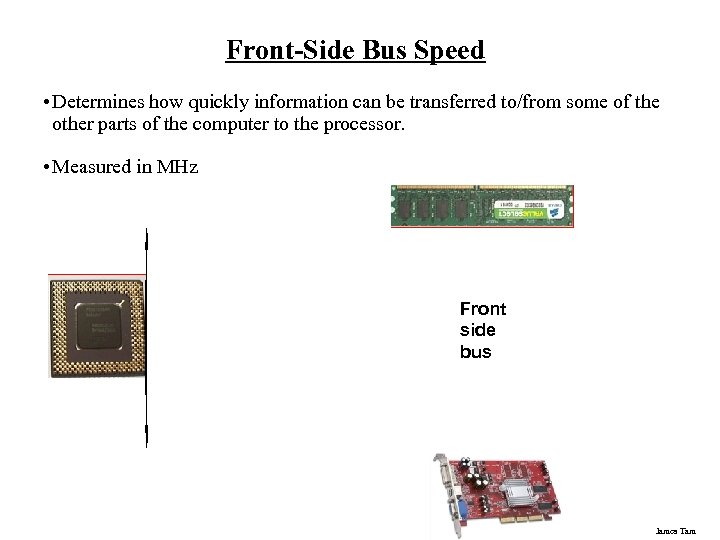 Front-Side Bus Speed • Determines how quickly information can be transferred to/from some of the other parts of the computer to the processor. • Measured in MHz Front side bus James Tam
 Example: Front-Side Bus Speeds Celeron: 533 – 800 MHz Celeron D: 533 MHz Pentium 4: 533 MHz – 800 MHz Pentium dual core: 533 MHz – 800 MHz Pentium Core 2 extreme: 800 MHz – 1333 MHz James Tam
 The Processor Cache • The cache is fast memory that’s on either on the processor or near it on the motherboard. • Bridges the processor and RAM • Example sizes • Celeron: when it first came out it had no cache, now it ranges ~256 KB – 512 KB • Pentium 4: 1 MB – 2 MB • Pentium dual core: 1 MB • Pentium Core: 2 MB – 8 MB James Tam
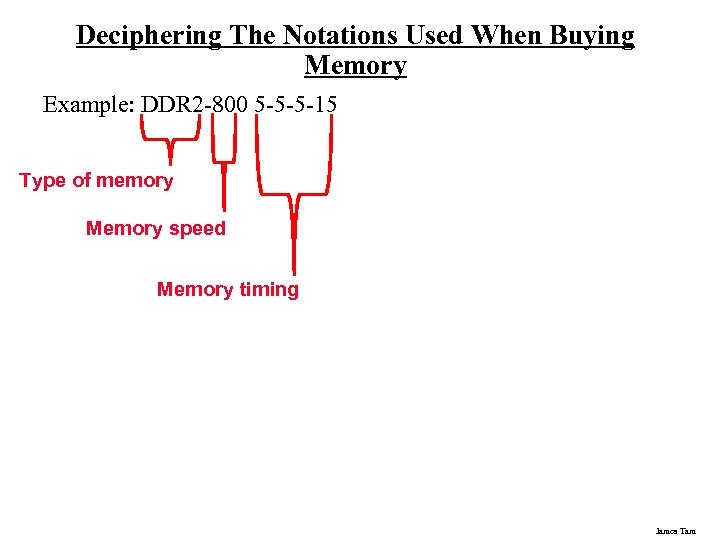 Deciphering The Notations Used When Buying Memory Example: DDR 2 -800 5 -5 -5 -15 Type of memory Memory speed Memory timing James Tam
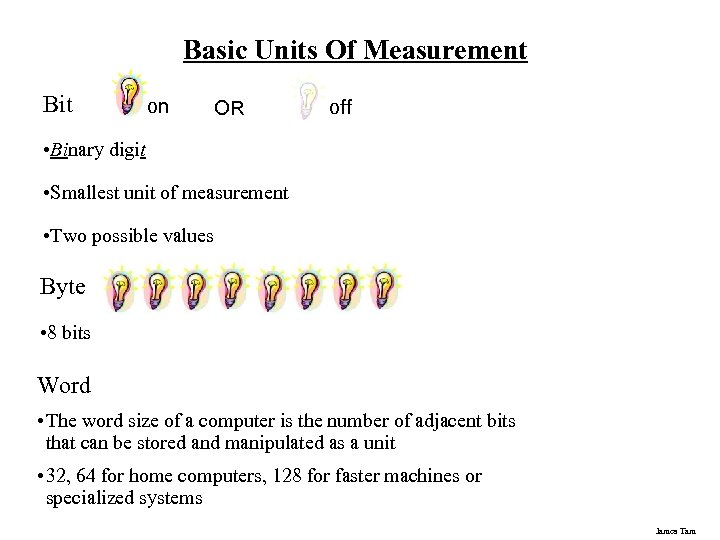 Basic Units Of Measurement Bit on OR off • Binary digit • Smallest unit of measurement • Two possible values Byte • 8 bits Word • The word size of a computer is the number of adjacent bits that can be stored and manipulated as a unit • 32, 64 for home computers, 128 for faster machines or specialized systems James Tam
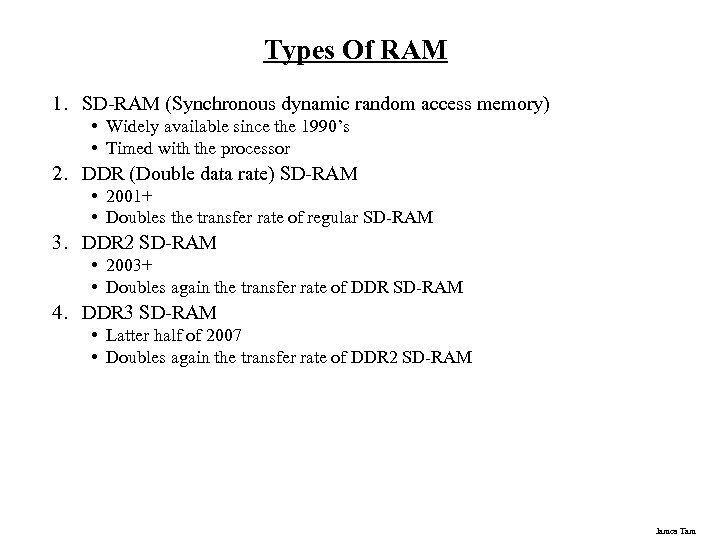 Types Of RAM 1. SD-RAM (Synchronous dynamic random access memory) • Widely available since the 1990’s • Timed with the processor 2. DDR (Double data rate) SD-RAM • 2001+ • Doubles the transfer rate of regular SD-RAM 3. DDR 2 SD-RAM • 2003+ • Doubles again the transfer rate of DDR SD-RAM 4. DDR 3 SD-RAM • Latter half of 2007 • Doubles again the transfer rate of DDR 2 SD-RAM James Tam
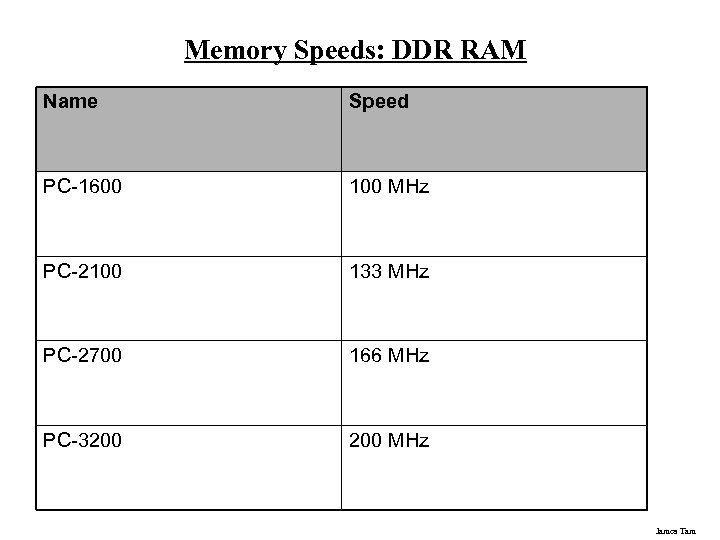 Memory Speeds: DDR RAM Name Speed PC-1600 100 MHz PC-2100 133 MHz PC-2700 166 MHz PC-3200 MHz James Tam
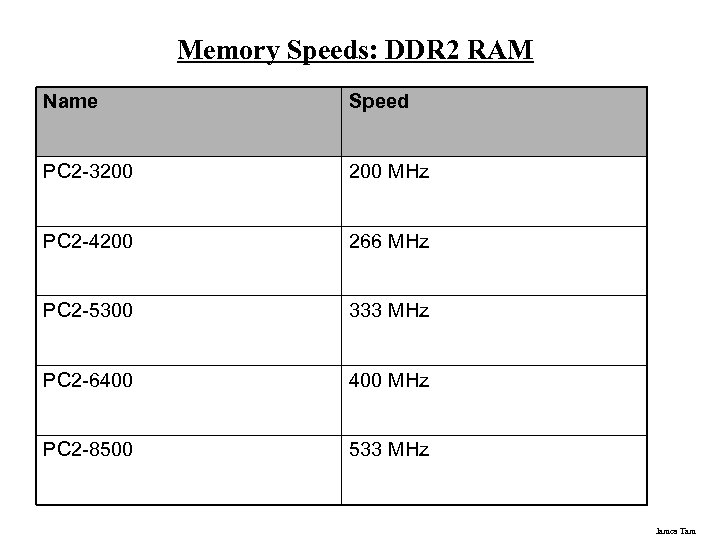 Memory Speeds: DDR 2 RAM Name Speed PC 2 -3200 MHz PC 2 -4200 266 MHz PC 2 -5300 333 MHz PC 2 -6400 MHz PC 2 -8500 533 MHz James Tam
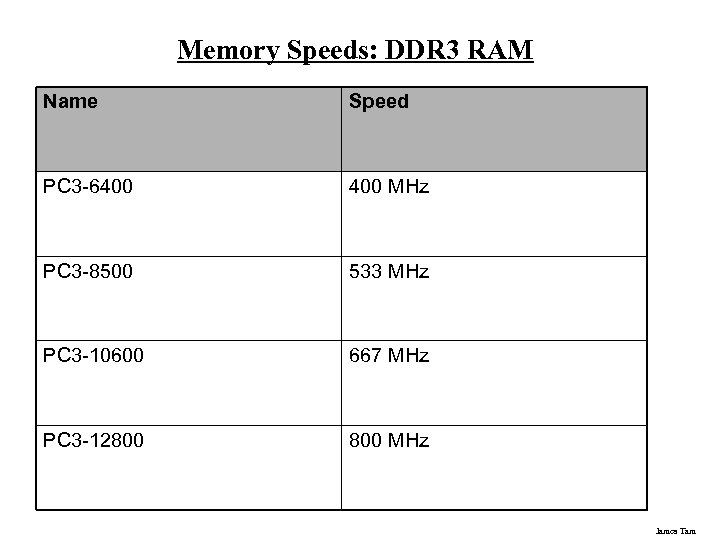 Memory Speeds: DDR 3 RAM Name Speed PC 3 -6400 MHz PC 3 -8500 533 MHz PC 3 -10600 667 MHz PC 3 -12800 MHz James Tam
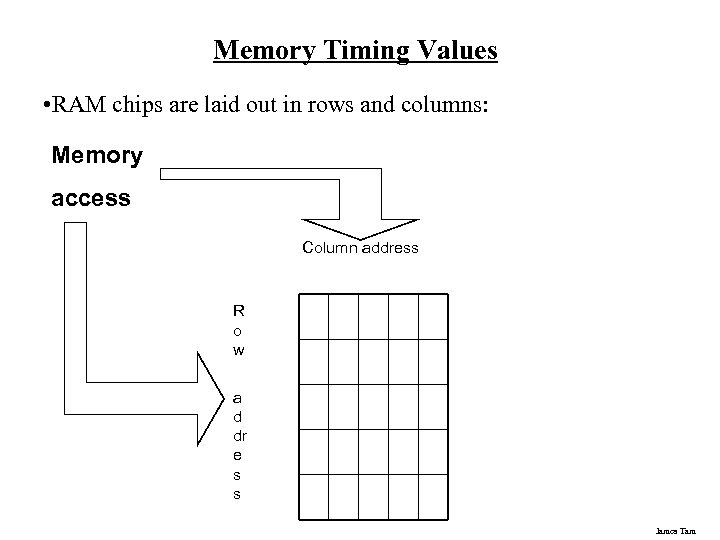 Memory Timing Values • RAM chips are laid out in rows and columns: Memory access Column address R o w a d dr e s s James Tam
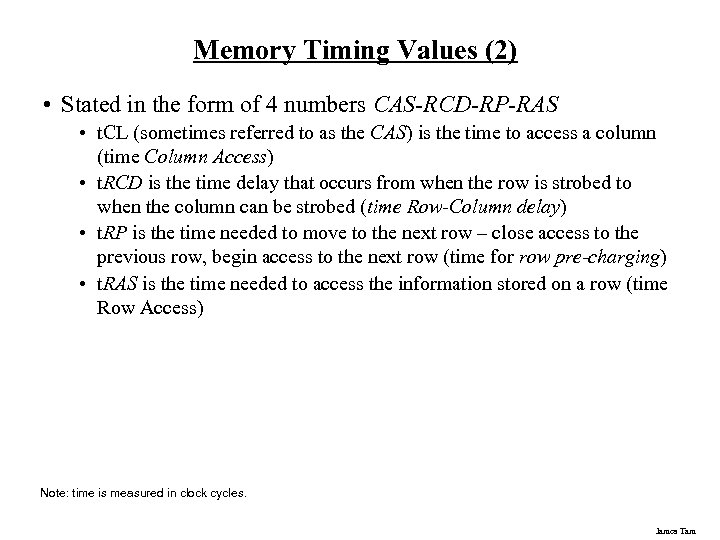 Memory Timing Values (2) • Stated in the form of 4 numbers CAS-RCD-RP-RAS • t. CL (sometimes referred to as the CAS) is the time to access a column (time Column Access) • t. RCD is the time delay that occurs from when the row is strobed to when the column can be strobed (time Row-Column delay) • t. RP is the time needed to move to the next row – close access to the previous row, begin access to the next row (time for row pre-charging) • t. RAS is the time needed to access the information stored on a row (time Row Access) Note: time is measured in clock cycles. James Tam
 CD/DVD Drives Some considerations: • Speed • Single layer/single sided and dual layer/double sided • Next generation DVD: Blu-ray, HD-DVD James Tam
 CD/DVD: Speed CD Speeds: • Stated in the form of 3 numbers e. g. , 52 x 32 x 52 • These three numbers state the maximums for: - (Write speed) x (Re-write speed) x (Read speed) DVD Speeds: • Sometimes they are listed in the same format as CD speeds • Other times they are listed in the form of two numbers e. g. , 16 x 16 - (Write speed with ‘plus’ DVD discs) x (Write speed with ‘minus’ DVD discs) • Or they may be listed as a single number e. g. , x 16 - (Write speed with ‘plus’ or ‘minus’ DVD discs James Tam
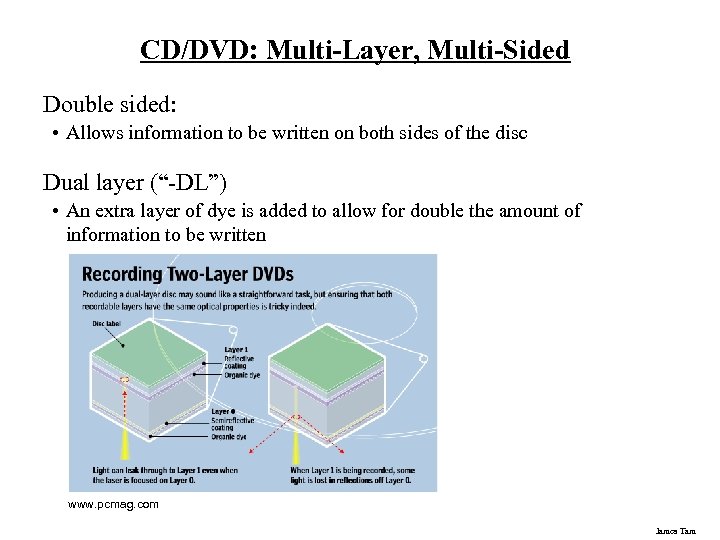 CD/DVD: Multi-Layer, Multi-Sided Double sided: • Allows information to be written on both sides of the disc Dual layer (“-DL”) • An extra layer of dye is added to allow for double the amount of information to be written www. pcmag. com James Tam
 Large Units Of Measurement (Memory, Storage) Note: powers of two are used because computer memory and storage are based on the basic unit (bit). Kilobyte (KB) – a thousand bytes (1, 024 = 210) Megabyte (MB) - a million (1, 048, 576 = 220) Gigabyte (GB) – a billion (1, 073, 741, 824 = 230) ~ A complete set of encyclopedias requires about 700 MB of storage ~ 30 minutes of video (~1/4 of the information stored on a typical DVD) Terabyte (TB) – a trillion (1, 099, 511, 627, 776 = 240) ~ 20 million four-drawer filing cabinets full of text ~ 200 DVD’s of information James Tam
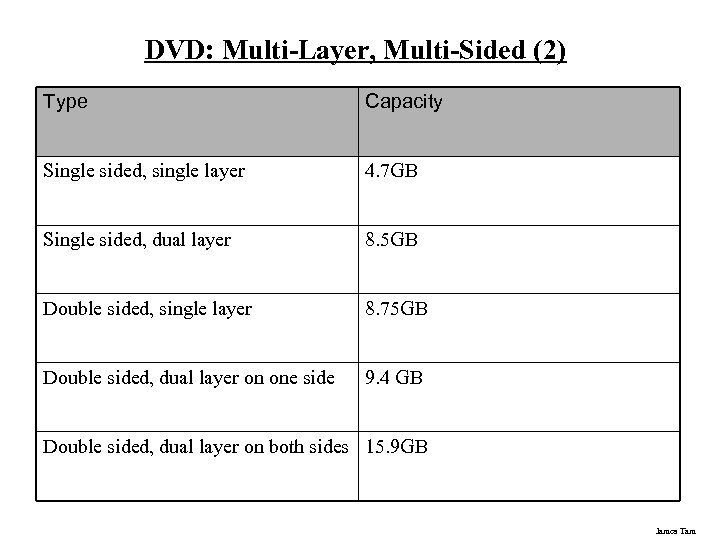 DVD: Multi-Layer, Multi-Sided (2) Type Capacity Single sided, single layer 4. 7 GB Single sided, dual layer 8. 5 GB Double sided, single layer 8. 75 GB Double sided, dual layer on one side 9. 4 GB Double sided, dual layer on both sides 15. 9 GB James Tam
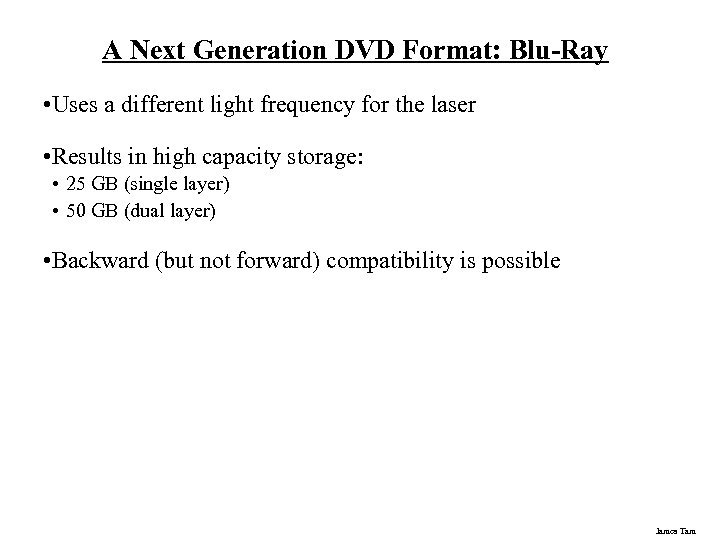 A Next Generation DVD Format: Blu-Ray • Uses a different light frequency for the laser • Results in high capacity storage: • 25 GB (single layer) • 50 GB (dual layer) • Backward (but not forward) compatibility is possible James Tam
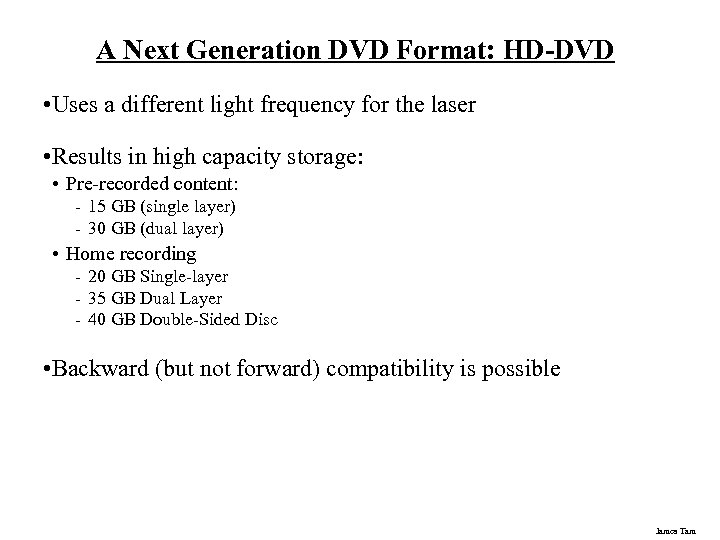 A Next Generation DVD Format: HD-DVD • Uses a different light frequency for the laser • Results in high capacity storage: • Pre-recorded content: - 15 GB (single layer) - 30 GB (dual layer) • Home recording - 20 GB Single-layer - 35 GB Dual Layer - 40 GB Double-Sided Disc • Backward (but not forward) compatibility is possible James Tam
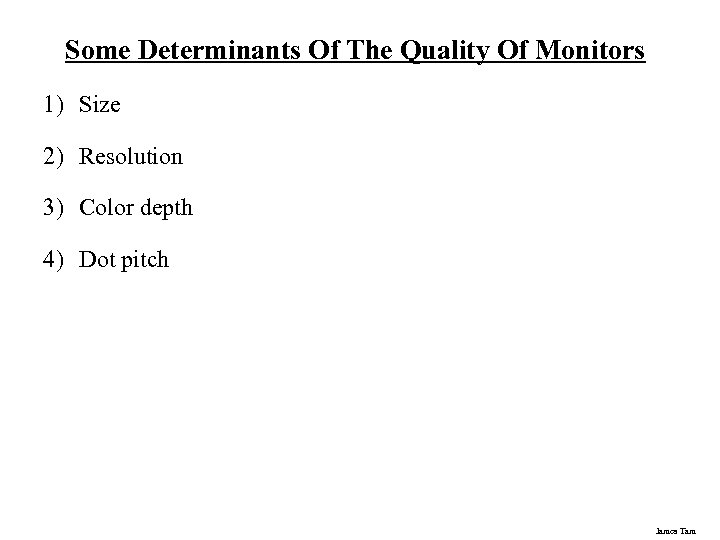 Some Determinants Of The Quality Of Monitors 1) Size 2) Resolution 3) Color depth 4) Dot pitch James Tam
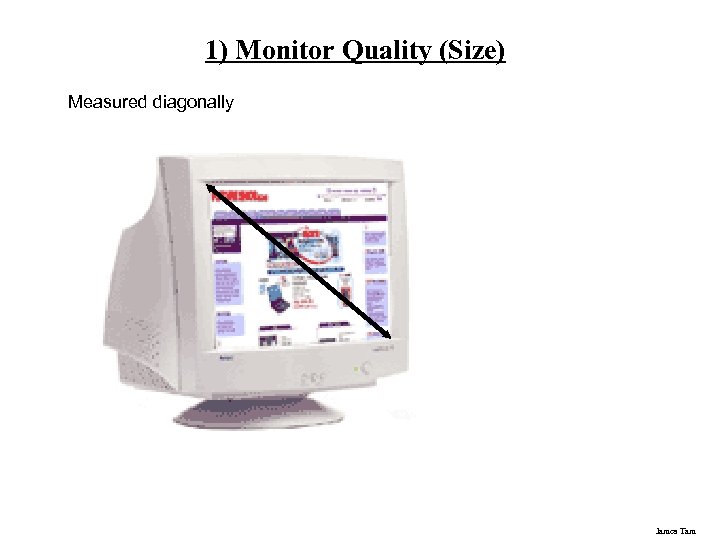 1) Monitor Quality (Size) Measured diagonally James Tam
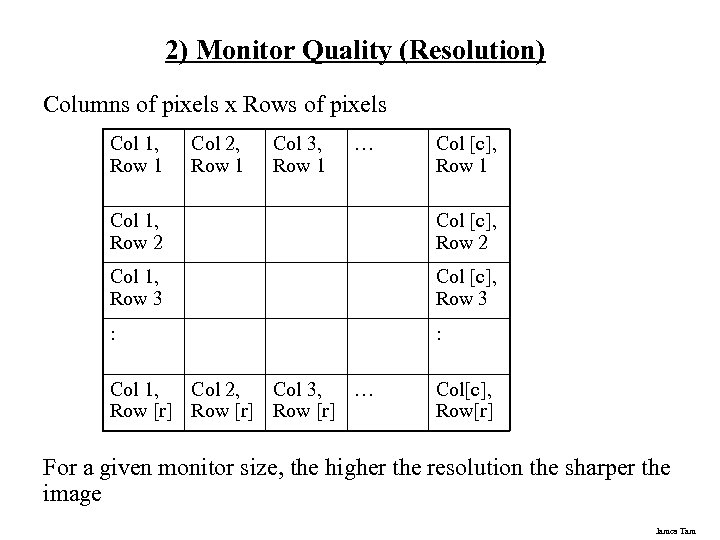 2) Monitor Quality (Resolution) Columns of pixels x Rows of pixels Col 1, Row 1 Col 2, Row 1 Col 3, Row 1 … Col [c], Row 1 Col 1, Row 2 Col [c], Row 2 Col 1, Row 3 Col [c], Row 3 : : Col 1, Col 2, Col 3, … Row [r] Col[c], Row[r] For a given monitor size, the higher the resolution the sharper the image James Tam
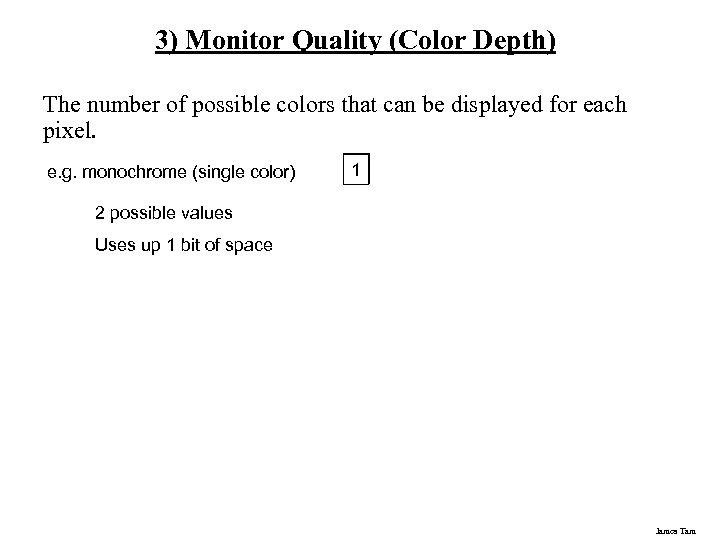 3) Monitor Quality (Color Depth) The number of possible colors that can be displayed for each pixel. e. g. monochrome (single color) 0 1 2 possible values Uses up 1 bit of space James Tam
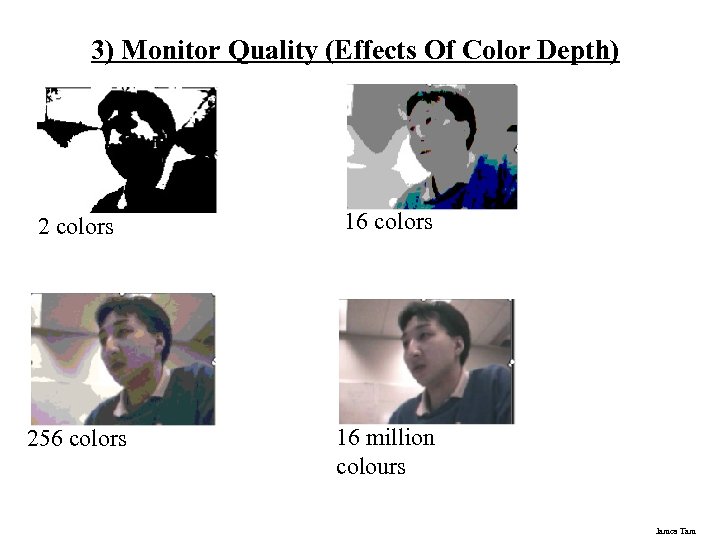 3) Monitor Quality (Effects Of Color Depth) 2 colors 16 colors 256 colors 16 million colours James Tam
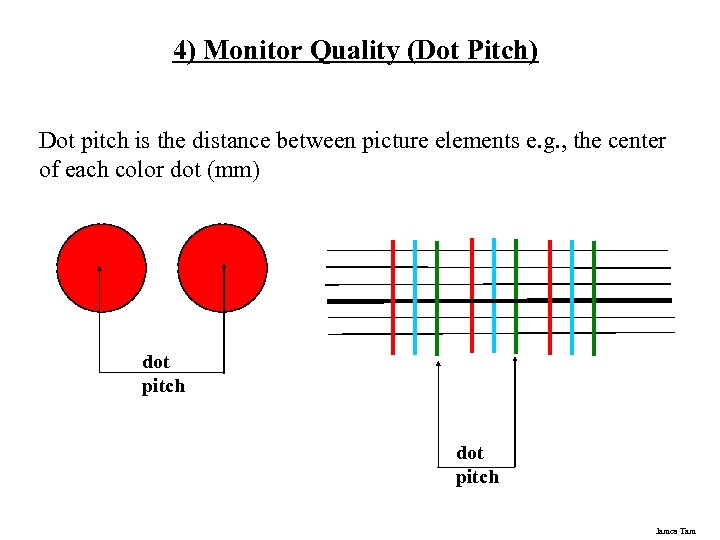 4) Monitor Quality (Dot Pitch) Dot pitch is the distance between picture elements e. g. , the center of each color dot (mm) dot pitch James Tam
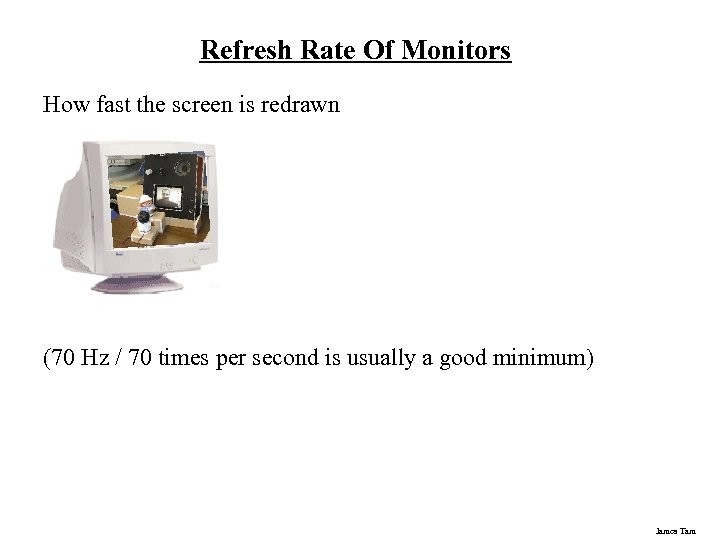 Refresh Rate Of Monitors How fast the screen is redrawn (70 Hz / 70 times per second is usually a good minimum) James Tam
 The Video/Graphics Card • Drawing high quality graphics and producing realistic looking animations is obviously crucial for running some of the new games. • However graphics is also important for some productivity software e. g. , 3 D drawing programs, video editing, CAD programs etc. • Also it can be an important consideration if you upgrade your operating system to Windows Vista. James Tam
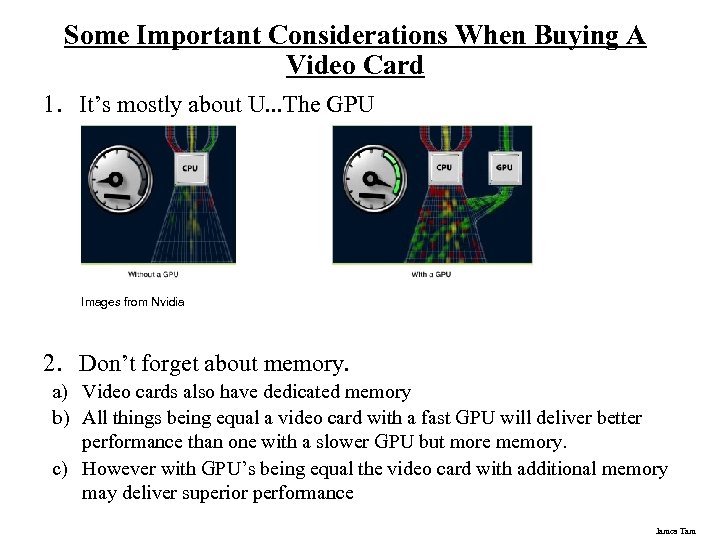 Some Important Considerations When Buying A Video Card 1. It’s mostly about U. . . The GPU Images from Nvidia 2. Don’t forget about memory. a) Video cards also have dedicated memory b) All things being equal a video card with a fast GPU will deliver better performance than one with a slower GPU but more memory. c) However with GPU’s being equal the video card with additional memory may deliver superior performance James Tam
 Some Important Considerations When Buying A Video Card (2) 3. Direct. X 10 support. . . possibly if you have Vista. James Tam
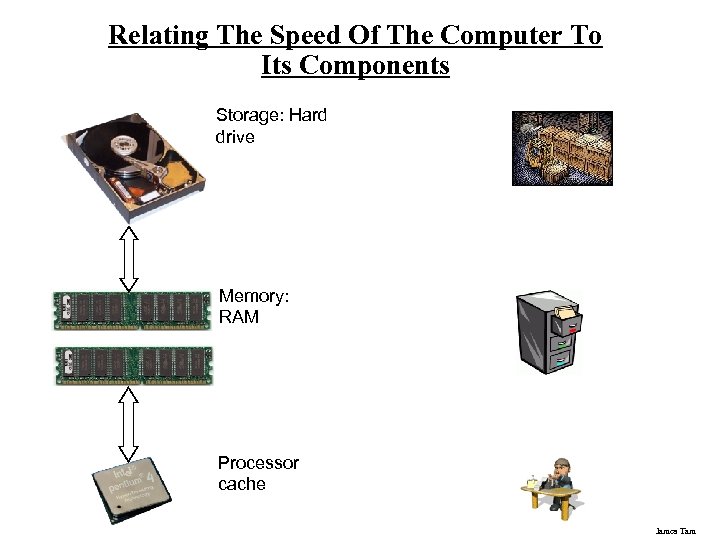 Relating The Speed Of The Computer To Its Components Storage: Hard drive Memory: RAM Processor cache James Tam
 You Should Now Know • What are the 5 parts of the high-level computer • How buses and ports connects the inner parts of the computer and the computer to the outside (respectively) • What are some common (and not so common) input devices • The role that the processor plays in the computer • The purpose of memory (RAM) in the computer • What are different types of computer storage and how does each one work • What is the difference between storage and memory James Tam
 You Should Now Know (2) • What are the different types of monitors and how does each one work • What is a motherboard and how does it relate to the other parts of the computer • How do ink-jet and laser printers work • How computers work on a two-state model • What are some of the important considerations when buying: a processor, RAM, an optical storage device, a computer monitor and a video card. • How the speed of a computer is determined by many factors. James Tam