


 Скачать презентацию COMP 104 Intro to Unix Week 2
983b4e60b43fb6de21ae9126c81cc4da.ppt
- Количество слайдов: 95
 COMP 104: Intro to Unix Week 2
 Review of Last Week n n History of Unix design philosophy The Unix shell, variables and options Unix commands: alias, cat, date, echo, exit, finger, hostname, login, lp, ls, man, more, passwd, setenv, uname, wc, whatis, whereis, whoami
 Agenda – Activity 1 n Introduction to the Unix File System n n n Unix file system File Types Directory File Paths Access Permissions Demonstration of file system
 Agenda – Activity 2 n UNIX Commands n Navigating the File System: n n n pwd, ls, touch, cd Demonstration of pwd, ls, touch, and cd Working With Files: n n cp, mv, rm, mkdir, rmdir Demonstration of cp, mv, rm, mkdir, rmdir
 Agenda – Activity 2 Continued n More UNIX Commands n File Permissions: n n id, umask, chmod Demonstration of id, umask, chmod In class assignment Break (10 minutes)
 Agenda – Activity 3 n vi Editor n n n Introduction to the vi editor Practice with the editor Preview of next week
 Activity 1
 The Unix File System Everything is a File in Unix
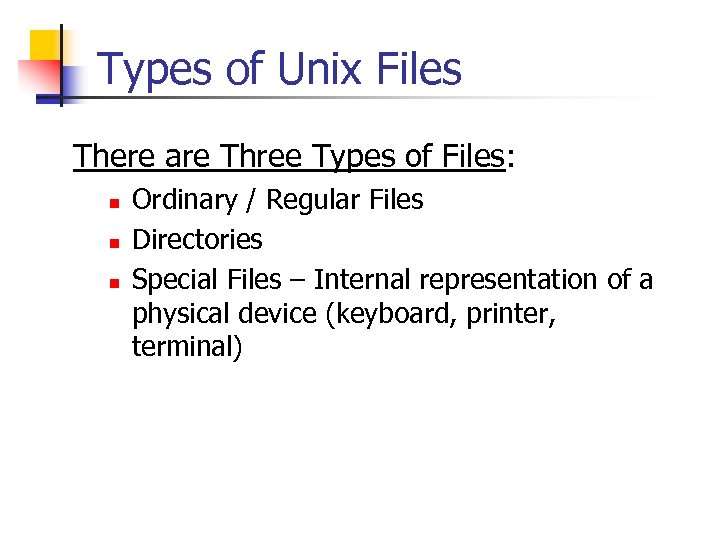 Types of Unix Files There are Three Types of Files: n n n Ordinary / Regular Files Directories Special Files – Internal representation of a physical device (keyboard, printer, terminal)
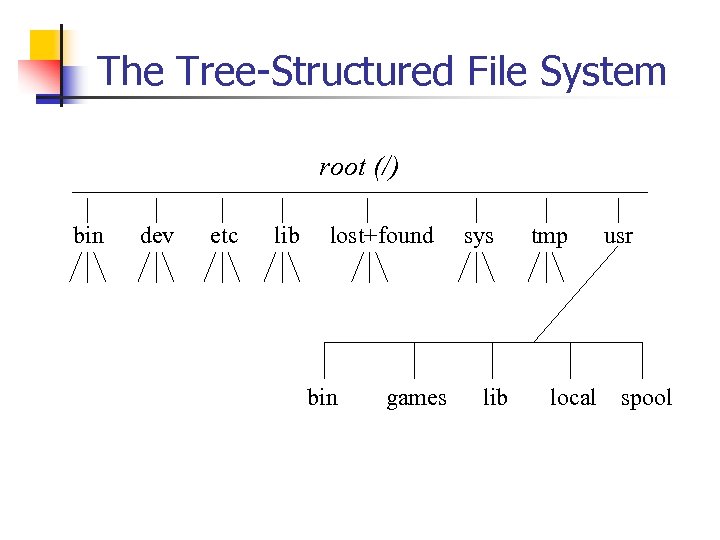 The Tree-Structured File System root (/) bin dev etc lib lost+found bin games sys lib tmp local usr spool
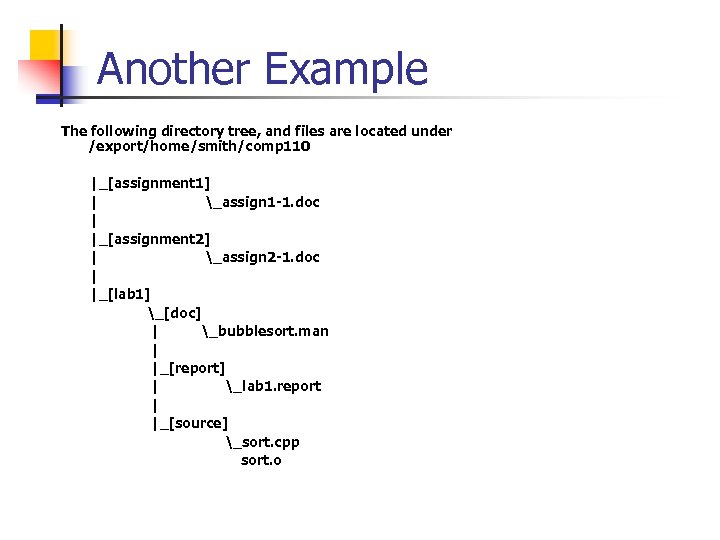 Another Example The following directory tree, and files are located under /export/home/smith/comp 110 |_[assignment 1] | _assign 1 -1. doc | |_[assignment 2] | _assign 2 -1. doc | |_[lab 1] _[doc] | _bubblesort. man |_[report] | _lab 1. report |_[source] _sort. cpp sort. o
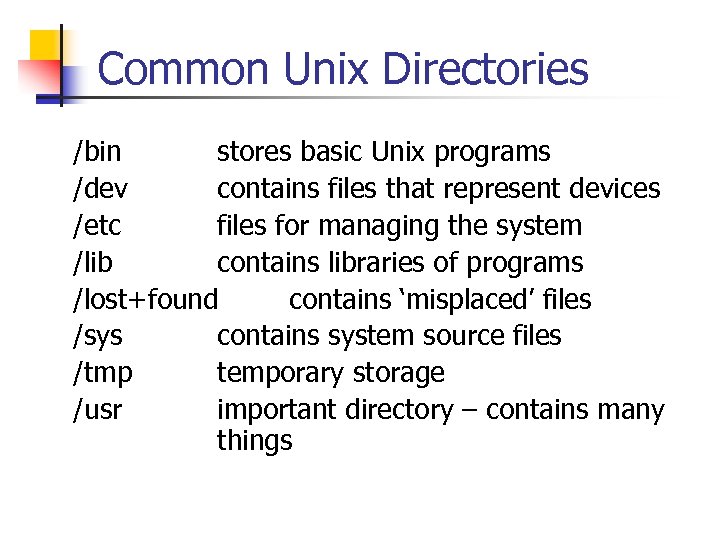 Common Unix Directories /bin stores basic Unix programs /dev contains files that represent devices /etc files for managing the system /lib contains libraries of programs /lost+found contains ‘misplaced’ files /sys contains system source files /tmp temporary storage /usr important directory – contains many things
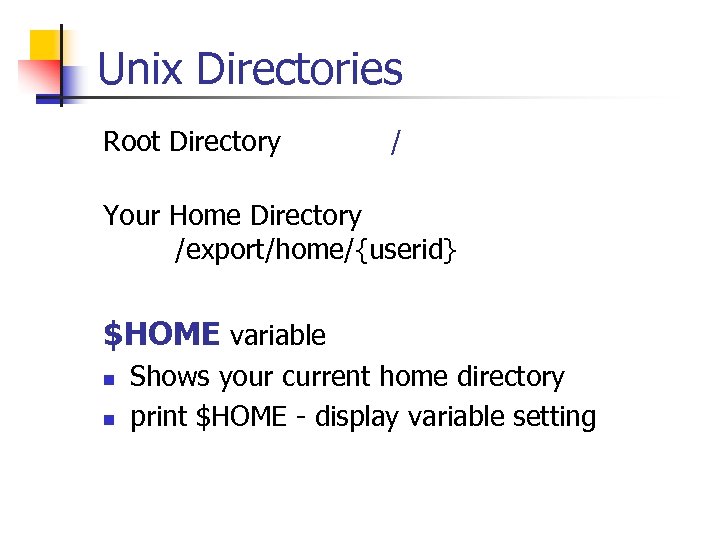 Unix Directories Root Directory / Your Home Directory /export/home/{userid} $HOME variable n n Shows your current home directory print $HOME - display variable setting
 Unix Directories Present Working Directory n Your current location -orn Current Directory
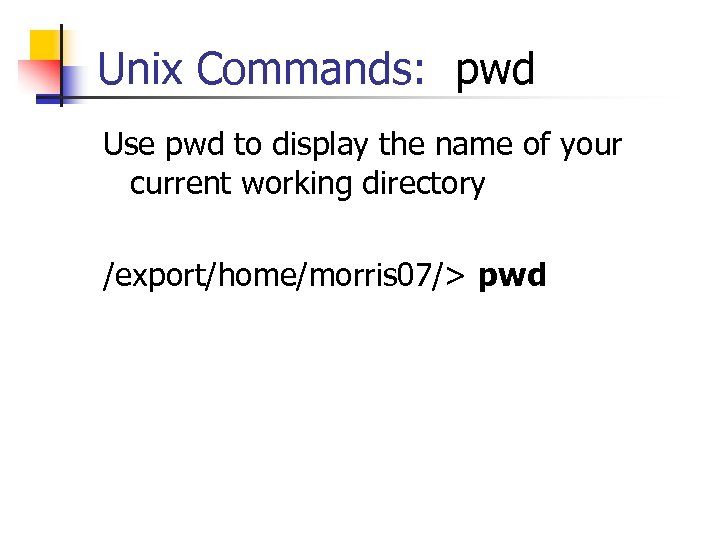 Unix Commands: pwd Use pwd to display the name of your current working directory /export/home/morris 07/> pwd
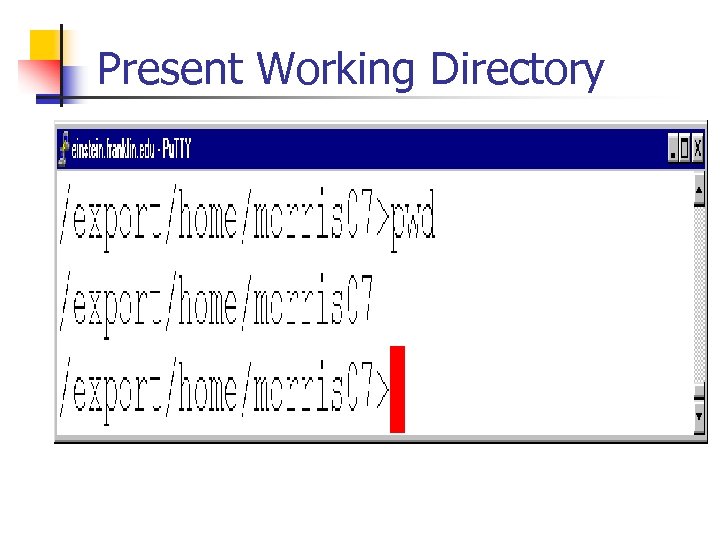 Present Working Directory
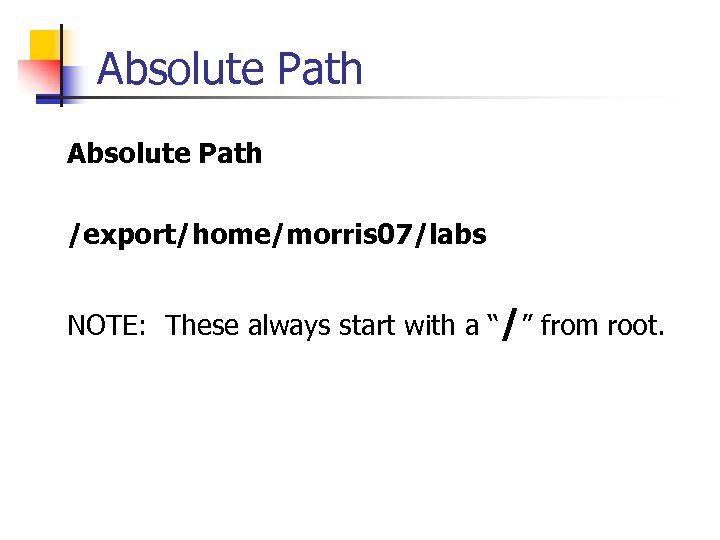 Absolute Path /export/home/morris 07/labs NOTE: These always start with a “/” from root.
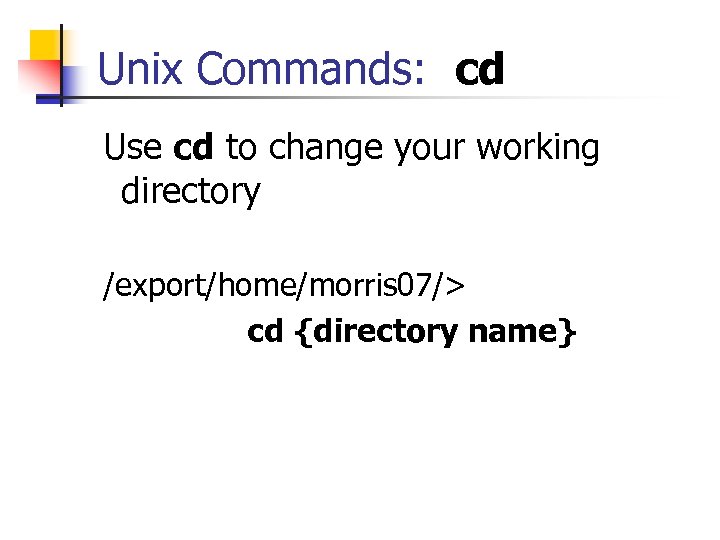 Unix Commands: cd Use cd to change your working directory /export/home/morris 07/> cd {directory name}
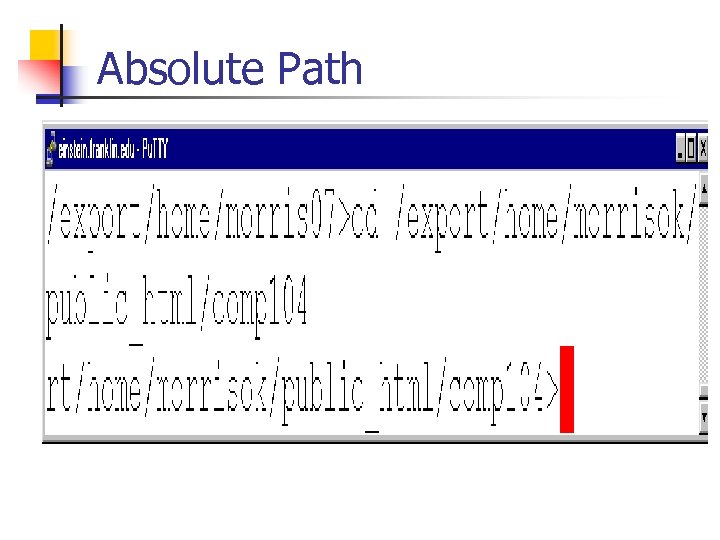 Absolute Path
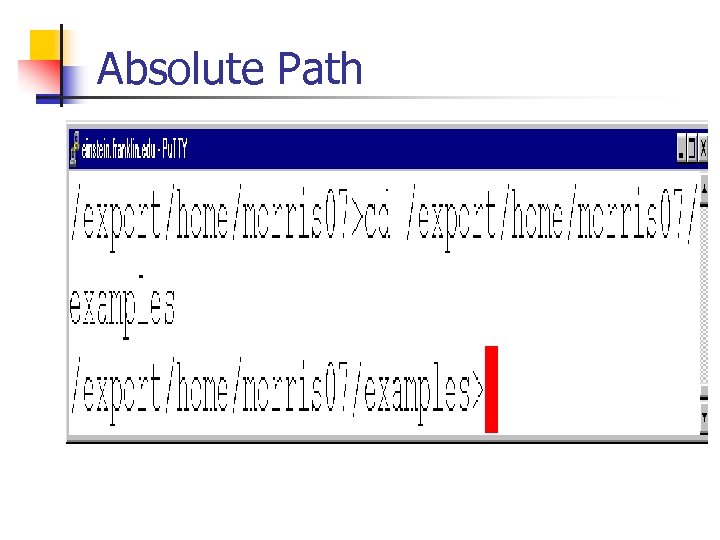 Absolute Path
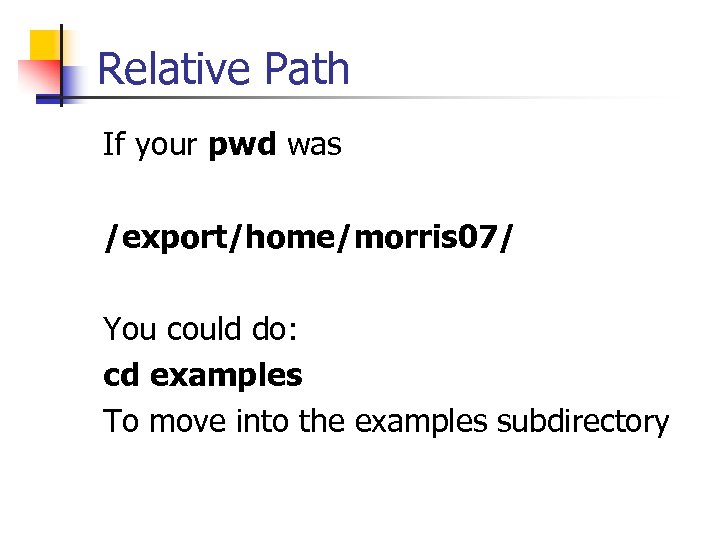 Relative Path If your pwd was /export/home/morris 07/ You could do: cd examples To move into the examples subdirectory
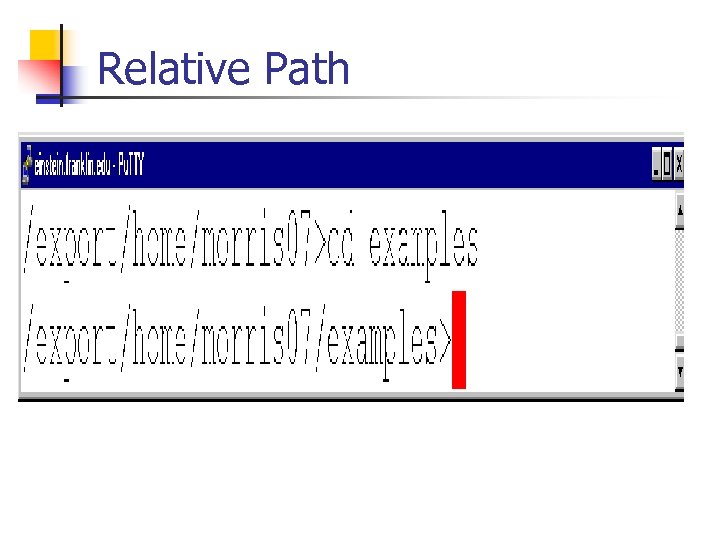 Relative Path
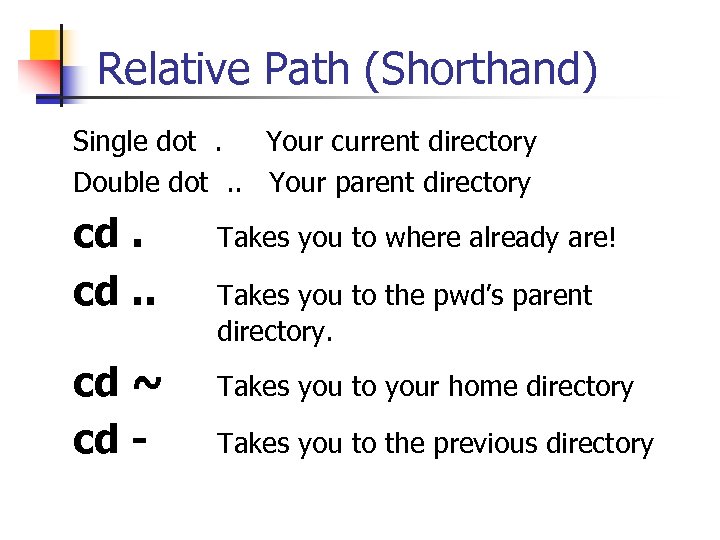 Relative Path (Shorthand) Single dot . Your current directory Double dot . . Your parent directory cd. . Takes you to where already are! cd ~ cd - Takes you to your home directory Takes you to the pwd’s parent directory. Takes you to the previous directory
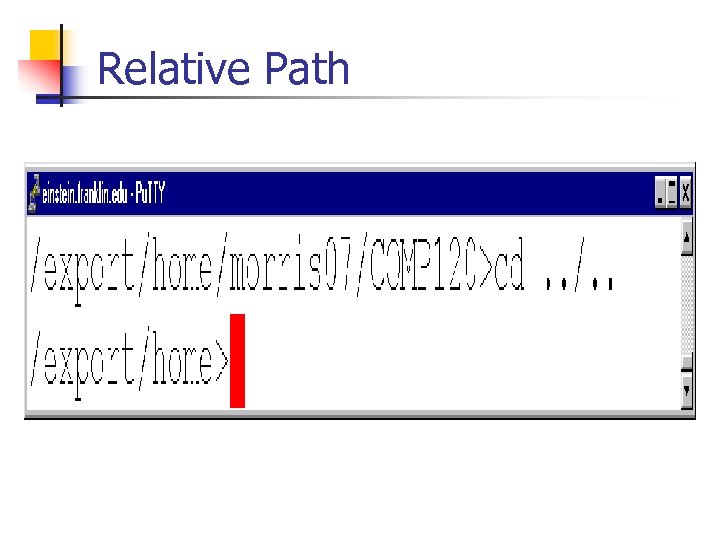 Relative Path
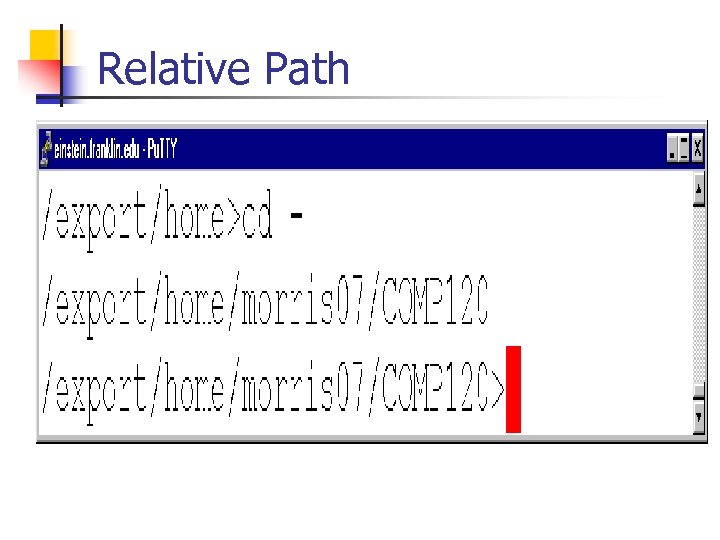 Relative Path
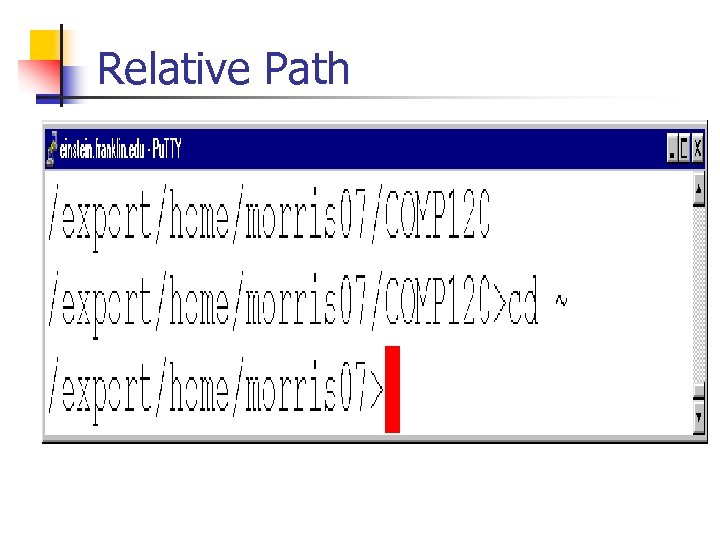 Relative Path
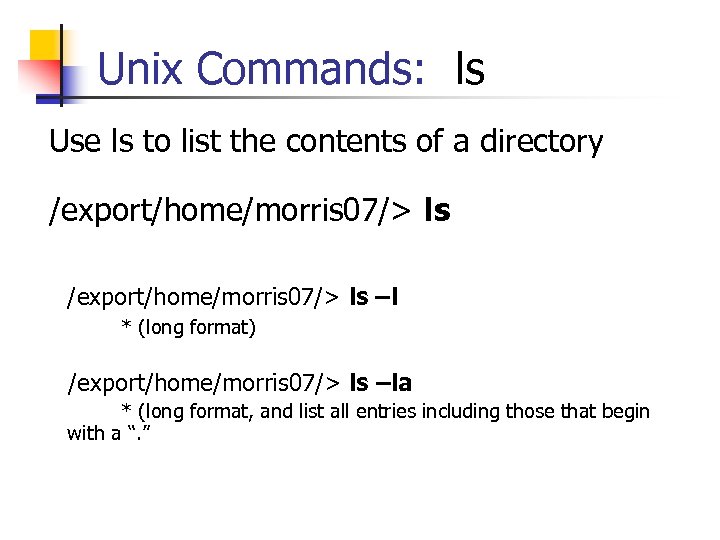 Unix Commands: ls Use ls to list the contents of a directory /export/home/morris 07/> ls –l * (long format) /export/home/morris 07/> ls –la * (long format, and list all entries including those that begin with a “. ”
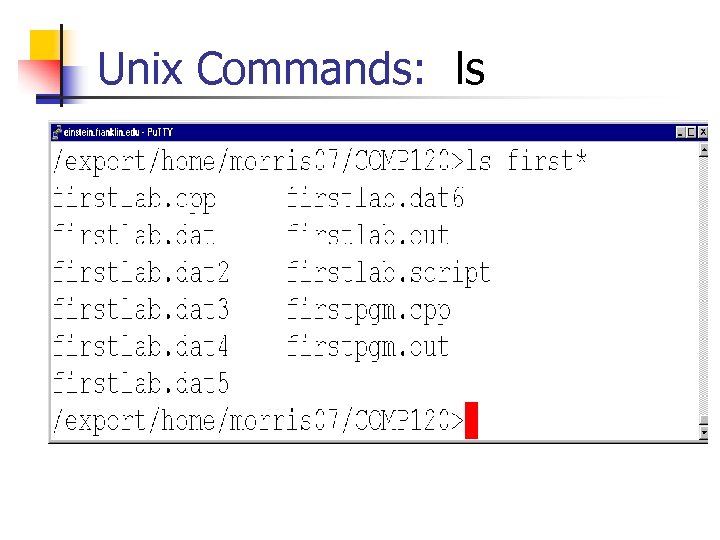
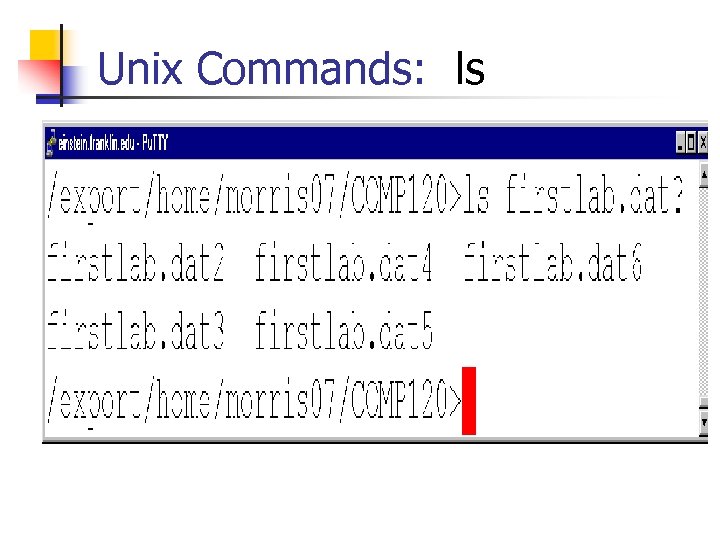
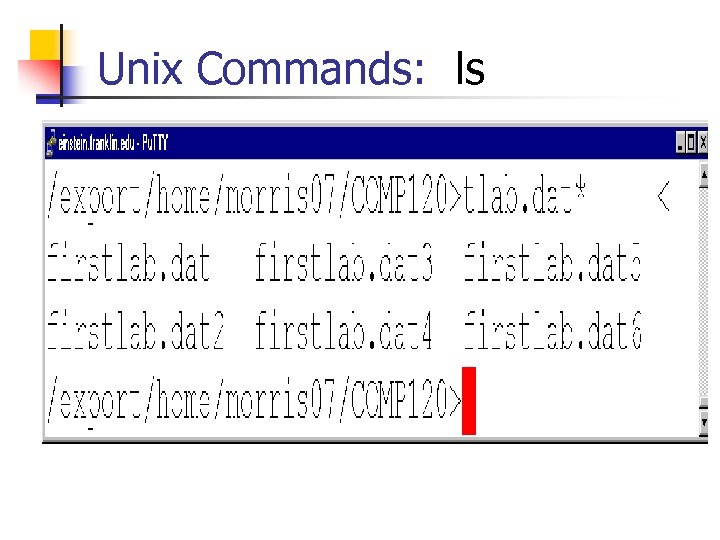
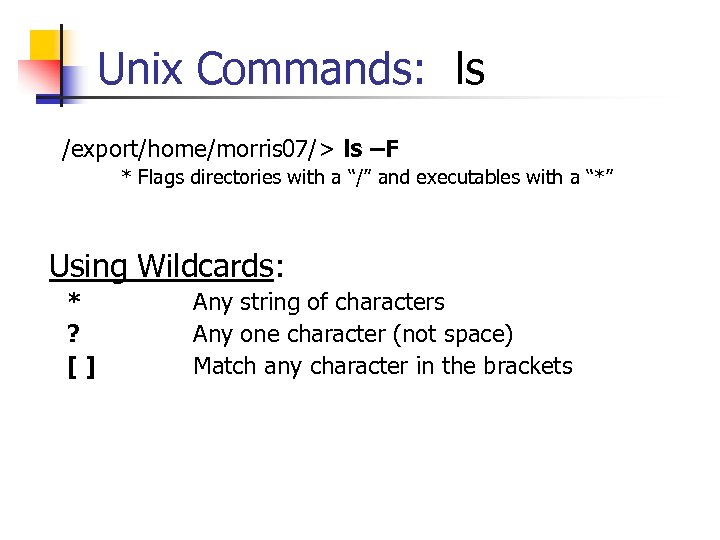 Unix Commands: ls /export/home/morris 07/> ls –F * Flags directories with a “/” and executables with a “*” Using Wildcards: * ? [ ] Any string of characters Any one character (not space) Match any character in the brackets
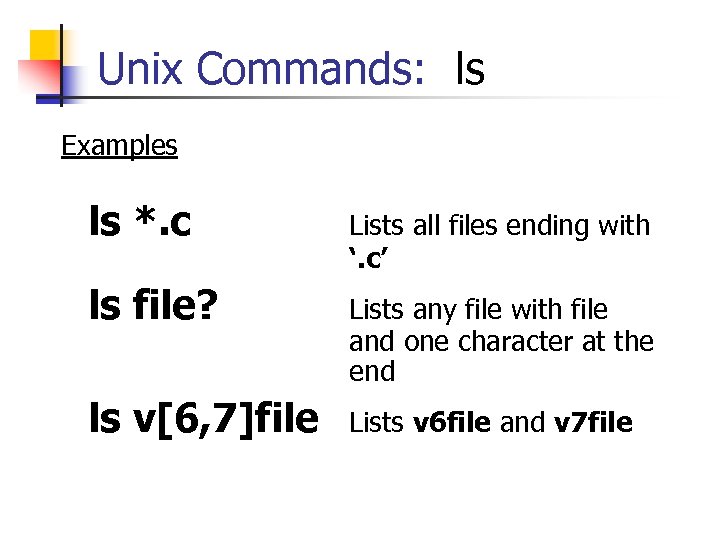 Unix Commands: ls Examples ls *. c Lists all files ending with ‘. c’ ls file? Lists any file with file and one character at the end ls v[6, 7]file Lists v 6 file and v 7 file
 Unix Commands: ls
 Unix Commands: ls
 Unix Commands: ls
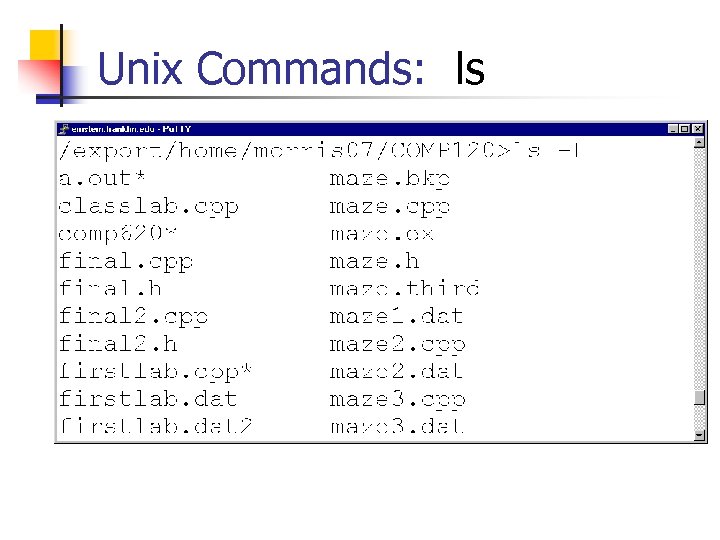 Unix Commands: ls
 Using Relative Path in ls -al. . Lists your parent directory n ls –al ~ Lists your home directory
 Question/Answer Session
 Activity 2
 Unix Commands: touch Use touch to change a file’s access time and modification time to the current date /export/home/morris 07/> touch {file name} NOTE: If the file does not exist, touch will create a new file
 Unix Commands: id Use id to display your userid and groupid /export/home/morris 07/> id
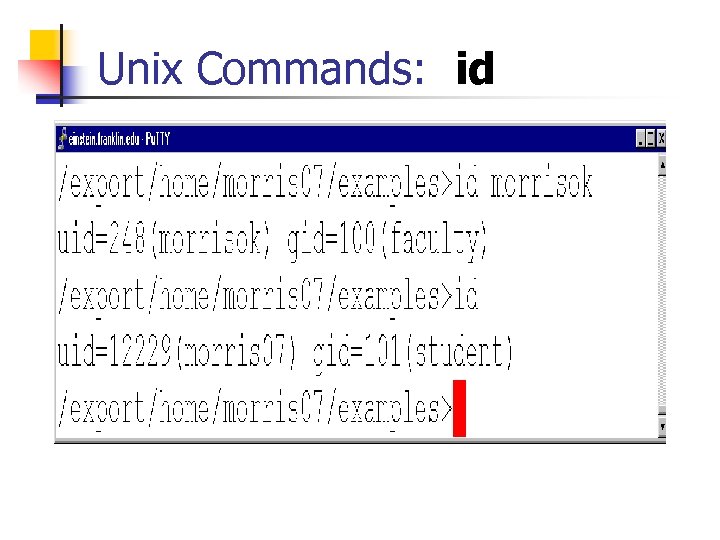 Unix Commands: id
 Unix Security Login name and a password n Encryption on important files n Access permission n
 Encryption of files n n Text page 334 crypt n n Description will make more sense after next week Requires a key – do not forget the key
 Access Permissions Ordinary File n Read: you can read from the file n Write: you can write to the file n Execute: you can execute the file key
 Directory Permissions Directory n Read n n Write n n You can read the directory You can create, move, copy or remove directory contents Execute: n You can search the directory
 How Permissions are Managed There are three Permission Groups: n n n Owner: Owner’s Group: Everyone Else/Other:
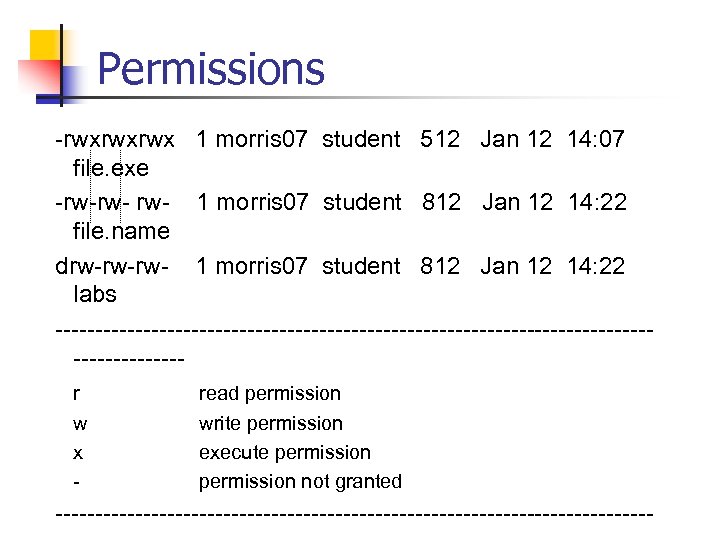 Permissions -rwxrwxrwx 1 morris 07 student 512 Jan 12 14: 07 file. exe -rw-rw- 1 morris 07 student 812 Jan 12 14: 22 file. name drw-rw-rw- 1 morris 07 student 812 Jan 12 14: 22 labs --------------------------------------------r w x - read permission write permission execute permission not granted --------------------------------------
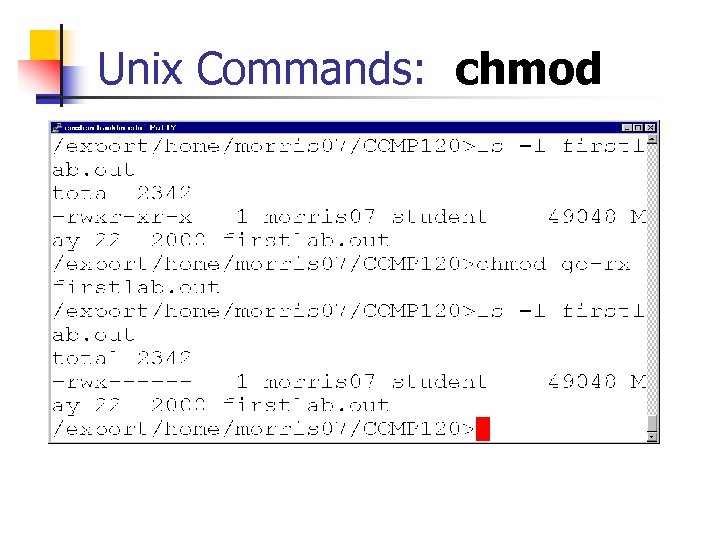
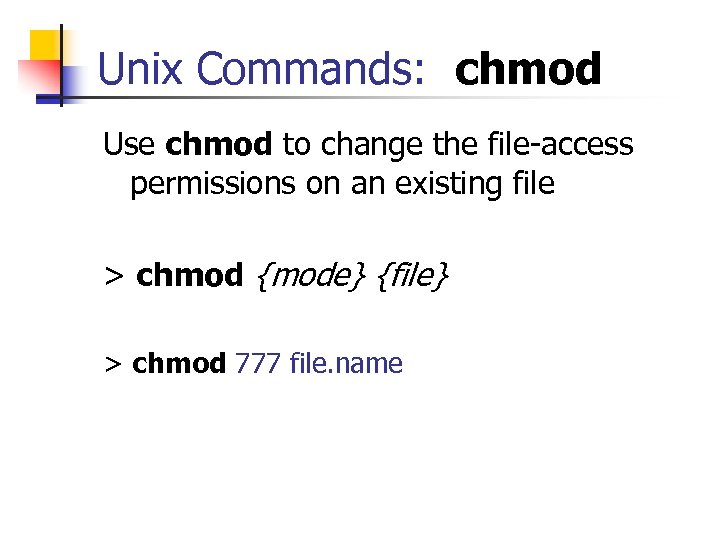 Unix Commands: chmod Use chmod to change the file-access permissions on an existing file > chmod {mode} {file} > chmod 777 file. name
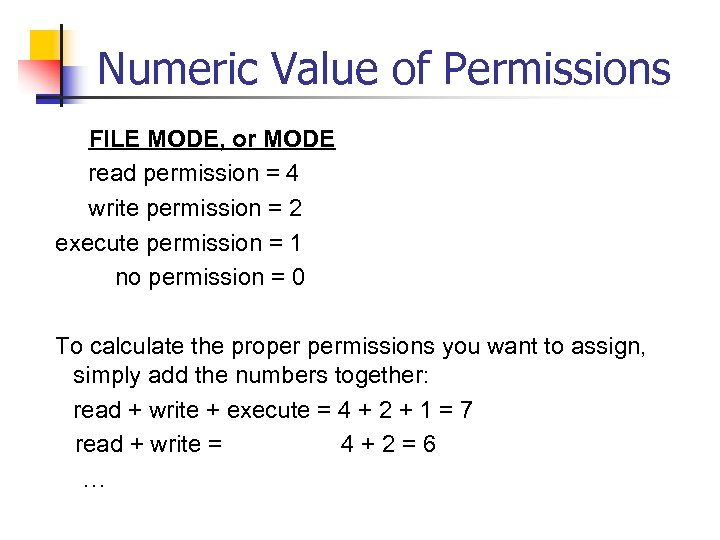 Numeric Value of Permissions FILE MODE, or MODE read permission = 4 write permission = 2 execute permission = 1 no permission = 0 To calculate the proper permissions you want to assign, simply add the numbers together: read + write + execute = 4 + 2 + 1 = 7 read + write = 4+2=6 …
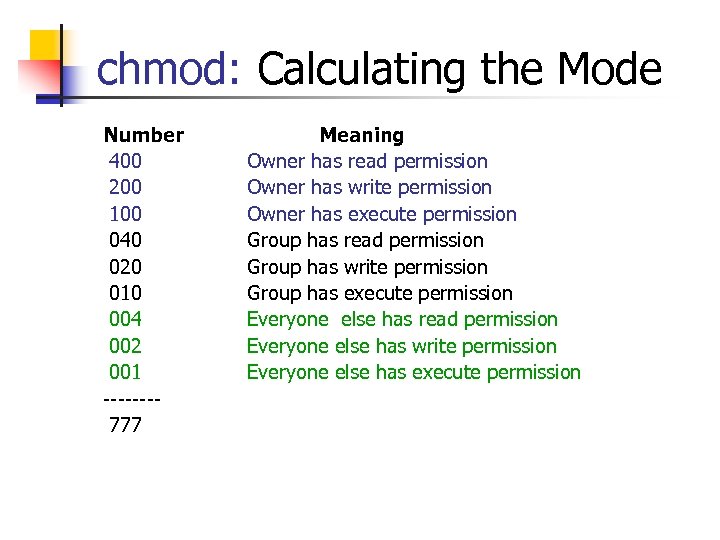 chmod: Calculating the Mode Number 400 200 100 040 020 010 004 002 001 ------- 777 Meaning Owner has read permission Owner has write permission Owner has execute permission Group has read permission Group has write permission Group has execute permission Everyone else has read permission Everyone else has write permission Everyone else has execute permission
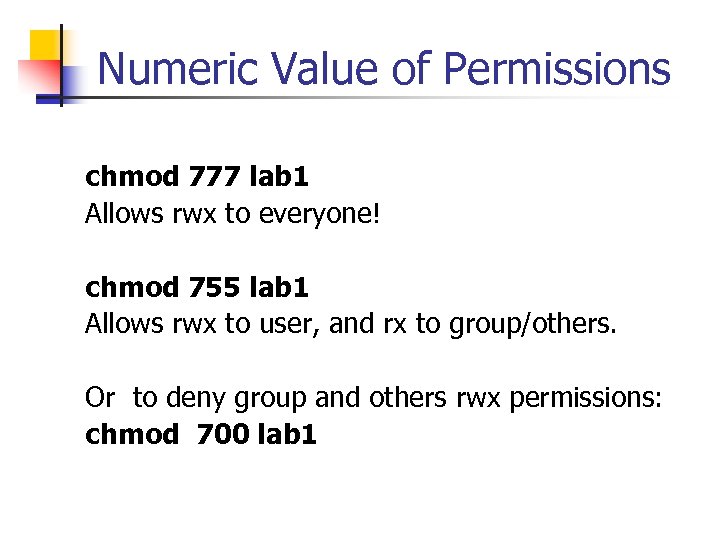 Numeric Value of Permissions chmod 777 lab 1 Allows rwx to everyone! chmod 755 lab 1 Allows rwx to user, and rx to group/others. Or to deny group and others rwx permissions: chmod 700 lab 1
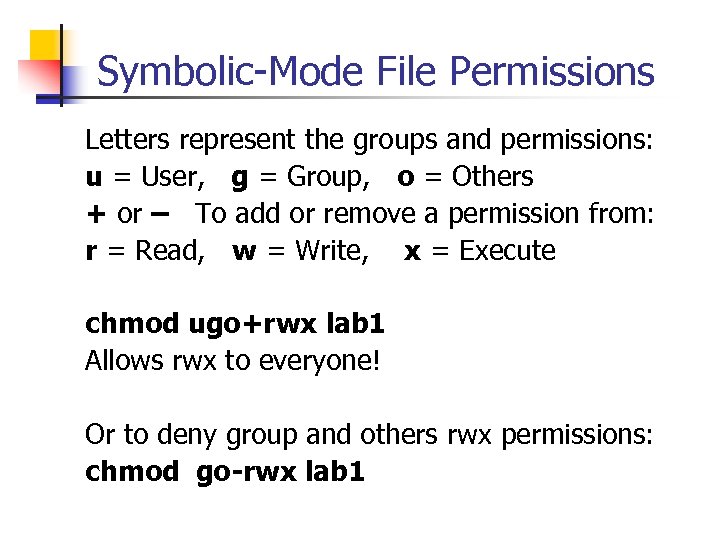 Symbolic-Mode File Permissions Letters represent the groups and permissions: u = User, g = Group, o = Others + or – To add or remove a permission from: r = Read, w = Write, x = Execute chmod ugo+rwx lab 1 Allows rwx to everyone! Or to deny group and others rwx permissions: chmod go-rwx lab 1
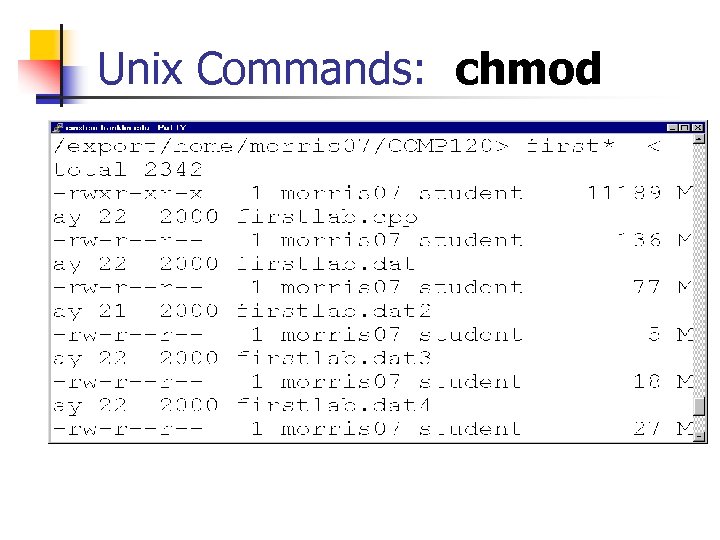 Unix Commands: chmod
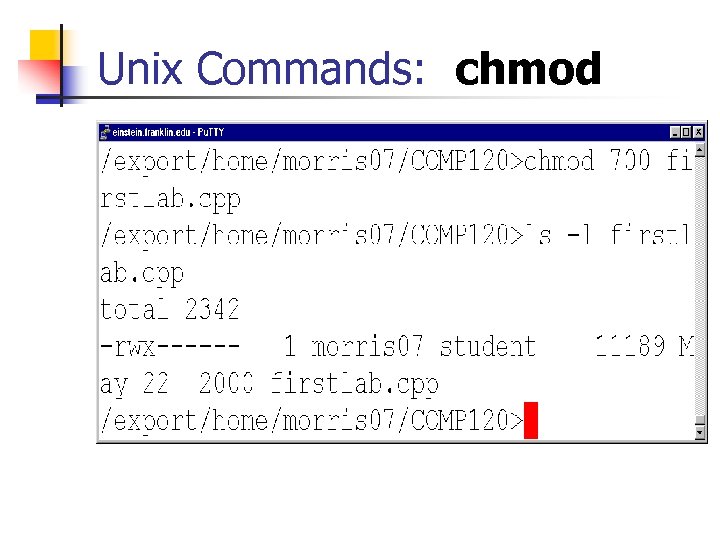 Unix Commands: chmod
 Unix Commands: chmod
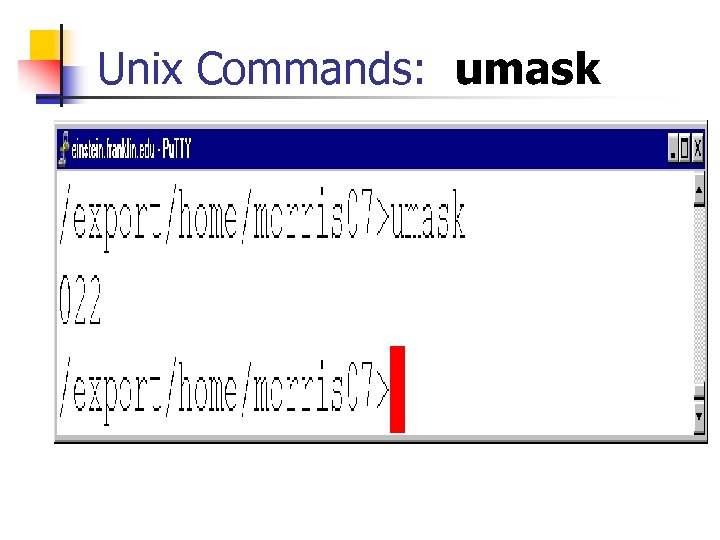
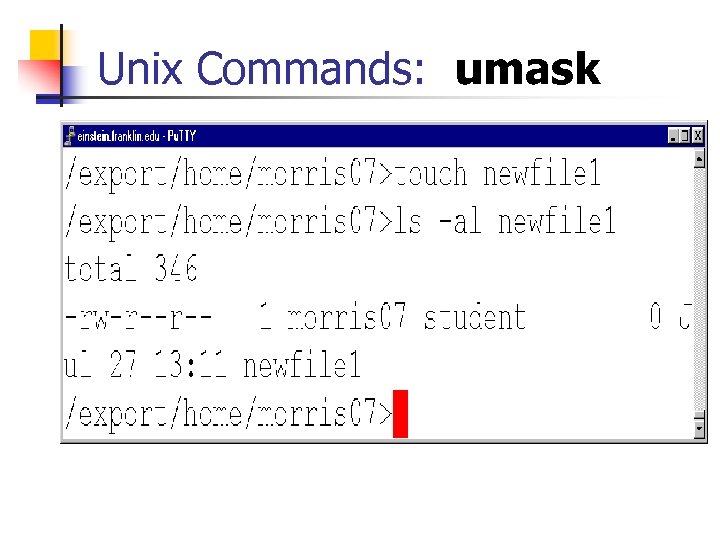
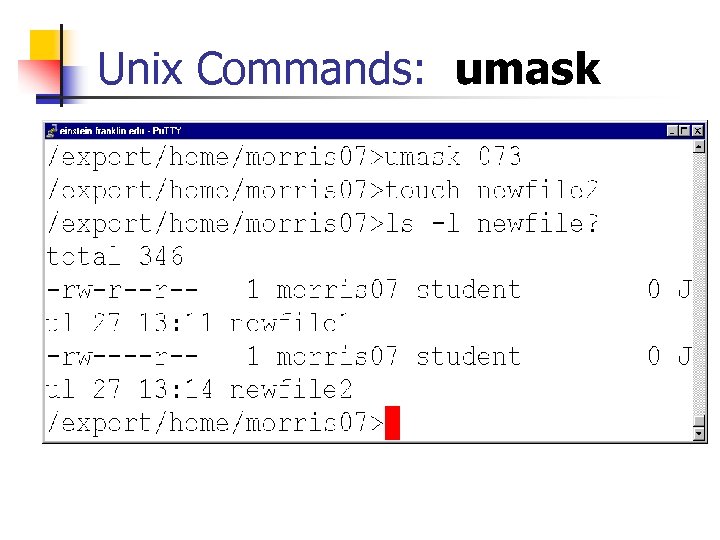
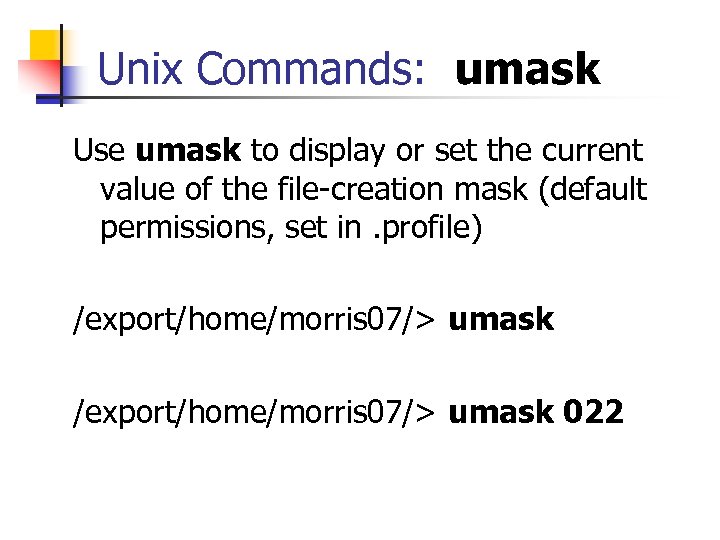 Unix Commands: umask Use umask to display or set the current value of the file-creation mask (default permissions, set in. profile) /export/home/morris 07/> umask 022
 Unix Commands: umask
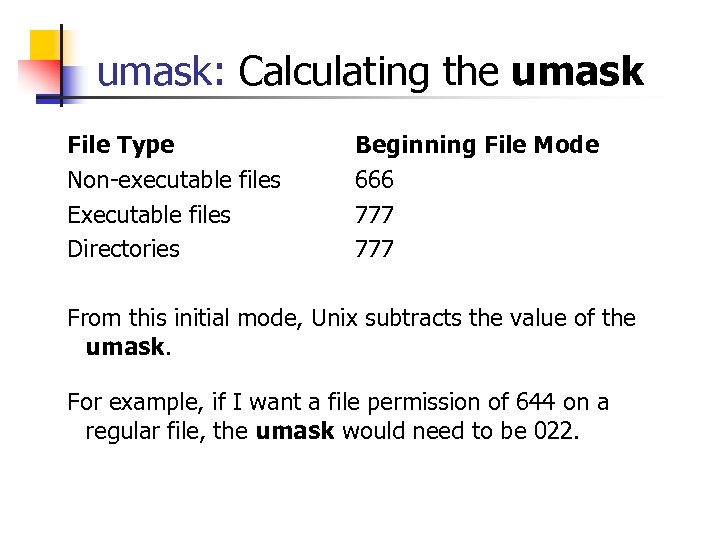 umask: Calculating the umask File Type Non-executable files Executable files Directories Beginning File Mode 666 777 From this initial mode, Unix subtracts the value of the umask. For example, if I want a file permission of 644 on a regular file, the umask would need to be 022.
 Unix Commands: umask
 Unix Commands: umask
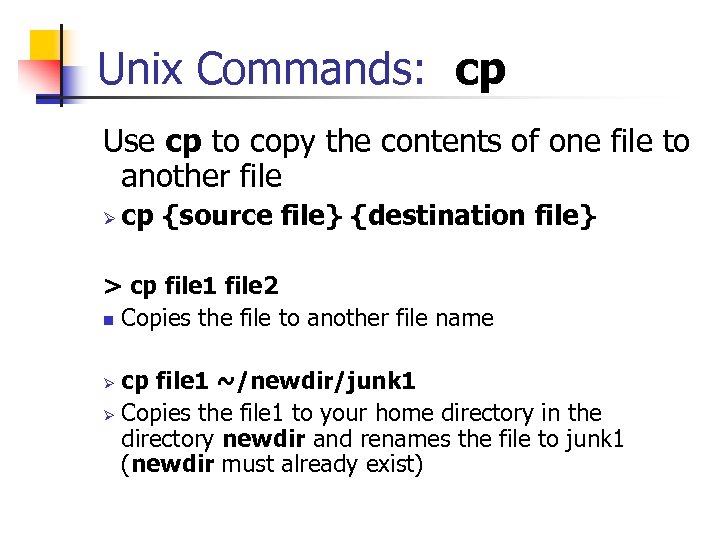 Unix Commands: cp Use cp to copy the contents of one file to another file Ø cp {source file} {destination file} > cp file 1 file 2 n Copies the file to another file name cp file 1 ~/newdir/junk 1 Ø Copies the file 1 to your home directory in the directory newdir and renames the file to junk 1 (newdir must already exist) Ø
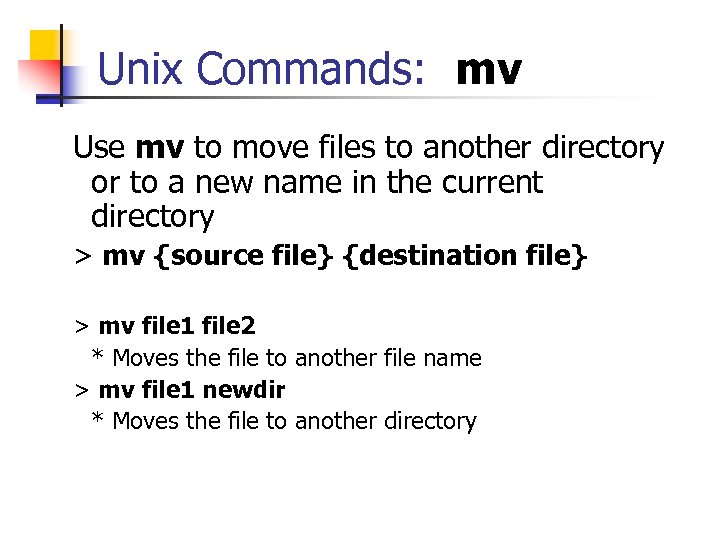 Unix Commands: mv Use mv to move files to another directory or to a new name in the current directory > mv {source file} {destination file} > mv file 1 file 2 * Moves the file to another file name > mv file 1 newdir * Moves the file to another directory
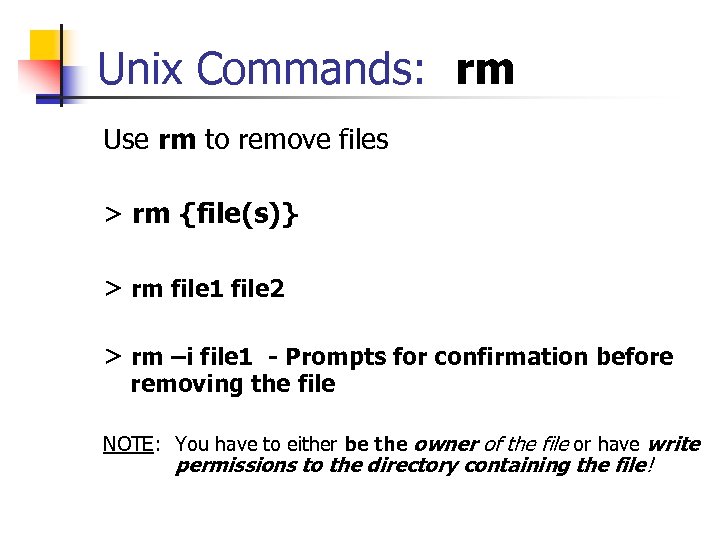 Unix Commands: rm Use rm to remove files > rm {file(s)} > rm file 1 file 2 > rm –i file 1 - Prompts for confirmation before removing the file NOTE: You have to either be the owner of the file or have write permissions to the directory containing the file!
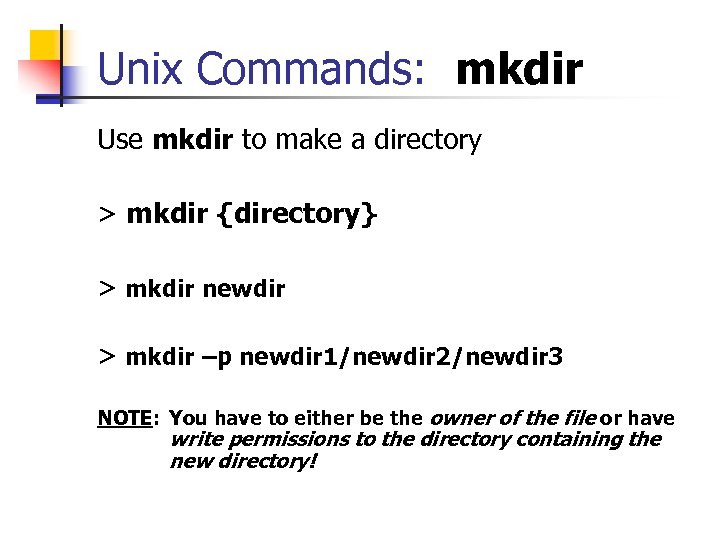 Unix Commands: mkdir Use mkdir to make a directory > mkdir {directory} > mkdir newdir > mkdir –p newdir 1/newdir 2/newdir 3 NOTE: You have to either be the owner of the file or have write permissions to the directory containing the new directory!
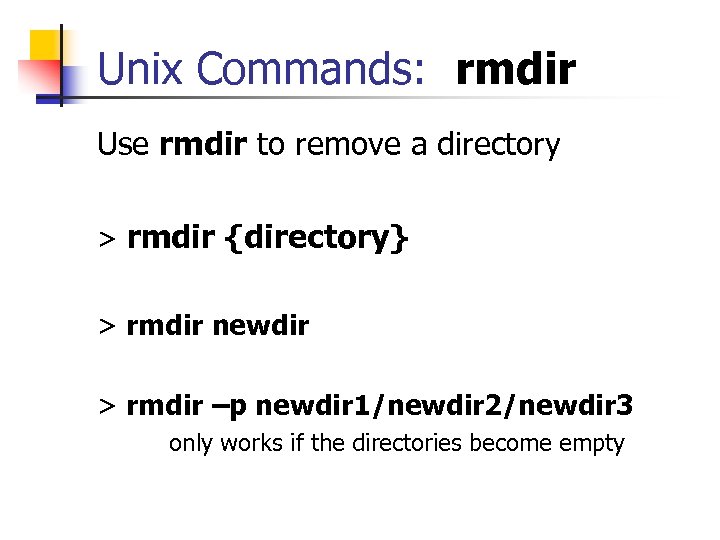 Unix Commands: rmdir Use rmdir to remove a directory > rmdir {directory} > rmdir newdir > rmdir –p newdir 1/newdir 2/newdir 3 only works if the directories become empty
 Question/Answer Session
 In class assignment
 Break (10 Minutes)
 Activity 3
 Unix File Editors vi (pronounced “vee-eye”) is a visual editor that was created by Bill Joy. n vi is a “right-handed” editor Other Unix editors: pico, emacs
 The vi Editor Use vi to edit files > vi {file} NOTE: If the file does not already exist, vi will create it for you.
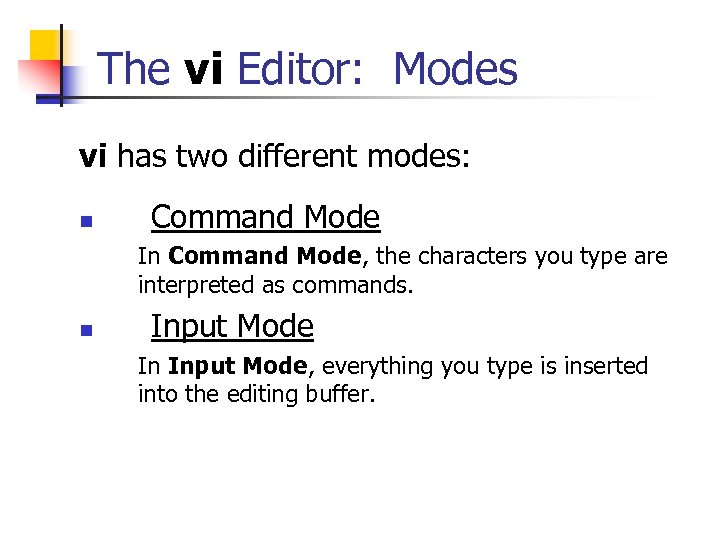 The vi Editor: Modes vi has two different modes: n Command Mode In Command Mode, the characters you type are interpreted as commands. n Input Mode In Input Mode, everything you type is inserted into the editing buffer.
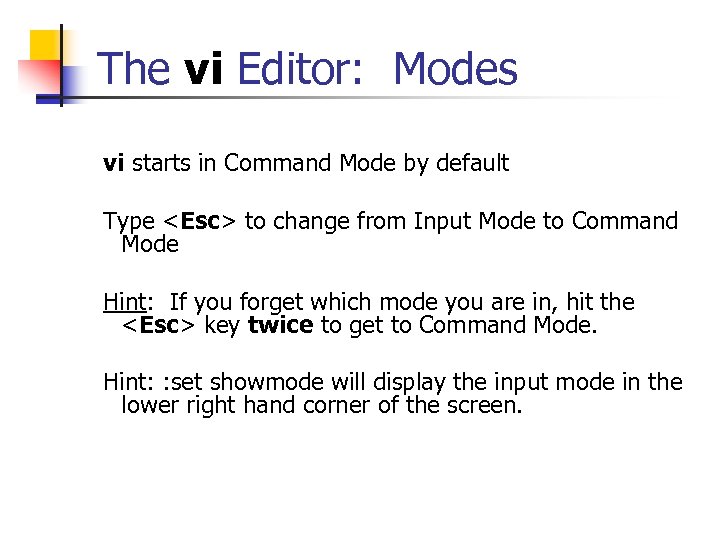 The vi Editor: Modes vi starts in Command Mode by default Type
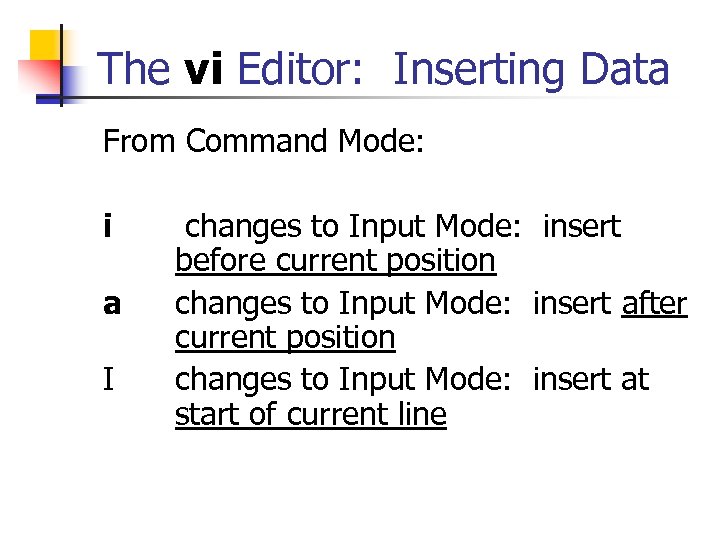 The vi Editor: Inserting Data From Command Mode: i a I changes to Input Mode: insert before current position changes to Input Mode: insert after current position changes to Input Mode: insert at start of current line
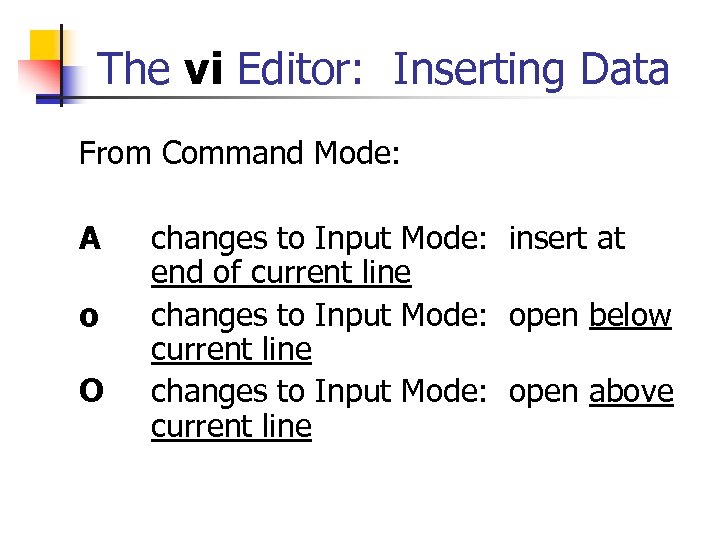 The vi Editor: Inserting Data From Command Mode: A o O changes to Input Mode: insert at end of current line changes to Input Mode: open below current line changes to Input Mode: open above current line
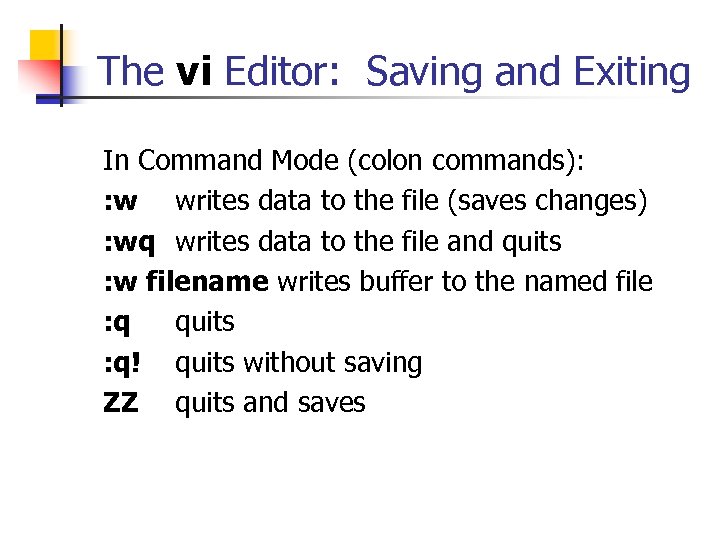 The vi Editor: Saving and Exiting In Command Mode (colon commands): : w writes data to the file (saves changes) : wq writes data to the file and quits : w filename writes buffer to the named file : q quits : q! quits without saving ZZ quits and saves
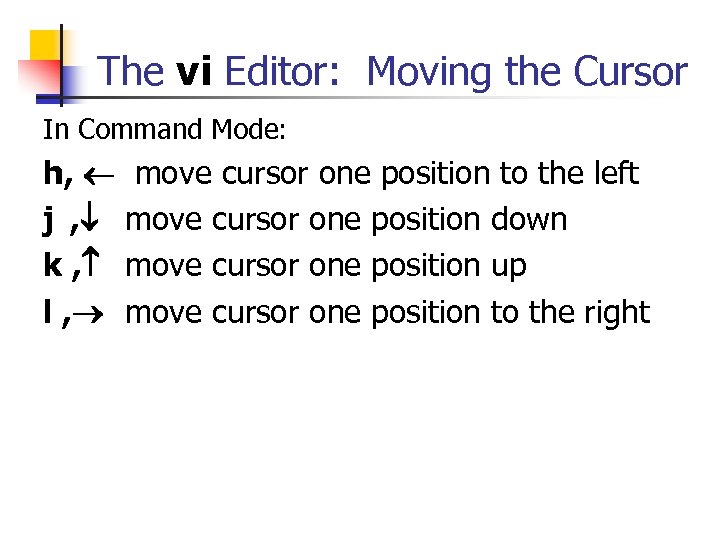 The vi Editor: Moving the Cursor In Command Mode: h, move cursor one position to the left j , move cursor one position down k , move cursor one position up l , move cursor one position to the right
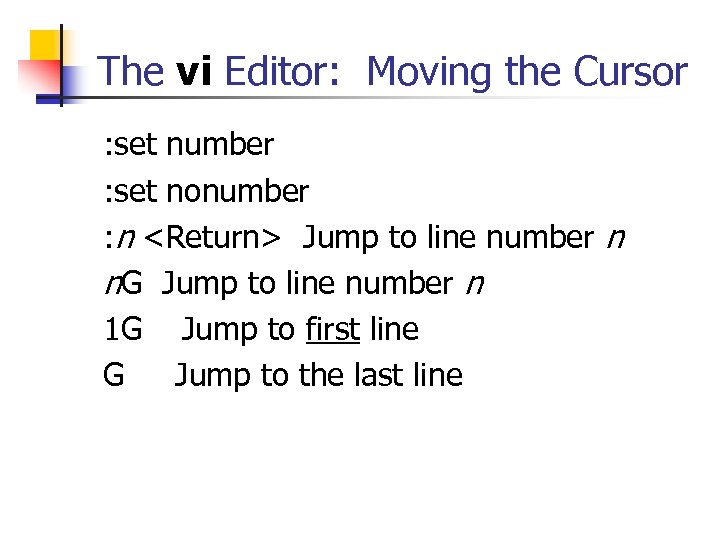 The vi Editor: Moving the Cursor : set number : set nonumber : n
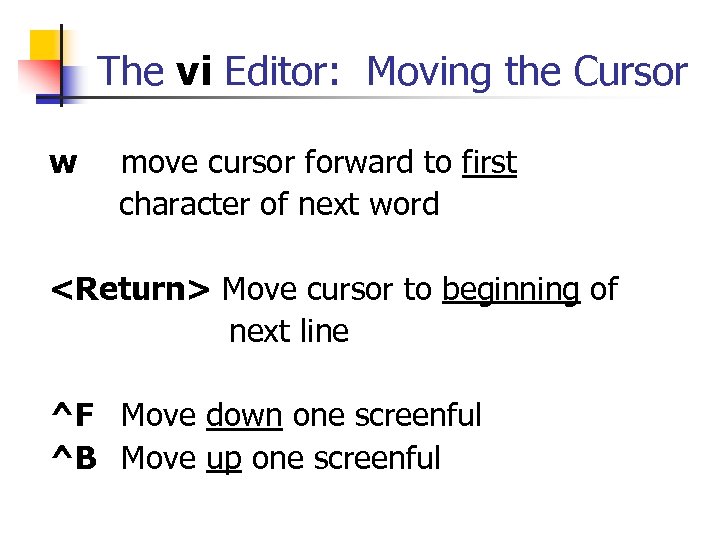 The vi Editor: Moving the Cursor w move cursor forward to first character of next word
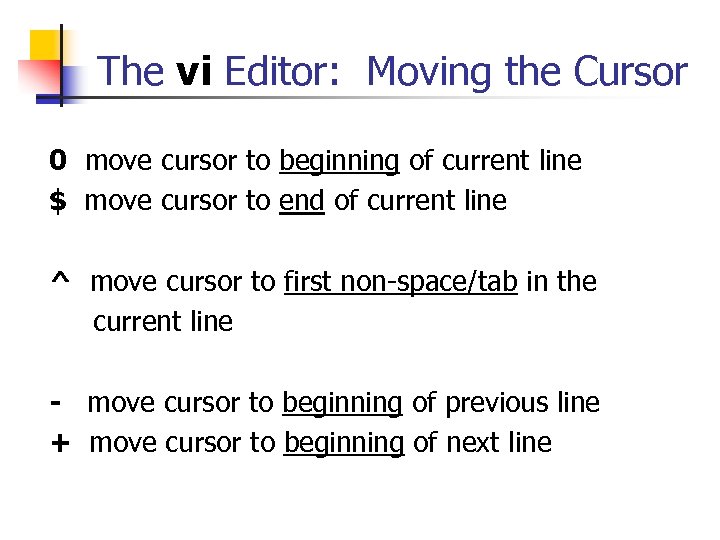 The vi Editor: Moving the Cursor 0 move cursor to beginning of current line $ move cursor to end of current line ^ move cursor to first non-space/tab in the current line - move cursor to beginning of previous line + move cursor to beginning of next line
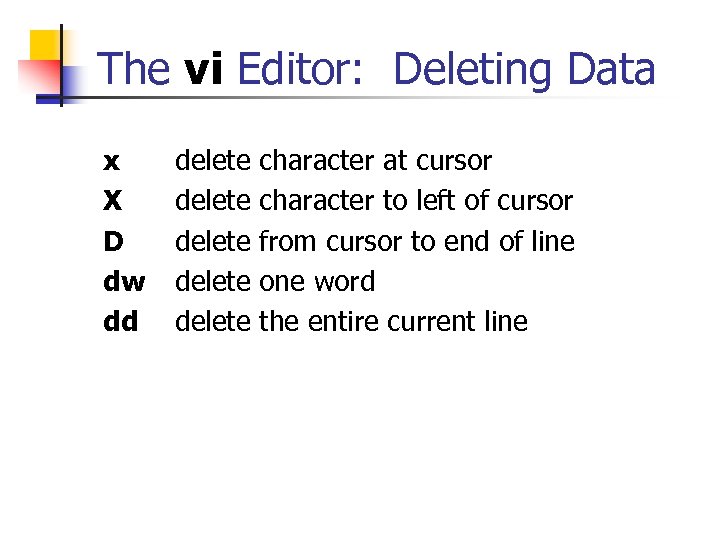 The vi Editor: Deleting Data x X D dw dd delete character at cursor delete character to left of cursor delete from cursor to end of line delete one word delete the entire current line
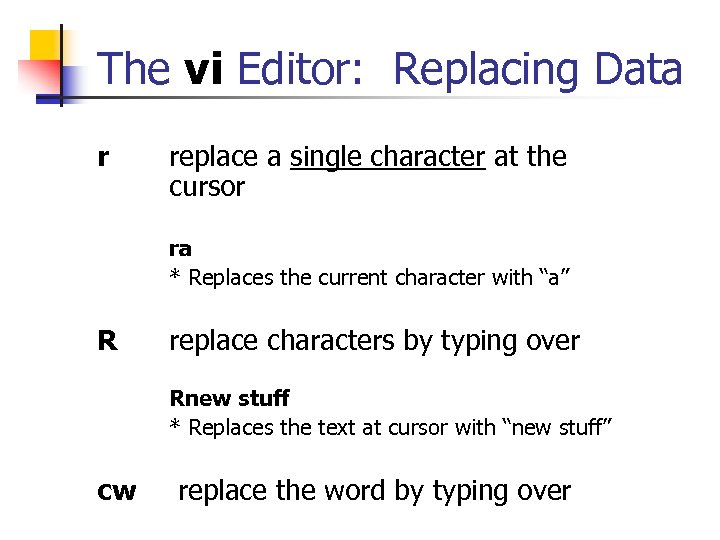 The vi Editor: Replacing Data r replace a single character at the cursor ra * Replaces the current character with “a” R replace characters by typing over Rnew stuff * Replaces the text at cursor with “new stuff” cw replace the word by typing over
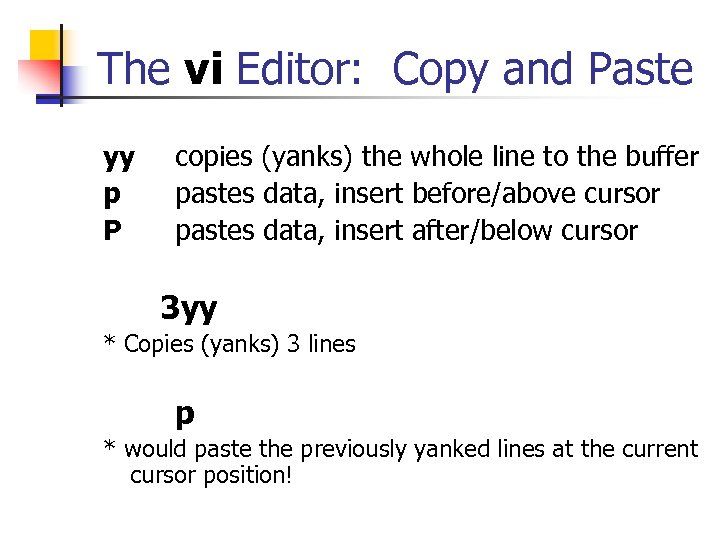 The vi Editor: Copy and Paste yy copies (yanks) the whole line to the buffer p pastes data, insert before/above cursor P pastes data, insert after/below cursor 3 yy * Copies (yanks) 3 lines p * would paste the previously yanked lines at the current cursor position!
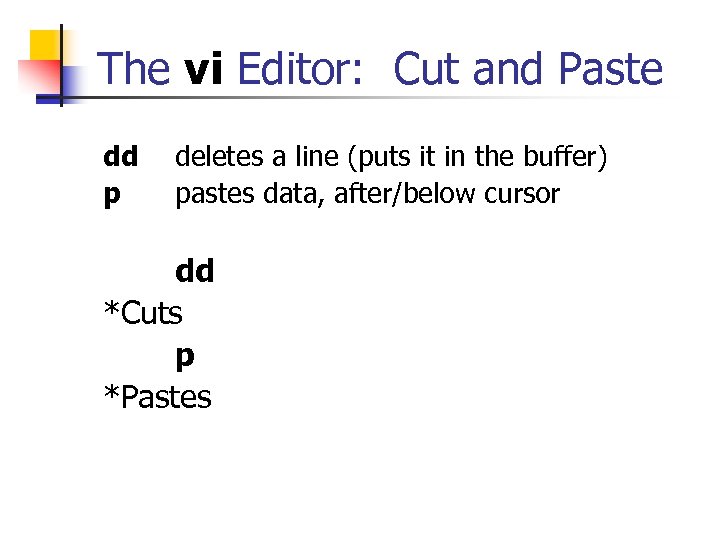 The vi Editor: Cut and Paste dd deletes a line (puts it in the buffer) p pastes data, after/below cursor dd *Cuts p *Pastes
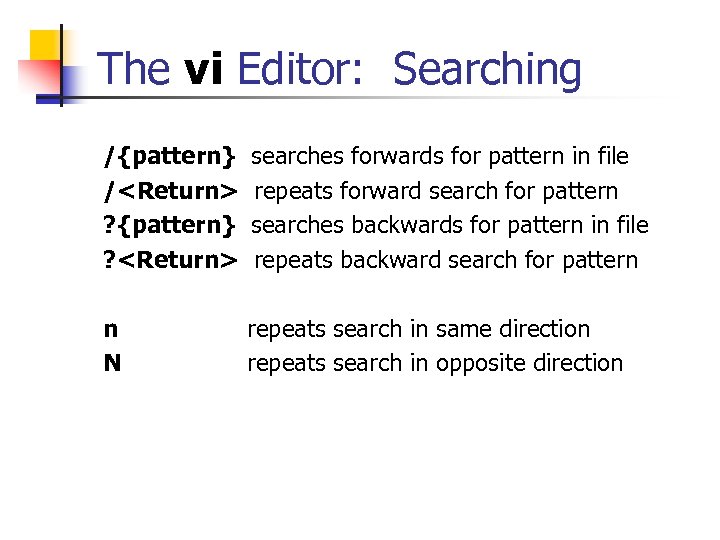 The vi Editor: Searching /{pattern} searches forwards for pattern in file /
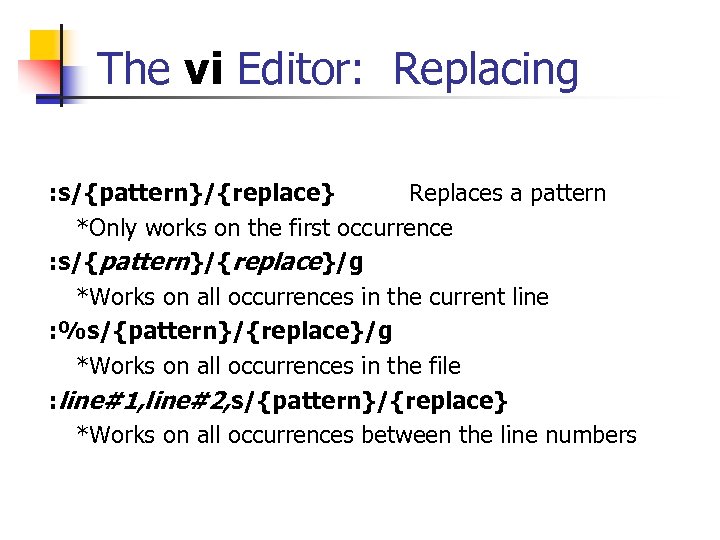 The vi Editor: Replacing : s/{pattern}/{replace} Replaces a pattern *Only works on the first occurrence : s/{pattern}/{replace}/g *Works on all occurrences in the current line : %s/{pattern}/{replace}/g *Works on all occurrences in the file : line#1, line#2, s/{pattern}/{replace} *Works on all occurrences between the line numbers
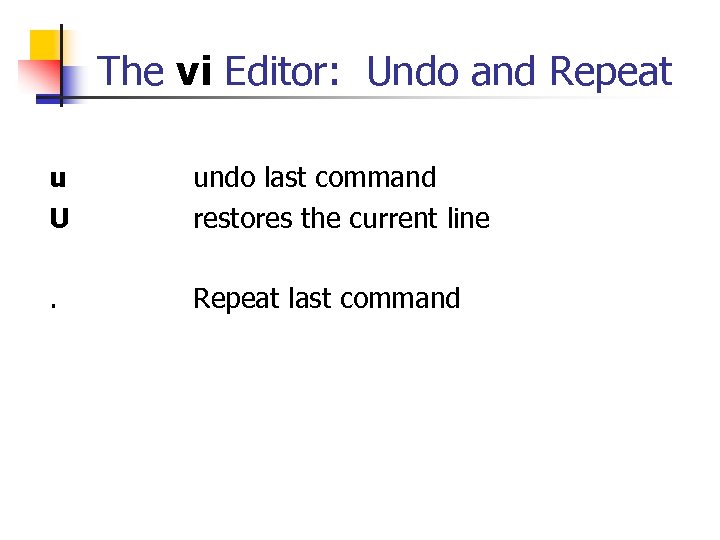 The vi Editor: Undo and Repeat u U undo last command restores the current line . Repeat last command
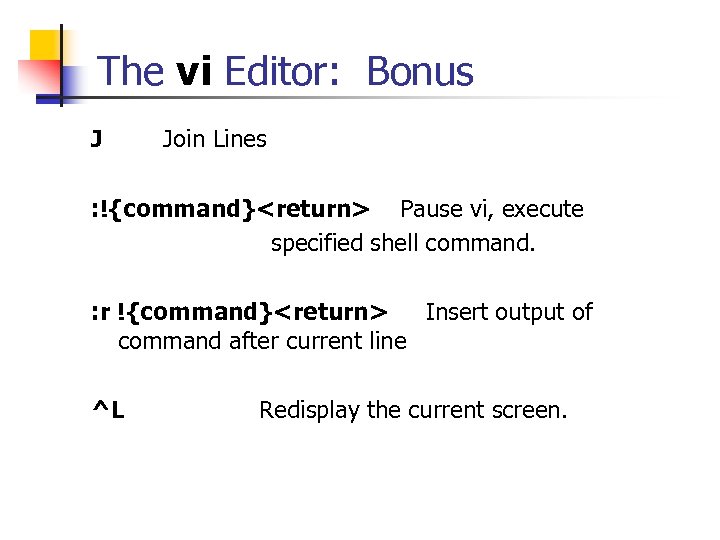 The vi Editor: Bonus J Join Lines : !{command}
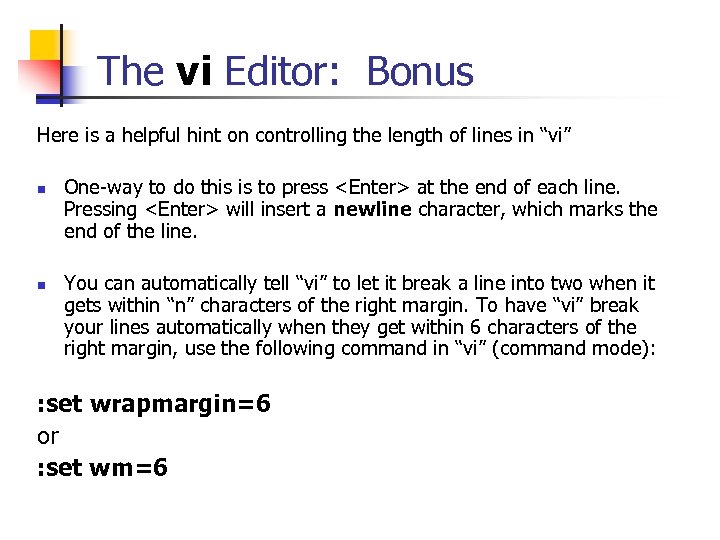 The vi Editor: Bonus Here is a helpful hint on controlling the length of lines in “vi” n One-way to do this is to press
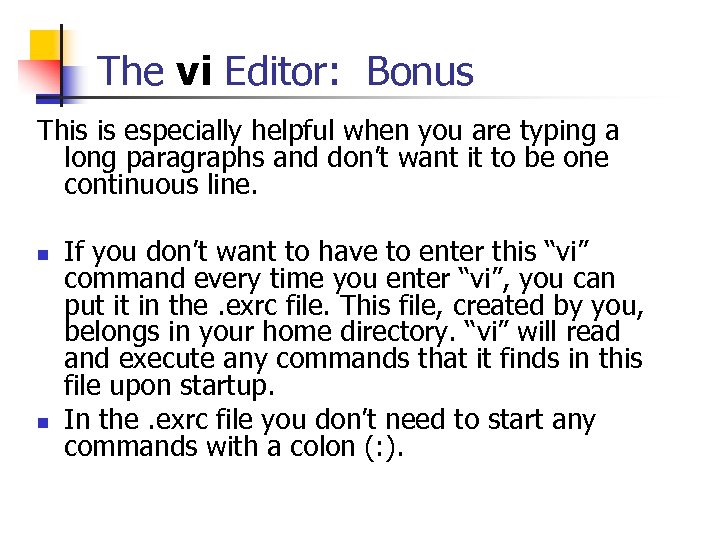 The vi Editor: Bonus This is especially helpful when you are typing a long paragraphs and don’t want it to be one continuous line. n If you don’t want to have to enter this “vi” command every time you enter “vi”, you can put it in the. exrc file. This file, created by you, belongs in your home directory. “vi” will read and execute any commands that it finds in this file upon startup. n In the. exrc file you don’t need to start any commands with a colon (: ).
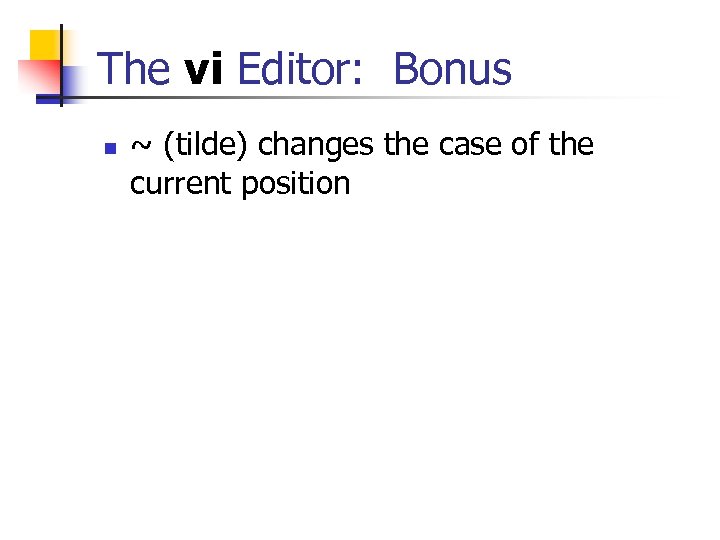 The vi Editor: Bonus n ~ (tilde) changes the case of the current position
 In Class Assignment #4 Login to einstein and copy file /export/home/morris 07/examples/vitext into your home directory. Open the file using ‘vi’. Follow the directions in the file. Save the file and exit vi. Change the permissions on file you created to allow rwx to user, and r to group/others.
 Question/Answer Session
 Wrap Up: What We Covered n n n Unix file system structure File types and access permissions Create and use directories and files Edit files with vi Use the following Unix commands: cd, chmod, cp, id, mkdir, mv, pwd, rm, rmdir, touch, umask, vi
 Next Week n n Unix processes Redirection, pipes, and filters Unix utilities (e-mail, ftp, telnet) Use the following Unix commands: elm, ftp, grep, jobs, kill, look, pine, ps, sort, spell, telnet, uniq, wc n Final Exam
 Assignments for next week n n n UNIX File Systems and vi Commands Using the vi Editor Optional: n n Practice Exam http: //cs. franklin. edu/~morrisok/comp 104/Practi ce. Exam. doc Practice Exam answers http: //cs. franklin. edu/~morrisok/comp 104/Answ ers. PE. doc
 Question/Answer Session