


 Скачать презентацию Command Syntax Using the DIR Command with Parameters
7a38f04fd8fa86f1847e5907fd3dfbae.ppt
- Количество слайдов: 71
 Command Syntax Using the DIR Command with Parameters and Wildcards Ch 2 1
 Overview Will learn to read a syntax diagram and explain the function of each part of the diagram. Ch 2 2
 Overview Will learn some basic commands, their syntax, and how to make commands more specific. Ch 2 3
 Overview Will be able to define prompts and explain how they are used. Ch 2 4
 Overview The purpose and function of defaults will be explained. Ch 2 5
 Overview Will learn how to change the default drive and directory. Ch 2 6
 Overview Will learn how to use subdirectories and wildcards with the DIR command. Ch 2 7
 Overview The purpose and function of redirection will be explained and then will learn how to redirect the output of the DIR command to a file or a printer. Ch 2 8
 Overview Will learn to use the Online Help feature. Ch 2 9
 Command Syntax All languages have rules or conventions for speaking and writing. Ch 2 10
 Command Syntax To communicate with computer at command line prompt: è Learn its language (commands) è Follow its syntax (word order) è Use correct punctuation Ch 2 11
 Command Syntax The graphical user interface in Windows operating system uses syntax and rules. Ch 2 12
 What Are Parameters? Parameter: èInformation to modify or qualify a command Ch 2 13
 What Are Parameters? Parameters can be: è Variable è Fixed Ch 2 14
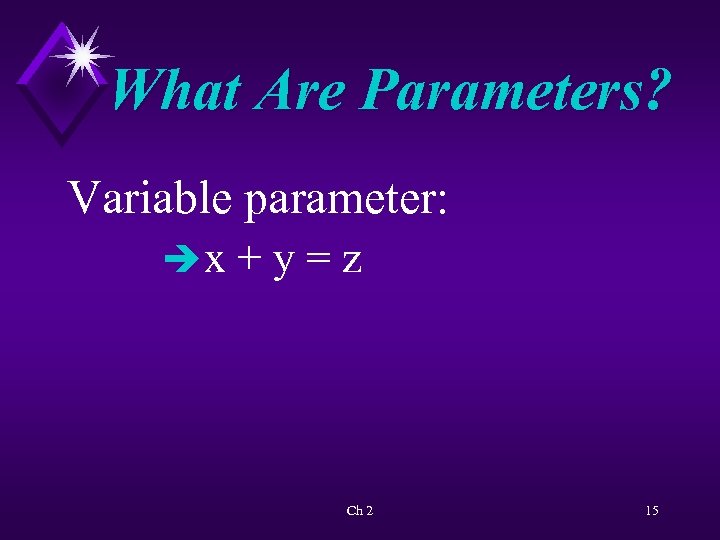 What Are Parameters? Variable parameter: èx + y = z Ch 2 15
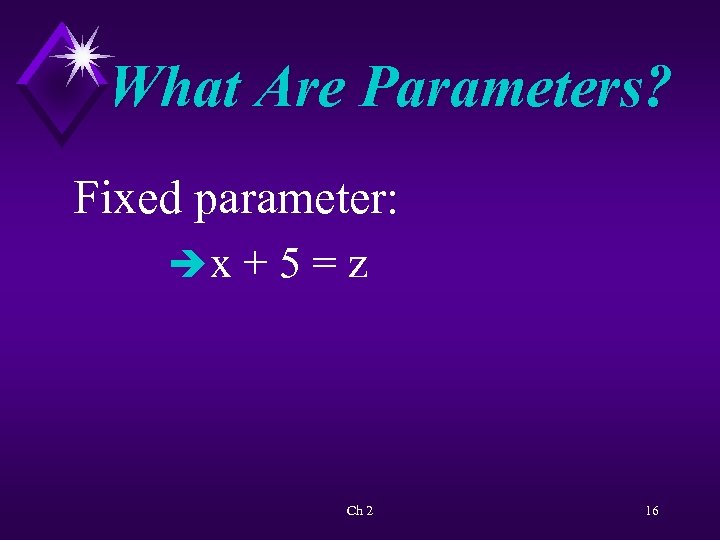 What Are Parameters? Fixed parameter: èx + 5 = z Ch 2 16
 Reading a Syntax Diagram Command line interface language has: èVocabulary (commands) èGrammar (punctuation) èSyntax (order) Ch 2 17
![Reading a Syntax Diagram DIR command syntax used earlier: DIR [drive: ] [path] [filename]](https://present5.com/presentation/7a38f04fd8fa86f1847e5907fd3dfbae/image-18.jpg "Reading a Syntax Diagram DIR command syntax used earlier: DIR [drive: ] [path] [filename]") Reading a Syntax Diagram DIR command syntax used earlier: DIR [drive: ] [path] [filename] [/A [[: ] attributes]] [/B] [/C] [/D] [/L] [/N] [/O[[: ] sortorder]] [/P] [/Q] [/S] [/T[[: ] timefield]] [/W] [/X] [4] Ch 2 18
Reading a Syntax Diagram DIR command syntax used earlier: DIR [drive: ] [path] [filename] [/A [[: ] attributes]] [/B] [/C] [/D] [/L] [/N] [/O[[: ] sortorder]] [/P] [/Q] [/S] [/T[[: ] timefield]] [/W] [/X] [4] Ch 2 18
 Using Fixed Parameters with the DIR Command Fixed parameter: è Referred to as a switch. è Begins with / (the slash). Ch 2 19
 Using Fixed Parameters with the DIR Command èSlash = forward slash (/). è = Backslash. Ch 2 20
 Using Fixed Parameters with the DIR Command DIR command with /P parameter displays one screen of information at a time. Ch 2 21
 Using Fixed Parameters with the DIR Command Notes for lab activities: è Check notes at beginning of each activity è At end of work session return to Windows desktop and follow shut-down procedure è Know your laboratory procedures è If system varies from text refer to the Configuration Table in Chapter 1. 6 Ch 2 22
 Activity—Using Fixed Parameters with DIR Command KEY CONCEPTS: è Clear Screen è Display directory using: Ø /P parameter Ø /W parameter Ø /P /W parameters è Delimiter Ch 2 23
 Using File Names as Variable Parameters File specification (name) consists of: èFile name èFile extension Ch 2 24
 Using File Names as Variable Parameters Conventions for Naming Files è All files in directory (subdirectory) must have unique names. è File names - mandatory - may be less than but no longer than 256 characters è File extensions - usually three characters long. è Following characters illegal - may NOT be used in file name: /: *? <>| è All other characters, including periods and spaces, are legal in Windows file names. Ch 2 25
 Using File Names as Variable Parameters è File name reflects subject of file. è File extension usually given by application creating file. Ch 2 26
 Using File Names as Variable Parameters When naming files, many older 16 -bit application packages adhere to older 8. 3 DOS rules. Ch 2 27
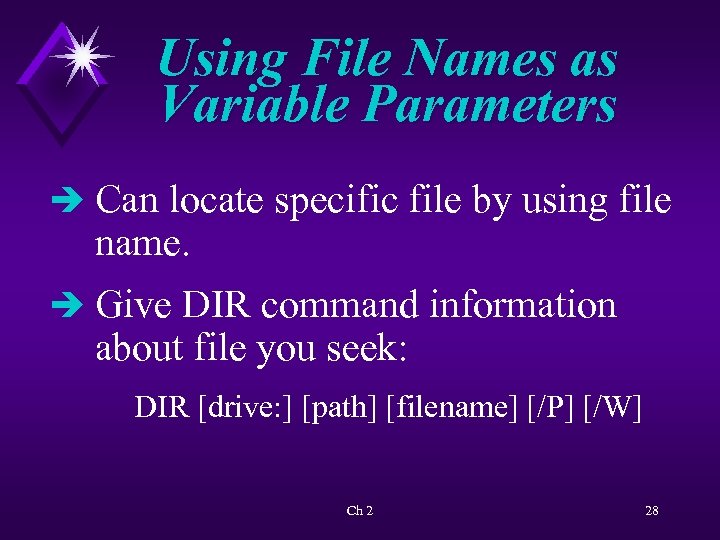 Using File Names as Variable Parameters è Can locate specific file by using file name. è Give DIR command information about file you seek: DIR [drive: ] [path] [filename] [/P] [/W] Ch 2 28
 Using File Names as Variable Parameters è In some syntax diagrams you will see: [filename[. ext]] è If a file name has an extension, it must be included. Ch 2 29
 Using File Names as Variable Parameters A dot (. ), delimiter, is used between file name and file extension. Example: MYFILE. TXT Ch 2 30
 Activity—Using a File Name as a Variable Parameter KEY CONCEPTS: è System messages è DIR command with long file names è File extensions - more than 3 characters è 8. 3 file name è Use of quotation marks è Use of /x parameter èHow 8. 3 name derived from LFN èReasons for keeping file names short/concise Ch 2 31
 Command Line Editing Can reuse last command keyed in without rekeying it: è
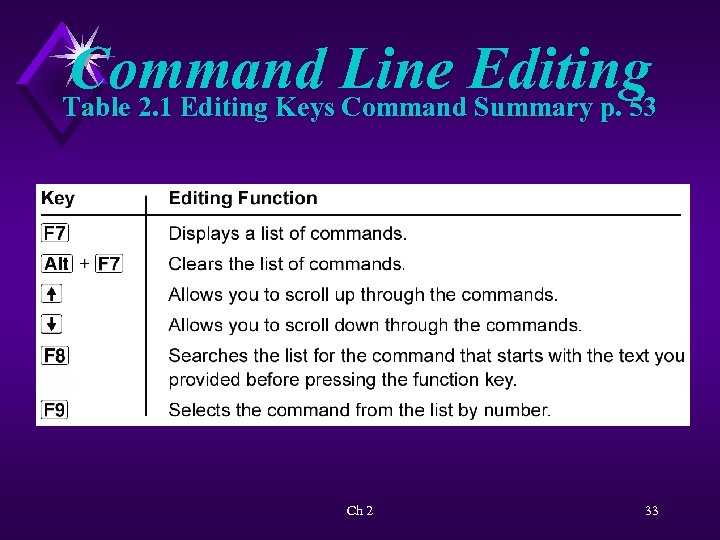 Command Line Editing Table 2. 1 Editing Keys Command Summary p. 53 Ch 2 33
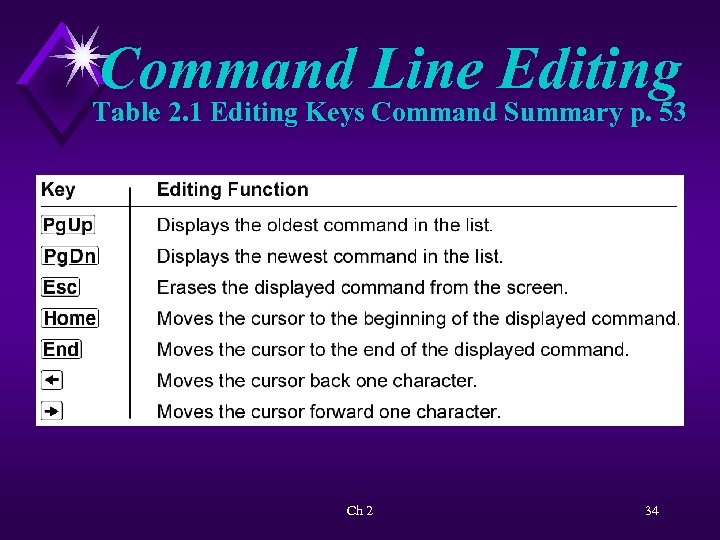 Command Line Editing Table 2. 1 Editing Keys Command Summary p. 53 Ch 2 34
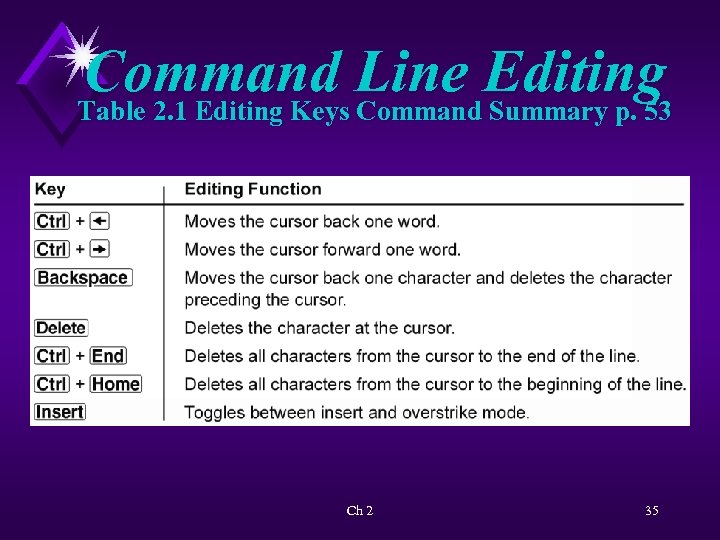 Command Line Editing Table 2. 1 Editing Keys Command Summary p. 53 Ch 2 35
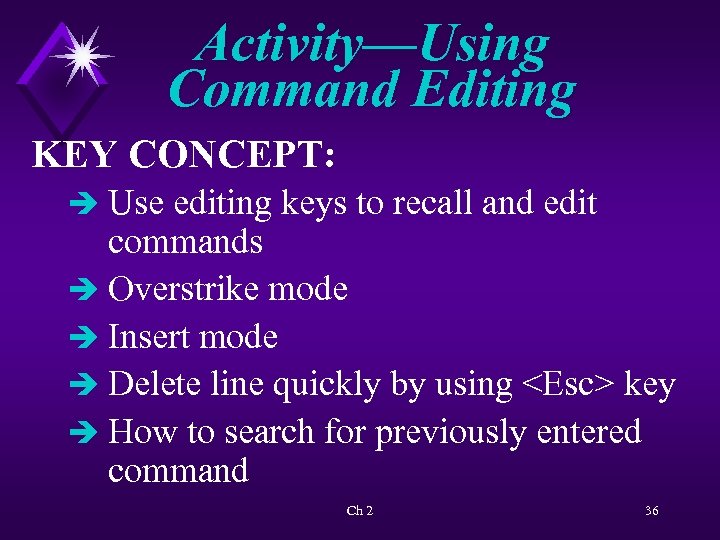 Activity—Using Command Editing KEY CONCEPT: è Use editing keys to recall and edit commands è Overstrike mode è Insert mode è Delete line quickly by using
 Drives as Device Names Device is a place to read information from/to. Ch 2 37
 Drives as Device Names Disk drives have assigned device names. Ch 2 38
 Defaults Default: è Implied instructions è Value used unless another value is specified Ch 2 39
 Defaults As an example, when A: > is displayed on screen it is the: è Prompt è Default drive è Designated or logged drive Ch 2 40
 Activity—Working with the Default KEY CONCEPTS: è“Shelling out to DOS” èUsing Default drive èDetermining drive to be searched è Why DIR A: HELLO TXT is a very clear request Ch 2 41
 Brief Introduction to Subdirectories—The Path Subdirectories: è Used primarily on hard disks Ch 2 42
 Brief Introduction to Subdirectories—The Path Subdirectories permit the. . . î grouping of files by type. î disk to be divided into smaller more manageable sections. Ch 2 43
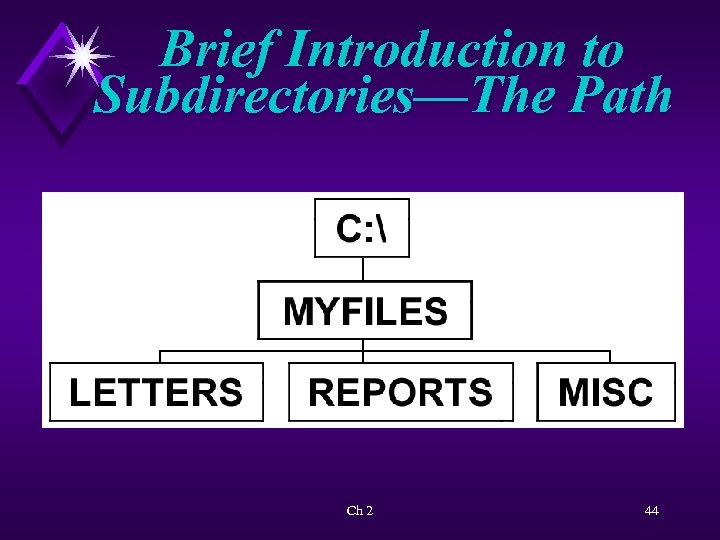 Brief Introduction to Subdirectories—The Path Ch 2 44
 Brief Introduction to Subdirectories—The Path Root directory: è Created and named by OS when disk is formatted è Indicated by the backslash () Ch 2 45
 Brief Introduction to Subdirectories—The Path è Other subdirectories created and named by user. è Naming rules same as rules for naming files. Ch 2 46
 Brief Introduction to Subdirectories—The Path è First backslash - root directory è Following backslashes – delimiters. Ch 2 47
 Brief Introduction to Subdirectories—The Path: è Route followed by OS to locate, save, and/or retrieve a file è Subdirectory name Ch 2 48
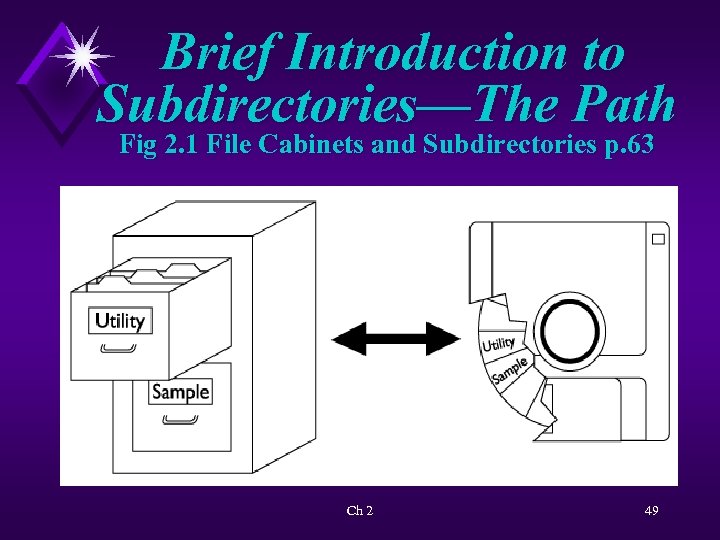 Brief Introduction to Subdirectories—The Path Fig 2. 1 File Cabinets and Subdirectories p. 63 Ch 2 49
 Activity—Using Path with the DIR Command KEY CONCEPTS: èDelimiter for path names èBackslash (first and others) Ch 2 50
 Changing Defaults è Default drive can be changed. è Command line is not case sensitive. Ch 2 51
 Activity—Changing the Default Drive KEY CONCEPTS: è Changing default è Locating file not in default directory è C: - major subdirectory Ch 2 52
 Changing Directories Default directory can be changed. Ch 2 53
![Changing Directories Partial command syntax: è CD [/D][Drive: ][path] Ch 2 54](https://present5.com/presentation/7a38f04fd8fa86f1847e5907fd3dfbae/image-54.jpg "Changing Directories Partial command syntax: è CD [/D][Drive: ][path] Ch 2 54") Changing Directories Partial command syntax: è CD [/D][Drive: ][path] Ch 2 54
Changing Directories Partial command syntax: è CD [/D][Drive: ][path] Ch 2 54
 Changing Directories è CD with no parameters - current default directory. è CD followed by path name - change default. è /D parameter - change drive and directory. Ch 2 55
 Activity—Changing Directories KEY CONCEPTS: è Results of keying in Ø CD alone - display current default directory Ø CD followed by path - will change default directory Ø CD - will always return to root directory Ch 2 56
 Global File Specifications: Wildcards, the ? , and * Global file specifications (wildcards): èCan operate on group of files instead of just a single file Ch 2 57
 Global File Specifications: Wildcards, the ? , and * è* - represents a group of characters. è? - represents a single character. Ch 2 58
 Activity—DIR and Wildcards KEY CONCEPTS: è Locating files with insufficient data è Using * and *. * è Using ? and ? ? ? è Using *. SYS Ch 2 59
 Redirection Keyboard: èStandard input device Screen: èStandard output device Ch 2 60
 Redirection: è Changes output from monitor to somewhere else (usually file or printer) è To work with printer must be local printer è Works only with commands that write to standard output Ch 2 61
 Redirection syntax command: èCOMMAND > DESTINATION (Space required on both sides of >) Ch 2 62
 Activity—Redirecting Output to a File KEY CONCEPTS: èRedirecting output to a file èRedirection is “instead of” procedure è Dealing with write-protected disks Ch 2 63
 Redirecting Output to the Printer è Can redirect computer output to a file or to a printer. èTo redirect to printer need a local printer. Ch 2 64
 Redirecting Output to the Printers device names: è PRN, LPT 1, LPT 2 and sometimes LPT 3. Ch 2 65
 Activity—Redirecting the Output to the Printer KEY CONCEPTS: èRedirection èHardware solutions Ch 2 66
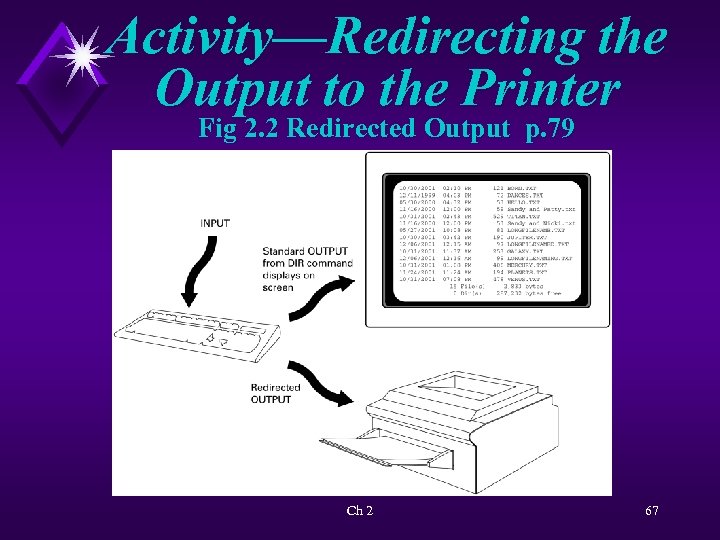 Activity—Redirecting the Output to the Printer Fig 2. 2 Redirected Output p. 79 Ch 2 67
 Getting Help Documentation: è Reference manual that comes with any software package Ch 2 68
 Getting Help In DOS 6. 0 and above, documentation provided less in written form and more online. Ch 2 69
 Getting Help For help in DOS environment: è Key in command, then a space, forward slash, and question mark è Use HELP followed by command name Ch 2 70
 Activity—Getting Help with a Command KEY CONCEPT: èResults of commands: ? O-N BLP ON S B/L/P E D Ch 2 71