


 Скачать презентацию Comm Link Outlook Integration User Tutorial Press
928b1e84900942c8d30a8d2c66b3fed0.ppt
- Количество слайдов: 36
 Comm. Link® & Outlook® Integration User Tutorial Press the Up & Down Arrow keys, or Left Mouse Click to progress through Tutorial. © 2003 1 CTI
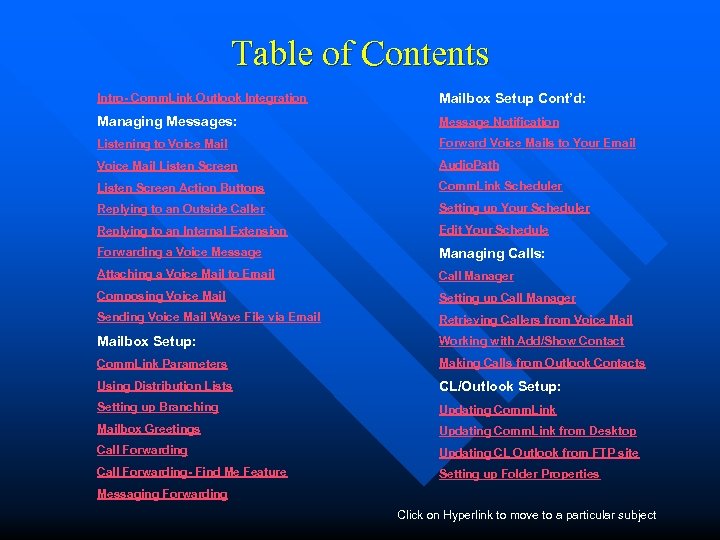 Table of Contents Intro- Comm. Link Outlook Integration Mailbox Setup Cont’d: Managing Messages: Message Notification Listening to Voice Mail Forward Voice Mails to Your Email Voice Mail Listen Screen Audio. Path Listen Screen Action Buttons Comm. Link Scheduler Replying to an Outside Caller Setting up Your Scheduler Replying to an Internal Extension Edit Your Schedule Forwarding a Voice Message Managing Calls: Attaching a Voice Mail to Email Call Manager Composing Voice Mail Setting up Call Manager Sending Voice Mail Wave File via Email Retrieving Callers from Voice Mailbox Setup: Working with Add/Show Contact Comm. Link Parameters Making Calls from Outlook Contacts Using Distribution Lists CL/Outlook Setup: Setting up Branching Updating Comm. Link Mailbox Greetings Updating Comm. Link from Desktop Call Forwarding Updating CL Outlook from FTP site Call Forwarding- Find Me Feature Setting up Folder Properties Messaging Forwarding Click on Hyperlink to move to a particular subject
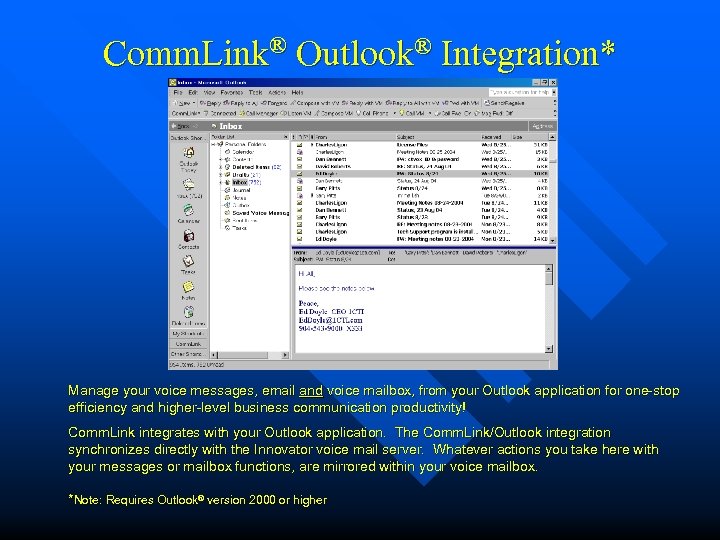 Comm. Link® Outlook® Integration* Manage your voice messages, email and voice mailbox, from your Outlook application for one-stop efficiency and higher-level business communication productivity! Comm. Link integrates with your Outlook application. The Comm. Link/Outlook integration synchronizes directly with the Innovator voice mail server. Whatever actions you take here with your messages or mailbox functions, are mirrored within your voice mailbox. *Note: Requires Outlook® version 2000 or higher
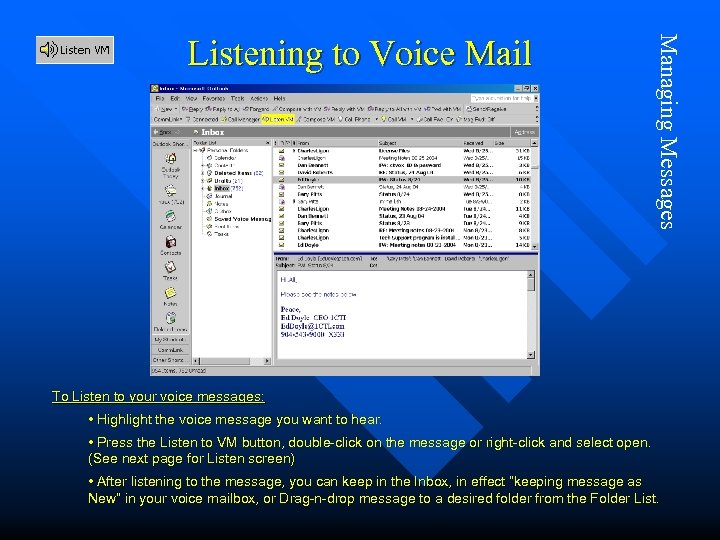 Managing Messages Listening to Voice Mail To Listen to your voice messages: • Highlight the voice message you want to hear. • Press the Listen to VM button, double-click on the message or right-click and select open. (See next page for Listen screen) • After listening to the message, you can keep in the Inbox, in effect “keeping message as New” in your voice mailbox, or Drag-n-drop message to a desired folder from the Folder List.
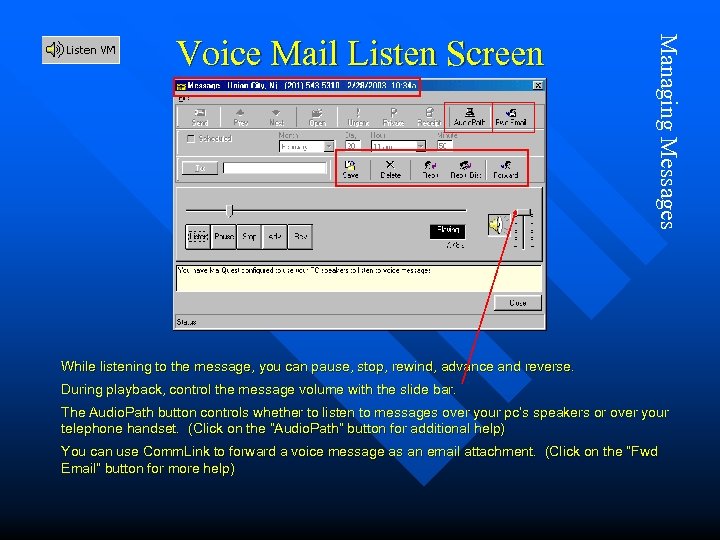 Managing Messages Voice Mail Listen Screen While listening to the message, you can pause, stop, rewind, advance and reverse. During playback, control the message volume with the slide bar. The Audio. Path button controls whether to listen to messages over your pc’s speakers or over your telephone handset. (Click on the “Audio. Path” button for additional help) You can use Comm. Link to forward a voice message as an email attachment. (Click on the “Fwd Email” button for more help)
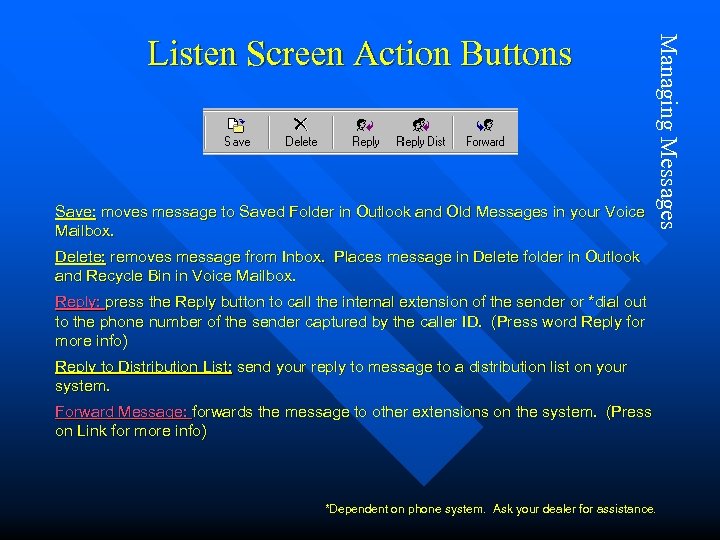 Save: moves message to Saved Folder in Outlook and Old Messages in your Voice Mailbox. Managing Messages Listen Screen Action Buttons Delete: removes message from Inbox. Places message in Delete folder in Outlook and Recycle Bin in Voice Mailbox. Reply: press the Reply button to call the internal extension of the sender or *dial out to the phone number of the sender captured by the caller ID. (Press word Reply for more info) Reply to Distribution List: send your reply to message to a distribution list on your system. Forward Message: forwards the message to other extensions on the system. (Press on Link for more info) *Dependent on phone system. Ask your dealer for assistance.
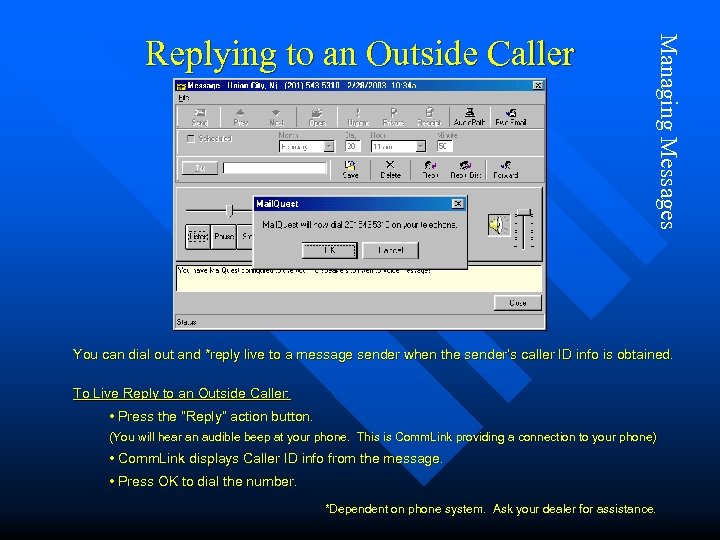 Managing Messages Replying to an Outside Caller You can dial out and *reply live to a message sender when the sender’s caller ID info is obtained. To Live Reply to an Outside Caller: • Press the “Reply” action button. (You will hear an audible beep at your phone. This is Comm. Link providing a connection to your phone) • Comm. Link displays Caller ID info from the message. • Press OK to dial the number. *Dependent on phone system. Ask your dealer for assistance.
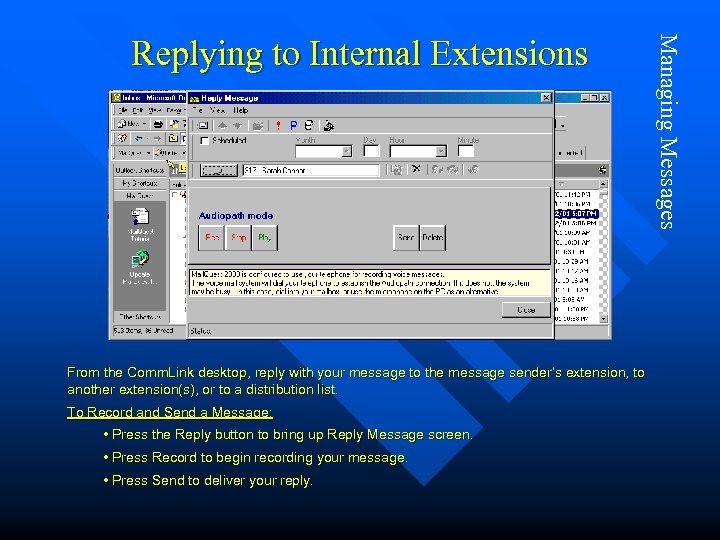 From the Comm. Link desktop, reply with your message to the message sender’s extension, to another extension(s), or to a distribution list. To Record and Send a Message: • Press the Reply button to bring up Reply Message screen. • Press Record to begin recording your message. • Press Send to deliver your reply. Managing Messages Replying to Internal Extensions
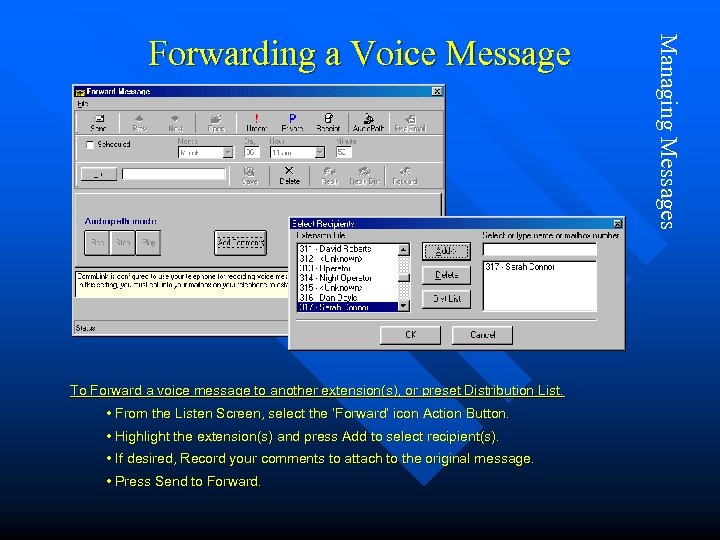 To Forward a voice message to another extension(s), or preset Distribution List. • From the Listen Screen, select the ‘Forward’ icon Action Button. • Highlight the extension(s) and press Add to select recipient(s). • If desired, Record your comments to attach to the original message. • Press Send to Forward. Managing Messages Forwarding a Voice Message
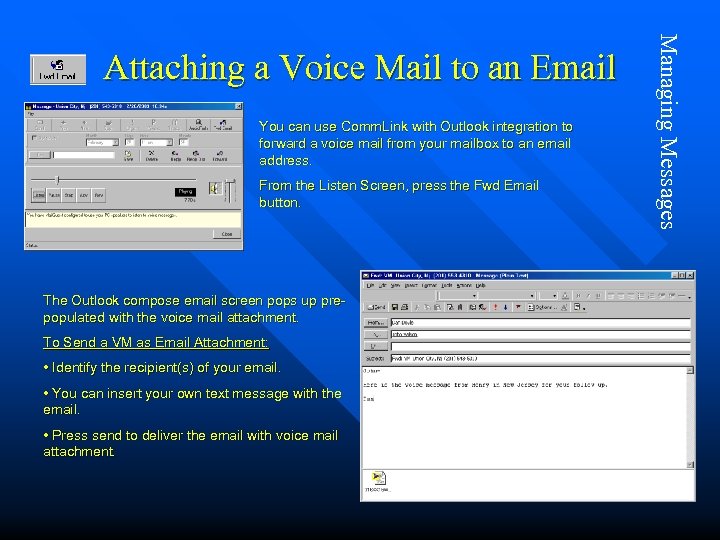 You can use Comm. Link with Outlook integration to forward a voice mail from your mailbox to an email address. From the Listen Screen, press the Fwd Email button. The Outlook compose email screen pops up prepopulated with the voice mail attachment. To Send a VM as Email Attachment: • Identify the recipient(s) of your email. • You can insert your own text message with the email. • Press send to deliver the email with voice mail attachment. Managing Messages Attaching a Voice Mail to an Email
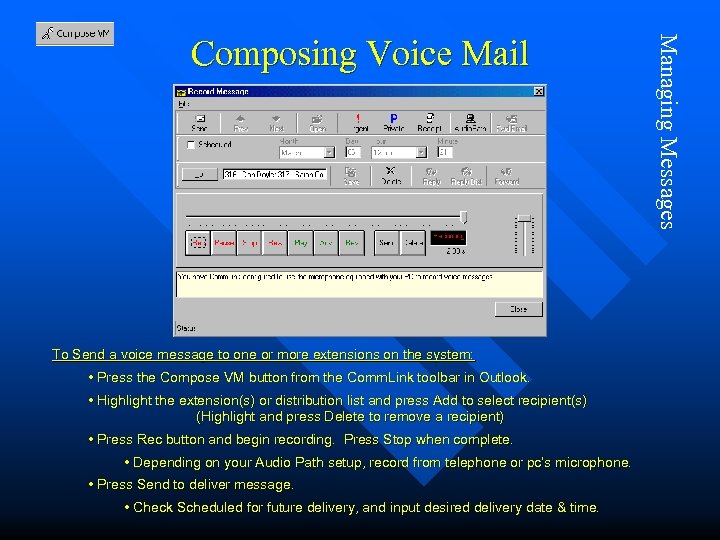 To Send a voice message to one or more extensions on the system: • Press the Compose VM button from the Comm. Link toolbar in Outlook. • Highlight the extension(s) or distribution list and press Add to select recipient(s) (Highlight and press Delete to remove a recipient) • Press Rec button and begin recording. Press Stop when complete. • Depending on your Audio Path setup, record from telephone or pc’s microphone. • Press Send to deliver message. • Check Scheduled for future delivery, and input desired delivery date & time. Managing Messages Composing Voice Mail
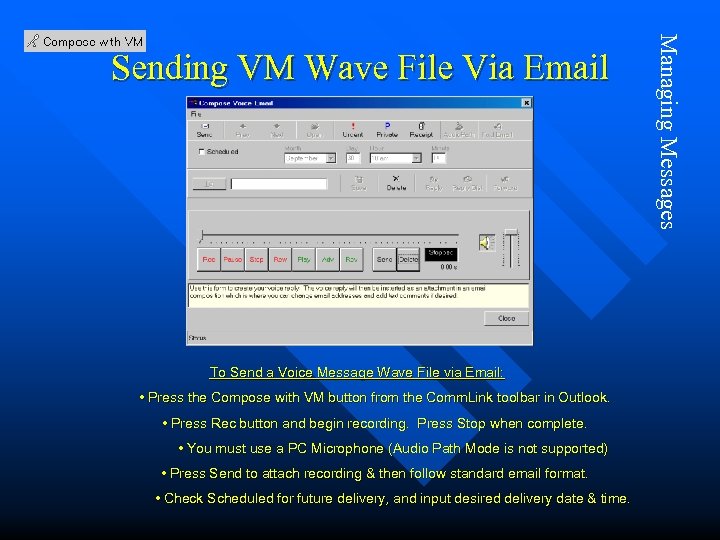 To Send a Voice Message Wave File via Email: • Press the Compose with VM button from the Comm. Link toolbar in Outlook. • Press Rec button and begin recording. Press Stop when complete. • You must use a PC Microphone (Audio Path Mode is not supported) • Press Send to attach recording & then follow standard email format. • Check Scheduled for future delivery, and input desired delivery date & time. Managing Messages Sending VM Wave File Via Email
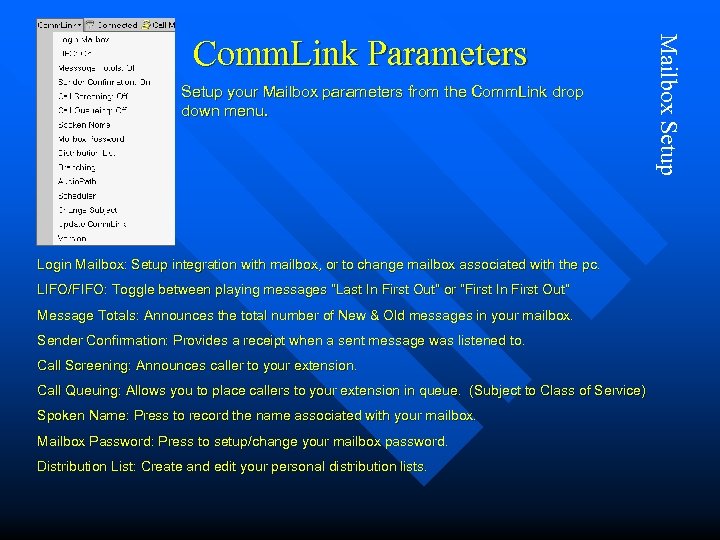 Setup your Mailbox parameters from the Comm. Link drop down menu. Login Mailbox: Setup integration with mailbox, or to change mailbox associated with the pc. LIFO/FIFO: Toggle between playing messages “Last In First Out” or “First In First Out” Message Totals: Announces the total number of New & Old messages in your mailbox. Sender Confirmation: Provides a receipt when a sent message was listened to. Call Screening: Announces caller to your extension. Call Queuing: Allows you to place callers to your extension in queue. (Subject to Class of Service) Spoken Name: Press to record the name associated with your mailbox. Mailbox Password: Press to setup/change your mailbox password. Distribution List: Create and edit your personal distribution lists. Mailbox Setup Comm. Link Parameters
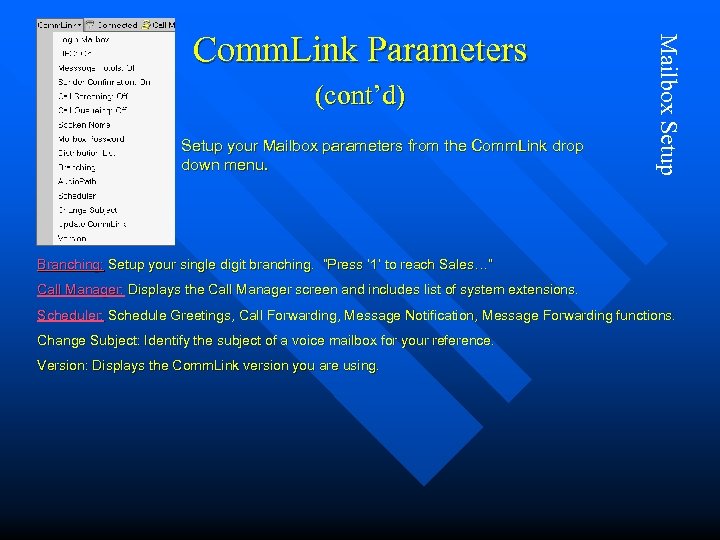 (cont’d) Setup your Mailbox parameters from the Comm. Link drop down menu. Mailbox Setup Comm. Link Parameters Branching: Setup your single digit branching. “Press ‘ 1’ to reach Sales…” Call Manager: Displays the Call Manager screen and includes list of system extensions. Scheduler: Schedule Greetings, Call Forwarding, Message Notification, Message Forwarding functions. Change Subject: Identify the subject of a voice mailbox for your reference. Version: Displays the Comm. Link version you are using.
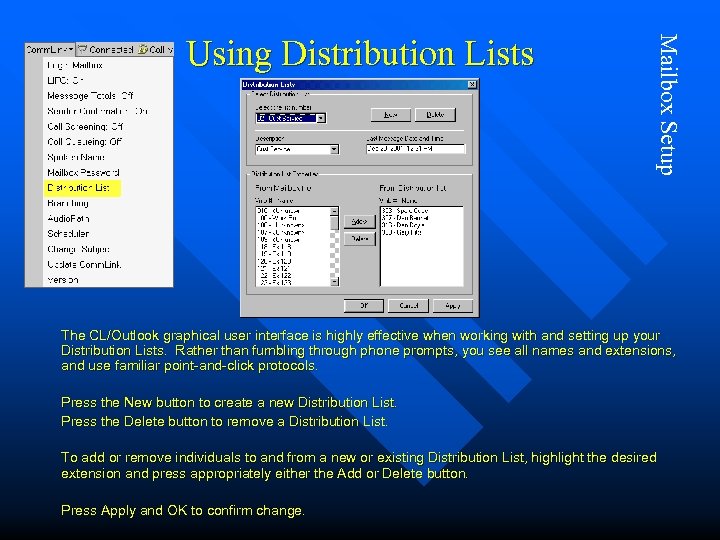 Mailbox Setup Using Distribution Lists The CL/Outlook graphical user interface is highly effective when working with and setting up your Distribution Lists. Rather than fumbling through phone prompts, you see all names and extensions, and use familiar point-and-click protocols. Press the New button to create a new Distribution List. Press the Delete button to remove a Distribution List. To add or remove individuals to and from a new or existing Distribution List, highlight the desired extension and press appropriately either the Add or Delete button. Press Apply and OK to confirm change.
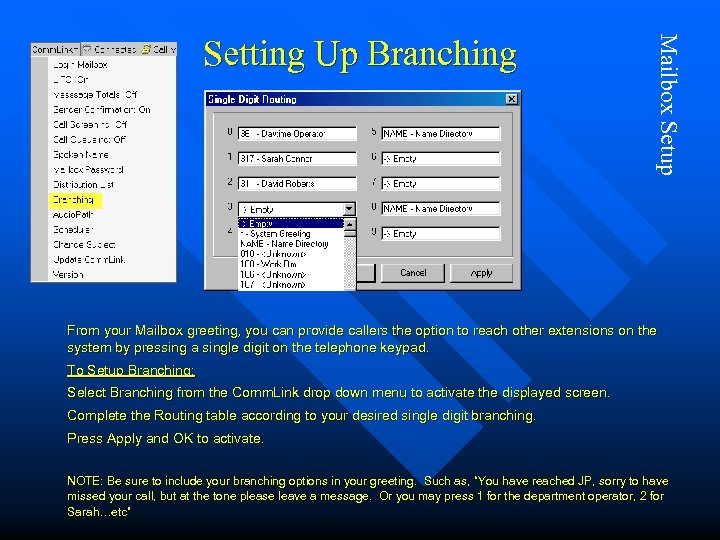 Mailbox Setup Setting Up Branching From your Mailbox greeting, you can provide callers the option to reach other extensions on the system by pressing a single digit on the telephone keypad. To Setup Branching: Select Branching from the Comm. Link drop down menu to activate the displayed screen. Complete the Routing table according to your desired single digit branching. Press Apply and OK to activate. NOTE: Be sure to include your branching options in your greeting. Such as, “You have reached JP, sorry to have missed your call, but at the tone please leave a message. Or you may press 1 for the department operator, 2 for Sarah…etc”
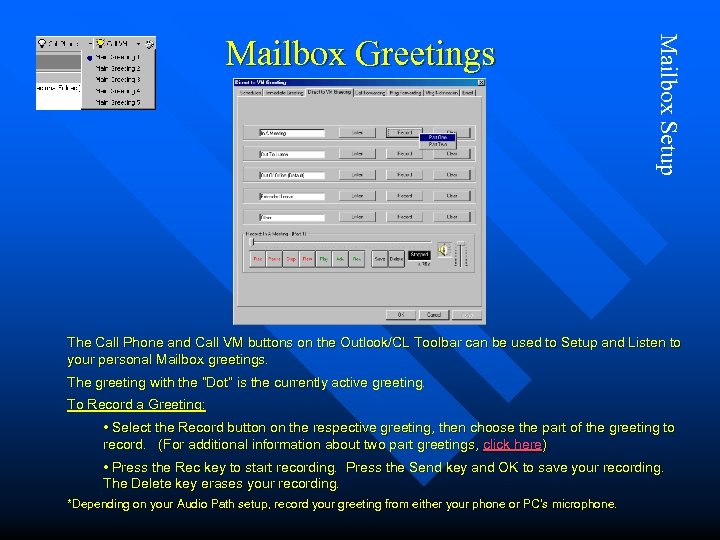 Mailbox Setup Mailbox Greetings The Call Phone and Call VM buttons on the Outlook/CL Toolbar can be used to Setup and Listen to your personal Mailbox greetings. The greeting with the “Dot” is the currently active greeting. To Record a Greeting: • Select the Record button on the respective greeting, then choose the part of the greeting to record. (For additional information about two part greetings, click here) • Press the Rec key to start recording. Press the Send key and OK to save your recording. The Delete key erases your recording. *Depending on your Audio Path setup, record your greeting from either your phone or PC’s microphone.
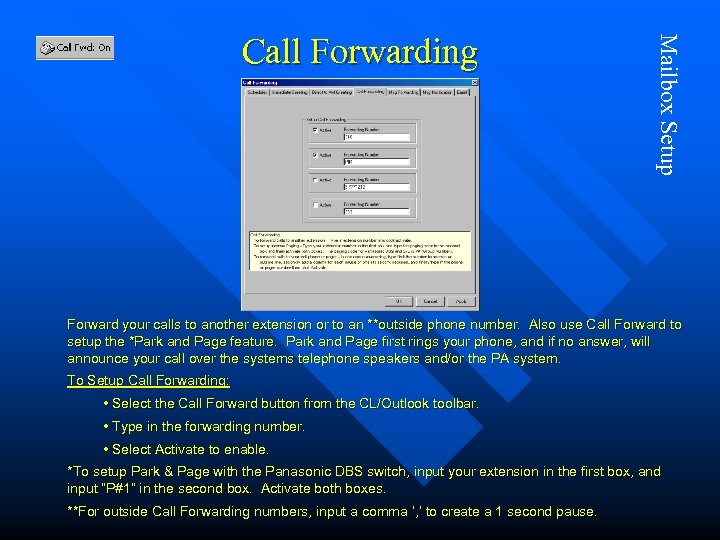 Mailbox Setup Call Forwarding Forward your calls to another extension or to an **outside phone number. Also use Call Forward to setup the *Park and Page feature. Park and Page first rings your phone, and if no answer, will announce your call over the systems telephone speakers and/or the PA system. To Setup Call Forwarding: • Select the Call Forward button from the CL/Outlook toolbar. • Type in the forwarding number. • Select Activate to enable. *To setup Park & Page with the Panasonic DBS switch, input your extension in the first box, and input “P#1” in the second box. Activate both boxes. **For outside Call Forwarding numbers, input a comma ‘, ’ to create a 1 second pause.
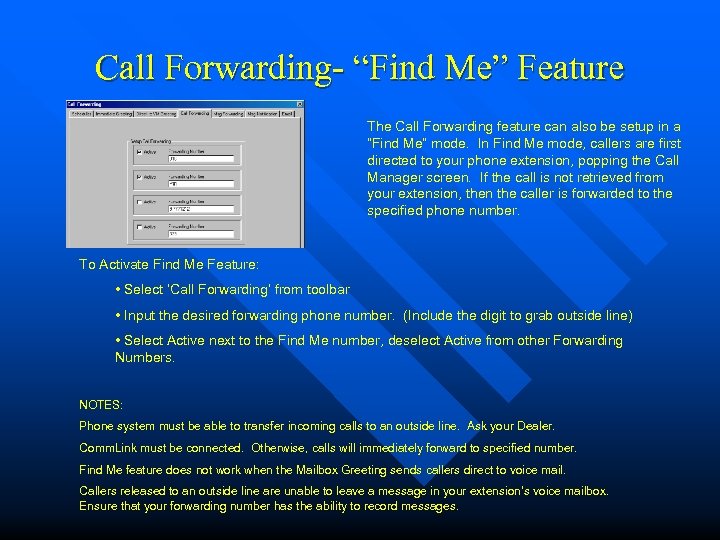 Call Forwarding- “Find Me” Feature The Call Forwarding feature can also be setup in a “Find Me” mode. In Find Me mode, callers are first directed to your phone extension, popping the Call Manager screen. If the call is not retrieved from your extension, then the caller is forwarded to the specified phone number. To Activate Find Me Feature: • Select ‘Call Forwarding’ from toolbar • Input the desired forwarding phone number. (Include the digit to grab outside line) • Select Active next to the Find Me number, deselect Active from other Forwarding Numbers. NOTES: Phone system must be able to transfer incoming calls to an outside line. Ask your Dealer. Comm. Link must be connected. Otherwise, calls will immediately forward to specified number. Find Me feature does not work when the Mailbox Greeting sends callers direct to voice mail. Callers released to an outside line are unable to leave a message in your extension’s voice mailbox. Ensure that your forwarding number has the ability to record messages.
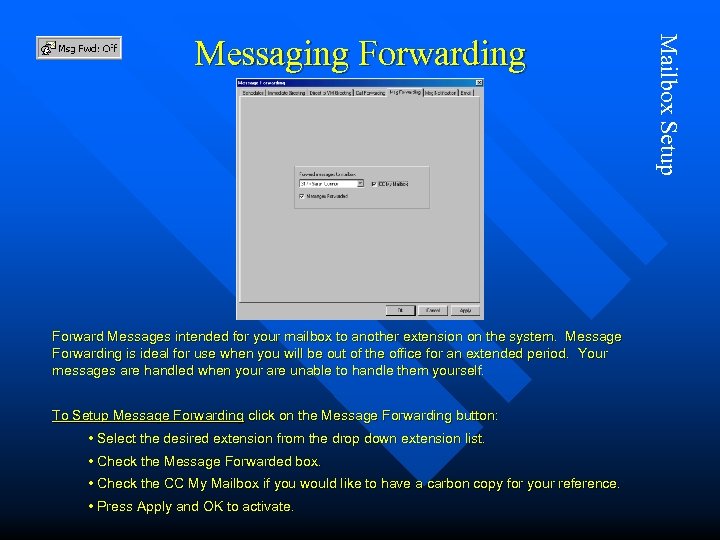 Forward Messages intended for your mailbox to another extension on the system. Message Forwarding is ideal for use when you will be out of the office for an extended period. Your messages are handled when your are unable to handle them yourself. To Setup Message Forwarding click on the Message Forwarding button: • Select the desired extension from the drop down extension list. • Check the Message Forwarded box. • Check the CC My Mailbox if you would like to have a carbon copy for your reference. • Press Apply and OK to activate. Mailbox Setup Messaging Forwarding
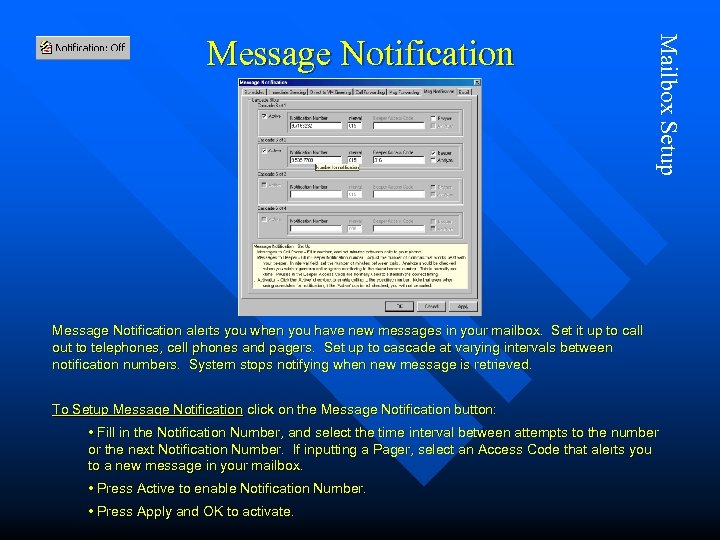 Mailbox Setup Message Notification alerts you when you have new messages in your mailbox. Set it up to call out to telephones, cell phones and pagers. Set up to cascade at varying intervals between notification numbers. System stops notifying when new message is retrieved. To Setup Message Notification click on the Message Notification button: • Fill in the Notification Number, and select the time interval between attempts to the number or the next Notification Number. If inputting a Pager, select an Access Code that alerts you to a new message in your mailbox. • Press Active to enable Notification Number. • Press Apply and OK to activate.
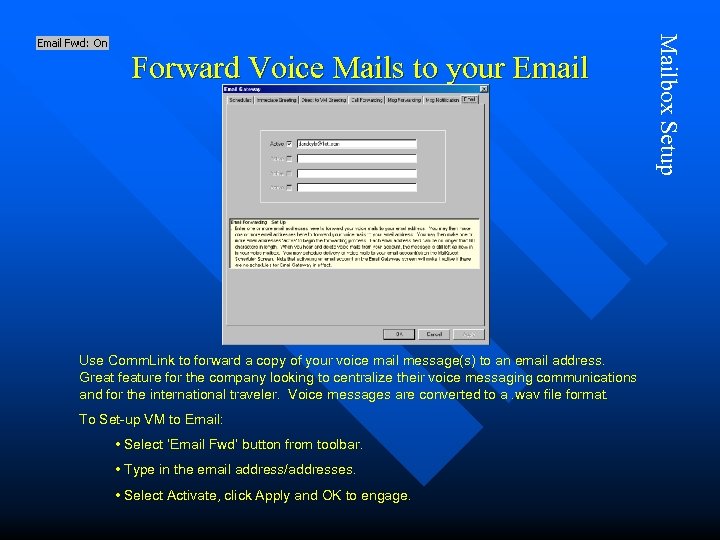 Use Comm. Link to forward a copy of your voice mail message(s) to an email address. Great feature for the company looking to centralize their voice messaging communications and for the international traveler. Voice messages are converted to a. wav file format. To Set-up VM to Email: • Select ‘Email Fwd’ button from toolbar. • Type in the email address/addresses. • Select Activate, click Apply and OK to engage. Mailbox Setup Forward Voice Mails to your Email
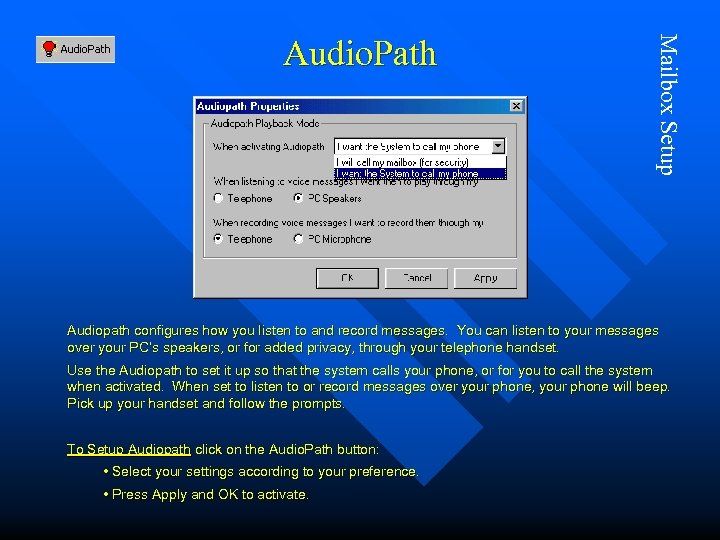 Mailbox Setup Audio. Path Audiopath configures how you listen to and record messages. You can listen to your messages over your PC’s speakers, or for added privacy, through your telephone handset. Use the Audiopath to set it up so that the system calls your phone, or for you to call the system when activated. When set to listen to or record messages over your phone, your phone will beep. Pick up your handset and follow the prompts. To Setup Audiopath click on the Audio. Path button: • Select your settings according to your preference. • Press Apply and OK to activate.
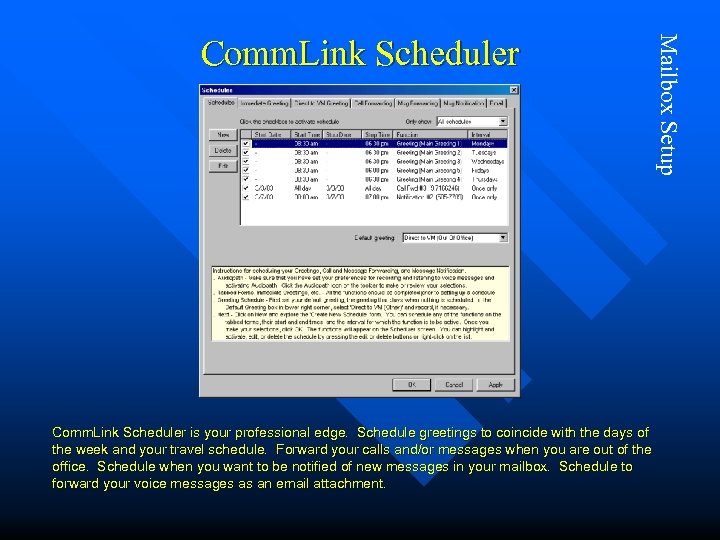 Comm. Link Scheduler is your professional edge. Schedule greetings to coincide with the days of the week and your travel schedule. Forward your calls and/or messages when you are out of the office. Schedule when you want to be notified of new messages in your mailbox. Schedule to forward your voice messages as an email attachment. Mailbox Setup Comm. Link Scheduler
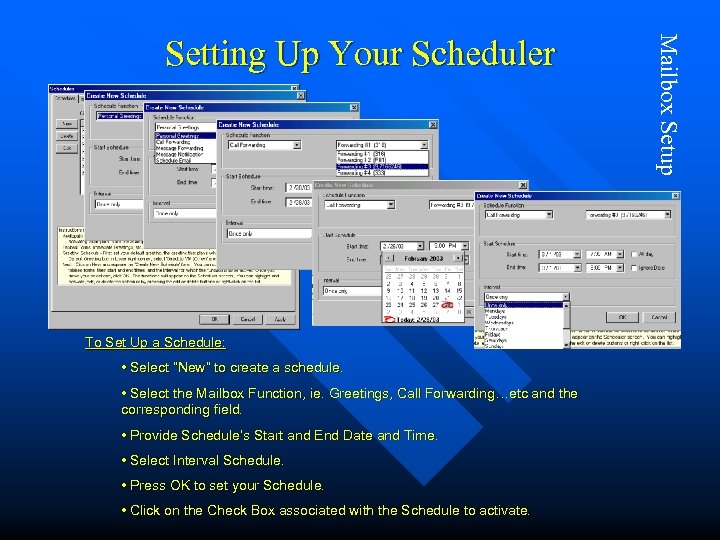 To Set Up a Schedule: • Select “New” to create a schedule. • Select the Mailbox Function, ie. Greetings, Call Forwarding…etc and the corresponding field. • Provide Schedule’s Start and End Date and Time. • Select Interval Schedule. • Press OK to set your Schedule. • Click on the Check Box associated with the Schedule to activate. Mailbox Setup Setting Up Your Scheduler
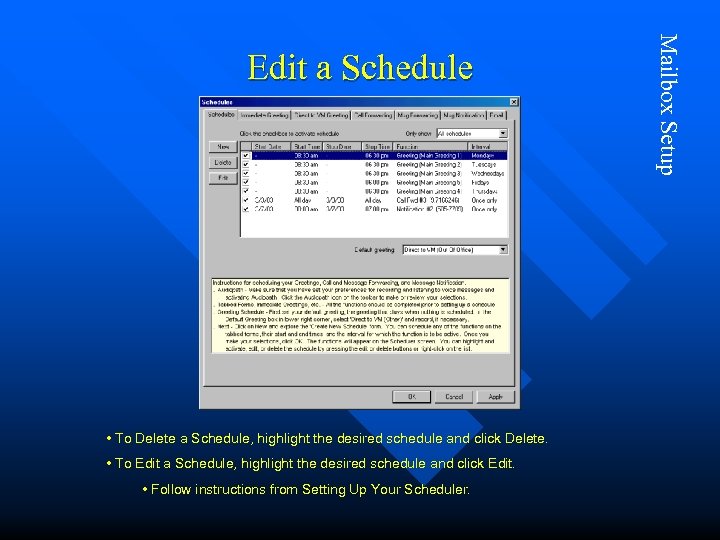 • To Delete a Schedule, highlight the desired schedule and click Delete. • To Edit a Schedule, highlight the desired schedule and click Edit. • Follow instructions from Setting Up Your Scheduler. Mailbox Setup Edit a Schedule
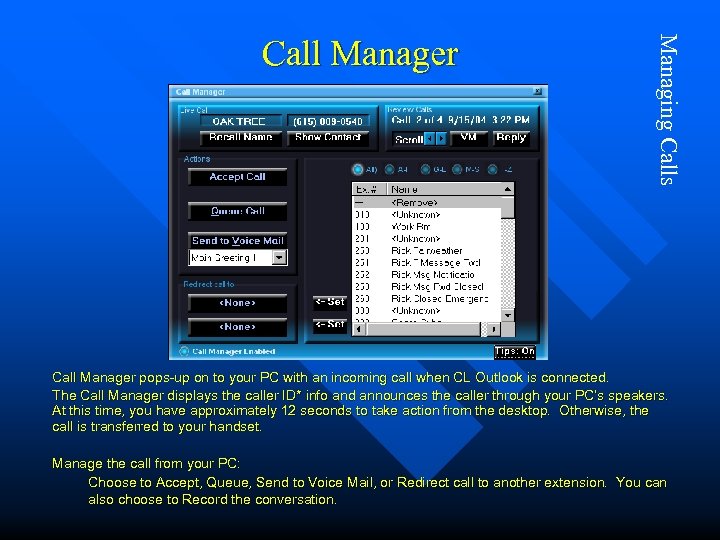 Managing Calls Call Manager pops-up on to your PC with an incoming call when CL Outlook is connected. The Call Manager displays the caller ID* info and announces the caller through your PC’s speakers. At this time, you have approximately 12 seconds to take action from the desktop. Otherwise, the call is transferred to your handset. Manage the call from your PC: Choose to Accept, Queue, Send to Voice Mail, or Redirect call to another extension. You can also choose to Record the conversation.
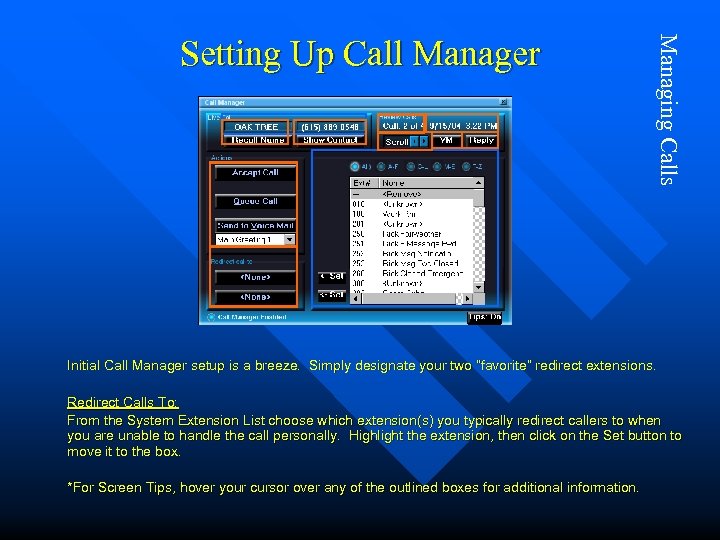 Managing Calls Setting Up Call Manager Initial Call Manager setup is a breeze. Simply designate your two “favorite” redirect extensions. Redirect Calls To: From the System Extension List choose which extension(s) you typically redirect callers to when you are unable to handle the call personally. Highlight the extension, then click on the Set button to move it to the box. *For Screen Tips, hover your cursor over any of the outlined boxes for additional information.
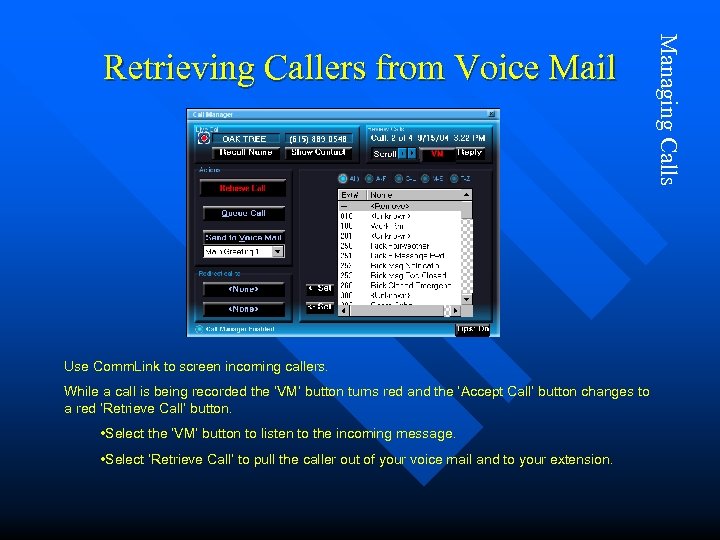 Use Comm. Link to screen incoming callers. While a call is being recorded the ‘VM’ button turns red and the ‘Accept Call’ button changes to a red ‘Retrieve Call’ button. • Select the ‘VM’ button to listen to the incoming message. • Select ‘Retrieve Call’ to pull the caller out of your voice mail and to your extension. Managing Calls Retrieving Callers from Voice Mail
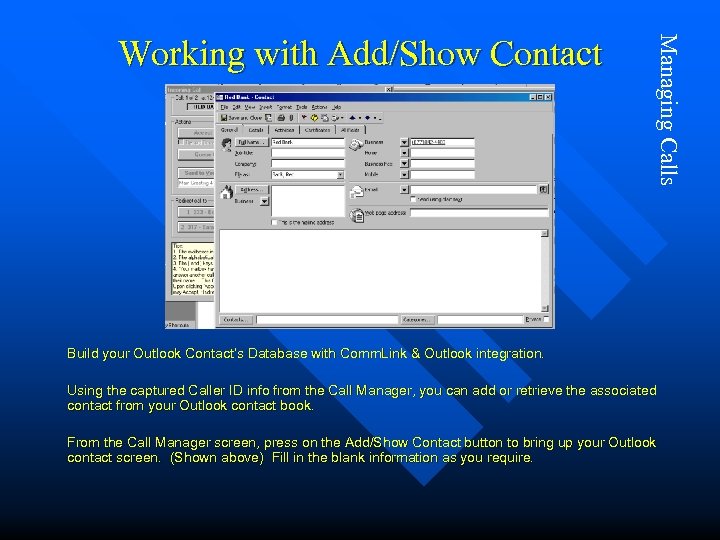 Managing Calls Working with Add/Show Contact Build your Outlook Contact’s Database with Comm. Link & Outlook integration. Using the captured Caller ID info from the Call Manager, you can add or retrieve the associated contact from your Outlook contact book. From the Call Manager screen, press on the Add/Show Contact button to bring up your Outlook contact screen. (Shown above) Fill in the blank information as you require.
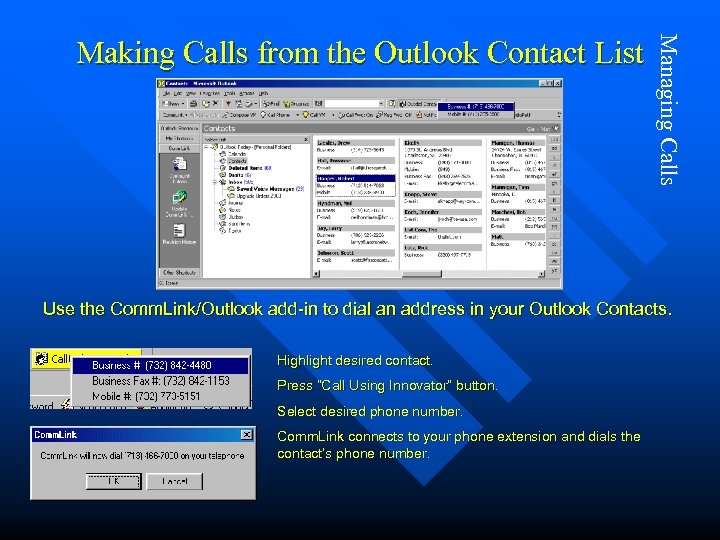 Managing Calls Making Calls from the Outlook Contact List Use the Comm. Link/Outlook add-in to dial an address in your Outlook Contacts. Highlight desired contact. Press “Call Using Innovator” button. Select desired phone number. Comm. Link connects to your phone extension and dials the contact’s phone number.
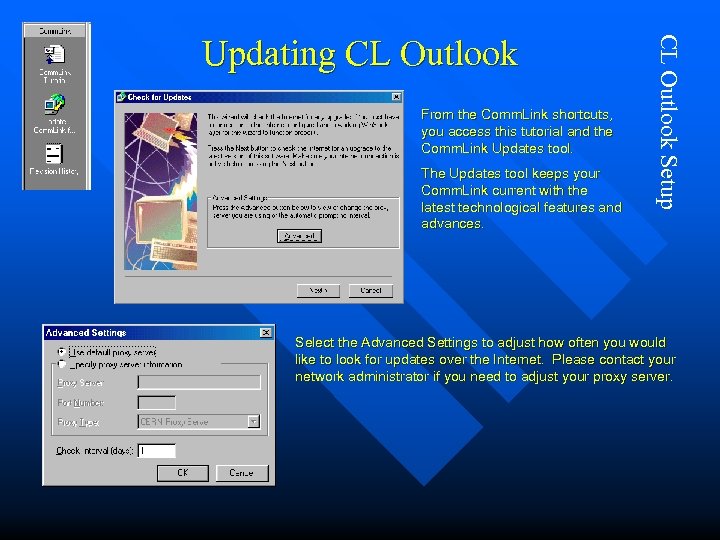 From the Comm. Link shortcuts, you access this tutorial and the Comm. Link Updates tool. The Updates tool keeps your Comm. Link current with the latest technological features and advances. CL Outlook Setup Updating CL Outlook Select the Advanced Settings to adjust how often you would like to look for updates over the Internet. Please contact your network administrator if you need to adjust your proxy server.
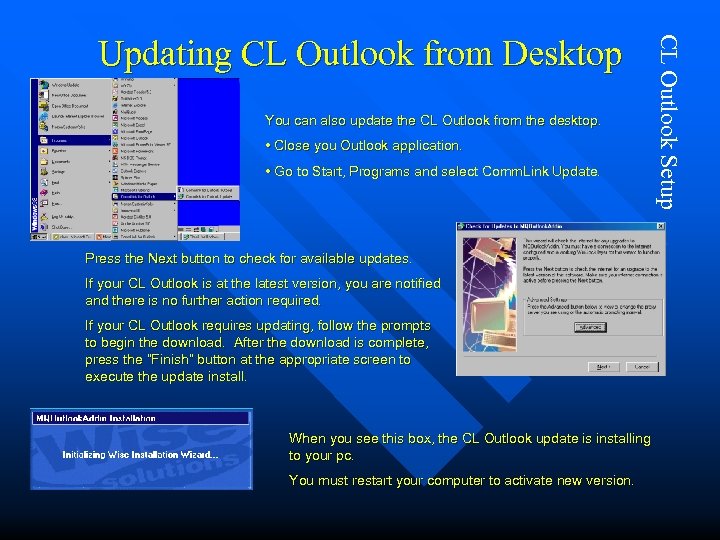 You can also update the CL Outlook from the desktop. • Close you Outlook application. • Go to Start, Programs and select Comm. Link Update. Press the Next button to check for available updates. If your CL Outlook is at the latest version, you are notified and there is no further action required. If your CL Outlook requires updating, follow the prompts to begin the download. After the download is complete, press the “Finish” button at the appropriate screen to execute the update install. When you see this box, the CL Outlook update is installing to your pc. You must restart your computer to activate new version. CL Outlook Setup Updating CL Outlook from Desktop
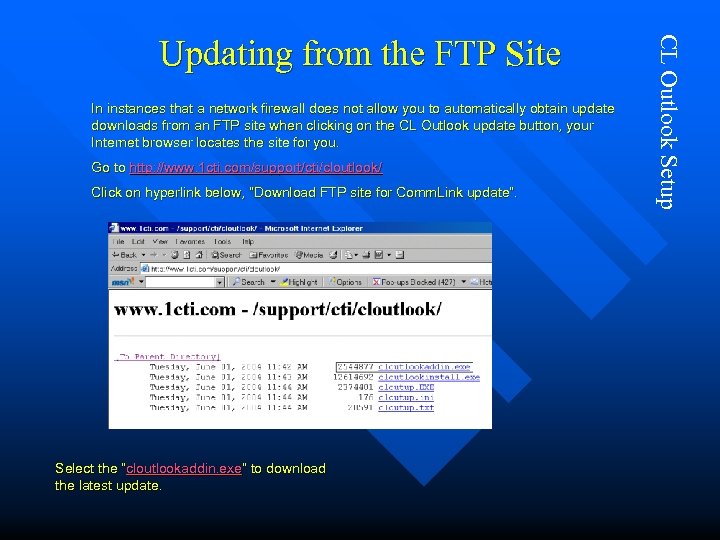 In instances that a network firewall does not allow you to automatically obtain update downloads from an FTP site when clicking on the CL Outlook update button, your Internet browser locates the site for you. Go to http: //www. 1 cti. com/support/cti/cloutlook/ Click on hyperlink below, “Download FTP site for Comm. Link update”. Select the “cloutlookaddin. exe” to download the latest update. CL Outlook Setup Updating from the FTP Site
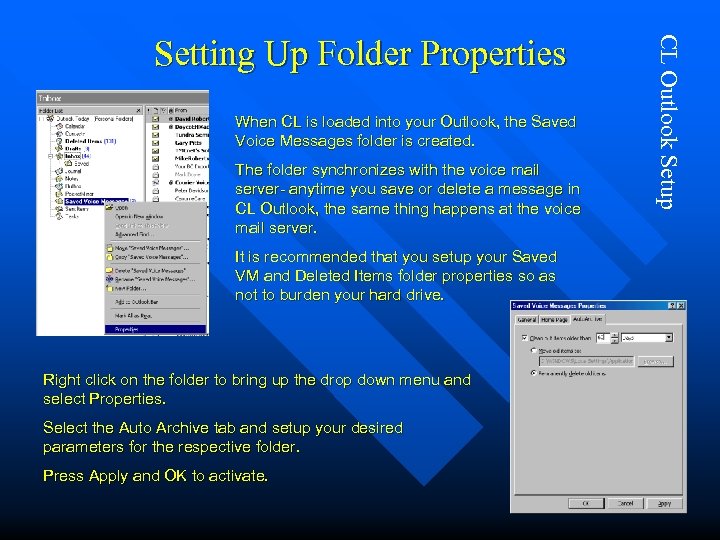 When CL is loaded into your Outlook, the Saved Voice Messages folder is created. The folder synchronizes with the voice mail server- anytime you save or delete a message in CL Outlook, the same thing happens at the voice mail server. It is recommended that you setup your Saved VM and Deleted Items folder properties so as not to burden your hard drive. Right click on the folder to bring up the drop down menu and select Properties. Select the Auto Archive tab and setup your desired parameters for the respective folder. Press Apply and OK to activate. CL Outlook Setup Setting Up Folder Properties
 Supplemental Info n Two-Part Greetings: Your voice mailbox has a total of 10 personal greetings, each with two (2) parts. You can elect to use the second part greeting to record fixed info. Use part 1 for your variable greeting. A sample two-part greeting: Part 1: “Hello, today is Monday, March Third and I will be in the office all day. ” Part 2: “Sorry to have missed your call. If your call requires immediate assistance, please press 0 for the operator. Otherwise, leave your message after the tone and I will get back to you shortly. ” If you are using a single part greeting, record your greeting in Part 1 only. Note: After recording your greeting, press the ‘#’ key to immediately stop recording and to prevent a pause after your greeting.