 Скачать презентацию Client-Side Web Application Development with Java Script ISYS
c4c44a4f88fc46ae63b730e486b0d1d2.ppt
- Количество слайдов: 70



Client-Side Web Application Development with Java. Script ISYS 350
Types of Web pages • Static page: – The contents of a web page is predefined by HTML tags and other mark up languages. • Example: david chao’s home page. • Dynamic page – A web page includes contents produced by a programming language when the page is opened.
Technologies for Creating Dynamic Pages • Client-side technology – HTML – Browser Document Object Model (DOM) – Java. Script – Cascade Style Sheet, CSS • Server-side technology – Microsoft. Net – Java – PHP – Others: Node. js, a server-side Java. Script

Example of Client-side Page using HTML, DOM and Java. Script
HTML Introduction • History: – http: //en. wikipedia. org/wiki/HTML • Standard – The World Wide Web Consortium (W 3 C) • HTML 5: <!DOCTYPE html> – Multimedia controls • Video, audio, canvas – Controls with build-in validation
Online Resources for Learning HTML • w 3 schools. com – http: //www. w 3 schools. com/default. asp
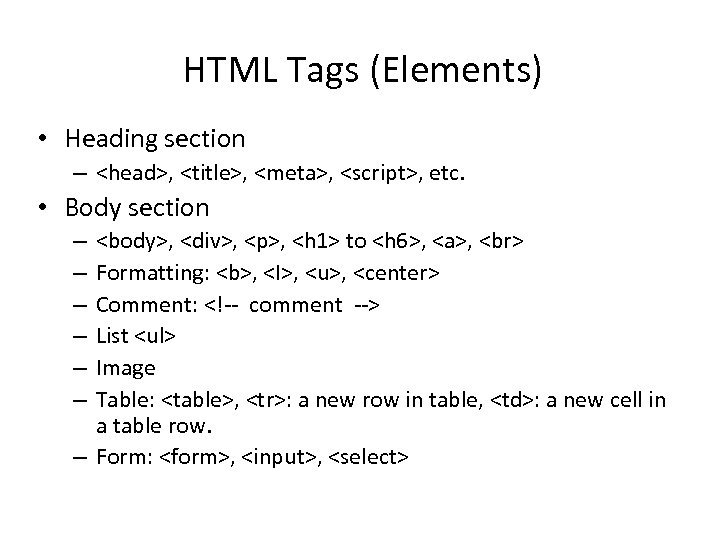
HTML Tags (Elements) • Heading section – <head>, <title>, <meta>, <script>, etc. • Body section <body>, <div>, <p>, <h 1> to <h 6>, <a>, Formatting: <b>, <I>, <u>, <center> Comment: <!-- comment --> List <ul> Image Table: <table>, <tr>: a new row in table, <td>: a new cell in a table row. – Form: <form>, <input>, <select> – – –
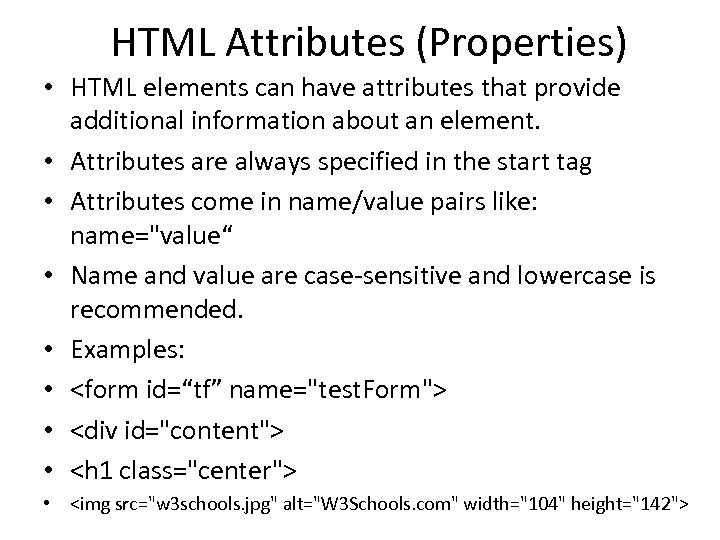
HTML Attributes (Properties) • HTML elements can have attributes that provide additional information about an element. • Attributes are always specified in the start tag • Attributes come in name/value pairs like: name="value“ • Name and value are case-sensitive and lowercase is recommended. • Examples: • <form id=“tf” name="test. Form"> • <div id="content"> • <h 1 class="center"> • <img src="w 3 schools. jpg" alt="W 3 Schools. com" width="104" height="142">
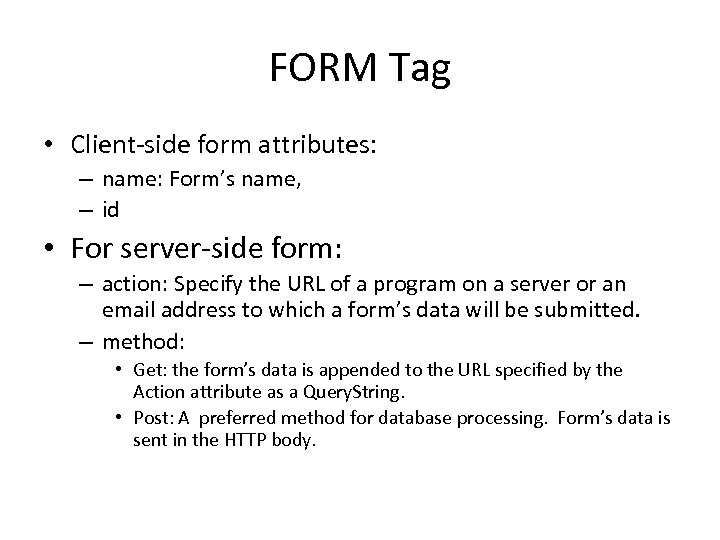
FORM Tag • Client-side form attributes: – name: Form’s name, – id • For server-side form: – action: Specify the URL of a program on a server or an email address to which a form’s data will be submitted. – method: • Get: the form’s data is appended to the URL specified by the Action attribute as a Query. String. • Post: A preferred method for database processing. Form’s data is sent in the HTTP body.
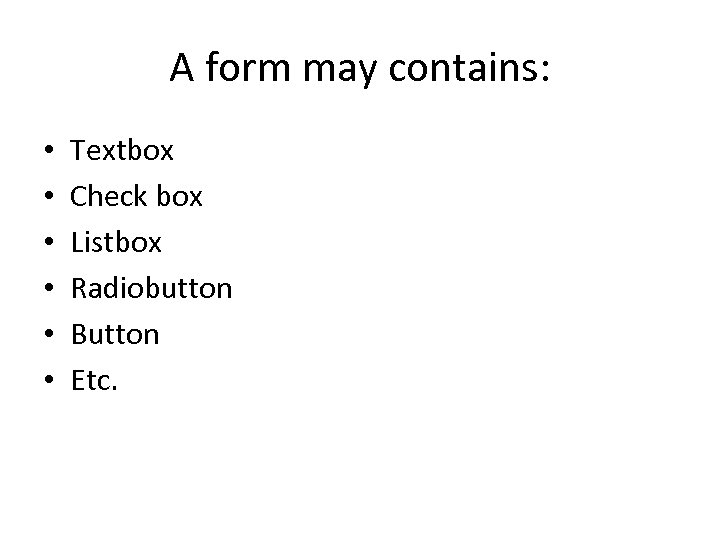
A form may contains: • • • Textbox Check box Listbox Radiobutton Button Etc.
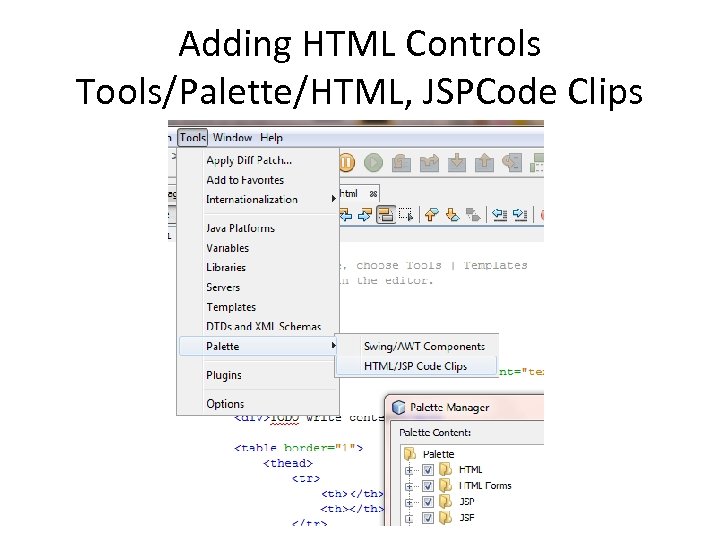
Adding HTML Controls Tools/Palette/HTML, JSPCode Clips
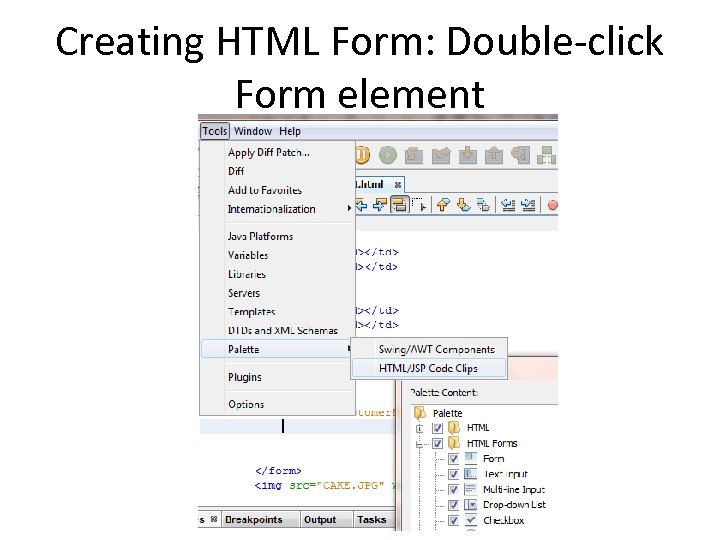
Creating HTML Form: Double-click Form element
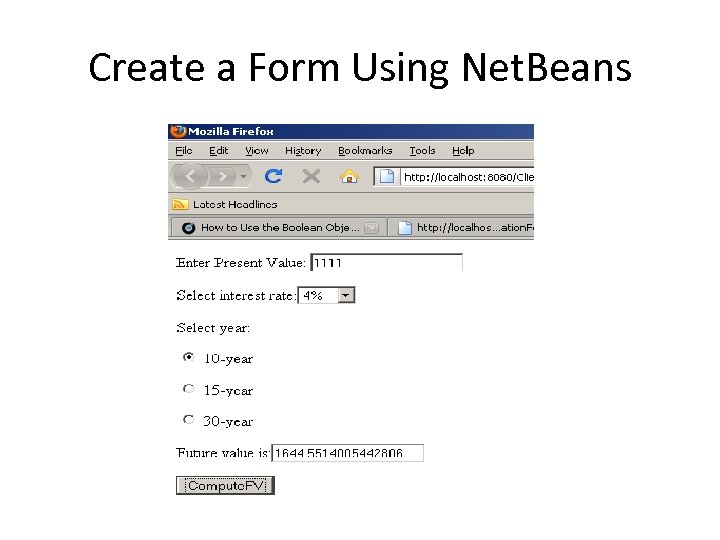
Create a Form Using Net. Beans
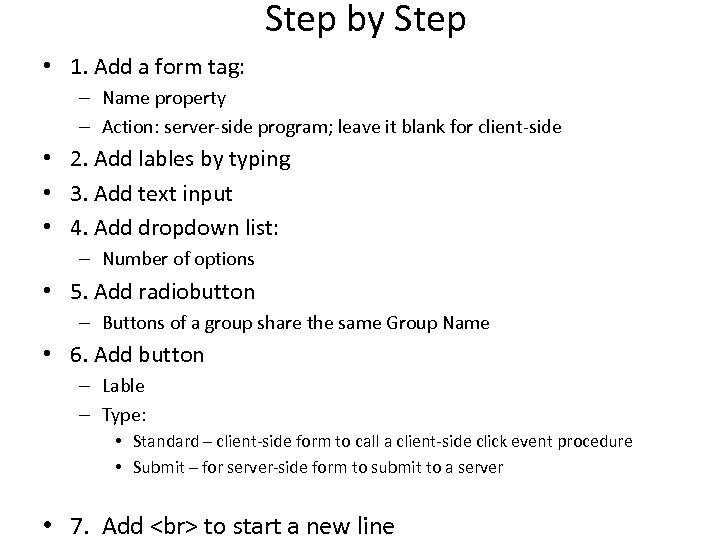
Step by Step • 1. Add a form tag: – Name property – Action: server-side program; leave it blank for client-side • 2. Add lables by typing • 3. Add text input • 4. Add dropdown list: – Number of options • 5. Add radiobutton – Buttons of a group share the same Group Name • 6. Add button – Lable – Type: • Standard – client-side form to call a client-side click event procedure • Submit – for server-side form to submit to a server • 7. Add to start a new line
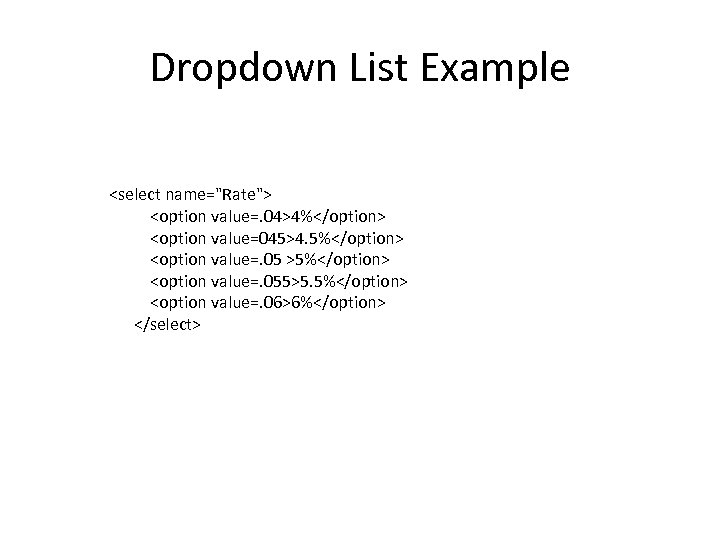
Dropdown List Example <select name="Rate"> <option value=. 04>4%</option> <option value=045>4. 5%</option> <option value=. 05 >5%</option> <option value=. 055>5. 5%</option> <option value=. 06>6%</option> </select>
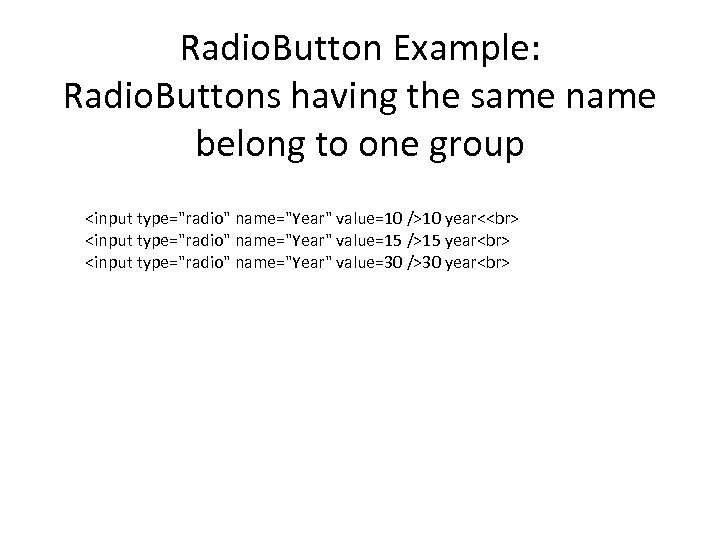
Radio. Button Example: Radio. Buttons having the same name belong to one group <input type="radio" name="Year" value=10 />10 year< <input type="radio" name="Year" value=15 />15 year <input type="radio" name="Year" value=30 />30 year
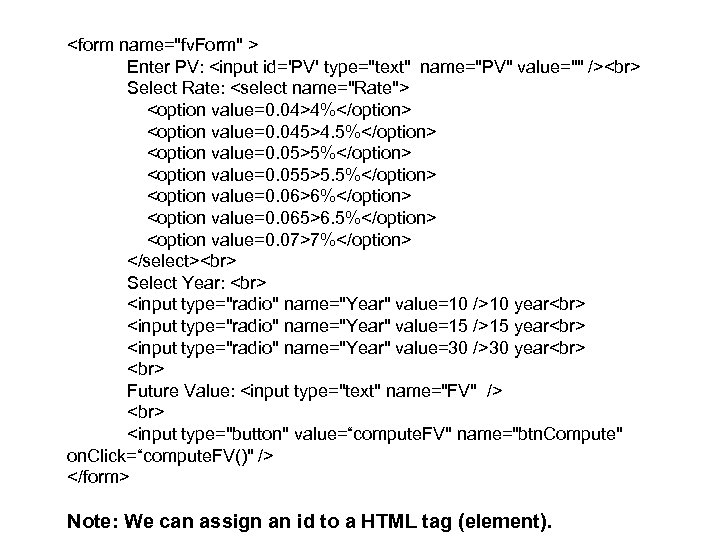
<form name="fv. Form" > Enter PV: <input id='PV' type="text" name="PV" value="" /> Select Rate: <select name="Rate"> <option value=0. 04>4%</option> <option value=0. 045>4. 5%</option> <option value=0. 05>5%</option> <option value=0. 055>5. 5%</option> <option value=0. 06>6%</option> <option value=0. 065>6. 5%</option> <option value=0. 07>7%</option> </select> Select Year: <input type="radio" name="Year" value=10 />10 year <input type="radio" name="Year" value=15 />15 year <input type="radio" name="Year" value=30 />30 year Future Value: <input type="text" name="FV" /> <input type="button" value=“compute. FV" name="btn. Compute" on. Click=“compute. FV()" /> </form> Note: We can assign an id to a HTML tag (element).
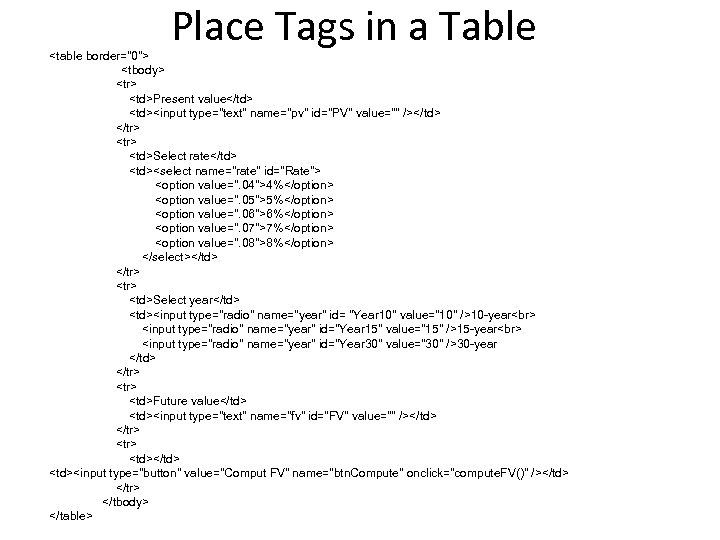
Place Tags in a Table <table border="0"> <tbody> <tr> <td>Present value</td> <td><input type="text" name="pv" id="PV" value="" /></td> </tr> <td>Select rate</td> <td><select name="rate" id="Rate"> <option value=". 04">4%</option> <option value=". 05">5%</option> <option value=". 06">6%</option> <option value=". 07">7%</option> <option value=". 08">8%</option> </select></td> </tr> <td>Select year</td> <td><input type="radio" name="year" id= "Year 10" value="10" />10 -year <input type="radio" name="year" id="Year 15" value="15" />15 -year <input type="radio" name="year" id="Year 30" value="30" />30 -year </td> </tr> <td>Future value</td> <td><input type="text" name="fv" id="FV" value="" /></td> </tr> <td></td> <td><input type="button" value="Comput FV" name="btn. Compute" onclick="compute. FV()" /></td> </tr> </tbody> </table>
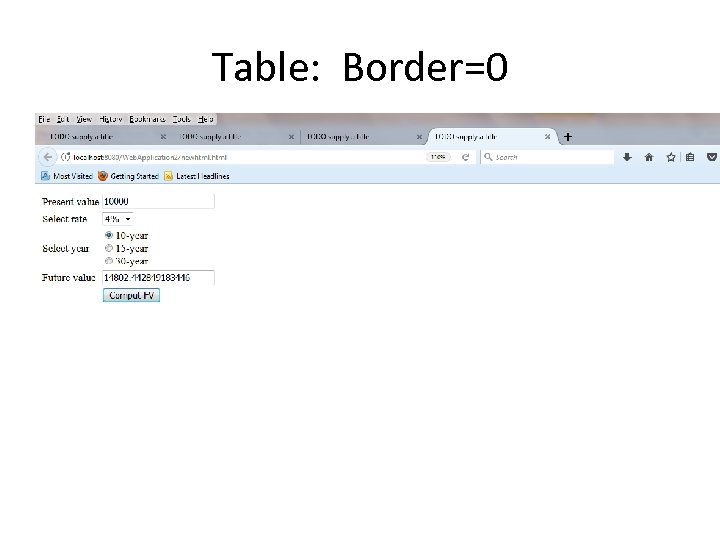
Table: Border=0
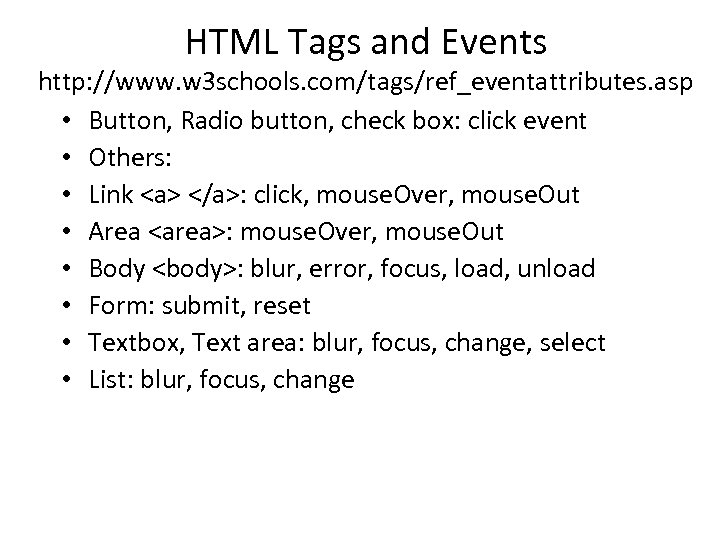
HTML Tags and Events http: //www. w 3 schools. com/tags/ref_eventattributes. asp • Button, Radio button, check box: click event • Others: • Link <a> </a>: click, mouse. Over, mouse. Out • Area <area>: mouse. Over, mouse. Out • Body <body>: blur, error, focus, load, unload • Form: submit, reset • Textbox, Text area: blur, focus, change, select • List: blur, focus, change
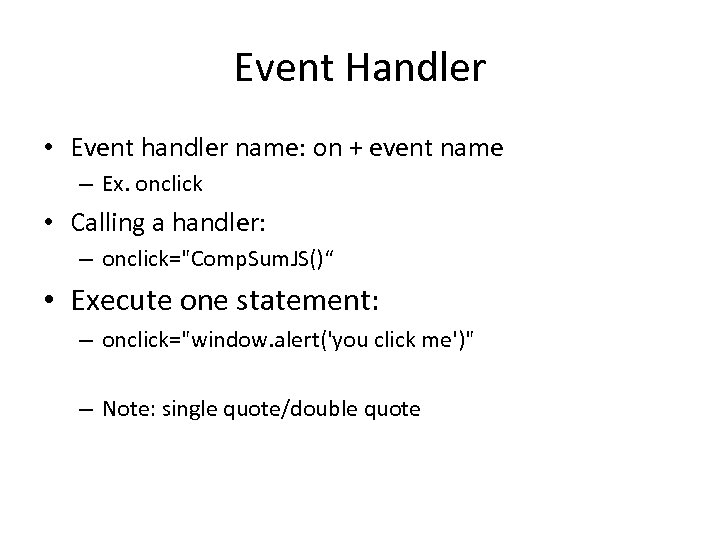
Event Handler • Event handler name: on + event name – Ex. onclick • Calling a handler: – onclick="Comp. Sum. JS()“ • Execute one statement: – onclick="window. alert('you click me')" – Note: single quote/double quote
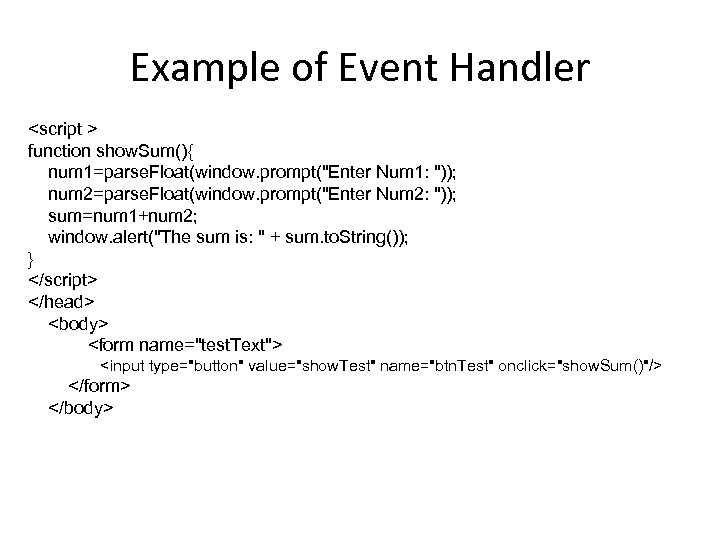
Example of Event Handler <script > function show. Sum(){ num 1=parse. Float(window. prompt("Enter Num 1: ")); num 2=parse. Float(window. prompt("Enter Num 2: ")); sum=num 1+num 2; window. alert("The sum is: " + sum. to. String()); } </script> </head> <body> <form name="test. Text"> <input type="button" value="show. Test" name="btn. Test" onclick="show. Sum()"/> </form> </body>
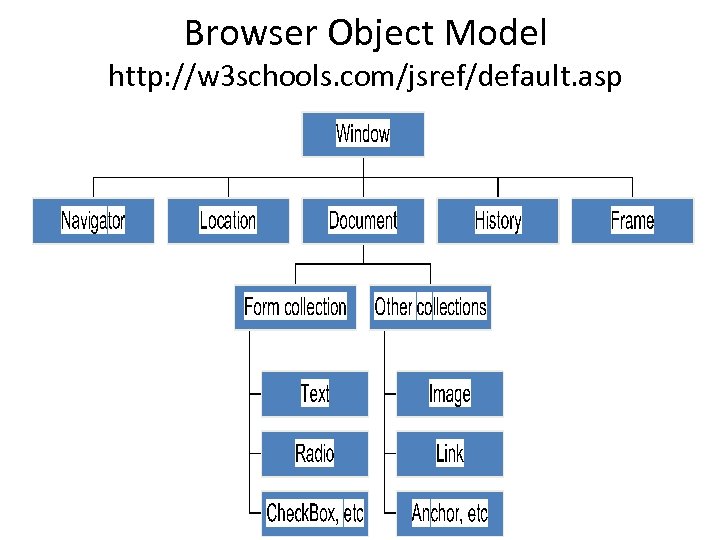
Browser Object Model http: //w 3 schools. com/jsref/default. asp
Window Object • The Window object represents a Web browser window. • Methods: – window. open (“url”, “name”, Options) • Options: menubar=no, status=no, toolbar=no, etc. – window. close – window. alert(“string”) • Similar to C# message. Box. Show(“string”) – window. prompt(“string”) • present an input box for use to enter data • Try statements at: http: //www. w 3 schools. com/jsref/obj_window. asp
Document Object • The document object represents the actual web page within the window. • Properties: – background, bg. Color, fg. Color, title, url, last. Modified, domain, referrer, cookie, link. Color, etc. • Ex. document. bg. Color=“silver”; • Method: – The write() method writes HTML expressions or Java. Script code to a document. – EX. document. write("<h 1>Hello World!</h 1><p>Have a nice day!</p>");
Navigator Object • The navigator object provides information about the browser. • Properties: – Navigator. app. Name: browser name – Navigator. app. Code. Name: browser code name – Navigator. app. Version – Navigator. platform: the operating system in use.
Location Object • Allows you to change to a new web page from within a script code. • To reload a page: – location. reload() • To open a page: Assign() – Ex. location. assign(URL)
History Object • Maintain a history list of all the documents that have been opened during current session. • Methods: – history. back() – history. forward() – history. go(): ex. History. go(-2)
Use document object to access data entered on a form • Using the future value form as an example: – Form name: fv. Form – Textbox name: PV – Dropdown list: Rate – Radiobutton group name: Year
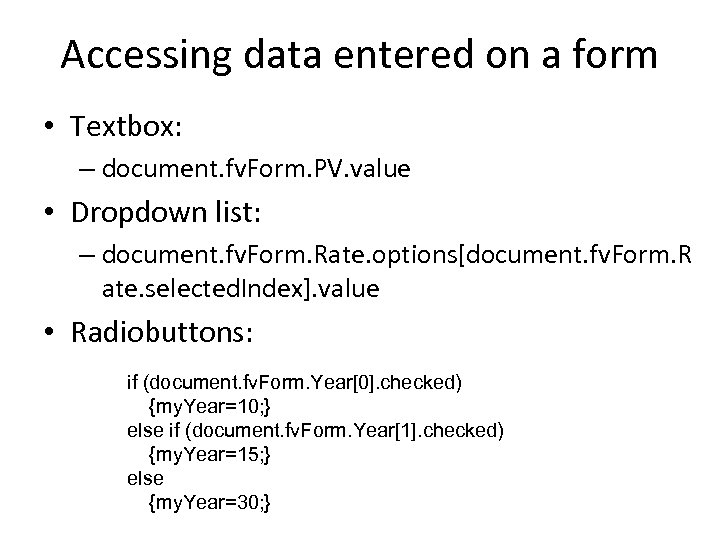
Accessing data entered on a form • Textbox: – document. fv. Form. PV. value • Dropdown list: – document. fv. Form. Rate. options[document. fv. Form. R ate. selected. Index]. value • Radiobuttons: if (document. fv. Form. Year[0]. checked) {my. Year=10; } else if (document. fv. Form. Year[1]. checked) {my. Year=15; } else {my. Year=30; }
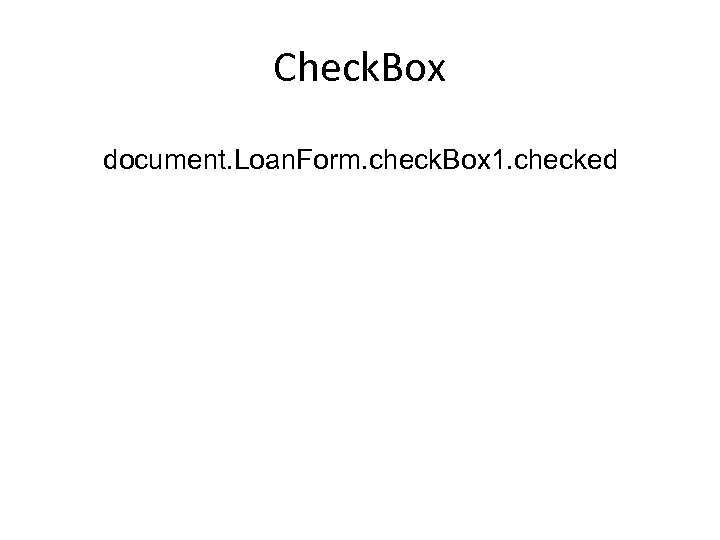
Check. Box document. Loan. Form. check. Box 1. checked
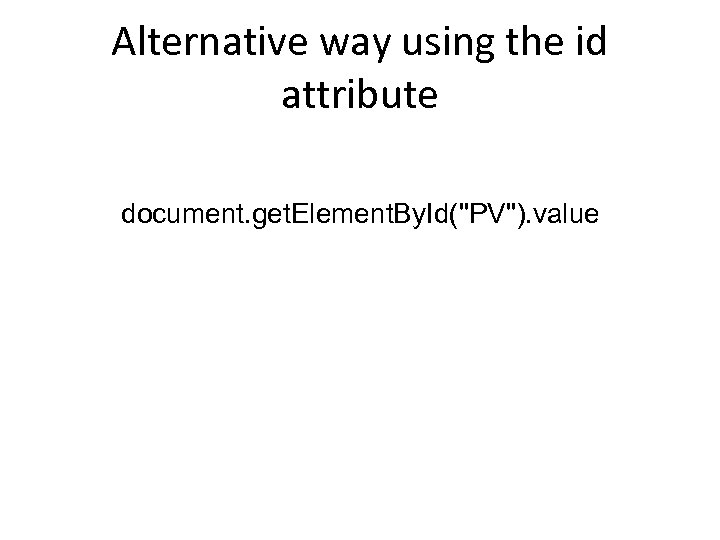
Alternative way using the id attribute document. get. Element. By. Id("PV"). value
Java. Script Reference • http: //www. w 3 schools. com/js/default. asp
Client Side Script • <script> • …… • . . statements • </script>
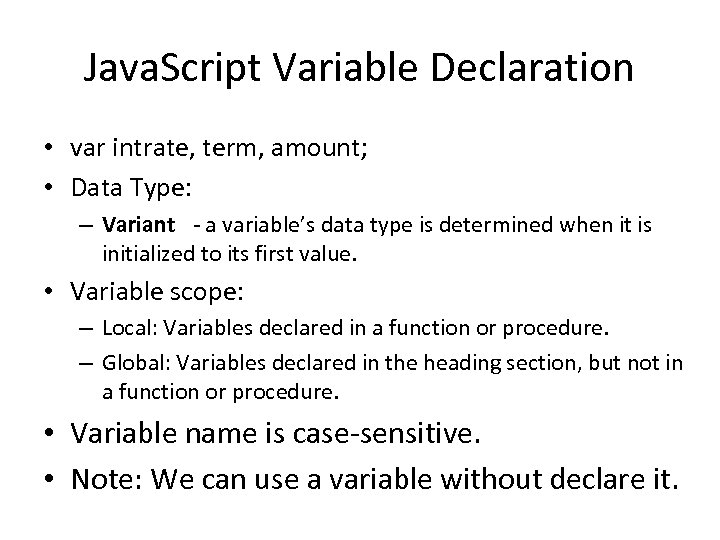
Java. Script Variable Declaration • var intrate, term, amount; • Data Type: – Variant - a variable’s data type is determined when it is initialized to its first value. • Variable scope: – Local: Variables declared in a function or procedure. – Global: Variables declared in the heading section, but not in a function or procedure. • Variable name is case-sensitive. • Note: We can use a variable without declare it.
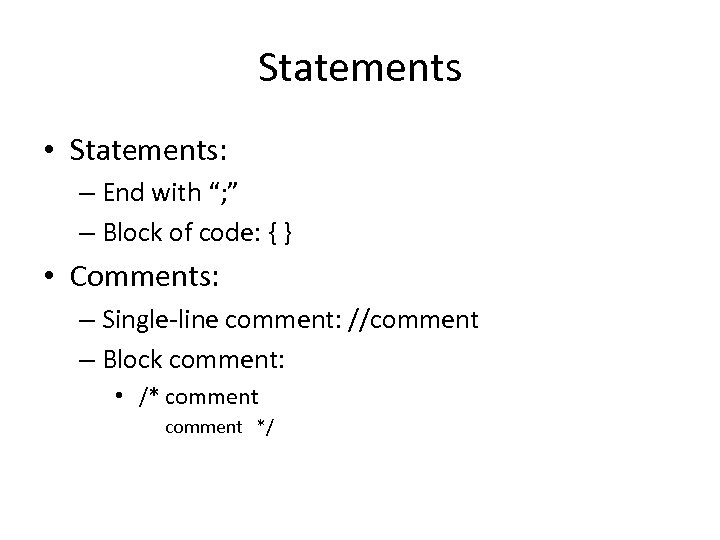
Statements • Statements: – End with “; ” – Block of code: { } • Comments: – Single-line comment: //comment – Block comment: • /* comment */
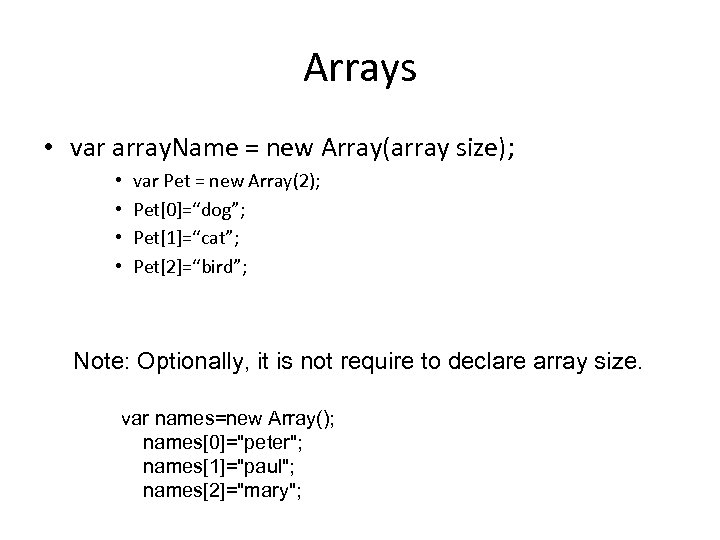
Arrays • var array. Name = new Array(array size); • • var Pet = new Array(2); Pet[0]=“dog”; Pet[1]=“cat”; Pet[2]=“bird”; Note: Optionally, it is not require to declare array size. var names=new Array(); names[0]="peter"; names[1]="paul"; names[2]="mary";
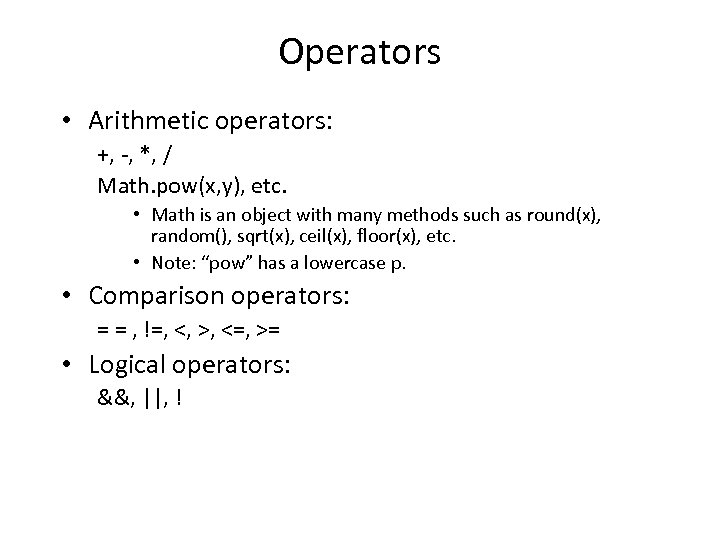
Operators • Arithmetic operators: +, -, *, / Math. pow(x, y), etc. • Math is an object with many methods such as round(x), random(), sqrt(x), ceil(x), floor(x), etc. • Note: “pow” has a lowercase p. • Comparison operators: = = , !=, <, >, <=, >= • Logical operators: &&, ||, !
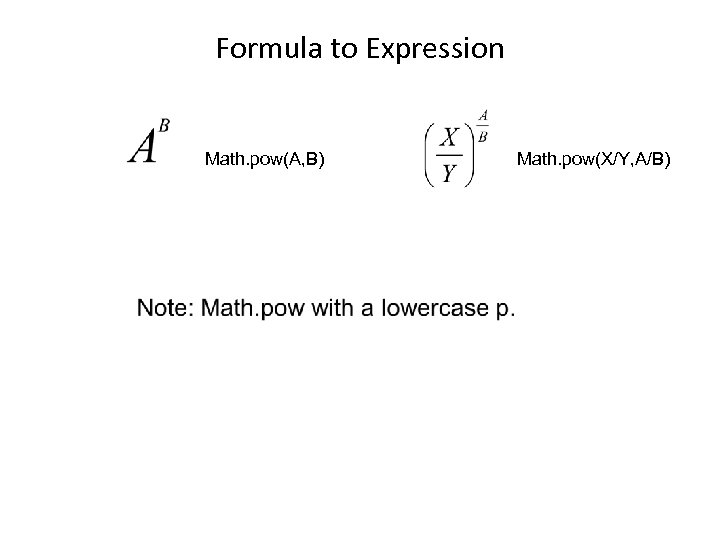
Formula to Expression Math. pow(A, B) Math. pow(X/Y, A/B)
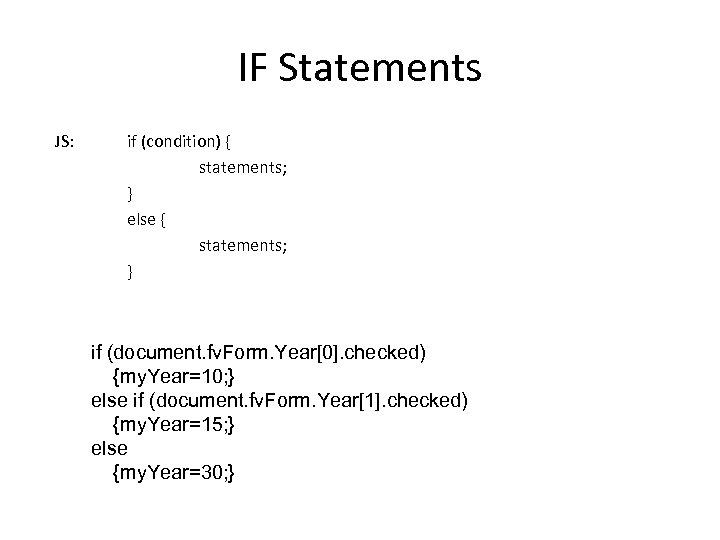
IF Statements JS: if (condition) { statements; } else { statements; } if (document. fv. Form. Year[0]. checked) {my. Year=10; } else if (document. fv. Form. Year[1]. checked) {my. Year=15; } else {my. Year=30; }
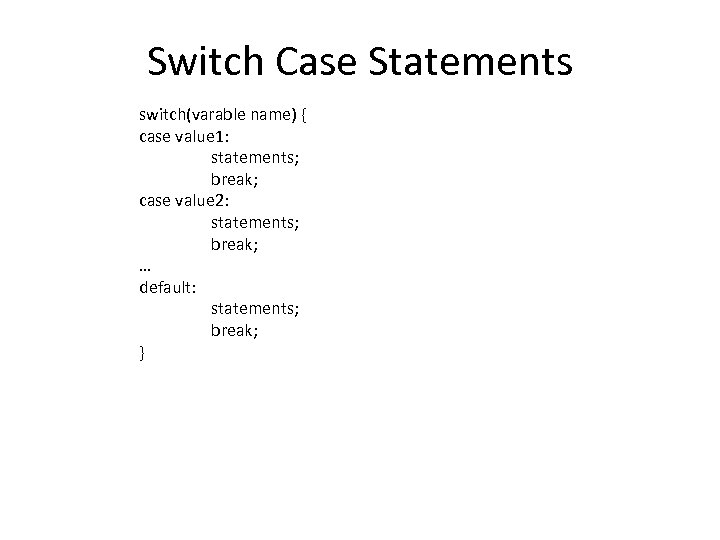
Switch Case Statements switch(varable name) { case value 1: statements; break; case value 2: statements; break; … default: statements; break; }
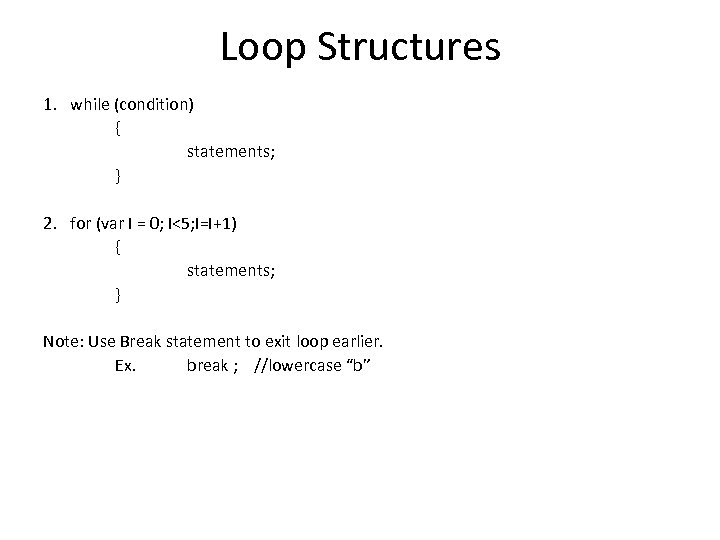
Loop Structures 1. while (condition) { statements; } 2. for (var I = 0; I<5; I=I+1) { statements; } Note: Use Break statement to exit loop earlier. Ex. break ; //lowercase “b”
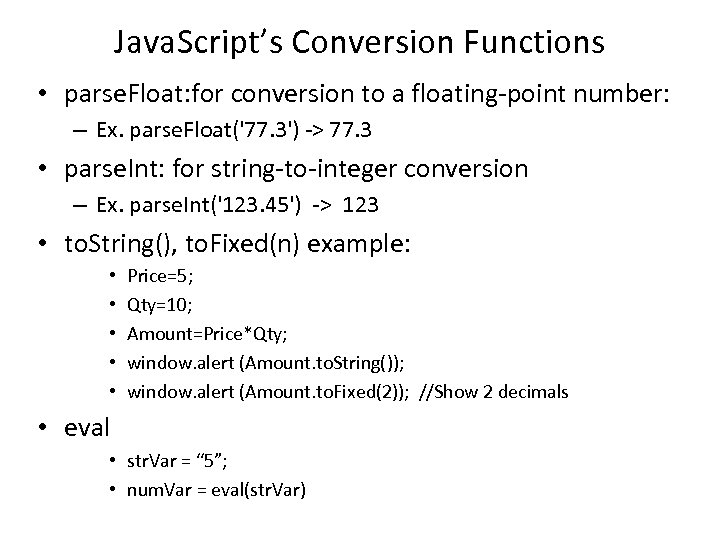
Java. Script’s Conversion Functions • parse. Float: for conversion to a floating-point number: – Ex. parse. Float('77. 3') -> 77. 3 • parse. Int: for string-to-integer conversion – Ex. parse. Int('123. 45') -> 123 • to. String(), to. Fixed(n) example: • • • Price=5; Qty=10; Amount=Price*Qty; window. alert (Amount. to. String()); window. alert (Amount. to. Fixed(2)); //Show 2 decimals • eval • str. Var = “ 5”; • num. Var = eval(str. Var)
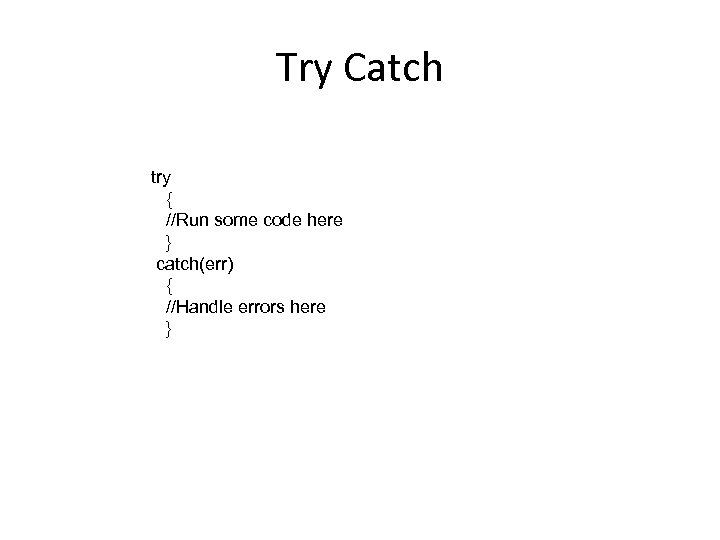
Try Catch try { //Run some code here } catch(err) { //Handle errors here }
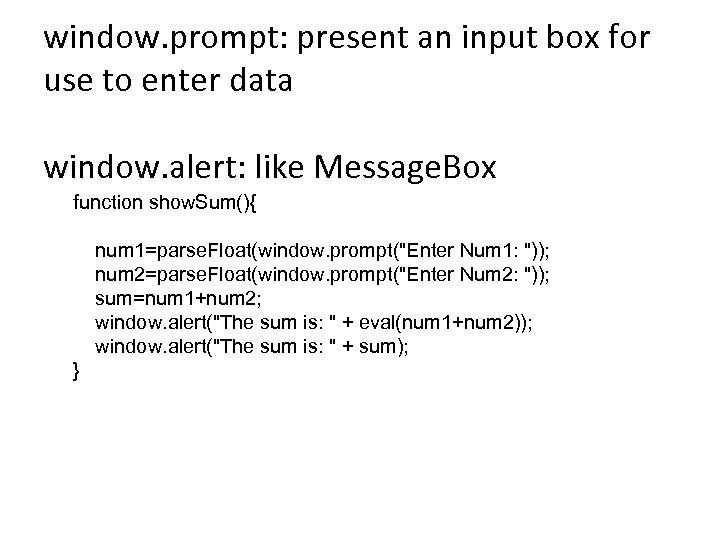
window. prompt: present an input box for use to enter data window. alert: like Message. Box function show. Sum(){ num 1=parse. Float(window. prompt("Enter Num 1: ")); num 2=parse. Float(window. prompt("Enter Num 2: ")); sum=num 1+num 2; window. alert("The sum is: " + eval(num 1+num 2)); window. alert("The sum is: " + sum); }
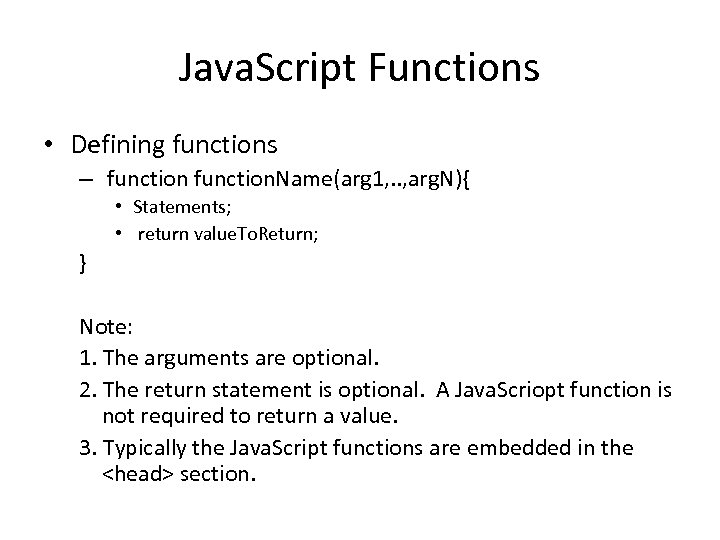
Java. Script Functions • Defining functions – function. Name(arg 1, . . , arg. N){ • Statements; • return value. To. Return; } Note: 1. The arguments are optional. 2. The return statement is optional. A Java. Scriopt function is not required to return a value. 3. Typically the Java. Script functions are embedded in the <head> section.
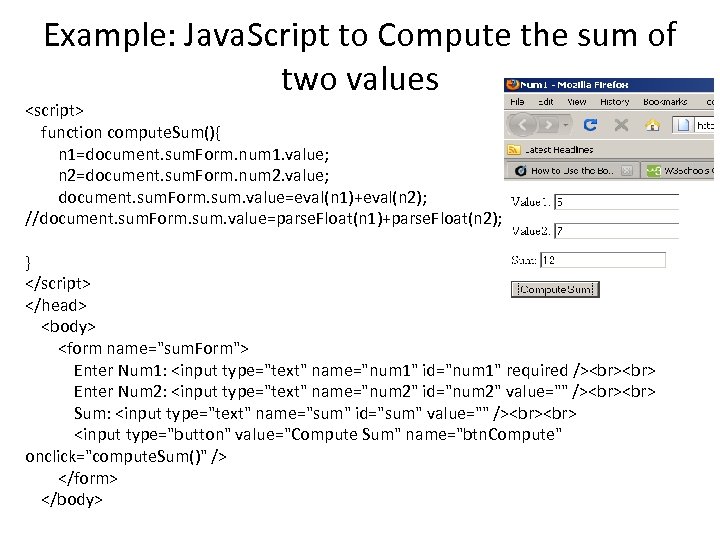
Example: Java. Script to Compute the sum of two values <script> function compute. Sum(){ n 1=document. sum. Form. num 1. value; n 2=document. sum. Form. num 2. value; document. sum. Form. sum. value=eval(n 1)+eval(n 2); //document. sum. Form. sum. value=parse. Float(n 1)+parse. Float(n 2); } </script> </head> <body> <form name="sum. Form"> Enter Num 1: <input type="text" name="num 1" id="num 1" required /> Enter Num 2: <input type="text" name="num 2" id="num 2" value="" /> Sum: <input type="text" name="sum" id="sum" value="" /> <input type="button" value="Compute Sum" name="btn. Compute" onclick="compute. Sum()" /> </form> </body>
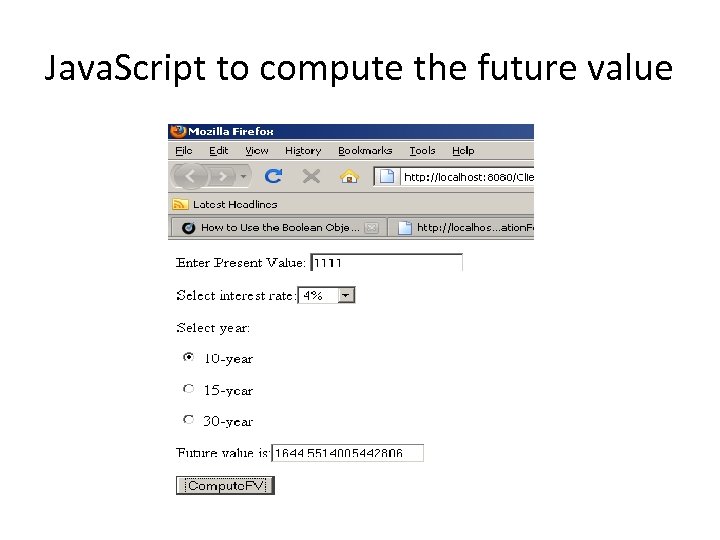
Java. Script to compute the future value
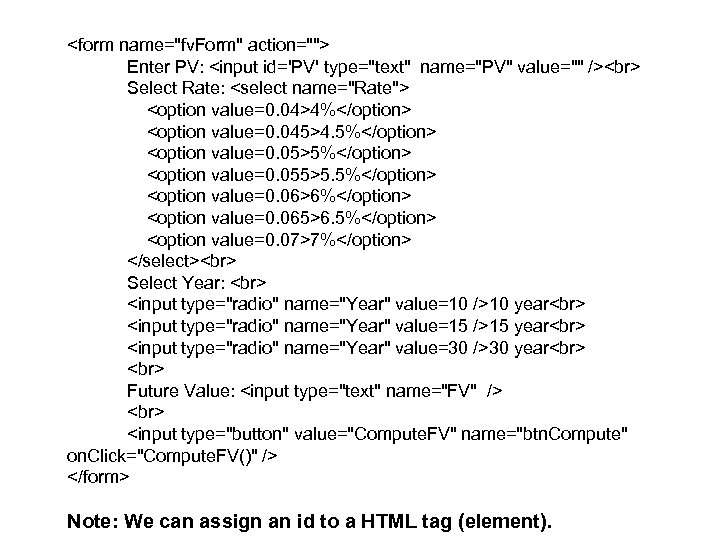
<form name="fv. Form" action=""> Enter PV: <input id='PV' type="text" name="PV" value="" /> Select Rate: <select name="Rate"> <option value=0. 04>4%</option> <option value=0. 045>4. 5%</option> <option value=0. 05>5%</option> <option value=0. 055>5. 5%</option> <option value=0. 06>6%</option> <option value=0. 065>6. 5%</option> <option value=0. 07>7%</option> </select> Select Year: <input type="radio" name="Year" value=10 />10 year <input type="radio" name="Year" value=15 />15 year <input type="radio" name="Year" value=30 />30 year Future Value: <input type="text" name="FV" /> <input type="button" value="Compute. FV" name="btn. Compute" on. Click="Compute. FV()" /> </form> Note: We can assign an id to a HTML tag (element).
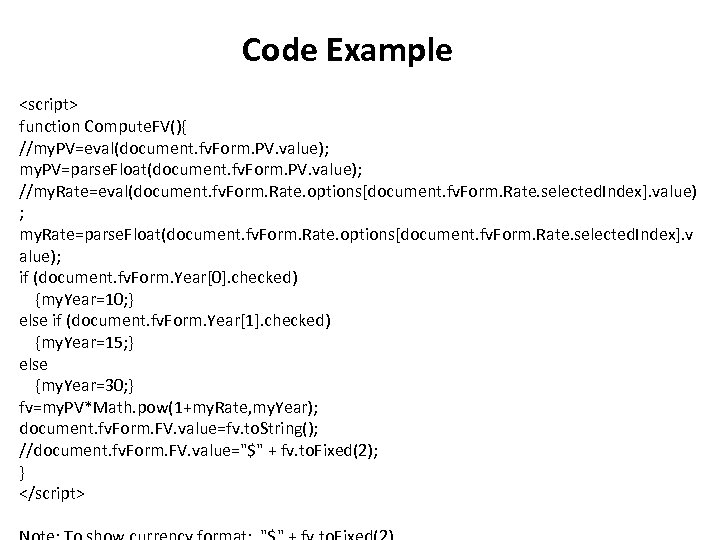
Code Example <script> function Compute. FV(){ //my. PV=eval(document. fv. Form. PV. value); my. PV=parse. Float(document. fv. Form. PV. value); //my. Rate=eval(document. fv. Form. Rate. options[document. fv. Form. Rate. selected. Index]. value) ; my. Rate=parse. Float(document. fv. Form. Rate. options[document. fv. Form. Rate. selected. Index]. v alue); if (document. fv. Form. Year[0]. checked) {my. Year=10; } else if (document. fv. Form. Year[1]. checked) {my. Year=15; } else {my. Year=30; } fv=my. PV*Math. pow(1+my. Rate, my. Year); document. fv. Form. FV. value=fv. to. String(); //document. fv. Form. FV. value="$" + fv. to. Fixed(2); } </script>
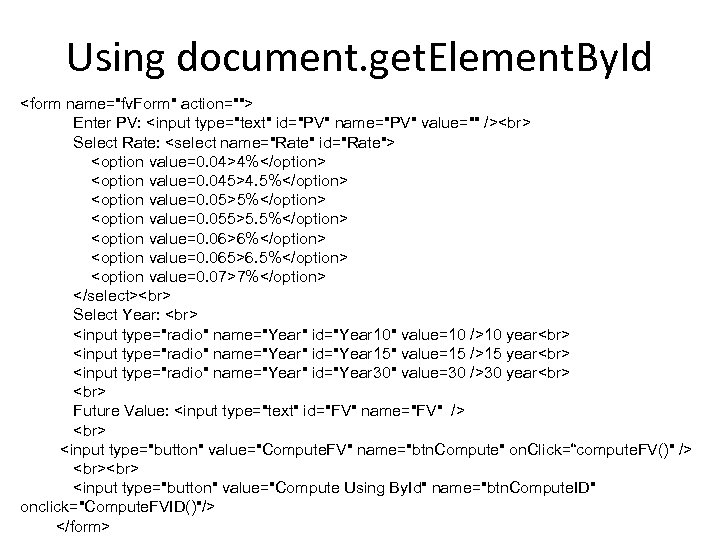
Using document. get. Element. By. Id <form name="fv. Form" action=""> Enter PV: <input type="text" id="PV" name="PV" value="" /> Select Rate: <select name="Rate" id="Rate"> <option value=0. 04>4%</option> <option value=0. 045>4. 5%</option> <option value=0. 05>5%</option> <option value=0. 055>5. 5%</option> <option value=0. 06>6%</option> <option value=0. 065>6. 5%</option> <option value=0. 07>7%</option> </select> Select Year: <input type="radio" name="Year" id="Year 10" value=10 />10 year <input type="radio" name="Year" id="Year 15" value=15 />15 year <input type="radio" name="Year" id="Year 30" value=30 />30 year Future Value: <input type="text" id="FV" name="FV" /> <input type="button" value="Compute. FV" name="btn. Compute" on. Click=“compute. FV()" /> <input type="button" value="Compute Using By. Id" name="btn. Compute. ID" onclick="Compute. FVID()"/> </form>
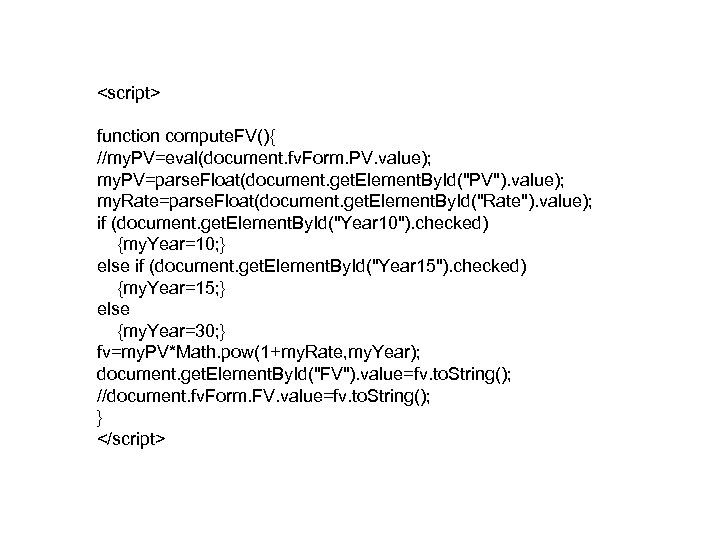
<script> function compute. FV(){ //my. PV=eval(document. fv. Form. PV. value); my. PV=parse. Float(document. get. Element. By. Id("PV"). value); my. Rate=parse. Float(document. get. Element. By. Id("Rate"). value); if (document. get. Element. By. Id("Year 10"). checked) {my. Year=10; } else if (document. get. Element. By. Id("Year 15"). checked) {my. Year=15; } else {my. Year=30; } fv=my. PV*Math. pow(1+my. Rate, my. Year); document. get. Element. By. Id("FV"). value=fv. to. String(); //document. fv. Form. FV. value=fv. to. String(); } </script>
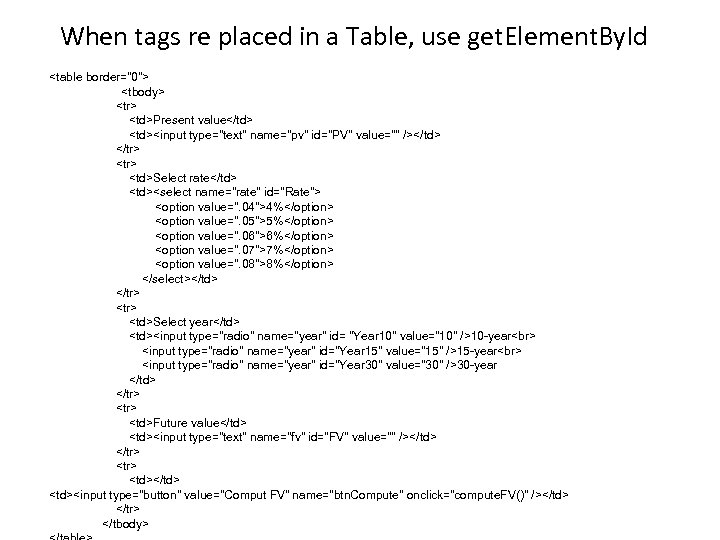
When tags re placed in a Table, use get. Element. By. Id <table border="0"> <tbody> <tr> <td>Present value</td> <td><input type="text" name="pv" id="PV" value="" /></td> </tr> <td>Select rate</td> <td><select name="rate" id="Rate"> <option value=". 04">4%</option> <option value=". 05">5%</option> <option value=". 06">6%</option> <option value=". 07">7%</option> <option value=". 08">8%</option> </select></td> </tr> <td>Select year</td> <td><input type="radio" name="year" id= "Year 10" value="10" />10 -year <input type="radio" name="year" id="Year 15" value="15" />15 -year <input type="radio" name="year" id="Year 30" value="30" />30 -year </td> </tr> <td>Future value</td> <td><input type="text" name="fv" id="FV" value="" /></td> </tr> <td></td> <td><input type="button" value="Comput FV" name="btn. Compute" onclick="compute. FV()" /></td> </tr> </tbody>
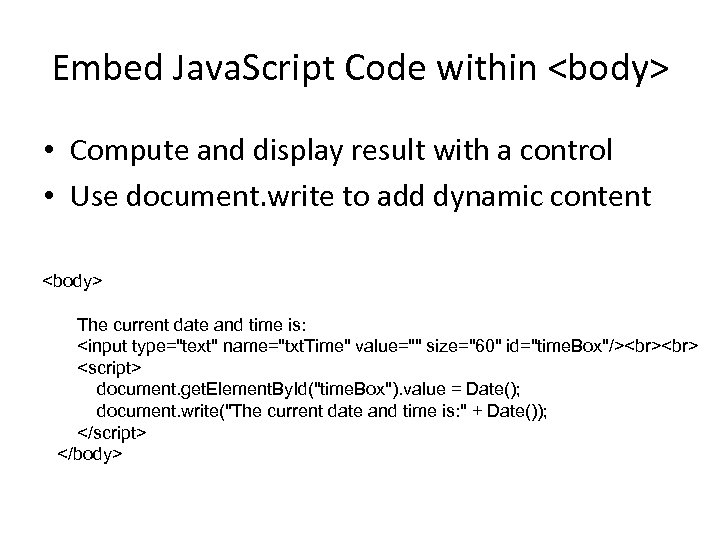
Embed Java. Script Code within <body> • Compute and display result with a control • Use document. write to add dynamic content <body> The current date and time is: <input type="text" name="txt. Time" value="" size="60" id="time. Box"/> <script> document. get. Element. By. Id("time. Box"). value = Date(); document. write("The current date and time is: " + Date()); </script> </body>
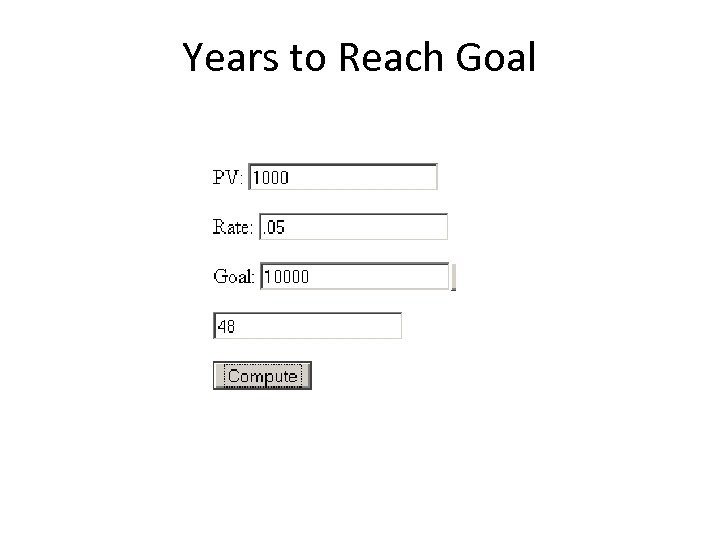
Years to Reach Goal
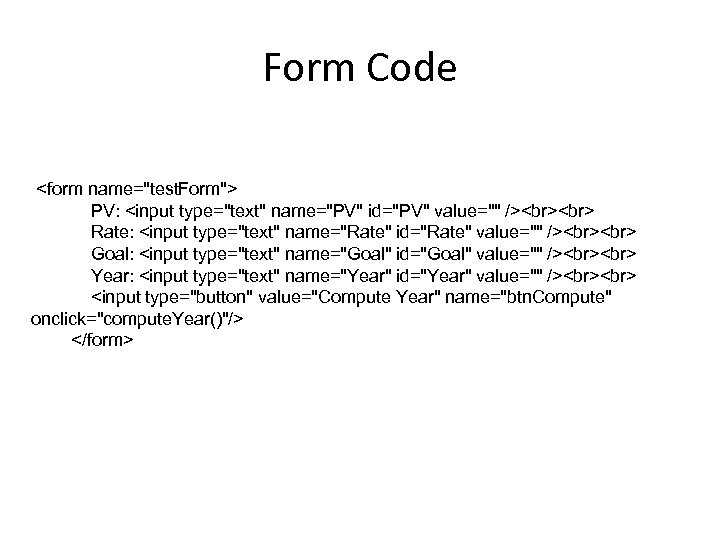
Form Code <form name="test. Form"> PV: <input type="text" name="PV" id="PV" value="" /> Rate: <input type="text" name="Rate" id="Rate" value="" /> Goal: <input type="text" name="Goal" id="Goal" value="" /> Year: <input type="text" name="Year" id="Year" value="" /> <input type="button" value="Compute Year" name="btn. Compute" onclick="compute. Year()"/> </form>
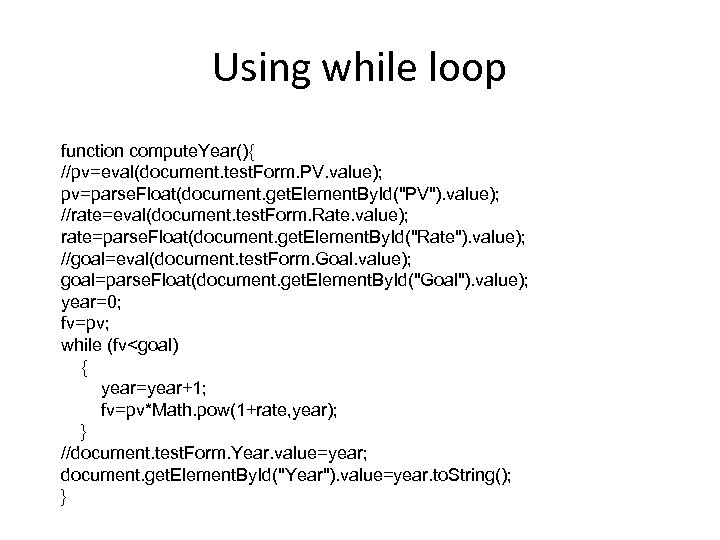
Using while loop function compute. Year(){ //pv=eval(document. test. Form. PV. value); pv=parse. Float(document. get. Element. By. Id("PV"). value); //rate=eval(document. test. Form. Rate. value); rate=parse. Float(document. get. Element. By. Id("Rate"). value); //goal=eval(document. test. Form. Goal. value); goal=parse. Float(document. get. Element. By. Id("Goal"). value); year=0; fv=pv; while (fv<goal) { year=year+1; fv=pv*Math. pow(1+rate, year); } //document. test. Form. Year. value=year; document. get. Element. By. Id("Year"). value=year. to. String(); }
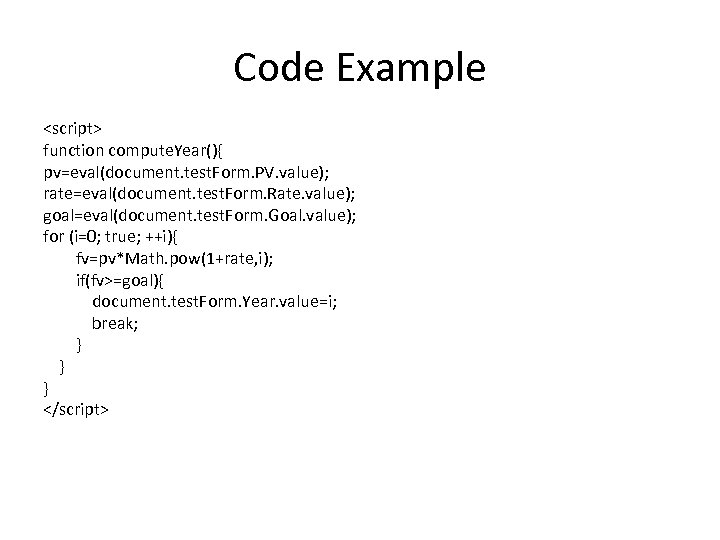
Code Example <script> function compute. Year(){ pv=eval(document. test. Form. PV. value); rate=eval(document. test. Form. Rate. value); goal=eval(document. test. Form. Goal. value); for (i=0; true; ++i){ fv=pv*Math. pow(1+rate, i); if(fv>=goal){ document. test. Form. Year. value=i; break; } } } </script>
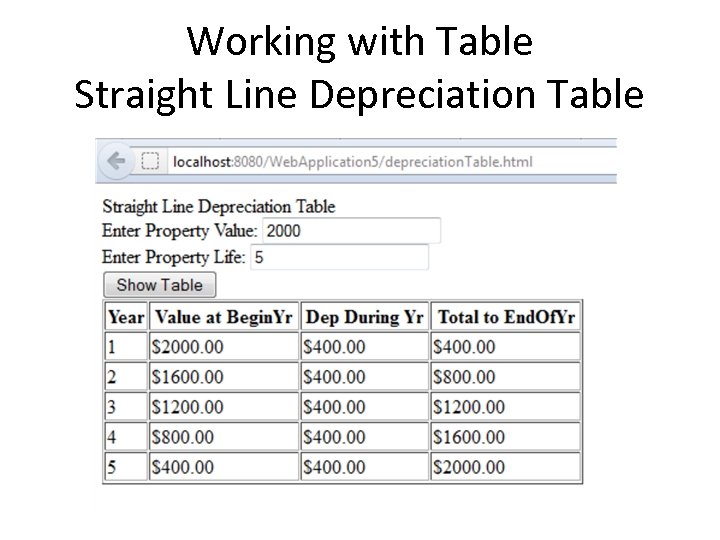
Working with Table Straight Line Depreciation Table
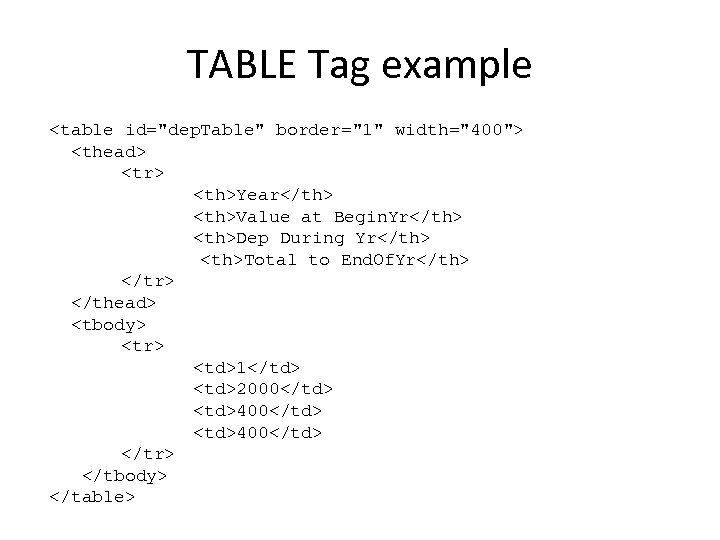
TABLE Tag example <table id="dep. Table" border="1" width="400"> <thead> <tr> <th>Year</th> <th>Value at Begin. Yr</th> <th>Dep During Yr</th> <th>Total to End. Of. Yr</th> </tr> </thead> <tbody> <tr> <td>1</td> <td>2000</td> <td>400</td> </tr> </tbody> </table>
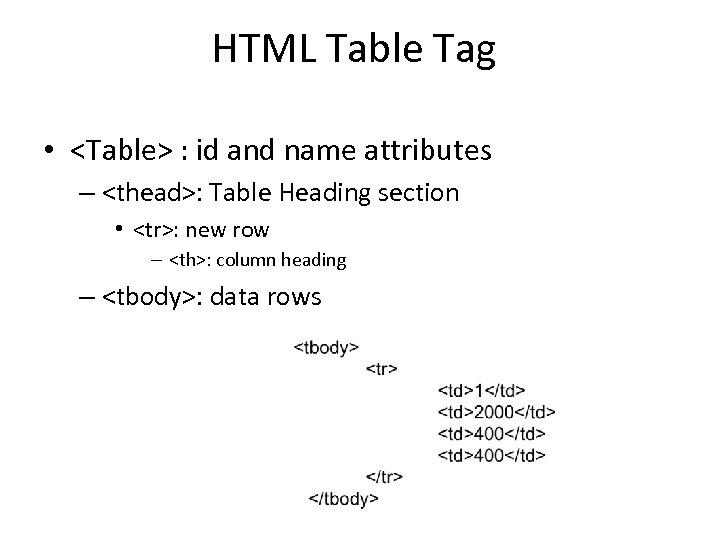
HTML Table Tag • <Table> : id and name attributes – <thead>: Table Heading section • <tr>: new row – <th>: column heading – <tbody>: data rows
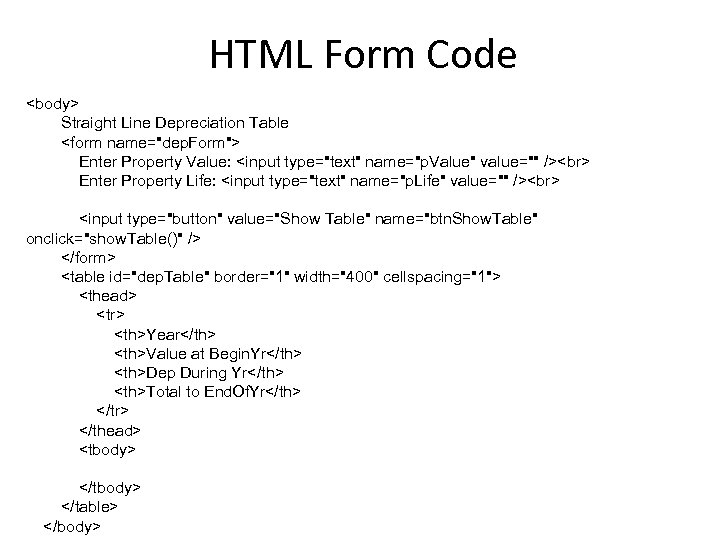
HTML Form Code <body> Straight Line Depreciation Table <form name="dep. Form"> Enter Property Value: <input type="text" name="p. Value" value="" /> Enter Property Life: <input type="text" name="p. Life" value="" /> <input type="button" value="Show Table" name="btn. Show. Table" onclick="show. Table()" /> </form> <table id="dep. Table" border="1" width="400" cellspacing="1"> <thead> <tr> <th>Year</th> <th>Value at Begin. Yr</th> <th>Dep During Yr</th> <th>Total to End. Of. Yr</th> </tr> </thead> <tbody> </table> </body>
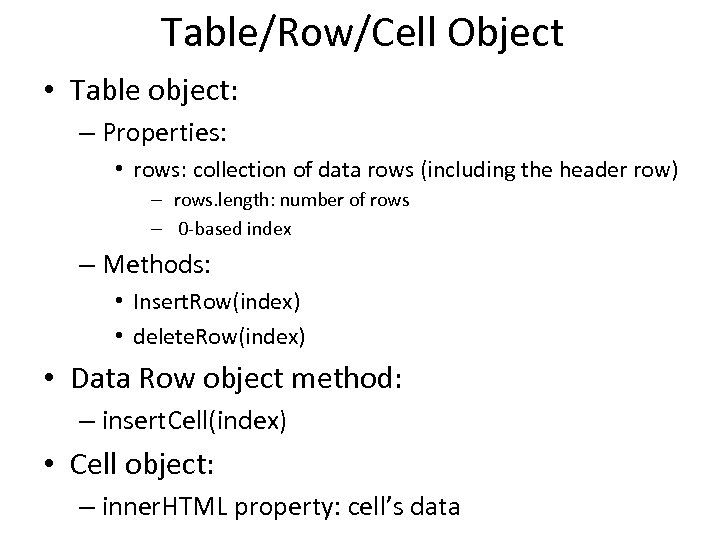
Table/Row/Cell Object • Table object: – Properties: • rows: collection of data rows (including the header row) – rows. length: number of rows – 0 -based index – Methods: • Insert. Row(index) • delete. Row(index) • Data Row object method: – insert. Cell(index) • Cell object: – inner. HTML property: cell’s data
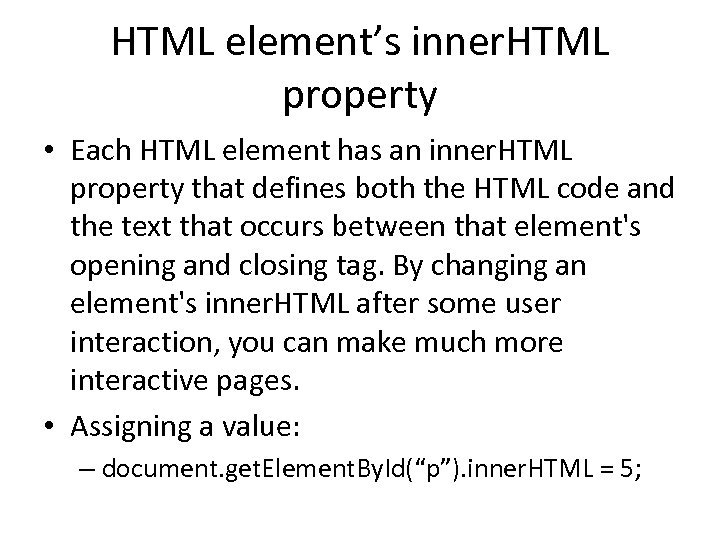
HTML element’s inner. HTML property • Each HTML element has an inner. HTML property that defines both the HTML code and the text that occurs between that element's opening and closing tag. By changing an element's inner. HTML after some user interaction, you can make much more interactive pages. • Assigning a value: – document. get. Element. By. Id(“p”). inner. HTML = 5;
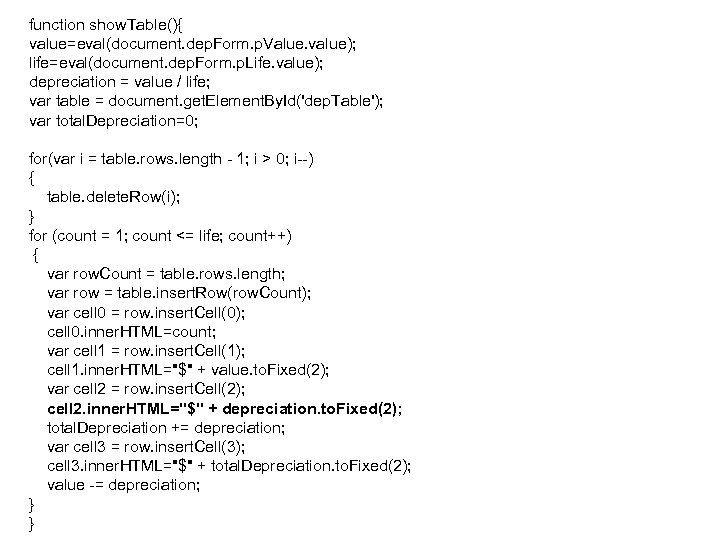
function show. Table(){ value=eval(document. dep. Form. p. Value. value); life=eval(document. dep. Form. p. Life. value); depreciation = value / life; var table = document. get. Element. By. Id('dep. Table'); var total. Depreciation=0; for(var i = table. rows. length - 1; i > 0; i--) { table. delete. Row(i); } for (count = 1; count <= life; count++) { var row. Count = table. rows. length; var row = table. insert. Row(row. Count); var cell 0 = row. insert. Cell(0); cell 0. inner. HTML=count; var cell 1 = row. insert. Cell(1); cell 1. inner. HTML="$" + value. to. Fixed(2); var cell 2 = row. insert. Cell(2); cell 2. inner. HTML="$" + depreciation. to. Fixed(2); total. Depreciation += depreciation; var cell 3 = row. insert. Cell(3); cell 3. inner. HTML="$" + total. Depreciation. to. Fixed(2); value -= depreciation; } }
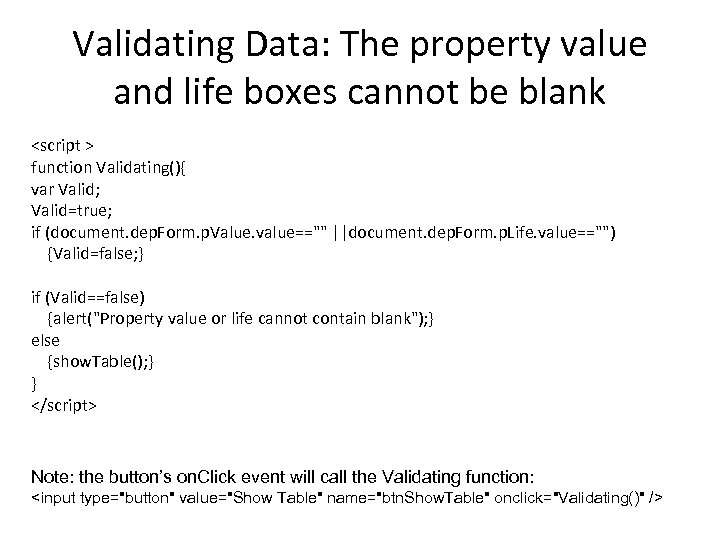
Validating Data: The property value and life boxes cannot be blank <script > function Validating(){ var Valid; Valid=true; if (document. dep. Form. p. Value. value=="" ||document. dep. Form. p. Life. value=="") {Valid=false; } if (Valid==false) {alert("Property value or life cannot contain blank"); } else {show. Table(); } } </script> Note: the button’s on. Click event will call the Validating function: <input type="button" value="Show Table" name="btn. Show. Table" onclick="Validating()" />
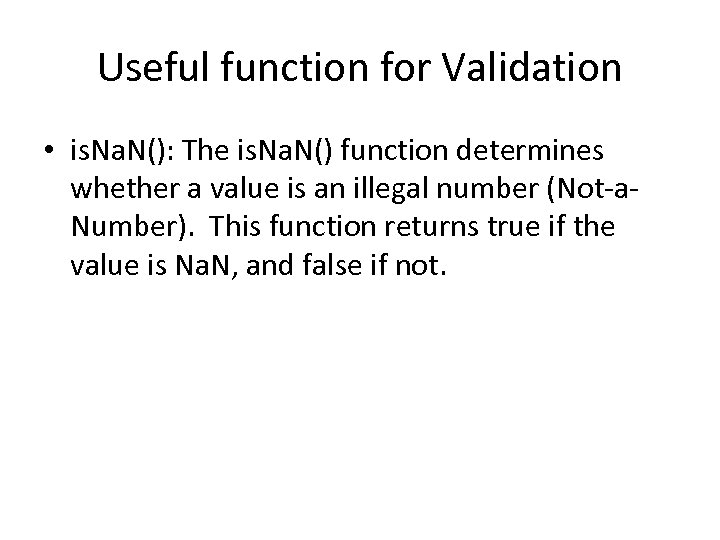
Useful function for Validation • is. Na. N(): The is. Na. N() function determines whether a value is an illegal number (Not-a. Number). This function returns true if the value is Na. N, and false if not.
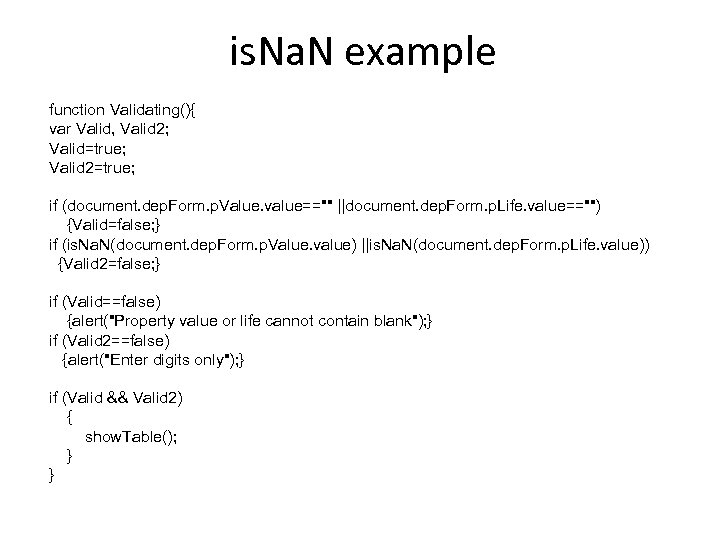
is. Na. N example function Validating(){ var Valid, Valid 2; Valid=true; Valid 2=true; if (document. dep. Form. p. Value. value=="" ||document. dep. Form. p. Life. value=="") {Valid=false; } if (is. Na. N(document. dep. Form. p. Value. value) ||is. Na. N(document. dep. Form. p. Life. value)) {Valid 2=false; } if (Valid==false) {alert("Property value or life cannot contain blank"); } if (Valid 2==false) {alert("Enter digits only"); } if (Valid && Valid 2) { show. Table(); } }
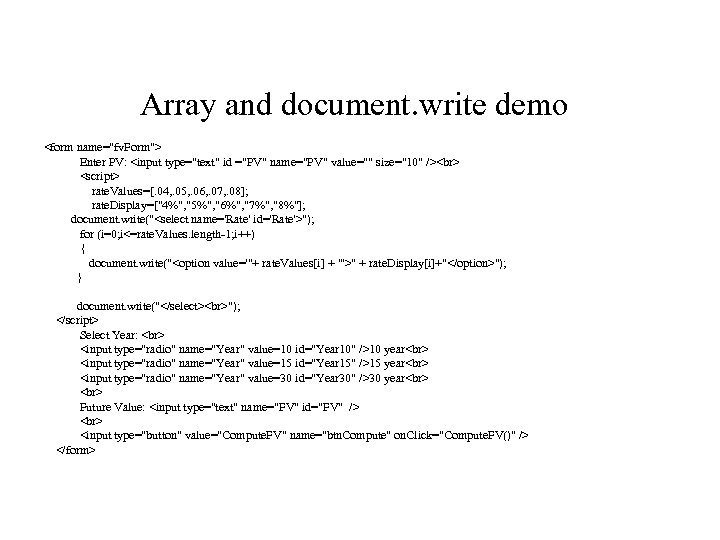
Array and document. write demo <form name="fv. Form"> Enter PV: <input type="text" id ="PV" name="PV" value="" size="10" /> <script> rate. Values=[. 04, . 05, . 06, . 07, . 08]; rate. Display=["4%", "5%", "6%", "7%", "8%"]; document. write("<select name='Rate' id='Rate'>"); for (i=0; i<=rate. Values. length-1; i++) { document. write("<option value='"+ rate. Values[i] + "'>" + rate. Display[i]+"</option>"); } document. write("</select> "); </script> Select Year: <input type="radio" name="Year" value=10 id="Year 10" />10 year <input type="radio" name="Year" value=15 id="Year 15" />15 year <input type="radio" name="Year" value=30 id="Year 30" />30 year Future Value: <input type="text" name="FV" id="FV" /> <input type="button" value="Compute. FV" name="btn. Compute" on. Click="Compute. FV()" /> </form>
HTML DOM get. Elements. By. Tag. Name() Method • Example: https: //www. w 3 schools. com/jsref/met_document_geteleme ntsbytagname. asp • var x = document. get. Elements. By. Tag. Name("LI"); – Note: x is an array because Tag. Name may not be unique.
Скачать презентацию Client-Side Web Application Development with Java Script ISYS
c4c44a4f88fc46ae63b730e486b0d1d2.ppt