


 Скачать презентацию CLARITY MATRIX LCD VIDEO WALL SYSTEM Easy
d10a0ecb3e740cd78c5943875ec0f98a.ppt
- Количество слайдов: 74
 CLARITY MATRIX LCD VIDEO WALL SYSTEM
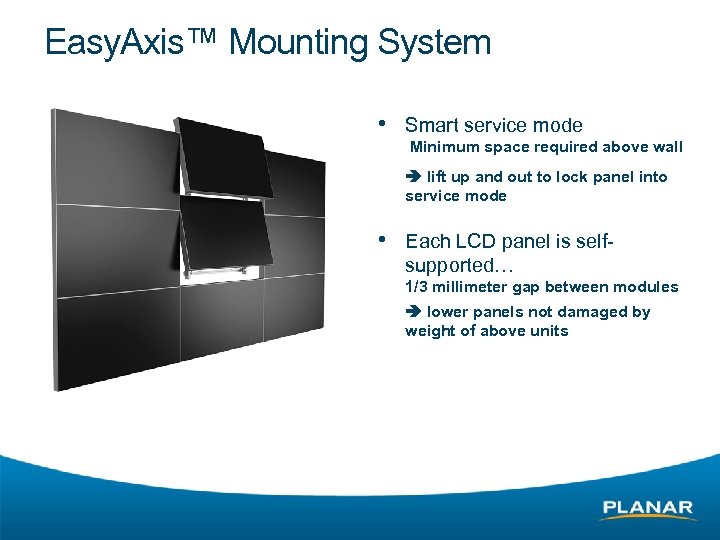 Easy. Axis™ Mounting System • Smart service mode Minimum space required above wall lift up and out to lock panel into service mode • Each LCD panel is selfsupported… 1/3 millimeter gap between modules lower panels not damaged by weight of above units
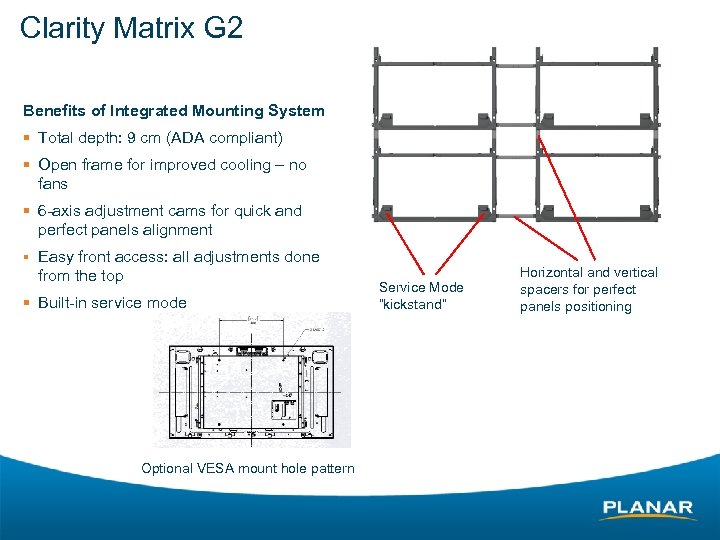 Clarity Matrix G 2 Benefits of Integrated Mounting System § Total depth: 9 cm (ADA compliant) § Open frame for improved cooling – no fans § 6 -axis adjustment cams for quick and perfect panels alignment § Easy front access: all adjustments done from the top § Built-in service mode Optional VESA mount hole pattern Service Mode “kickstand” Horizontal and vertical spacers for perfect panels positioning
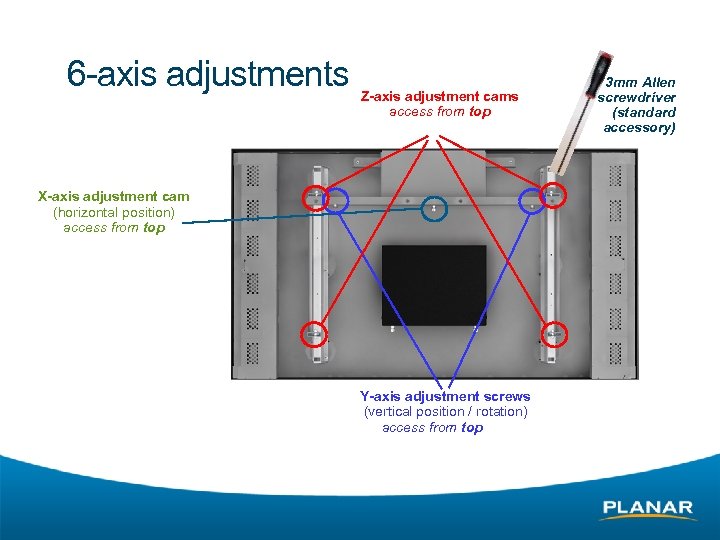 6 -axis adjustments Z-axis adjustment cams access from top X-axis adjustment cam (horizontal position) access from top Y-axis adjustment screws (vertical position / rotation) access from top 3 mm Allen screwdriver (standard accessory)
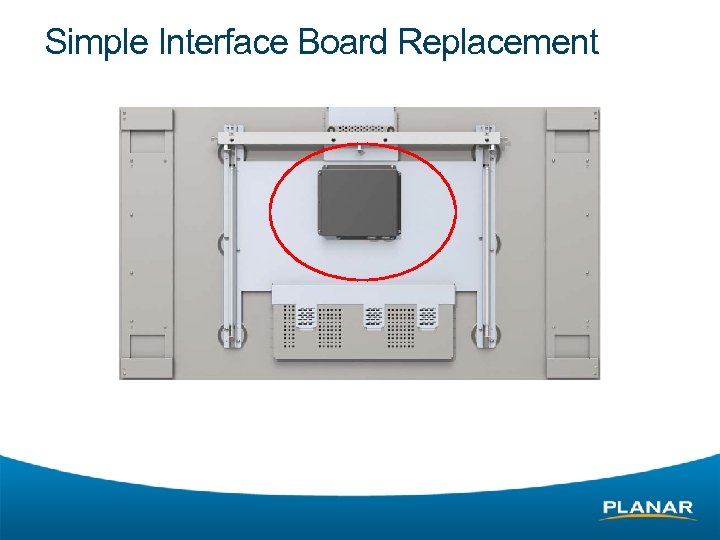 Simple Interface Board Replacement
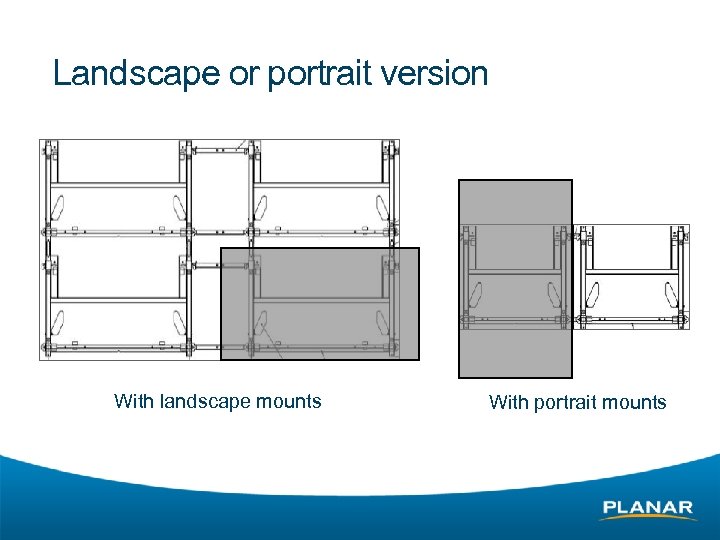 Landscape or portrait version With landscape mounts With portrait mounts
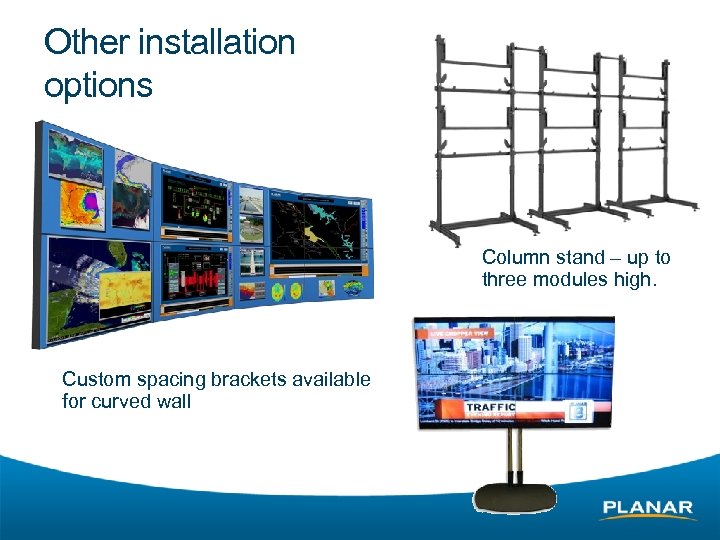 Other installation options Column stand – up to three modules high. Custom spacing brackets available for curved wall
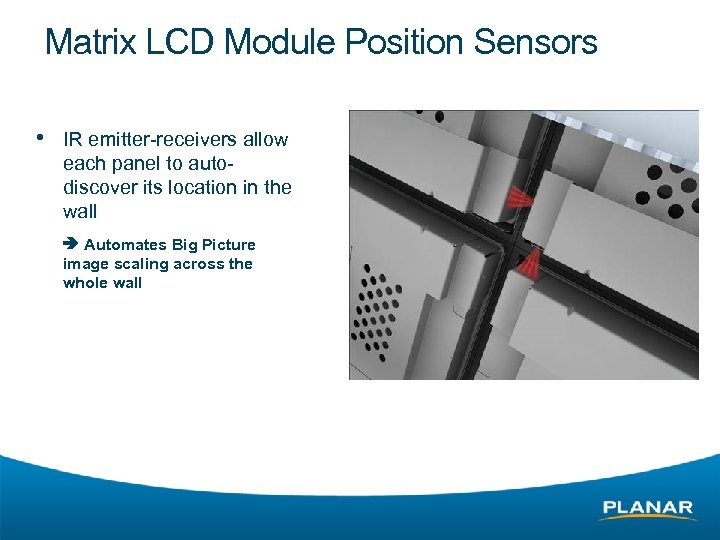 Matrix LCD Module Position Sensors • IR emitter-receivers allow each panel to autodiscover its location in the wall Automates Big Picture image scaling across the whole wall
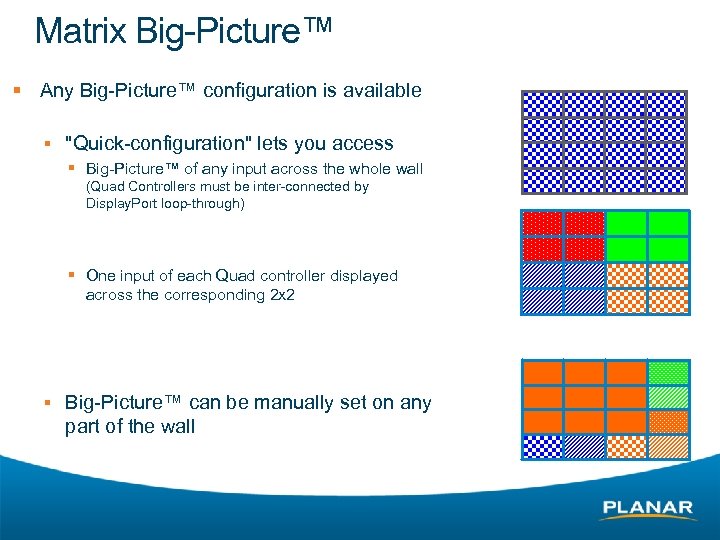 Matrix Big-Picture™ § Any Big-Picture™ configuration is available § "Quick-configuration" lets you access § Big-Picture™ of any input across the whole wall (Quad Controllers must be inter-connected by Display. Port loop-through) § One input of each Quad controller displayed across the corresponding 2 x 2 § Big-Picture™ can be manually set on any part of the wall
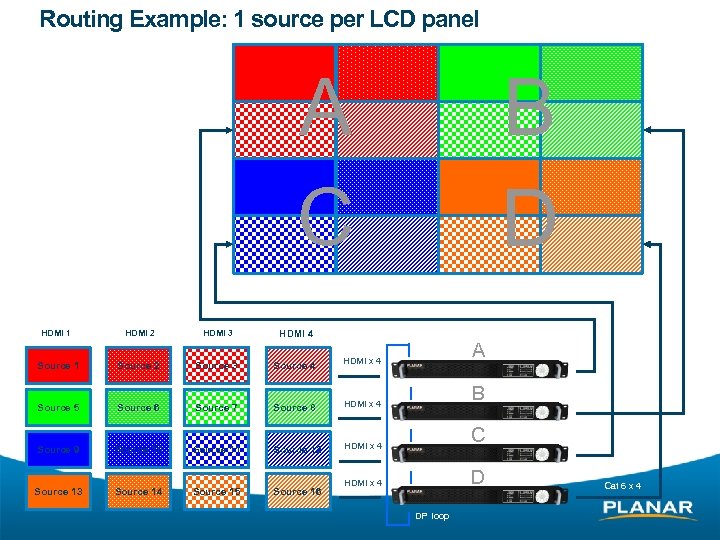 Routing Example: 1 source per LCD panel A C HDMI 1 Source 1 HDMI 2 Source 2 HDMI 3 Source 3 HDMI 4 B D QC Inputs Source 4 HDMI x 4 Source 8 HDMI x 4 Source 12 A HDMI x 4 2 x Cat 6 x 4 DVI loop Source 9 Source 13 Source 6 Source 10 Source 14 Source 7 Source 11 Source 15 Source 16 HDMI x 4 B 2 x Cat 6 x 4 DVI loop Source 5 C 2 x Cat 6 x 4 DVI loop D DP loop Cat 6 x 4
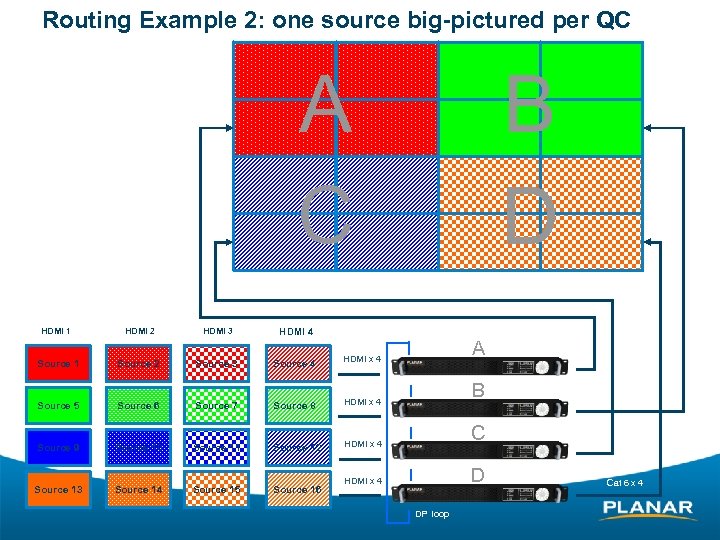 Routing Example 2: one source big-pictured per QC A C HDMI 1 Source 1 HDMI 2 Source 2 HDMI 3 Source 3 HDMI 4 B D QC Inputs Source 4 HDMI x 4 Source 8 HDMI x 4 Source 12 A HDMI x 4 2 x Cat 6 x 4 DVI loop Source 9 Source 13 Source 6 Source 10 Source 14 Source 7 Source 11 Source 15 Source 16 HDMI x 4 B 2 x Cat 6 x 4 DVI loop Source 5 C 2 x Cat 6 x 4 DVI loop D DP loop Cat 6 x 4
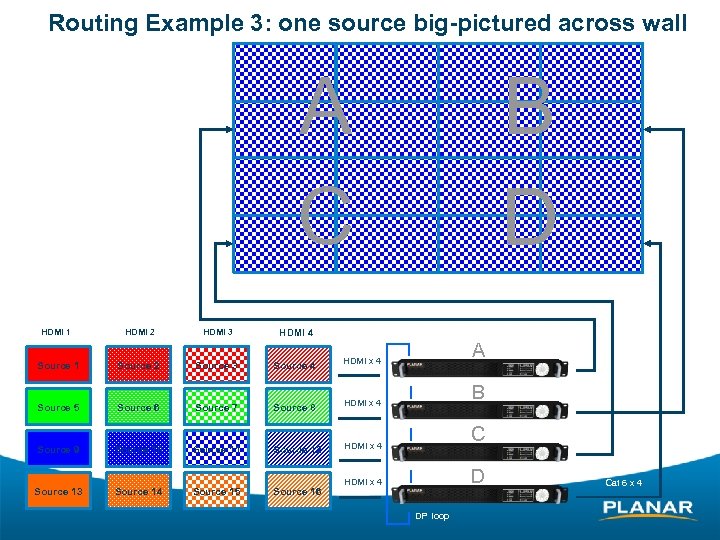 Routing Example 3: one source big-pictured across wall A C HDMI 1 Source 1 HDMI 2 Source 2 HDMI 3 Source 3 HDMI 4 B D QC Inputs Source 4 HDMI x 4 Source 8 HDMI x 4 Source 12 A HDMI x 4 2 x Cat 6 x 4 DVI loop Source 9 Source 13 Source 6 Source 10 Source 14 Source 7 Source 11 Source 15 Source 16 HDMI x 4 B 2 x Cat 6 x 4 DVI loop Source 5 C 2 x Cat 6 x 4 DVI loop D DP loop Cat 6 x 4
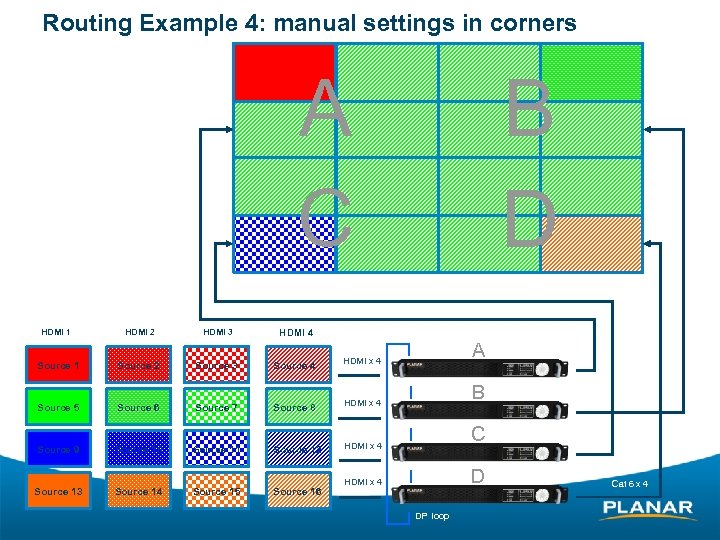 Routing Example 4: manual settings in corners A C HDMI 1 Source 1 HDMI 2 Source 2 HDMI 3 Source 3 HDMI 4 B D QC Inputs Source 4 HDMI x 4 Source 8 HDMI x 4 Source 12 A HDMI x 4 2 x Cat 6 x 4 DVI loop Source 9 Source 13 Source 6 Source 10 Source 14 Source 7 Source 11 Source 15 Source 16 HDMI x 4 B 2 x Cat 6 x 4 DVI loop Source 5 C 2 x Cat 6 x 4 DVI loop D DP loop Cat 6 x 4
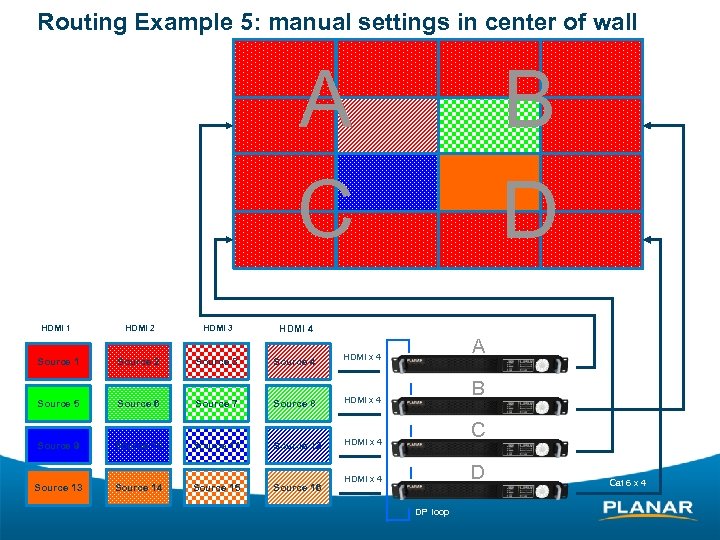 Routing Example 5: manual settings in center of wall A C HDMI 1 Source 1 HDMI 2 Source 2 HDMI 3 Source 3 HDMI 4 B D QC Inputs Source 4 HDMI x 4 Source 8 HDMI x 4 Source 12 A HDMI x 4 2 x Cat 6 x 4 DVI loop Source 9 Source 13 Source 6 Source 10 Source 14 Source 7 Source 11 Source 15 Source 16 HDMI x 4 B 2 x Cat 6 x 4 DVI loop Source 5 C 2 x Cat 6 x 4 DVI loop D DP loop Cat 6 x 4
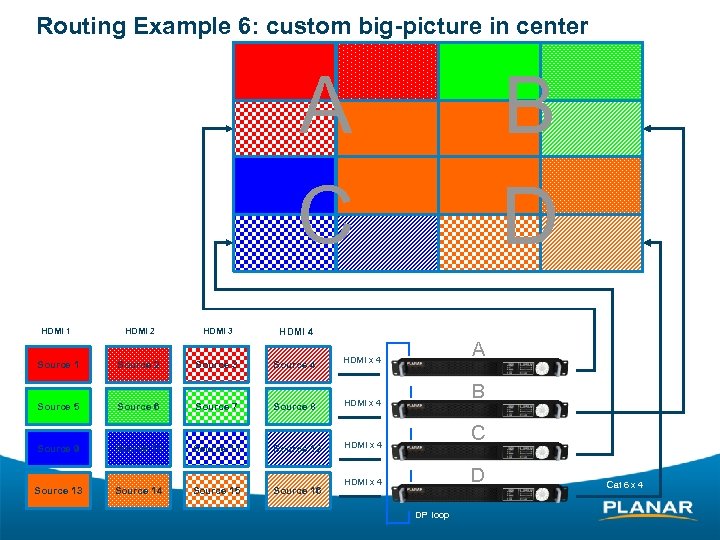 Routing Example 6: custom big-picture in center A C HDMI 1 Source 1 HDMI 2 Source 2 HDMI 3 Source 3 HDMI 4 B D QC Inputs Source 4 A HDMI x 4 2 x Cat 6 x 4 DVI loop Source 6 Source 7 Source 8 Source 9 Source 10 Source 11 Source 12 B 2 x Cat 6 x 4 DVI loop Source 5 C 2 x Cat 6 x 4 DVI loop D HDMI x 4 Source 13 Source 14 Source 15 Source 16 HDMI x 4 DP loop Cat 6 x 4
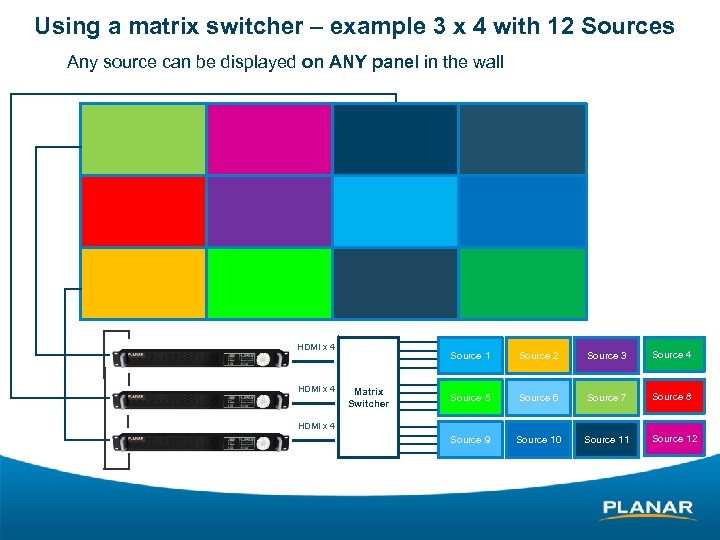 Using a matrix switcher – example 3 x 4 with 12 Sources • Any source can be displayed on ANY panel in the wall HDMI x 4 8 x Cat 6 Source 1 Source 2 Source 3 Source 4 Source 5 Source 6 Source 7 Source 8 Source 9 Source 10 Source 11 Source 12 DVI Loop HDMI x 4 8 x Cat 6 DVI Loop 8 x Cat 6 Matrix Switcher HDMI x 4
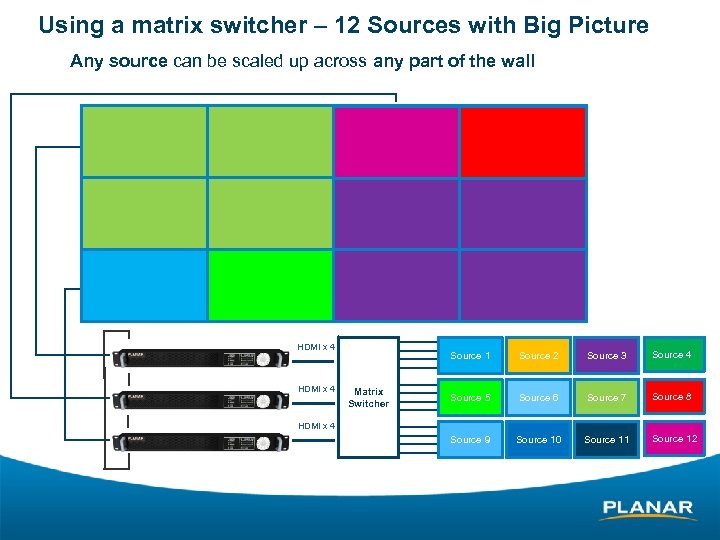 Using a matrix switcher – 12 Sources with Big Picture • Any source can be scaled up across any part of the wall HDMI x 4 8 x Cat 6 Source 1 Source 2 Source 3 Source 4 Source 5 Source 6 Source 7 Source 8 Source 9 Source 10 Source 11 Source 12 DVI Loop HDMI x 4 8 x Cat 6 DVI Loop 8 x Cat 6 Matrix Switcher HDMI x 4
 Matrix Frame Compensation § ensures a natural look of diagonal lines in the image § even though the Matrix bezel is very small, oblique lines stretching across the mullion don’t line up § by dropping about 10 pixels, frame compensation gives the illusion that this part of the image is “behind” the mullion – as though you were looking through a window with panes of glass without frame compensation with frame compensation
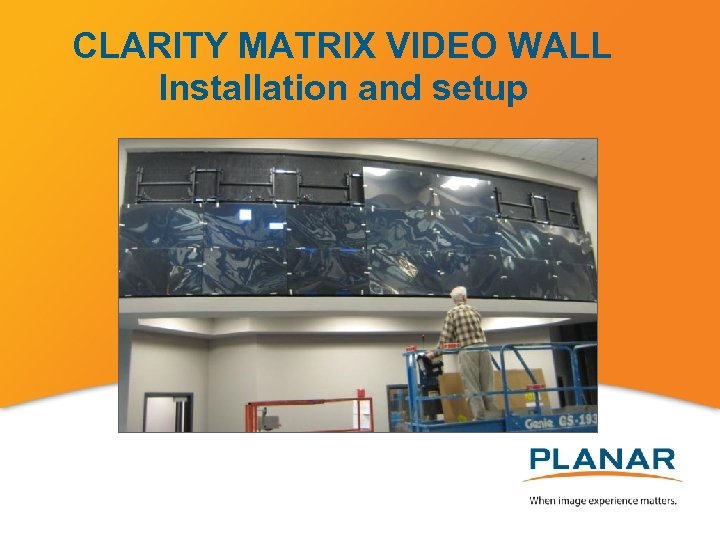 CLARITY MATRIX VIDEO WALL Installation and setup
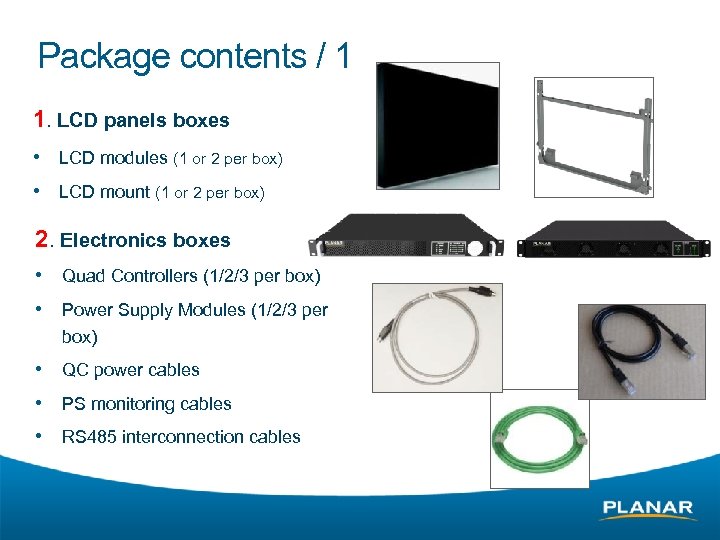 Package contents / 1 1. LCD panels boxes • LCD modules (1 or 2 per box) • LCD mount (1 or 2 per box) 2. Electronics boxes • Quad Controllers (1/2/3 per box) • Power Supply Modules (1/2/3 per box) • QC power cables • PS monitoring cables • RS 485 interconnection cables
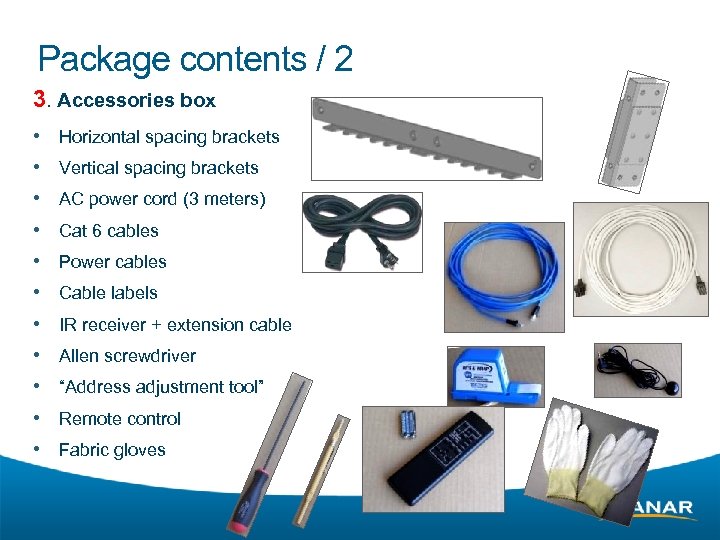 Package contents / 2 3. Accessories box • • • Horizontal spacing brackets Vertical spacing brackets AC power cord (3 meters) Cat 6 cables Power cables Cable labels IR receiver + extension cable Allen screwdriver “Address adjustment tool” Remote control Fabric gloves
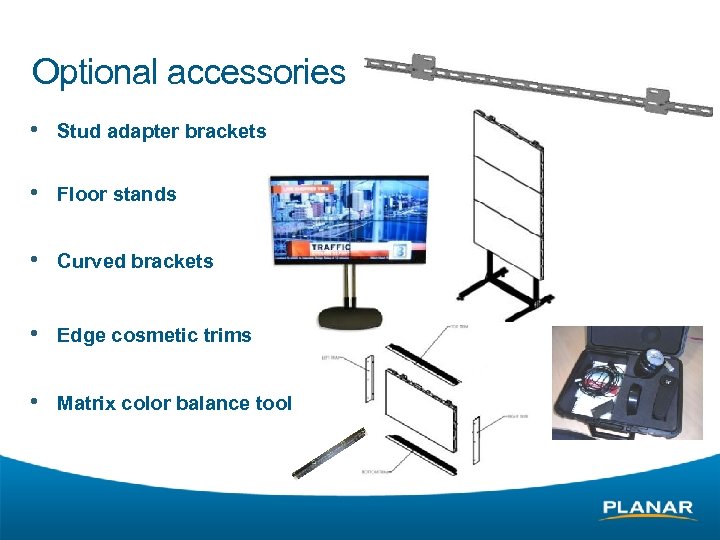 Optional accessories • Stud adapter brackets • Floor stands • Curved brackets • Edge cosmetic trims • Matrix color balance tool
 Necessary tools / hardware • Level / laser level • • + tape measure Plumb bob / String Ladder Drill / Power driver + 3 mm Allen tips Center punch Stud finder Mallet Locking-pliers (Vise-Grip)
 Mounting hardware • 6 mm screws + washers / anchors ¡ type depends on wall material • Wood shims ¡ for use with uneven walls • Zip ties / cable clamps ¡ for cables attachment
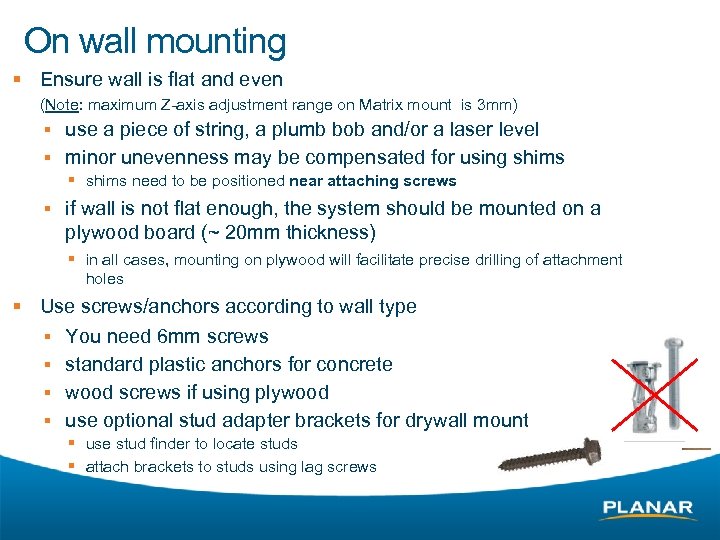 On wall mounting § Ensure wall is flat and even (Note: maximum Z-axis adjustment range on Matrix mount is 3 mm) § use a piece of string, a plumb bob and/or a laser level § minor unevenness may be compensated for using shims § shims need to be positioned near attaching screws § if wall is not flat enough, the system should be mounted on a plywood board (~ 20 mm thickness) § in all cases, mounting on plywood will facilitate precise drilling of attachment holes § Use screws/anchors according to wall type § § You need 6 mm screws standard plastic anchors for concrete wood screws if using plywood use optional stud adapter brackets for drywall mount § use stud finder to locate studs § attach brackets to studs using lag screws
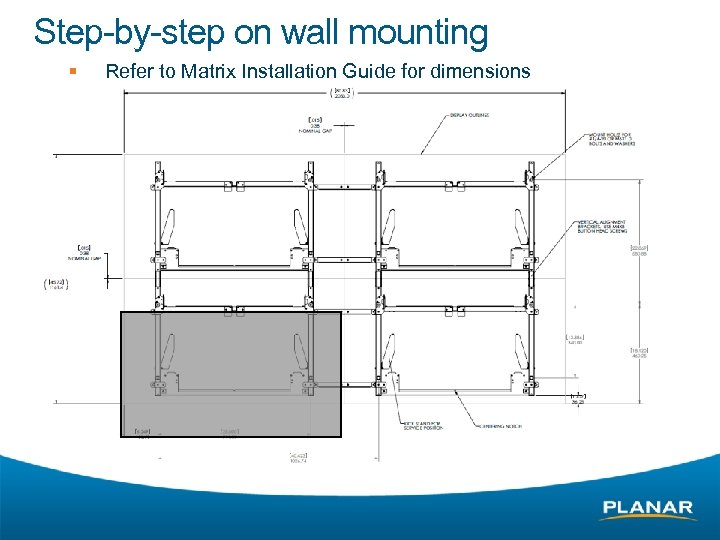 Step-by-step on wall mounting § Refer to Matrix Installation Guide for dimensions
 Step-by-step on wall mounting 1. Define position of Matrix wall 2. Start with bottom row/center of wall 3. Attach other mounts to complete bottom row
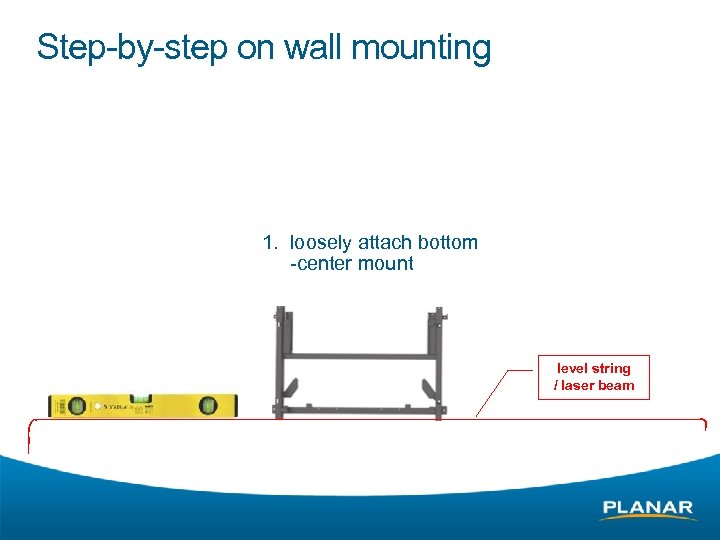 Step-by-step on wall mounting 1. loosely attach bottom -center mount level string / laser beam
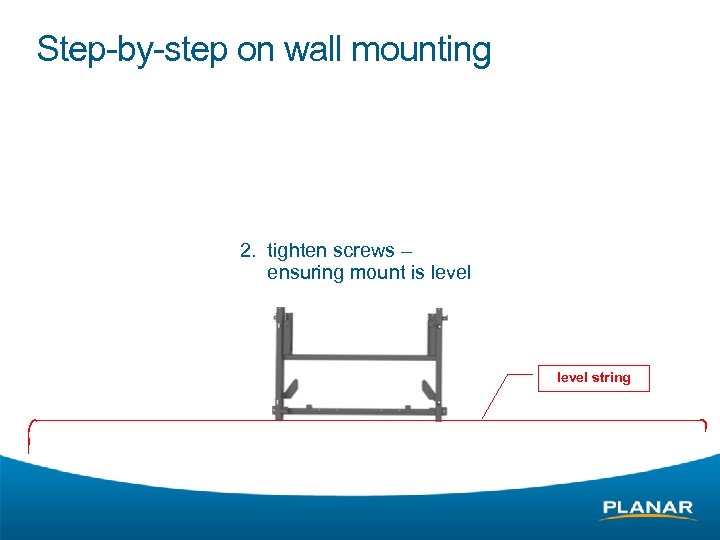 Step-by-step on wall mounting 2. tighten screws – ensuring mount is level string
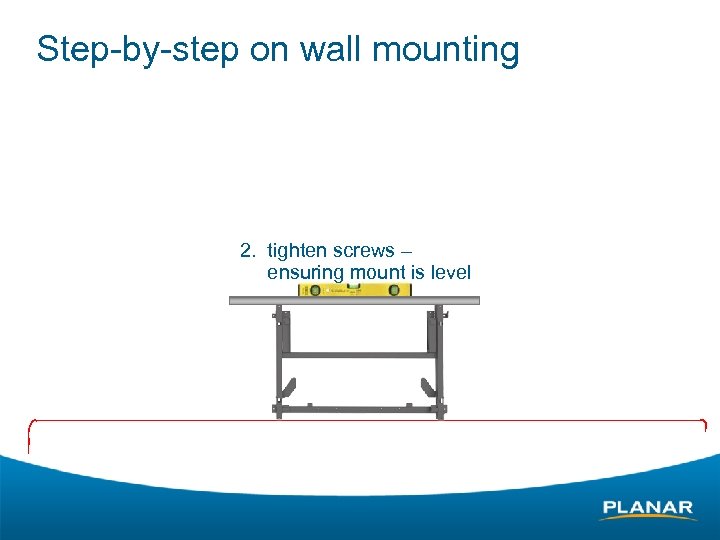 Step-by-step on wall mounting 2. tighten screws – ensuring mount is level
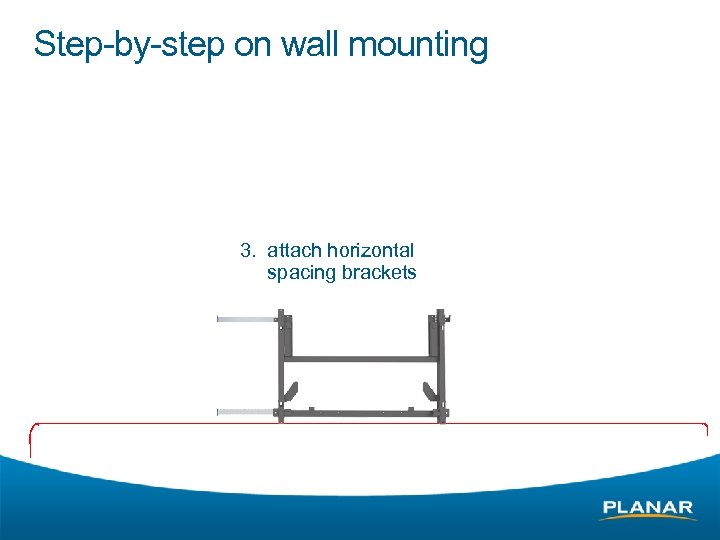 Step-by-step on wall mounting 3. attach horizontal spacing brackets
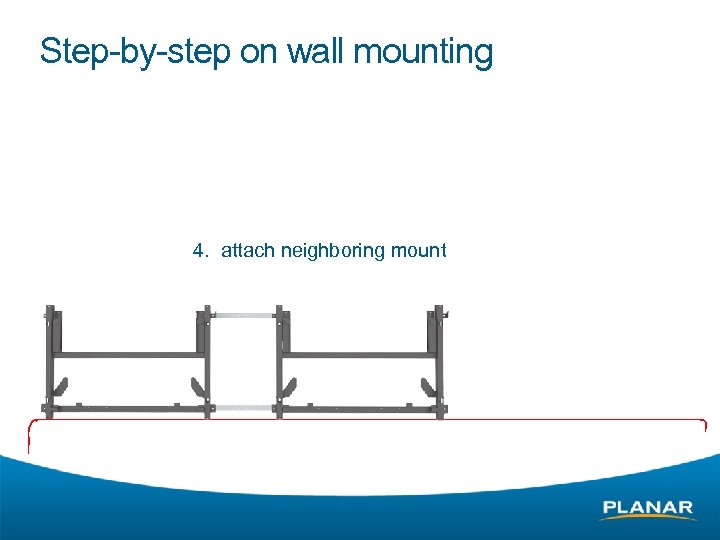 Step-by-step on wall mounting 4. attach neighboring mount
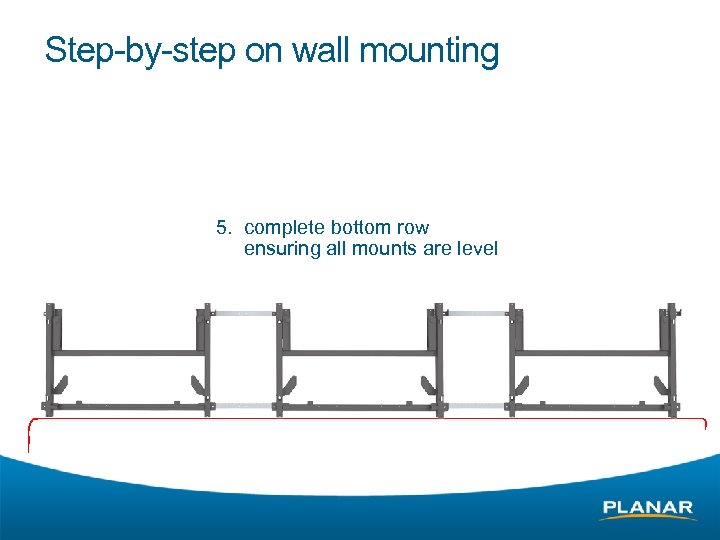 Step-by-step on wall mounting 5. complete bottom row ensuring all mounts are level
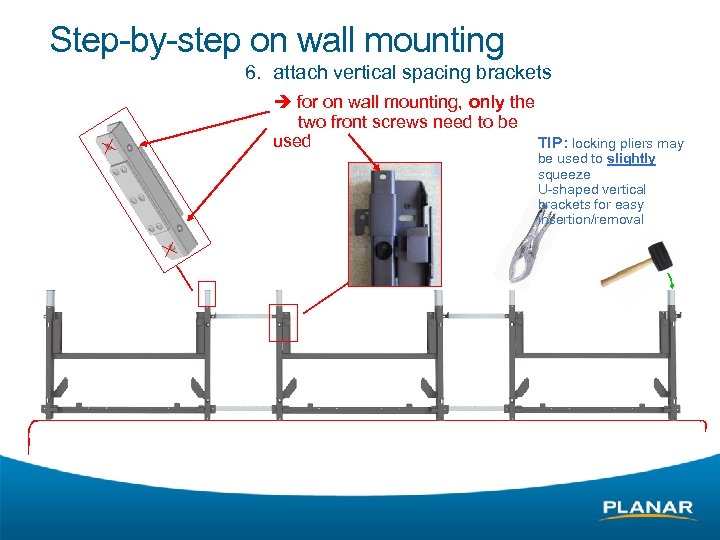 Step-by-step on wall mounting 6. attach vertical spacing brackets for on wall mounting, only the two front screws need to be used TIP: locking pliers may be used to slightly squeeze U-shaped vertical brackets for easy insertion/removal
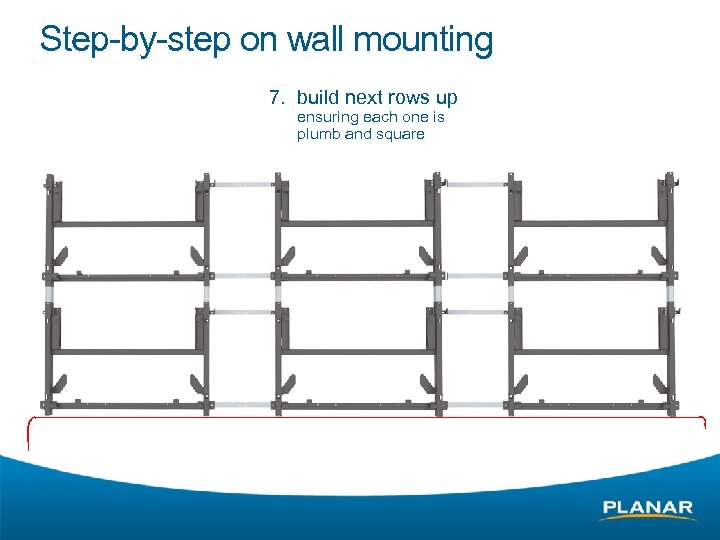 Step-by-step on wall mounting 7. build next rows up ensuring each one is plumb and square
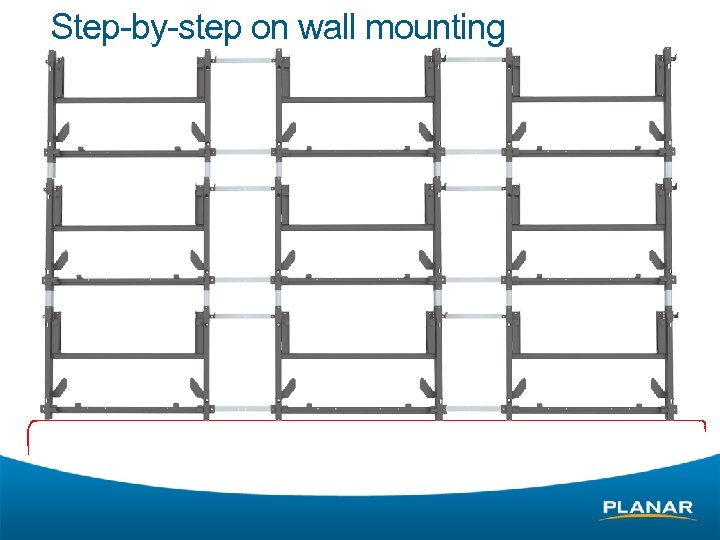 Step-by-step on wall mounting
 Step-by-step on wall mounting – summary 1. Define position of Matrix wall § remember that a minimum of 5 cm clearance is required above wall for service and air flow. A 15 cm space or more will allow easier installation, tool access and air cooling. 2. Start with bottom row/center of wall § § use a laser level or stretched string to level bottom row mark position of holes on wall for first mount § § drill holes and attach center mount § § § 3. refer to dimensions in Installation Guide loosely attach mount if wall is not perfectly flat, use shims to avoid bending when tightening screws tighten screws to level mount at final position Attach other mounts to complete bottom row § horizontal brackets ensure exact distance between mounts
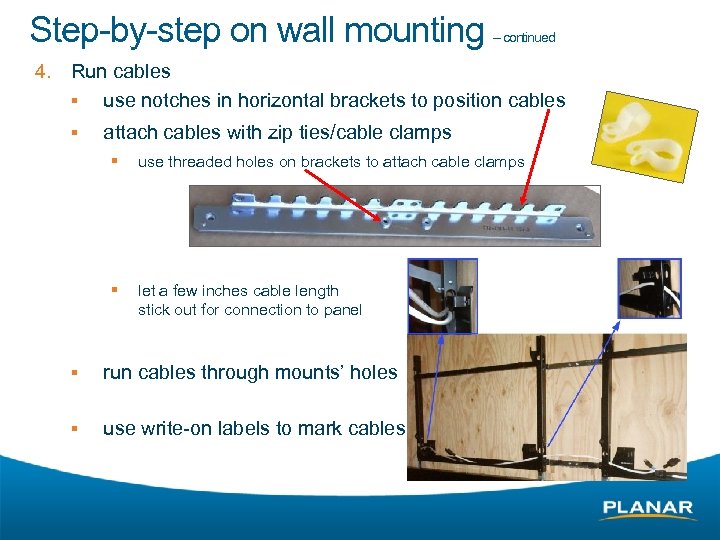 Step-by-step on wall mounting 4. – continued Run cables § use notches in horizontal brackets to position cables § attach cables with zip ties/cable clamps § use threaded holes on brackets to attach cable clamps § let a few inches cable length stick out for connection to panel § run cables through mounts’ holes § use write-on labels to mark cables
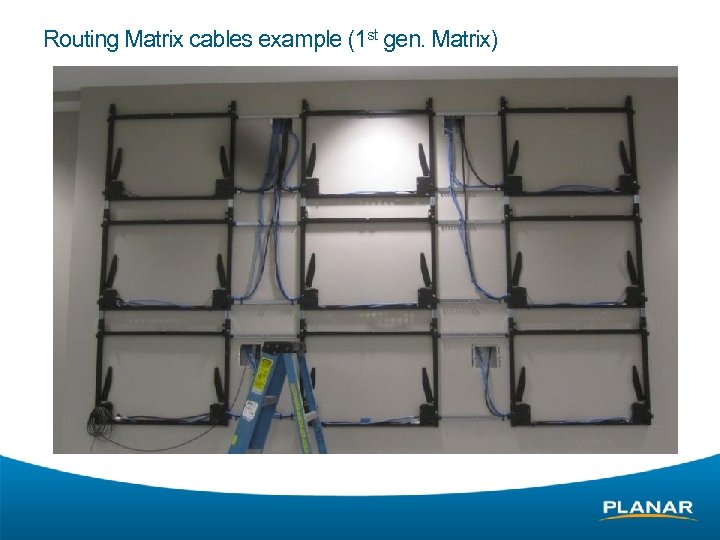 Routing Matrix cables example (1 st gen. Matrix)
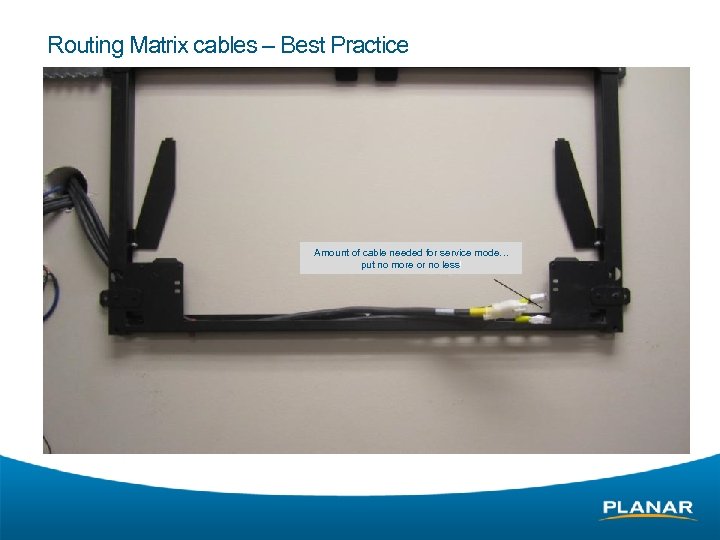 Routing Matrix cables – Best Practice Amount of cable needed for service mode… put no more or no less!
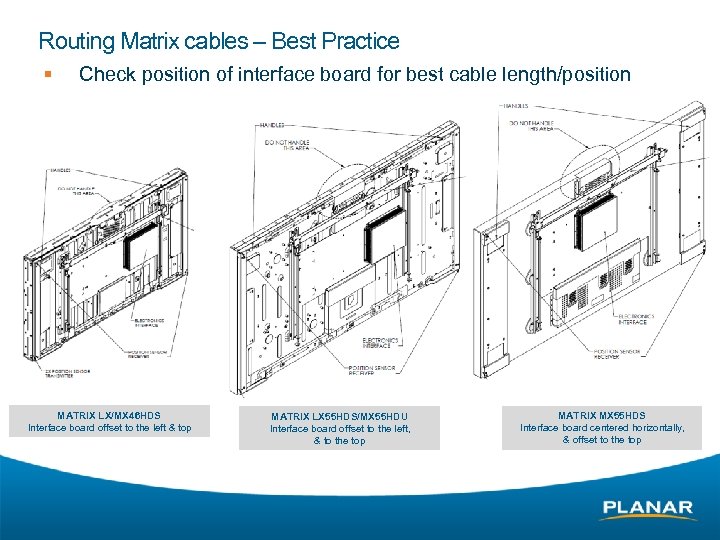 Routing Matrix cables – Best Practice § Check position of interface board for best cable length/position CAUTION! As interface board H & V position depends on Matrix version, cable slack for service loop needs to be adjusted accordingly. MATRIX LX/MX 46 HDS Interface board offset to the left & top MATRIX LX 55 HDS/MX 55 HDU Interface board offset to the left, & to the top MATRIX MX 55 HDS Interface board centered horizontally, & offset to the top
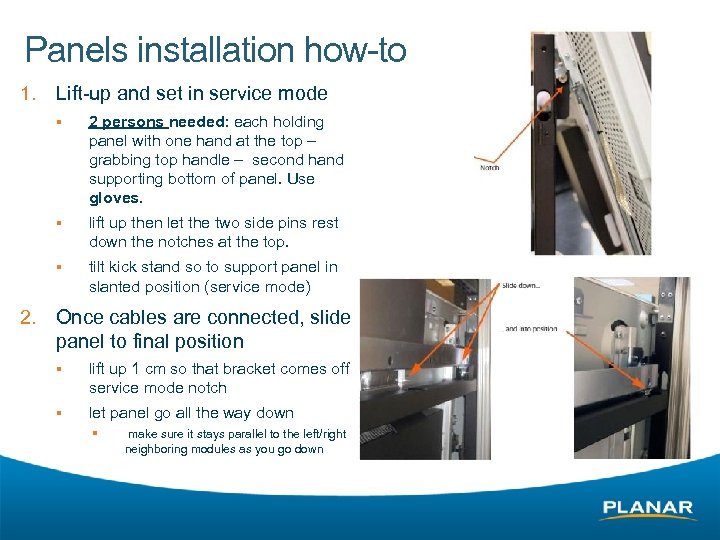 Panels installation how-to 1. Lift-up and set in service mode § § lift up then let the two side pins rest down the notches at the top. § 2. 2 persons needed: each holding panel with one hand at the top – grabbing top handle – second hand supporting bottom of panel. Use gloves. tilt kick stand so to support panel in slanted position (service mode) Once cables are connected, slide panel to final position § lift up 1 cm so that bracket comes off service mode notch § let panel go all the way down § make sure it stays parallel to the left/right neighboring modules as you go down
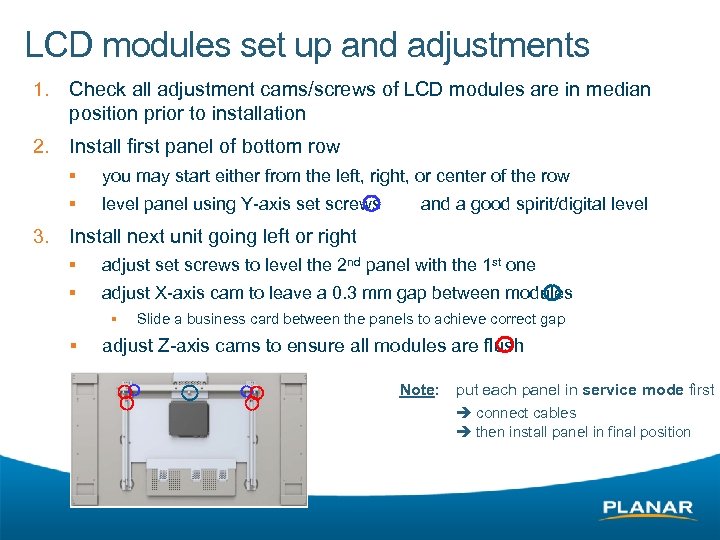 LCD modules set up and adjustments 1. Check all adjustment cams/screws of LCD modules are in median position prior to installation 2. Install first panel of bottom row § § 3. you may start either from the left, right, or center of the row level panel using Y-axis set screws and a good spirit/digital level Install next unit going left or right § adjust set screws to level the 2 nd panel with the 1 st one § adjust X-axis cam to leave a 0. 3 mm gap between modules § § Slide a business card between the panels to achieve correct gap adjust Z-axis cams to ensure all modules are flush Note: put each panel in service mode first connect cables then install panel in final position
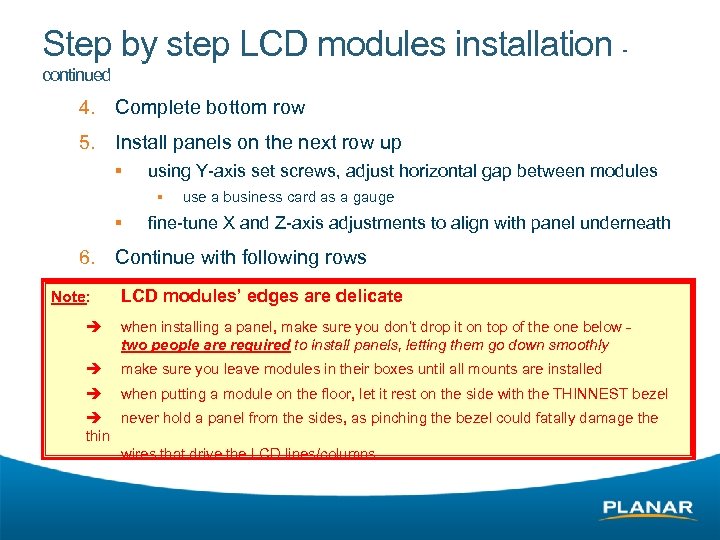 Step by step LCD modules installation continued 4. Complete bottom row 5. Install panels on the next row up § using Y-axis set screws, adjust horizontal gap between modules § § 6. Note: use a business card as a gauge fine-tune X and Z-axis adjustments to align with panel underneath Continue with following rows LCD modules’ edges are delicate when installing a panel, make sure you don’t drop it on top of the one below two people are required to install panels, letting them go down smoothly make sure you leave modules in their boxes until all mounts are installed when putting a module on the floor, let it rest on the side with the THINNEST bezel never hold a panel from the sides, as pinching the bezel could fatally damage thin wires that drive the LCD lines/columns
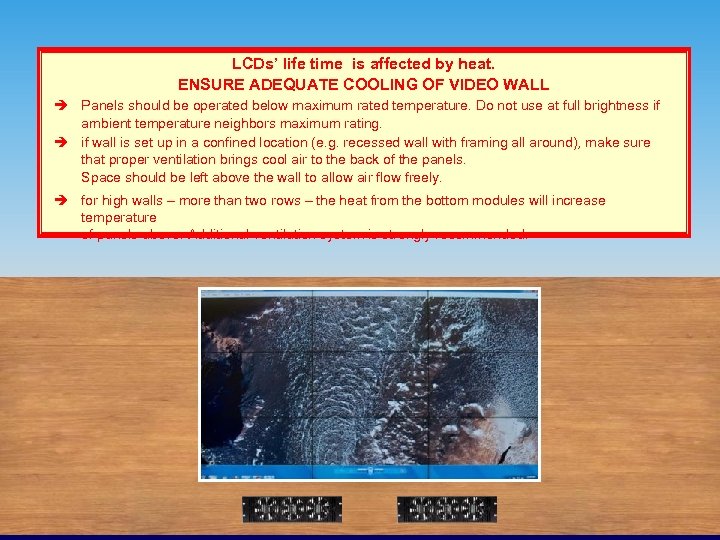 Matrix wall set up recommendation LCDs’ life time is affected by heat. ENSURE ADEQUATE COOLING OF VIDEO WALL Panels should be operated below maximum rated temperature. Do not use at full brightness if ambient temperature neighbors maximum rating. if wall is set up in a confined location (e. g. recessed wall with framing all around), make sure that proper ventilation brings cool air to the back of the panels. Space should be left above the wall to allow air flow freely. for high walls – more than two rows – the heat from the bottom modules will increase temperature of panels above. Additional ventilation system is strongly recommended.
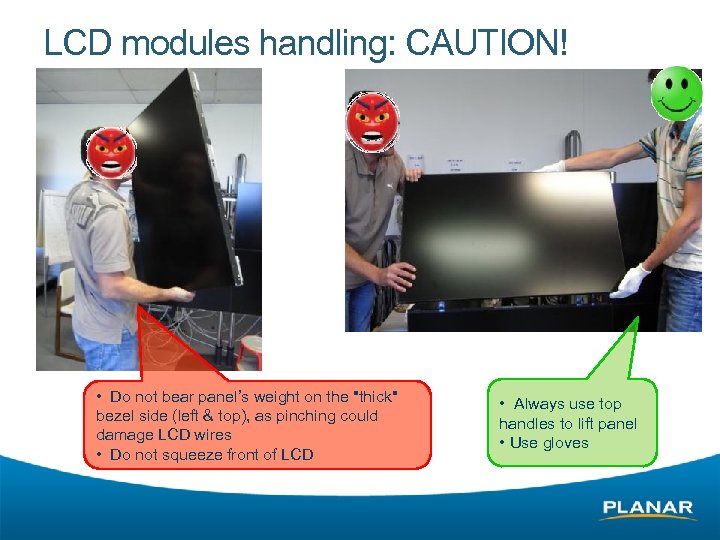 LCD modules handling: CAUTION! • Do not bear panel’s weight on the "thick" bezel side (left & top), as pinching could damage LCD wires • Do not squeeze front of LCD • Always use top handles to lift panel • Use gloves
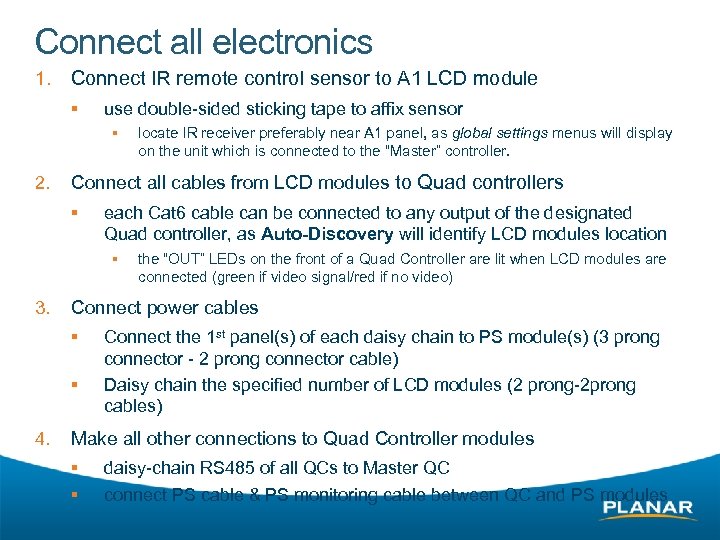 Connect all electronics 1. Connect IR remote control sensor to A 1 LCD module § use double-sided sticking tape to affix sensor § 2. Connect all cables from LCD modules to Quad controllers § each Cat 6 cable can be connected to any output of the designated Quad controller, as Auto-Discovery will identify LCD modules location § 3. the “OUT” LEDs on the front of a Quad Controller are lit when LCD modules are connected (green if video signal/red if no video) Connect power cables § § 4. locate IR receiver preferably near A 1 panel, as global settings menus will display on the unit which is connected to the “Master” controller. Connect the 1 st panel(s) of each daisy chain to PS module(s) (3 prong connector - 2 prong connector cable) Daisy chain the specified number of LCD modules (2 prong-2 prong cables) Make all other connections to Quad Controller modules § § daisy-chain RS 485 of all QCs to Master QC connect PS cable & PS monitoring cable between QC and PS modules
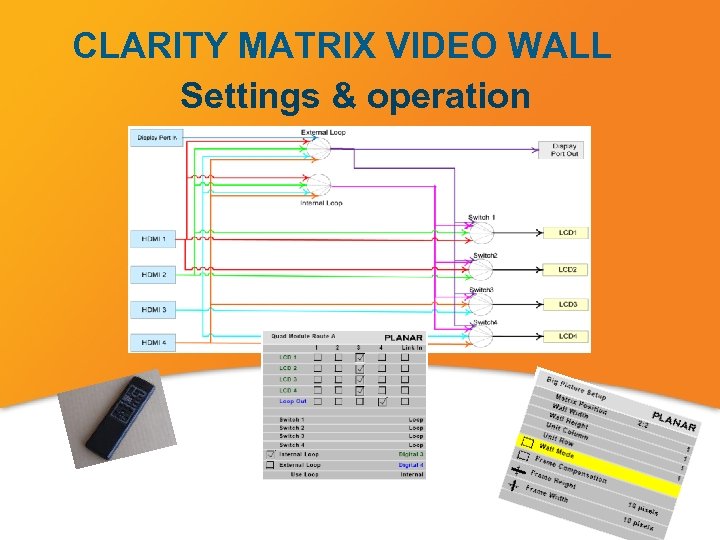 CLARITY MATRIX VIDEO WALL Settings & operation
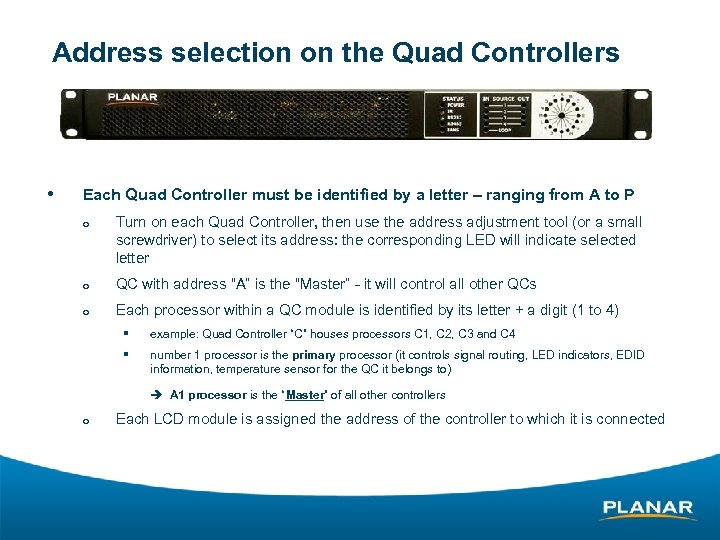 Address selection on the Quad Controllers • Each Quad Controller must be identified by a letter – ranging from A to P ¡ Turn on each Quad Controller, then use the address adjustment tool (or a small screwdriver) to select its address: the corresponding LED will indicate selected letter ¡ QC with address “A” is the “Master” - it will control all other QCs ¡ Each processor within a QC module is identified by its letter + a digit (1 to 4) § example: Quad Controller “C” houses processors C 1, C 2, C 3 and C 4 § number 1 processor is the primary processor (it controls signal routing, LED indicators, EDID information, temperature sensor for the QC it belongs to) A 1 processor is the “Master” of all other controllers ¡ Each LCD module is assigned the address of the controller to which it is connected
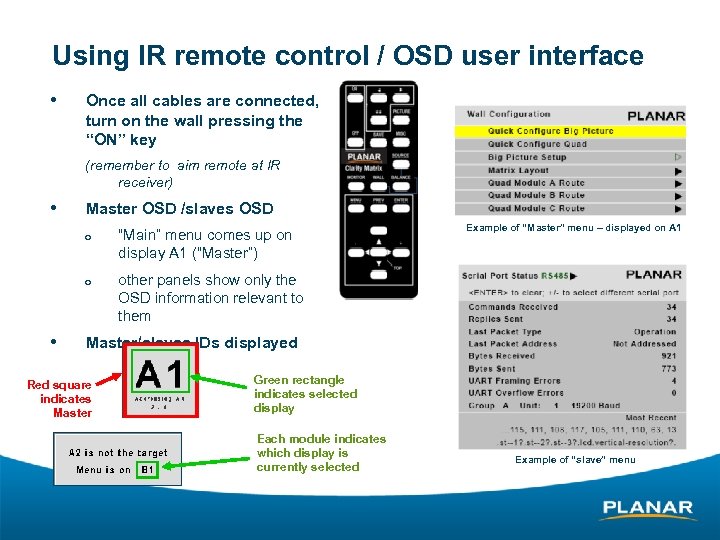 Using IR remote control / OSD user interface • Once all cables are connected, turn on the wall pressing the “ON” key (remember to aim remote at IR receiver) • Master OSD /slaves OSD ¡ ¡ • “Main” menu comes up on display A 1 (“Master”) Example of “Master” menu – displayed on A 1 other panels show only the OSD information relevant to them Master/slaves IDs displayed Red square indicates Master Green rectangle indicates selected display Each module indicates which display is currently selected Example of “slave” menu
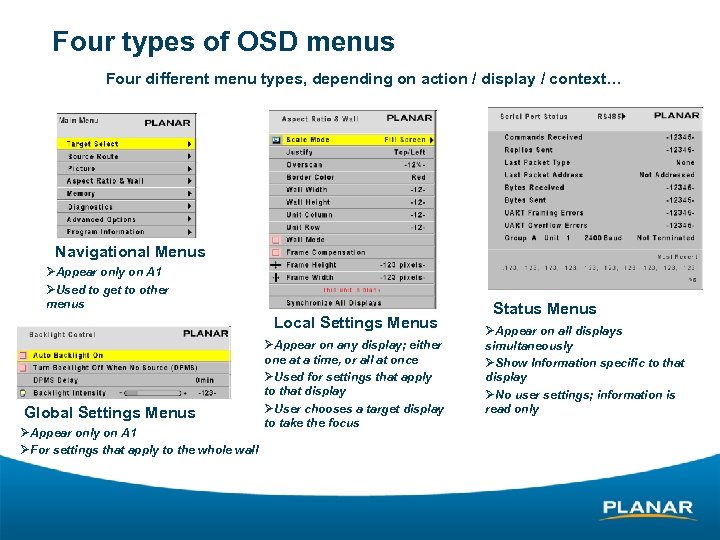 Four types of OSD menus Four different menu types, depending on action / display / context… Navigational Menus ØAppear only on A 1 ØUsed to get to other menus Local Settings Menus Global Settings Menus ØAppear only on A 1 ØFor settings that apply to the whole wall ØAppear on any display; either one at a time, or all at once ØUsed for settings that apply to that display ØUser chooses a target display to take the focus Status Menus ØAppear on all displays simultaneously ØShow Information specific to that display ØNo user settings; information is read only
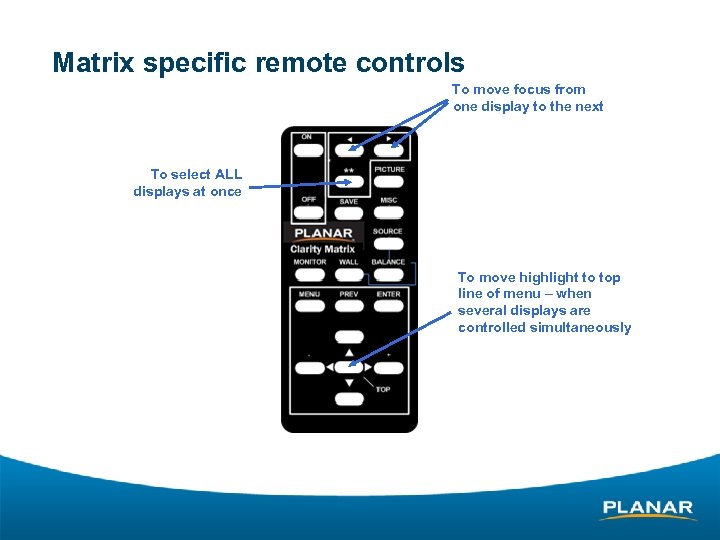 Matrix specific remote controls To move focus from one display to the next To select ALL displays at once To move highlight to top line of menu – when several displays are controlled simultaneously
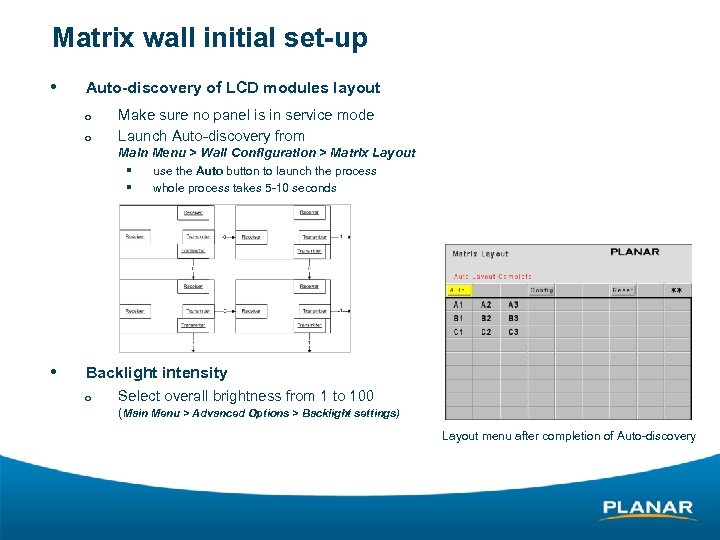 Matrix wall initial set-up • Auto-discovery of LCD modules layout ¡ ¡ Make sure no panel is in service mode Launch Auto-discovery from Main Menu > Wall Configuration > Matrix Layout § use the Auto button to launch the process § whole process takes 5 -10 seconds § • Backlight intensity ¡ Select overall brightness from 1 to 100 (Main Menu > Advanced Options > Backlight settings) Layout menu after completion of Auto-discovery
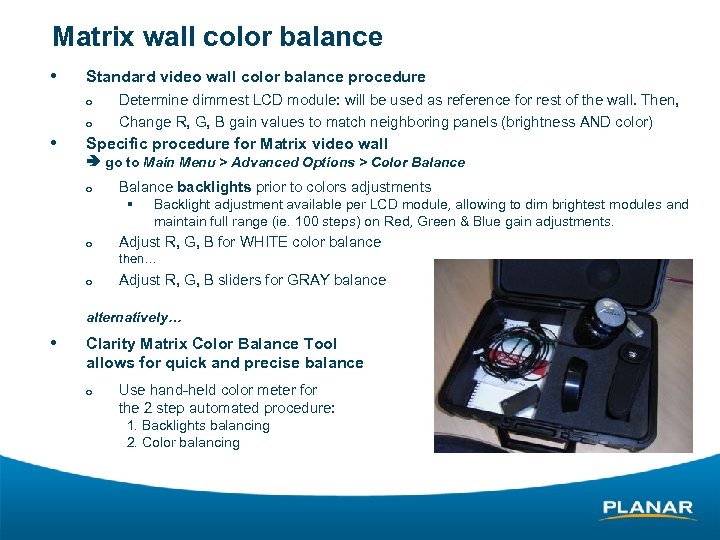 Matrix wall color balance • Standard video wall color balance procedure ¡ ¡ • Determine dimmest LCD module: will be used as reference for rest of the wall. Then, Change R, G, B gain values to match neighboring panels (brightness AND color) Specific procedure for Matrix video wall go to Main Menu > Advanced Options > Color Balance ¡ Balance backlights prior to colors adjustments § Backlight adjustment available per LCD module, allowing to dim brightest modules and maintain full range (ie. 100 steps) on Red, Green & Blue gain adjustments. ¡ Adjust R, G, B for WHITE color balance then… ¡ Adjust R, G, B sliders for GRAY balance alternatively… • Clarity Matrix Color Balance Tool allows for quick and precise balance ¡ Use hand-held color meter for the 2 step automated procedure: 1. Backlights balancing 2. Color balancing
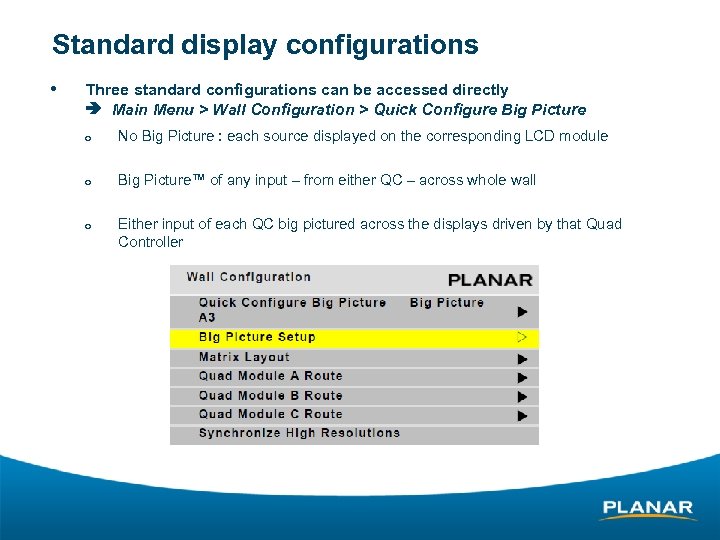 Standard display configurations • Three standard configurations can be accessed directly Main Menu > Wall Configuration > Quick Configure Big Picture ¡ No Big Picture : each source displayed on the corresponding LCD module ¡ Big Picture™ of any input – from either QC – across whole wall ¡ Either input of each QC big pictured across the displays driven by that Quad Controller
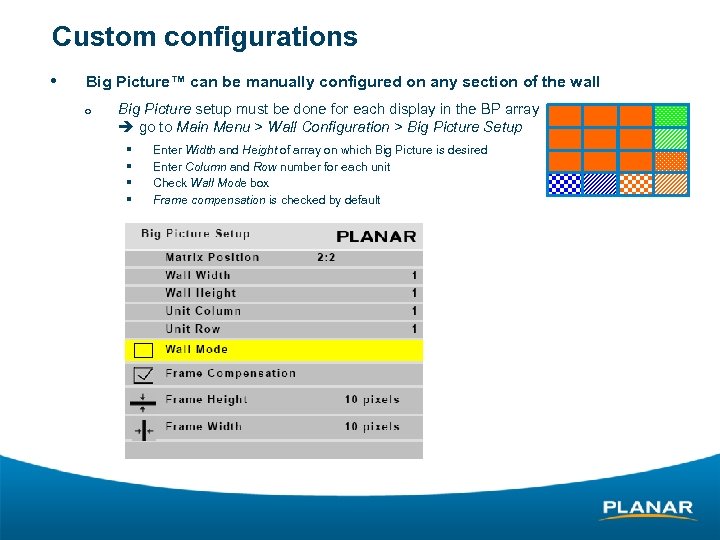 Custom configurations • Big Picture™ can be manually configured on any section of the wall ¡ Big Picture setup must be done for each display in the BP array go to Main Menu > Wall Configuration > Big Picture Setup § § Enter Width and Height of array on which Big Picture is desired Enter Column and Row number for each unit Check Wall Mode box Frame compensation is checked by default
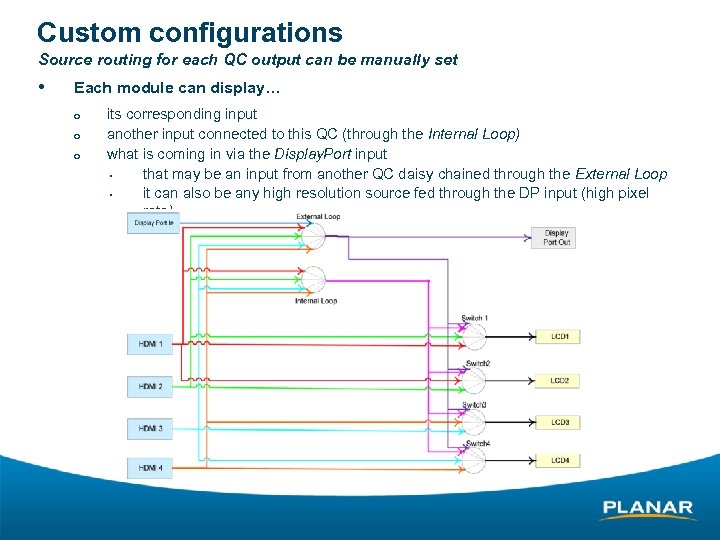 Custom configurations Source routing for each QC output can be manually set • Each module can display… ¡ ¡ ¡ its corresponding input another input connected to this QC (through the Internal Loop) what is coming in via the Display. Port input • that may be an input from another QC daisy chained through the External Loop • it can also be any high resolution source fed through the DP input (high pixel rate)
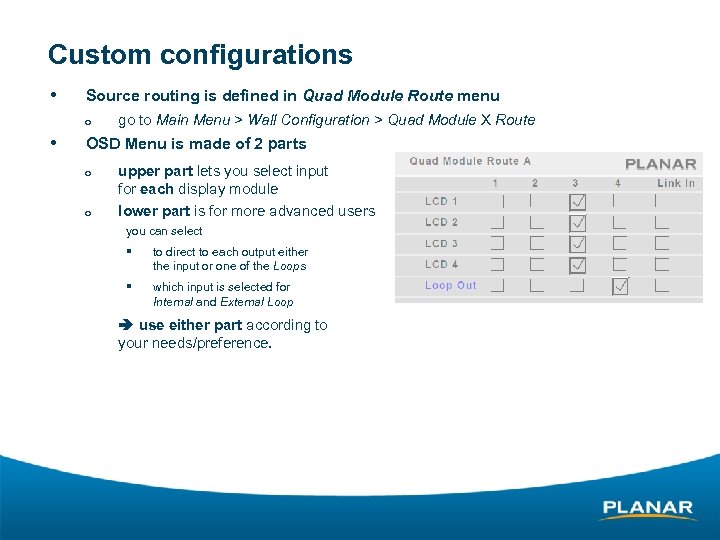 Custom configurations • Source routing is defined in Quad Module Route menu ¡ • go to Main Menu > Wall Configuration > Quad Module X Route OSD Menu is made of 2 parts ¡ ¡ upper part lets you select input for each display module lower part is for more advanced users you can select § to direct to each output either the input or one of the Loops § which input is selected for Internal and External Loop use either part according to your needs/preference.
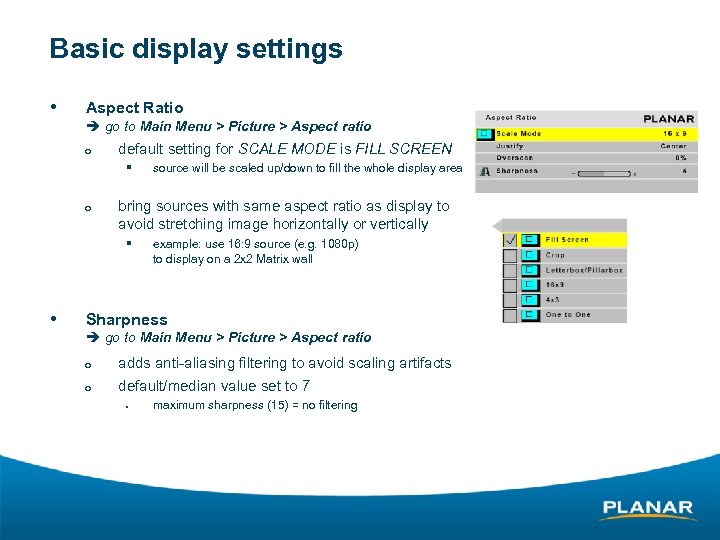 Basic display settings • Aspect Ratio go to Main Menu > Picture > Aspect ratio ¡ default setting for SCALE MODE is FILL SCREEN § ¡ bring sources with same aspect ratio as display to avoid stretching image horizontally or vertically § • source will be scaled up/down to fill the whole display area example: use 16: 9 source (e. g. 1080 p) to display on a 2 x 2 Matrix wall Sharpness go to Main Menu > Picture > Aspect ratio ¡ ¡ adds anti-aliasing filtering to avoid scaling artifacts default/median value set to 7 § maximum sharpness (15) = no filtering
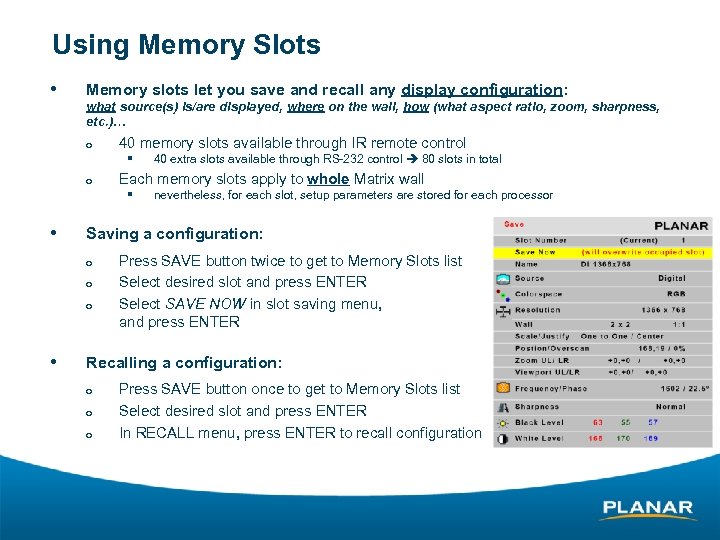 Using Memory Slots • Memory slots let you save and recall any display configuration: what source(s) is/are displayed, where on the wall, how (what aspect ratio, zoom, sharpness, etc. )… ¡ 40 memory slots available through IR remote control § ¡ Each memory slots apply to whole Matrix wall § • nevertheless, for each slot, setup parameters are stored for each processor Saving a configuration: ¡ ¡ ¡ • 40 extra slots available through RS-232 control 80 slots in total Press SAVE button twice to get to Memory Slots list Select desired slot and press ENTER Select SAVE NOW in slot saving menu, and press ENTER Recalling a configuration: ¡ ¡ ¡ Press SAVE button once to get to Memory Slots list Select desired slot and press ENTER In RECALL menu, press ENTER to recall configuration
 CLARITY MATRIX INTEGRATED WALLNET OPTION
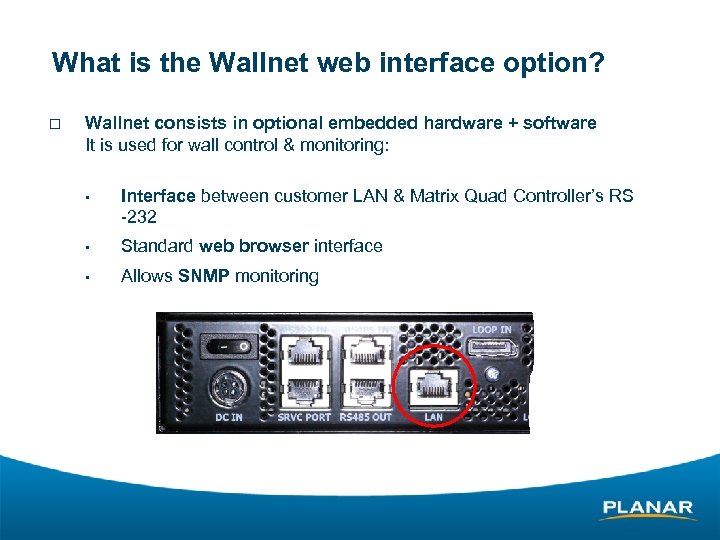 What is the Wallnet web interface option? ¨ Wallnet consists in optional embedded hardware + software It is used for wall control & monitoring: • Interface between customer LAN & Matrix Quad Controller’s RS -232 • Standard web browser interface • Allows SNMP monitoring
 SNMP Monitoring “Simple Network Management Protocol” is a networking tool for network administrators § Basic status and configuration information can be obtained via SNMP service. § Our Planar Display MIB can be downloaded from the Wall. Net 2 web server: http: //{ip-address}/PLANAR-DISPLAY-MIB. txt Note: most Matrix wall installation will not require SNMP monitoring.
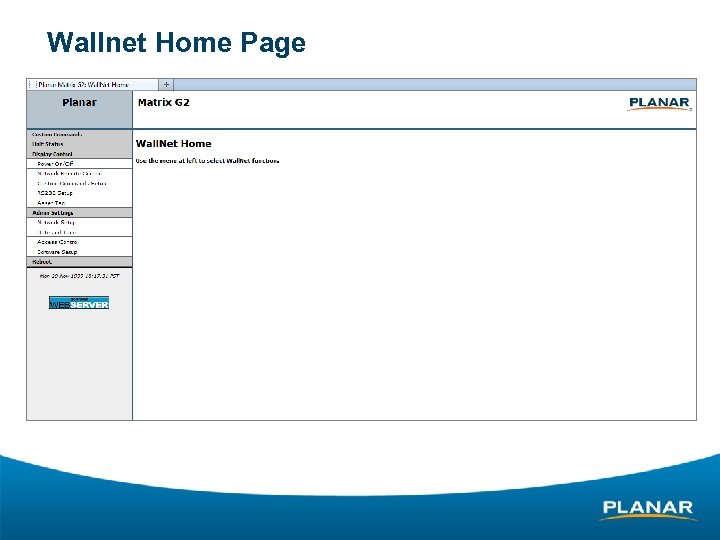 Wallnet Home Page
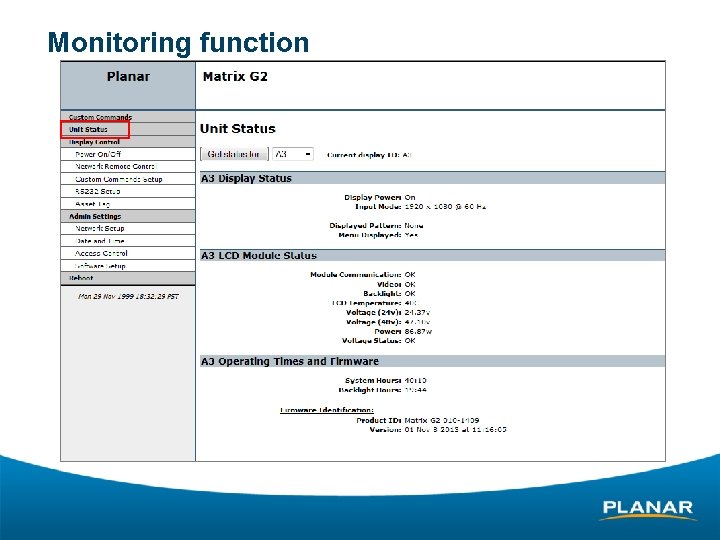 Monitoring function
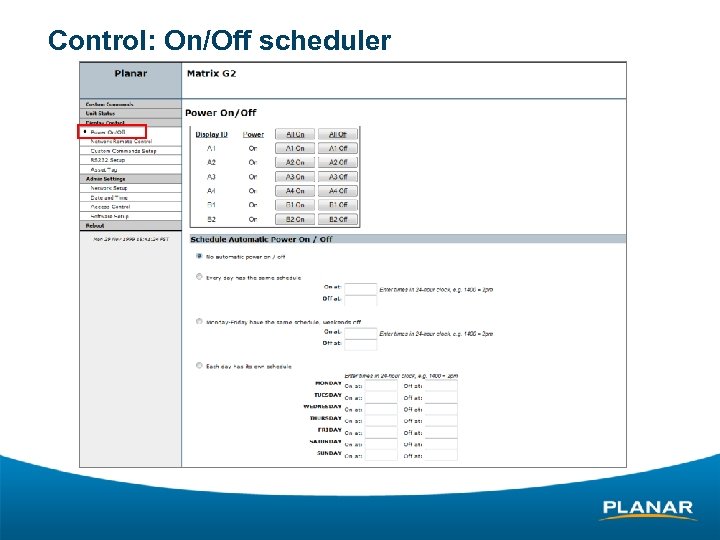 Control: On/Off scheduler
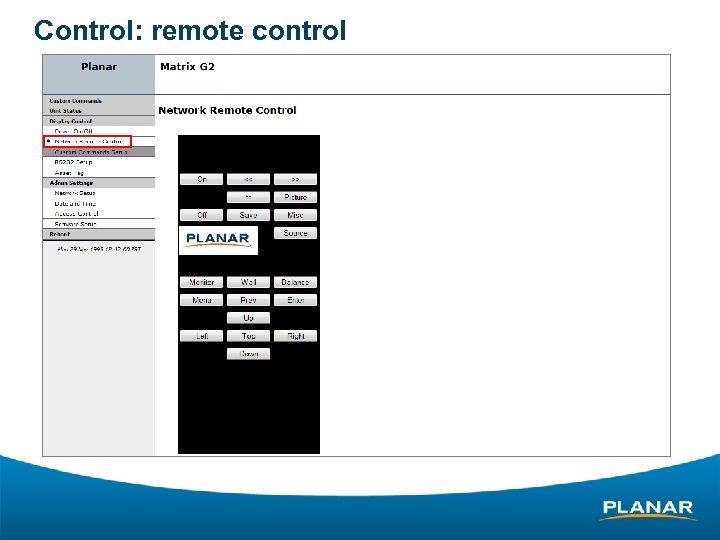 Control: remote control
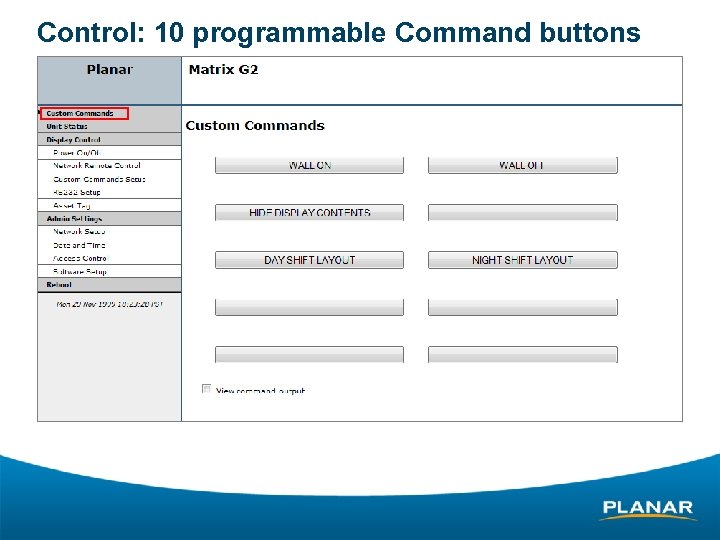 Control: 10 programmable Command buttons
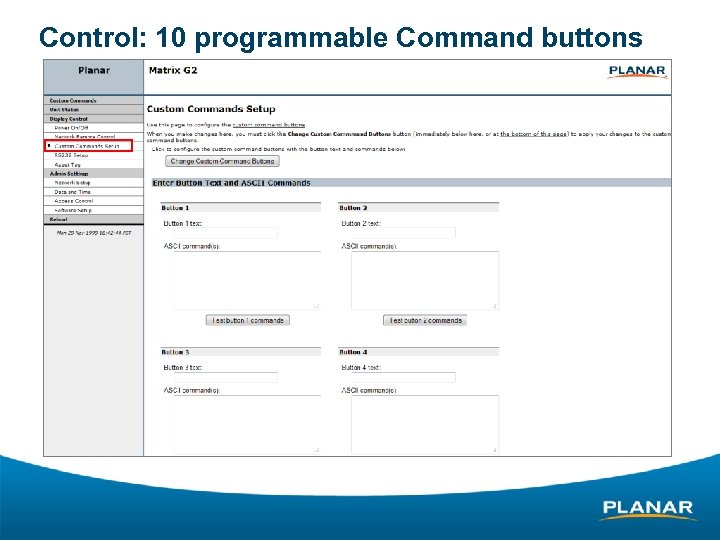 Control: 10 programmable Command buttons
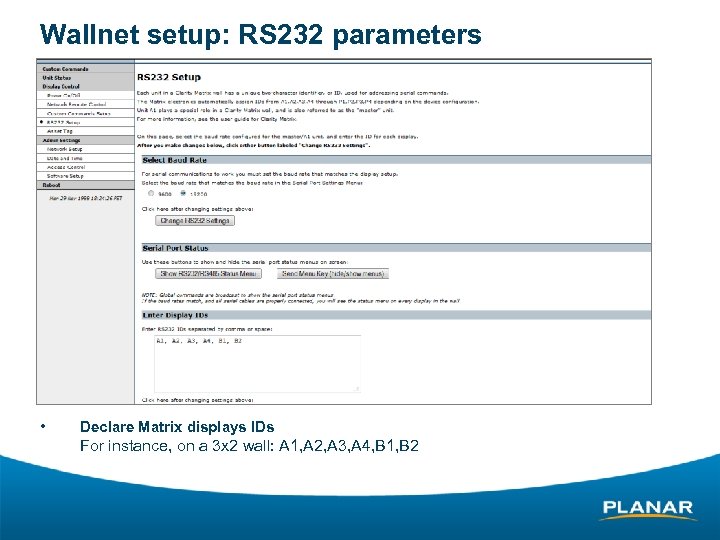 Wallnet setup: RS 232 parameters • Declare Matrix displays IDs For instance, on a 3 x 2 wall: A 1, A 2, A 3, A 4, B 1, B 2
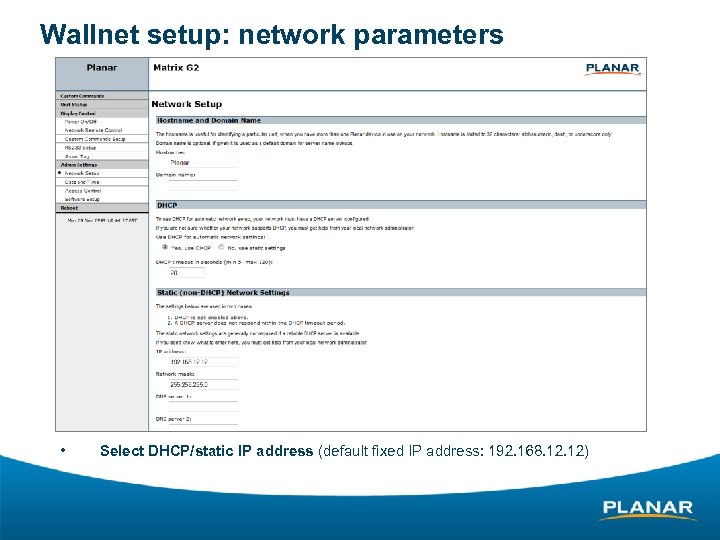 Wallnet setup: network parameters • Select DHCP/static IP address (default fixed IP address: 192. 168. 12)
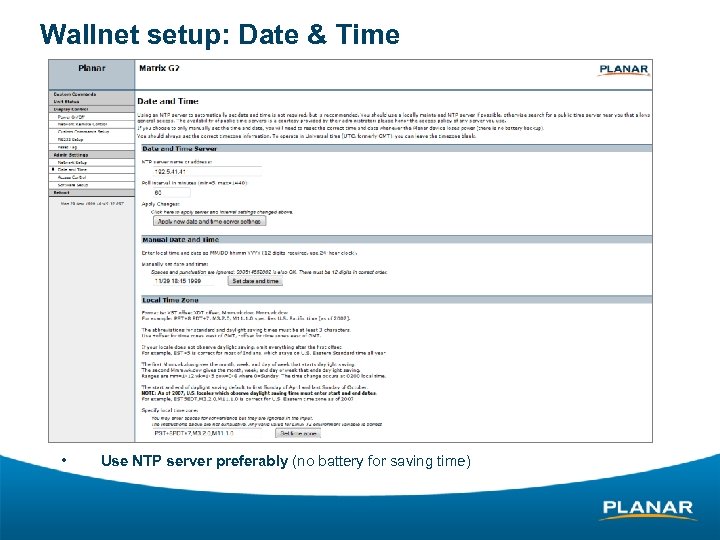 Wallnet setup: Date & Time • Use NTP server preferably (no battery for saving time)
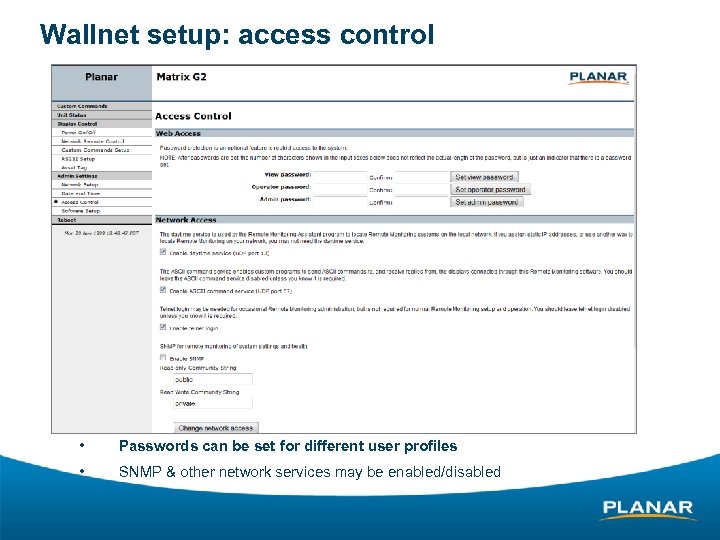 Wallnet setup: access control • Passwords can be set for different user profiles • SNMP & other network services may be enabled/disabled
 Synchronizing settings • Usingfdsqfdsq Thank you !