


 Скачать презентацию Cisco Commerce Workspace Training for Cisco Partners
04b927a4856e386dc748a4d5d74d045f.ppt
- Количество слайдов: 121
 Cisco Commerce Workspace Training for Cisco Partners – November 2009 Use Slideshow Mode and the Page Down button to view this presentation © 2009 Cisco Systems, Inc. All rights reserved. 1
 Cisco Commerce Workspace Table of Contents Section 1 – Introduction Section 2 – Navigation/Homepage Section 3 – Create the Deal Section 4 – Create the Quote Section 5 – Cisco Trade-in Migration Program Section 6 – Quote Collaboration Section 8 – Approve the Deal Section 7 – Place Orders Section 8 – Revise the Quote Section 9 – Deal Statuses and Reports Section 10 – Access & Support 2 Cisco Commerce Workspace External Training – November 2009
 Cisco Commerce Workspace Training Section 1 – Introduction 3 Cisco Commerce Workspace External Training – November 2009
 Cisco Commerce Workspace Training The Cisco Commerce Experience is simple, collaborative, and enables partners to sell, purchase and manage all Cisco offerings. 4 Cisco Commerce Workspace External Training – November 2009
 Cisco Commerce Workspace Training Cisco Commerce Workspace is foundational to the Commerce Experience; an integrated quoting platform that allows partners to access Cisco pricing concessions and programs. 5 Cisco Commerce Workspace External Training – November 2009
 Cisco Commerce Workspace Training Cisco Commerce Workspace is a collaborative quoting platform that gives partners the autonomy to make deal and quote decisions from within a single workspace. 6 Cisco Commerce Workspace External Training – November 2009 Cisco Commerce Workspace will evolve to be the one stop location for all partner needs Configuration Ordering Seamless access to all commerce related processes.
 Cisco Commerce Workspace An integrated Quoting platform that allows partners to access Cisco pricing concessions and programs. Experience an integrated workflow with Cisco Share deals with Cisco and others at the partner’s company Monitor deal and quote approval processes Create configurations via import, excel upload and item search Create and revise quotes with promotional pricing Create quotes with trade-in credits (available in many countries) Efficiently order via distributors (distribution automatically receives deal and pricing details) Process Cisco direct orders faster with deal ID 7 Cisco Commerce Workspace External Training – November 2009
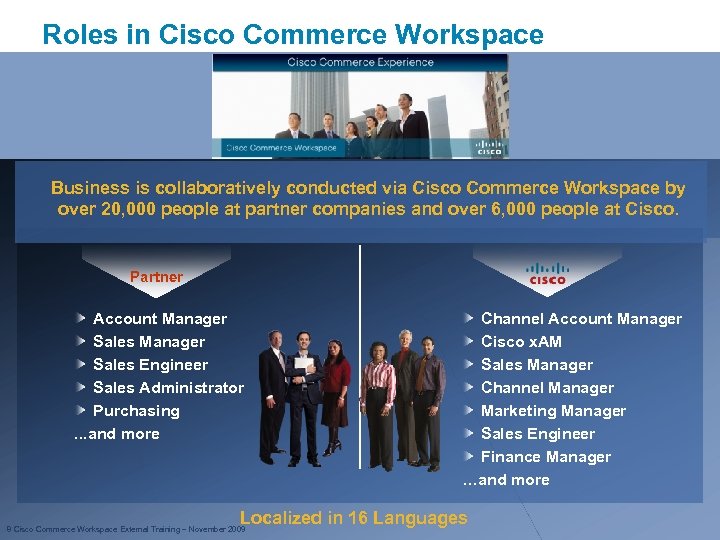 Roles in Cisco Commerce Workspace Image placeholder Business is collaboratively conducted via Cisco Commerce Workspace by over 20, 000 people at partner companies and over 6, 000 people at Cisco. Partner Account Manager Sales Engineer Sales Administrator Purchasing. . . and more Channel Account Manager Cisco x. AM Sales Manager Channel Manager Marketing Manager Sales Engineer Finance Manager …and more Localized in 16 Languages 8 Cisco Commerce Workspace External Training – November 2009
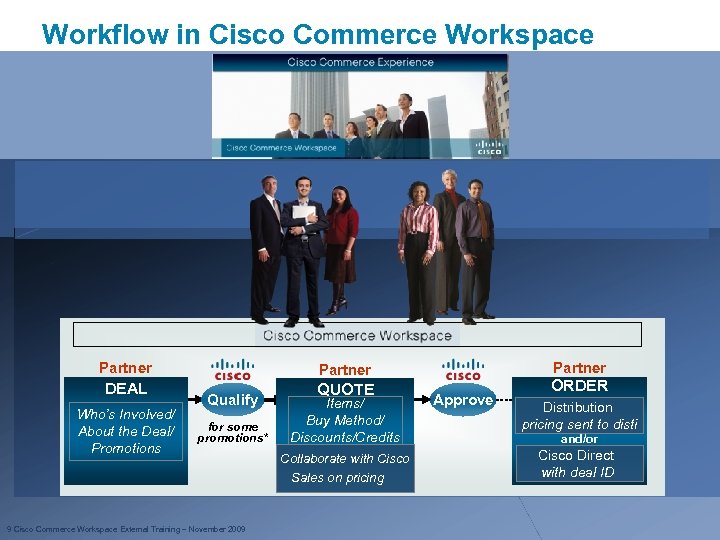 Workflow in Cisco Commerce Workspace Partner DEAL QUOTE Who’s Involved/ About the Deal/ Promotions Qualify for some promotions* 9 Cisco Commerce Workspace External Training – November 2009 Items/ Buy Method/ Discounts/Credits Collaborate with Cisco Sales on pricing Partner Approve ORDER Distribution pricing sent to disti and/or Cisco Direct with deal ID
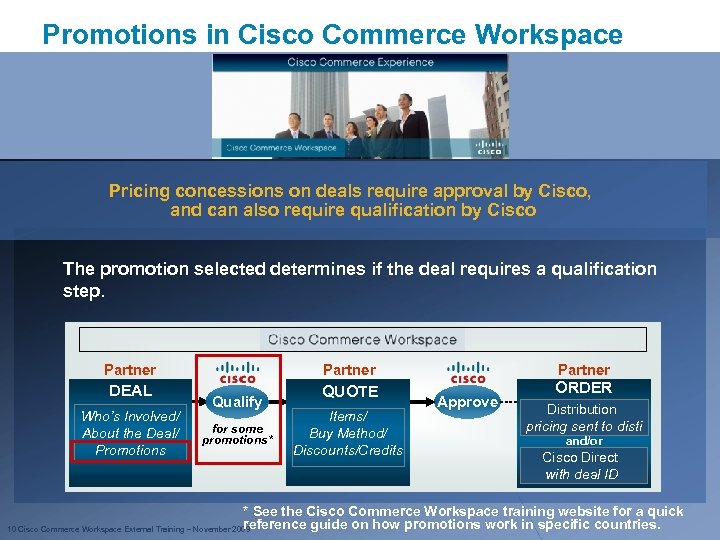 Promotions in Cisco Commerce Workspace Pricing concessions on deals require approval by Cisco, and can also require qualification by Cisco The promotion selected determines if the deal requires a qualification step. Partner DEAL Who’s Involved/ About the Deal/ Promotions Partner Qualify for some promotions* QUOTE Items/ Buy Method/ Discounts/Credits Partner Approve ORDER Distribution pricing sent to disti and/or Cisco Direct with deal ID * See the Cisco Commerce Workspace training website for a quick reference guide on how promotions work in specific countries. 10 Cisco Commerce Workspace External Training – November 2009
 Cisco Commerce Workspace Internal Training Section 2 – Navigation/Homepage 11 Cisco Commerce Workspace External Training – November 2009
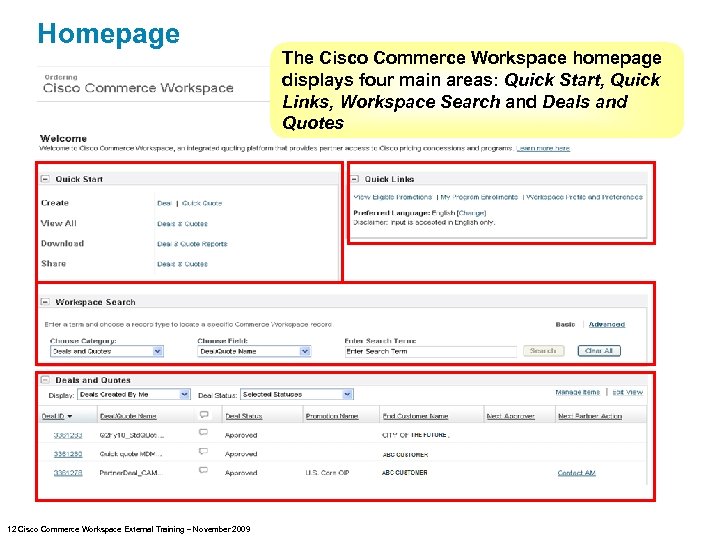 Homepage 12 Cisco Commerce Workspace External Training – November 2009 The Cisco Commerce Workspace homepage displays four main areas: Quick Start, Quick Links, Workspace Search and Deals and Quotes
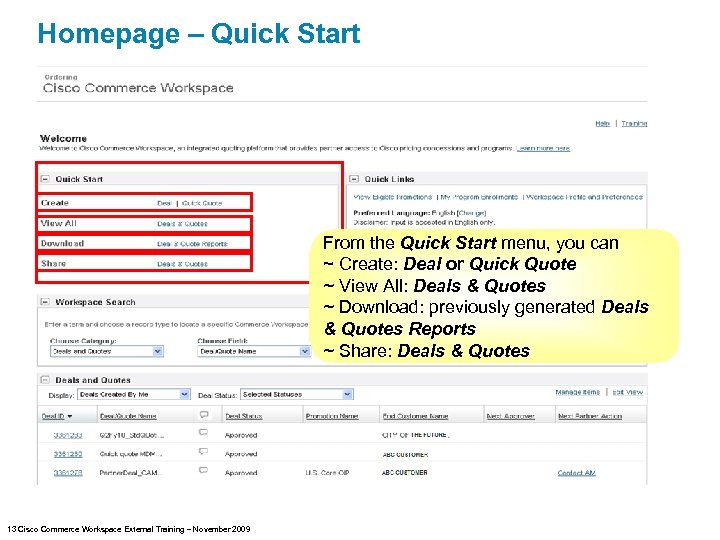 Homepage – Quick Start From the Quick Start menu, you can ~ Create: Deal or Quick Quote ~ View All: Deals & Quotes ~ Download: previously generated Deals & Quotes Reports ~ Share: Deals & Quotes 13 Cisco Commerce Workspace External Training – November 2009
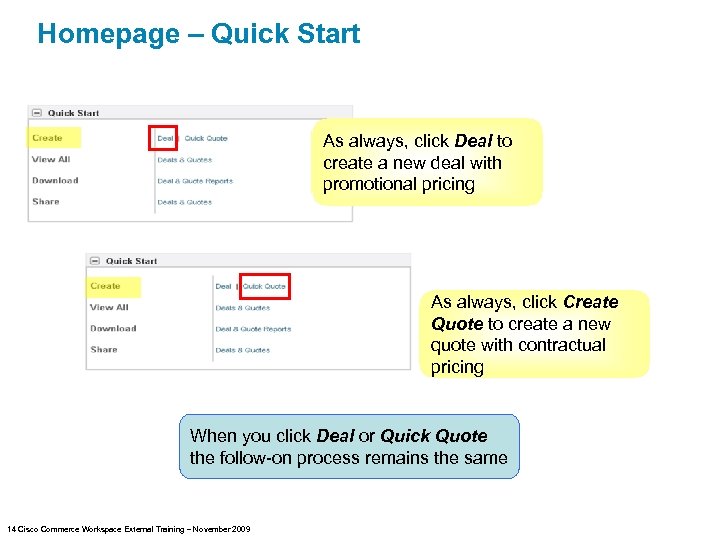 Homepage – Quick Start As always, click Deal to create a new deal with promotional pricing As always, click Create Quote to create a new quote with contractual pricing When you click Deal or Quick Quote the follow-on process remains the same 14 Cisco Commerce Workspace External Training – November 2009
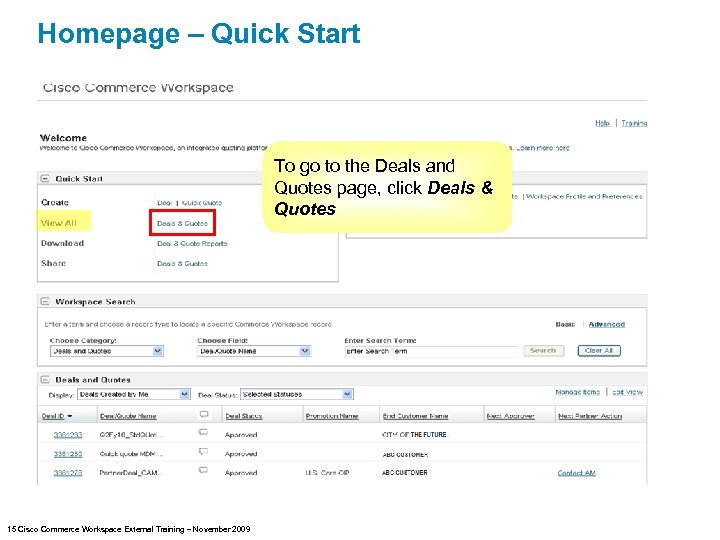 Homepage – Quick Start To go to the Deals and Quotes page, click Deals & Quotes 15 Cisco Commerce Workspace External Training – November 2009
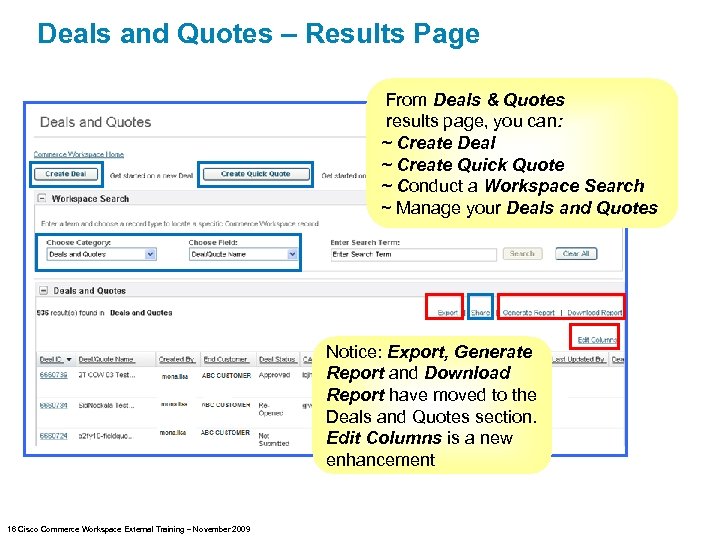 Deals and Quotes – Results Page From Deals & Quotes results page, you can: ~ Create Deal ~ Create Quick Quote ~ Conduct a Workspace Search ~ Manage your Deals and Quotes Notice: Export, Generate Report and Download Report have moved to the Deals and Quotes section. Edit Columns is a new enhancement 16 Cisco Commerce Workspace External Training – November 2009
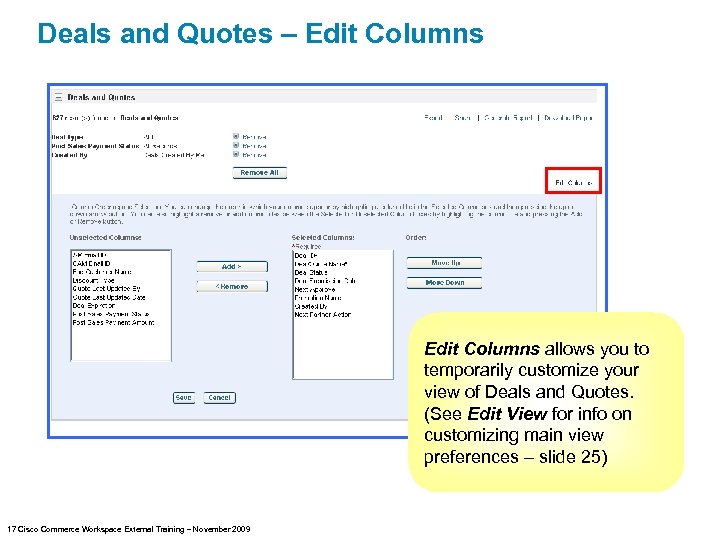 Deals and Quotes – Edit Columns allows you to temporarily customize your view of Deals and Quotes. (See Edit View for info on customizing main view preferences – slide 25) 17 Cisco Commerce Workspace External Training – November 2009
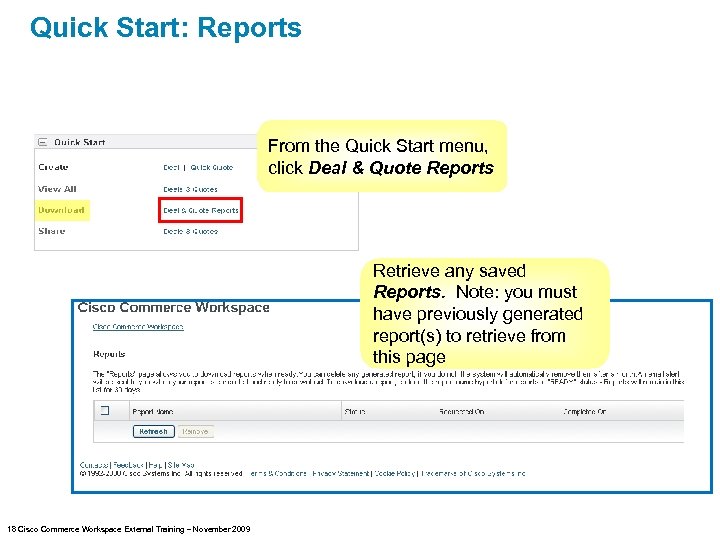 Quick Start: Reports From the Quick Start menu, click Deal & Quote Reports Retrieve any saved Reports. Note: you must have previously generated report(s) to retrieve from this page 18 Cisco Commerce Workspace External Training – November 2009
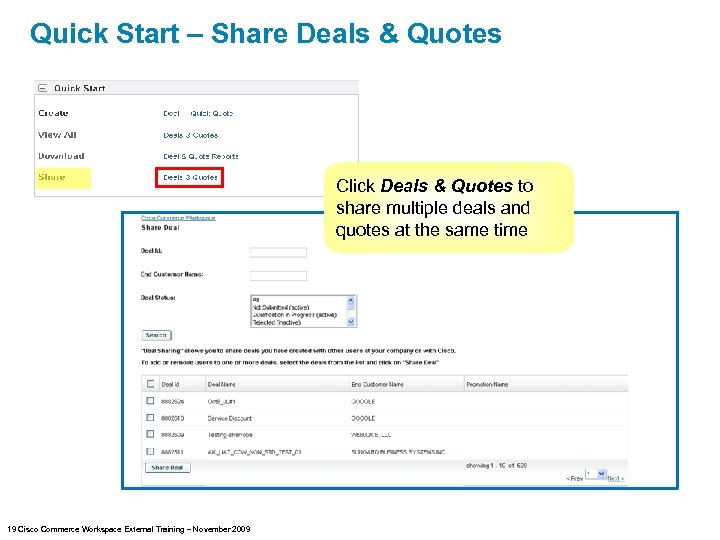 Quick Start – Share Deals & Quotes Click Deals & Quotes to share multiple deals and quotes at the same time 19 Cisco Commerce Workspace External Training – November 2009
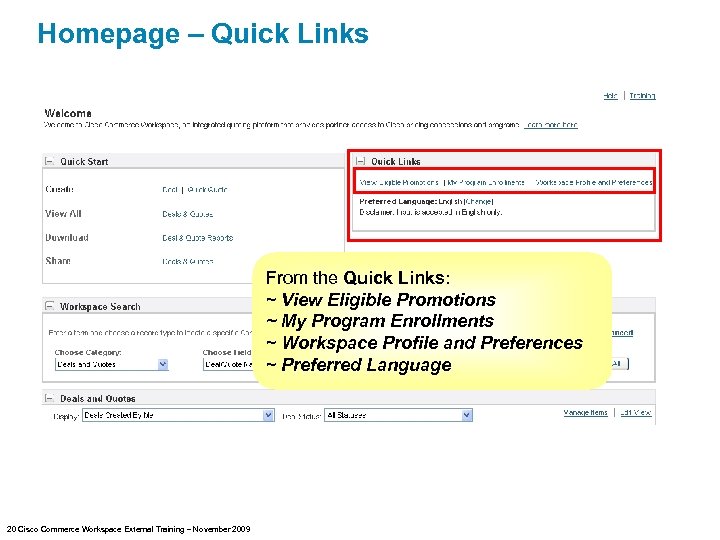 Homepage – Quick Links From the Quick Links: ~ View Eligible Promotions ~ My Program Enrollments ~ Workspace Profile and Preferences ~ Preferred Language 20 Cisco Commerce Workspace External Training – November 2009
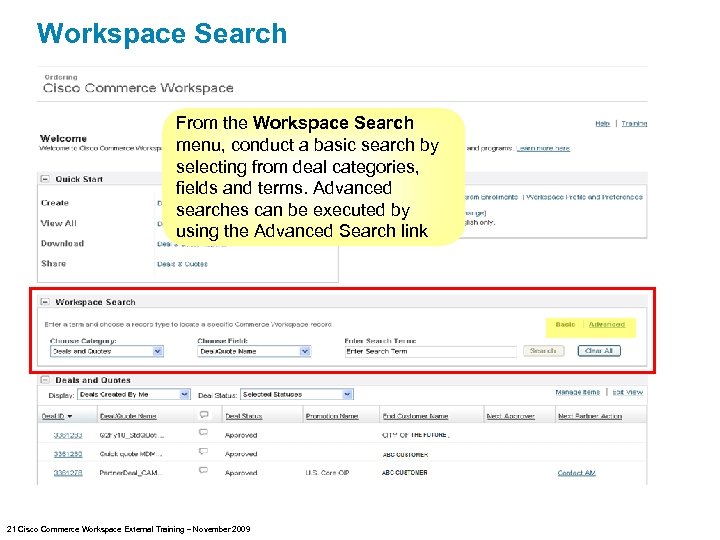 Workspace Search From the Workspace Search menu, conduct a basic search by selecting from deal categories, fields and terms. Advanced searches can be executed by using the Advanced Search link 21 Cisco Commerce Workspace External Training – November 2009
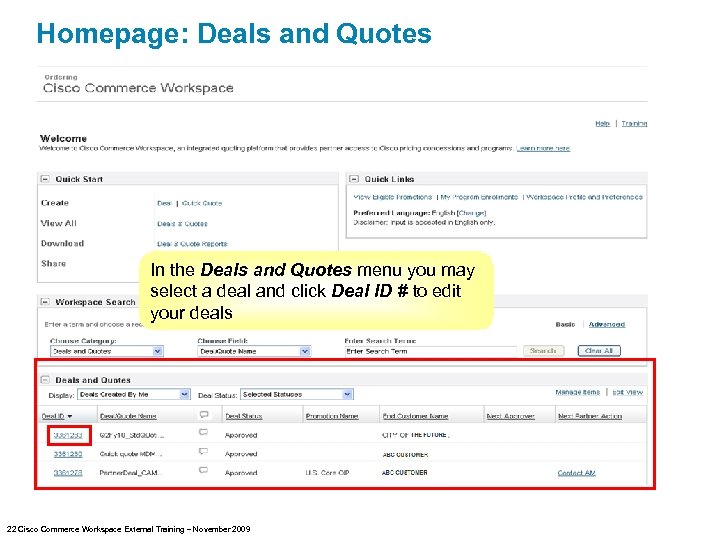 Homepage: Deals and Quotes In the Deals and Quotes menu you may select a deal and click Deal ID # to edit your deals 22 Cisco Commerce Workspace External Training – November 2009
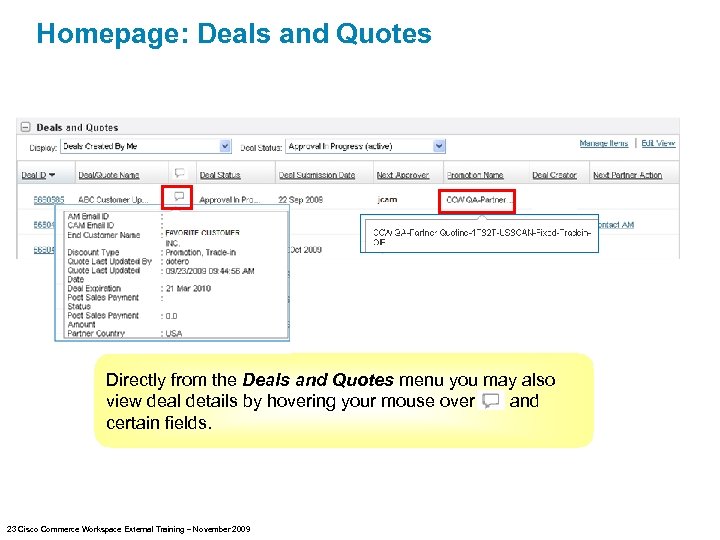 Homepage: Deals and Quotes Directly from the Deals and Quotes menu you may also view deal details by hovering your mouse over and certain fields. 23 Cisco Commerce Workspace External Training – November 2009
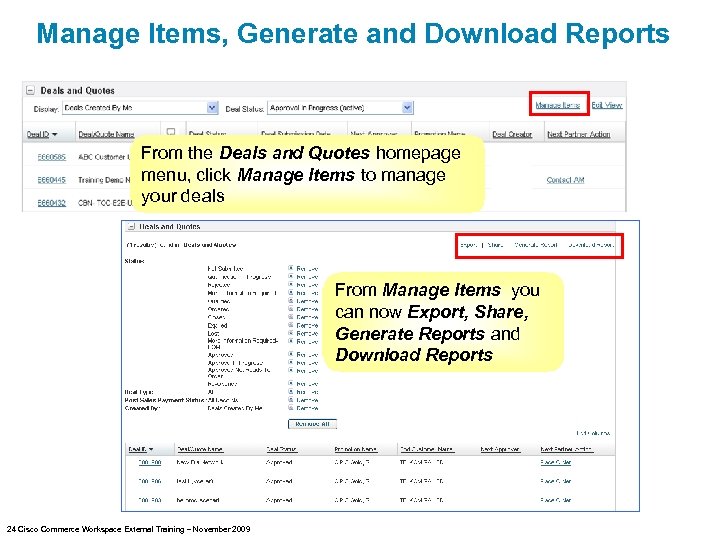 Manage Items, Generate and Download Reports From the Deals and Quotes homepage menu, click Manage Items to manage your deals From Manage Items you can now Export, Share, Generate Reports and Download Reports 24 Cisco Commerce Workspace External Training – November 2009
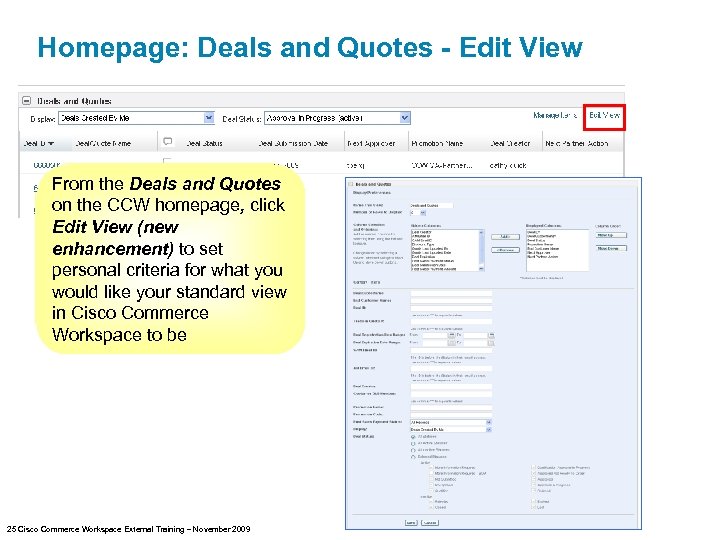 Homepage: Deals and Quotes - Edit View From the Deals and Quotes on the CCW homepage, click Edit View (new enhancement) to set personal criteria for what you would like your standard view in Cisco Commerce Workspace to be 25 Cisco Commerce Workspace External Training – November 2009
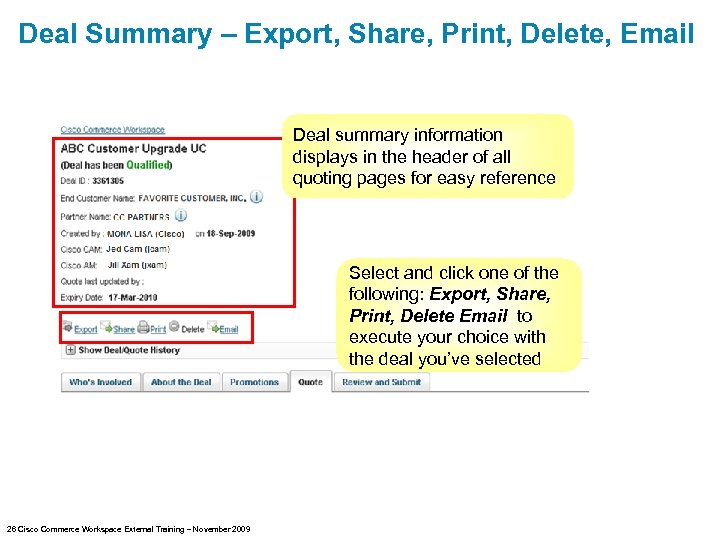 Deal Summary – Export, Share, Print, Delete, Email Deal summary information displays in the header of all quoting pages for easy reference Select and click one of the following: Export, Share, Print, Delete Email to execute your choice with the deal you’ve selected 26 Cisco Commerce Workspace External Training – November 2009
 New Enhancement: Show Me feature Clicking the Show Me feature on Cisco Commerce Workspace pages, provides partners access to pertinent information 27 Cisco Commerce Workspace External Training – November 2009
 Cisco Commerce Workspace Internal Training Section 3 – Create the Deal (Partner Role) 28 Cisco Commerce Workspace External Training – November 2009
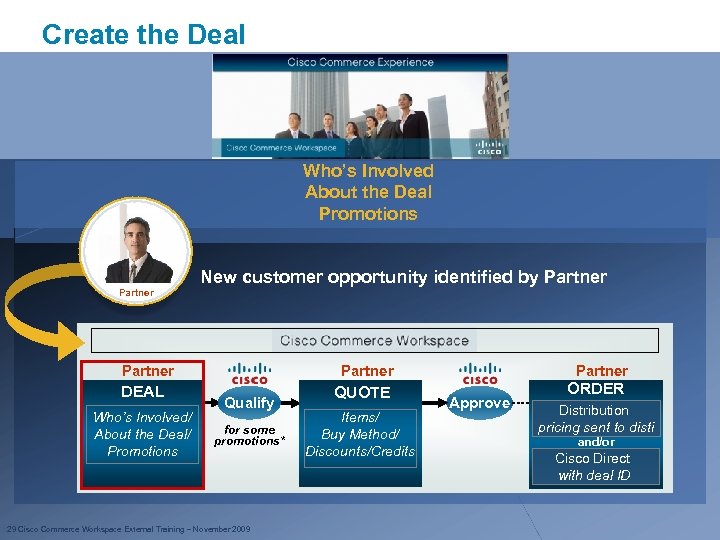 Create the Deal Who’s Involved About the Deal Promotions Partner New customer opportunity identified by Partner DEAL Who’s Involved/ About the Deal/ Promotions Partner Qualify for some promotions* 29 Cisco Commerce Workspace External Training – November 2009 Partner QUOTE ORDER Items/ Buy Method/ Discounts/Credits Approve Distribution pricing sent to disti and/or Cisco Direct with deal ID
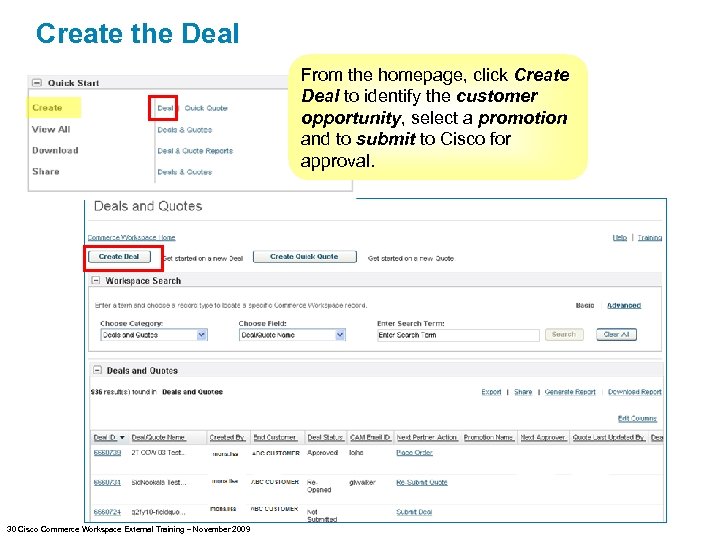 Create the Deal From the homepage, click Create Deal to identify the customer opportunity, select a promotion and to submit to Cisco for approval. 30 Cisco Commerce Workspace External Training – November 2009
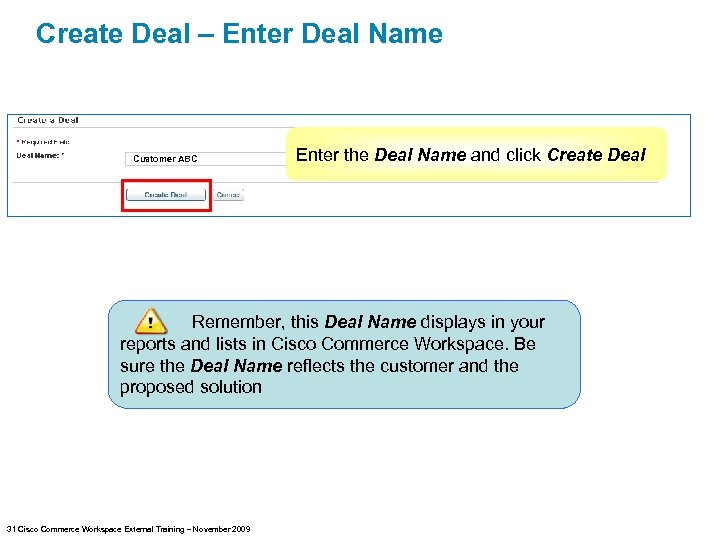 Create Deal – Enter Deal Name Customer ABC Enter the Deal Name and click Create Deal Remember, this Deal Name displays in your reports and lists in Cisco Commerce Workspace. Be sure the Deal Name reflects the customer and the proposed solution 31 Cisco Commerce Workspace External Training – November 2009
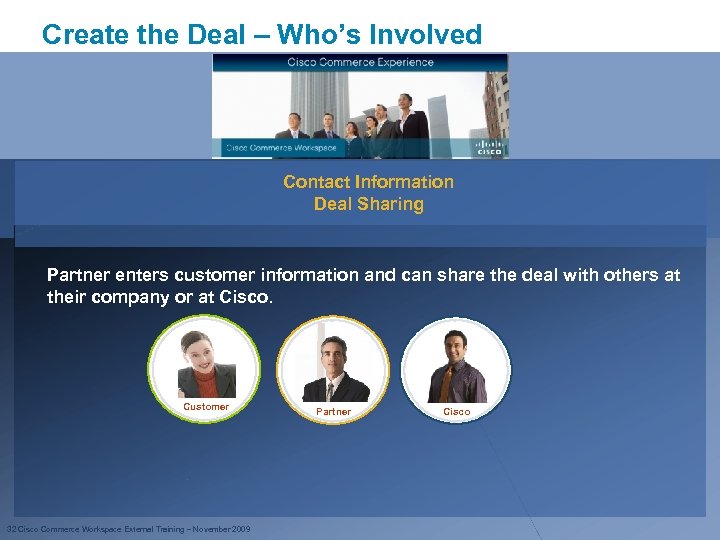 Create the Deal – Who’s Involved Contact Information Deal Sharing Partner enters customer information and can share the deal with others at their company or at Cisco. Customer 32 Cisco Commerce Workspace External Training – November 2009 Partner Cisco
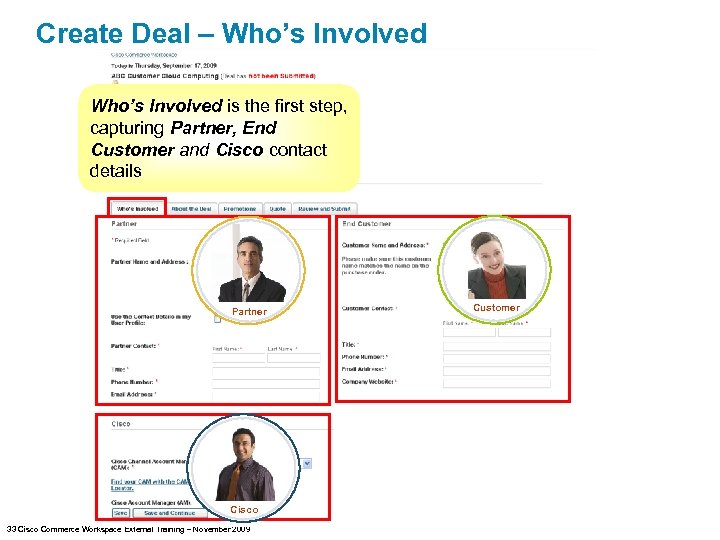 Create Deal – Who’s Involved is the first step, capturing Partner, End Customer and Cisco contact details Partner Cisco 33 Cisco Commerce Workspace External Training – November 2009 Customer
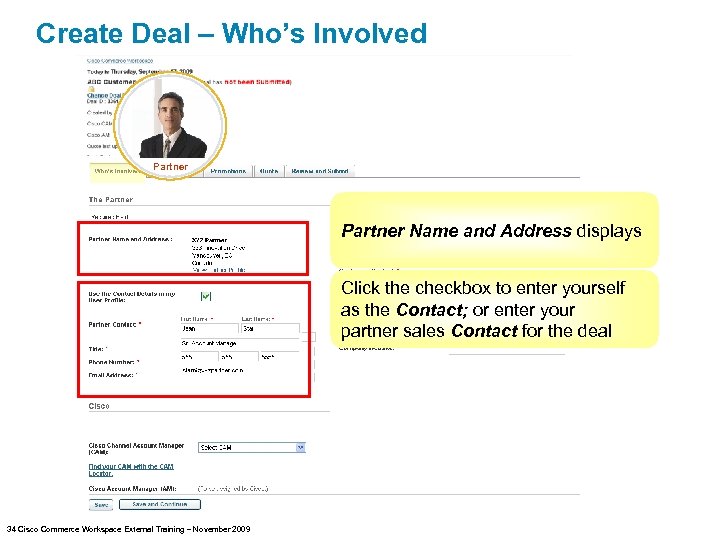 Create Deal – Who’s Involved Partner Name and Address displays Click the checkbox to enter yourself as the Contact; or enter your partner sales Contact for the deal 34 Cisco Commerce Workspace External Training – November 2009
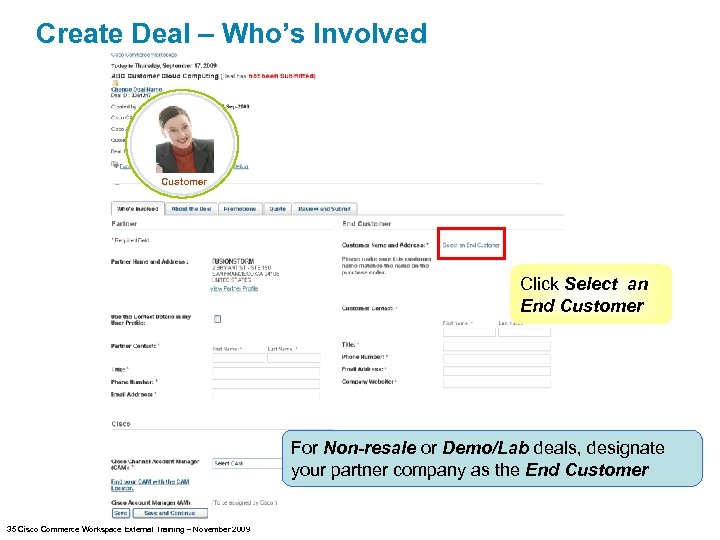 Create Deal – Who’s Involved Customer Click Select an End Customer For Non-resale or Demo/Lab deals, designate your partner company as the End Customer 35 Cisco Commerce Workspace External Training – November 2009
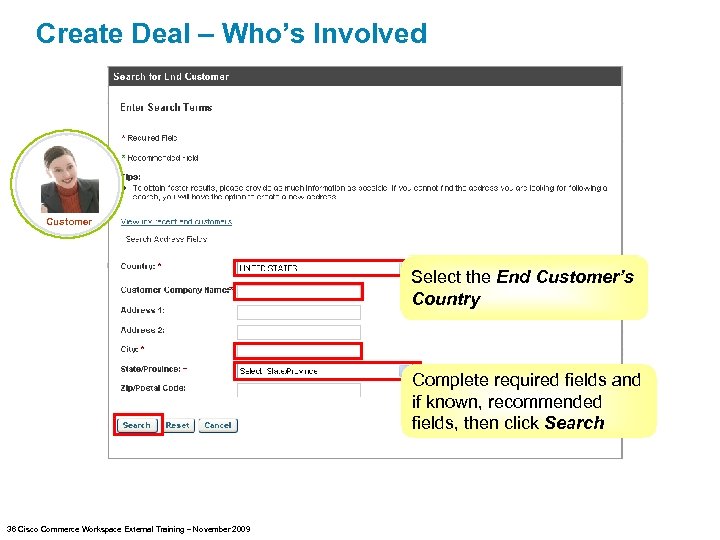 Create Deal – Who’s Involved Customer Select the End Customer’s Country Complete required fields and if known, recommended fields, then click Search 36 Cisco Commerce Workspace External Training – November 2009
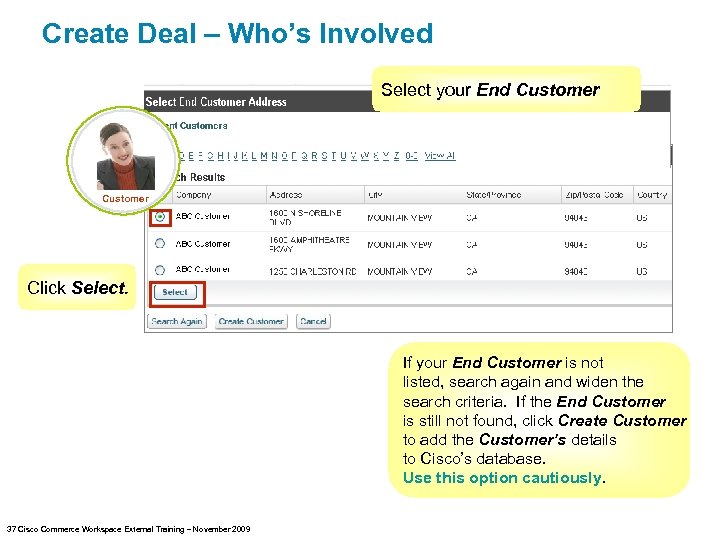 Create Deal – Who’s Involved Select your End Customer Click Select. If your End Customer is not listed, search again and widen the search criteria. If the End Customer is still not found, click Create Customer to add the Customer’s details to Cisco’s database. Use this option cautiously. 37 Cisco Commerce Workspace External Training – November 2009
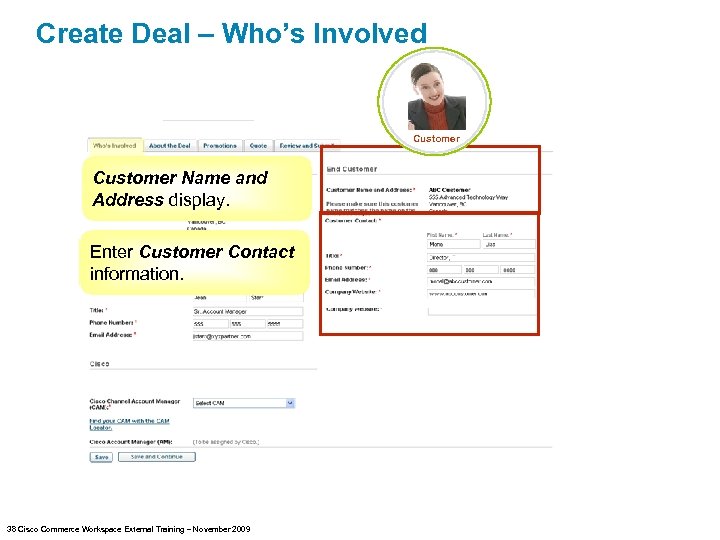 Create Deal – Who’s Involved Customer Name and Address display. Enter Customer Contact information. 38 Cisco Commerce Workspace External Training – November 2009
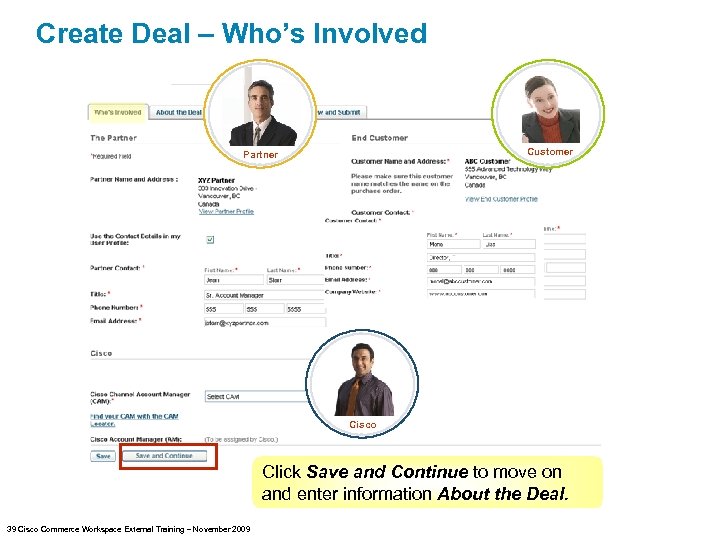 Create Deal – Who’s Involved Customer Partner Cisco Click Save and Continue to move on and enter information About the Deal. 39 Cisco Commerce Workspace External Training – November 2009
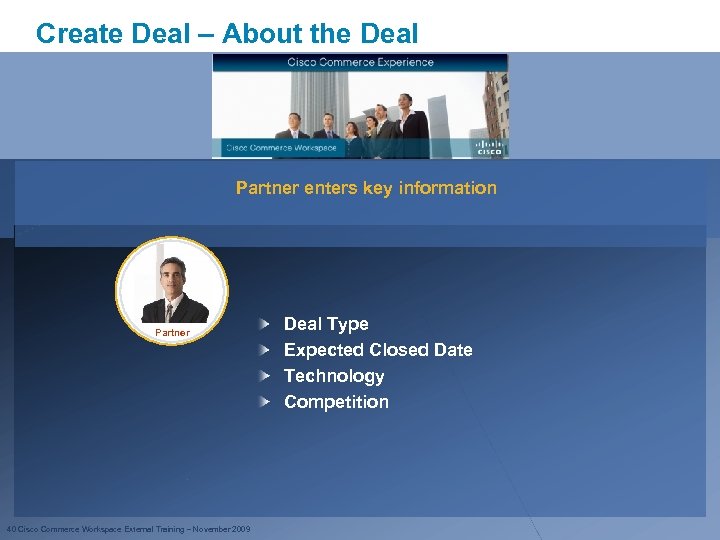 Create Deal – About the Deal Partner enters key information Partner 40 Cisco Commerce Workspace External Training – November 2009 Deal Type Expected Closed Date Technology Competition
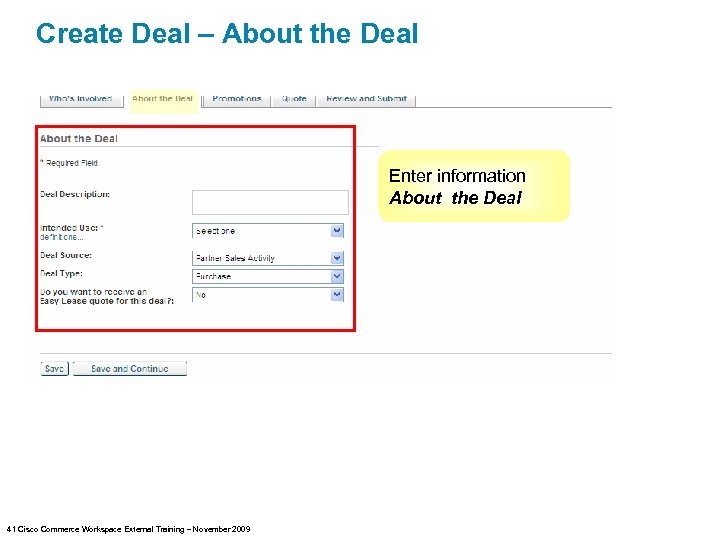 Create Deal – About the Deal Enter information About the Deal 41 Cisco Commerce Workspace External Training – November 2009
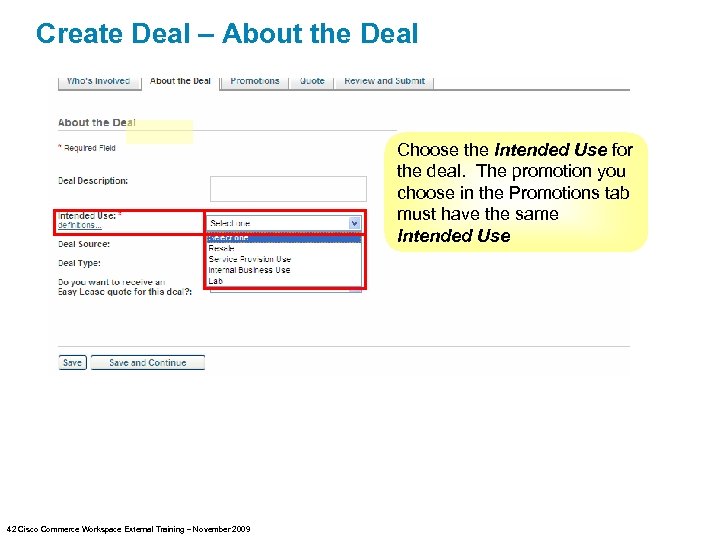 Create Deal – About the Deal Choose the Intended Use for the deal. The promotion you choose in the Promotions tab must have the same Intended Use 42 Cisco Commerce Workspace External Training – November 2009
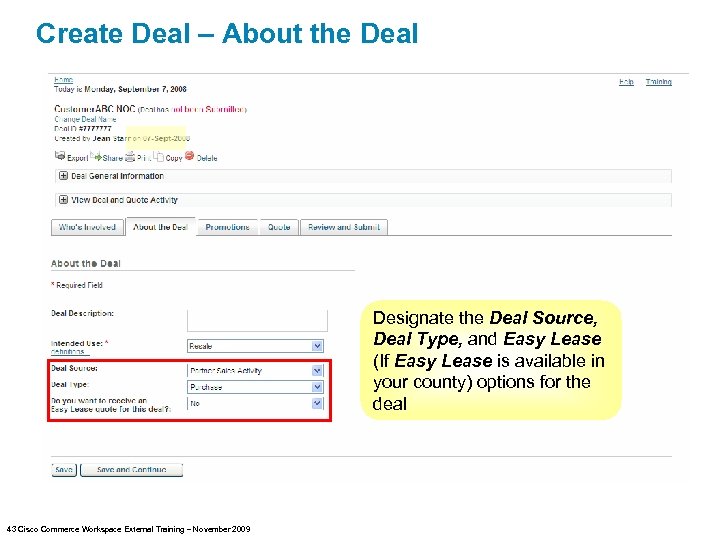 Create Deal – About the Deal Designate the Deal Source, Deal Type, and Easy Lease (If Easy Lease is available in your county) options for the deal 43 Cisco Commerce Workspace External Training – November 2009
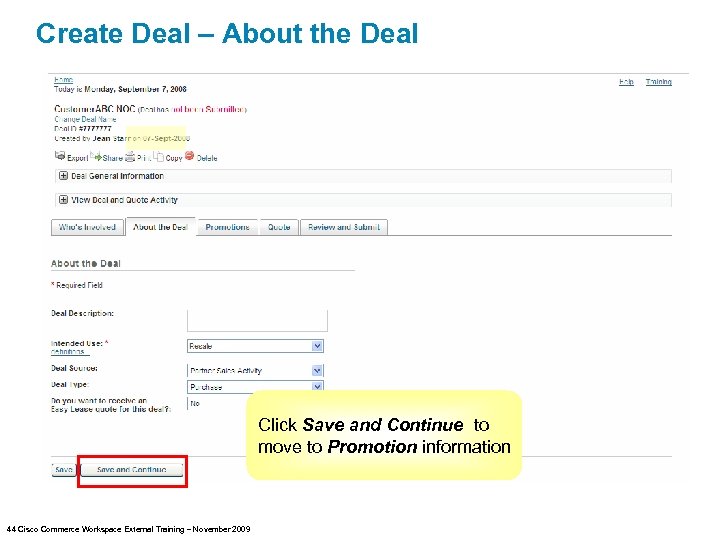 Create Deal – About the Deal Click Save and Continue to move to Promotion information 44 Cisco Commerce Workspace External Training – November 2009
 Create Deal – Promotions Pricing concessions on deals are often based on promotions available to the partner A list of promotions the partner is eligible for displays. Each promotion will have a unique qualifying information form that must be completed Some promotions require files to be uploaded (such as site surveys) * See the Cisco Commerce Workspace training website for a quick reference guide on how promotions work in specific countries. 45 Cisco Commerce Workspace External Training – November 2009
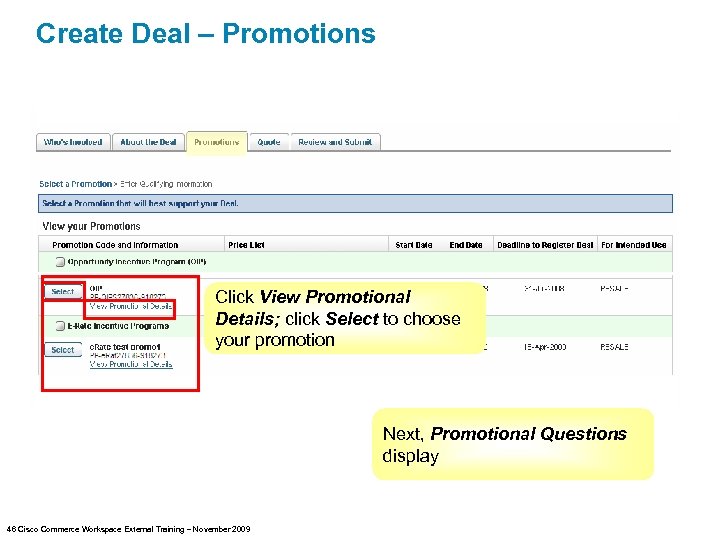 Create Deal – Promotions Click View Promotional Details; click Select to choose your promotion Next, Promotional Questions display 46 Cisco Commerce Workspace External Training – November 2009
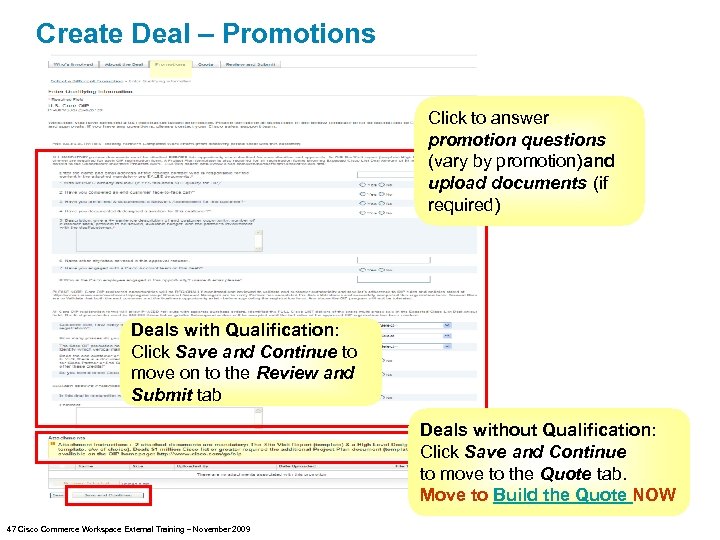 Create Deal – Promotions Click to answer promotion questions (vary by promotion)and upload documents (if required) Deals with Qualification: Click Save and Continue to move on to the Review and Submit tab Deals without Qualification: Click Save and Continue to move to the Quote tab. Move to Build the Quote NOW 47 Cisco Commerce Workspace External Training – November 2009
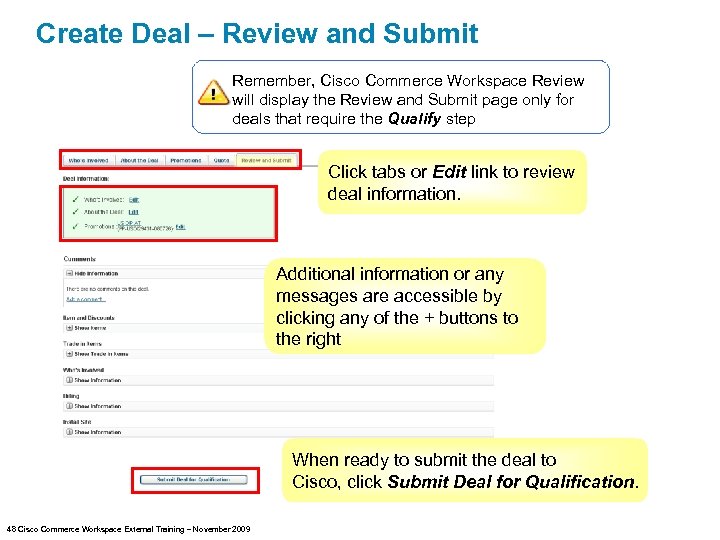 Create Deal – Review and Submit Remember, Cisco Commerce Workspace Review will display the Review and Submit page only for deals that require the Qualify step Click tabs or Edit link to review deal information. Additional information or any messages are accessible by clicking any of the + buttons to the right When ready to submit the deal to Cisco, click Submit Deal for Qualification. 48 Cisco Commerce Workspace External Training – November 2009
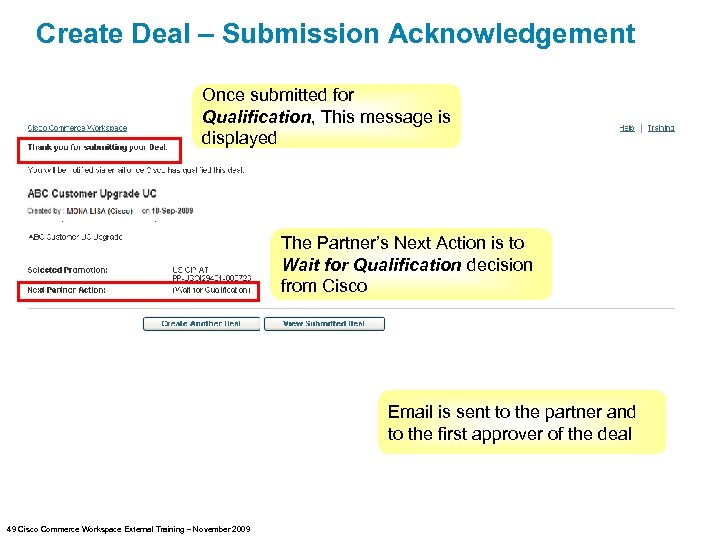 Create Deal – Submission Acknowledgement Once submitted for Qualification, This message is displayed The Partner’s Next Action is to Wait for Qualification decision from Cisco Email is sent to the partner and to the first approver of the deal 49 Cisco Commerce Workspace External Training – November 2009
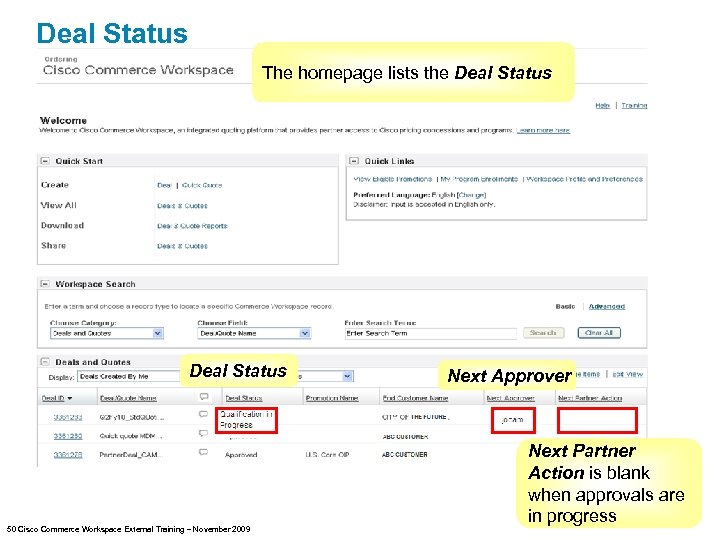 Deal Status The homepage lists the Deal Status 50 Cisco Commerce Workspace External Training – November 2009 Next Approver Next Partner Action is blank when approvals are in progress
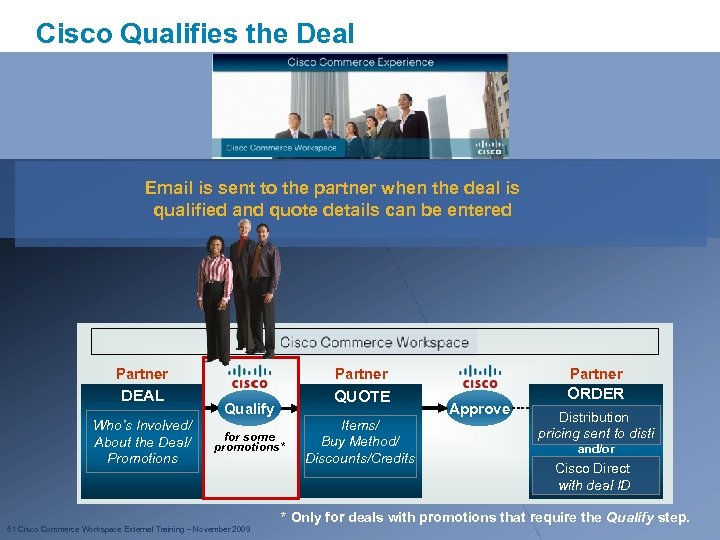 Cisco Qualifies the Deal Email is sent to the partner when the deal is qualified and quote details can be entered Partner DEAL QUOTE ORDER Who’s Involved/ About the Deal/ Promotions Qualify for some promotions* Items/ Buy Method/ Discounts/Credits Approve Distribution pricing sent to disti and/or Cisco Direct with deal ID * Only for deals with promotions that require the Qualify step. 51 Cisco Commerce Workspace External Training – November 2009
 Cisco Commerce Workspace Training Section 4 – Create the Quote (Partner Role) 52 Cisco Commerce Workspace External Training – November 2009
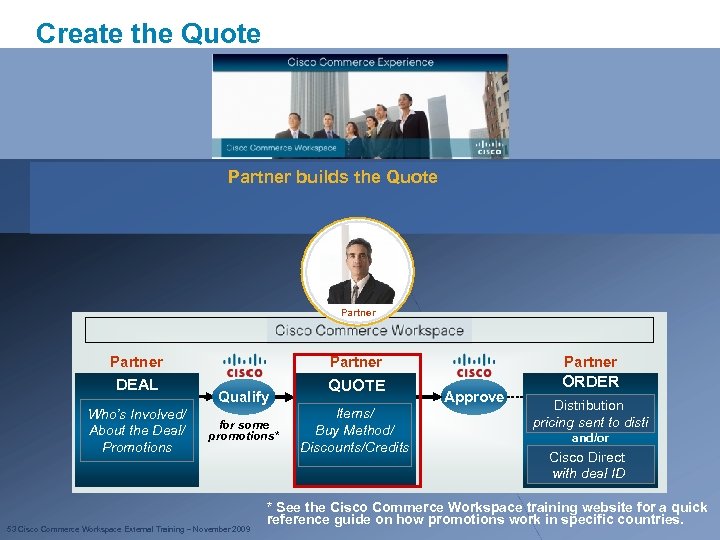 Create the Quote Partner builds the Quote Partner DEAL QUOTE ORDER Who’s Involved/ About the Deal/ Promotions Qualify for some promotions* 53 Cisco Commerce Workspace External Training – November 2009 Items/ Buy Method/ Discounts/Credits Approve Distribution pricing sent to disti and/or Cisco Direct with deal ID * See the Cisco Commerce Workspace training website for a quick reference guide on how promotions work in specific countries.
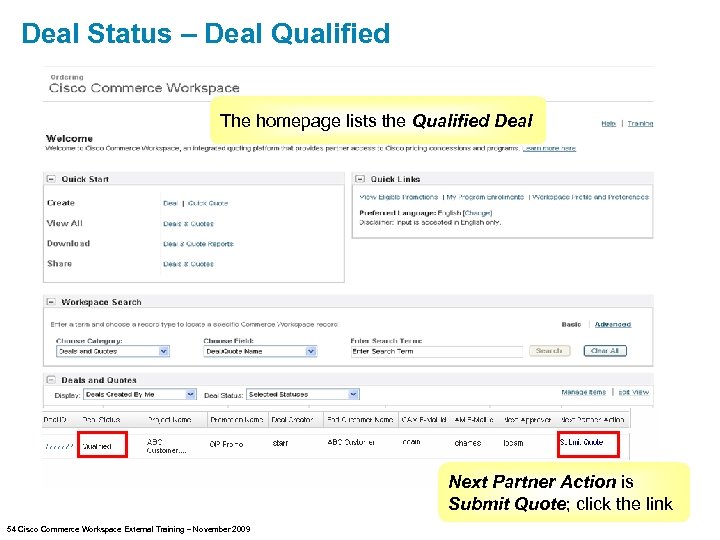 Deal Status – Deal Qualified The homepage lists the Qualified Deal Next Partner Action is Submit Quote; click the link 54 Cisco Commerce Workspace External Training – November 2009
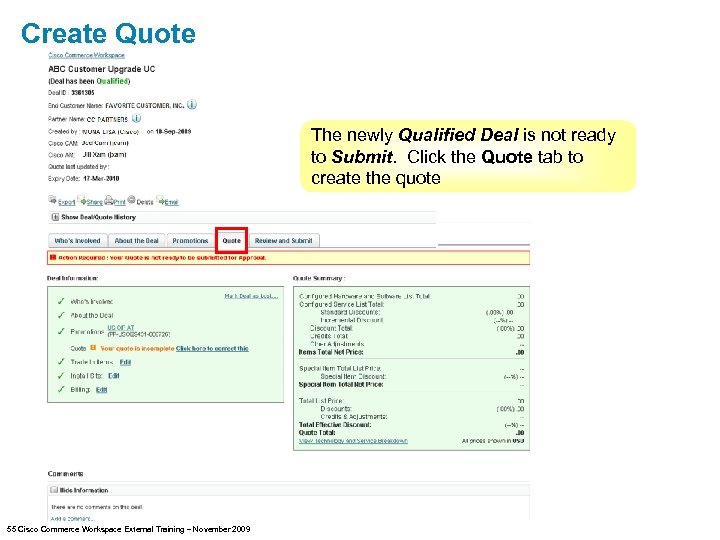 Create Quote The newly Qualified Deal is not ready to Submit. Click the Quote tab to create the quote 55 Cisco Commerce Workspace External Training – November 2009
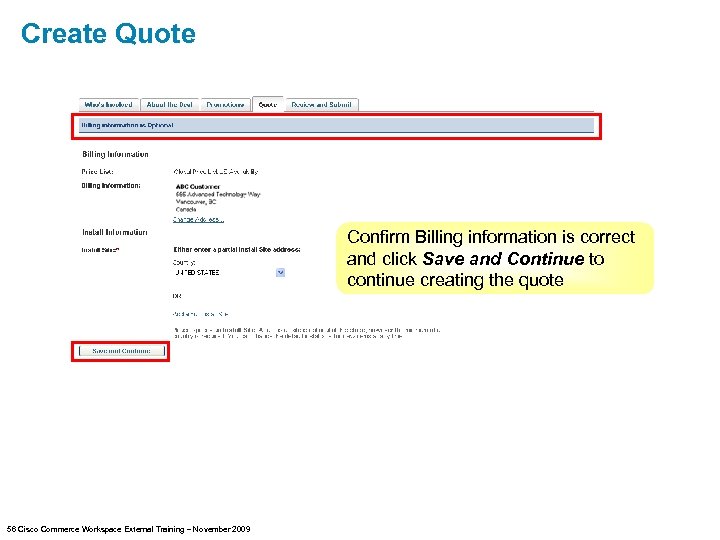 Create Quote Confirm Billing information is correct and click Save and Continue to continue creating the quote 56 Cisco Commerce Workspace External Training – November 2009
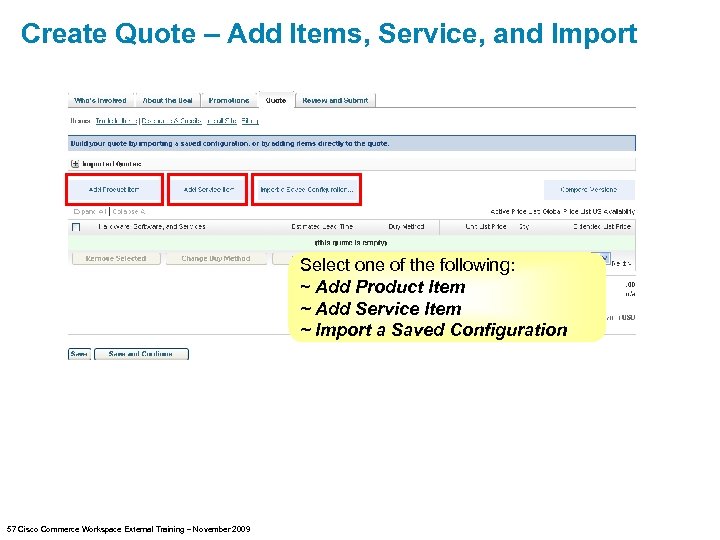 Create Quote – Add Items, Service, and Import Select one of the following: ~ Add Product Item ~ Add Service Item ~ Import a Saved Configuration 57 Cisco Commerce Workspace External Training – November 2009
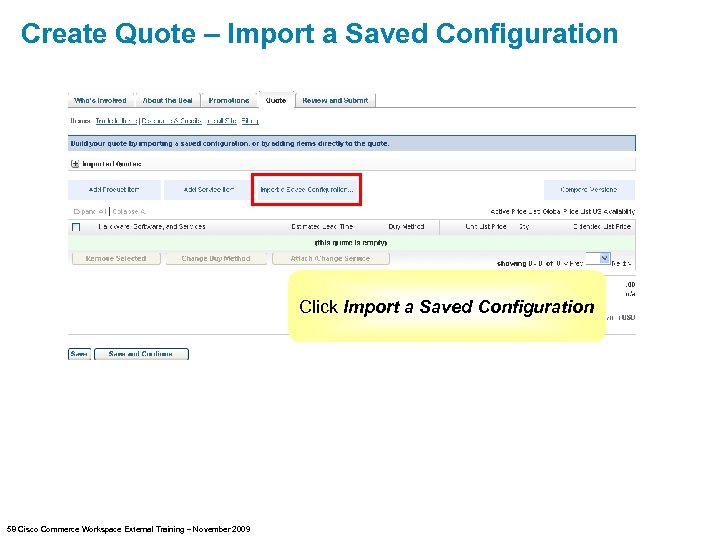 Create Quote – Import a Saved Configuration Click Import a Saved Configuration 58 Cisco Commerce Workspace External Training – November 2009
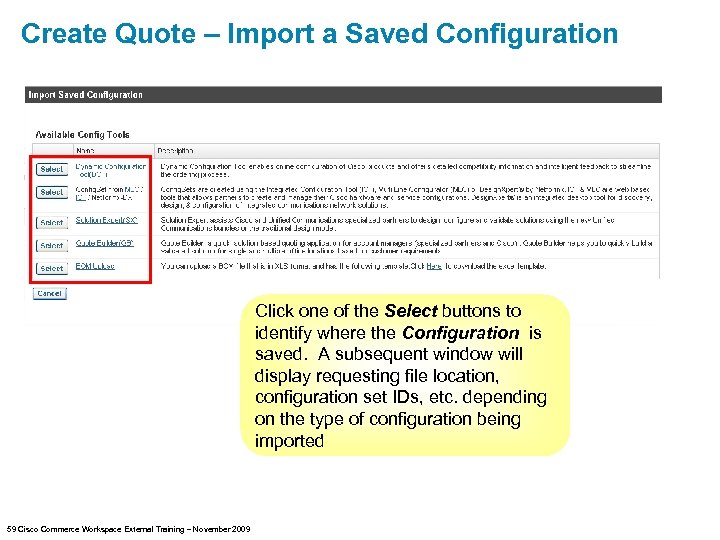 Create Quote – Import a Saved Configuration Click one of the Select buttons to identify where the Configuration is saved. A subsequent window will display requesting file location, configuration set IDs, etc. depending on the type of configuration being imported 59 Cisco Commerce Workspace External Training – November 2009
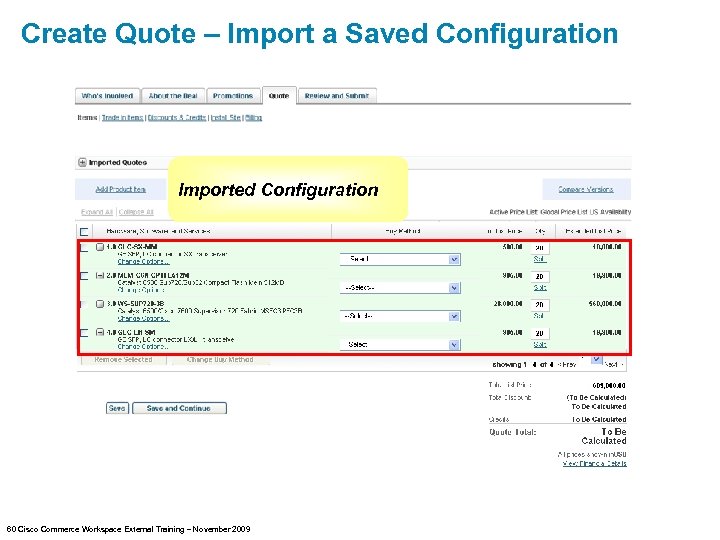 Create Quote – Import a Saved Configuration Imported Configuration 60 Cisco Commerce Workspace External Training – November 2009
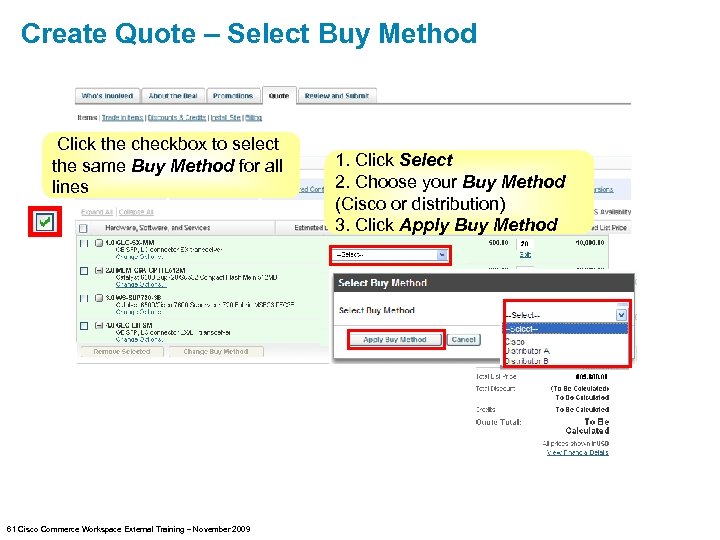 Create Quote – Select Buy Method Click the checkbox to select the same Buy Method for all lines 61 Cisco Commerce Workspace External Training – November 2009 1. Click Select 2. Choose your Buy Method (Cisco or distribution) 3. Click Apply Buy Method
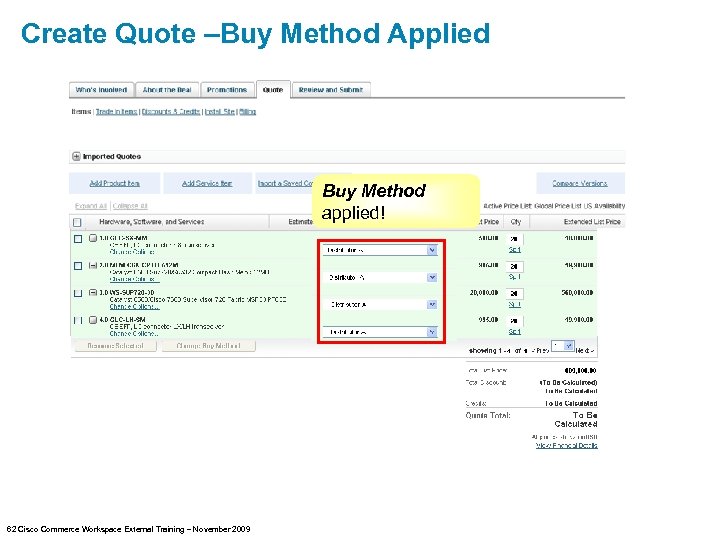 Create Quote –Buy Method Applied Buy Method applied! 62 Cisco Commerce Workspace External Training – November 2009
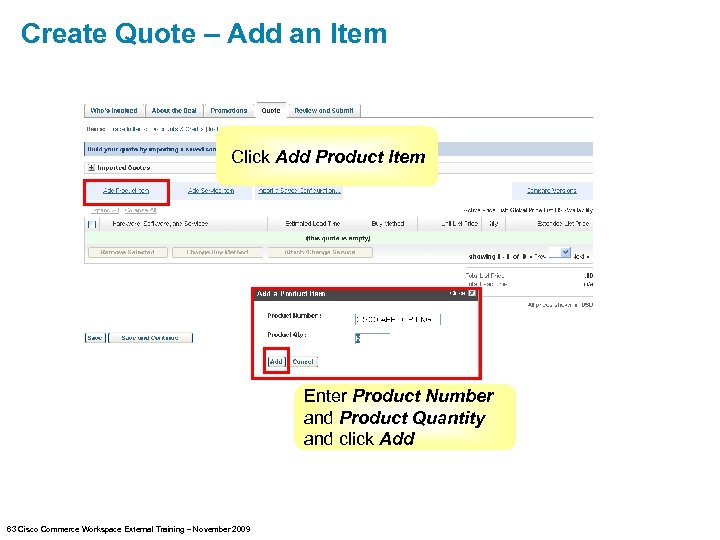 Create Quote – Add an Item Click Add Product Item Enter Product Number and Product Quantity and click Add 63 Cisco Commerce Workspace External Training – November 2009
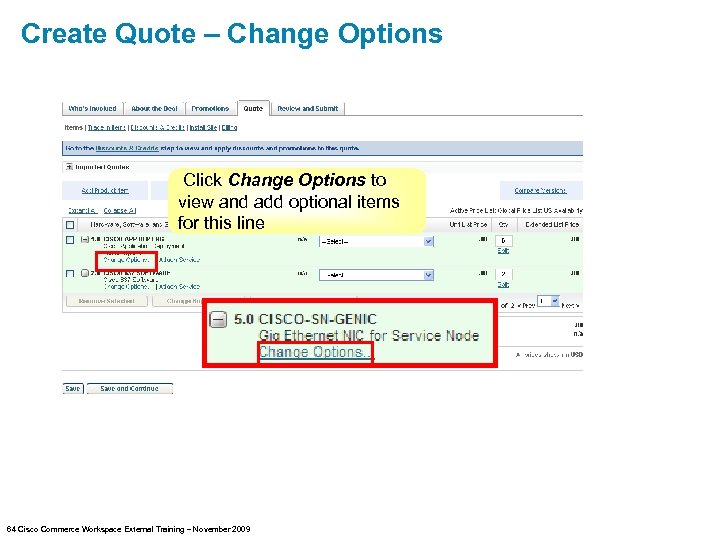 Create Quote – Change Options Click Change Options to view and add optional items for this line 64 Cisco Commerce Workspace External Training – November 2009
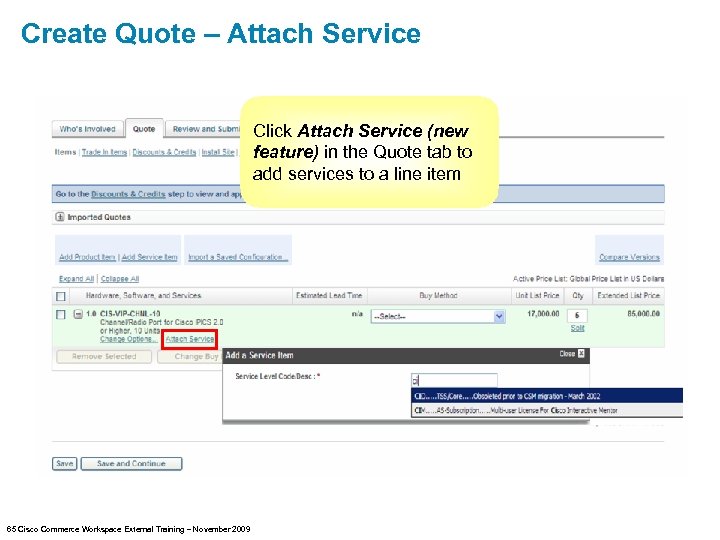 Create Quote – Attach Service Click Attach Service (new feature) in the Quote tab to add services to a line item 65 Cisco Commerce Workspace External Training – November 2009
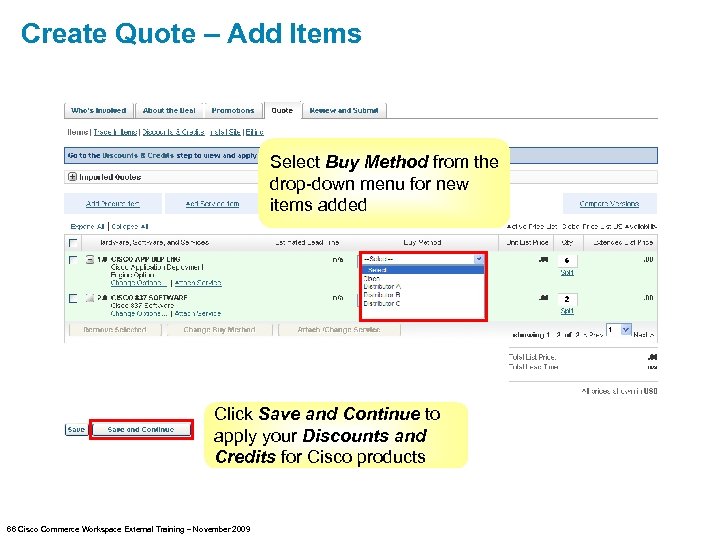 Create Quote – Add Items Select Buy Method from the drop-down menu for new items added Click Save and Continue to apply your Discounts and Credits for Cisco products 66 Cisco Commerce Workspace External Training – November 2009
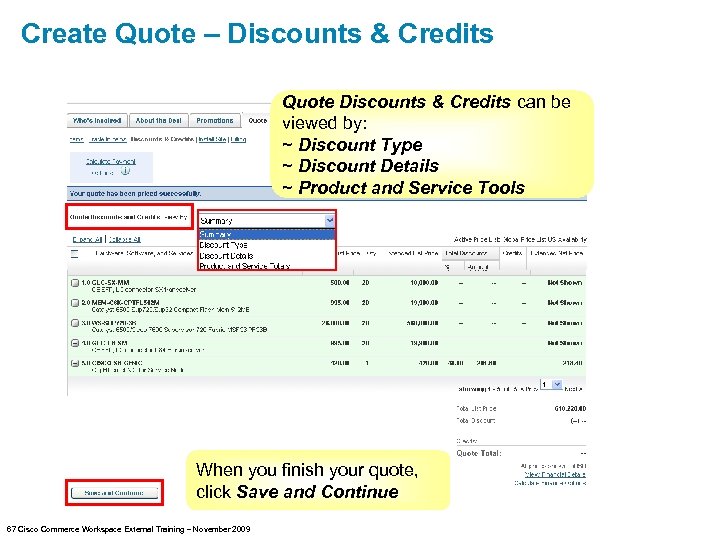 Create Quote – Discounts & Credits Quote Discounts & Credits can be viewed by: ~ Discount Type ~ Discount Details ~ Product and Service Tools When you finish your quote, click Save and Continue 67 Cisco Commerce Workspace External Training – November 2009
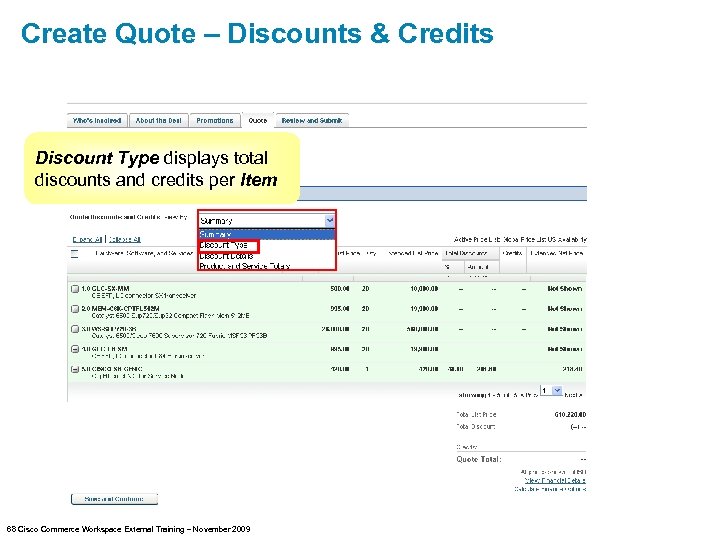 Create Quote – Discounts & Credits Discount Type displays total discounts and credits per Item 68 Cisco Commerce Workspace External Training – November 2009
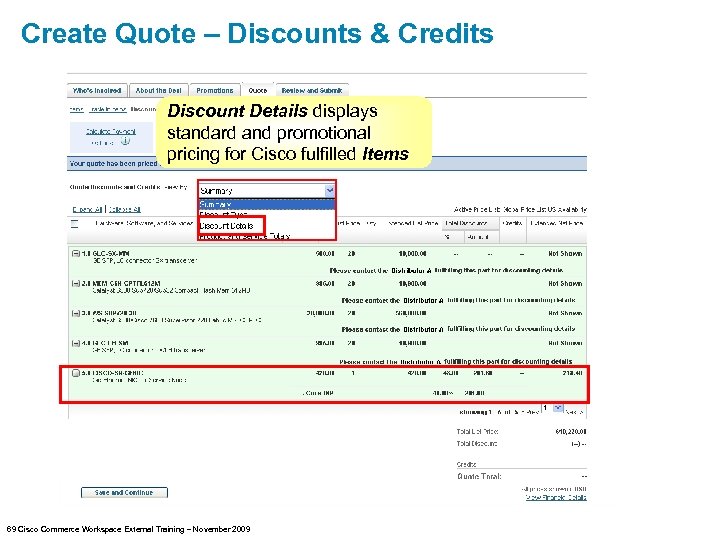 Create Quote – Discounts & Credits Discount Details displays standard and promotional pricing for Cisco fulfilled Items 69 Cisco Commerce Workspace External Training – November 2009
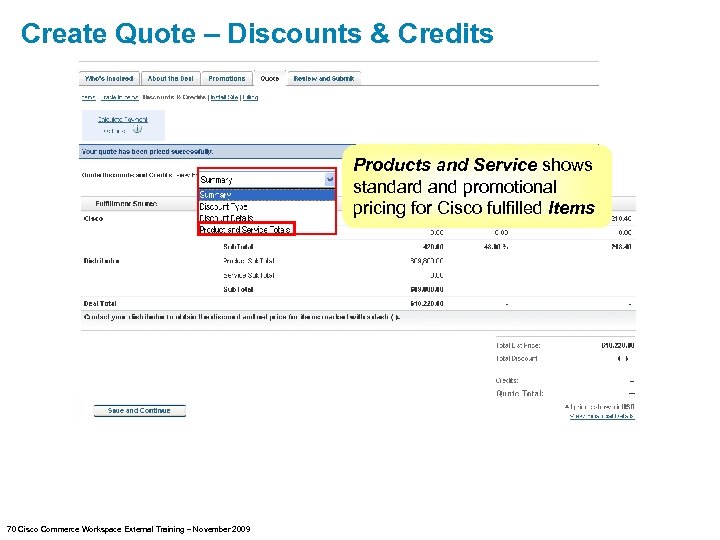 Create Quote – Discounts & Credits Products and Service shows standard and promotional pricing for Cisco fulfilled Items 70 Cisco Commerce Workspace External Training – November 2009
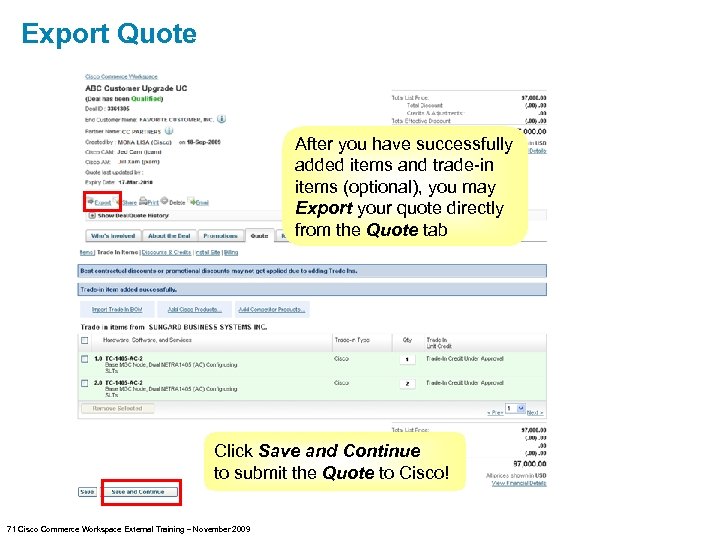 Export Quote After you have successfully added items and trade-in items (optional), you may Export your quote directly from the Quote tab Click Save and Continue to submit the Quote to Cisco! 71 Cisco Commerce Workspace External Training – November 2009
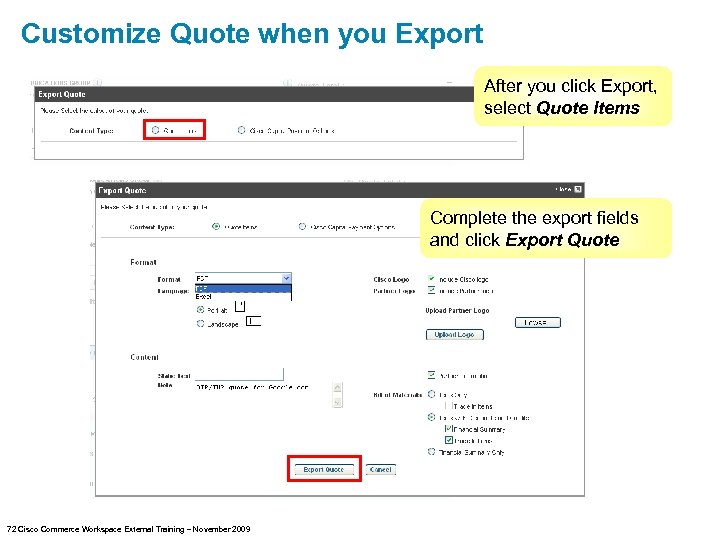 Customize Quote when you Export After you click Export, select Quote Items Complete the export fields and click Export Quote 72 Cisco Commerce Workspace External Training – November 2009
 Cisco Commerce Workspace Training Section 5 – Cisco Trade-in Migration Program (Partner Role) 73 Cisco Commerce Workspace External Training – November 2009
 Cisco Trade-in Migration Program Partners can offer customers trade-in credit for their existing Cisco products and select competitive networking products toward purchase of new Cisco products Partners enrolled in the Cisco Technology Migration Program (TMP) can use Cisco Commerce Workspace to apply trade-in credits to quotes for: Cisco branded products Competitor branded products Search trade-in part numbers via Cisco’s data warehouse Upload Cisco branded items via Excel Cisco Approvers can adjust the pre-calculated credit of the trade-in quote during the approval process Some trade-in credit quotes will be auto-approved Trade-in credit quotes can be included with promotional discounts Trade-In credit quotes must have a single fulfillment source for all items being purchased (either Cisco or a single distributor) 74 Cisco Commerce Workspace External Training – November 2009
 Cisco Trade-in Migration Program Your company must be enrolled in the Cisco Trade-in Migration Program (TMP) to trade-in items With the Cisco Technology Migration Program (TMP), partners can offer customers trade-in credit for their existing Cisco products and select competitive networking products toward the purchase of new Cisco products. This global program includes most major products offered by Cisco as well as select competitive products. Your CSApp Administrator should enroll your company via Partner Program Enrollment. See the Access, Training and Support section of this document. 75 Cisco Commerce Workspace External Training – November 2009
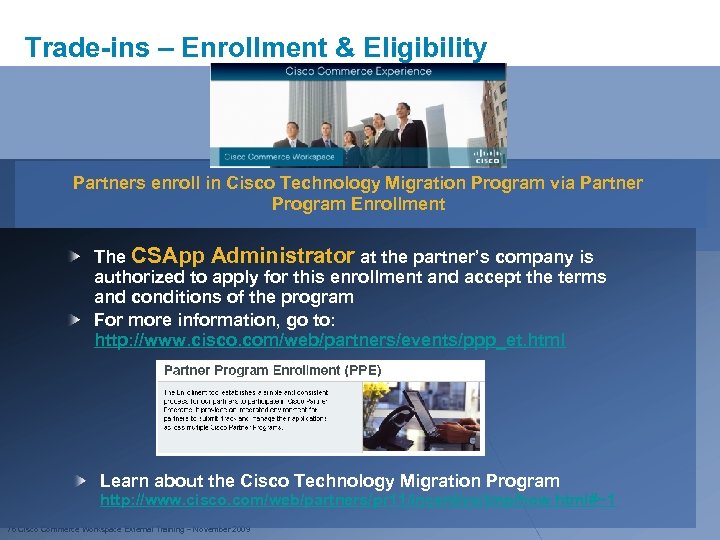 Trade-ins – Enrollment & Eligibility Partners enroll in Cisco Technology Migration Program via Partner Program Enrollment The CSApp Administrator at the partner’s company is authorized to apply for this enrollment and accept the terms and conditions of the program For more information, go to: http: //www. cisco. com/web/partners/events/ppp_et. html Learn about the Cisco Technology Migration Program http: //www. cisco. com/web/partners/pr 11/incentive/tmp/how. html#~1 76 Cisco Commerce Workspace External Training – November 2009
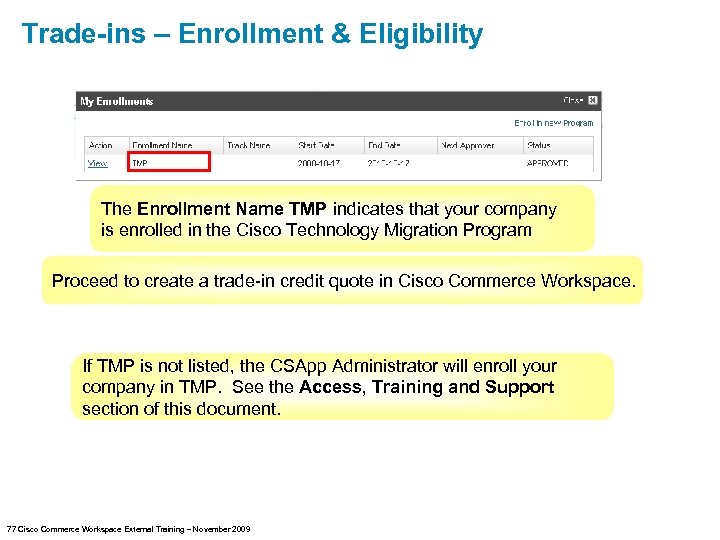 Trade-ins – Enrollment & Eligibility The Enrollment Name TMP indicates that your company is enrolled in the Cisco Technology Migration Program Proceed to create a trade-in credit quote in Cisco Commerce Workspace. If TMP is not listed, the CSApp Administrator will enroll your company in TMP. See the Access, Training and Support section of this document. 77 Cisco Commerce Workspace External Training – November 2009
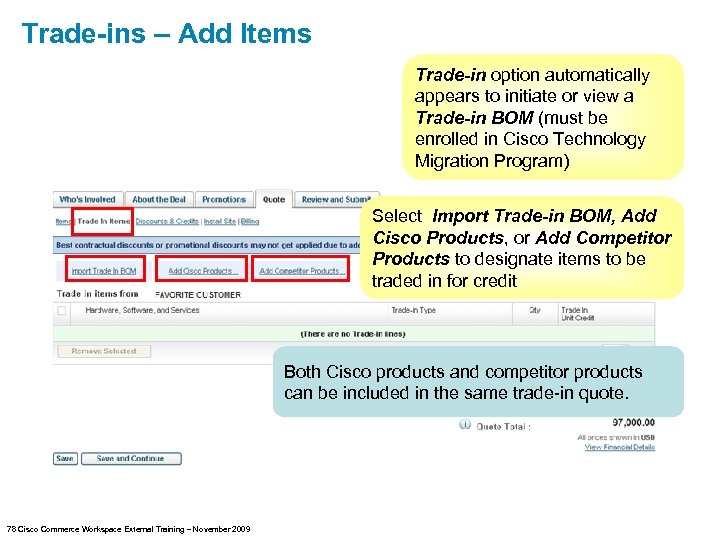 Trade-ins – Add Items Trade-in option automatically appears to initiate or view a Trade-in BOM (must be enrolled in Cisco Technology Migration Program) Select Import Trade-in BOM, Add Cisco Products, or Add Competitor Products to designate items to be traded in for credit Both Cisco products and competitor products can be included in the same trade-in quote. 78 Cisco Commerce Workspace External Training – November 2009
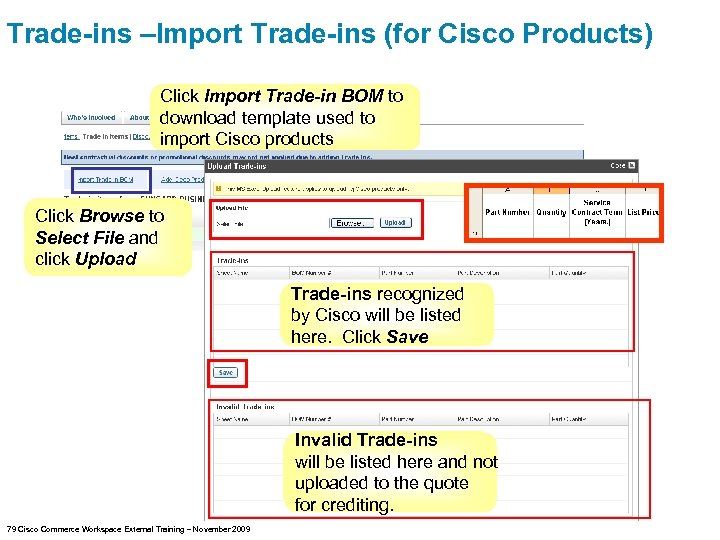 Trade-ins –Import Trade-ins (for Cisco Products) Click Import Trade-in BOM to download template used to import Cisco products Click Browse to Select File and click Upload Trade-ins recognized by Cisco will be listed here. Click Save Invalid Trade-ins will be listed here and not uploaded to the quote for crediting. 79 Cisco Commerce Workspace External Training – November 2009
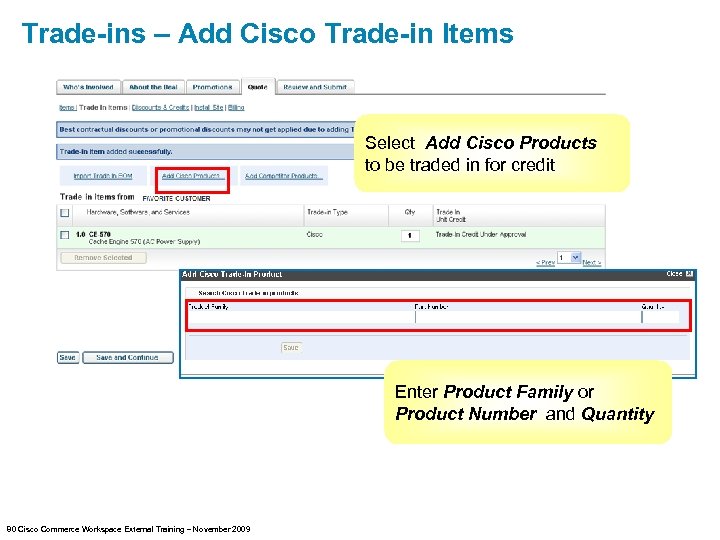 Trade-ins – Add Cisco Trade-in Items Select Add Cisco Products to be traded in for credit Enter Product Family or Product Number and Quantity 80 Cisco Commerce Workspace External Training – November 2009
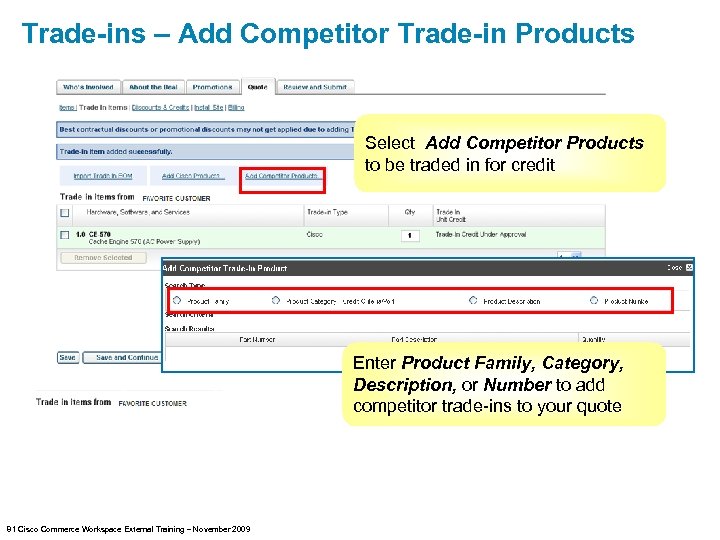 Trade-ins – Add Competitor Trade-in Products Select Add Competitor Products to be traded in for credit Enter Product Family, Category, Description, or Number to add competitor trade-ins to your quote 81 Cisco Commerce Workspace External Training – November 2009
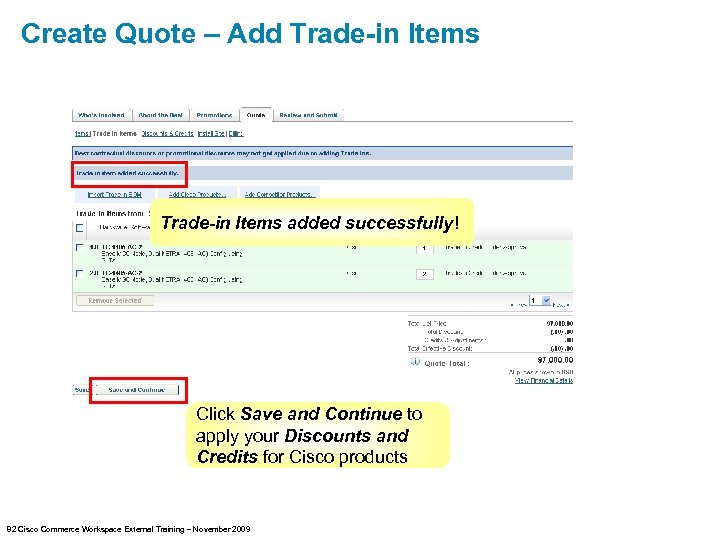 Create Quote – Add Trade-in Items added successfully! Click Save and Continue to apply your Discounts and Credits for Cisco products 82 Cisco Commerce Workspace External Training – November 2009
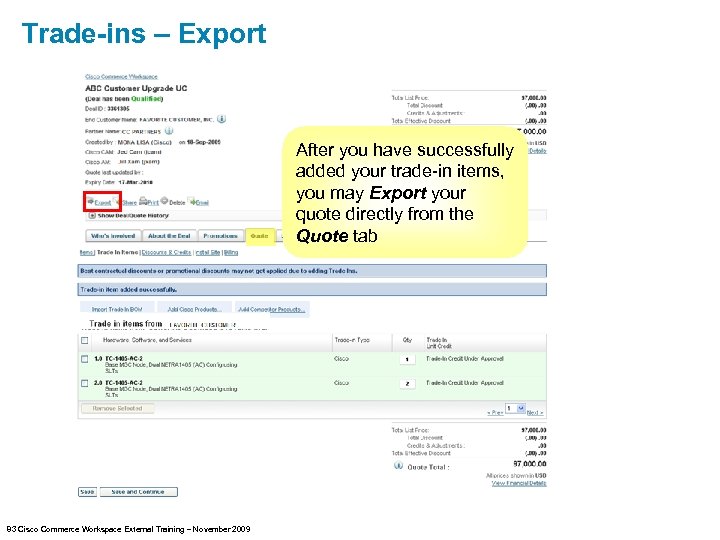 Trade-ins – Export After you have successfully added your trade-in items, you may Export your quote directly from the Quote tab 83 Cisco Commerce Workspace External Training – November 2009
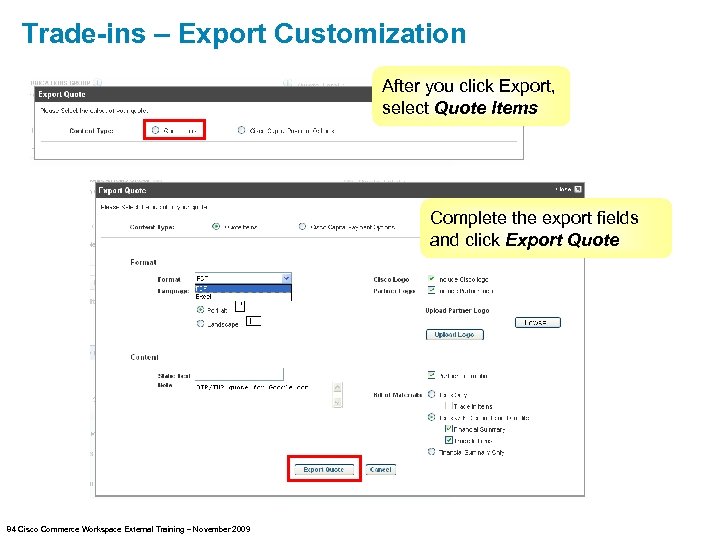 Trade-ins – Export Customization After you click Export, select Quote Items Complete the export fields and click Export Quote 84 Cisco Commerce Workspace External Training – November 2009
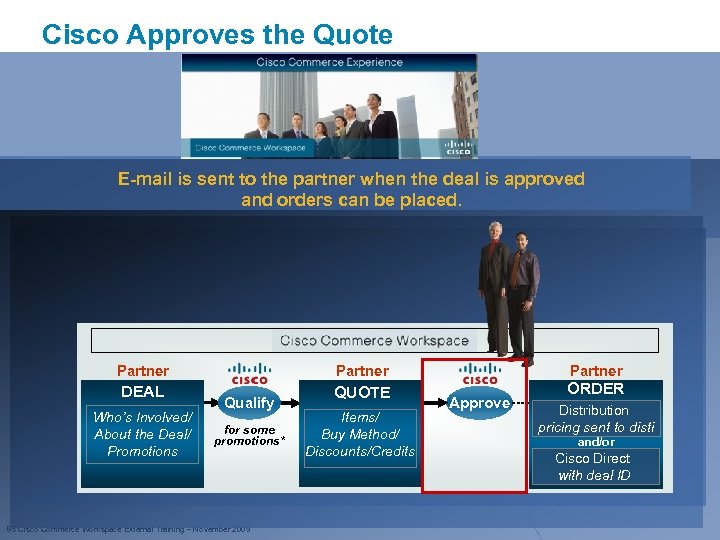 Cisco Approves the Quote E-mail is sent to the partner when the deal is approved and orders can be placed. Partner DEAL QUOTE ORDER Who’s Involved/ About the Deal/ Promotions Qualify for some promotions* 85 Cisco Commerce Workspace External Training – November 2009 Items/ Buy Method/ Discounts/Credits Approve Distribution pricing sent to disti and/or Cisco Direct with deal ID
 Cisco Commerce Workspace Training Section 6 – Quote Collaboration 86 Cisco Commerce Workspace External Training – November 2009
 Quote Collaboration The Cisco Sales Account Manager (AM) has new bi-directional quoting capability in their workspace New Capabilities for Cisco Sales Account Managers: • A new share button will allow the Cisco Sales Team to collaborate with you from within their own workspace • Cisco Sales Account Manager may select the CAM and partner contact when they create a quote and are ready to share for collaboration • Cisco Sales Account Manager can create and share Trade-in quotes 87 Cisco Commerce Workspace External Training – November 2009
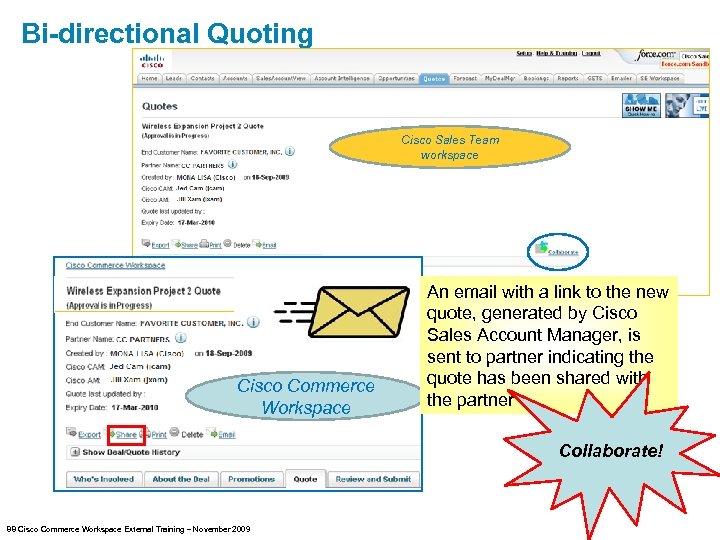 Bi-directional Quoting Cisco Sales Team workspace Cisco Commerce Workspace An email with a link to the new quote, generated by Cisco Sales Account Manager, is sent to partner indicating the quote has been shared with the partner Collaborate! 88 Cisco Commerce Workspace External Training – November 2009
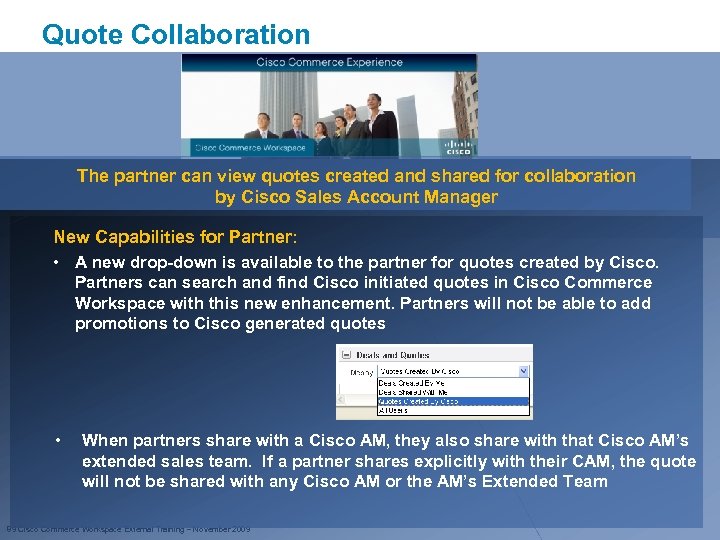 Quote Collaboration The partner can view quotes created and shared for collaboration by Cisco Sales Account Manager New Capabilities for Partner: • A new drop-down is available to the partner for quotes created by Cisco. Partners can search and find Cisco initiated quotes in Cisco Commerce Workspace with this new enhancement. Partners will not be able to add promotions to Cisco generated quotes • When partners share with a Cisco AM, they also share with that Cisco AM’s extended sales team. If a partner shares explicitly with their CAM, the quote will not be shared with any Cisco AM or the AM’s Extended Team 89 Cisco Commerce Workspace External Training – November 2009
 Quote Collaboration Need to make a change to your Quote even though it’s in Cisco’s Approval cycle? It’s Easy! To Stop the Approval Cycle and Edit the Quote: 1. Click the Deal ID link 2. From the review and submit tab, click Edit this Quote See Quote Revisions section for more information 90 Cisco Commerce Workspace External Training – November 2009
 Cisco Commerce Workspace Training Section 7 – Place Orders (Partner Role) 91 Cisco Commerce Workspace External Training – November 2009
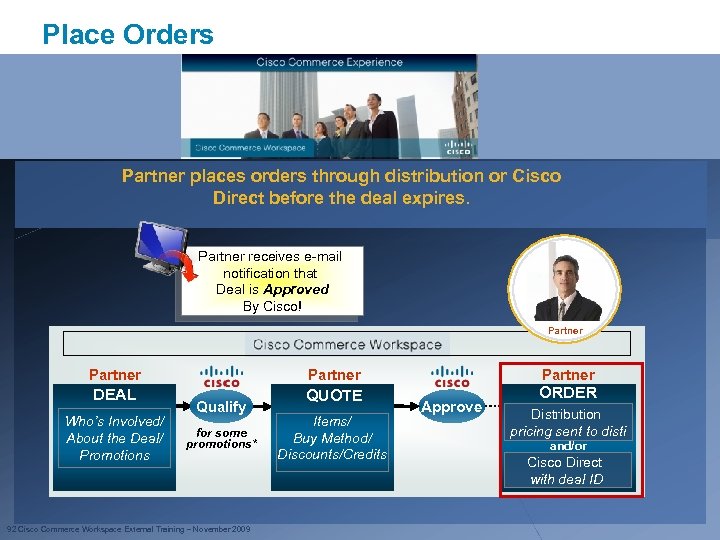 Place Orders Partner places orders through distribution or Cisco Direct before the deal expires. Partner receives e-mail notification that Deal is Approved By Cisco! Partner DEAL Who’s Involved/ About the Deal/ Promotions Partner Qualify for some promotions* 92 Cisco Commerce Workspace External Training – November 2009 QUOTE Items/ Buy Method/ Discounts/Credits Partner Approve ORDER Distribution pricing sent to disti and/or Cisco Direct with deal ID
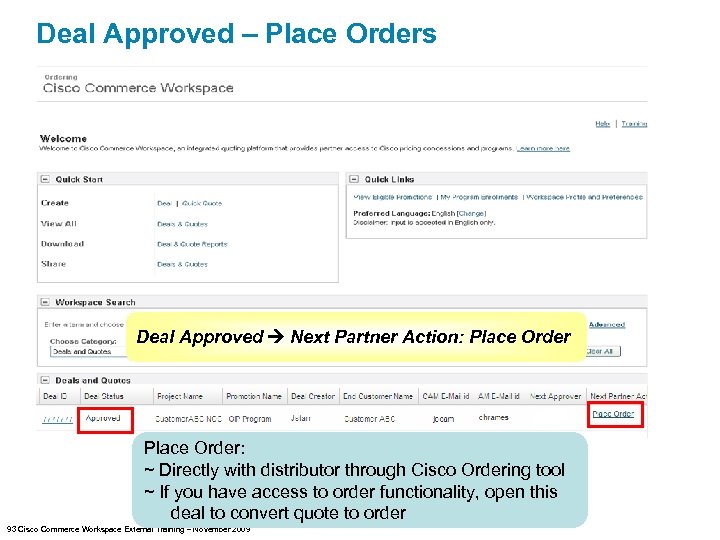 Deal Approved – Place Orders Deal Approved Next Partner Action: Place Order: ~ Directly with distributor through Cisco Ordering tool ~ If you have access to order functionality, open this deal to convert quote to order 93 Cisco Commerce Workspace External Training – November 2009
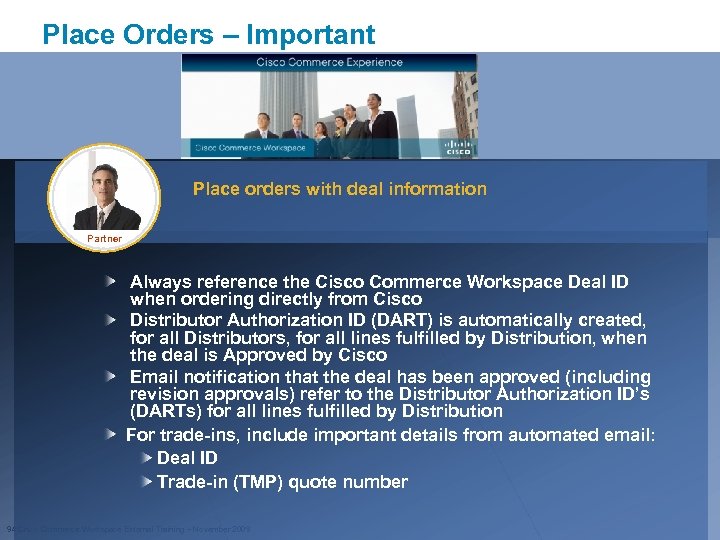 Place Orders – Important Place orders with deal information Partner Always reference the Cisco Commerce Workspace Deal ID when ordering directly from Cisco Distributor Authorization ID (DART) is automatically created, for all Distributors, for all lines fulfilled by Distribution, when the deal is Approved by Cisco Email notification that the deal has been approved (including revision approvals) refer to the Distributor Authorization ID’s (DARTs) for all lines fulfilled by Distribution For trade-ins, include important details from automated email: Deal ID Trade-in (TMP) quote number 94 Cisco Commerce Workspace External Training – November 2009
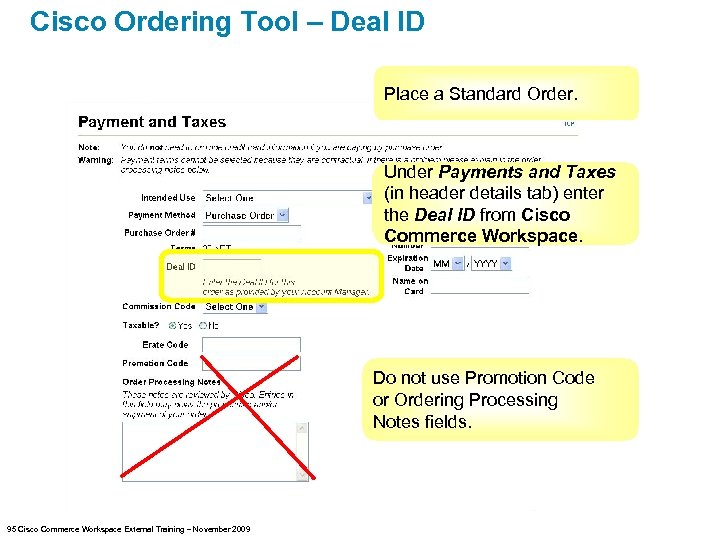 Cisco Ordering Tool – Deal ID Place a Standard Order. Under Payments and Taxes (in header details tab) enter the Deal ID from Cisco Commerce Workspace. Do not use Promotion Code or Ordering Processing Notes fields. 95 Cisco Commerce Workspace External Training – November 2009
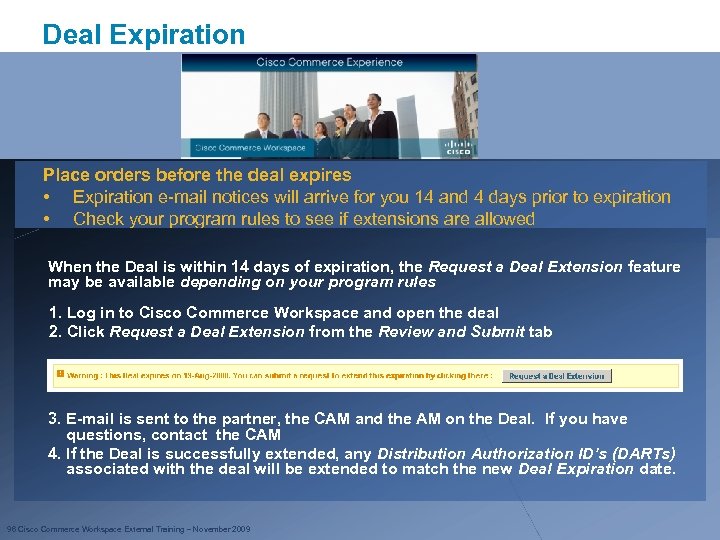 Deal Expiration Place orders before the deal expires • Expiration e-mail notices will arrive for you 14 and 4 days prior to expiration • Check your program rules to see if extensions are allowed When the Deal is within 14 days of expiration, the Request a Deal Extension feature may be available depending on your program rules 1. Log in to Cisco Commerce Workspace and open the deal 2. Click Request a Deal Extension from the Review and Submit tab 3. E-mail is sent to the partner, the CAM and the AM on the Deal. If you have questions, contact the CAM 4. If the Deal is successfully extended, any Distribution Authorization ID’s (DARTs) associated with the deal will be extended to match the new Deal Expiration date. 96 Cisco Commerce Workspace External Training – November 2009
 Revise the Quote Partners can revise their own quotes Partner Revise a quote: – Add an Item – Change a Quantity – Change a Distributor – Split a Line between Buy Methods Revision steps are the same as entering Quote information The Deal status will change to Re-Opened and will require Cisco to Approve the changes 97 Cisco Commerce Workspace External Training – November 2009
 Cisco Commerce Workspace Training Section 8 – Revise the Quote (Partner Role) 98 Cisco Commerce Workspace External Training – November 2009
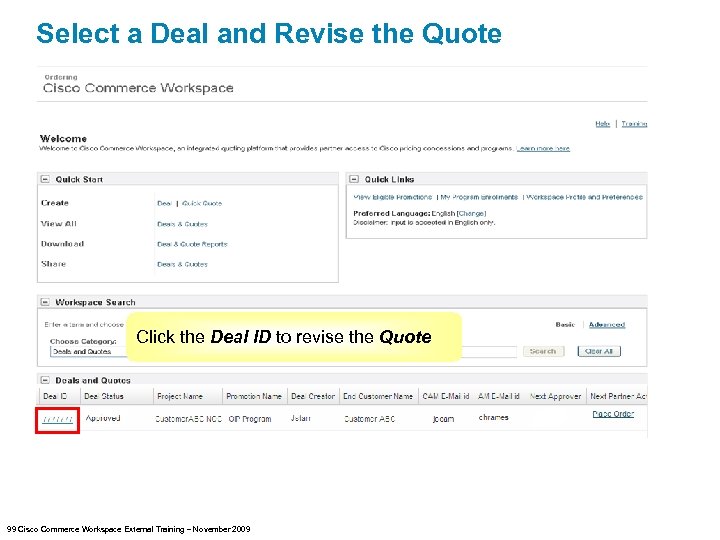 Select a Deal and Revise the Quote Click the Deal ID to revise the Quote 99 Cisco Commerce Workspace External Training – November 2009
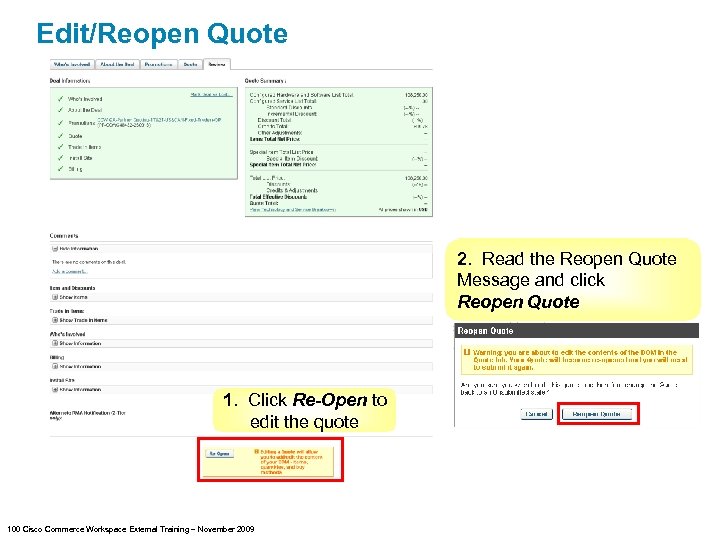 Edit/Reopen Quote 2. Read the Reopen Quote Message and click Reopen Quote 1. Click Re-Open to edit the quote 100 Cisco Commerce Workspace External Training – November 2009
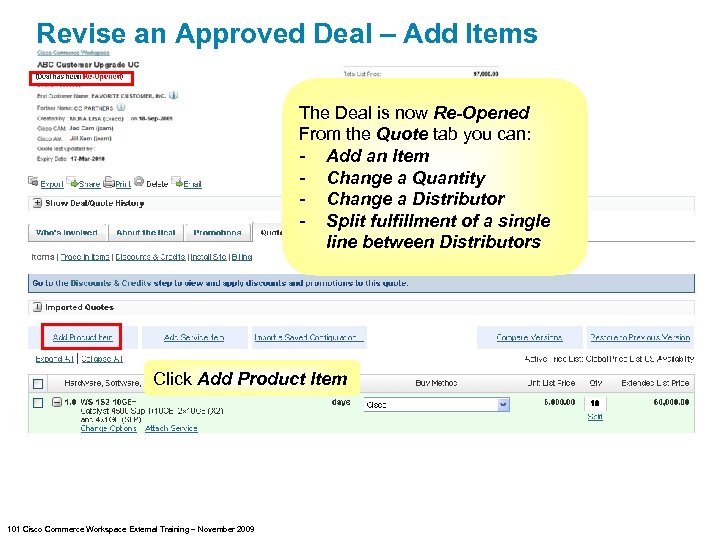 Revise an Approved Deal – Add Items The Deal is now Re-Opened From the Quote tab you can: - Add an Item - Change a Quantity - Change a Distributor - Split fulfillment of a single line between Distributors Click Add Product Item 101 Cisco Commerce Workspace External Training – November 2009
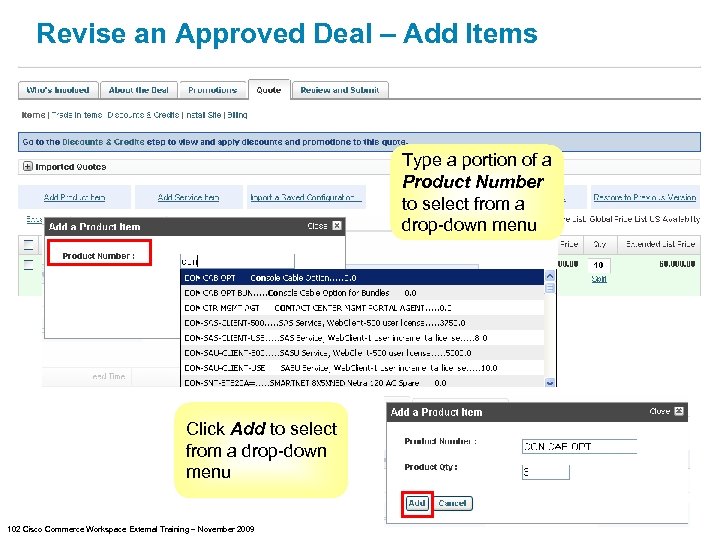 Revise an Approved Deal – Add Items Type a portion of a Product Number to select from a drop-down menu Click Add to select from a drop-down menu 102 Cisco Commerce Workspace External Training – November 2009
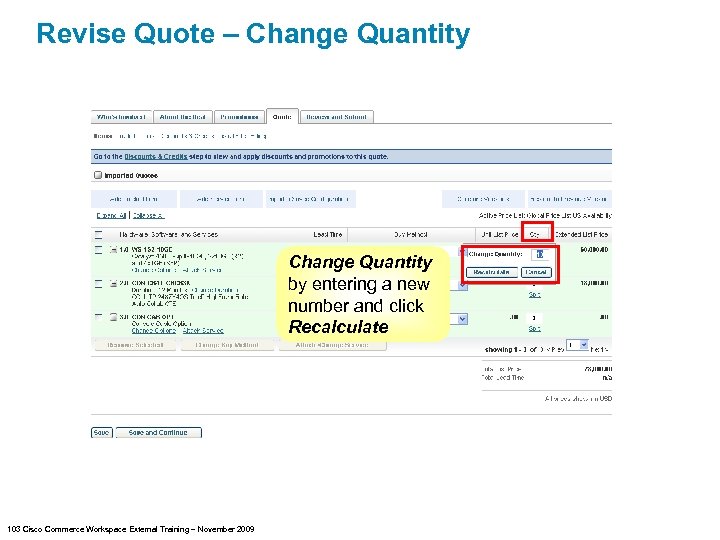 Revise Quote – Change Quantity by entering a new number and click Recalculate 103 Cisco Commerce Workspace External Training – November 2009
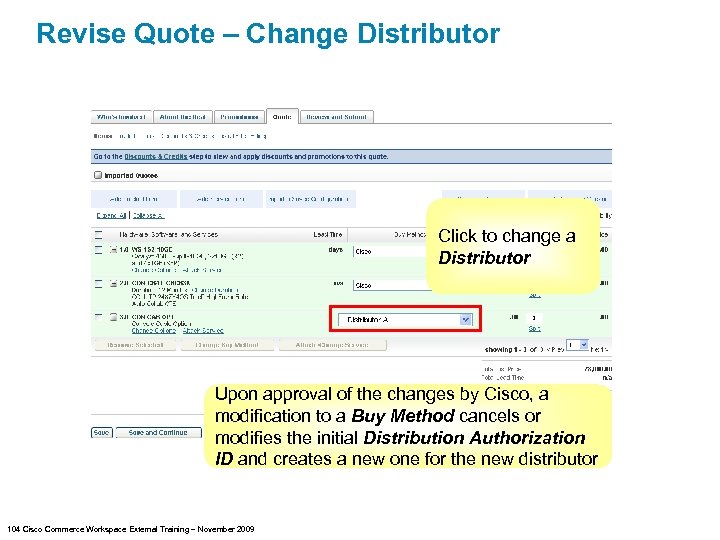 Revise Quote – Change Distributor Click to change a Distributor Upon approval of the changes by Cisco, a modification to a Buy Method cancels or modifies the initial Distribution Authorization ID and creates a new one for the new distributor 104 Cisco Commerce Workspace External Training – November 2009
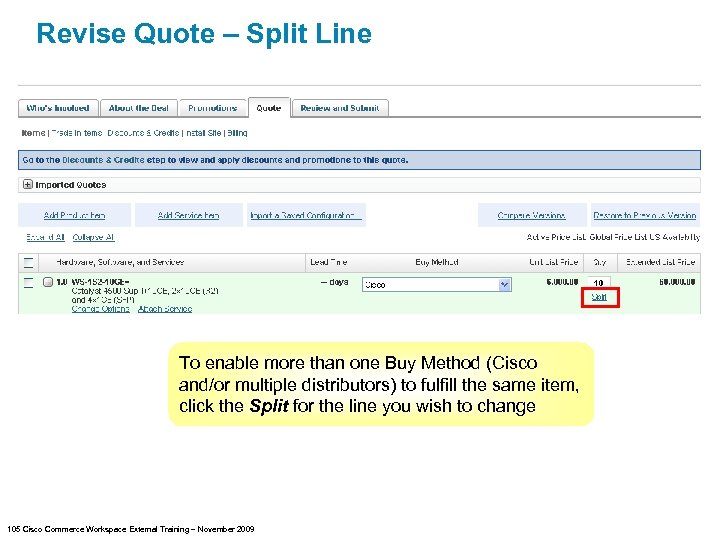 Revise Quote – Split Line To enable more than one Buy Method (Cisco and/or multiple distributors) to fulfill the same item, click the Split for the line you wish to change 105 Cisco Commerce Workspace External Training – November 2009
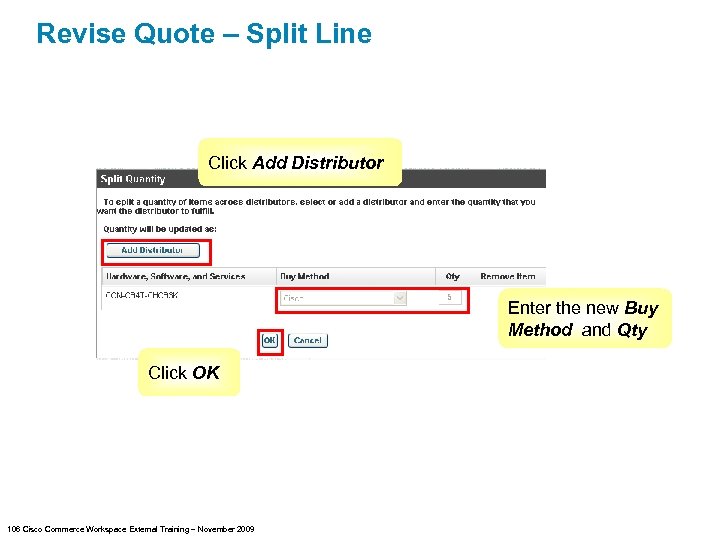 Revise Quote – Split Line Click Add Distributor Enter the new Buy Method and Qty Click OK 106 Cisco Commerce Workspace External Training – November 2009
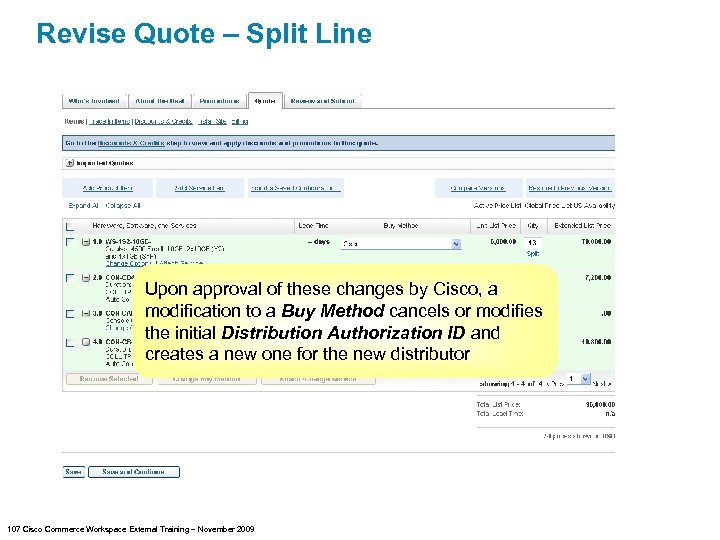 Revise Quote – Split Line Upon approval of these changes by Cisco, a modification to a Buy Method cancels or modifies the initial Distribution Authorization ID and creates a new one for the new distributor 107 Cisco Commerce Workspace External Training – November 2009
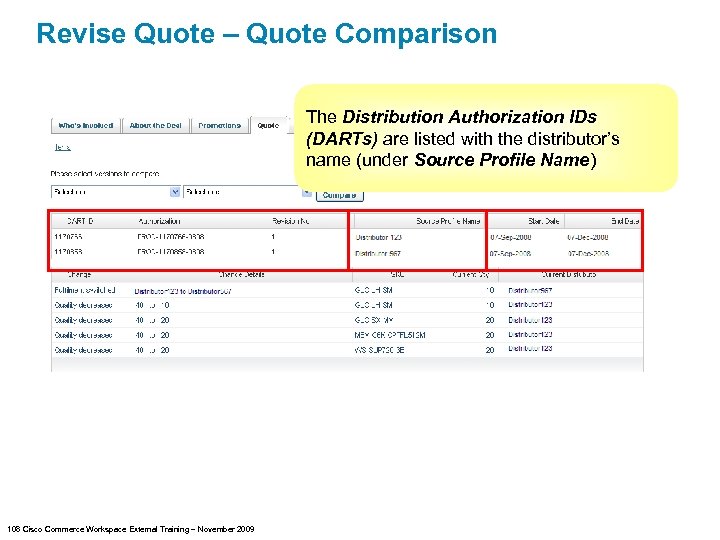 Revise Quote – Quote Comparison The Distribution Authorization IDs (DARTs) are listed with the distributor’s name (under Source Profile Name) 108 Cisco Commerce Workspace External Training – November 2009
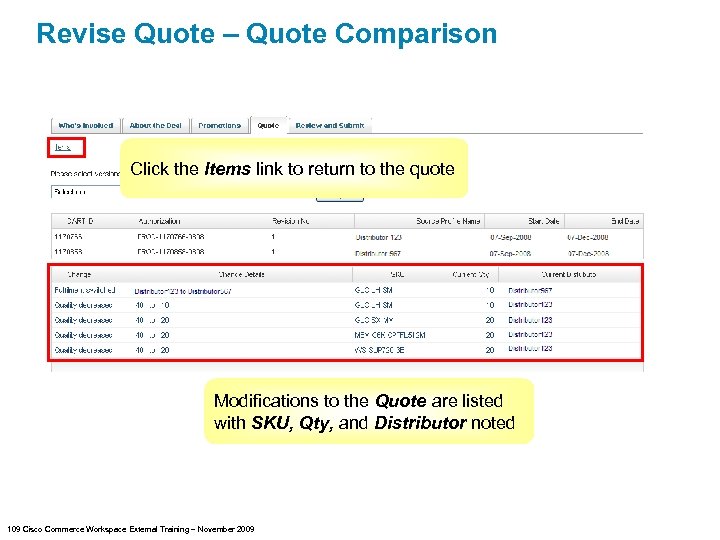 Revise Quote – Quote Comparison Click the Items link to return to the quote Modifications to the Quote are listed with SKU, Qty, and Distributor noted 109 Cisco Commerce Workspace External Training – November 2009
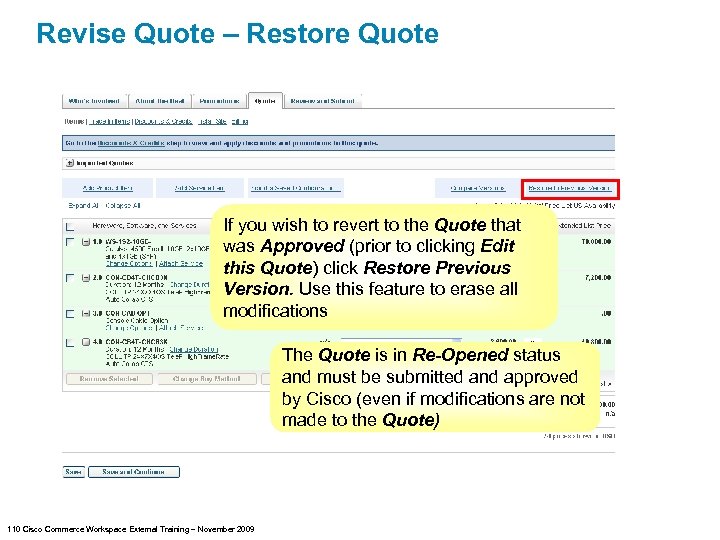 Revise Quote – Restore Quote If you wish to revert to the Quote that was Approved (prior to clicking Edit this Quote) click Restore Previous Version. Use this feature to erase all modifications The Quote is in Re-Opened status and must be submitted and approved by Cisco (even if modifications are not made to the Quote) 110 Cisco Commerce Workspace External Training – November 2009
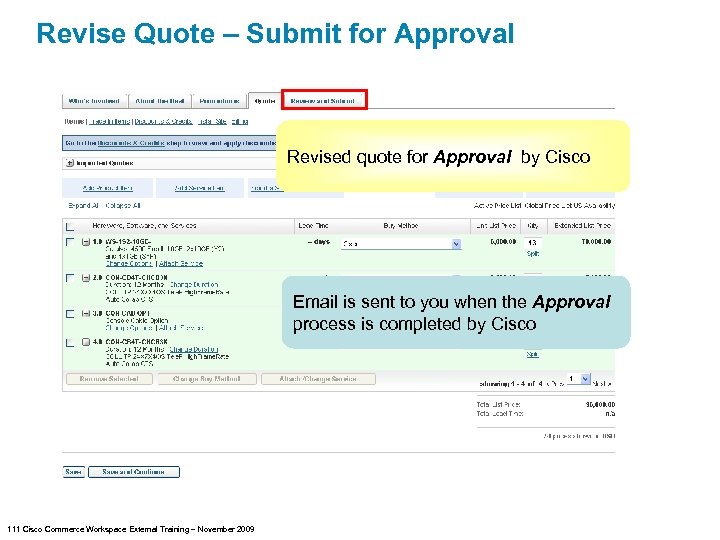 Revise Quote – Submit for Approval Revised quote for Approval by Cisco Email is sent to you when the Approval process is completed by Cisco 111 Cisco Commerce Workspace External Training – November 2009
 Cisco Commerce Workspace Training Section 9 – Key Deal Statuses and Reporting 112 Cisco Commerce Workspace External Training – November 2009
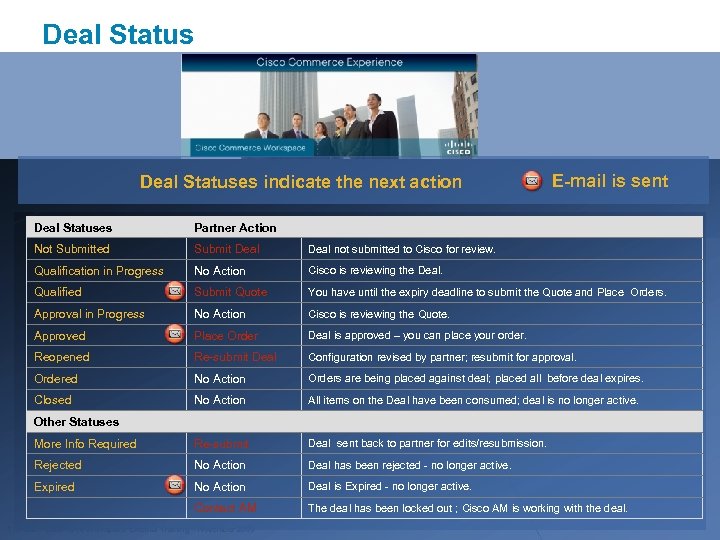 Deal Statuses indicate the next action E-mail is sent Deal Statuses Partner Action Not Submitted Submit Deal not submitted to Cisco for review. Qualification in Progress No Action Cisco is reviewing the Deal. Qualified Submit Quote You have until the expiry deadline to submit the Quote and Place Orders. Approval in Progress No Action Cisco is reviewing the Quote. Approved Place Order Deal is approved – you can place your order. Reopened Re-submit Deal Configuration revised by partner; resubmit for approval. Ordered No Action Orders are being placed against deal; placed all before deal expires. Closed No Action All items on the Deal have been consumed; deal is no longer active. More Info Required Re-submit Deal sent back to partner for edits/resubmission. Rejected No Action Deal has been rejected - no longer active. Expired No Action Deal is Expired - no longer active. Contact AM The deal has been locked out ; Cisco AM is working with the deal. Other Statuses 113 Cisco Commerce Workspace External Training – November 2009
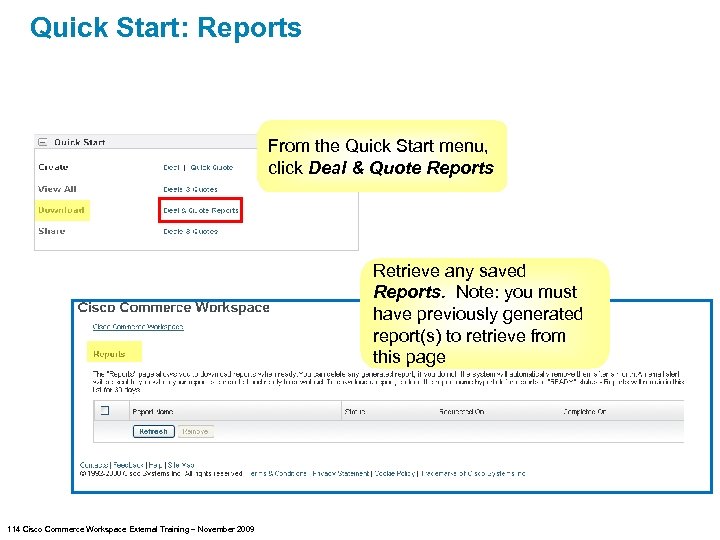 Quick Start: Reports From the Quick Start menu, click Deal & Quote Reports Retrieve any saved Reports. Note: you must have previously generated report(s) to retrieve from this page 114 Cisco Commerce Workspace External Training – November 2009
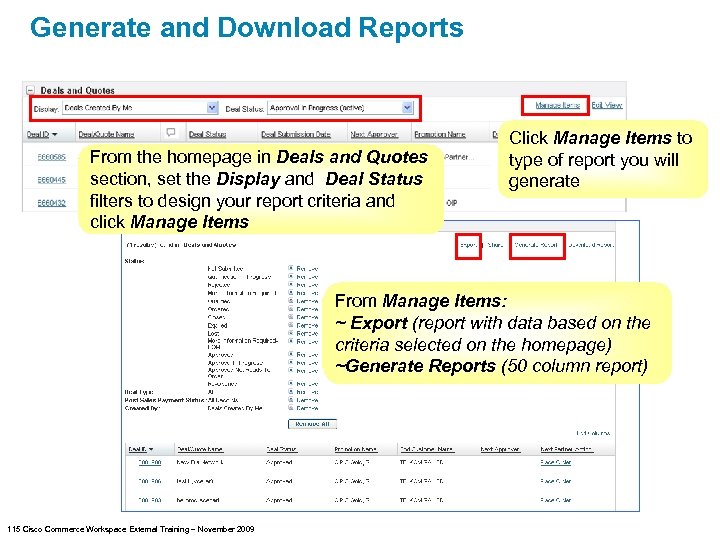 Generate and Download Reports From the homepage in Deals and Quotes section, set the Display and Deal Status filters to design your report criteria and click Manage Items Click Manage Items to type of report you will generate From Manage Items: ~ Export (report with data based on the criteria selected on the homepage) ~Generate Reports (50 column report) 115 Cisco Commerce Workspace External Training – November 2009
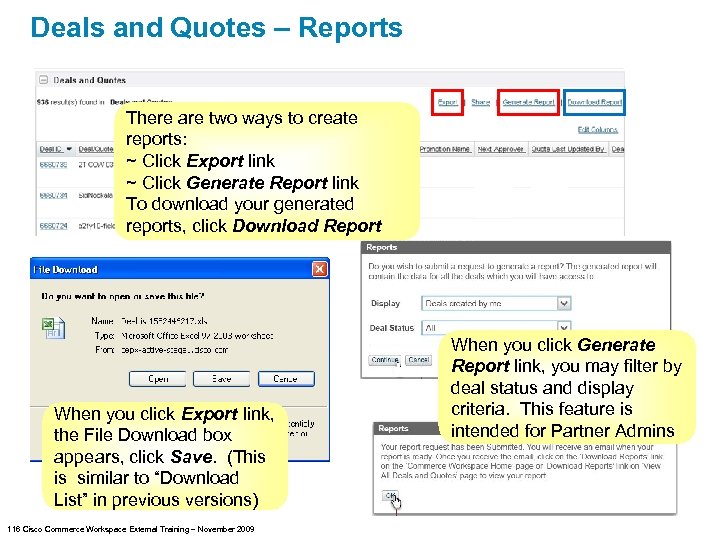 Deals and Quotes – Reports There are two ways to create reports: ~ Click Export link ~ Click Generate Report link To download your generated reports, click Download Report When you click Export link, the File Download box appears, click Save. (This is similar to “Download List” in previous versions) 116 Cisco Commerce Workspace External Training – November 2009 When you click Generate Report link, you may filter by deal status and display criteria. This feature is intended for Partner Admins
 Cisco Commerce Workspace Training Section 10 –Access & Support 117 Cisco Commerce Workspace External Training – November 2009
 Access Cisco Commerce Workspace at www. cisco. com/go/commerceworkspace. Bookmark this URL Log in to Cisco Commerce Workspace with your Cisco. com ID If you do not have a Cisco. com ID and password: Apply for a Cisco. com ID at www. cisco. com, click register in the top right corner When applying for Cisco. com ID indicate that you are a Cisco Channel Partner or Authorized Reseller Go to Partner Self Service http: //tools. cisco. com/WWChannels/GETLOG/welcome. do Associate to your company Find your company’s Partner Administrator in Partner Self Service (PSS) The Partner Administrator has visibility to all deals created at your company as well as limited edit capability 118 Cisco Commerce Workspace External Training – November 2009
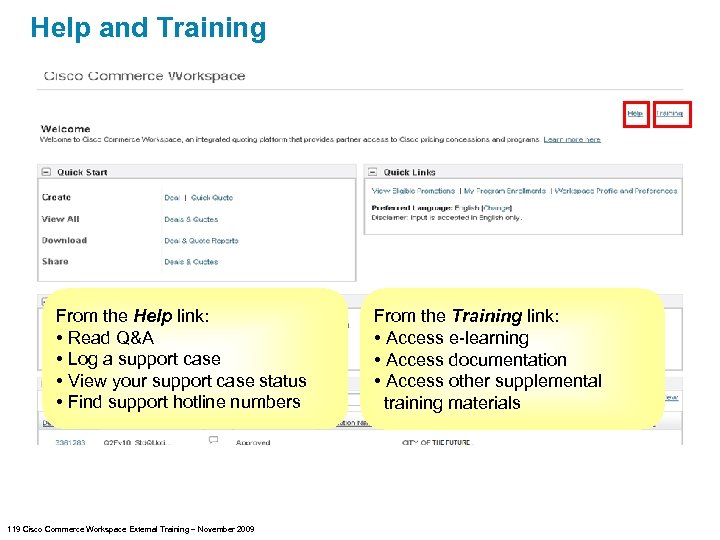 Help and Training From the Help link: • Read Q&A • Log a support case • View your support case status • Find support hotline numbers 119 Cisco Commerce Workspace External Training – November 2009 From the Training link: • Access e-learning • Access documentation • Access other supplemental training materials
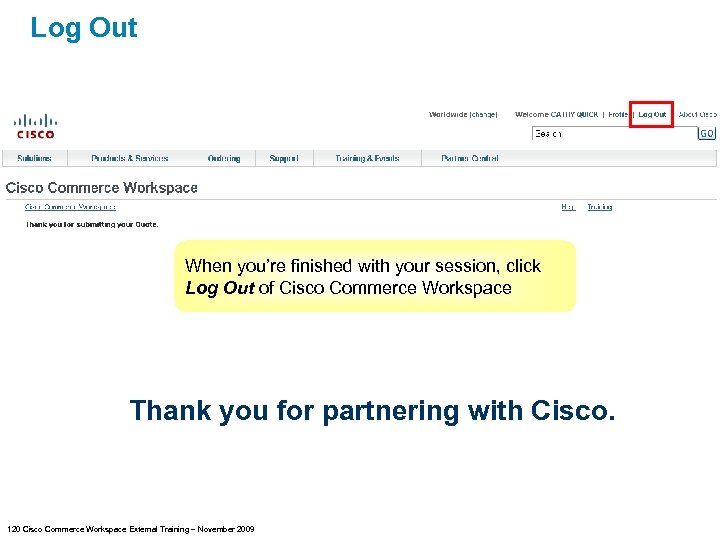 Log Out When you’re finished with your session, click Log Out of Cisco Commerce Workspace Thank you for partnering with Cisco. 120 Cisco Commerce Workspace External Training – November 2009
 121 Cisco Commerce Workspace External Training – November 2009