 Скачать презентацию CIS 162 AD Databases 14_databases ppt Overview
dfa4a20302bd2352ee29680b1c67a61f.ppt
- Количество слайдов: 29



CIS 162 AD Databases 14_databases. ppt
Overview of Topics ¨ Relational Database Terminology ¨ ADO. Net ¨ Instructions to complete CS 13 ¨ Connecting to a Database – Connection – Data Adapter – Data. Set ¨ Binding data ¨ Data. Grid. View ¨ Label and Textbox View CIS 162 AD 2
Relational Databases ¨ Most data is now stored in relational database management systems (DBMS or RDBMS). ¨ There are various vendors to choose form: Oracle, MS Sql. Server, Sybase, IBM DB 2, etc. ¨ Visual Studio is usually used to develop applications that store data in Microsoft Sql. Server. ¨ In this class we will use MS Access, due to Sql. Server’s installation requirements. ¨ Those of you familiar with Access know that it has a built-in form and report designer. However, keep in mind that we would normally be accessing a database stored in Sql. Server, which does not have built-in tools. CIS 162 AD 3
Database Terminology ¨ A database is made up of one or more related tables. ¨ Conceptually a table is made up of rows and columns ¨ ¨ ¨ (2 D Array). Each row represents the data for one record (a person, inventory item, course information). Each column (field) is a data element (name, address, city, state, zip). Tables have a Primary Key Field to uniquely identify each record (Id number, part number, account number). Relationships between various tables can be defined. A DBMS stores everything (tables, columns, relationships, etc. ) about the database in system tables. System and data tables are usually stored in one file (CSMail. mbd). CIS 162 AD 4
SQL – Structured Query Language ¨ SQL is pronounced sequel. ¨ SQL – Structured Query Language – Basic set of commands that are common in all DBMS. ¨ DBMS vendors may additional commands. ¨ SQL commands are usually processed against a record set. – Select name, address From customer where zip = “ 85202”; – Delete From customer where zip = “ 85202” All rows matching the criteria would be selected or deleted. – Record set commands are very powerful. ¨ We’ll usually want to qualified a command by specifying a customer id or other unique identifier using the Where clause. CIS 162 AD 5
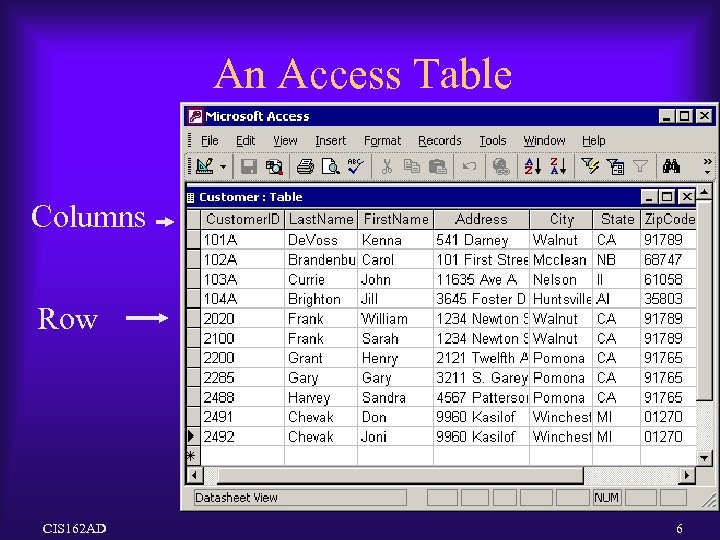
An Access Table Columns Row CIS 162 AD 6
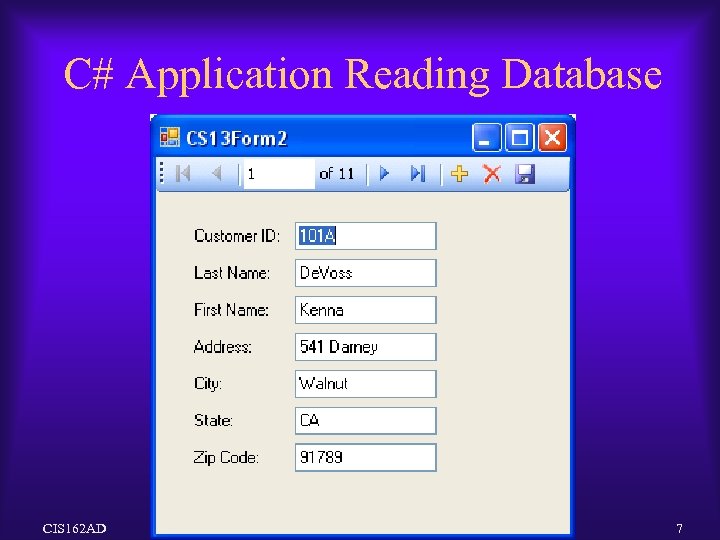
C# Application Reading Database CIS 162 AD 7
Accessing a Database – ADO. Net ¨ Use Active. X Data Objects (ADO) ¨ An Access database uses the following objects: – Ole. Db. Connection – connection tool establishes a link to a data source. – Ole. Db. Data. Adapter – data adapter handles retrieving and updating the data and creates a Dataset. – Dataset – bind columns in the Dataset to controls (textbox, listbox) by setting the Data. Binding property. – Use the Fill method of the data adapter to load the data into the dataset, da. Customer. Fill(ds. Customer 1); The Fill method is usually placed in the form load event. CIS 162 AD 8
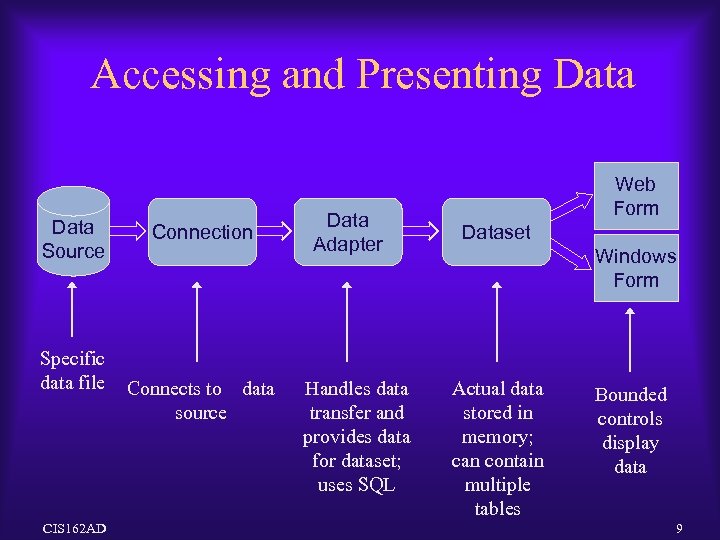
Accessing and Presenting Data Source Specific data file CIS 162 AD Connection Connects to data source Data Adapter Handles data transfer and provides data for dataset; uses SQL Web Form Dataset Windows Form Actual data stored in memory; can contain multiple tables Bounded controls display data 9
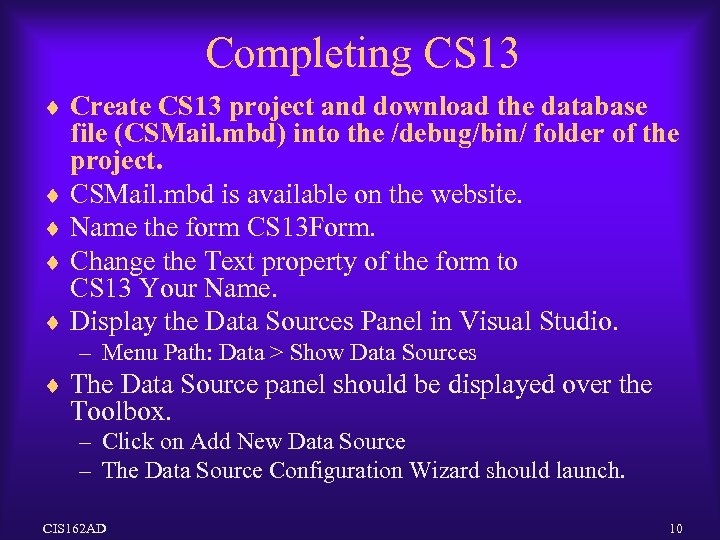
Completing CS 13 ¨ Create CS 13 project and download the database file (CSMail. mbd) into the /debug/bin/ folder of the project. ¨ CSMail. mbd is available on the website. ¨ Name the form CS 13 Form. ¨ Change the Text property of the form to CS 13 Your Name. ¨ Display the Data Sources Panel in Visual Studio. – Menu Path: Data > Show Data Sources ¨ The Data Source panel should be displayed over the Toolbox. – Click on Add New Data Source – The Data Source Configuration Wizard should launch. CIS 162 AD 10
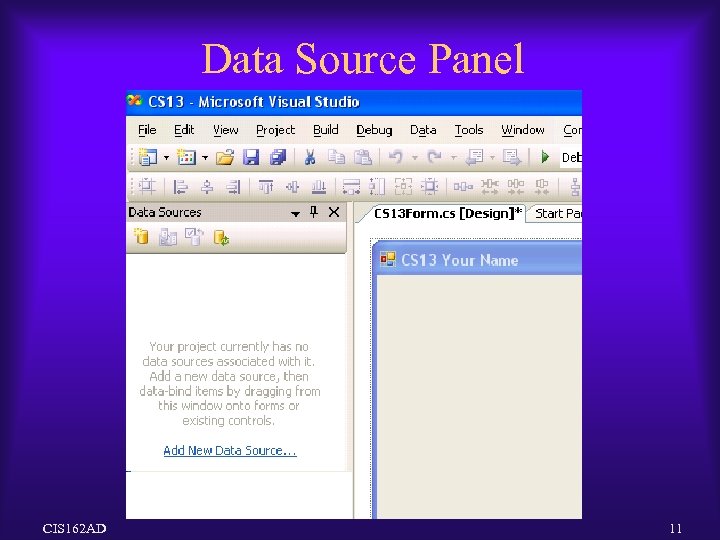
Data Source Panel CIS 162 AD 11
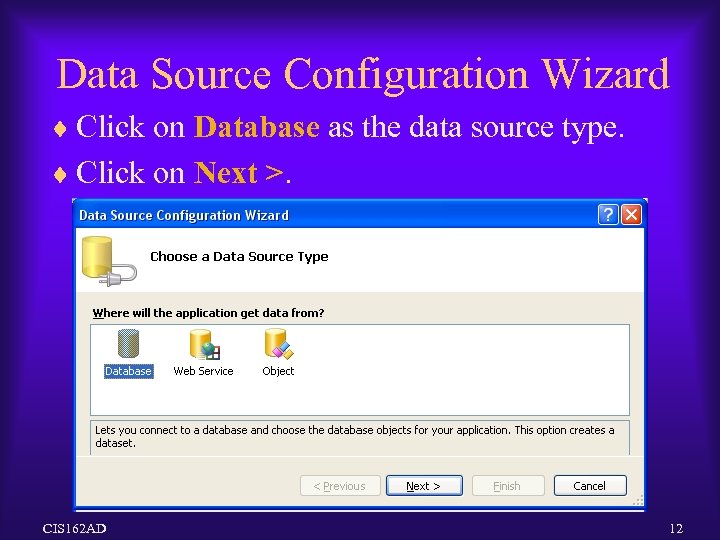
Data Source Configuration Wizard ¨ Click on Database as the data source type. ¨ Click on Next >. CIS 162 AD 12
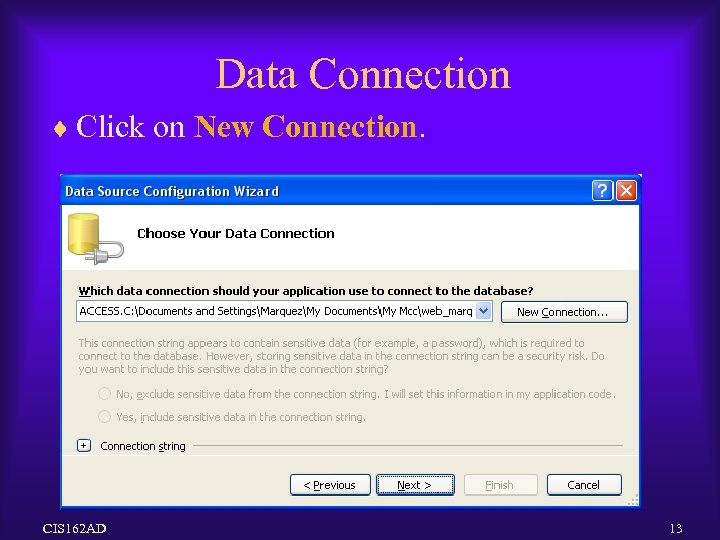
Data Connection ¨ Click on New Connection. CIS 162 AD 13
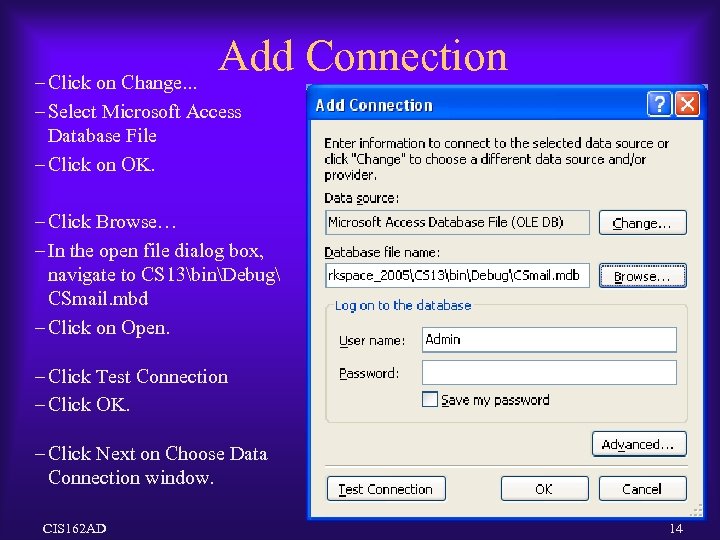
Add Connection – Click on Change. . . – Select Microsoft Access Database File – Click on OK. – Click Browse… – In the open file dialog box, navigate to CS 13binDebug CSmail. mbd – Click on Open. – Click Test Connection – Click OK. – Click Next on Choose Data Connection window. CIS 162 AD 14
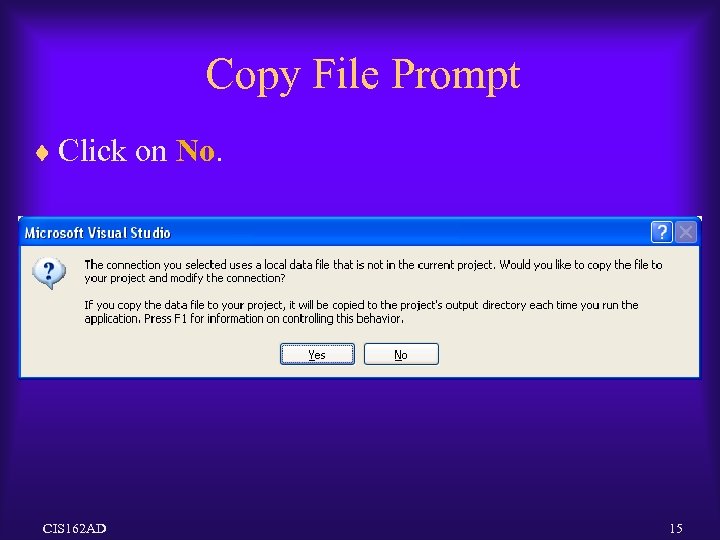
Copy File Prompt ¨ Click on No. CIS 162 AD 15
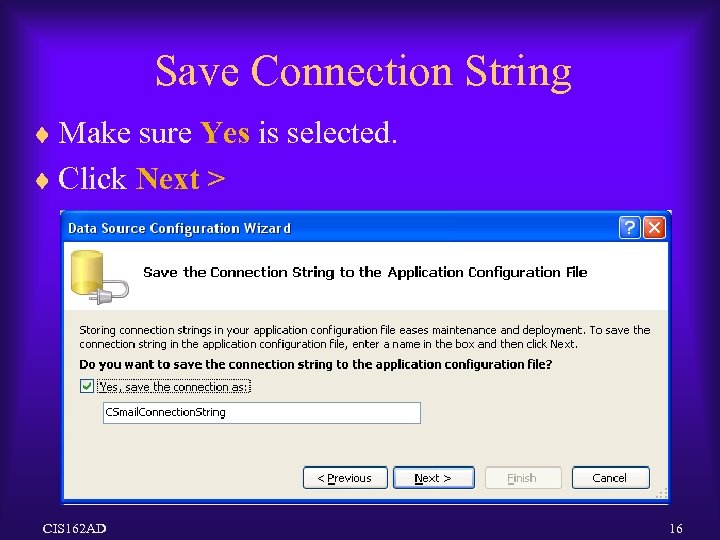
Save Connection String ¨ Make sure Yes is selected. ¨ Click Next > CIS 162 AD 16
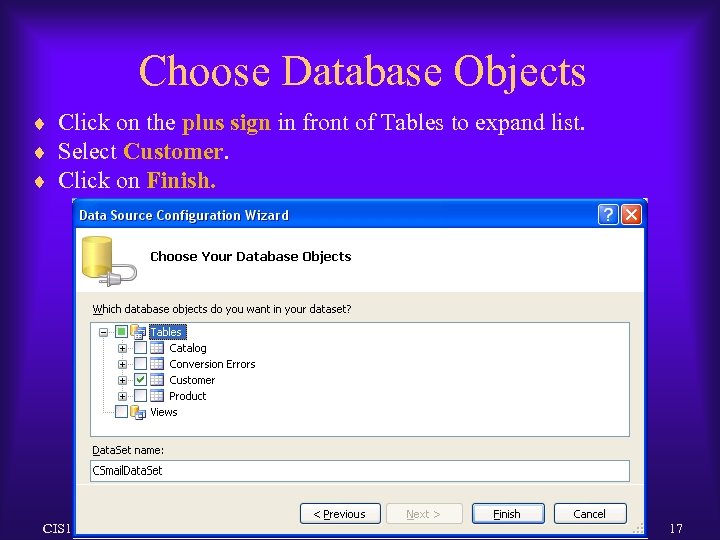
Choose Database Objects ¨ Click on the plus sign in front of Tables to expand list. ¨ Select Customer. ¨ Click on Finish. CIS 162 AD 17
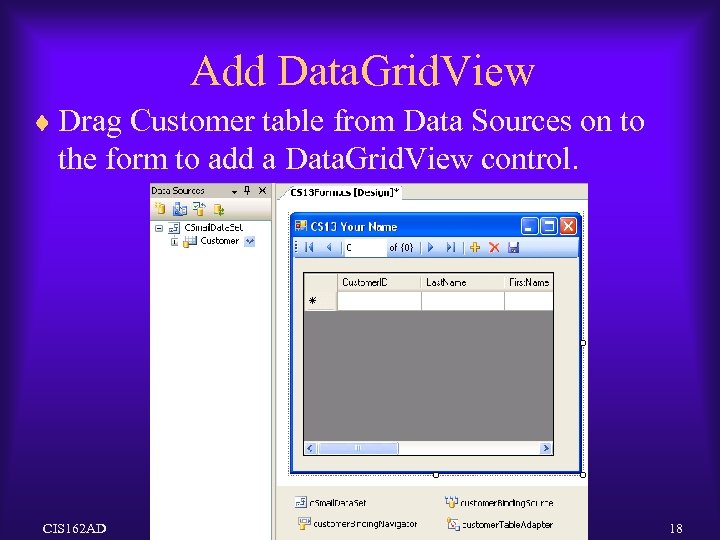
Add Data. Grid. View ¨ Drag Customer table from Data Sources on to the form to add a Data. Grid. View control. CIS 162 AD 18
Data. Grid. View Control ¨ When a table from the Data Sources is dragged on to the form, a ¨ ¨ Data. Grid. View control is created by default. It allows users to browse all the rows in the table as well as add, update, and delete rows. The navigation toolbar is also added at the top of the form. The Form. Load method is also created, which contains a call to the Fill method to load the data into the Data. Set from the source. Four additional objects are also added to the Component tray. – Dataset provides access to the data – Table. Adapter provides the commands to read and write to the table – Binding. Navigator defines the toolbar used to navigate – Binding. Source identifies the data source for the bounded controls ¨ Next Slide - Binding CIS 162 AD 19
Data Binding ¨ Complex Binding – Connect more than one data element to a control. – Data. Grid. View uses complex binding because several columns from the table are displayed in the same control. ¨ Simple Binding – Connect one data element to a control. – Connect a textbox to the name column (etc. ) – May use Data Bindings property and select the column from the database that should be displayed in control. – Later we’ll build a form using Labels and Textboxes. CIS 162 AD 20
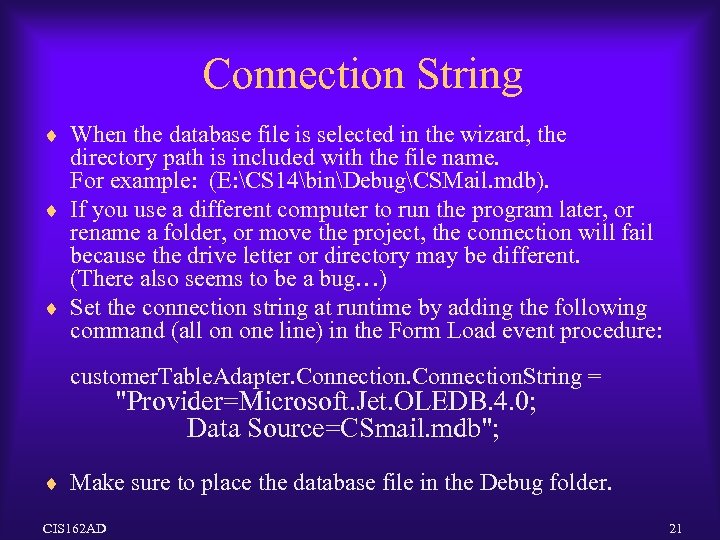
Connection String ¨ When the database file is selected in the wizard, the directory path is included with the file name. For example: (E: CS 14binDebugCSMail. mdb). ¨ If you use a different computer to run the program later, or rename a folder, or move the project, the connection will fail because the drive letter or directory may be different. (There also seems to be a bug…) ¨ Set the connection string at runtime by adding the following command (all on one line) in the Form Load event procedure: customer. Table. Adapter. Connection. String = "Provider=Microsoft. Jet. OLEDB. 4. 0; Data Source=CSmail. mdb"; ¨ Make sure to place the database file in the Debug folder. CIS 162 AD 21
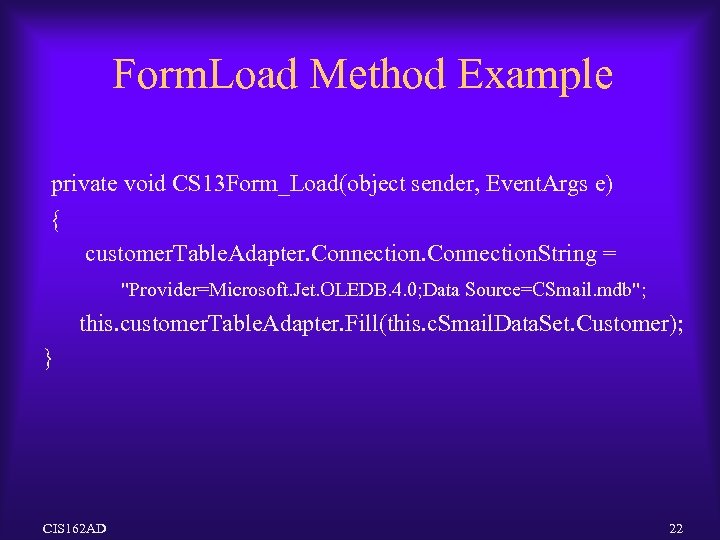
Form. Load Method Example private void CS 13 Form_Load(object sender, Event. Args e) { customer. Table. Adapter. Connection. String = "Provider=Microsoft. Jet. OLEDB. 4. 0; Data Source=CSmail. mdb"; this. customer. Table. Adapter. Fill(this. c. Smail. Data. Set. Customer); } CIS 162 AD 22
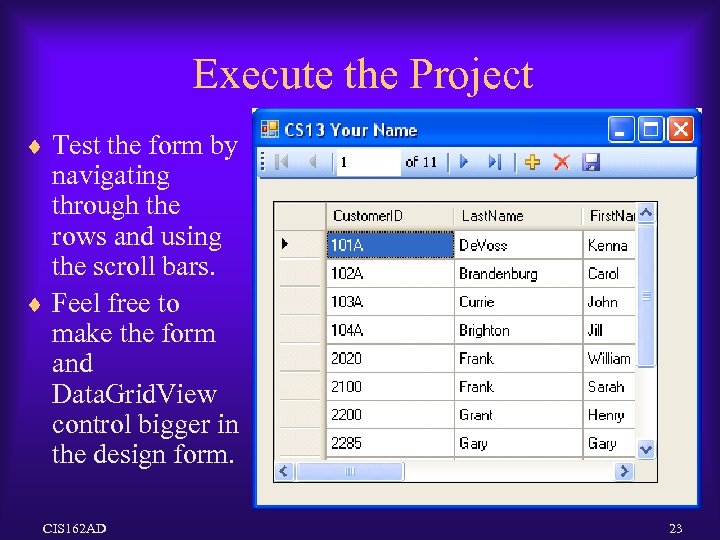
Execute the Project ¨ Test the form by navigating through the rows and using the scroll bars. ¨ Feel free to make the form and Data. Grid. View control bigger in the design form. CIS 162 AD 23
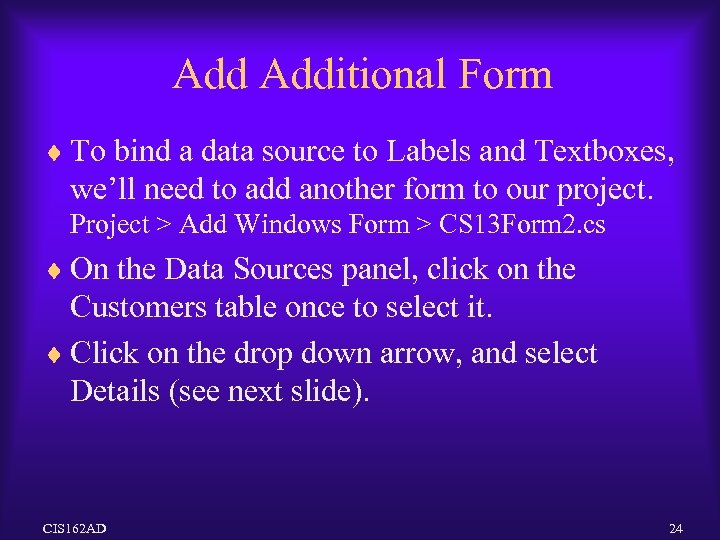
Add Additional Form ¨ To bind a data source to Labels and Textboxes, we’ll need to add another form to our project. Project > Add Windows Form > CS 13 Form 2. cs ¨ On the Data Sources panel, click on the Customers table once to select it. ¨ Click on the drop down arrow, and select Details (see next slide). CIS 162 AD 24
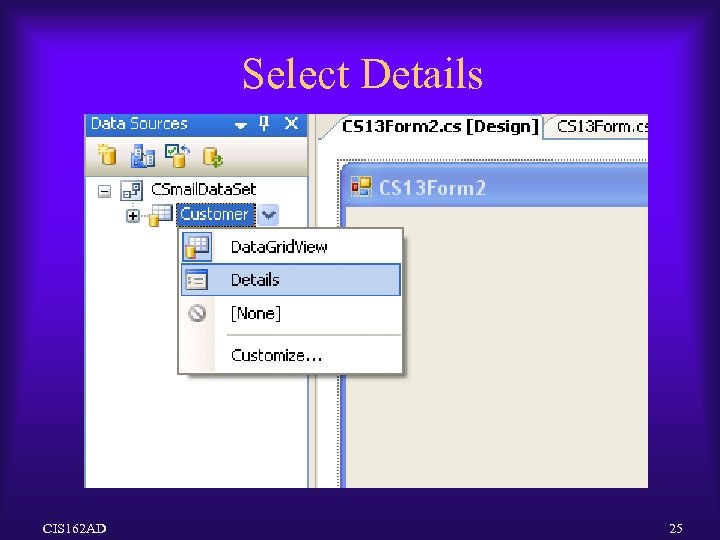
Select Details CIS 162 AD 25
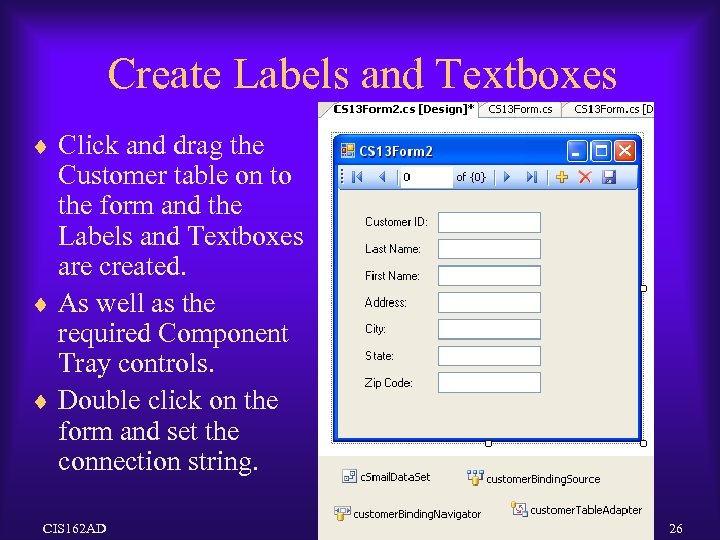
Create Labels and Textboxes ¨ Click and drag the Customer table on to the form and the Labels and Textboxes are created. ¨ As well as the required Component Tray controls. ¨ Double click on the form and set the connection string. CIS 162 AD 26
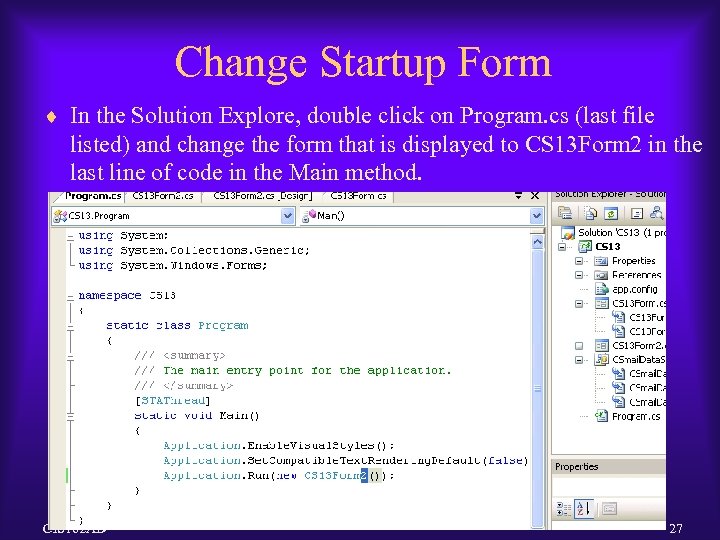
Change Startup Form ¨ In the Solution Explore, double click on Program. cs (last file listed) and change the form that is displayed to CS 13 Form 2 in the last line of code in the Main method. CIS 162 AD 27
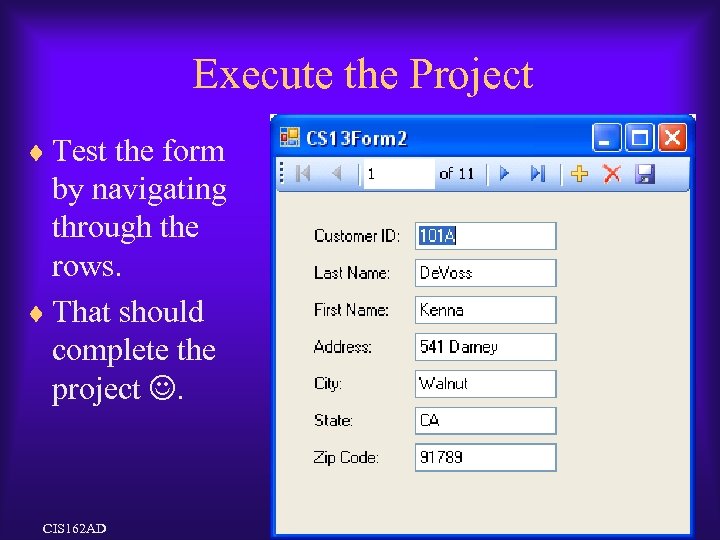
Execute the Project ¨ Test the form by navigating through the rows. ¨ That should complete the project . CIS 162 AD 28
Summary ¨ Relational Database Terminology ¨ Connecting to a Database ¨ Binding data ¨ Data. Grid. View ¨ Label and Textbox View CIS 162 AD 29
Скачать презентацию CIS 162 AD Databases 14_databases ppt Overview
dfa4a20302bd2352ee29680b1c67a61f.ppt