 Скачать презентацию CIRCABC Guide for PA-NFAs Public Authorities National
0e832ed918b160a830d0a2879ce59faa.ppt
- Количество слайдов: 20



CIRCABC Guide for PA-NFAs (Public Authorities – National Funding Authorities) 1
CIRCABC – why and how to use it The Council Regulation No 561/2014 setting it up the ECSEL Joint Undertaking stipulates that sensitive information shall be protected (Art. 15 Confidentiality) while providing adequate access to documents (Art. 16 Transparency). To this effect, ECSEL JU establishes: q a folder dedicated to the Evaluation process “ECSEL JU Evaluations” q a folder per each funded project “Y - Call number - Project Acronym” in CIRCABC repository to enable sharing of time-stamped documents in a controlled and secure manner, providing password protected access, and having the capability to define access rights for each person entitled to: - consortium members, - ECSEL JU office, - public authorities / national funding authorities 2
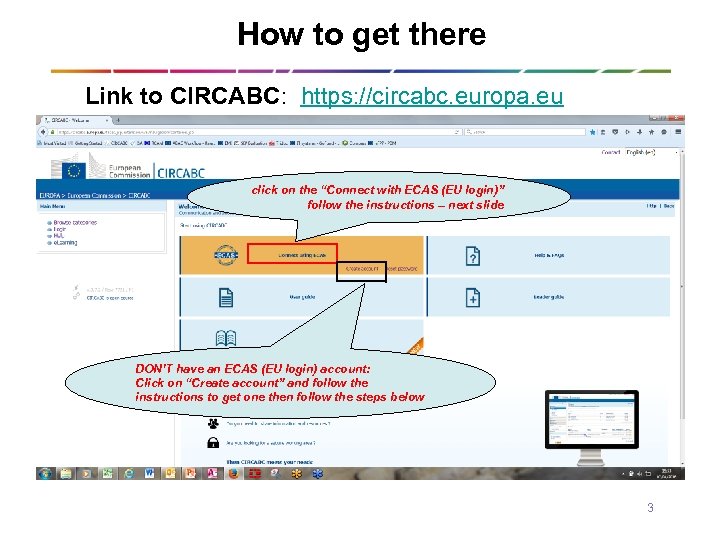
How to get there Link to CIRCABC: https: //circabc. europa. eu click on the “Connect with ECAS (EU login)” follow the instructions – next slide DON’T have an ECAS (EU login) account: Click on “Create account” and follow the instructions to get one then follow the steps below 3
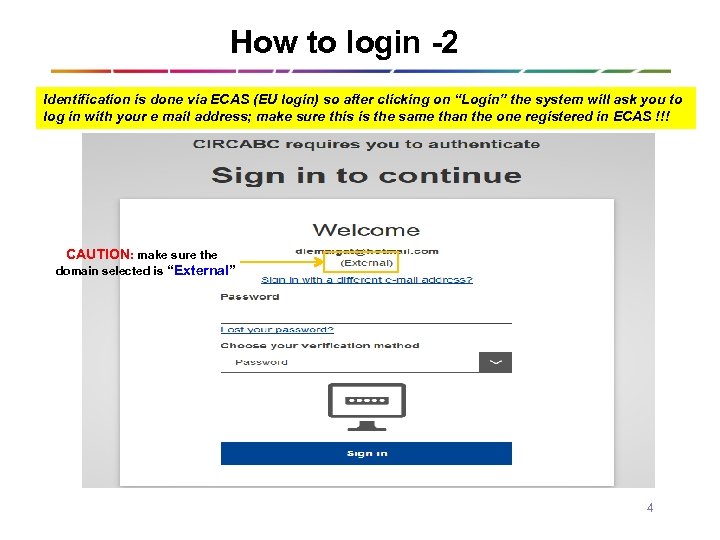
How to login -2 Identification is done via ECAS (EU login) so after clicking on “Login” the system will ask you to log in with your e mail address; make sure this is the same than the one registered in ECAS !!! CAUTION: make sure the domain selected is “External” 4
ECAS account ECAS (EU login) account is the gateway to CIRCABC – therefore you are kindly requested to keep your ECAS account up do date (update personal data, email address, etc. ) 5
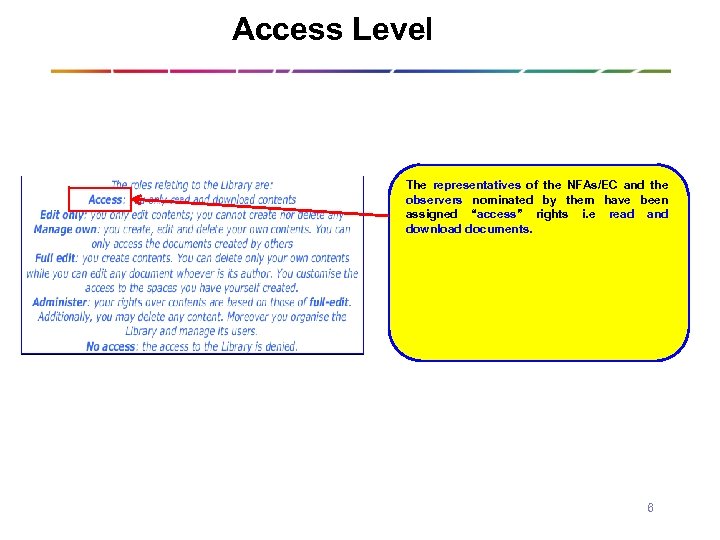
Access Level The representatives of the NFAs/EC and the observers nominated by them have been assigned “access” rights i. e read and download documents. 6
How to access the folders content • To access the documents in the subfolders: üLogin then follow the steps as described in the following slides 7
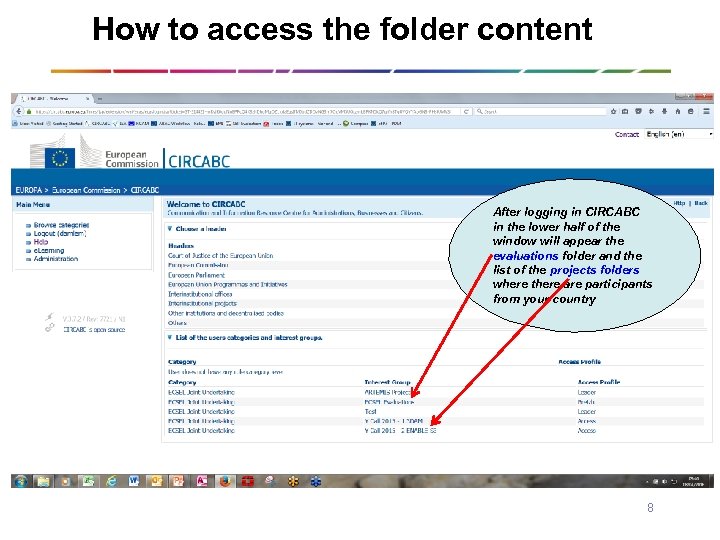
How to access the folder content After logging in CIRCABC in the lower half of the window will appear the evaluations folder and the list of the projects folders where there are participants from your country 8
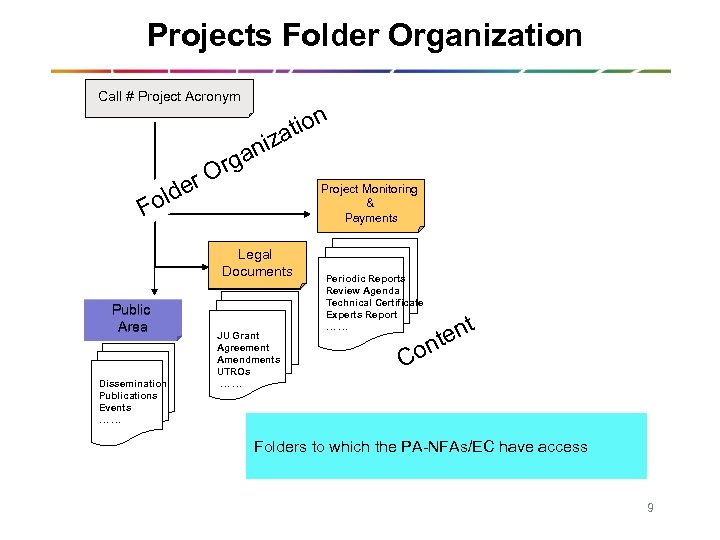
Projects Folder Organization Call # Project Acronym r lde o i an rg tion za O Project Monitoring & Payments F Legal Documents Public Area Dissemination Publications Events …… JU Grant Agreement Amendments UTROs …… Periodic Reports Review Agenda Technical Certificate Experts Report …… on C nt te Folders to which the PA-NFAs/EC have access 9
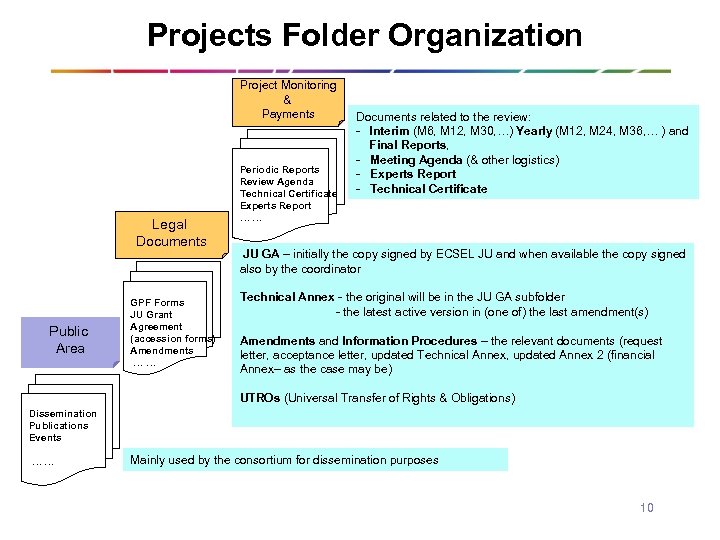
Projects Folder Organization Project Monitoring & Payments Legal Documents Public Area GPF Forms JU Grant Agreement (accession forms) Amendments …… Periodic Reports Review Agenda Technical Certificate Experts Report …… Documents related to the review: - Interim (M 6, M 12, M 30, …) Yearly (M 12, M 24, M 36, … ) and Final Reports, - Meeting Agenda (& other logistics) - Experts Report - Technical Certificate JU GA – initially the copy signed by ECSEL JU and when available the copy signed also by the coordinator Technical Annex - the original will be in the JU GA subfolder - the latest active version in (one of) the last amendment(s) Amendments and Information Procedures – the relevant documents (request letter, acceptance letter, updated Technical Annex, updated Annex 2 (financial Annex– as the case may be) UTROs (Universal Transfer of Rights & Obligations) Dissemination Publications Events …… Mainly used by the consortium for dissemination purposes 10
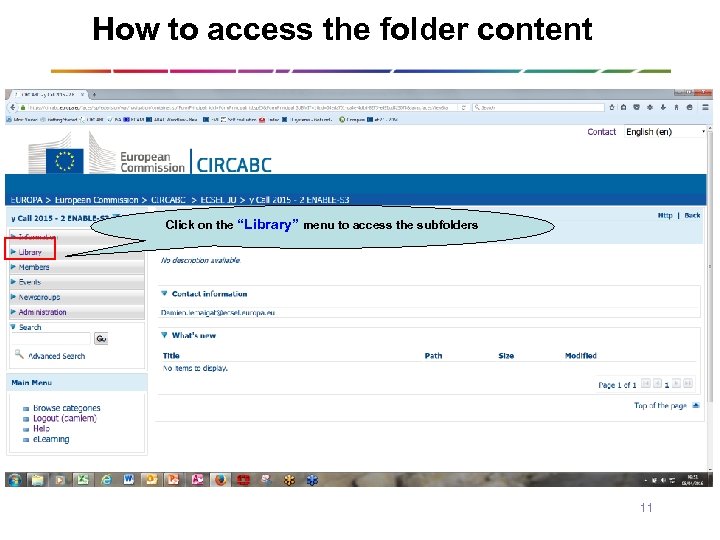
How to access the folder content Click on the “Library” menu to access the subfolders 11
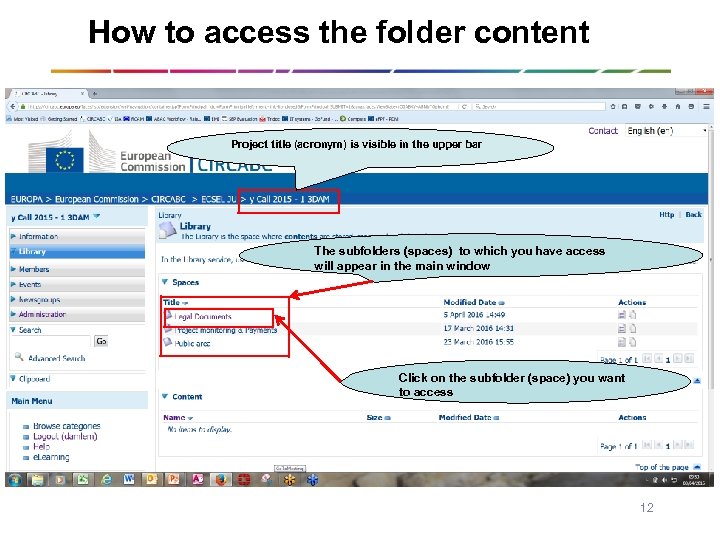
How to access the folder content Project title (acronym) is visible in the upper bar The subfolders (spaces) to which you have access will appear in the main window Click on the subfolder (space) you want to access 12
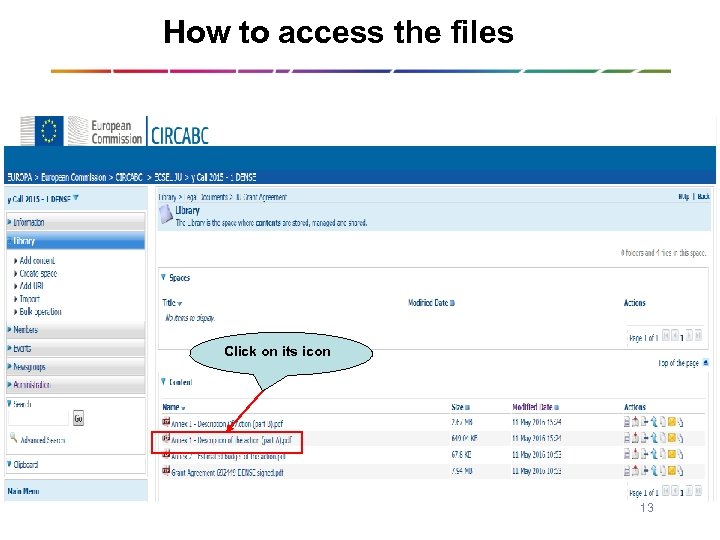
How to access the files Click on its icon 13
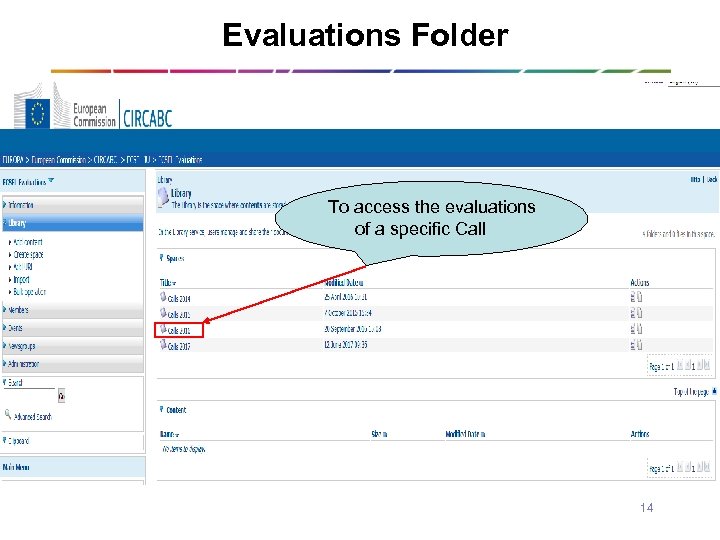
Evaluations Folder To access the evaluations of a specific Call 14
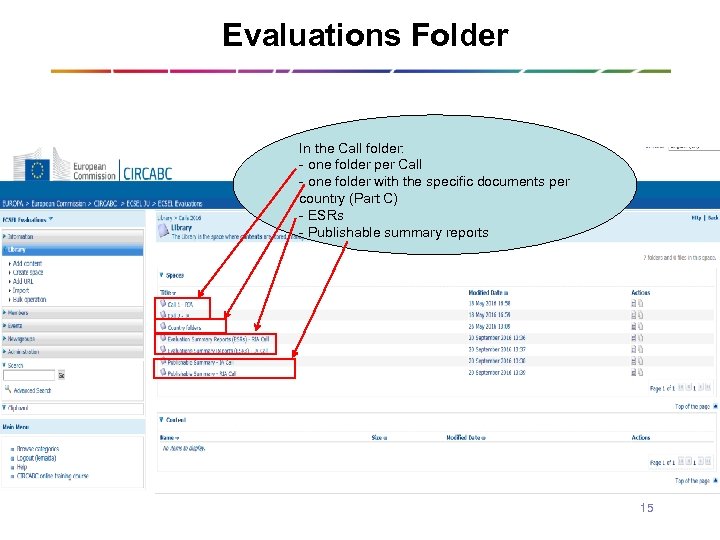
Evaluations Folder In the Call folder: - one folder per Call - one folder with the specific documents per country (Part C) - ESRs - Publishable summary reports 15
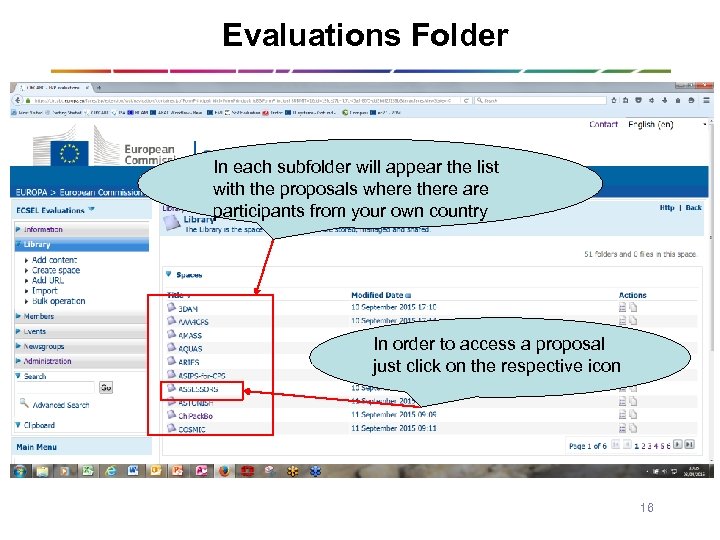
Evaluations Folder In each subfolder will appear the list with the proposals where there are participants from your own country In order to access a proposal just click on the respective icon 16
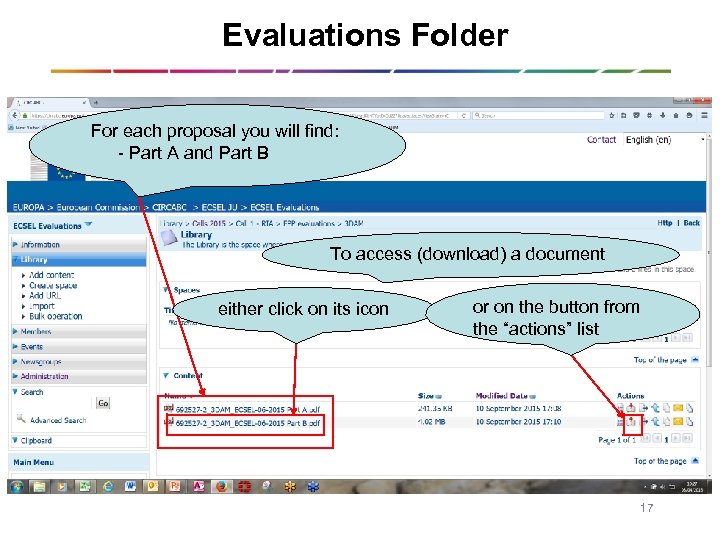
Evaluations Folder For each proposal you will find: - Part A and Part B To access (download) a document either click on its icon or on the button from the “actions” list 17
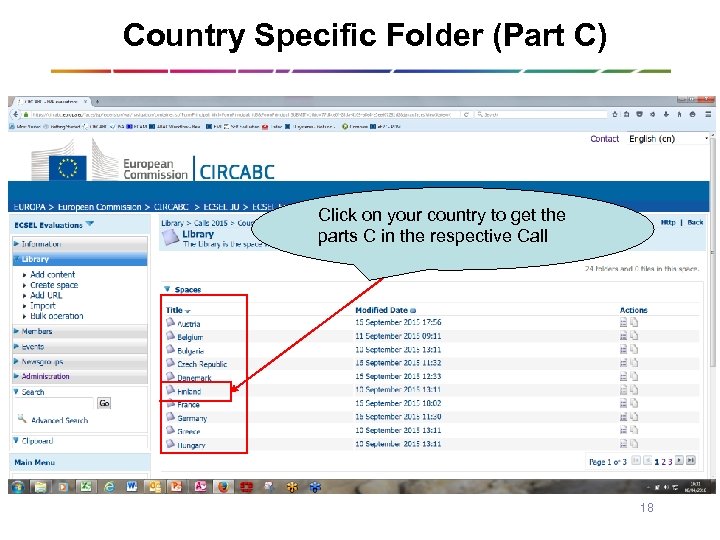
Country Specific Folder (Part C) Click on your country to get the parts C in the respective Call 18
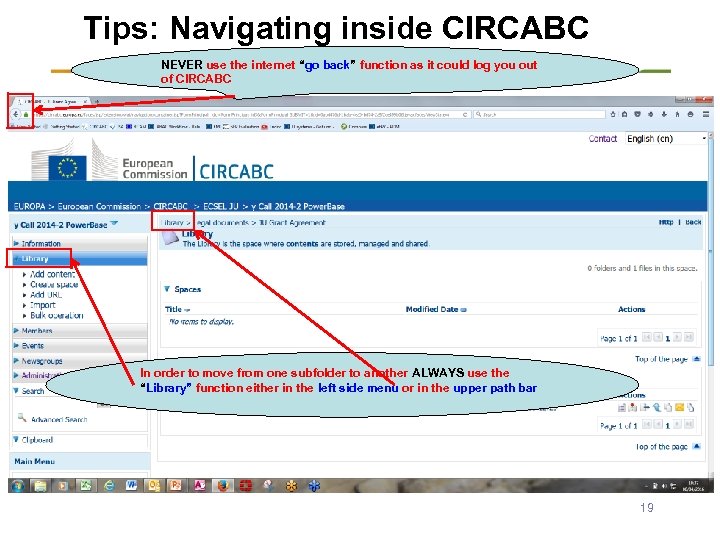
Tips: Navigating inside CIRCABC NEVER use the internet “go back” function as it could log you out of CIRCABC In order to move from one subfolder to another ALWAYS use the “Library” function either in the left side menu or in the upper path bar 19
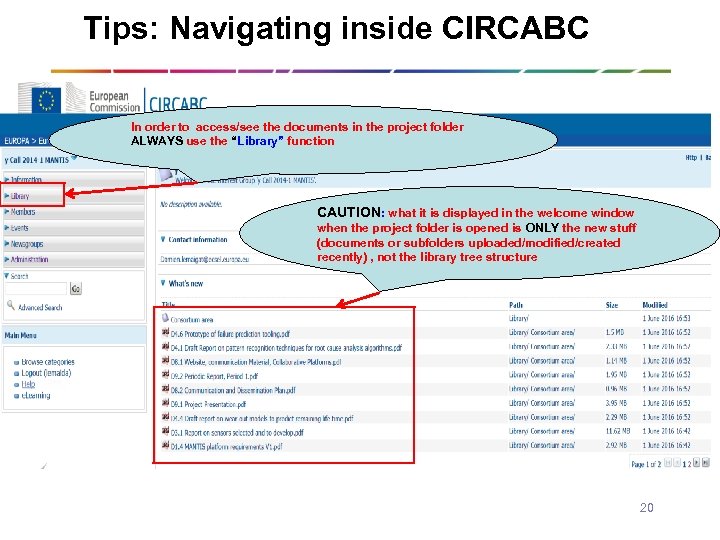
Tips: Navigating inside CIRCABC In order to access/see the documents in the project folder ALWAYS use the “Library” function CAUTION: what it is displayed in the welcome window when the project folder is opened is ONLY the new stuff (documents or subfolders uploaded/modified/created recently) , not the library tree structure 20
Скачать презентацию CIRCABC Guide for PA-NFAs Public Authorities National
0e832ed918b160a830d0a2879ce59faa.ppt