


 Скачать презентацию Chapter 8 Simple Network Operations Contents 1
0460f3937875e15ea0c2f37d7fa4d22c.ppt
- Количество слайдов: 54
 Chapter 8 Simple Network Operations
 Contents 1. 2. 3. 4. 5. Network Operating Systems Software Components of Networking Installing a Network Operating System Configuring Network Services Network Applications Guide to Networking Essentials, Fifth Edition 2
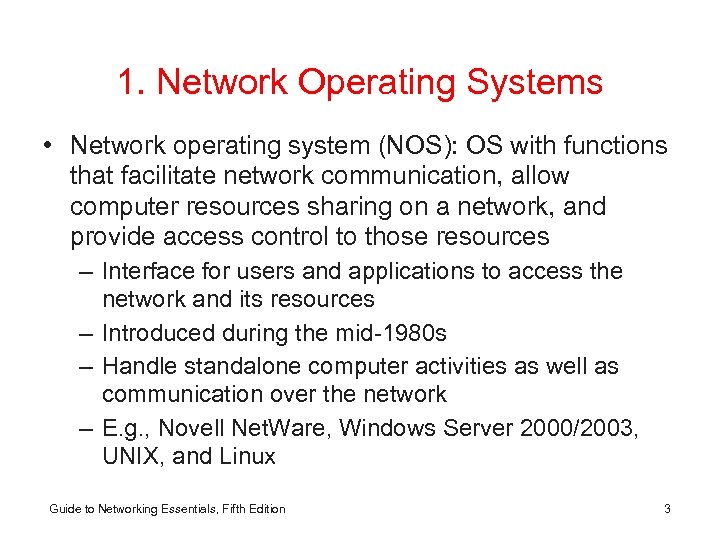 1. Network Operating Systems • Network operating system (NOS): OS with functions that facilitate network communication, allow computer resources sharing on a network, and provide access control to those resources – Interface for users and applications to access the network and its resources – Introduced during the mid-1980 s – Handle standalone computer activities as well as communication over the network – E. g. , Novell Net. Ware, Windows Server 2000/2003, UNIX, and Linux Guide to Networking Essentials, Fifth Edition 3
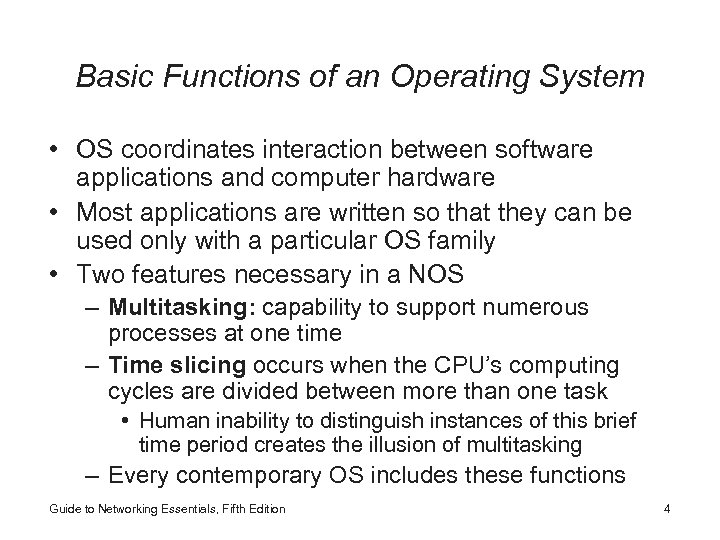 Basic Functions of an Operating System • OS coordinates interaction between software applications and computer hardware • Most applications are written so that they can be used only with a particular OS family • Two features necessary in a NOS – Multitasking: capability to support numerous processes at one time – Time slicing occurs when the CPU’s computing cycles are divided between more than one task • Human inability to distinguish instances of this brief time period creates the illusion of multitasking – Every contemporary OS includes these functions Guide to Networking Essentials, Fifth Edition 4
 • Two types of multitasking – Preemptive multitasking – Cooperative multitasking • A true high-performance NOS must be a preemptive multitasking system – All contemporary operating systems are designed to use preemptive multitasking • OSs include many NOS features – Some of these features are still reserved for OSs designed to be installed on a server computer Guide to Networking Essentials, Fifth Edition 5
 2. Software Components of Networking 2. 1. Naming Services 2. 2. Directory Services 2. 3. Client Network Software 2. 4. Server Network Software 2. 5. Client and Server Capabilities Guide to Networking Essentials, Fifth Edition 6
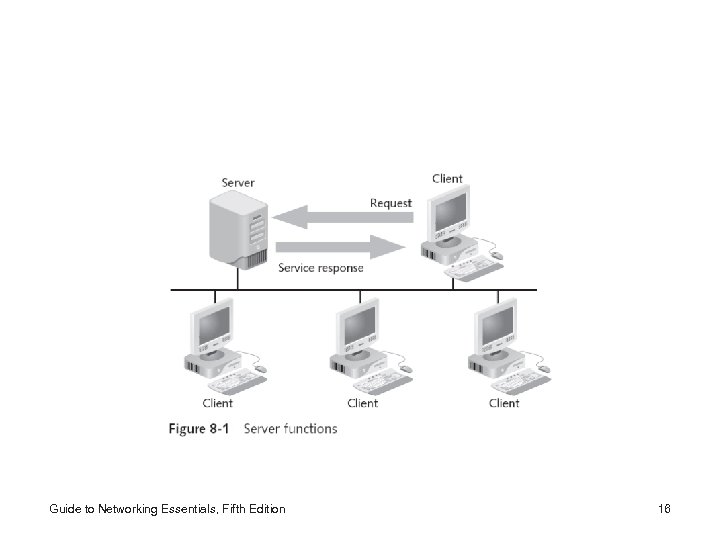
 • NOS manages computer’s activities and provides a network environment – Organizes hardware into an interactive whole – Coordinates/controls functions of machines/peripherals – Supports security and privacy (network and users) – Controls access to resources (user authentication) – Advertises/manages resources (centralized directory) – Provide access to shared resources • NOS components: naming services, directory services, and client and server software Guide to Networking Essentials, Fifth Edition 7
 2. 1. Naming Services • On most networks, a name is necessary to identify and access resources of all kinds • Humans recognize symbolic names more easily than numeric names – Naming services translate symbolic names into corresponding network addresses • This chapter explains the relationship between how Microsoft uses Net. BIOS names and how the TCP/IP-based Domain Name System uses domain names Guide to Networking Essentials, Fifth Edition 8
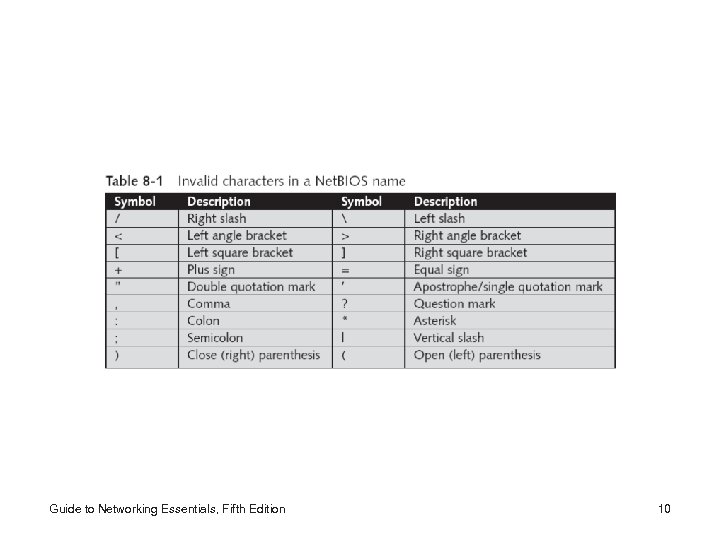
 2. 1. 1. Net. BIOS Names • Names can be no longer than 15 characters • Ending a name with $ prevents it from appearing in the Net. BIOS browse list Guide to Networking Essentials, Fifth Edition 9
 Guide to Networking Essentials, Fifth Edition 10
 2. 1. 2. Universal Naming Convention • Drive mapping: process of associating a network storage resource with a local drive letter • Windows and Linux (running Samba) OSs and most other modern NOSs recognize Universal Naming Convention (UNC) paths, a standard method for specifying network resources – \servernamesharename – In UNC-aware applications and many command-line activities, a UNC path can be used instead of a drive letter to access a network resource Guide to Networking Essentials, Fifth Edition 11
 2. 1. 3. Domain Names and DNS • DNS translates symbolic domain names into numeric IP addresses – Permits users to access resources and services by using symbolic domain names on the Internet • DNS server maintains a DB of computer name and IP address pairs – At least one DNS server is maintained for a domain – Domain: named logical grouping of network resources • E. g. , course. com – When a network request for www. course. com is made, the request is sent to the DNS server responsible for the course. com domain Guide to Networking Essentials, Fifth Edition 12
 2. 2. Directory Services • Directory service: manages information about network services, resources, users, groups, and objects so that users can access resources and services by browsing or asking for them by type – Manages and controls access to network resources – Access control (stores info and performs checks) – E. g. , Windows’ Active Directory, Novell’s e. Directory • Uses “tree and forest” metaphor to organize contents • Patterned after X. 500 directory service – LDAP is far easier to implement – Most Linux versions include NIS Guide to Networking Essentials, Fifth Edition 13
 2. 3. Client Network Software • Client network SW: part of NOS installed on PCs that access network services or network resources – Most important component is a redirector • SW component operating at the OSI model’s layer 6 that is found on both client and server NOSs • Hides from users the complicated tasks involved in accessing network resources – Designator: aids in network resource interaction • Keeps track of the drive letters assigned locally to remote or shared drives – A shared drive is known as a share – Client SW can refer to Internet access applications Guide to Networking Essentials, Fifth Edition 14
 2. 4. Server Network Software • Server SW can restrict access to resources by using access controls – Also: user/group management, logon authentication, network administration, fault tolerance Guide to Networking Essentials, Fifth Edition 15
 Guide to Networking Essentials, Fifth Edition 16
 2. 5. Client and Server Capabilities • Many NOSs (e. g. , Windows Server 2003, XP, Vista) include client and server capabilities in both the server and desktop versions – Generally, the desktop version of the NOS is not as powerful or robust as the server version • Novell Net. Ware is strictly a server NOS, so there’s no desktop version of Net. Ware • In Linux, the choice between a desktop or server installation is usually made during installation Guide to Networking Essentials, Fifth Edition 17
 3. Installing a Network Operating System 3. 1. Installation Preparation 3. 2. Installing Microsoft Windows Servers 3. 3. Installing Novell Net. Ware 6. 5 3. 4. Installing Linux Guide to Networking Essentials, Fifth Edition 18
 • Installing an NOS is not much different than installing a standard desktop OS – Requires only a few additional steps focused on configuring the network and the server services – Before installation of an NOS can begin, however, you must complete a few preparatory steps Guide to Networking Essentials, Fifth Edition 19
 3. 1. Installation Preparation • Before you begin an NOS installation, you need to understand the following network aspects: – – – – Size of the network Job requirements of the server Organization of storage devices File systems to be used Identification or naming convention Network adapter configuration Protocol selection Hardware compatibility Guide to Networking Essentials, Fifth Edition 20
 3. 1. 1. Size of the Network • The size of a network can affect which services you decide to configure, how many servers you need, and the number of connection licenses you require – A small LAN with fewer than 10 users who require only file and printer sharing can probably function fine with a peer-to-peer network • Windows XP or Vista could serve as the OS – With more users or more advanced networking service requirements, a dedicated server with an NOS designed for servers is definitely in order Guide to Networking Essentials, Fifth Edition 21
 3. 1. 2. Server Job Requirements • The services and resources hosted by a server determine what components are installed – E. g. , DNS, DHCP, Web services, remote access, etc. • Other server responsibilities – Domain controller: authenticates users and maintains directory services and the security DB for a domain • For fault tolerance, install at least two per domain – Member server: hosts a service or resource and doesn’t maintain the directory and security DB • In Net. Ware, use existing tree or create new one • In Linux, decide individual services to install Guide to Networking Essentials, Fifth Edition 22
 3. 1. 3. Storage Device Organization • Crucial to network’s success when accessibility, performance, and fault tolerance are essential • Partition: logical organization of disk space; each partition appears as a separate logical drive • Ways to organize NOS host drive – Multiple-boot: good for testing; not good for security – Single-partition, single-NOS: most secure – Multiple-partition, single-NOS: useful for separating data from OS files; increases drive activity – Fault-tolerant storage: e. g. , disk mirroring, RAID Guide to Networking Essentials, Fifth Edition 23
 3. 1. 4. File Systems • File system: method used to store, organize, and manage access to files on a mass storage device – File systems differ in how they allocate space, how files are located on disk, the level of fault tolerance, and how access to files is secured • Fault-tolerant features include backup copies of FAT, journaling • Folder- and/or file- level security are important – E. g. , as provided by NTFS or ext 3 – It’s best to use the most secure file system available for the OS you’re installing Guide to Networking Essentials, Fifth Edition 24
 3. 1. 5. Naming Conventions • Naming convention: method of creating names – Should have scheme for user accounts, computers, directories, network shares, printers, and servers – Common naming schemes • Construct user names from the user’s first and last names, plus a code identifying job title or department • Construct group names from resource types, department names, location names, project names • Construct computer names for servers and clients from their department, location, and an ID number – Must be consistent, easy to use and understand, and must enable clear object identification Guide to Networking Essentials, Fifth Edition 25
 3. 1. 6. Network Adapter Configuration • The NIC is the primary communication device between a computer and the rest of the network – A computer purchased as a server already has an NIC installed • Must verify manufacturer and model number to ensure compatibility and update device drivers as necessary • Most NICs are plug-and-play-compatible with the OS, so NIC configuration isn’t usually necessary – Verify compatibility with the OS version you are using, and have a driver disk ready in case the OS doesn’t recognize the NIC Guide to Networking Essentials, Fifth Edition 26
 3. 1. 7. Protocol Selection • Protocol and configuration options must be compatible for computers to communicate – For example, TCP/IP requires the following pieces of information before NOS installation begins: • • • IP address Subnet mask Default gateway DNS WINS DHCP Guide to Networking Essentials, Fifth Edition 27
 3. 1. 8. Hardware Compatibility • HW components of the computer on which it’s installed must be compatible with the NOS – If you use incompatible hardware, the vendor might not provide technical support – Double-check that your computer’s HW components are fully compatible with the NOS • Microsoft publishes the Windows Catalog – Formerly called the Hardware Compatibility List (HCL) • Linux distributors publish a similar list for the various Linux versions • Novell typically certifies whole systems as Net. Ware compatible Guide to Networking Essentials, Fifth Edition 28
 2. 3. Installing Microsoft Windows Servers • Windows server versions are not much more difficult to install than Windows XP or Vista • With the proper preparation, the Setup Wizard makes the installation process as simple as entering a few key data items – The major steps or sections of the installation included here give you insight into the architecture and simplicity of the Windows server line of operating systems Guide to Networking Essentials, Fifth Edition 29
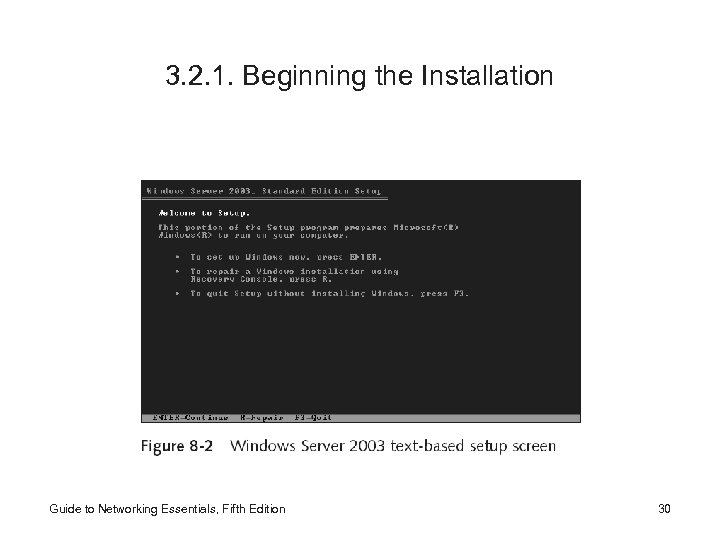 3. 2. 1. Beginning the Installation Guide to Networking Essentials, Fifth Edition 30
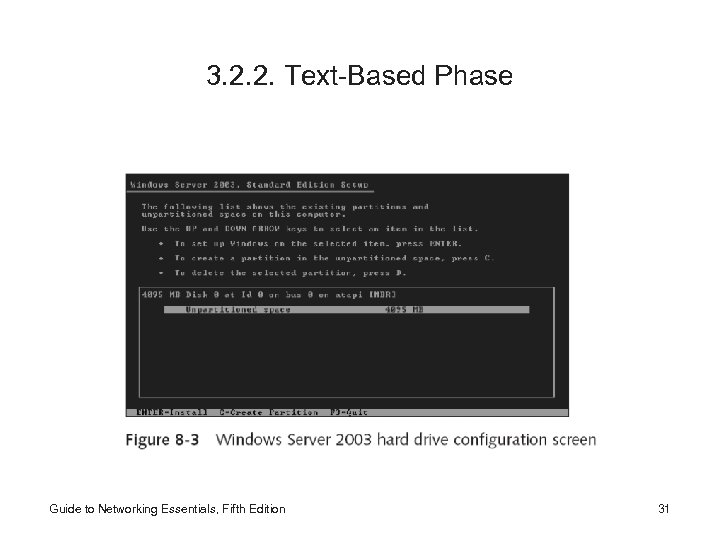 3. 2. 2. Text-Based Phase Guide to Networking Essentials, Fifth Edition 31
 3. 2. 3. GUI Phase • In the GUI phase, you use a mouse or keyboard to enter items or make selections • You define computer and domain names, enter the identification key from installation CD, select the server type (domain controller or member server), assign a password to Administrator account, select environment and desktop components • Setup copies some files from the temporary folder to the destination folder and then moves into the network setup phase Guide to Networking Essentials, Fifth Edition 32
 3. 2. 4. Network Setup Phase • You install drivers for the NIC, select and configure protocols, and review bindings • Upon completion, files are copied to the system folder and temporary folder is deleted – Next, you define time zone and display settings – Then, the computer restarts, the Administrator logs on, and the Configure Server Wizard starts • Allows the server to be configured as a domain controller, member server, or standalone server – If server is to act as a domain controller, Active Directory is installed and configured Guide to Networking Essentials, Fifth Edition 33
 3. 3. Installing Novell Net. Ware 6. 5 • Install Net. Ware by using one of two methods – Over the network – From a CD • The primary install utility is INSTALL. NLM – Two phases • Text mode – Create partitions, accept license agreement, copy files, install storage device drivers, and select NIC drivers • GUI mode – Assign server name, set up protocols, and install e. Directory Guide to Networking Essentials, Fifth Edition 34
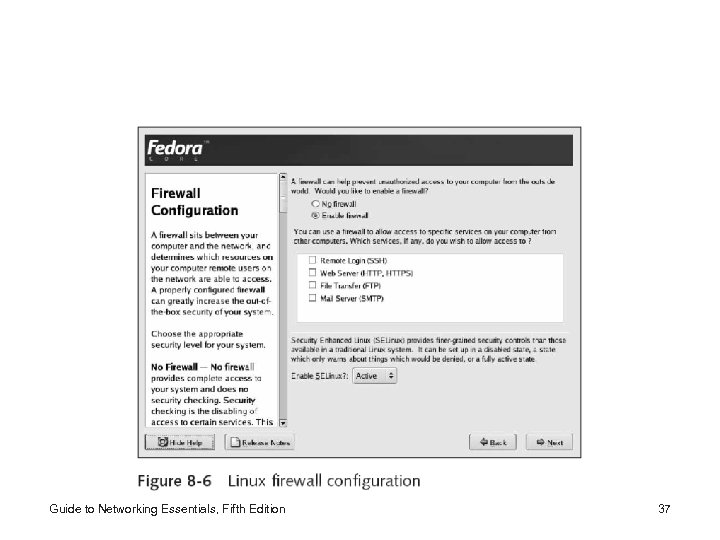
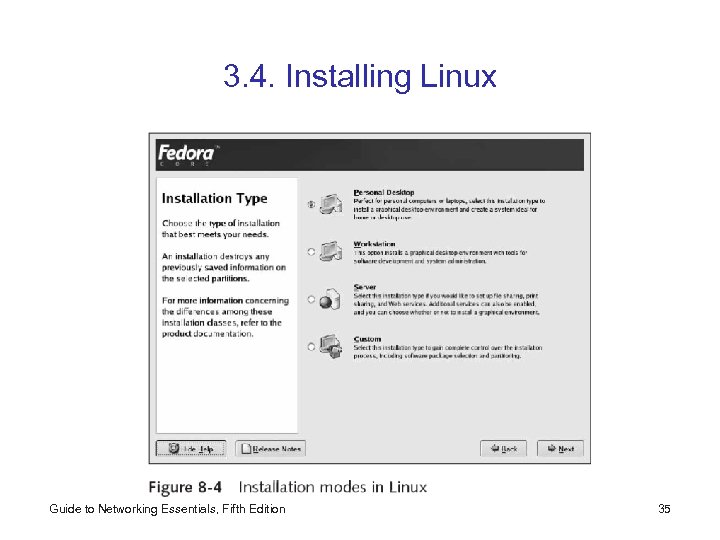 3. 4. Installing Linux Guide to Networking Essentials, Fifth Edition 35
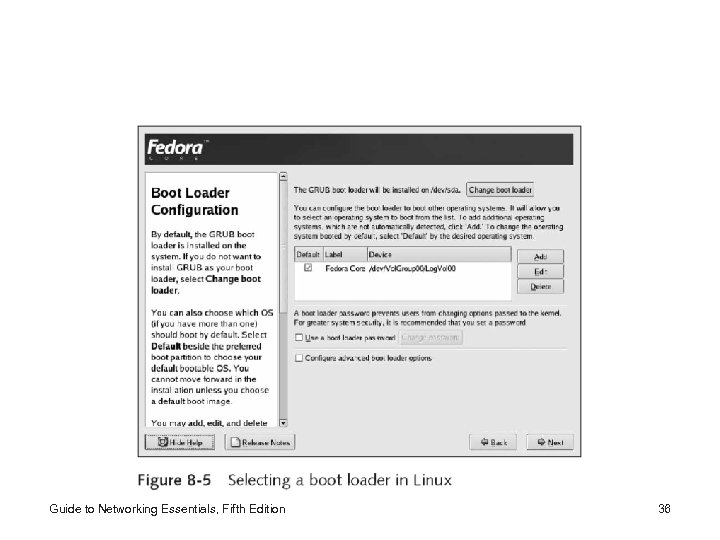 Guide to Networking Essentials, Fifth Edition 36
 Guide to Networking Essentials, Fifth Edition 37
 4. Configuring Network Services 4. 1. Installing, Removing, and Configuring Network Services 4. 2. Network Bindings 4. 3. Network Printing 4. 4. File Shares Guide to Networking Essentials, Fifth Edition 38
 • Network services, the basic resources on all networks, are the foundation of network applications • The two most basic shared network resources (network services) are printers and file folders • You can add numerous capabilities, resources, and delivery methods to a default NOS installation – Groupware applications, e-mail packages, shared whiteboard applications, Web servers, etc. Guide to Networking Essentials, Fifth Edition 39
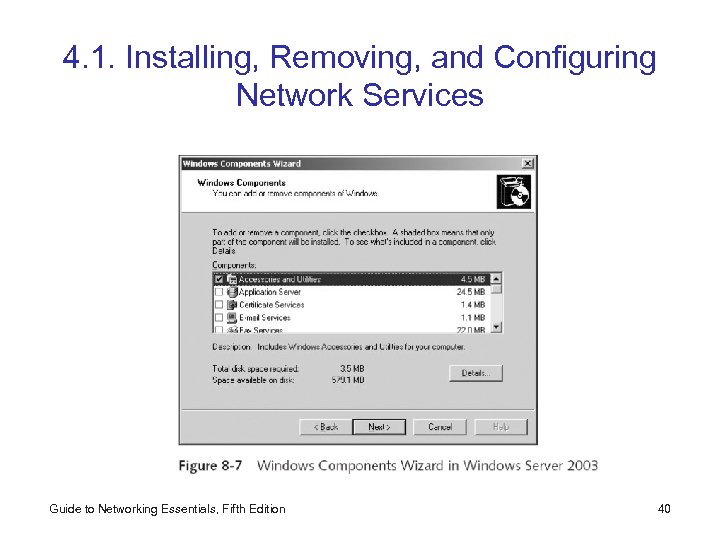 4. 1. Installing, Removing, and Configuring Network Services Guide to Networking Essentials, Fifth Edition 40
 4. 2. Network Bindings • Binding: process of linking network components from various levels of the network architecture to enable communication between those components – Associate upper-layer services and protocols to lower-layer network adapter drivers – Many NOSs enable all valid bindings by default • Often results in some performance degradation • Binding order should enhance the computer’s use of the network – Bind the most frequently used protocol, service, or adapter first to speed network connections Guide to Networking Essentials, Fifth Edition 41
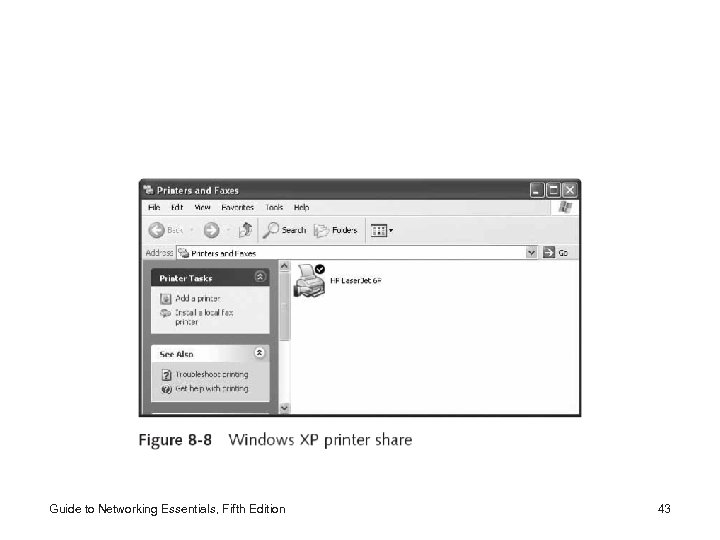
 4. 3. Network Printing • It is one of the two essential network services • Redirector intercepts print requests and forwards them to the right print servers or network printers • Three components: the print server, the print queue, and the printer – First, installing a printer on a server or as a direct network-connected device – Next, share printer’s logical representation in NOS – Print queue is a storage location that accepts print jobs from network clients and stores the print job until the printer is available to print it Guide to Networking Essentials, Fifth Edition 42
 Guide to Networking Essentials, Fifth Edition 43
 4. 3. 1. Printer Management • On most networks, you manage printers from local direct access or through the network printer share – Sometimes you may use a Web browser (e. g. , IPP) – Must have right level of access granted to user – Printer management covers wide range of activities • • • Granting and restricting user access to printers Monitoring the print queue for proper functioning Limiting access (time frame, department, or priority) Updating local and remote printer drivers Maintaining printers Managing printers remotely Guide to Networking Essentials, Fifth Edition 44
 4. 3. 2. Sharing Fax Modems • This feature is not often a default component in an NOS; many third-party vendors offer add-on products to share a fax modem over a network – With these add-on products, clients can fax documents from the desktop – You can manage and administer fax shares just like printer shares – Usually, additional client-installed software is needed to connect to a fax share • After drivers are installed, there’s no major difference between using a printer share and a fax share Guide to Networking Essentials, Fifth Edition 45
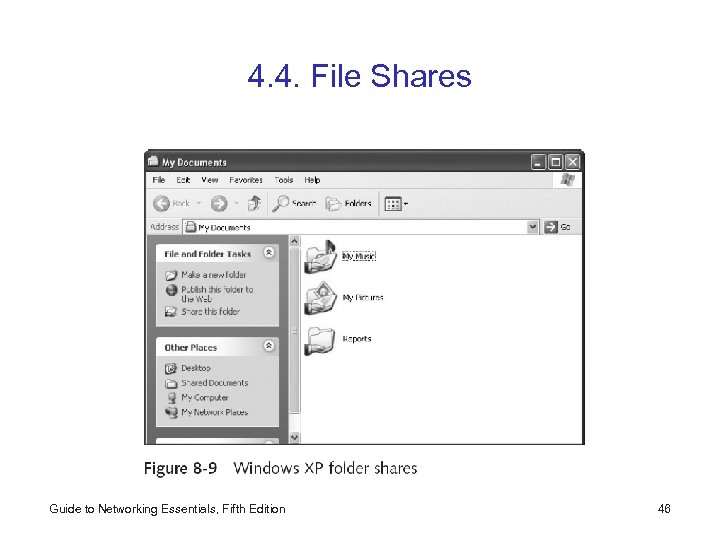 4. 4. File Shares Guide to Networking Essentials, Fifth Edition 46
 5. Network Applications 5. 1. E-Mail or Messaging 5. 2. Scheduling or Calendaring 5. 3. Groupware Guide to Networking Essentials, Fifth Edition 47
 • Network applications: designed for multiple simultaneous users on computers on a network • Three types of essential network applications: messaging, scheduling, and groupware • Pros – Much easier to administer (e. g. , on large networks) – Save money • Cons – Poor network performance degrades performance – If network is down, application is often unusable Guide to Networking Essentials, Fifth Edition 48
 • At least three types of architectures for network applications – Centralized – File-system sharing – True client/server Guide to Networking Essentials, Fifth Edition 49
 5. 1. E-Mail or Messaging • Most popular network application • E-mail is fast and asynchronous • Based on a common protocol and standards for communication – – – Post Office Protocol version 3 (POP 3) Simple Mail Transport Protocol (SMTP) Internet Message Access Protocol (IMAP) X. 400 X. 500 Message Handling System (MHS) Guide to Networking Essentials, Fifth Edition 50
 5. 2. Scheduling or Calendaring • A network scheduler is an electronic form of an appointment book and to-do lists – Most offer private and public calendars, appointment books, task lists, and contact/address books – They can also notify about upcoming meetings, warn about overlapped schedules, and offer reminders of special events or the need to contact someone – Most offer integration into e-mail programs and office -productivity suites – To supplement or replace a paper-based personal information manager, schedules can be printed Guide to Networking Essentials, Fifth Edition 51
 5. 3. Groupware • Groupware enables multiple users to interact with a single file, document, or project – E. g. , an entire department can contribute to a document’s production and watch as the groupware combines everyone’s input into a single document – Examples: multiuser multimedia authoring tools, Lotus Notes, Novell Virtual Office, and HP’s Team. Links – Some make it possible to collaborate across the Internet – The biggest explosion in groupware products is integrating PDAs with corporate networks Guide to Networking Essentials, Fifth Edition 52
 Summary • Network operating system (NOS): controls the operations of a computer, including local hardware activity as well as communication over network media – Enables sharing resources, managing peripherals, maintaining security, and controlling user access • Client network software on workstations allows users to take advantage of network resources – Doesn’t always mean redirectors and designators • Server network software is designed to host resources so that multiple clients can access them Guide to Networking Essentials, Fifth Edition 53
 • Installing an NOS is similar to installing any OS – Issues you must be aware of include size of the network, job requirements of the server, storage device organization, naming conventions, NIC and protocol selection and configuration, and hardware compatibility – The steps for installing Windows Server 2000/2003, Novell Net. Ware, and Linux are similar • Two fundamental network services: sharing printers and sharing files • Some standalone applications have been revised to function as cross-network applications Guide to Networking Essentials, Fifth Edition 54