


 Скачать презентацию Chapter 6 Working with CAD Design Modeler ANSYS
65de5ec43757b88a916ec5494fdd29b5.ppt
- Количество слайдов: 31
 Chapter 6 Working with CAD Design. Modeler ANSYS, Inc. Proprietary © 2009 ANSYS, Inc. All rights reserved. 6 -1 April 28, 2009 Inventory #002596
 Working with CAD Training Manual • Bodies and Parts • Support for CAD Versions • Length Units • Attaching to a CAD Session • Importing CAD Files • Positioning Imports • Import Units • Exporting a Model • Creating Negative Geometry • Edge and Face Merge for Model Simplification • Automated Option for Ease of Use • Improved Cleanup and Repair of CAD ANSYS, Inc. Proprietary © 2009 ANSYS, Inc. All rights reserved. 6 -2 April 28, 2009 Inventory #002596
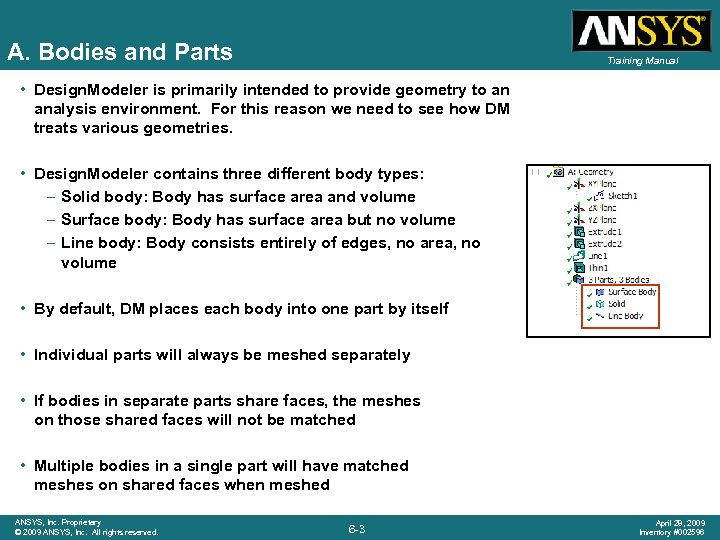 A. Bodies and Parts Training Manual • Design. Modeler is primarily intended to provide geometry to an analysis environment. For this reason we need to see how DM treats various geometries. • Design. Modeler contains three different body types: – Solid body: Body has surface area and volume – Surface body: Body has surface area but no volume – Line body: Body consists entirely of edges, no area, no volume • By default, DM places each body into one part by itself • Individual parts will always be meshed separately • If bodies in separate parts share faces, the meshes on those shared faces will not be matched • Multiple bodies in a single part will have matched meshes on shared faces when meshed ANSYS, Inc. Proprietary © 2009 ANSYS, Inc. All rights reserved. 6 -3 April 28, 2009 Inventory #002596
 Active and Frozen Bodies Training Manual • By default, DM will merge new geometry with existing geometry to maintain a single body • This can be controlled by working with either frozen or active bodies • You can toggle between frozen and active states for using the Freeze and Unfreeze tools ANSYS, Inc. Proprietary © 2009 ANSYS, Inc. All rights reserved. 6 -4 April 28, 2009 Inventory #002596
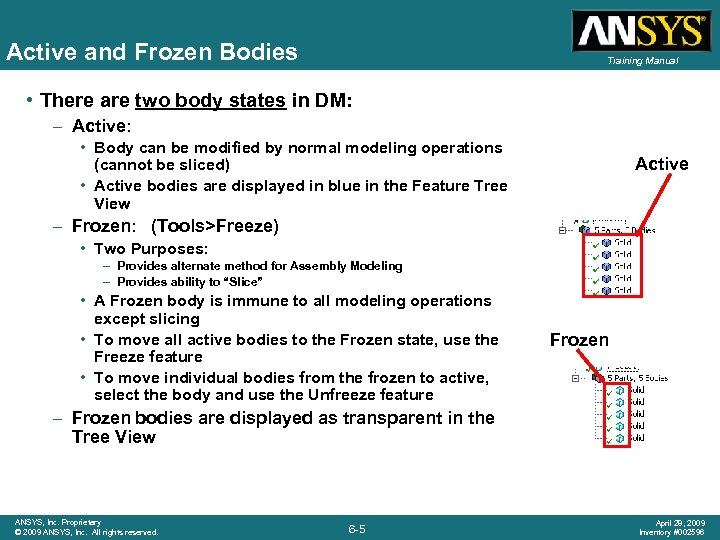 Active and Frozen Bodies Training Manual • There are two body states in DM: – Active: • Body can be modified by normal modeling operations (cannot be sliced) • Active bodies are displayed in blue in the Feature Tree View Active – Frozen: (Tools>Freeze) • Two Purposes: – Provides alternate method for Assembly Modeling – Provides ability to “Slice” • A Frozen body is immune to all modeling operations except slicing • To move all active bodies to the Frozen state, use the Freeze feature • To move individual bodies from the frozen to active, select the body and use the Unfreeze feature Frozen – Frozen bodies are displayed as transparent in the Tree View ANSYS, Inc. Proprietary © 2009 ANSYS, Inc. All rights reserved. 6 -5 April 28, 2009 Inventory #002596
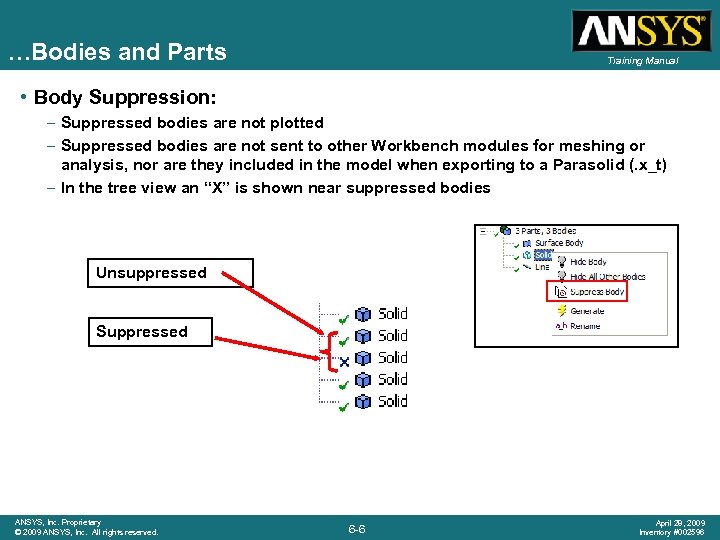 …Bodies and Parts Training Manual • Body Suppression: – Suppressed bodies are not plotted – Suppressed bodies are not sent to other Workbench modules for meshing or analysis, nor are they included in the model when exporting to a Parasolid (. x_t) – In the tree view an “X” is shown near suppressed bodies Unsuppressed Suppressed ANSYS, Inc. Proprietary © 2009 ANSYS, Inc. All rights reserved. 6 -6 April 28, 2009 Inventory #002596
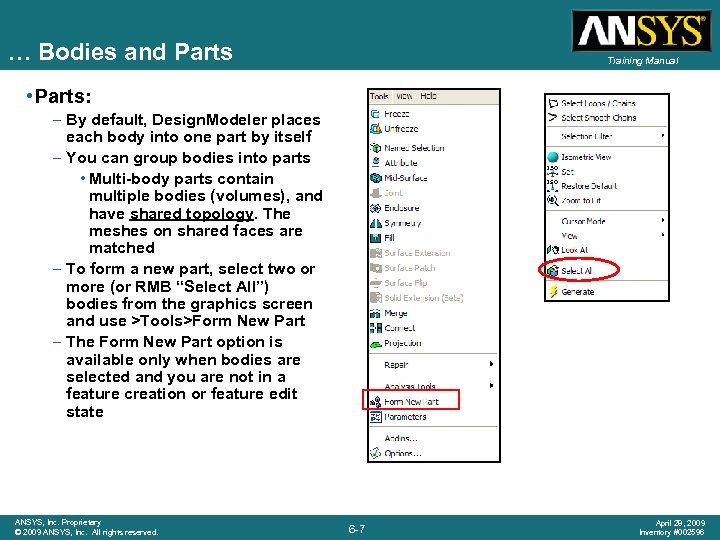 … Bodies and Parts Training Manual • Parts: – By default, Design. Modeler places each body into one part by itself – You can group bodies into parts • Multi-body parts contain multiple bodies (volumes), and have shared topology. The meshes on shared faces are matched – To form a new part, select two or more (or RMB “Select All”) bodies from the graphics screen and use >Tools>Form New Part – The Form New Part option is available only when bodies are selected and you are not in a feature creation or feature edit state ANSYS, Inc. Proprietary © 2009 ANSYS, Inc. All rights reserved. 6 -7 April 28, 2009 Inventory #002596
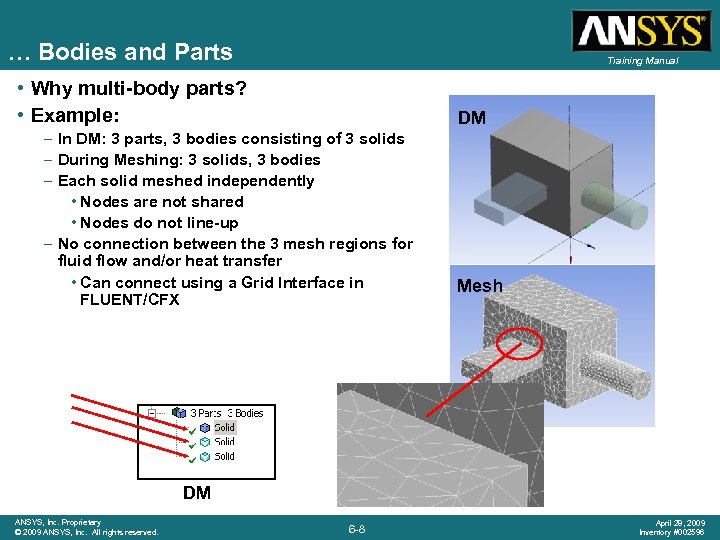 … Bodies and Parts Training Manual • Why multi-body parts? • Example: DM – In DM: 3 parts, 3 bodies consisting of 3 solids – During Meshing: 3 solids, 3 bodies – Each solid meshed independently • Nodes are not shared • Nodes do not line-up – No connection between the 3 mesh regions for fluid flow and/or heat transfer • Can connect using a Grid Interface in FLUENT/CFX Mesh DM ANSYS, Inc. Proprietary © 2009 ANSYS, Inc. All rights reserved. 6 -8 April 28, 2009 Inventory #002596
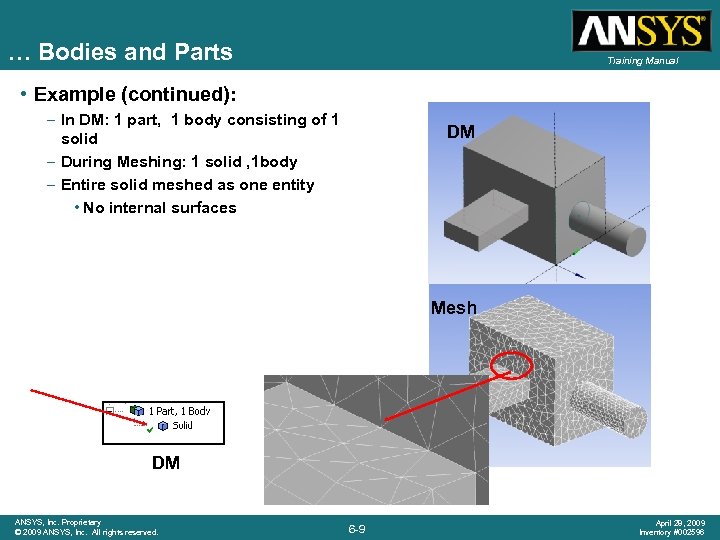 … Bodies and Parts Training Manual • Example (continued): – In DM: 1 part, 1 body consisting of 1 solid – During Meshing: 1 solid , 1 body – Entire solid meshed as one entity • No internal surfaces DM Mesh DM ANSYS, Inc. Proprietary © 2009 ANSYS, Inc. All rights reserved. 6 -9 April 28, 2009 Inventory #002596
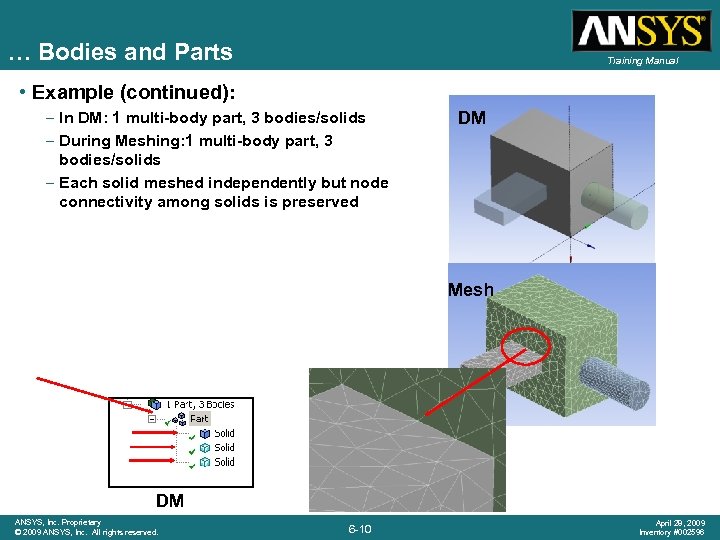 … Bodies and Parts Training Manual • Example (continued): – In DM: 1 multi-body part, 3 bodies/solids – During Meshing: 1 multi-body part, 3 bodies/solids – Each solid meshed independently but node connectivity among solids is preserved DM Mesh DM ANSYS, Inc. Proprietary © 2009 ANSYS, Inc. All rights reserved. 6 -10 April 28, 2009 Inventory #002596
 B. Support for CAD Versions Training Manual • Reader and Plug-In support: – CAD interfaces are associative and require installation of CAD package • • • Autodesk Inventor 2008 (Windows 32 -bit) Autodesk Inventor 2009 Co. Create Modeling 2008 Co. Create Modeling - One. Space Modeling 2007 Mechanical Desktop 2008 and 2009 Pro/Engineer WF 4 (Windows XP and Vista, 32 -bit and 64 -bit) Pro/Engineer WF 3 (Windows XP 32 -bit and 64 -bit, Windows Vista 64 -bit) Solid Edge v 19 and v 20 Solid. Works 2008 and 2009 UG NX 5. 0 and 6. 0 – 64 -bit support for all interfaces including IGES and STEP readers ANSYS, Inc. Proprietary © 2009 ANSYS, Inc. All rights reserved. 6 -11 April 28, 2009 Inventory #002596
 …Support for CAD Versions Training Manual • Plug-In support: – Team. Center Engineering 2005 w/ NX 5 and NX 6 (Windows XP 32 -bit and 64 -bit) • Reader support: – – – – ACIS (SAT) 19 CADNexus/CAPRI CAE Gateway CATIA V 5 (R 16 – R 18) (Win XP 32 -bit and 64 -bit) CADNexus/CAPRI CAE Gateway CATIA V 5 (R 18 SP 4+) (Win XP 32 -bit, 64 -bit) CATIA V 4 (Windows 32 -bit) CATIA V 5 (R 2 - R 19) IGES 4. 0, 5. 2, 5. 3 Parasolid 19. 1 STEP AP 203, AP 214 ANSYS, Inc. Proprietary © 2009 ANSYS, Inc. All rights reserved. 6 -12 April 28, 2009 Inventory #002596
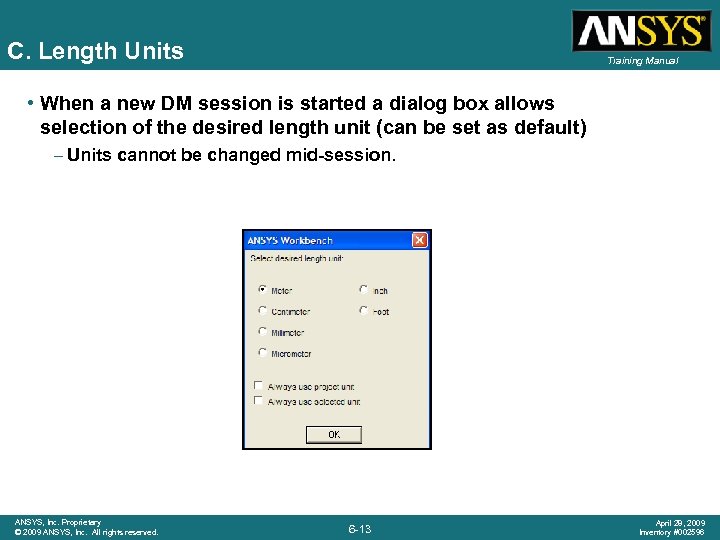 C. Length Units Training Manual • When a new DM session is started a dialog box allows selection of the desired length unit (can be set as default) – Units cannot be changed mid-session. ANSYS, Inc. Proprietary © 2009 ANSYS, Inc. All rights reserved. 6 -13 April 28, 2009 Inventory #002596
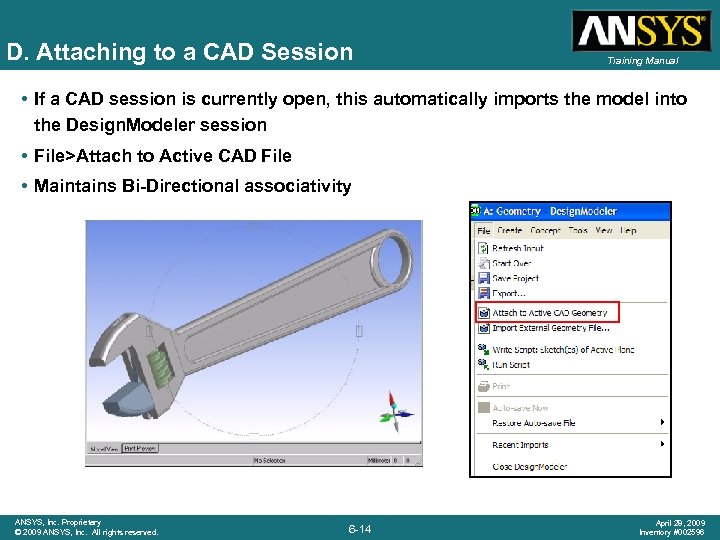 D. Attaching to a CAD Session Training Manual • If a CAD session is currently open, this automatically imports the model into the Design. Modeler session • File>Attach to Active CAD File • Maintains Bi-Directional associativity ANSYS, Inc. Proprietary © 2009 ANSYS, Inc. All rights reserved. 6 -14 April 28, 2009 Inventory #002596
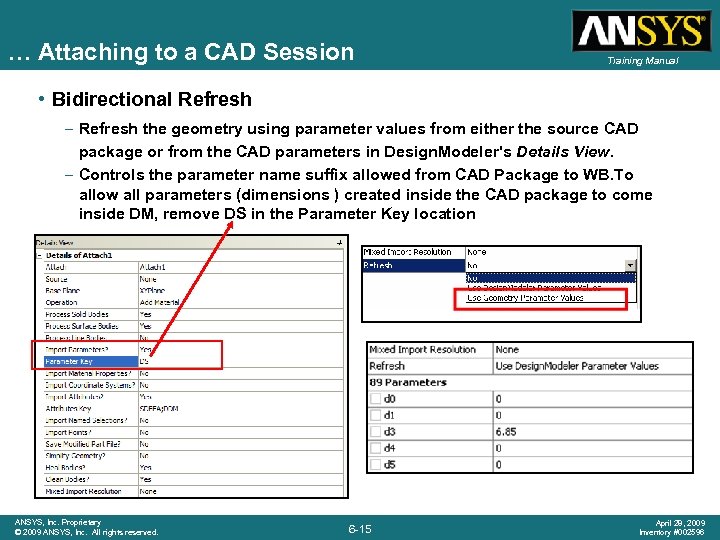 … Attaching to a CAD Session Training Manual • Bidirectional Refresh – Refresh the geometry using parameter values from either the source CAD package or from the CAD parameters in Design. Modeler's Details View. – Controls the parameter name suffix allowed from CAD Package to WB. To allow all parameters (dimensions ) created inside the CAD package to come inside DM, remove DS in the Parameter Key location ANSYS, Inc. Proprietary © 2009 ANSYS, Inc. All rights reserved. 6 -15 April 28, 2009 Inventory #002596
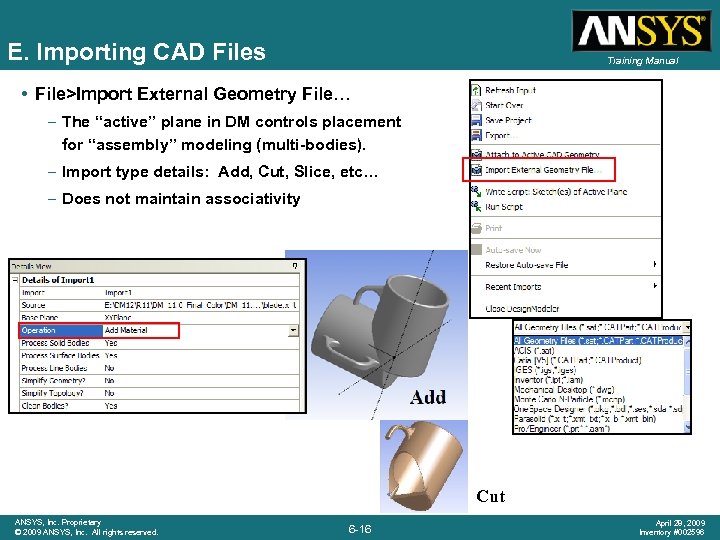 E. Importing CAD Files Training Manual • File>Import External Geometry File… – The “active” plane in DM controls placement for “assembly” modeling (multi-bodies). – Import type details: Add, Cut, Slice, etc… – Does not maintain associativity Cut ANSYS, Inc. Proprietary © 2009 ANSYS, Inc. All rights reserved. 6 -16 April 28, 2009 Inventory #002596
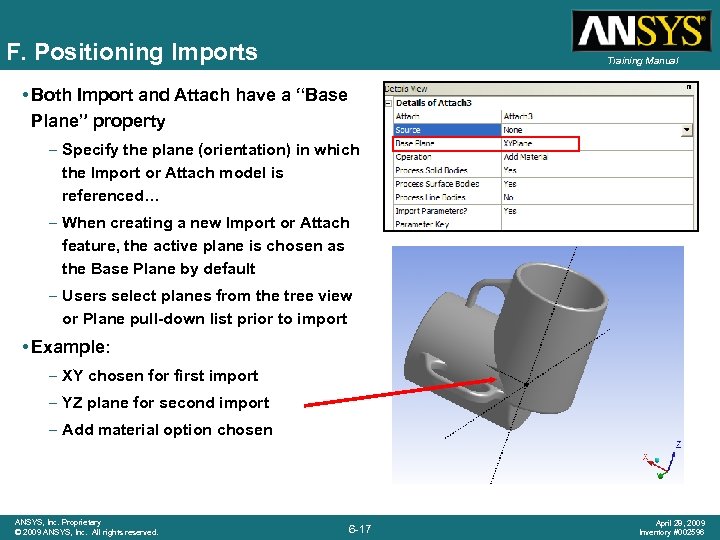 F. Positioning Imports Training Manual • Both Import and Attach have a “Base Plane” property – Specify the plane (orientation) in which the Import or Attach model is referenced… – When creating a new Import or Attach feature, the active plane is chosen as the Base Plane by default – Users select planes from the tree view or Plane pull-down list prior to import • Example: – XY chosen for first import – YZ plane for second import – Add material option chosen ANSYS, Inc. Proprietary © 2009 ANSYS, Inc. All rights reserved. 6 -17 April 28, 2009 Inventory #002596
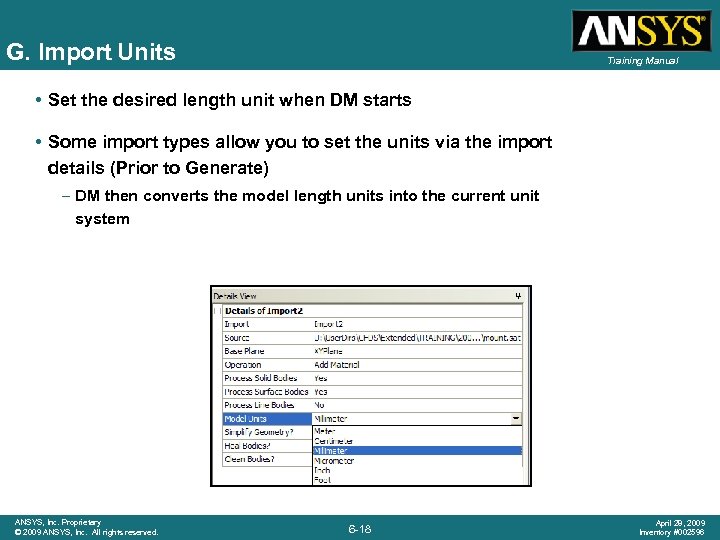 G. Import Units Training Manual • Set the desired length unit when DM starts • Some import types allow you to set the units via the import details (Prior to Generate) – DM then converts the model length units into the current unit system ANSYS, Inc. Proprietary © 2009 ANSYS, Inc. All rights reserved. 6 -18 April 28, 2009 Inventory #002596
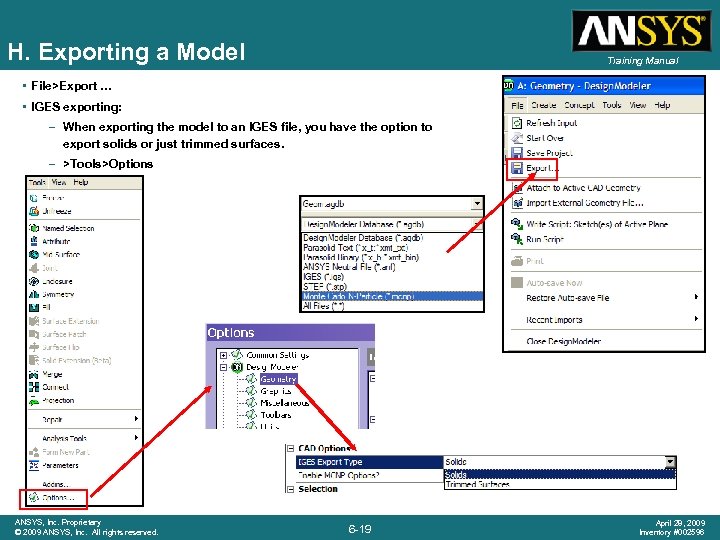 H. Exporting a Model Training Manual • File>Export … • IGES exporting: – When exporting the model to an IGES file, you have the option to export solids or just trimmed surfaces. – >Tools>Options ANSYS, Inc. Proprietary © 2009 ANSYS, Inc. All rights reserved. 6 -19 April 28, 2009 Inventory #002596
 I. Creating Negative Geometry Training Manual • In many cases, when you import a CAD file, it is a model for a solid part • You may be interested in the fluid region surrounding or enclosed by a solid part • You can by “taking the negative” of the solid part, construct the corresponding fluid region • You can construct the negative of a CAD model: – In the original CAD package – In Design. Modeler, using enclosures, fills, and Boolean body operations such as cut and slice ANSYS, Inc. Proprietary © 2009 ANSYS, Inc. All rights reserved. 6 -20 April 28, 2009 Inventory #002596
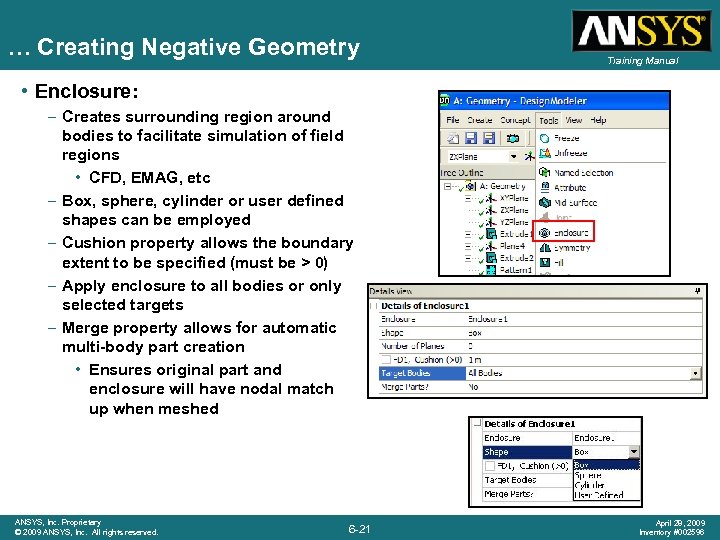 … Creating Negative Geometry Training Manual • Enclosure: – Creates surrounding region around bodies to facilitate simulation of field regions • CFD, EMAG, etc – Box, sphere, cylinder or user defined shapes can be employed – Cushion property allows the boundary extent to be specified (must be > 0) – Apply enclosure to all bodies or only selected targets – Merge property allows for automatic multi-body part creation • Ensures original part and enclosure will have nodal match up when meshed ANSYS, Inc. Proprietary © 2009 ANSYS, Inc. All rights reserved. 6 -21 April 28, 2009 Inventory #002596
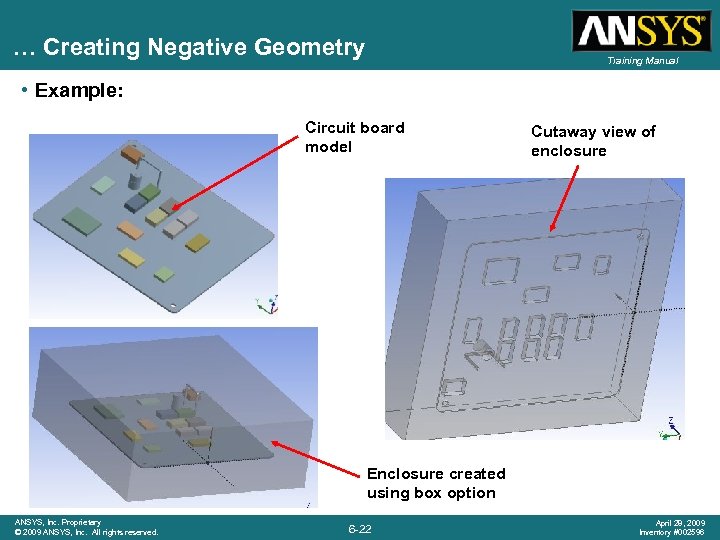 … Creating Negative Geometry Training Manual • Example: Circuit board model Cutaway view of enclosure Enclosure created using box option ANSYS, Inc. Proprietary © 2009 ANSYS, Inc. All rights reserved. 6 -22 April 28, 2009 Inventory #002596
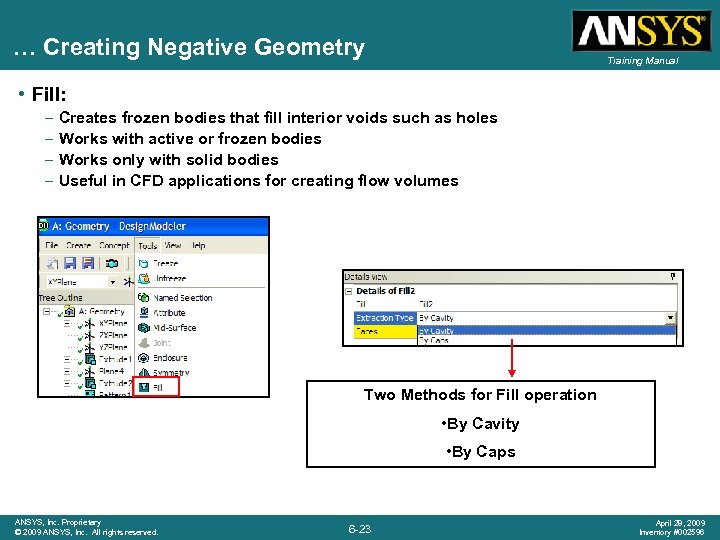 … Creating Negative Geometry Training Manual • Fill: – – Creates frozen bodies that fill interior voids such as holes Works with active or frozen bodies Works only with solid bodies Useful in CFD applications for creating flow volumes Two Methods for Fill operation • By Cavity • By Caps ANSYS, Inc. Proprietary © 2009 ANSYS, Inc. All rights reserved. 6 -23 April 28, 2009 Inventory #002596
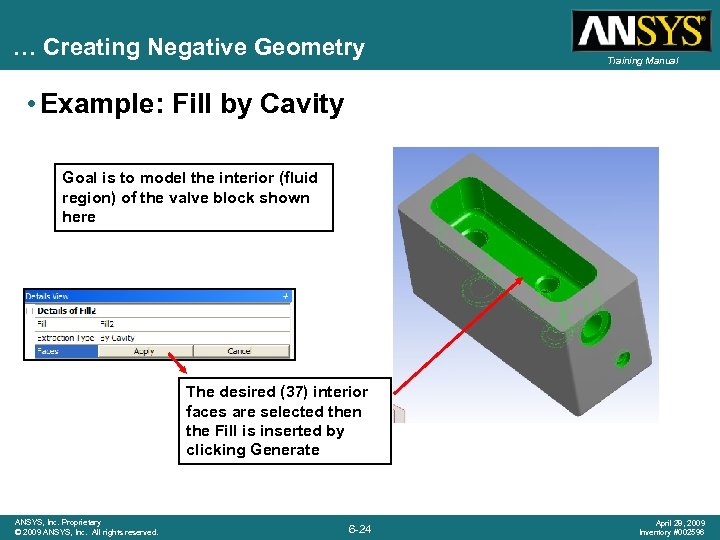 … Creating Negative Geometry Training Manual • Example: Fill by Cavity Goal is to model the interior (fluid region) of the valve block shown here The desired (37) interior faces are selected then the Fill is inserted by clicking Generate ANSYS, Inc. Proprietary © 2009 ANSYS, Inc. All rights reserved. 6 -24 April 28, 2009 Inventory #002596
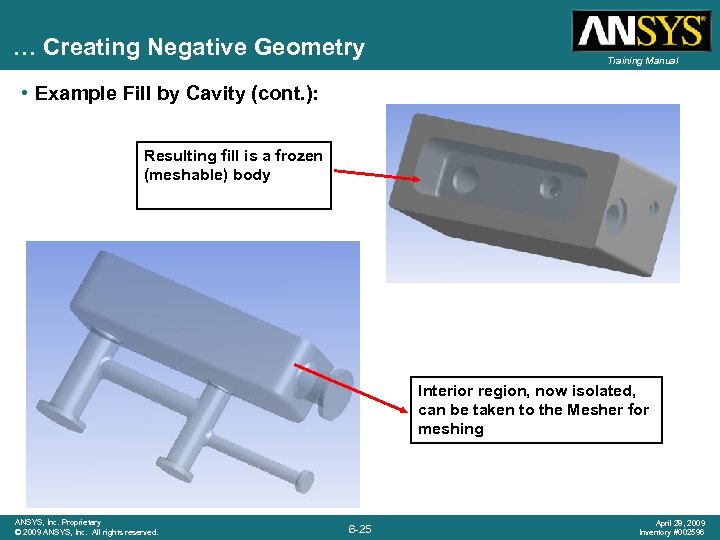 … Creating Negative Geometry Training Manual • Example Fill by Cavity (cont. ): Resulting fill is a frozen (meshable) body Interior region, now isolated, can be taken to the Mesher for meshing ANSYS, Inc. Proprietary © 2009 ANSYS, Inc. All rights reserved. 6 -25 April 28, 2009 Inventory #002596
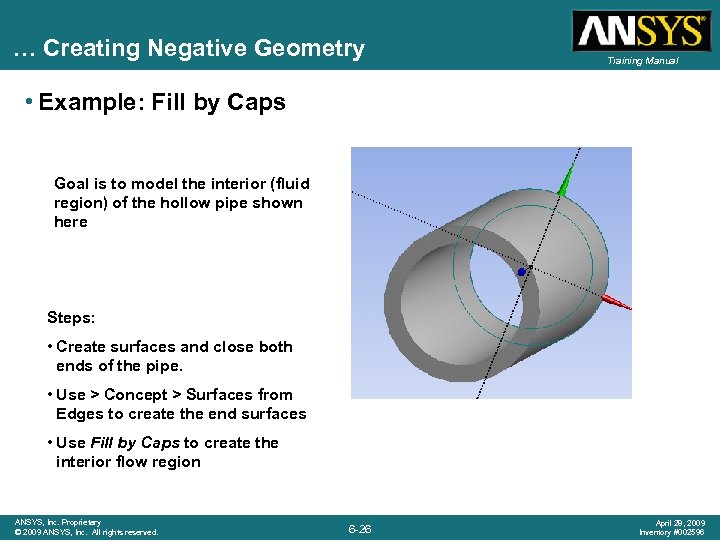 … Creating Negative Geometry Training Manual • Example: Fill by Caps Goal is to model the interior (fluid region) of the hollow pipe shown here Steps: • Create surfaces and close both ends of the pipe. • Use > Concept > Surfaces from Edges to create the end surfaces • Use Fill by Caps to create the interior flow region ANSYS, Inc. Proprietary © 2009 ANSYS, Inc. All rights reserved. 6 -26 April 28, 2009 Inventory #002596
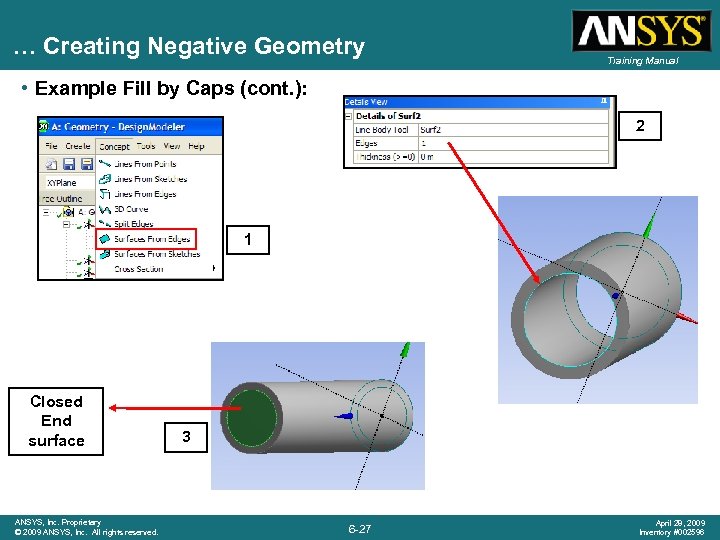 … Creating Negative Geometry Training Manual • Example Fill by Caps (cont. ): 2 1 Closed End surface ANSYS, Inc. Proprietary © 2009 ANSYS, Inc. All rights reserved. 3 6 -27 April 28, 2009 Inventory #002596
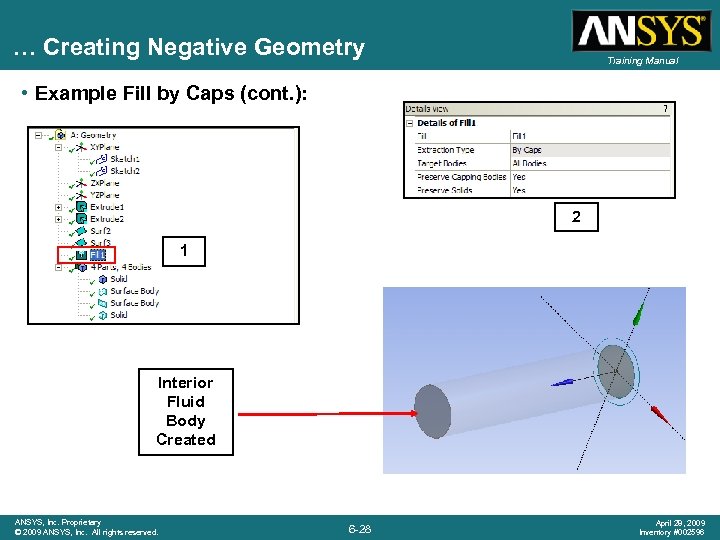 … Creating Negative Geometry Training Manual • Example Fill by Caps (cont. ): 2 1 Interior Fluid Body Created ANSYS, Inc. Proprietary © 2009 ANSYS, Inc. All rights reserved. 6 -28 April 28, 2009 Inventory #002596
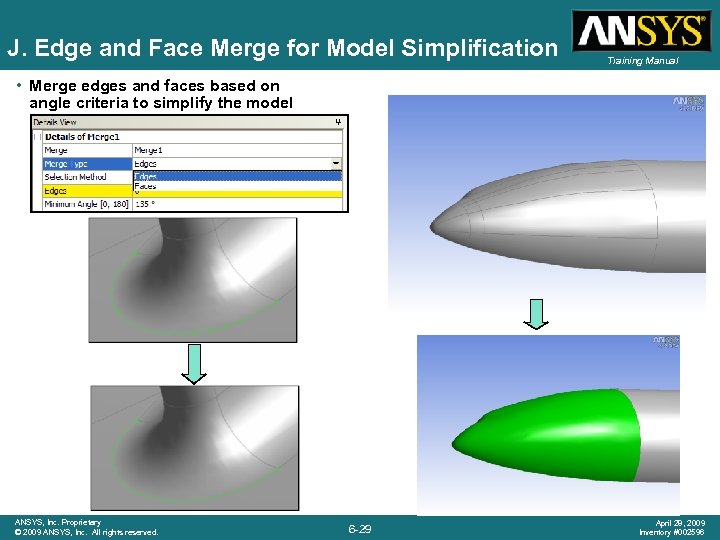 J. Edge and Face Merge for Model Simplification Training Manual • Merge edges and faces based on angle criteria to simplify the model ANSYS, Inc. Proprietary © 2009 ANSYS, Inc. All rights reserved. 6 -29 April 28, 2009 Inventory #002596
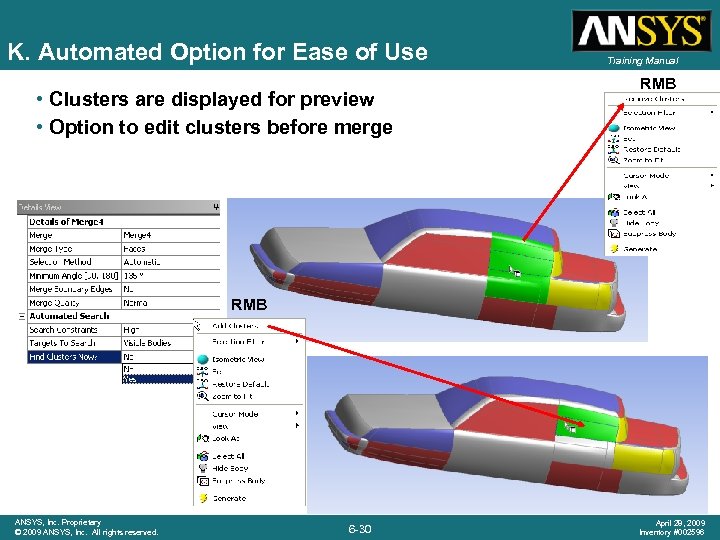 K. Automated Option for Ease of Use • Clusters are displayed for preview • Option to edit clusters before merge Training Manual RMB ANSYS, Inc. Proprietary © 2009 ANSYS, Inc. All rights reserved. 6 -30 April 28, 2009 Inventory #002596
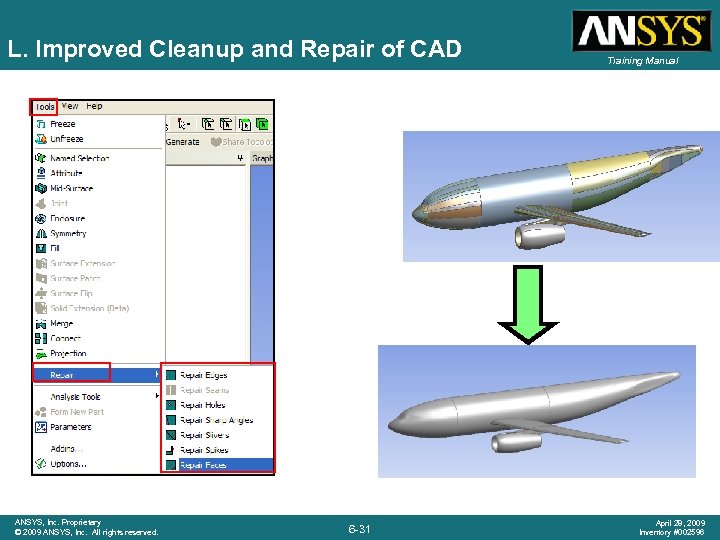 L. Improved Cleanup and Repair of CAD ANSYS, Inc. Proprietary © 2009 ANSYS, Inc. All rights reserved. 6 -31 Training Manual April 28, 2009 Inventory #002596