


 Скачать презентацию Chapter 6 CITYDATA Richmond s Data Dissemination Strategy
5ce583582983f7452422d691f4998796.ppt
- Количество слайдов: 65
 Chapter 6 CITYDATA & Richmond’s Data Dissemination Strategy 1
 What is CITYDATA? • It is a City of Richmond Standard for distributing GIS data and functionality. • It is an Arc. Map Extension. • It makes accessing information easier and faster! 2
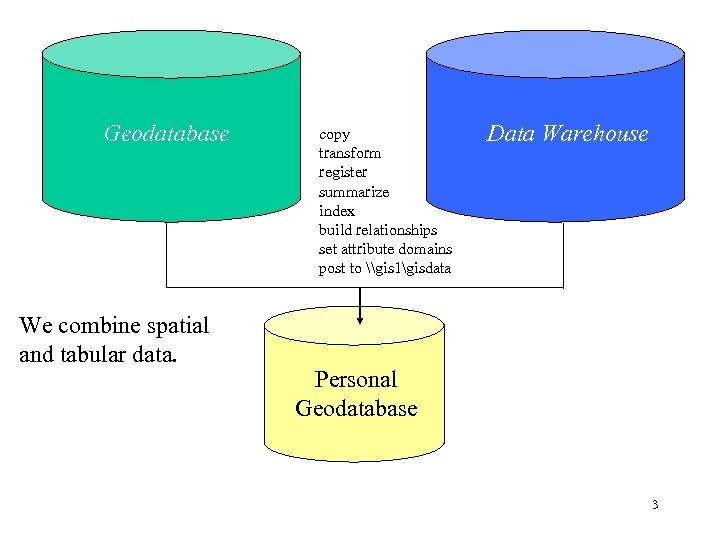 Geodatabase We combine spatial and tabular data. copy transform register summarize index build relationships set attribute domains post to \gis 1gisdata Data Warehouse Personal Geodatabase 3
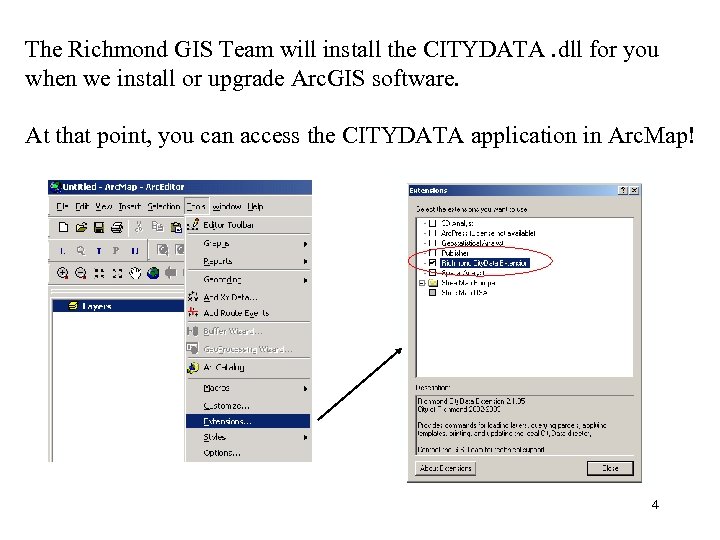 The Richmond GIS Team will install the CITYDATA. dll for you when we install or upgrade Arc. GIS software. At that point, you can access the CITYDATA application in Arc. Map! 4
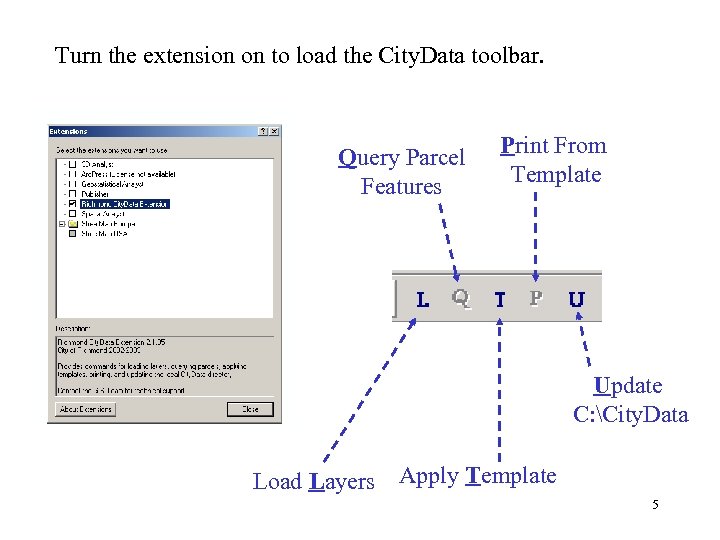 Turn the extension on to load the City. Data toolbar. Query Parcel Features Print From Template Update C: City. Data Load Layers Apply Template 5
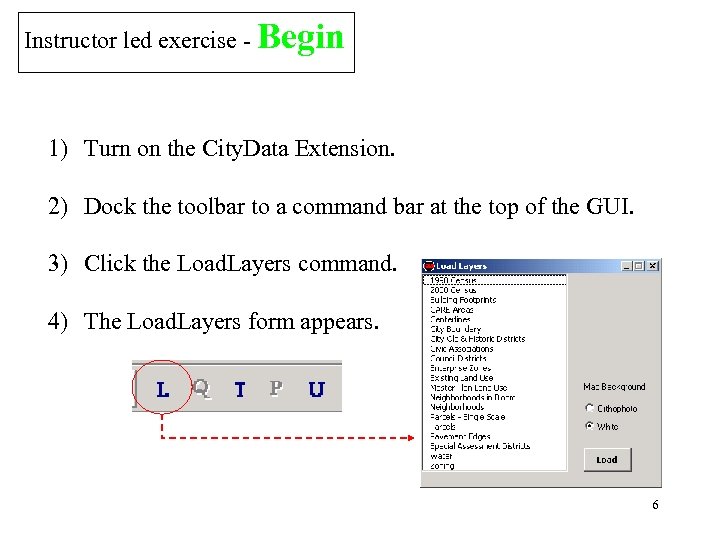 Instructor led exercise - Begin 1) Turn on the City. Data Extension. 2) Dock the toolbar to a command bar at the top of the GUI. 3) Click the Load. Layers command. 4) The Load. Layers form appears. 6
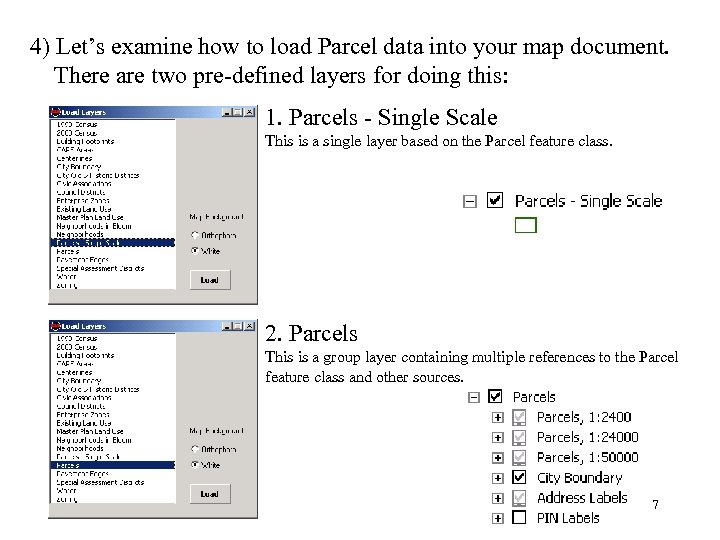 4) Let’s examine how to load Parcel data into your map document. There are two pre-defined layers for doing this: 1. Parcels - Single Scale This is a single layer based on the Parcel feature class. 2. Parcels This is a group layer containing multiple references to the Parcel feature class and other sources. 7
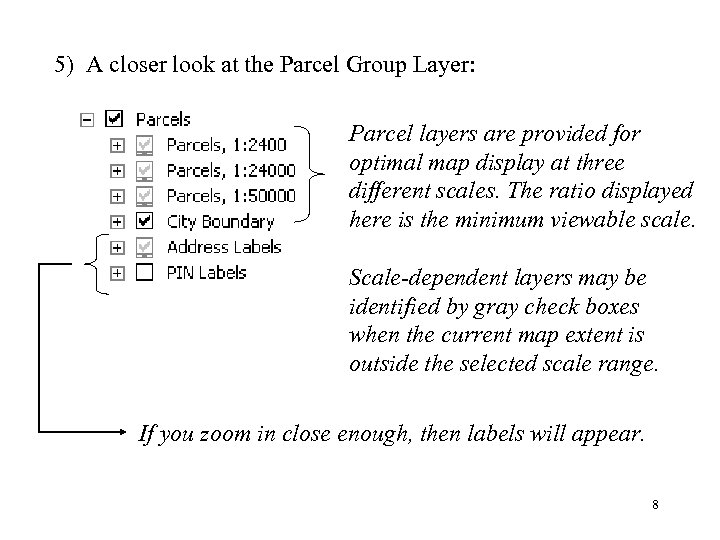 5) A closer look at the Parcel Group Layer: Parcel layers are provided for optimal map display at three different scales. The ratio displayed here is the minimum viewable scale. Scale-dependent layers may be identified by gray check boxes when the current map extent is outside the selected scale range. If you zoom in close enough, then labels will appear. 8
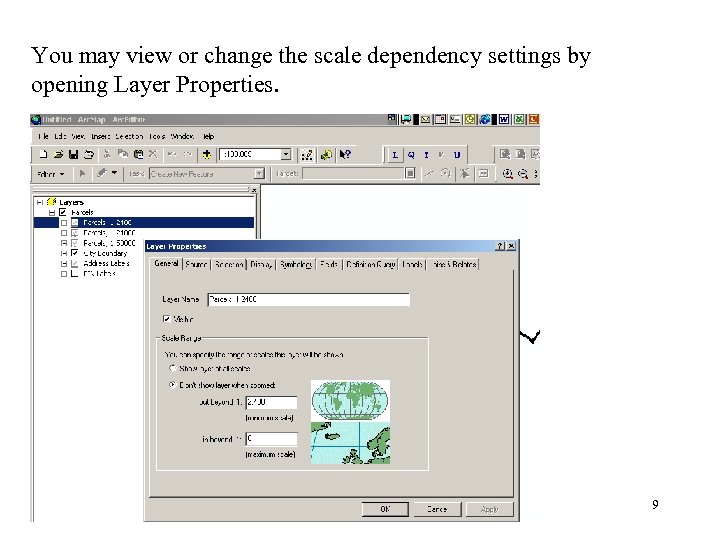 You may view or change the scale dependency settings by opening Layer Properties. 9
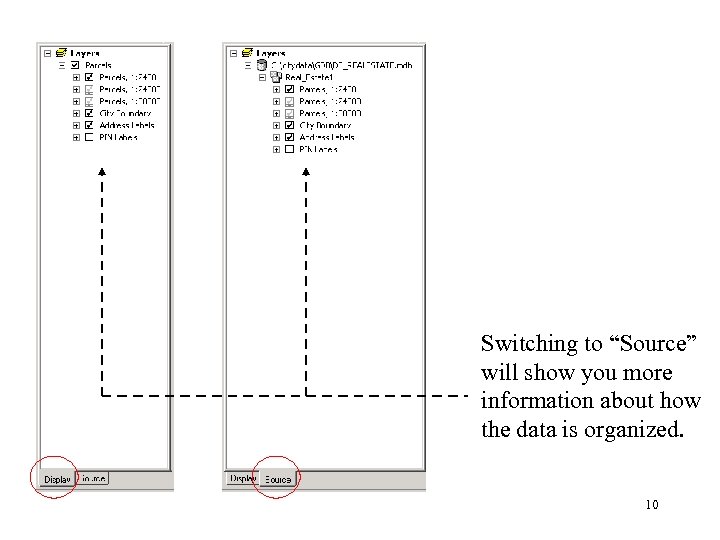 Switching to “Source” will show you more information about how the data is organized. 10
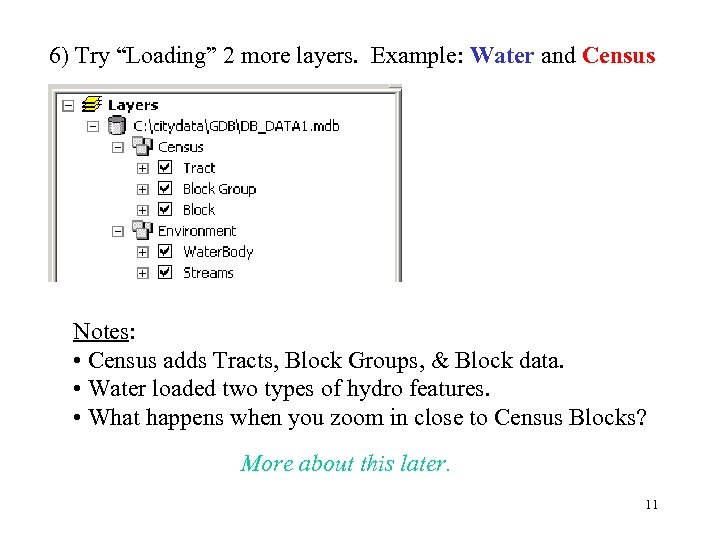 6) Try “Loading” 2 more layers. Example: Water and Census Notes: • Census adds Tracts, Block Groups, & Block data. • Water loaded two types of hydro features. • What happens when you zoom in close to Census Blocks? More about this later. 11
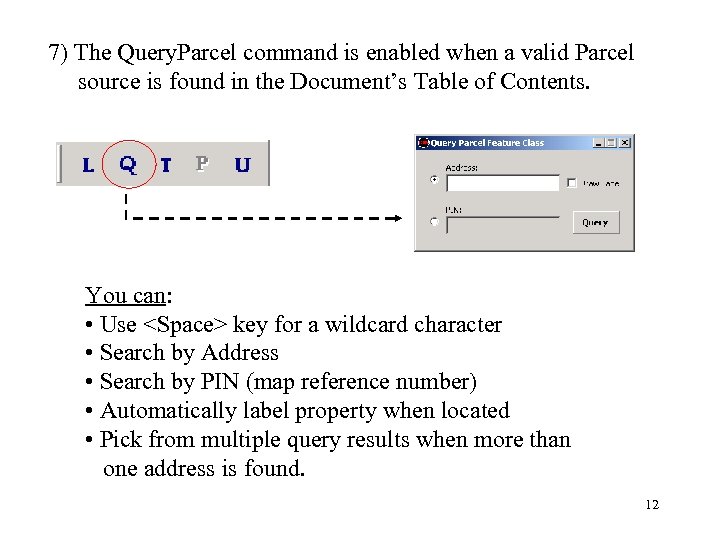 7) The Query. Parcel command is enabled when a valid Parcel source is found in the Document’s Table of Contents. You can: • Use
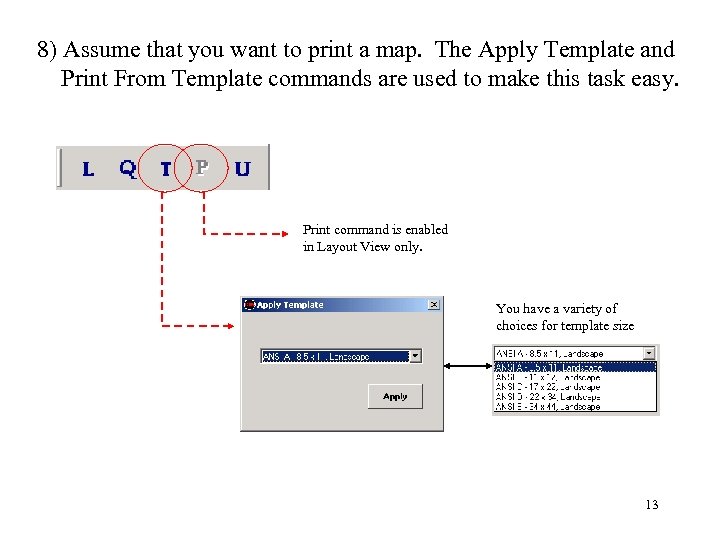 8) Assume that you want to print a map. The Apply Template and Print From Template commands are used to make this task easy. Print command is enabled in Layout View only. You have a variety of choices for template size 13
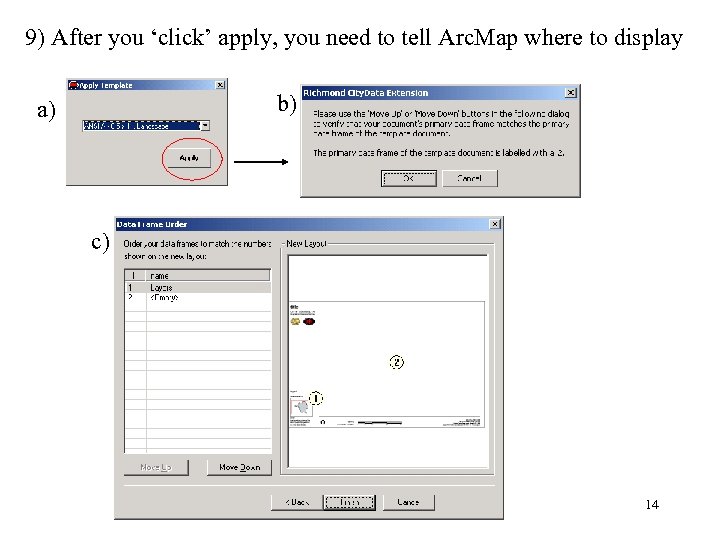 9) After you ‘click’ apply, you need to tell Arc. Map where to display b) a) c) 14
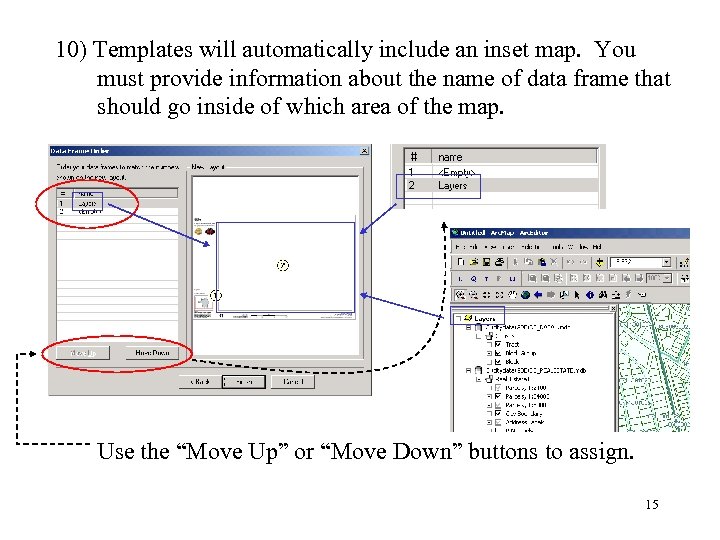 10) Templates will automatically include an inset map. You must provide information about the name of data frame that should go inside of which area of the map. Use the “Move Up” or “Move Down” buttons to assign. 15
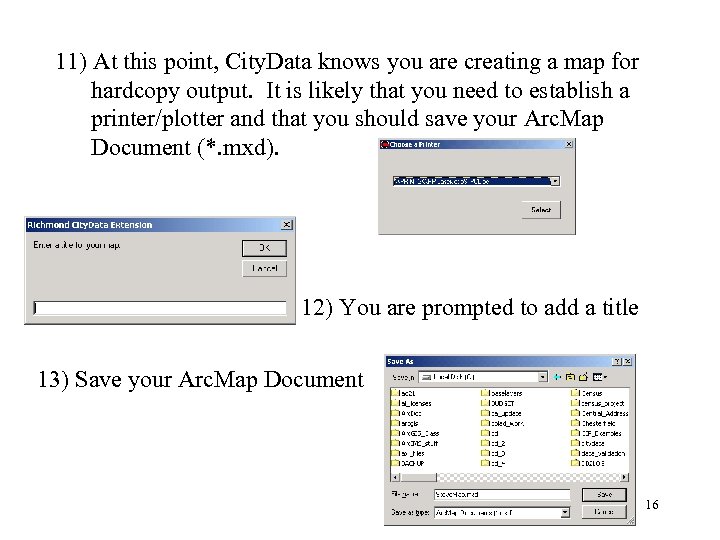 11) At this point, City. Data knows you are creating a map for hardcopy output. It is likely that you need to establish a printer/plotter and that you should save your Arc. Map Document (*. mxd). 12) You are prompted to add a title 13) Save your Arc. Map Document 16
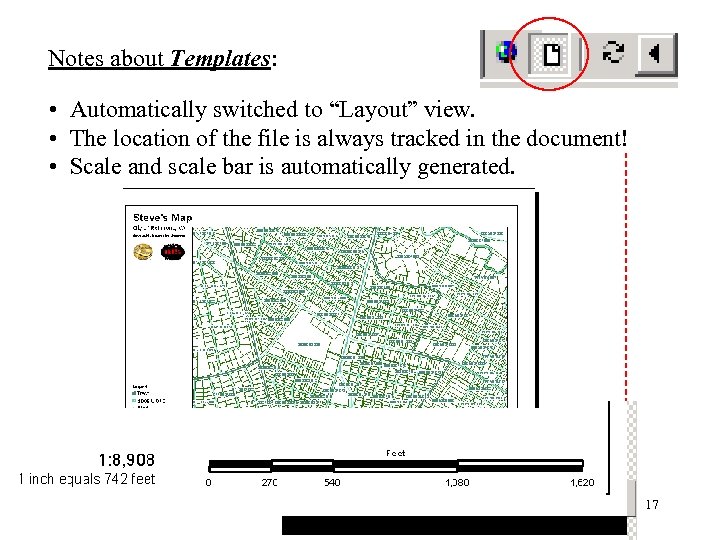 Notes about Templates: • Automatically switched to “Layout” view. • The location of the file is always tracked in the document! • Scale and scale bar is automatically generated. 17
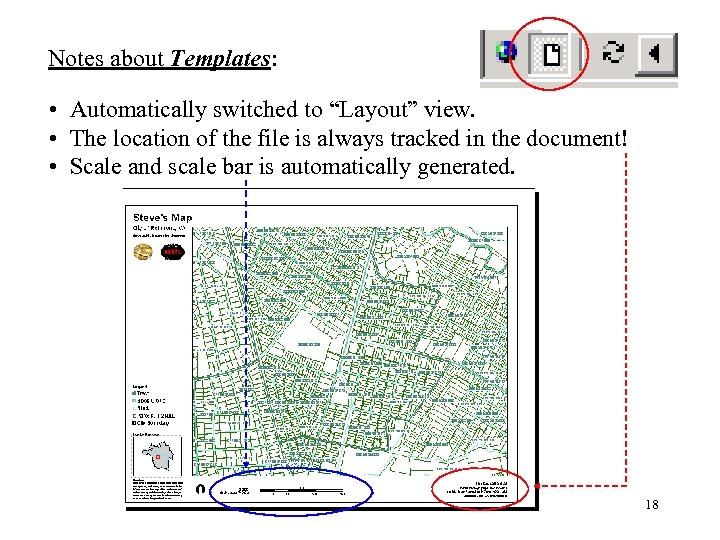 Notes about Templates: • Automatically switched to “Layout” view. • The location of the file is always tracked in the document! • Scale and scale bar is automatically generated. 18
 Instructor led exercise - End 19
 Chapter 6 Exercise 20
 Chapter 7 Geodatabase 21
 What’s in store this chapter? • You need to understand how information is stored in Arc. GIS Geodatabase. • “City. Data” is both an Arc. GIS extension and application for Arc. Map and what is referred to as a “Personal Geodatabase” • In this chapter, we will also look at what is maintained under your C: City. Data directory on your PC. 22
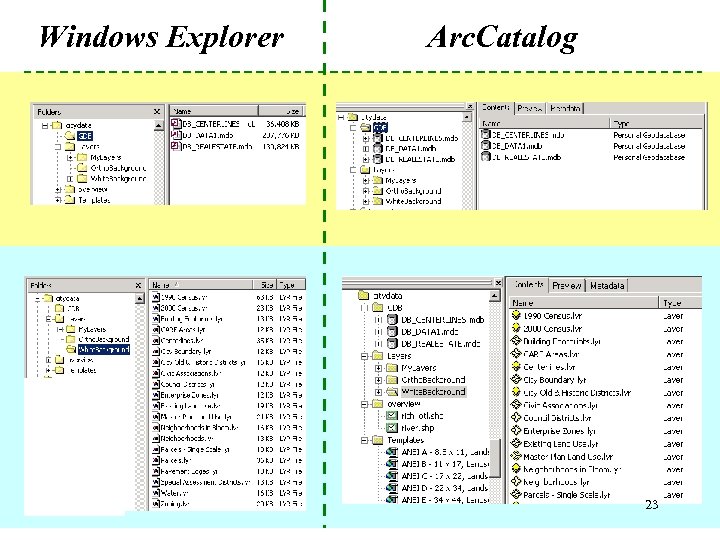 Windows Explorer Arc. Catalog 23
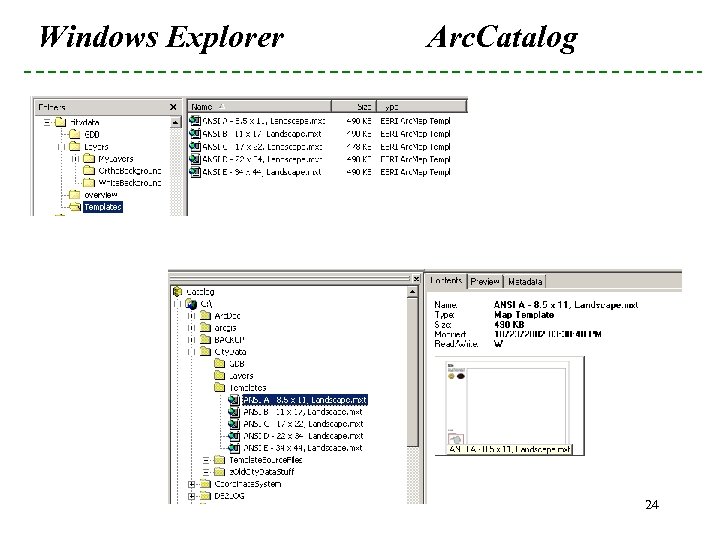 Windows Explorer Arc. Catalog 24
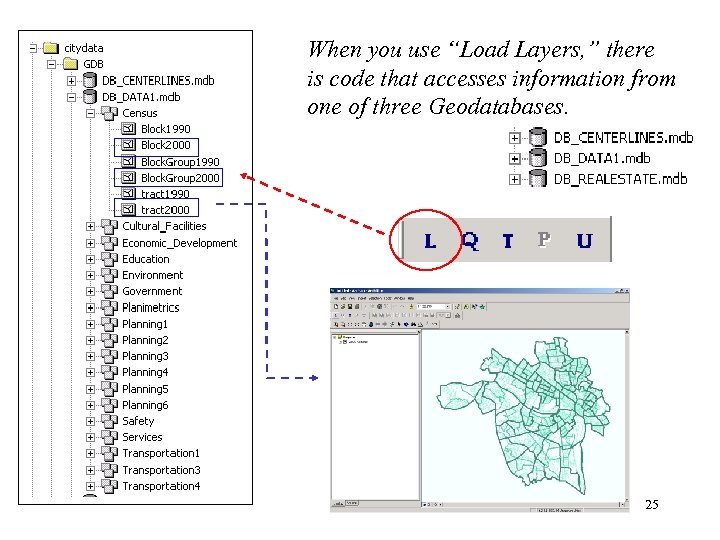 When you use “Load Layers, ” there is code that accesses information from one of three Geodatabases. 25
 What is a Geodatabase A Geodatabase is a store of geographic data implemented with The relational database of your choice. • The City maintains a central Geodatabase in SQLServer, which is used to edit, maintain and process data. • If you are not a custodian who is editing a geographic layer, then you are using the Personal Geodatabase, which is delivered as a Microsoft Access database. 26
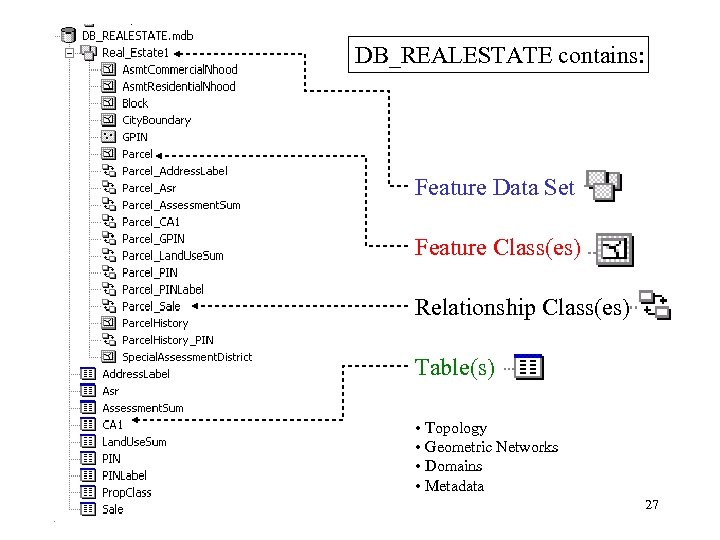 DB_REALESTATE contains: Feature Data Set Feature Class(es) Relationship Class(es) Table(s) • Topology • Geometric Networks • Domains • Metadata 27
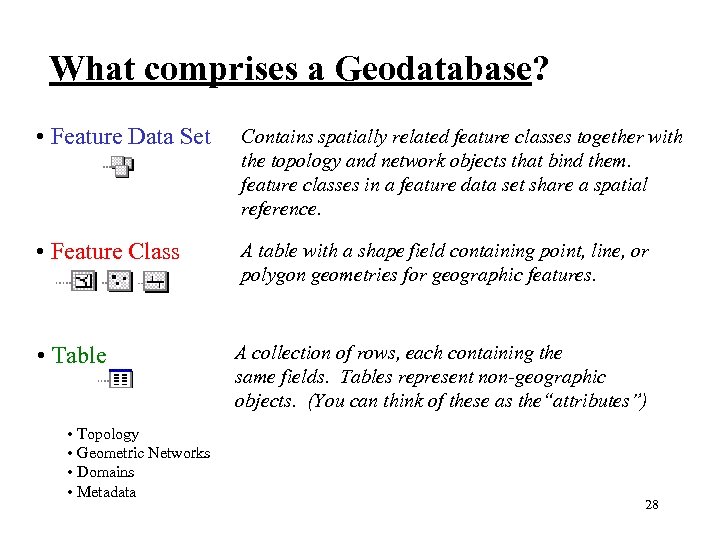 What comprises a Geodatabase? • Feature Data Set Contains spatially related feature classes together with the topology and network objects that bind them. feature classes in a feature data set share a spatial reference. • Feature Class A table with a shape field containing point, line, or polygon geometries for geographic features. • Table A collection of rows, each containing the same fields. Tables represent non-geographic objects. (You can think of these as the“attributes”) • • Topology • Geometric Networks Relationship Classes • Domains • Metadata 28
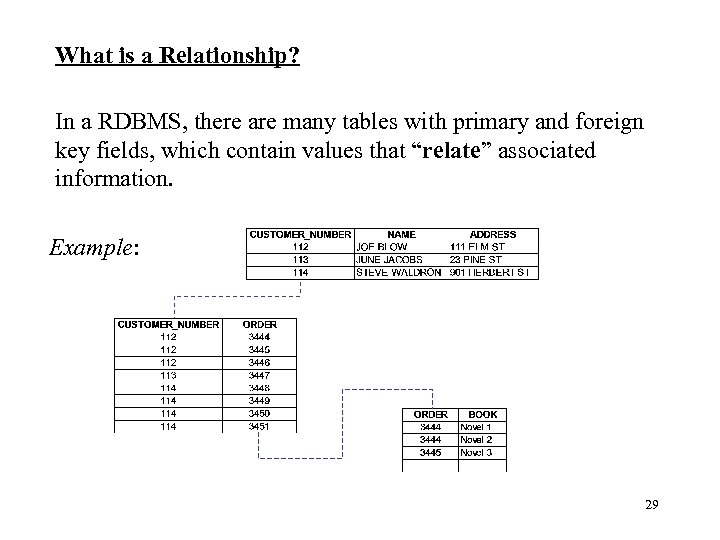 What is a Relationship? In a RDBMS, there are many tables with primary and foreign key fields, which contain values that “relate” associated information. Example: 29
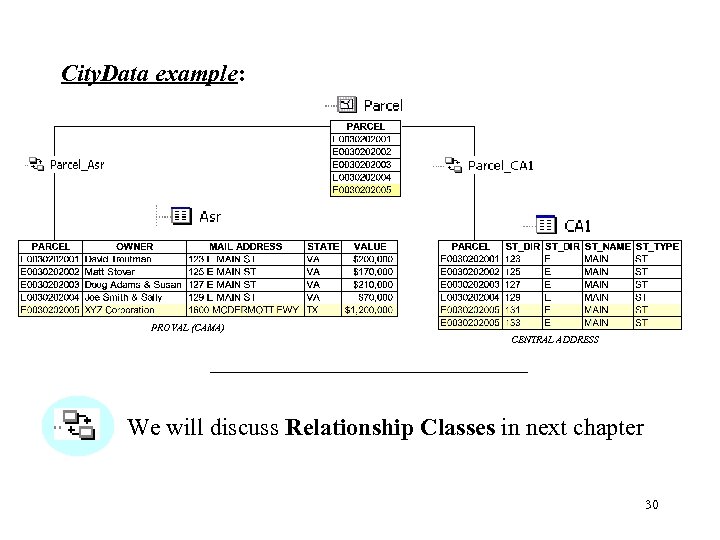 City. Data example: PROVAL (CAMA) CENTRAL ADDRESS We will discuss Relationship Classes in next chapter 30
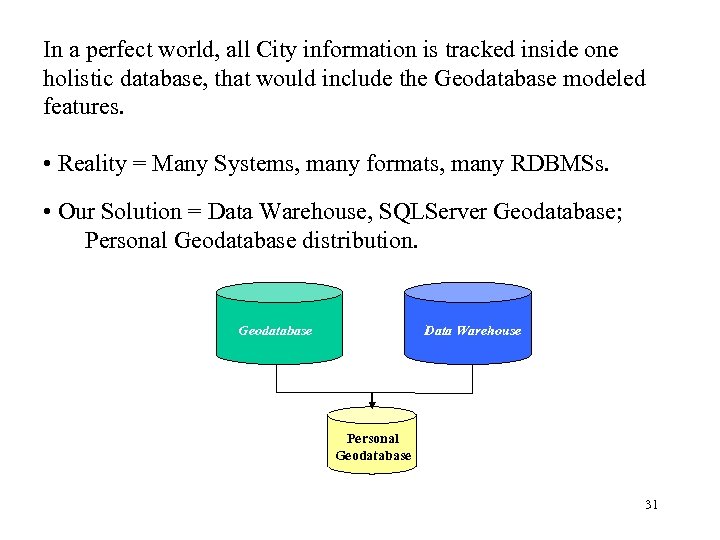 In a perfect world, all City information is tracked inside one holistic database, that would include the Geodatabase modeled features. • Reality = Many Systems, many formats, many RDBMSs. • Our Solution = Data Warehouse, SQLServer Geodatabase; Personal Geodatabase distribution. Geodatabase Data Warehouse Personal Geodatabase 31
 Instructor led exercise - Begin Browsing Geodatabases. Instructor led exercise - End 32
 Chapter 8 Joins & Relates 33
 Tables can be added to Arc. Map just like geographic data. • Tables contain attributes • We attempt to deliver most things you’ll need from the data warehouse with “City. Data, ” but we can’t predict all your needs • You may have your own data that you want to load into Arc. Map in order to map and analyze. First, you will observe an Instructor-led demo. Second, you will perform a scripted class exercise. 34
 • In GIS you do NOT usually store all attributes you know about feature classes as part of the feature. • Attributes are stored separately, in other DBMS or file(s). • You add data from DBMS or file(s) into Arc. Map and then Relate, or Join that information to the feature class to use the data. Scenario: Someone has given you some Census 2000 Housing Unit information. You know that City. Data already contains the Census data. Therefore, you can load Census 2000 from City. Data and add the attribute data from the data file into Arc. Map. 35
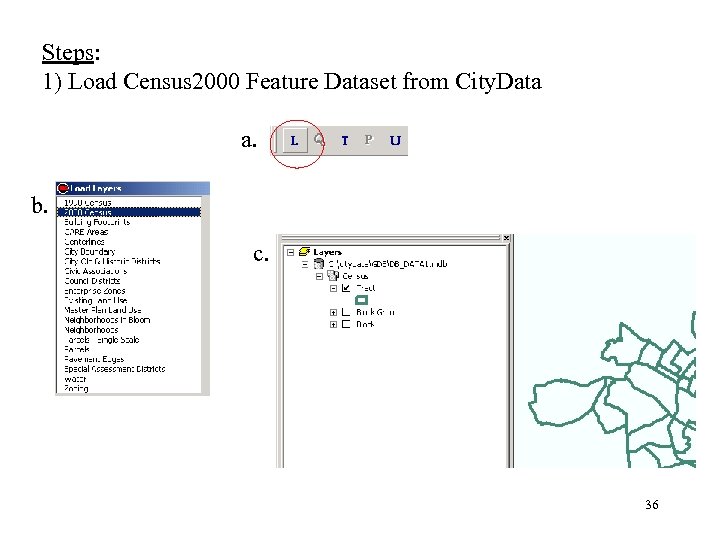 Steps: 1) Load Census 2000 Feature Dataset from City. Data a. b. c. 36
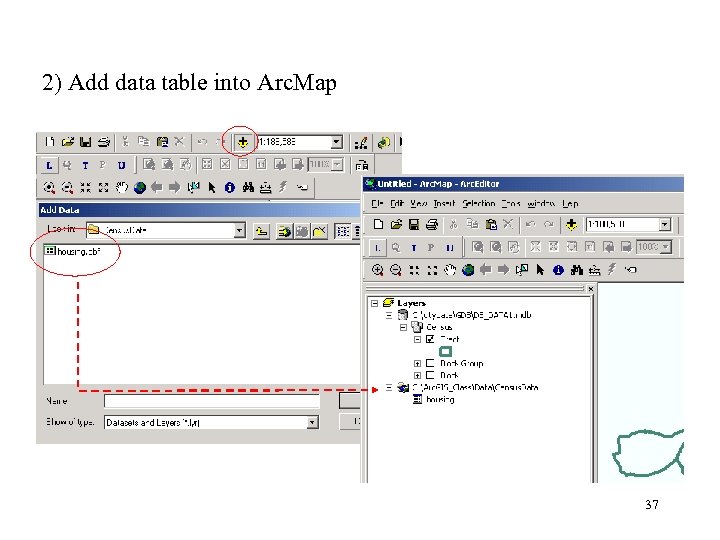 2) Add data table into Arc. Map 37
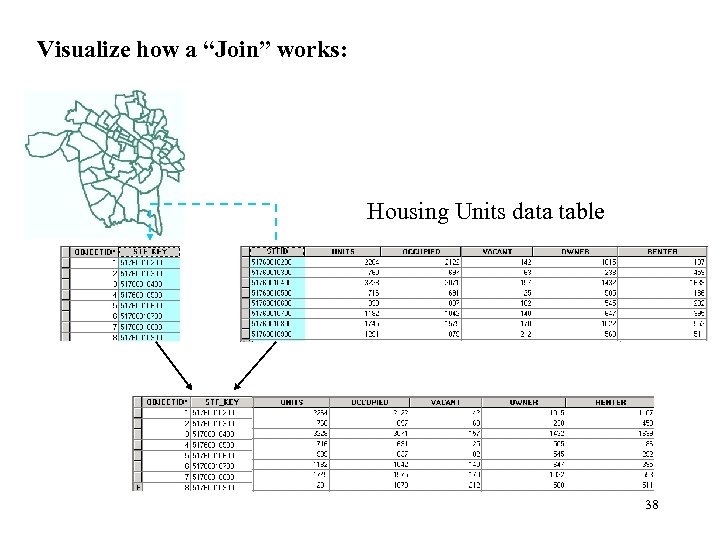 Visualize how a “Join” works: Housing Units data table 38
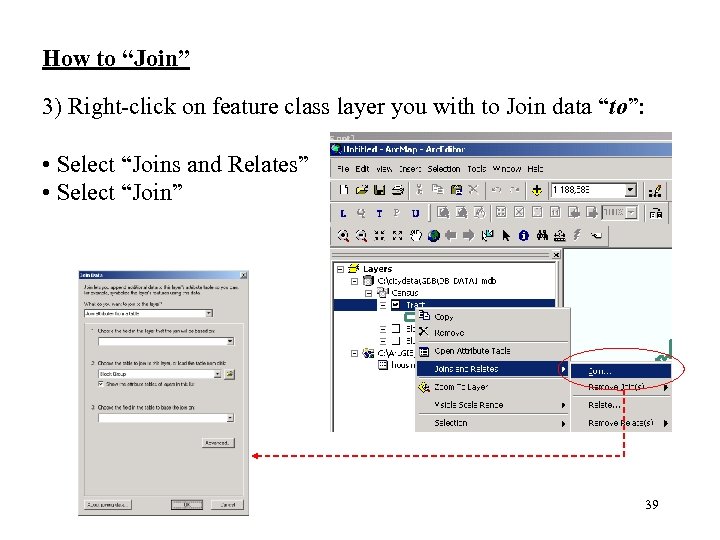 How to “Join” 3) Right-click on feature class layer you with to Join data “to”: • Select “Joins and Relates” • Select “Join” 39
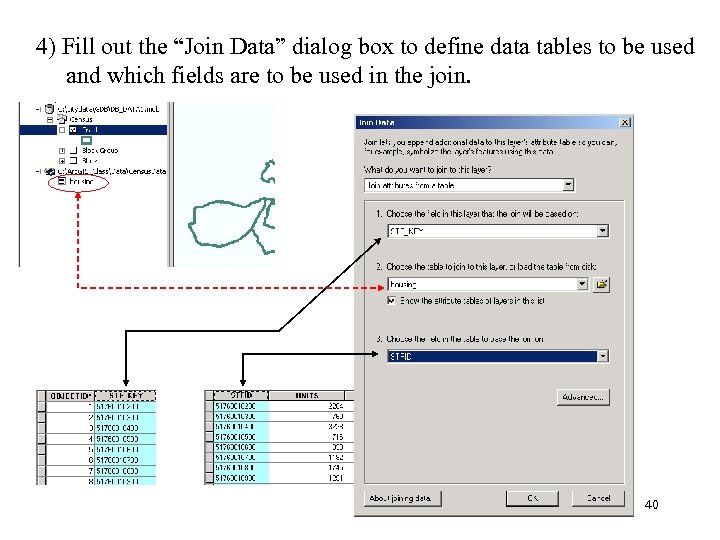 4) Fill out the “Join Data” dialog box to define data tables to be used and which fields are to be used in the join. 40
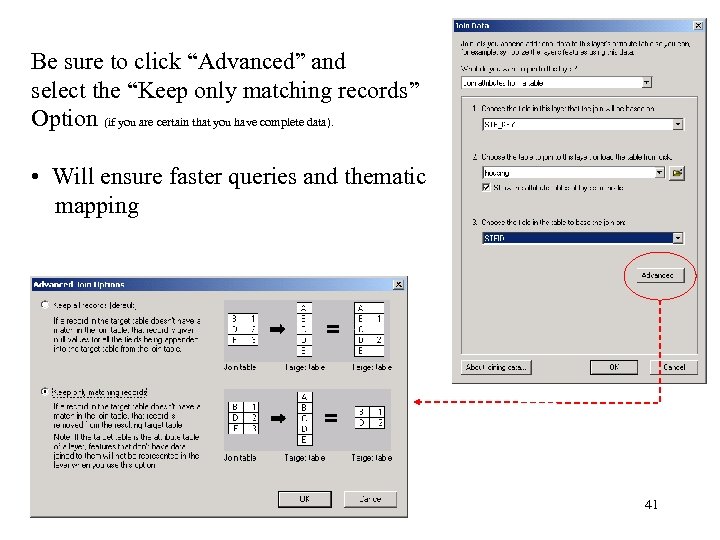 Be sure to click “Advanced” and select the “Keep only matching records” Option (if you are certain that you have complete data). • Will ensure faster queries and thematic mapping 41
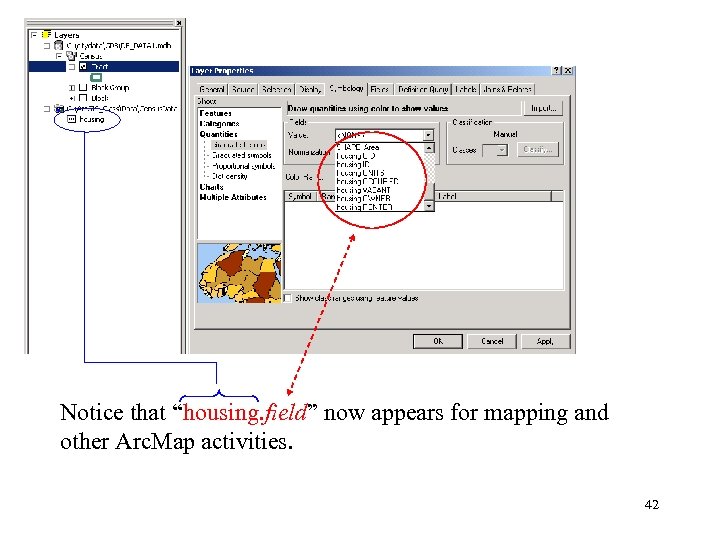 Notice that “housing. field” now appears for mapping and other Arc. Map activities. 42
 Chapter 8 Exercise 43
 Chapter 9 Joins & City. Data 44
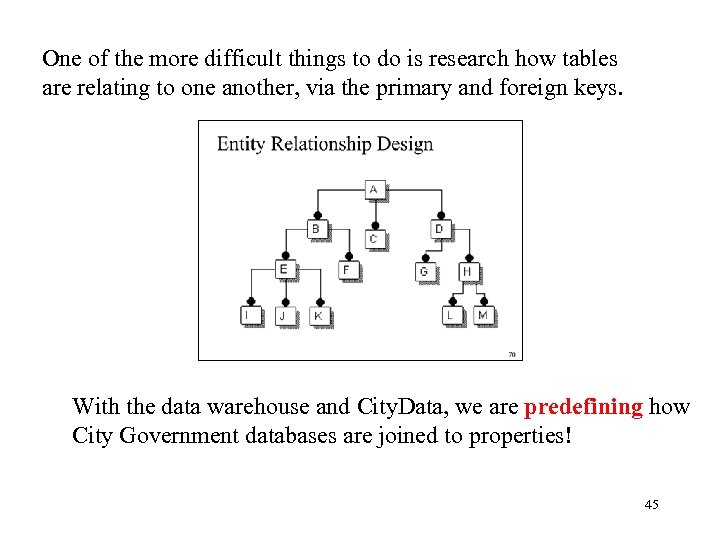 One of the more difficult things to do is research how tables are relating to one another, via the primary and foreign keys. With the data warehouse and City. Data, we are predefining how City Government databases are joined to properties! 45
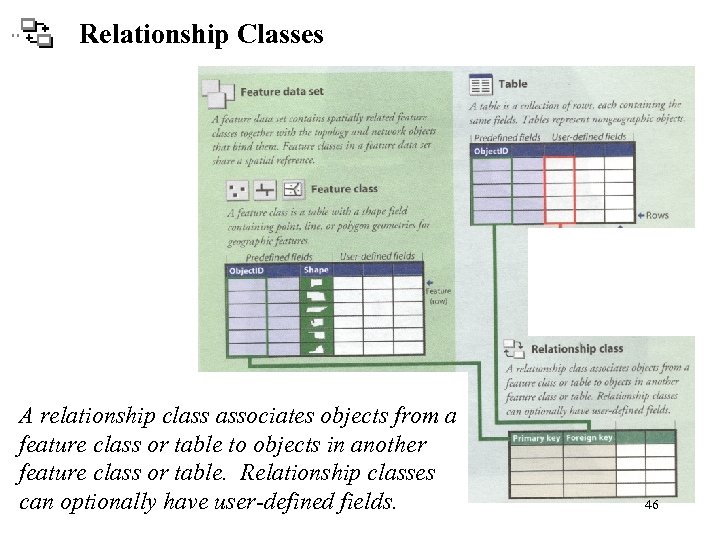 Relationship Classes A relationship class associates objects from a feature class or table to objects in another feature class or table. Relationship classes can optionally have user-defined fields. 46
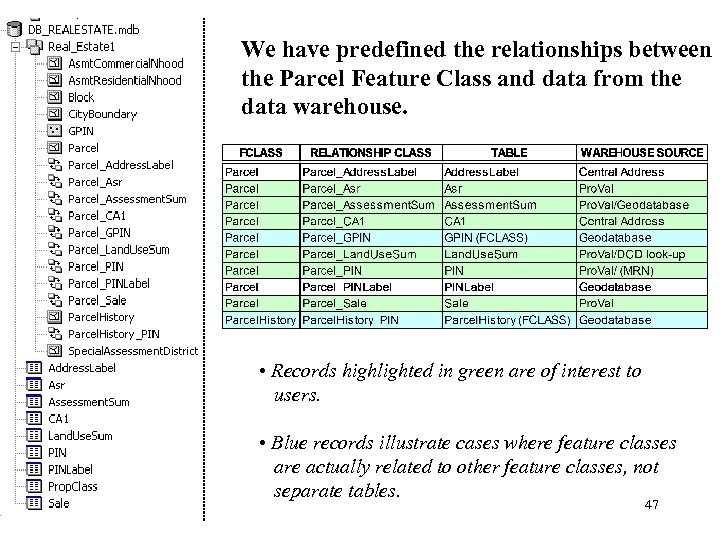 We have predefined the relationships between the Parcel Feature Class and data from the data warehouse. • Records highlighted in green are of interest to users. • Blue records illustrate cases where feature classes are actually related to other feature classes, not separate tables. 47
 Instructor led exercise - Begin Instructor Led Demonstration (Arc. Map “Identify” tool illustrates Relationship Classes. ) Instructor led exercise - End 48
 So how do I perform joining of data tables to feature classes in City. Data? When joining data to parcels, we have already predefined how data is supposed to relate. You simply choose the Relationship Class that you want to use. Note: • As of the Fall, 2002, City. Data only contains data from Assessor’s data marts and Central Address for Joins. 49
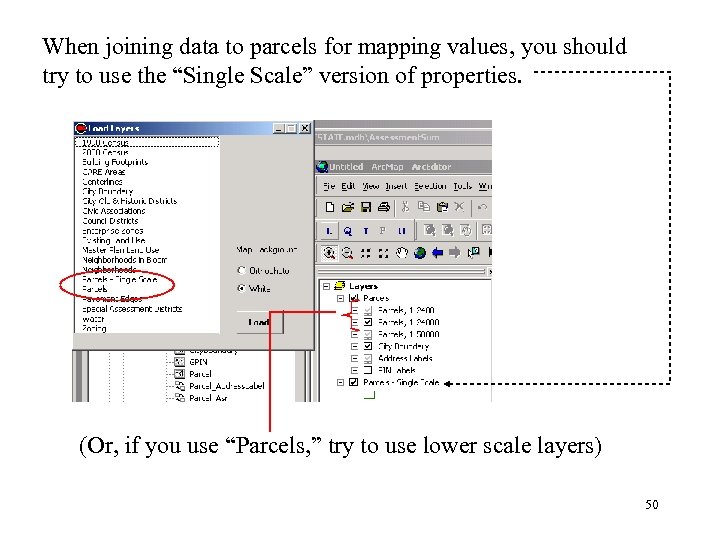 When joining data to parcels for mapping values, you should try to use the “Single Scale” version of properties. (Or, if you use “Parcels, ” try to use lower scale layers) 50
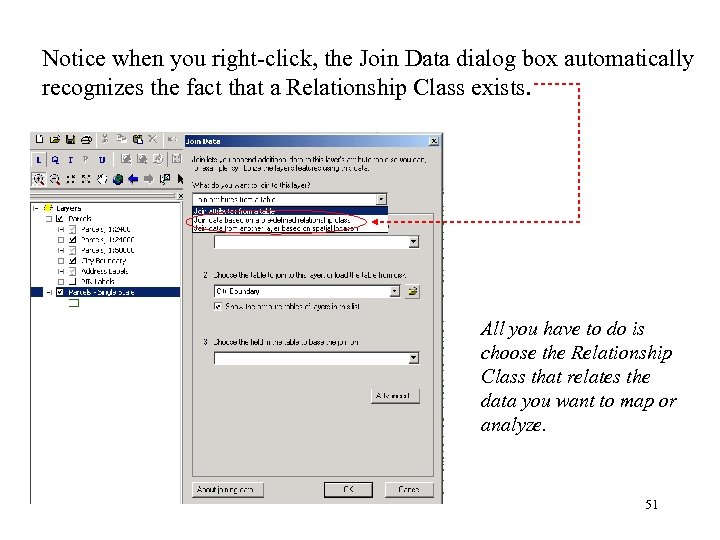 Notice when you right-click, the Join Data dialog box automatically recognizes the fact that a Relationship Class exists. All you have to do is choose the Relationship Class that relates the data you want to map or analyze. 51
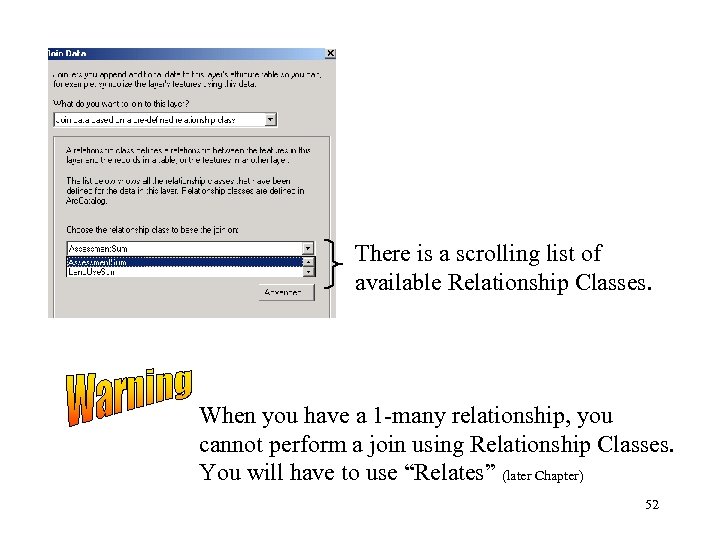 There is a scrolling list of available Relationship Classes. When you have a 1 -many relationship, you cannot perform a join using Relationship Classes. You will have to use “Relates” (later Chapter) 52
 You must know the business logic or details of the information you are trying to use! 53
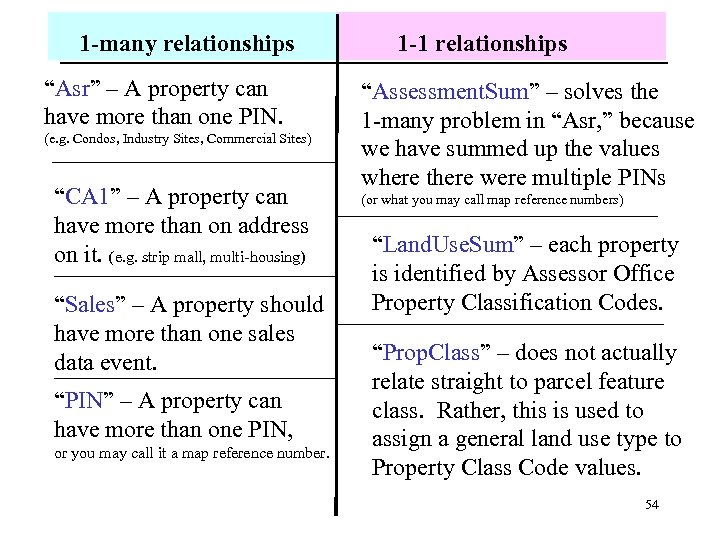 1 -many relationships “Asr” – A property can have more than one PIN. (e. g. Condos, Industry Sites, Commercial Sites) “CA 1” – A property can have more than on address on it. (e. g. strip mall, multi-housing) “Sales” – A property should have more than one sales data event. “PIN” – A property can have more than one PIN, or you may call it a map reference number. 1 -1 relationships “Assessment. Sum” – solves the 1 -many problem in “Asr, ” because we have summed up the values where there were multiple PINs (or what you may call map reference numbers) “Land. Use. Sum” – each property is identified by Assessor Office Property Classification Codes. “Prop. Class” – does not actually relate straight to parcel feature class. Rather, this is used to assign a general land use type to Property Class Code values. 54
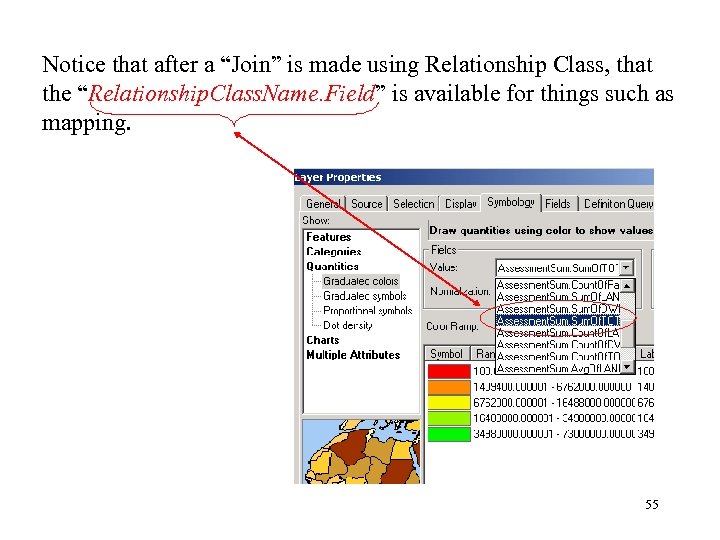 Notice that after a “Join” is made using Relationship Class, that the “Relationship. Class. Name. Field” is available for things such as mapping. 55
 Chapter 9 Exercise 56
 Chapter 11 Relates (Dealing with 1 -Many Relationships) 57
 Relationship Classes know how to work with a 1 -1 or 1 -many. Relate lets you associate data with this layer. The associated data isn’t appended into this layer’s attribute table like it is in a Join. Rather, you access related data through attribute tables. • You can work with City. Data, predefined relationship classes. or • You can load in your own table and establish a relate. 58
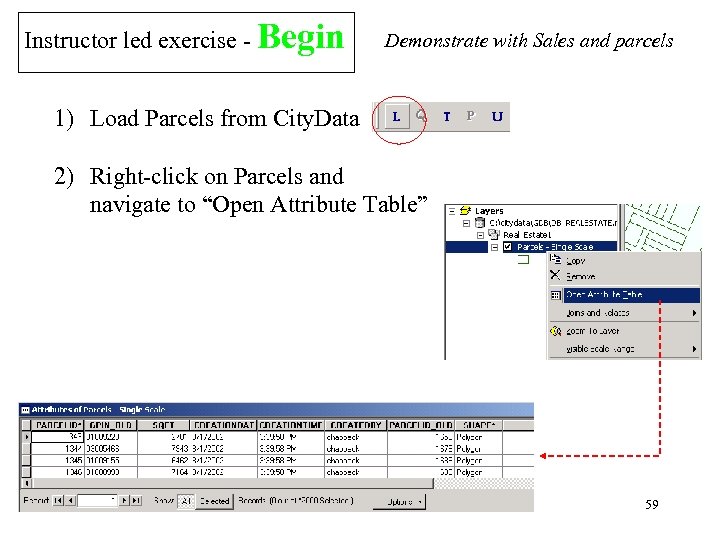 Instructor led exercise - Begin Demonstrate with Sales and parcels 1) Load Parcels from City. Data 2) Right-click on Parcels and navigate to “Open Attribute Table” 59
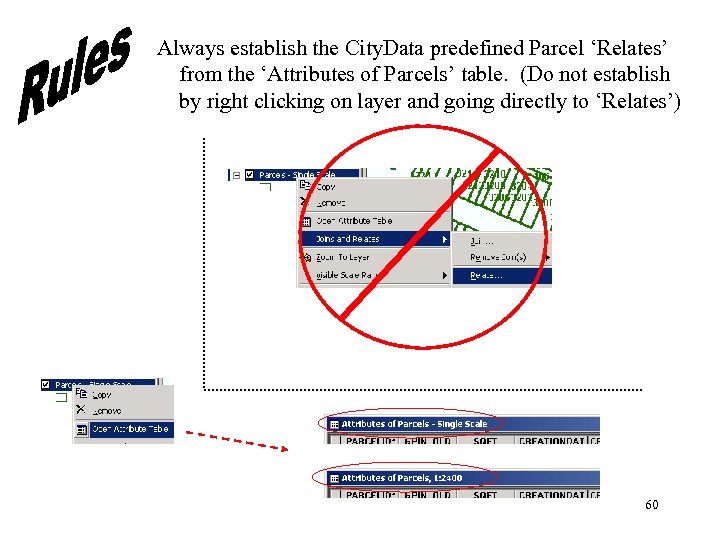 Always establish the City. Data predefined Parcel ‘Relates’ from the ‘Attributes of Parcels’ table. (Do not establish by right clicking on layer and going directly to ‘Relates’) 60
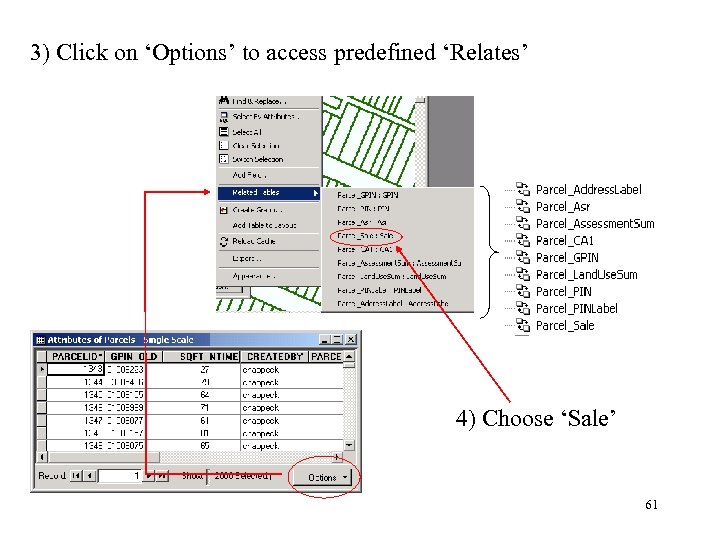 3) Click on ‘Options’ to access predefined ‘Relates’ 4) Choose ‘Sale’ 61
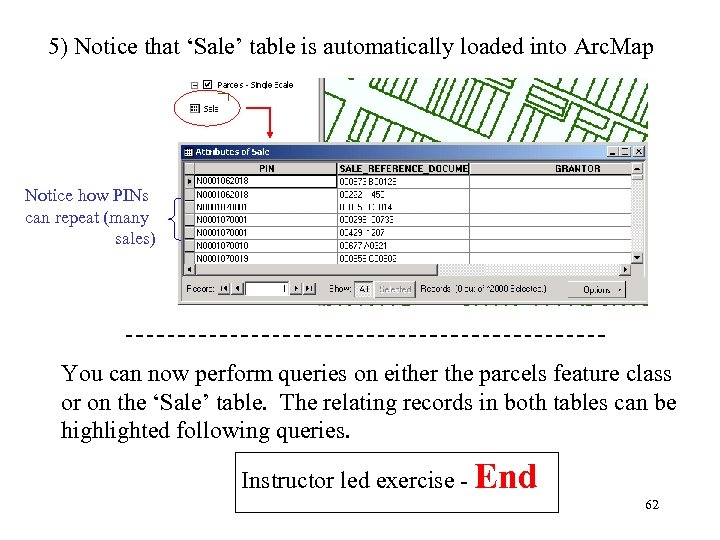 5) Notice that ‘Sale’ table is automatically loaded into Arc. Map Notice how PINs can repeat (many sales) You can now perform queries on either the parcels feature class or on the ‘Sale’ table. The relating records in both tables can be highlighted following queries. Instructor led exercise - End 62
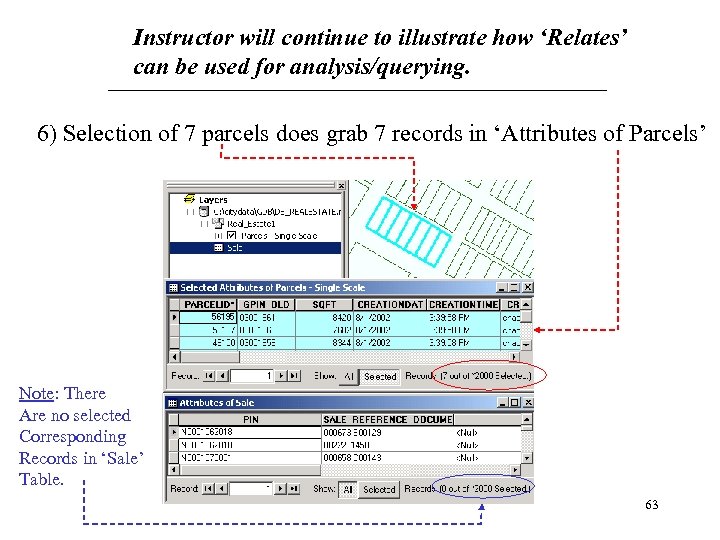 Instructor will continue to illustrate how ‘Relates’ can be used for analysis/querying. 6) Selection of 7 parcels does grab 7 records in ‘Attributes of Parcels’ Note: There Are no selected Corresponding Records in ‘Sale’ Table. 63
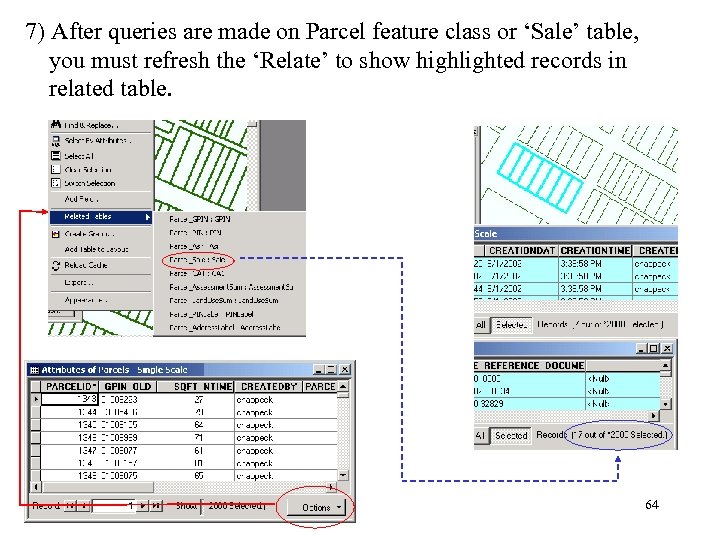 7) After queries are made on Parcel feature class or ‘Sale’ table, you must refresh the ‘Relate’ to show highlighted records in related table. 64
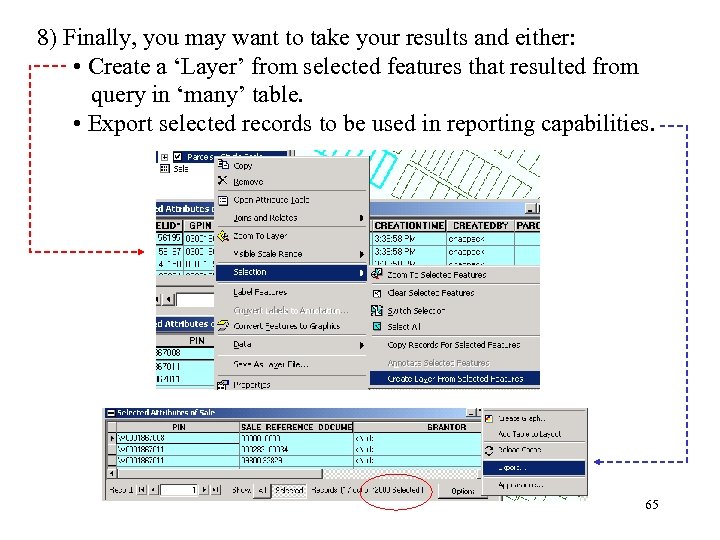 8) Finally, you may want to take your results and either: • Create a ‘Layer’ from selected features that resulted from query in ‘many’ table. • Export selected records to be used in reporting capabilities. 65