


 Скачать презентацию Chapter 5 Supporting I O Devices You Will
7019a5b1b4d9df47d0606cad7ab4e71b.ppt
- Количество слайдов: 94
 Chapter 5 Supporting I/O Devices
 You Will Learn… • • • How to install peripheral I/O devices How to use ports and expansion slots for add-on devices About keyboards and how to troubleshoot them About different types of pointing devices How monitors and video cards relate to the system, and how to troubleshoot them
 Basic Principles of Peripheral Installations • • • Peripheral is a hardware device controlled by software; must install both hardware and software Software might be of different types; you must install levels More than one peripheral device might attempt to use same resources (IRQ, DMA channel, I/O addresses, or [for 16 -bit drivers] upper memory addresses)
 A Review of System Resources • • An IRQ is a line on a bus that serves as an interrupt request line and is assigned to a device Each device needs a group of I/O addresses the CPU will use to get the attention of the device and communicate with it Older device drivers and BIOS written in real mode require some upper memory addresses 640 K-1024 K Some devices require a DMA channel to speed up data transfer across the bus continued…
 A Review of System Resources • • System resources are assigned at startup Pn. P devices do not request specific I/O addresses, DMA channels, or IRQs, but use those assigned by BIOS and OS Legacy devices are not Pn. P and require special memory resources Sometimes a bus controller is assigned a single set of resources for all devices using the bus
 Installation Overview for an Add-on Device 1. Install the device (internal or external) 2. Install the device driver 3. Install the application software
 Internal Devices • Drives (eg, hard, floppy, CD-ROM, DVD, Zip) • Devices that are inserted in expansion slots on • the motherboard (eg, modem or video card) Advantages Less expensive than external devices § Don’t take up desk space §
 External Devices • Use existing port (eg, serial, parallel, USB, • • IEEE 1394) Use port provided by interface card installed in expansion slot Advantage § Can be moved easily from one computer to another
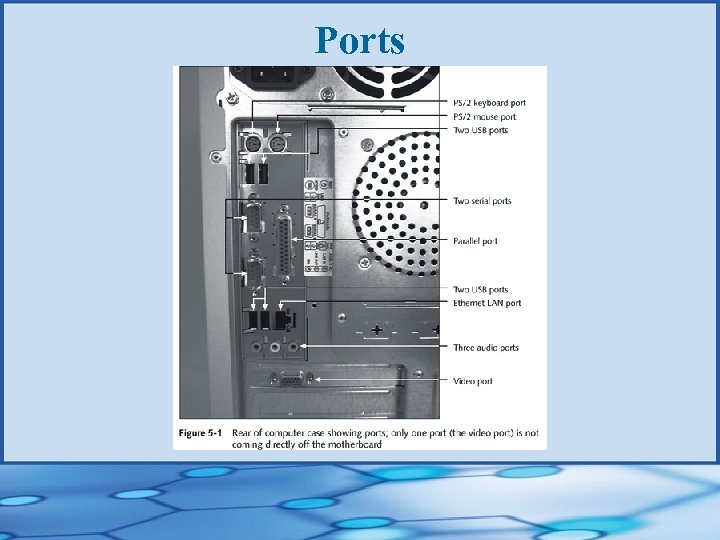 Ports
Ports
 Basic Knowledge Required for Purchasing a Hardware Device • CPU, system bus, and local bus drive • How much memory • Hard drive size • OS and version • Space available on hard drive • For internal devices: how many drives, bays, or expansion slots are available
 Considerations When Purchasing a Hardware Device • • • Plug and Play? Offers features you want? Documentation easy to read and comprehensive? Manufacturer’s Web site offer help and technical support? Warranty? Compatible with current hardware and software?
 Installing a Hardware Device • • • Use antistatic bracelet and ground mat Unplug PC and remove case cover Locate slot and remove faceplate Insert expansion card in expansion slot Insert screw that connects card to case Replace case cover, power cord, and peripherals Plug in the device Reboot PC; install device drivers Test device
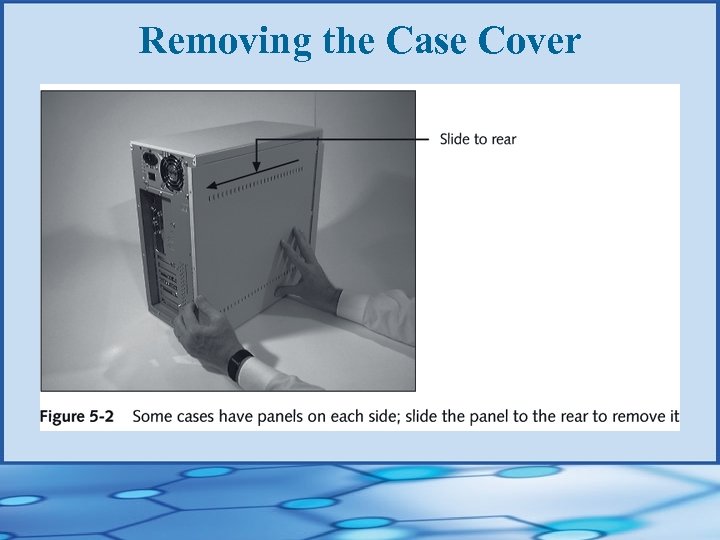 Removing the Case Cover
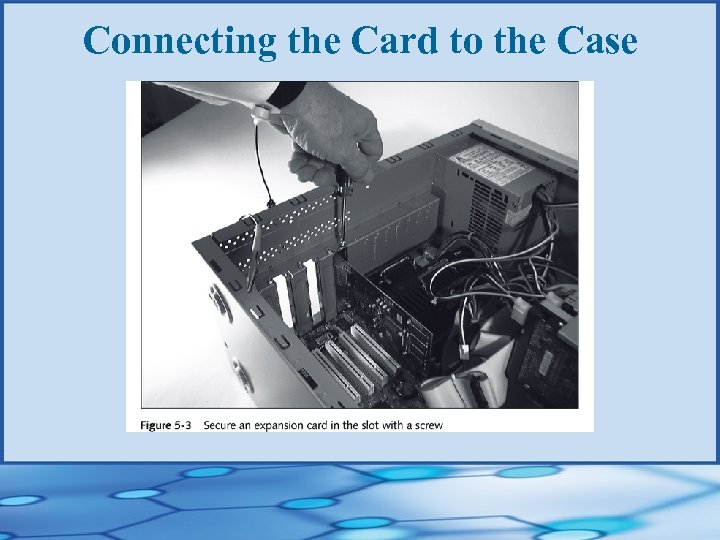 Connecting the Card to the Case
 Using Ports and Expansion Slots for Add-on Devices • Serial ports (115. 2 Kbps) • Parallel ports (1. 5 Mbps) • USB ports Hi-Speed 480 Mbps § Original 12 Mbps § • IEEE 1394 ports (1. 2 Gbps) • Expansion slots
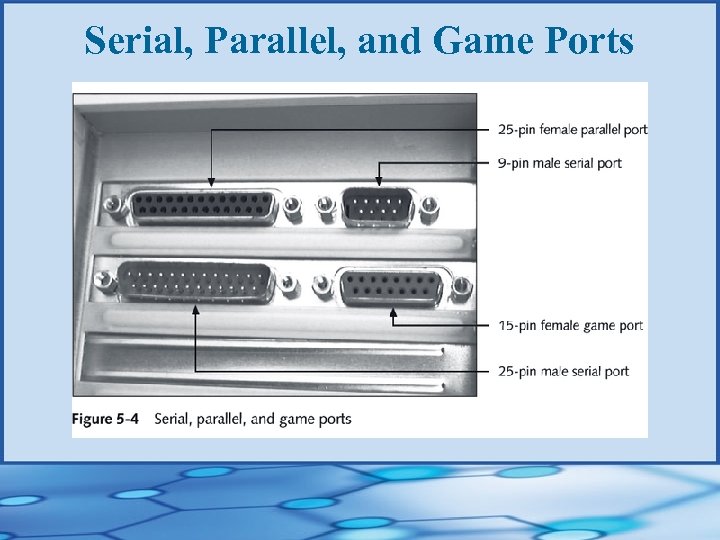 Serial, Parallel, and Game Ports
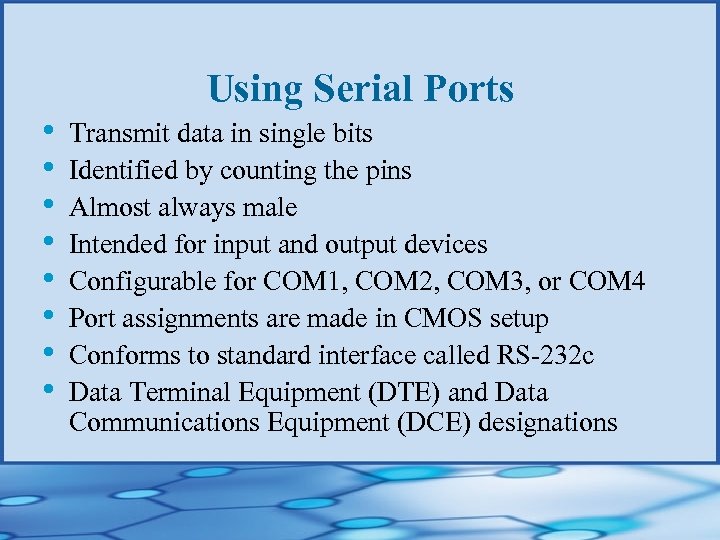 • • Using Serial Ports Transmit data in single bits Identified by counting the pins Almost always male Intended for input and output devices Configurable for COM 1, COM 2, COM 3, or COM 4 Port assignments are made in CMOS setup Conforms to standard interface called RS-232 c Data Terminal Equipment (DTE) and Data Communications Equipment (DCE) designations
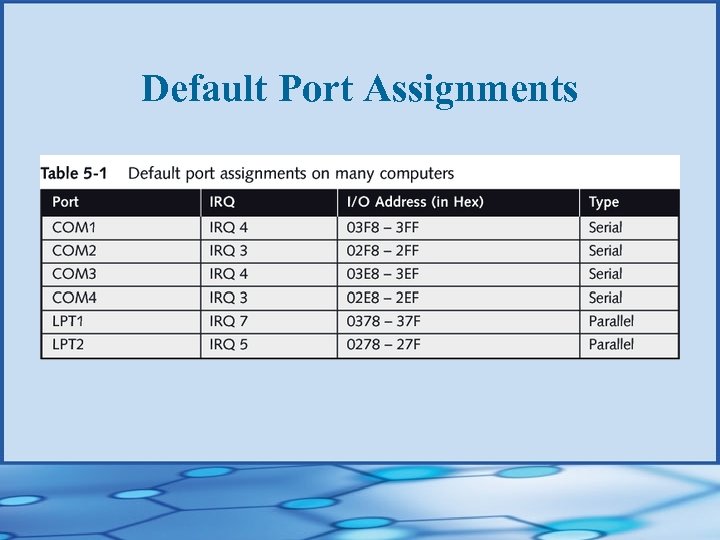 Default Port Assignments
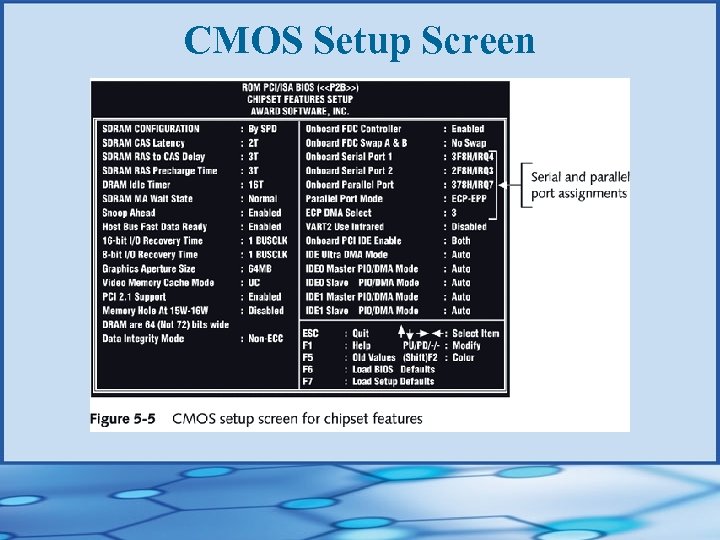 CMOS Setup Screen
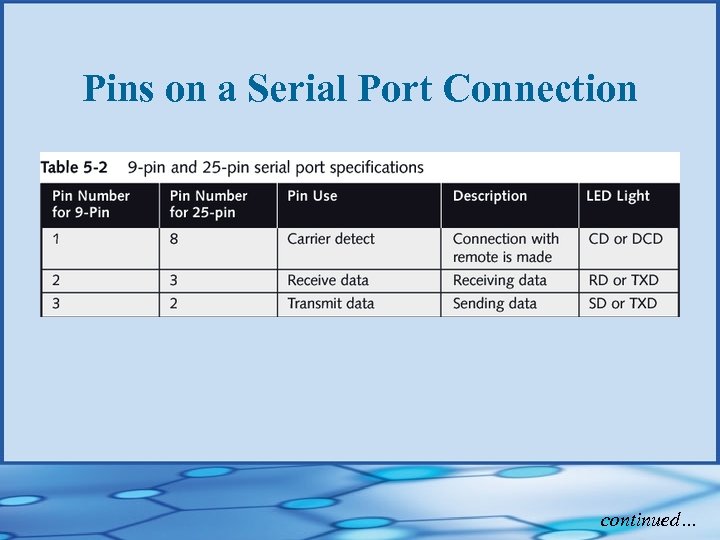 Pins on a Serial Port Connection continued…
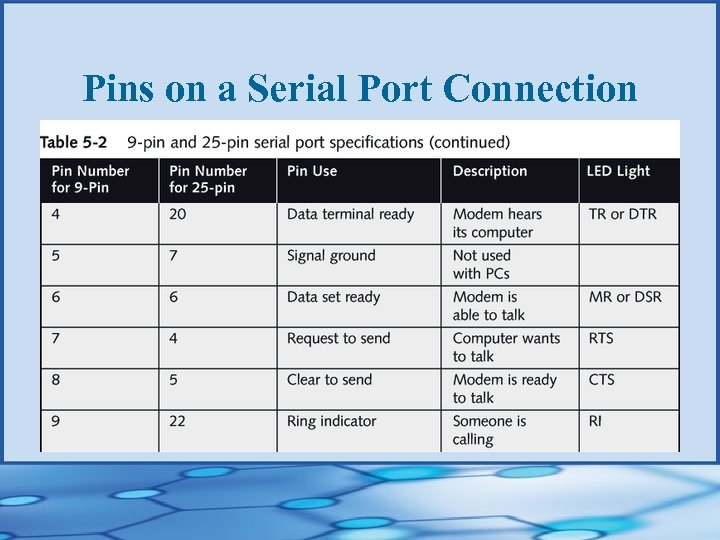 Pins on a Serial Port Connection
 Null Modem Connection • Special cable (null modem cable or modem • eliminator) enables data transmission between two DTE devices without the need for modems Null modem cable has several wires crossconnected to simulate modem connection
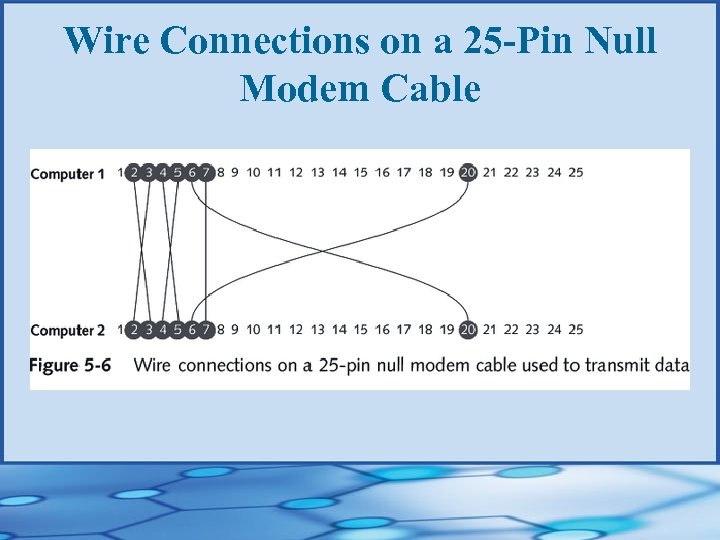 Wire Connections on a 25 -Pin Null Modem Cable
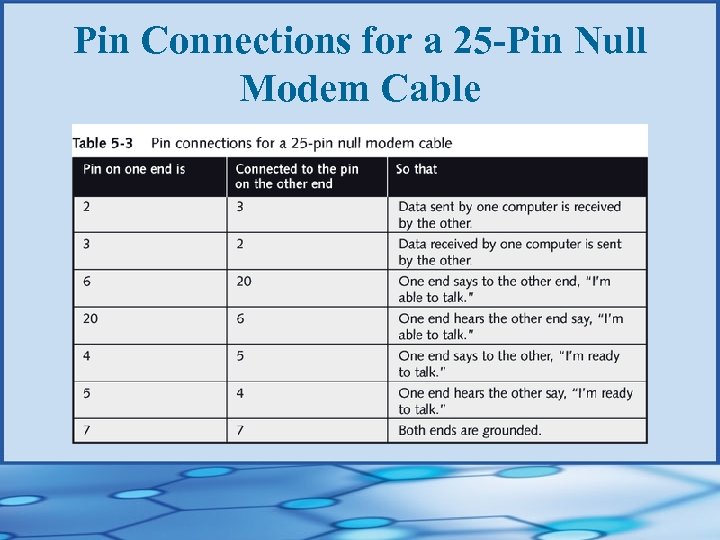 Pin Connections for a 25 -Pin Null Modem Cable
 Infrared Transceivers • • Use resources of a serial port for communication Create a virtual infrared serial port and virtual infrared port for infrared devices Sometimes motherboard provides 5 -pin connection for its own proprietary Ir. DA-compliant infrared transceiver Industry is moving away from infrared and toward other wireless technologies because of line-of-sight issue
 The Universal Asynchronous Receiver. Transmitter (UART) Chip • • • Controls all nine pins of a serial port Establishes communications protocol Converts parallel data bits coming from the system bus into serial bits for transmission Converts incoming serial data bits it receives into parallel form needed by the system bus UART 16550 driver is built into all Windows operating systems
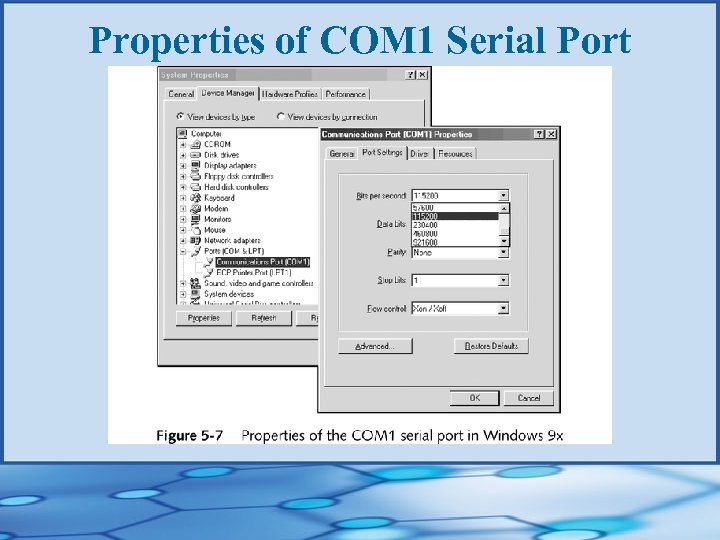 Properties of COM 1 Serial Port
 Using Parallel Ports • • • Transmit data in parallel, eight bits at a time Almost always female Originally intended for printers; now also used for input devices Cable should be no longer than 10 feet to avoid loss of integrity of data Can be configured as LPT 1, LPT 2, or LPT 3 Port assignments are made in CMOS setup
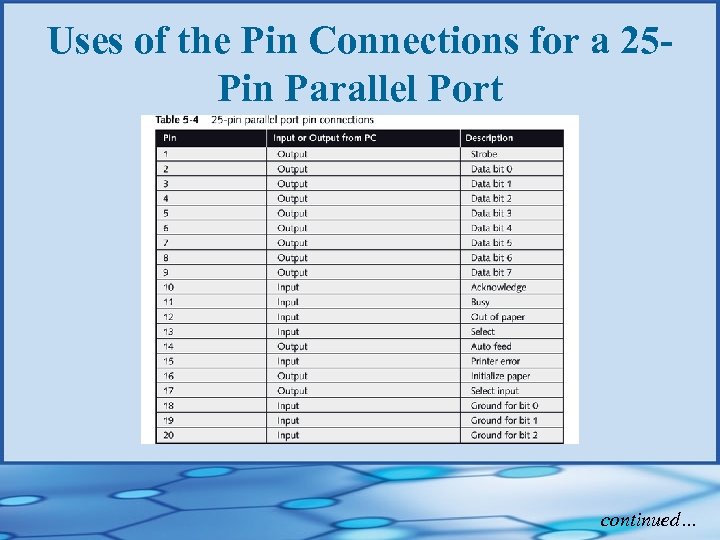 Uses of the Pin Connections for a 25 Pin Parallel Port continued…
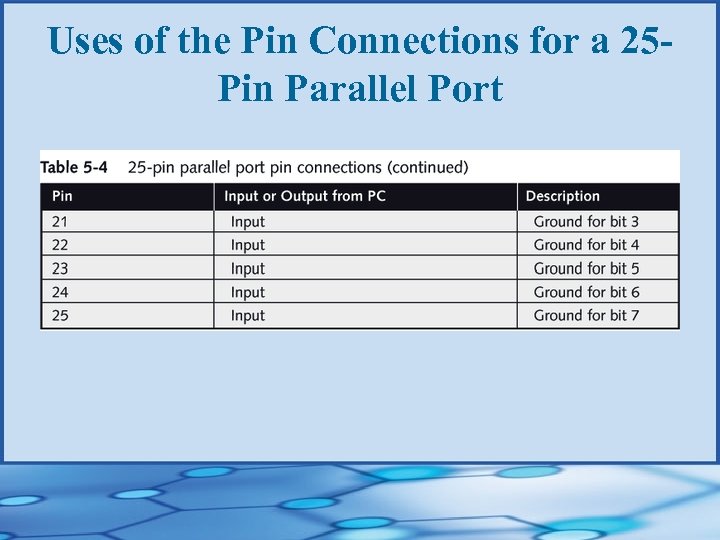 Uses of the Pin Connections for a 25 Pin Parallel Port
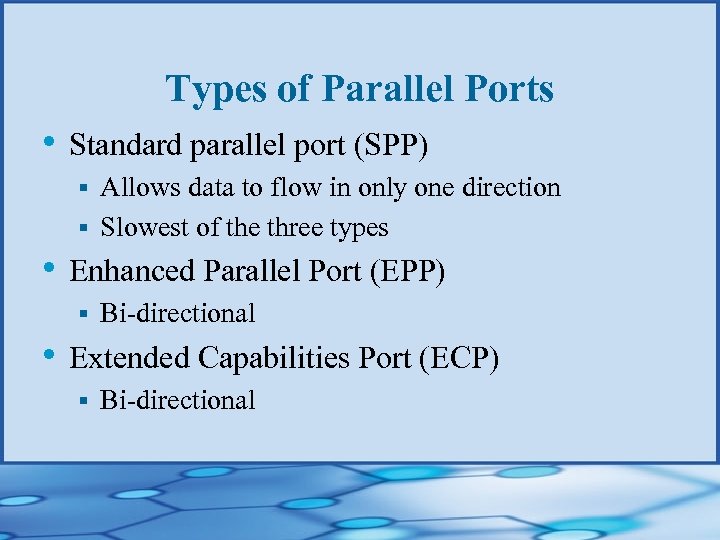 Types of Parallel Ports • Standard parallel port (SPP) Allows data to flow in only one direction § Slowest of the three types § • Enhanced Parallel Port (EPP) § Bi-directional • Extended Capabilities Port (ECP) § Bi-directional
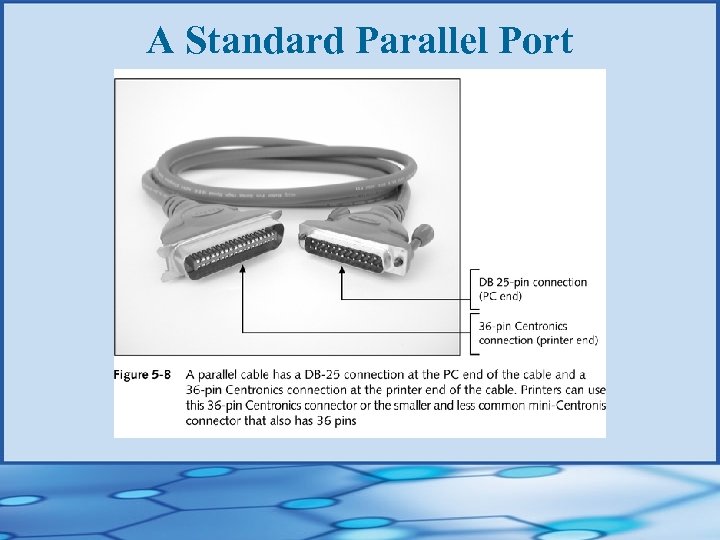 A Standard Parallel Port
 Configuring Parallel Ports • Setup can have up to three different settings for parallel ports
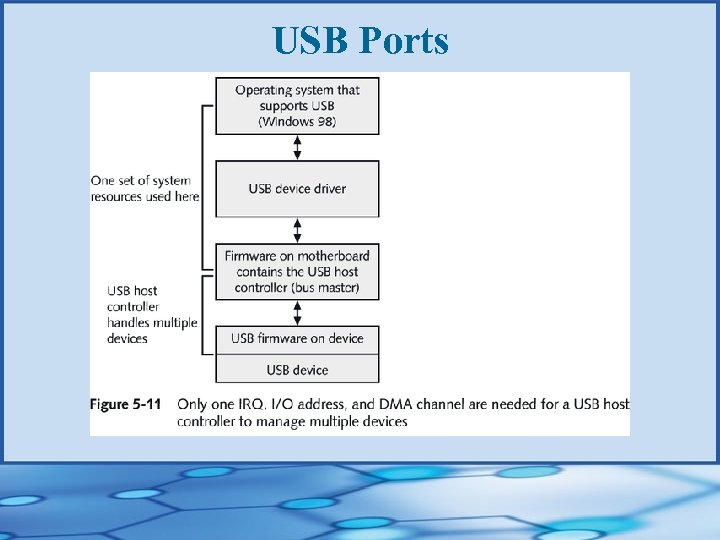
 Using USB Ports • Designed to make installation of slow • • • peripheral devices as effortless as possible Much faster than regular serial ports Use higher-quality cabling with four wires— two for power and two for communication Easier to manage; eliminate need to manually resolve resource conflicts continued…
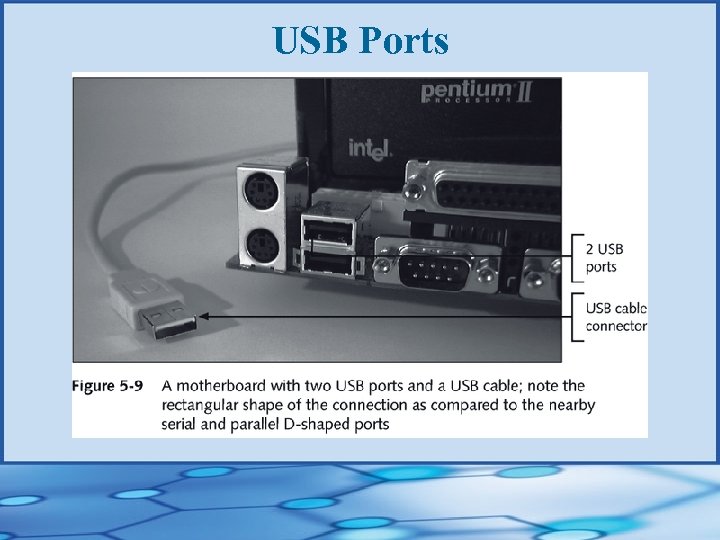
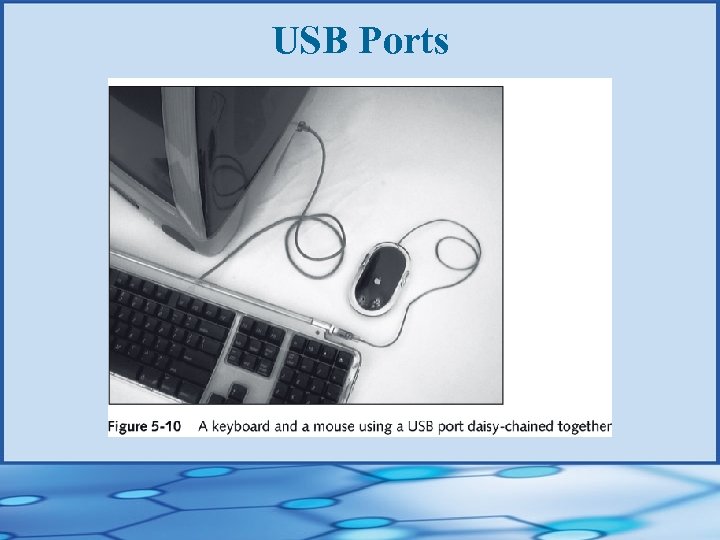
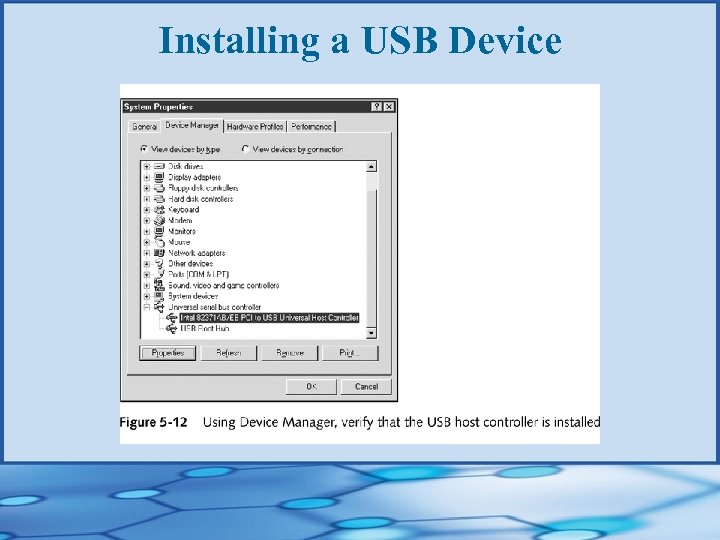
 Using USB Ports • • • Expected to ultimately replace serial and parallel ports Allow for hot-swapping; are hot-pluggable Most current motherboards have one to four USB ports Managed by a USB host controller As many as 127 USB devices can be daisy-chained together using USB devices
 USB Ports
 USB Ports
 USB Ports
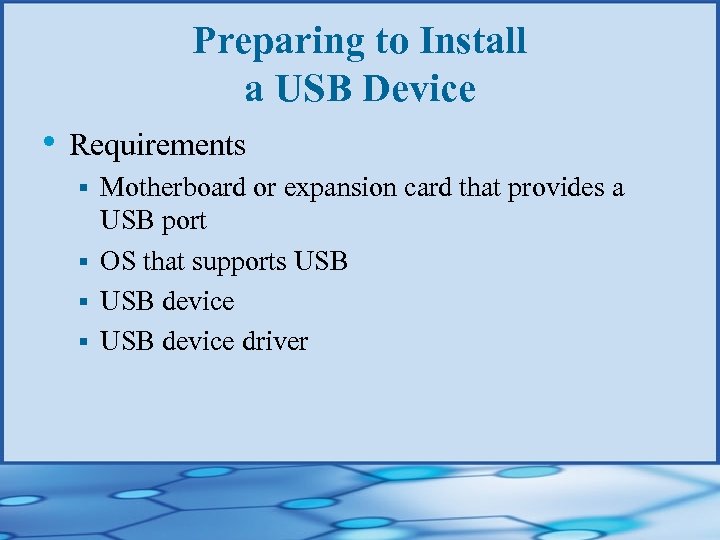 Preparing to Install a USB Device • Requirements Motherboard or expansion card that provides a USB port § OS that supports USB § USB device driver §
 Installing a USB Device
 Using IEEE 1394 Ports • Also called Fire. Wire or i. Link • Provide either a 4 -pin or 6 -pin connector • Transmit data serially; faster than USB • Support data speeds as high as 1. 2 Gbps • Use only one set of system resources • Use isochronous data transfer continued…
 Using IEEE 1394 Ports • Are hot-pluggable • Likely to replace SCSI for high-volume, • multimedia external devices Devices can be daisy-chained together and managed by a host controller using a single set of system resources
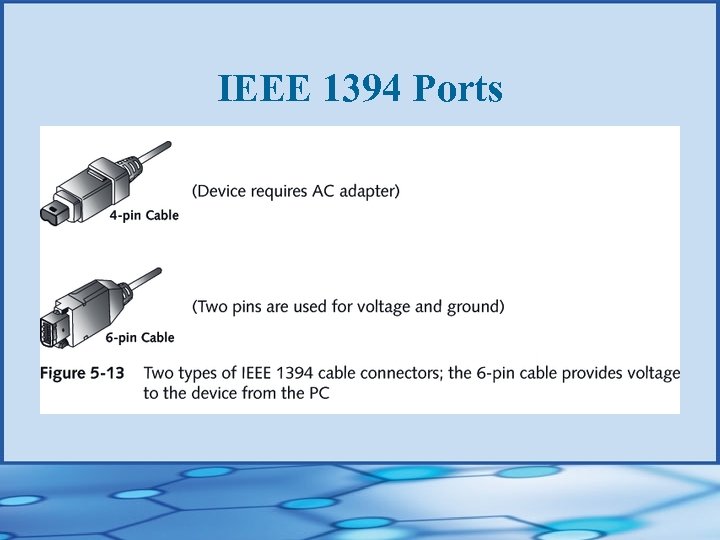 IEEE 1394 Ports
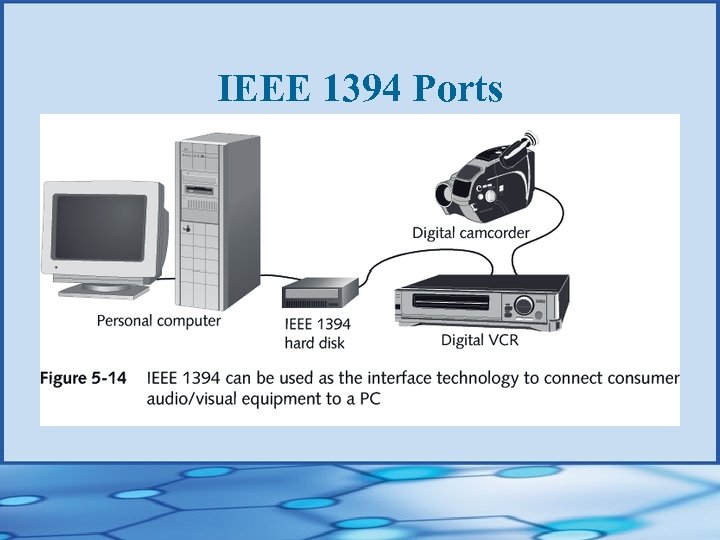 IEEE 1394 Ports
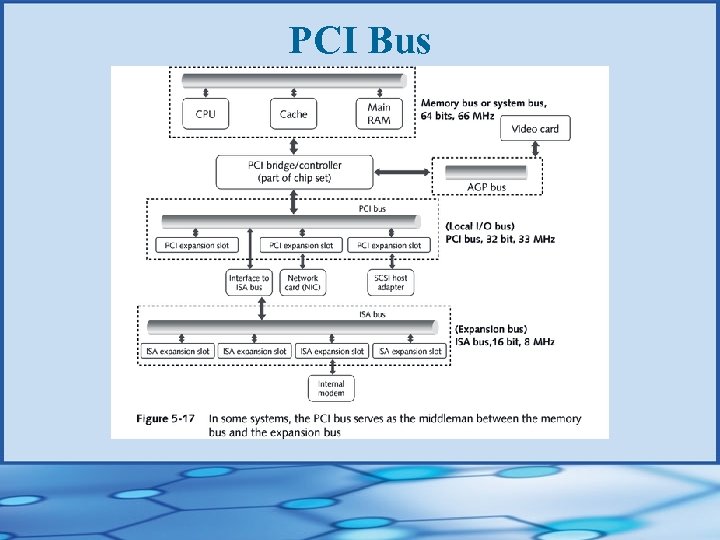
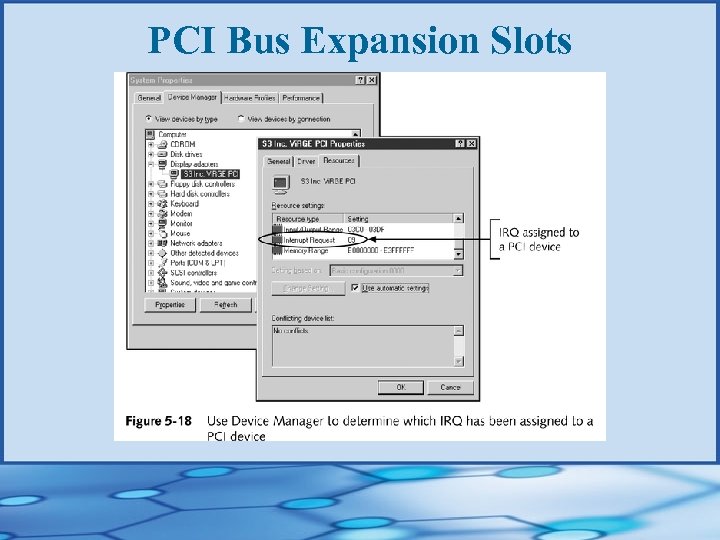
 Using PCI Expansion Slots • • • PCI bus is now the standard local I/O bus PCI bus runs in sync with CPU Devices connected to PCI local bus can run at one speed while CPU runs at a different speed Often used for fast I/O devices (eg, network cards or SCSI host adapters) PCI controller manages system resources for all PCI cards
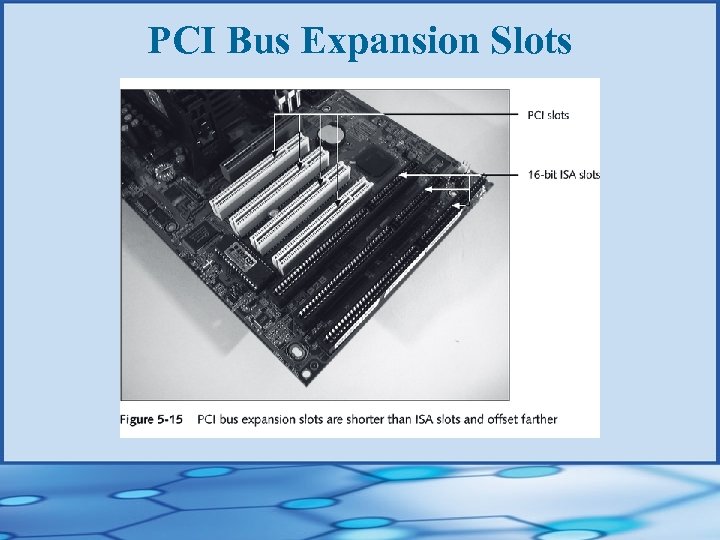 PCI Bus Expansion Slots
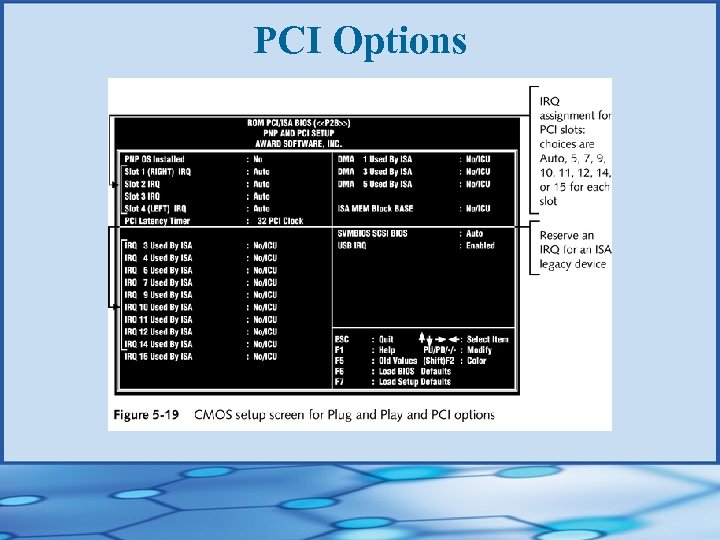
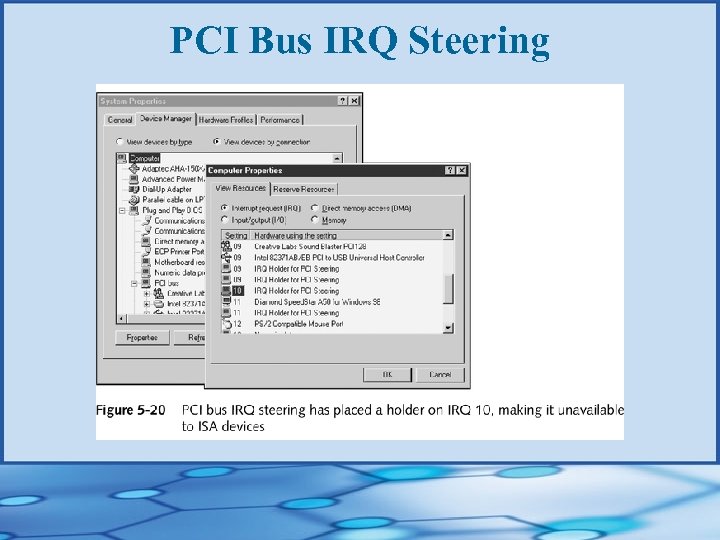
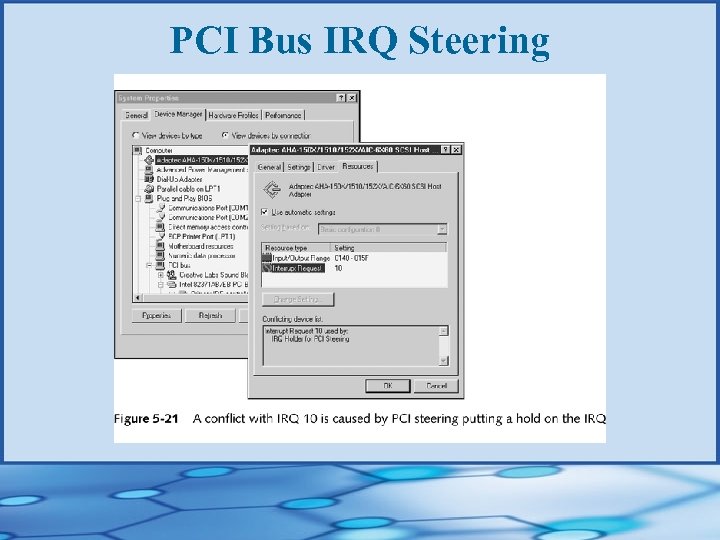
 PCI Bus • • Supports bus mastering Uses interim interrupt between PCI card and the IRQ line to CPU Device Manager determines which IRQ has been assigned to a PCI device PCI bus IRQ steering can help solve problem of not having enough IRQs to support all devices
 PCI Bus
 PCI Bus Expansion Slots
 PCI Options
 PCI Bus IRQ Steering
 PCI Bus IRQ Steering
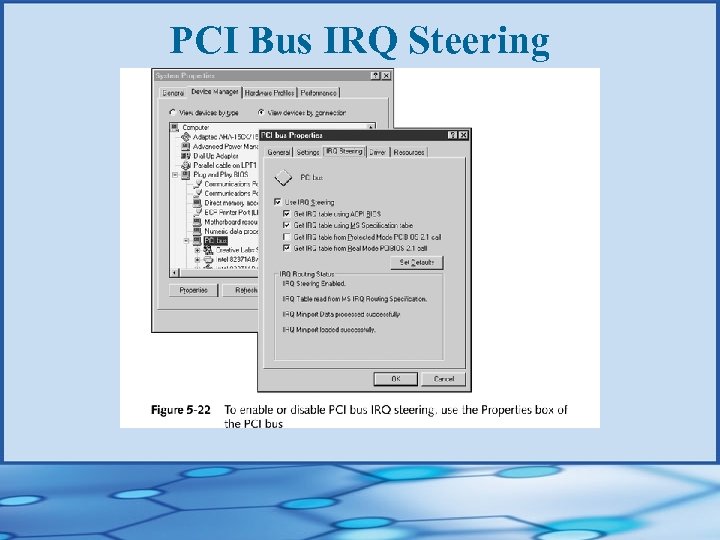 PCI Bus IRQ Steering
 MCA and EISA Buses • Microchannel Architecture (MCA) bus § First 32 -bit bus for PCs • EISA (Extended ISA) bus Designed to compete with MCA bus § Has a 32 -bit data path § Speed is about 20 MHz §
 Using ISA Expansion Slots • Configuration is not automated • ISA bus does not manage system resources, as • do USB and PCI bus masters ISA device must request system resources at startup
 Installing Legacy Hardware • Solving problems with legacy hardware • Solving problems with legacy drivers
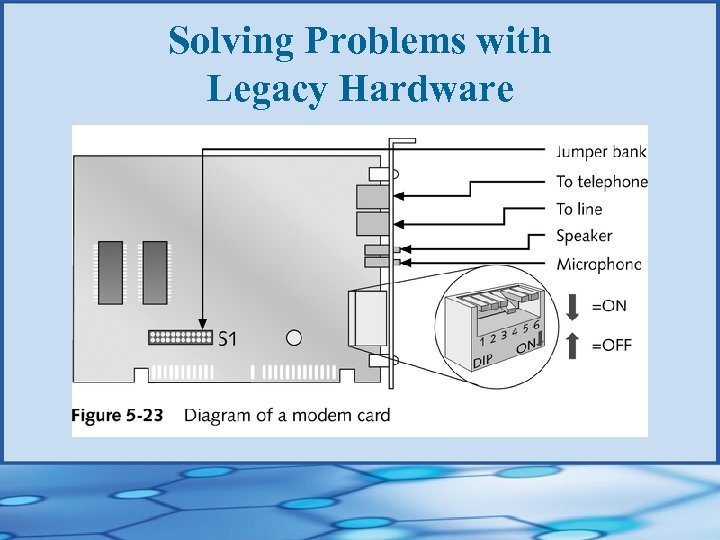 Solving Problems with Legacy Hardware
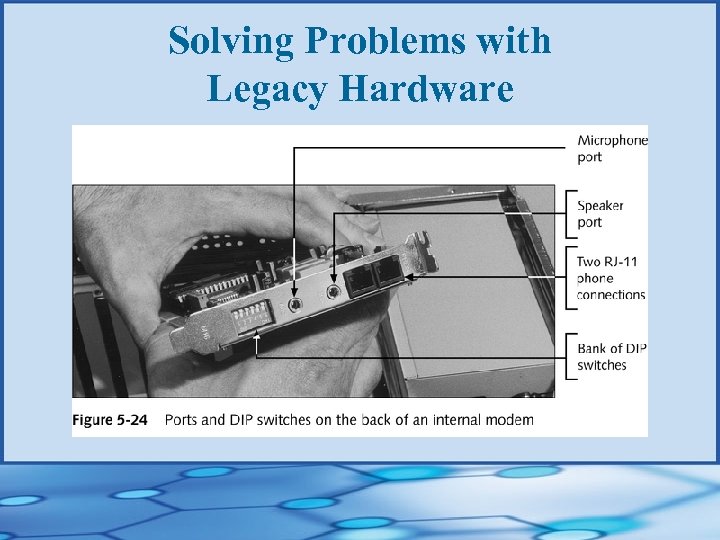 Solving Problems with Legacy Hardware
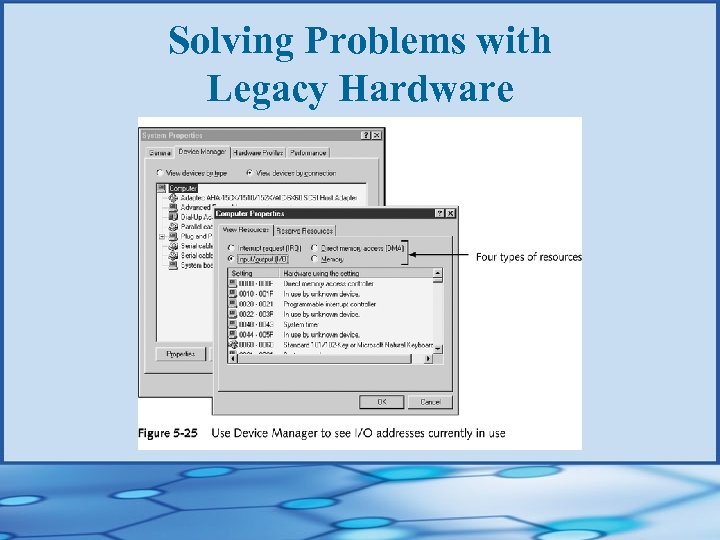 Solving Problems with Legacy Hardware
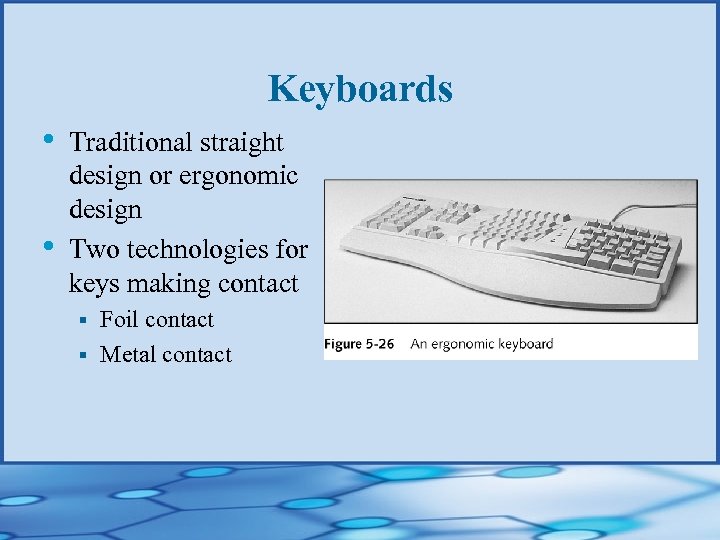 Keyboards • • Traditional straight design or ergonomic design Two technologies for keys making contact Foil contact § Metal contact §
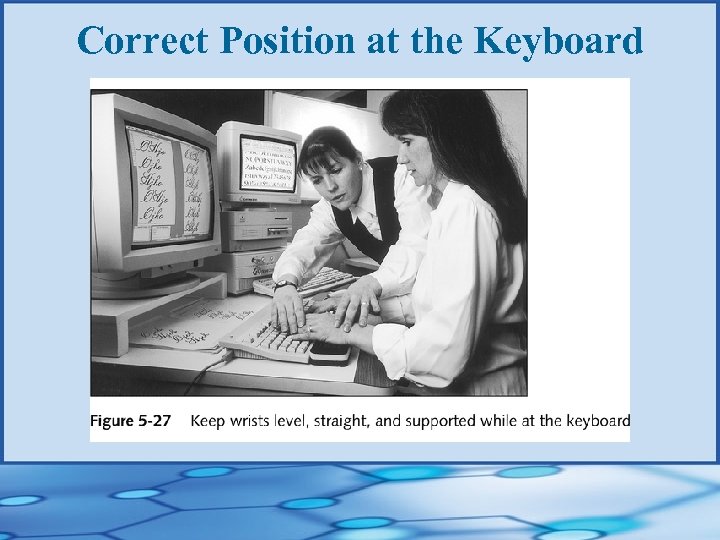 Correct Position at the Keyboard
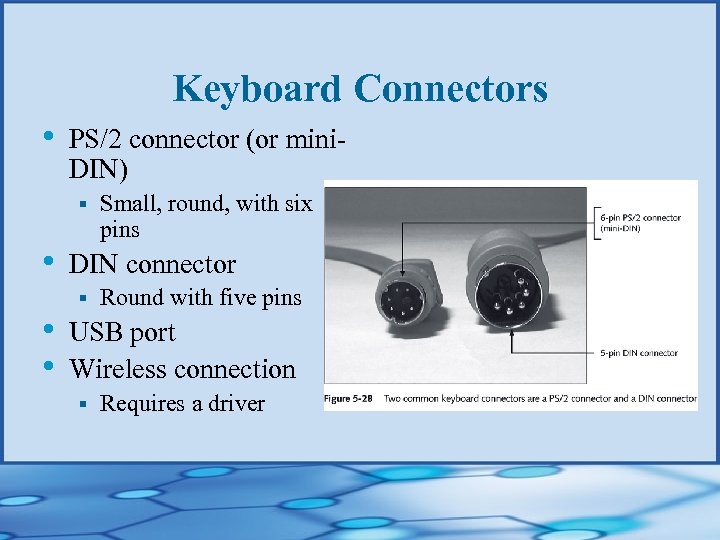 Keyboard Connectors • PS/2 connector (or mini. DIN) § • • • Small, round, with six pins DIN connector § Round with five pins USB port Wireless connection § Requires a driver
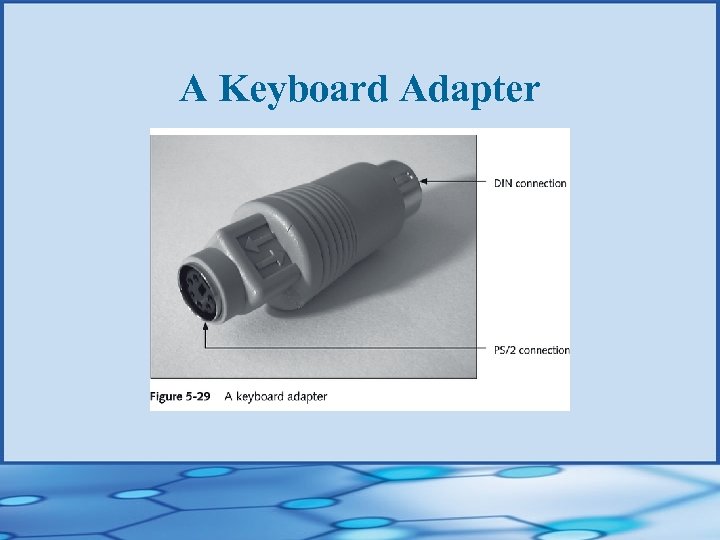 A Keyboard Adapter
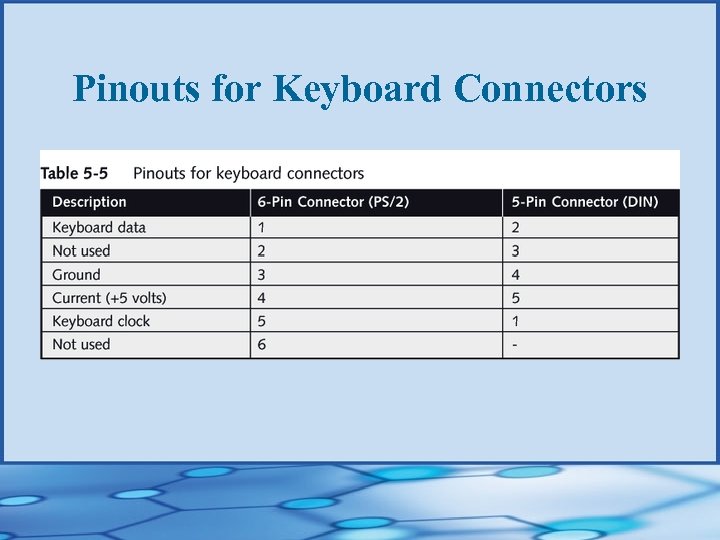 Pinouts for Keyboard Connectors
 Installing Keyboards • Usually means plugging in keyboard and • turning on PC System BIOS manages the keyboard, so no keyboard drivers are necessary (except for wireless keyboards)
 Troubleshooting Keyboards • A few keys don’t work • Keyboard does not work at all • Key continues to repeat after being released • Keys produce wrong characters • Major spills on keyboard
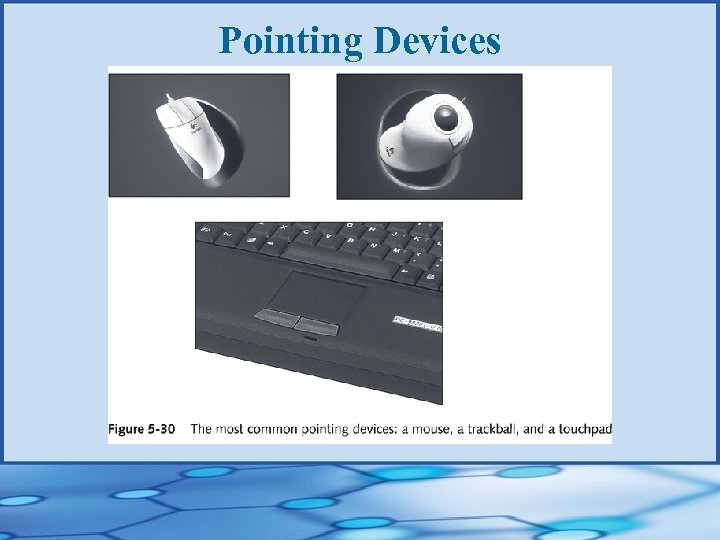 Pointing Devices
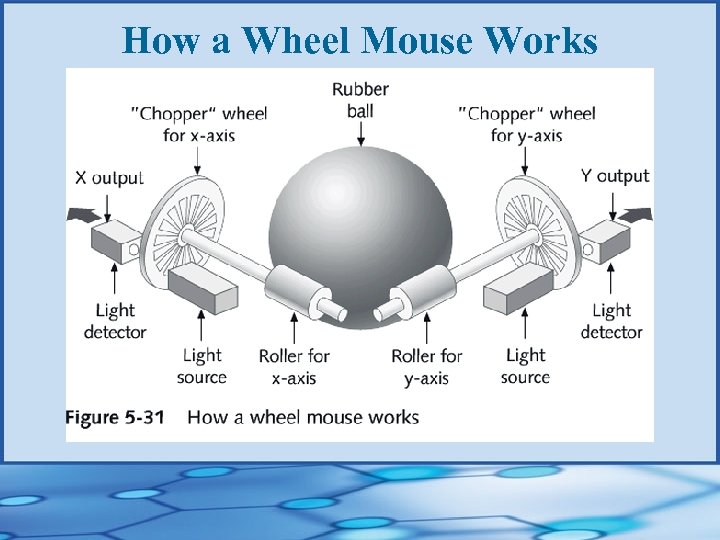 How a Wheel Mouse Works
 How a Mouse Connects to the Computer • Serial port • Dedicated round mouse port • Mouse bus card • USB port • Y-connection with the keyboard • Cordless technology
 Cleaning the Mouse • Remove cover • Clean rollers with cotton swab dipped in small amount of liquid soap
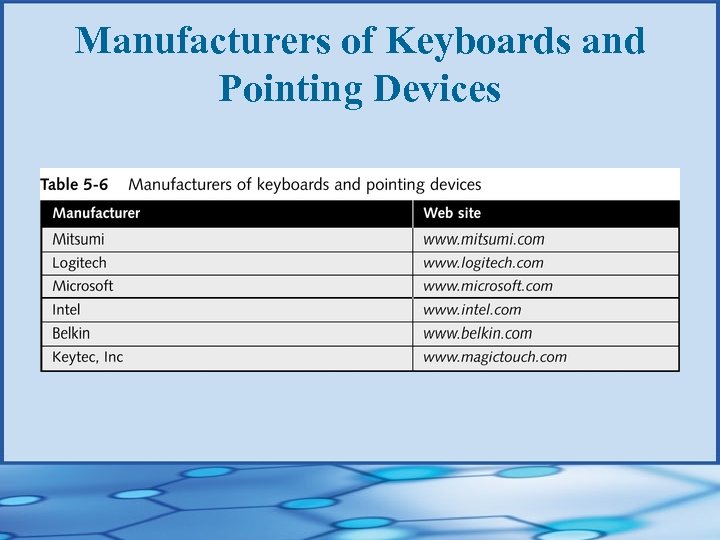 Manufacturers of Keyboards and Pointing Devices
 Troubleshooting a Mouse • Check mouse port connection; check for dust • • • or dirt; reboot PC Try new mouse Uninstall and reinstall mouse driver; reboot PC Reboot PC and select logged option from startup menu to create Bootlog. exe file; continue to boot and check log for errors
 Computer Video • Necessary components for video output Video controller § Monitor §
 Monitors • Rated by screen size, resolution, refresh rate, • • and interlace features Most meet standards for Super VGA Use CRT (cathode-ray tube) or LCD (liquid crystal display) technology
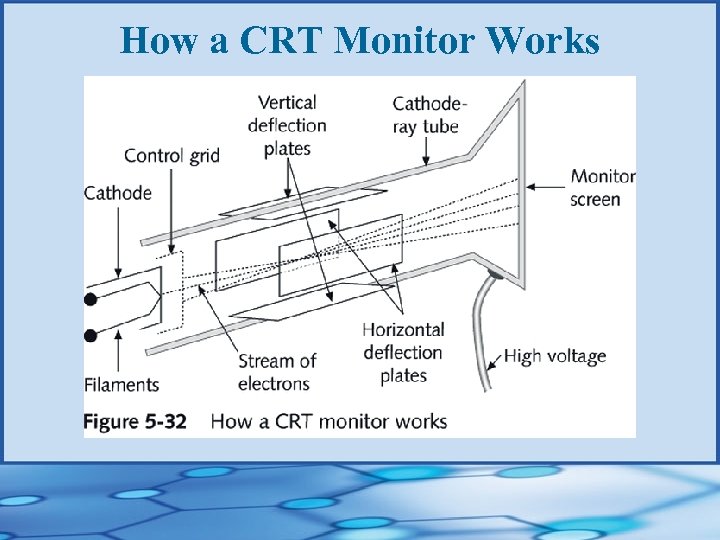 How a CRT Monitor Works
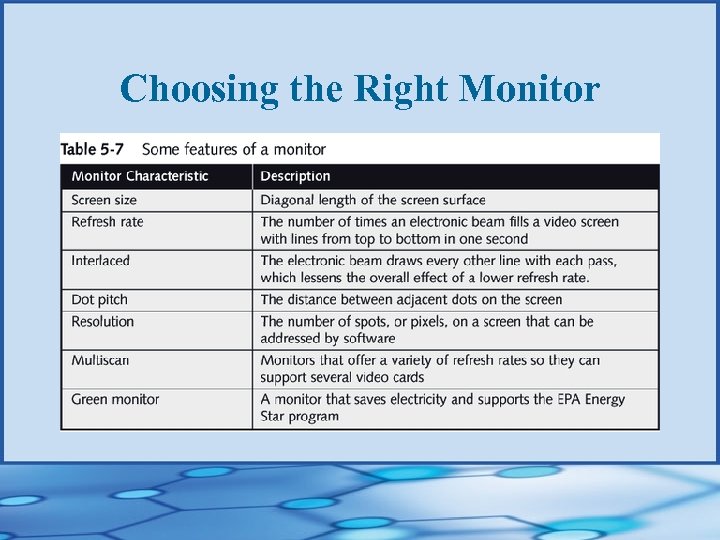 Choosing the Right Monitor
 Monitors • Monitors and ELF (extremely low frequency) • emissions Flat panel monitors Active-matrix § Dual-scan passive matrix §
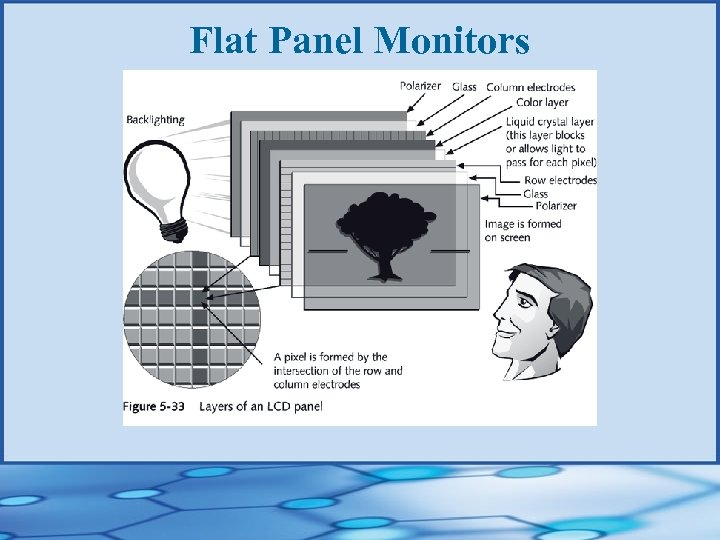 Flat Panel Monitors
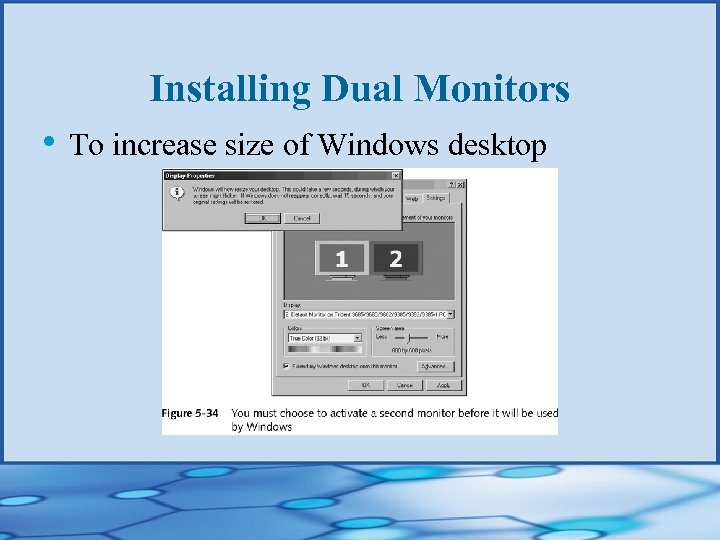 Installing Dual Monitors • To increase size of Windows desktop
 Video Cards • Quality of video subsystem is rated according • to how it affects overall system performance, video quality (eg, resolution and color), powersaving features, and ease of use and installation Main features to look for Bus it uses (VESA, PCI, or AGP) § Amount of video RAM it has or can support §
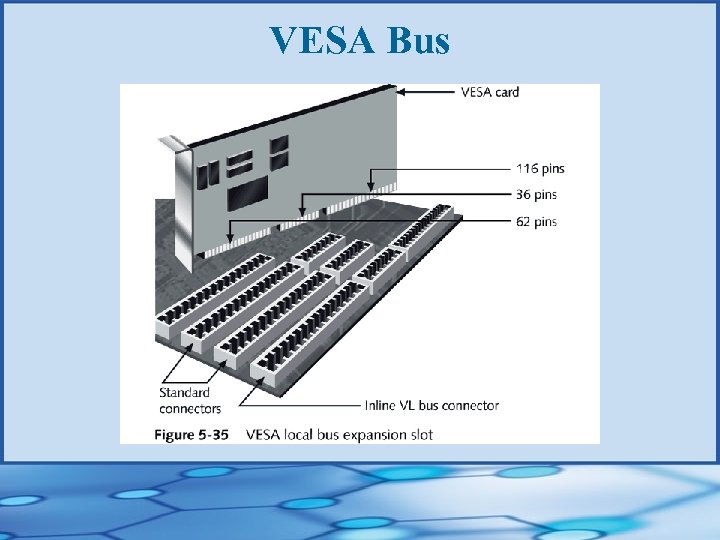 VESA Bus
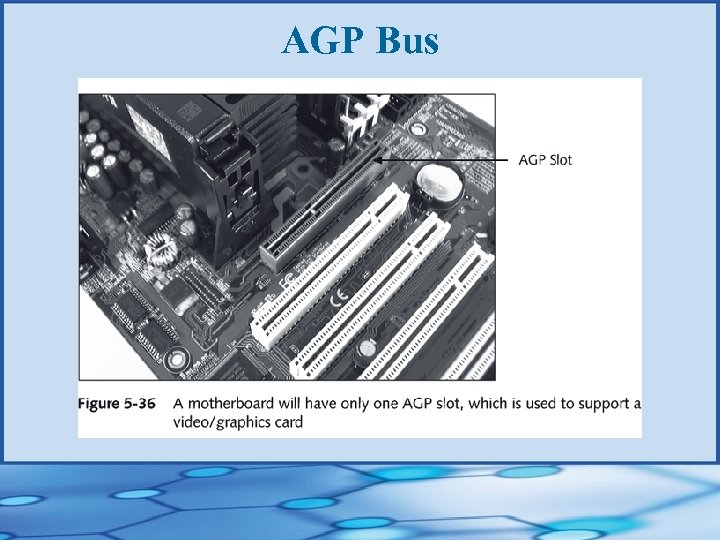 AGP Bus
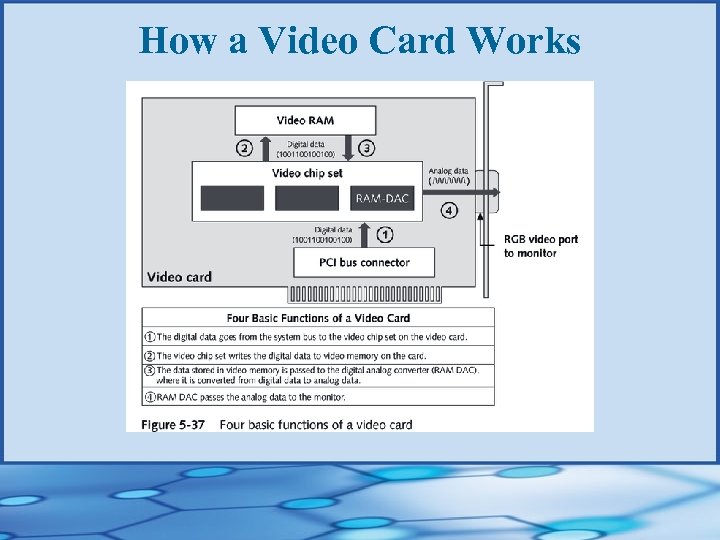 How a Video Card Works
 Graphics Accelerators • Type of video card that has its own processor • to boost performance Features reduce burden on motherboard CPU (eg, MPEG decoding, 3 -D graphics, dual porting, color space conversion, interpolated scaling, EPA Green PC support)
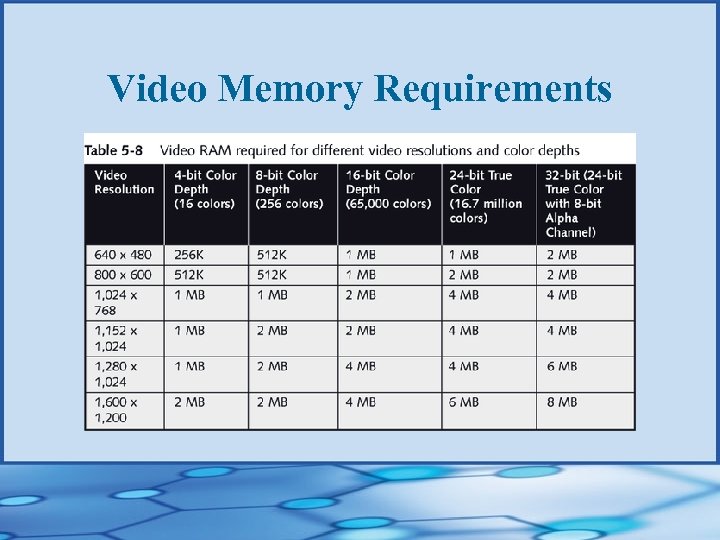 Video Memory Requirements
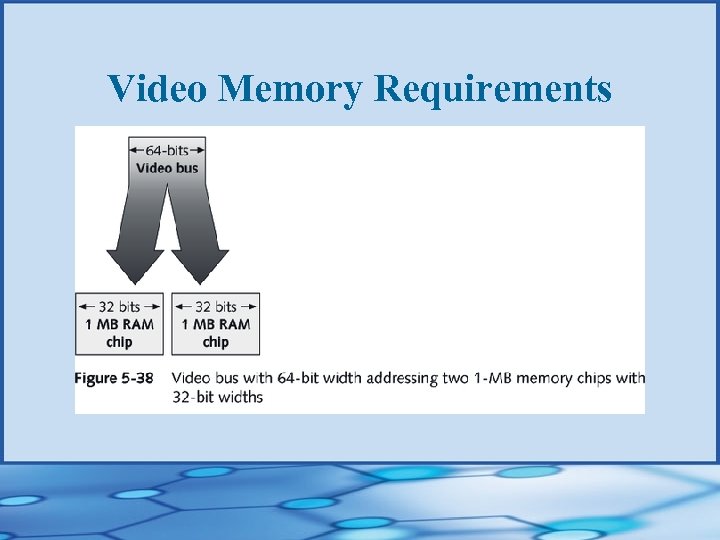 Video Memory Requirements
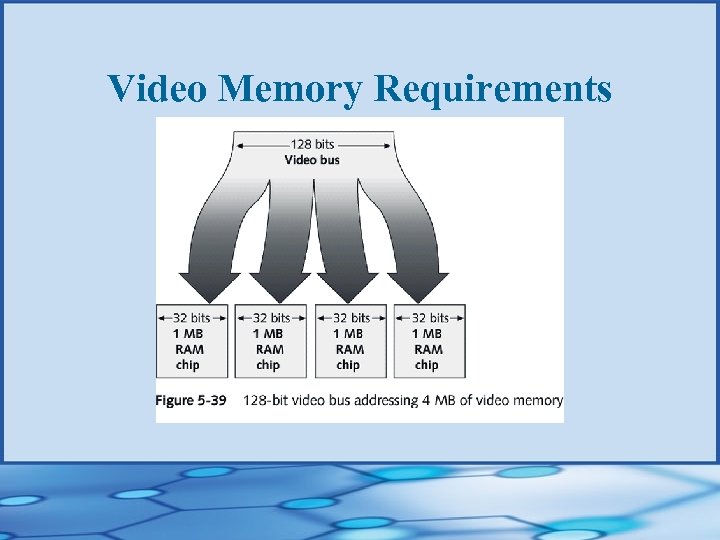 Video Memory Requirements
 Types of Video Memory • Dual-ported memory (eg, video RAM) • WRAM (window RAM) • SGRAM (synchronous graphics RAM) • 3 -D RAM
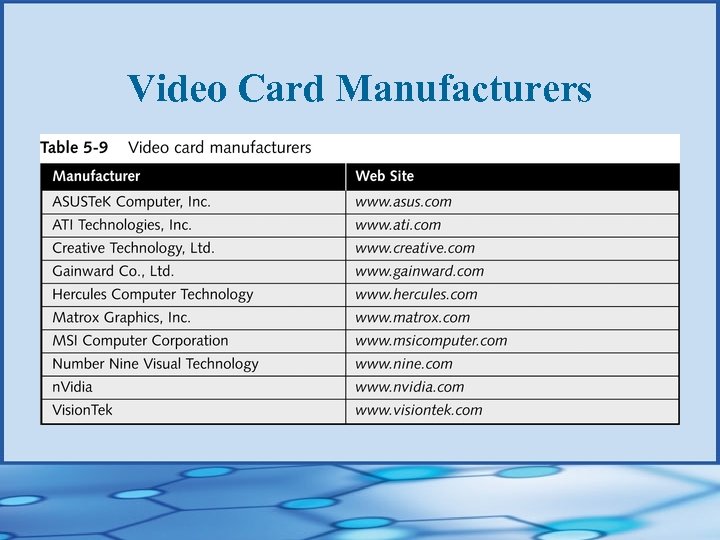 Video Card Manufacturers
 Troubleshooting Video Problems • Power light (LED) does not go on; no picture • Power LED light is on; no picture on power-up • Power on, but monitor displays wrong • • characters Monitor flickers and/or has wavy lines No graphics display or screen goes blank when loading certain programs continued…
 Troubleshooting Video Problems • Screen goes blank 30 seconds or one minute • • • after keyboard is left untouched Poor quality color display Picture out of focus or out of adjustment Crackling sound
 Troubleshooting Video Problems • Configuring or changing monitor settings and • • drivers in Windows 9 x Changing video driver configuration Returning to standard VGA settings
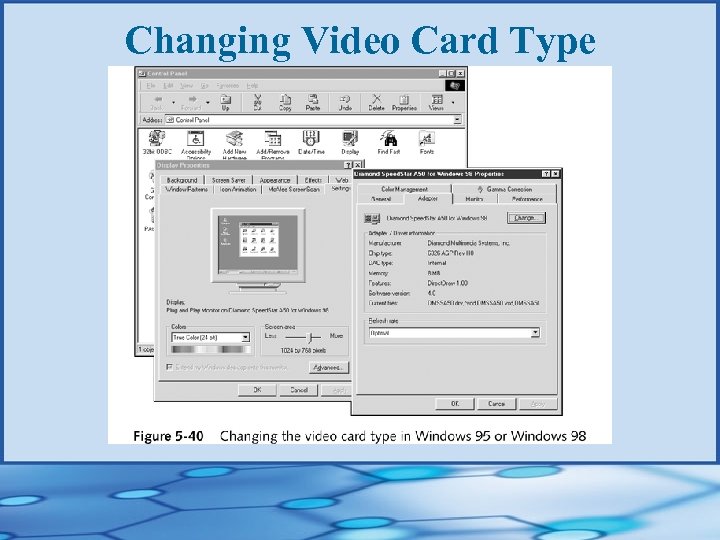 Changing Video Card Type
 Chapter Summary • Procedures and guidelines common to most • • installations of I/O devices How to use serial, parallel, USB, and IEEE 1394 ports, as well as expansion slots Essential I/O devices for a PC: Keyboard § Mouse § Video §