 Скачать презентацию Chapter 3 File Systems 파일 시스템 Brooks Cole 2001
2c741867e69c06a54d0c33cf745d206c.ppt
- Количество слайдов: 108



Chapter 3 File Systems (파일 시스템) ©Brooks/Cole, 2001
파일 시스템 UNIX uses a broader interpretation of files than in most operating systems. In UNIX, a file is any source from which data can be read or any destination to which data can be written. Therefore, the keyboard, a source of input, is a file; the monitor, a destination for output, is a file; a printer, another destination for output, is a file; and a document stored on a disk, a source or destination of data, is also a file. ©Brooks/Cole, 2001
3. 1 Filenames(파일명) • • • 길이제약 : 14 ~ 255 문자 Any sequence of ASCII characters 추천규칙 1. 2. Start name with an alphabetic character. Use dividers to separate parts of name. (underscore, period, hyphen) 3. Use an extension at the end of filename. . txt, . dat. c. c++ 4. Never start a filename with a period. (hidden files in UNIX are created and used by the system) . profile, . kshrc, . cshrc ©Brooks/Cole, 2001
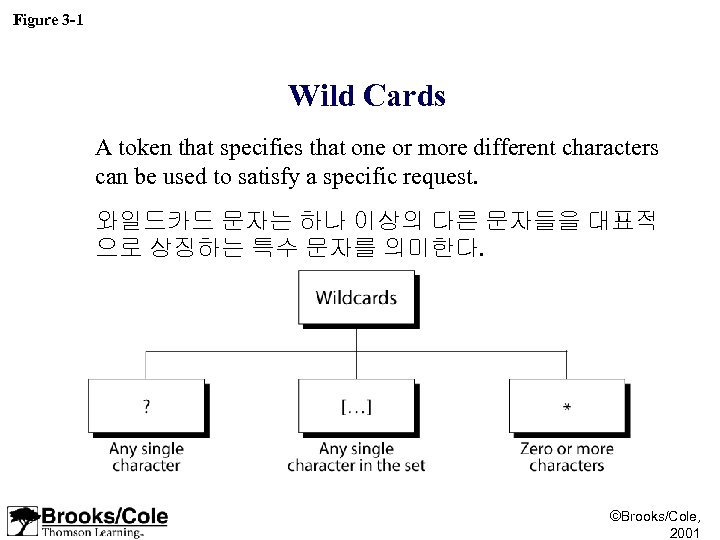
Figure 3 -1 Wild Cards A token that specifies that one or more different characters can be used to satisfy a specific request. 와일드카드 문자는 하나 이상의 다른 문자들을 대표적 으로 상징하는 특수 문자를 의미한다. ©Brooks/Cole, 2001
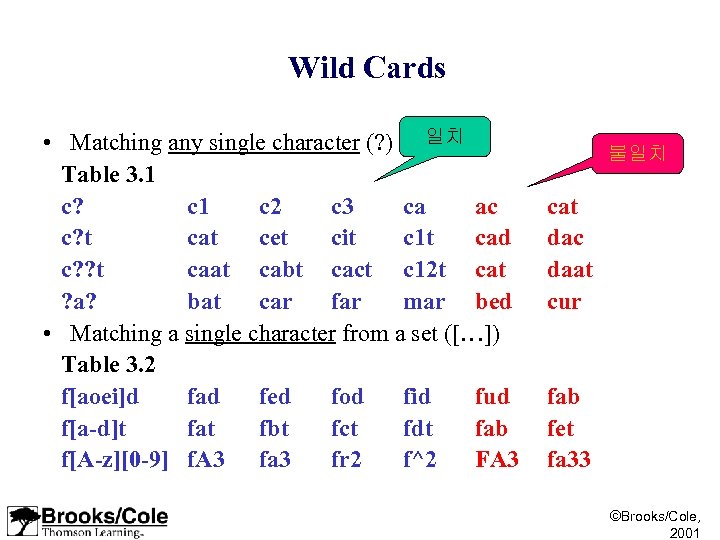
Wild Cards • Matching any single character (? ) 일치 Table 3. 1 c? c 1 c 2 c 3 ca ac c? t cat cet cit c 1 t cad c? ? t caat cabt cact c 12 t cat ? a? bat car far mar bed • Matching a single character from a set ([…]) Table 3. 2 f[aoei]d fad fed fod fid fud f[a-d]t fat fbt fct fdt fab f[A-z][0 -9] f. A 3 fa 3 fr 2 f^2 FA 3 불일치 cat dac daat cur fab fet fa 33 ©Brooks/Cole, 2001
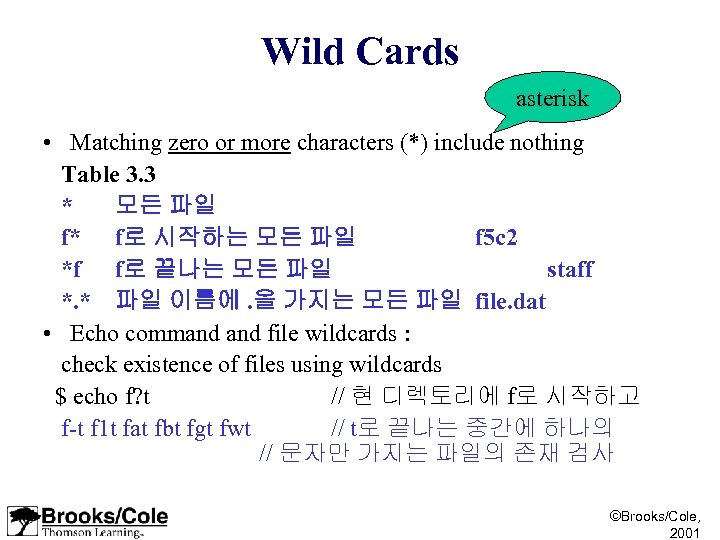
Wild Cards asterisk • Matching zero or more characters (*) include nothing Table 3. 3 * 모든 파일 f* f로 시작하는 모든 파일 f 5 c 2 *f f로 끝나는 모든 파일 staff *. * 파일 이름에. 을 가지는 모든 파일 file. dat • Echo command file wildcards : check existence of files using wildcards $ echo f? t // 현 디렉토리에 f로 시작하고 f-t f 1 t fat fbt fgt fwt // t로 끝나는 중간에 하나의 // 문자만 가지는 파일의 존재 검사 ©Brooks/Cole, 2001
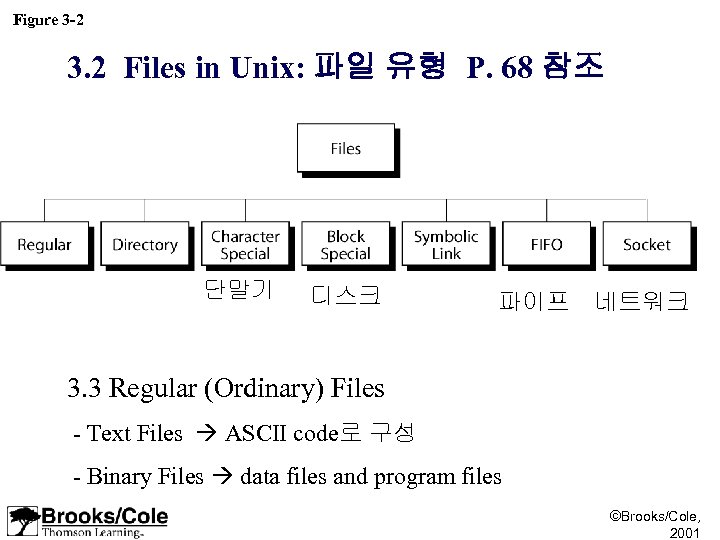
Figure 3 -2 3. 2 Files in Unix: 파일 유형 P. 68 참조 단말기 디스크 파이프 네트워크 3. 3 Regular (Ordinary) Files - Text Files ASCII code로 구성 - Binary Files data files and program files ©Brooks/Cole, 2001
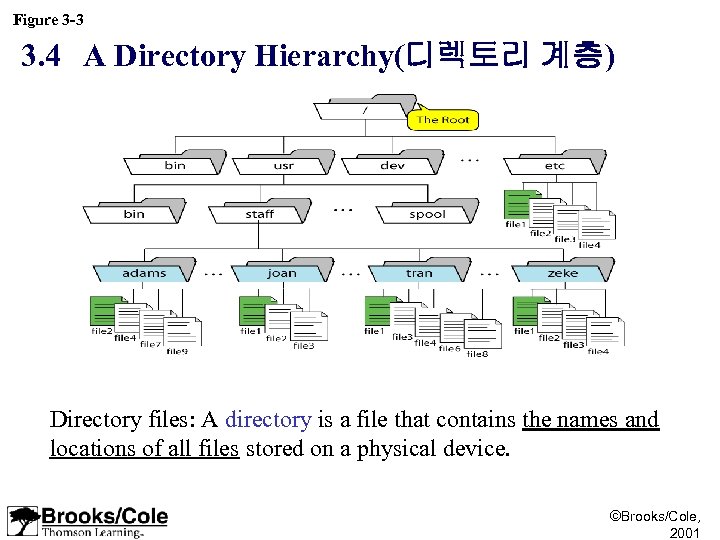
Figure 3 -3 3. 4 A Directory Hierarchy(디렉토리 계층) Directory files: A directory is a file that contains the names and locations of all files stored on a physical device. ©Brooks/Cole, 2001
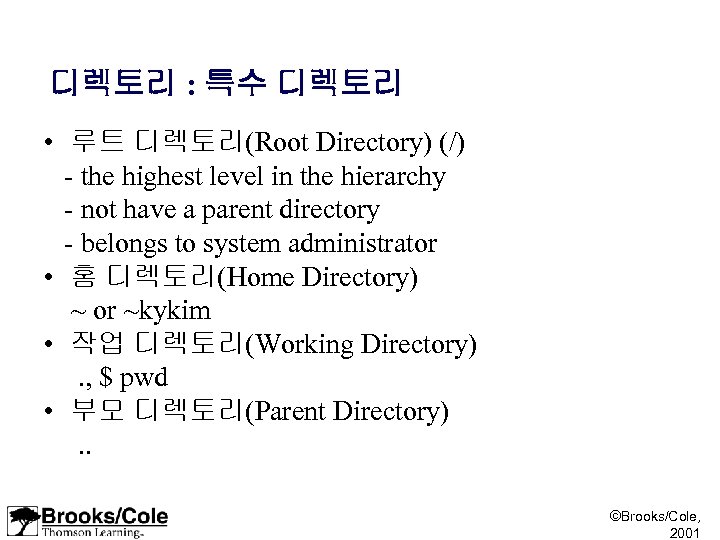
디렉토리 : 특수 디렉토리 • 루트 디렉토리(Root Directory) (/) - the highest level in the hierarchy - not have a parent directory - belongs to system administrator • 홈 디렉토리(Home Directory) ~ or ~kykim • 작업 디렉토리(Working Directory) . , $ pwd • 부모 디렉토리(Parent Directory) . . ©Brooks/Cole, 2001
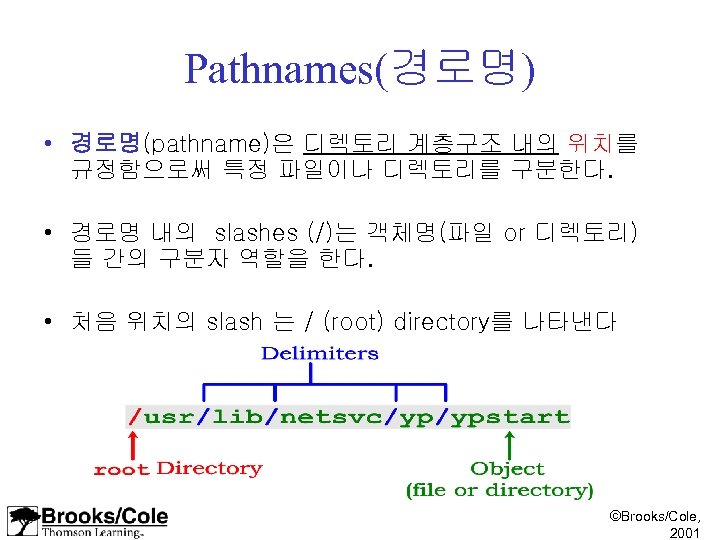
Pathnames(경로명) • 경로명(pathname)은 디렉토리 계층구조 내의 위치를 규정함으로써 특정 파일이나 디렉토리를 구분한다. • 경로명 내의 slashes (/)는 객체명(파일 or 디렉토리) 들 간의 구분자 역할을 한다. • 처음 위치의 slash 는 / (root) directory를 나타낸다 ©Brooks/Cole, 2001
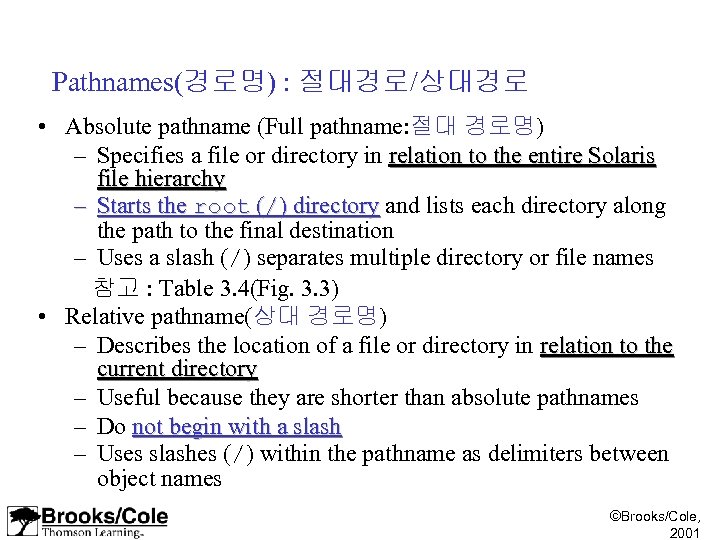
Pathnames(경로명) : 절대경로/상대경로 • Absolute pathname (Full pathname: 절대 경로명) – Specifies a file or directory in relation to the entire Solaris file hierarchy – Starts the root (/) directory and lists each directory along ) directory the path to the final destination – Uses a slash (/) separates multiple directory or file names 참고 : Table 3. 4(Fig. 3. 3) • Relative pathname(상대 경로명) – Describes the location of a file or directory in relation to the current directory – Useful because they are shorter than absolute pathnames – Do not begin with a slash – Uses slashes (/) within the pathname as delimiters between object names ©Brooks/Cole, 2001
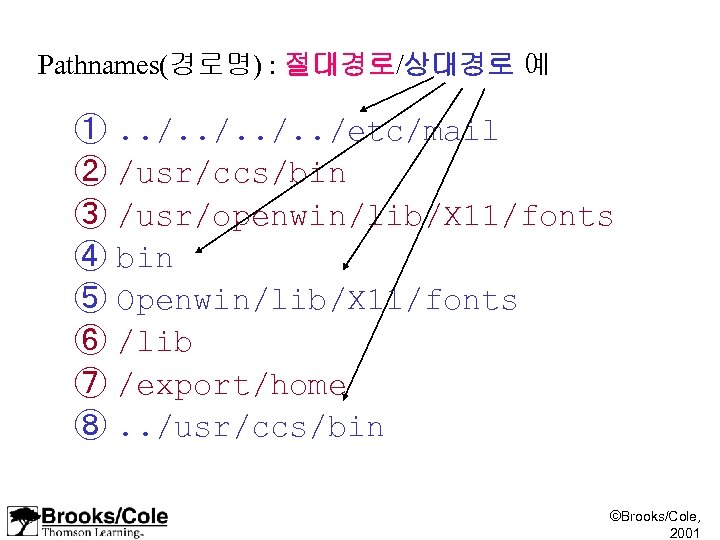
Pathnames(경로명) : 절대경로/상대경로 예 ①. . /etc/mail ② /usr/ccs/bin ③ /usr/openwin/lib/X 11/fonts ④ bin ⑤ Openwin/lib/X 11/fonts ⑥ /lib ⑦ /export/home ⑧. . /usr/ccs/bin ©Brooks/Cole, 2001
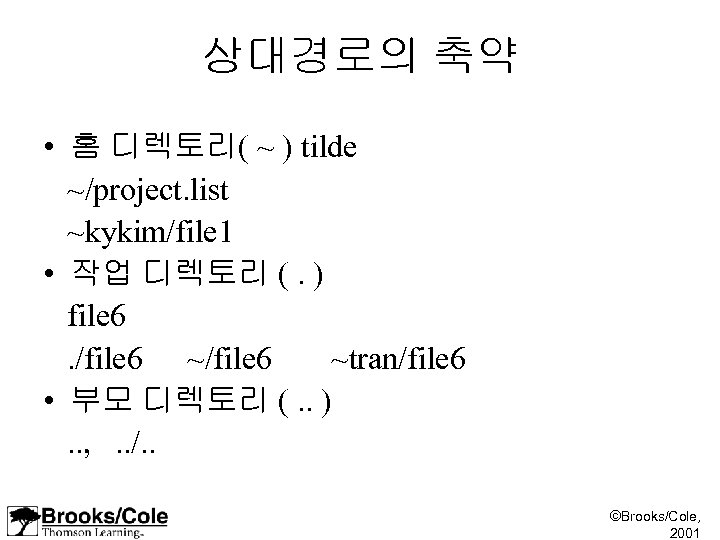
상대경로의 축약 • 홈 디렉토리( ~ ) tilde ~/project. list ~kykim/file 1 • 작업 디렉토리 (. ) file 6 . /file 6 ~tran/file 6 • 부모 디렉토리 (. . ) . . , . . /. . ©Brooks/Cole, 2001
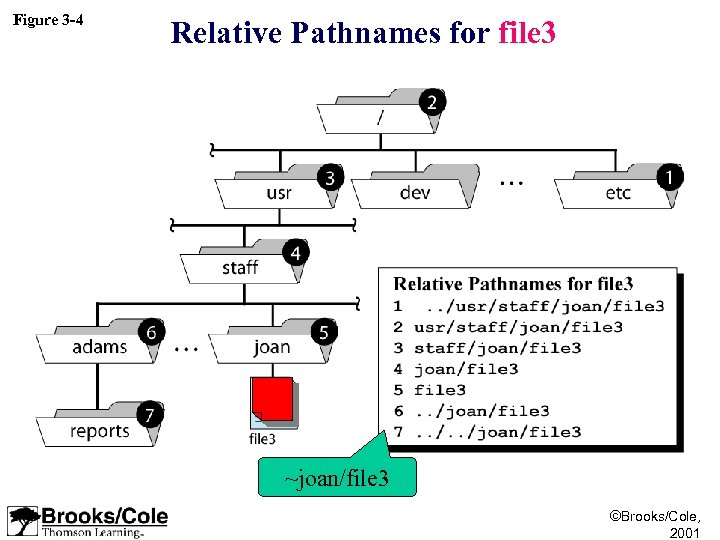
Figure 3 -4 Relative Pathnames for file 3 ~joan/file 3 ©Brooks/Cole, 2001
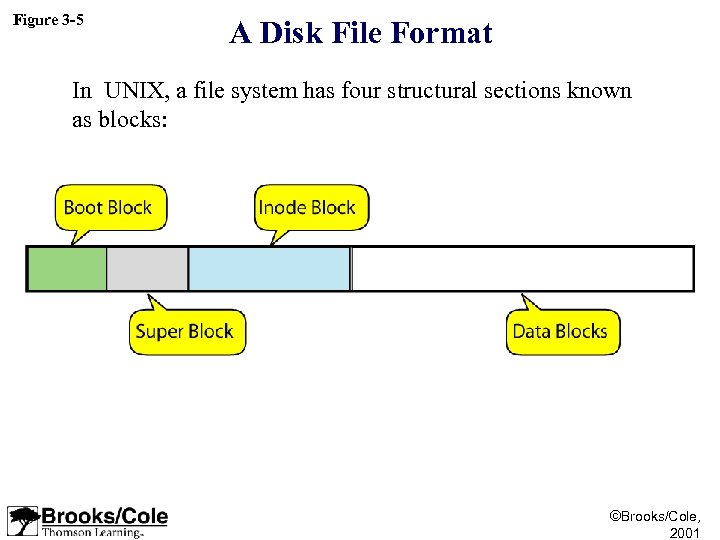
Figure 3 -5 A Disk File Format In UNIX, a file system has four structural sections known as blocks: ©Brooks/Cole, 2001
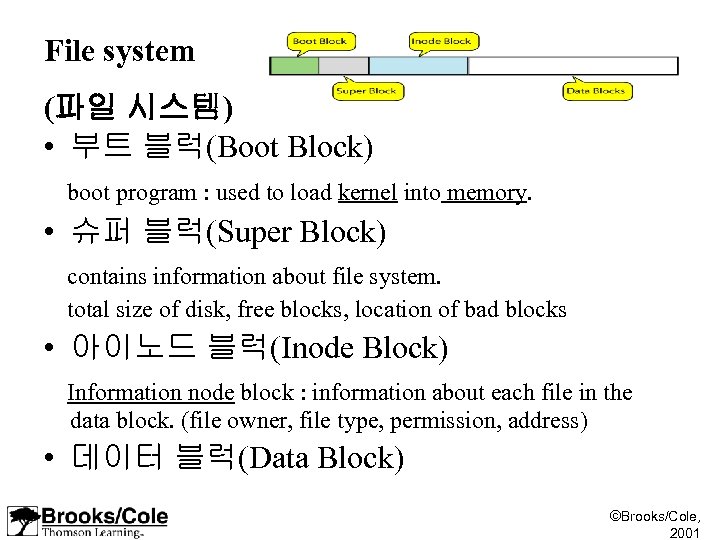
File system (파일 시스템) • 부트 블럭(Boot Block) boot program : used to load kernel into memory. • 슈퍼 블럭(Super Block) contains information about file system. total size of disk, free blocks, location of bad blocks • 아이노드 블럭(Inode Block) Information node block : information about each file in the data block. (file owner, file type, permission, address) • 데이터 블럭(Data Block) ©Brooks/Cole, 2001
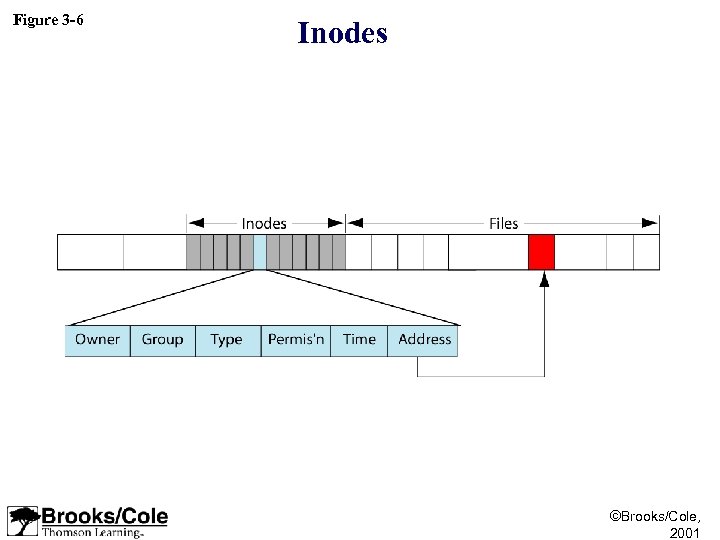
Figure 3 -6 Inodes ©Brooks/Cole, 2001
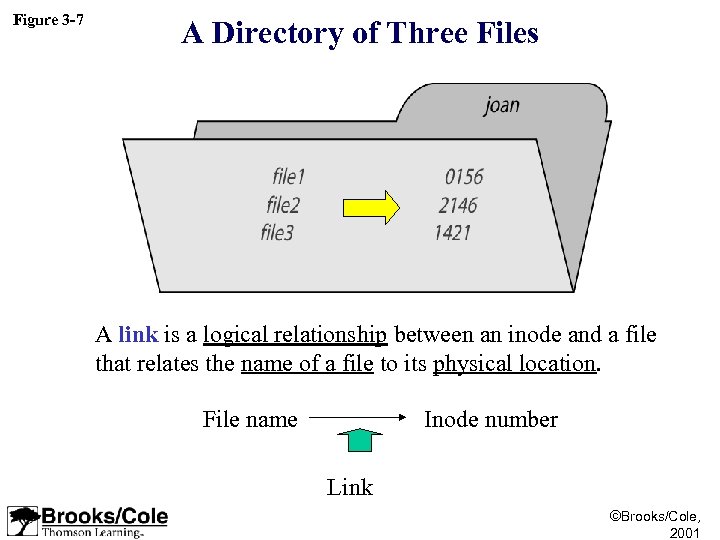
Figure 3 -7 A Directory of Three Files A link is a logical relationship between an inode and a file that relates the name of a file to its physical location. File name Inode number Link ©Brooks/Cole, 2001
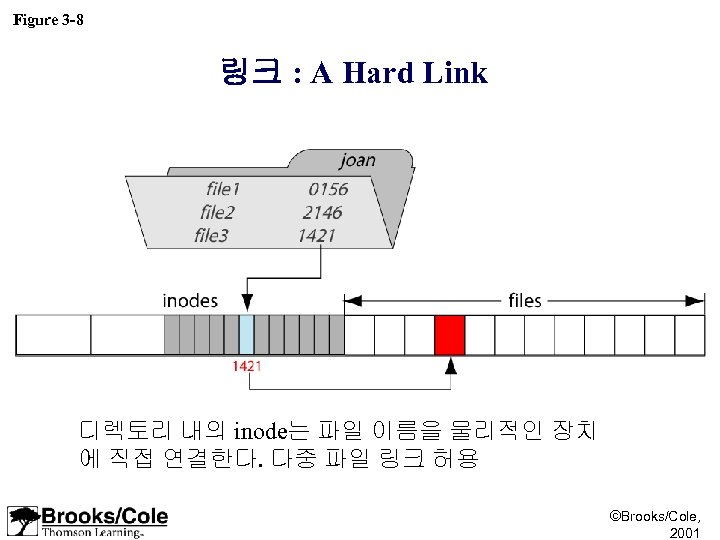
Figure 3 -8 링크 : A Hard Link 디렉토리 내의 inode는 파일 이름을 물리적인 장치 에 직접 연결한다. 다중 파일 링크 허용 ©Brooks/Cole, 2001
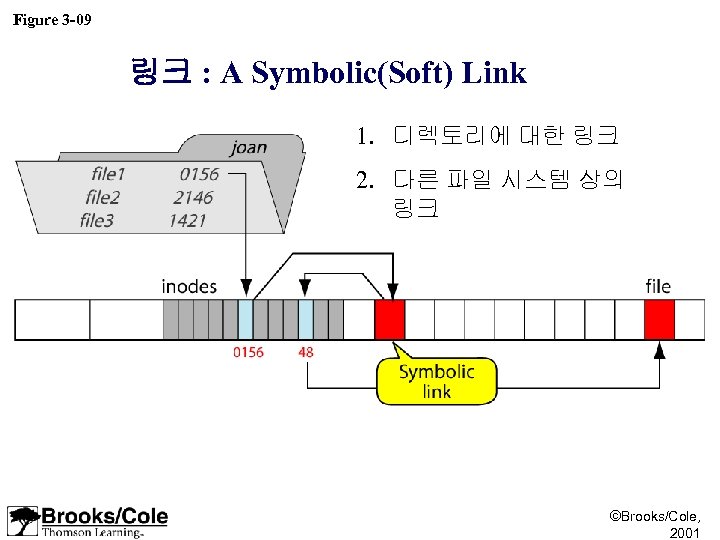
Figure 3 -09 링크 : A Symbolic(Soft) Link 1. 디렉토리에 대한 링크 2. 다른 파일 시스템 상의 링크 ©Brooks/Cole, 2001
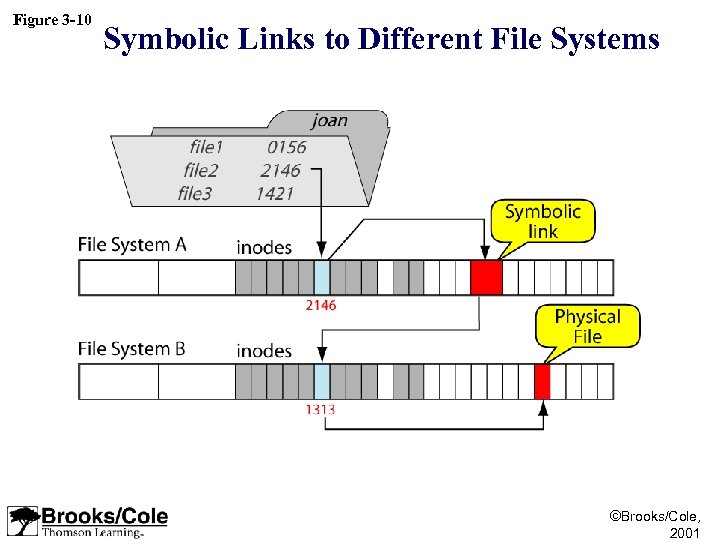
Figure 3 -10 Symbolic Links to Different File Systems ©Brooks/Cole, 2001
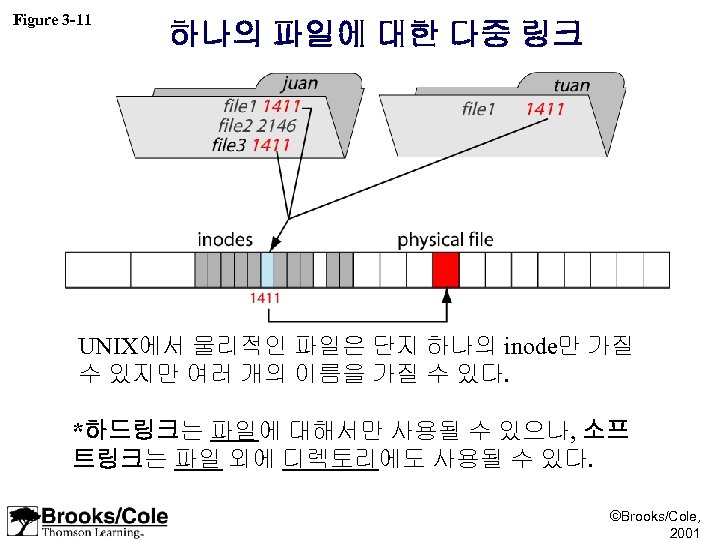
Figure 3 -11 하나의 파일에 대한 다중 링크 UNIX에서 물리적인 파일은 단지 하나의 inode만 가질 수 있지만 여러 개의 이름을 가질 수 있다. *하드링크는 파일에 대해서만 사용될 수 있으나, 소프 트링크는 파일 외에 디렉토리에도 사용될 수 있다. ©Brooks/Cole, 2001
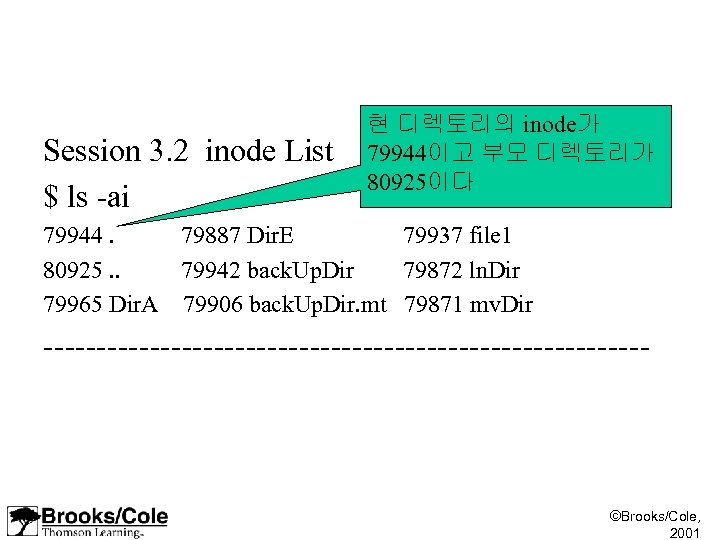
Session 3. 2 inode List $ ls -ai 현 디렉토리의 inode가 79944이고 부모 디렉토리가 80925이다 79944. 79887 Dir. E 79937 file 1 80925. . 79942 back. Up. Dir 79872 ln. Dir 79965 Dir. A 79906 back. Up. Dir. mt 79871 mv. Dir ----------------------------- ©Brooks/Cole, 2001
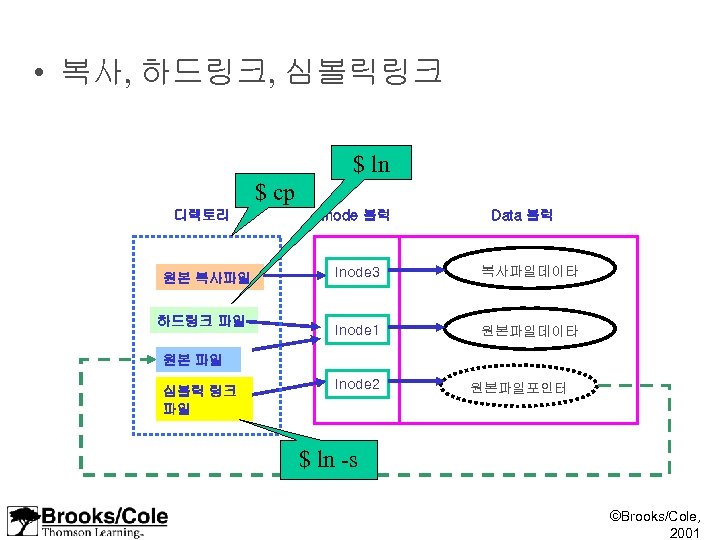
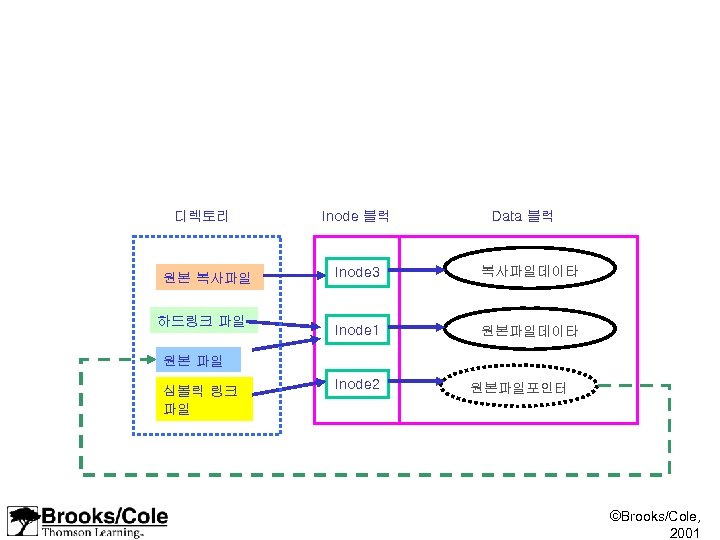
• 복사, 하드링크, 심볼릭링크 $ ln $ cp 디렉토리 원본 복사파일 하드링크 파일 Inode 블럭 Data 블럭 Inode 3 복사파일데이타 Inode 1 원본파일데이타 원본 파일 심볼릭 링크 파일 Inode 2 원본파일포인터 $ ln -s ©Brooks/Cole, 2001
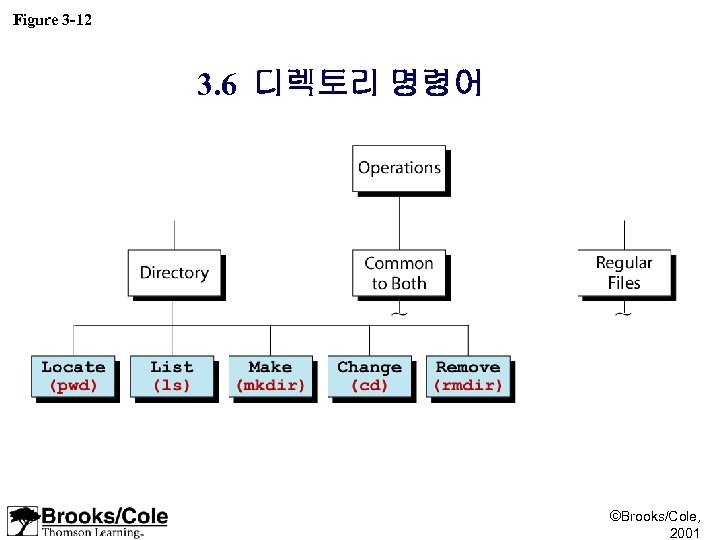
Figure 3 -12 3. 6 디렉토리 명령어 ©Brooks/Cole, 2001
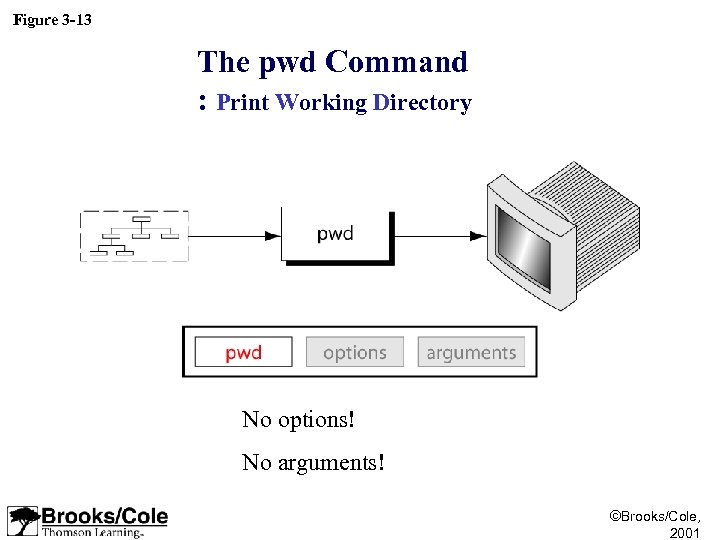
Figure 3 -13 The pwd Command : Print Working Directory No options! No arguments! ©Brooks/Cole, 2001
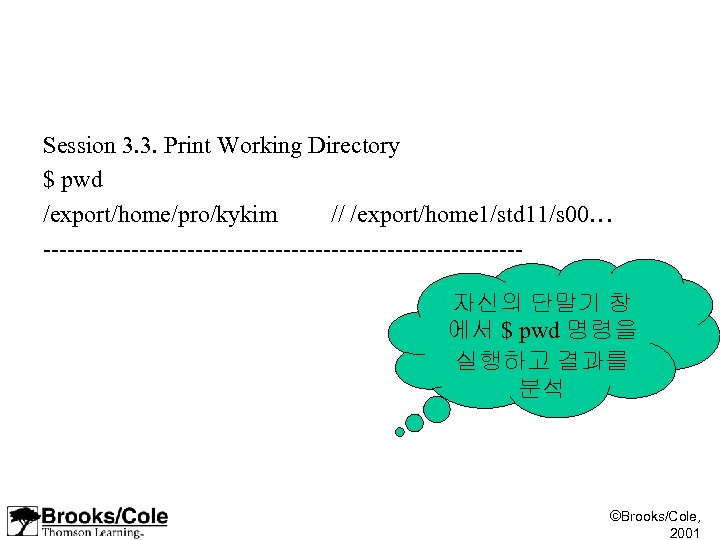
Session 3. 3. Print Working Directory $ pwd /export/home/pro/kykim // /export/home 1/std 11/s 00… ------------------------------자신의 단말기 창 에서 $ pwd 명령을 실행하고 결과를 분석 ©Brooks/Cole, 2001
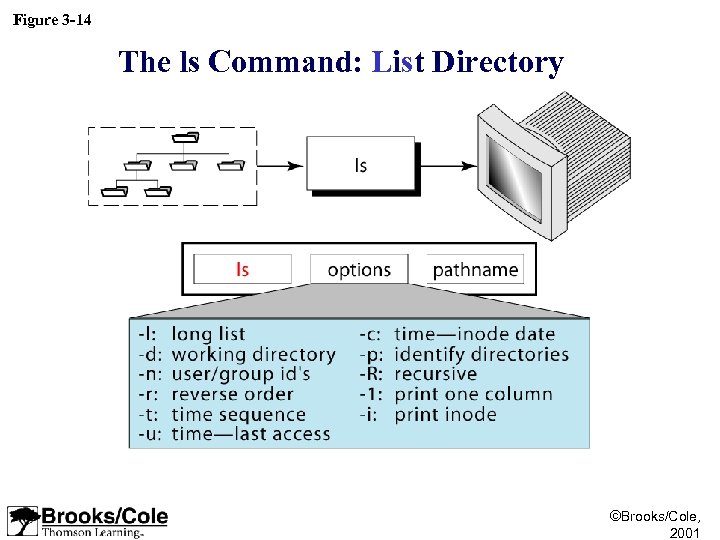
Figure 3 -14 The ls Command: List Directory ©Brooks/Cole, 2001
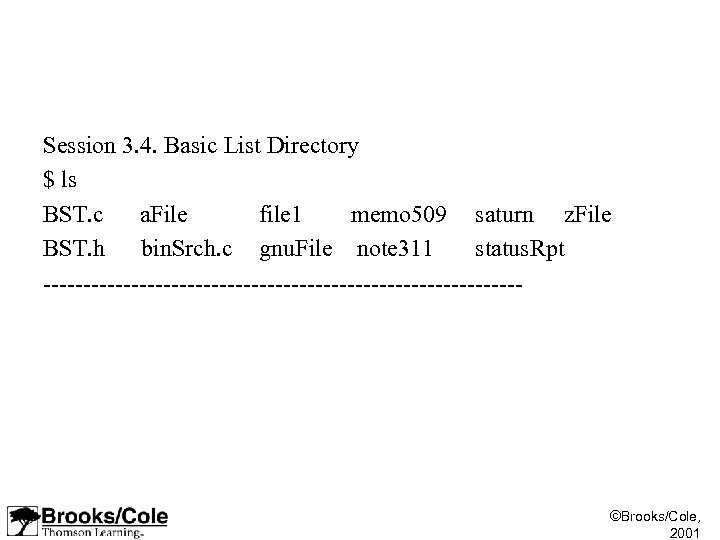
Session 3. 4. Basic List Directory $ ls BST. c a. File file 1 memo 509 saturn z. File BST. h bin. Srch. c gnu. File note 311 status. Rpt ------------------------------ ©Brooks/Cole, 2001
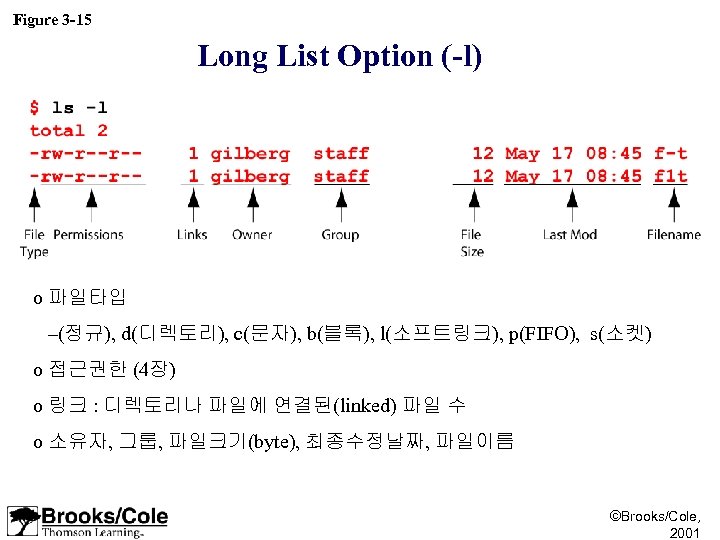
Figure 3 -15 Long List Option (-l) o 파일타입 –(정규), d(디렉토리), c(문자), b(블록), l(소프트링크), p(FIFO), s(소켓) o 접근권한 (4장) o 링크 : 디렉토리나 파일에 연결된(linked) 파일 수 o 소유자, 그룹, 파일크기(byte), 최종수정날짜, 파일이름 ©Brooks/Cole, 2001
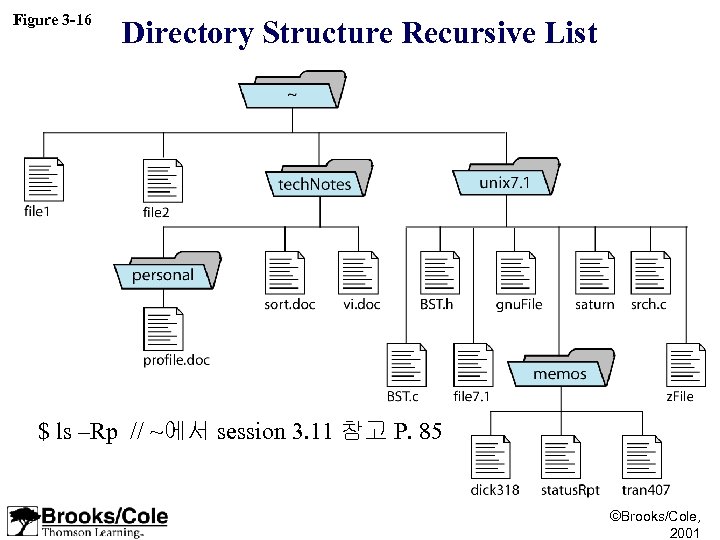
Figure 3 -16 Directory Structure Recursive List $ ls –Rp // ~에서 session 3. 11 참고 P. 85 ©Brooks/Cole, 2001
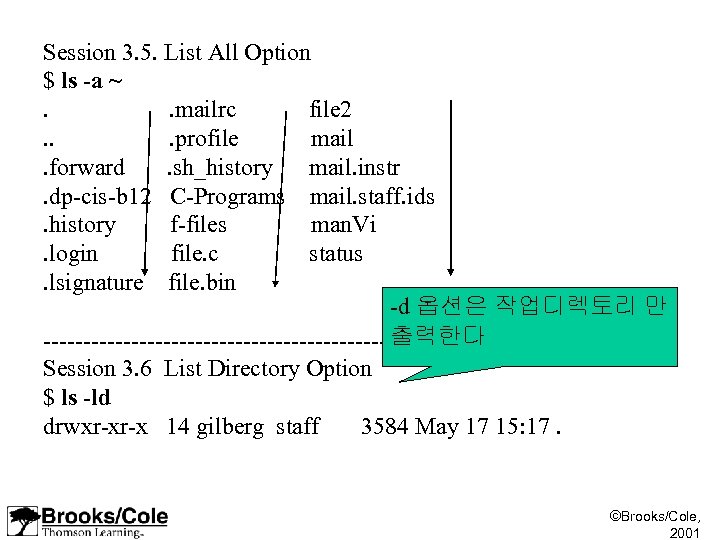
Session 3. 5. List All Option $ ls -a ~. . mailrc file 2. . . profile mail. forward . sh_history mail. instr. dp-cis-b 12 C-Programs mail. staff. ids. history f-files man. Vi. login file. c status. lsignature file. bin -d 옵션은 작업디렉토리 만 출력한다 ------------------------------Session 3. 6 List Directory Option $ ls -ld drwxr-xr-x 14 gilberg staff 3584 May 17 15: 17. ©Brooks/Cole, 2001
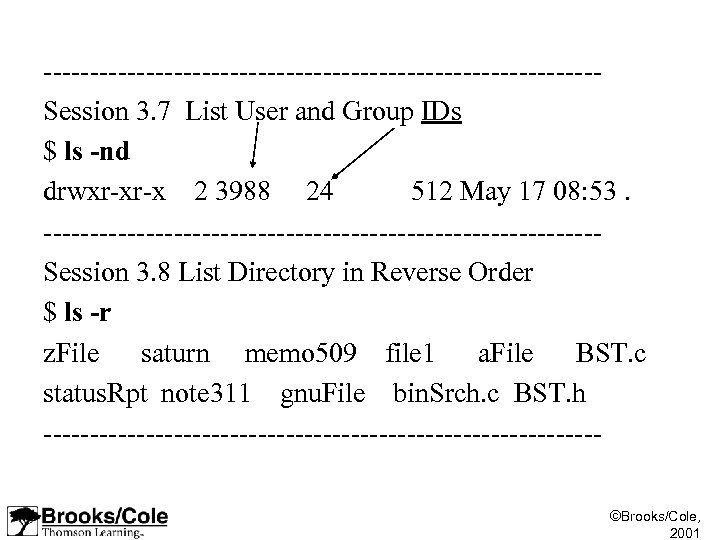
------------------------------Session 3. 7 List User and Group IDs $ ls -nd drwxr-xr-x 2 3988 24 512 May 17 08: 53. ------------------------------Session 3. 8 List Directory in Reverse Order $ ls -r z. File saturn memo 509 file 1 a. File BST. c status. Rpt note 311 gnu. File bin. Srch. c BST. h ------------------------------©Brooks/Cole, 2001
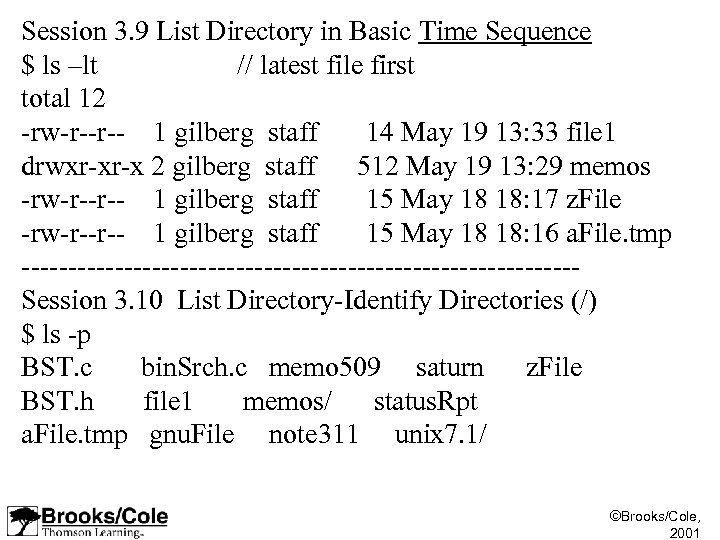
Session 3. 9 List Directory in Basic Time Sequence $ ls –lt // latest file first total 12 -rw-r--r-- 1 gilberg staff 14 May 19 13: 33 file 1 drwxr-xr-x 2 gilberg staff 512 May 19 13: 29 memos -rw-r--r-- 1 gilberg staff 15 May 18 18: 17 z. File -rw-r--r-- 1 gilberg staff 15 May 18 18: 16 a. File. tmp ------------------------------Session 3. 10 List Directory-Identify Directories (/) $ ls -p BST. c bin. Srch. c memo 509 saturn z. File BST. h file 1 memos/ status. Rpt a. File. tmp gnu. File note 311 unix 7. 1/ ©Brooks/Cole, 2001
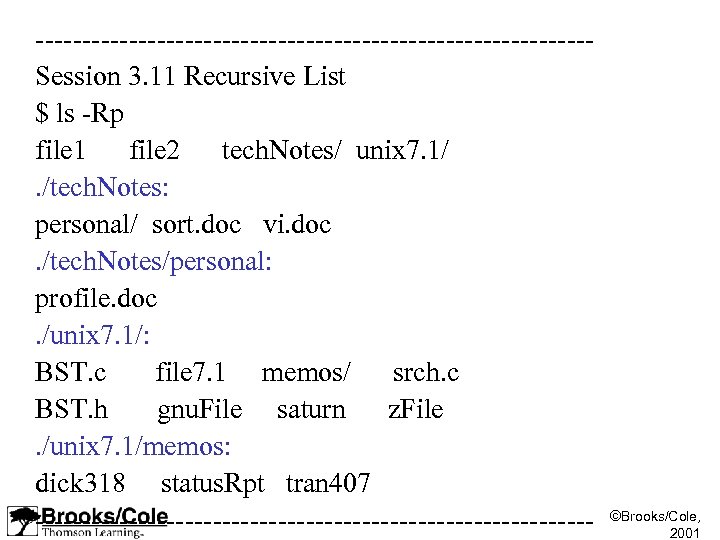
------------------------------Session 3. 11 Recursive List $ ls -Rp file 1 file 2 tech. Notes/ unix 7. 1/. /tech. Notes: personal/ sort. doc vi. doc. /tech. Notes/personal: profile. doc. /unix 7. 1/: BST. c file 7. 1 memos/ srch. c BST. h gnu. File saturn z. File. /unix 7. 1/memos: dick 318 status. Rpt tran 407 ------------------------------ ©Brooks/Cole, 2001
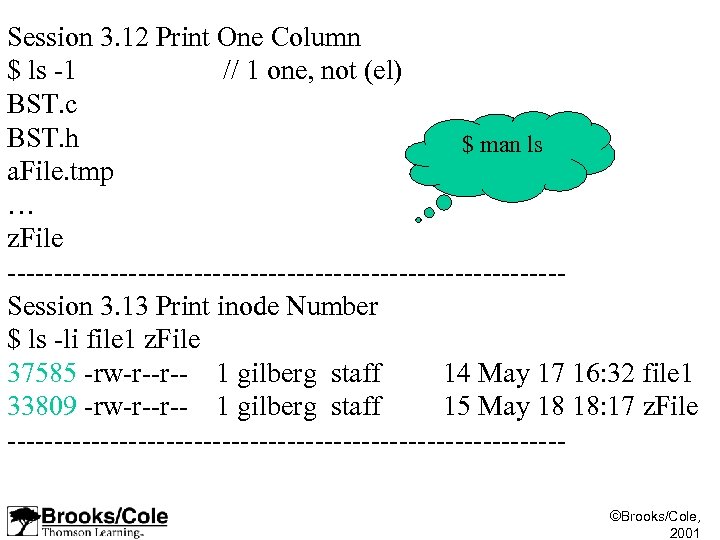
Session 3. 12 Print One Column $ ls -1 // 1 one, not (el) BST. c BST. h $ man ls a. File. tmp … z. File ------------------------------Session 3. 13 Print inode Number $ ls -li file 1 z. File 37585 -rw-r--r-- 1 gilberg staff 14 May 17 16: 32 file 1 33809 -rw-r--r-- 1 gilberg staff 15 May 18 18: 17 z. File ------------------------------©Brooks/Cole, 2001
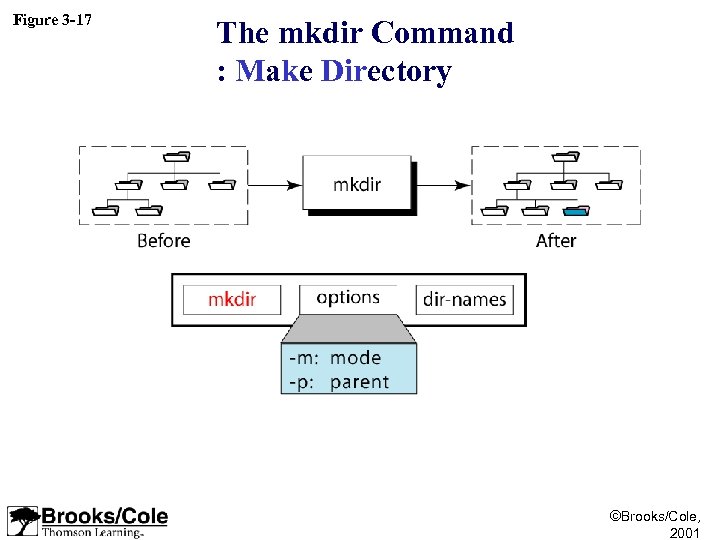
Figure 3 -17 The mkdir Command : Make Directory ©Brooks/Cole, 2001
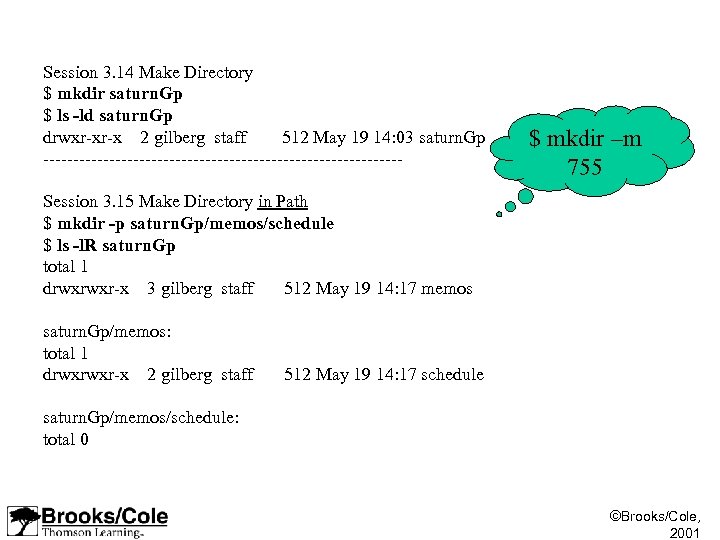
Session 3. 14 Make Directory $ mkdir saturn. Gp $ ls -ld saturn. Gp drwxr-xr-x 2 gilberg staff 512 May 19 14: 03 saturn. Gp ------------------------------ $ mkdir –m 755 Session 3. 15 Make Directory in Path $ mkdir -p saturn. Gp/memos/schedule $ ls -l. R saturn. Gp total 1 drwxrwxr-x 3 gilberg staff 512 May 19 14: 17 memos saturn. Gp/memos: total 1 drwxrwxr-x 2 gilberg staff 512 May 19 14: 17 schedule saturn. Gp/memos/schedule: total 0 ©Brooks/Cole, 2001
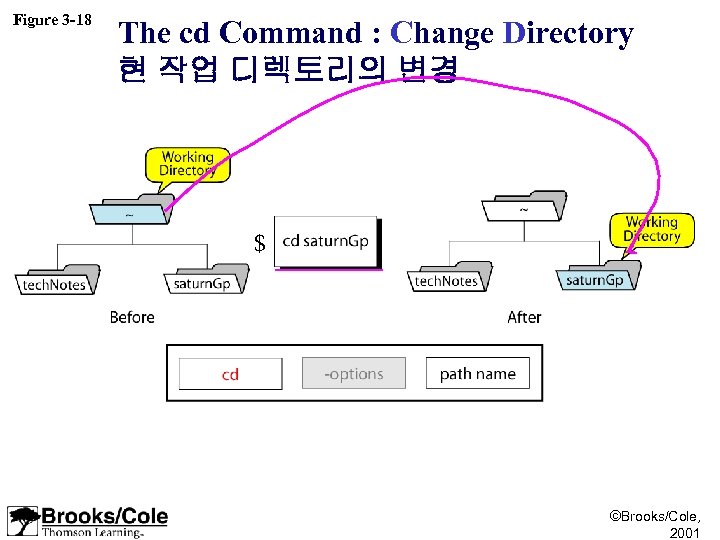
Figure 3 -18 The cd Command : Change Directory 현 작업 디렉토리의 변경 $ ©Brooks/Cole, 2001
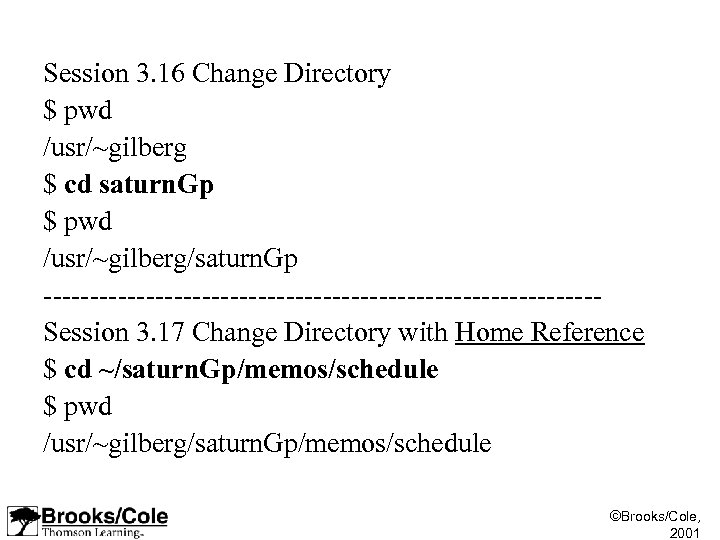
Session 3. 16 Change Directory $ pwd /usr/~gilberg $ cd saturn. Gp $ pwd /usr/~gilberg/saturn. Gp ------------------------------Session 3. 17 Change Directory with Home Reference $ cd ~/saturn. Gp/memos/schedule $ pwd /usr/~gilberg/saturn. Gp/memos/schedule ©Brooks/Cole, 2001
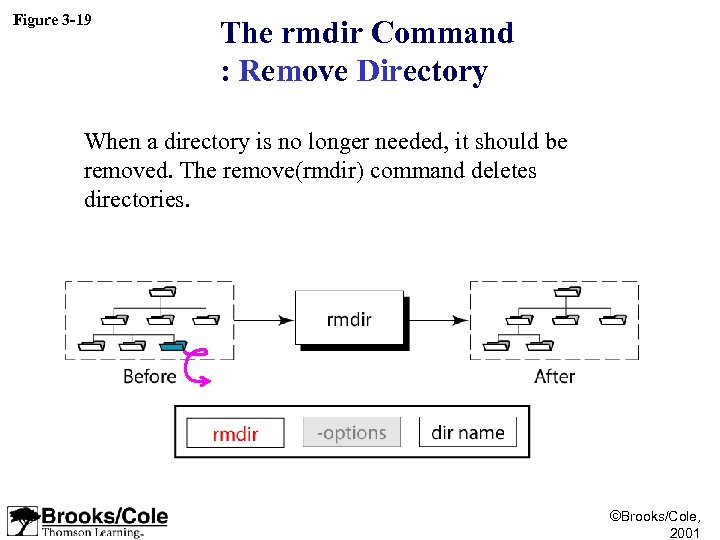
Figure 3 -19 The rmdir Command : Remove Directory When a directory is no longer needed, it should be removed. The remove(rmdir) command deletes directories. ©Brooks/Cole, 2001
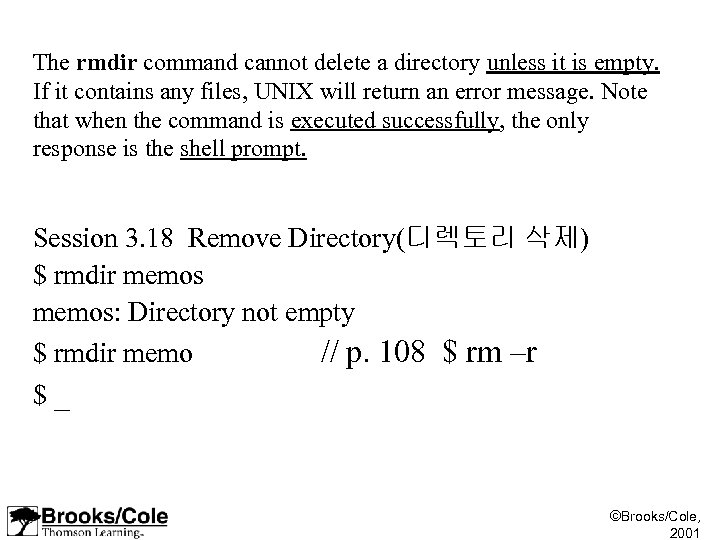
The rmdir command cannot delete a directory unless it is empty. If it contains any files, UNIX will return an error message. Note that when the command is executed successfully, the only response is the shell prompt. Session 3. 18 Remove Directory(디렉토리 삭제) $ rmdir memos: Directory not empty $ rmdir memo // p. 108 $ rm –r $ _ ©Brooks/Cole, 2001
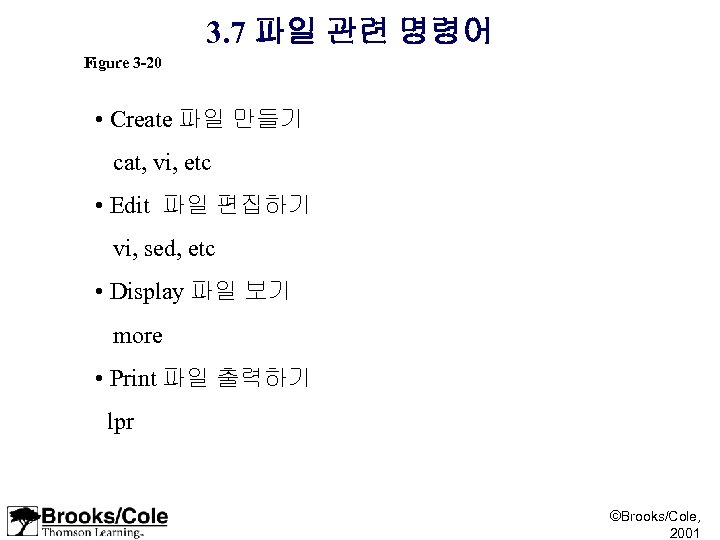
3. 7 파일 관련 명령어 Figure 3 -20 • Create 파일 만들기 cat, vi, etc • Edit 파일 편집하기 vi, sed, etc • Display 파일 보기 more • Print 파일 출력하기 lpr ©Brooks/Cole, 2001
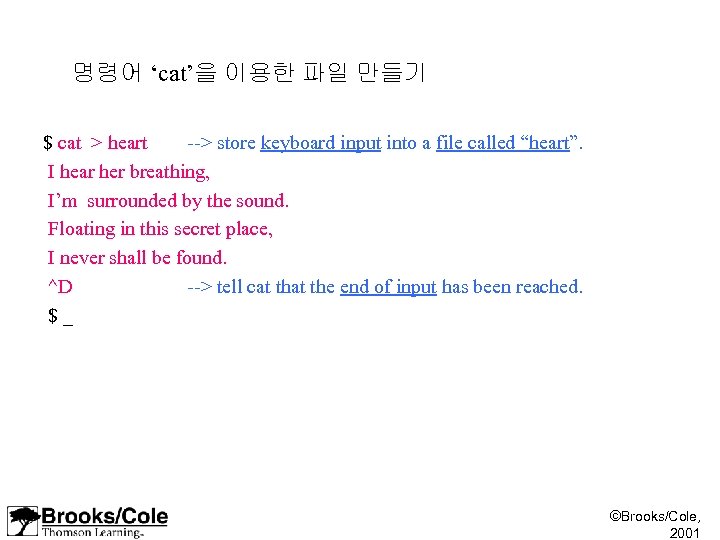
명령어 ‘cat’을 이용한 파일 만들기 $ cat > heart --> store keyboard input into a file called “heart”. I hear her breathing, I’m surrounded by the sound. Floating in this secret place, I never shall be found. ^D --> tell cat the end of input has been reached. $ _ ©Brooks/Cole, 2001
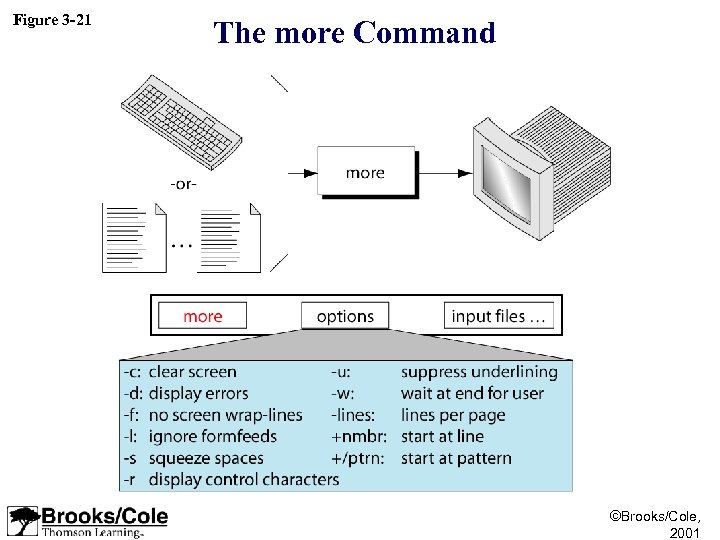
Figure 3 -21 The more Command ©Brooks/Cole, 2001
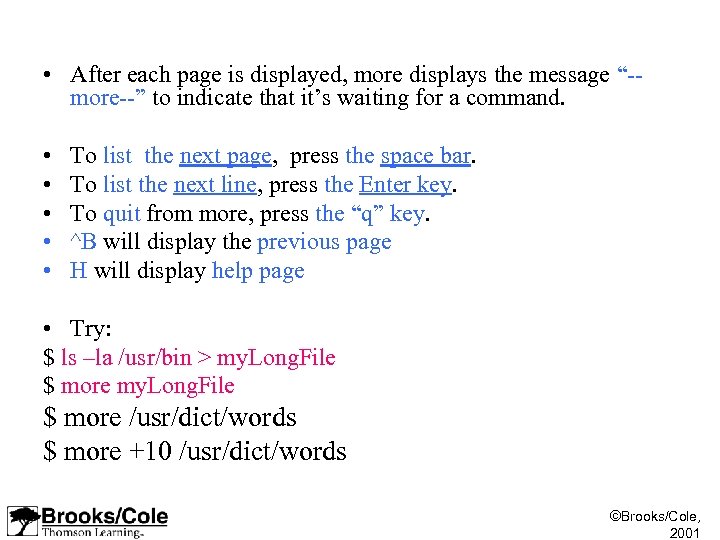
• After each page is displayed, more displays the message “-more--” to indicate that it’s waiting for a command. • • • To list the next page, press the space bar. To list the next line, press the Enter key. To quit from more, press the “q” key. ^B will display the previous page H will display help page • Try: $ ls –la /usr/bin > my. Long. File $ more /usr/dict/words $ more +10 /usr/dict/words ©Brooks/Cole, 2001
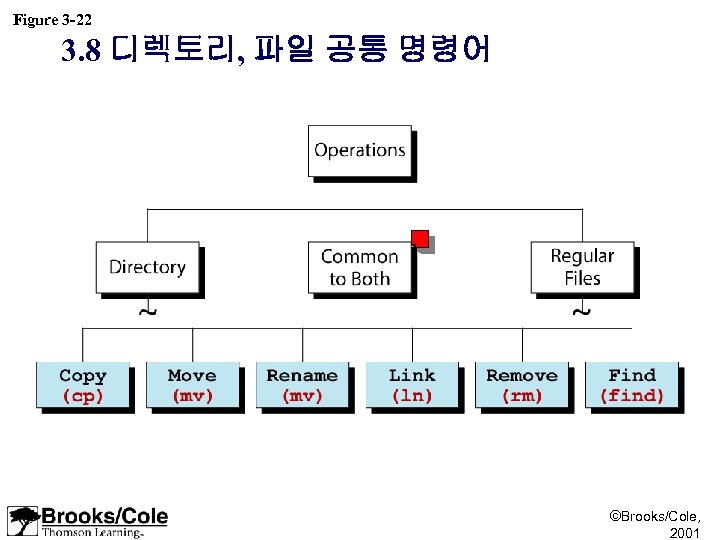
Figure 3 -22 3. 8 디렉토리, 파일 공통 명령어 ©Brooks/Cole, 2001
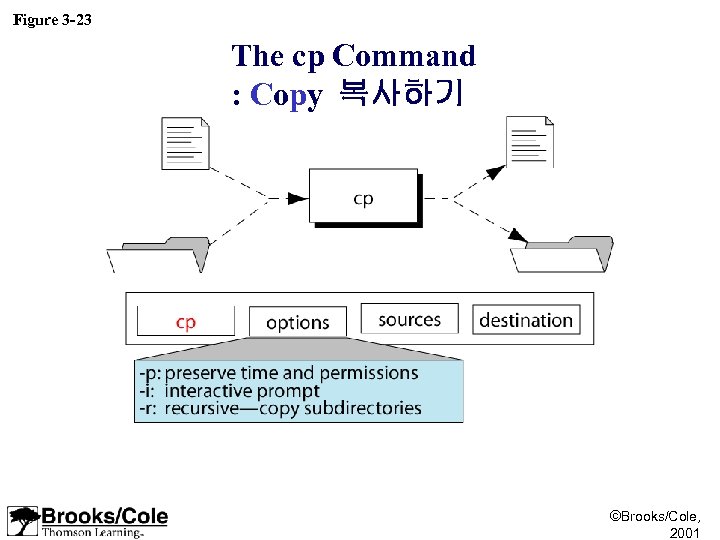
Figure 3 -23 The cp Command : Copy 복사하기 ©Brooks/Cole, 2001
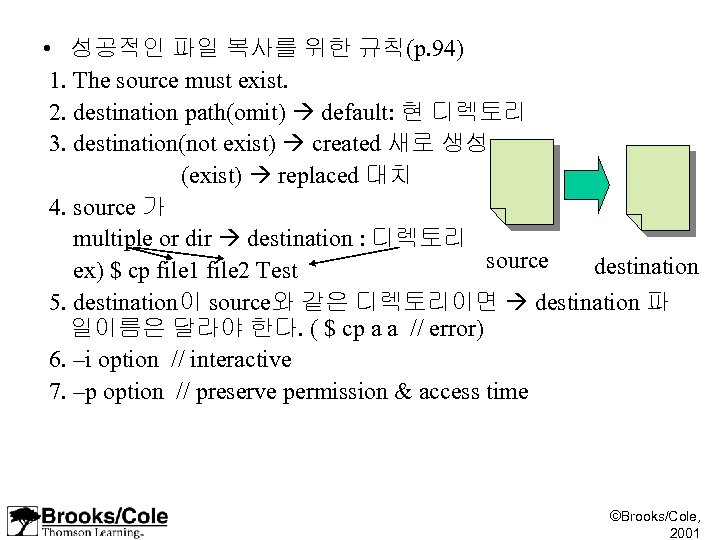
• 성공적인 파일 복사를 위한 규칙(p. 94) 1. The source must exist. 2. destination path(omit) default: 현 디렉토리 3. destination(not exist) created 새로 생성 (exist) replaced 대치 4. source 가 multiple or dir destination : 디렉토리 source destination ex) $ cp file 1 file 2 Test 5. destination이 source와 같은 디렉토리이면 destination 파 일이름은 달라야 한다. ( $ cp a a // error) 6. –i option // interactive 7. –p option // preserve permission & access time ©Brooks/Cole, 2001
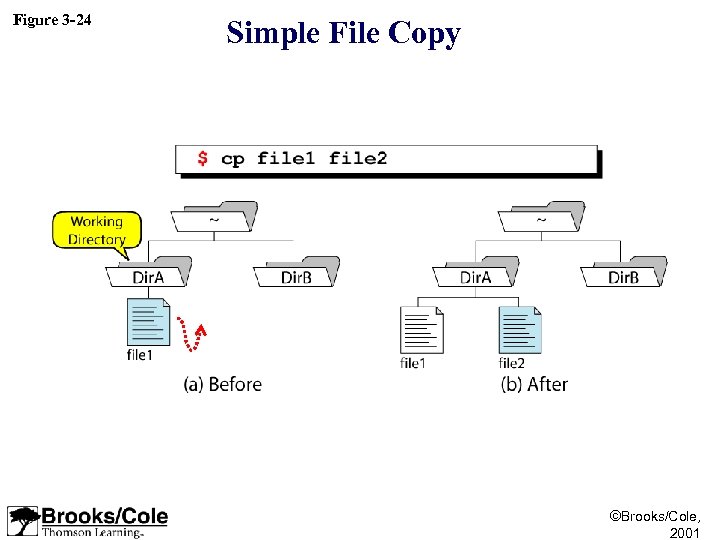
Figure 3 -24 Simple File Copy ©Brooks/Cole, 2001
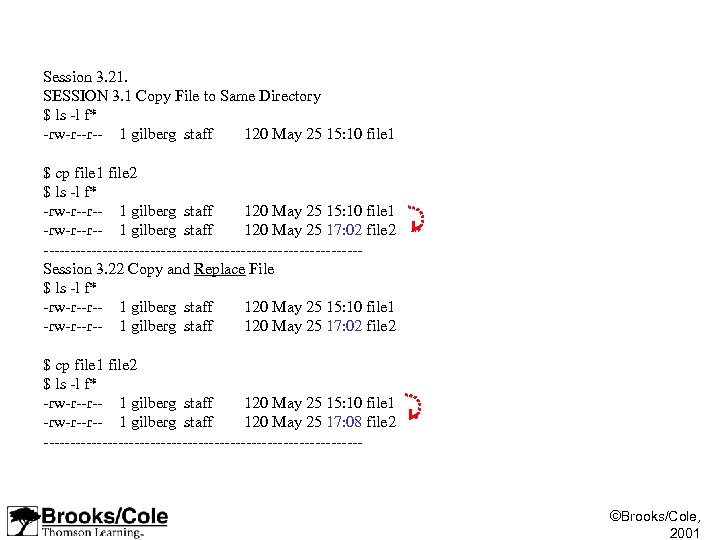
Session 3. 21. SESSION 3. 1 Copy File to Same Directory $ ls -l f* -rw-r--r-- 1 gilberg staff 120 May 25 15: 10 file 1 $ cp file 1 file 2 $ ls -l f* -rw-r--r-- 1 gilberg staff 120 May 25 15: 10 file 1 -rw-r--r-- 1 gilberg staff 120 May 25 17: 02 file 2 ------------------------------Session 3. 22 Copy and Replace File $ ls -l f* -rw-r--r-- 1 gilberg staff 120 May 25 15: 10 file 1 -rw-r--r-- 1 gilberg staff 120 May 25 17: 02 file 2 $ cp file 1 file 2 $ ls -l f* -rw-r--r-- 1 gilberg staff 120 May 25 15: 10 file 1 -rw-r--r-- 1 gilberg staff 120 May 25 17: 08 file 2 ------------------------------ ©Brooks/Cole, 2001
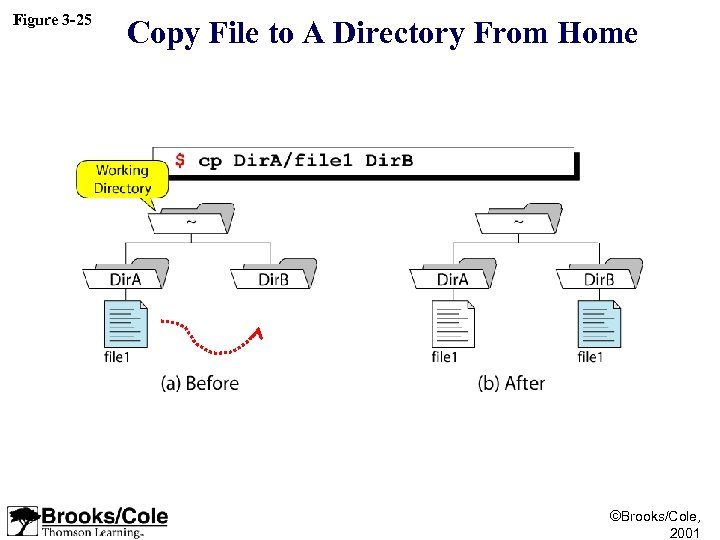
Figure 3 -25 Copy File to A Directory From Home ©Brooks/Cole, 2001
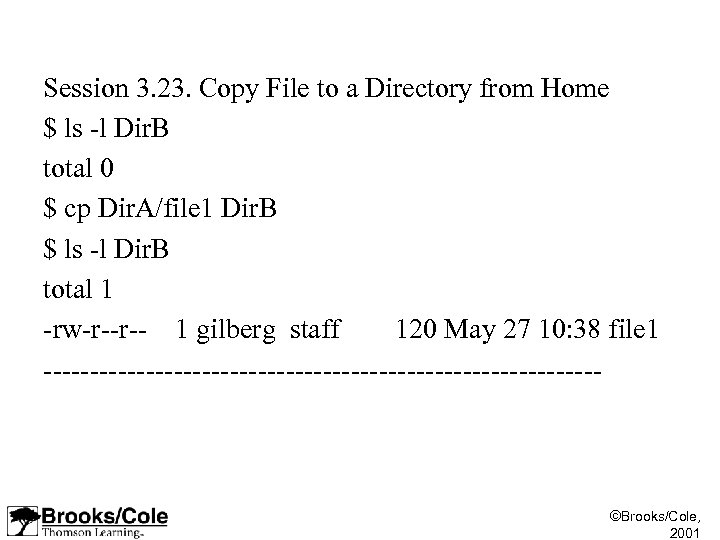
Session 3. 23. Copy File to a Directory from Home $ ls -l Dir. B total 0 $ cp Dir. A/file 1 Dir. B $ ls -l Dir. B total 1 -rw-r--r-- 1 gilberg staff 120 May 27 10: 38 file 1 ------------------------------ ©Brooks/Cole, 2001
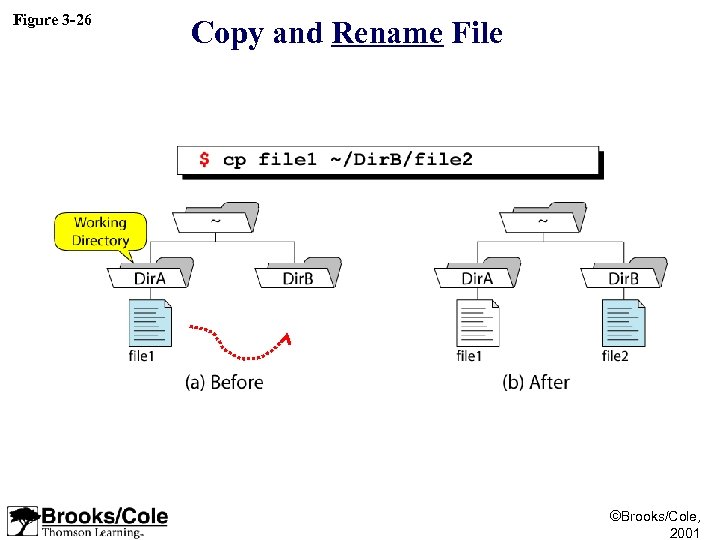
Figure 3 -26 Copy and Rename File ©Brooks/Cole, 2001
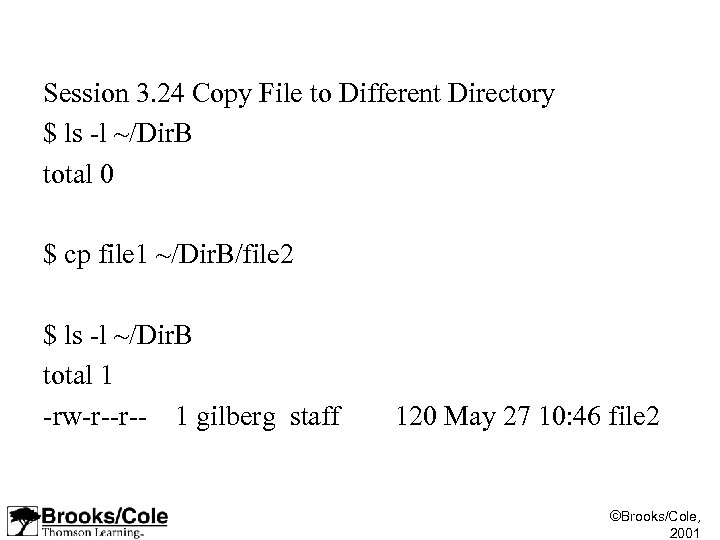
Session 3. 24 Copy File to Different Directory $ ls -l ~/Dir. B total 0 $ cp file 1 ~/Dir. B/file 2 $ ls -l ~/Dir. B total 1 -rw-r--r-- 1 gilberg staff 120 May 27 10: 46 file 2 ©Brooks/Cole, 2001
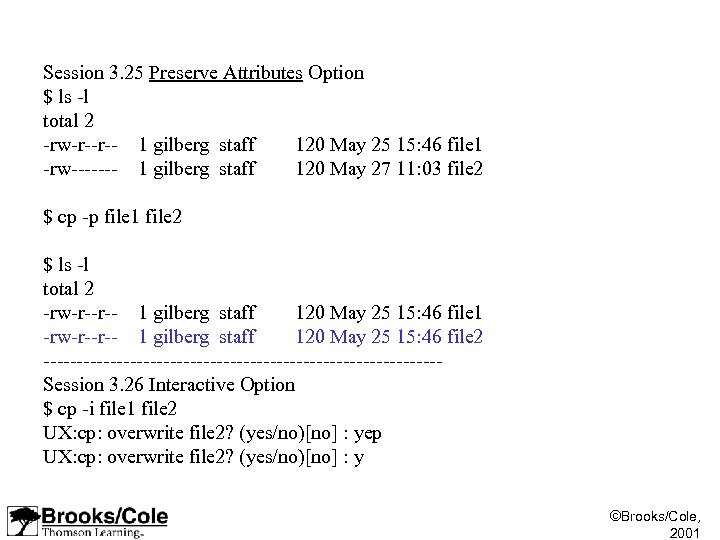
Session 3. 25 Preserve Attributes Option $ ls -l total 2 -rw-r--r-- 1 gilberg staff 120 May 25 15: 46 file 1 -rw------- 1 gilberg staff 120 May 27 11: 03 file 2 $ cp -p file 1 file 2 $ ls -l total 2 -rw-r--r-- 1 gilberg staff 120 May 25 15: 46 file 1 -rw-r--r-- 1 gilberg staff 120 May 25 15: 46 file 2 ------------------------------Session 3. 26 Interactive Option $ cp -i file 1 file 2 UX: cp: overwrite file 2? (yes/no)[no] : yep UX: cp: overwrite file 2? (yes/no)[no] : y ©Brooks/Cole, 2001
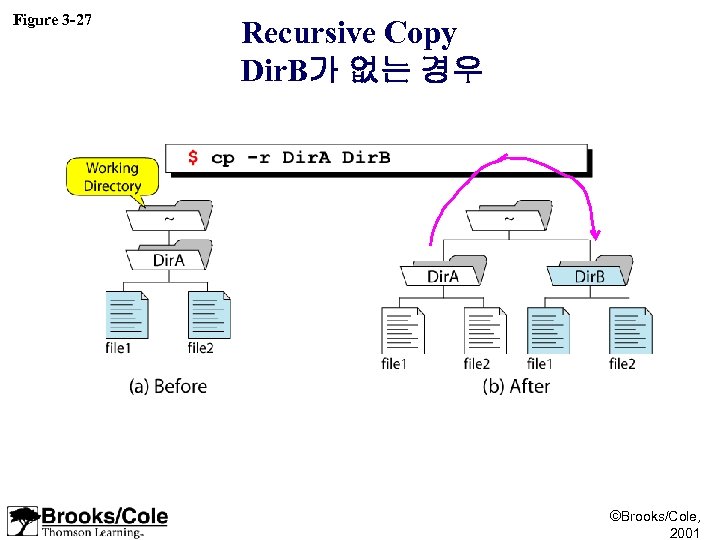
Figure 3 -27 Recursive Copy Dir. B가 없는 경우 ©Brooks/Cole, 2001
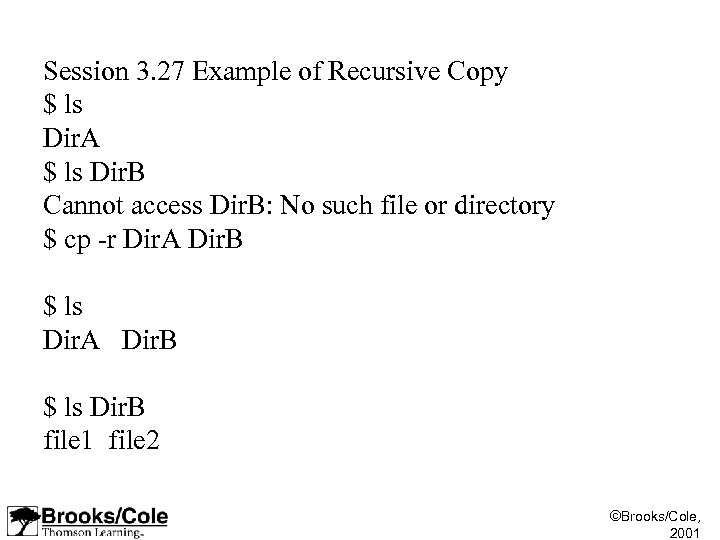
Session 3. 27 Example of Recursive Copy $ ls Dir. A $ ls Dir. B Cannot access Dir. B: No such file or directory $ cp -r Dir. A Dir. B $ ls Dir. A Dir. B $ ls Dir. B file 1 file 2 ©Brooks/Cole, 2001
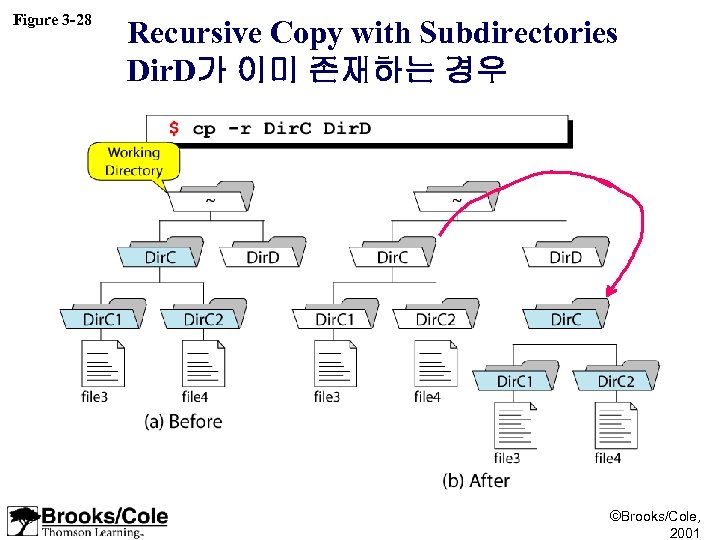
Figure 3 -28 Recursive Copy with Subdirectories Dir. D가 이미 존재하는 경우 ©Brooks/Cole, 2001
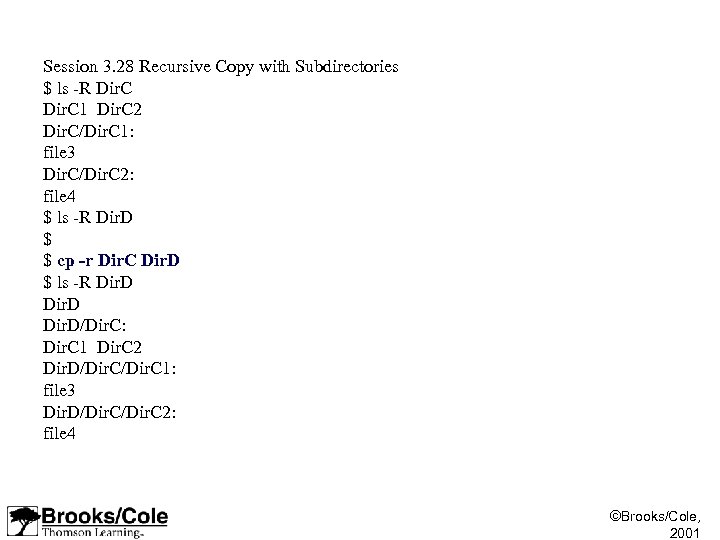
Session 3. 28 Recursive Copy with Subdirectories $ ls -R Dir. C 1 Dir. C 2 Dir. C/Dir. C 1: file 3 Dir. C/Dir. C 2: file 4 $ ls -R Dir. D $ $ cp -r Dir. C Dir. D $ ls -R Dir. D/Dir. C: Dir. C 1 Dir. C 2 Dir. D/Dir. C 1: file 3 Dir. D/Dir. C 2: file 4 ©Brooks/Cole, 2001
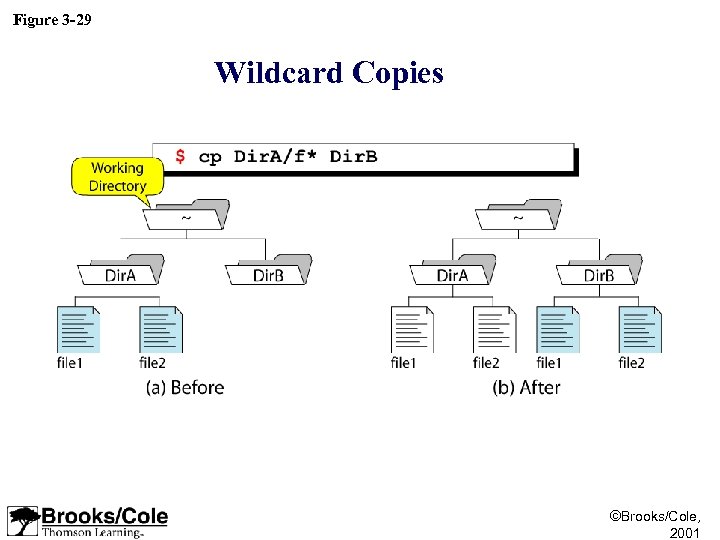
Figure 3 -29 Wildcard Copies ©Brooks/Cole, 2001
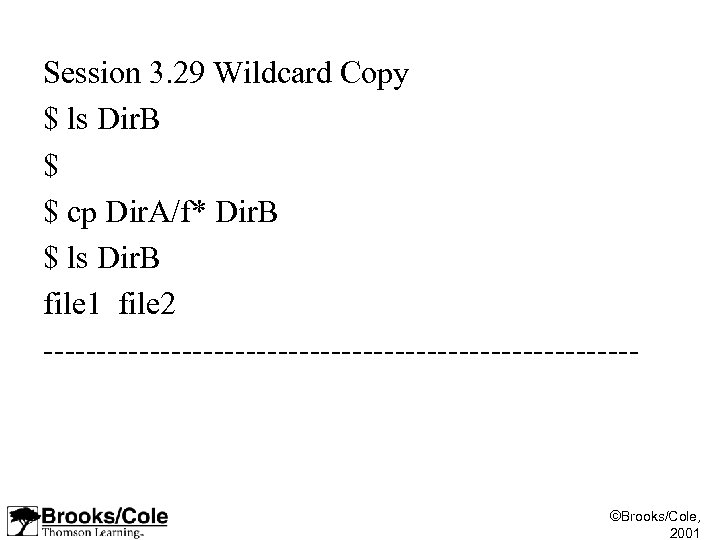
Session 3. 29 Wildcard Copy $ ls Dir. B $ $ cp Dir. A/f* Dir. B $ ls Dir. B file 1 file 2 ---------------------------- ©Brooks/Cole, 2001
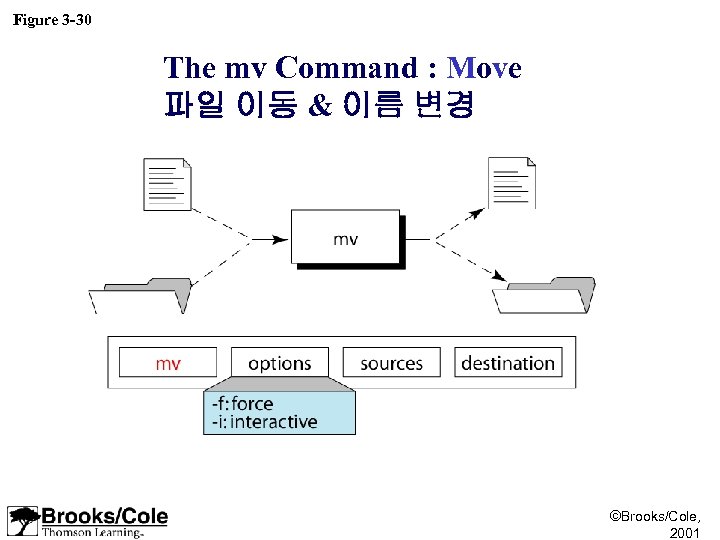
Figure 3 -30 The mv Command : Move 파일 이동 & 이름 변경 ©Brooks/Cole, 2001
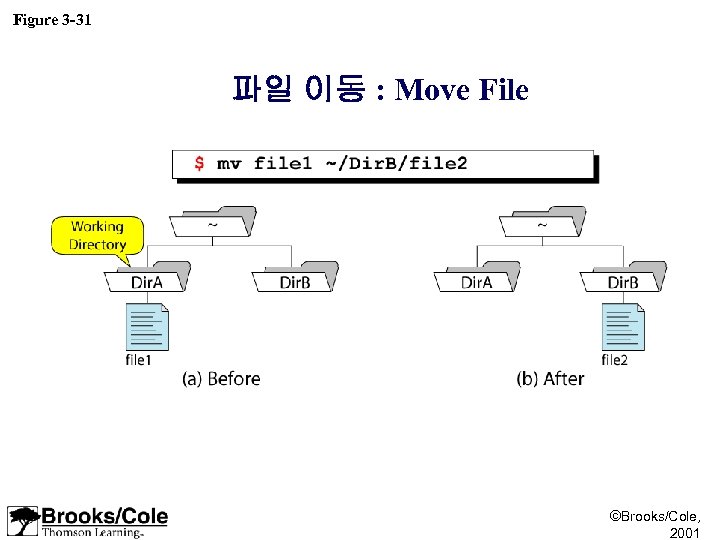
Figure 3 -31 파일 이동 : Move File ©Brooks/Cole, 2001
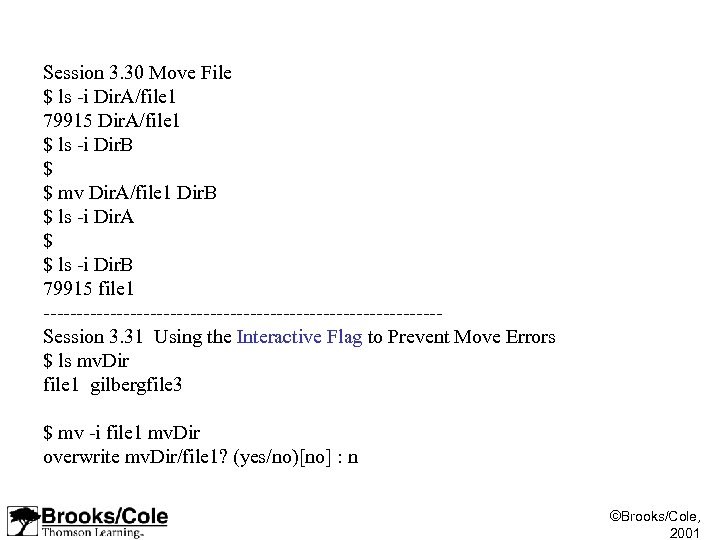
Session 3. 30 Move File $ ls -i Dir. A/file 1 79915 Dir. A/file 1 $ ls -i Dir. B $ $ mv Dir. A/file 1 Dir. B $ ls -i Dir. A $ $ ls -i Dir. B 79915 file 1 ------------------------------Session 3. 31 Using the Interactive Flag to Prevent Move Errors $ ls mv. Dir file 1 gilbergfile 3 $ mv -i file 1 mv. Dir overwrite mv. Dir/file 1? (yes/no)[no] : n ©Brooks/Cole, 2001
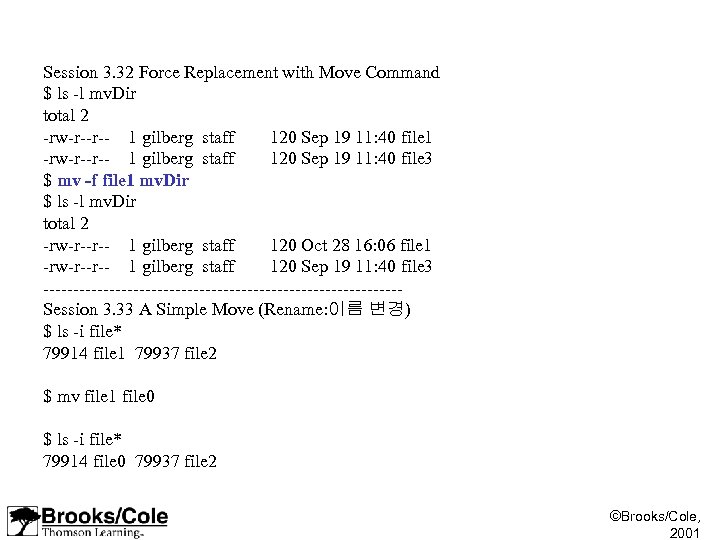
Session 3. 32 Force Replacement with Move Command $ ls -l mv. Dir total 2 -rw-r--r-- 1 gilberg staff 120 Sep 19 11: 40 file 1 -rw-r--r-- 1 gilberg staff 120 Sep 19 11: 40 file 3 $ mv -f file 1 mv. Dir $ ls -l mv. Dir total 2 -rw-r--r-- 1 gilberg staff 120 Oct 28 16: 06 file 1 -rw-r--r-- 1 gilberg staff 120 Sep 19 11: 40 file 3 ------------------------------Session 3. 33 A Simple Move (Rename: 이름 변경) $ ls -i file* 79914 file 1 79937 file 2 $ mv file 1 file 0 $ ls -i file* 79914 file 0 79937 file 2 ©Brooks/Cole, 2001
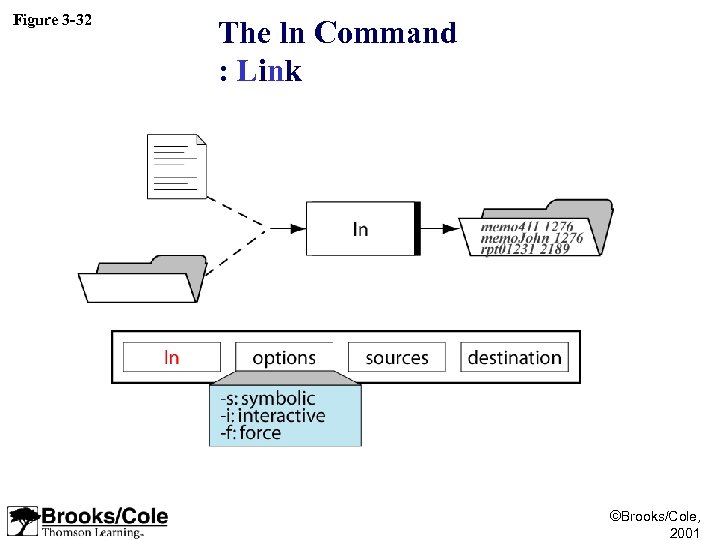
Figure 3 -32 The ln Command : Link ©Brooks/Cole, 2001
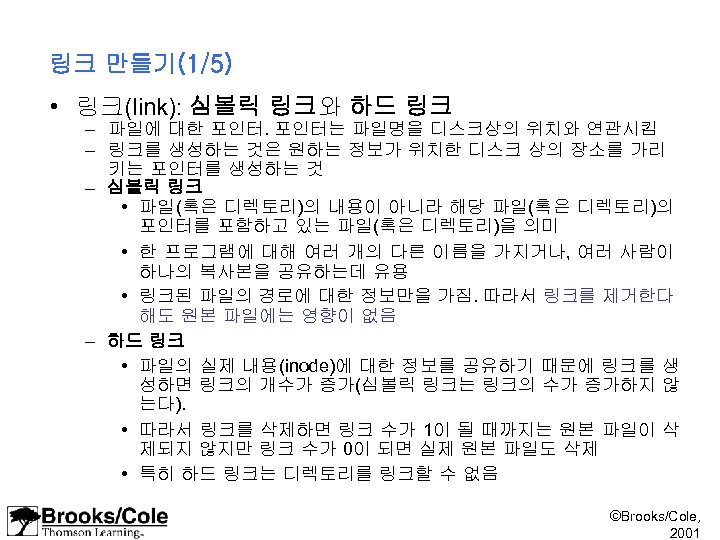
링크 만들기(1/5) • 링크(link): 심볼릭 링크와 하드 링크 – 파일에 대한 포인터는 파일명을 디스크상의 위치와 연관시킴 – 링크를 생성하는 것은 원하는 정보가 위치한 디스크 상의 장소를 가리 키는 포인터를 생성하는 것 – 심볼릭 링크 • 파일(혹은 디렉토리)의 내용이 아니라 해당 파일(혹은 디렉토리)의 포인터를 포함하고 있는 파일(혹은 디렉토리)을 의미 • 한 프로그램에 대해 여러 개의 다른 이름을 가지거나, 여러 사람이 하나의 복사본을 공유하는데 유용 • 링크된 파일의 경로에 대한 정보만을 가짐. 따라서 링크를 제거한다 해도 원본 파일에는 영향이 없음 – 하드 링크 • 파일의 실제 내용(inode)에 대한 정보를 공유하기 때문에 링크를 생 성하면 링크의 개수가 증가(심볼릭 링크는 링크의 수가 증가하지 않 는다). • 따라서 링크를 삭제하면 링크 수가 1이 될 때까지는 원본 파일이 삭 제되지 않지만 링크 수가 0이 되면 실제 원본 파일도 삭제 • 특히 하드 링크는 디렉토리를 링크할 수 없음 ©Brooks/Cole, 2001
링크 만들기(2/5) • 여러 사람이 하나의 과제를 수행하면서 정보를 공유하고자 할 때 파 일 혹은 디렉토리를 공유하는 것은 매우 유용 • 파일에 대한 링크를 생성함으로써 다른 사용자의 접근 용이 명령 구조: ln -s [원본파일][링크명] : 심볼릭 링크 생성 ln [원본파일][링크명] : 하드 링크 생성 • ln을 통하여 어떤 파일을 공유하고자 한다면 먼저 그 파일에 대한 접 근권한(읽기, 쓰기, 실행)을 변경 – chmod 명령을 사용 – 일단 접근권한이 적절하게 설정되면 이제 링크 생성 가능 ©Brooks/Cole, 2001
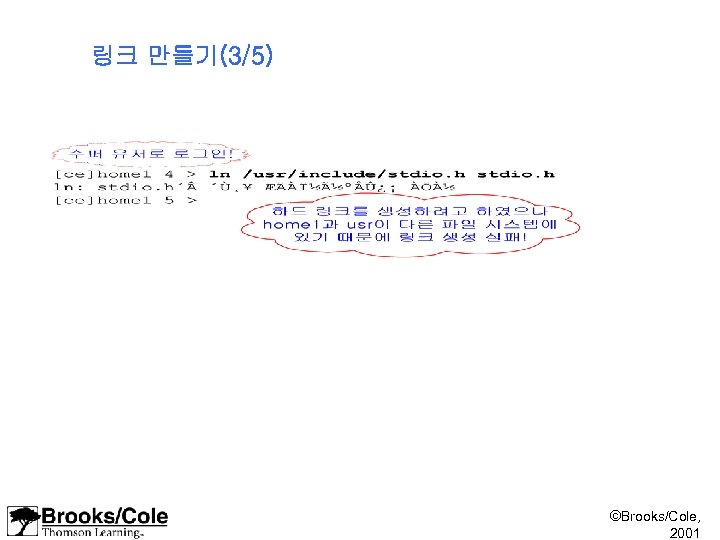
링크 만들기(3/5) ©Brooks/Cole, 2001
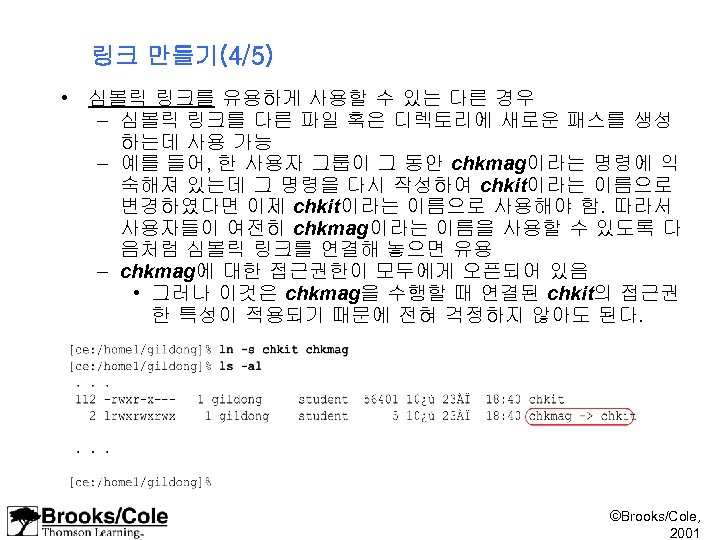
링크 만들기(4/5) • 심볼릭 링크를 유용하게 사용할 수 있는 다른 경우 – 심볼릭 링크를 다른 파일 혹은 디렉토리에 새로운 패스를 생성 하는데 사용 가능 – 예를 들어, 한 사용자 그룹이 그 동안 chkmag이라는 명령에 익 숙해져 있는데 그 명령을 다시 작성하여 chkit이라는 이름으로 변경하였다면 이제 chkit이라는 이름으로 사용해야 함. 따라서 사용자들이 여전히 chkmag이라는 이름을 사용할 수 있도록 다 음처럼 심볼릭 링크를 연결해 놓으면 유용 – chkmag에 대한 접근권한이 모두에게 오픈되어 있음 • 그러나 이것은 chkmag을 수행할 때 연결된 chkit의 접근권 한 특성이 적용되기 때문에 전혀 걱정하지 않아도 된다. ©Brooks/Cole, 2001
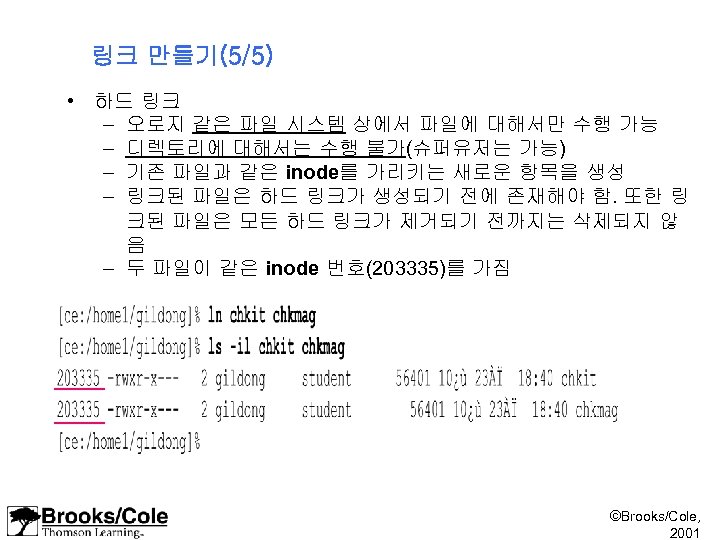
링크 만들기(5/5) • 하드 링크 – 오로지 같은 파일 시스템 상에서 파일에 대해서만 수행 가능 – 디렉토리에 대해서는 수행 불가(슈퍼유저는 가능) – 기존 파일과 같은 inode를 가리키는 새로운 항목을 생성 – 링크된 파일은 하드 링크가 생성되기 전에 존재해야 함. 또한 링 크된 파일은 모든 하드 링크가 제거되기 전까지는 삭제되지 않 음 – 두 파일이 같은 inode 번호(203335)를 가짐 ©Brooks/Cole, 2001
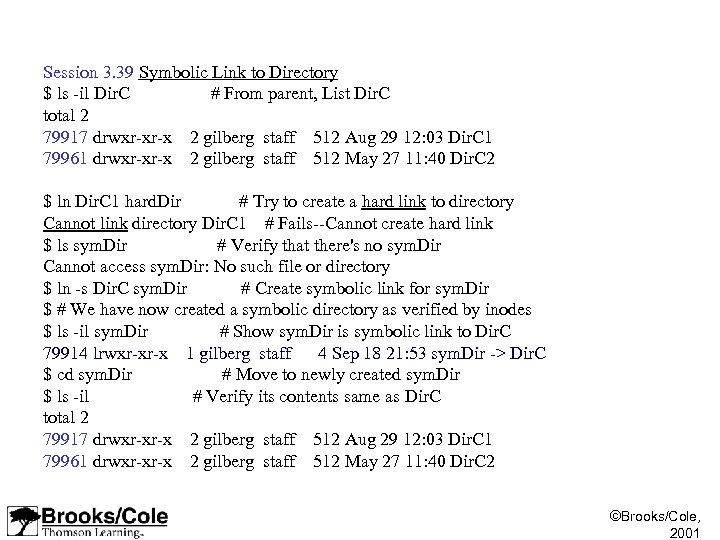
Session 3. 39 Symbolic Link to Directory $ ls -il Dir. C # From parent, List Dir. C total 2 79917 drwxr-xr-x 2 gilberg staff 512 Aug 29 12: 03 Dir. C 1 79961 drwxr-xr-x 2 gilberg staff 512 May 27 11: 40 Dir. C 2 $ ln Dir. C 1 hard. Dir # Try to create a hard link to directory Cannot link directory Dir. C 1 # Fails--Cannot create hard link $ ls sym. Dir # Verify that there's no sym. Dir Cannot access sym. Dir: No such file or directory $ ln -s Dir. C sym. Dir # Create symbolic link for sym. Dir $ # We have now created a symbolic directory as verified by inodes $ ls -il sym. Dir # Show sym. Dir is symbolic link to Dir. C 79914 lrwxr-xr-x 1 gilberg staff 4 Sep 18 21: 53 sym. Dir -> Dir. C $ cd sym. Dir # Move to newly created sym. Dir $ ls -il # Verify its contents same as Dir. C total 2 79917 drwxr-xr-x 2 gilberg staff 512 Aug 29 12: 03 Dir. C 1 79961 drwxr-xr-x 2 gilberg staff 512 May 27 11: 40 Dir. C 2 ©Brooks/Cole, 2001
디렉토리 원본 복사파일 하드링크 파일 Inode 블럭 Data 블럭 Inode 3 복사파일데이타 Inode 1 원본파일데이타 원본 파일 심볼릭 링크 파일 Inode 2 원본파일포인터 ©Brooks/Cole, 2001
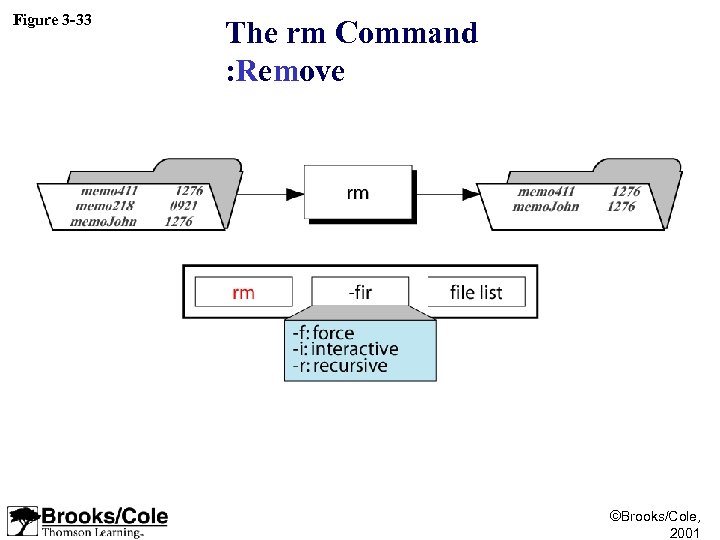
Figure 3 -33 The rm Command : Remove ©Brooks/Cole, 2001
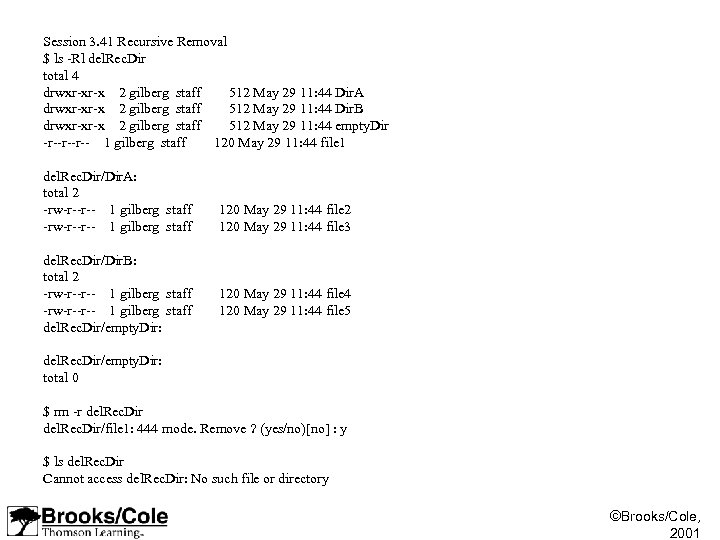
Session 3. 41 Recursive Removal $ ls -Rl del. Rec. Dir total 4 drwxr-xr-x 2 gilberg staff 512 May 29 11: 44 Dir. A drwxr-xr-x 2 gilberg staff 512 May 29 11: 44 Dir. B drwxr-xr-x 2 gilberg staff 512 May 29 11: 44 empty. Dir -r--r--r-- 1 gilberg staff 120 May 29 11: 44 file 1 del. Rec. Dir/Dir. A: total 2 -rw-r--r-- 1 gilberg staff 120 May 29 11: 44 file 3 del. Rec. Dir/Dir. B: total 2 -rw-r--r-- 1 gilberg staff 120 May 29 11: 44 file 4 -rw-r--r-- 1 gilberg staff 120 May 29 11: 44 file 5 del. Rec. Dir/empty. Dir: total 0 $ rm -r del. Rec. Dir/file 1: 444 mode. Remove ? (yes/no)[no] : y $ ls del. Rec. Dir Cannot access del. Rec. Dir: No such file or directory ©Brooks/Cole, 2001
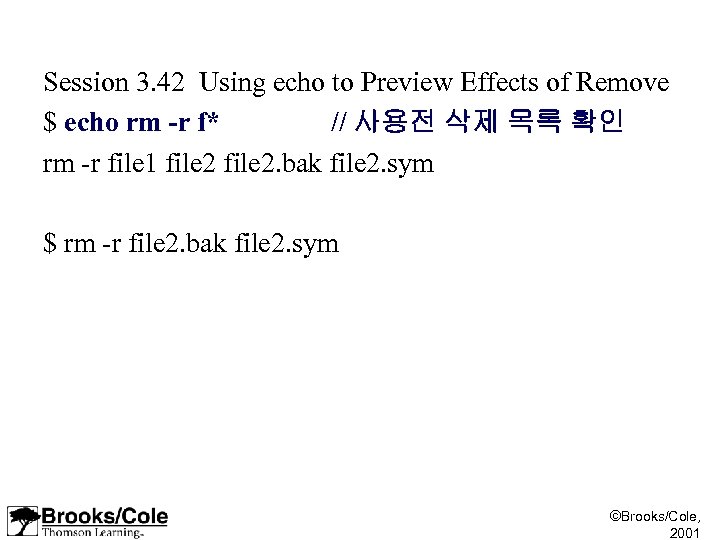
Session 3. 42 Using echo to Preview Effects of Remove $ echo rm -r f* // 사용전 삭제 목록 확인 rm -r file 1 file 2. bak file 2. sym $ rm -r file 2. bak file 2. sym ©Brooks/Cole, 2001
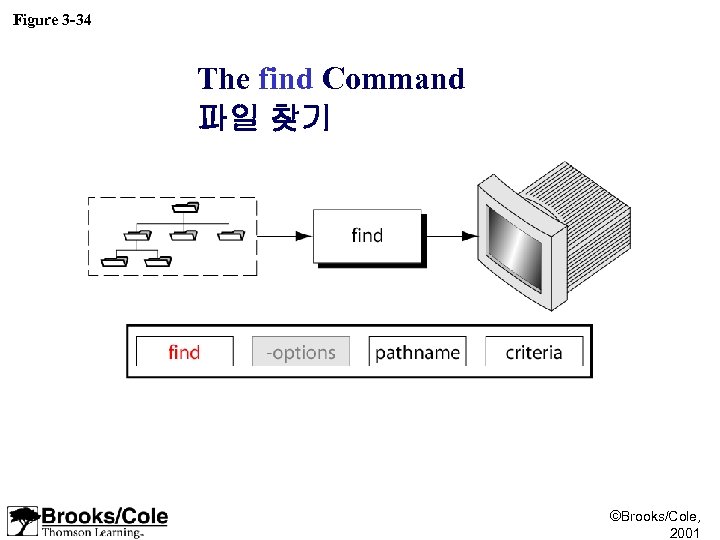
Figure 3 -34 The find Command 파일 찾기 ©Brooks/Cole, 2001
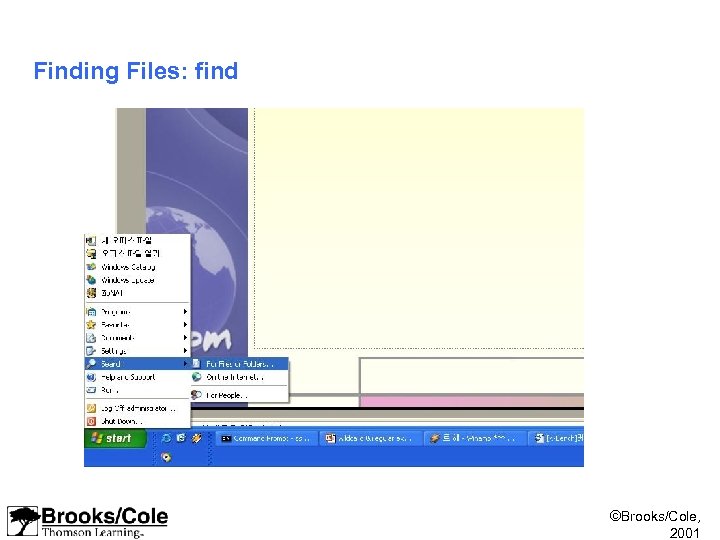
Finding Files: find ©Brooks/Cole, 2001
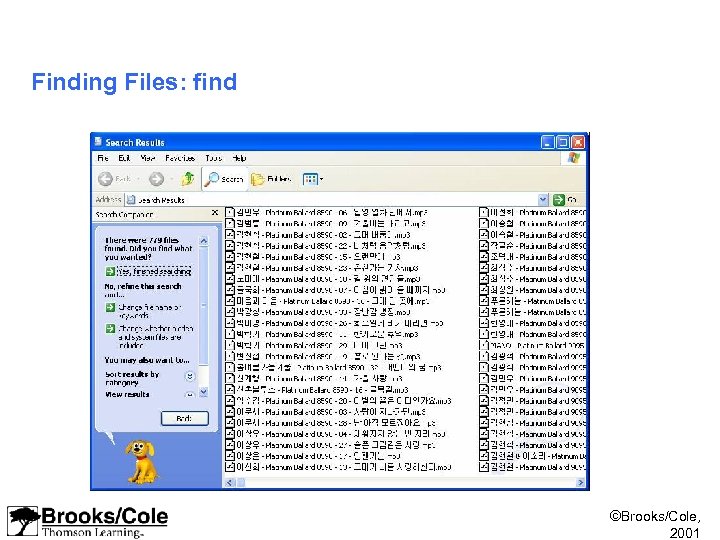
Finding Files: find ©Brooks/Cole, 2001
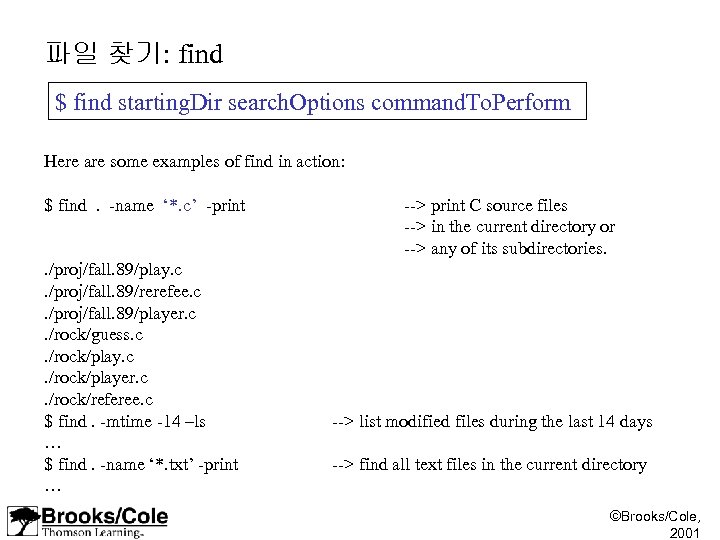
파일 찾기: find $ find starting. Dir search. Options command. To. Perform Here are some examples of find in action: $ find . -name ‘*. c’ -print. /proj/fall. 89/play. c . /proj/fall. 89/rerefee. c . /proj/fall. 89/player. c . /rock/guess. c . /rock/player. c . /rock/referee. c $ find. -mtime -14 –ls … $ find. -name ‘*. txt’ -print … --> print C source files --> in the current directory or --> any of its subdirectories. --> list modified files during the last 14 days --> find all text files in the current directory ©Brooks/Cole, 2001
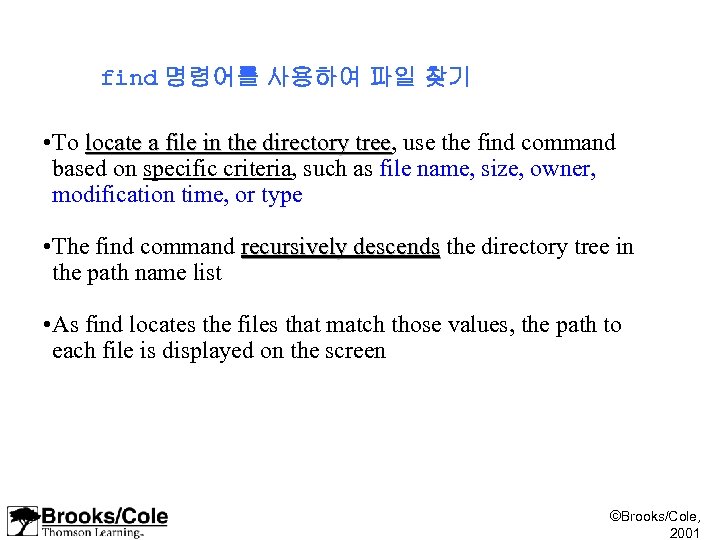
find 명령어를 사용하여 파일 찾기 • To locate a file in the directory tree, use the find command locate a file in the directory tree based on specific criteria, such as file name, size, owner, modification time, or type • The find command recursively descends the directory tree in recursively descends the path name list • As find locates the files that match those values, the path to each file is displayed on the screen ©Brooks/Cole, 2001
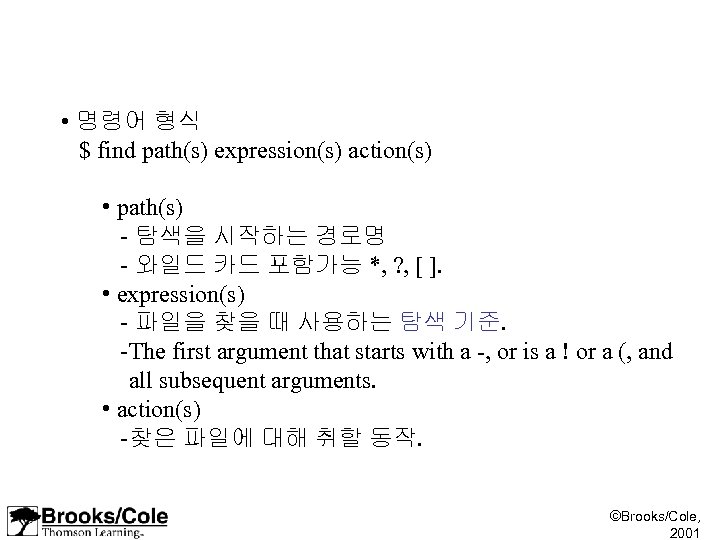
• 명령어 형식 $ find path(s) expression(s) action(s) • path(s) - 탐색을 시작하는 경로명 - 와일드 카드 포함가능 *, ? , [ ]. • expression(s) - 파일을 찾을 때 사용하는 탐색 기준. - The first argument that starts with a -, or is a ! or a (, and all subsequent arguments. • action(s) - 찾은 파일에 대해 취할 동작. ©Brooks/Cole, 2001
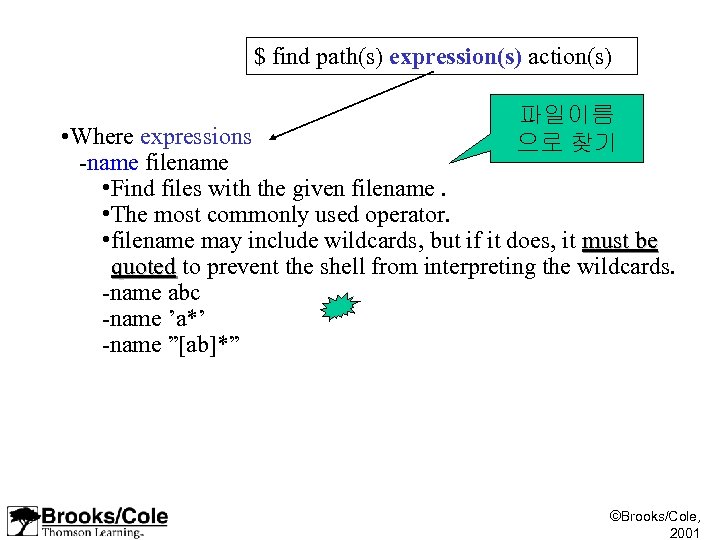
$ find path(s) expression(s) action(s) 파일이름 으로 찾기 • Where expressions -name filename • Find files with the given filename. • The most commonly used operator. • filename may include wildcards, but if it does, it must be quoted to prevent the shell from interpreting the wildcards. quoted -name abc -name ’a*’ -name ”[ab]*” ©Brooks/Cole, 2001
![$ find path(s) expression(s) action(s) 파일크기 로 찾기 • Where expressions -size [±]n[c] •](https://present5.com/presentation/2c741867e69c06a54d0c33cf745d206c/image-85.jpg "$ find path(s) expression(s) action(s) 파일크기 로 찾기 • Where expressions -size [±]n[c] •")
$ find path(s) expression(s) action(s) 파일크기 로 찾기 • Where expressions -size [±]n[c] • n[c] says “find files that are exactly n blocks (characters) exactly long. ” • +n[c] says “find files that are over n blocks (characters) over long. “ • -n[c] says “find files that are less than n blocks less than (characters) long. “ • A block equals 512 bytes -size 20 c ©Brooks/Cole, 2001
![$ find path(s) expression(s) action(s) 파일 찾기: • Where expressions 수정시간 -mtime [±]n •](https://present5.com/presentation/2c741867e69c06a54d0c33cf745d206c/image-86.jpg "$ find path(s) expression(s) action(s) 파일 찾기: • Where expressions 수정시간 -mtime [±]n •")
$ find path(s) expression(s) action(s) 파일 찾기: • Where expressions 수정시간 -mtime [±]n • n means “find files that the file’s contents were modified exactly n days ago. ” exactly • +n means “find files that the file’s contents were modified over n days ago. ” over • -n means “find files that the file’s contents were modified less than n days ago. “ less than -mtime 5 -mtime +5 -mtime -5 ©Brooks/Cole, 2001
![$ find path(s) expression(s) action(s) 파일찾기: 접근시간 • Where expressions -atime [±]n • n](https://present5.com/presentation/2c741867e69c06a54d0c33cf745d206c/image-87.jpg "$ find path(s) expression(s) action(s) 파일찾기: 접근시간 • Where expressions -atime [±]n • n")
$ find path(s) expression(s) action(s) 파일찾기: 접근시간 • Where expressions -atime [±]n • n means “find files that the file’s contents were accessed exactly n days ago. ” exactly • +n means “find files that the file’s contents were accessed over n days ago. ” over • -n means “find files that the file’s contents were accessed less than n days ago. “ less than -atime 5 // $ ls -lu -atime +5 -atime -5 ©Brooks/Cole, 2001
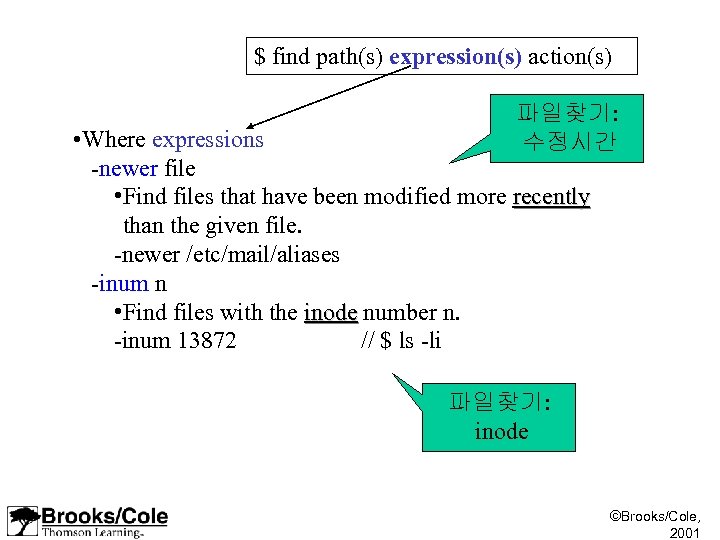
$ find path(s) expression(s) action(s) 파일찾기: 수정시간 • Where expressions -newer file • Find files that have been modified more recently than the given file. -newer /etc/mail/aliases -inum n • Find files with the inode number n. inode -inum 13872 // $ ls -li 파일찾기: inode ©Brooks/Cole, 2001
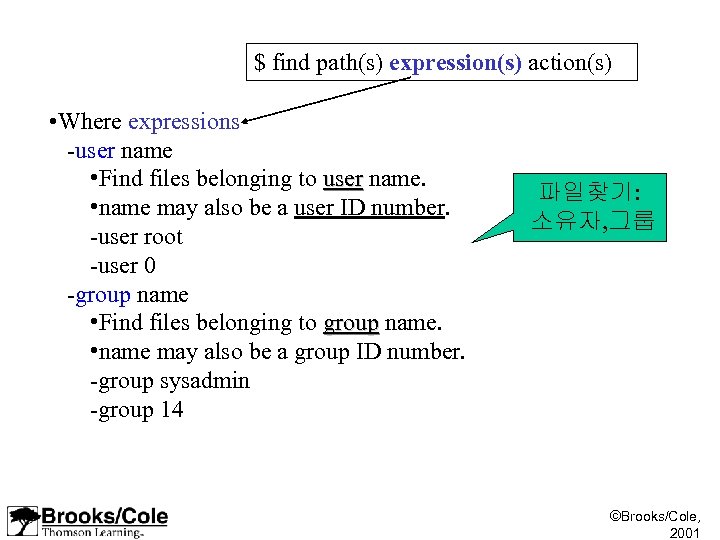
$ find path(s) expression(s) action(s) • Where expressions -user name • Find files belonging to user name. user • name may also be a user ID number. -user root -user 0 -group name • Find files belonging to group name. group • name may also be a group ID number. -group sysadmin -group 14 파일찾기: 소유자, 그룹 ©Brooks/Cole, 2001
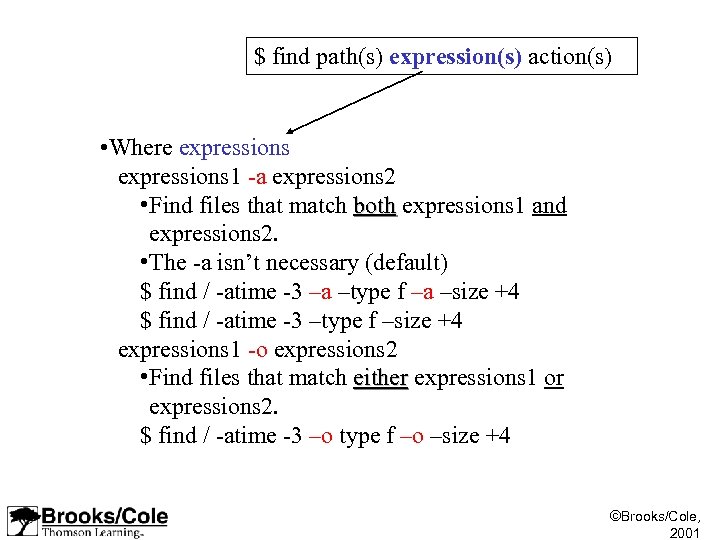
$ find path(s) expression(s) action(s) • Where expressions 1 -a expressions 2 • Find files that match both expressions 1 and both expressions 2. • The -a isn’t necessary (default) $ find / -atime -3 –a –type f –a –size +4 $ find / -atime -3 –type f –size +4 expressions 1 -o expressions 2 • Find files that match either expressions 1 or either expressions 2. $ find / -atime -3 –o type f –o –size +4 ©Brooks/Cole, 2001
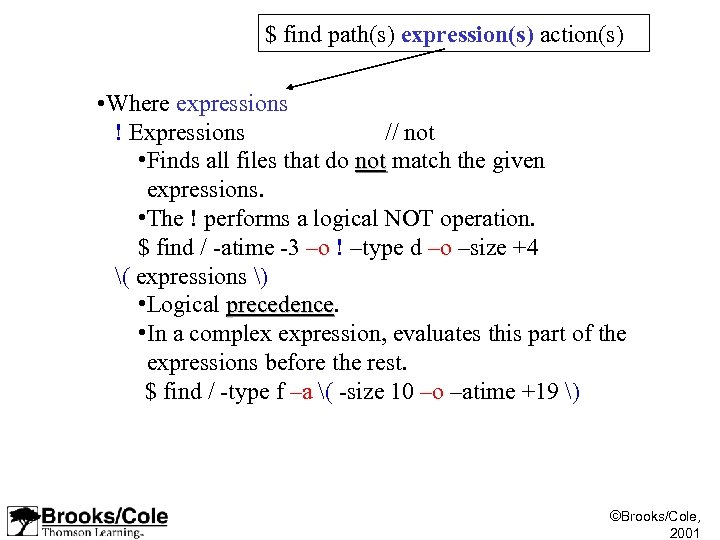
$ find path(s) expression(s) action(s) • Where expressions ! Expressions // not • Finds all files that do not match the given not expressions. • The ! performs a logical NOT operation. $ find / -atime -3 –o ! –type d –o –size +4 ( expressions ) • Logical precedence • In a complex expression, evaluates this part of the expressions before the rest. $ find / -type f –a ( -size 10 –o –atime +19 ) ©Brooks/Cole, 2001
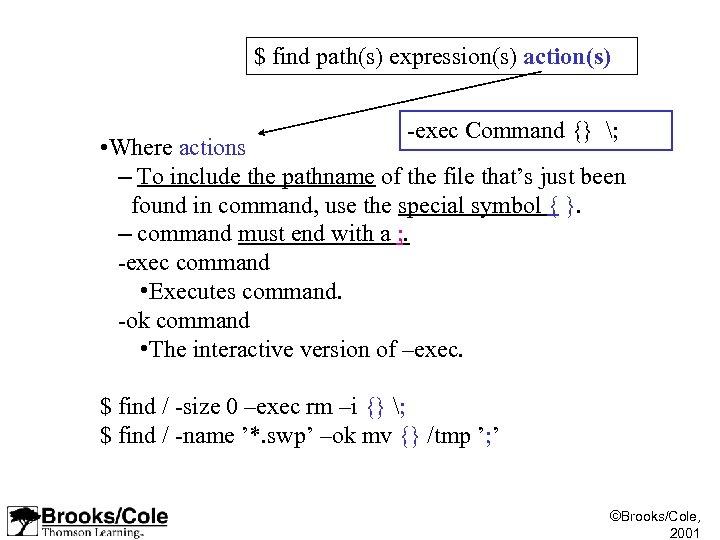
$ find path(s) expression(s) action(s) -exec Command {} ; • Where actions – To include the pathname of the file that’s just been found in command, use the special symbol { }. – command must end with a ; . -exec command • Executes command. -ok command • The interactive version of –exec. $ find / -size 0 –exec rm –i {} ; $ find / -name ’*. swp’ –ok mv {} /tmp ’; ’ ©Brooks/Cole, 2001
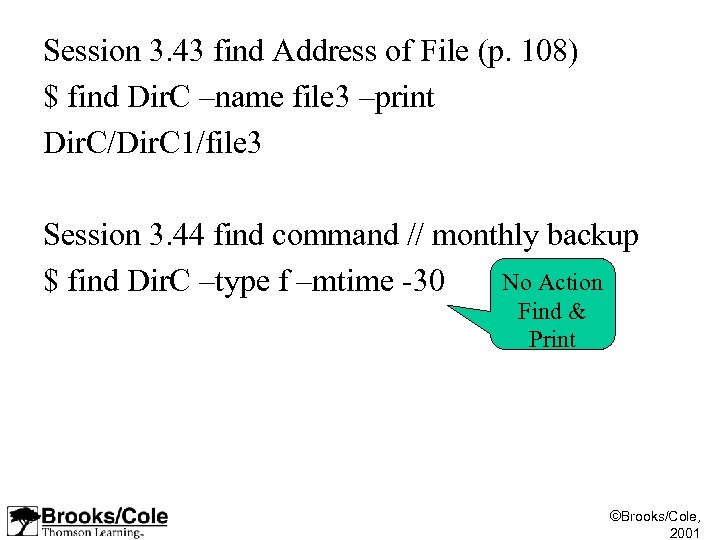
Session 3. 43 find Address of File (p. 108) $ find Dir. C –name file 3 –print Dir. C/Dir. C 1/file 3 Session 3. 44 find command // monthly backup No Action $ find Dir. C –type f –mtime -30 Find & Print ©Brooks/Cole, 2001
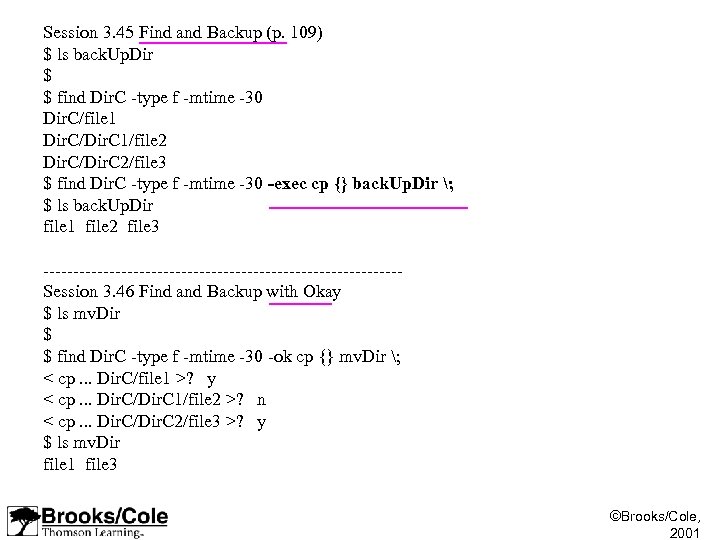
Session 3. 45 Find and Backup (p. 109) $ ls back. Up. Dir $ $ find Dir. C -type f -mtime -30 Dir. C/file 1 Dir. C/Dir. C 1/file 2 Dir. C/Dir. C 2/file 3 $ find Dir. C -type f -mtime -30 -exec cp {} back. Up. Dir ; $ ls back. Up. Dir file 1 file 2 file 3 ------------------------------Session 3. 46 Find and Backup with Okay $ ls mv. Dir $ $ find Dir. C -type f -mtime -30 -ok cp {} mv. Dir ; < cp. . . Dir. C/file 1 >? y < cp. . . Dir. C/Dir. C 1/file 2 >? n < cp. . . Dir. C/Dir. C 2/file 3 >? y $ ls mv. Dir file 1 file 3 ©Brooks/Cole, 2001
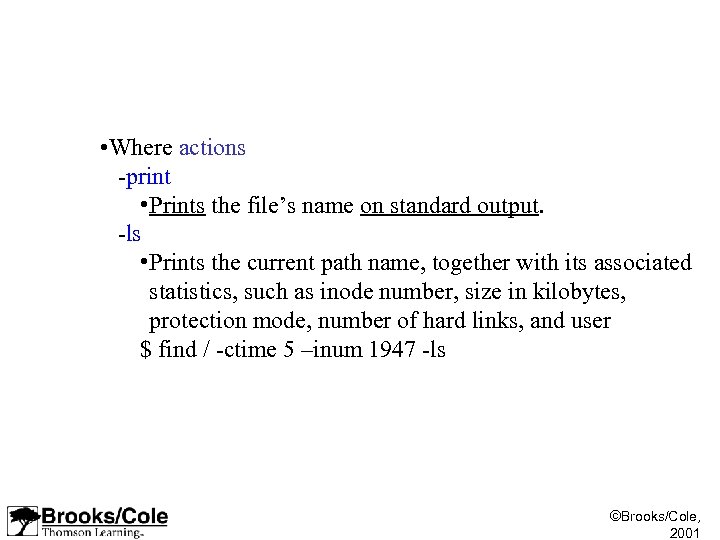
• Where actions -print • Prints the file’s name on standard output. -ls • Prints the current path name, together with its associated statistics, such as inode number, size in kilobytes, protection mode, number of hard links, and user $ find / -ctime 5 –inum 1947 -ls ©Brooks/Cole, 2001
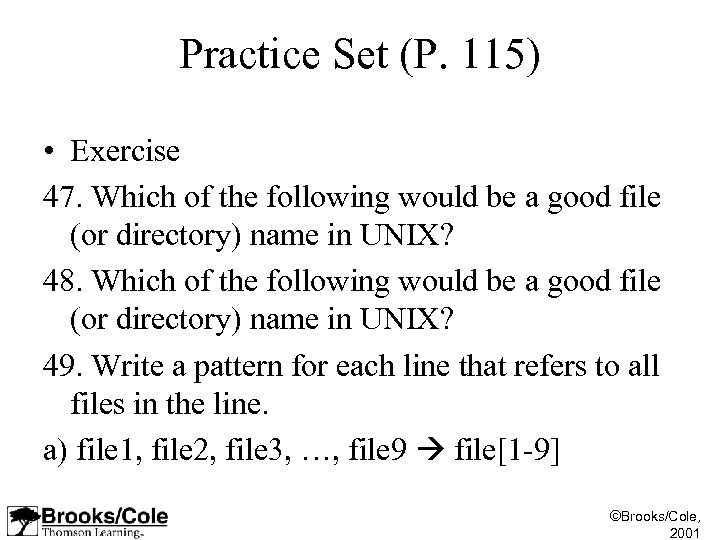
Practice Set (P. 115) • Exercise 47. Which of the following would be a good file (or directory) name in UNIX? 48. Which of the following would be a good file (or directory) name in UNIX? 49. Write a pattern for each line that refers to all files in the line. a) file 1, file 2, file 3, …, file 9 file[1 -9] ©Brooks/Cole, 2001
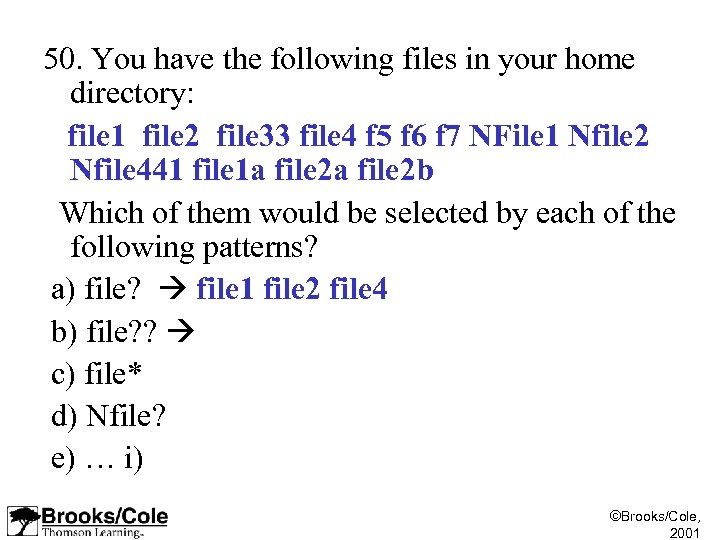
50. You have the following files in your home directory: file 1 file 2 file 33 file 4 f 5 f 6 f 7 NFile 1 Nfile 2 Nfile 441 file 1 a file 2 b Which of them would be selected by each of the following patterns? a) file? file 1 file 2 file 4 b) file? ? c) file* d) Nfile? e) … i) ©Brooks/Cole, 2001
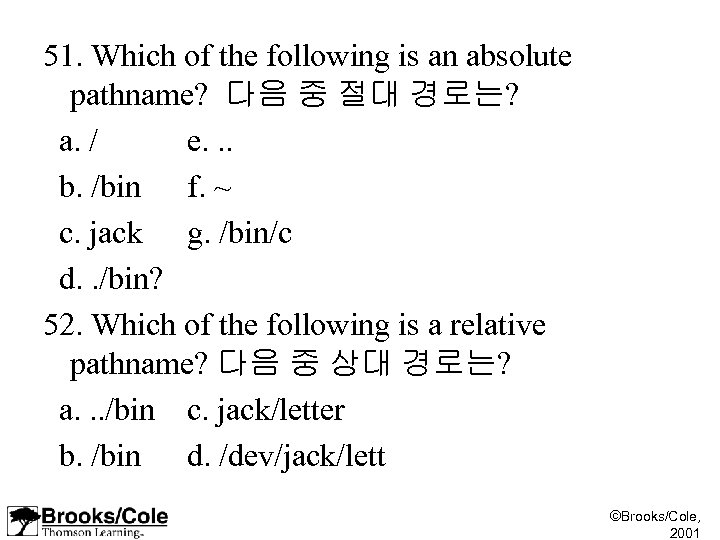
51. Which of the following is an absolute pathname? 다음 중 절대 경로는? a. / e. . . b. /bin f. ~ c. jack g. /bin/c d. . /bin? 52. Which of the following is a relative pathname? 다음 중 상대 경로는? a. . . /bin c. jack/letter b. /bin d. /dev/jack/lett ©Brooks/Cole, 2001
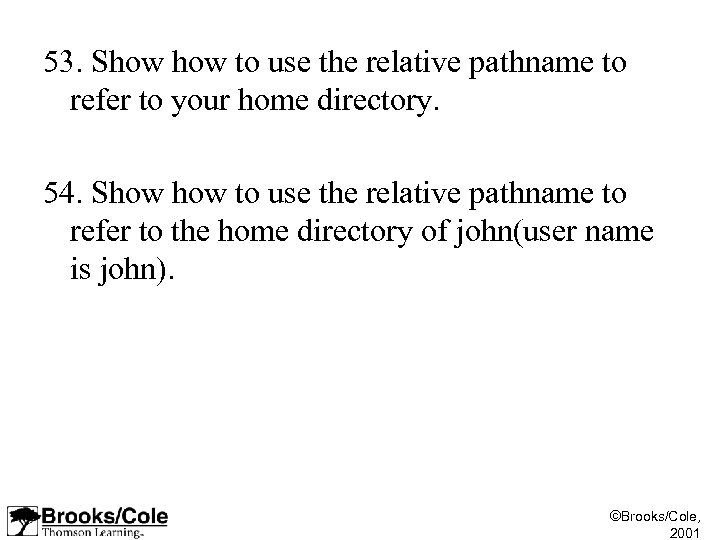
53. Show to use the relative pathname to refer to your home directory. 54. Show to use the relative pathname to refer to the home directory of john(user name is john). ©Brooks/Cole, 2001
Lab Sessions Session I 1. Log into the system 2. Create 3 directories named letters, reports, and assignments under your home directory. 3. Move to directory letters. 4. Create 2 directories named friendly and formal under the letters directory. 5. Move to directory reports using only one command (directly from letters). 6. Create 3 directories named personal, business, and school under the directory reports using only one command. 7. Create a directory called UNIX under the assignments directory without moving from the reports directory. 8. Create 2 directories called HWs and Projects under the directory UNIX. The directories in this step should be created without moving from the reports directory. 9. Move to your home directory. 10. Recursively list all of the directories you created under your home directory using “ls” command. ©Brooks/Cole, 2001
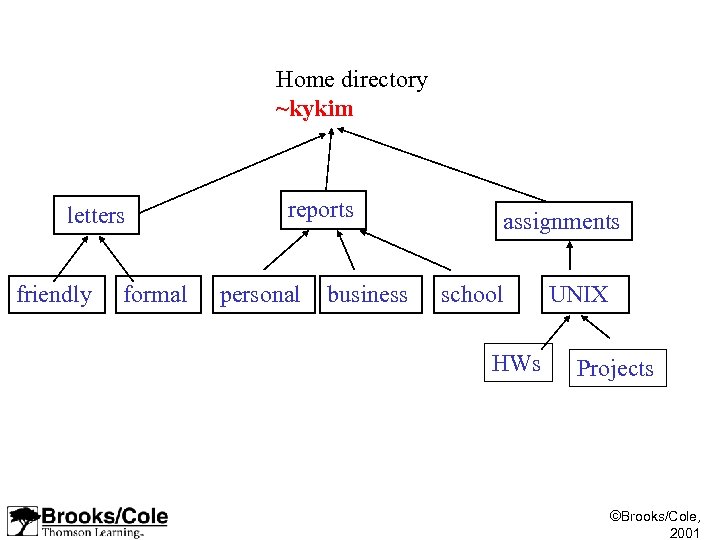
Home directory ~kykim letters friendly formal reports personal business assignments school HWs UNIX Projects ©Brooks/Cole, 2001
Session II 1. 2. Log into the system Recursively list all of the directories you created under your home directory using “ls” command. 3. Move to HWs directory. 4. Check your current directory. 5. Using vi command, create a file named hw 4 that contains answer to exercise 49(P. 117). 6. Save the file (it should be saved under the HWs directory) 7. Move to your home directory. 8. Show the content of hw 4 file from your home directory. 9. Make a copy of hw 4 and call it hw 4. bk. Store it under the same directory where hw 4 is stored. 10. From you home directory check to see if both files (hw 4 and hw 4. bk) exist. ©Brooks/Cole, 2001
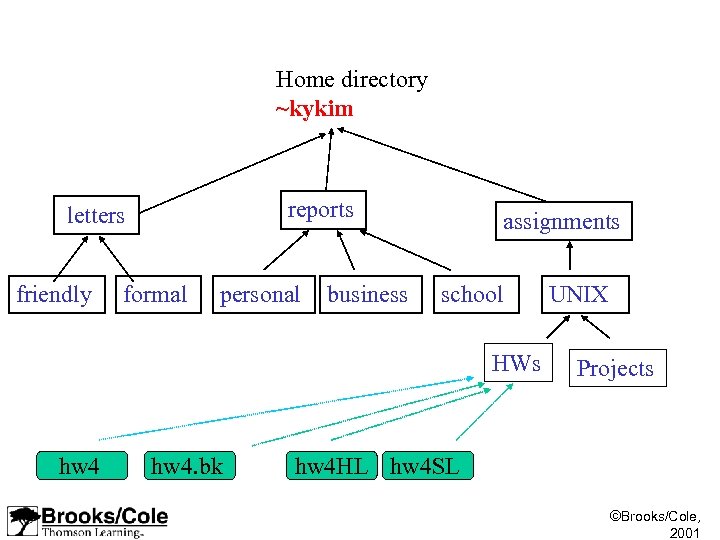
Home directory ~kykim reports letters friendly formal personal business assignments school HWs hw 4. bk UNIX Projects hw 4 HL hw 4 SL ©Brooks/Cole, 2001
11. Move to HWs directory. 12. Check your current working directory. 13. Make a hard link to the hw 4 file. The link should be under the HWs directory and be called hw 4 HL. 14. Make a soft link to the hw 4 called hw 4 SL and store it under the HWs directory. 15. Check the inode of hw 4, hw 4. bk, hw 4 HL, and hw 4 SL. Are all the same? Are all different? Explain how you determined the answer. 16. Use the “ls” command to find the file types of hw 4, hw 4. bk, hw 4 HL, and hw 4 SL. Explain your observation. 17. Log out the system. ©Brooks/Cole, 2001
Session III 1. 2. 3. 4. 5. 6. 7. Log into the system Create a backup directory in your home directory called backups. Use the find command to find the pathnames of all of the files(hw 4, hw 4. bk, hw 4 HL, and hw 4 SL)that you created in Session II. All of them should be found using only one find command. The command must also copy all of them to the backups directory. Check the number of links and inode number of hw 4, hw 4. bk, hw 4 HL, and hw 4 SL. Make note of the results. Delete the original hw 4 file without moving from your home directory. Check the existence of hw 4, hw 4. bk, hw 4 HL, and hw 4 SL. Check the contents of hw 4, hw 4. bk, hw 4 HL, and hw 4 SL. ©Brooks/Cole, 2001
8. Restore the file hw 4 by making a copy of hw 4. bk 9. You may have noticed that your soft link (hw 4 SL) contains garbage. Delete this file. 10. Make a new soft link to hw 4 and store it as hw 4 SL under the same directory as it was. 11. List recursively all of your files and directories to confirm all operations using “ls” command. ©Brooks/Cole, 2001
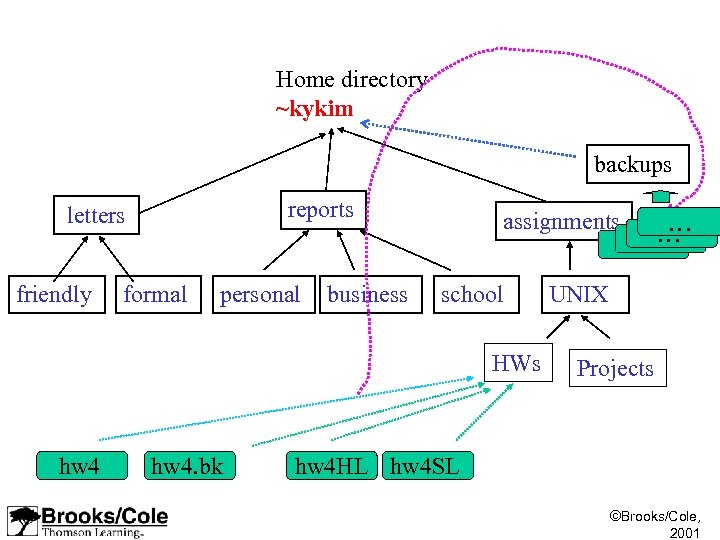
Home directory ~kykim backups reports letters friendly formal personal business assignments school HWs hw 4. bk … … UNIX Projects hw 4 HL hw 4 SL ©Brooks/Cole, 2001

수고 하셨습니다!!!!!! Mail to kky!!!!!!!!!!!! ©Brooks/Cole, 2001
Скачать презентацию Chapter 3 File Systems 파일 시스템 Brooks Cole 2001
2c741867e69c06a54d0c33cf745d206c.ppt