


 Скачать презентацию Chapter 21 Supporting Printers You Will Learn
5db50d70274b330244355e5b17740d82.ppt
- Количество слайдов: 47
 Chapter 21 Supporting Printers
 You Will Learn… § How printers work § How to install printers and share them over a local area network § How to troubleshoot printer problems
 Main Types of Printers for Desktop Computing § Laser § Ink-jet § Dot-matrix
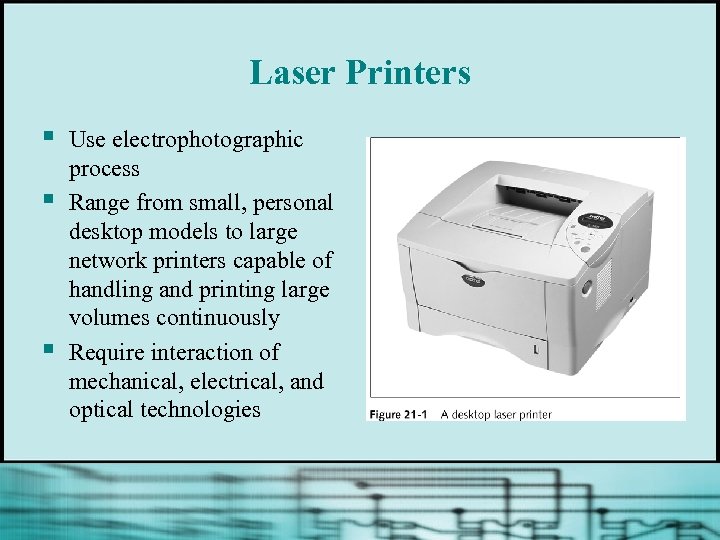 Laser Printers § § § Use electrophotographic process Range from small, personal desktop models to large network printers capable of handling and printing large volumes continuously Require interaction of mechanical, electrical, and optical technologies
 How a Laser Printer Works § Places toner on electrically charged rotating drum § Deposits toner on paper as paper moves through the system at same speed the drum is turning
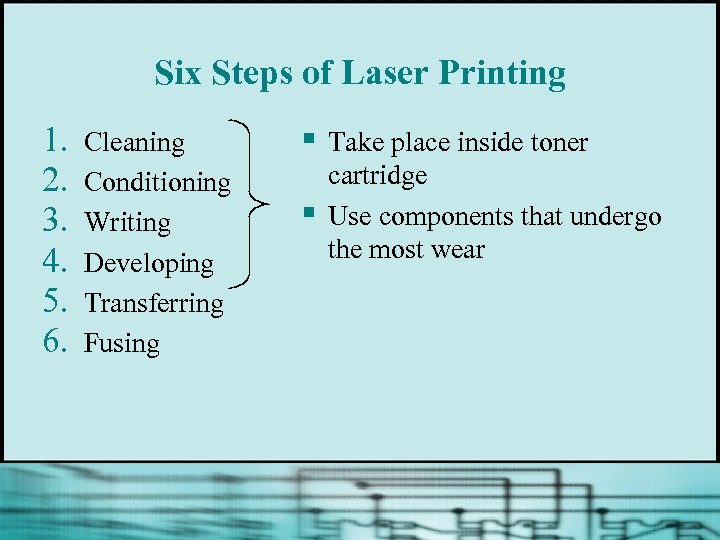 Six Steps of Laser Printing 1. 2. 3. 4. 5. 6. Cleaning Conditioning Writing Developing Transferring Fusing § § Take place inside toner cartridge Use components that undergo the most wear
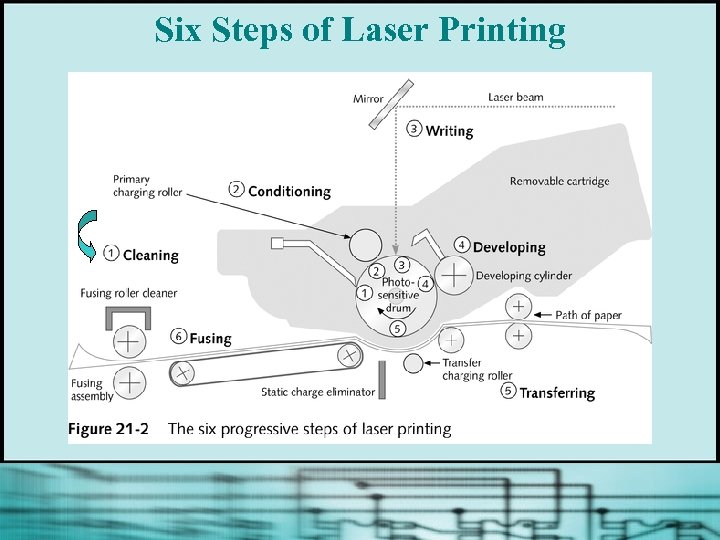 Six Steps of Laser Printing
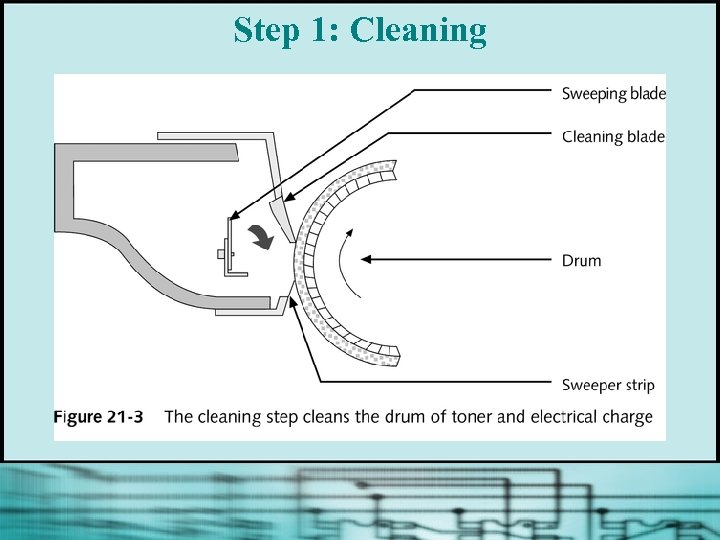 Step 1: Cleaning
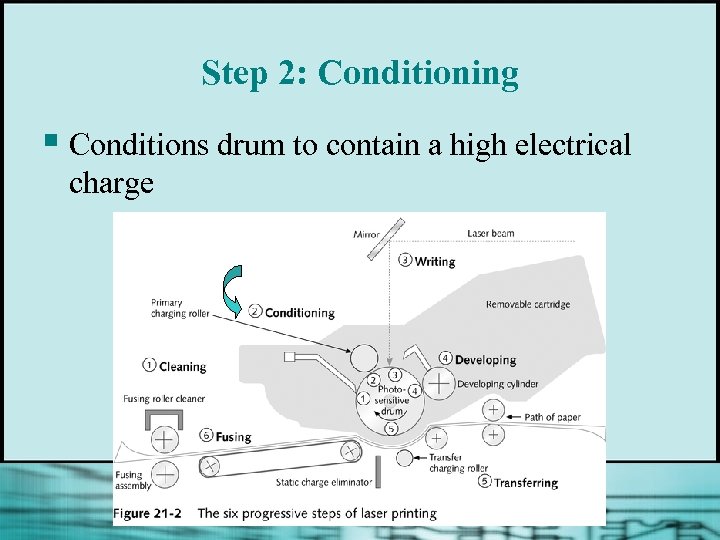 Step 2: Conditioning § Conditions drum to contain a high electrical charge
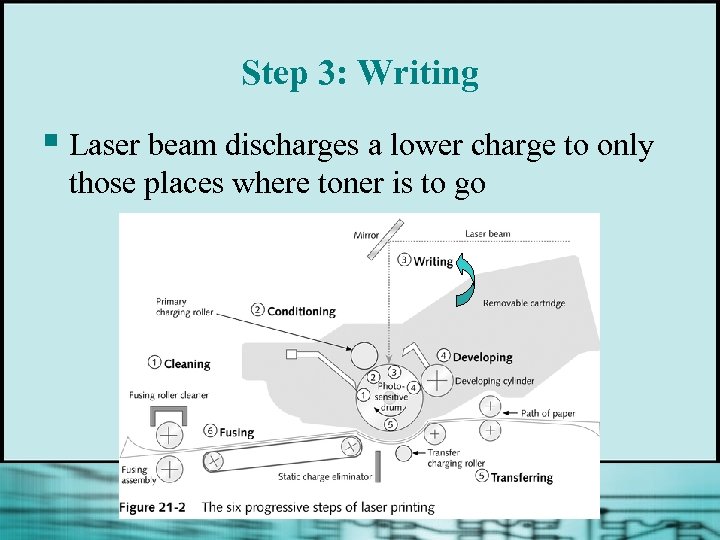 Step 3: Writing § Laser beam discharges a lower charge to only those places where toner is to go
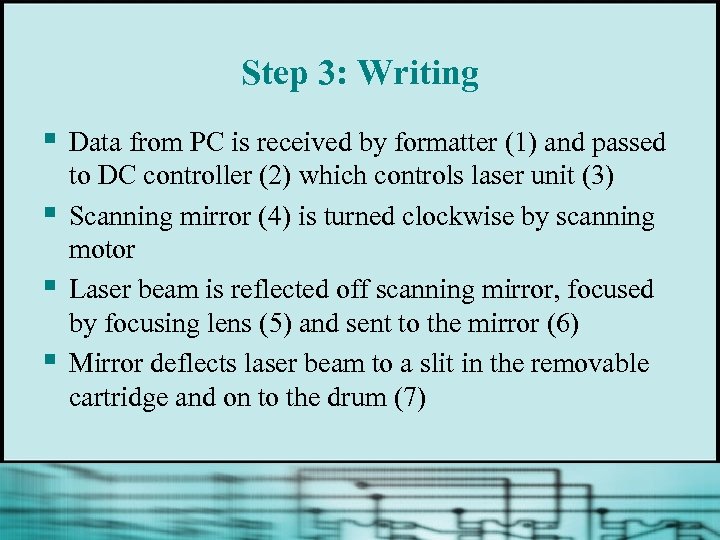 Step 3: Writing § § Data from PC is received by formatter (1) and passed to DC controller (2) which controls laser unit (3) Scanning mirror (4) is turned clockwise by scanning motor Laser beam is reflected off scanning mirror, focused by focusing lens (5) and sent to the mirror (6) Mirror deflects laser beam to a slit in the removable cartridge and on to the drum (7)
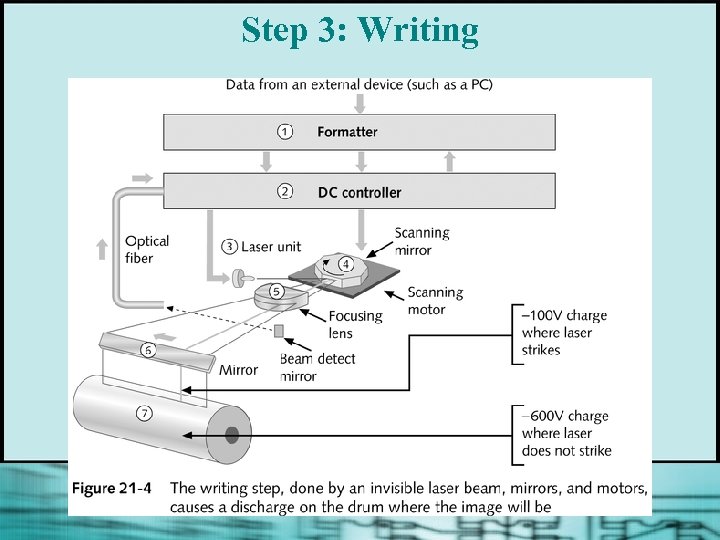 Step 3: Writing
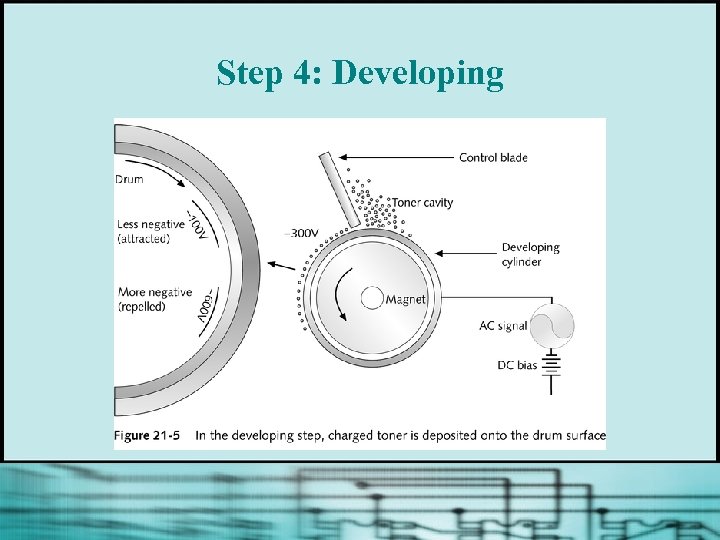
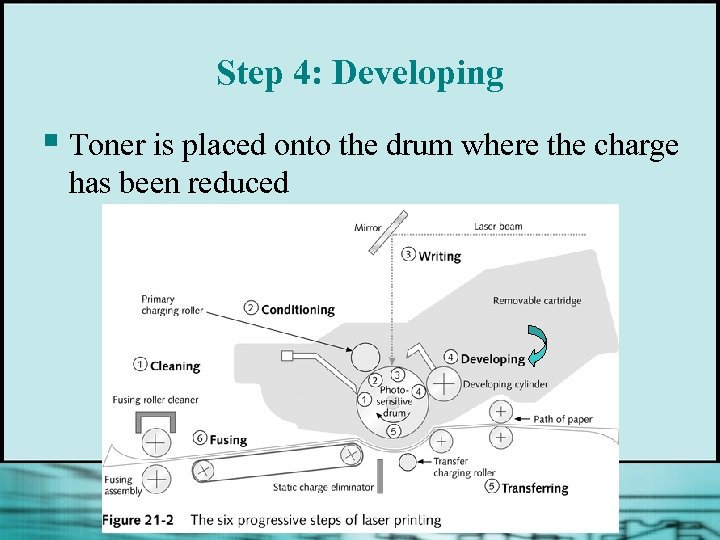 Step 4: Developing § Toner is placed onto the drum where the charge has been reduced
 Step 4: Developing
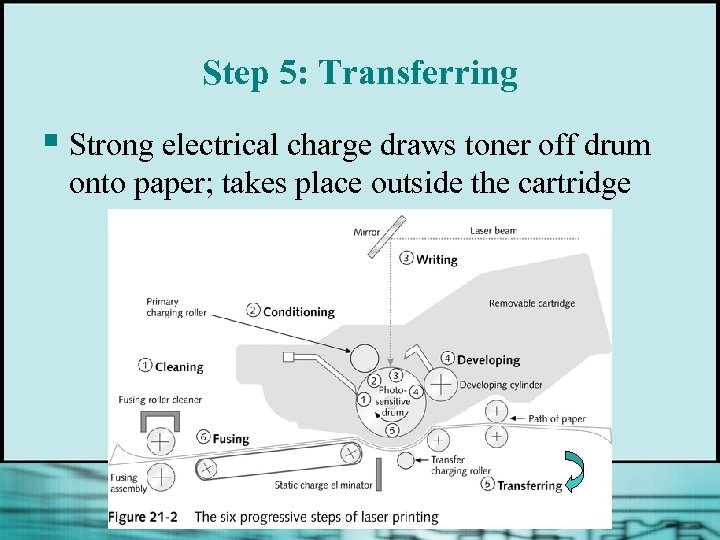 Step 5: Transferring § Strong electrical charge draws toner off drum onto paper; takes place outside the cartridge
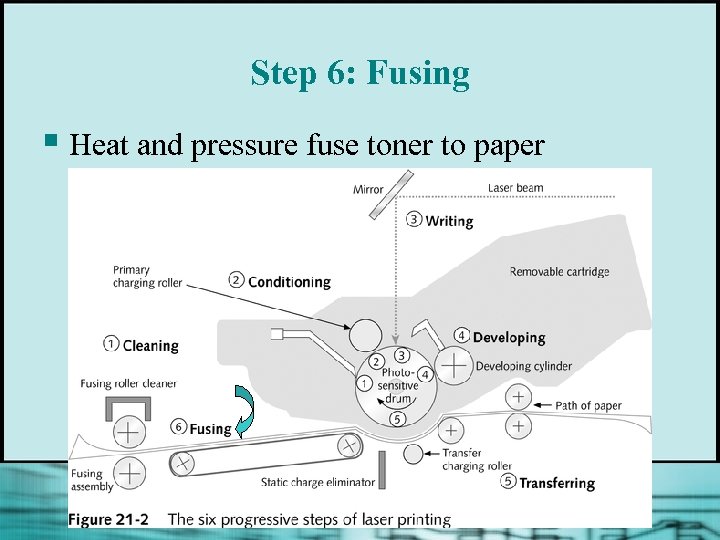 Step 6: Fusing § Heat and pressure fuse toner to paper
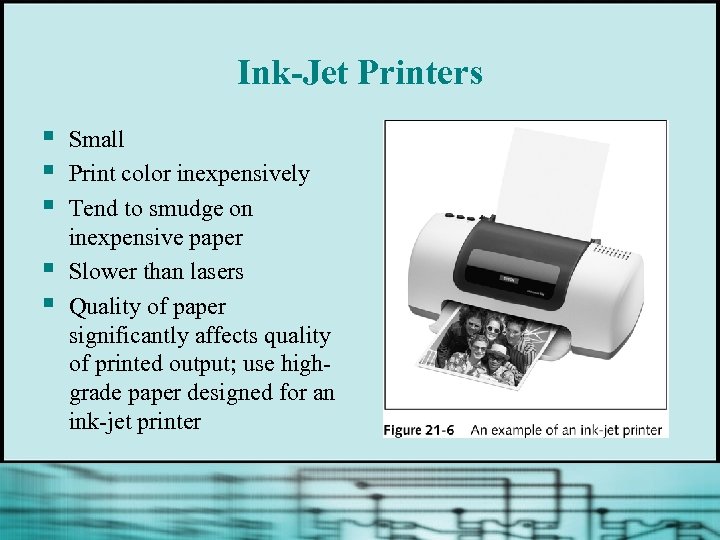 Ink-Jet Printers § § § Small Print color inexpensively Tend to smudge on inexpensive paper Slower than lasers Quality of paper significantly affects quality of printed output; use highgrade paper designed for an ink-jet printer
 How an Ink-Jet Printer Works § § Print head moves across paper, creating one line of text with each pass Shoots ionized ink at a sheet of paper in a matrix of small dots Several technologies are used to form ink droplets (eg, bubble-jet) Uses ink cartridges; best to use two separate cartridges – one for black ink and one for three-color printing
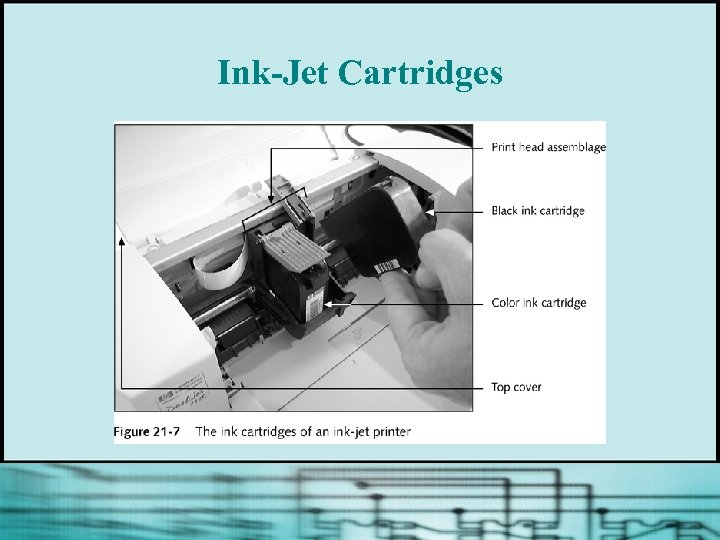 Ink-Jet Cartridges
 Dot Matrix Printers § Less expensive; lesser quality § Impact printer; can print multicopy documents § Print head moves across width of paper, using pins to print a matrix of dots on the page § Uses a ribbon § If print head fails, more economical to buy a new printer than to replace the print head
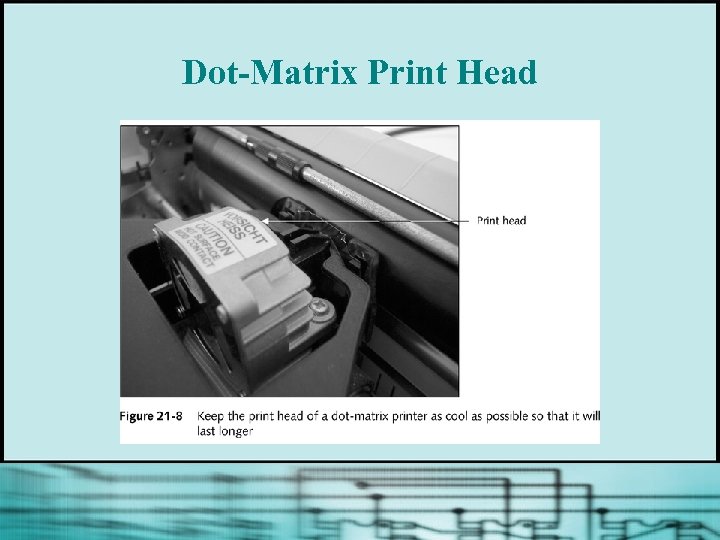 Dot-Matrix Print Head
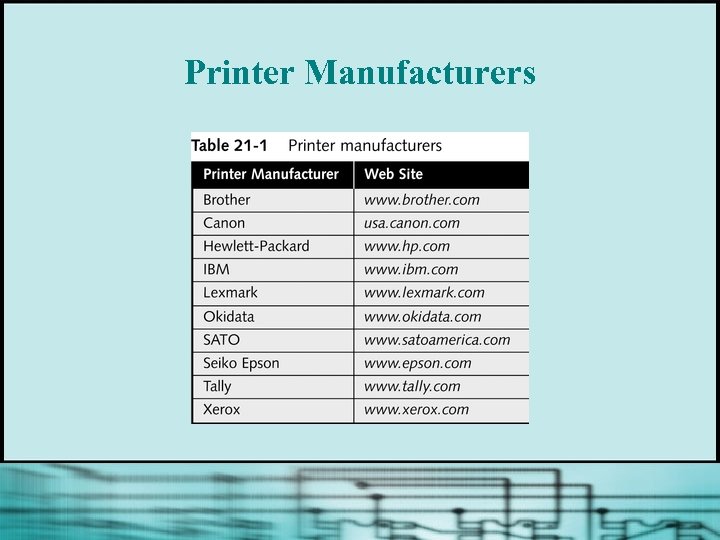 Printer Manufacturers
 How Windows Handles Print Jobs § Uses spooling § For Windows 9 x or Windows NT/2000/XP using a Post. Script printer • Print job data is converted to Post. Script language § For Windows 9 x applications using a non. Post. Script printer • Print job data is converted to Enhanced Metafile Format (EMF) continued…
 How Windows Handles Print Jobs § For Windows 2000/XP • A printer language that competes with Post. Script is PCL (Printer Control Language) § Text data that contains no embedded control characters is sent to the printer as is
 Installing and Sharing a Printer § Local printer • Connects to computer by way of a port on the computer § Network printer • Accessed by way of a network § Default printer • The printer Windows prints to unless another is selected
 Install a Local Printer § Physically attach printer to computer (via parallel, serial, 1394, or USB port, or wireless access point) § Install printer drivers • Use Windows Printer window • Use printer manufacturer’s installation program (best way) § Test the printer
 Sharing a Printer with Others in a Workgroup § To share a local printer, File and Printer Sharing must be installed § To use a shared printer on a remote PC, Client for Microsoft Networks must be installed
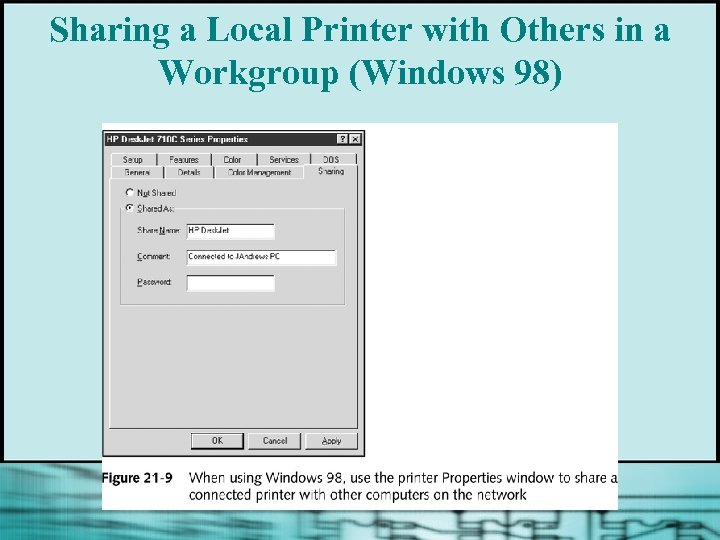 Sharing a Local Printer with Others in a Workgroup (Windows 98)
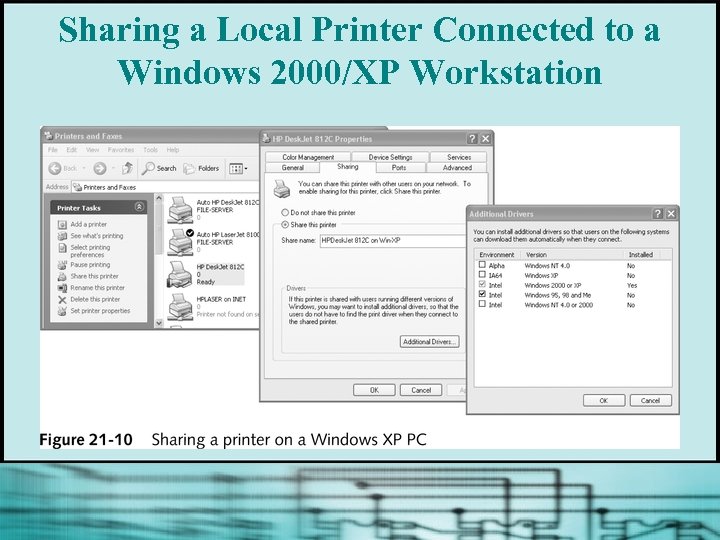 Sharing a Local Printer Connected to a Windows 2000/XP Workstation
 Using a Shared Printer § Two approaches to installing shared network printer drivers on a remote PC • Use the drivers on CD (either Windows CD or • printer manufacturer’s CD) Use printer drivers on host PC (quicker)
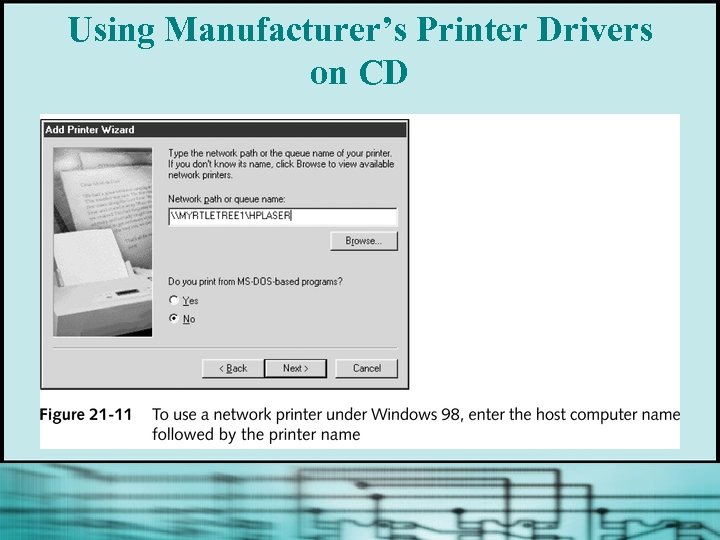 Using Manufacturer’s Printer Drivers on CD
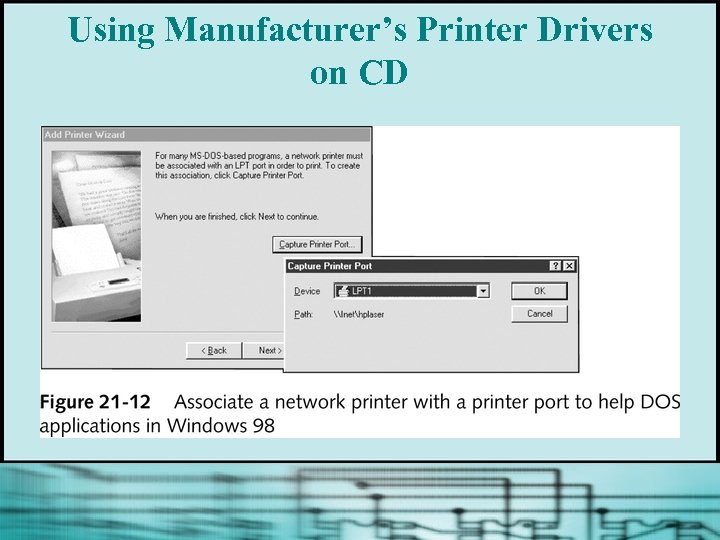 Using Manufacturer’s Printer Drivers on CD
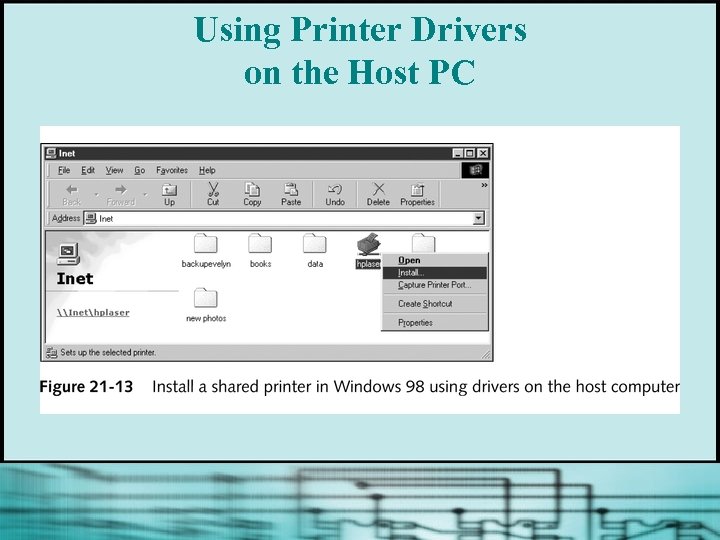 Using Printer Drivers on the Host PC
 Other Methods of Sharing Printers over a Network § § § A regular printer can be attached to a PC using a port on the PC, and then that PC can share the printer with the network A network printer with embedded logic to manage network communication can be connected directly to a network with its own NIC A dedicated device or computer called a print server can control several printers connected to a network
 Troubleshooting Guidelines for Printers § Routine printer maintenance § General printer troubleshooting § Problems with laser printers § Problems with ink-jet printers § Problems with dot-matrix printers
 Printer Maintenance § Procedures vary widely from manufacturer to manufacturer and printer to printer § Make sure consumables for the printer are on hand § Research printer documentation or manufacturer’s Web site for specific maintenance tips § Clean inside and outside of the printer
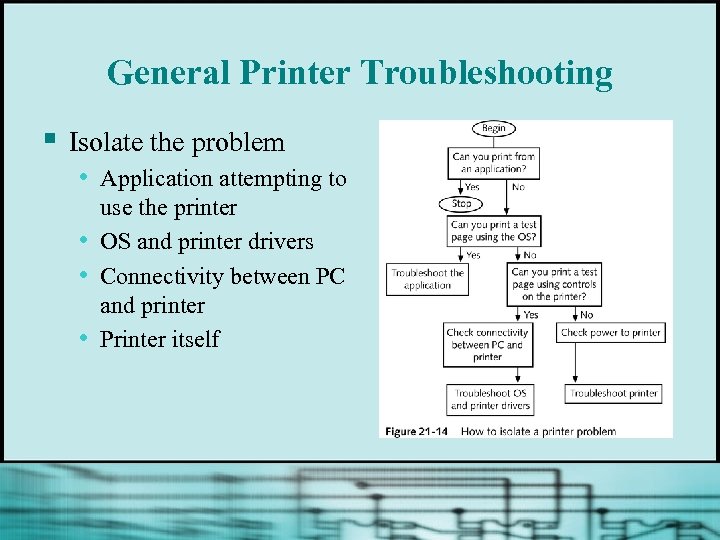 General Printer Troubleshooting § Isolate the problem • Application attempting to • • • use the printer OS and printer drivers Connectivity between PC and printer Printer itself
 Addressing Printer Problems Caused by Hardware § Verify a printer self-page can print § Check the printer cable
 Problems with Laser Printers § Poor quality due to low toner § Printer stays in warm-up mode § Paper Jam or Paper Out message appears § Printed images are distorted § Printing is slow § A portion of the page does not print
 Problems with Laser Printers
 Problems with Ink-Jet Printers § Print quality is poor § Printing is intermittent or absent § Lines or dots are missing from the printed page § Ink streaks appear on the printed page
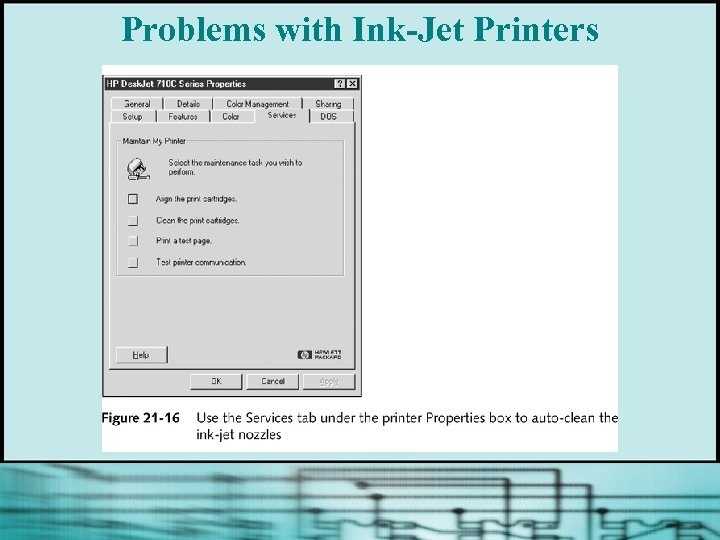 Problems with Ink-Jet Printers
 Problems with Dot-Matrix Printers § Print quality is poor § Print head moves back and forth but nothing prints
 Problems Printing from Windows § § § § Try to print a test page using the Printer window Print spool might be stalled Reboot PC and verify that printer cable or cable connections are solid Remove and reinstall printer driver In CMOS setup, check configuration of USB, serial, or parallel port that the printer is using Try another printer driver Disable bidirectional support for the printer continued…
 Problems Printing from Windows § § § § Check resources assigned to printer port Disable “Check Port State Before Printing” Verify printer properties; lower the resolution Disable printer spooling (if you can print from DOS but not from Windows) Application may be incompatible with Windows (Windows 9 x) Bypass spooling by printing to a file Try the printer on another PC
 Troubleshooting Networked Printers § § § Check that you can print from the computer that has the printer attached to it locally by printing a test page using the Printer window At the remote computer, verify that you can access the computer to which the printer is attached Using the Printer window, delete the printer, and then, using Windows 9 x Network Neighborhood or Windows 2000/XP My Network Places, reconnect the printer
 Chapter Summary § § § Three main types of printers, how they work, and how to support them Printers connect to a PC by way of a parallel port, serial port, USB port, or wireless (radio or infrared) connection How to install a printer How to share a printer with others on a network How troubleshoot printer problems