


 Скачать презентацию Chapter 16 Input Design and Prototyping Mc Graw-Hill Irwin
8bd76548a805165394058be81236ae2f.ppt
- Количество слайдов: 29
 Chapter 16 Input Design and Prototyping Mc. Graw-Hill/Irwin Copyright © 2007 by The Mc. Graw-Hill Companies, Inc. All rights reserved.
 Objectives • Define the appropriate format and media for a computer input. • Explain the difference between data capture, data entry, and data input. • Identify and describe several automatic data collection technologies. • Apply human factors to the design of computer inputs. • Design internal controls for computer inputs. • Select proper screen-based controls for input attributes that are to appear on a GUI input screen. • Design a web-based input interface. 2
 3
3
 Data Capture and Data Entry Data capture – the identification and acquisition of new data (at its source). • Source documents – forms used to record business transactions in terms of data that describe those transactions. Data entry – the process of translating the source data or document (above) into a computer readable format. 4
 Data Processing Data processing is all processing that occurs on the data after it is input from a machine readable form. • In batch processing, the entered data is collected into files called batches and processed as a complete batch. • In on-line processing, the captured data is processed immediately • In remote batch processing, data is entered and edited on-line, but collected into batches for subsequent processing. 5
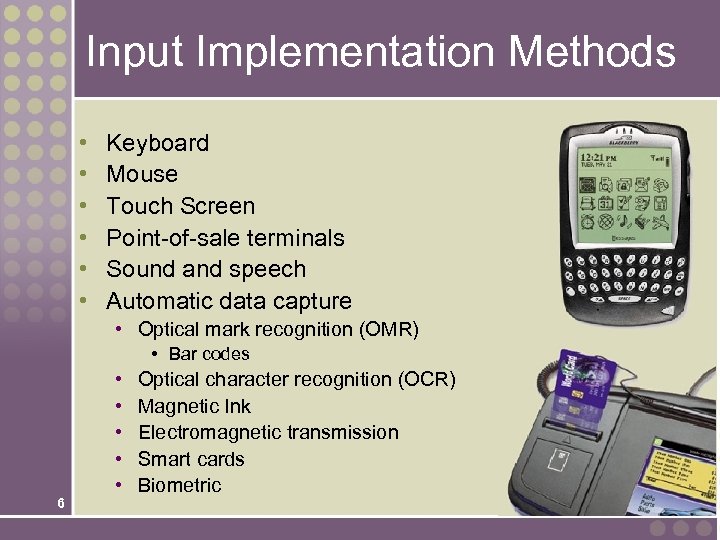 Input Implementation Methods • • • Keyboard Mouse Touch Screen Point-of-sale terminals Sound and speech Automatic data capture • Optical mark recognition (OMR) • Bar codes 6 • • • Optical character recognition (OCR) Magnetic Ink Electromagnetic transmission Smart cards Biometric
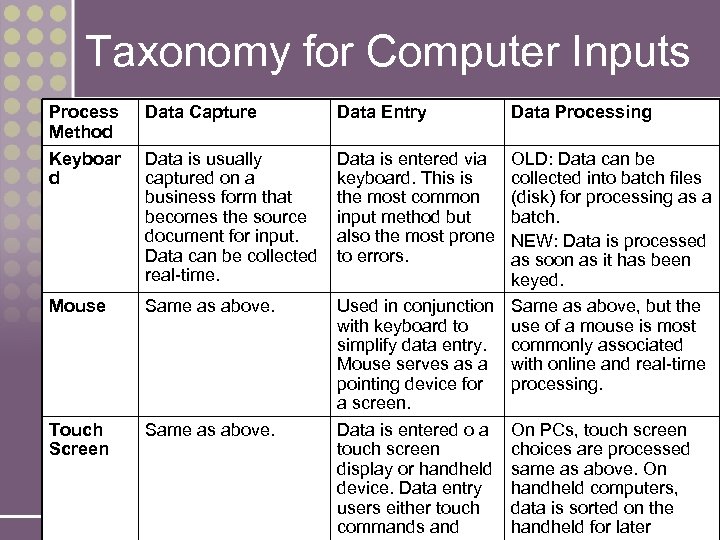 Taxonomy for Computer Inputs Process Method Keyboar d Data Capture Data Entry Data is usually captured on a business form that becomes the source document for input. Data can be collected real-time. Data is entered via keyboard. This is the most common input method but also the most prone to errors. Mouse Same as above. Touch Screen Same as above. 7 Data Processing OLD: Data can be collected into batch files (disk) for processing as a batch. NEW: Data is processed as soon as it has been keyed. Used in conjunction Same as above, but the with keyboard to use of a mouse is most simplify data entry. commonly associated Mouse serves as a with online and real-time pointing device for processing. a screen. Data is entered o a On PCs, touch screen choices are processed display or handheld same as above. On device. Data entry handheld computers, users either touch data is sorted on the commands and handheld for later
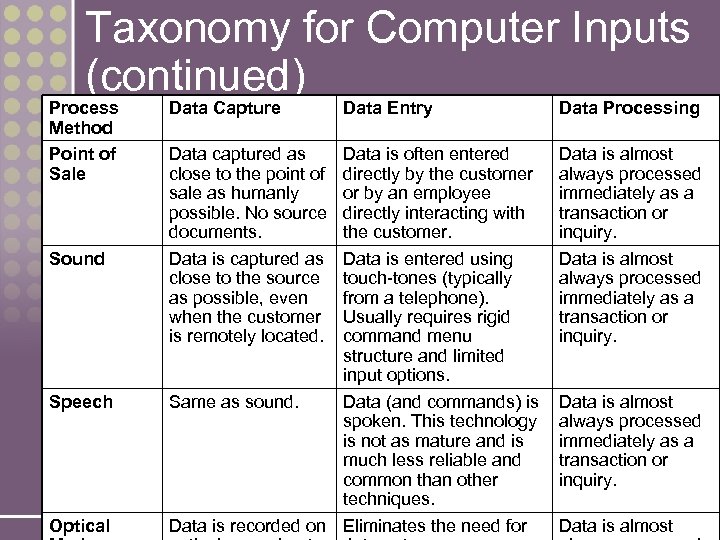 Taxonomy for Computer Inputs (continued) Process Method Point of Sale Sound Speech 8 Optical Data Capture Data captured as close to the point of sale as humanly possible. No source documents. Data is captured as close to the source as possible, even when the customer is remotely located. Data Entry Data is often entered directly by the customer or by an employee directly interacting with the customer. Data is entered using touch-tones (typically from a telephone). Usually requires rigid command menu structure and limited input options. Same as sound. Data (and commands) is spoken. This technology is not as mature and is much less reliable and common than other techniques. Data is recorded on Eliminates the need for Data Processing Data is almost always processed immediately as a transaction or inquiry. Data is almost
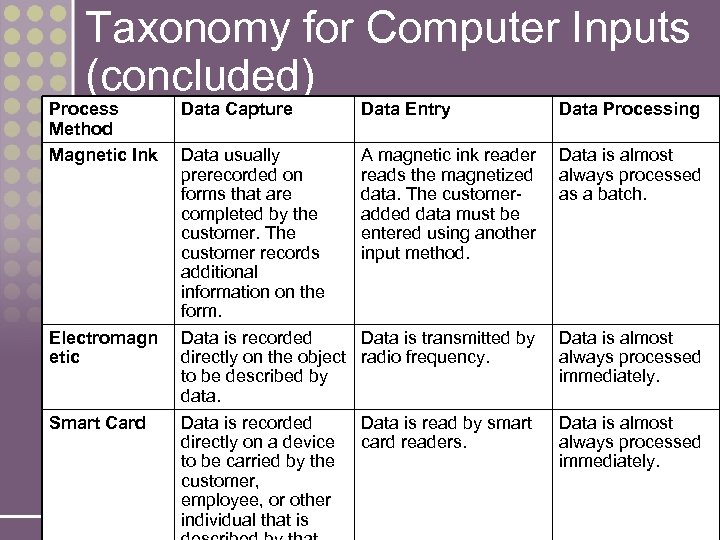 Taxonomy for Computer Inputs (concluded) Process Method Magnetic Ink Electromagn etic Smart Card 9 Data Capture Data Entry Data Processing Data usually prerecorded on forms that are completed by the customer. The customer records additional information on the form. Data is recorded directly on the object to be described by data. Data is recorded directly on a device to be carried by the customer, employee, or other individual that is A magnetic ink reader reads the magnetized data. The customeradded data must be entered using another input method. Data is almost always processed as a batch. Data is transmitted by radio frequency. Data is almost always processed immediately. Data is read by smart card readers. Data is almost always processed immediately.
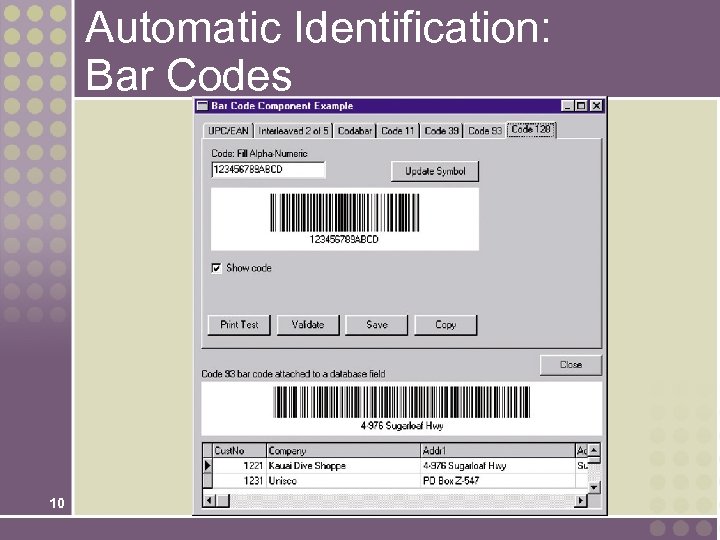 Automatic Identification: Bar Codes 10
 Input Design Guidelines • Capture only variable data. • Not data that can be looked up. • Do not capture data that can calculated or stored in computer programs as constants. • Extended Price, Federal Withholding, etc. • Use codes for appropriate attributes. 11
 Source Document / Form Design Guidelines • Include instructions for completing the form. • Minimize the amount of handwriting. • Data to be entered (keyed) should be sequenced top-to-bottom and left-to-right. • When possible use designs based on known metaphors. 12
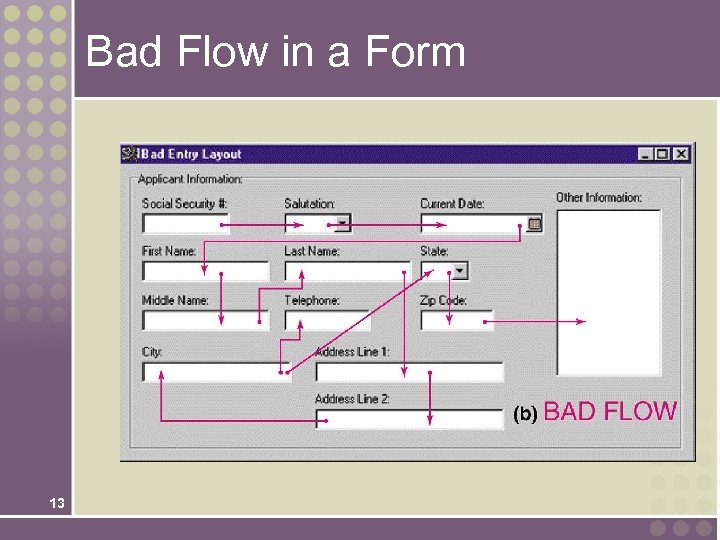 Bad Flow in a Form 13
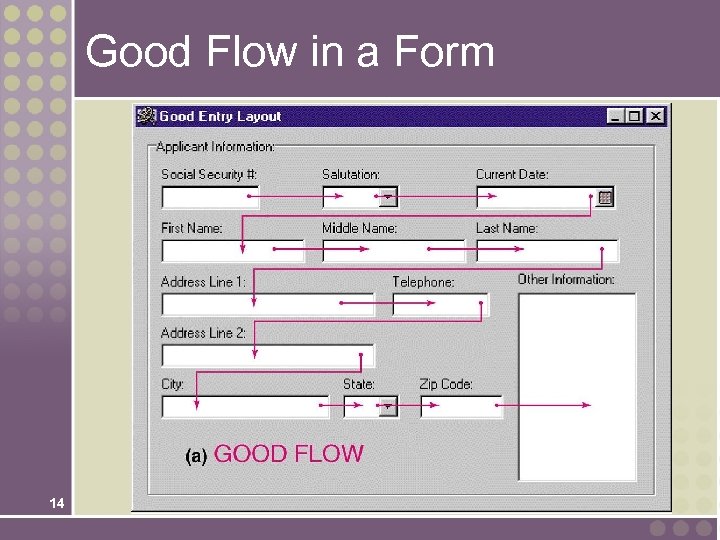 Good Flow in a Form 14
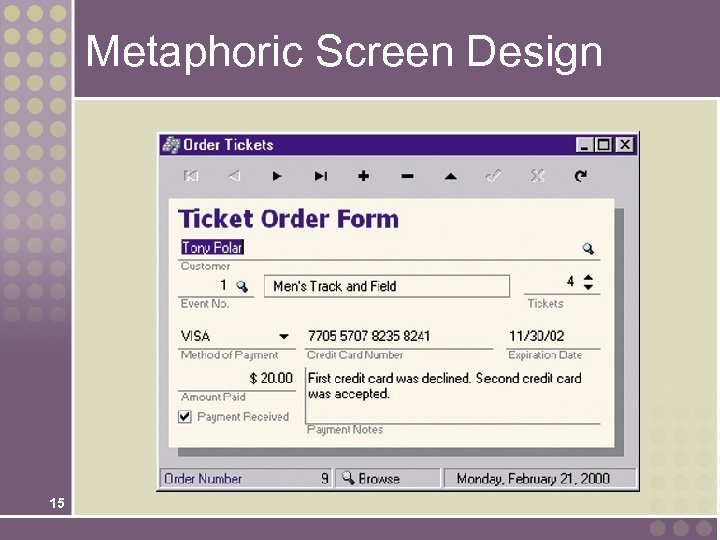 Metaphoric Screen Design 15
 Internal Controls for Inputs • The number of inputs should be monitored (to minimize risk of lost transactions). • For batch processing • Use batch control slips • Use one-for-one checks against post-processing detail reports • For on-line systems • Log each transaction as it occurs to a separate audit file • Validate all data 16 • • • Existence checks Data-type checks Domain checks Combination checks Self-checking digits Format checks
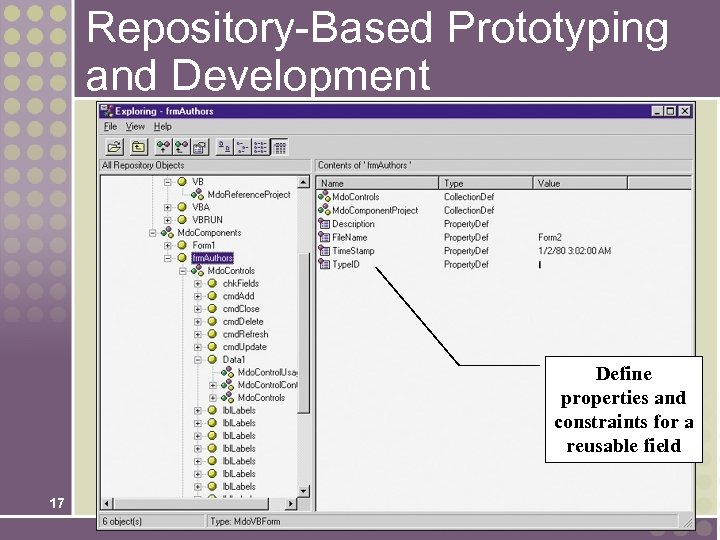 Repository-Based Prototyping and Development Define properties and constraints for a reusable field 17
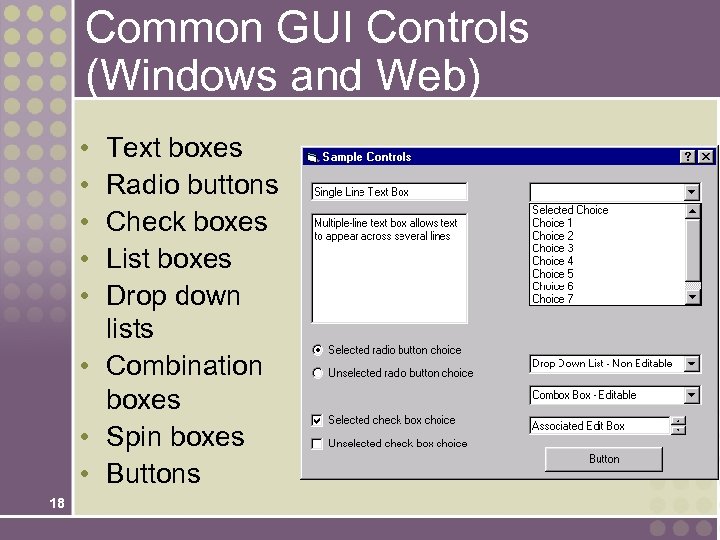 Common GUI Controls (Windows and Web) • • • Text boxes Radio buttons Check boxes List boxes Drop down lists • Combination boxes • Spin boxes • Buttons 18
 Common GUI Controls Uses • Text boxes • When the input data values are unlimited in scope • Radio buttons • When data has limited predefined set of mutually exclusive values • Check boxes • When value set consists of a simple yes or no value • List boxes • When data has a large number of possible values • Drop down lists • When data has large number of possible values and screen space is too limited for a list box • Combination boxes • To provide user with option of selecting value from a list or typing a value that may or may not appear in the list • Spin boxes 19 • When need to navigate through a small set of choices or directly typing a data value
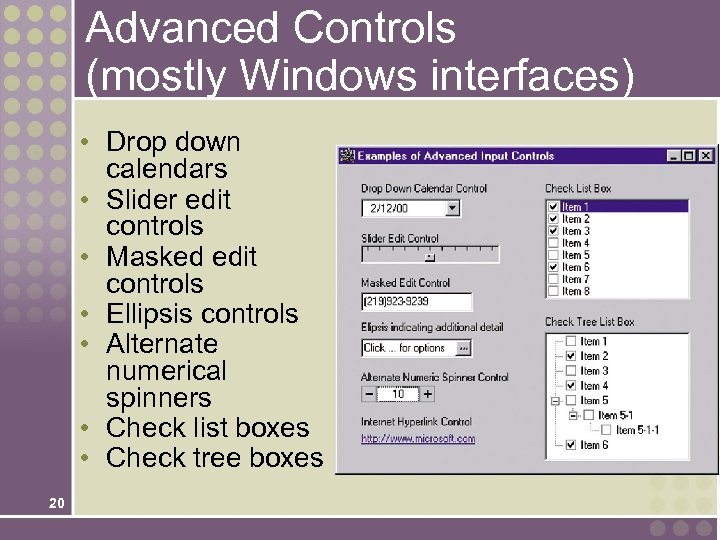 Advanced Controls (mostly Windows interfaces) • Drop down calendars • Slider edit controls • Masked edit controls • Ellipsis controls • Alternate numerical spinners • Check list boxes • Check tree boxes 20
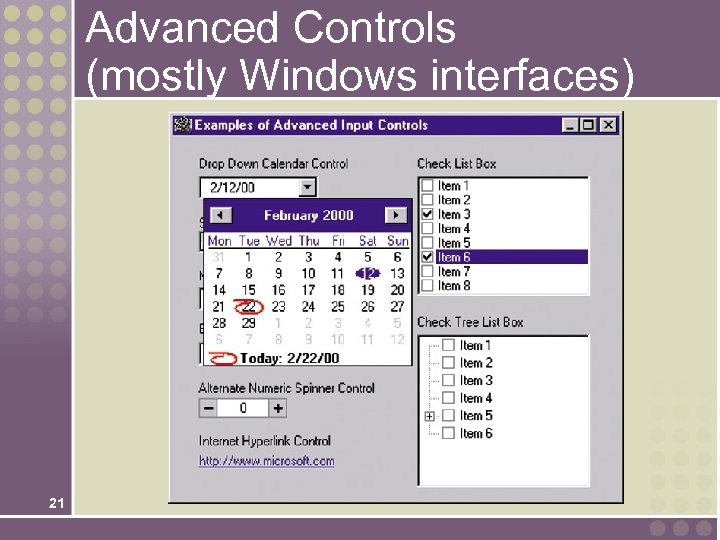 Advanced Controls (mostly Windows interfaces) 21
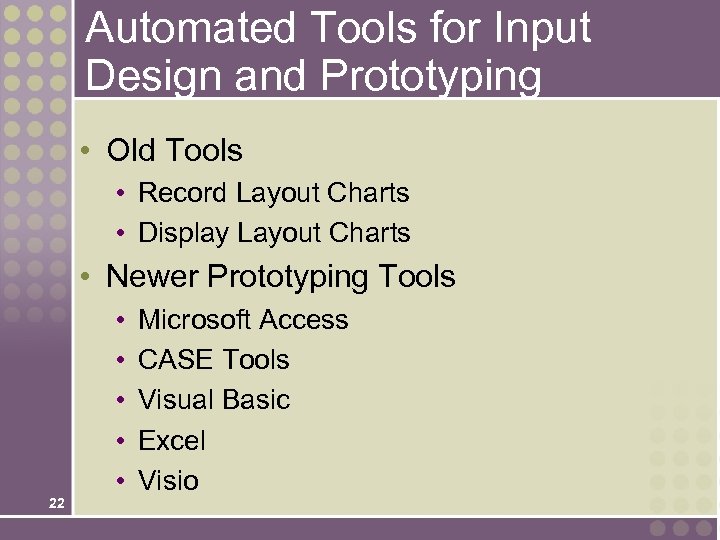 Automated Tools for Input Design and Prototyping • Old Tools • Record Layout Charts • Display Layout Charts • Newer Prototyping Tools 22 • • • Microsoft Access CASE Tools Visual Basic Excel Visio
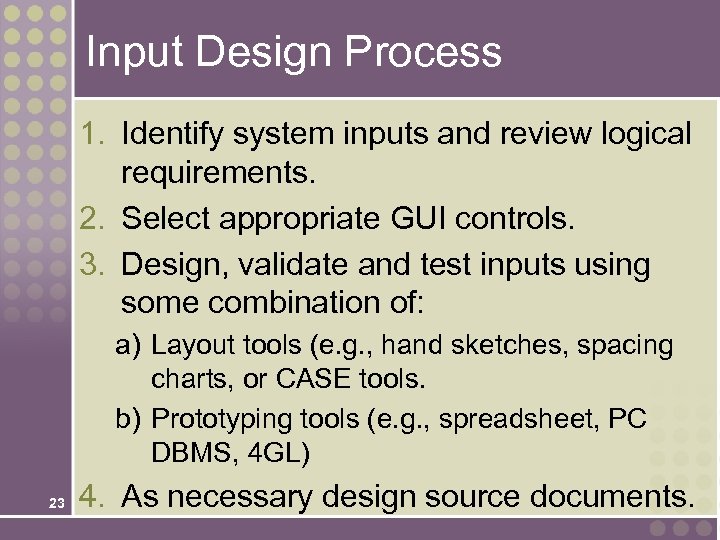 Input Design Process 1. Identify system inputs and review logical requirements. 2. Select appropriate GUI controls. 3. Design, validate and test inputs using some combination of: a) Layout tools (e. g. , hand sketches, spacing charts, or CASE tools. b) Prototyping tools (e. g. , spreadsheet, PC DBMS, 4 GL) 23 4. As necessary design source documents.
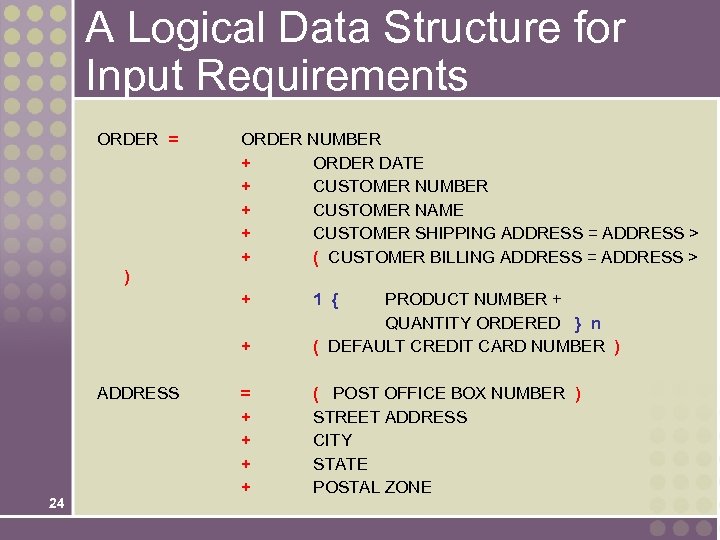 A Logical Data Structure for Input Requirements ORDER = ORDER NUMBER + ORDER DATE + CUSTOMER NUMBER + CUSTOMER NAME + CUSTOMER SHIPPING ADDRESS = ADDRESS > + ( CUSTOMER BILLING ADDRESS = ADDRESS > ) + + ADDRESS 24 1 { PRODUCT NUMBER + QUANTITY ORDERED } n ( DEFAULT CREDIT CARD NUMBER ) = + + ( POST OFFICE BOX NUMBER ) STREET ADDRESS CITY STATE POSTAL ZONE
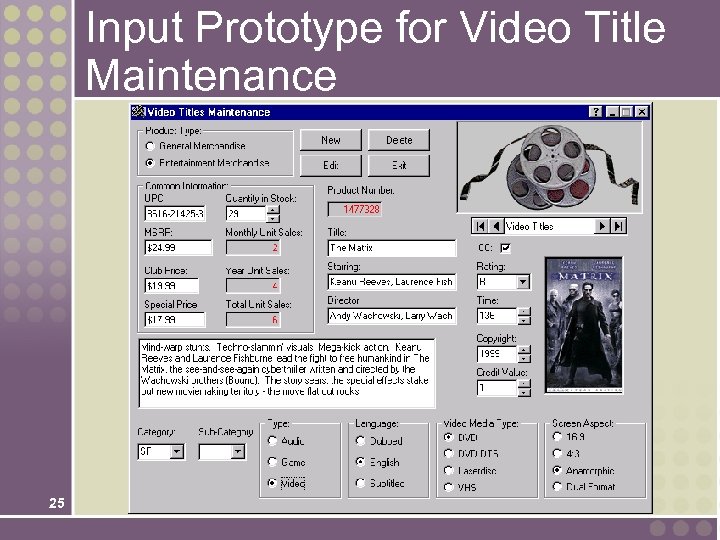 Input Prototype for Video Title Maintenance 25
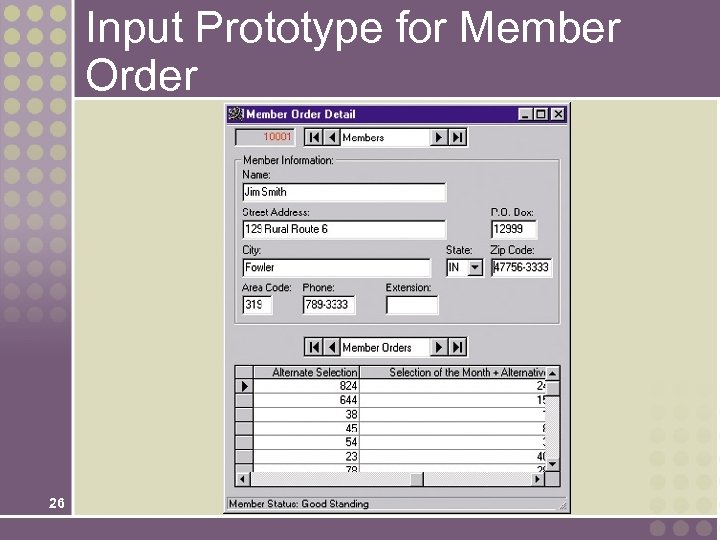 Input Prototype for Member Order 26
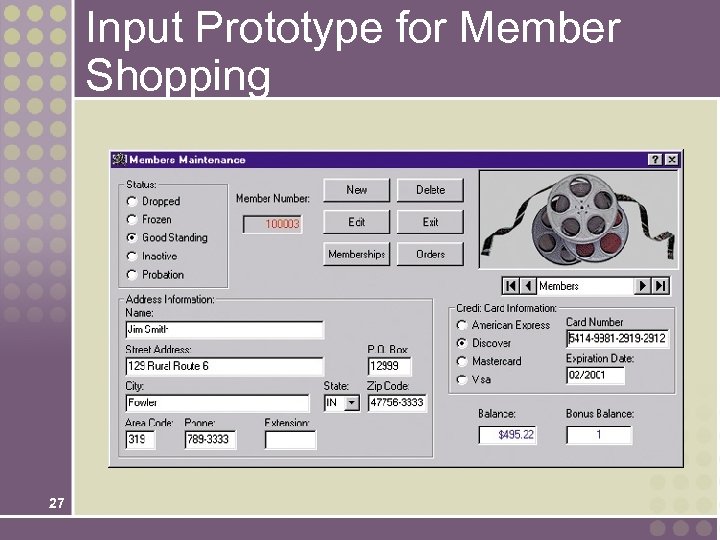 Input Prototype for Member Shopping 27
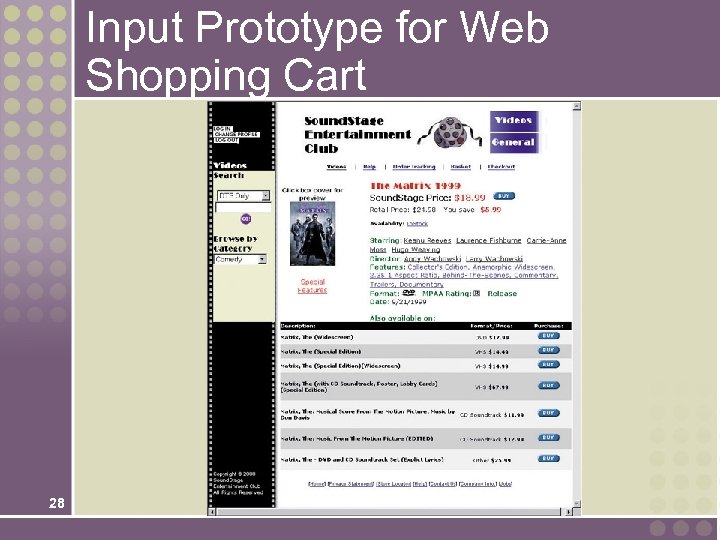 Input Prototype for Web Shopping Cart 28
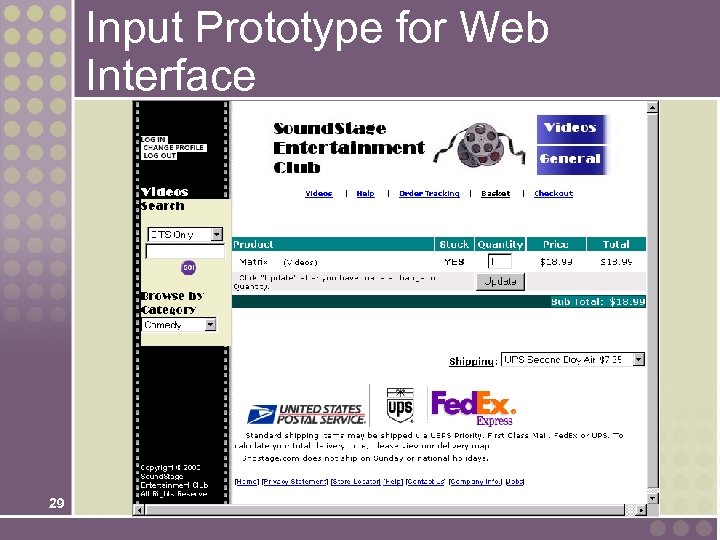 Input Prototype for Web Interface 29