


 Скачать презентацию Chapter 14 Streams and File I O Copyright
d47d3dd45d24df5cf078ab478e6b1e64.ppt
- Количество слайдов: 54
 Chapter 14 Streams and File I/O Copyright © 2009 Pearson Education, Inc. Publishing as Pearson Addison-Wesley
 Outline l. Overview of Streams and File I/O l. Text File I/O l. Binary File I/O l. File Objects and File Names Copyright © 2009 Pearson Education, Inc. Publishing as Pearson Addison-Wesley
 I/O Overview • • • I/O = Input/Output In this context it is input to and output from programs Input can be from keyboard or a file Output can be to display (screen) or a file Advantages of file I/O – permanent copy – output from one program can be input to another – input can be automated (rather than entered manually) Note: Since the sections on text file I/O and binary file I/O have some similar information, and can be covered with either one first, some duplicate (or nearly duplicate) slides are included. Copyright © 2009 Pearson Education, Inc. Publishing as Pearson Addison-Wesley 2018/3/15
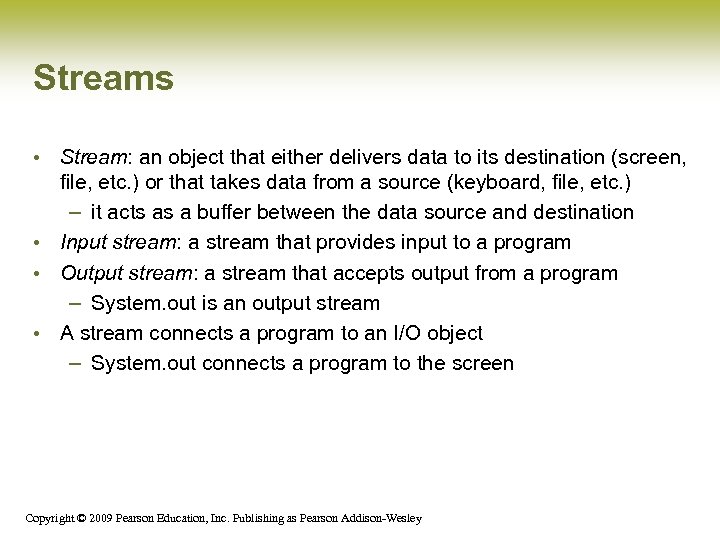 Streams • Stream: an object that either delivers data to its destination (screen, file, etc. ) or that takes data from a source (keyboard, file, etc. ) – it acts as a buffer between the data source and destination • Input stream: a stream that provides input to a program • Output stream: a stream that accepts output from a program – System. out is an output stream • A stream connects a program to an I/O object – System. out connects a program to the screen Copyright © 2009 Pearson Education, Inc. Publishing as Pearson Addison-Wesley
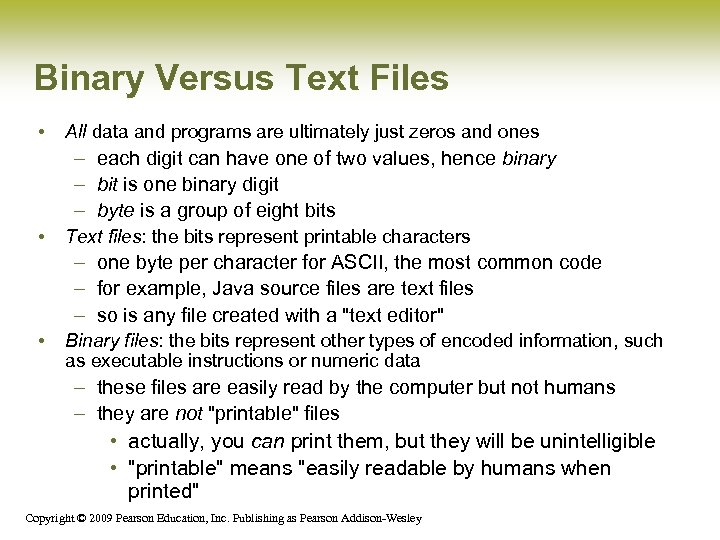 Binary Versus Text Files • All data and programs are ultimately just zeros and ones – each digit can have one of two values, hence binary – bit is one binary digit – byte is a group of eight bits • Text files: the bits represent printable characters – one byte per character for ASCII, the most common code – for example, Java source files are text files – so is any file created with a "text editor" • Binary files: the bits represent other types of encoded information, such as executable instructions or numeric data – these files are easily read by the computer but not humans – they are not "printable" files • actually, you can print them, but they will be unintelligible • "printable" means "easily readable by humans when printed" Copyright © 2009 Pearson Education, Inc. Publishing as Pearson Addison-Wesley
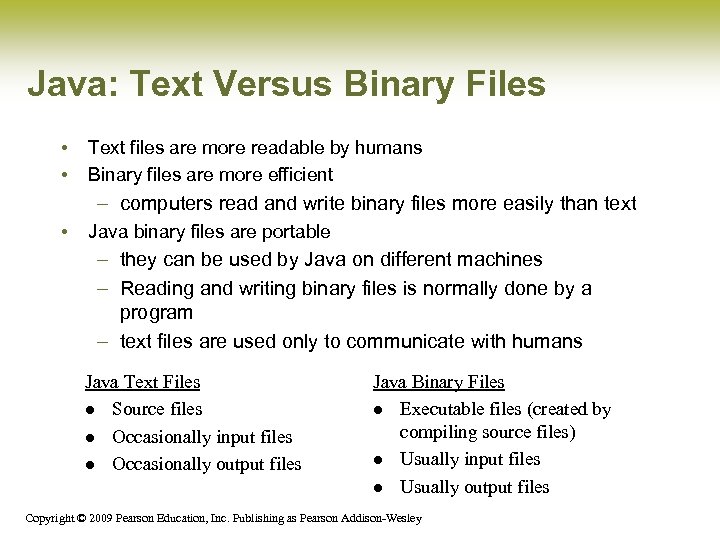 Java: Text Versus Binary Files • • Text files are more readable by humans Binary files are more efficient – computers read and write binary files more easily than text • Java binary files are portable – they can be used by Java on different machines – Reading and writing binary files is normally done by a program – text files are used only to communicate with humans Java Text Files l Source files l Occasionally input files l Occasionally output files Java Binary Files l Executable files (created by compiling source files) l Usually input files l Usually output files Copyright © 2009 Pearson Education, Inc. Publishing as Pearson Addison-Wesley
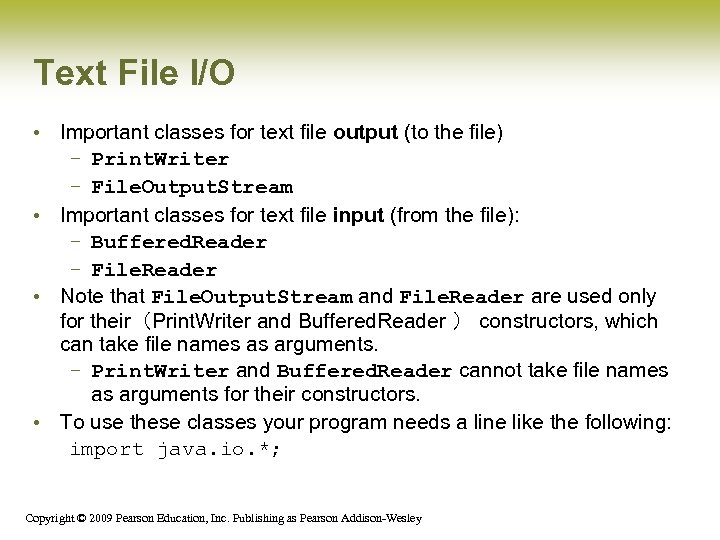 Text File I/O • Important classes for text file output (to the file) – Print. Writer – File. Output. Stream • Important classes for text file input (from the file): – Buffered. Reader – File. Reader • Note that File. Output. Stream and File. Reader are used only for their(Print. Writer and Buffered. Reader ) constructors, which can take file names as arguments. – Print. Writer and Buffered. Reader cannot take file names as arguments for their constructors. • To use these classes your program needs a line like the following: import java. io. *; Copyright © 2009 Pearson Education, Inc. Publishing as Pearson Addison-Wesley
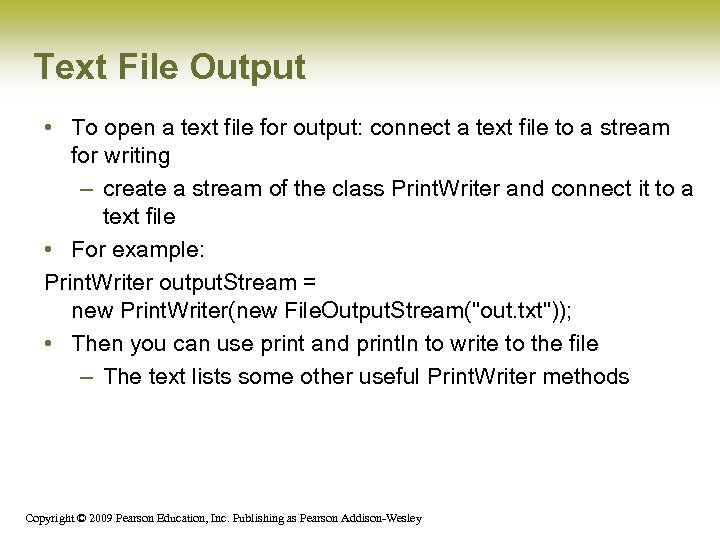 Text File Output • To open a text file for output: connect a text file to a stream for writing – create a stream of the class Print. Writer and connect it to a text file • For example: Print. Writer output. Stream = new Print. Writer(new File. Output. Stream("out. txt")); • Then you can use print and println to write to the file – The text lists some other useful Print. Writer methods Copyright © 2009 Pearson Education, Inc. Publishing as Pearson Addison-Wesley
![Text. File. Output. Demo Part 1 output. Stream would public static void main(String[] args)](https://present5.com/presentation/d47d3dd45d24df5cf078ab478e6b1e64/image-9.jpg "Text. File. Output. Demo Part 1 output. Stream would public static void main(String[] args)") Text. File. Output. Demo Part 1 output. Stream would public static void main(String[] args) not be accessible to the rest { of the program if it were Print. Writer output. Stream = null; declared inside the trytry block Opening the file { output. Stream = new Print. Writer(new File. Output. Stream("out. txt")); } catch(File. Not. Found. Exception e) { System. out. println("Error opening the file out. txt. "); System. exit(0); } Creating a file can cause the File. Not. Found. Exception if the new file cannot be made. Copyright © 2009 Pearson Education, Inc. Publishing as Pearson Addison-Wesley
Text. File. Output. Demo Part 1 output. Stream would public static void main(String[] args) not be accessible to the rest { of the program if it were Print. Writer output. Stream = null; declared inside the trytry block Opening the file { output. Stream = new Print. Writer(new File. Output. Stream("out. txt")); } catch(File. Not. Found. Exception e) { System. out. println("Error opening the file out. txt. "); System. exit(0); } Creating a file can cause the File. Not. Found. Exception if the new file cannot be made. Copyright © 2009 Pearson Education, Inc. Publishing as Pearson Addison-Wesley
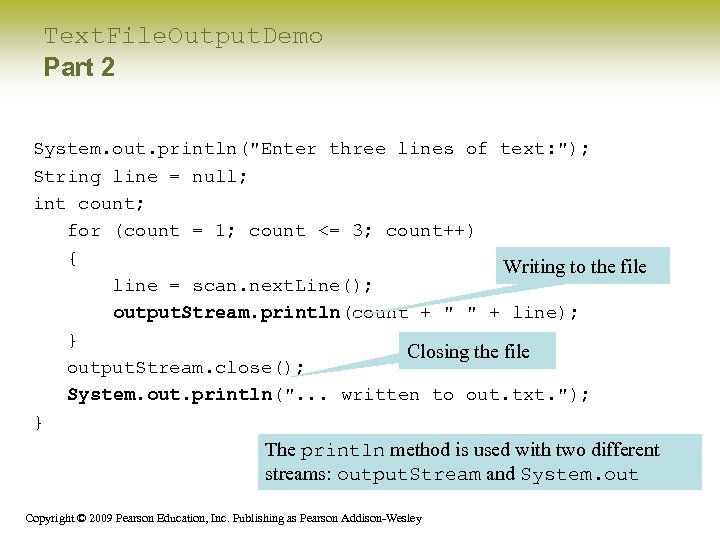 Text. File. Output. Demo Part 2 System. out. println("Enter three lines of text: "); String line = null; int count; for (count = 1; count <= 3; count++) { Writing to the file line = scan. next. Line(); output. Stream. println(count + " " + line); } Closing the file output. Stream. close(); System. out. println(". . . written to out. txt. "); } The println method is used with two different streams: output. Stream and System. out Copyright © 2009 Pearson Education, Inc. Publishing as Pearson Addison-Wesley
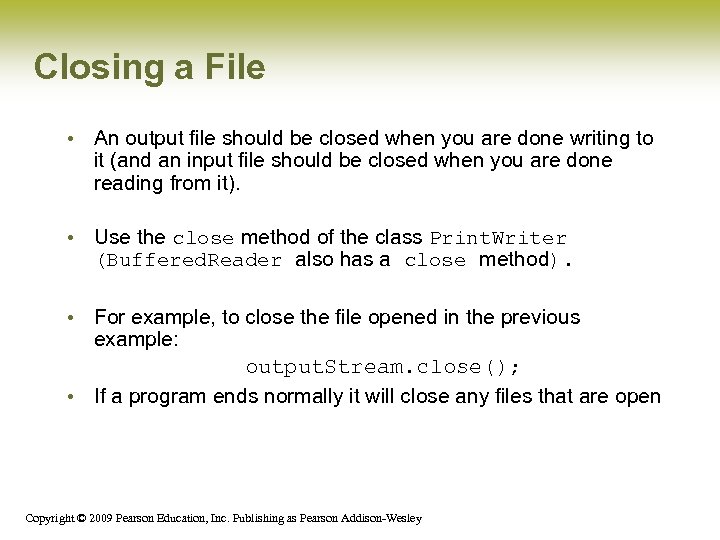 Closing a File • An output file should be closed when you are done writing to it (and an input file should be closed when you are done reading from it). • Use the close method of the class Print. Writer (Buffered. Reader also has a close method). • For example, to close the file opened in the previous example: output. Stream. close(); • If a program ends normally it will close any files that are open Copyright © 2009 Pearson Education, Inc. Publishing as Pearson Addison-Wesley
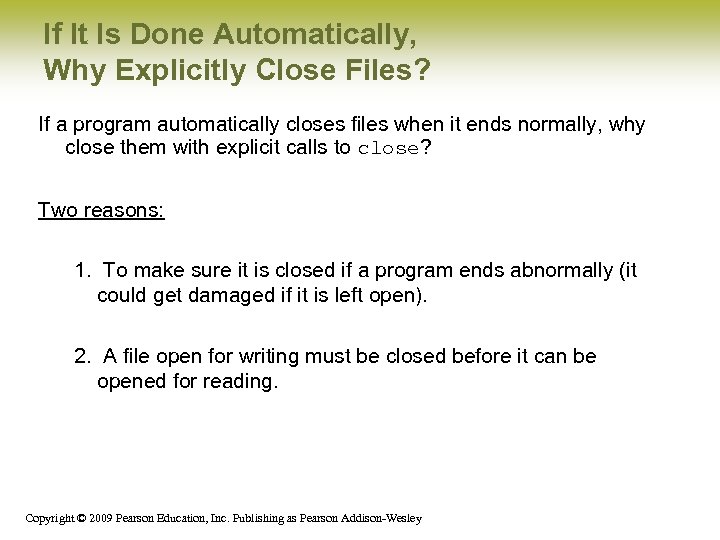 If It Is Done Automatically, Why Explicitly Close Files? If a program automatically closes files when it ends normally, why close them with explicit calls to close? Two reasons: 1. To make sure it is closed if a program ends abnormally (it could get damaged if it is left open). 2. A file open for writing must be closed before it can be opened for reading. Copyright © 2009 Pearson Education, Inc. Publishing as Pearson Addison-Wesley
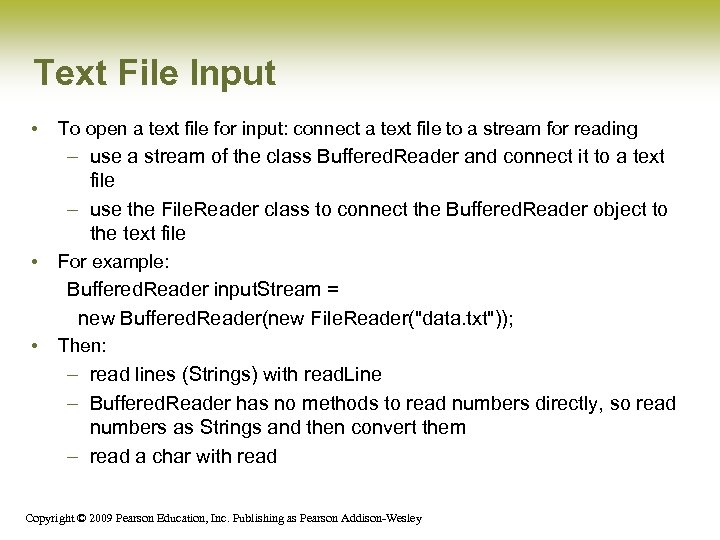 Text File Input • To open a text file for input: connect a text file to a stream for reading – use a stream of the class Buffered. Reader and connect it to a text file – use the File. Reader class to connect the Buffered. Reader object to the text file • For example: Buffered. Reader input. Stream = new Buffered. Reader(new File. Reader("data. txt")); • Then: – read lines (Strings) with read. Line – Buffered. Reader has no methods to read numbers directly, so read numbers as Strings and then convert them – read a char with read Copyright © 2009 Pearson Education, Inc. Publishing as Pearson Addison-Wesley
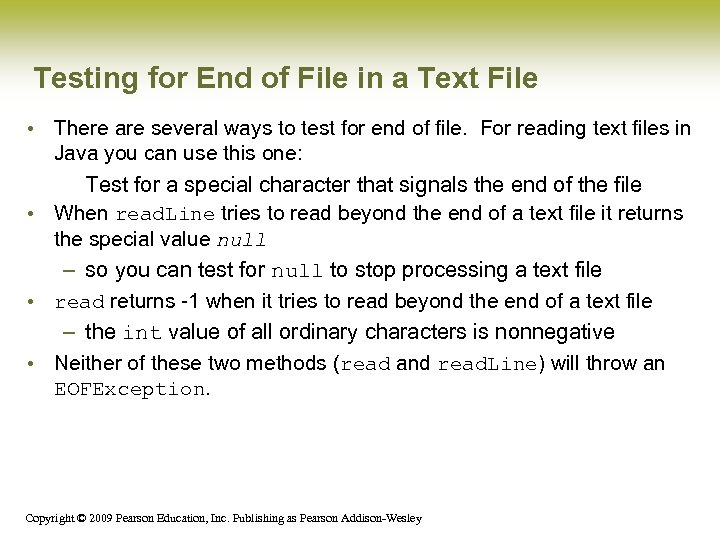 Testing for End of File in a Text File • There are several ways to test for end of file. For reading text files in Java you can use this one: Test for a special character that signals the end of the file • When read. Line tries to read beyond the end of a text file it returns the special value null – so you can test for null to stop processing a text file • read returns -1 when it tries to read beyond the end of a text file – the int value of all ordinary characters is nonnegative • Neither of these two methods (read and read. Line) will throw an EOFException. Copyright © 2009 Pearson Education, Inc. Publishing as Pearson Addison-Wesley
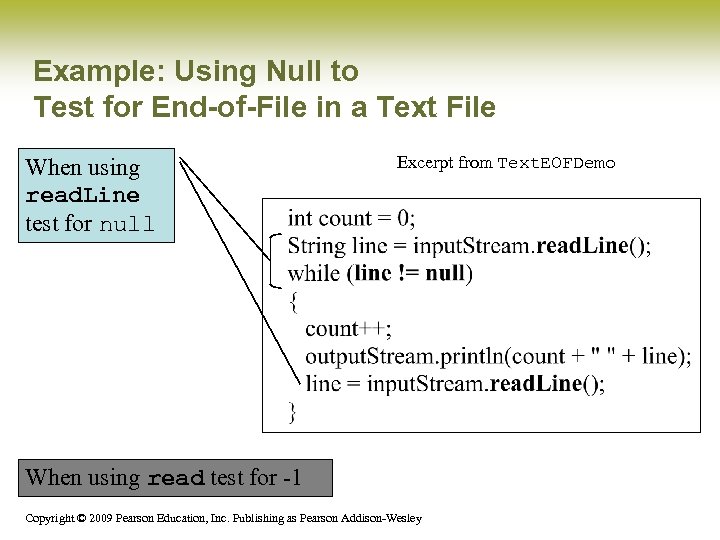 Example: Using Null to Test for End-of-File in a Text File When using read. Line test for null Excerpt from Text. EOFDemo When using read test for -1 Copyright © 2009 Pearson Education, Inc. Publishing as Pearson Addison-Wesley
 Reading Words in a String: Using String. Tokenizer Class • There are Buffered. Reader methods to read a line and a character, but not just a single word • String. Tokenizer can be used to parse a line into words – it is in the util library so you need to import java. util. * – some of its useful methods are shown in the text • e. g. test if there are more tokens – you can specify delimiters (the character or characters that separate words) • the default delimiters are "white space" (space, tab, and newline) Copyright © 2009 Pearson Education, Inc. Publishing as Pearson Addison-Wesley
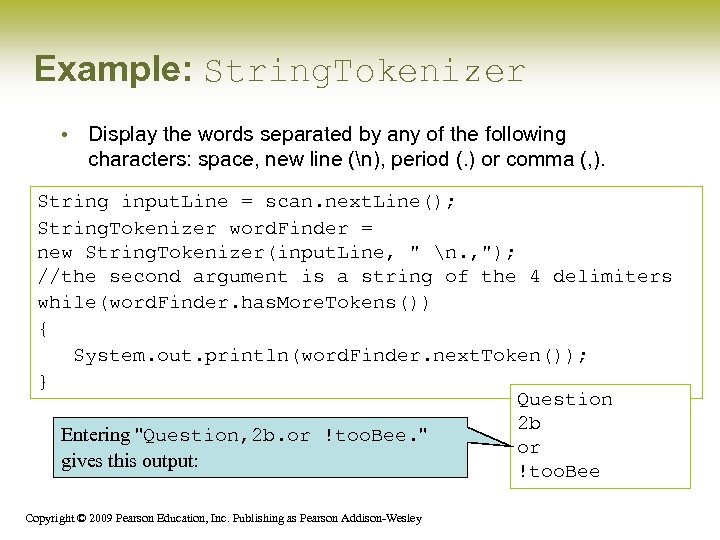 Example: String. Tokenizer • Display the words separated by any of the following characters: space, new line (n), period (. ) or comma (, ). String input. Line = scan. next. Line(); String. Tokenizer word. Finder = new String. Tokenizer(input. Line, " n. , "); //the second argument is a string of the 4 delimiters while(word. Finder. has. More. Tokens()) { System. out. println(word. Finder. next. Token()); } Question 2 b Entering "Question, 2 b. or !too. Bee. " or gives this output: !too. Bee Copyright © 2009 Pearson Education, Inc. Publishing as Pearson Addison-Wesley
 Binary File I/O • Important classes for binary file output (to the file) – Object. Output. Stream – File. Output. Stream • Important classes for binary file input (from the file): – Object. Input. Stream – File. Input. Stream • Note that File. Output. Stream and File. Input. Stream are used only for their constructors, which can take file names as arguments. – Object. Output. Stream and Object. Input. Stream cannot take file names as arguments for their constructors. • To use these classes your program needs a line like the following: import java. io. *; Copyright © 2009 Pearson Education, Inc. Publishing as Pearson Addison-Wesley
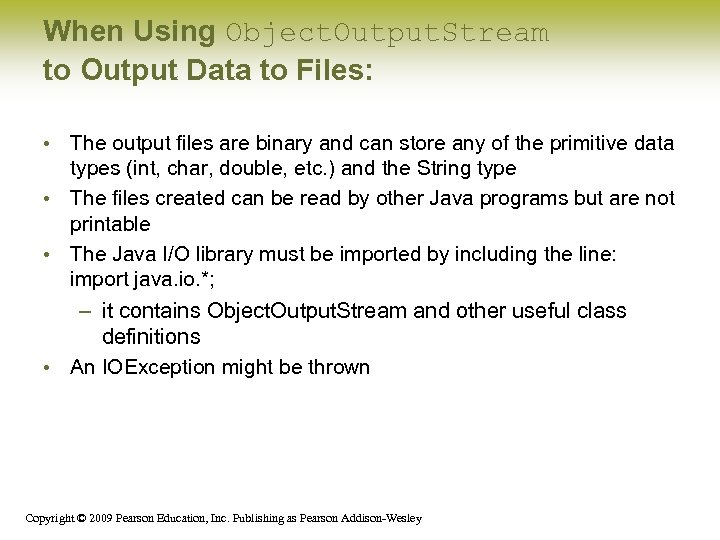 When Using Object. Output. Stream to Output Data to Files: • The output files are binary and can store any of the primitive data types (int, char, double, etc. ) and the String type • The files created can be read by other Java programs but are not printable • The Java I/O library must be imported by including the line: import java. io. *; – it contains Object. Output. Stream and other useful class definitions • An IOException might be thrown Copyright © 2009 Pearson Education, Inc. Publishing as Pearson Addison-Wesley
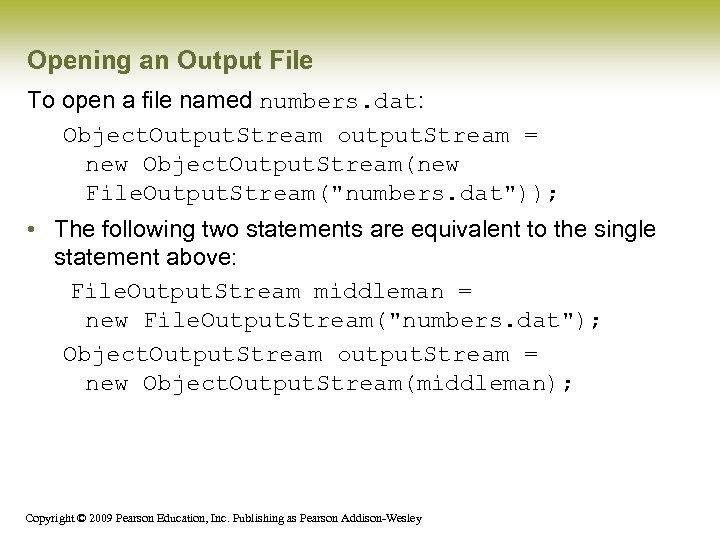 Opening an Output File To open a file named numbers. dat: Object. Output. Stream output. Stream = new Object. Output. Stream(new File. Output. Stream("numbers. dat")); • The following two statements are equivalent to the single statement above: File. Output. Stream middleman = new File. Output. Stream("numbers. dat"); Object. Output. Stream output. Stream = new Object. Output. Stream(middleman); Copyright © 2009 Pearson Education, Inc. Publishing as Pearson Addison-Wesley
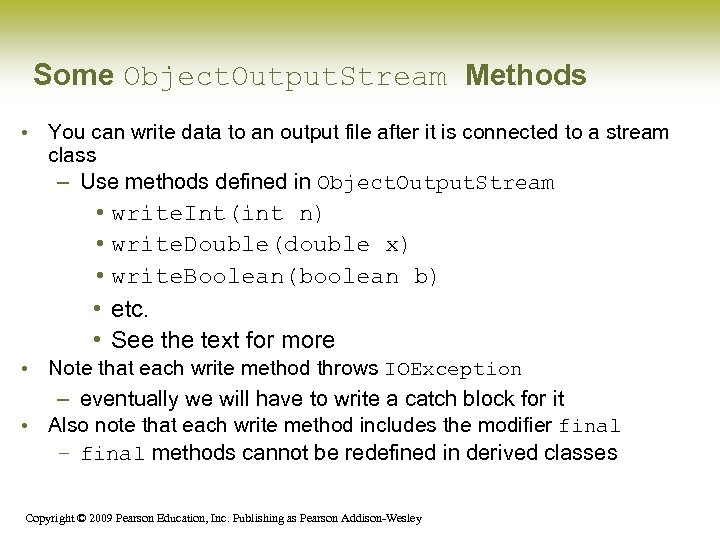 Some Object. Output. Stream Methods • You can write data to an output file after it is connected to a stream class – Use methods defined in Object. Output. Stream • write. Int(int n) • write. Double(double x) • write. Boolean(boolean b) • etc. • See the text for more • Note that each write method throws IOException – eventually we will have to write a catch block for it • Also note that each write method includes the modifier final – final methods cannot be redefined in derived classes Copyright © 2009 Pearson Education, Inc. Publishing as Pearson Addison-Wesley
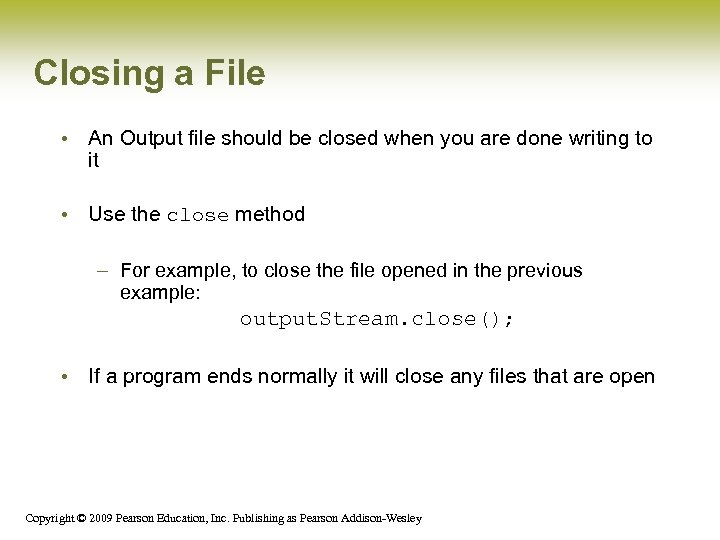 Closing a File • An Output file should be closed when you are done writing to it • Use the close method – For example, to close the file opened in the previous example: output. Stream. close(); • If a program ends normally it will close any files that are open Copyright © 2009 Pearson Education, Inc. Publishing as Pearson Addison-Wesley
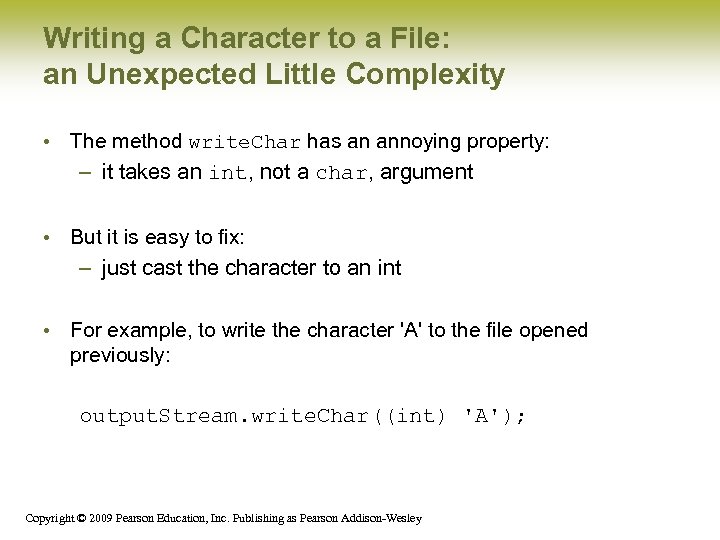 Writing a Character to a File: an Unexpected Little Complexity • The method write. Char has an annoying property: – it takes an int, not a char, argument • But it is easy to fix: – just cast the character to an int • For example, to write the character 'A' to the file opened previously: output. Stream. write. Char((int) 'A'); Copyright © 2009 Pearson Education, Inc. Publishing as Pearson Addison-Wesley
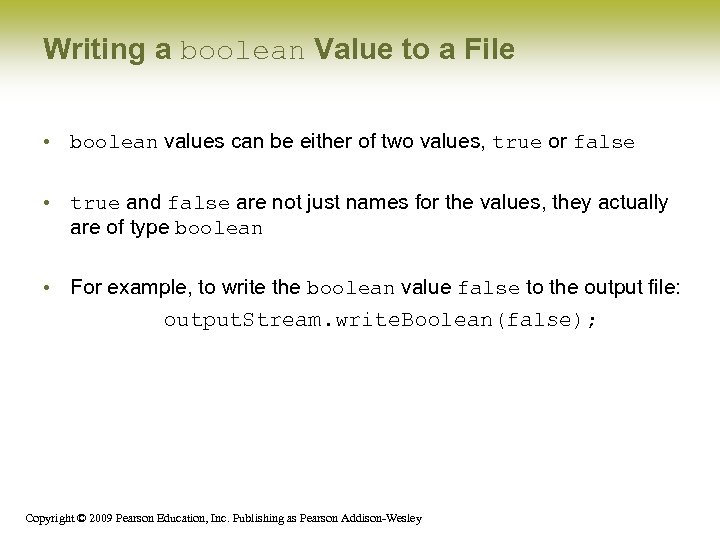 Writing a boolean Value to a File • boolean values can be either of two values, true or false • true and false are not just names for the values, they actually are of type boolean • For example, to write the boolean value false to the output file: output. Stream. write. Boolean(false); Copyright © 2009 Pearson Education, Inc. Publishing as Pearson Addison-Wesley
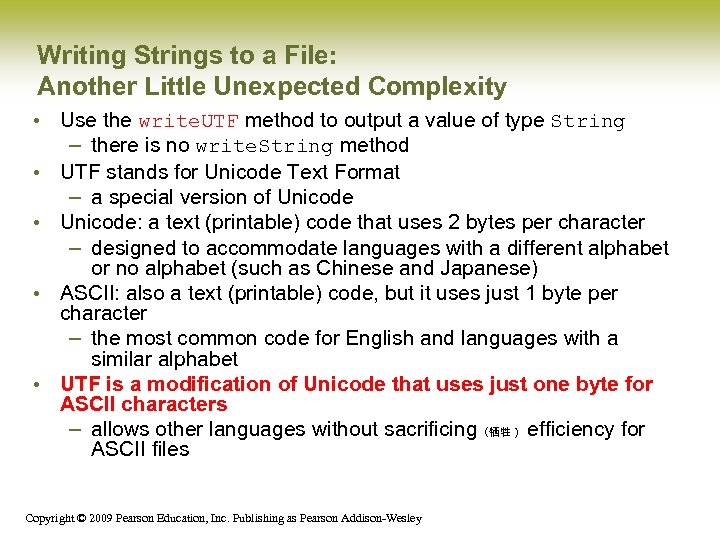 Writing Strings to a File: Another Little Unexpected Complexity • Use the write. UTF method to output a value of type String – there is no write. String method • UTF stands for Unicode Text Format – a special version of Unicode • Unicode: a text (printable) code that uses 2 bytes per character – designed to accommodate languages with a different alphabet or no alphabet (such as Chinese and Japanese) • ASCII: also a text (printable) code, but it uses just 1 byte per character – the most common code for English and languages with a similar alphabet • UTF is a modification of Unicode that uses just one byte for ASCII characters – allows other languages without sacrificing(牺牲) efficiency for ASCII files Copyright © 2009 Pearson Education, Inc. Publishing as Pearson Addison-Wesley
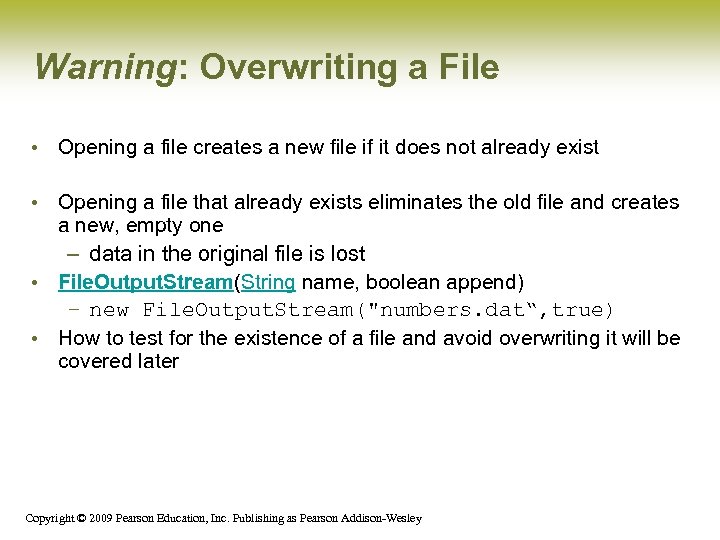 Warning: Overwriting a File • Opening a file creates a new file if it does not already exist • Opening a file that already exists eliminates the old file and creates a new, empty one – data in the original file is lost • File. Output. Stream(String name, boolean append) – new File. Output. Stream("numbers. dat“, true) • How to test for the existence of a file and avoid overwriting it will be covered later Copyright © 2009 Pearson Education, Inc. Publishing as Pearson Addison-Wesley
 When Using Object. Input. Stream to Read Data from Files: • Input files are binary and contain any of the primitive data types (int, char, double, etc. ) and the String type • The files can be read by Java programs but are not printable • The Java I/O library must be imported including the line: import java. io. *; – it contains Object. Input. Stream and other useful class definitions • An IOException might be thrown Copyright © 2009 Pearson Education, Inc. Publishing as Pearson Addison-Wesley
 Opening a New Input File • Similar to opening an output file, but replace "output" with "input" • The file name is given as a String – file name rules are determined by your operating system • Opening a file takes two steps 1. Creating a File. Input. Stream object associated with the file name String 2. Connecting the File. Input. Stream to a Object. Input. Stream object • This can be done in one line of code Copyright © 2009 Pearson Education, Inc. Publishing as Pearson Addison-Wesley
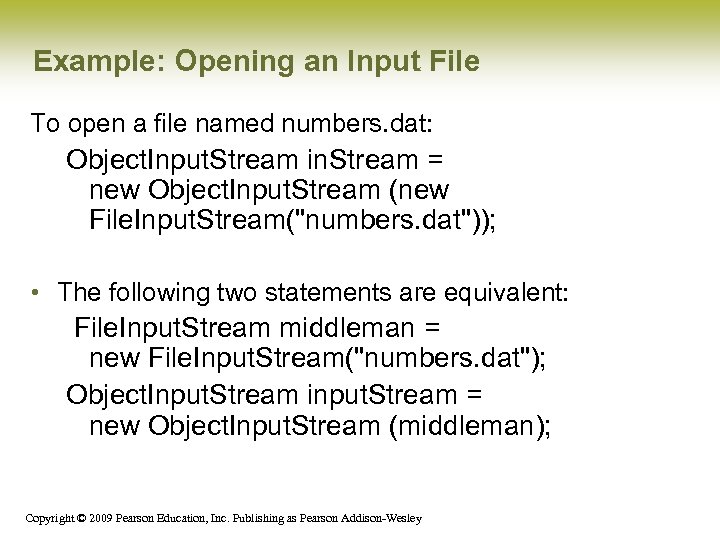 Example: Opening an Input File To open a file named numbers. dat: Object. Input. Stream in. Stream = new Object. Input. Stream (new File. Input. Stream("numbers. dat")); • The following two statements are equivalent: File. Input. Stream middleman = new File. Input. Stream("numbers. dat"); Object. Input. Stream input. Stream = new Object. Input. Stream (middleman); Copyright © 2009 Pearson Education, Inc. Publishing as Pearson Addison-Wesley
 Some Object. Input. Stream Methods • For every output file method there is a corresponding input file method • You can read data from an input file after it is connected to a stream class – Use methods defined in Data. Input. Stream • read. Int() • read. Double() • read. Boolean() • etc. • See the text for more • Note that each write method throws IOException • Also note that each write method includes the modifier final Copyright © 2009 Pearson Education, Inc. Publishing as Pearson Addison-Wesley
 Input File Exceptions • A File. Not. Found. Exception is thrown if the file is not found when an attempt is made to open a file • Each read method throws IOException – we still have to write a catch block for it • If a read goes beyond the end of the file an EOFException is thrown Copyright © 2009 Pearson Education, Inc. Publishing as Pearson Addison-Wesley
 Avoiding Common Object. Input. Stream File Errors There is no error message (or exception) if you read the wrong data type! • Input files can contain a mix of data types – it is up to the programmer to know their order and use the correct read method • Data. Input. Stream works with binary, not text files • As with an output file, close the input file when you are done with it Copyright © 2009 Pearson Education, Inc. Publishing as Pearson Addison-Wesley
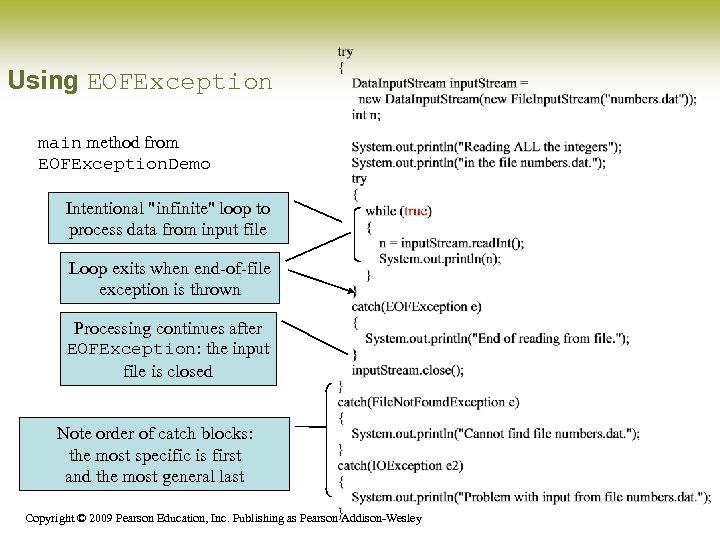 Using EOFException main method from EOFException. Demo Intentional "infinite" loop to process data from input file Loop exits when end-of-file exception is thrown Processing continues after EOFException: the input file is closed Note order of catch blocks: the most specific is first and the most general last Copyright © 2009 Pearson Education, Inc. Publishing as Pearson Addison-Wesley
 Exception Handling with File I/O Catching IOExceptions • IOException is a predefined class • File I/O done as described here might throw an IOException • You should catch the exception in a catch block that at least prints an error message and ends the program • File. Not. Found. Exception is derived from IOException – therefore any catch block that catches IOExceptions also catches File. Not. Found. Exceptions – errors can be isolated better if they have different messages – so create different catch blocks for each exception type – put the more specific one first (the derived one) so it catches specifically file-not-found exceptions – then you will know that an I/O error is something other than file-notfound Copyright © 2009 Pearson Education, Inc. Publishing as Pearson Addison-Wesley
 The EOFException Class • • • A common programming situation is to read data from an input file but not know how much data the file contains In these situations you need to check for the end of the file Many (but not all) methods that read from a file throw an end-of-file exception (EOFException) when they try to read beyond the file – all the Data. Input. Stream methods in Display 9. 3 do throw it • The end-of-file exception can be used in an "infinite" (while(true)) loop that reads and processes data from the file – the loop terminates when an EOFException is thrown • The program is written to continue normally after the EOFException has been caught Copyright © 2009 Pearson Education, Inc. Publishing as Pearson Addison-Wesley
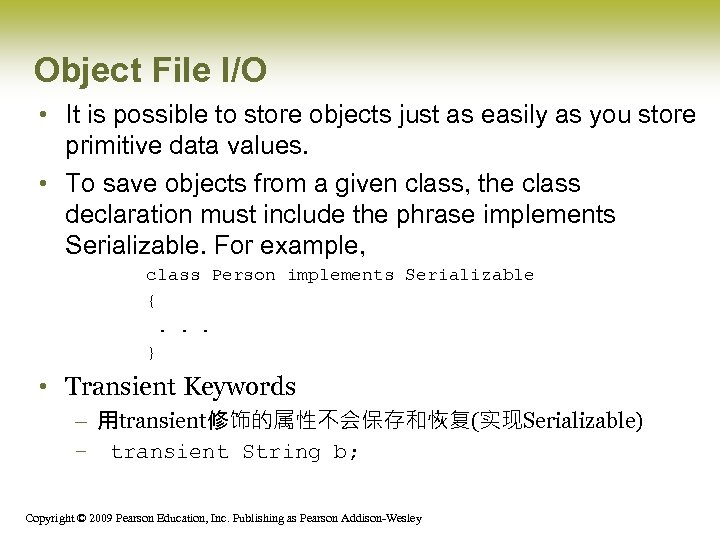 Object File I/O • It is possible to store objects just as easily as you store primitive data values. • To save objects from a given class, the class declaration must include the phrase implements Serializable. For example, class Person implements Serializable {. . . } • Transient Keywords – 用transient修饰的属性不会保存和恢复(实现Serializable) – transient String b; Copyright © 2009 Pearson Education, Inc. Publishing as Pearson Addison-Wesley
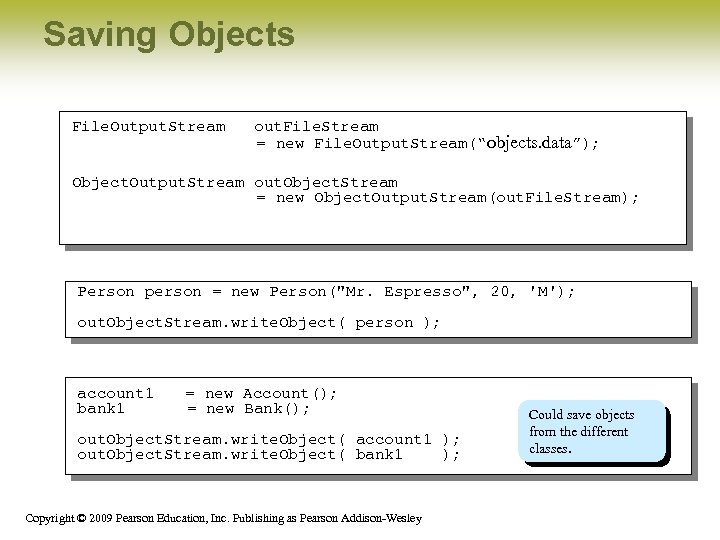 Saving Objects File. Output. Stream out. File. Stream = new File. Output. Stream(“objects. data”); Object. Output. Stream out. Object. Stream = new Object. Output. Stream(out. File. Stream); Person person = new Person("Mr. Espresso", 20, 'M'); out. Object. Stream. write. Object( person ); account 1 bank 1 = new Account(); = new Bank(); out. Object. Stream. write. Object( account 1 ); out. Object. Stream. write. Object( bank 1 ); Copyright © 2009 Pearson Education, Inc. Publishing as Pearson Addison-Wesley Could save objects from the different classes.
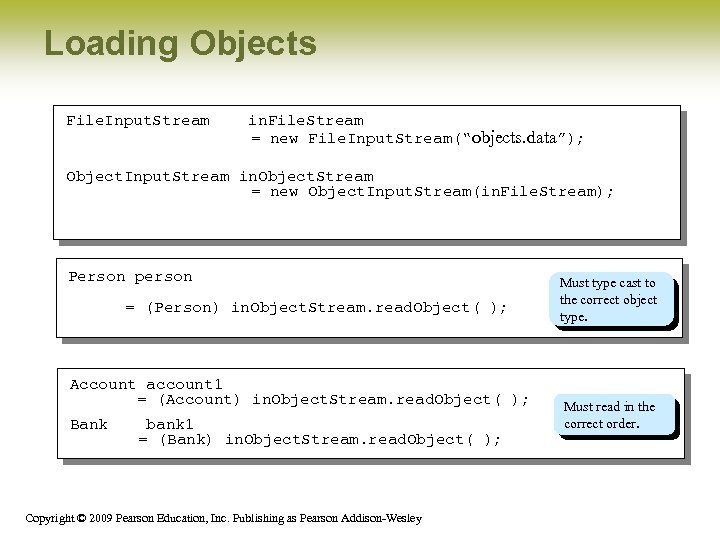 Loading Objects File. Input. Stream in. File. Stream = new File. Input. Stream(“objects. data”); Object. Input. Stream in. Object. Stream = new Object. Input. Stream(in. File. Stream); Person person = (Person) in. Object. Stream. read. Object( ); Account account 1 = (Account) in. Object. Stream. read. Object( ); Bank bank 1 = (Bank) in. Object. Stream. read. Object( ); Copyright © 2009 Pearson Education, Inc. Publishing as Pearson Addison-Wesley Must type cast to the correct object type. Must read in the correct order.
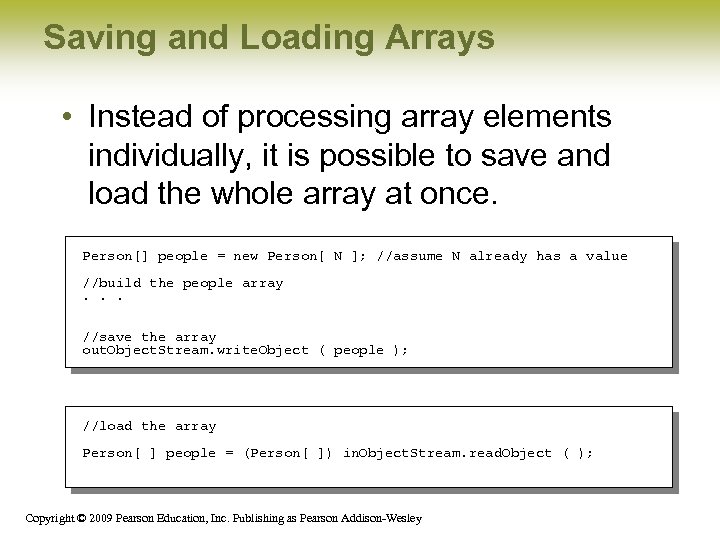 Saving and Loading Arrays • Instead of processing array elements individually, it is possible to save and load the whole array at once. Person[] people = new Person[ N ]; //assume N already has a value //build the people array. . . //save the array out. Object. Stream. write. Object ( people ); //load the array Person[ ] people = (Person[ ]) in. Object. Stream. read. Object ( ); Copyright © 2009 Pearson Education, Inc. Publishing as Pearson Addison-Wesley
 Random. Access. File(Optional) • Not stream based I/O • Permit Assessed Randomly • Permit R/W Simutaneously Copyright © 2009 Pearson Education, Inc. Publishing as Pearson Addison-Wesley
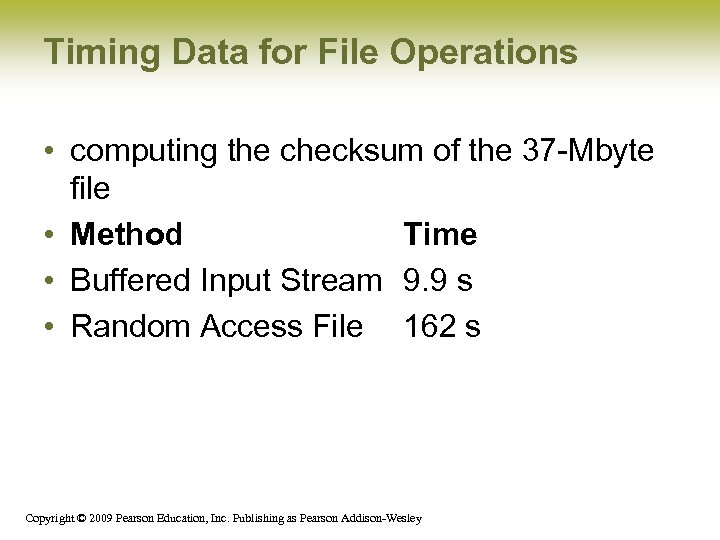 Timing Data for File Operations • computing the checksum of the 37 -Mbyte file • Method Time • Buffered Input Stream 9. 9 s • Random Access File 162 s Copyright © 2009 Pearson Education, Inc. Publishing as Pearson Addison-Wesley
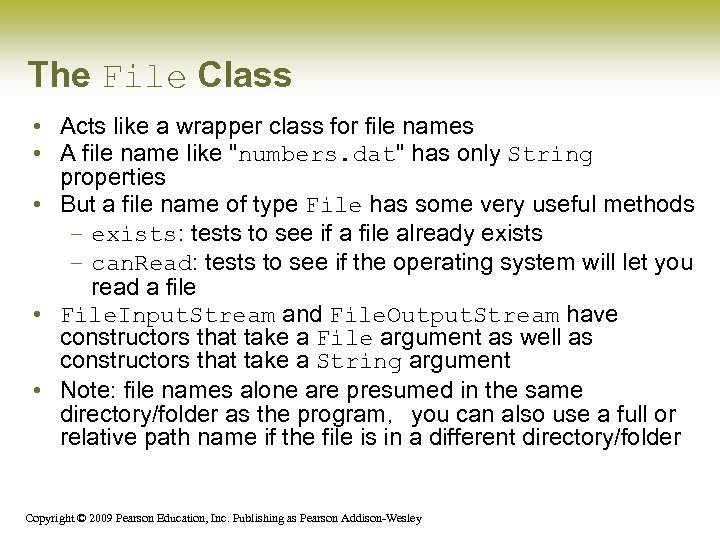 The File Class • Acts like a wrapper class for file names • A file name like "numbers. dat" has only String properties • But a file name of type File has some very useful methods – exists: tests to see if a file already exists – can. Read: tests to see if the operating system will let you read a file • File. Input. Stream and File. Output. Stream have constructors that take a File argument as well as constructors that take a String argument • Note: file names alone are presumed in the same directory/folder as the program,you can also use a full or relative path name if the file is in a different directory/folder Copyright © 2009 Pearson Education, Inc. Publishing as Pearson Addison-Wesley
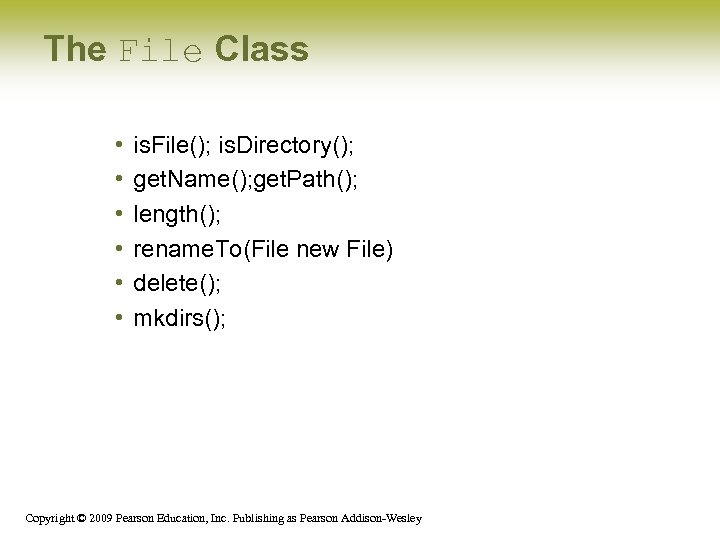 The File Class • • • is. File(); is. Directory(); get. Name(); get. Path(); length(); rename. To(File new File) delete(); mkdirs(); Copyright © 2009 Pearson Education, Inc. Publishing as Pearson Addison-Wesley
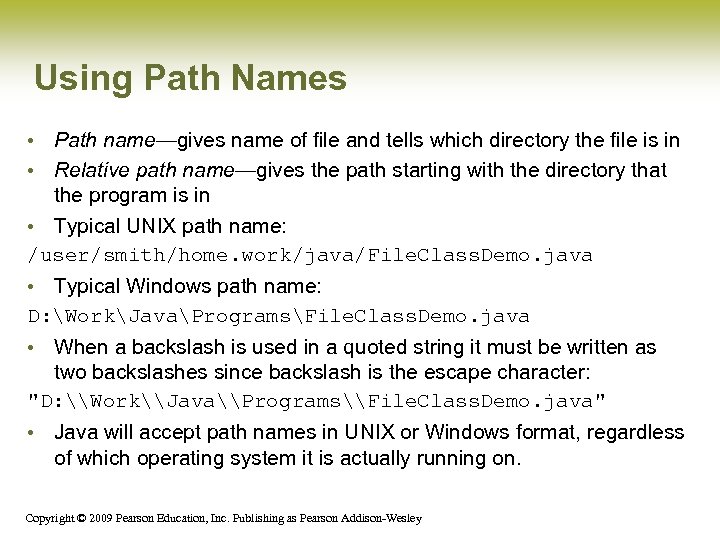 Using Path Names • Path name—gives name of file and tells which directory the file is in • Relative path name—gives the path starting with the directory that the program is in • Typical UNIX path name: /user/smith/home. work/java/File. Class. Demo. java • Typical Windows path name: D: WorkJavaProgramsFile. Class. Demo. java • When a backslash is used in a quoted string it must be written as two backslashes since backslash is the escape character: "D: \Work\Java\Programs\File. Class. Demo. java" • Java will accept path names in UNIX or Windows format, regardless of which operating system it is actually running on. Copyright © 2009 Pearson Education, Inc. Publishing as Pearson Addison-Wesley
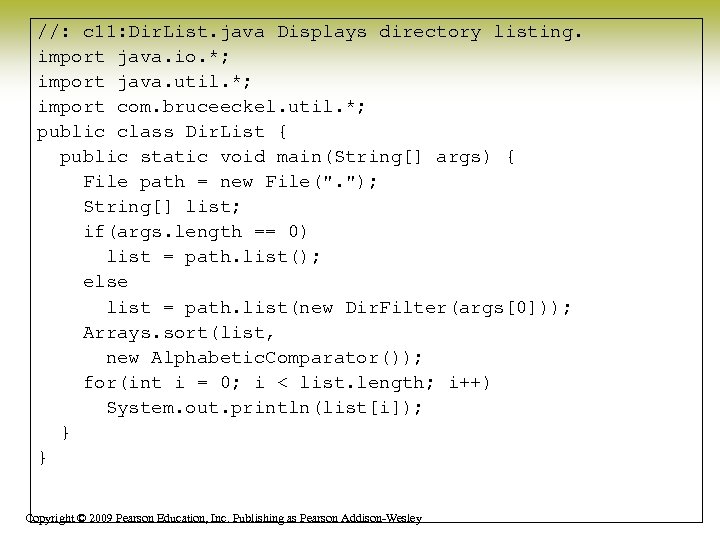 //: c 11: Dir. List. java Displays directory listing. import java. io. *; import java. util. *; import com. bruceeckel. util. *; public class Dir. List { public static void main(String[] args) { File path = new File(". "); String[] list; if(args. length == 0) list = path. list(); else list = path. list(new Dir. Filter(args[0])); Arrays. sort(list, new Alphabetic. Comparator()); for(int i = 0; i < list. length; i++) System. out. println(list[i]); } } Copyright © 2009 Pearson Education, Inc. Publishing as Pearson Addison-Wesley
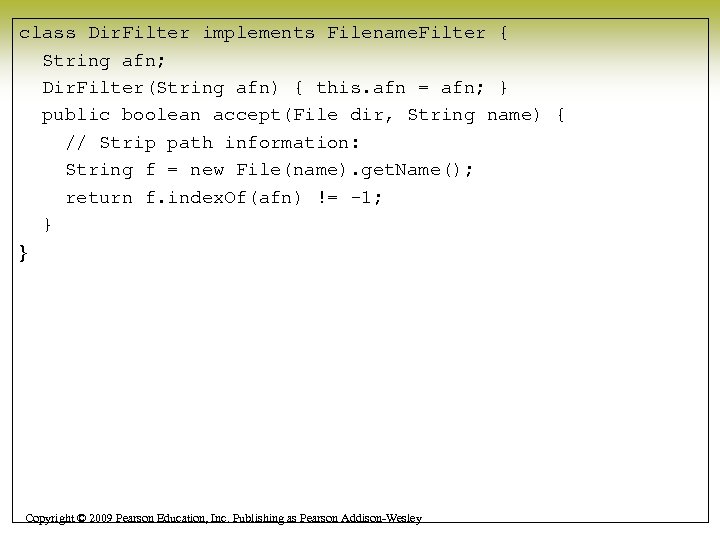 class Dir. Filter implements Filename. Filter { String afn; Dir. Filter(String afn) { this. afn = afn; } public boolean accept(File dir, String name) { // Strip path information: String f = new File(name). get. Name(); return f. index. Of(afn) != -1; } } Copyright © 2009 Pearson Education, Inc. Publishing as Pearson Addison-Wesley
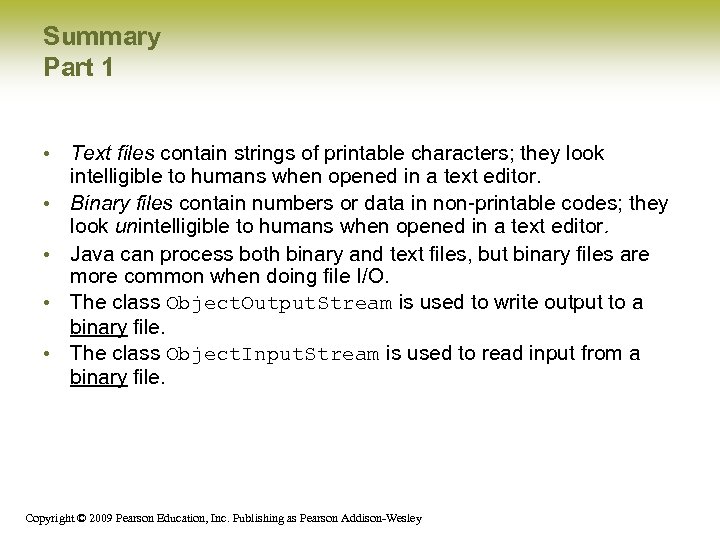 Summary Part 1 • Text files contain strings of printable characters; they look intelligible to humans when opened in a text editor. • Binary files contain numbers or data in non-printable codes; they look unintelligible to humans when opened in a text editor. • Java can process both binary and text files, but binary files are more common when doing file I/O. • The class Object. Output. Stream is used to write output to a binary file. • The class Object. Input. Stream is used to read input from a binary file. Copyright © 2009 Pearson Education, Inc. Publishing as Pearson Addison-Wesley
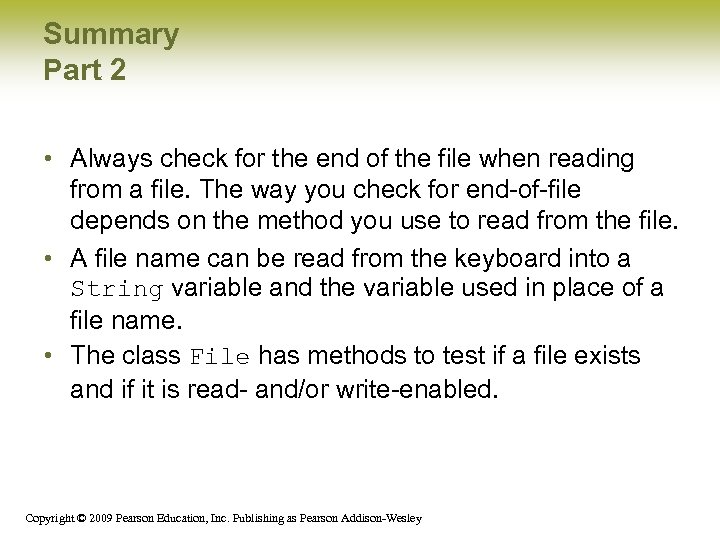 Summary Part 2 • Always check for the end of the file when reading from a file. The way you check for end-of-file depends on the method you use to read from the file. • A file name can be read from the keyboard into a String variable and the variable used in place of a file name. • The class File has methods to test if a file exists and if it is read- and/or write-enabled. Copyright © 2009 Pearson Education, Inc. Publishing as Pearson Addison-Wesley
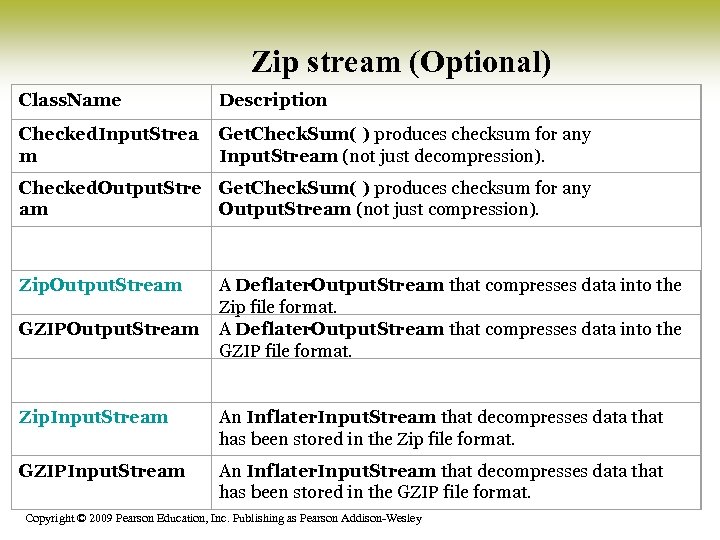 Zip stream (Optional) Class. Name Description Checked. Input. Strea m Get. Check. Sum( ) produces checksum for any Input. Stream (not just decompression). Checked. Output. Stre Get. Check. Sum( ) produces checksum for any am Output. Stream (not just compression). Zip. Output. Stream GZIPOutput. Stream A Deflater. Output. Stream that compresses data into the Zip file format. A Deflater. Output. Stream that compresses data into the GZIP file format. Zip. Input. Stream An Inflater. Input. Stream that decompresses data that has been stored in the Zip file format. GZIPInput. Stream An Inflater. Input. Stream that decompresses data that has been stored in the GZIP file format. Copyright © 2009 Pearson Education, Inc. Publishing as Pearson Addison-Wesley
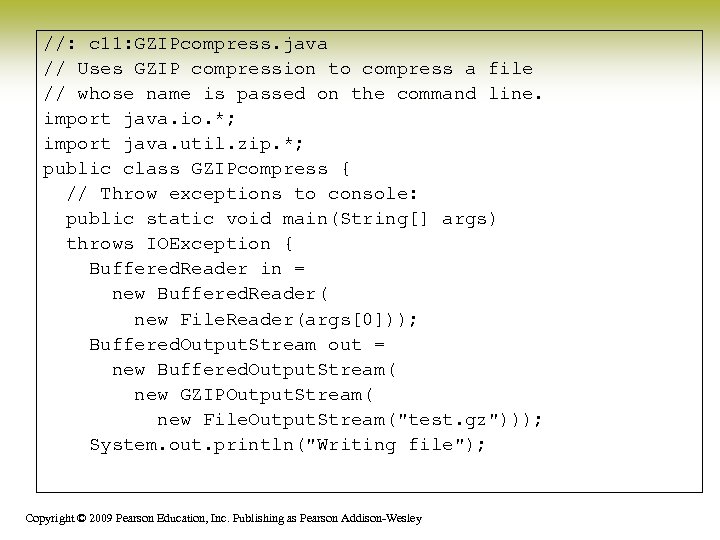 //: c 11: GZIPcompress. java // Uses GZIP compression to compress a file // whose name is passed on the command line. import java. io. *; import java. util. zip. *; public class GZIPcompress { // Throw exceptions to console: public static void main(String[] args) throws IOException { Buffered. Reader in = new Buffered. Reader( new File. Reader(args[0])); Buffered. Output. Stream out = new Buffered. Output. Stream( new GZIPOutput. Stream( new File. Output. Stream("test. gz"))); System. out. println("Writing file"); Copyright © 2009 Pearson Education, Inc. Publishing as Pearson Addison-Wesley
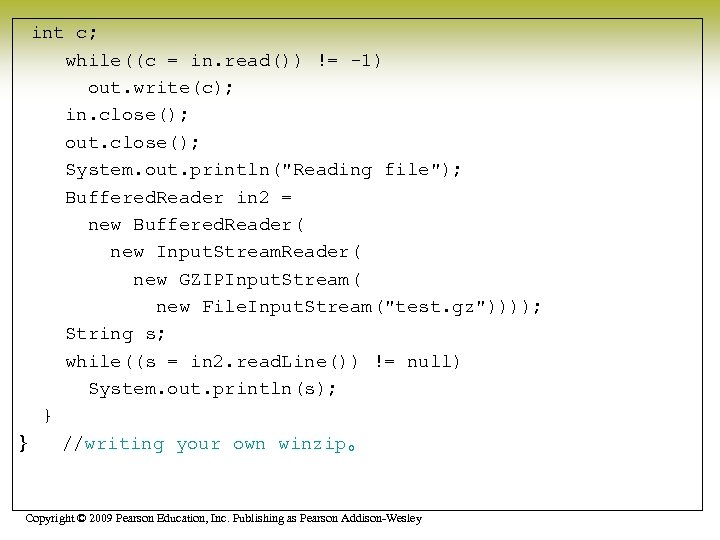 int c; while((c = in. read()) != -1) out. write(c); in. close(); out. close(); System. out. println("Reading file"); Buffered. Reader in 2 = new Buffered. Reader( new Input. Stream. Reader( new GZIPInput. Stream( new File. Input. Stream("test. gz")))); String s; while((s = in 2. read. Line()) != null) System. out. println(s); } } //writing your own winzip。 Copyright © 2009 Pearson Education, Inc. Publishing as Pearson Addison-Wesley
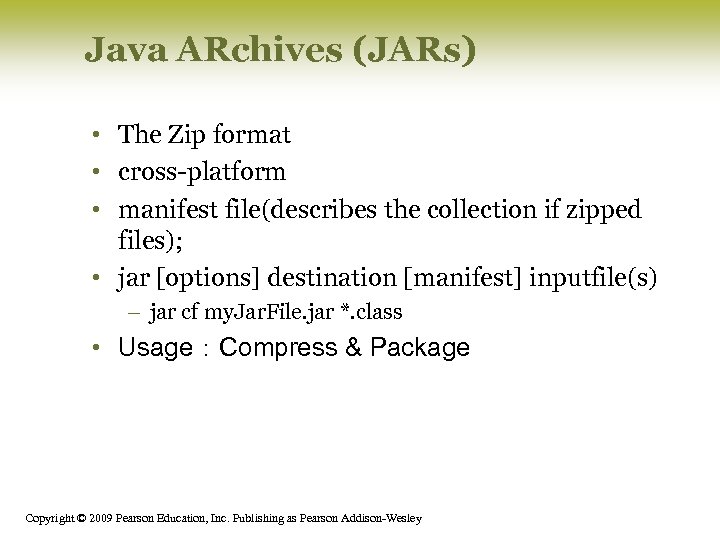 Java ARchives (JARs) • The Zip format • cross-platform • manifest file(describes the collection if zipped files); • jar [options] destination [manifest] inputfile(s) – jar cf my. Jar. File. jar *. class • Usage:Compress & Package Copyright © 2009 Pearson Education, Inc. Publishing as Pearson Addison-Wesley
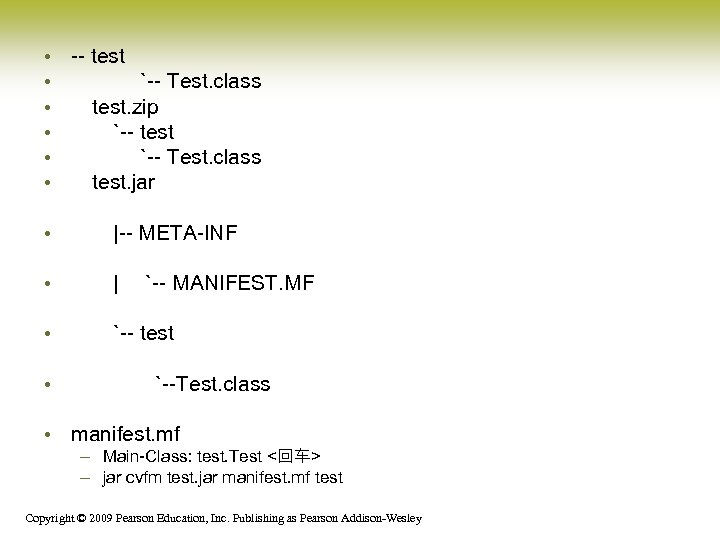 • • • -- test `-- Test. class test. zip `-- test `-- Test. class test. jar • |-- META-INF • | `-- MANIFEST. MF • `-- test • `--Test. class • manifest. mf – Main-Class: test. Test <回车> – jar cvfm test. jar manifest. mf test Copyright © 2009 Pearson Education, Inc. Publishing as Pearson Addison-Wesley