


 Скачать презентацию Chapter 10 Supporting I O Devices You Will
66ca7f531e3c82ff868ba9a8cd1cf0ba.ppt
- Количество слайдов: 75
 Chapter 10 Supporting I/O Devices
 You Will Learn… § How to install peripheral I/O devices § How to use ports and expansion slots for add- on devices § About keyboards and how to troubleshoot them § About different types of pointing devices § How monitors and video cards relate to the system, and how to troubleshoot them
 Requirements for a New Device § Device driver or BIOS § System resources (eg, IRQ, DMA channel, I/O addresses, upper memory addresses) § Application software
 Basic Principles of Peripheral Installations § Peripheral is a hardware device controlled by software; install both hardware and software § Software might be of different types; install levels § More than one peripheral device might attempt to use same computer resources; resolve resource conflicts
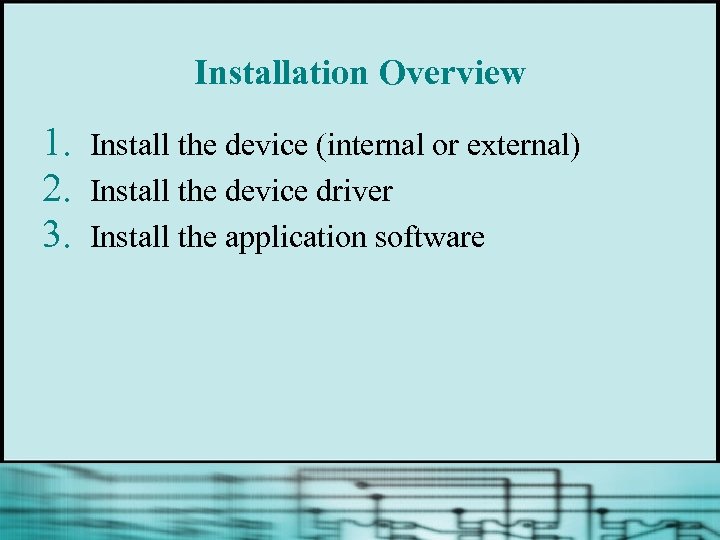 Installation Overview 1. 2. 3. Install the device (internal or external) Install the device driver Install the application software
 Installing a Hardware Device § Turn off PC, plug in the device, and reboot § If device is Pn. P, the Add New Hardware Wizard launches
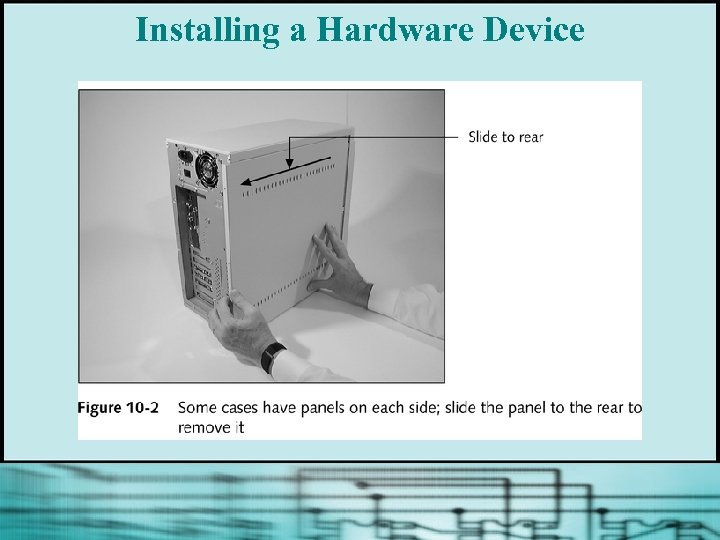 Installing a Hardware Device
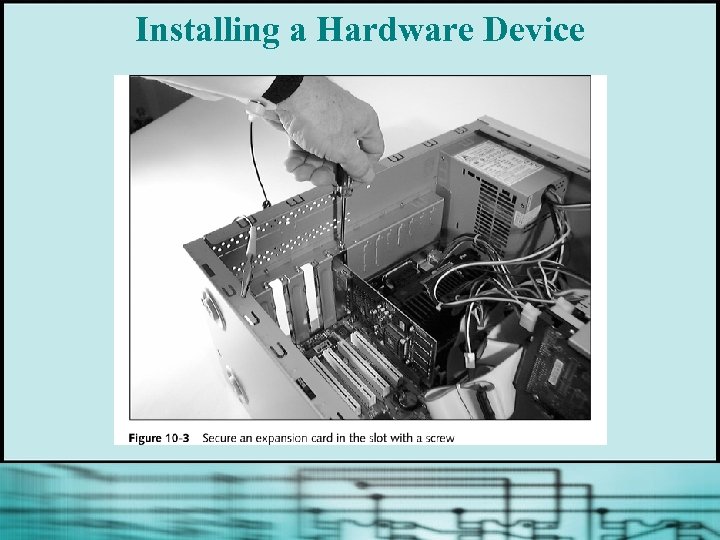 Installing a Hardware Device
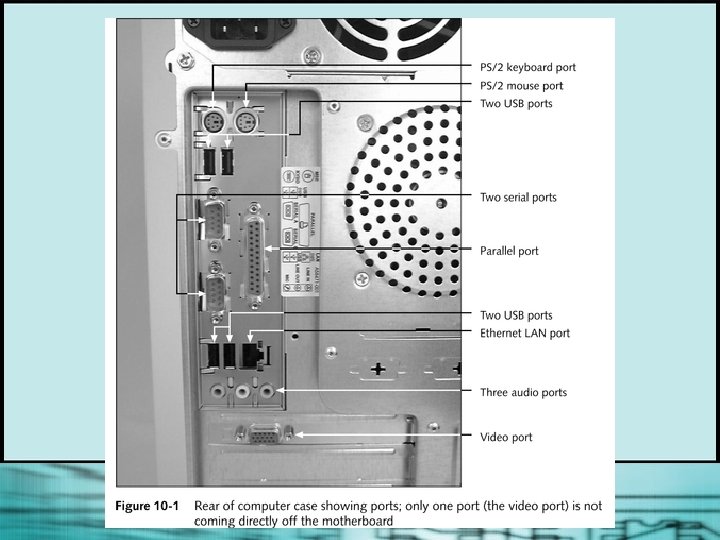
 Using Ports and Expansion Slots for Add -on Devices § Devices can: • Plug directly into a port (serial, parallel, USB, or IEEE 1394) Use an expansion card plugged into an expansion slot § • All computers come with: • One or two serial ports • One parallel port • One or more USB ports or an IEEE 1394 port (on newer computers)
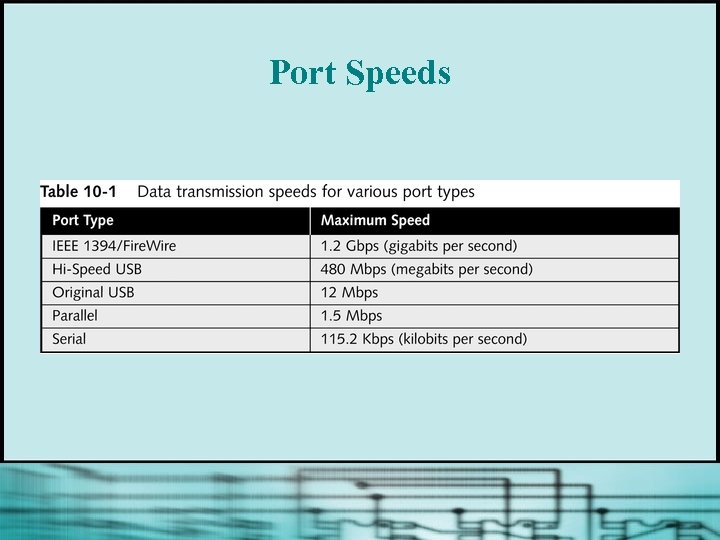 Port Speeds
 Using Serial Ports § § § § Transmit data in single bits Identified by counting the pins Sometimes called DB-9 and DB-25 connectors Almost always male Originally intended for input and output devices Can be configured for COM 1, COM 2, COM 3, or COM 4 Conforms to RS-232 c standard interface
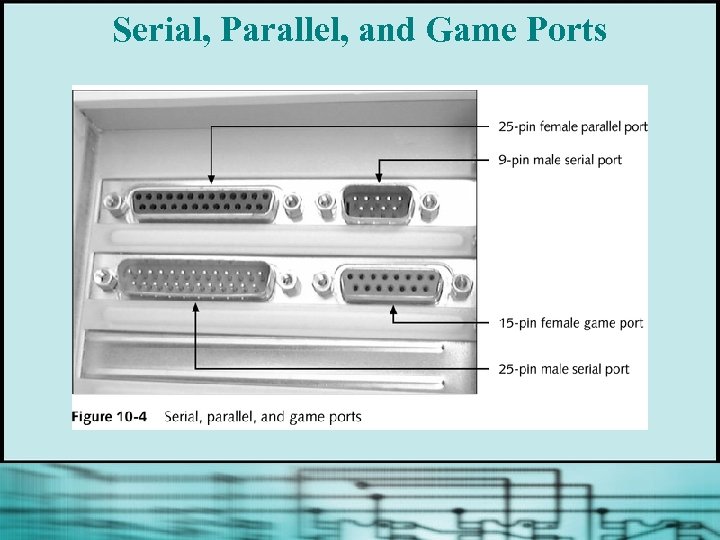 Serial, Parallel, and Game Ports
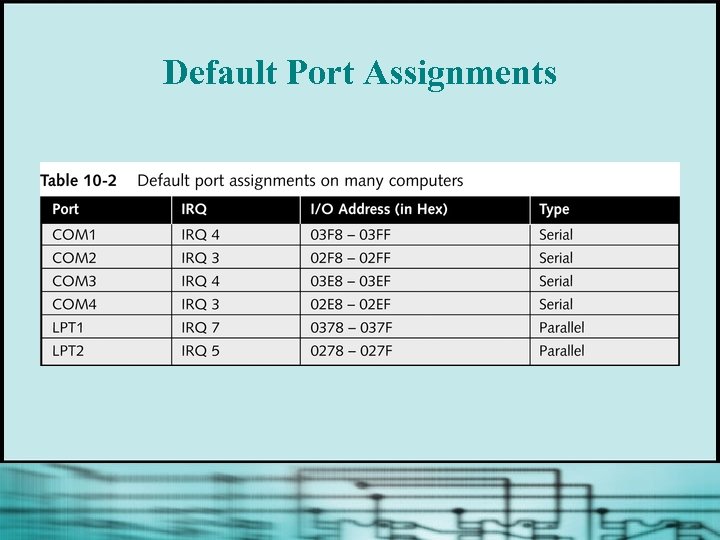 Default Port Assignments
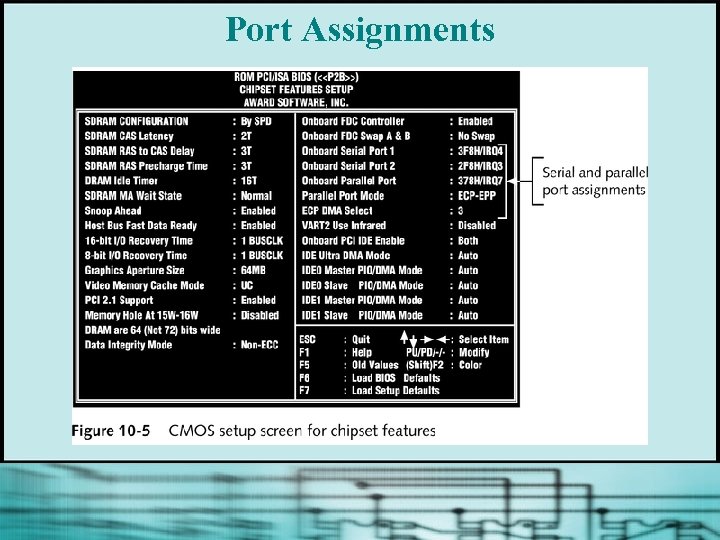 Port Assignments
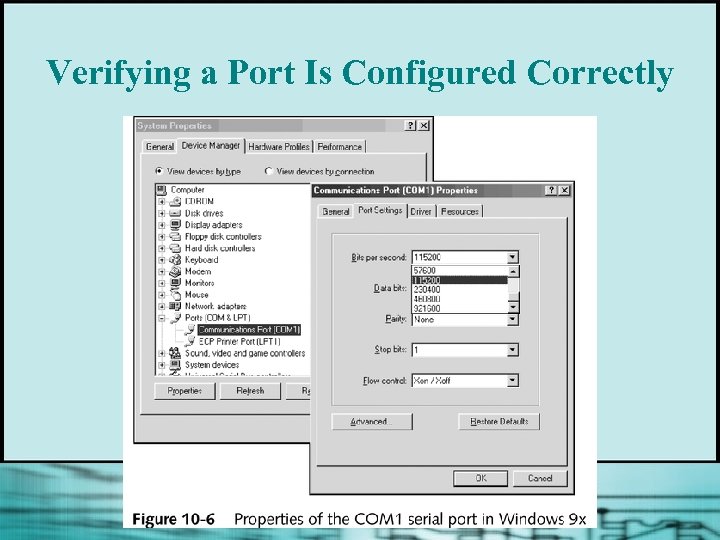 Verifying a Port Is Configured Correctly
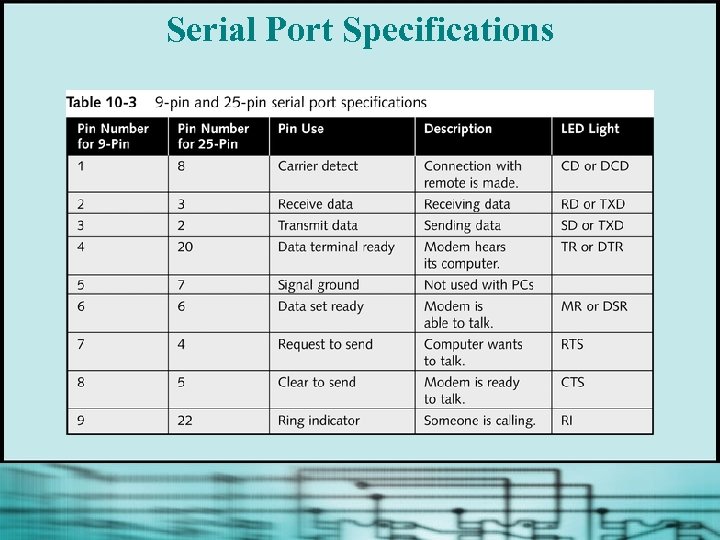 Serial Port Specifications
 Null Modem Connection § Special cable (null modem cable or modem eliminator) enables data transmission between two DTE devices without the need for modems § Null modem cable has several wires crossconnected to simulate modem connection
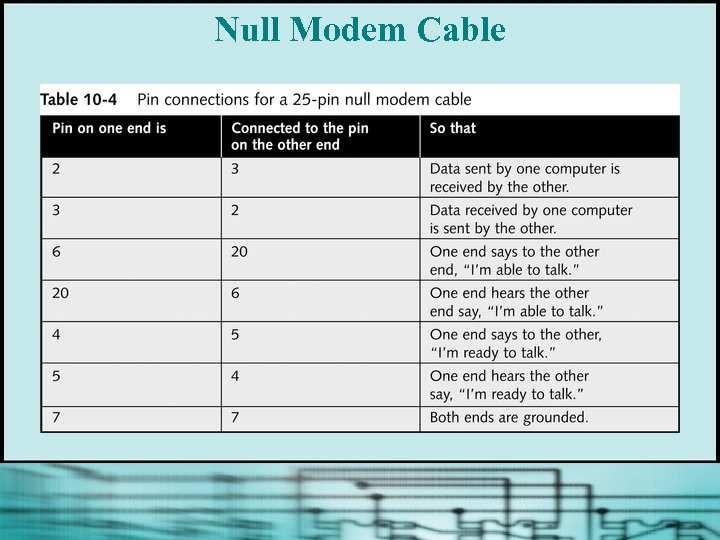 Null Modem Cable
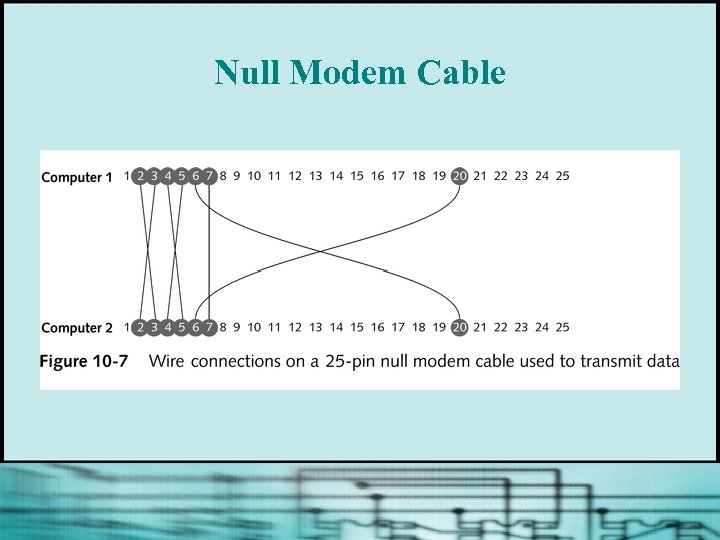 Null Modem Cable
 Infrared Transceivers § Use resources of the serial port for communication § Create a virtual infrared serial port and virtual infrared parallel port for infrared devices § Common problem: line-of-sight issue • Radio technology (eg, Bluetooth or 802. 11 b) is most popular way to connect wireless I/O device
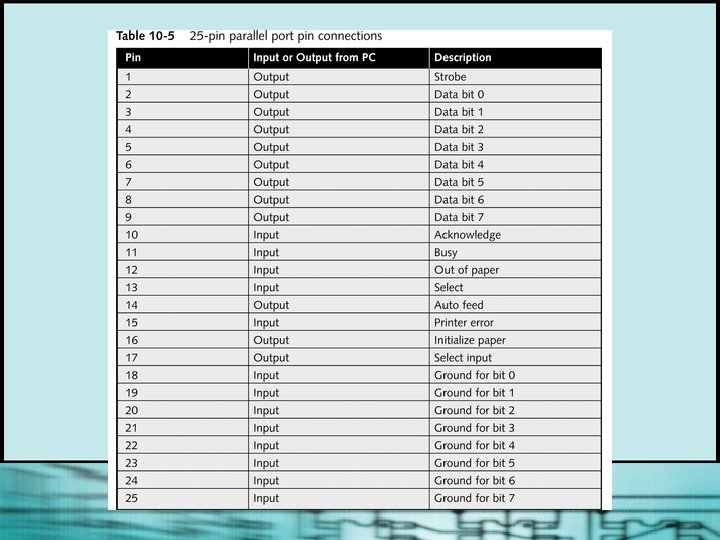
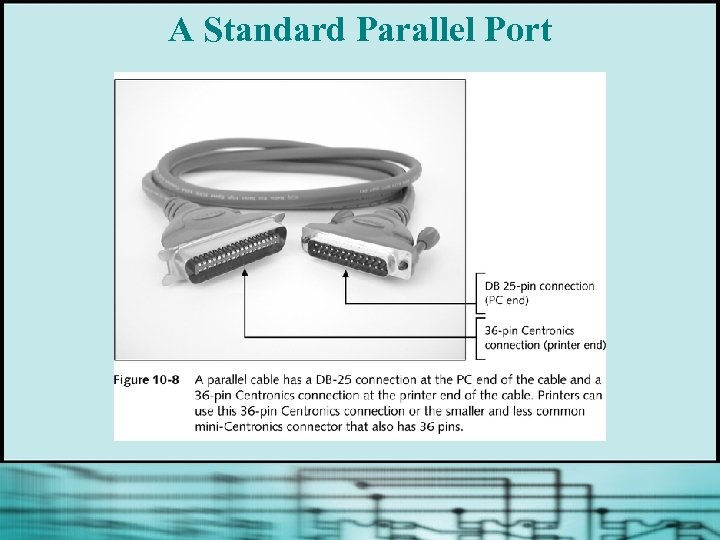
 Using Parallel Ports § Transmit data in parallel, eight bits at a time § Cable longer than 10 or 15 feet can compromise data integrity § Almost always female § Commonly used by printers; also for some input devices § Can be configured as LPT 1, LPT 2, and LPT 3
 Types of Parallel Ports § Standard parallel port (SPP) • Data flows in one direction • Comparatively slower § Enhanced Parallel Port (EPP) • Bidirectional § Extended Capabilities Port (ECP) • Bidirectional • Uses a DMA channel
 A Standard Parallel Port
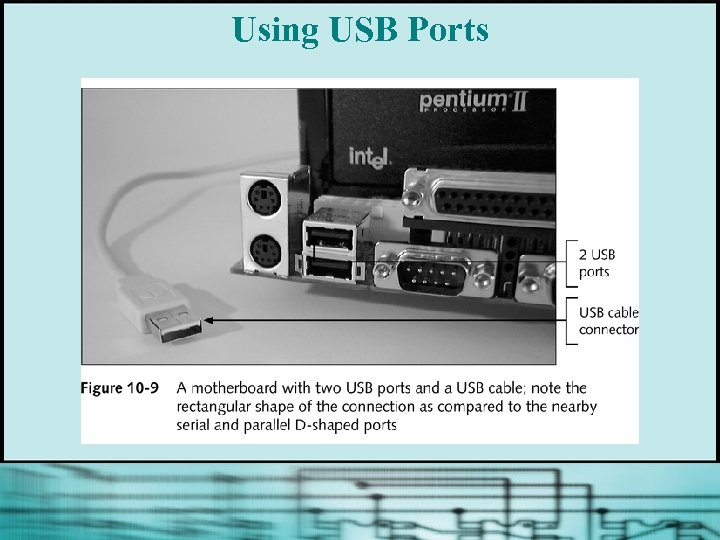
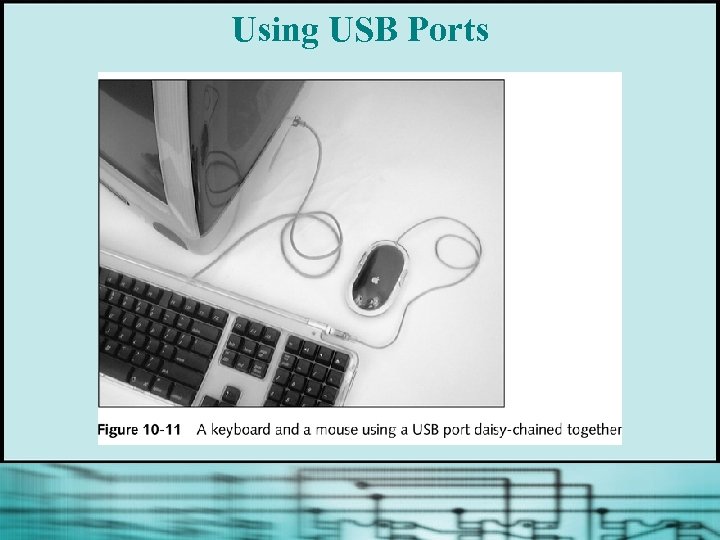
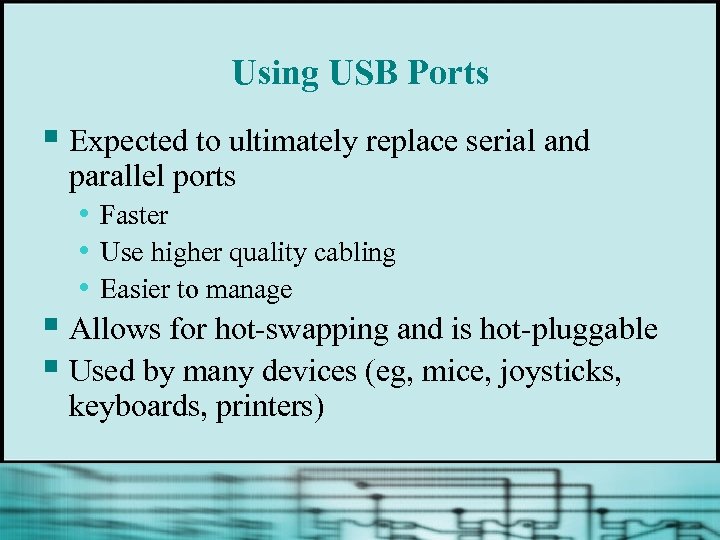 Using USB Ports § Expected to ultimately replace serial and parallel ports • Faster • Use higher quality cabling • Easier to manage § Allows for hot-swapping and is hot-pluggable § Used by many devices (eg, mice, joysticks, keyboards, printers)
 Using USB Ports
 Using USB Ports
 Using USB Ports
 USB Host Controller § Polls each device, asking if data is ready to be sent or requesting to send data to the device § Manages communication to the CPU for all devices, using only a single IRQ, I/O address range, and DMA channel § Automatically assigns system resources at startup (with the OS)
 Requirements for Installing a USB Device § Motherboard or expansion card that provides a USB port § OS that supports USB § USB device driver
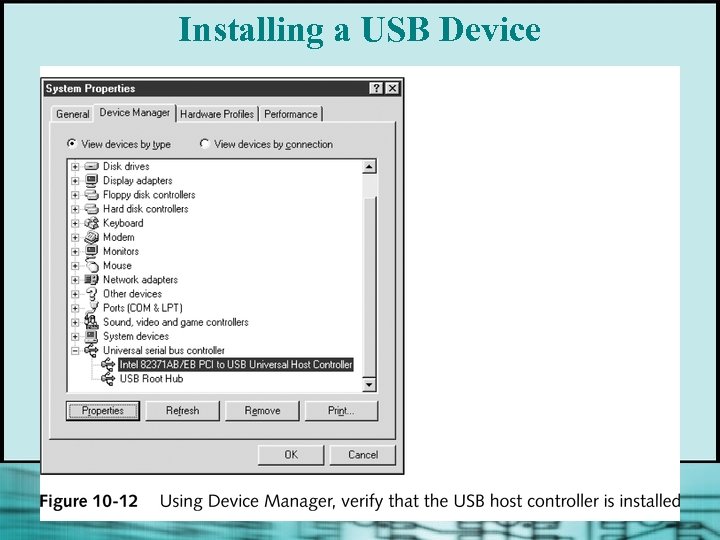 Installing a USB Device
 Using IEEE 1394 Ports § § § Also called Fire. Wire and i. Link Transmits data serially; faster than USB Supports data speeds as high as 1. 2 Gbps Likely to replace SCSI for high-volume, multimedia external devices Devices can be daisy-chained together and managed by a host controller using a single set of system resources Uses isochronous data transfer
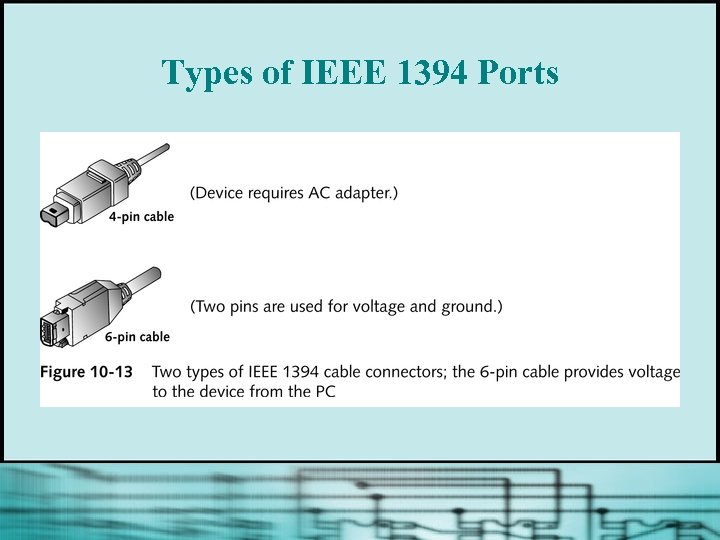 Types of IEEE 1394 Ports
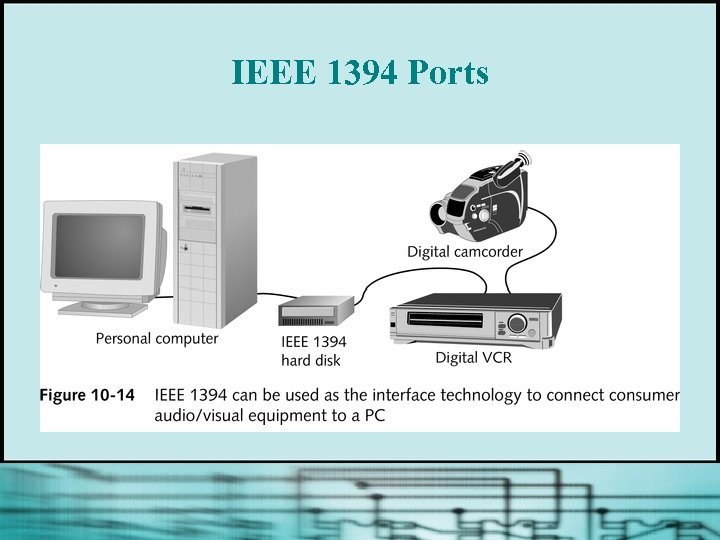 IEEE 1394 Ports
 Using PCI Expansion Slots § PCI bus is now the standard local I/O bus § Devices connected to it can run at one speed while the CPU runs at a different speed § Often used for fast I/O devices (eg, network cards or SCSI host adapters)
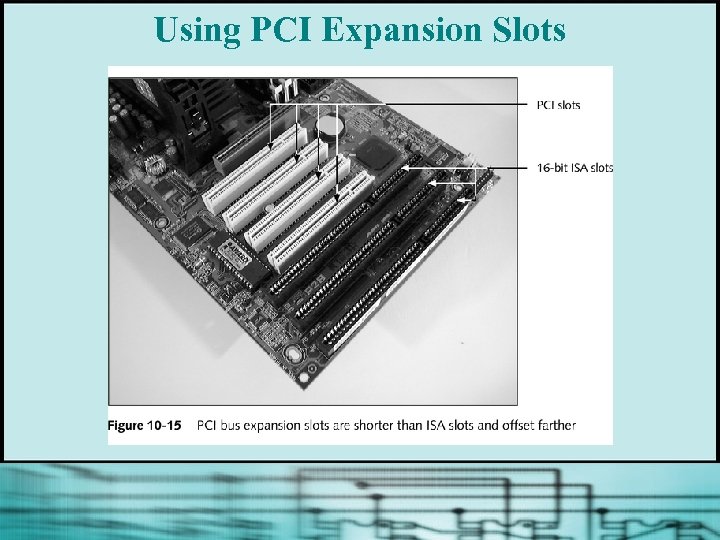 Using PCI Expansion Slots
 PCI Bus Master § Manages the PCI bus and expansion slots § Assigns IRQ and I/O addresses to PCI expansion cards § PCI bus uses an interim interrupt between the PCI card and the IRQ line to the CPU
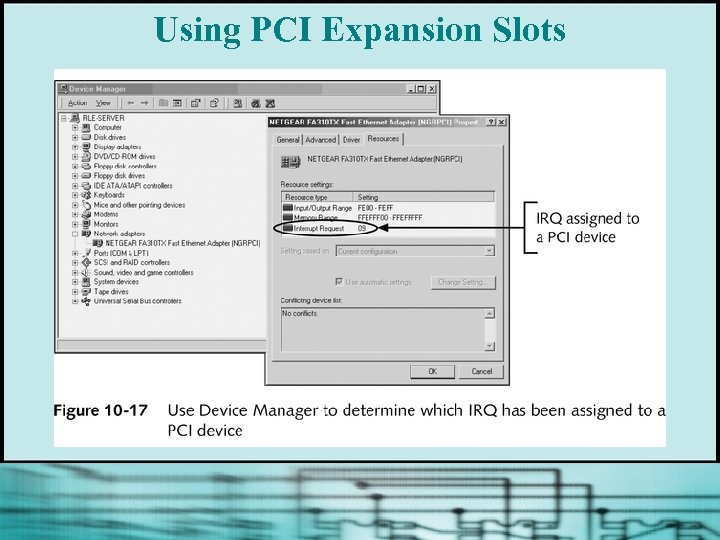 Using PCI Expansion Slots
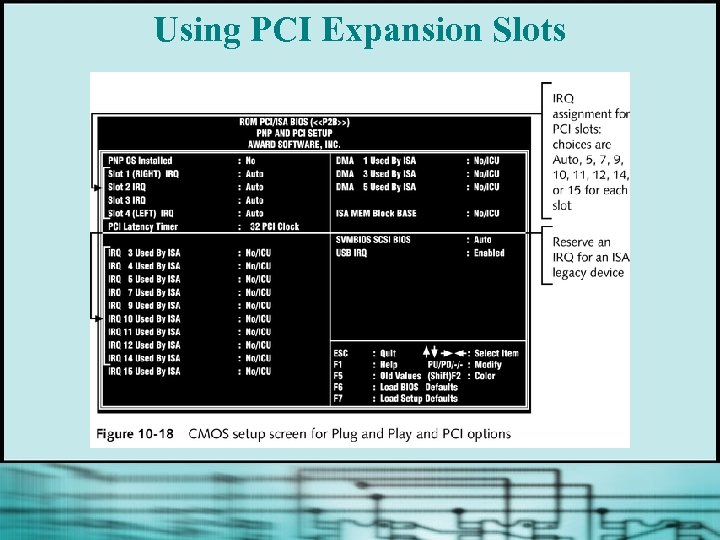 Using PCI Expansion Slots
 Using ISA Expansion Slots § Configuration is not automated § ISA bus does not manage system resources § ISA device must request system resources at startup
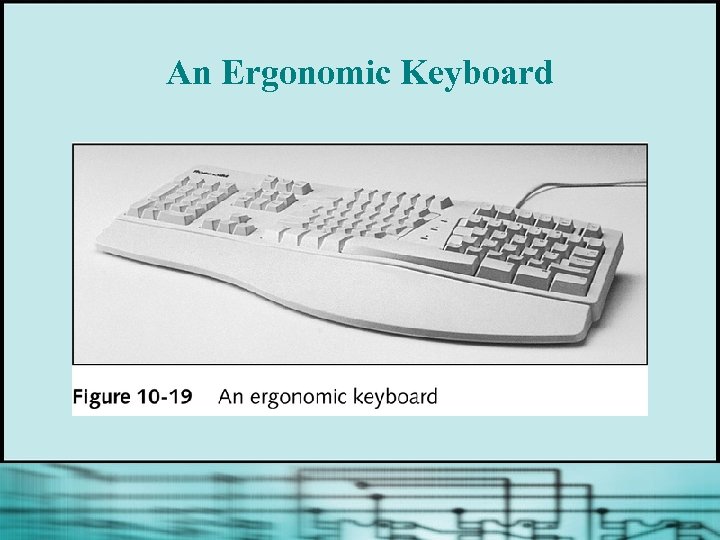
 Keyboards § Traditional straight design or ergonomic design § Two technologies for keys making contact • Foil contact • Metal contact
 An Ergonomic Keyboard
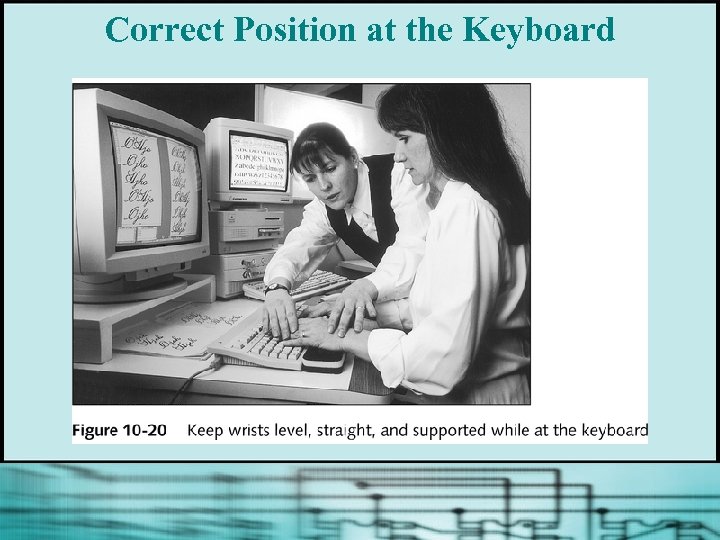 Correct Position at the Keyboard
 Keyboard Connectors § PS/2 connector (mini-DIN) • Small, round, with six pins § DIN connector • Round with five pins § USB port § Wireless connection
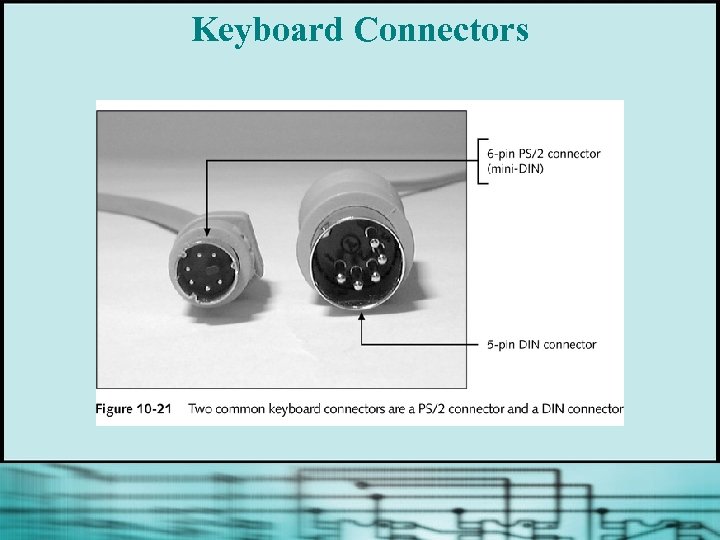 Keyboard Connectors
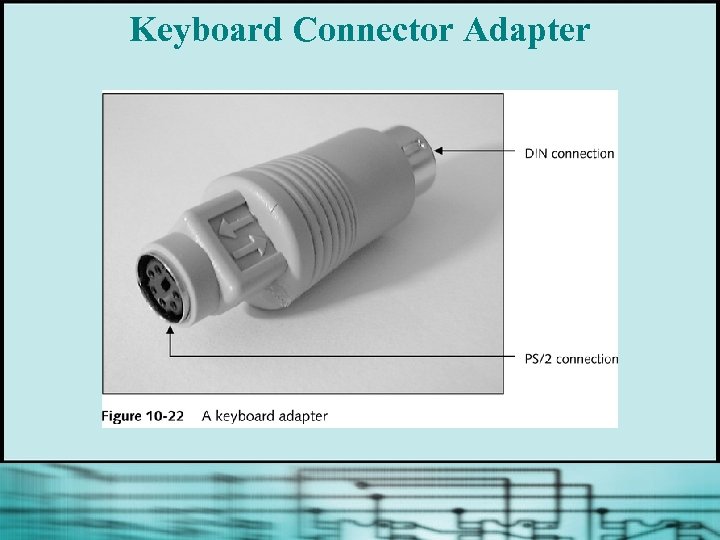 Keyboard Connector Adapter
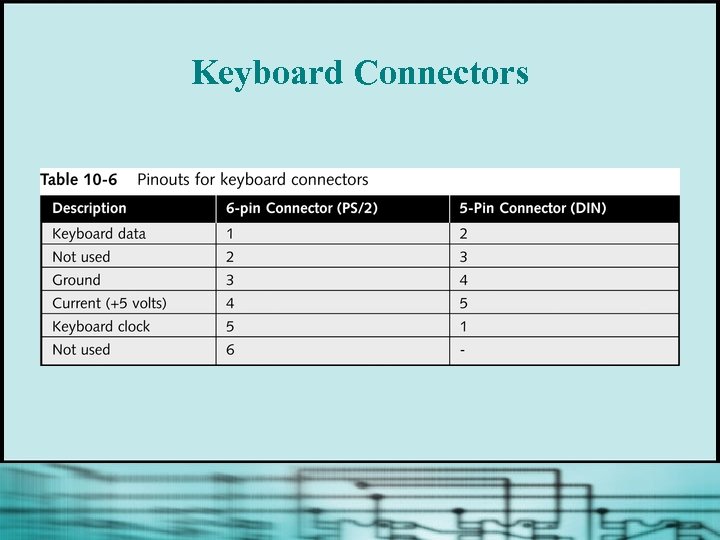 Keyboard Connectors
 Installing a Keyboard § Usually means plugging it in and turning on the PC § System BIOS manages the keyboard, so no keyboard drivers are necessary (except for wireless keyboards)
 Troubleshooting Keyboard § A few keys don’t work § The keyboard does not work at all § Key continues to repeat after being released § Keys produce wrong characters § Major spills on the keyboard
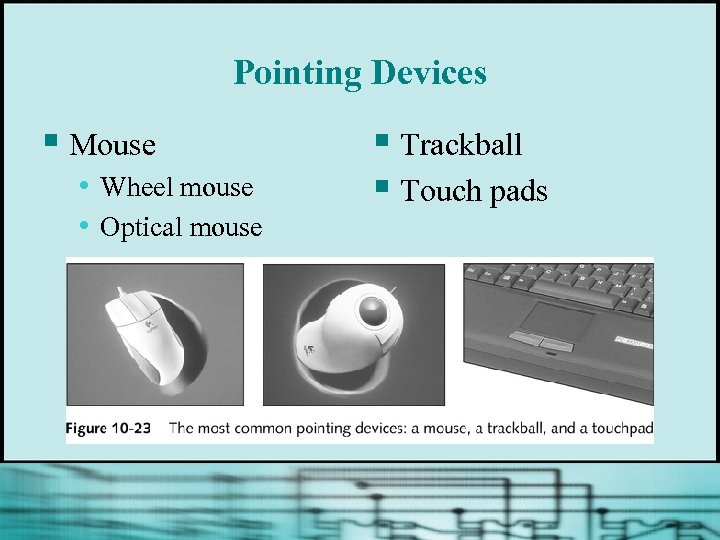 Pointing Devices § Mouse • Wheel mouse • Optical mouse § Trackball § Touch pads
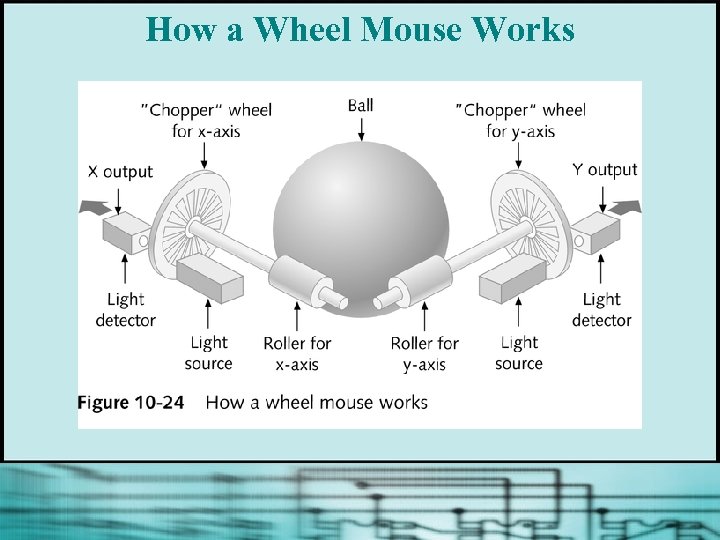 How a Wheel Mouse Works
 Mouse Connection Types § Serial mouse § Motherboard mouse or PS/2 compatible mouse § Bus mouse § Using a USB port § Using a Y-connection to share a port with a keyboard § Cordless technology
 Cleaning the Mouse § Remove cover § Clean rollers with cotton swab dipped in small amount of liquid soap
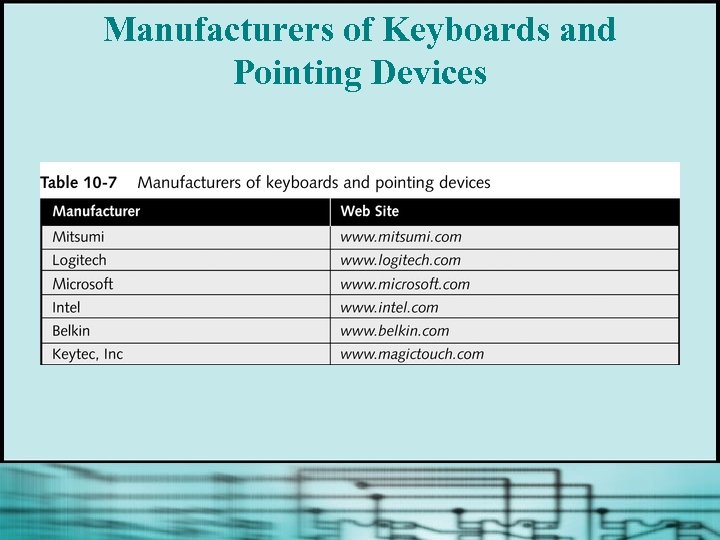 Manufacturers of Keyboards and Pointing Devices
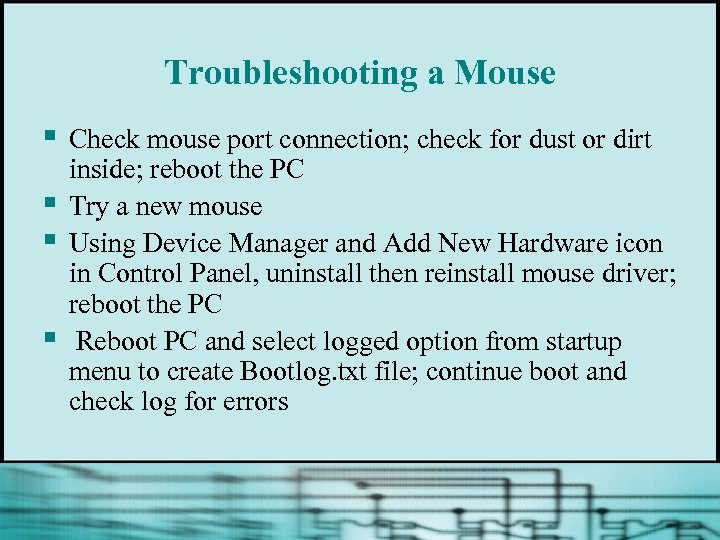 Troubleshooting a Mouse § § Check mouse port connection; check for dust or dirt inside; reboot the PC Try a new mouse Using Device Manager and Add New Hardware icon in Control Panel, uninstall then reinstall mouse driver; reboot the PC Reboot PC and select logged option from startup menu to create Bootlog. txt file; continue boot and check log for errors
 Computer Video § Necessary components for video output • Video controller • Monitor
 Monitors § Rated by screen size, resolution, refresh rate, and interlace features § Most meet standards for Super VGA (Video Graphics Adapter) § Use either CRT (cathode-ray tube) technology or LCD (liquid crystal display) technology
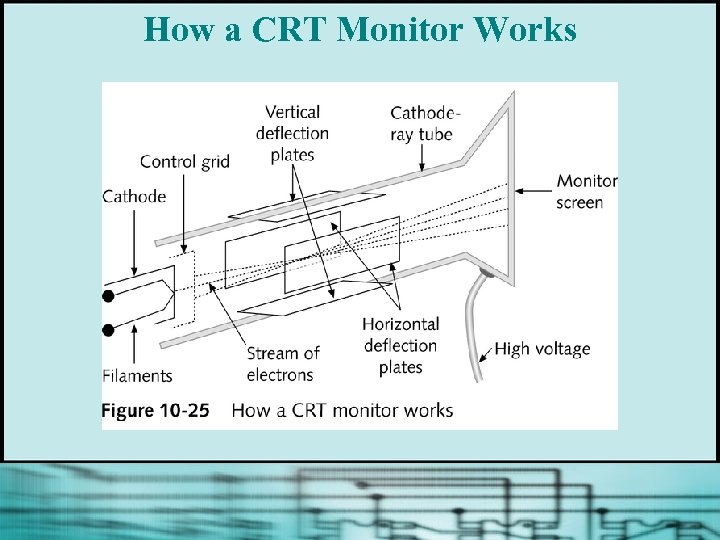 How a CRT Monitor Works
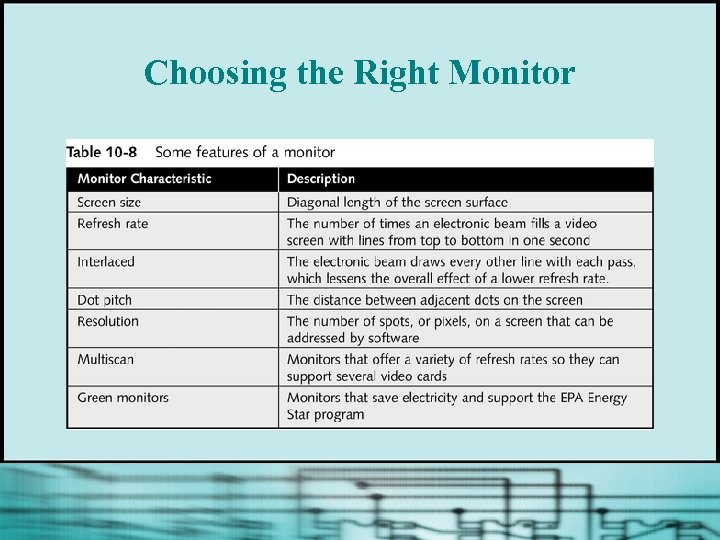 Choosing the Right Monitor
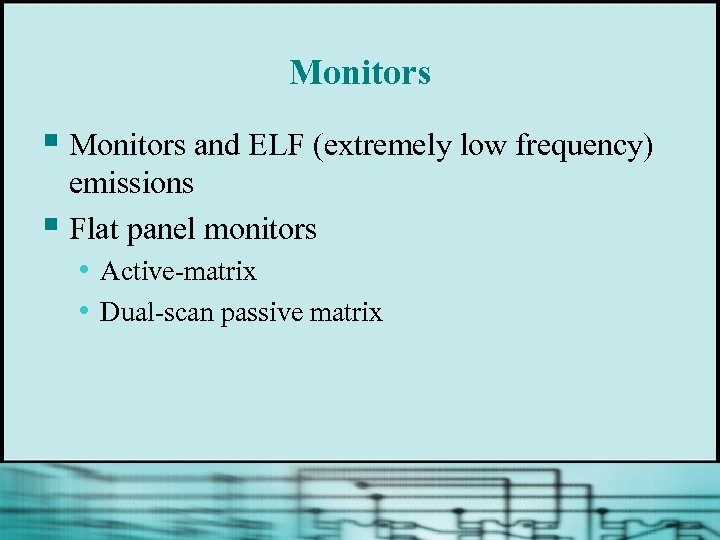 Monitors § Monitors and ELF (extremely low frequency) emissions § Flat panel monitors • Active-matrix • Dual-scan passive matrix
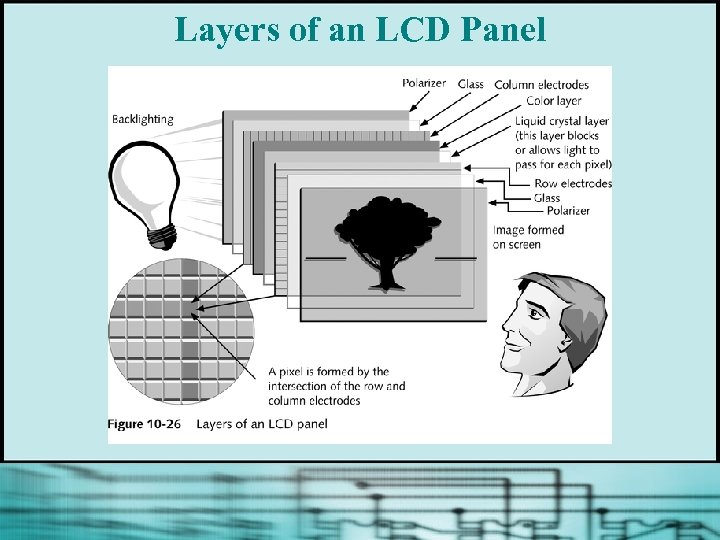 Layers of an LCD Panel
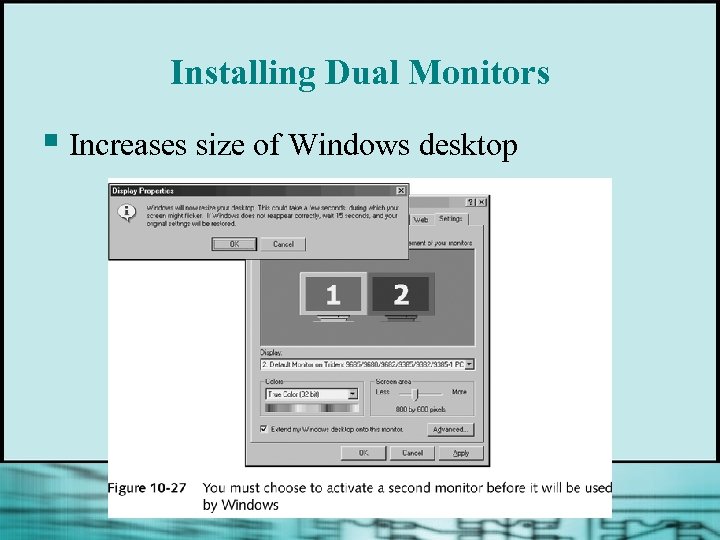 Installing Dual Monitors § Increases size of Windows desktop
 Video Cards § § Quality of video subsystem is rated according to how it affects: • Overall system performance • Video quality (eg, resolution and color) • Power-saving features • Ease of use and installation Features to look for: • The bus it uses • Amount of video RAM it has or can support
 Buses Used by Video Cards § VESA (Video Electronics Standards Association) bus § PCI bus § AGP bus
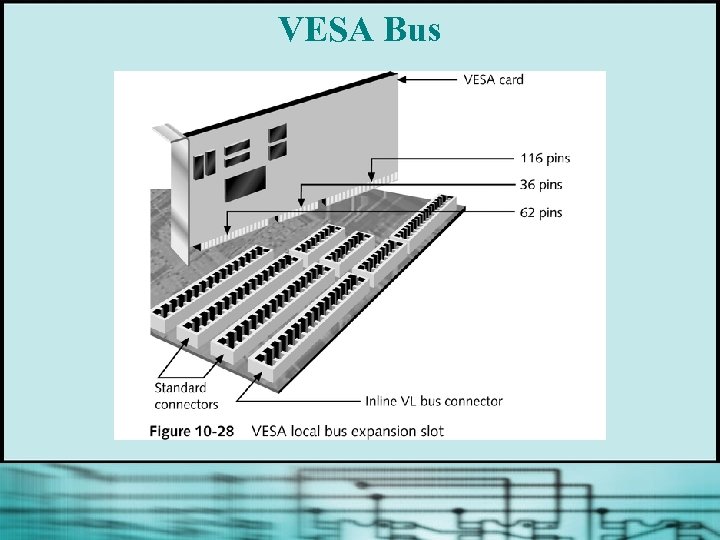 VESA Bus
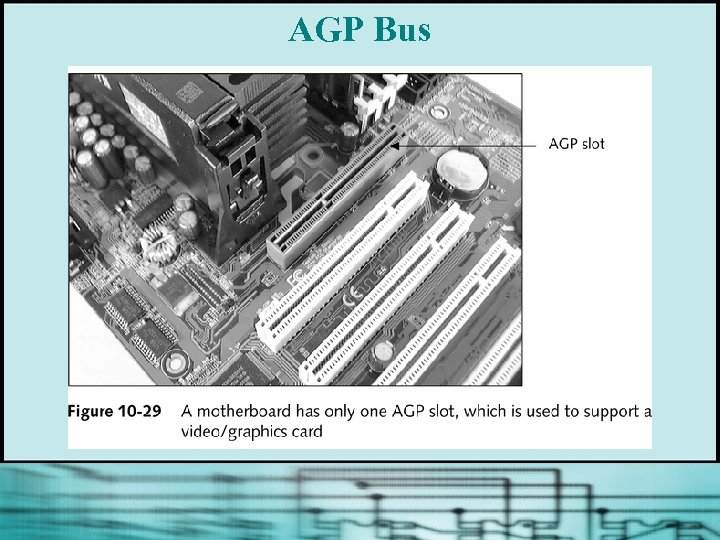 AGP Bus
 Graphics Accelerators § § Type of video card that has its own processor to boost performance Features reduce burden on motherboard CPU, eg: • MPEG decoding • 3 -D graphics • Dual porting • Color space conversion • Interpolated scaling • EPA Green PC support
 Video Memory § VRAM (Video RAM) § SGRAM (synchronous graphics RAM) § WRAM (window RAM) § 3 -D RAM
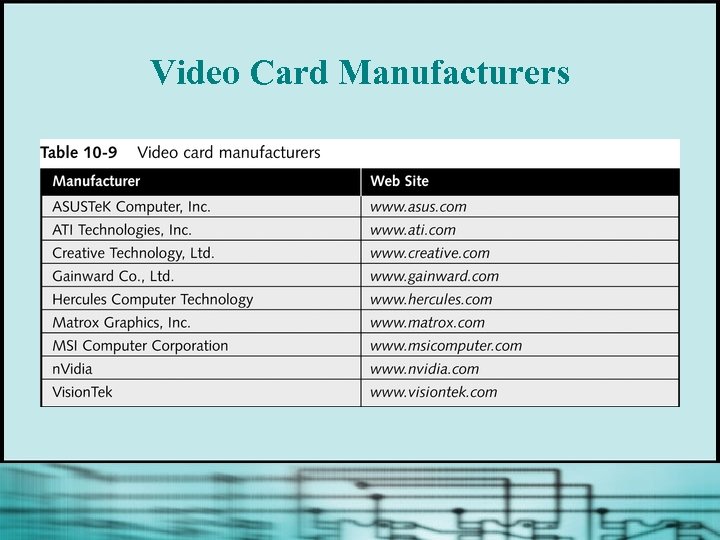 Video Card Manufacturers
 Troubleshooting Video Problems § Power light (LED) does not go on; no picture § Power LED light is on; no picture on power-up § Power on; monitor displays wrong characters § Monitor flickers and/or has wavy lines § No graphics display or screen goes blank when loading certain programs continued…
 Troubleshooting Video Problems § Screen goes blank 30 seconds or one minute after keyboard is left untouched § Poor quality color display § Picture out of focus or out of adjustment § Crackling sound
 Video Problems § To configure or change monitor settings and drivers in Windows § To change the video driver configuration § Returning to standard VGA settings
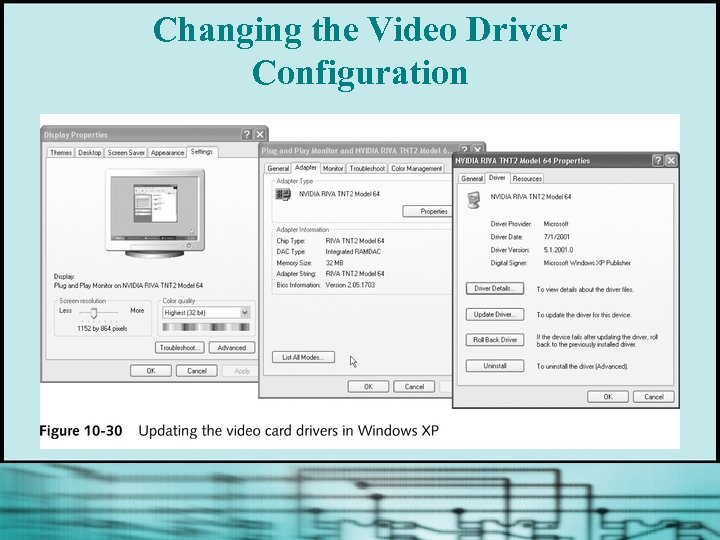 Changing the Video Driver Configuration
 Chapter Summary § Installing and supporting I/O devices § Procedures and guidelines common to most installations § How to use serial, parallel, UB, and IEEE 1394 ports, and expansions slots § Essential I/O devices for a PC: keyboard, mouse, and video