 Скачать презентацию Chapter 1 Introduction 1 Learning Objectives At
51b1411684dc7cc8d7203758c2001d15.ppt
- Количество слайдов: 100



Chapter 1: Introduction 1
Learning Objectives At the end of the chapter, the students are able to: l understand the major operating systems components l understand basic computer system organization l describe the services an operating system provides to users, processes, and other systems l discuss the various ways of structuring an operating system l explain how operating systems are installed and customized and how they boot 2
What is an Operating System? l A program that acts as an intermediary between a user of a computer and the computer hardware. l Operating system goals: ¡ Execute user programs and make solving user problems easier. ¡ Make the computer system convenient to use. l Use the computer hardware in an efficient manner. 3
Computer System Structure l Computer system can be divided into four components ¡Hardware – provides basic computing resources l CPU, memory, I/O devices ¡Operating system l Controls and coordinates use of hardware among various applications and users ¡Application programs – define the ways in which the system resources are used to solve the computing problems of the users l Word processors, compilers, web browsers, database systems, video games ¡Users - People, machines, other computers 4
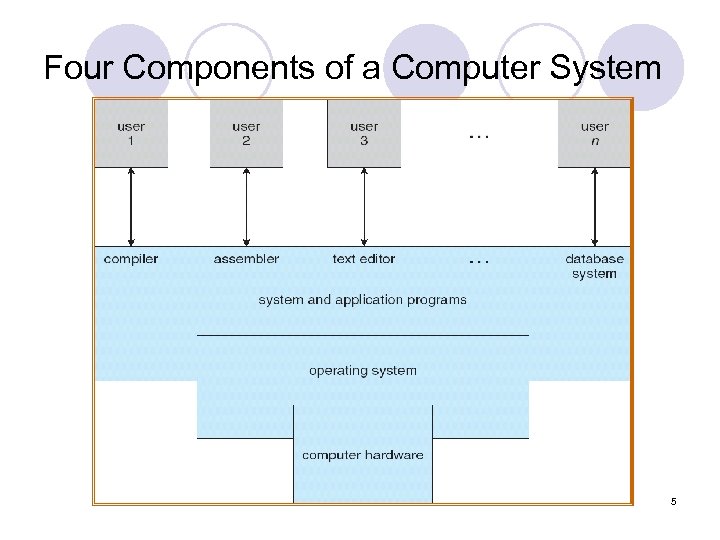
Four Components of a Computer System 5
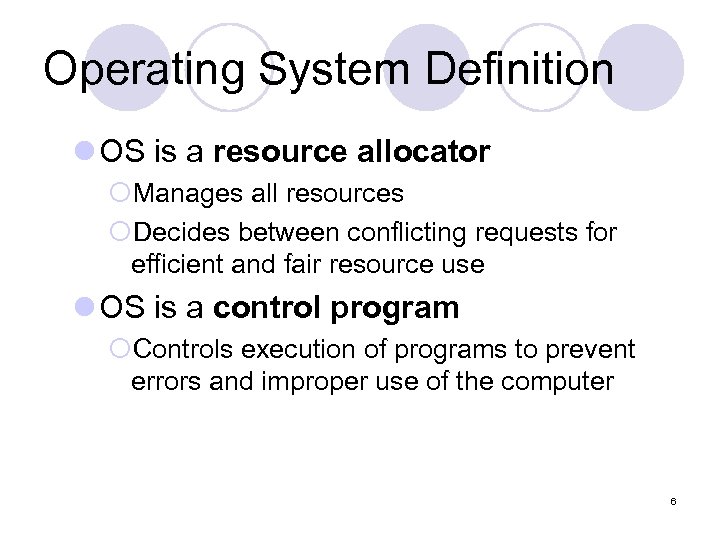
Operating System Definition l OS is a resource allocator ¡Manages all resources ¡Decides between conflicting requests for efficient and fair resource use l OS is a control program ¡Controls execution of programs to prevent errors and improper use of the computer 6
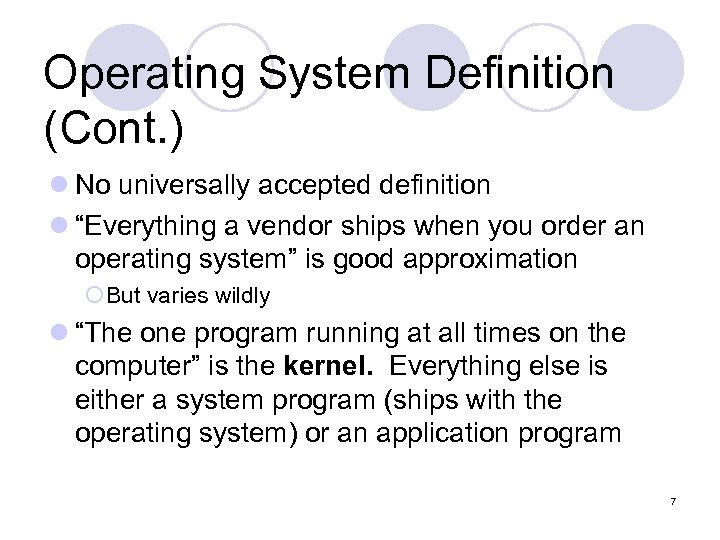
Operating System Definition (Cont. ) l No universally accepted definition l “Everything a vendor ships when you order an operating system” is good approximation ¡ But varies wildly l “The one program running at all times on the computer” is the kernel. Everything else is either a system program (ships with the operating system) or an application program 7
Computer Startup 8
Computer Startup l Operating system must be made available to hardware so hardware can start it ¡Small piece of code – bootstrap loader, locates the kernel, loads it into memory, and starts it ¡Sometimes two-step process where boot block at fixed location loads bootstrap loader ¡When power initialized on system, execution starts at a fixed memory location l. Firmware used to hold initial boot code 9
Computer Startup l bootstrap program is loaded at powerup or reboot ¡Typically stored in ROM or EEPROM , generally known as firmware ¡Initializes all aspects of system ¡Loads operating system kernel and starts execution *EEPROM = electrically erasable programmable read-only memory 10
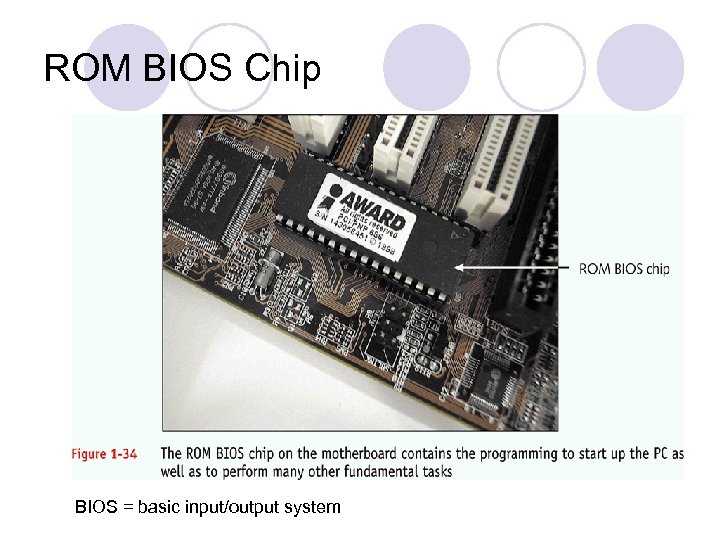
ROM BIOS Chip BIOS = basic input/output system
Booting Up Your Computer l Hard (cold) boot versus soft (warm) boot A cold boot is accomplished by powering up the computer from a shut down state. A warm boot is done when you need to restart while the computer is still powered but unresponsive, (for example, during a freeze up that isn’t resolved with a force quit). You do this by holding down the Control and Command keys simultaneously then pressing the Power Up key (or the on/off key on a laptop). l Startup BIOS is in control when boot process begins ¡Turns control over to the OS 12 A+ Guide to Managing and Maintaining Your PC, Fifth Edition
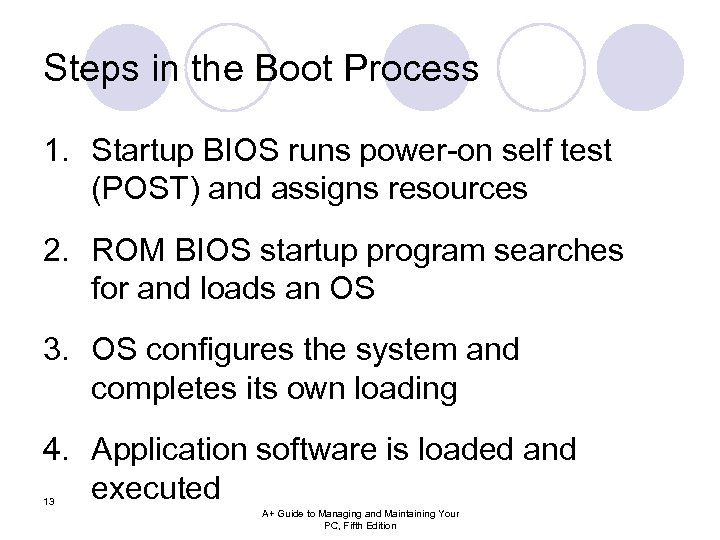
Steps in the Boot Process 1. Startup BIOS runs power-on self test (POST) and assigns resources 2. ROM BIOS startup program searches for and loads an OS 3. OS configures the system and completes its own loading 4. Application software is loaded and executed 13 A+ Guide to Managing and Maintaining Your PC, Fifth Edition
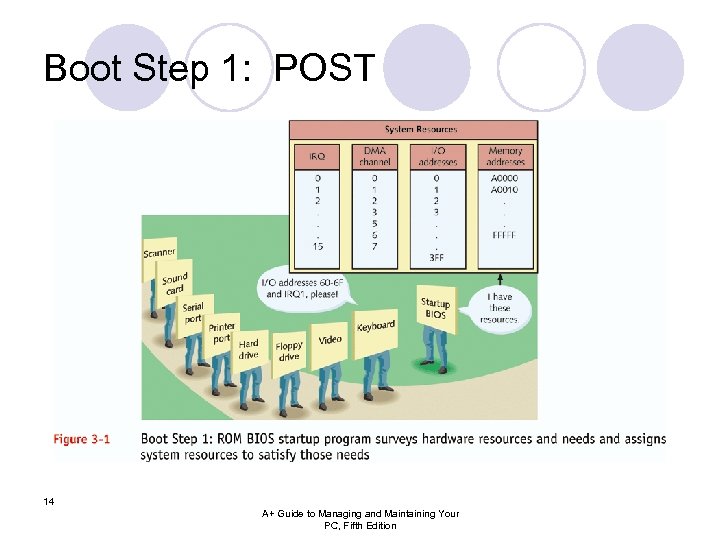
Boot Step 1: POST 14 A+ Guide to Managing and Maintaining Your PC, Fifth Edition
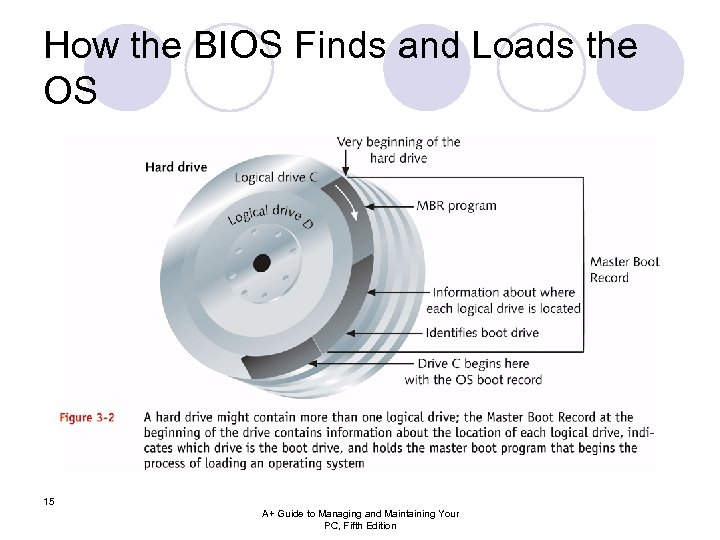
How the BIOS Finds and Loads the OS 15 A+ Guide to Managing and Maintaining Your PC, Fifth Edition
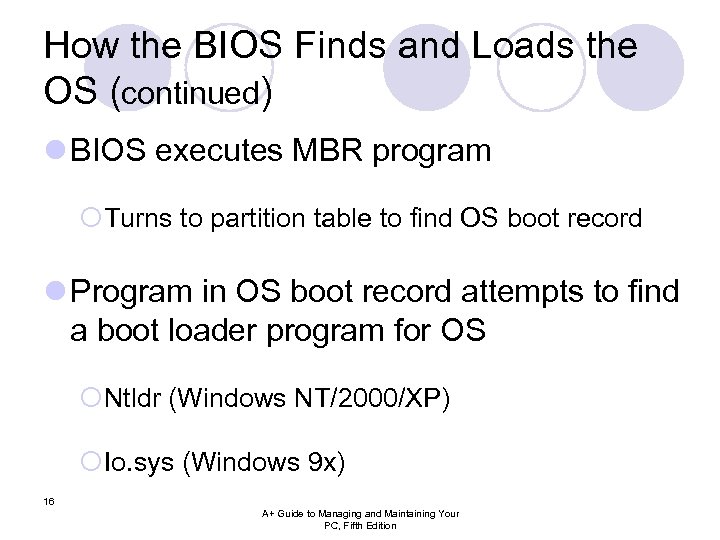
How the BIOS Finds and Loads the OS (continued) l BIOS executes MBR program ¡Turns to partition table to find OS boot record l Program in OS boot record attempts to find a boot loader program for OS ¡Ntldr (Windows NT/2000/XP) ¡Io. sys (Windows 9 x) 16 A+ Guide to Managing and Maintaining Your PC, Fifth Edition
How the BIOS Finds and Loads the OS (continued) A Master Boot Record (MBR), or partition sector, is the 512 -byte boot sector that is the first sector of a partitioned data storage device such as a hard disk. (The boot sector of a non-partitioned device is a Volume Boot Record, which is also the term used to describe the first sector of an individual partition on a partitioned device) It is sometimes used for bootstrapping operating systems, sometimes used for holding a disc's partition table, and sometimes used for uniquely identifying individual disc media; although on some machines it is entirely unused and redundant. 17 A+ Guide to Managing and Maintaining Your PC, Fifth Edition
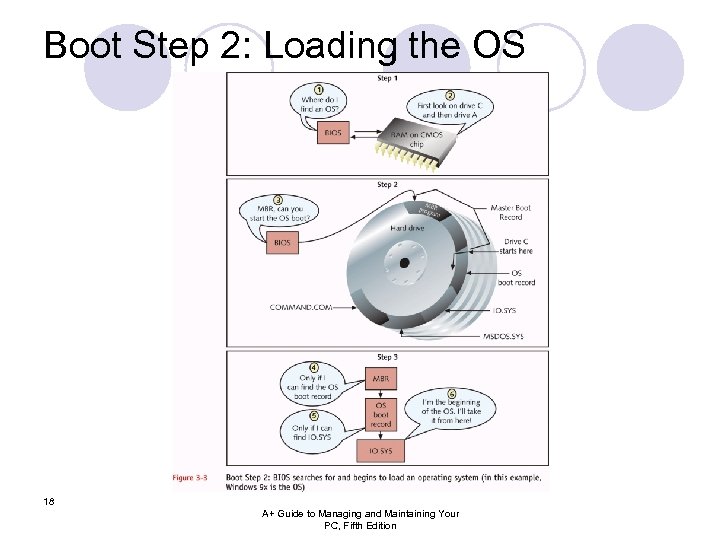
Boot Step 2: Loading the OS 18 A+ Guide to Managing and Maintaining Your PC, Fifth Edition
Loading the MS-DOS Core of Windows 9 x l Brings OS to real-mode command prompt l Relevance: Real-mode DOS core often used as a troubleshooting tool 19 A+ Guide to Managing and Maintaining Your PC, Fifth Edition
Loading the MS-DOS Core of Windows 9 x (continued) l Files necessary to boot to command prompt ¡Io. sys ¡Msdos. sys ¡Command. com l To customize 16 -bit portion of load process 20 ¡Autoexec. bat (Autoexec. nt – NT, 2000, XP) A+ Guide to Managing and Maintaining Your PC, Fifth Edition ¡Config. sys (Config. nt – NT, 2000, XP)
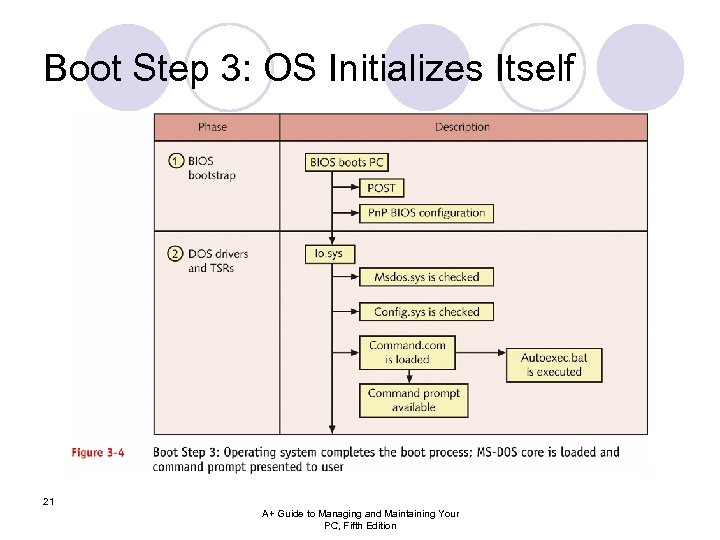
Boot Step 3: OS Initializes Itself 21 A+ Guide to Managing and Maintaining Your PC, Fifth Edition
Emergency Startup Disks l Bootable disks with some utility programs to troubleshoot a failed hard drive l Each OS provides automated method to create a rescue disk (Windows 9 x) or set of disks (Windows 2000) 22 A+ Guide to Managing and Maintaining Your PC, Fifth Edition
Emergency Startup Disks (continued) l Creating a Windows 9 x startup disk ¡Add/Remove Programs icon in Control Panel l Using a Windows 9 x startup disk with another OS 23 A+ Guide to Managing and Maintaining Your PC, Fifth Edition
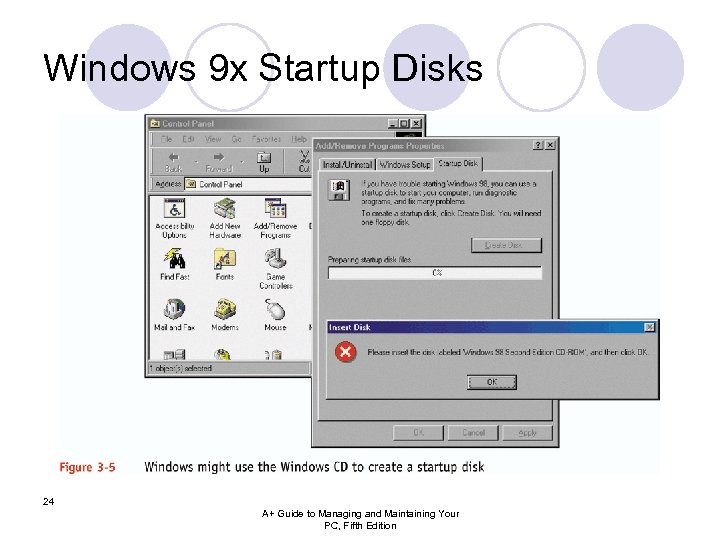
Windows 9 x Startup Disks 24 A+ Guide to Managing and Maintaining Your PC, Fifth Edition
Computer System Organization 25
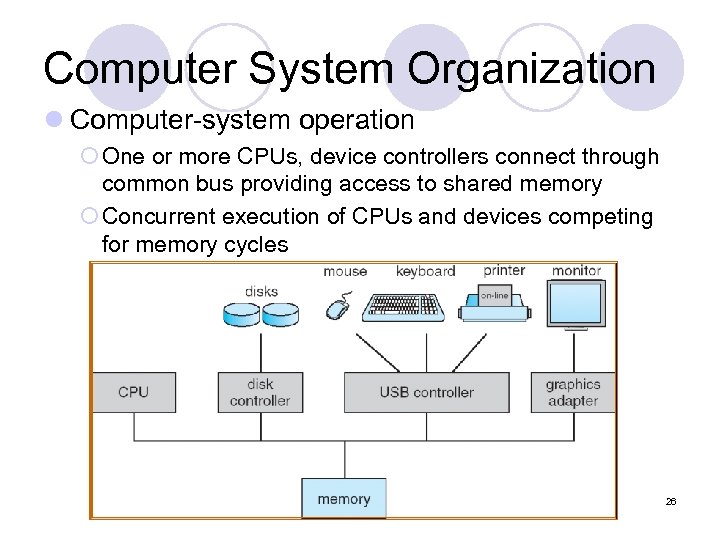
Computer System Organization l Computer-system operation ¡ One or more CPUs, device controllers connect through common bus providing access to shared memory ¡ Concurrent execution of CPUs and devices competing for memory cycles 26
Basic Elements l Processor l Main Memory ¡volatile ¡referred to as real memory or primary memory l I/O modules ¡secondary memory devices ¡communications equipment ¡terminals l System bus ¡communication among processors, memory, and I/O modules 27
Processor l. Internal registers ¡Memory address register (MAR) l. Specifies the address for the next read or write ¡Memory buffer register (MBR) l. Contains data written into memory or receives data read from memory ¡I/O address register ¡I/O buffer register 28
Top-Level Components 29
Processor Registers l. User-visible registers ¡Enable programmer to minimize main-memory references by optimizing register use l. Control and status registers ¡Used by processor to control operating of the processor ¡Used by privileged operating-system routines to control the execution of programs 30
User-Visible Registers l May be referenced by machine language l Available to all programs - application programs and system programs l Types of registers ¡Data ¡Address l. Index l. Segment pointer l. Stack pointer 31
User-Visible Registers l Address Registers ¡Index l. Involves adding an index to a base value to get an address ¡Segment pointer l. When memory is divided into segments, memory is referenced by a segment and an offset ¡Stack pointer l. Points to top of stack 32
Control and Status Registers l Program Counter (PC) ¡ Contains the address of an instruction to be fetched l Instruction Register (IR) ¡ Contains the instruction most recently fetched l Program Status Word (PSW) ¡ Condition codes ¡ Interrupt enable/disable ¡ Supervisor/user mode l Condition Codes or Flags ¡ Bits set by the processor hardware as a result of operations ¡ Examples l Positive result l Negative result l Zero l Overflow 33
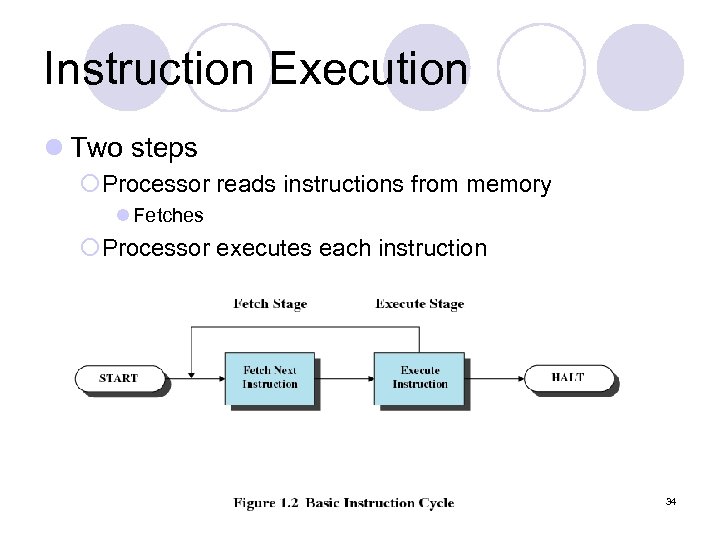
Instruction Execution l Two steps ¡Processor reads instructions from memory l Fetches ¡Processor executes each instruction 34
Instruction Fetch and Execute l The processor fetches the instruction from memory l Program counter (PC) holds address of the instruction to be fetched next l Program counter is incremented after each fetch 35
Instruction Register l Fetched instruction is placed in the instruction register l Categories ¡Processor-memory l. Transfer data between processor and memory ¡Processor-I/O l. Data transferred to or from a peripheral device ¡Data processing l. Arithmetic or logic operation on data ¡Control l. Alter sequence of execution 36
Computer-System Operation l I/O devices and the CPU can execute concurrently. l Each device controller is in charge of a particular device type. l Each device controller has a local buffer. l CPU moves data from/to main memory to/from local buffers l I/O is from the device to local buffer of controller. l Device controller informs CPU that it has finished its operation by causing an interrupt. 37
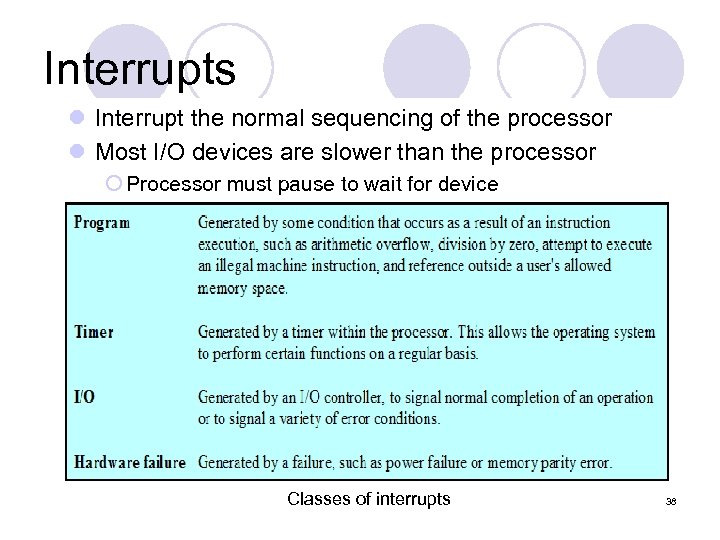
Interrupts l Interrupt the normal sequencing of the processor l Most I/O devices are slower than the processor ¡ Processor must pause to wait for device Classes of interrupts 38
Common Functions of Interrupts l Interrupt transfers control to the interrupt service routine generally, through the interrupt vector, which contains the addresses of all the service routines. l Interrupt architecture must save the address of the interrupted instruction. l Incoming interrupts are disabled while another interrupt is being processed to prevent a lost interrupt. l A trap is a software-generated interrupt caused either by an error or a user request. l An operating system is interrupt driven. 39
Interrupt Handling l When CPU is interrupted, it stops what it is doing and immediately transfers execution to a fixed location. l The operating system preserves the state of the CPU by storing registers and the program counter. l Determines which type of interrupt has occurred: ¡ polling ¡ vectored interrupt system l Separate segments of code determine what action should be taken for each type of interrupt 40
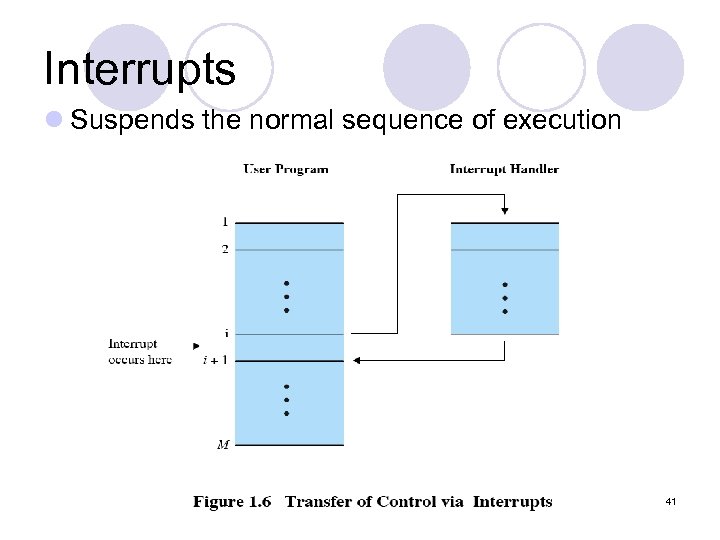
Interrupts l Suspends the normal sequence of execution 41
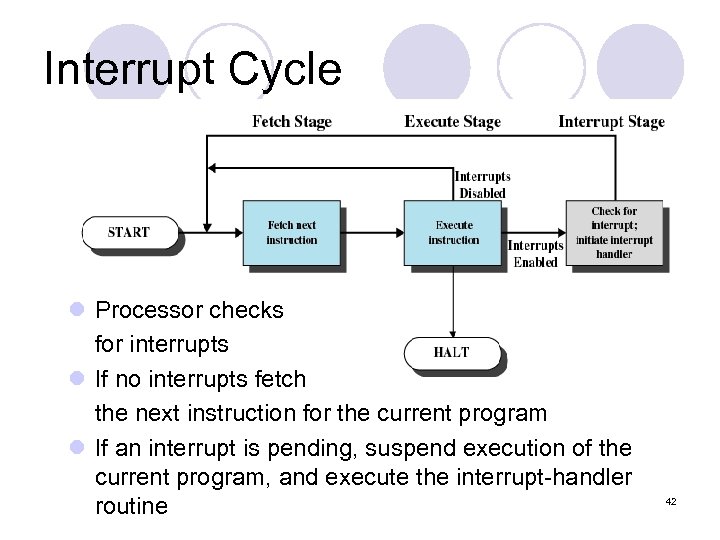
Interrupt Cycle l Processor checks for interrupts l If no interrupts fetch the next instruction for the current program l If an interrupt is pending, suspend execution of the current program, and execute the interrupt-handler routine 42
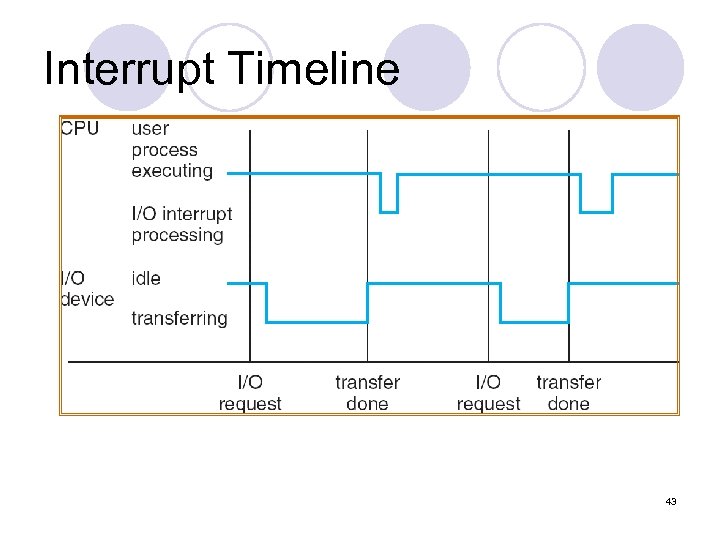
Interrupt Timeline 43
I/O Structure Synchronous l After I/O starts, control returns to user program only upon I/O completion. ¡Wait instruction idles the CPU until the next interrupt ¡Wait loop (contention for memory access). ¡At most one I/O request is outstanding at a time, no simultaneous I/O processing. 44
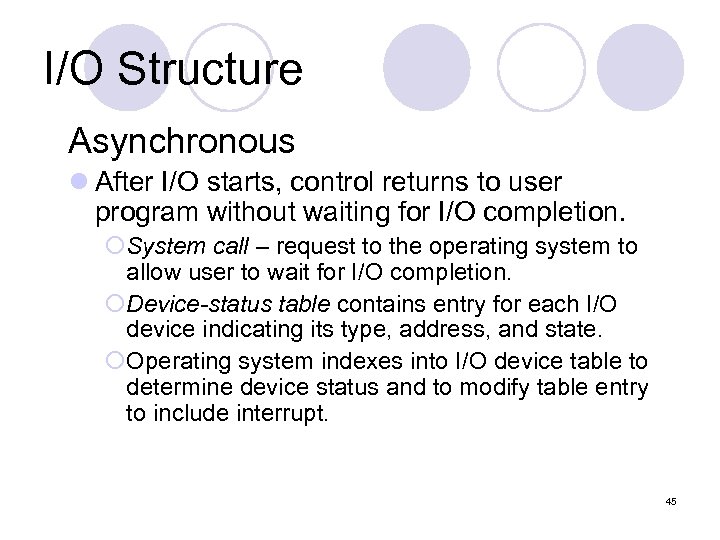
I/O Structure Asynchronous l After I/O starts, control returns to user program without waiting for I/O completion. ¡System call – request to the operating system to allow user to wait for I/O completion. ¡Device-status table contains entry for each I/O device indicating its type, address, and state. ¡Operating system indexes into I/O device table to determine device status and to modify table entry to include interrupt. 45
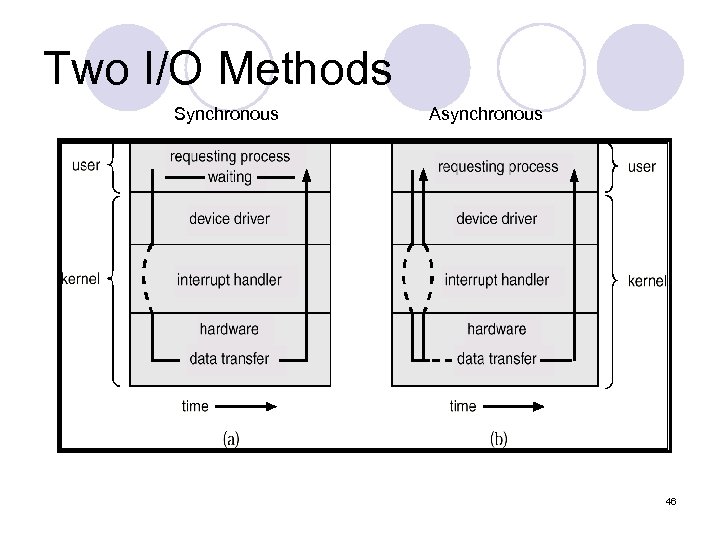
Two I/O Methods Synchronous Asynchronous 46
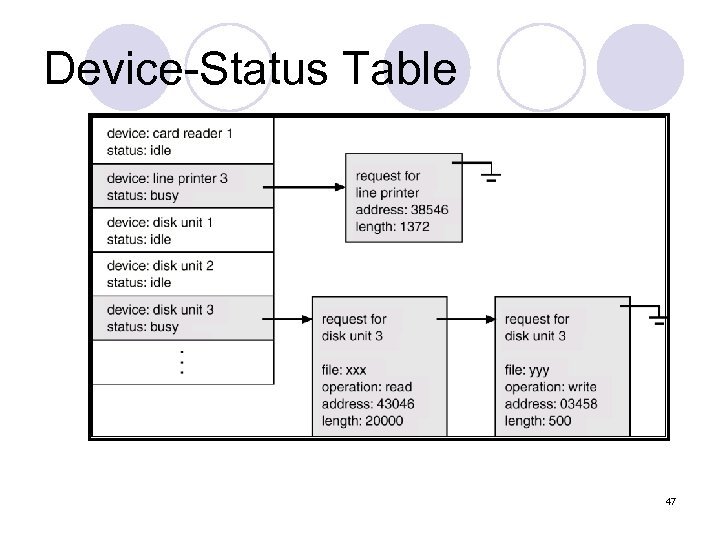
Device-Status Table 47
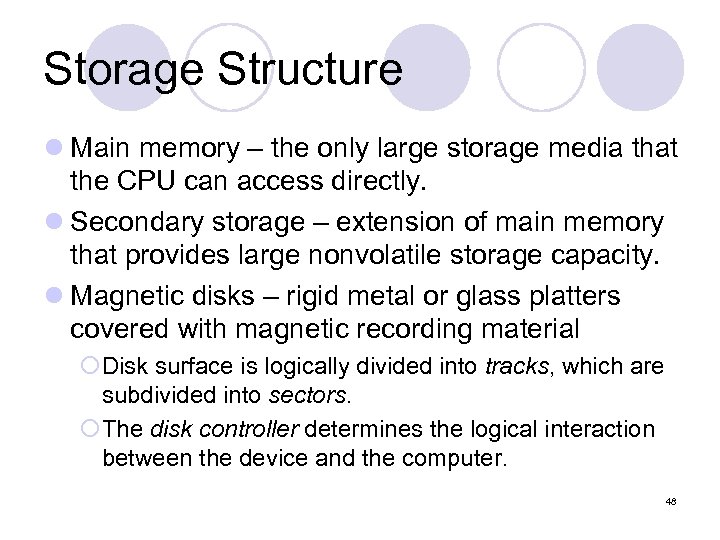
Storage Structure l Main memory – the only large storage media that the CPU can access directly. l Secondary storage – extension of main memory that provides large nonvolatile storage capacity. l Magnetic disks – rigid metal or glass platters covered with magnetic recording material ¡Disk surface is logically divided into tracks, which are subdivided into sectors. ¡The disk controller determines the logical interaction between the device and the computer. 48
Storage Hierarchy l Storage systems organized in hierarchy. ¡Speed ¡Cost ¡Volatility l Caching – copying information into faster storage system; main memory can be viewed as a last cache for secondary storage. 49
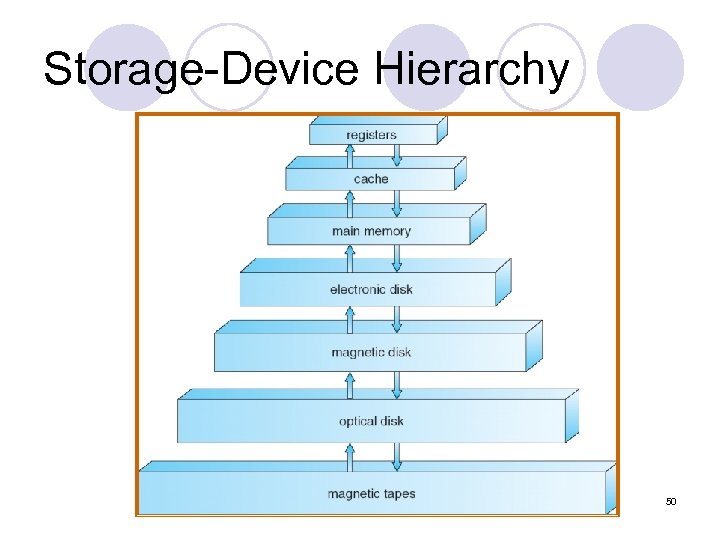
Storage-Device Hierarchy 50
Caching l Important principle, performed at many levels in a computer (in hardware, operating system, software) l Information in use copied from slower to faster storage temporarily l Faster storage (cache) checked first to determine if information is there ¡ If it is, information used directly from the cache (fast) ¡ If not, data copied to cache and used there l Cache smaller than storage being cached ¡ Cache management important design problem ¡ Cache size and replacement policy 51
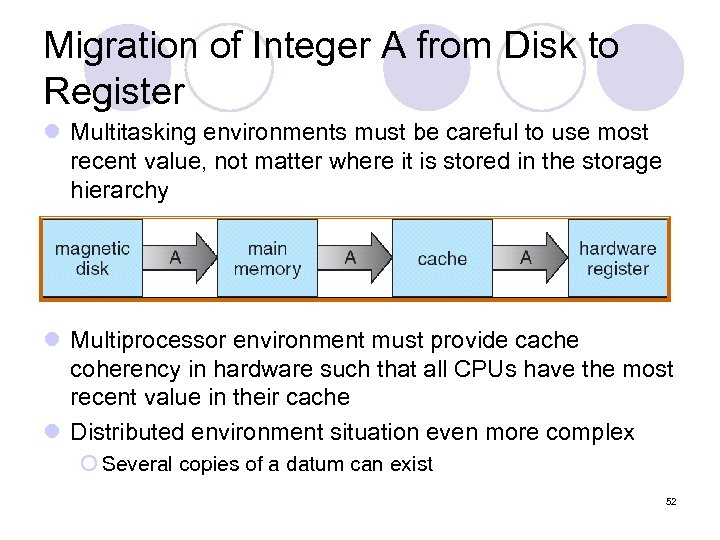
Migration of Integer A from Disk to Register l Multitasking environments must be careful to use most recent value, not matter where it is stored in the storage hierarchy l Multiprocessor environment must provide cache coherency in hardware such that all CPUs have the most recent value in their cache l Distributed environment situation even more complex ¡ Several copies of a datum can exist 52
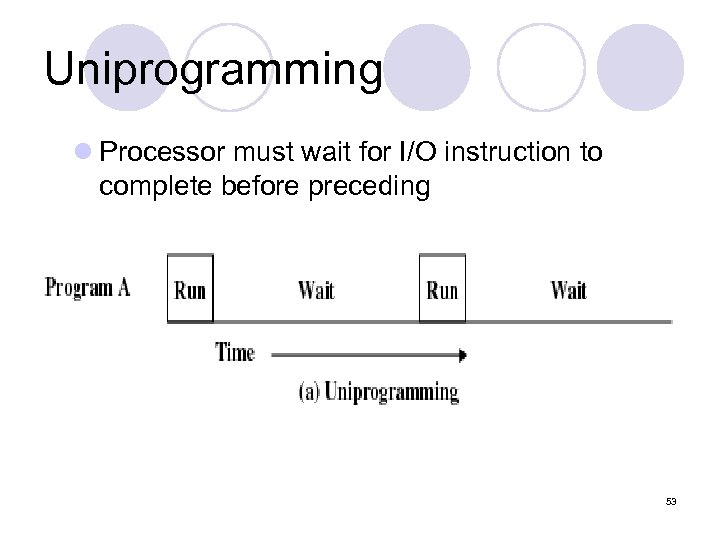
Uniprogramming l Processor must wait for I/O instruction to complete before preceding 53
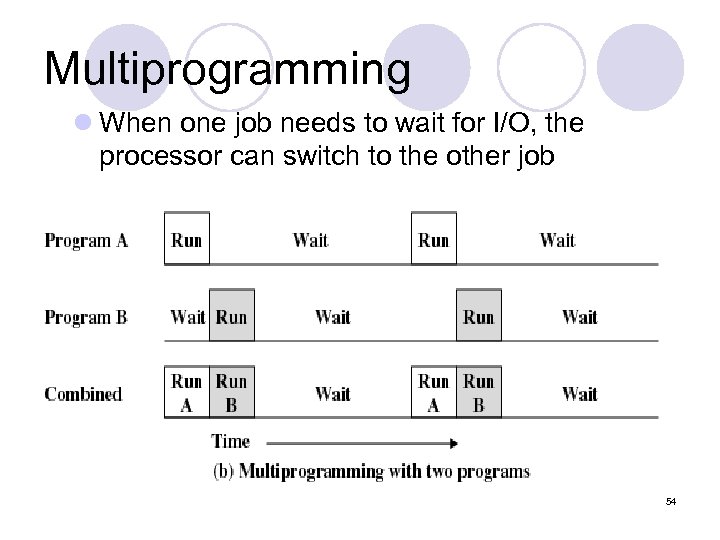
Multiprogramming l When one job needs to wait for I/O, the processor can switch to the other job 54
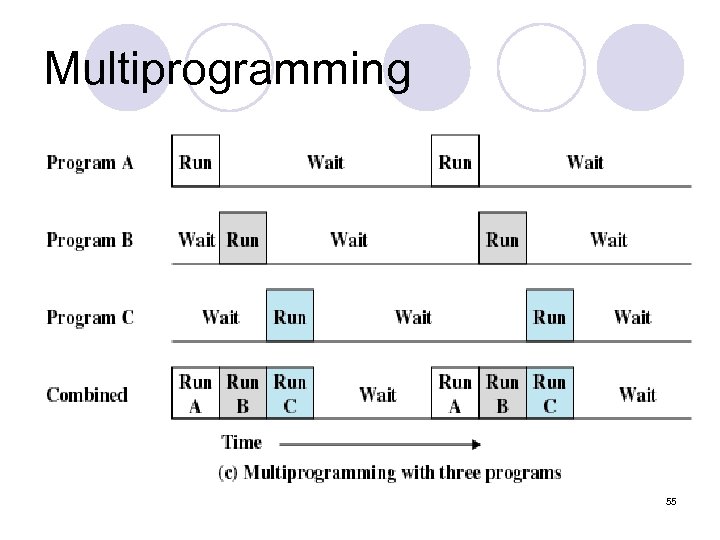
Multiprogramming 55
Multiprogramming l Multiprogramming needed for efficiency ¡Single user cannot keep CPU and I/O devices busy at all times ¡Multiprogramming organizes jobs (code and data) so CPU always has one to execute ¡A subset of total jobs in system is kept in memory ¡One job selected and run via job scheduling ¡When it has to wait (for I/O for example), OS switches to another job 56
Time Sharing l l Using multiprogramming to handle multiple interactive jobs Processor’s time is shared among multiple users Multiple users simultaneously access the system through terminals a number of users would get small slices of computer time, at a rate at which it appeared they were each connected to their own, slower, machine. l Timesharing (multitasking) is logical extension in which CPU switches jobs so frequently that users can interact with each job while it is running, creating interactive computing ¡ ¡ Response time should be < 1 second Each user has at least one program executing in memory process If several jobs ready to run at the same time CPU scheduling If processes don’t fit in memory, swapping moves them in and out to run ¡ Virtual memory allows execution of processes not completely in memory 57
Time Sharing l Issues: ¡ users (particularly at universities where the systems were being developed) seemed to want to hack the system to get more CPU time. For this reason, security and access control became a major focus of the Multics project in 1965. ¡ proper handling of computing resources: users spent most of their time staring at the screen and thinking instead of actually using the resources of the computer, and a time-sharing system should give the CPU time to an active user during these periods. ¡ the systems typically offered a memory hierarchy several layers deep, and partitioning this expensive resource led to major developments in virtual memory systems. 58
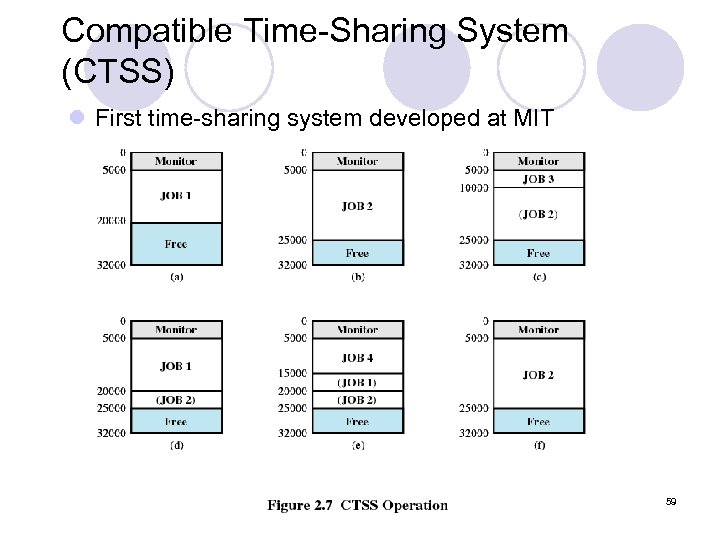
Compatible Time-Sharing System (CTSS) l First time-sharing system developed at MIT 59
Operating-System Operations l Interrupt driven by hardware l Software error or request creates exception or trap ¡ Division by zero, request for operating system service l Other process problems include infinite loop, processes modifying each other or the operating system l Dual-mode operation allows OS to protect itself and other system components ¡ User mode and kernel mode ¡ Mode bit provided by hardware l Provides ability to distinguish when system is running user code or kernel code l Some instructions designated as privileged, only executable in kernel mode l System call changes mode to kernel, return from call resets it to user 60
Modes of Execution l User mode ¡Less-privileged mode ¡User programs typically execute in this mode l System mode, control mode, or kernel mode ¡More-privileged mode ¡Kernel of the operating system 61
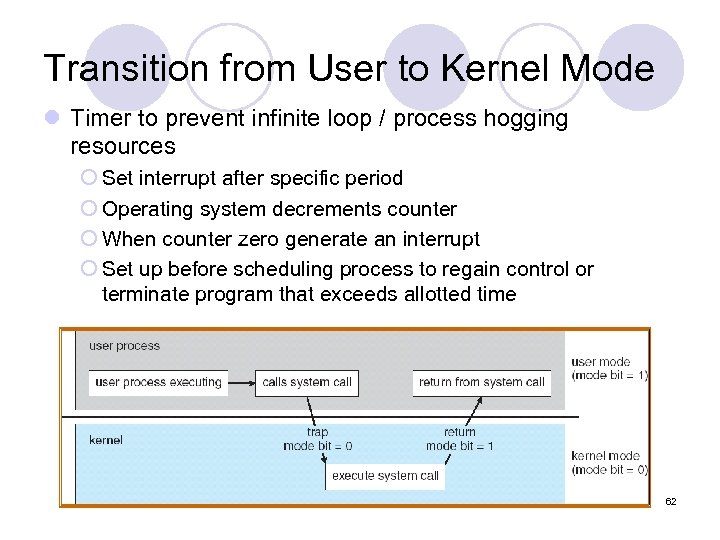
Transition from User to Kernel Mode l Timer to prevent infinite loop / process hogging resources ¡ Set interrupt after specific period ¡ Operating system decrements counter ¡ When counter zero generate an interrupt ¡ Set up before scheduling process to regain control or terminate program that exceeds allotted time 62
Computing Environments 63
Computing Environments l Traditional computer ¡Blurring over time ¡Office environment l PCs connected to a network, terminals attached to mainframe or minicomputers providing batch and timesharing l Now portals allowing networked and remote systems access to same resources ¡Home networks l Used to be single system, then modems l Now firewalled, networked 64
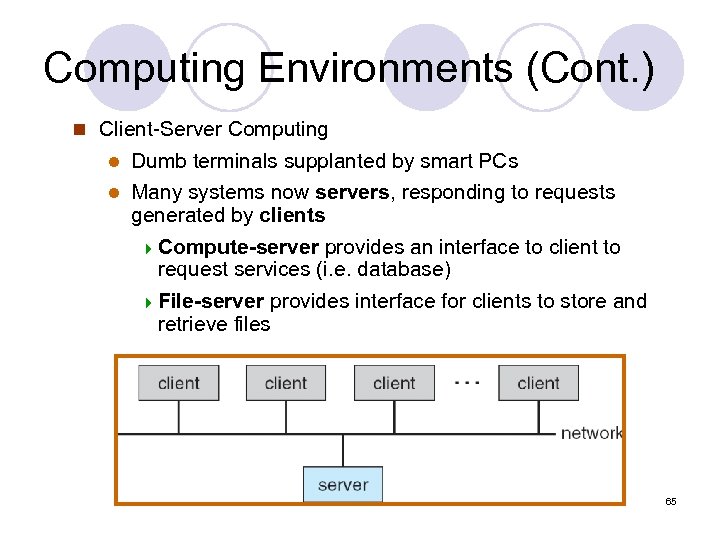
Computing Environments (Cont. ) n Client-Server Computing Dumb terminals supplanted by smart PCs l Many systems now servers, responding to requests generated by clients 4 Compute-server provides an interface to client to request services (i. e. database) 4 File-server provides interface for clients to store and retrieve files l 65
Peer-to-Peer Computing l Another model of distributed system l P 2 P does not distinguish clients and servers ¡Instead all nodes are considered peers ¡May each act as client, server or both ¡Node must join P 2 P network l Registers its service with central lookup service on network, or l Broadcast request for service and respond to requests for service via discovery protocol ¡Examples include Napster and Gnutella 66
Web-Based Computing l Web has become ubiquitous l PCs most prevalent devices l More devices becoming networked to allow web access l New category of devices to manage web traffic among similar servers: load balancers l Use of operating systems like Windows 95, client -side, have evolved into Linux and Windows XP, which can be clients and servers 67
Operating System Services 68
Operating System Services One set of operating-system services provides functions that are helpful to the user: l User interface - Almost all operating systems have a user interface (UI) ¡ Varies between Command-Line (CLI), Graphics User Interface (GUI), Batch l Program development ¡ Editors and debuggers l Program execution - The system must be able to load a program into memory and to run that program, end execution, either normally or abnormally (indicating error) 69
Operating System Services l I/O operations - A running program may require I/O, which may involve a file or an I/O device. l File-system manipulation - The file system is of particular interest. Obviously, programs need to read and write files and directories, create and delete them, search them, list file Information, permission management. l Communications – Processes may exchange information, on the same computer or between computers over a network ¡ Communications may be via shared memory or through message passing (packets moved by the OS) 70
Operating System Services (Cont. ) l Error detection – OS needs to be constantly aware of possible errors ¡ May occur in the CPU and memory hardware, in I/O devices, in user program ¡ Software errors l Arithmetic overflow l Access forbidden memory locations ¡ For each type of error, OS should take the appropriate action to ensure correct and consistent computing ¡ Debugging facilities can greatly enhance the user’s and programmer’s abilities to efficiently use the system 71
Operating System Services (Cont. ) Another set of OS functions exists for ensuring the efficient operation of the system itself via resource sharing l Resource allocation - When multiple users or multiple jobs running concurrently, resources must be allocated to each of them ¡ Many types of resources - Some (such as CPU cycles, main memory, and file storage) may have special allocation code, others (such as I/O devices) may have general request and release code. l Accounting - To keep track of which users use how much and what kinds of computer resources 72
Operating System Services (Cont. ) l Protection and security - The owners of information stored in a multi-user or networked computer system may want to control use of that information, concurrent processes should not interfere with each other ¡ Protection involves ensuring that all access to system resources is controlled ¡ Security of the system from outsiders requires user authentication, extends to defending external I/O devices from invalid access attempts ¡ If a system is to be protected and secure, precautions must be instituted throughout it. A chain is only as strong as its weakest link. 73
Kernel l Portion of operating system that is in main memory l Contains most frequently used functions l Also called the nucleus 74
Early OS Kernel l OS (and thus, a kernel) is not required to run a computer. Programs can be directly loaded and executed on the "bare metal" machine, provided that the authors of those programs are willing to work without any hardware abstraction or OS support. l Most early computers (1950 s and early 1960 s) - were reset and reloaded between the execution of different programs. l Eventually, small ancillary programs such as program loaders and debuggers were left in memory between runs, or loaded from ROM. As these were developed, they formed the basis of what became early OS kernels. l The "bare metal" approach is still used today on some video game consoles and embedded systems, but in general, newer computers use modern OS and kernels. l In 1969 the RC 4000 Multiprogramming System introduced the system design philosophy of a small nucleus "upon which OSs for different purposes could be built in an orderly manner“, what would be called the microkernel approach. 75
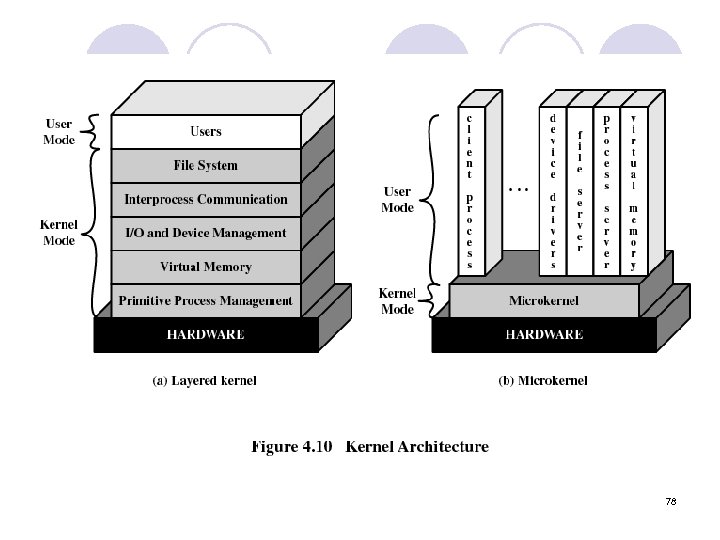
Microkernels l Small operating system core l Contains only essential core operating systems functions l Many services traditionally included in the operating system are now external subsystems ¡Device drivers ¡File systems ¡Virtual memory manager ¡Windowing system ¡Security services 76
Microkernel System Structure l Moves as much from the kernel into “user” space l Communication takes place between user modules using message passing l Benefits: ¡ Easier to extend a microkernel ¡ Easier to port the operating system to new architectures ¡ More reliable (less code is running in kernel mode) ¡ More secure l Detriments: ¡ Performance overhead of user space to kernel space communication 77
78
Monolithic kernel l all OS services run along with the main kernel thread, thus also residing in the same memory area. l provides rich and powerful hardware access. l "easier to implement a monolithic kernel" than microkernels [Ken Thompson, UNIX developer ]. l main disadvantages: ¡ dependencies between system components – a bug in a device driver might crash the entire system ¡ large kernels can become very difficult to maintain. 79
Microkernel l a simple abstraction over the hardware, with a set of primitives or system calls to implement minimal OS services (memory management, multitasking, and inter-process communication). l Other services, including those normally provided by the kernel such as networking, are implemented in user-space programs, referred to as servers. l easier to maintain than monolithic kernels, l but the large number of system calls and context switches might slow down the system because they typically generate more overhead than plain function calls. l A microkernel allows the implementation of the remaining part of the OSs a normal application program written in a high-level language, and the use of different OSs on top of the same unchanged kernel. It is also possible to dynamically switch among OSs and to have more than one active simultaneously. 80
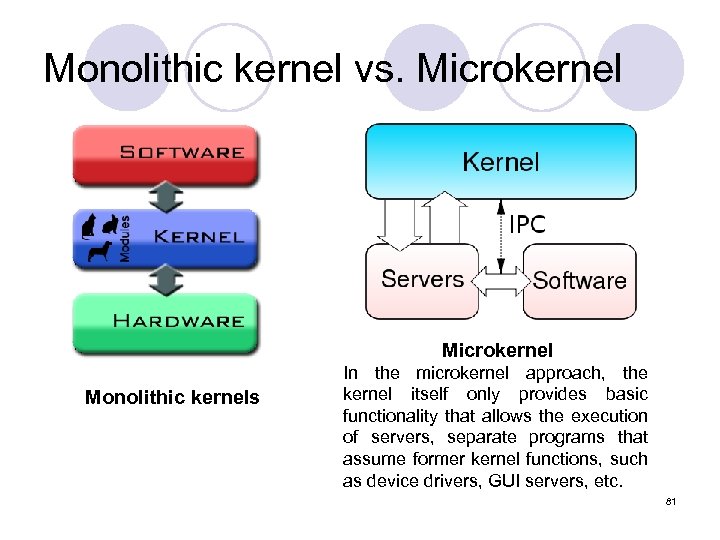
Monolithic kernel vs. Microkernel Monolithic kernels In the microkernel approach, the kernel itself only provides basic functionality that allows the execution of servers, separate programs that assume former kernel functions, such as device drivers, GUI servers, etc. 81
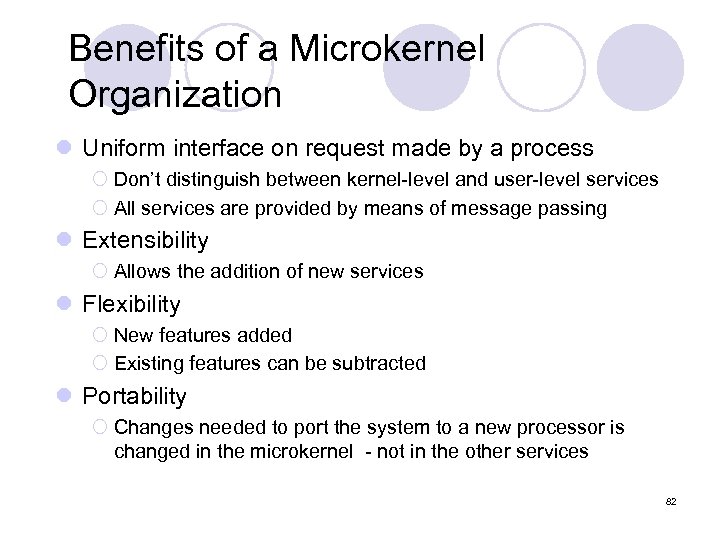
Benefits of a Microkernel Organization l Uniform interface on request made by a process ¡ Don’t distinguish between kernel-level and user-level services ¡ All services are provided by means of message passing l Extensibility ¡ Allows the addition of new services l Flexibility ¡ New features added ¡ Existing features can be subtracted l Portability ¡ Changes needed to port the system to a new processor is changed in the microkernel - not in the other services 82
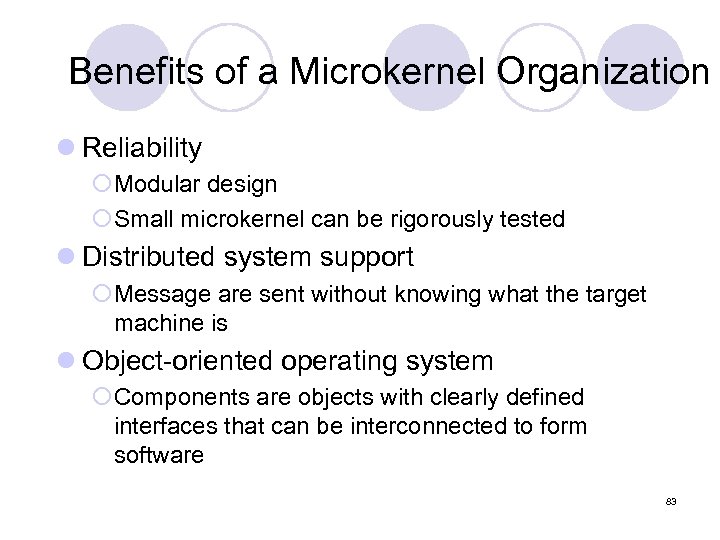
Benefits of a Microkernel Organization l Reliability ¡Modular design ¡Small microkernel can be rigorously tested l Distributed system support ¡Message are sent without knowing what the target machine is l Object-oriented operating system ¡Components are objects with clearly defined interfaces that can be interconnected to form software 83
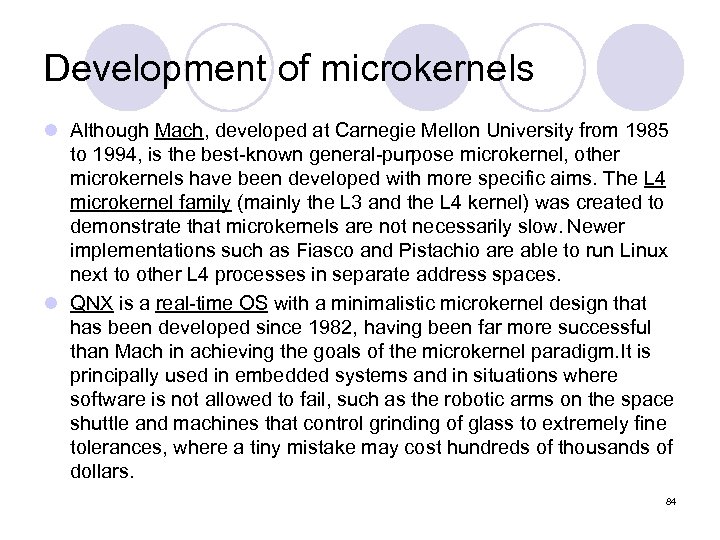
Development of microkernels l Although Mach, developed at Carnegie Mellon University from 1985 to 1994, is the best-known general-purpose microkernel, other microkernels have been developed with more specific aims. The L 4 microkernel family (mainly the L 3 and the L 4 kernel) was created to demonstrate that microkernels are not necessarily slow. Newer implementations such as Fiasco and Pistachio are able to run Linux next to other L 4 processes in separate address spaces. l QNX is a real-time OS with a minimalistic microkernel design that has been developed since 1982, having been far more successful than Mach in achieving the goals of the microkernel paradigm. It is principally used in embedded systems and in situations where software is not allowed to fail, such as the robotic arms on the space shuttle and machines that control grinding of glass to extremely fine tolerances, where a tiny mistake may cost hundreds of thousands of dollars. 84
User Operating System Interface - CLI allows direct command entry l. Sometimes implemented in kernel, sometimes by systems program l. Sometimes multiple flavors implemented – shells l. Primarily fetches a command from user and executes it • Sometimes commands built-in, sometimes just names of programs If the latter, adding new features doesn’t require shell modification 85
User Operating System Interface - GUI l User-friendly desktop metaphor interface ¡Usually mouse, keyboard, and monitor ¡Icons represent files, programs, actions, etc ¡Various mouse buttons over objects in the interface cause various actions (provide information, options, execute function, open directory (known as a folder) ¡Invented at Xerox PARC 86
User Operating System Interface l Many systems now include both CLI and GUI interfaces ¡Microsoft Windows is GUI with CLI “command” shell ¡Apple Mac OS X as “Aqua” GUI interface with UNIX kernel underneath and shells available ¡Solaris is CLI with optional GUI interfaces (Java Desktop, KDE) 87
System Calls l Programming interface to the services provided by the OS l Typically written in a high-level language (C or C++) l Mostly accessed by programs via a high-level Application Program Interface (API) rather than direct system call use l Three most common APIs are Win 32 API for Windows, POSIX API for POSIX-based systems (including virtually all versions of UNIX, Linux, and Mac OS X), and Java API for the Java virtual machine (JVM) l Why use APIs rather than system calls? (Note that the system-call names used throughout this text are generic) 88
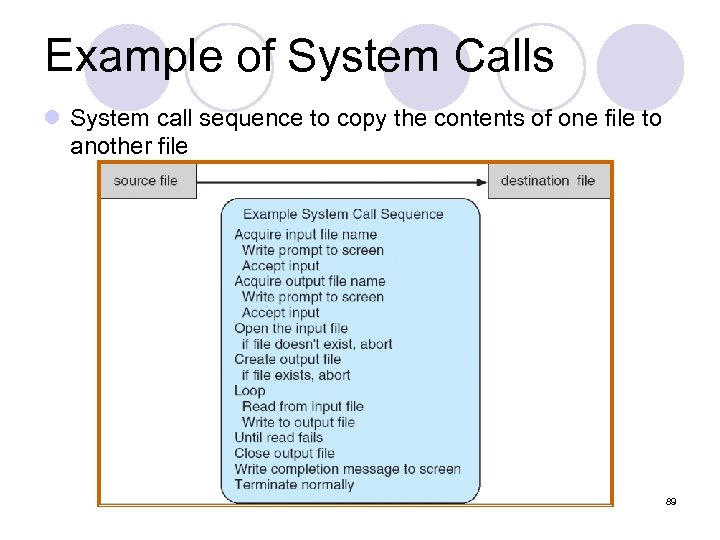
Example of System Calls l System call sequence to copy the contents of one file to another file 89
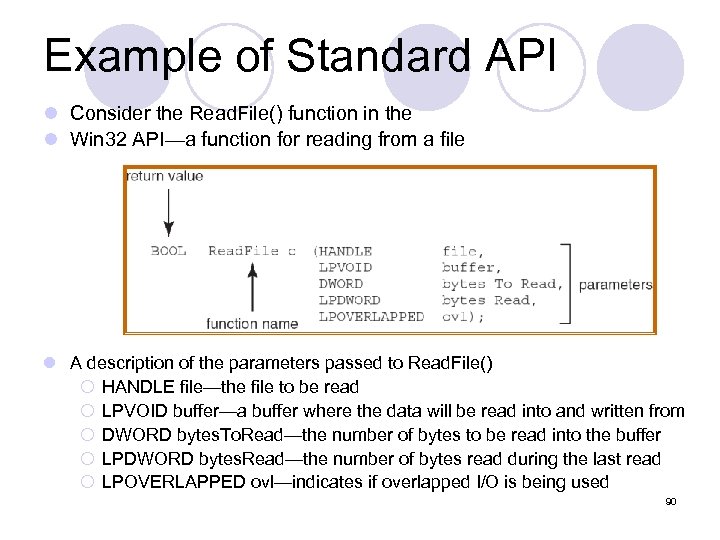
Example of Standard API l Consider the Read. File() function in the l Win 32 API—a function for reading from a file l A description of the parameters passed to Read. File() ¡ HANDLE file—the file to be read ¡ LPVOID buffer—a buffer where the data will be read into and written from ¡ DWORD bytes. To. Read—the number of bytes to be read into the buffer ¡ LPDWORD bytes. Read—the number of bytes read during the last read ¡ LPOVERLAPPED ovl—indicates if overlapped I/O is being used 90
System Call Implementation l Typically, a number associated with each system call ¡ System-call interface maintains a table indexed according to these numbers l The system call interface invokes intended system call in OS kernel and returns status of the system call and any return values l The caller need know nothing about how the system call is implemented ¡ Just needs to obey API and understand what OS will do as a result call ¡ Most details of OS interface hidden from programmer by API l Managed by run-time support library (set of functions built into libraries included with compiler) 91
Types of System Calls l Process control l File management l Device management l Information maintenance l Communications 92
System Programs l System programs provide a convenient environment for program development and execution. They can be divided into: ¡ File manipulation ¡ Status information ¡ File modification ¡ Programming language support ¡ Program loading and execution ¡ Communications ¡ Application programs l Most users’ view of the operation system is defined by system programs, not the actual system calls 93
System Programs l Provide a convenient environment for program development and execution ¡ Some of them are simply user interfaces to system calls; others are considerably more complex l File management - Create, delete, copy, rename, print, dump, list, and generally manipulate files and directories l Status information ¡ Some ask the system for info - date, time, amount of available memory, disk space, number of users ¡ Others provide detailed performance, logging, and debugging information ¡ Typically, these programs format and print the output to the terminal or other output devices ¡ Some systems implement a registry - used to store and retrieve configuration information 94
System Programs (cont’d) l File modification ¡ Text editors to create and modify files ¡ Special commands to search contents of files or perform transformations of the text l Programming-language support - Compilers, assemblers, debuggers and interpreters sometimes provided l Program loading and execution- Absolute loaders, relocatable loaders, linkage editors, and overlay-loaders, debugging systems for higher-level and machine language l Communications - Provide the mechanism for creating virtual connections among processes, users, and computer systems ¡ Allow users to send messages to one another’s screens, browse web pages, send electronic-mail messages, log in remotely, transfer files from one machine to another 95
UNIX l Unix programmers model every high-level device as a file, because they believed the purpose of computation was data transformation. ¡ E. g. printers were represented as a "file" at a known location - when data was copied to the file, it printed out. l In Unix, the OS consists of two parts; ¡ (1) the huge collection of utility programs that drive most operations, ¡ (2) kernel that runs the programs. ¡ the kernel is a program running in supervisor mode that acts as a program loader and supervisor for the small utility programs making up the rest of the system, and to provide locking and I/O services for these programs; beyond that, the kernel didn't intervene at all in user space. l Over the years the computing model changed, and Unix's treatment of everything as a file or byte stream no longer was as universally applicable: ¡ Although a terminal could be treated as a file or a byte stream, which is printed to or read from, the same did not seem to be true for a GUI. ¡ Networking - Even if network communication can be compared to file access, the lowlevel packet-oriented architecture dealt with discrete chunks of data and not with whole files. ¡ As the capability of computers grew, Unix became increasingly cluttered with code. While kernels might have had 100, 000 lines of code in the 70 s and 80 s, kernels of 96 modern Unix successors like Linux have more than 4. 5 million lines.
UNIX l Modern Unix-derivatives are generally based on module-loading monolithic kernels. Examples of this are the Linux kernel in its many distributions as well as the Berkeley software distribution variant kernels such as Free. BSD, Dragonfly. BSD, Open. BSD and Net. BSD. l Apart from these alternatives, amateur developers maintain an active OS development community, populated by self-written hobby kernels which mostly end up sharing many features with Linux, Free. BSD, Dragonfly. BSD, Open. BSD or Net. BSD kernels and/or being compatible with them. 97
Mac OS l Apple Computer first launched Mac OS in 1984, bundled with its Apple Macintosh personal computer. For the first few releases, Mac OS (or System Software, as it was called) lacked many essential features, such as multitasking and a hierarchical filesystem. With time, the OS evolved and eventually became Mac OS 9 and had many new features added, but the kernel basically stayed the same. [citation needed] Against this, Mac OS X is based on Darwin, which uses a hybrid kernel called XNU, which was created combining the 4. 3 BSD kernel and the Mach kernel. 98
Microsoft Windows l Microsoft Windows was first released in 1985 as an add-on to MSDOS. Because of its dependence on another OS, initial releases of Windows, prior to Windows 95, were considered an operating environment (do not confuse with operating system). l This product line continued to evolve through the 1980 s and 1990 s, culminating with release of the Windows 9 x series (upgrading the system's capabilities to 32 -bit addressing and pre-emptive multitasking) through the mid 1990 s and ending with the release of Windows Me in 2000. l Microsoft also developed Windows NT, an OS intended for high-end and business users. This line started with the release of Windows NT 3. 1 in 1993, and has continued through the years of 2000 with Windows Vista and Windows Server 2008. 99
Microsoft Windows l The release of Windows XP in October 2001 brought these two product lines together, with the intent of combining the stability of the NT kernel with consumer features from the 9 x series. The architecture of Windows NT's kernel is considered a hybrid kernel because the kernel itself contains tasks such as the Window Manager and the IPC Manager, but several subsystems run in user mode. The precise breakdown of user mode and kernel mode components has changed from release to release, but with the introduction of the User Mode Driver Framework in Windows Vista, and user-mode thread scheduling in Windows 7, have brought more kernel-mode functionality into user-mode processes. 100
Скачать презентацию Chapter 1 Introduction 1 Learning Objectives At
51b1411684dc7cc8d7203758c2001d15.ppt