


 Скачать презентацию Chair s User Guide for e CAF 07 16 2007 Chair
000354c6acfff6af8d5257dc1a70ac0e.ppt
- Количество слайдов: 39
 Chair’s User Guide for e. CAF 07/16/2007 Chair User Guide for e. CAF 1
 Table of Contents • • Introduction Step-by-Step Guide to Reviewing an e. CAF Searches & Reports Additional Resources 07/16/2007 Chair User Guide for e. CAF 2
 Introduction 07/16/2007 Chair User Guide for e. CAF 3
 What Is an e. CAF? • The Campus Approval Form (CAF) is a mandatory cover sheet that must be submitted with each proposal routed through the UCR Office of Research. • PAMIS e. CAF is the web-based electronic version of the required Campus Approval Form that is designed for efficient dissemination of information and fast routing and review. 07/16/2007 Chair User Guide for e. CAF 4
 Who Prepares an e. CAF? • An e. CAF can be started by either a PI or a Contract & Grant Analyst. • If a PI starts the e. CAF, it will route next to the C&G Analyst, and then back to the PI. • If a C&G Analyst starts the e. CAF, it will route next to the PI. 07/16/2007 Chair User Guide for e. CAF 5
 How Does e. CAF Routing Work? • After the C&G Analyst either starts or reviews an e. CAF, s/he submits it to the PI for review and certification. • After the PI reviews and certifies the e. CAF, s/he submits it to Co-PIs, if there any. • If there are no Co-PIs, the PI submits it to the Chair, if there is one. • If there is no Chair, the PI submits it directly to the Dean. • The final submission is to a Contract & Grant Officer in the Office of Research. 07/16/2007 Chair User Guide for e. CAF 6
 Can I Designate Someone Else to Act as Chair in e. CAF? • Yes, you may officially designate someone else to perform these roles. 07/16/2007 Chair User Guide for e. CAF 7
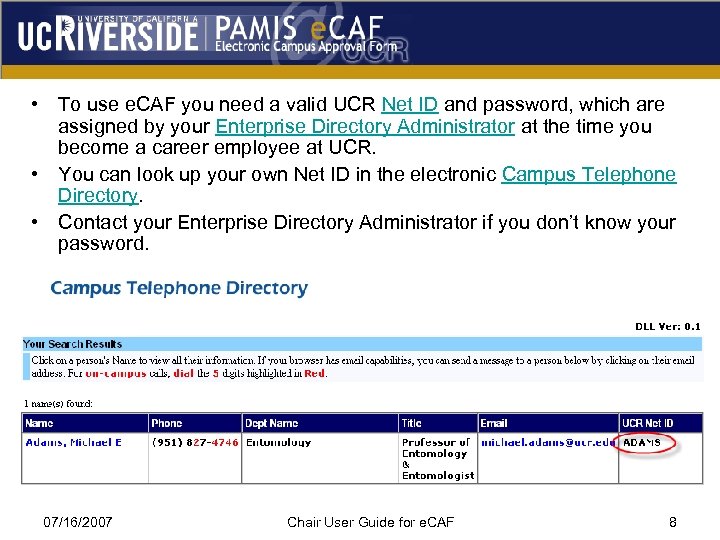 • To use e. CAF you need a valid UCR Net ID and password, which are assigned by your Enterprise Directory Administrator at the time you become a career employee at UCR. • You can look up your own Net ID in the electronic Campus Telephone Directory. • Contact your Enterprise Directory Administrator if you don’t know your password. 07/16/2007 Chair User Guide for e. CAF 8
 Step-by-Step Guide to Reviewing an Electronic Campus Approval Form 07/16/2007 Chair User Guide for e. CAF 9
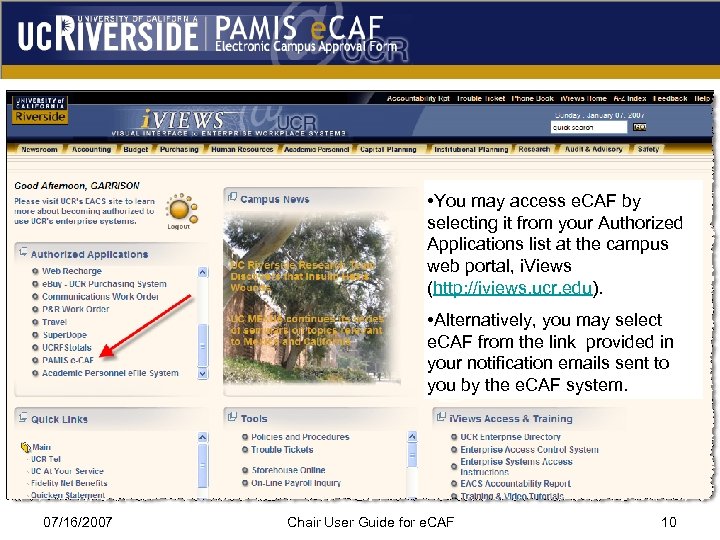 • You may access e. CAF by selecting it from your Authorized Applications list at the campus web portal, i. Views (http: //iviews. ucr. edu). • Alternatively, you may select e. CAF from the link provided in your notification emails sent to you by the e. CAF system. 07/16/2007 Chair User Guide for e. CAF 10
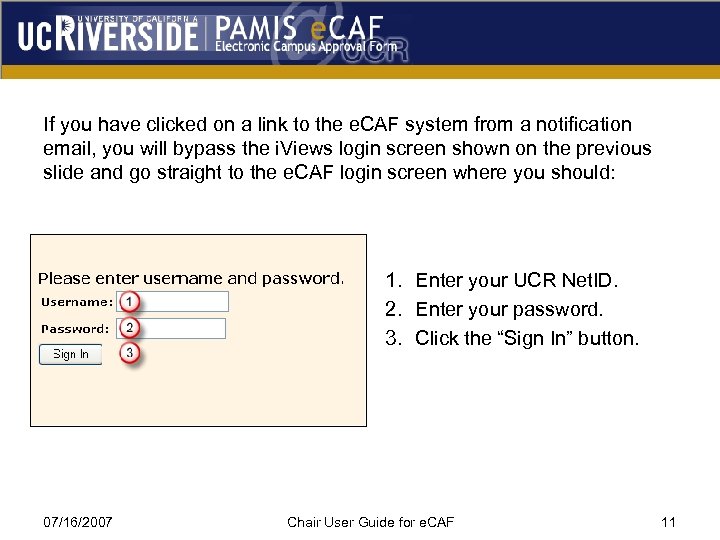 If you have clicked on a link to the e. CAF system from a notification email, you will bypass the i. Views login screen shown on the previous slide and go straight to the e. CAF login screen where you should: 1. Enter your UCR Net. ID. 2. Enter your password. 3. Click the “Sign In” button. 07/16/2007 Chair User Guide for e. CAF 11
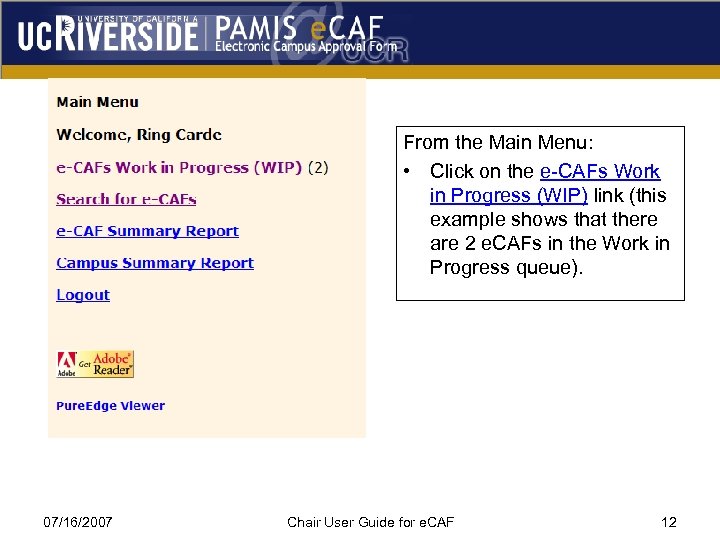 From the Main Menu: • Click on the e-CAFs Work in Progress (WIP) link (this example shows that there are 2 e. CAFs in the Work in Progress queue). 07/16/2007 Chair User Guide for e. CAF 12
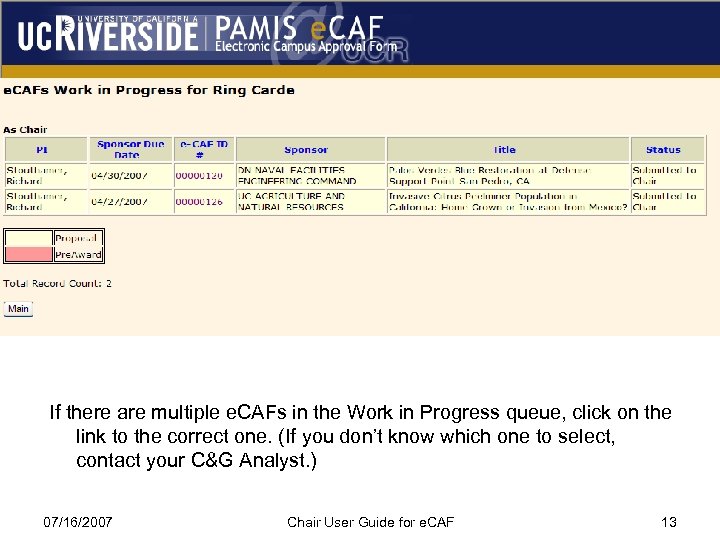 If there are multiple e. CAFs in the Work in Progress queue, click on the link to the correct one. (If you don’t know which one to select, contact your C&G Analyst. ) 07/16/2007 Chair User Guide for e. CAF 13
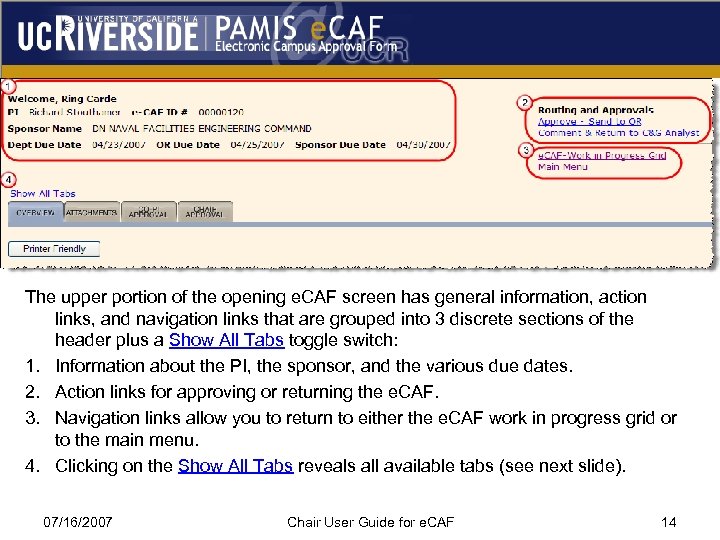 The upper portion of the opening e. CAF screen has general information, action links, and navigation links that are grouped into 3 discrete sections of the header plus a Show All Tabs toggle switch: 1. Information about the PI, the sponsor, and the various due dates. 2. Action links for approving or returning the e. CAF. 3. Navigation links allow you to return to either the e. CAF work in progress grid or to the main menu. 4. Clicking on the Show All Tabs reveals all available tabs (see next slide). 07/16/2007 Chair User Guide for e. CAF 14
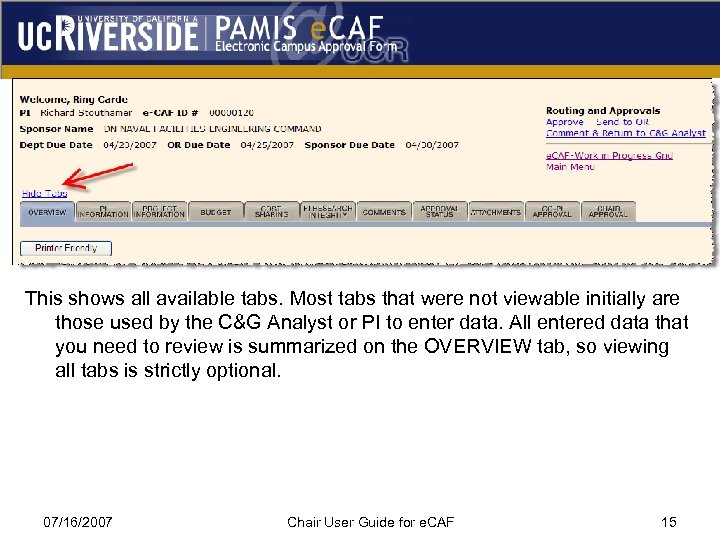 This shows all available tabs. Most tabs that were not viewable initially are those used by the C&G Analyst or PI to enter data. All entered data that you need to review is summarized on the OVERVIEW tab, so viewing all tabs is strictly optional. 07/16/2007 Chair User Guide for e. CAF 15
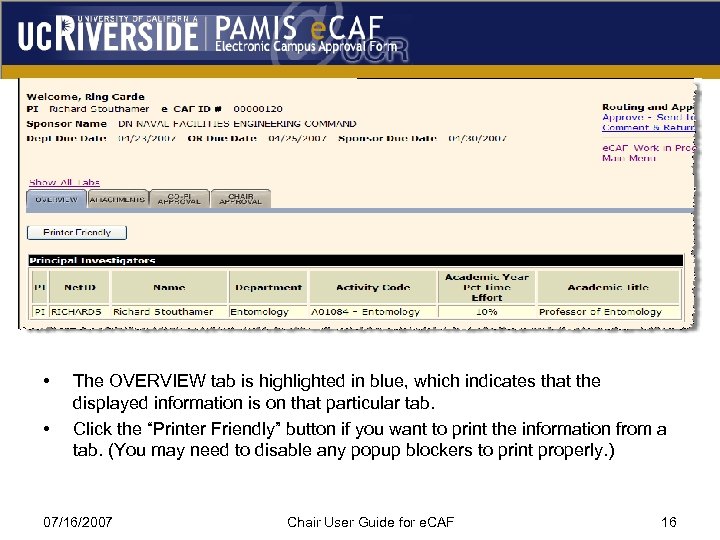 • • The OVERVIEW tab is highlighted in blue, which indicates that the displayed information is on that particular tab. Click the “Printer Friendly” button if you want to print the information from a tab. (You may need to disable any popup blockers to print properly. ) 07/16/2007 Chair User Guide for e. CAF 16
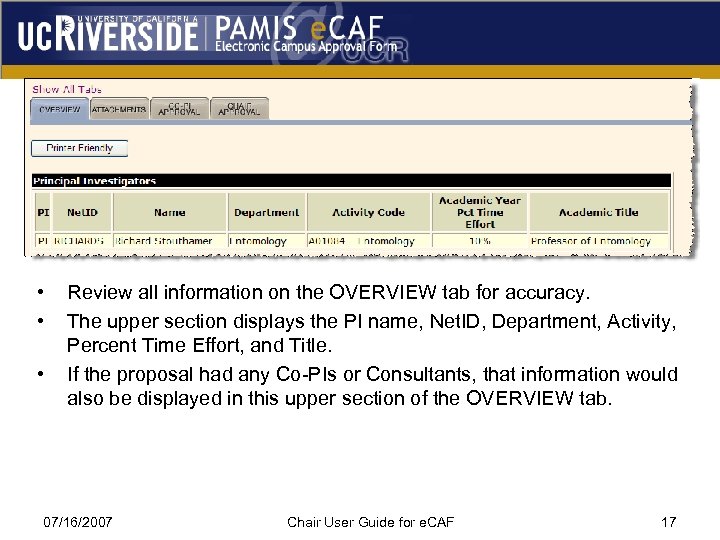 • • • Review all information on the OVERVIEW tab for accuracy. The upper section displays the PI name, Net. ID, Department, Activity, Percent Time Effort, and Title. If the proposal had any Co-PIs or Consultants, that information would also be displayed in this upper section of the OVERVIEW tab. 07/16/2007 Chair User Guide for e. CAF 17
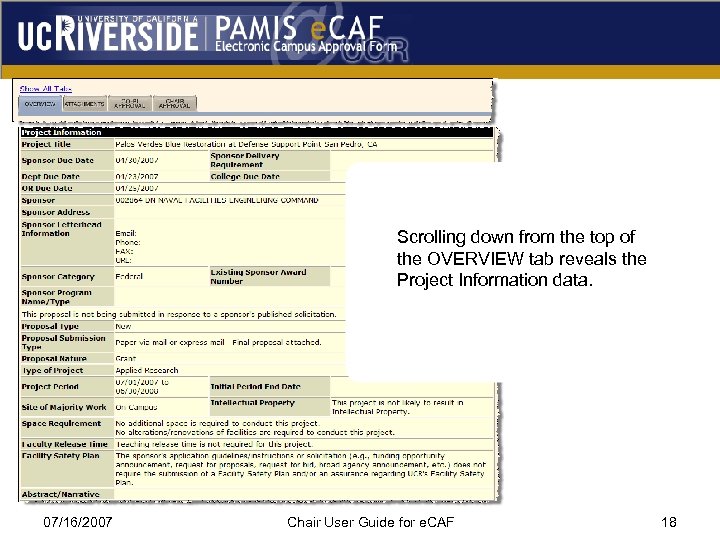 Scrolling down from the top of the OVERVIEW tab reveals the Project Information data. 07/16/2007 Chair User Guide for e. CAF 18
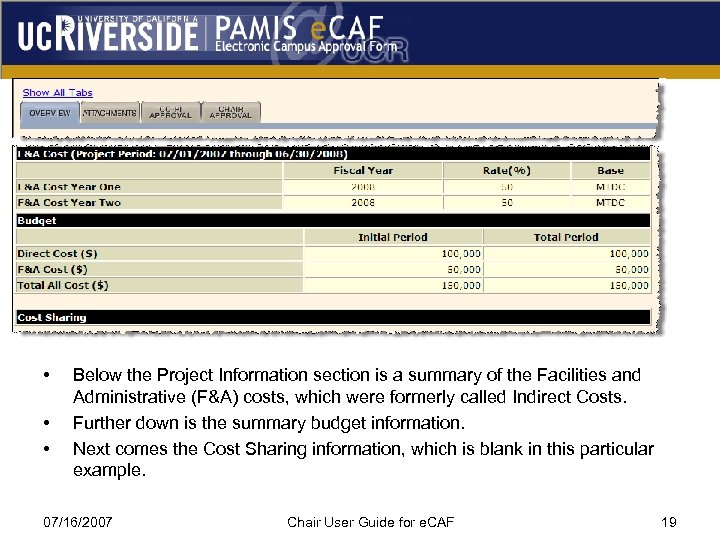 • • • Below the Project Information section is a summary of the Facilities and Administrative (F&A) costs, which were formerly called Indirect Costs. Further down is the summary budget information. Next comes the Cost Sharing information, which is blank in this particular example. 07/16/2007 Chair User Guide for e. CAF 19
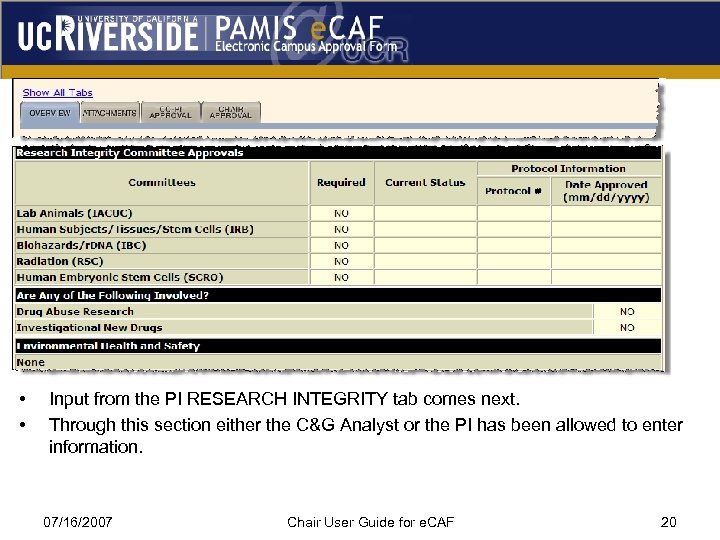 • • Input from the PI RESEARCH INTEGRITY tab comes next. Through this section either the C&G Analyst or the PI has been allowed to enter information. 07/16/2007 Chair User Guide for e. CAF 20
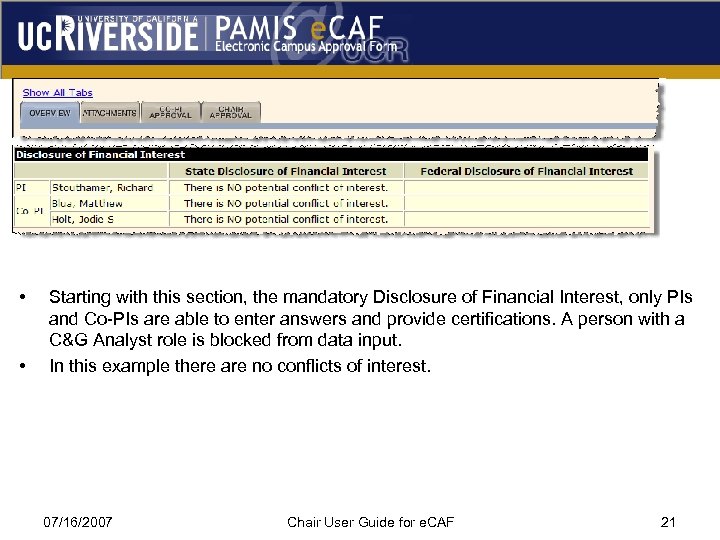 • • Starting with this section, the mandatory Disclosure of Financial Interest, only PIs and Co-PIs are able to enter answers and provide certifications. A person with a C&G Analyst role is blocked from data input. In this example there are no conflicts of interest. 07/16/2007 Chair User Guide for e. CAF 21
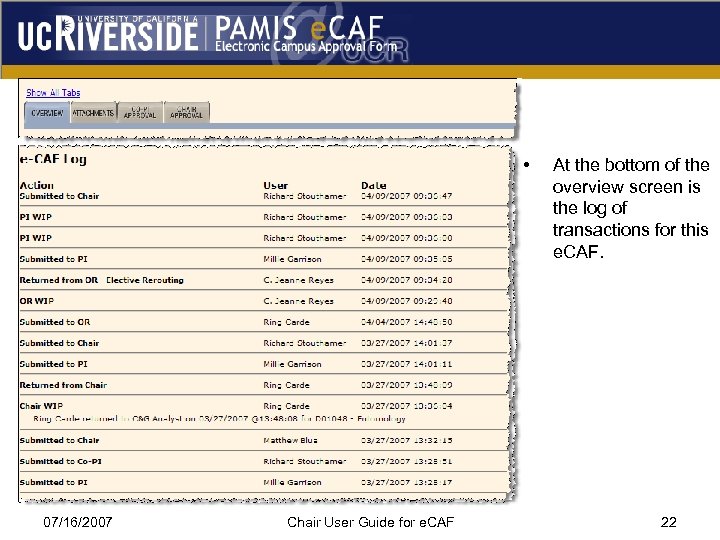 • 07/16/2007 Chair User Guide for e. CAF At the bottom of the overview screen is the log of transactions for this e. CAF. 22
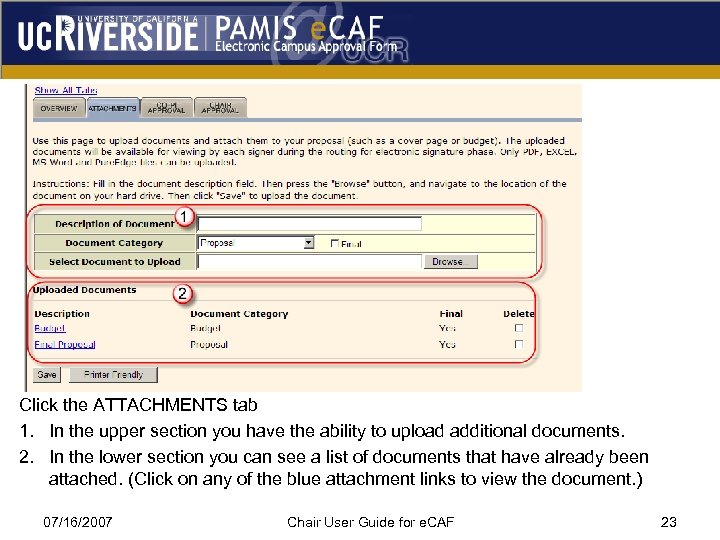 Click the ATTACHMENTS tab 1. In the upper section you have the ability to upload additional documents. 2. In the lower section you can see a list of documents that have already been attached. (Click on any of the blue attachment links to view the document. ) 07/16/2007 Chair User Guide for e. CAF 23
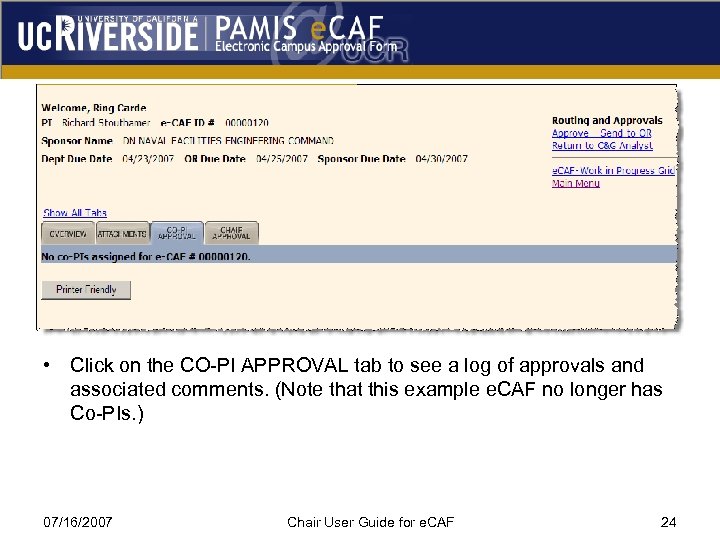 • Click on the CO-PI APPROVAL tab to see a log of approvals and associated comments. (Note that this example e. CAF no longer has Co-PIs. ) 07/16/2007 Chair User Guide for e. CAF 24
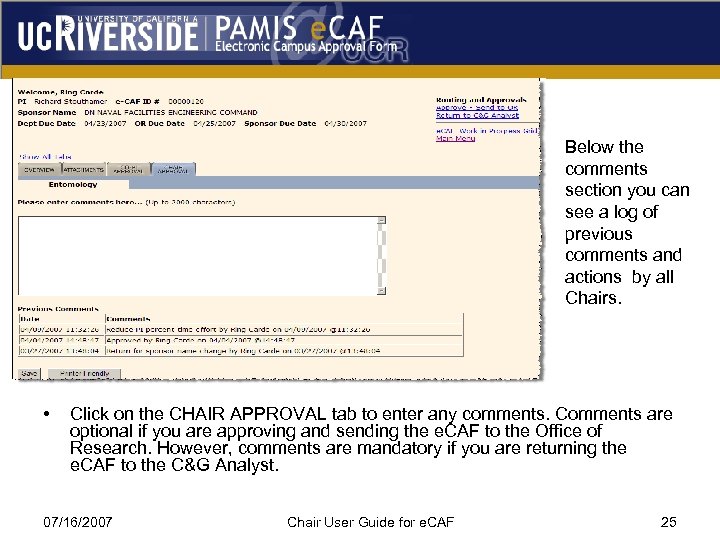 Below the comments section you can see a log of previous comments and actions by all Chairs. • Click on the CHAIR APPROVAL tab to enter any comments. Comments are optional if you are approving and sending the e. CAF to the Office of Research. However, comments are mandatory if you are returning the e. CAF to the C&G Analyst. 07/16/2007 Chair User Guide for e. CAF 25
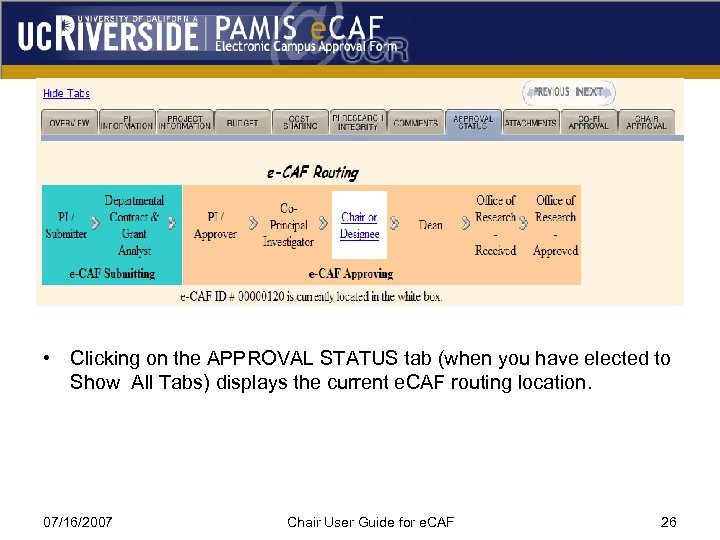 • Clicking on the APPROVAL STATUS tab (when you have elected to Show All Tabs) displays the current e. CAF routing location. 07/16/2007 Chair User Guide for e. CAF 26
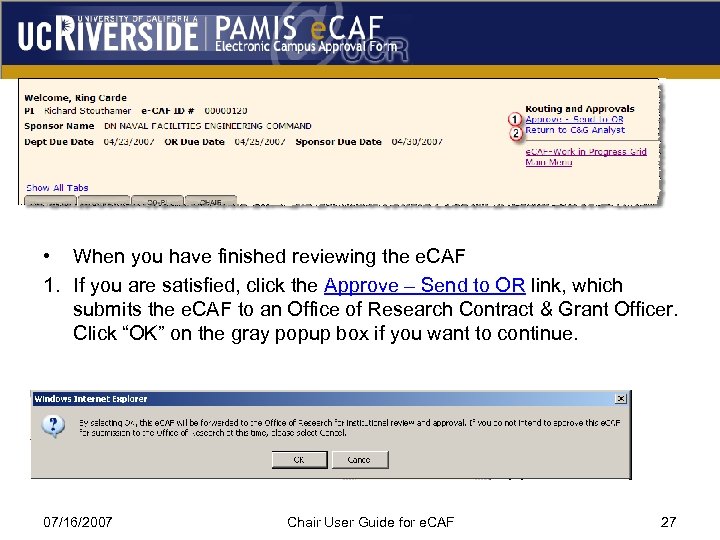 • When you have finished reviewing the e. CAF 1. If you are satisfied, click the Approve – Send to OR link, which submits the e. CAF to an Office of Research Contract & Grant Officer. Click “OK” on the gray popup box if you want to continue. 07/16/2007 Chair User Guide for e. CAF 27
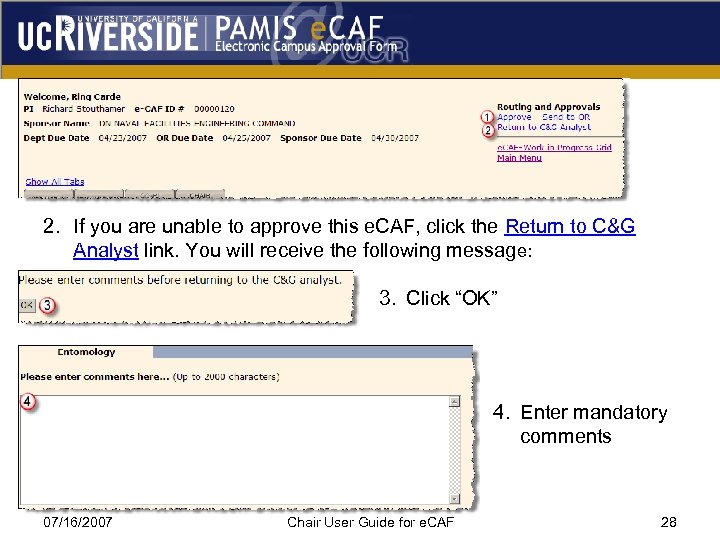 2. If you are unable to approve this e. CAF, click the Return to C&G Analyst link. You will receive the following message: 3. Click “OK” 4. Enter mandatory comments 07/16/2007 Chair User Guide for e. CAF 28
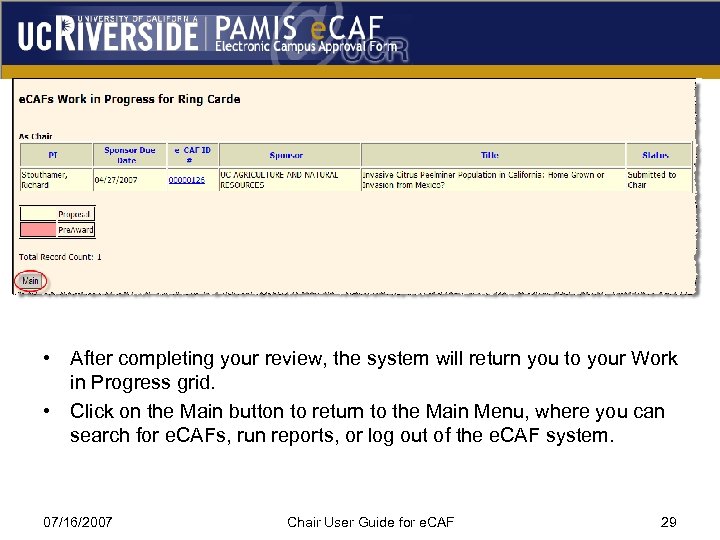 • After completing your review, the system will return you to your Work in Progress grid. • Click on the Main button to return to the Main Menu, where you can search for e. CAFs, run reports, or log out of the e. CAF system. 07/16/2007 Chair User Guide for e. CAF 29
 Searches & Reports 07/16/2007 Chair User Guide for e. CAF 30
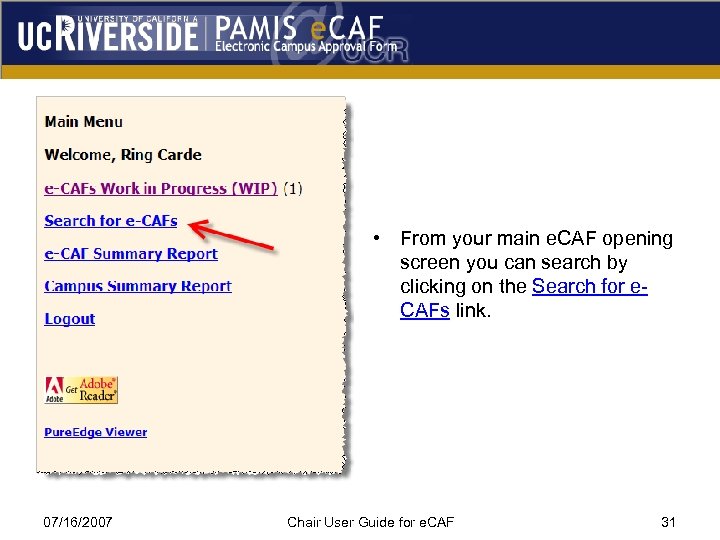 • From your main e. CAF opening screen you can search by clicking on the Search for e. CAFs link. 07/16/2007 Chair User Guide for e. CAF 31
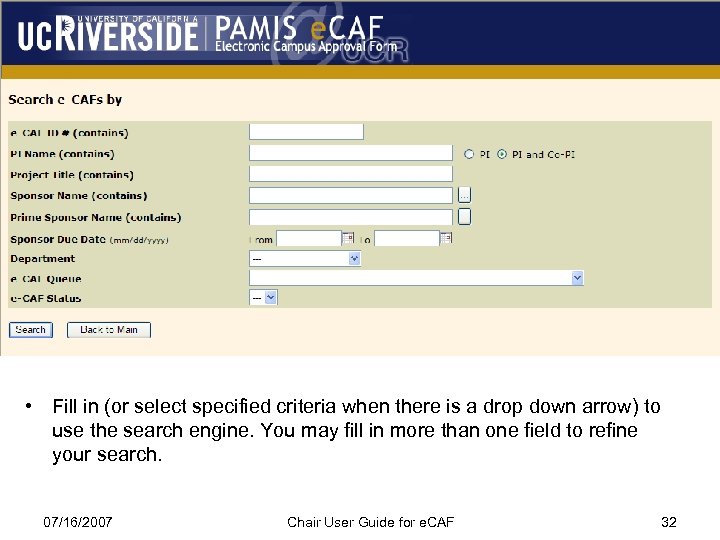 • Fill in (or select specified criteria when there is a drop down arrow) to use the search engine. You may fill in more than one field to refine your search. 07/16/2007 Chair User Guide for e. CAF 32
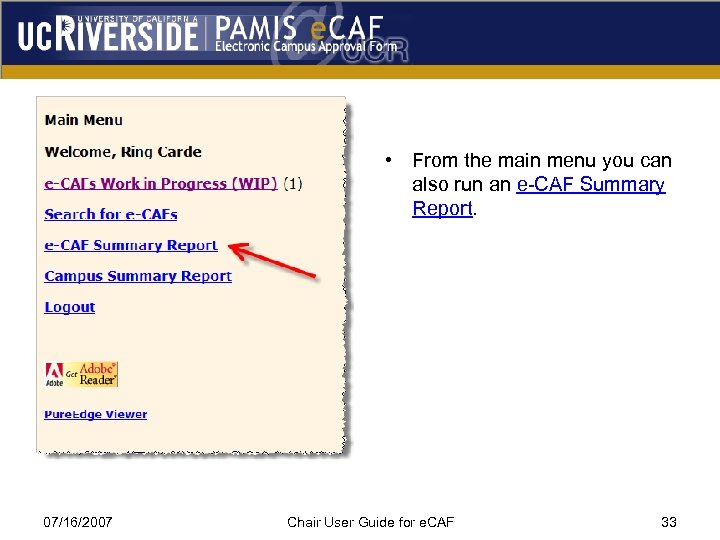 • From the main menu you can also run an e-CAF Summary Report. 07/16/2007 Chair User Guide for e. CAF 33
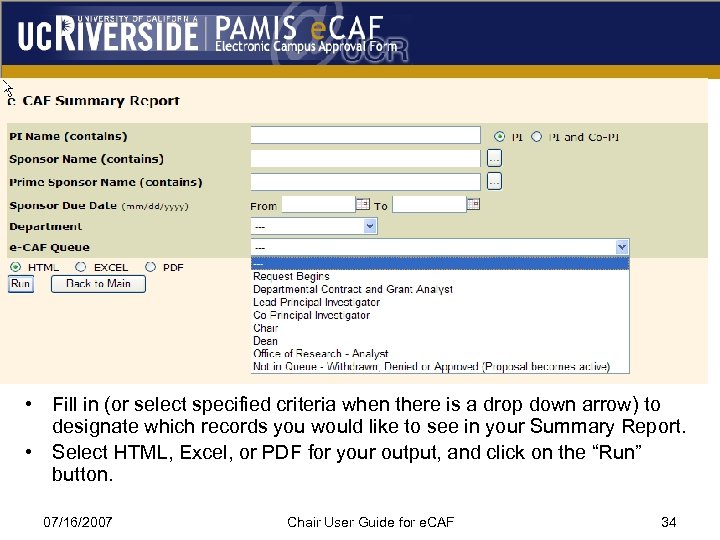 • Fill in (or select specified criteria when there is a drop down arrow) to designate which records you would like to see in your Summary Report. • Select HTML, Excel, or PDF for your output, and click on the “Run” button. 07/16/2007 Chair User Guide for e. CAF 34
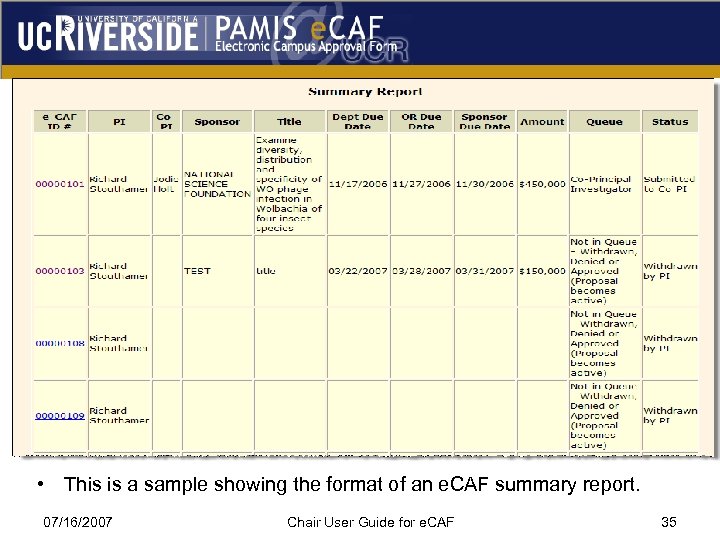 • This is a sample showing the format of an e. CAF summary report. 07/16/2007 Chair User Guide for e. CAF 35
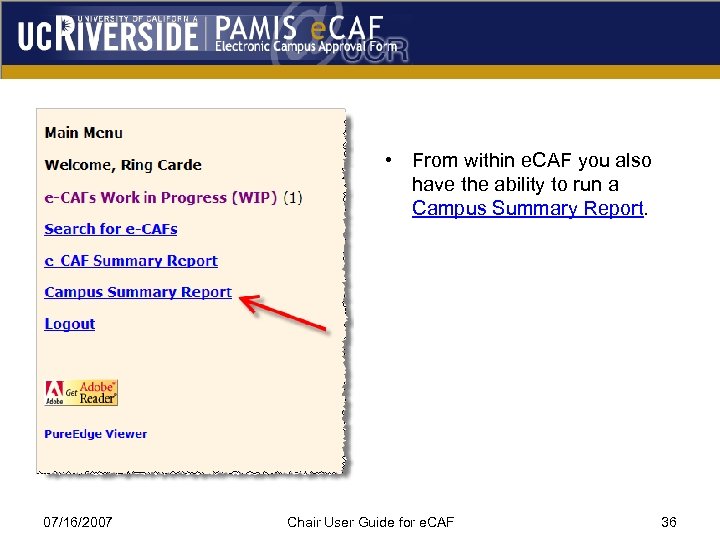 • From within e. CAF you also have the ability to run a Campus Summary Report. 07/16/2007 Chair User Guide for e. CAF 36
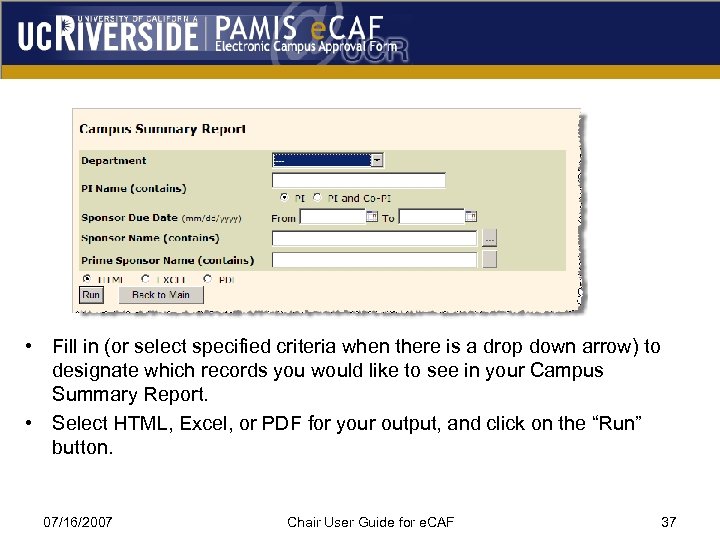 • Fill in (or select specified criteria when there is a drop down arrow) to designate which records you would like to see in your Campus Summary Report. • Select HTML, Excel, or PDF for your output, and click on the “Run” button. 07/16/2007 Chair User Guide for e. CAF 37
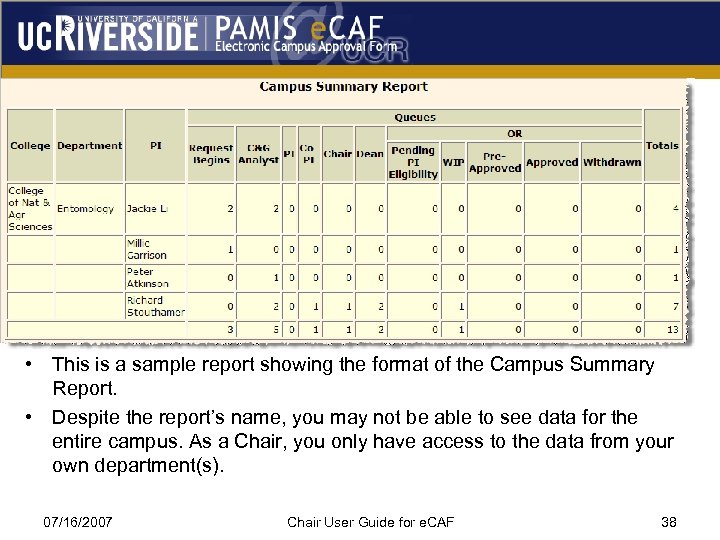 • This is a sample report showing the format of the Campus Summary Report. • Despite the report’s name, you may not be able to see data for the entire campus. As a Chair, you only have access to the data from your own department(s). 07/16/2007 Chair User Guide for e. CAF 38
 Additional Resources • • Office of Research PAMIS website: http: //cnc. ucr. edu/ecaf/. Computing Help Desk Email: helpdesk@ucr. edu. Feedback Email: ecaffeedback@ucr. edu. Proposal Processing Policy 527 -4: http: //www. ora. ucr. edu/Policies. aspx 07/16/2007 Chair User Guide for e. CAF 39