


 Скачать презентацию CATS TRAINING CODESP Automated Test System PART I
b2b94ff14bc5791d0a35b6a14e34ac9e.ppt
- Количество слайдов: 42
 CATS TRAINING CODESP Automated Test System PART I: GETTING STARTED WITH CATS
 Part 1: Getting Started with CATS • • Computer Settings Registration for 1 st Time Users of CATS Establishing Administrator and User Profiles Logging In Logging Out Website Navigation Using the District Directory Registering for Training
 Computer Display • For optimum viewing Screen Size settings should be set to 1024 x 768. • Go to the Control Panel/Display/Settings/ and then Screen Size and make sure the settings are set at 1024 x 768. This will allow you to see the entire screen.
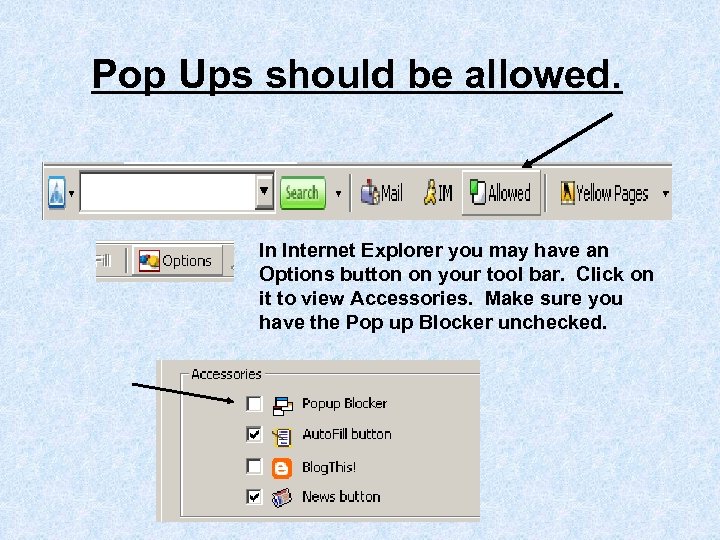 Pop Ups should be allowed. In Internet Explorer you may have an Options button on your tool bar. Click on it to view Accessories. Make sure you have the Pop up Blocker unchecked.
 Computer Viewing • Internet Explorer version 6. 0 If you don’t have it, you can download for free at: www. microsoft. com or contact your district’s IT department. • Make sure we are not Spam Blocked from your agency. If you don’t hear from us, we are probably blocked.
 Software Updates • Currently we are improving and adding features to the CATS software system. • Some of the steps that follow will be simplified when these corrections/additions are activated. • To increase district flexibility in developing selection materials we need your feedback and suggestions.
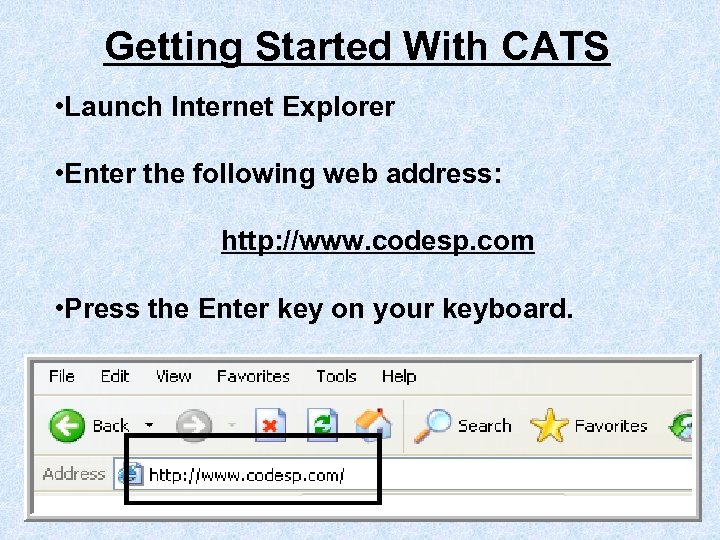 Getting Started With CATS • Launch Internet Explorer • Enter the following web address: http: //www. codesp. com • Press the Enter key on your keyboard.
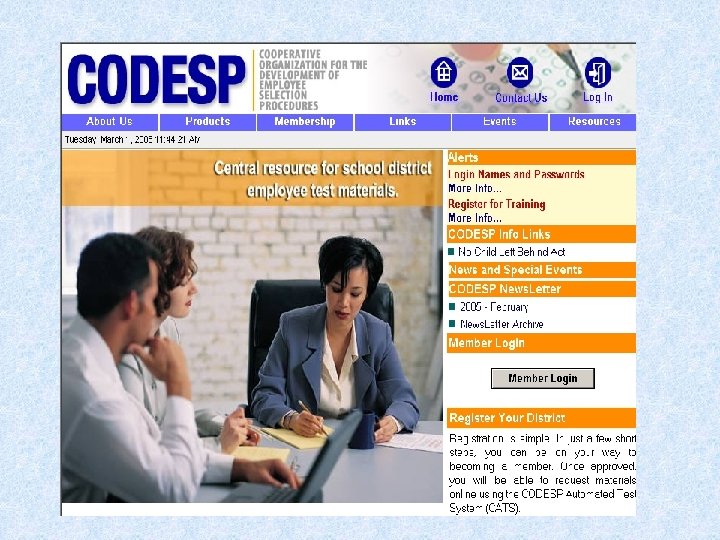
 Registration Process: First Time Users of CATS
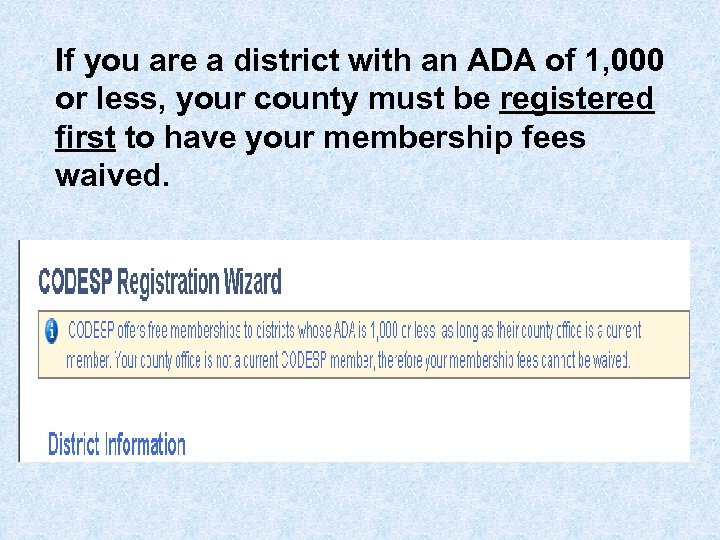 If you are a district with an ADA of 1, 000 or less, your county must be registered first to have your membership fees waived.
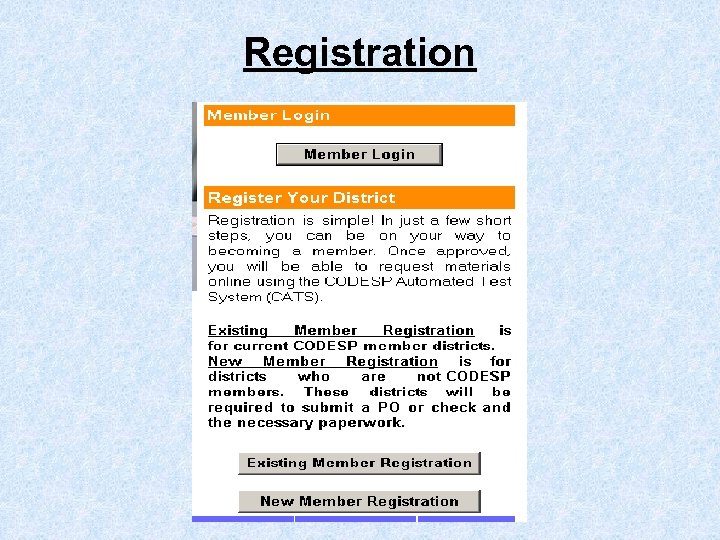 Registration
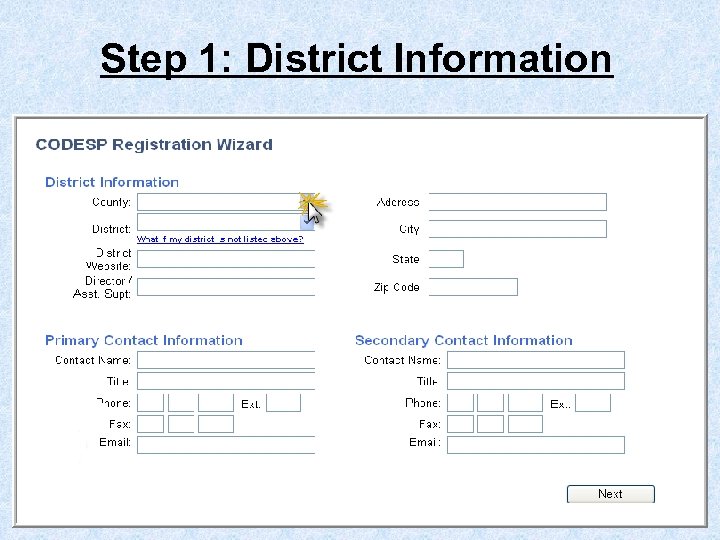 Step 1: District Information
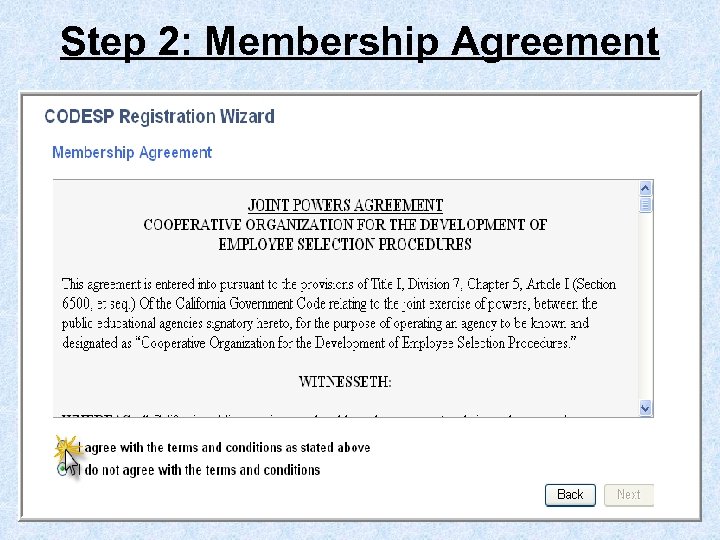 Step 2: Membership Agreement
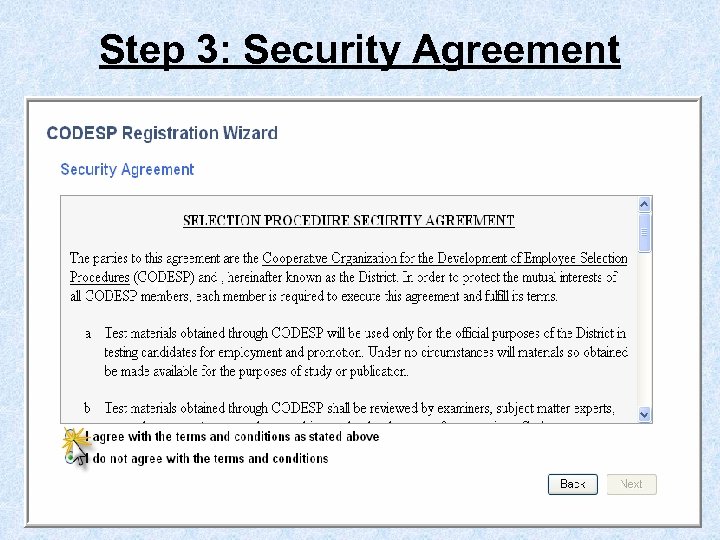 Step 3: Security Agreement
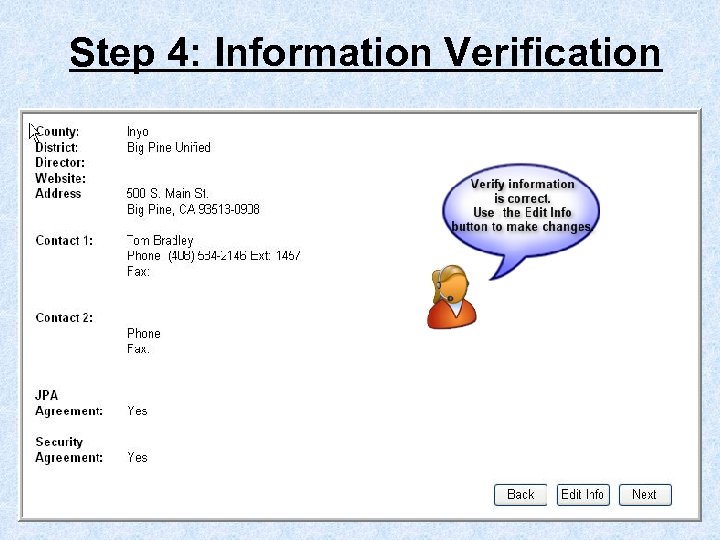 Step 4: Information Verification
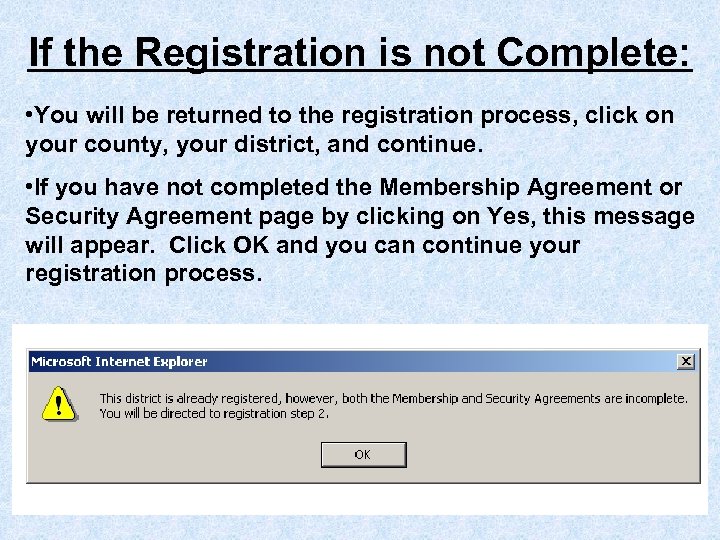 If the Registration is not Complete: • You will be returned to the registration process, click on your county, your district, and continue. • If you have not completed the Membership Agreement or Security Agreement page by clicking on Yes, this message will appear. Click OK and you can continue your registration process.
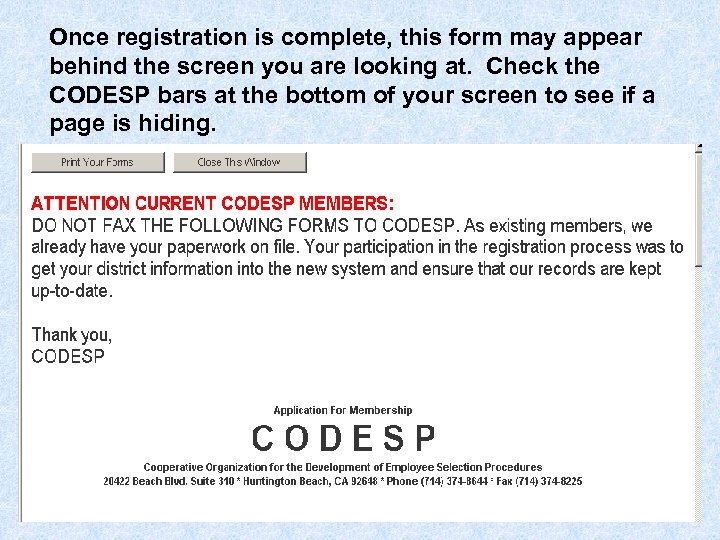 Once registration is complete, this form may appear behind the screen you are looking at. Check the CODESP bars at the bottom of your screen to see if a page is hiding.
 Establishing Administrator and User Profiles
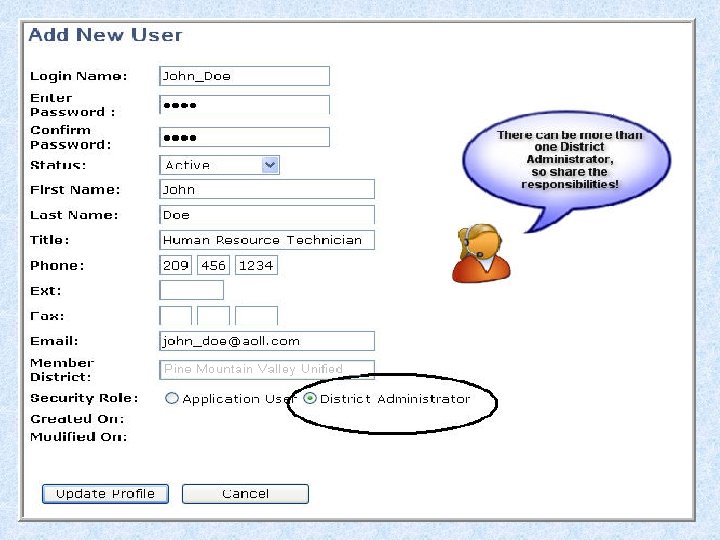
 Login Name and Password • Once the Registration process is complete CODESP will email the Primary Contact with their Login name and Password. • The Primary contact will be assigned the role of District Administrator. This person will be the only contact to receive a Login name and Password from CODESP.
 Signing Up New District Users • The District Administrator must login and sign up new users. • District Administrators should NOT give their login name and password to other users, each user should have their own. • Individuals who call for assistance who are not registered will not receive secure information.
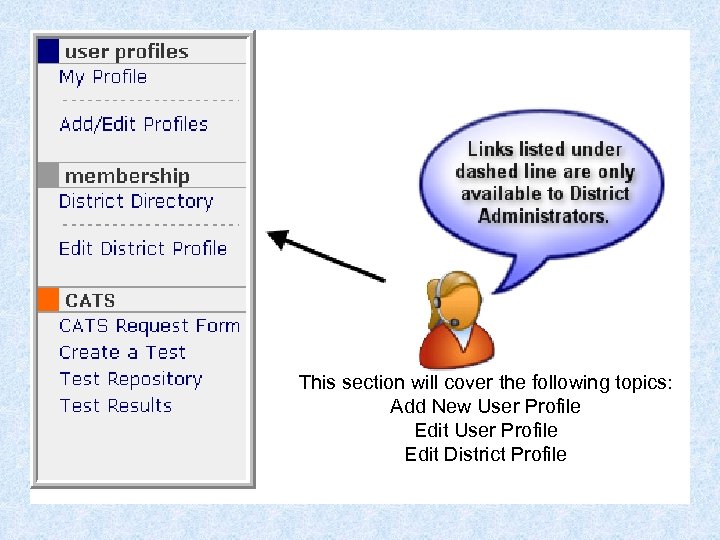 This section will cover the following topics: Add New User Profile Edit District Profile
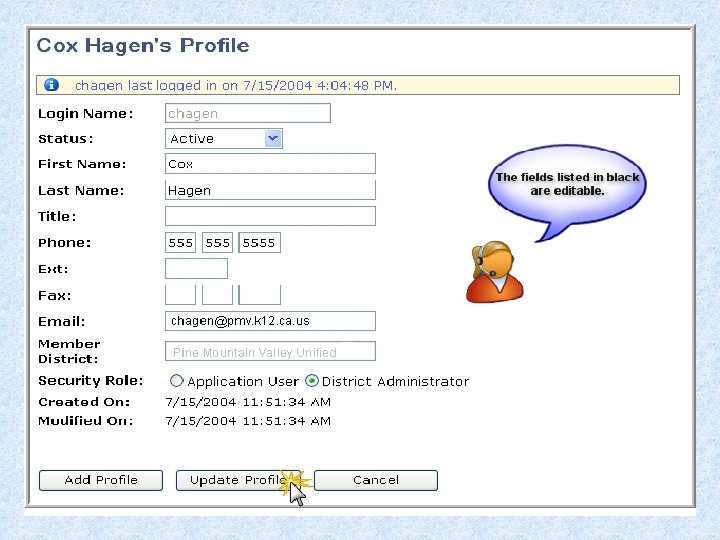
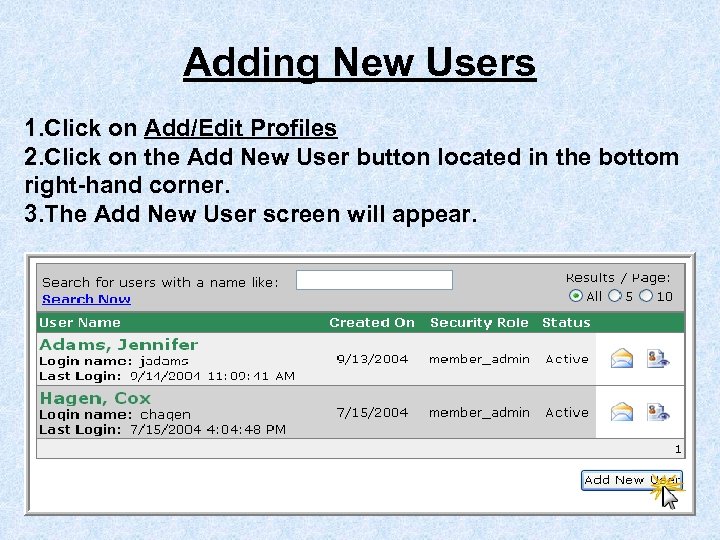 Adding New Users 1. Click on Add/Edit Profiles 2. Click on the Add New User button located in the bottom right-hand corner. 3. The Add New User screen will appear.
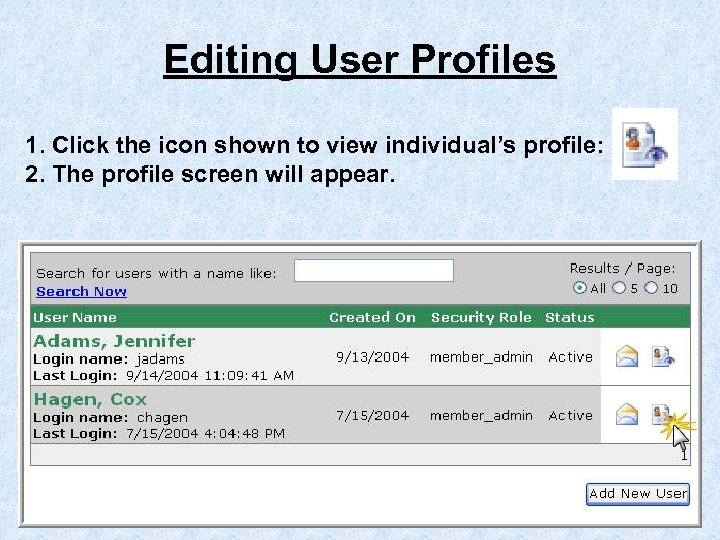 Editing User Profiles 1. Click the icon shown to view individual’s profile: 2. The profile screen will appear.
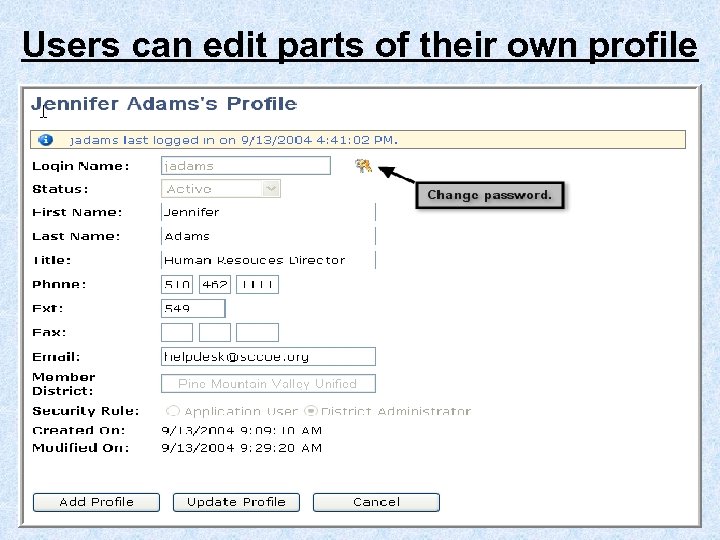 Users can edit parts of their own profile
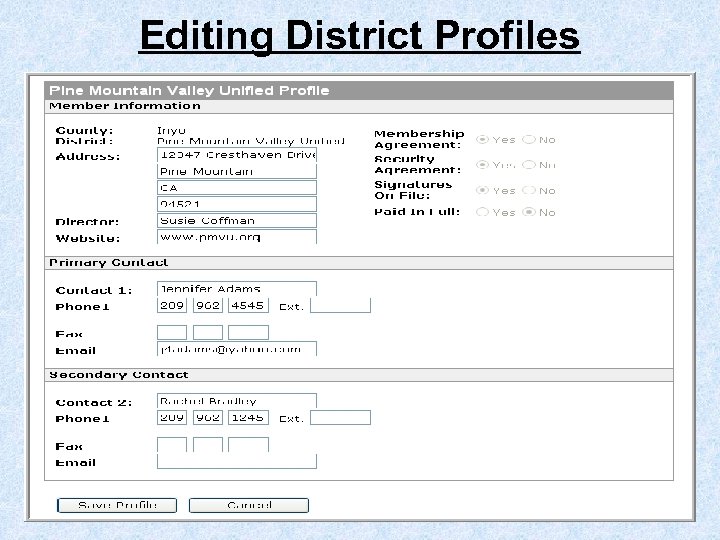 Editing District Profiles
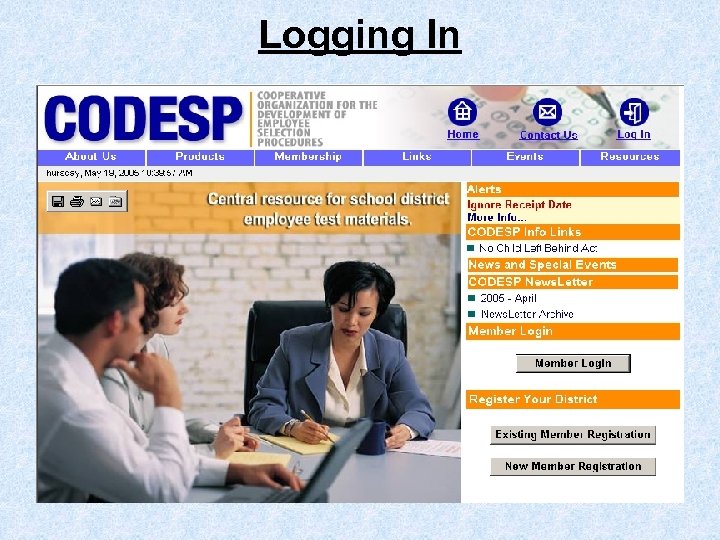 Logging In
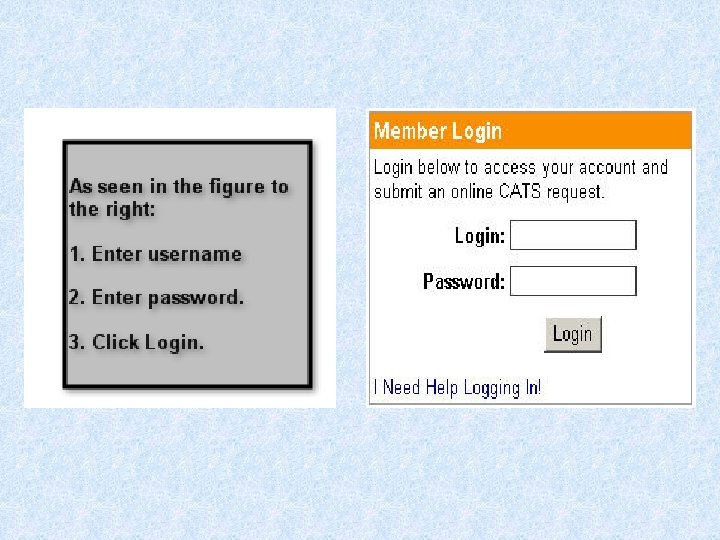
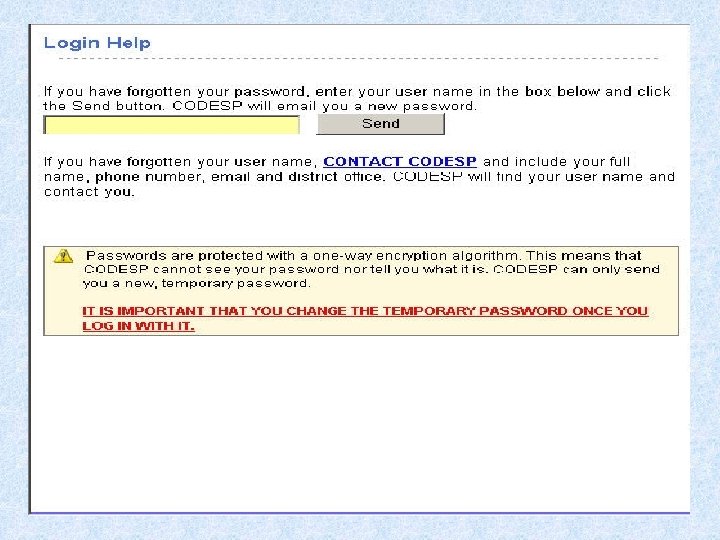
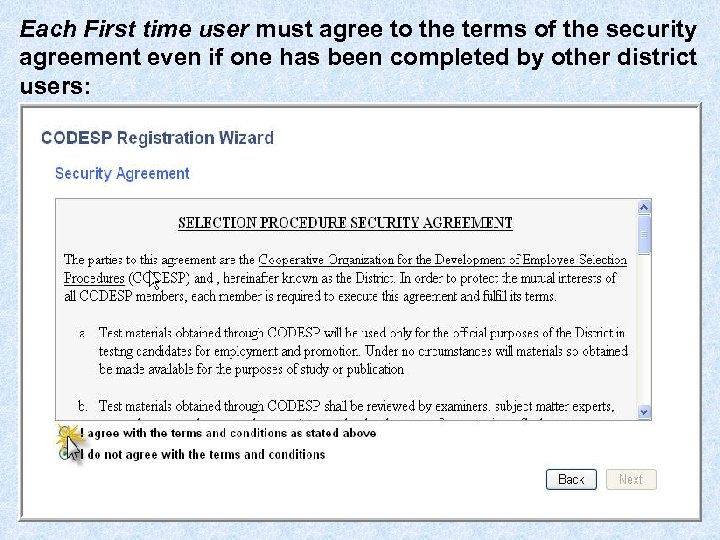 Each First time user must agree to the terms of the security agreement even if one has been completed by other district users:
 Logging Out • Throughout the course of the day, there will be times in which you will not need access to the system (lunch time, breaks, meetings, etc. ) In these instances, you will need to exit the system. • In order to maintain the highest level of security, end your session by clicking on Log Out.
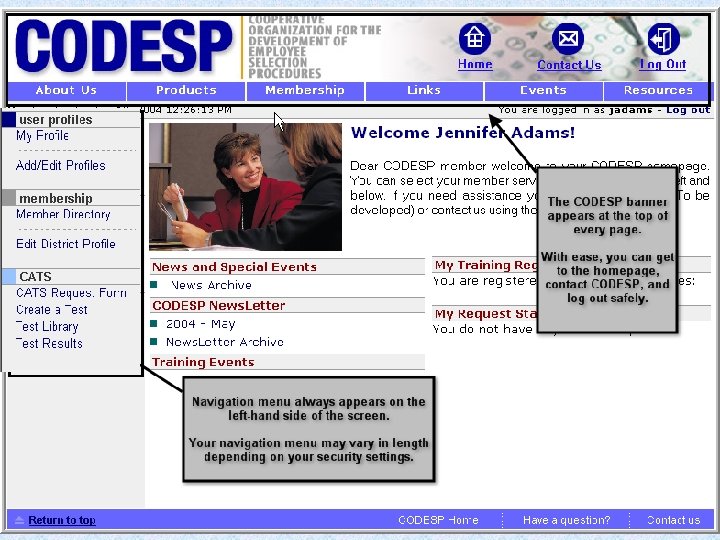
 Navigating the CODESP Website
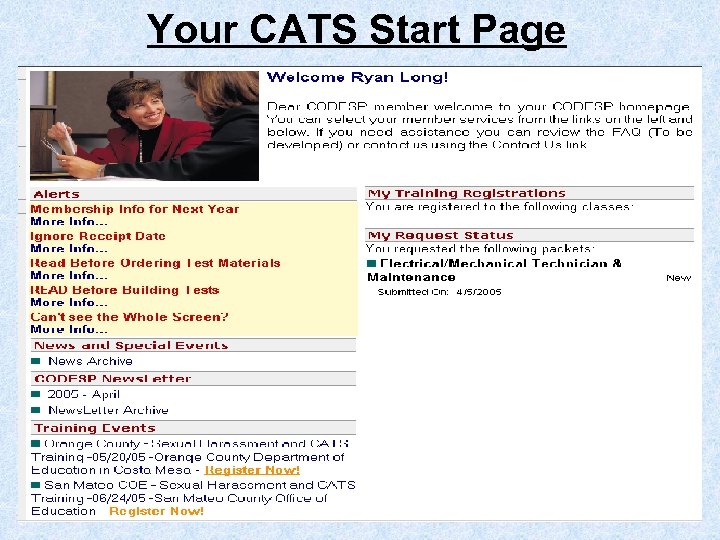 Your CATS Start Page
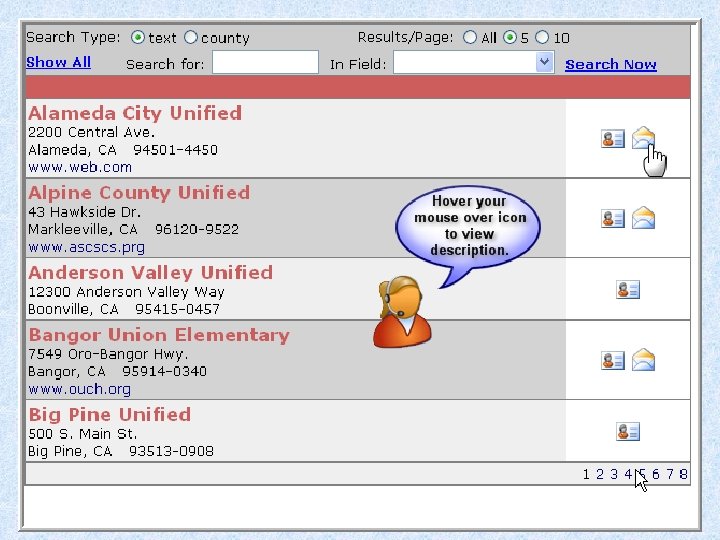
 Using the District Directory
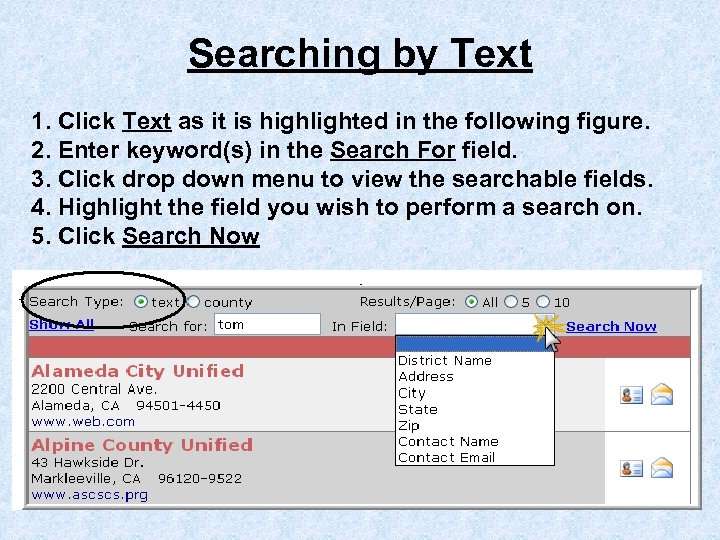 Searching by Text 1. Click Text as it is highlighted in the following figure. 2. Enter keyword(s) in the Search For field. 3. Click drop down menu to view the searchable fields. 4. Highlight the field you wish to perform a search on. 5. Click Search Now
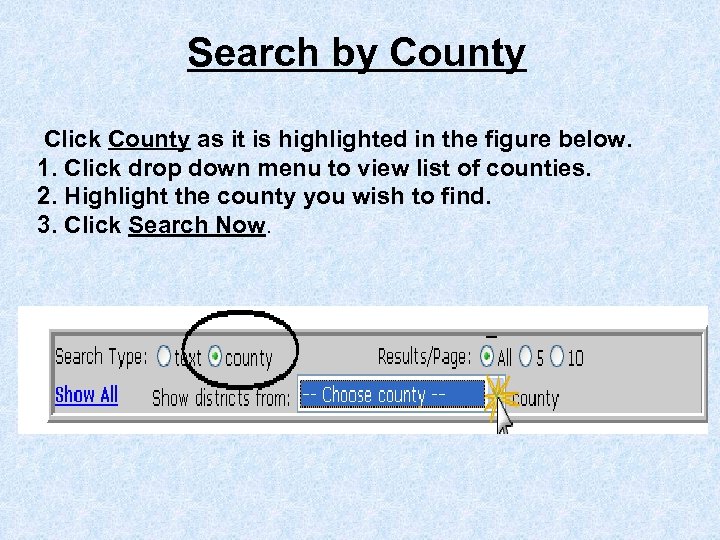 Search by County Click County as it is highlighted in the figure below. 1. Click drop down menu to view list of counties. 2. Highlight the county you wish to find. 3. Click Search Now.
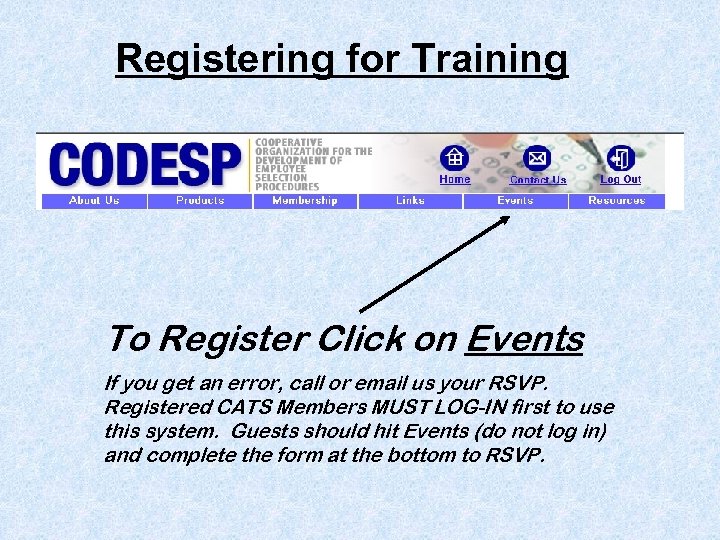 Registering for Training To Register Click on Events If you get an error, call or email us your RSVP. Registered CATS Members MUST LOG-IN first to use this system. Guests should hit Events (do not log in) and complete the form at the bottom to RSVP.
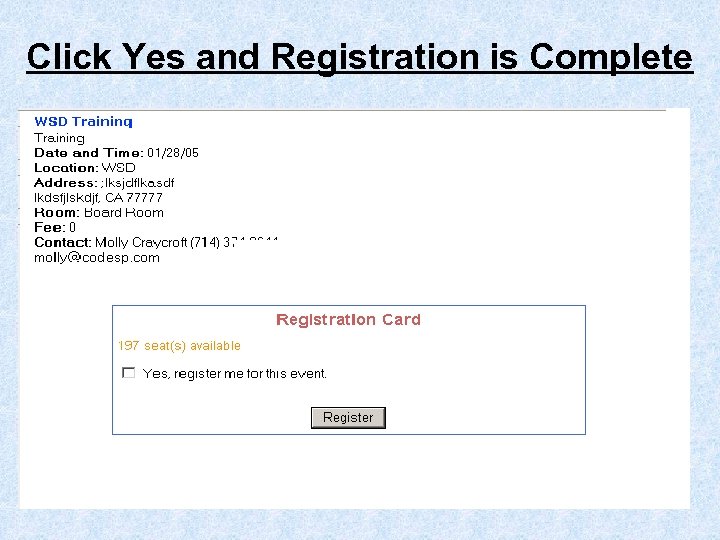 Click Yes and Registration is Complete
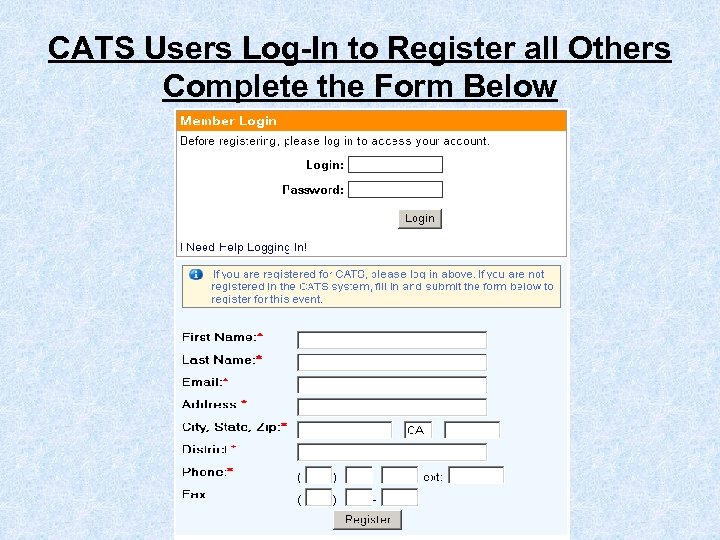 CATS Users Log-In to Register all Others Complete the Form Below