


 Скачать презентацию Call Center Reminders Page 1 June 29 2010
edcc1f39eec523ff3d016204f41d6e36.ppt
- Количество слайдов: 46
 Call Center Reminders Page 1 June 29, 2010
 Script and Security Page 2 June 29, 2010
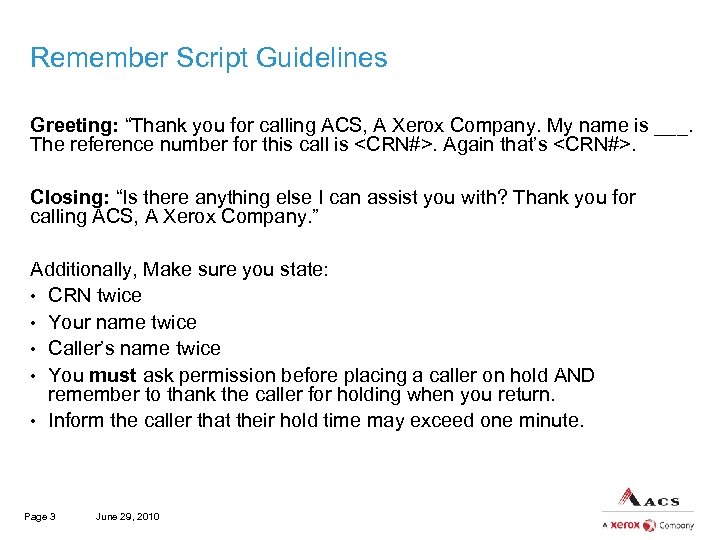 Remember Script Guidelines Greeting: “Thank you for calling ACS, A Xerox Company. My name is ___. The reference number for this call is
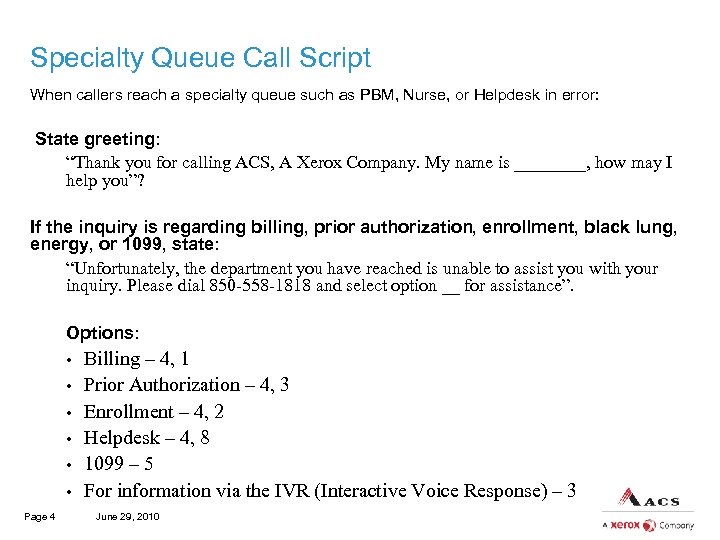 Specialty Queue Call Script When callers reach a specialty queue such as PBM, Nurse, or Helpdesk in error: State greeting: “Thank you for calling ACS, A Xerox Company. My name is ____, how may I help you”? If the inquiry is regarding billing, prior authorization, enrollment, black lung, energy, or 1099, state: “Unfortunately, the department you have reached is unable to assist you with your inquiry. Please dial 850 -558 -1818 and select option __ for assistance”. Options: • • • Page 4 Billing – 4, 1 Prior Authorization – 4, 3 Enrollment – 4, 2 Helpdesk – 4, 8 1099 – 5 For information via the IVR (Interactive Voice Response) – 3 June 29, 2010
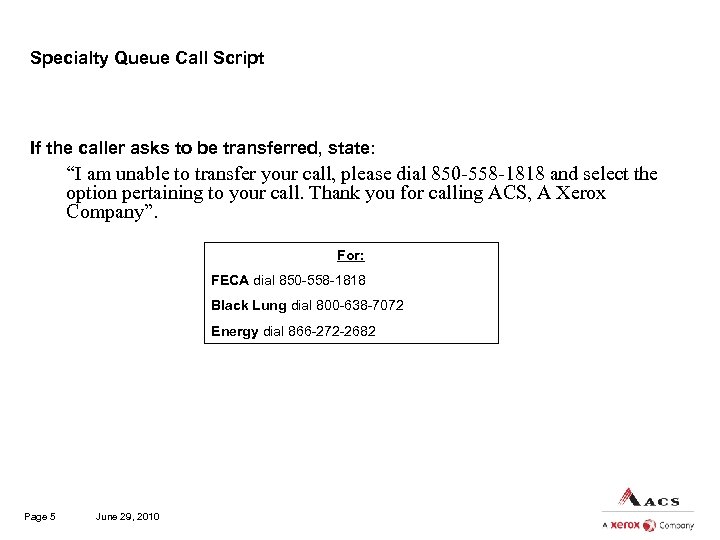 Specialty Queue Call Script If the caller asks to be transferred, state: “I am unable to transfer your call, please dial 850 -558 -1818 and select the option pertaining to your call. Thank you for calling ACS, A Xerox Company”. For: FECA dial 850 -558 -1818 Black Lung dial 800 -638 -7072 Energy dial 866 -272 -2682 Page 5 June 29, 2010
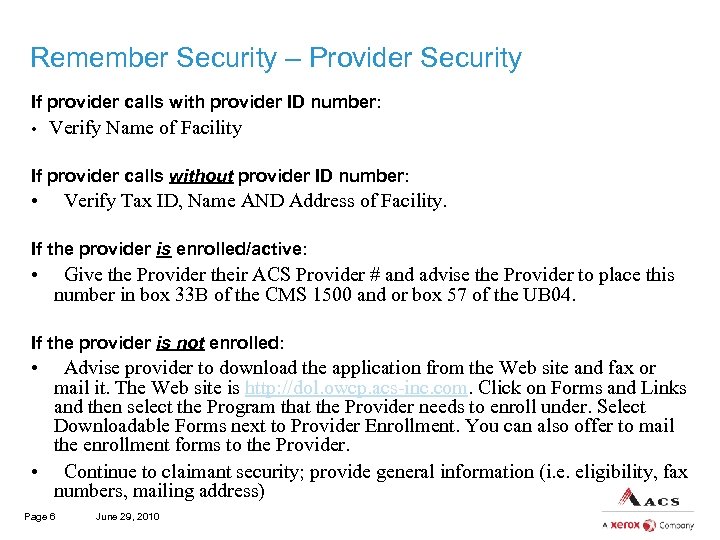 Remember Security – Provider Security If provider calls with provider ID number: • Verify Name of Facility If provider calls without provider ID number: • Verify Tax ID, Name AND Address of Facility. If the provider is enrolled/active: • Give the Provider their ACS Provider # and advise the Provider to place this number in box 33 B of the CMS 1500 and or box 57 of the UB 04. If the provider is not enrolled: • Advise provider to download the application from the Web site and fax or mail it. The Web site is http: //dol. owcp. acs-inc. com. Click on Forms and Links and then select the Program that the Provider needs to enroll under. Select Downloadable Forms next to Provider Enrollment. You can also offer to mail the enrollment forms to the Provider. • Continue to claimant security; provide general information (i. e. eligibility, fax numbers, mailing address) Page 6 June 29, 2010
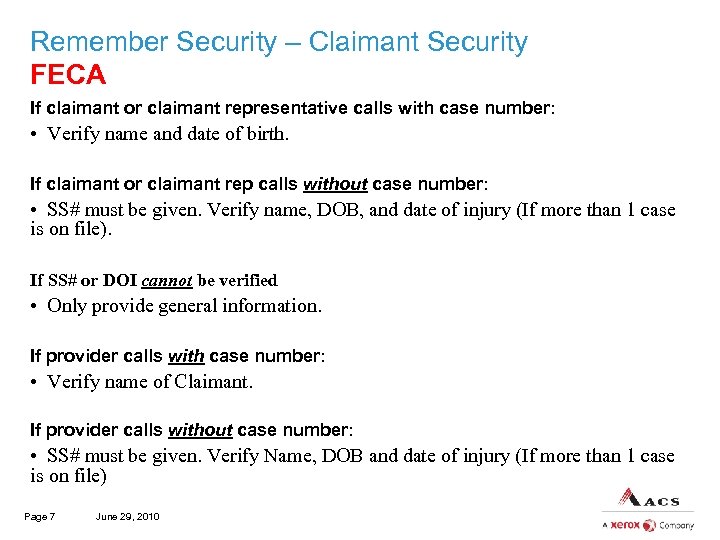 Remember Security – Claimant Security FECA If claimant or claimant representative calls with case number: • Verify name and date of birth. If claimant or claimant rep calls without case number: • SS# must be given. Verify name, DOB, and date of injury (If more than 1 case is on file). If SS# or DOI cannot be verified • Only provide general information. If provider calls with case number: • Verify name of Claimant. If provider calls without case number: • SS# must be given. Verify Name, DOB and date of injury (If more than 1 case is on file) Page 7 June 29, 2010
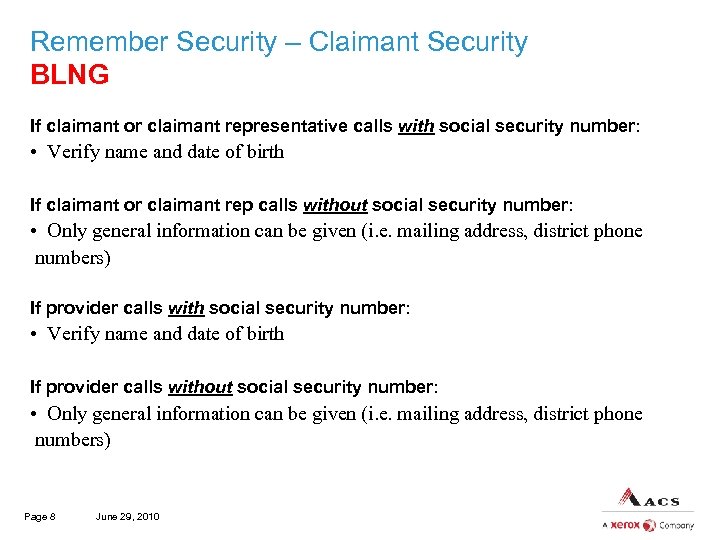 Remember Security – Claimant Security BLNG If claimant or claimant representative calls with social security number: • Verify name and date of birth If claimant or claimant rep calls without social security number: • Only general information can be given (i. e. mailing address, district phone numbers) If provider calls with social security number: • Verify name and date of birth If provider calls without social security number: • Only general information can be given (i. e. mailing address, district phone numbers) Page 8 June 29, 2010
 Remember Security – Claimant Security ENRG If claimant or claimant rep calls with social security number: • Verify name and date of birth AND if claimant rep, this person must be authorized in track case or the claimant MUST give you permission to speak with this person. If claimant or claimant rep calls without a social security number: • Only general information can be given (i. e. mailing address, district phone numbers) If provider calls with social security number: • Verify name and date of birth If provider calls without social security number: • Only general information can be given (i. e. mailing address, district phone numbers) Page 9 June 29, 2010
 Call Verbiage Page 10 June 29, 2010
 Drive Callers to the Web Portal When you are routing a request to a different department (i. e. PA, billing), DO NOT advise the caller to call back to check on the status of their request. Advise the caller to use the Web or IVR to follow-up on requests. You should encourage the use of the Web portal to decrease call volume and increase efficiency. Note: IVR is for FECA only Page 11 June 29, 2010
 Verbiage for Follow-up Requests – PA New Request PA Requests When providing instructions for a new Authorization Request, please advise the provider to visit the Web Portal: Ø 1.
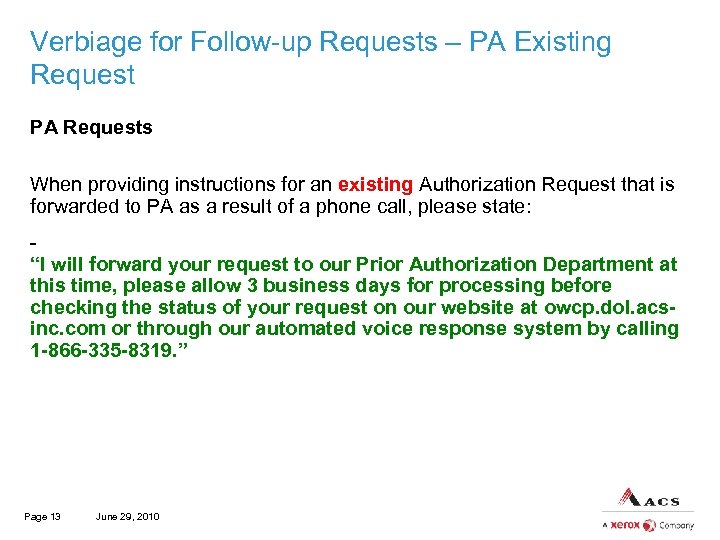 Verbiage for Follow-up Requests – PA Existing Request PA Requests When providing instructions for an existing Authorization Request that is forwarded to PA as a result of a phone call, please state: “I will forward your request to our Prior Authorization Department at this time, please allow 3 business days for processing before checking the status of your request on our website at owcp. dol. acsinc. com or through our automated voice response system by calling 1 -866 -335 -8319. ” Page 13 June 29, 2010
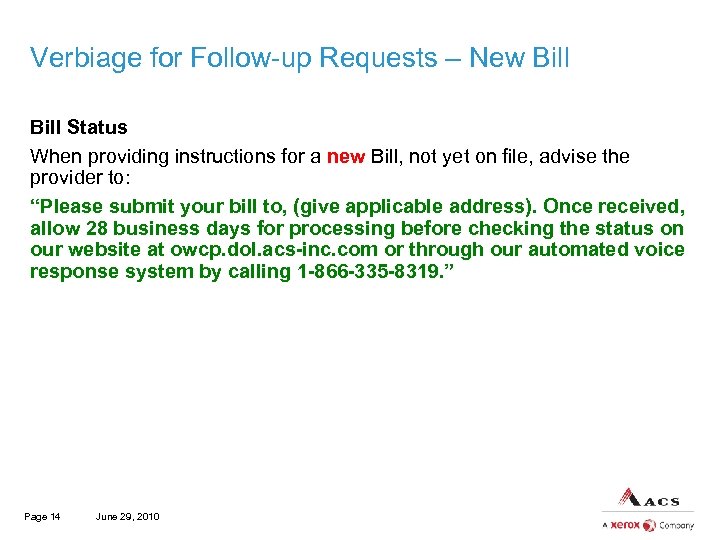 Verbiage for Follow-up Requests – New Bill Status When providing instructions for a new Bill, not yet on file, advise the provider to: “Please submit your bill to, (give applicable address). Once received, allow 28 business days for processing before checking the status on our website at owcp. dol. acs-inc. com or through our automated voice response system by calling 1 -866 -335 -8319. ” Page 14 June 29, 2010
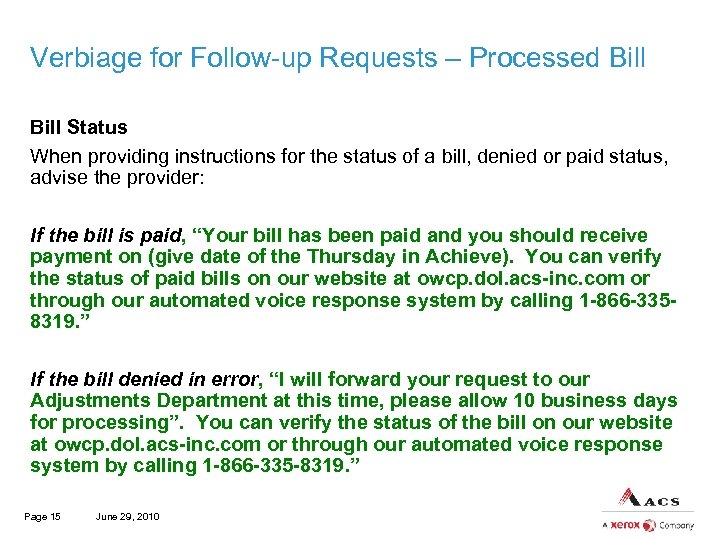 Verbiage for Follow-up Requests – Processed Bill Status When providing instructions for the status of a bill, denied or paid status, advise the provider: If the bill is paid, “Your bill has been paid and you should receive payment on (give date of the Thursday in Achieve). You can verify the status of paid bills on our website at owcp. dol. acs-inc. com or through our automated voice response system by calling 1 -866 -3358319. ” If the bill denied in error, “I will forward your request to our Adjustments Department at this time, please allow 10 business days for processing”. You can verify the status of the bill on our website at owcp. dol. acs-inc. com or through our automated voice response system by calling 1 -866 -335 -8319. ” Page 15 June 29, 2010
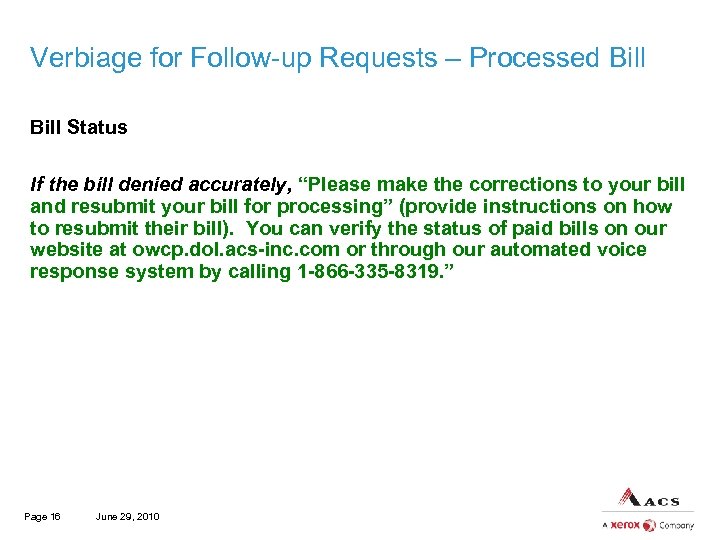 Verbiage for Follow-up Requests – Processed Bill Status If the bill denied accurately, “Please make the corrections to your bill and resubmit your bill for processing” (provide instructions on how to resubmit their bill). You can verify the status of paid bills on our website at owcp. dol. acs-inc. com or through our automated voice response system by calling 1 -866 -335 -8319. ” Page 16 June 29, 2010
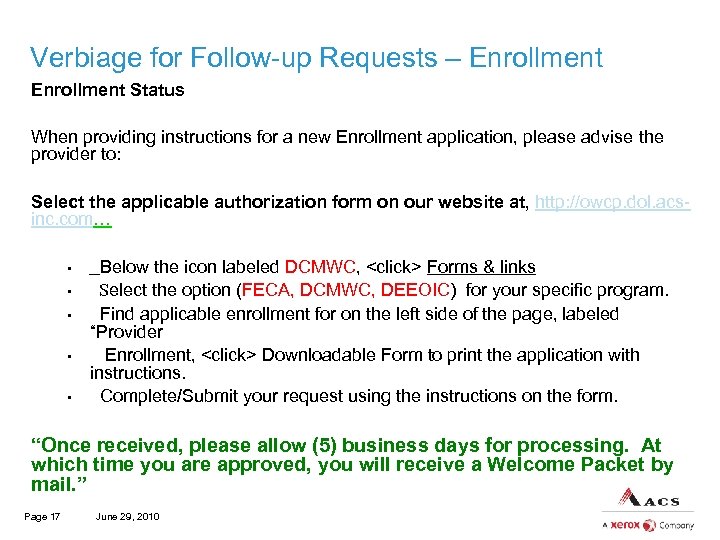 Verbiage for Follow-up Requests – Enrollment Status When providing instructions for a new Enrollment application, please advise the provider to: Select the applicable authorization form on our website at, http: //owcp. dol. acsinc. com… • • • Below the icon labeled DCMWC,
 Enrollment Reminders Page 18 June 29, 2010
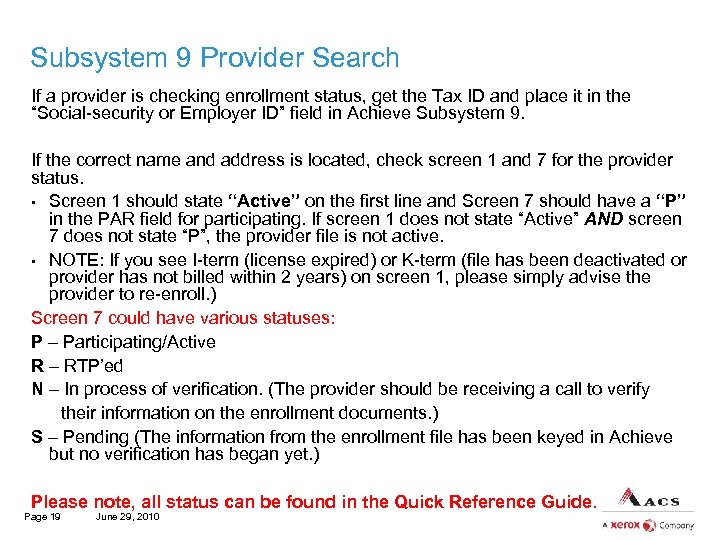 Subsystem 9 Provider Search If a provider is checking enrollment status, get the Tax ID and place it in the “Social-security or Employer ID” field in Achieve Subsystem 9. If the correct name and address is located, check screen 1 and 7 for the provider status. • Screen 1 should state “Active” on the first line and Screen 7 should have a “P” in the PAR field for participating. If screen 1 does not state “Active” AND screen 7 does not state “P”, the provider file is not active. • NOTE: If you see I-term (license expired) or K-term (file has been deactivated or provider has not billed within 2 years) on screen 1, please simply advise the provider to re-enroll. ) Screen 7 could have various statuses: P – Participating/Active R – RTP’ed N – In process of verification. (The provider should be receiving a call to verify their information on the enrollment documents. ) S – Pending (The information from the enrollment file has been keyed in Achieve but no verification has began yet. ) Please note, all status can be found in the Quick Reference Guide. Page 19 June 29, 2010
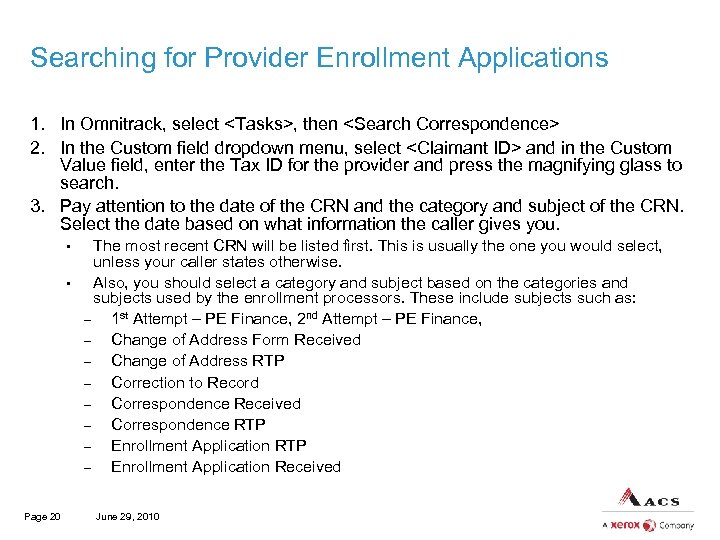 Searching for Provider Enrollment Applications 1. In Omnitrack, select
 Searching for Provider Enrollment Applications An enrollment processor would NOT use categories and subjects such as: • Application Status • Application Assistance • Enrollment These categories and subjects would be used for call center agents. You would never document any category and subject used by the enrollment processors. The categories and subjects listed above should be used by the call center agents when documenting enrollment calls. Page 21 June 29, 2010
 Enrollment RTP Reasons Enrollment RTP reasons can be found in SIR on the left hand side under PEN Legend. You should look at the note in SIR on the left hand side to show the RTP reasons. The reasons will appear in two sets. (i. e. 3/39). • The first number gives you an overview idea of what is wrong with the enrollment application. • The second number gives you specific details as to what is wrong. In this example, the first number 3 means Practice Type and reason 39 means Incorrect Practice Type. Requests should NOT be routed to Enrollment to provide an explanation of what an RTP reason means. In addition to the PEN legend, all RTP reasons are located in the Quick Reference Guide. Page 22 June 29, 2010
 EFT Verification If a provider suddenly stops receiving EFT payments (meaning payments are being rejected in Achieve) and the provider file has not been updated, there is no need to send a request to verify EFT. The provider should send their current banking information for verification and update. Page 23 June 29, 2010
 List of Providers The Enrollment Department can provide a list of provider Ids that are enrolled under a specific tax id. However, the enrollment department CANNOT provide a list of individual doctors listed under the group. This spreadsheet can only be emailed as a PDF; it cannot be faxed or mailed. Remember to document the provider’s email address before ending the call. Page 24 June 29, 2010
 Welcome Packet Requests Welcome packets cannot be sent to any other address if it is not listed on the provider file (screen 1 or 3 in Subsystem 9). CRNs that are routed to request the Welcome Packet to be sent to another address other than the physical or billing, cannot be processed. Welcome Packets and Enrollment Packets are two separate documents. • Welcome Packets are sent to the provider once they are enrolled. • Enrollment packets are the actual forms to enroll. Page 25 June 29, 2010
 PA Reminders Page 26 June 29, 2010
 Inpatient Stay Requests If a provider is requesting authorization for an inpatient admission, whether it is a retro or prior authorization, this should ALWAYS be routed. Complete the inpatient template (located on the Universal Template) and place at the very TOP of the CRN. The agent should use Rev Code Range 0100 -0219 when filling out template. Admitting Diagnosis: (include admitting diagnosis code from provider) Rev Code: (use Rev code range 0100 -0219) Admission Date: (include admission dates – from and to dates are required) Length of Stay: (include the number of nights claimant will be inpatient) Surgery Date: (only include if the reason for admission is surgery) Reason for Admission: (include reason claimant is staying in hospital – i. e. inpatient rehab, surgery, observation, etc. ) Inpatient stay is not a sufficient reason. DCN: (include DCN for any medical support, if available) Page 27 June 29, 2010
 Inpatient Stay Requests Next, fill out the PA portion of the Universal Template and route the completed CRN to Work Unit: Prior Authorizations. DX/Accepted Conditions: DCN: DOS: Procedure/HCPCS/NDC Codes: (rev code 0120 -0219) Units/Visits: Price: (only for DME) Body Part: Page 28 June 29, 2010
 Resources The Quick Reference Guide is located on the J-Drive under a folder named “Quick Reference Guide. ” You should refer to this book to answer questions before asking for assistance. Page 29 June 29, 2010
 Dress Code Page 30 June 29, 2010
 Dress Code The following is an outline of the ACS, A Xerox Company dress code. Please adhere to the dress code at all times. Failure to comply may result in disciplinary action and/or employee returning home to change clothes without pay. If the employee returns home he/she must return to work immediately. • Open toe shoes may be worn year round • Thong shoes are not permitted - exception on Saturday • Sneakers and T-shirts are only permitted on jeans day – Monday, Friday • Hosiery and socks are not required • Skirts must be at least knee length • Pants must be at least ankle length - exception on Saturday • No hats or head gear permitted – exception on Saturday • Belts must be worn when belt loops are visible - exception on Saturday Pants must be on the waist (no sagging) Page 31 June 29, 2010
 Dress Code (continued) Absolutely no halter tops, tank tops, tube tops, capris or spaghetti straps. You will be able to wear sleeveless blouses but these sleeves must come to the shoulder and should fully cover any undergarments, if not a jacket must be worn or be sent home to change clothes or get a jacket. Page 32 June 29, 2010
 New Quality Assurance Database Page 33 June 29, 2010
 New QA Database Effective today, all agents and processors will have the ability to review their QA scores online. You will be able to pull your QA scores for the last 2 months for review. You will have access to do this at your convenience/preference. Follow the steps below to start your journey to QA freedom! Page 34 June 29, 2010
 Step 1 – Agent QAC ID and Password 1. Before this class, your supervisor should have assigned/given you have your “Agent QAC ID and QAC Password. If not, please see your supervisor. Page 35 June 29, 2010
 Step 2 – Access the Database on J-Drive 2. Access the new “QAC Agent Reporting” Microsoft Access Database located on the J: Drive in the following folder: J: QAC Agent Reporting Page 36 June 29, 2010
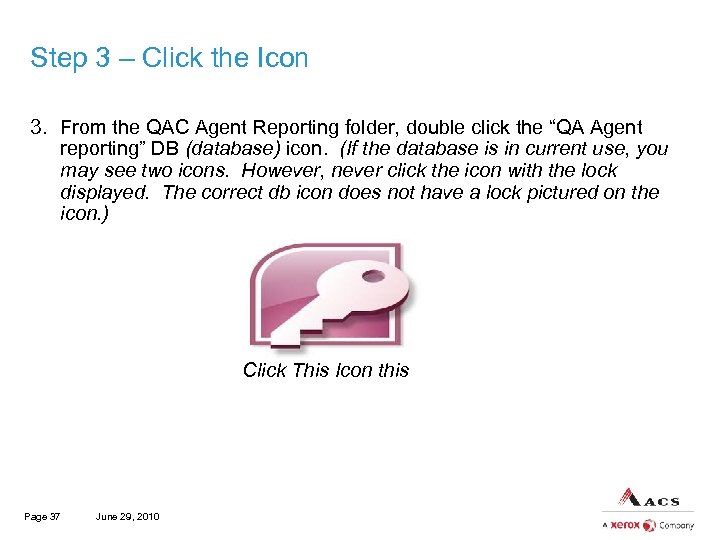 Step 3 – Click the Icon 3. From the QAC Agent Reporting folder, double click the “QA Agent reporting” DB (database) icon. (If the database is in current use, you may see two icons. However, never click the icon with the lock displayed. The correct db icon does not have a lock pictured on the icon. ) Click this icon. Click This Icon this icon. Page 37 June 29, 2010
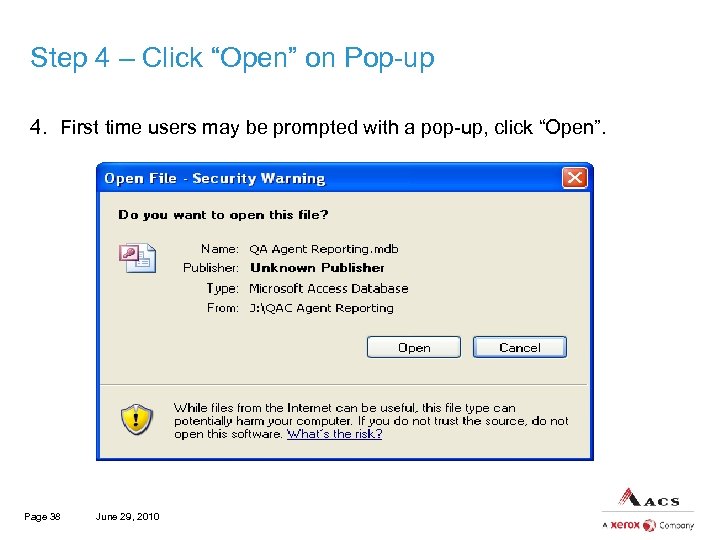 Step 4 – Click “Open” on Pop-up 4. First time users may be prompted with a pop-up, click “Open”. Page 38 June 29, 2010
 Step 5 - Search 5. Once the database opens, the agent reporting criteria form labeled “QAC Quality Assurance Center, Agent Reporting” will display. Input the following and click save criteria: a. Begin Date i. Month/Day/Year ii. 5/19/12 b. End Date (Note: In an effort to keep the i. Month/Day/Year system’s response time quick and user friendly, the system ii. 05/19/12 c. Agent QAC ID d. i. Case sensitive d. QAC Password e. i. Case sensitive Page 39 June 29, 2010 will only allow you to retrieve no more than 2 months of past data. )
 Step 6 – Save Criteria Click the “save criteria” button. Page 40 June 29, 2010
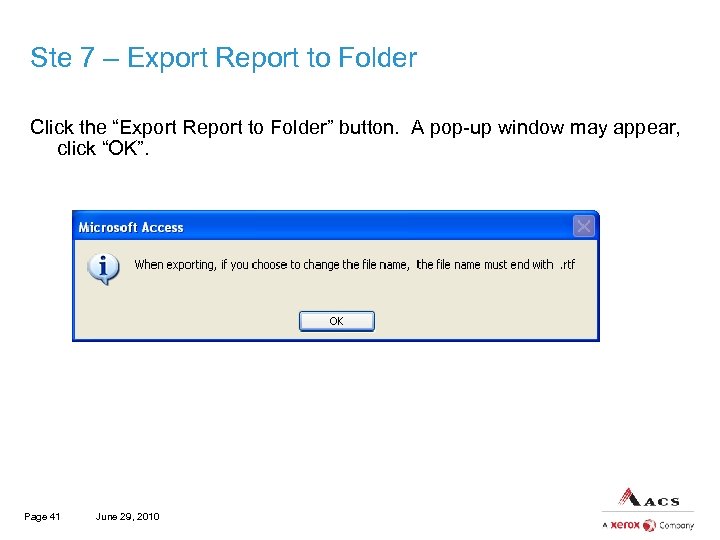 Ste 7 – Export Report to Folder Click the “Export Report to Folder” button. A pop-up window may appear, click “OK”. Page 41 June 29, 2010
 Step 8 – Save the Report Save the report to the drive/folder of choice. a. Select the drive for your department. For example, all call agents should have access to the J drive. b. Select your folder on the department’s drive. c. You may keep the file name “QAC Agent Reporting. rtf” or input a new file name. (Please keep in mind that when exporting, if you choose to change the file name, the file name must end with. rtf ) d. The “Save as type” field will auto populate “All Files” - do not change. Click ok. Page 42 June 29, 2010
 Step 9 – Export Complete File export is now complete. Go to the designated drive/folder to review your QAC Agent report. Page 43 June 29, 2010
 See Supervisor for handouts and Questions! Page 44 June 29, 2010
 Test Your Knowledge Page 45 June 29, 2010
 Access Quiz Page 46 June 29, 2010