 Скачать презентацию Brief introduction to Primary Care GP SOAR users
4ec3bd99942adcddd7ef45e09e3740eb.ppt
- Количество слайдов: 24




Brief introduction to Primary Care (GP) SOAR users www. appraisal. nes. scot. nhs. uk Last updated: 24 th August 2012
Outline of this presentation • Overview of an Appraisal on SOAR - Step-by-step guide • Breakdown of tasks • For Appraisers and Appraisees • Screenshots guidance • Summary of important tasks • Support for going forward 2
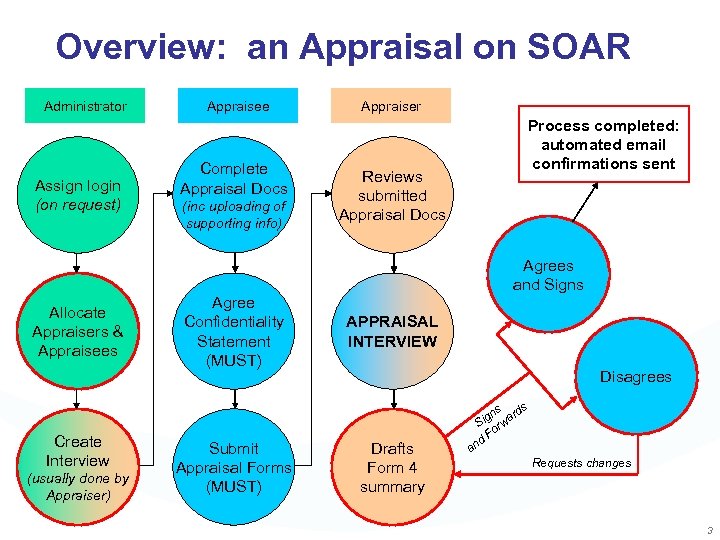
Overview: an Appraisal on SOAR Administrator Assign login (on request) Appraisee Complete Appraisal Docs (inc uploading of supporting info) Appraiser Reviews submitted Appraisal Docs Process completed: automated email confirmations sent Agrees and Signs Allocate Appraisers & Appraisees Create Interview (usually done by Appraiser) Agree Confidentiality Statement (MUST) Submit Appraisal Forms (MUST) APPRAISAL INTERVIEW Disagrees Drafts Form 4 summary s ds ign war S or F nd a Requests changes 3
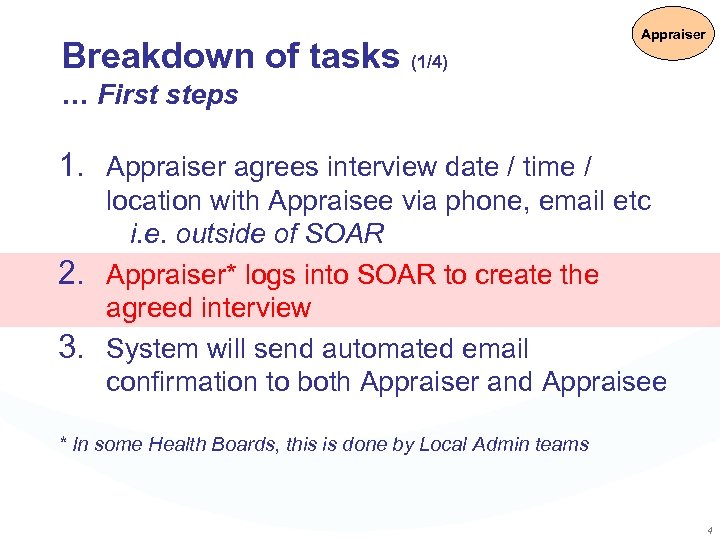
Breakdown of tasks (1/4) Appraiser … First steps 1. Appraiser agrees interview date / time / location with Appraisee via phone, email etc i. e. outside of SOAR 2. Appraiser* logs into SOAR to create the agreed interview 3. System will send automated email confirmation to both Appraiser and Appraisee * In some Health Boards, this is done by Local Admin teams 4
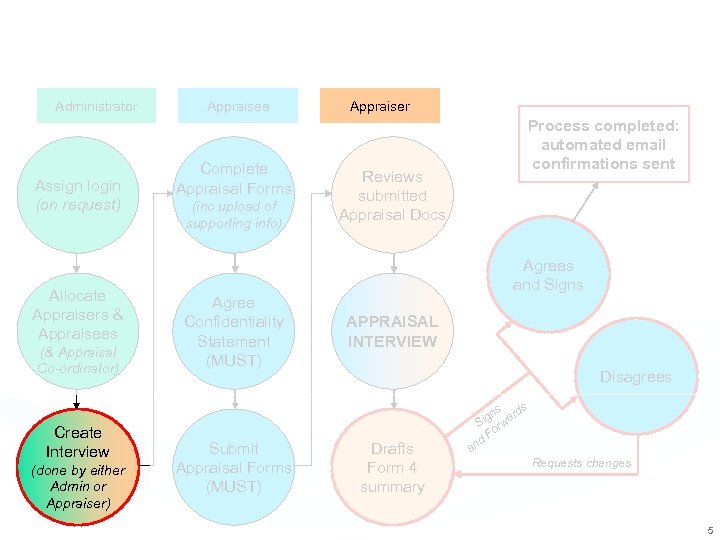
Administrator Assign login (on request) Allocate Appraisers & Appraisees (& Appraisal Co-ordinator) Create Interview (done by either Admin or Appraiser) Appraisee Complete Appraisal Forms (inc upload of supporting info) Appraiser Reviews submitted Appraisal Docs Process completed: automated email confirmations sent Agrees and Signs Agree Confidentiality Statement (MUST) Submit Appraisal Forms (MUST) APPRAISAL INTERVIEW Disagrees Drafts Form 4 summary s ds ign war S or F nd a Requests changes 5
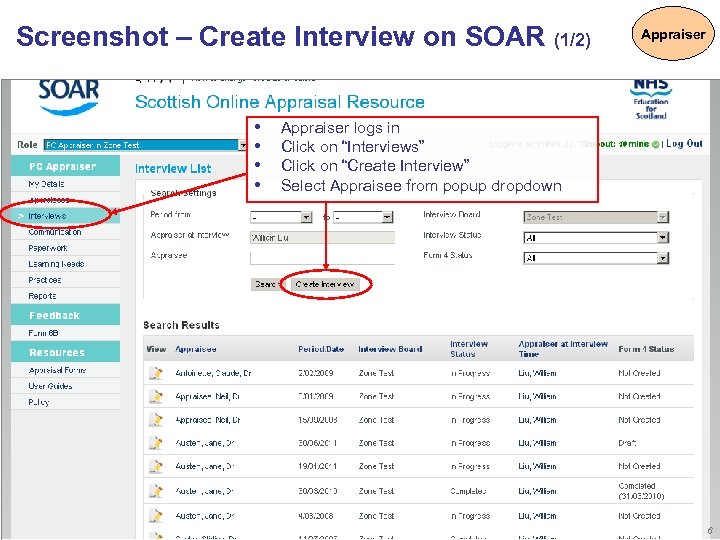
Screenshot – Create Interview on SOAR (1/2) • • Appraiser logs in Click on “Interviews” Click on “Create Interview” Select Appraisee from popup dropdown 6
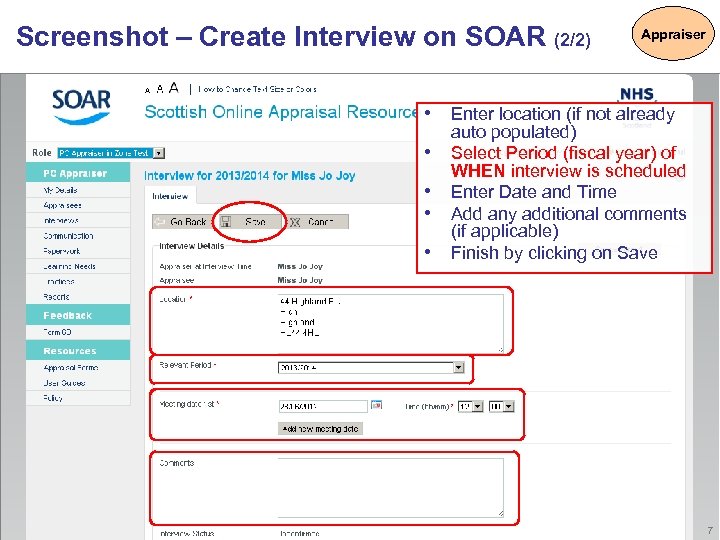
Screenshot – Create Interview on SOAR (2/2) Appraiser • Enter location (if not already • • auto populated) Select Period (fiscal year) of WHEN interview is scheduled Enter Date and Time Add any additional comments (if applicable) Finish by clicking on Save 7
Breakdown of tasks (2/4) Appraisee … after interview has been created 4. Appraisee logs in; completes Appraisal Forms 1 -3 and uploads any supporting information as required 5. Appraisee submits the completed Appraisal Forms to the interview page (step 2) in order to share them with Appraiser • A read-only snapshot PDF of the forms is created • in the interview page (auto email to Appraiser) Appraisee can resubmit the forms if they wish (additional supporting information; missed questions on Appraisal Forms etc) 8
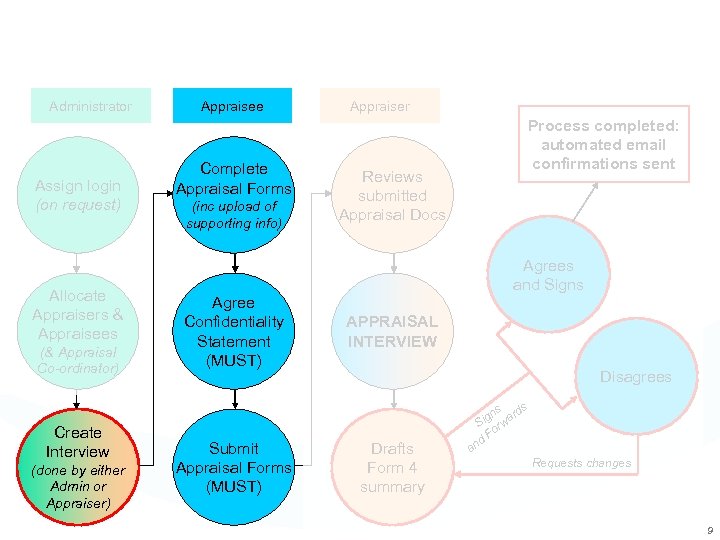
Administrator Assign login (on request) Allocate Appraisers & Appraisees (& Appraisal Co-ordinator) Create Interview (done by either Admin or Appraiser) Appraisee Complete Appraisal Forms (inc upload of supporting info) Appraiser Reviews submitted Appraisal Docs Process completed: automated email confirmations sent Agrees and Signs Agree Confidentiality Statement (MUST) Submit Appraisal Forms (MUST) APPRAISAL INTERVIEW Disagrees Drafts Form 4 summary s ds ign war S or F nd a Requests changes 9
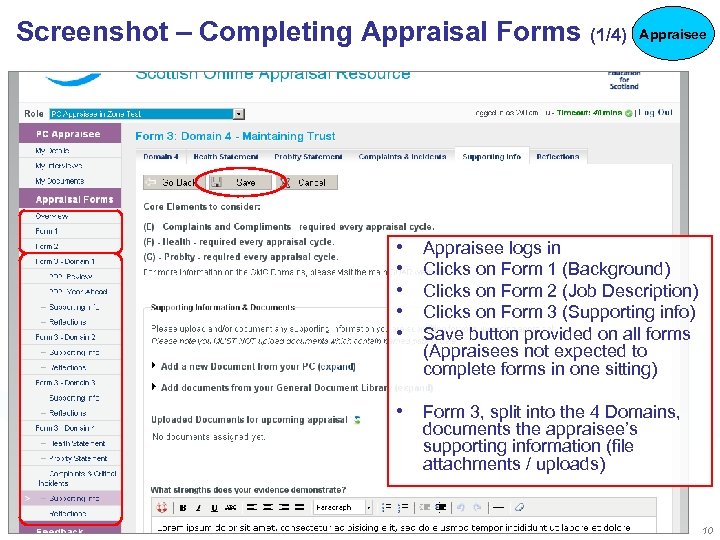
Screenshot – Completing Appraisal Forms (1/4) • • • Appraisee logs in Clicks on Form 1 (Background) Clicks on Form 2 (Job Description) Clicks on Form 3 (Supporting info) Save button provided on all forms (Appraisees not expected to complete forms in one sitting) • Form 3, split into the 4 Domains, documents the appraisee’s supporting information (file attachments / uploads) 10
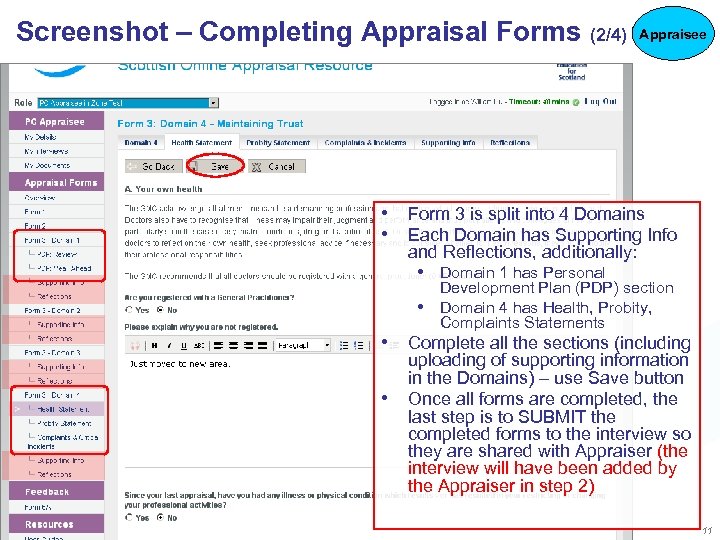
Screenshot – Completing Appraisal Forms (2/4) Appraisee • Form 3 is split into 4 Domains • Each Domain has Supporting Info and Reflections, additionally: • Domain 1 has Personal Development Plan (PDP) section • Domain 4 has Health, Probity, Complaints Statements • Complete all the sections (including • uploading of supporting information in the Domains) – use Save button Once all forms are completed, the last step is to SUBMIT the completed forms to the interview so they are shared with Appraiser (the interview will have been added by the Appraiser in step 2) 11
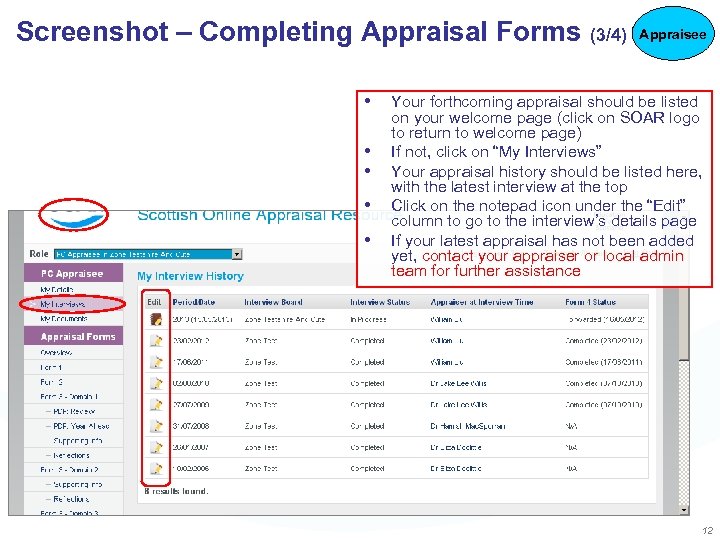
Screenshot – Completing Appraisal Forms (3/4) • • • Appraisee Your forthcoming appraisal should be listed on your welcome page (click on SOAR logo to return to welcome page) If not, click on “My Interviews” Your appraisal history should be listed here, with the latest interview at the top Click on the notepad icon under the “Edit” column to go to the interview’s details page If your latest appraisal has not been added yet, contact your appraiser or local admin team for further assistance 12
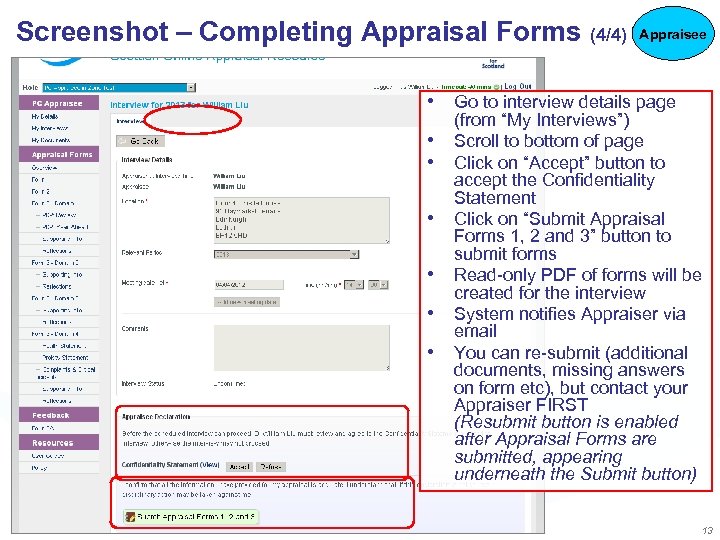
Screenshot – Completing Appraisal Forms (4/4) Appraisee • Go to interview details page • • • (from “My Interviews”) Scroll to bottom of page Click on “Accept” button to accept the Confidentiality Statement Click on “Submit Appraisal Forms 1, 2 and 3” button to submit forms Read-only PDF of forms will be created for the interview System notifies Appraiser via email You can re-submit (additional documents, missing answers on form etc), but contact your Appraiser FIRST (Resubmit button is enabled after Appraisal Forms are submitted, appearing underneath the Submit button) 13
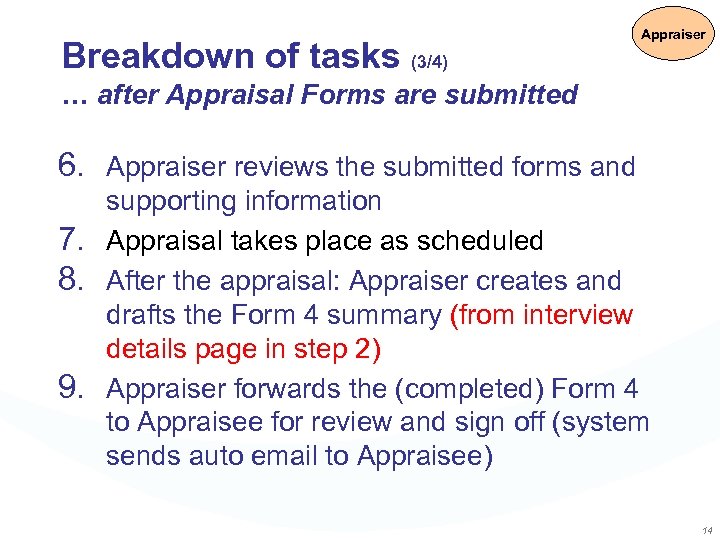
Breakdown of tasks (3/4) Appraiser … after Appraisal Forms are submitted 6. Appraiser reviews the submitted forms and supporting information 7. Appraisal takes place as scheduled 8. After the appraisal: Appraiser creates and drafts the Form 4 summary (from interview details page in step 2) 9. Appraiser forwards the (completed) Form 4 to Appraisee for review and sign off (system sends auto email to Appraisee) 14
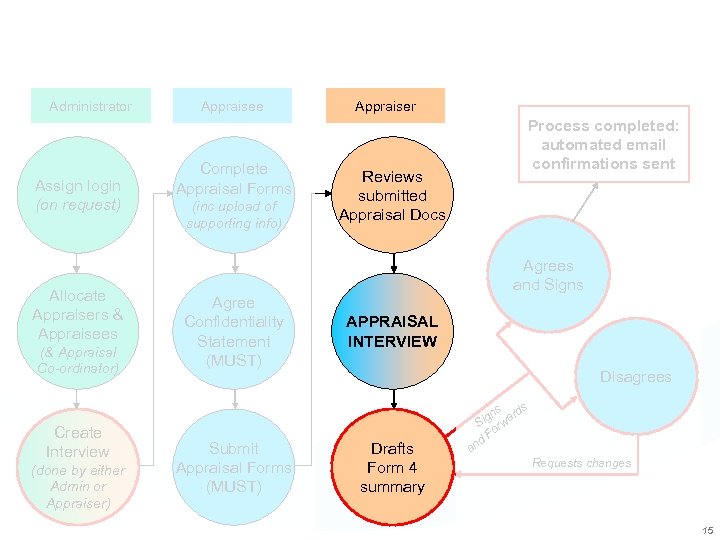
Administrator Assign login (on request) Allocate Appraisers & Appraisees (& Appraisal Co-ordinator) Create Interview (done by either Admin or Appraiser) Appraisee Complete Appraisal Forms (inc upload of supporting info) Appraiser Reviews submitted Appraisal Docs Process completed: automated email confirmations sent Agrees and Signs Agree Confidentiality Statement (MUST) Submit Appraisal Forms (MUST) APPRAISAL INTERVIEW Disagrees Drafts Form 4 summary s ds ign war S or F nd a Requests changes 15
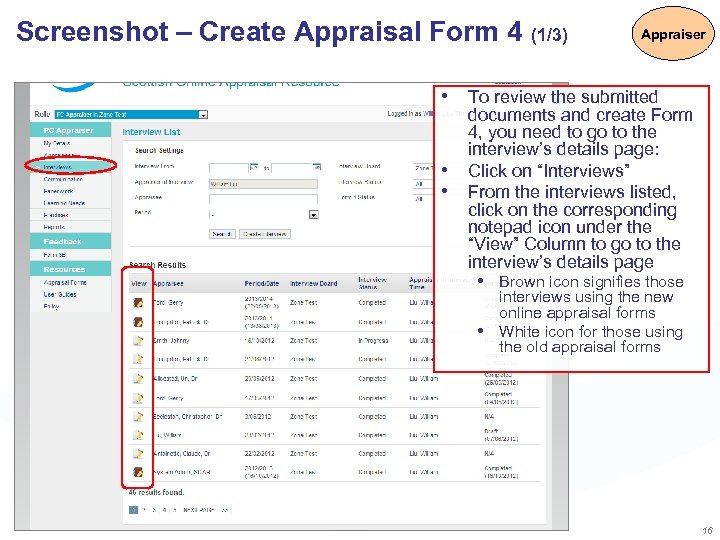
Screenshot – Create Appraisal Form 4 (1/3) Appraiser • To review the submitted • • documents and create Form 4, you need to go to the interview’s details page: Click on “Interviews” From the interviews listed, click on the corresponding notepad icon under the “View” Column to go to the interview’s details page • Brown icon signifies those interviews using the new online appraisal forms • White icon for those using the old appraisal forms 16
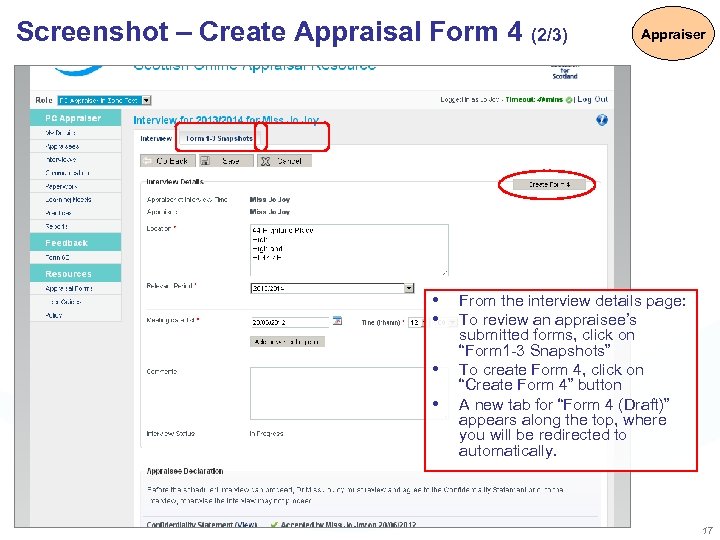
Screenshot – Create Appraisal Form 4 (2/3) • • Appraiser From the interview details page: To review an appraisee’s submitted forms, click on “Form 1 -3 Snapshots” To create Form 4, click on “Create Form 4” button A new tab for “Form 4 (Draft)” appears along the top, where you will be redirected to automatically. 17
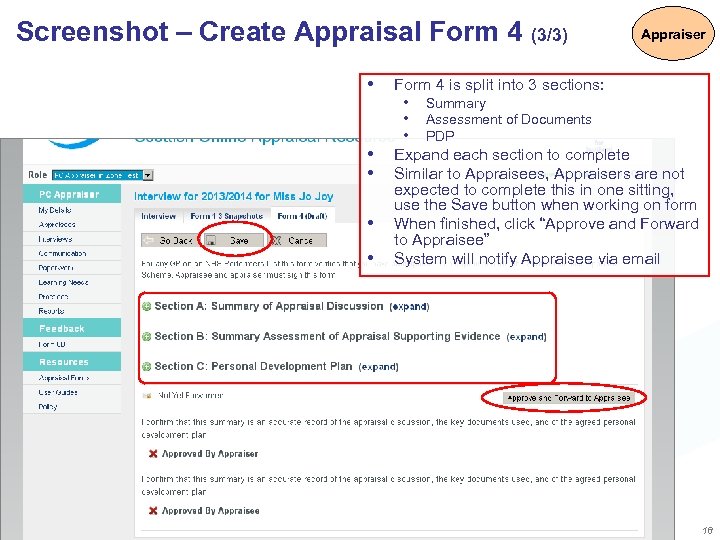
Screenshot – Create Appraisal Form 4 (3/3) • • • Appraiser Form 4 is split into 3 sections: • Summary • Assessment of Documents • PDP Expand each section to complete Similar to Appraisees, Appraisers are not expected to complete this in one sitting, use the Save button when working on form When finished, click “Approve and Forward to Appraisee” System will notify Appraisee via email 18
Breakdown of tasks (4/4) Appraisee … after Form 4 has been forwarded 10. Appraisee reviews draft Form 4 • • If Appraisee wants changes made, they click "Change Request" button and detail accordingly in the popup box, the system will unlock the form for Appraiser to make the necessary changes and re-forward to Appraisee If Appraisee is happy with the content of the form, they click "Approve Form 4" and the interview is marked as completed - the system sends automated email to Appraiser, Appraisee, and local Admins to confirm the interview has taken place and Form 4 has been completed 19
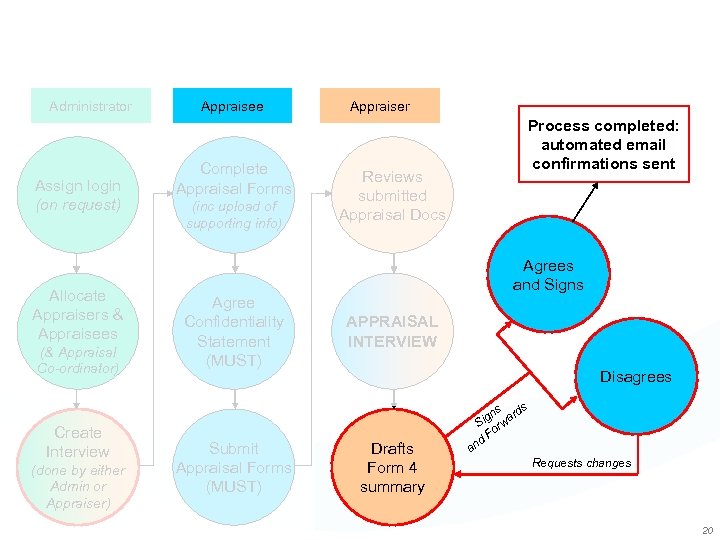
Administrator Assign login (on request) Allocate Appraisers & Appraisees (& Appraisal Co-ordinator) Create Interview (done by either Admin or Appraiser) Appraisee Complete Appraisal Forms (inc upload of supporting info) Appraiser Reviews submitted Appraisal Docs Process completed: automated email confirmations sent Agrees and Signs Agree Confidentiality Statement (MUST) Submit Appraisal Forms (MUST) APPRAISAL INTERVIEW Disagrees Drafts Form 4 summary s ds ign war S or F nd a Requests changes 20
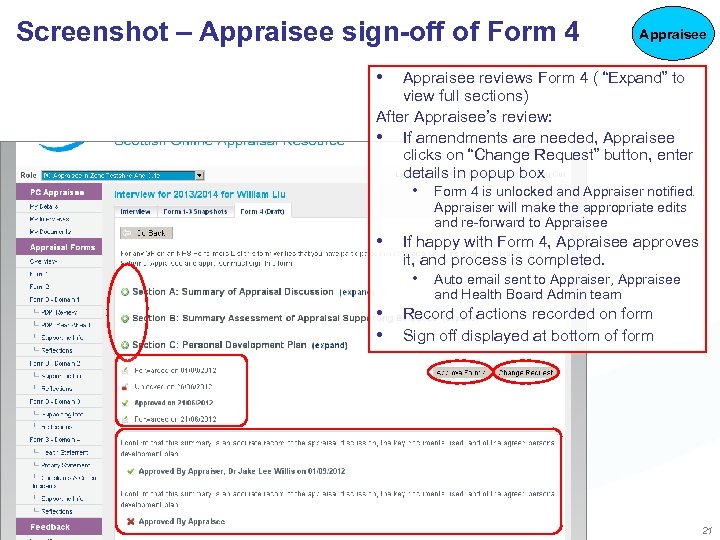
Screenshot – Appraisee sign-off of Form 4 Appraisee • Appraisee reviews Form 4 ( “Expand” to view full sections) After Appraisee’s review: • If amendments are needed, Appraisee clicks on “Change Request” button, enter details in popup box • Form 4 is unlocked and Appraiser notified. Appraiser will make the appropriate edits and re-forward to Appraisee • If happy with Form 4, Appraisee approves it, and process is completed. • Auto email sent to Appraiser, Appraisee and Health Board Admin team • • Record of actions recorded on form Sign off displayed at bottom of form 21
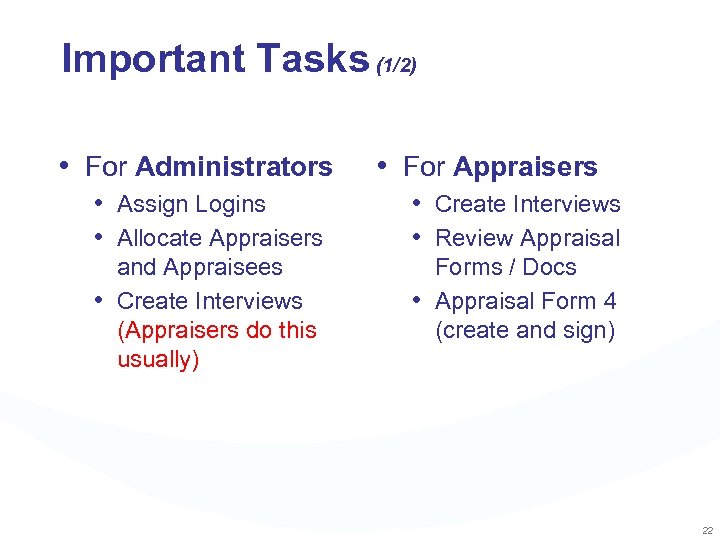
Important Tasks (1/2) • For Administrators • For Appraisers • Assign Logins • Allocate Appraisers • Create Interviews • Review Appraisal and Appraisees • Create Interviews (Appraisers do this usually) Forms / Docs • Appraisal Form 4 (create and sign) 22
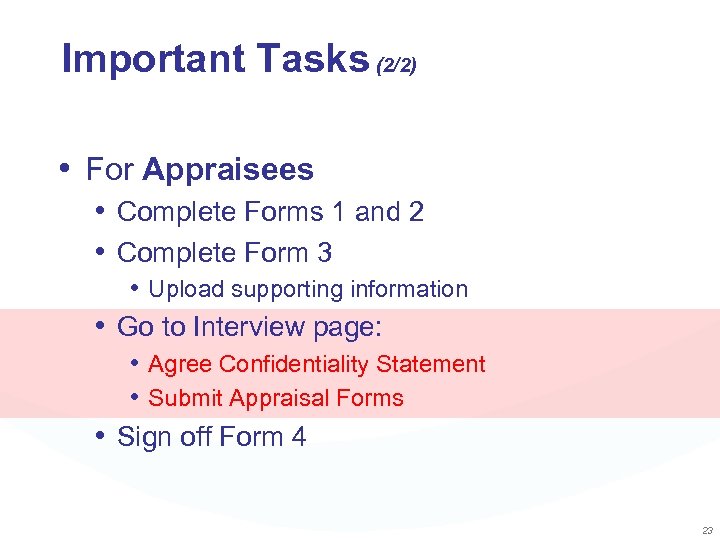
Important Tasks (2/2) • For Appraisees • Complete Forms 1 and 2 • Complete Form 3 • Upload supporting information • Go to Interview page: • Agree Confidentiality Statement • Submit Appraisal Forms • Sign off Form 4 23
Support - www. appraisal. nes. scot. nhs. uk • SOAR for GPs information site: • http: //gp. appraisal. nes. scot. nhs. uk • Guidance to appraisal and revalidation • Guidance on using SOAR Database • Live Web. Ex demo sessions • And much, much more! • William Liu or Atia Khan-Tahir: • william. liu@nes. scot. nhs. uk • atia. khan-tahir@nes. scot. nhs. uk Here to help! • Report problems: • We can only improve with YOUR feedback! 24
Скачать презентацию Brief introduction to Primary Care GP SOAR users
4ec3bd99942adcddd7ef45e09e3740eb.ppt